

A workflow-oriented guide to creating tasks, enriching context, and tracking execution in QoderWork
You interact with QoderWork through natural-language conversation — describe a goal, the AI plans and executes, and delivers the result. This page follows the actual workflow, from creating a task to iterating on it.
Describe the result you want in the input bar at the bottom, choose how it should run, then send. A complete task creation has four steps: describe → workspace → model → working folder.
How well a task goes often depends on how much useful context the model receives up front. Beyond typing directly, you can wire all kinds of capabilities and material into a task through three entry points: the 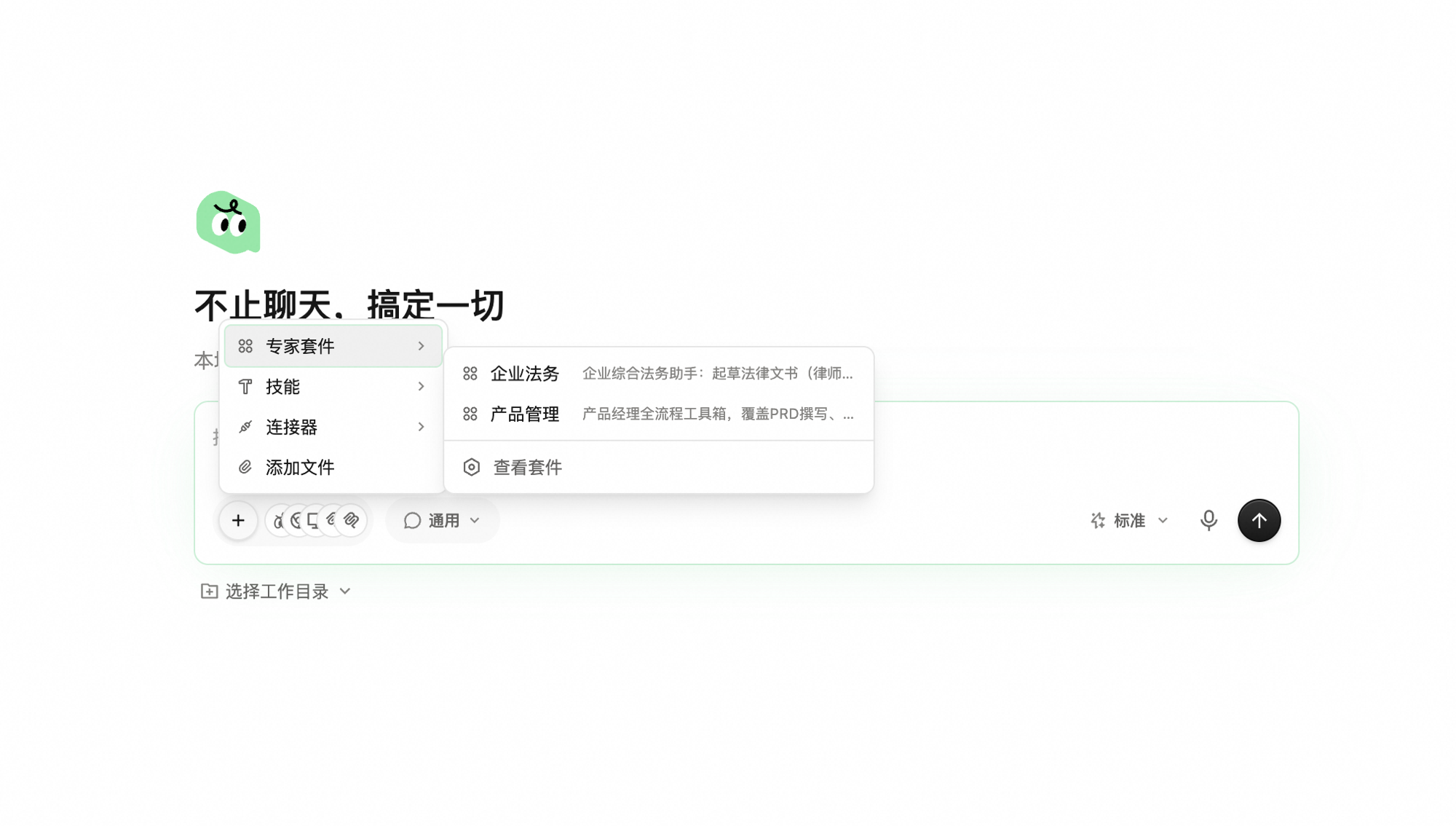
Pre-packaged domain expertise (Enterprise Legal, Product Management, etc.); one pick swaps in the prompts, skills, and reference material a specialist would use. Here you can only reference an already-installed Expert Kit — via the
Best when you want one ability, not a whole expert. Two ways:
External services the model can read from or act on (Jira, Slack, Notion, and more). Add one from the
Pull in local files, screenshots, and other material as task input. Two entry points: click the
Type
After you submit, the workspace switches to the task conversation page: the conversation stream is on the left (your back-and-forth with the AI), and the Task Monitor is on the right, showing what the AI is doing in real time.
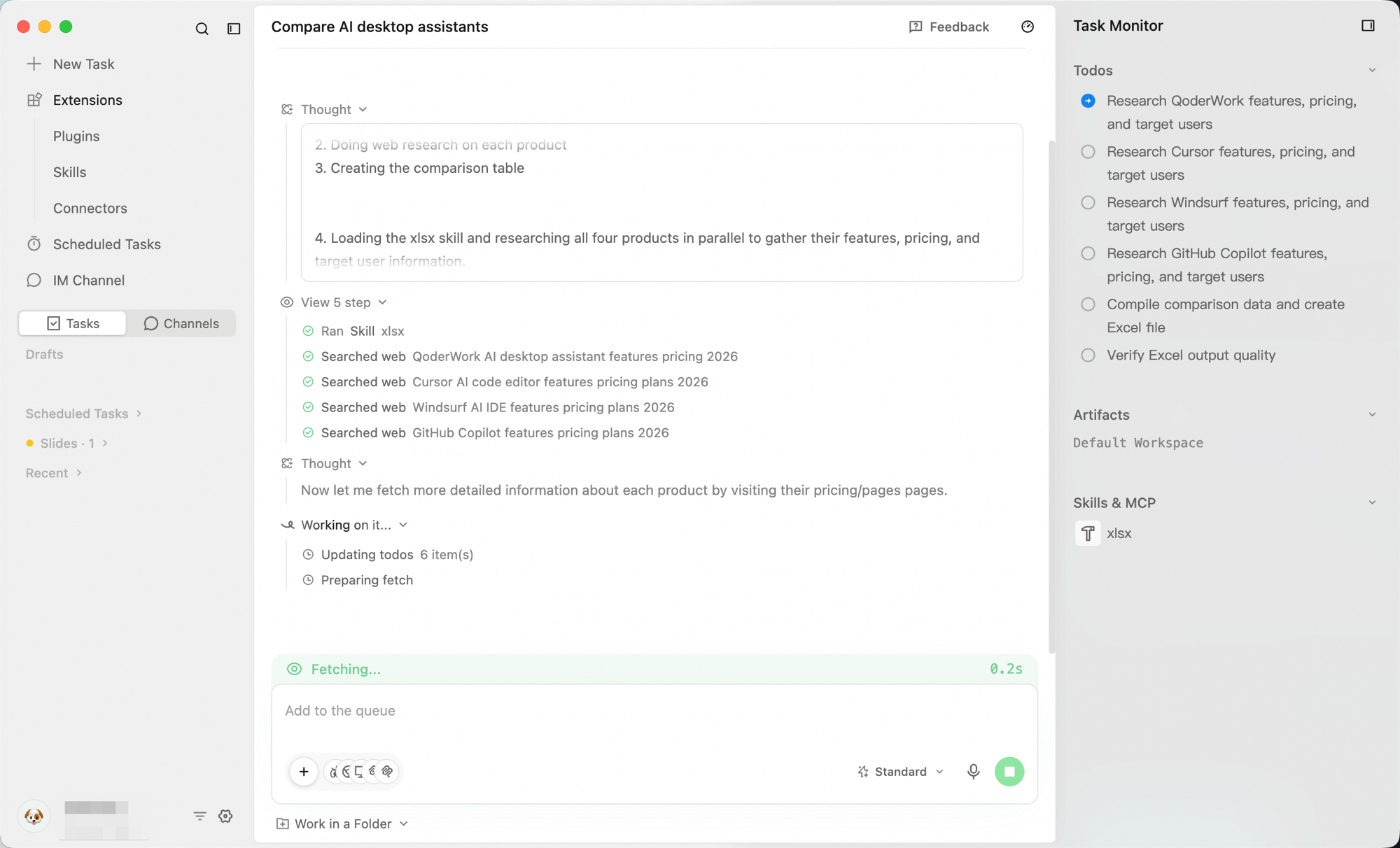
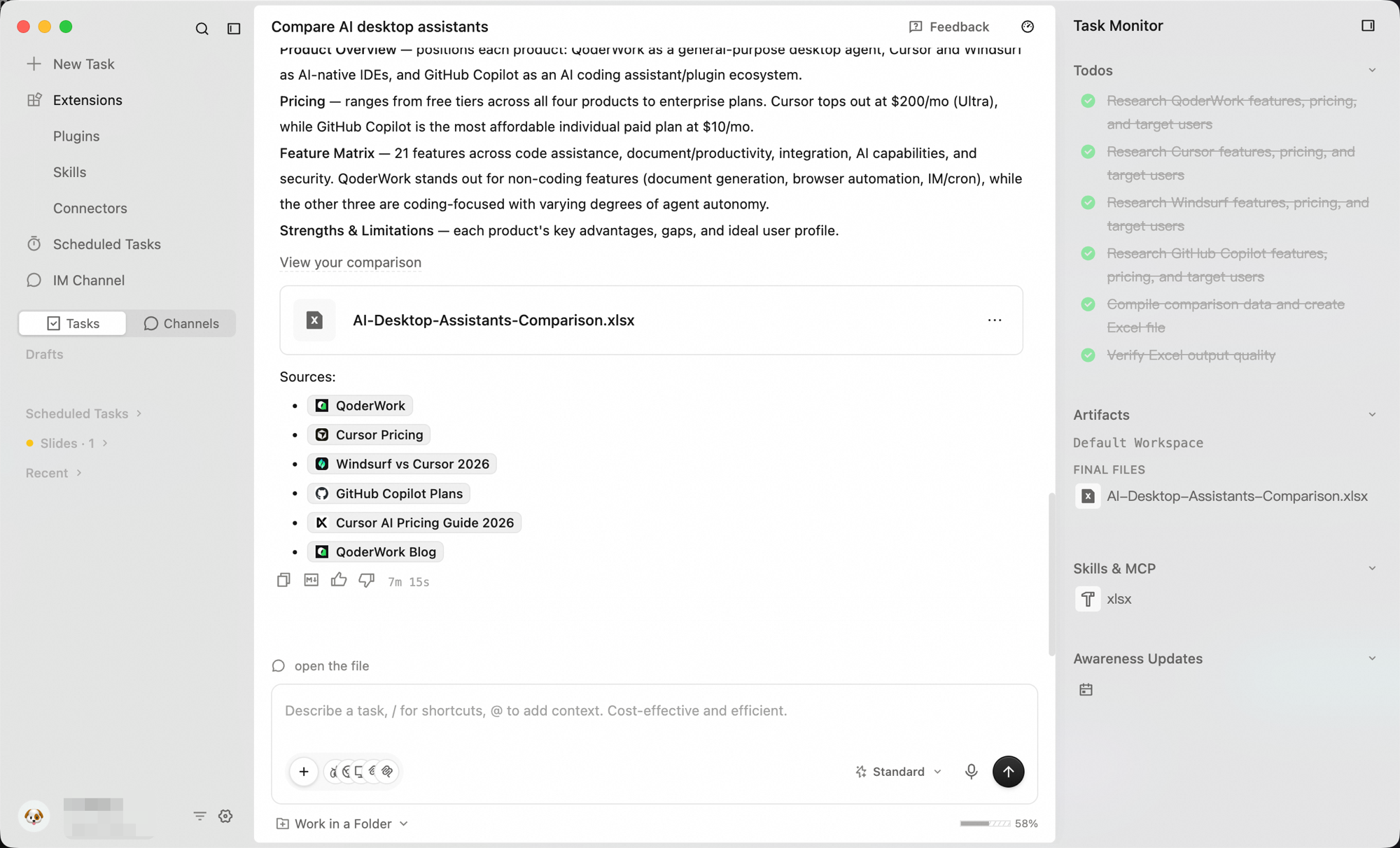
The input bar stays available on the task conversation page. Instructions you send while the task is still running are queued and run after the current round finishes, while instructions you send after it completes start immediately — and either way QoderWork keeps the full task context, so there's no need to repeat what you've already said.
A few common iteration patterns:
Add during execution:
Refine after completion:
Change the format:
Add or drop a dimension:
Fix a specific row or value:
Roll back:
Just say what you want changed or added — there's no special syntax. QoderWork edits the existing artifacts using the full task context, so iterations are fast and cumulative.
A voice input button sits on the right side of the input bar — useful when you're sketching a long task description out loud, walking through a list of requirements, or just don't want to type. For shortcuts and language settings, see Voice Input.
Create a task
Describe the result you want in the input bar at the bottom, choose how it should run, then send. A complete task creation has four steps: describe → workspace → model → working folder.
1
Describe the task
Type your goal in the input bar.The most effective prompts are outcome-oriented — say what you want delivered, not the steps to get there. Imagine briefing a capable colleague over chat: state the goal, the format, and any constraints.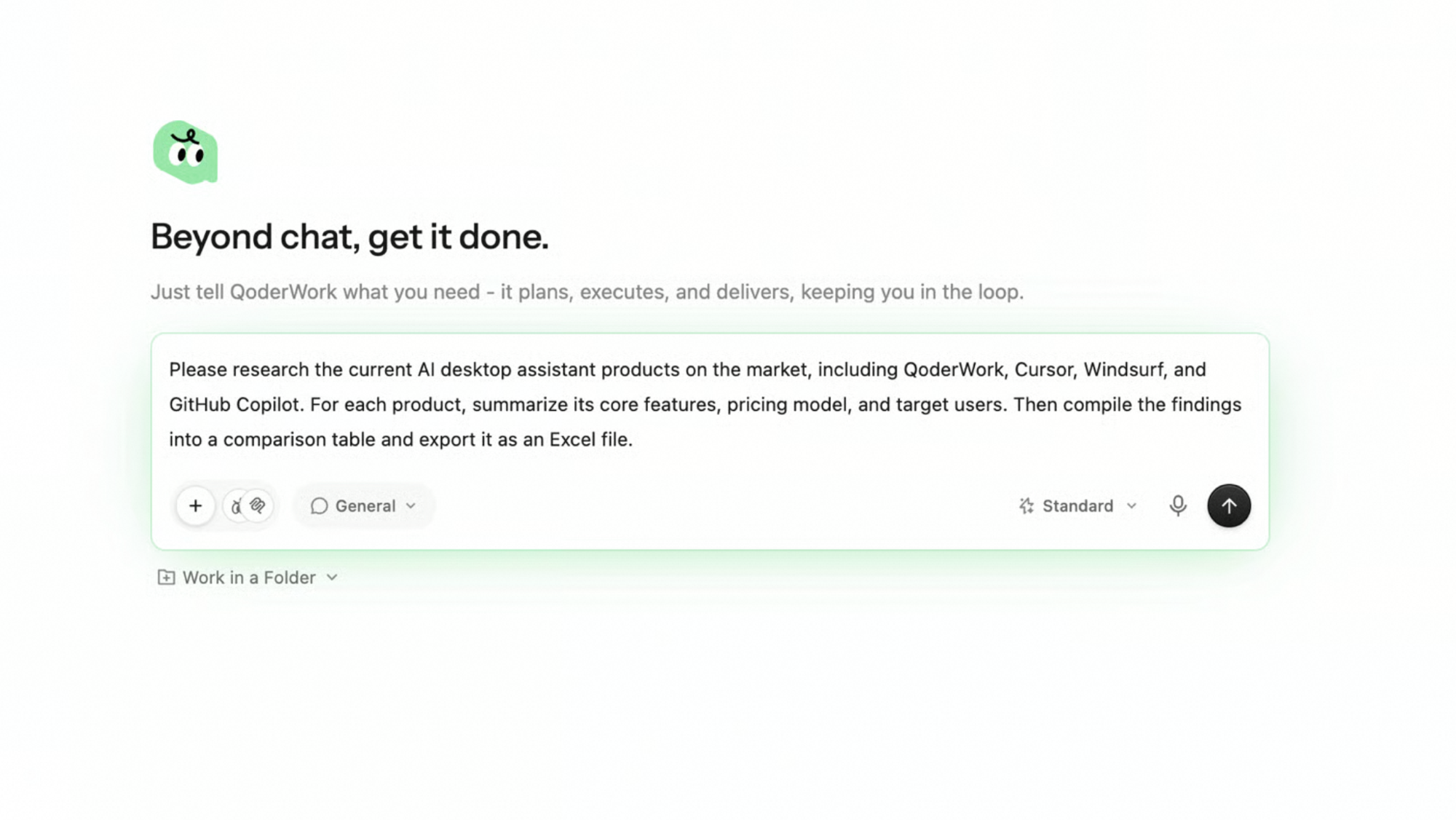
2
Pick a workspace
The Workspace picker at the bottom-left of the input bar (default General) selects the workspace the task runs in. Click it to see the available workspaces: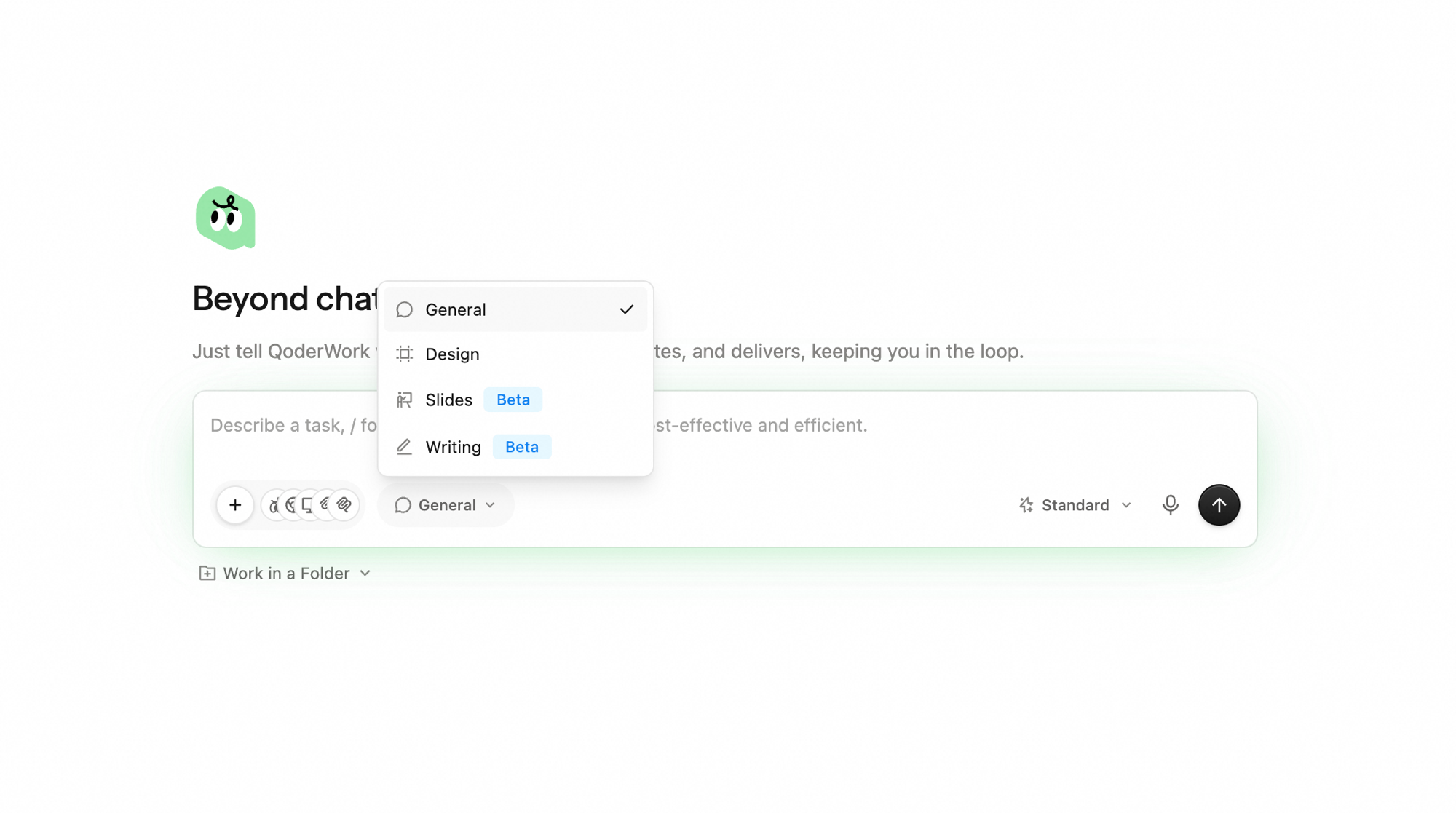 Keep General for everyday work. Switch to a more specialized workspace when the task calls for it.
3
Pick a model
The Model picker at the bottom-right of the input bar selects the model that powers the task. Click it to expand the full list.Keep Standard for most everyday work. Switch to Premium for harder or higher-stakes deliverables, or pick Qwen3.7-Max when you need its specific capabilities.
4
Pick a working folder (optional)
The Work in a Folder control at the bottom of the input bar binds the task to a local folder. Once bound, QoderWork reads from and writes into that folder. Recommended for tasks that involve multiple files or need to produce files on disk.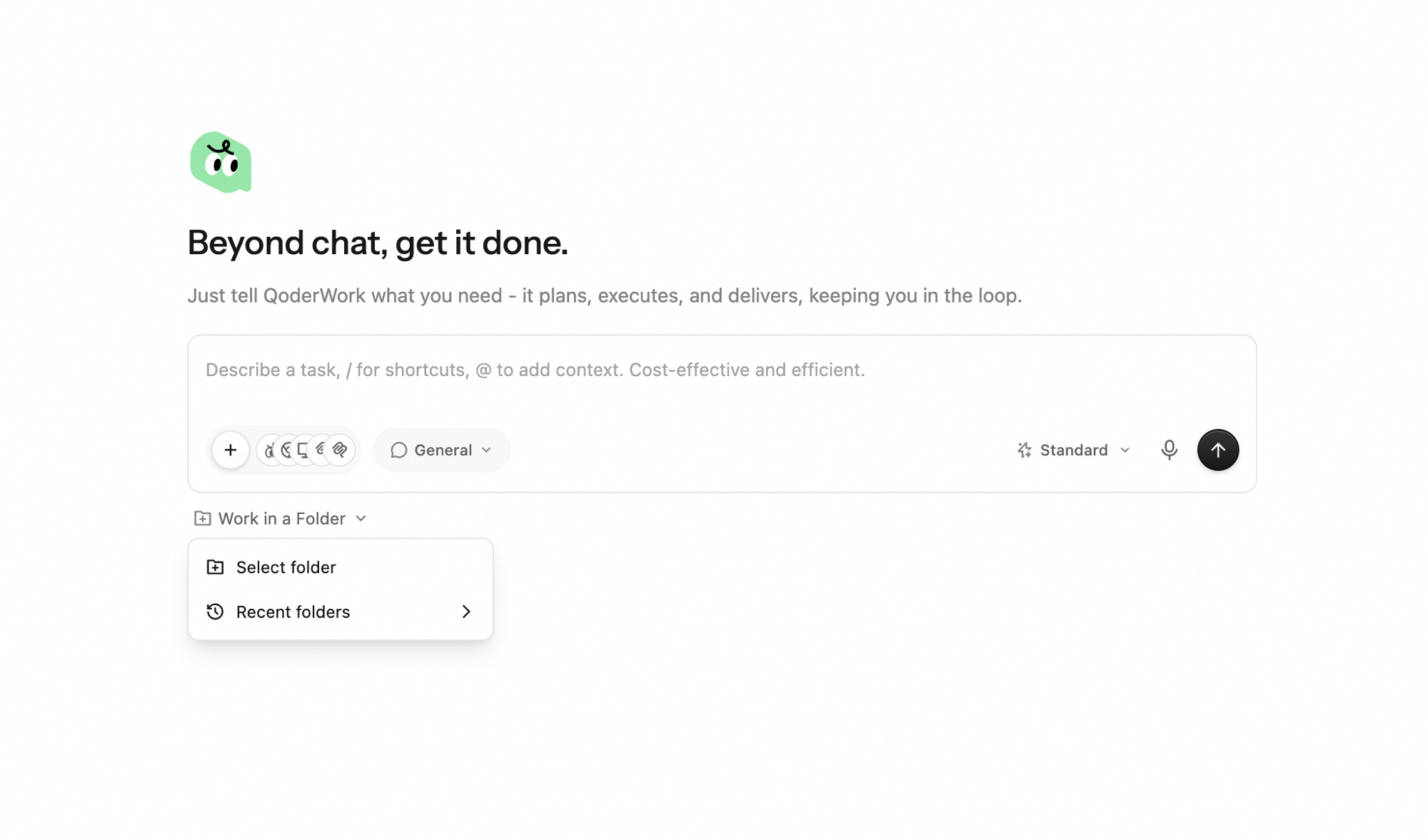
5
Send
Click the send button to submit.
Enrich the task with context
How well a task goes often depends on how much useful context the model receives up front. Beyond typing directly, you can wire all kinds of capabilities and material into a task through three entry points: the + button on the left of the input bar, @ to reference something QoderWork already knows (expert kits, previous tasks, scheduled tasks), and / to call skills and commands.
Add an Expert Kit
Pre-packaged domain expertise (Enterprise Legal, Product Management, etc.); one pick swaps in the prompts, skills, and reference material a specialist would use. Here you can only reference an already-installed Expert Kit — via the + menu → Expert Kits, or by typing @. To use a new kit, install it first from the Expert Kit marketplace under Extensions → Expert Kits; once installed, it appears here for you to reference. See Expert Kits.
Add a Skill
Best when you want one ability, not a whole expert. Two ways: + menu → Skills, or type / in the input bar to call it directly — pre-built recipes the model follows step-by-step instead of planning from scratch. The / menu includes built-in commands like find-skills, create-skill, and plugin-creator, as well as domain skills such as xlsx, pptx, pdf, docx, and PRD generation. Common picks:
find-skills— search the skill marketplace by describing what you want the AI to do.create-skill— capture a flow that worked into a reusable skill.
/ and skim the list. See Skills.
Add a Connector
External services the model can read from or act on (Jira, Slack, Notion, and more). Add one from the + menu → Connectors. See Connectors.
Add files
Pull in local files, screenshots, and other material as task input. Two entry points: click the + button on the left of the input bar and choose Add files, or pick Add files at the top of the / menu.
Add a scheduled task
Type @ in the input bar to reference a configured scheduled task — pulling its setup into the current conversation without re-describing it. See Scheduled Tasks.
While the task runs
After you submit, the workspace switches to the task conversation page: the conversation stream is on the left (your back-and-forth with the AI), and the Task Monitor is on the right, showing what the AI is doing in real time.
What you're looking at
- Conversation stream (left) — the model streams thoughts, tool calls, and interim conclusions. Anything you'd want to read or react to.
- Task Monitor (right) — three panels keep you in sync with the run:
- To-Do plan — the steps the model committed to. Tells you what's done, what's next, and whether the plan itself makes sense.
- Artifacts — files being produced as the run goes; click one to preview before the run finishes. Artifacts are real local files, created and saved directly on your computer, that you can open, edit, or move at any time.
- Skills & MCP — which Skills and MCP tools the model is currently using.