

A complete guide to installing and setting up QoderWork on Windows.
System Requirements
| Requirement | Minimum |
|---|---|
| OS | Windows 10 (64-bit) or later |
| Architecture | x86_64 (AMD64) |
| Storage | 500 MB free space |
| Network | Stable internet connection |
Installation Steps
1
Download the installer
Visit qoderwork.com and click the Windows button to download the latest 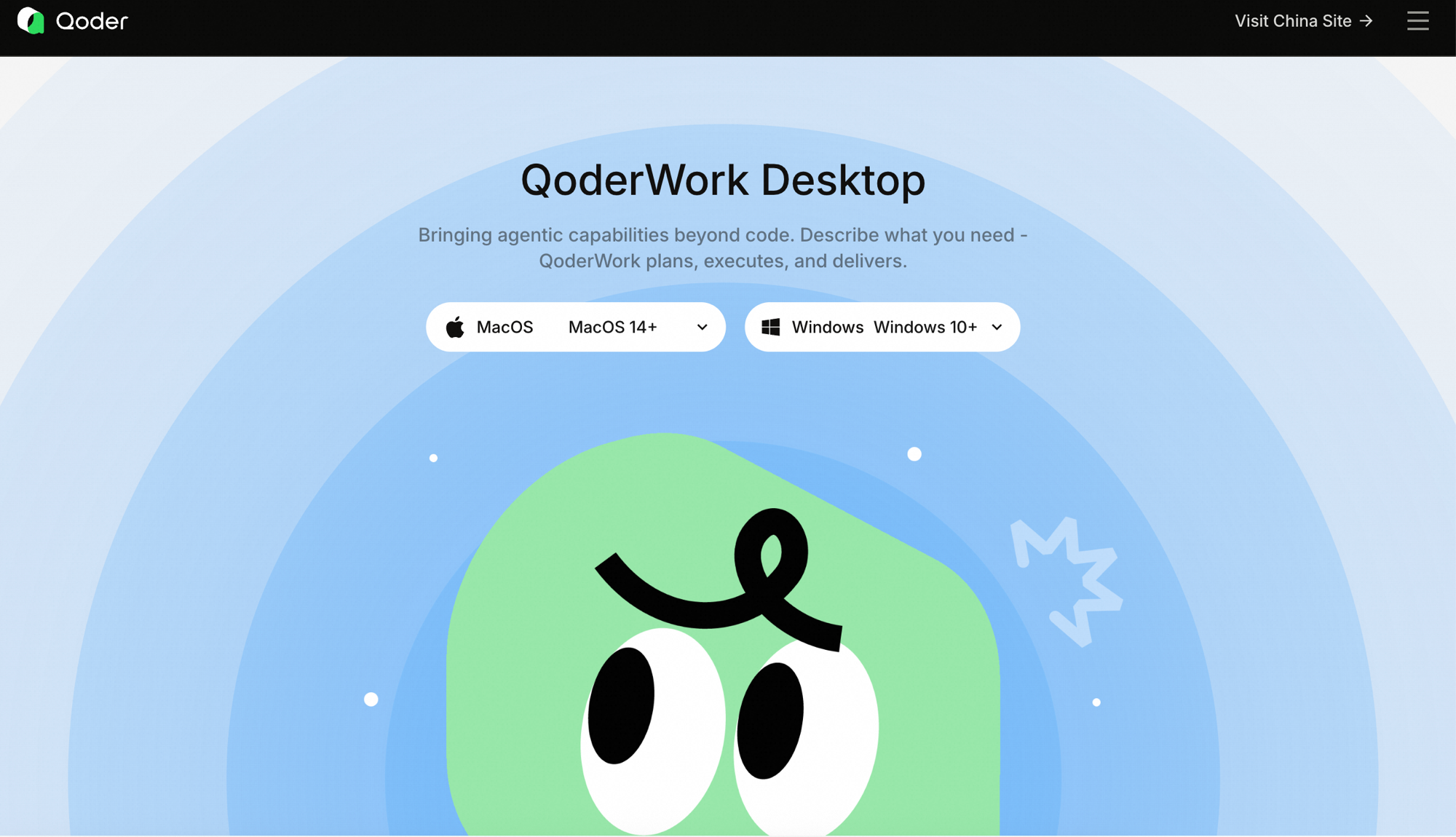
.exe installer.Windows offers two installers with identical functionality; they differ only in install scope and permissions:
- System (labeled X64 (System) on the download page) — installs to
Program Files, available to every Windows account on the machine, and requires admin rights to install. Best for a personal machine where you have admin rights, or when multiple accounts need to share one QoderWork install. - User (labeled X64 (User) on the download page) — installs to the current user's directory (
%LOCALAPPDATA%), is available only to the signed-in account, and needs no admin rights. Best for machines without admin rights or under corporate management.
2
Run the installer
- Double-click the downloaded
.exefile to launch the setup wizard. - Follow the prompts to choose an installation location (the default is usually fine).
- Click Install and wait for the process to complete.
If Windows Defender SmartScreen shows a "Windows protected your PC" warning, click More info → Run anyway to proceed.
3
Launch the app
After installation, search for "Qoder" in the Start Menu and open it, or double-click the desktop shortcut.
4
Sign in
On a fresh install, QoderWork walks you through signing in. You can use an existing Qoder account or create a new one — email and third-party login are both supported.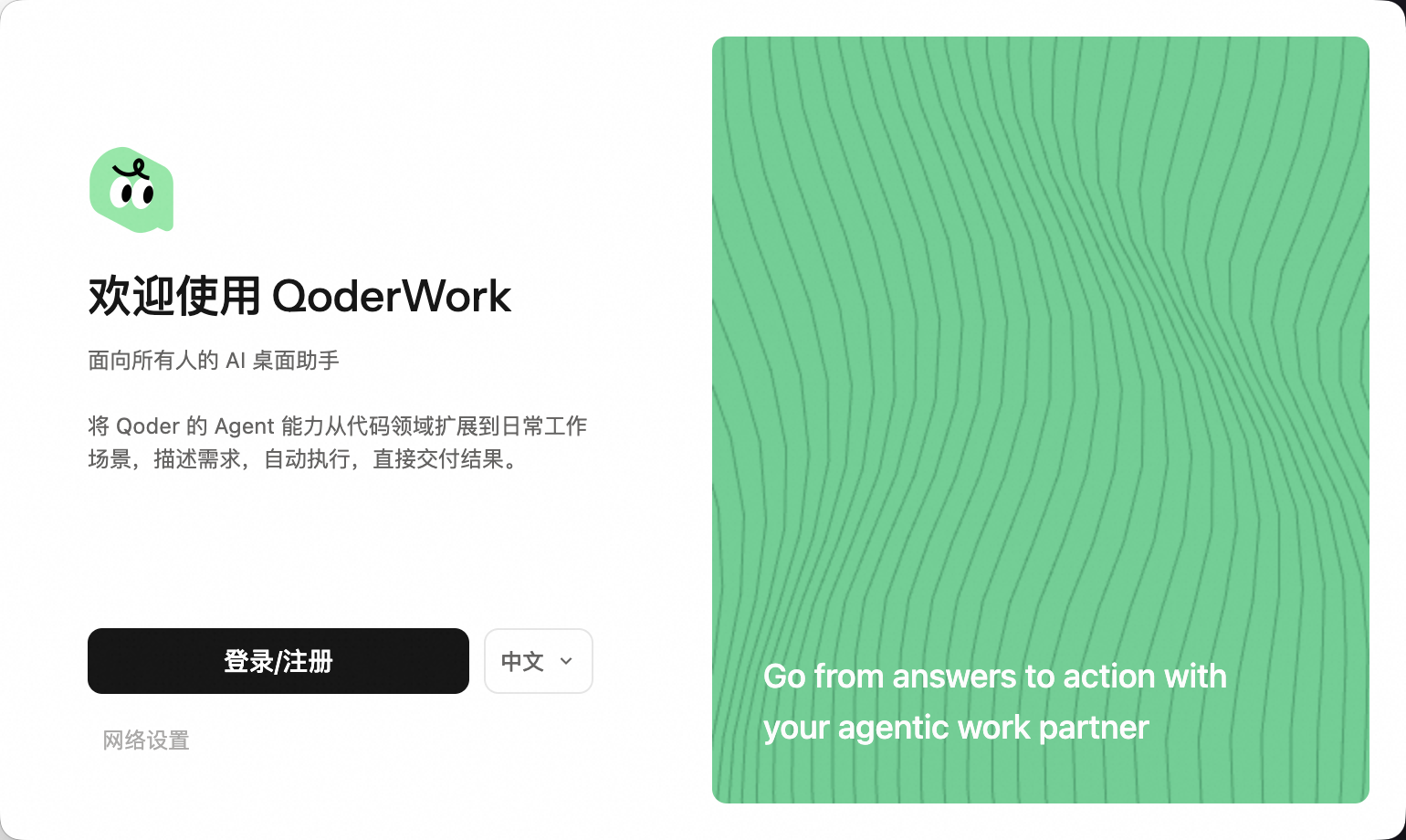 Returning users skip this screen: QoderWork keeps your session, restores previous tasks, and drops you straight into the workspace. The account area lives in the lower-left corner of the window — click the avatar to expand the account menu.QoderWork shares one account system with Qoder IDE and Qoder CLI, so your Credits balance and plan entitlements travel across every Qoder product.
5
Open the QoderWork workspace
QoderWork is a standalone app — there is no "switch to a QoderWork tab inside another product." Once you sign in you land directly in the main workspace, with the navigation sidebar on the left.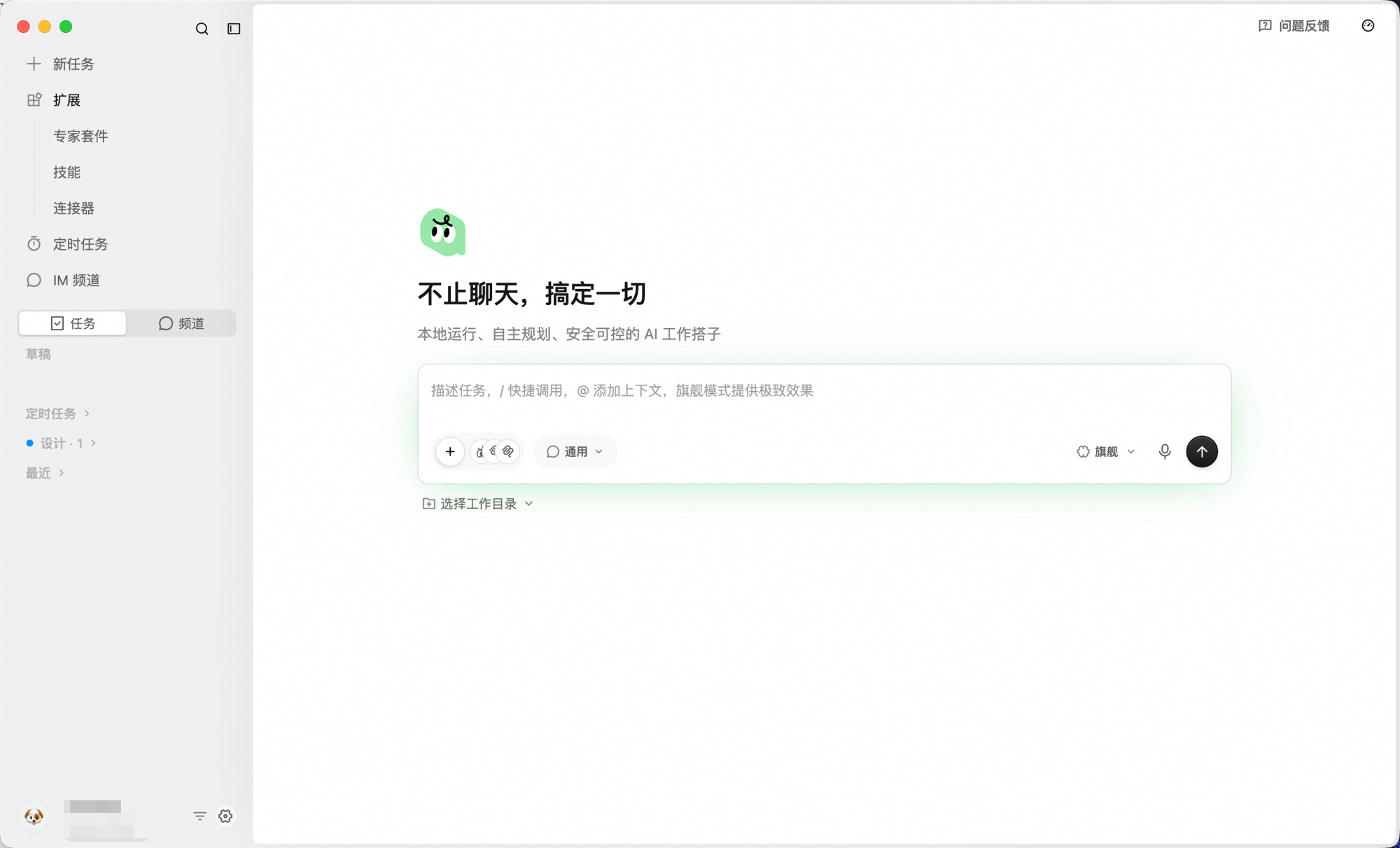 The sidebar holds every common entry point:
- New Task — start a new task.
- Expert Kits / Skills / Connectors — install capability extensions for the AI.
- Scheduled Tasks — tasks that run on a schedule.
- IM Channel — chat-channel collaboration.
- Tasks / Channels — review and return to past work.
Updating QoderWork
QoderWork checks for new versions in the background by default. When one is available, the app surfaces an update prompt — the download and relaunch only happen after you confirm. Nothing is replaced without your consent.
To check immediately, click Help → Check for Updates in the menu bar.
Uninstalling
- Open Settings → Apps → Installed apps.
- Search for "Qoder", click the three-dot menu on the right, and select Uninstall.
- Follow the uninstall wizard to complete the process.