

Go from download to your first delivered task in about five minutes.
QoderWork is a desktop application that runs locally on your Mac or PC and acts as an AI teammate that actually finishes work — not just chats. This guide walks you through downloading the app, signing in, finding your way around the workspace, and submitting your first task end-to-end.
By the end of this page you'll have a working installation, a signed-in account, and a real task running on your own machine.
Open qoderwork.com in your browser. Click the macOS or Windows button to download the matching installer.
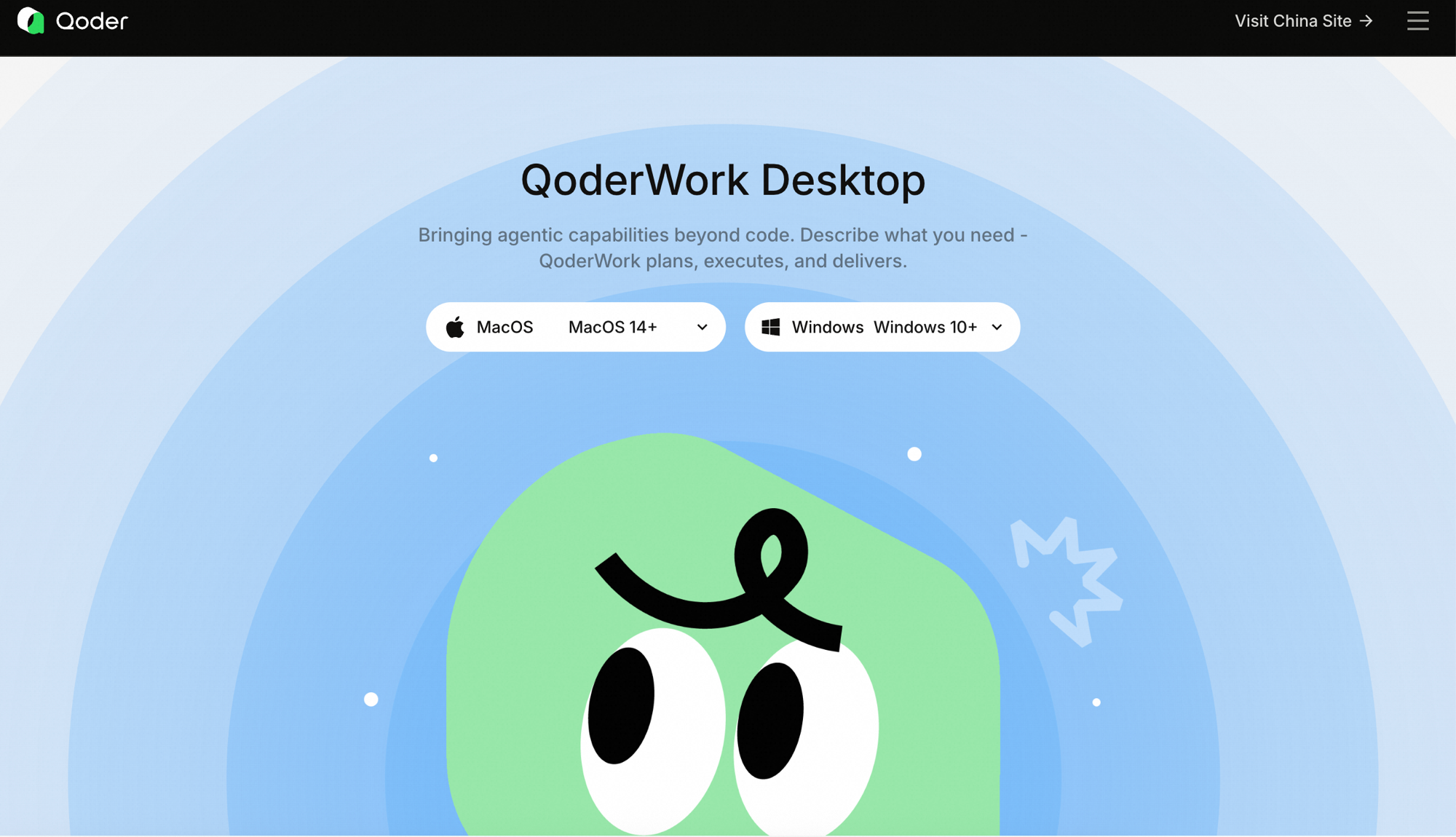 Two platforms are supported today:
The first time you launch QoderWork, a welcome screen prompts you to sign in. The left side carries the Login/Register button alongside a language switcher and a Network Settings link for configuring a proxy when needed; the right side shows the product tagline.
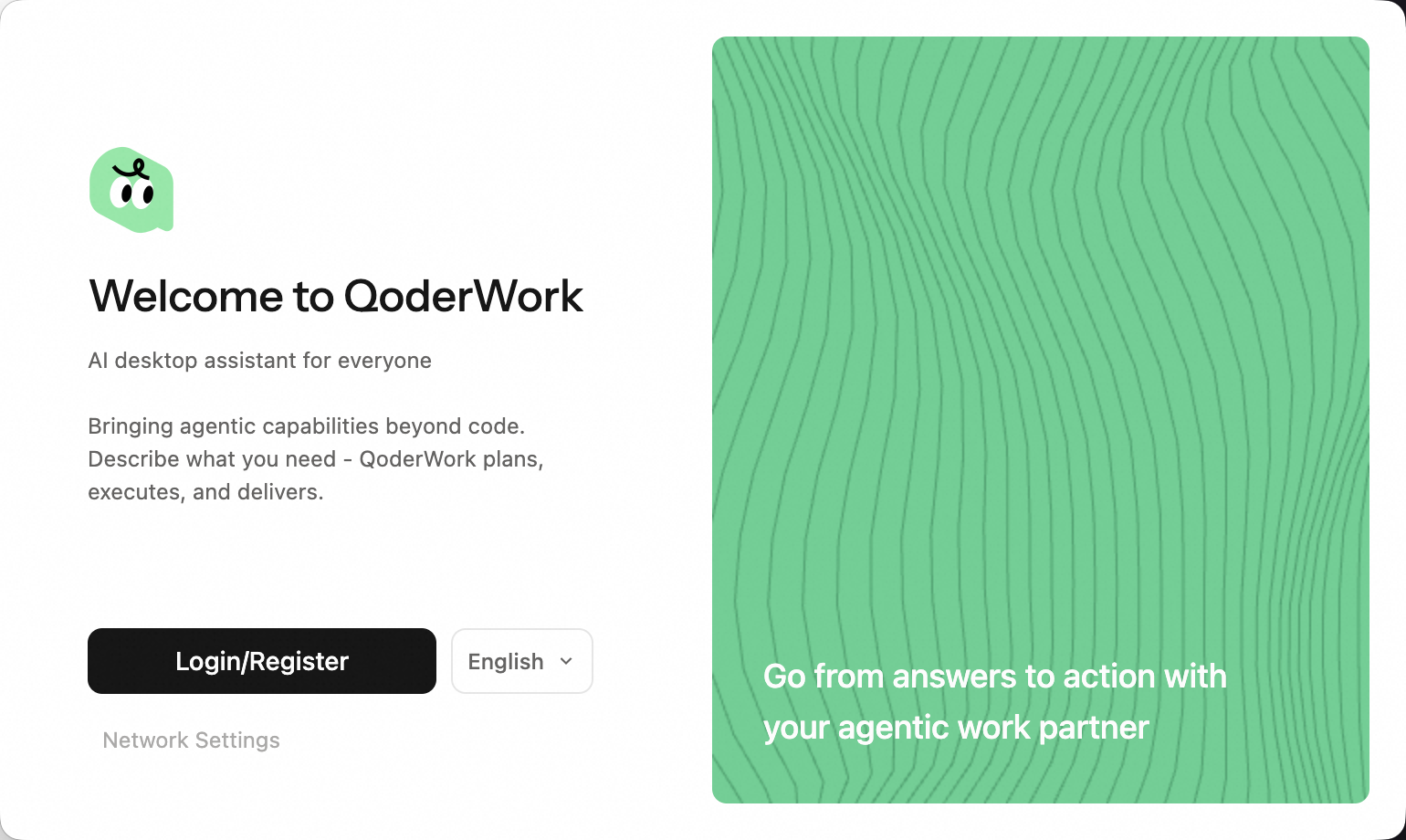 Click Login/Register to authenticate in your browser — once you're back, QoderWork drops you straight into the main workspace. Returning users skip this screen entirely; previous tasks on this device are restored automatically.
QoderWork shares one account system with the rest of the Qoder platform (Qoder IDE, Qoder CLI, etc.), so your Credits balance and entitlements travel with you across products.
Click Login/Register to authenticate in your browser — once you're back, QoderWork drops you straight into the main workspace. Returning users skip this screen entirely; previous tasks on this device are restored automatically.
QoderWork shares one account system with the rest of the Qoder platform (Qoder IDE, Qoder CLI, etc.), so your Credits balance and entitlements travel with you across products.
QoderWork's main window is split into two halves: a vertical sidebar on the left for navigation, and a large workspace on the right where conversations, task monitors, and artifacts live.
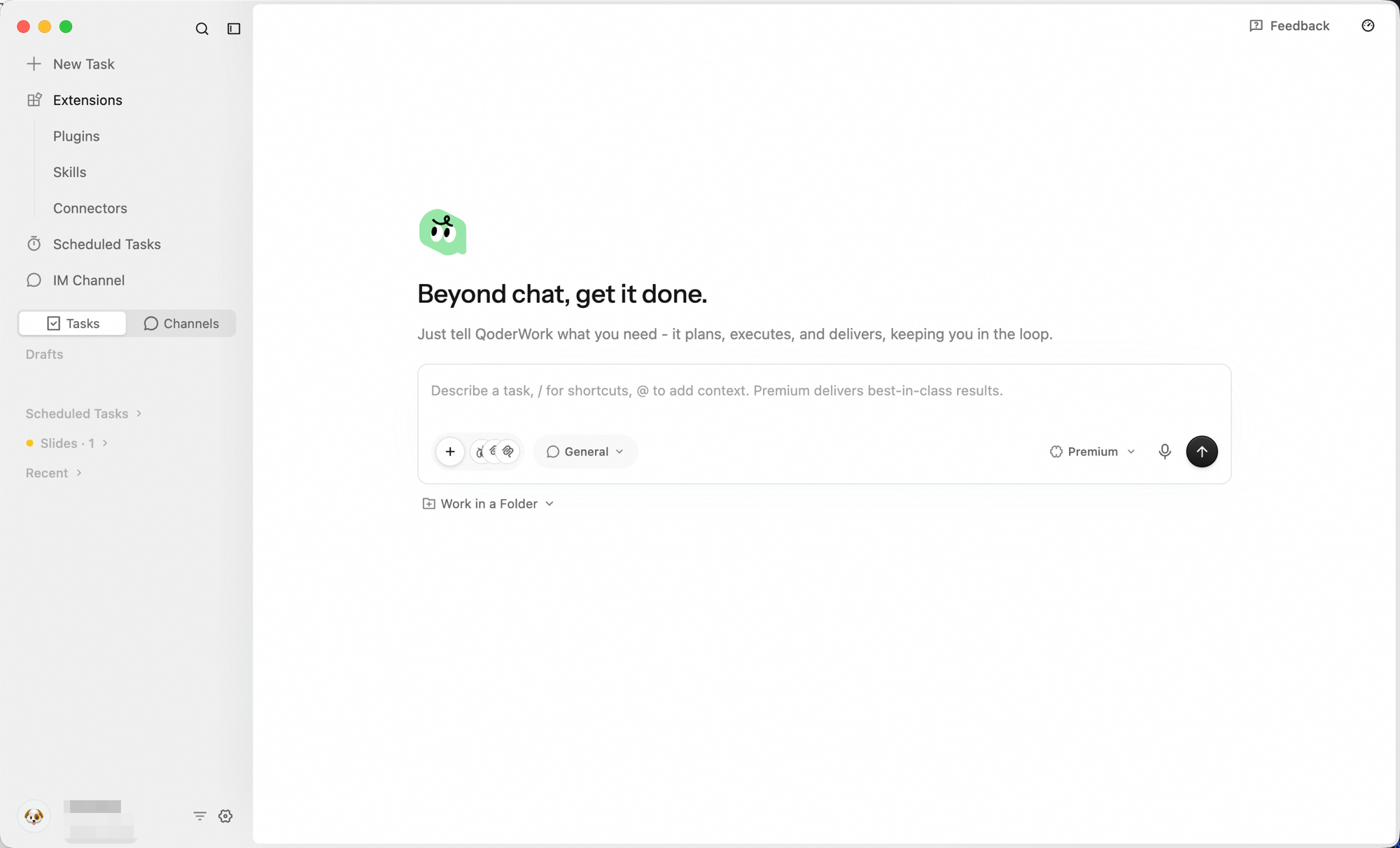 From the sidebar you start a New Task, expand Extensions for Expert Kits / Skills / Connectors, schedule recurring runs, bridge to IM Channels, and switch between your task and channel history. The bottom-left corner holds your account and Settings gear.
For a detailed tour of each entry — including the account quick menu — see Interface Guide.
From the sidebar you start a New Task, expand Extensions for Expert Kits / Skills / Connectors, schedule recurring runs, bridge to IM Channels, and switch between your task and channel history. The bottom-left corner holds your account and Settings gear.
For a detailed tour of each entry — including the account quick menu — see Interface Guide.
With everything in place, you're ready to put QoderWork to work. Click New Task in the sidebar to open the task composer.
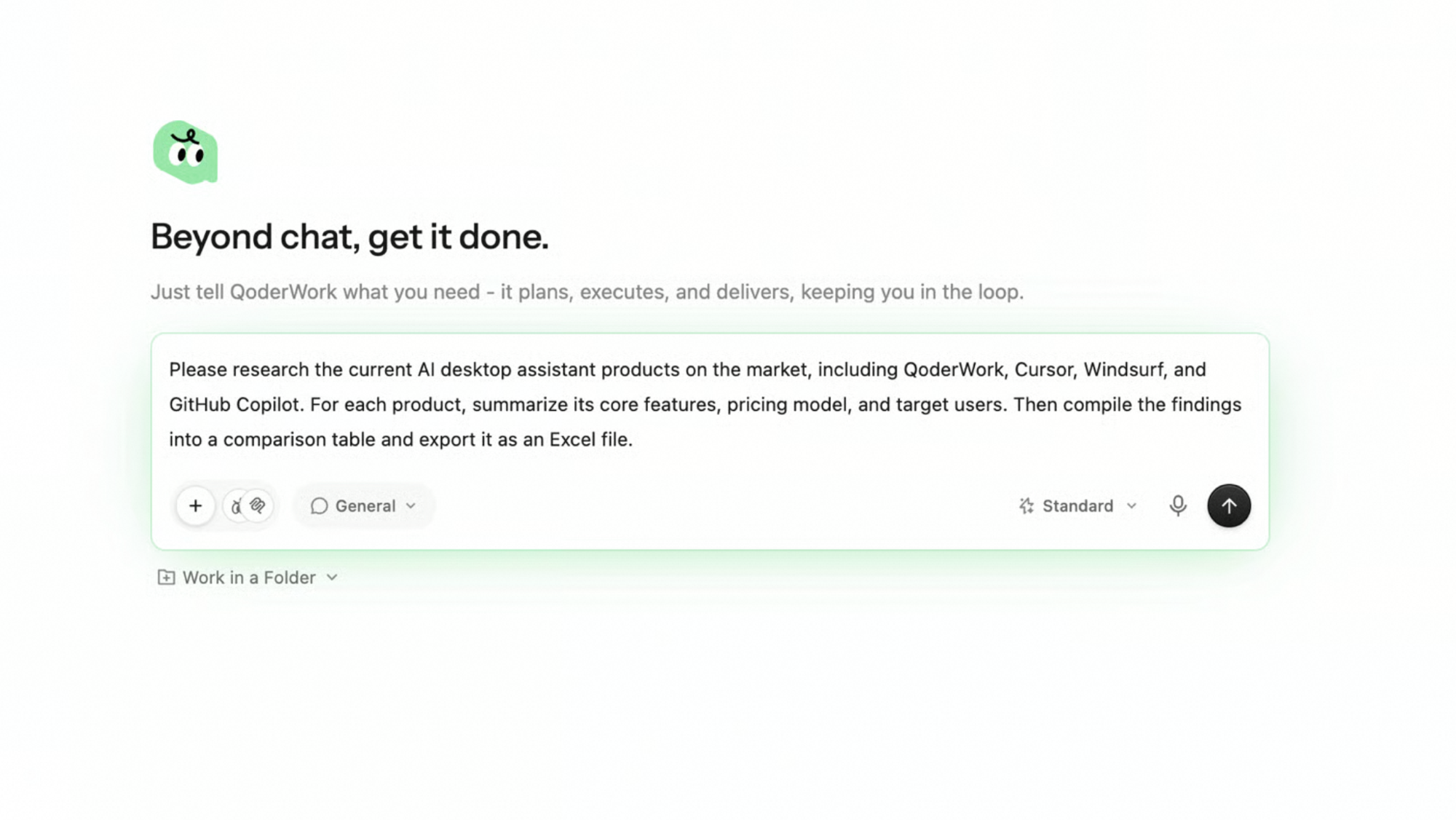
A clean canvas opens with the "Beyond chat, get it done." headline and a single input box. For a first task, leave the defaults — General workspace and Standard model — and type a clear, outcome-oriented description, then press Enter:
 From this point on, you watch, answer the occasional question, and pick up the result — you don't have to drive the steps yourself.
For details on the workspace picker, model picker, and Work in a Folder option, see Task Conversations.
From this point on, you watch, answer the occasional question, and pick up the result — you don't have to drive the steps yourself.
For details on the workspace picker, model picker, and Work in a Folder option, see Task Conversations.
These three terms appear all over the product. Once you have them, the rest of the UI makes sense quickly.
1. Download QoderWork
Open qoderwork.com in your browser. Click the macOS or Windows button to download the matching installer.
- macOS 14 or later, on both Apple Silicon and Intel chips.
- Windows 10 or later, 64-bit only.
Windows comes as a System installer (installs for all users on the machine; requires admin rights) and a User installer (installs for the current user only; no admin rights needed) — choose the user installer if you don't have admin rights. macOS is split by chip instead (Apple Silicon / Intel); the download page marks the build that matches your Mac. See the Windows Installation Guide or macOS Installation Guide.
- macOS
- Windows
Once the download finishes, double-click the
.dmg file and drag the QoderWork icon into your Applications folder. After it copies, eject the disk image and launch QoderWork from Launchpad or /Applications/QoderWork.app.The first time you open the app, macOS may say it was downloaded from the internet or that the developer can't be verified. Open System Settings → Privacy & Security, scroll down to the QoderWork prompt, and click Open Anyway. You'll only see this once.2. Sign in to your account
The first time you launch QoderWork, a welcome screen prompts you to sign in. The left side carries the Login/Register button alongside a language switcher and a Network Settings link for configuring a proxy when needed; the right side shows the product tagline.
Task history is stored locally on each device and does not sync across devices. Signing in on a different computer won't bring back tasks from your other devices.
3. Get to know the workspace
QoderWork's main window is split into two halves: a vertical sidebar on the left for navigation, and a large workspace on the right where conversations, task monitors, and artifacts live.
4. Run your first task
With everything in place, you're ready to put QoderWork to work. Click New Task in the sidebar to open the task composer.
A clean canvas opens with the "Beyond chat, get it done." headline and a single input box. For a first task, leave the defaults — General workspace and Standard model — and type a clear, outcome-oriented description, then press Enter:
What happens after you press Enter
1
Clarification (sometimes)
For complex or ambiguous requests, QoderWork pauses to ask one or two clarifying questions before committing — "Should I include open-source alternatives?", "Pricing in USD or local currency?". A short check up front saves a long round of revisions later. Answer in the same conversation, and execution starts as soon as you do. For simple tasks this step is skipped.
2
The Task Monitor
The workspace splits in two: the conversation stays on the left for narration and follow-up, and a Task Monitor opens on the right with a live to-do plan, the artifacts being produced, and the Skills & MCP servers in use.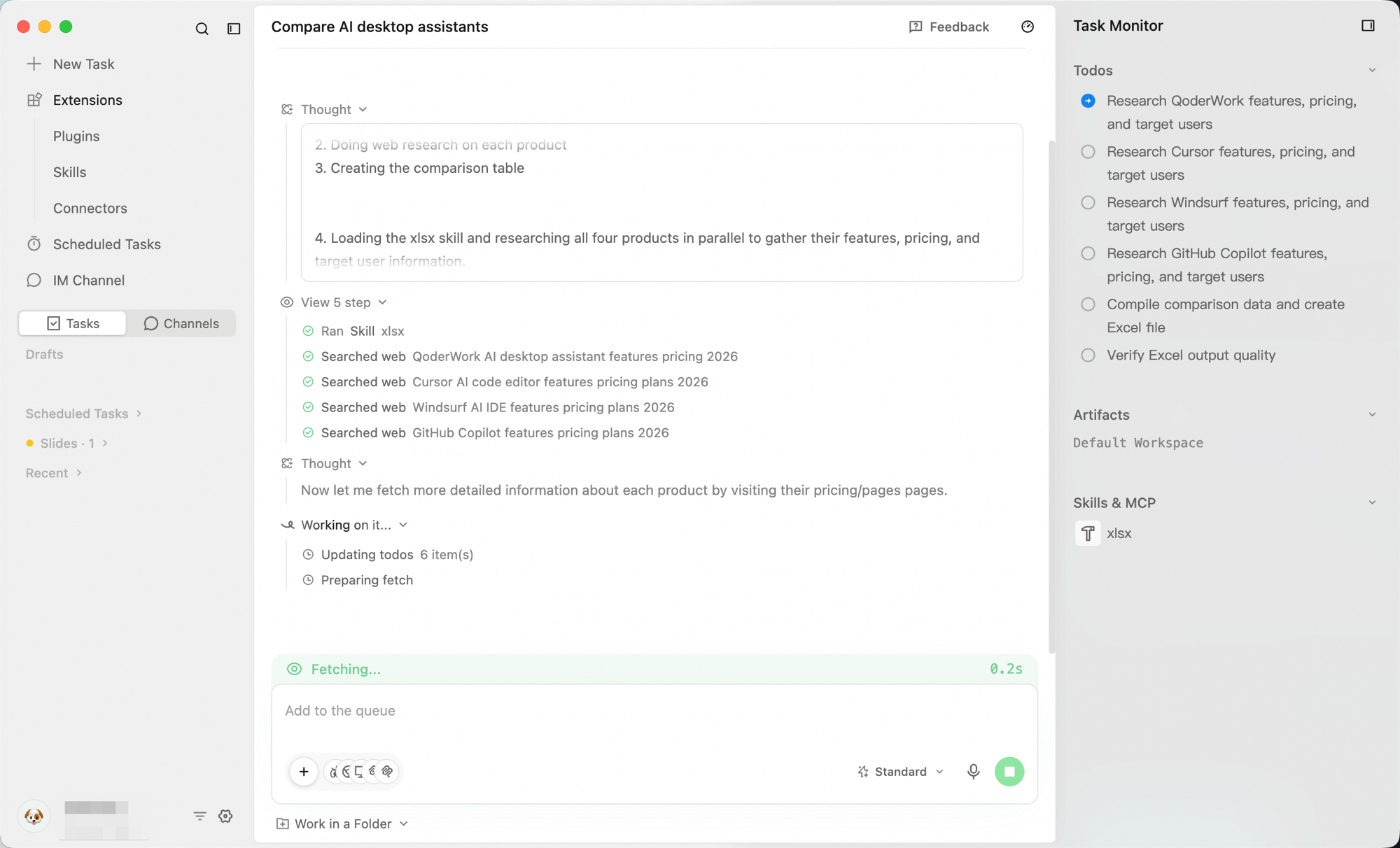 Everything is fully transparent — you see exactly how QoderWork is reaching the answer. If something looks off, type a follow-up in the conversation and QoderWork queues it and picks it up as soon as the current run finishes (with full context), instead of starting over.
3
Artifacts delivered
When the task finishes, QoderWork delivers two things together: a written summary in the conversation, and one or more Artifacts — concrete files such as the Excel spreadsheet you asked for in this task. Artifacts are real local files, created and saved directly on your computer, that you can open, edit, or move at any time.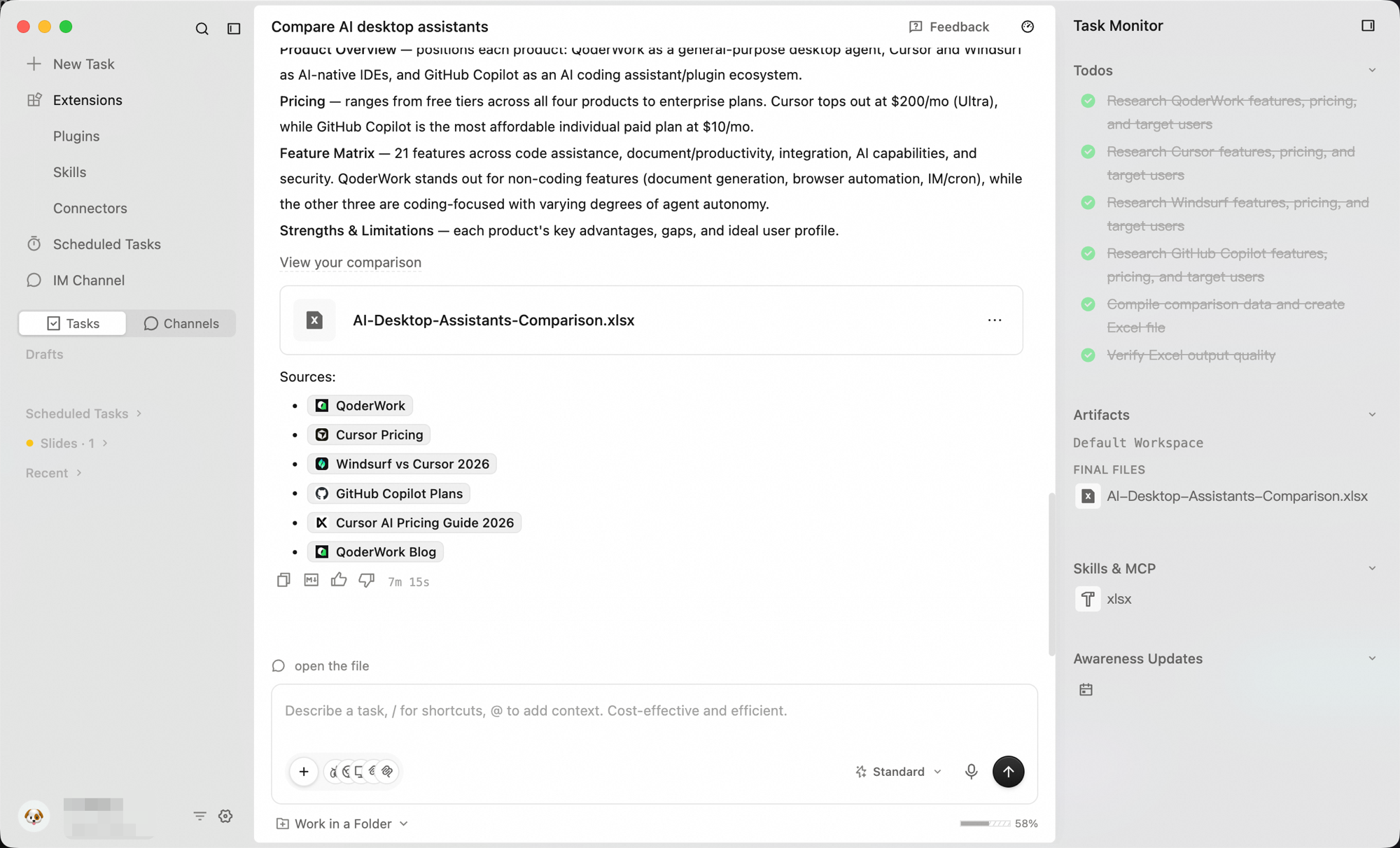 Click an artifact to preview it inline or download it. Artifacts stay attached to the task forever, so you can come back to them later from Tasks in the sidebar.
Three concepts to remember
These three terms appear all over the product. Once you have them, the rest of the UI makes sense quickly.
| Concept | What it is | Where you see it |
|---|---|---|
| Clarification | A short up-front exchange where QoderWork checks ambiguous requirements before committing to a plan. | Inline in the conversation, just after you submit a task. |
| Task Monitor | The live execution panel showing the plan, tool calls, skills used, and files touched. | The right side of the workspace while a task runs. |
| Artifacts | Concrete file outputs (spreadsheets, decks, reports, code, etc.) attached to the task. | The conversation pane after the task completes; also in Tasks for later access. |