

We all have work that runs on a clock — pulling data every morning, drafting a weekly report, compiling month-end numbers. None of it is hard. The hard part is showing up on time, every time, without dropping the ball.
Scheduled tasks let QoderWork handle that for you. Tell it what to do and when, and it will run automatically — no reminders needed. Results show up as a new conversation in the sidebar, ready for you to review whenever you like.
The model is simple: scheduled time arrives → QoderWork opens a new conversation → runs your prompt → saves the results.
When a scheduled task fires, QoderWork has the full set of capabilities you'd get in a normal conversation — MCP, Connector (browser automation, macOS native apps), Skills, and local file access. If you can do it in a chat, you can schedule it.
Each run creates its own conversation and uses Credits, just like a manual one. It's worth running a complex task by hand first to get a feel for what it costs.
There are two ways to set up a scheduled task — pick whichever feels right.
Just describe what you want and when in any chat. QoderWork figures out the schedule and creates the task for you.
No forms, no cron syntax — QoderWork picks up the frequency, timing, and instructions from plain English.
If you prefer clicking over typing, or need fine-grained control over the schedule:
Let QoderWork crunch the numbers every morning so you don't have to.
Have a curated industry briefing waiting for you before your first coffee.
Stay on top of what the competition is shipping.
End the day with a tidy filesystem.
Never miss an important thread buried under newsletters.
Walk into meetings with context, not cold.
Every time a task fires, QoderWork creates a new conversation in the sidebar. Open it to see exactly what the AI did and what it produced — same experience as a manual chat. You can ask follow-up questions or request changes right there.
The Scheduled Tasks page in the left sidebar is your control center:
Switch to the Run History tab to see past executions:
This is the number-one tip. Before automating anything complex, run the full workflow in a regular conversation. Tweak the prompt until the output is right, then convert it to a scheduled task. This saves you from waking up to a pile of bad results.
There's no human in the loop to course-correct, so the prompt needs to stand on its own. Spell out the output format (Markdown, Excel, Word), the data source (which folder, which URL), the criteria (what counts as "anomalous" or "important"), and where to save the result.
Setting a working directory gives the task a stable context. This is especially useful when you regularly feed new files into a folder — the task picks up whatever's latest each time it runs.
A scheduled task is just a timer. Its real power comes from what you plug in. Enable the browser connector and it can scrape the web. Enable the macOS connector and it can read Calendar and Mail. Pair it with Skills to reuse proven workflows. Mix and match to cover almost any automation scenario.
Scheduled tasks run locally and only fire while your Mac is awake. If you have a high-priority task — say, an 8 AM morning digest — turn on Keep System Awake on the Scheduled Tasks page so sleep mode doesn't get in the way.
How it works
The model is simple: scheduled time arrives → QoderWork opens a new conversation → runs your prompt → saves the results.
When a scheduled task fires, QoderWork has the full set of capabilities you'd get in a normal conversation — MCP, Connector (browser automation, macOS native apps), Skills, and local file access. If you can do it in a chat, you can schedule it.
Each run creates its own conversation and uses Credits, just like a manual one. It's worth running a complex task by hand first to get a feel for what it costs.
Creating a task
There are two ways to set up a scheduled task — pick whichever feels right.
From a conversation (recommended)
Just describe what you want and when in any chat. QoderWork figures out the schedule and creates the task for you.
From the UI panel
If you prefer clicking over typing, or need fine-grained control over the schedule:
1
Open the Scheduled Tasks page
Click Scheduled Tasks in the left sidebar.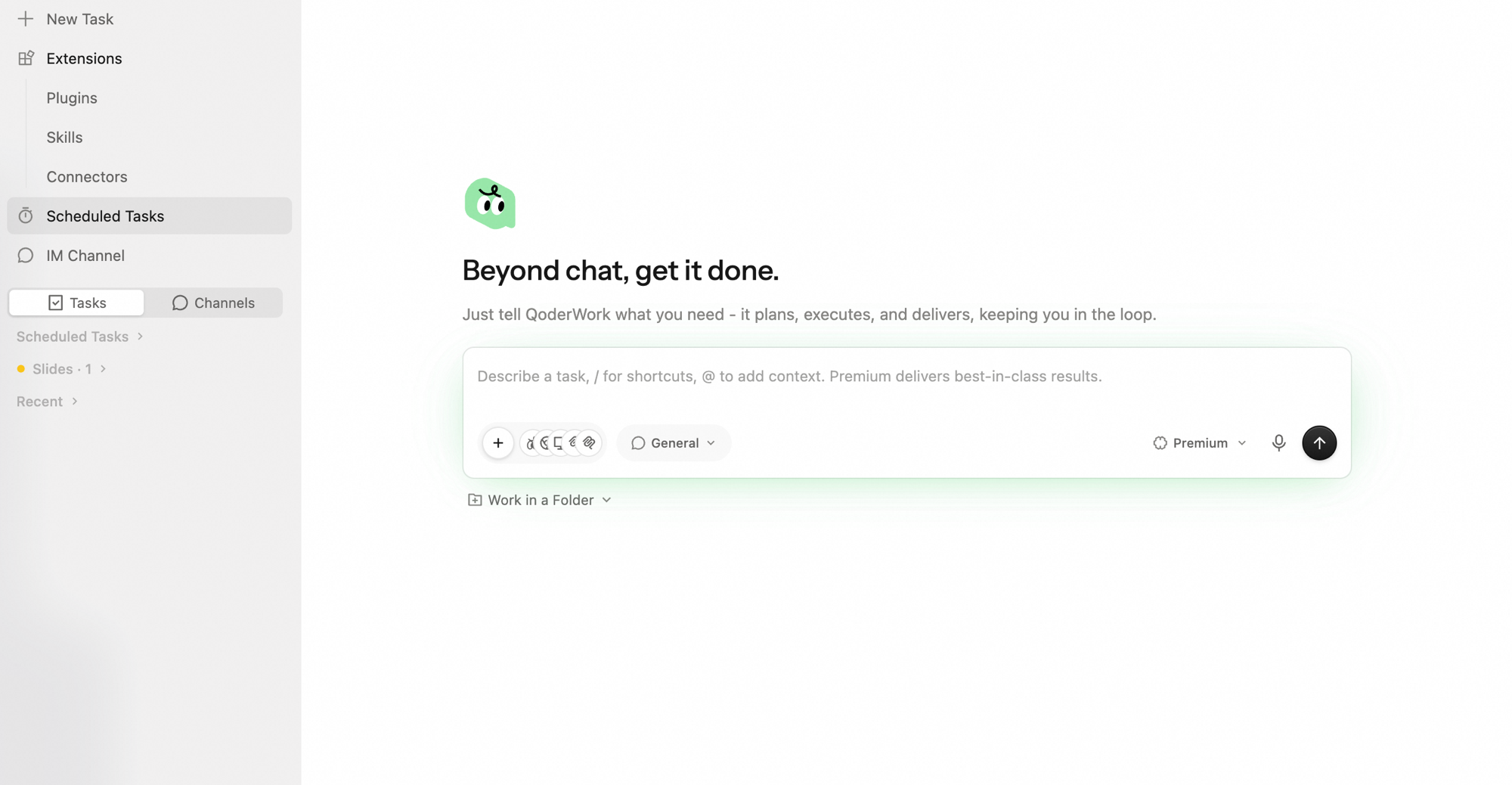
2
Create a new task
Hit + New Scheduled Task in the top-right corner.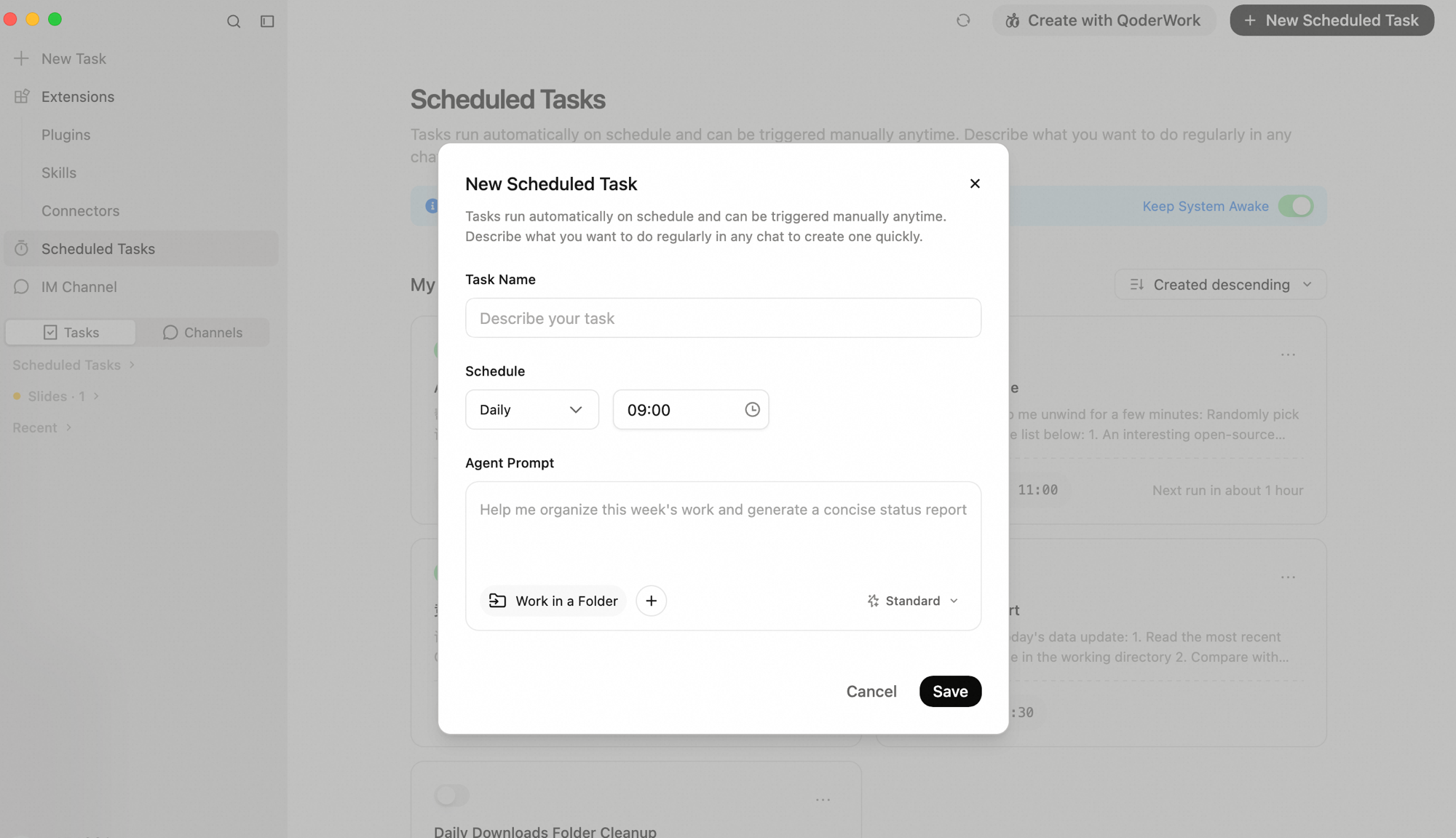
3
Fill in the details
The form has a few fields:
- Task Name — something you'll recognize at a glance, like "Daily Competitor Digest" or "Friday Weekly Draft."
- Schedule — pick a frequency and time:
Type What it does Good for One-time Fires once at a specific date and time Pre-meeting prep, deadline checks Interval Repeats at a fixed interval Price monitoring, polling, data collection Hourly Runs every hour at a given minute Alerts, health checks, status syncs Daily Runs once a day at a set time Morning digests, daily reports, end-of-day cleanup Weekly Runs on a chosen day and time each week Weekly reports, competitor tracking Monthly Runs on a chosen day and time each month Month-end analysis, billing roundups - Agent Prompt — write your instructions the same way you would in a regular conversation.
- Work in a Folder (optional) — pin the task to a specific folder for file reads and writes.
- Attachments (optional) — attach reference files the task might need.
4
Save
Click Save. The task goes live immediately and will fire at the next scheduled time.
Use cases
Daily data report
Let QoderWork crunch the numbers every morning so you don't have to.
Daily news digest
Have a curated industry briefing waiting for you before your first coffee.
Weekly competitor tracker
Stay on top of what the competition is shipping.
Downloads folder cleanup
End the day with a tidy filesystem.
Email roundup
Never miss an important thread buried under newsletters.
Pre-meeting prep
Walk into meetings with context, not cold.
Managing tasks
Viewing results
Every time a task fires, QoderWork creates a new conversation in the sidebar. Open it to see exactly what the AI did and what it produced — same experience as a manual chat. You can ask follow-up questions or request changes right there.
The task list
The Scheduled Tasks page in the left sidebar is your control center:
- Enable / Disable — toggle the switch on each card. Handy for pausing a task without deleting it.
- Edit — click the card to change the name, schedule, or prompt.
- Run Now —
…→ Run Now. Great for testing a prompt or grabbing results ahead of schedule. - Delete —
…→ Delete Task. This can't be undone.
Run history
Switch to the Run History tab to see past executions:
| Status | Meaning |
|---|---|
| Success | Ran and completed normally |
| Running | In progress — open the conversation to watch live |
| Failed | Something went wrong — check the details |
Best practices
Run it manually first
This is the number-one tip. Before automating anything complex, run the full workflow in a regular conversation. Tweak the prompt until the output is right, then convert it to a scheduled task. This saves you from waking up to a pile of bad results.
Be specific in your prompt
There's no human in the loop to course-correct, so the prompt needs to stand on its own. Spell out the output format (Markdown, Excel, Word), the data source (which folder, which URL), the criteria (what counts as "anomalous" or "important"), and where to save the result.
Pin a working directory
Setting a working directory gives the task a stable context. This is especially useful when you regularly feed new files into a folder — the task picks up whatever's latest each time it runs.
Stack with connectors and Skills
A scheduled task is just a timer. Its real power comes from what you plug in. Enable the browser connector and it can scrape the web. Enable the macOS connector and it can read Calendar and Mail. Pair it with Skills to reuse proven workflows. Mix and match to cover almost any automation scenario.
Keep your Mac awake
Scheduled tasks run locally and only fire while your Mac is awake. If you have a high-priority task — say, an 8 AM morning digest — turn on Keep System Awake on the Scheduled Tasks page so sleep mode doesn't get in the way.
FAQ
Can a scheduled task use browser automation?
Can a scheduled task use browser automation?
Yes — as long as the browser connector is enabled under Extensions → Connectors and Chrome is running. Just keep in mind that login sessions can expire; if they do, the AI will hit a login page and won't be able to continue.
What happens if my Mac was asleep when a task was supposed to run?
What happens if my Mac was asleep when a task was supposed to run?
The run gets skipped. You'll see it marked as missed in the run history. Hit Run Now to trigger it manually.
The results aren't what I expected — what should I do?
The results aren't what I expected — what should I do?
Two common causes: the prompt is too vague (e.g., "analyze the data" — be explicit about which fields and what format), or the source data changed (e.g., someone renamed a column in the spreadsheet). Open the conversation from the run history, see where things went sideways, and refine.
Is there a limit on how many tasks I can have?
Is there a limit on how many tasks I can have?
No hard cap, but each run creates a conversation and uses Credits. Be thoughtful about scheduling too many tasks at the exact same time.
Is there a time limit per run?
Is there a time limit per run?
No fixed limit, but runs are bounded by your Credits balance. Complex tasks burn more — test manually first to get a feel for the cost.
How do I reschedule an existing task?
How do I reschedule an existing task?
Click the task card →
… → Edit, change the schedule, and save. Or just tell QoderWork in a conversation: "Move the XX task to Tuesdays."