

What Are Skills?
We all have tasks we do over and over — writing weekly reports, organizing docs, generating infographics. Explaining your requirements, preferences, and workflow to AI from scratch every time is tedious and error-prone.
That's what Skills are for. A Skill is a pre-written playbook that tells QoderWork how to handle a specific type of task: what steps to follow, what format to use, and what details to watch out for. Define it once, and QoderWork will automatically recognize and apply it in future conversations — like a well-trained assistant that delivers consistent, reliable results every time.
Under the hood, each Skill is simply a folder containing a SKILL.md file, stored in ~/.qoderwork/skills/. The SKILL.md describes the skill's name, trigger conditions, and execution steps in plain language — no code required, just write down your process and expertise.
Why Use Skills?
Stop repeating yourself
Every new conversation means re-explaining what you need and how you like it done. With a Skill, all of that is captured once — just trigger it with a single message, or let QoderWork pick it up automatically. No more wasting time on the same instructions.
Consistent output, every time
When your team has specific formatting or style requirements (say, a weekly report that must include certain sections), a Skill ensures every output meets the standard — regardless of who's using it or how the conversation goes.
Turn personal know-how into a reusable asset
The best practices, tricks, and judgment calls you've built up over time can all be captured in a Skill. Share it with teammates and let your expertise flow across the organization, instead of staying locked in your head.
Turn a generalist into a specialist
QoderWork already has broad general capabilities. Skills are like plug-in expert modules — a documentation specialist, a design assistant, a data analyst. Mix and match different Skills to cover virtually any workflow.
Getting Skills
QoderWork offers several ways to discover and install Skills.
Search and install from a conversation
Just describe what you need in plain language. QoderWork's built-in find-skill feature searches the skill library and recommends the best match. For example:
Find me a skill that converts web pages into Markdown notesQoderWork lists matching results with descriptions. Once you confirm, it installs the Skill to
~/.qoderwork/skills/ in one click — all without leaving the chat.
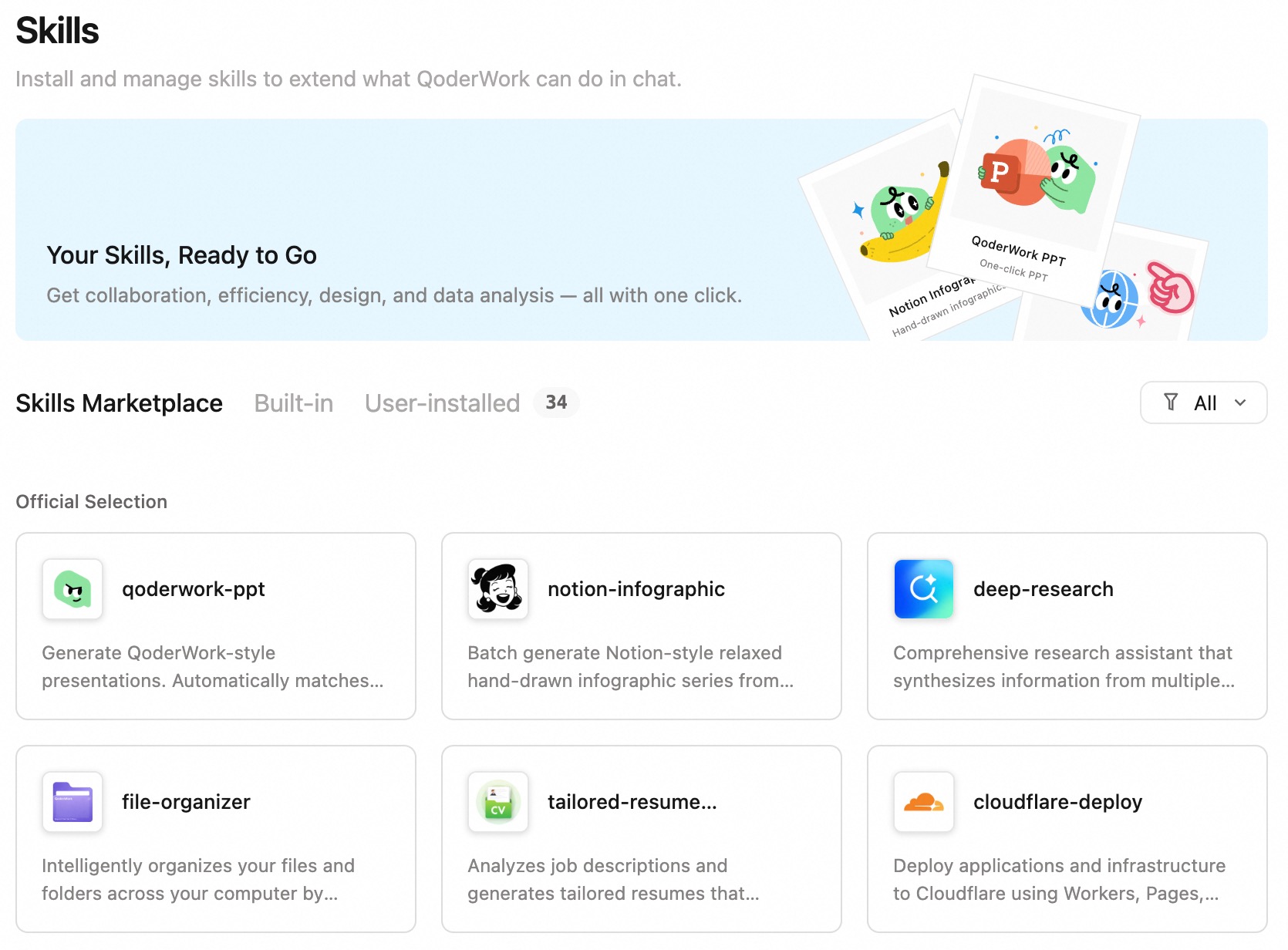
Browse and install from the Skill Marketplace
The Skill Marketplace is QoderWork's built-in skill store, featuring official and community-contributed Skills. Browse by category or search by keyword, then click to install.
Grab one from the open-source community
Plenty of community-shared Skills are available on platforms like GitHub. Just paste the repo link into QoderWork and ask it to install. For example:
Please download <SKILL_SOURCE_URL> and put it in ~/.qoderwork/skills/QoderWork handles the cloning, file placement, and loading automatically — no manual commands needed.
Upload local files
Already have a Skill file (maybe from a colleague)? Go to the Skills page, click Install Skill, and upload the SKILL.md along with any supporting files. It's recognized and loaded automatically, ready to use in relevant scenarios.
Using Skills
Once installed, there are several ways to invoke a Skill in a conversation.
Automatic trigger
Just describe your task naturally. QoderWork determines whether an installed Skill matches and activates it on its own. For example, with a "Resume Optimizer" Skill installed:
Help me tailor my resume to this job descriptionQoderWork recognizes the intent and applies the right Skill.
/ shortcut
Type / in the chat input and QoderWork shows a list of installed Skills. Select one to invoke it directly.
@ for context
Type @ in the chat input to attach context (such as files, folders, etc.) to help QoderWork better understand your request. @ is for adding context, not for invoking Skills.
Explicit call
Name the Skill directly in your message. For example:
Use the kancolle-infographic skill to generate an image setQoderWork loads the specified Skill, runs it, and presents the results right in the conversation.
Want to create your own Skills? See Creating Skills for the full guide — from distilling workflows to writing SKILL.md files.
Managing Skills
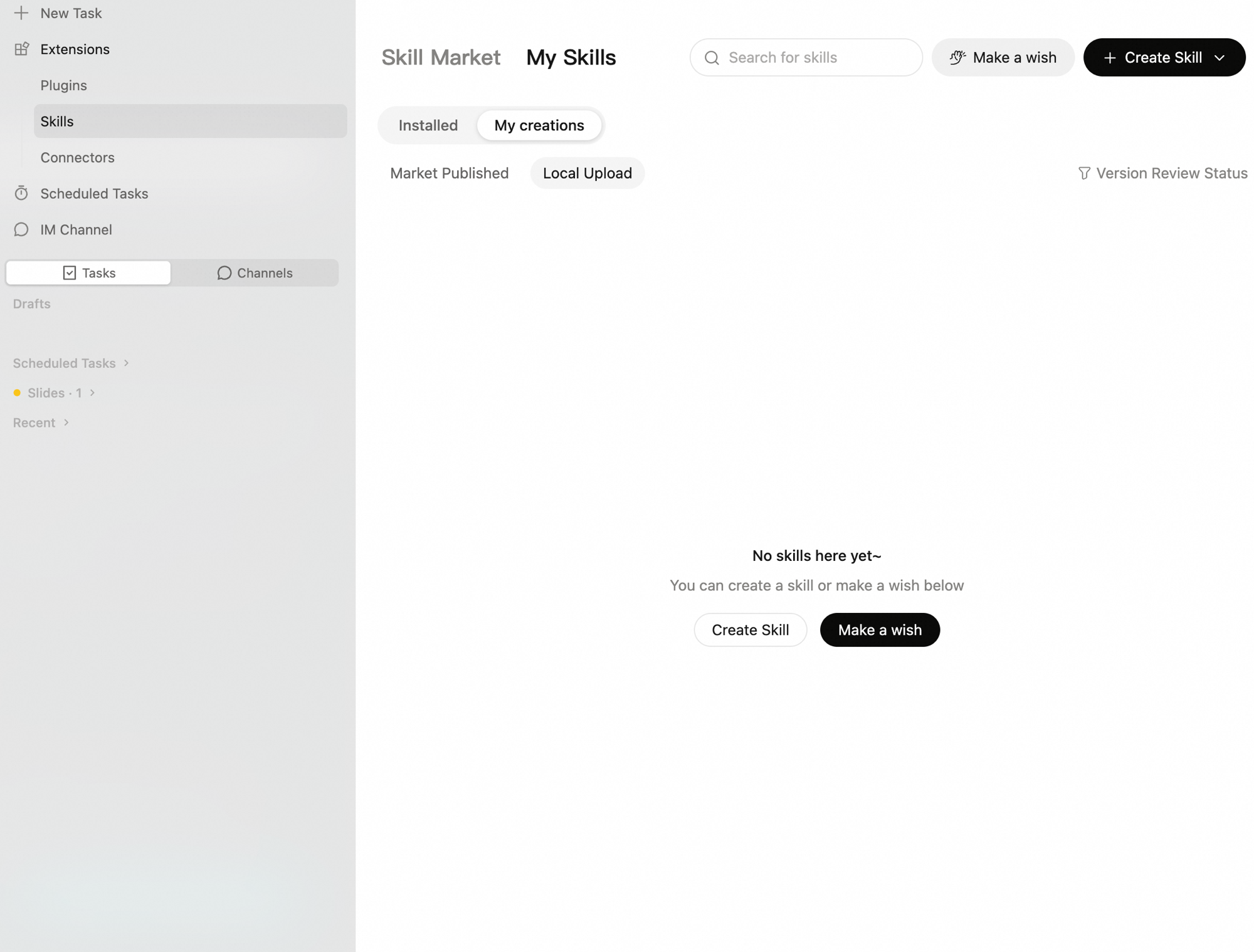
Through the file system
All Skills live in ~/.qoderwork/skills/, each in its own folder (containing SKILL.md and optional supporting files). You can add, remove, or edit them directly in the file system.
Skill Sharing
Your personal workflows shouldn't stay confined to your local machine. You can share the exclusive skills you've built or customized directly with your team members, allowing them to install and use them with a single click.
1
Generate a share link
Go to the Skills page, find a skill you've personally created, and click the share icon. The system will automatically generate a unique share link.
2
Send to others
Click Copy Link and send it to your colleagues or friends. Note that the share link has an expiration date (typically 24 hours), after which you'll need to generate a new one.
3
One-click installation
The recipient simply clicks the link to jump directly to QoderWork and complete the installation with one click.
Built-in Skills
QoderWork comes pre-installed with several frequently used skills, ready to use out of the box:
| Skill Name | Function | Trigger |
|---|---|---|
docx | Create, read, and edit Word documents | Automatically triggered when Word / .docx is mentioned |
pdf | Read, merge, split, and watermark PDFs | Automatically triggered when PDF is mentioned |
pptx | Create and edit PowerPoint presentations | Automatically triggered when PPT / presentations are mentioned |
xlsx | Process Excel spreadsheets | Automatically triggered when Excel / spreadsheets are mentioned |
find-skills | Search and install new skills from the marketplace | Triggered by "find a skill" or "what skills are available" |
create-skill | Interactive guided skill creation | Triggered by "create a skill" or "make a skill" |
plugin-creator | Create, customize, or modify Expert Kits | Triggered when creating or modifying an Expert Kit |
install-skill-dependency | Diagnose and fix missing dependencies, binaries, or runtime environments for installed skills | Triggered automatically when a skill fails due to a missing dependency |
vm-error-recovery | Diagnose and fix startup, connection, or download problems with the secure work environment | Triggered automatically when the secure work environment misbehaves |
Skill UI — Interactive Interfaces
Some advanced Skills support rendering interactive HTML components — forms, charts, configuration panels, and more. These components are embedded directly in the conversation flow, so you can complete actions without leaving the chat.
For example, when using the frontend-design skill, the generated web preview is displayed right in the conversation, letting you view it in real time and provide feedback for revisions.