

The Qoder mobile app keeps developers in control of running Qoder tasks even when away from the computer. Install it on your phone, sign in with the same account, and make critical decisions on the go.
When you step away from your desk, you can still follow task progress, handle approvals, review plans, and keep work moving when action is needed. It connects your desktop and mobile workflows so tasks do not have to pause while waiting for you to return. Whether you are commuting, between meetings, or briefly away from your workstation, the mobile app keeps task status within reach. It does not replace your desktop development environment. Instead, it helps you handle the moments that affect whether a task can continue.
To continue Qoder desktop tasks from your phone, first enable remote control on the computer.
See all running, idle, and archived tasks clearly on your phone. Monitor task progress anytime, anywhere. All tasks are shown in one place, making it easier to understand what is still in progress, what is ready, and what can be revisited later. When you have multiple tasks, this overview helps you build a quick sense of priority. You can focus first on tasks that need attention, then return to the rest when you are ready.
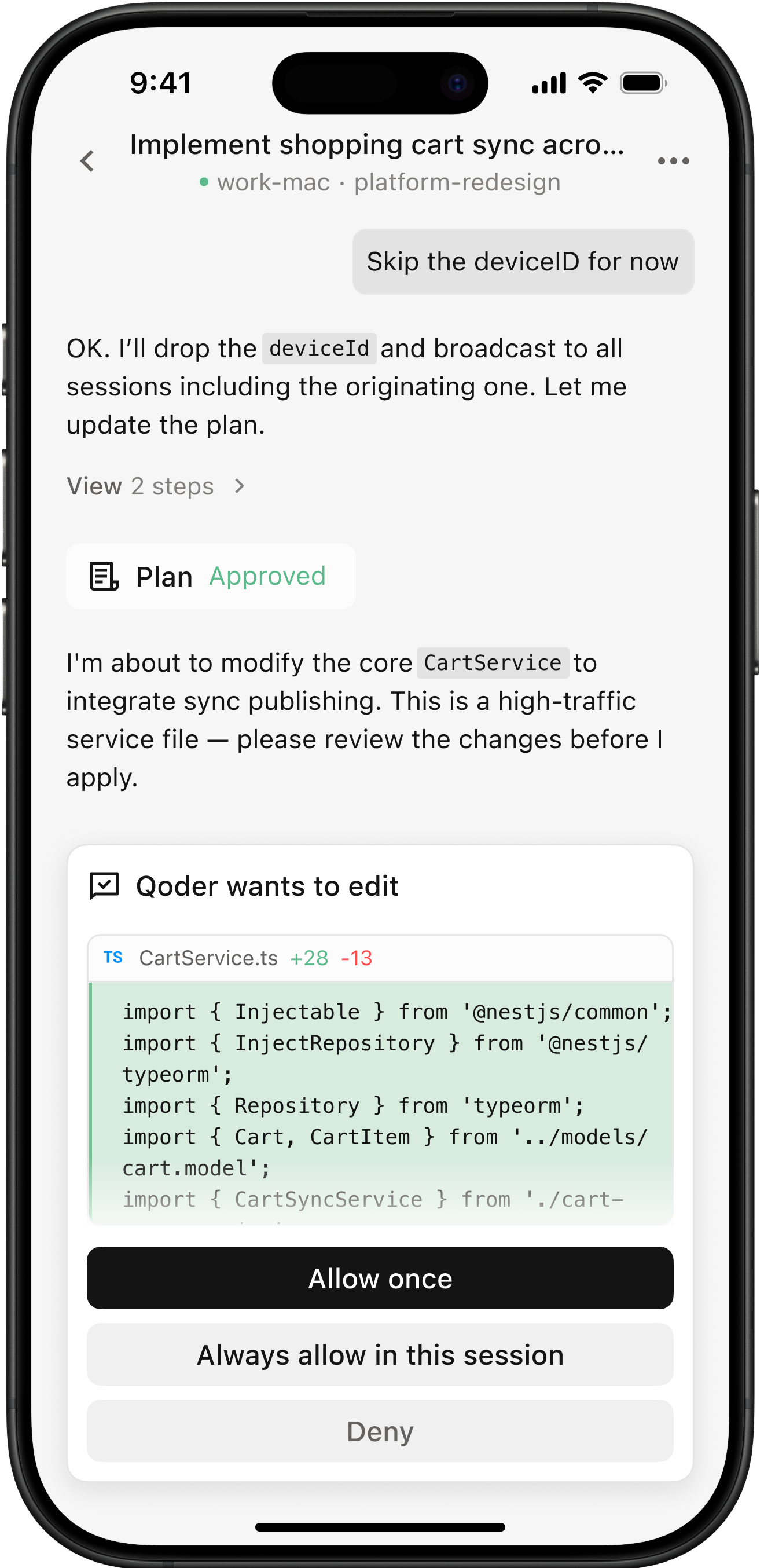
When a task reaches a critical operation that needs user approval, you can approve it from your phone wherever you are. This helps prevent tasks from waiting on your desktop when all they need is a timely confirmation from you. For operations that require explicit approval, mobile access makes the decision easier to handle in time. You can review the current task context and decide whether the task should continue.
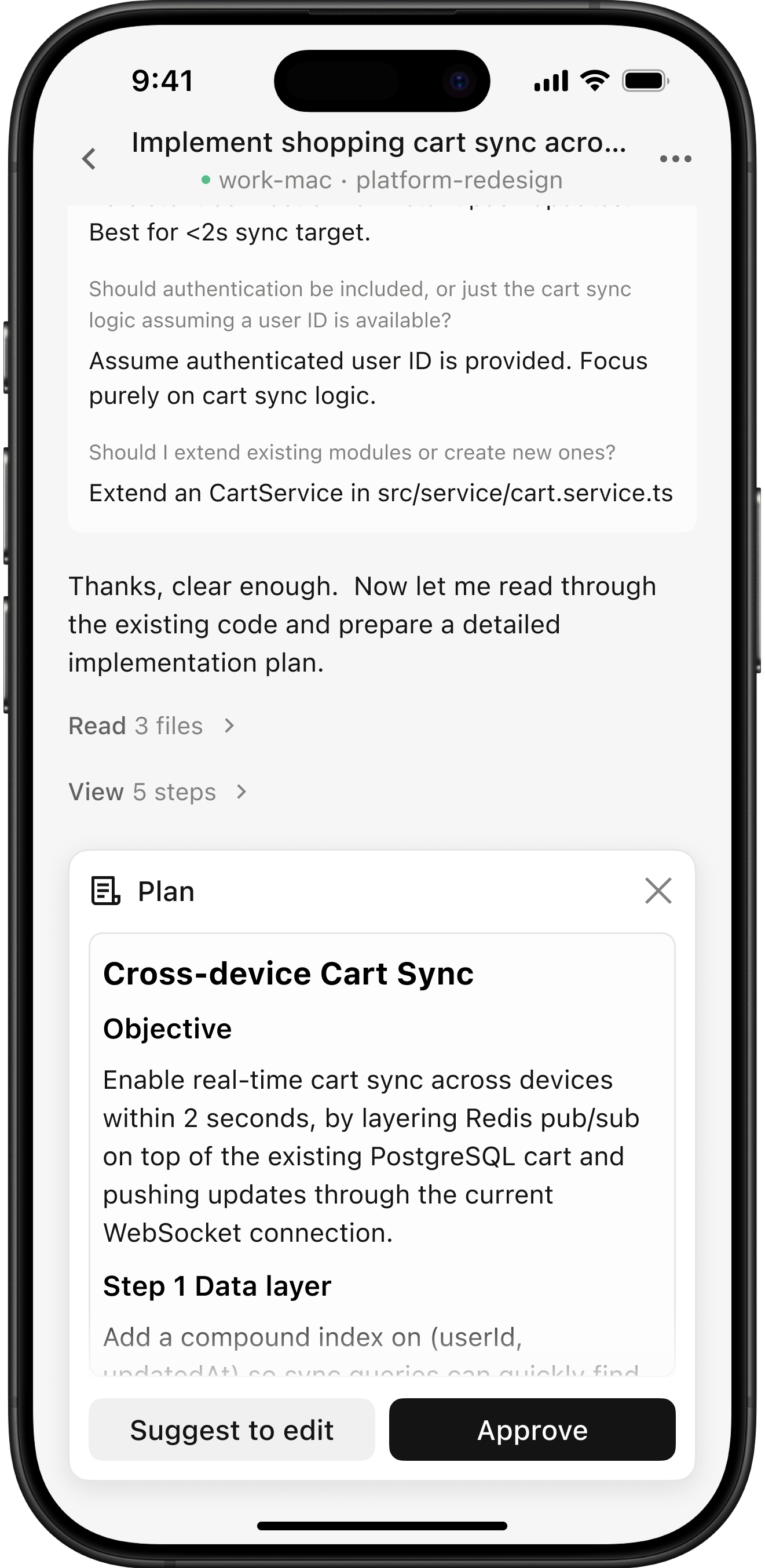
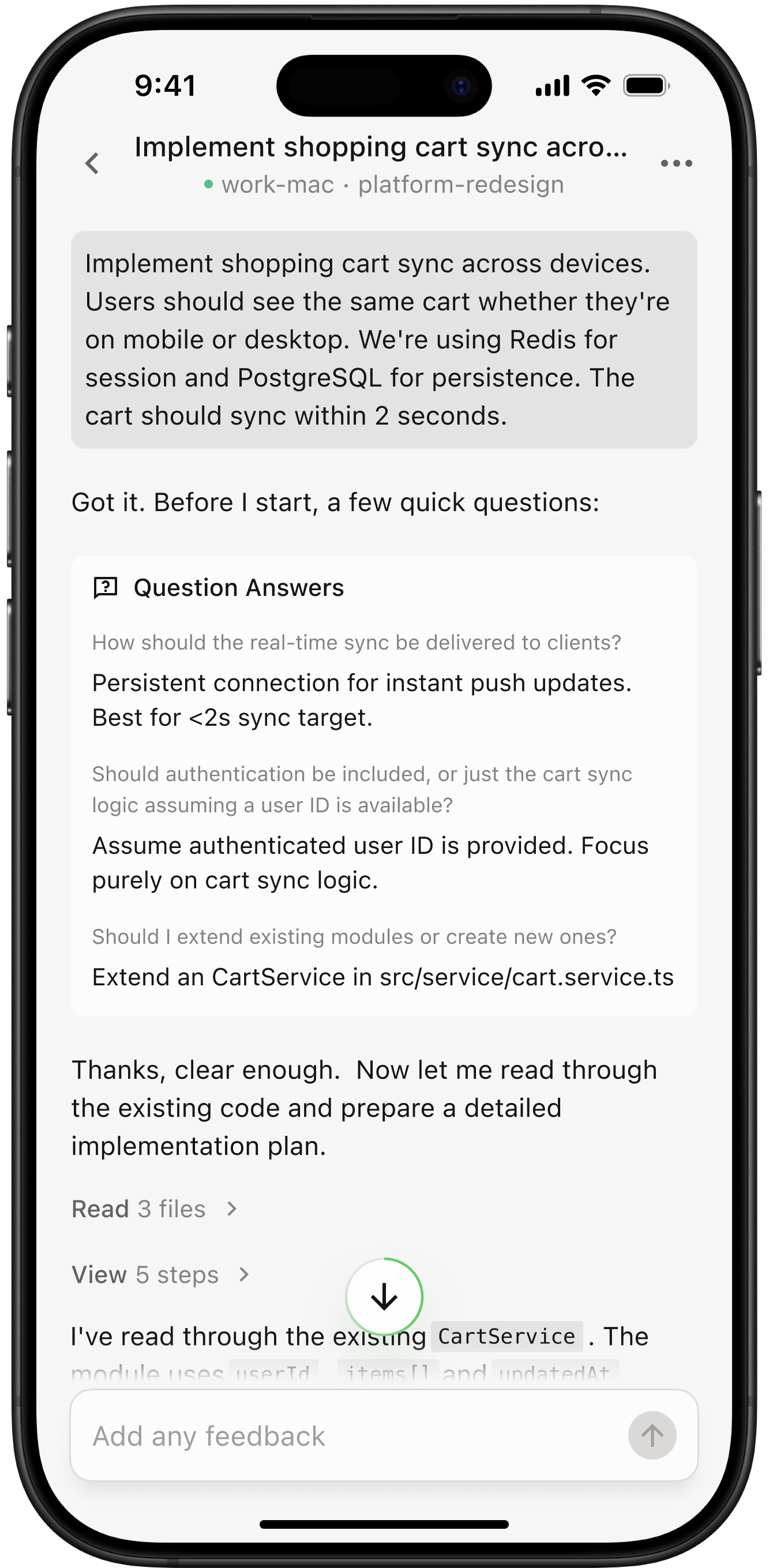
When Plan mode is enabled, you can review the proposed plan on your phone before the task begins execution. You can confirm that the approach matches your expectations before execution starts, keeping the review-before-action workflow available on mobile as well. This is especially useful when the task needs alignment before work begins. You can read the key points of the plan on mobile, decide whether the direction is right, and then let the task proceed.
When connected to Qoder desktop, Remote Control synchronizes task archive and restore state. Check refreshed lists on both devices after acting; cached state may be outdated while disconnected.
Before responding to a plan approval, review the plan and related files. Supported individual artifact transfers allow up to 100 MiB; input attachments retain their separate limits.
Available mobile actions depend on the companion client version. If an action is missing, check the version, connection, and target execution environment. This guidance applies to Qoder desktop tasks. See Mobile Remote Control for desktop setup.
Before leaving, keep the desktop app running with power and network access. If needed, enable the keep-awake option. SSH and WSL tasks also need their environments to remain connected. If the computer sleeps, the app exits, or the environment disconnects, restore the connection and check the task status.
Key capabilities
Remote control
Supports remote control for both CLI and Qoder. Take over tasks running on your computer from your phone, even after you step away from your desk.
All tasks at a glance
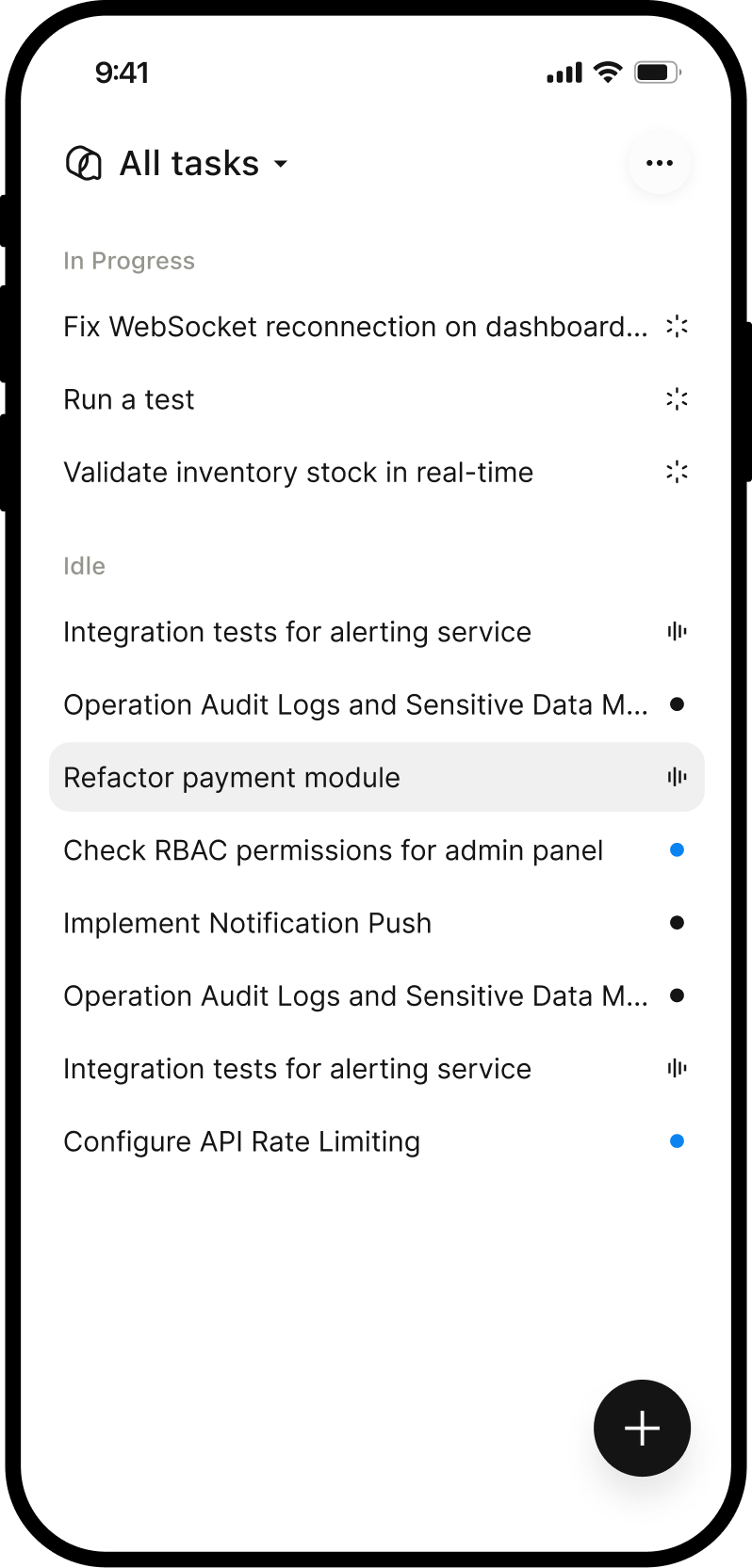
View running, idle, and archived tasks in one place so you can quickly understand progress.
Approve critical operations anytime, anywhere
Respond when a task needs confirmation and reduce time spent waiting for approval.
Review the plan before execution
When Plan mode is enabled, check whether the plan matches your expectations before execution.
You leave, work continues
Use remote control to keep long-running tasks moving with input at the right moments.
Remote control
To continue Qoder desktop tasks from your phone, first enable remote control on the computer.
- Sign in on mobile with the same account and connect to the target computer.
- Select a synchronized local, SSH, or WSL task and check its latest progress.
- Add requirements or respond to pending interactions. You can also start a task in workspaces that support task creation.
All tasks at a glance
See all running, idle, and archived tasks clearly on your phone. Monitor task progress anytime, anywhere. All tasks are shown in one place, making it easier to understand what is still in progress, what is ready, and what can be revisited later. When you have multiple tasks, this overview helps you build a quick sense of priority. You can focus first on tasks that need attention, then return to the rest when you are ready.
Approve critical operations anytime, anywhere
When a task reaches a critical operation that needs user approval, you can approve it from your phone wherever you are. This helps prevent tasks from waiting on your desktop when all they need is a timely confirmation from you. For operations that require explicit approval, mobile access makes the decision easier to handle in time. You can review the current task context and decide whether the task should continue.
Review the plan before execution
When Plan mode is enabled, you can review the proposed plan on your phone before the task begins execution. You can confirm that the approach matches your expectations before execution starts, keeping the review-before-action workflow available on mobile as well. This is especially useful when the task needs alignment before work begins. You can read the key points of the plan on mobile, decide whether the direction is right, and then let the task proceed.
Archiving, approvals, and artifacts
When connected to Qoder desktop, Remote Control synchronizes task archive and restore state. Check refreshed lists on both devices after acting; cached state may be outdated while disconnected.
Before responding to a plan approval, review the plan and related files. Supported individual artifact transfers allow up to 100 MiB; input attachments retain their separate limits.
Available mobile actions depend on the companion client version. If an action is missing, check the version, connection, and target execution environment. This guidance applies to Qoder desktop tasks. See Mobile Remote Control for desktop setup.
You leave, work continues
Before leaving, keep the desktop app running with power and network access. If needed, enable the keep-awake option. SSH and WSL tasks also need their environments to remain connected. If the computer sleeps, the app exits, or the environment disconnects, restore the connection and check the task status.