

QoderWork completes conversations and tasks on the desktop client by default. However, since most of your work communication likely happens in instant messaging (IM) apps, you can connect QoderWork to your favorite chat tools by enabling IM Channels. Whether you're commuting or between meetings, you can simply @ the bot in your IM to run tasks, query data, or organize documents, and the results will be sent directly back to your current chat window.
The desktop client remains the control center: all IM sessions have corresponding session windows on the desktop, where you can check progress, take over operations, or adjust configurations like MCP, Skills, and Connectors at any time. These configurations apply to all IM sessions.
QoderWork currently supports the following IM platforms:
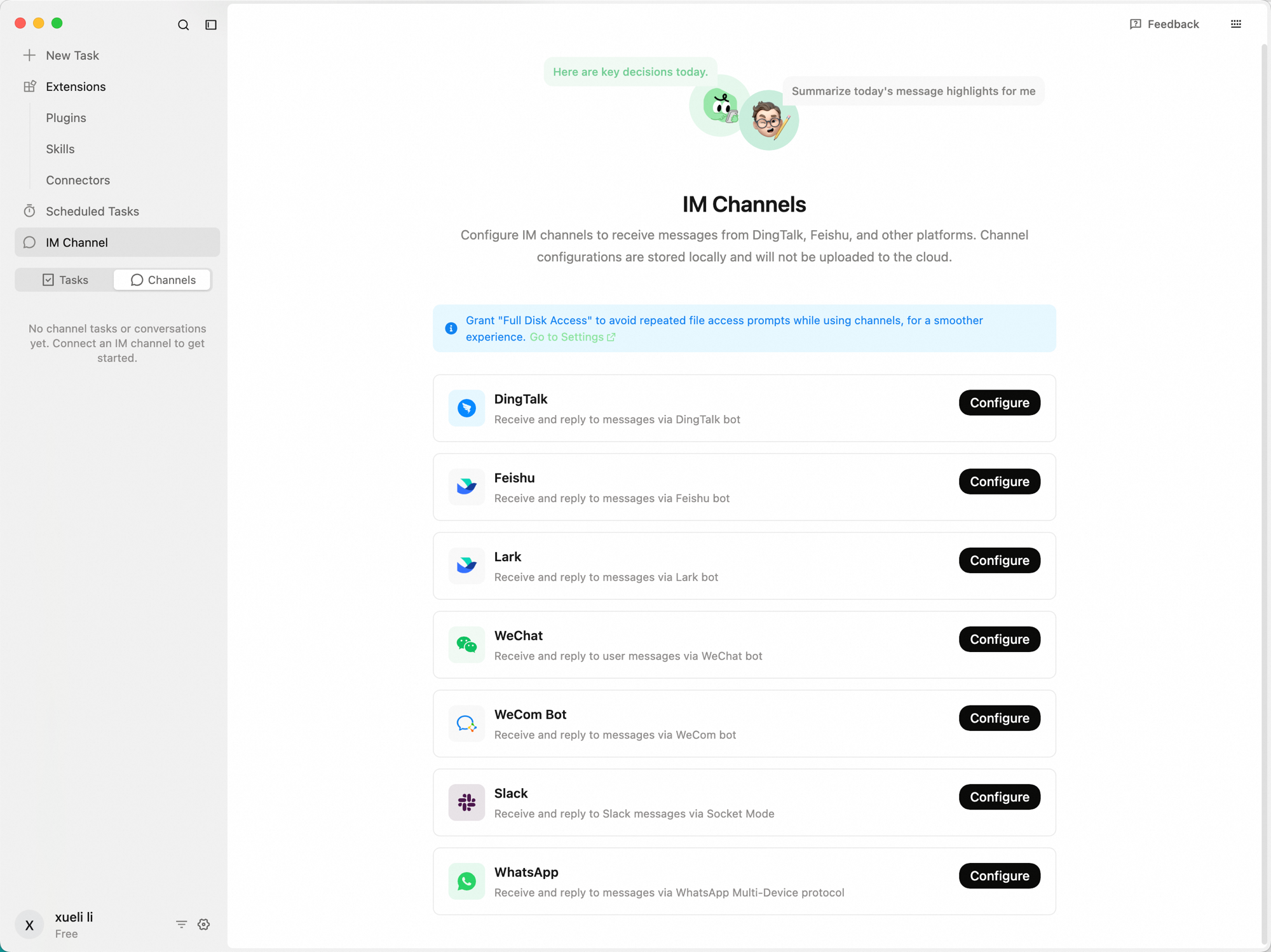
All IM channels are centrally managed on the IM Channels page.
IM integration follows one core principle: Where it comes from, it goes back.
When you send a message in an IM chat window, QoderWork processes it and automatically sends the result back to that exact same chat window. Tasks created directly on the desktop client will keep their results on the desktop and will not be pushed to any IM. Each IM session is mapped to an independent session window in the QoderWork desktop client, ensuring complete context isolation—different IM platforms and different chat windows do not interfere with each other. You can view the history and status of all IM sessions on the desktop, or continue operating in the corresponding session window on the desktop, and the output will still be synced back to the IM.
In any connected IM channel, you can send the following types of messages:
When sending multiple messages consecutively, the system will process them in order without dropping or reordering them.
Open Mode is suitable for quick rollout and use within a team; Pairing Mode is ideal for scenarios where you need to control the scope of use, such as restricting access to specific personnel.
In Pairing Mode, when a user privately messages the bot or @mentions the bot in a group, a pairing request is automatically triggered. You can click Allow in the "Pairing Management" section of the channel card to approve the request. Pairing is session-based: once allowed in a private chat, that user can converse; once allowed in a group chat, all members in that group can converse.
You can receive and reply to user messages via a DingTalk bot. QoderWork provides a way to connect a DingTalk bot: Configure in QoderWork.
Private Chat: Search for the bot's name in the search box at the top of DingTalk, click to enter the chat window, and send messages directly.
Group Chat: After adding the bot to a group chat, @mention the bot in the group to send messages. How to add: Click Group Settings (top right corner) → Bots → Add Bot → Search for and select the bot you created.
Private Chat: Search for the bot's name in the Feishu / Lark search box and click to enter the chat window.
Group Chat: Add the bot to the group chat and @mention the bot to send messages.
Simply scan the QR code to complete the binding; no additional configuration is required.
You can receive and reply to user messages via a WeCom bot. QoderWork provides two ways to connect a WeCom bot: Quick Setup and Manual Configuration.
This is the simplest and fastest way to connect. Just scan the QR code to complete the binding.
Receive and reply to Slack messages. You'll provide your Slack Bot Token and App-Level Token.
The configuration and status of all IM channels are centrally managed on the IM Channels page.
There is a toggle switch on each channel card. When turned on, the status shows as "Connected", and the IM side can be used normally; when turned off, messages sent from the IM side will no longer receive replies. Turning it off does not clear the configuration; simply turn it back on to restore service.
If you need to completely remove a channel's configuration, click Remove Configuration on the channel card. After removal, all configuration information for that channel will be cleared, and the IM side will no longer respond. To enable it again, you will need to reconfigure it.
DingTalk, Feishu, and Lark channels support switching between Open Mode and Pairing Mode at any time:
You can enable all IM channels simultaneously. Each channel is completely independent and does not interfere with the others—DingTalk, Feishu, Lark, and WeChat sessions each have their own independent context and history.
QoderWork allows you to intervene in standard desktop tasks via IM, enabling remote interaction with tasks so you can operate QoderWork anytime, anywhere.
Prerequisites:
Ask the bot questions directly in your IM, perfect for simple Q&A and quick queries:
The bot will invoke configured MCP tools and data sources to reply with the results directly in the IM.
Simply send images or files received or taken on your phone to the bot for processing:
Supports OCR text recognition, background replacement, receipt information extraction, file summarization, format conversion, data analysis, and more.
When you're out and temporarily want your desktop QoderWork to do some work:
QoderWork executes in the background, and automatically sends the result summary and file back to the IM session upon completion.
Use in conjunction with Scheduled Tasks to automatically push execution results to IM:
@mention the bot in a team group chat, and all group members can use it:
| Platform | Connection Method | Suitable Scenarios |
|---|---|---|
| DingTalk | Scan QR code to bind quickly | Enterprise team collaboration |
| Feishu | Scan QR code to automatically create an app | Quick access for individuals or teams (Chinese mainland) |
| Lark | Scan QR code to automatically create an app | Quick access for individuals or teams |
| Scan QR code to bind, ready to use immediately | Lightweight interaction on mobile | |
| WeCom Bot | Scan QR code to bind quickly or configure manually | Internal enterprise collaboration and automation |
| Slack | Enter Bot / App tokens | Overseas team collaboration |
| Scan QR code to bind | Customer-facing / mobile communication |
How It Works
IM integration follows one core principle: Where it comes from, it goes back.
When you send a message in an IM chat window, QoderWork processes it and automatically sends the result back to that exact same chat window. Tasks created directly on the desktop client will keep their results on the desktop and will not be pushed to any IM. Each IM session is mapped to an independent session window in the QoderWork desktop client, ensuring complete context isolation—different IM platforms and different chat windows do not interfere with each other. You can view the history and status of all IM sessions on the desktop, or continue operating in the corresponding session window on the desktop, and the output will still be synced back to the IM.
Supported Message Types
In any connected IM channel, you can send the following types of messages:
| Message Type | Description |
|---|---|
| Text | Send text commands directly |
| Image | Send images; supports OCR, background replacement, and other processing |
| File | Supports common formats like PDF, Excel, PPT, Word, CSV, TXT, etc. |
| Voice | Send voice messages; automatically recognizes content and executes operations |
| Forwarded Messages | Multiple forwarded messages will be parsed correctly |
| Image + Text | Correlates images with text commands, e.g., sending an image and saying "Extract the table" |
Access Policies
| Policy | Description |
|---|---|
| Open Mode | Everyone and all groups can chat directly with the bot without additional operations. |
| Pairing Mode | The bot can only be used in a specific session after you grant permission. |
Connect to DingTalk
You can receive and reply to user messages via a DingTalk bot. QoderWork provides a way to connect a DingTalk bot: Configure in QoderWork.
Configure in QoderWork
1
Open DingTalk Configuration Page
In QoderWork, go to IM Channels, find the "DingTalk" card, and click Configure.
2
Scan QR Code to Bind
The "Configure DingTalk" window will pop up, displaying the QR code interface by default.Open DingTalk, scan the QR code to complete the app registration and binding. If the QR code expires, click Refresh QR Code at the bottom.
3
Select Access Policy
After successful binding, select an access policy:
- Open Mode: Everyone / groups can converse directly
- Pairing Mode: Requires your permission before the session can use the bot
4
Complete Configuration
Return to QoderWork and confirm that the DingTalk status shows as "Connected". You can now use the bot in DingTalk.
How to Use
Private Chat: Search for the bot's name in the search box at the top of DingTalk, click to enter the chat window, and send messages directly.
Group Chat: After adding the bot to a group chat, @mention the bot in the group to send messages. How to add: Click Group Settings (top right corner) → Bots → Add Bot → Search for and select the bot you created.
The "Belonging Organization" of the group chat must match the organization used when creating the bot, otherwise the bot cannot be found via search.
Connect to Feishu / Lark
Configure in QoderWork
1
Open Configuration Page
In QoderWork, go to IM Channels, find the "Feishu" or "Lark" card, and click Configure.
2
Scan QR Code to Authorize
A QR code will be displayed at the top of the page. Open the Feishu / Lark App, scan the QR code, and confirm authorization. The system will automatically create an application under your organization and configure the required permissions and event callbacks.
3
Select Access Policy
After successful authorization, select an access policy:
- Open Mode: Everyone / groups can converse directly
- Pairing Mode: Requires your permission before the session can use the bot
4
Complete Configuration
Return to QoderWork and confirm that the status shows as "Connected". You can now use the bot in Feishu / Lark.
How to Use
Private Chat: Search for the bot's name in the Feishu / Lark search box and click to enter the chat window.
Group Chat: Add the bot to the group chat and @mention the bot to send messages.
Connect to WeChat
Simply scan the QR code to complete the binding; no additional configuration is required.
1
Open WeChat Configuration Page
In QoderWork, go to IM Channels, find the "WeChat" card, and click Configure.
2
Scan QR Code to Authorize
The page will display a QR code. Open WeChat, scan the QR code, and confirm authorization.
3
Start Using
Once binding is complete, wait for the status to change to "Connected". You can then start a conversation by sending messages directly to QoderWork in WeChat.
Connect to WeCom Bot
You can receive and reply to user messages via a WeCom bot. QoderWork provides two ways to connect a WeCom bot: Quick Setup and Manual Configuration.
Method 1: Quick Setup (Recommended)
This is the simplest and fastest way to connect. Just scan the QR code to complete the binding.
1
Open WeCom Bot Configuration Page
In QoderWork, go to IM Channels, find the "WeCom Bot" card, and click Configure.
2
Scan QR Code to Bind
In the pop-up "Configure WeCom Bot" window, select Quick Setup (Recommended).Open WeCom, scan the QR code to complete the bot creation and binding. If the QR code expires, click Refresh QR Code at the bottom.
Method 2: Manual Configuration
1
Obtain Bot Credentials
Create a bot in the WeCom admin console and obtain the bot's Bot ID and Secret.
2
Fill in Configuration Info
In QoderWork's "Configure WeCom Bot" window, select Manual, enter the obtained Bot ID and Secret, and click Save.
Connect to Slack
Receive and reply to Slack messages. You'll provide your Slack Bot Token and App-Level Token.
1
Open the Slack configuration page
In QoderWork, go to IM Channels, find the "Slack" card, and click Configure.
2
Enter the tokens
In the "Configure Slack" dialog, enter both tokens (from your Slack app):
- Bot Token (starts with
xoxb-) - App-Level Token (starts with
xapp-)
3
Choose an access policy
Select an Access Policy:
- Pairing: requires your approval before a conversation can be used
- Open: anyone can start a conversation directly
4
Test and save
Optionally click Test connection to verify, then click Save. Once the status shows "Connected", DM the bot in Slack or @-mention it in a channel to start chatting.
Connect to WhatsApp
1
Open the WhatsApp configuration page
In QoderWork, go to IM Channels, find the "WhatsApp" card, and click Configure.
2
Scan to link
On your phone, open WhatsApp and scan the QR code shown in QoderWork.
3
Finish
Once linked and the status shows "Connected", message the bot directly in WhatsApp to start chatting.
Managing IM Channels
The configuration and status of all IM channels are centrally managed on the IM Channels page.
Enable and Disable
There is a toggle switch on each channel card. When turned on, the status shows as "Connected", and the IM side can be used normally; when turned off, messages sent from the IM side will no longer receive replies. Turning it off does not clear the configuration; simply turn it back on to restore service.
Delete Channel
If you need to completely remove a channel's configuration, click Remove Configuration on the channel card. After removal, all configuration information for that channel will be cleared, and the IM side will no longer respond. To enable it again, you will need to reconfigure it.
Switch Access Policy
DingTalk, Feishu, and Lark channels support switching between Open Mode and Pairing Mode at any time:
- Switching from Open to Pairing: After switching, previously unpaired users will no longer be able to use the bot. They will need to trigger a new pairing request and obtain permission.
- Switching from Pairing to Open: After switching, all users can use the bot directly without pairing.
Parallel Multi-Channels
You can enable all IM channels simultaneously. Each channel is completely independent and does not interfere with the others—DingTalk, Feishu, Lark, and WeChat sessions each have their own independent context and history.
Task Binding (Remote Takeover)
QoderWork allows you to intervene in standard desktop tasks via IM, enabling remote interaction with tasks so you can operate QoderWork anytime, anywhere.
Prerequisites:
- At least one IM channel (e.g., DingTalk, WeChat) is enabled.
- A standard task has been created and exists on the QoderWork desktop client.
/bind: View the list of currently bindable tasks. Reply with/bind <number>(e.g.,/bind 1) to bind the current IM session to the specified desktop task. Once bound, messages you send in the IM will be forwarded directly to that task, and the task's replies will be synced to the IM in real time./unbind: Unbind the current IM session from the desktop task. After unbinding, the IM session will revert to a standard independent session.