

Create a new task: describe the outcome, pick a workspace, pick a model, bind a working folder, then send.
Everything you do in QoderWork happens inside a task. A task is a single AI work session with its own conversation, context, Task Monitor, and artifacts. Starting a New Task gives you a clean slate — anything you say there lives in that task's history and doesn't bleed into the rest of your work.
This page walks through the New Task entry feature-by-feature: where to start one, what a task gives you, and what each control on the input bar does when you create one.
Every task carries its own:
QoderWork gives you two entry points; they all open the same empty composer.
Once the composer is open, the input bar at the bottom exposes four controls and a send button. A complete task creation walks through them in order: describe → workspace → model → working folder → send.
The input box is the heart of the task.
How well you write this single field caps the quality of the entire task. The most effective prompts are outcome-oriented — say what you want delivered, not the steps to get there. Brief it like a capable colleague: state the goal, the format, and any constraints.
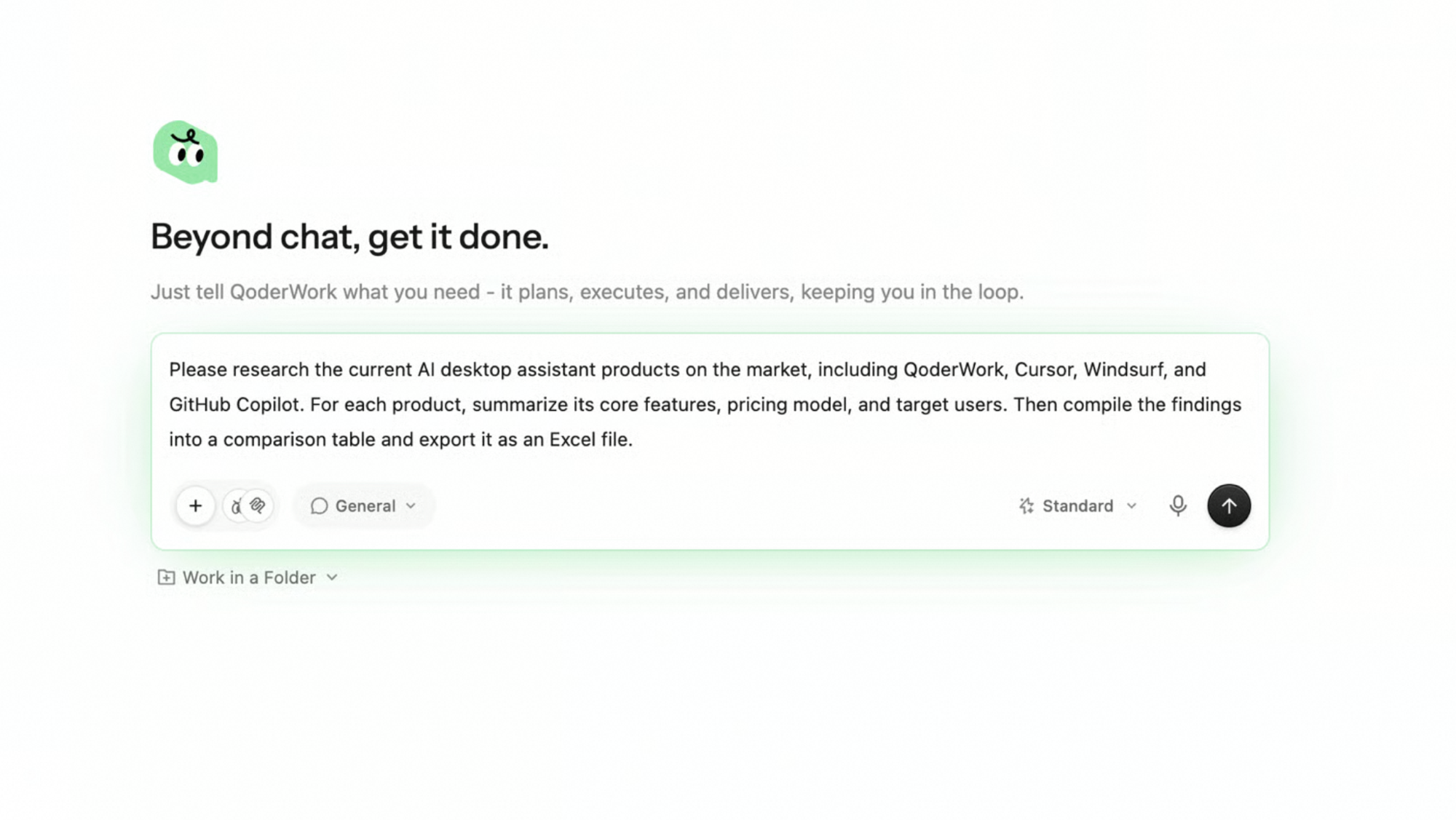 A more effective prompt:
A less effective prompt:
The difference: the first one names the deliverable (comparison table + Excel), the scope (four specific products), and the columns (features / pricing / users); the second only names a topic and leaves QoderWork to guess — fine when it guesses right, wasted work when it guesses wrong.
A more effective prompt:
A less effective prompt:
The difference: the first one names the deliverable (comparison table + Excel), the scope (four specific products), and the columns (features / pricing / users); the second only names a topic and leaves QoderWork to guess — fine when it guesses right, wasted work when it guesses wrong.
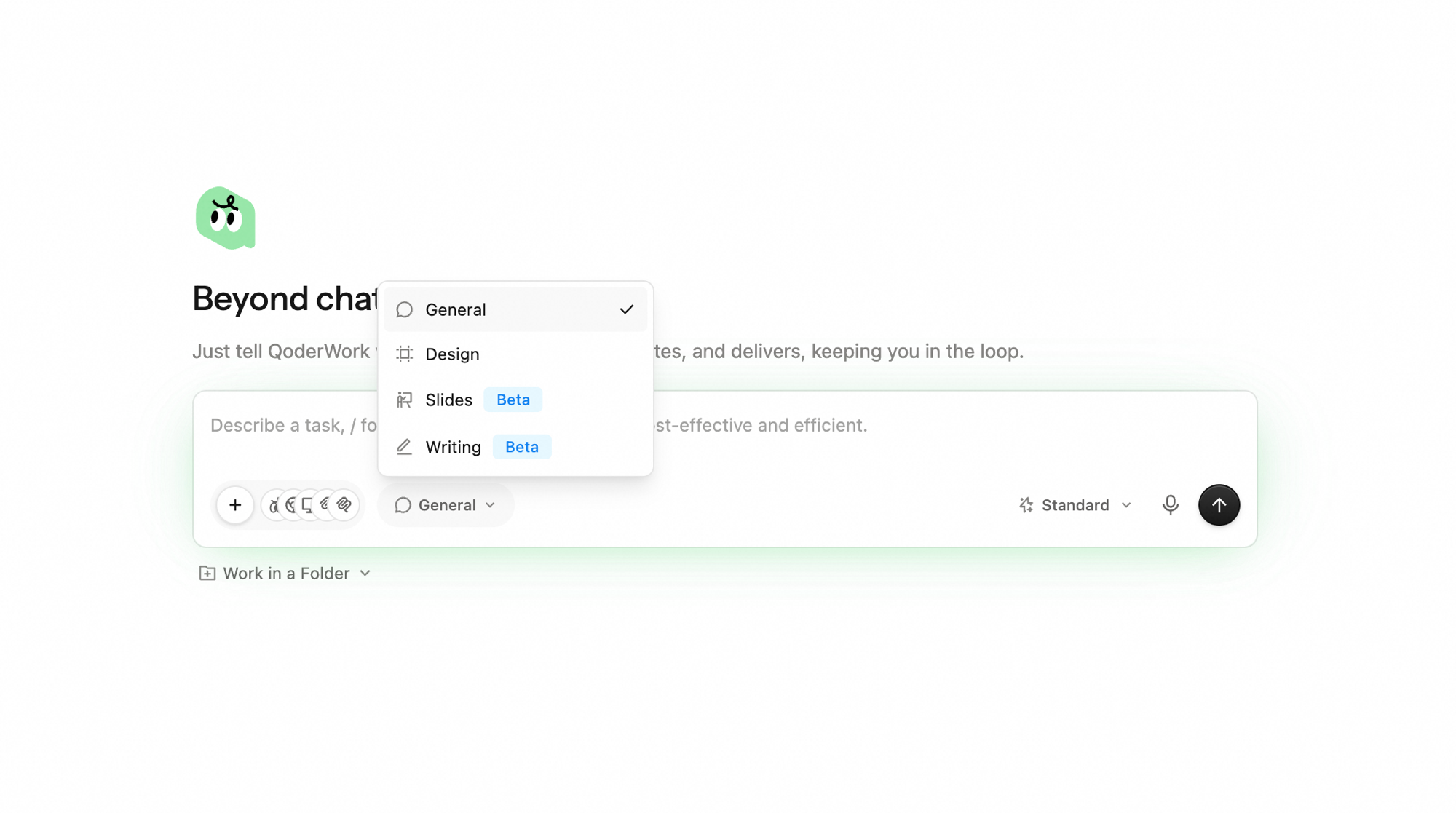
The Workspace picker at the bottom-left of the input bar (default General) selects the workspace the task runs in. Each workspace comes with a tuned tool set and default prompt for its target use case.
The Model picker at the bottom-right selects the model that powers the task. Models differ in capability, speed, and cost.
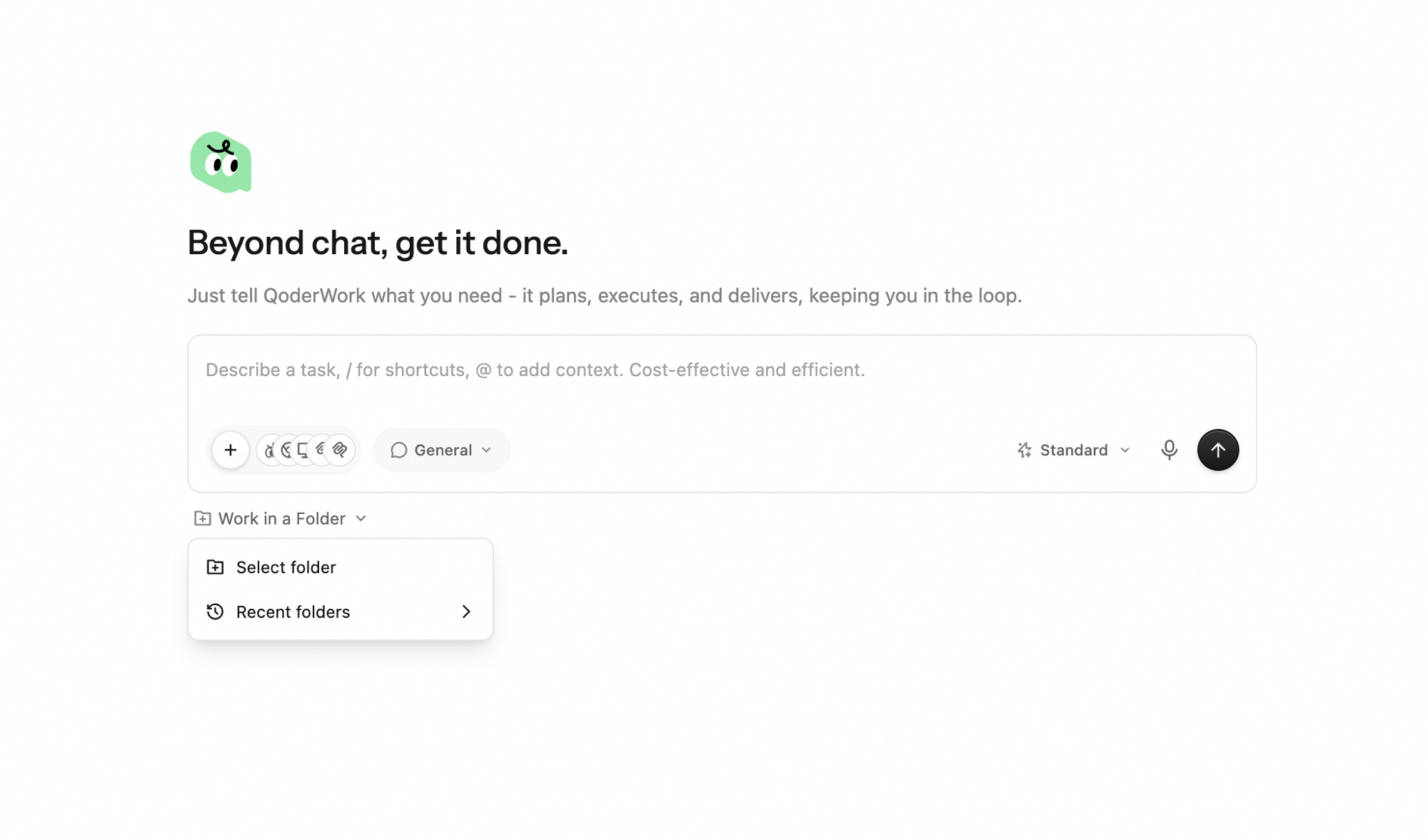
The Work in a Folder control binds the task to a specific local folder. Once bound, QoderWork reads and writes files there directly — no need to upload or export by hand.
Once the prompt, workspace, model, and (optionally) working folder are set, click the send button at the right of the bar. The task is logged into the sidebar immediately, shows as Running, and the main area opens the Task Monitor panel on the right.
Both are useful. The simple rule:
Every task you start — submitted or not — is saved.
What a task includes
Every task carries its own:
- Conversation history — the back-and-forth between you and the AI.
- Working folder — the local folder bound via Work in a Folder (optional).
- Workspace and model — the picker selections made for this task.
- Attachments and context — files added through
+, skills called through/. - Task Monitor — the live to-do list, tool calls, and used Skills & MCP for this run.
- Artifacts — the concrete files (spreadsheets, docs, code, slides) produced by the run.
Where to start a New Task
QoderWork gives you two entry points; they all open the same empty composer.
Sidebar button
Click + New Task at the very top of the sidebar.
Empty state
When the window first opens with no task selected, the center area already is the New Task composer.
Creating a task
Once the composer is open, the input bar at the bottom exposes four controls and a send button. A complete task creation walks through them in order: describe → workspace → model → working folder → send.
Describe the task
The input box is the heart of the task.
How well you write this single field caps the quality of the entire task. The most effective prompts are outcome-oriented — say what you want delivered, not the steps to get there. Brief it like a capable colleague: state the goal, the format, and any constraints.
Pick a workspace
The Workspace picker at the bottom-left of the input bar (default General) selects the workspace the task runs in. Each workspace comes with a tuned tool set and default prompt for its target use case.
- General — the default for everyday work; covers the broadest set of scenarios (file ops, data, research, automation).
- Design — an AI-native design-as-code canvas; describe what you need in natural language and get a running, editable, deliverable design artifact on an infinite canvas.
- Slides — use when you want QoderWork to produce a PPT directly.
- Writing — for long-form documents and structured writing.
Pick a model
The Model picker at the bottom-right selects the model that powers the task. Models differ in capability, speed, and cost.
- Standard — for everyday tasks; balances speed and quality.
- Advanced — powerful and balanced for key tasks.
- Premium — switch up when the task needs harder reasoning, higher quality, or has low tolerance for error (e.g. key reports, cross-file analysis).
- Qwen series — best performance-to-cost ratio with a full leap in Agentic capability, able to complete long, complex tasks autonomously.
Pick a working folder (optional)
The Work in a Folder control binds the task to a specific local folder. Once bound, QoderWork reads and writes files there directly — no need to upload or export by hand.
- Select folder — opens the system picker so you can browse to any local folder.
- Recent folders — QoderWork remembers the last few you used, ready to reuse.
- The task involves multiple local files (e.g. cleaning up every Word doc in a folder).
- The output needs to land in a specific place (e.g. dropping a generated PPT into a project directory).
- The task modifies existing code or design files.
Send
Once the prompt, workspace, model, and (optionally) working folder are set, click the send button at the right of the bar. The task is logged into the sidebar immediately, shows as Running, and the main area opens the Task Monitor panel on the right.
New task or continue in the current one?
Both are useful. The simple rule:
- Start a New Task when the next thing you want to do is unrelated to what's on screen. A new task gets a fresh context window, doesn't waste Credits replaying old history, and ends up in your Tasks list as a separately addressable item.
- Continue in the current task when you're iterating on the same outcome — re-sorting a table, asking a follow-up about the same research, or fixing one column of the spreadsheet that just got delivered. QoderWork keeps the full context, so it knows what "this table" means.
Where your tasks live after they finish
Every task you start — submitted or not — is saved.
- The Tasks tab in the sidebar lists every task, grouped under Recent, with a search box at the top.
- A task that's still running shows a live status; one that's finished can be reopened to view the conversation, re-download artifacts, or send a follow-up.
- Drafts you composed but never sent stay under Drafts in the sidebar.