

Writing is a vertical workspace tuned for long-form prose — articles, reports, posts, technical guides, internal docs. The agent's output lands as a Markdown file in the local
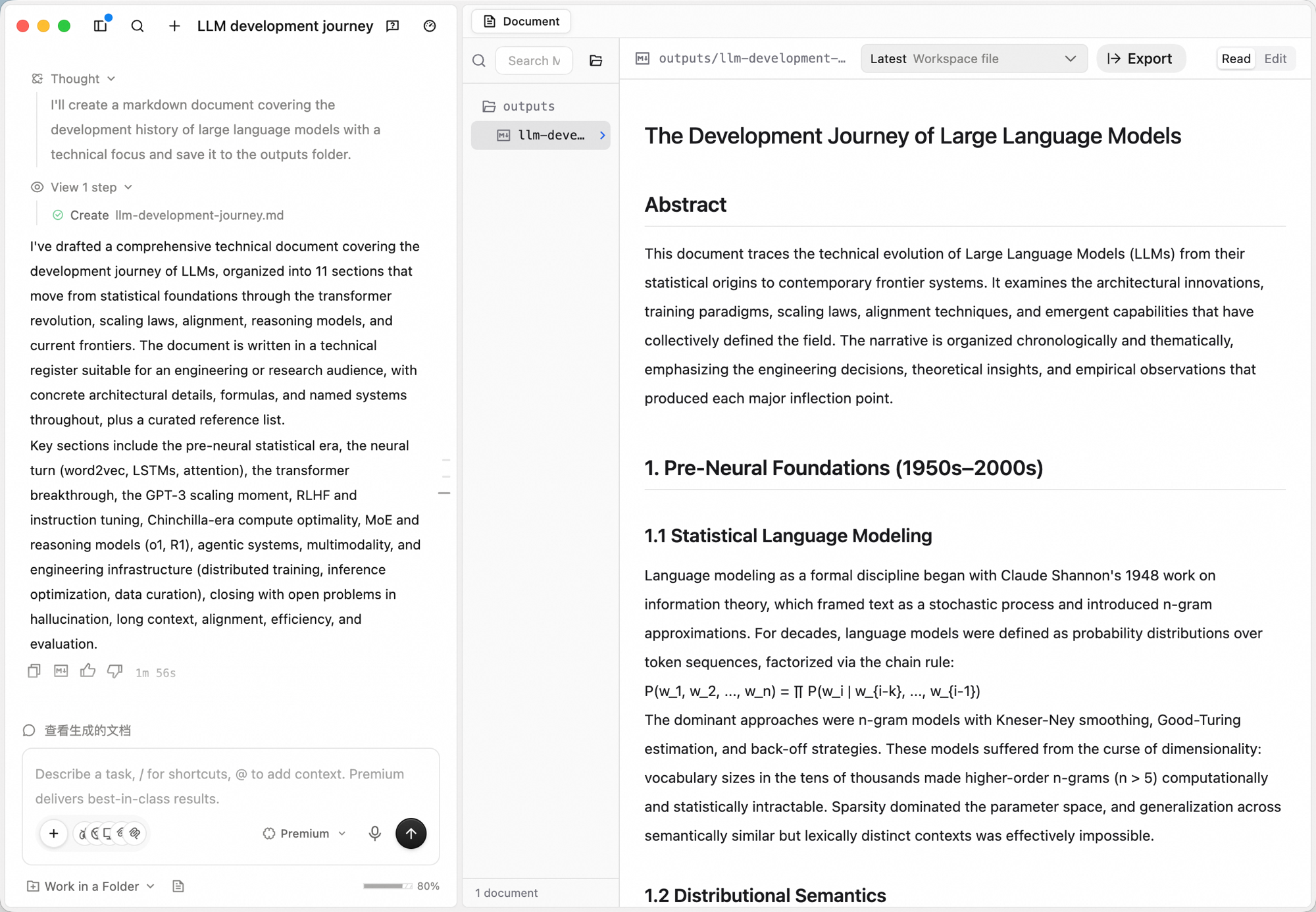 The Document workspace pairs a Markdown file tree with an editor:
Click Export in the top-right corner to export the current document as a PDF file. You can also copy the rendered text into any downstream tool — docs, blog CMS, internal wiki, or chat.
outputs/ folder and every iteration is kept as a re-traceable version; switch to Edit at any time to revise the prose directly and the agent will pick up your changes in subsequent turns.
Workspace
| Element | What it does |
|---|---|
| File tree | Outputs are organized as Markdown files (outputs/your-doc.md). Search by name, or open the underlying directory with the folder icon |
| Editor | The document content. The top-right has a Read / Edit toggle, a Latest Workspace file selector (switch between versions of the doc), and Export (export as PDF) |
Creating a document
1
Switch to Writing
In the input box, click the workspace switcher (defaults to General) and choose Writing.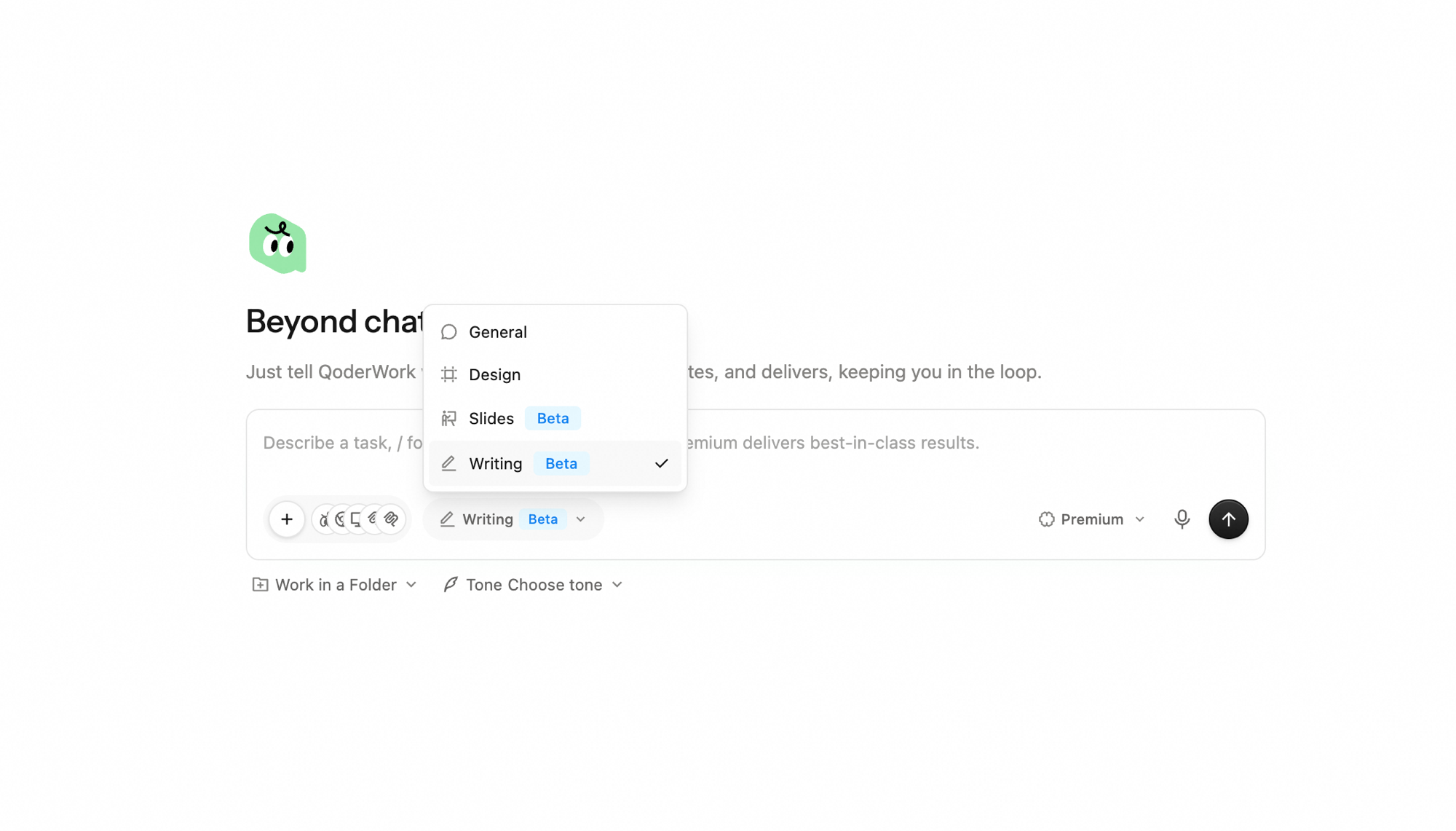
2
Brief the agent
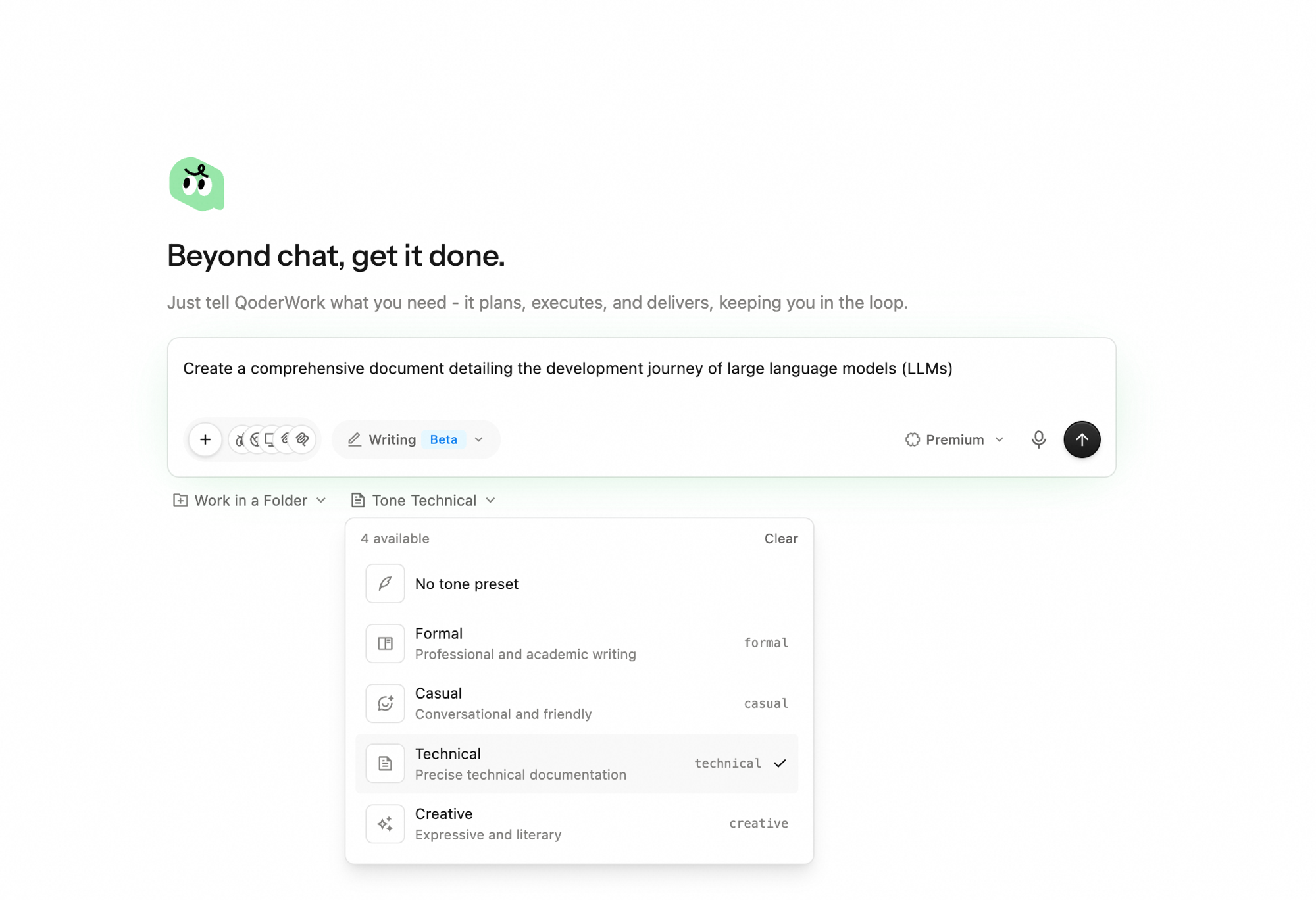
Describe the topic, audience, tone, and key points. Click the microphone for voice input. After switching to Writing, a Work in a Folder option and a Tone option appear in the toolbar below the input — configure them as you brief the task.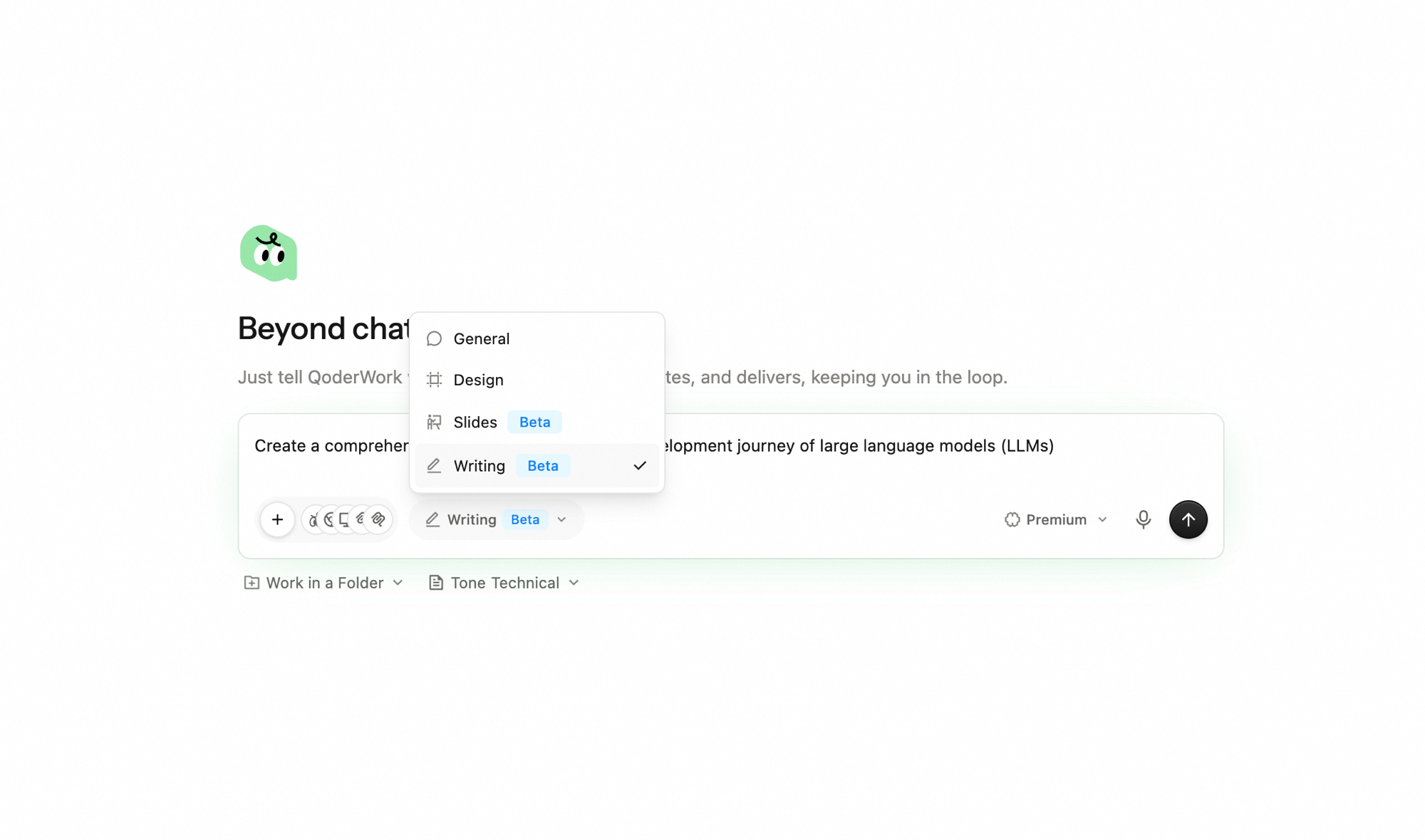
3
Pick a tone and pin a folder (optional)
- Click Tone to set the overall voice — No tone preset / Formal / Casual / Technical / Creative. Leave it unset to let the agent infer the tone from the brief.
- Click Work in a Folder to pin the task to a local directory. The agent reads and writes files there, so the run is grounded against existing material and the output sticks to disk for longer iteration cycles.
4
Read or edit on the canvas
The output appears as a Markdown file in the outputs/ folder. Toggle Read in the top-right to review the rendered Markdown, or Edit to make direct changes in the editor.
Iterating
- Add to the queue. Send follow-up instructions in the bottom input box — "add a section on permissions" — the agent updates the relevant parts of the file in place.
- Stop a run. Click the stop button next to the input to halt generation mid-flight.
- Compare versions. Use the Latest Workspace file dropdown to flip between the latest and earlier versions of a document — useful when you've taken multiple passes and want to compare.
- Edit directly. Switch to Edit in the editor to fix a sentence or rewrite a paragraph yourself; the agent picks up your edits in subsequent turns.
- Switch models. Use the model dropdown to change models for the next step.