

Use Working Folders to let QoderWork process your local files
QoderWork can directly read and write files on your computer—no manual uploading or downloading needed. To protect your privacy and security, all file access requires your explicit authorization. This page explains how to use the Working Folder feature to efficiently process local files.
A "Working Folder" is a local directory you authorize QoderWork to access. Once selected, AI can read all files and subfolders within it. This is the core mechanism for how QoderWork handles file-related tasks.
QoderWork follows strict security rules for file operations:
Only accesses directories you authorize. If a task needs files from other locations, QoderWork will ask for your permission first.
Never permanently deletes files. Even if you ask to "delete files," QoderWork moves them to the system trash rather than permanently deleting them.
File content is never permanently stored. File content is sent to the AI model for understanding and analysis during processing but is not permanently saved in the cloud.
QoderWork can read virtually all common file formats:
QoderWork can generate files in various formats:
After a task completes, generated files appear as cards in the conversation. You can:
Good folder organization significantly improves QoderWork's effectiveness.
Keep files for the same type of work in one folder. Don't mix unrelated content.
Use dates or sequential numbers at the beginning so files have a natural order:
If multiple files in a folder need to be processed together (e.g., merging multiple reports), make sure they use the same format and column names. Consistent formatting dramatically improves accuracy when QoderWork aligns data.
Working Folder
A "Working Folder" is a local directory you authorize QoderWork to access. Once selected, AI can read all files and subfolders within it. This is the core mechanism for how QoderWork handles file-related tasks.
Selecting a Working Folder
1
Start a new task
Click + New Task to create a conversation.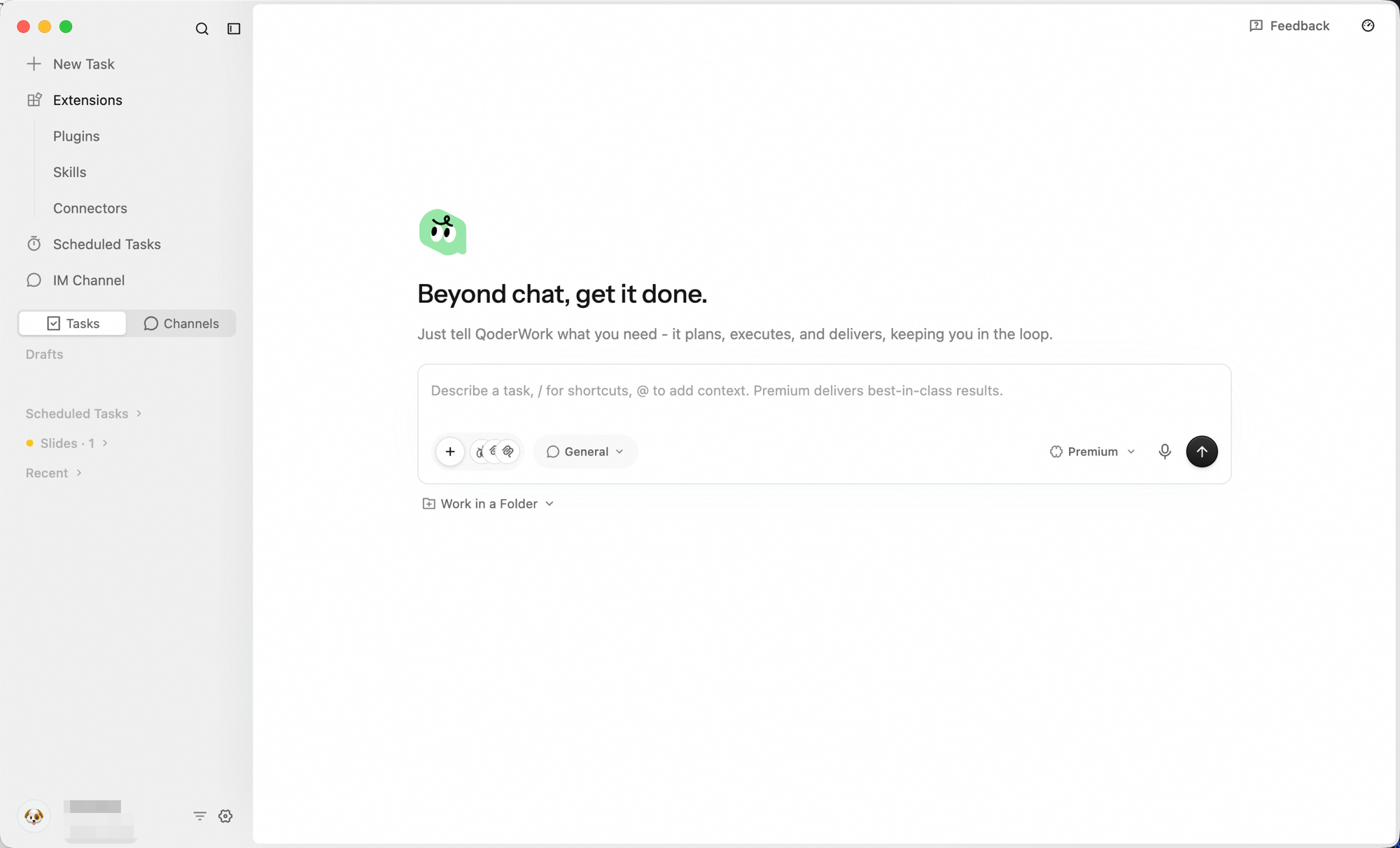
2
Choose a folder
Below the input box, click Work in a Folder. A file picker will appear — select the folder you want to work with.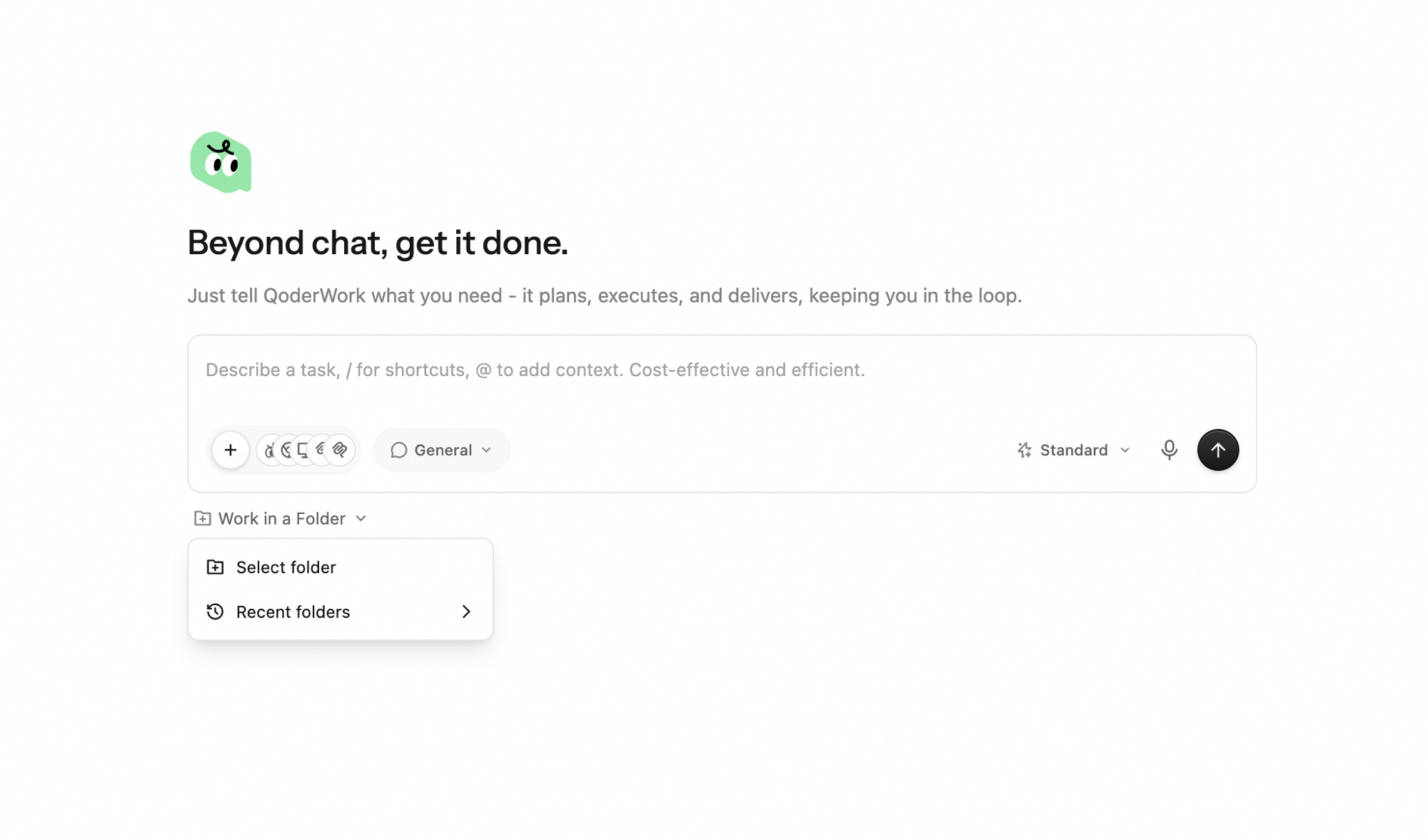
3
Start working
Once selected, the folder name appears below the input box. Now just type your task—the AI will automatically read the folder's contents.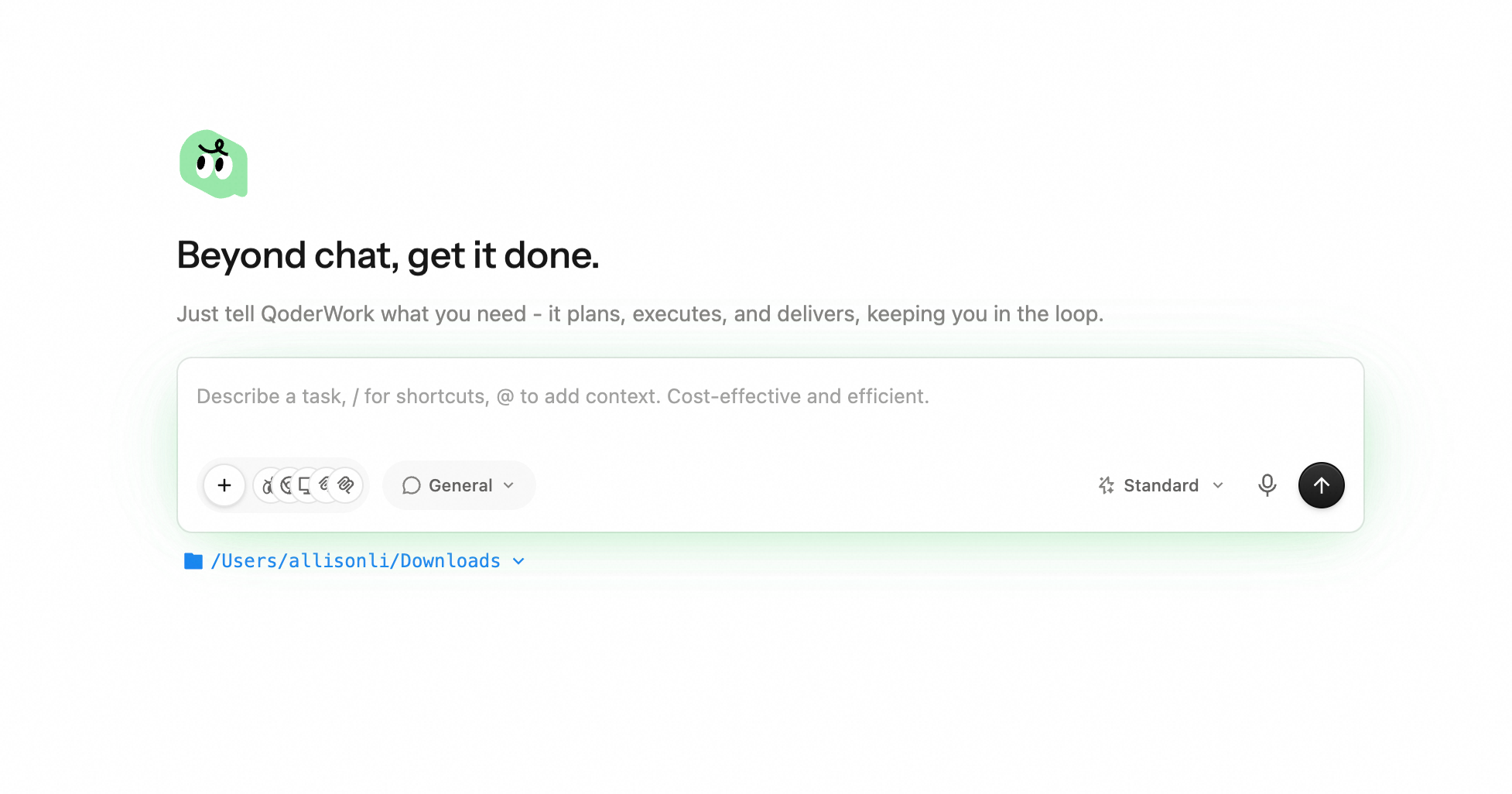
When to Use a Working Folder
| Scenario | Recommended Approach |
|---|---|
| Processing a single file (e.g., one PDF) | Drag and drop directly into the conversation |
| Processing multiple related files (e.g., a set of reports) | Use a Working Folder |
| Files are added over time (e.g., monthly data) | Use a Working Folder |
| You need output saved to a specific location | Use a Working Folder |
File Security
QoderWork follows strict security rules for file operations:
Only accesses directories you authorize. If a task needs files from other locations, QoderWork will ask for your permission first.
Never permanently deletes files. Even if you ask to "delete files," QoderWork moves them to the system trash rather than permanently deleting them.
File content is never permanently stored. File content is sent to the AI model for understanding and analysis during processing but is not permanently saved in the cloud.
Input and Output
Supported Input File Types
QoderWork can read virtually all common file formats:
- Documents: PDF, Word (.docx), Markdown, plain text, RTF
- Spreadsheets: Excel (.xlsx/.xls), CSV, TSV
- Images: PNG, JPG, SVG, GIF (with OCR text recognition)
- Code: Source files in any programming language
- Presentations: PowerPoint (.pptx)
- Data: JSON, YAML, XML, SQL
Supported Output File Types
QoderWork can generate files in various formats:
- Documents: Word (.docx), PDF, Markdown, HTML
- Spreadsheets: Excel (.xlsx), CSV
- Presentations: PowerPoint (.pptx)
- Images: PNG, SVG
- Data Visualization: Interactive HTML reports
- Code: Code files in any language
- Other: JSON, XML, and other structured data
Viewing and Retrieving Output
After a task completes, generated files appear as cards in the conversation. You can:
- Click a card to open the file directly on your system
- Files are already saved in your Working Folder—access them via Finder / File Explorer anytime