

Overview of all QoderWork settings: preferences, profile, system, voice, shortcuts, desk, security, and experimental features
Click the gear icon at the bottom of the left sidebar to open the settings panel. Settings are organized into three groups: General, Extensions & integrations, and Advanced.
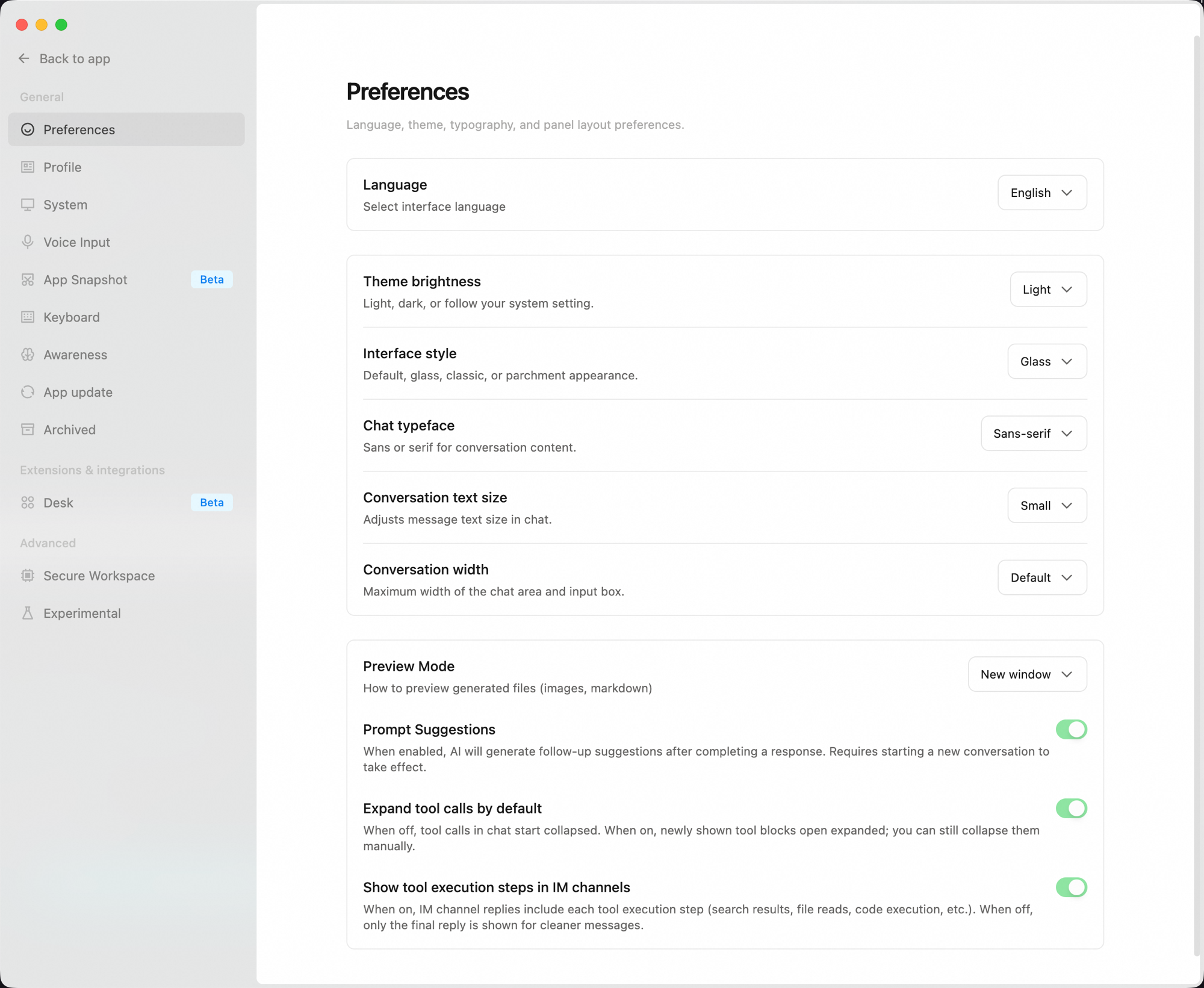
Personalize the interface and conversation experience:
Manage your avatar and account information:
System-level options including startup, wake lock, and notifications:
System permissions — The following permissions can be granted in System Settings:
Data sharing — Your data is never used to improve the product; it is only used to provide basic services. You can switch to Privacy Mode here. For enterprise accounts, this setting can only be changed by an admin in the organization settings.
Global voice input hotkey and transcription settings (see Voice Input):
Capture the frontmost app's screenshot and readable text as conversation context (see App Snapshots):
View and customize keyboard shortcuts. Search for a shortcut or click any entry to record a new combination.
General
Tasks
Conversation
QuickPick — A global quick-task window. Submit tasks without switching to the main window. Supports a key combination (e.g. ⌥ Space) or double-tap modifier key as trigger modes.
Cross-session memory and collaboration style personalization. See Awareness.
Check for and install new versions of QoderWork (same as "Check for Updates" in the menu bar). When a new version is available, a prompt appears — only after you confirm does QoderWork download and relaunch. If you're already on the latest version, you'll see a "You're up to date" message.
Manage archived tasks. Restore or permanently delete individual tasks, or use "Delete all" in the top-right corner to clear everything at once.
Configure workspace modes and the default mode for new tasks:
Slide templates — Manage built-in and custom slide templates. Import your own templates here.
Runs tasks in a separate isolated space on your computer — faster execution, more stable, and all files and data stay on your device:
Try new features early. Some are still being refined:
General
Preferences
Personalize the interface and conversation experience:
| Setting | Description |
|---|---|
| Language | Choose the interface language (Chinese / English / Japanese). Changes take effect immediately. |
| Theme brightness | Light, Dark, or Auto (follows system) |
| Interface Style | Default, Glass, Classic, or Parchment appearance |
| Chat typeface | Sans-serif or Serif |
| Conversation text size | Adjust the text size in conversations |
| Conversation width | Maximum width of the conversation area and input bar |
| Preview Mode | How to preview generated files (images, Markdown) |
| Prompt Suggestions | When on, AI automatically generates a next-step suggestion after each reply (requires a new conversation to take effect) |
| Expand tool calls by default | When on, newly displayed tool blocks are expanded by default; can still be collapsed manually |
| Show tool execution steps in IM channels | When on, IM replies stream each tool step in real time; when off, only the final reply is shown |
Profile
Manage your avatar and account information:
- Avatar — Customize the background color (11 options) and icon (username initials or Emoji).
- Email — Displays the email address linked to your current account (read-only).
- Subscription — Shows your current plan. Click "View plans & pricing" to go to the pricing page.
- Sign out — Sign out on this device. You can sign back in at any time.
System Settings
System-level options including startup, wake lock, and notifications:
| Setting | Description |
|---|---|
| Launch at login | Automatically start QoderWork when you log in |
| Keep system awake | Prevent the computer from sleeping while an Agent is working |
| Desktop notifications | Send a system notification when the Agent needs a reply or finishes a task |
| Sound notifications | Play a sound when the Agent completes a task |
| Network proxy | Configure how the app routes network traffic (Follow system / Custom) |
| Permission | Used for |
|---|---|
| Full Disk Access | Reading and writing project files |
| Screen Recording & Audio | Screen content recognition, feedback screenshots |
| Accessibility | Listening for global hotkeys (quick launch, etc.) |
| Microphone | Voice input |
| Automation | Working with system apps: reminders, calendar, notes |
| Notifications | Desktop notifications for task completion and messages |
| Location Services | Tasks involving geographic location |
Voice Input
Global voice input hotkey and transcription settings (see Voice Input):
- Enable voice input — Enable the global voice input hotkey. Press once to start recording; press again to stop and transcribe.
- Enable bottom floating window — When no window is focused, pressing the voice hotkey pops up a floating window at the bottom of the screen. When off, pressing the hotkey has no effect (the microphone button in the input bar is not affected).
- Hotkey mode — Choose how to trigger recording: single key or a key combination (e.g. Ctrl+Shift+Space).
- Trigger key — The selected key only triggers voice input when pressed alone; normal key combinations are not affected.
App Snapshot
Capture the frontmost app's screenshot and readable text as conversation context (see App Snapshots):
- Global hotkey — Select the trigger (e.g., pressing both left and right Option keys simultaneously).
Keyboard Shortcuts
View and customize keyboard shortcuts. Search for a shortcut or click any entry to record a new combination.
General
| Action | macOS | Windows |
|---|---|---|
| Open Settings | ⌘ , | Ctrl , |
| Toggle Sidebar | ⌘ \ | Ctrl \ |
| Action | macOS | Windows |
|---|---|---|
| Quick Switch Task | ⌃ Tab | Ctrl Tab |
| Create New Task | ⌘ N | Ctrl N |
| Search All Tasks | ⌘ G | Ctrl G |
| Search in Current Task | ⌘ F | Ctrl F |
| Action | macOS | Windows |
|---|---|---|
| Send Message | ↵ or ⌘ ↵ | ↵ or Ctrl ↵ |
| Insert Line Break | ⇧ ↵ or ⌃ ↵ | Shift ↵ |
Awareness
Cross-session memory and collaboration style personalization. See Awareness.
App Update
Check for and install new versions of QoderWork (same as "Check for Updates" in the menu bar). When a new version is available, a prompt appears — only after you confirm does QoderWork download and relaunch. If you're already on the latest version, you'll see a "You're up to date" message.
Archived
Manage archived tasks. Restore or permanently delete individual tasks, or use "Delete all" in the top-right corner to clear everything at once.
Extensions & integrations
Workspaces
Configure workspace modes and the default mode for new tasks:
| Workspace | Description |
|---|---|
| General | Chat with AI assistant (default) |
| Design | Design on a canvas |
| Slides | Create presentations with AI Slides |
| Writing | Write, edit, and polish documents |
Advanced
Secure Work Environment
Runs tasks in a separate isolated space on your computer — faster execution, more stable, and all files and data stay on your device:
- Enable Secure Work Environment — When on, tasks run in an isolated environment that doesn't affect other files on your computer and never touches the real system.
- Clean up workspace files to free disk space — Deletes downloaded workspace files. Your conversation history and artifacts are not affected.
Experimental Features
Try new features early. Some are still being refined:
| Feature | Description |
|---|---|
| Generative UI | Lets AI render interactive HTML components (charts, dashboards, forms, etc.) in chat. Takes effect in new conversations. |
| Pop out as window | Run a task in a standalone window. Right-click any task in the sidebar to pop it out. |
| Conversation list filters | Adds filter buttons at the bottom of the sidebar to filter by project, activity time, group, and sort order. |