

Manage your task list: search, rename, pin, group, export, and archive
Every conversation in QoderWork is a "task." As you use it more often, your tasks will pile up. This guide helps you manage them efficiently.
When you open QoderWork, the left sidebar lists all your tasks, organized into a few sections by purpose so you can find things fast:
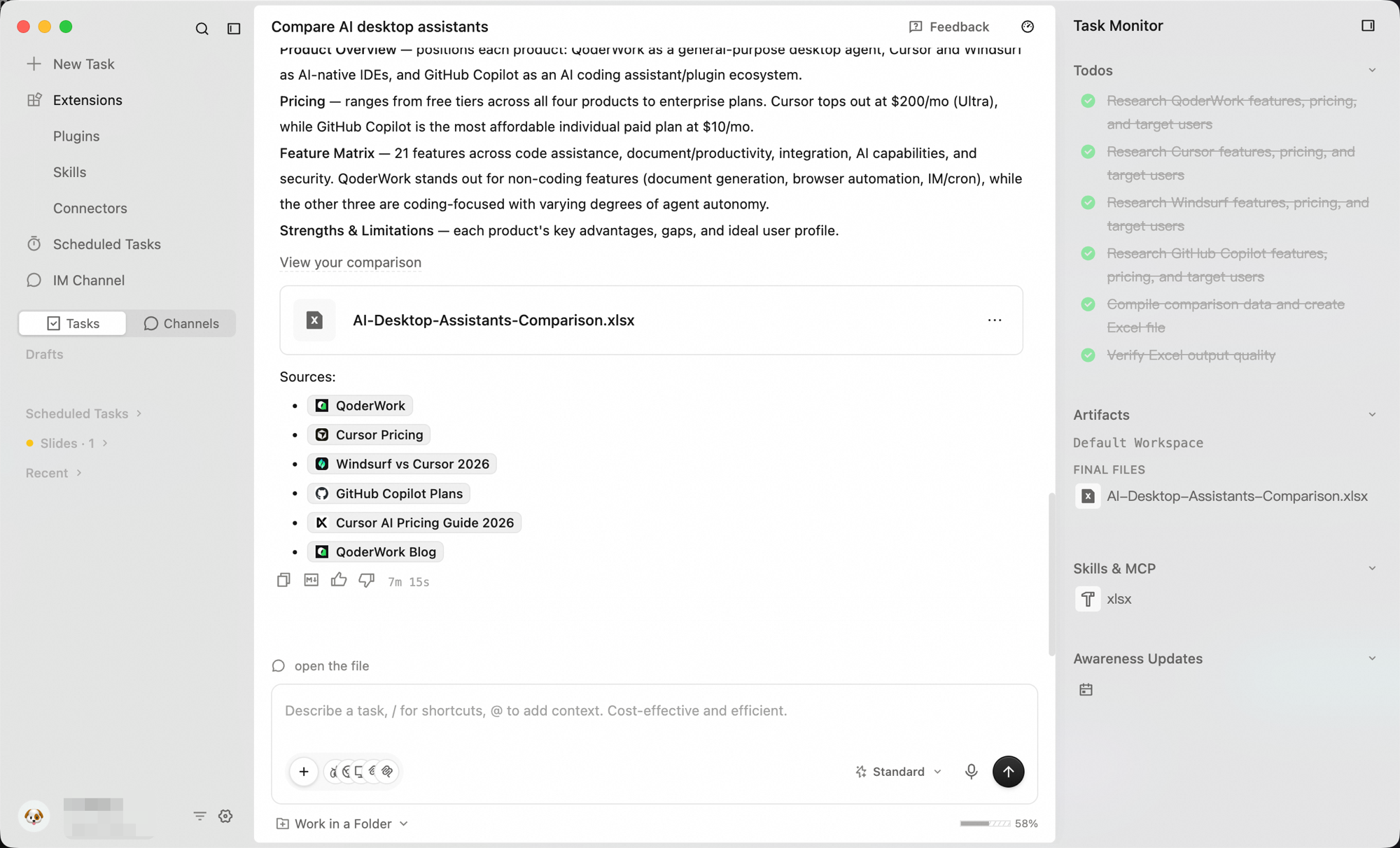
Click the "+ New Task" button at the top of the left sidebar to open a blank conversation window. Type your request and send it — a new task is created.
When you've accumulated dozens or even hundreds of tasks, search helps you locate them quickly:
Right-click any task card, or click the 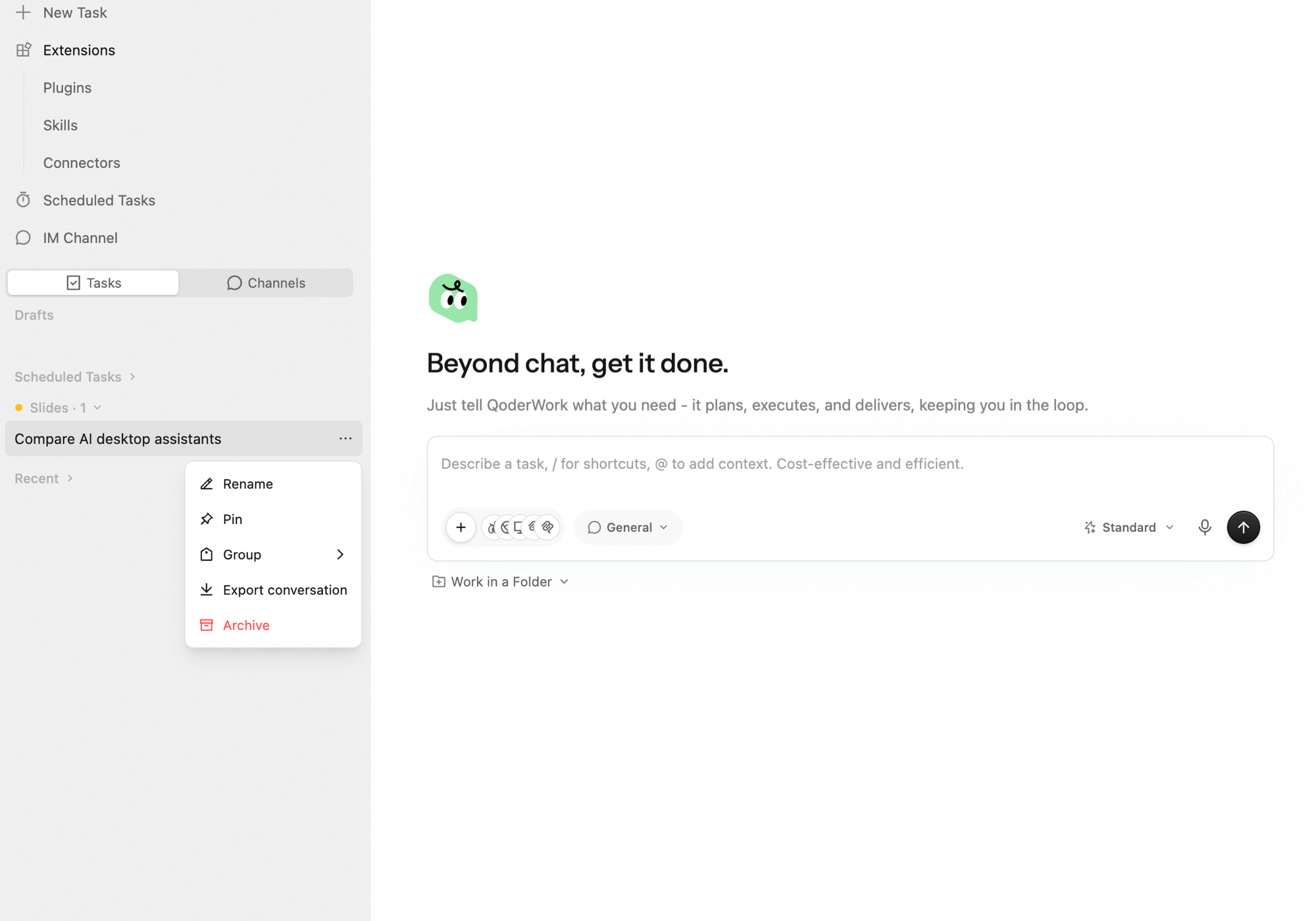
QoderWork automatically generates a title from your first message. If the default isn't clear enough, right-click the task → Rename, type a new name, and confirm to save.
Keep names short and specific — e.g., "Q2 Sales Report", "Weekly Report Template", "Customer A Research" — so they're easy to recognize in the list or in search results.
Important tasks you're actively working on can be pinned to the top so they aren't pushed down by newer tasks:
As tasks accumulate, you can collect related tasks into a group — for example "Customer A Project", "Daily Operations", or "Learning Notes":
When you need to preserve a conversation — for archiving, sharing with teammates, or turning it into a document — right-click the task → Export conversation.
QoderWork exports the full conversation (both your prompts and the AI's responses) as a Markdown file saved locally.
Tasks you don't need front-and-center but want to keep can be archived to keep the main list focused:
QoderWork supports quick switching between multiple tasks without losing context:
A task can be in one of the following states:
You can resume a completed task at any time — just send a new message in the input box, and QoderWork will continue working based on the previous context.
If you select a folder as a workspace while using QoderWork, related tasks become associated with that workspace. This means:
Task List
When you open QoderWork, the left sidebar lists all your tasks, organized into a few sections by purpose so you can find things fast:
- Drafts — tasks you started typing but haven't sent are saved as drafts automatically. Open the sidebar next time and pick up where you left off — nothing is lost.
- Scheduled tasks — tasks set to run on a schedule live here. They run automatically at the set time, and each run shows up as a new conversation. See Scheduled Tasks.
- Recent — recently active tasks, sorted by activity with the most recent on top. This is what you'll see most during everyday use.
- Groups — your own groups (e.g., "Client A Project," "Daily Ops," "Study Notes") that collect related tasks together; collapse them anytime. See Group below.
Creating a New Task
Click the "+ New Task" button at the top of the left sidebar to open a blank conversation window. Type your request and send it — a new task is created.
Search and Filter
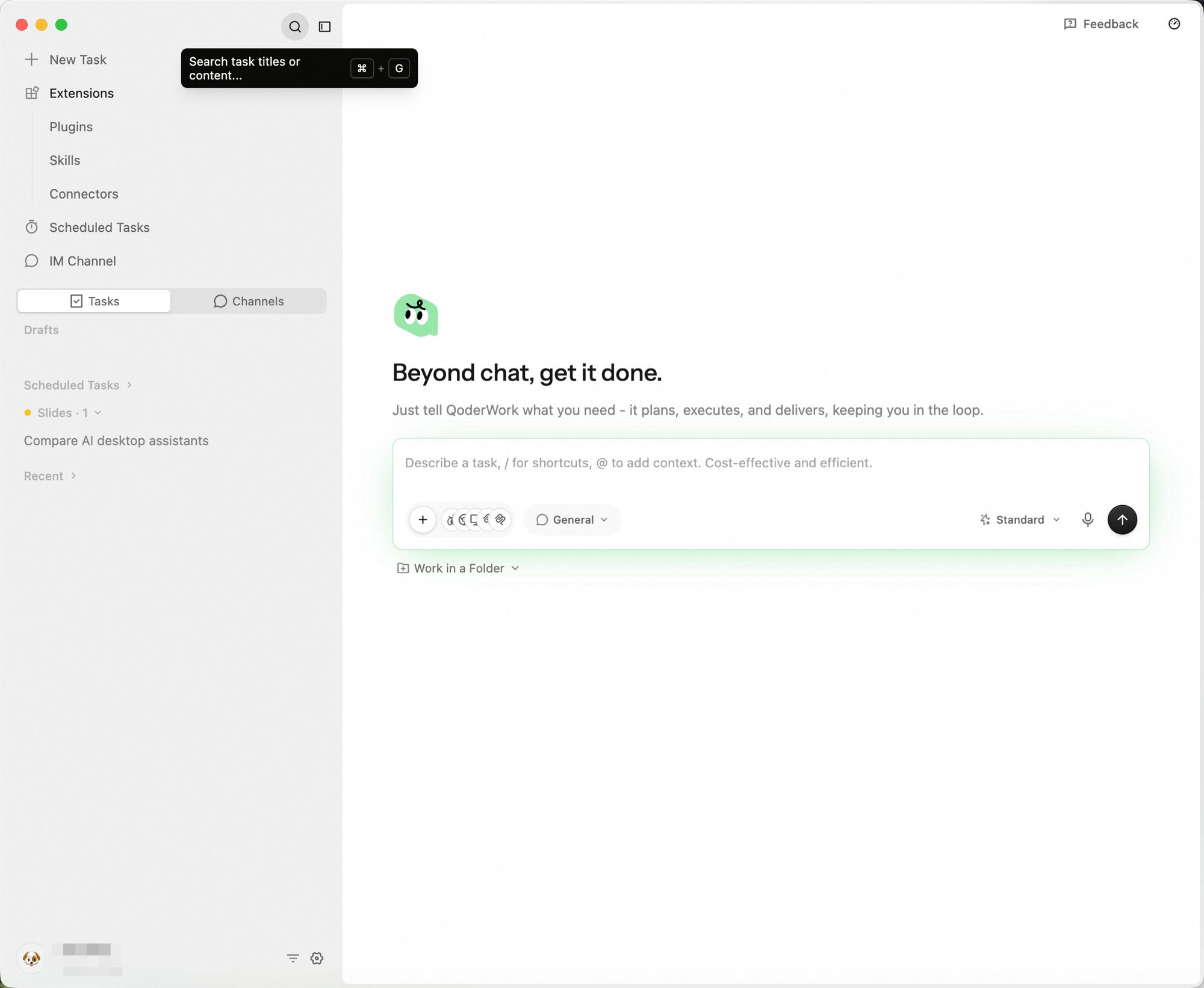
When you've accumulated dozens or even hundreds of tasks, search helps you locate them quickly:
-
Click the search box above the task list.
-
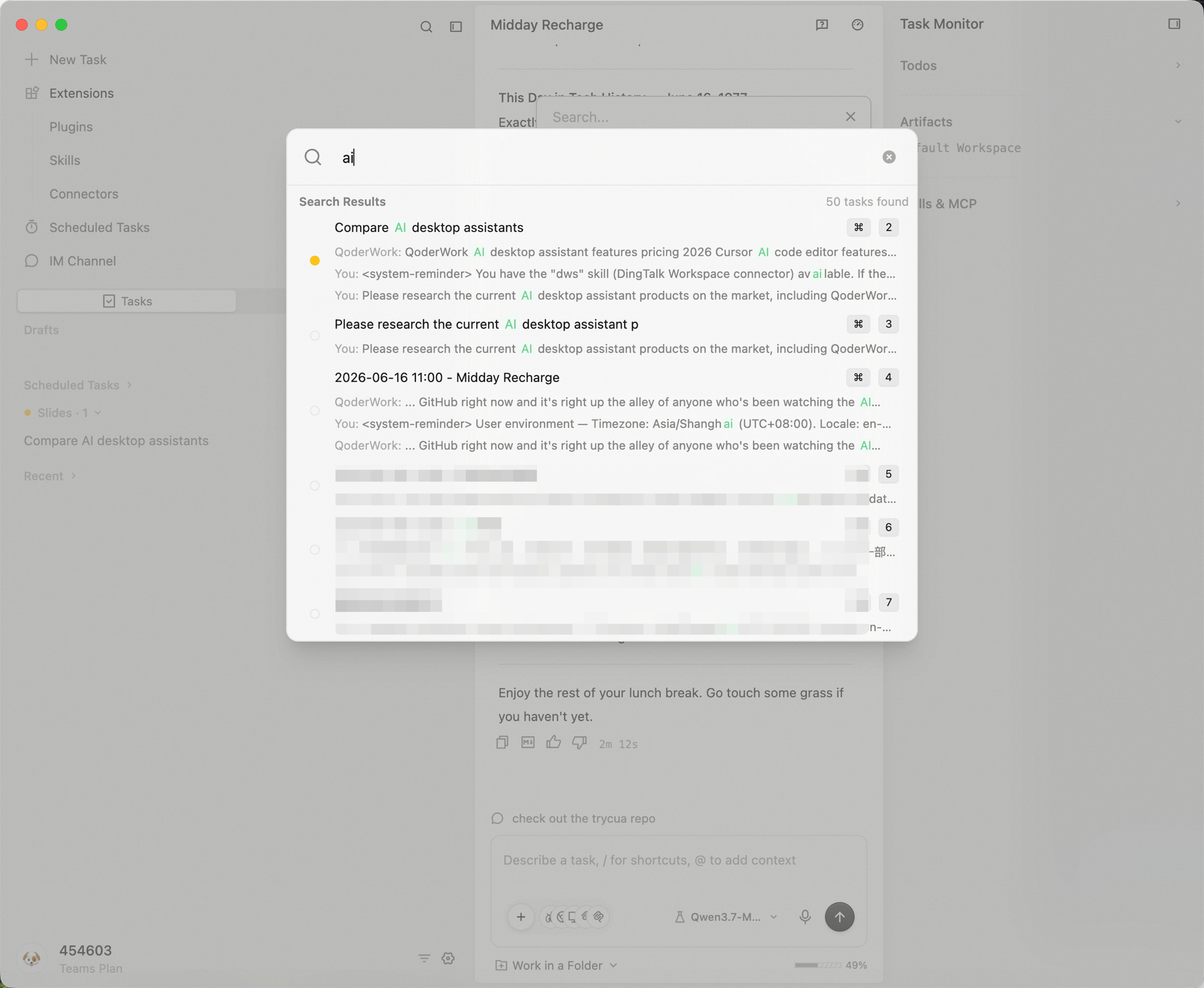
Type a keyword — QoderWork searches both task titles and conversation content, then lists every matching task in a panel, highlighting the matched terms so you can scan results quickly:
Task Actions
Right-click any task card, or click the ⋯ menu on the right side of a task, to run any of the following actions:
Rename
QoderWork automatically generates a title from your first message. If the default isn't clear enough, right-click the task → Rename, type a new name, and confirm to save.
Keep names short and specific — e.g., "Q2 Sales Report", "Weekly Report Template", "Customer A Research" — so they're easy to recognize in the list or in search results.
Pin
Important tasks you're actively working on can be pinned to the top so they aren't pushed down by newer tasks:
- Right-click → Pin: the task moves to the top of the list with a pin marker
- Right-click → Unpin: the task returns to its time-sorted position
Group
As tasks accumulate, you can collect related tasks into a group — for example "Customer A Project", "Daily Operations", or "Learning Notes":
- Right-click a task → Group → pick an existing group, or create a new one
- A task can be moved between groups at any time
- Groups can be collapsed in the sidebar to keep the list tidy
Export conversation
When you need to preserve a conversation — for archiving, sharing with teammates, or turning it into a document — right-click the task → Export conversation.
QoderWork exports the full conversation (both your prompts and the AI's responses) as a Markdown file saved locally.
Archive
Tasks you don't need front-and-center but want to keep can be archived to keep the main list focused:
- Right-click → Archive: the task moves from the main list into Settings → Archived
- From Settings → Archived you can restore it or permanently delete it
- Archiving never touches the files the task produced — conversations and artifacts are preserved
Switching Between Tasks
QoderWork supports quick switching between multiple tasks without losing context:
- Click any task in the left sidebar to switch to it
- Previous conversation content and file artifacts remain in place
- Each task has its own independent conversation history and workspace
Task Status
A task can be in one of the following states:
| Status | Meaning |
|---|---|
| Running | QoderWork is processing your request |
| Awaiting input | QoderWork is waiting for your reply or confirmation |
| Completed | The last interaction round has finished |
Workspace
If you select a folder as a workspace while using QoderWork, related tasks become associated with that workspace. This means:
- QoderWork can directly read and write files in that folder
- Multiple tasks can collaborate under the same workspace
- When you switch workspaces, the task list shows tasks for the corresponding workspace