

Learn the QoderWork interface layout and quickly find the features you need
The first time you open QoderWork, the layout may feel unfamiliar. This page walks you through the main window structure and the key controls in each area.
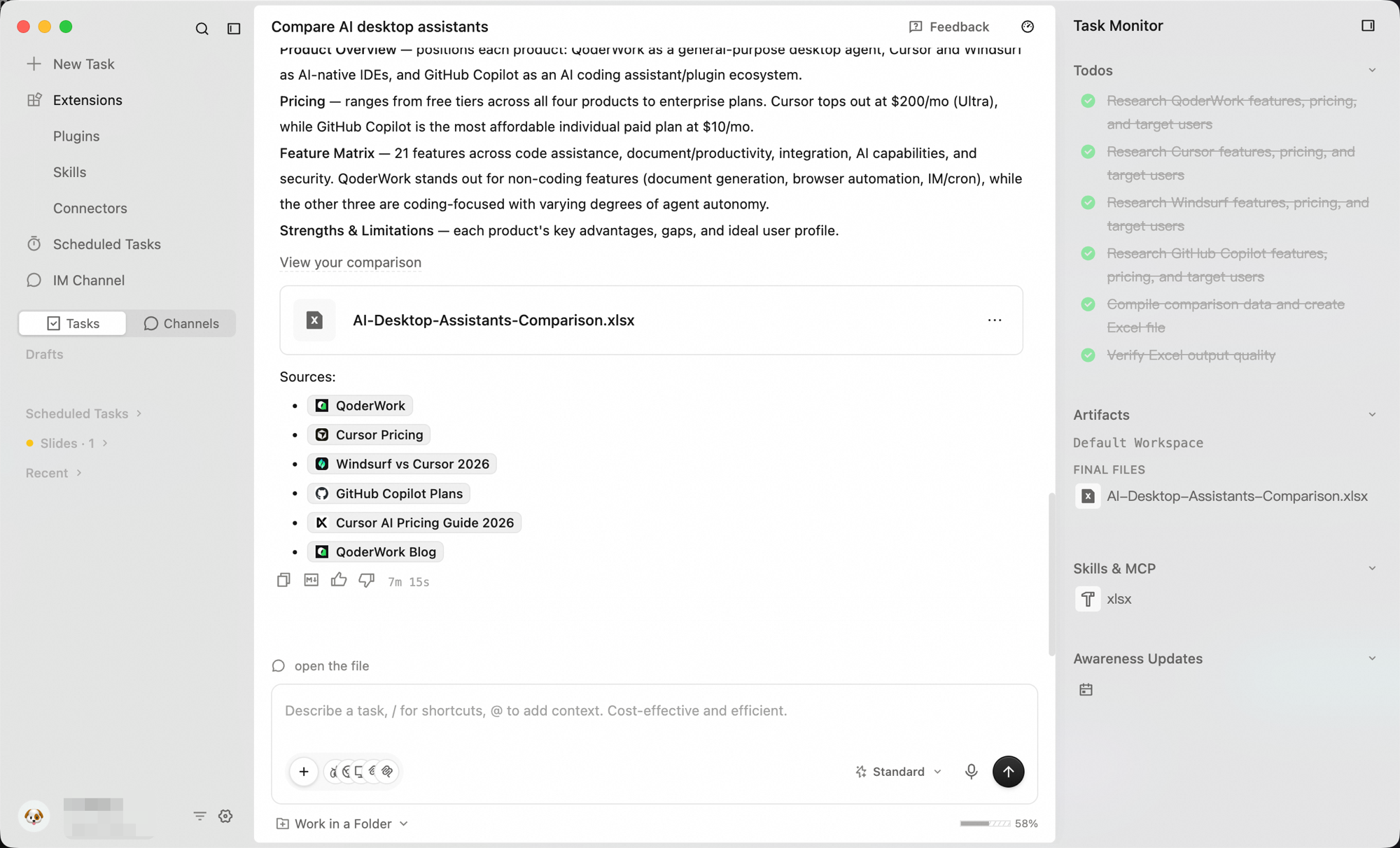
The QoderWork main window has two primary areas: the sidebar and the center area. When a task is running, the Task Monitor panel appears on the right.
The sidebar sits on the left side of the window and is collapsible to give the center area more space.
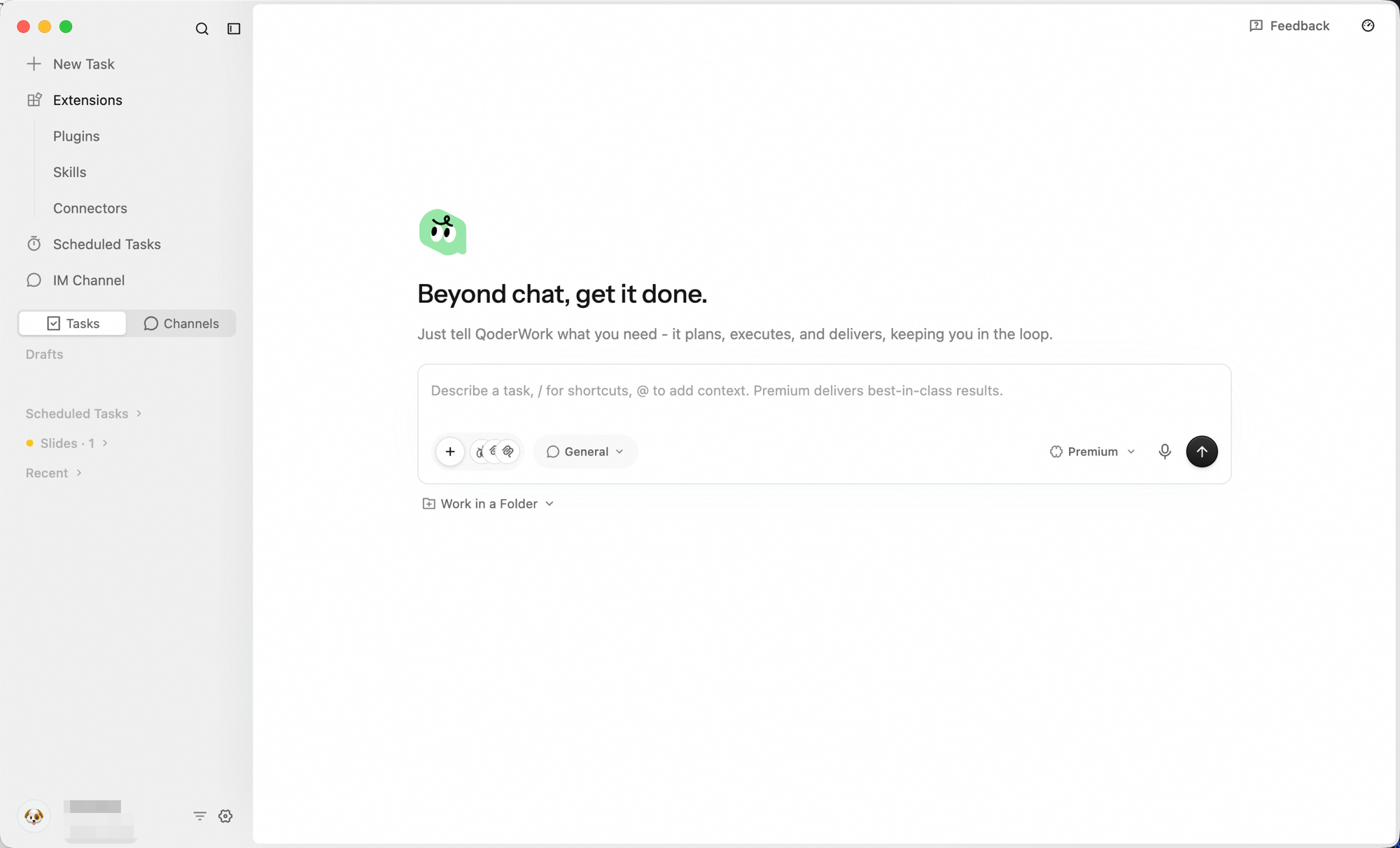
Click Extensions to expand its three sub-items:
A top-level sidebar entry alongside Extensions. Time-triggered tasks that auto-open a new conversation at the scheduled time and run a prompt you defined (daily data pulls, weekly reports, month-end summaries). See Scheduled Tasks.
A top-level sidebar entry alongside Extensions. Bridge QoderWork into IM apps (DingTalk, Feishu, Lark, WeChat, WeCom) so you can @ the bot in chat to run tasks remotely; results come back in the same chat. See IM Channels.
The lower half of the sidebar is your history area. A Tasks / Channels toggle decides whether you see task history or channel history. Below the toggle sits a search box (placeholder "Search task title or conversation content...") for filtering the current list, and under it the items grouped under Recent — click any item to pick up where you left off.
Click the account avatar to open a quick menu:
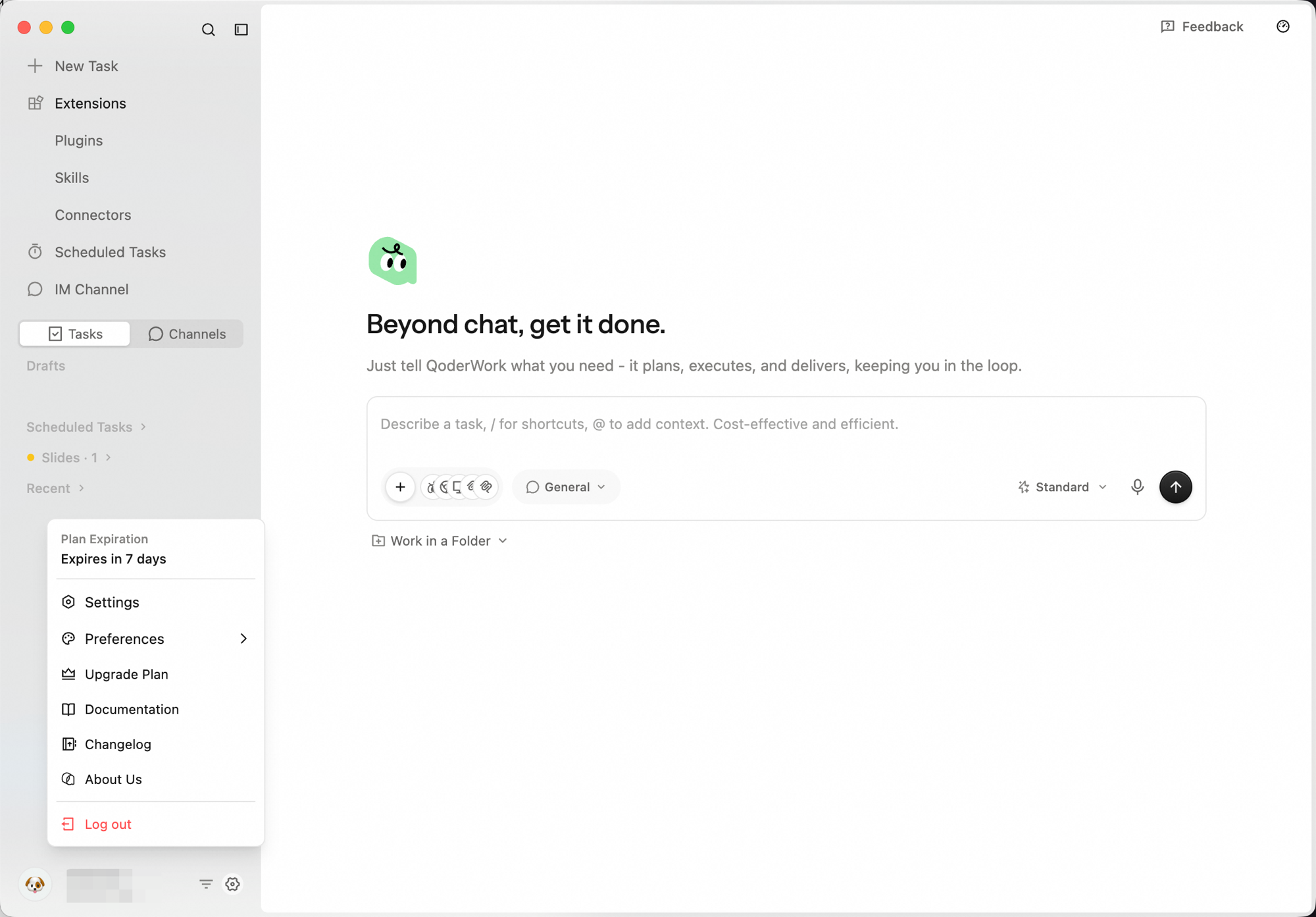 Click Settings from this menu to open the full settings page, where you can manage your model, language, theme, voice input, shortcuts, workspaces, and every other preference in one place.
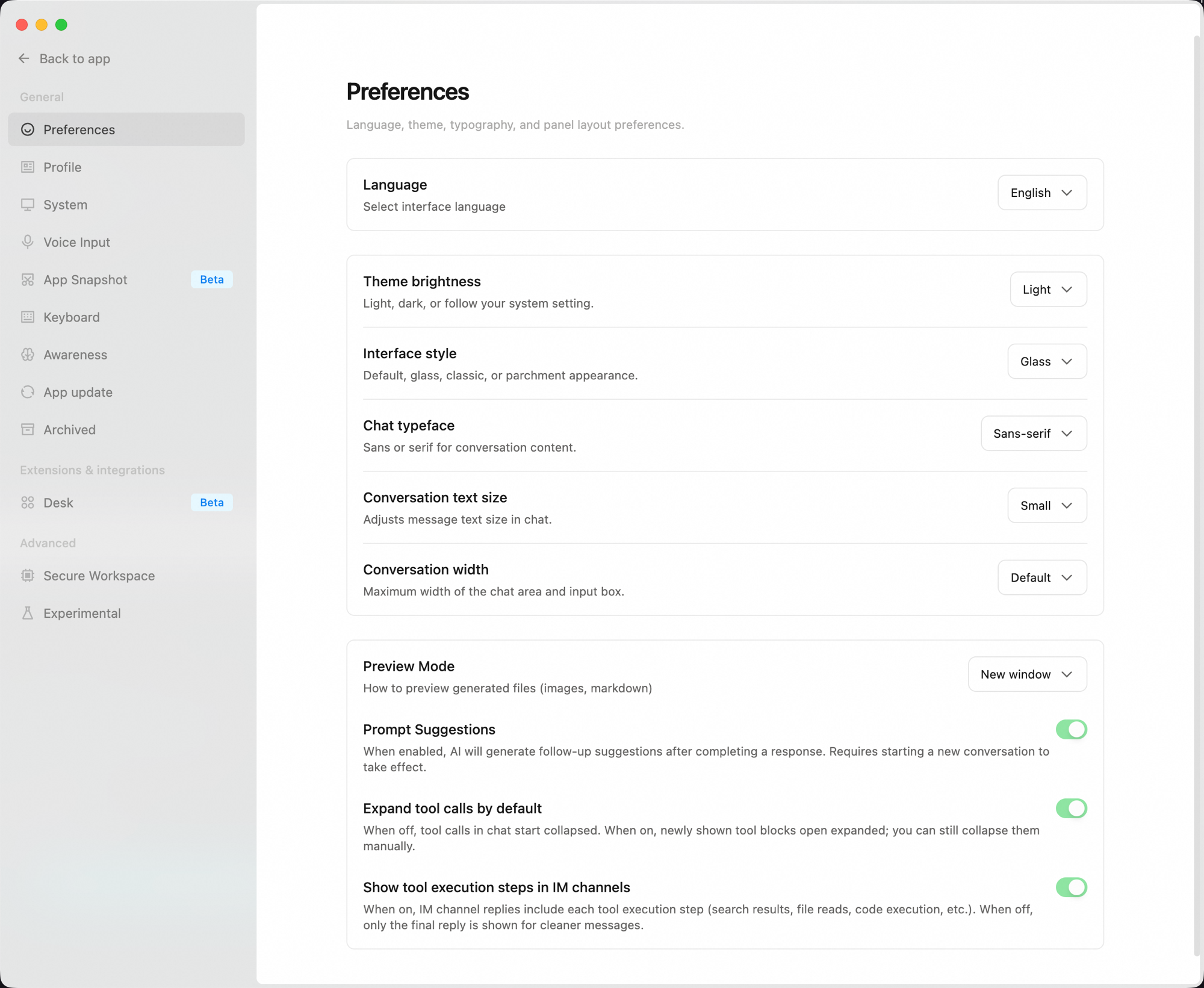
The input box sits at the bottom of the center area and is your main entry point for sending instructions.
The center area is where you interact with QoderWork.
Before a task starts, the center shows:
Once a task is sent, your inputs and QoderWork's replies appear as a conversation stream.
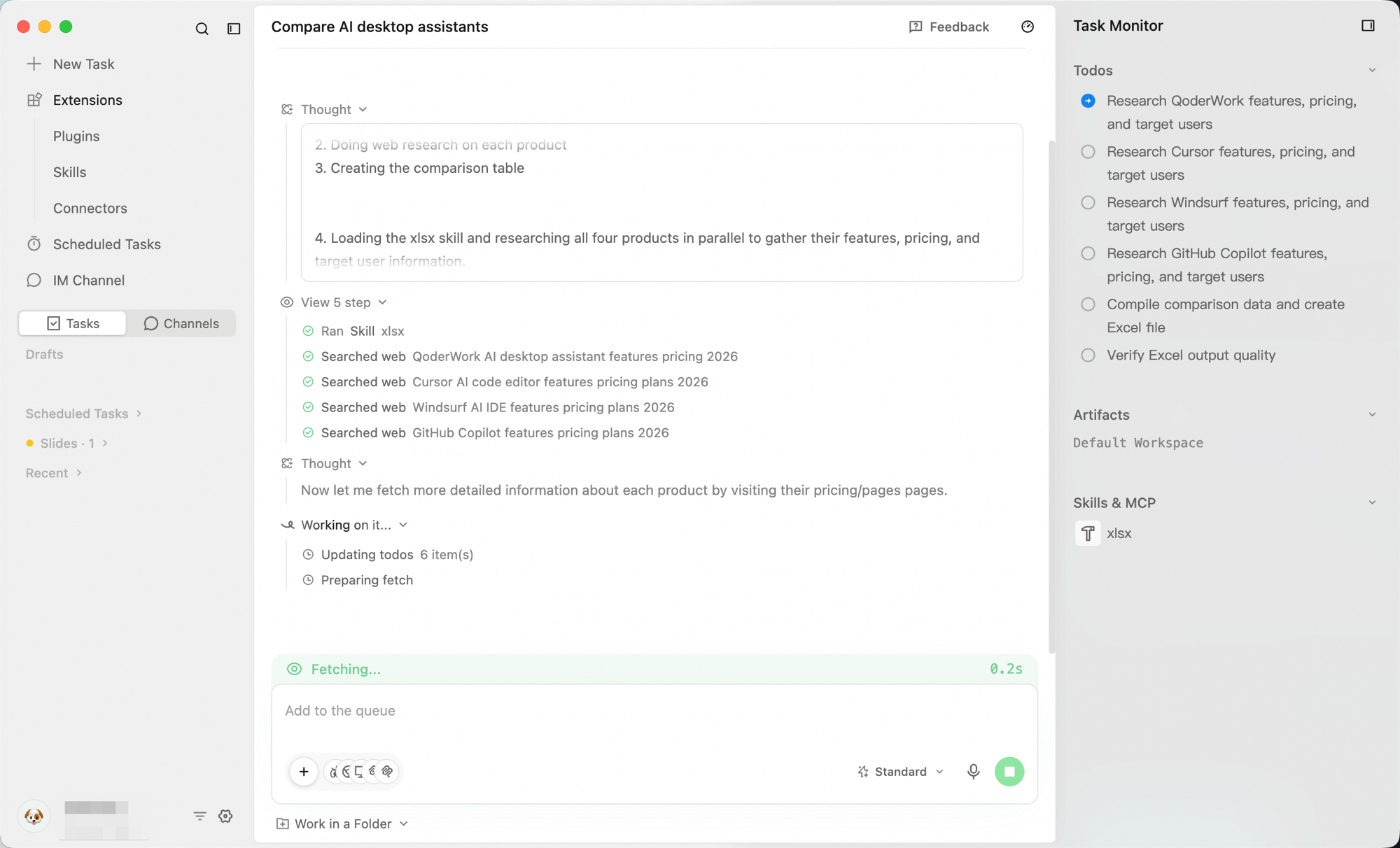
While a task is running, the Task Monitor panel appears on the right to track its progress.
Overall Layout
The QoderWork main window has two primary areas: the sidebar and the center area. When a task is running, the Task Monitor panel appears on the right.
Sidebar
New Task, extension entries, task list, account and settings
Center Area
Empty-state prompt, the task conversation stream, and the input box at the bottom for instructions, workspace/model switching, and attachments
Task Monitor
Appears on the right while a task runs, tracking its progress
Sidebar
The sidebar sits on the left side of the window and is collapsible to give the center area more space.
Top
- New Task — Creates a new conversation task.
Extensions Group
Click Extensions to expand its three sub-items:
- Expert Kits — packaged domain expertise (legal contract review, wealth management, PM workflows) that turns the AI into a role-specific specialist with one click. See Expert Kits.
- Skills — pre-written playbooks for recurring task types (weekly reports, document organization, infographic generation) so the AI follows your conventions every time. See Skills.
- Connectors — let the AI directly operate your browser, native macOS apps (Calendar, Reminders, Notes, Mail, Contacts), and Microsoft 365 (Outlook Mail, Calendar, To Do, Contacts, OneNote, OneDrive), plus an integration market for DingTalk, Notion, Linear, Slack, Figma, Google Calendar, and other SaaS. See Connectors.
Scheduled Tasks
A top-level sidebar entry alongside Extensions. Time-triggered tasks that auto-open a new conversation at the scheduled time and run a prompt you defined (daily data pulls, weekly reports, month-end summaries). See Scheduled Tasks.
IM Channels
A top-level sidebar entry alongside Extensions. Bridge QoderWork into IM apps (DingTalk, Feishu, Lark, WeChat, WeCom) so you can @ the bot in chat to run tasks remotely; results come back in the same chat. See IM Channels.
Task List
The lower half of the sidebar is your history area. A Tasks / Channels toggle decides whether you see task history or channel history. Below the toggle sits a search box (placeholder "Search task title or conversation content...") for filtering the current list, and under it the items grouped under Recent — click any item to pick up where you left off.
Bottom
Click the account avatar to open a quick menu:
- Plan Expiration — when your current plan renews or expires.
- Settings — model, language, theme, and every other preference.
- Preferences — quick access to UI preferences such as language.
- Upgrade Plan — open the plan management page in your browser.
- Documentation, Changelog, About Us — help and product information.
- Log out — switch accounts when you need to.
For the full list of preference items, see Settings.
Input Box
The input box sits at the bottom of the center area and is your main entry point for sending instructions.
| Control | Position | Purpose |
|---|---|---|
| + button | Bottom-left | Attach files or add context |
| Workspace picker | Bottom-left | Switch the workspace the task runs in; default is General |
| Model picker | Bottom-right | Switch the model that powers the task |
| Voice input | Bottom-right | Dictate your instructions |
| Send button | Far right | Send the message |
| Work in a Folder | Below the input | Bind the task to a local folder so QoderWork can read and write files there |
| button | Top-right of the window | View your account's Credits usage |
For detailed input usage and how to choose between workspaces and models, see Task Conversations.
Task Conversation Area
The center area is where you interact with QoderWork.
Empty State
Before a task starts, the center shows:
- Headline: More than chat — get things done
- Subheading: A locally-running, self-planning, safe and controllable AI work companion
Conversation Stream
Once a task is sent, your inputs and QoderWork's replies appear as a conversation stream.
Task Monitor
While a task is running, the Task Monitor panel appears on the right to track its progress.