

Set up Feishu or DingTalk app credentials and grant QMind access to the resources you want to import.
This guide is for knowledge base owners and administrators. Prepare a small document for a test import. In your QMind knowledge base, open Add sources, select Data sources, then choose Feishu or DingTalk.
API permissions determine which endpoints an app can call. Resource access determines which spaces, folders, and documents those calls can read. Copy secrets directly from the developer console into QMind.
After signing in, copy 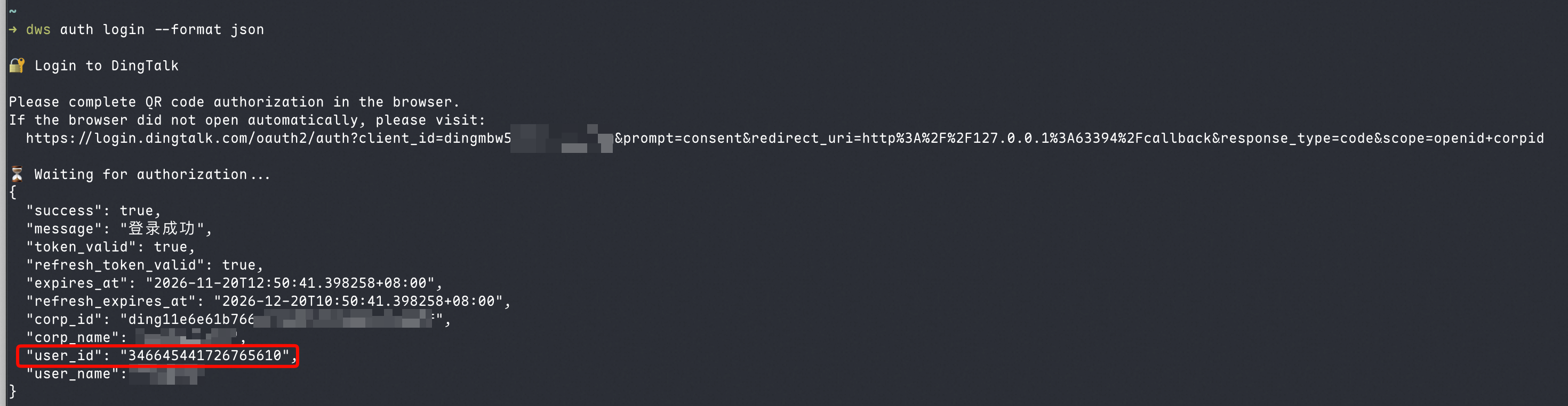 If you are already signed in, you can also run the following command and copy the returned
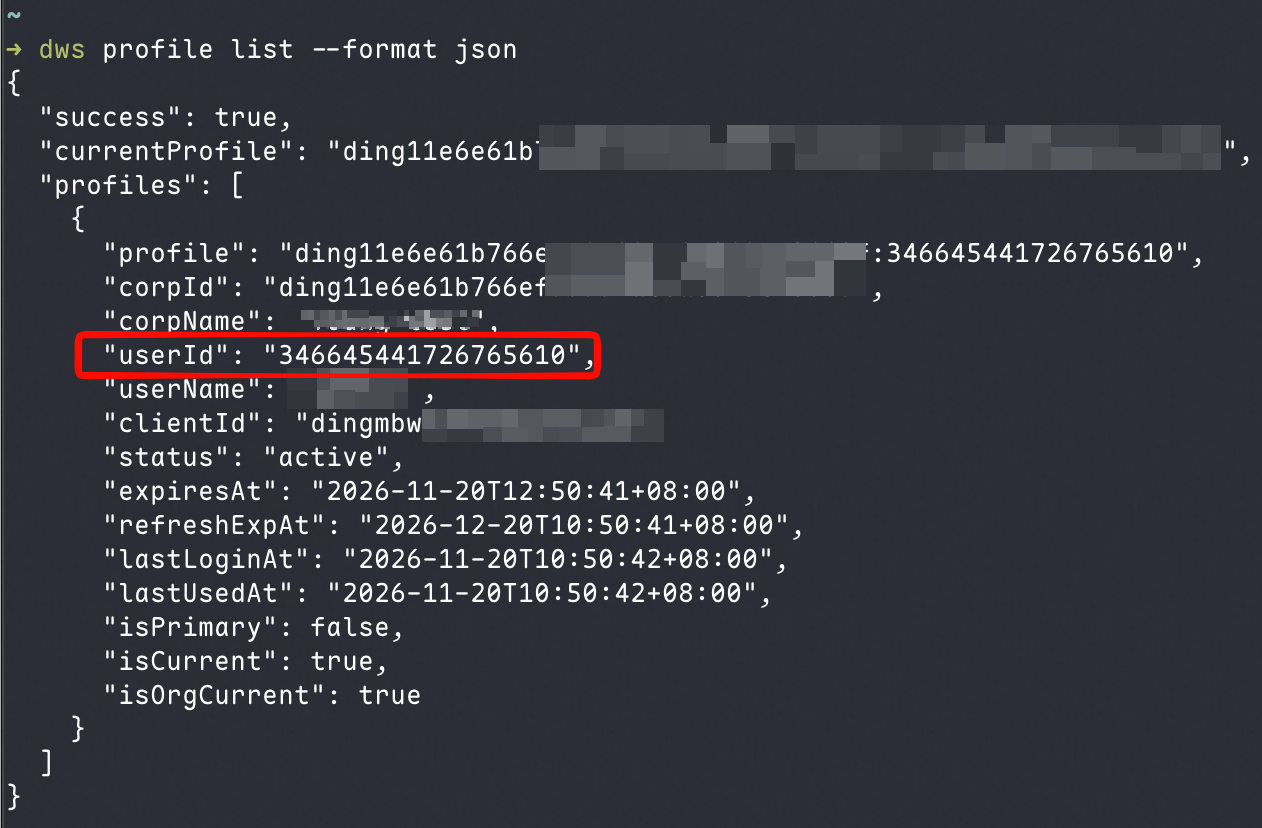
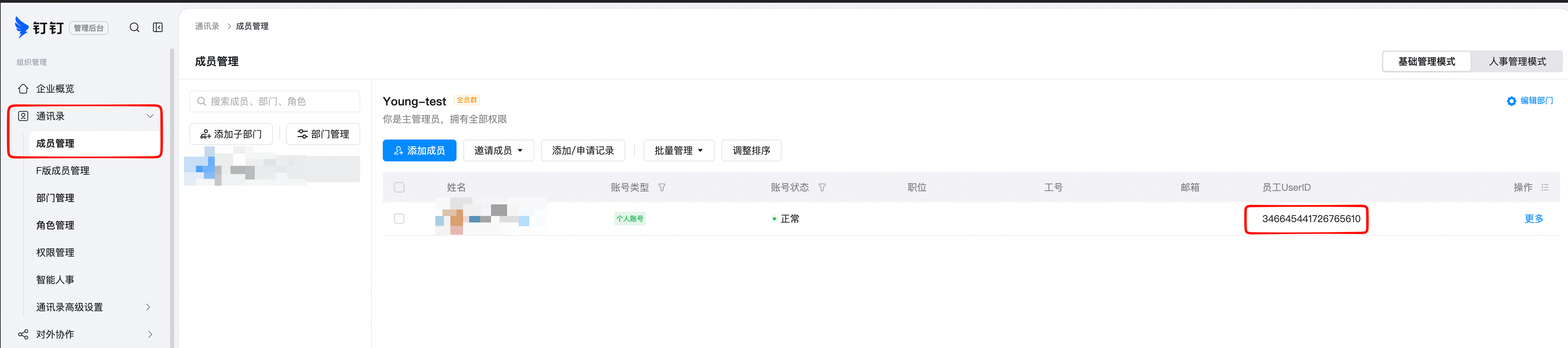
Ask an enterprise administrator to sign in to the DingTalk admin console, open Contacts → Member management, find your account, and copy the value in the Employee UserID (员工UserID) column.
Use an app with Read member information (成员信息读权限)
After the connection test passes, select a small document or folder in Choose resources. Select Continue, choose a sync mode, and select Import. Return to the source tree and wait for processing to finish. Then search for a sentence from the document to confirm you can find it.
| Data source | QMind form fields | Who grants access |
|---|---|---|
| Feishu Wiki | Enter the App ID in app_id and the App Secret in app_secret. | A wiki space administrator grants access to the Feishu app. |
| Feishu Drive | Enter the App ID in app_id and the App Secret in app_secret. Paste the target folder URL into Drive folder link. | The folder or document owner grants access to the Feishu app. |
| DingTalk | Enter the Client ID (AppKey) in client_id, the Client Secret (AppSecret) in client_secret, and the employee's Union ID in Operator unionId. | A knowledge base administrator grants access to the operator. |
Feishu
Create an app and enable permissions
-
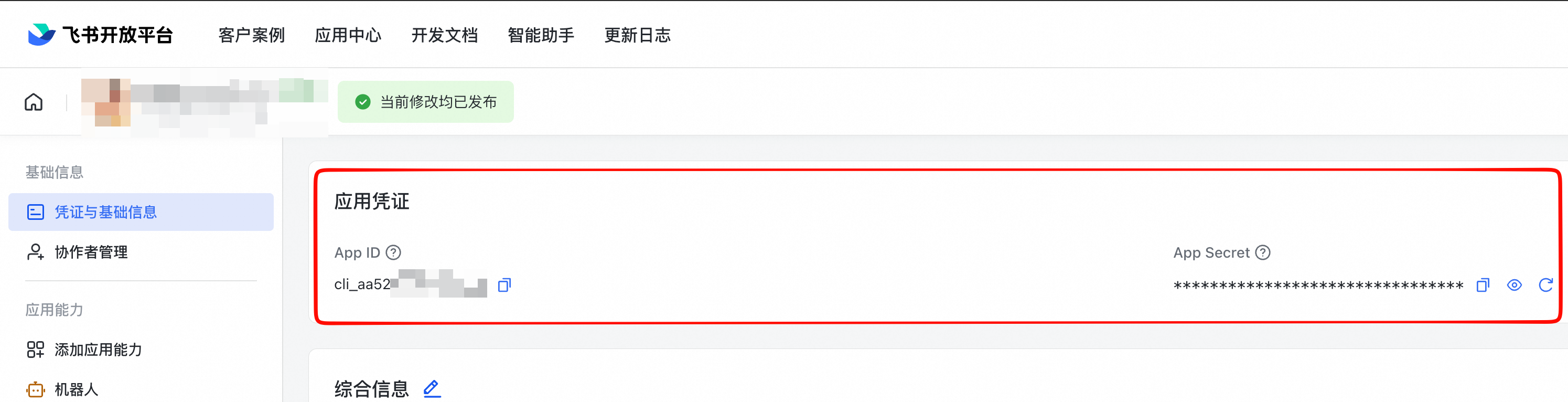
In the Feishu organization that owns the source documents, open the developer console and create a custom app for your organization. Open Credentials & Basic Information (凭证与基础信息) and copy the App ID and App Secret for the same app. Feishu Developer Console · Get a tenant access token for a custom app
-
Under Development Configuration → Permissions Management (开发配置 → 权限管理), select Enable permissions (开通权限). The two app identity scopes below are the minimum required to import modern Feishu Docs from a wiki. Copy each scope ID to search for it and enable it.
- View wiki (查看知识库)
wiki:wiki:readonlyallows the app to list wiki spaces and child nodes. List wiki spaces · List child nodes - View modern Feishu Docs (查看新版文档)
docx:document:readonlyallows the app to read document content.
To import a Feishu Drive folder with mixed file types, we recommend enabling the following four app identity scopes. Search for each scope ID in Permissions Management.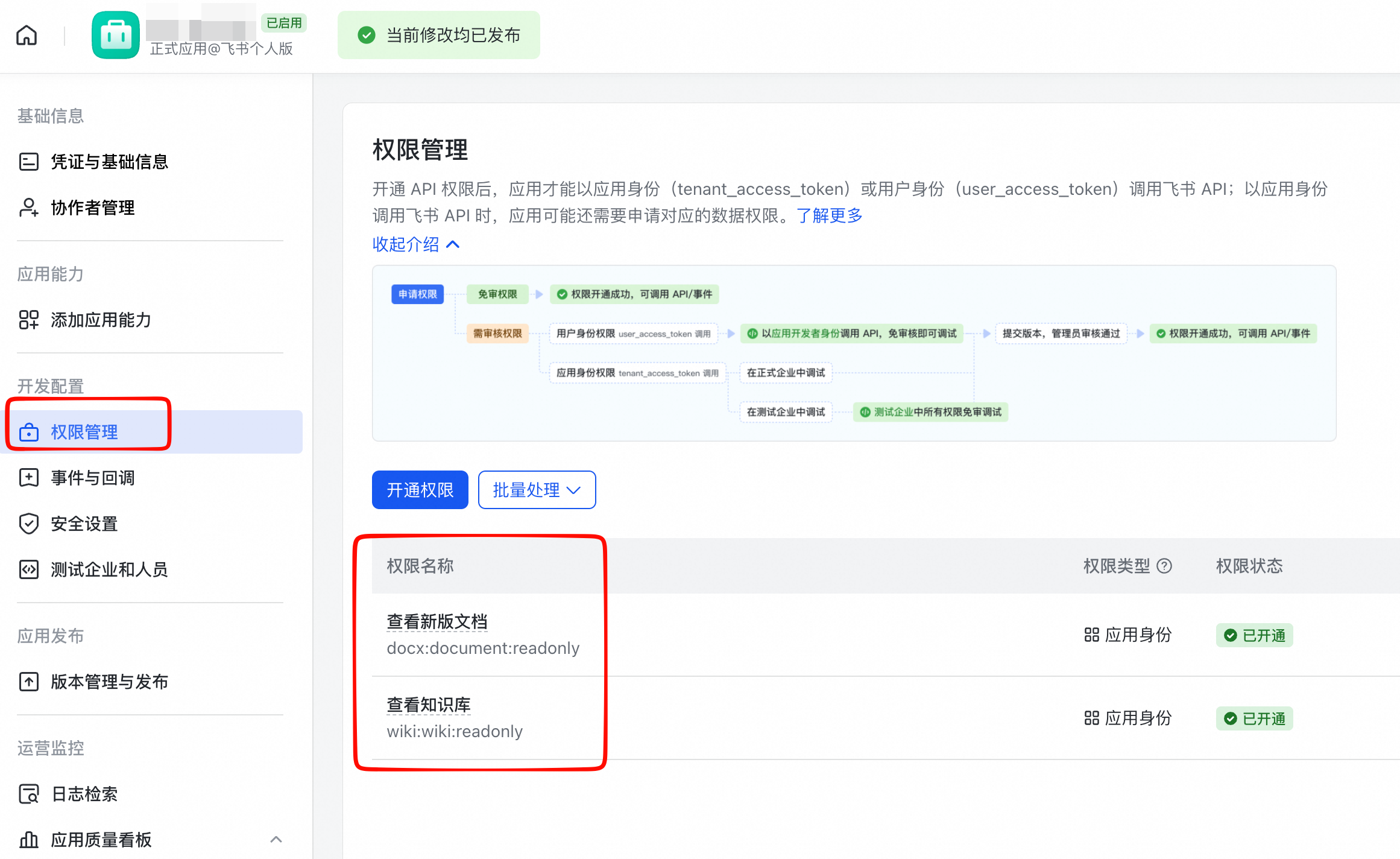
- View file metadata in cloud space (查看云空间中文件元数据)
drive:drive.metadata:readonlylets QMind read and display the root folder name in Choose resources. Get folder metadata - View modern Feishu Docs (查看新版文档)
docx:document:readonlylets the app read the content blocks of modern Feishu Docs. - View, comment on, and download all files in cloud space (查看、评论和下载云空间中所有文件)
drive:drive:readonlylets the app list files and subfolders in the target folder and download original files uploaded to Drive, such as Word documents and PDFs. - Export cloud documents (导出云文档)
drive:export:readonlylets the app export legacy Feishu Docs, standalone spreadsheets, and Bitable files. QMind also uses this scope to export modern Feishu Docs when it cannot read them directly.
Optional API permissions When importing modern Feishu Docs from Feishu Wiki or Feishu Drive, enable these app identity scopes as needed for the content you want to import.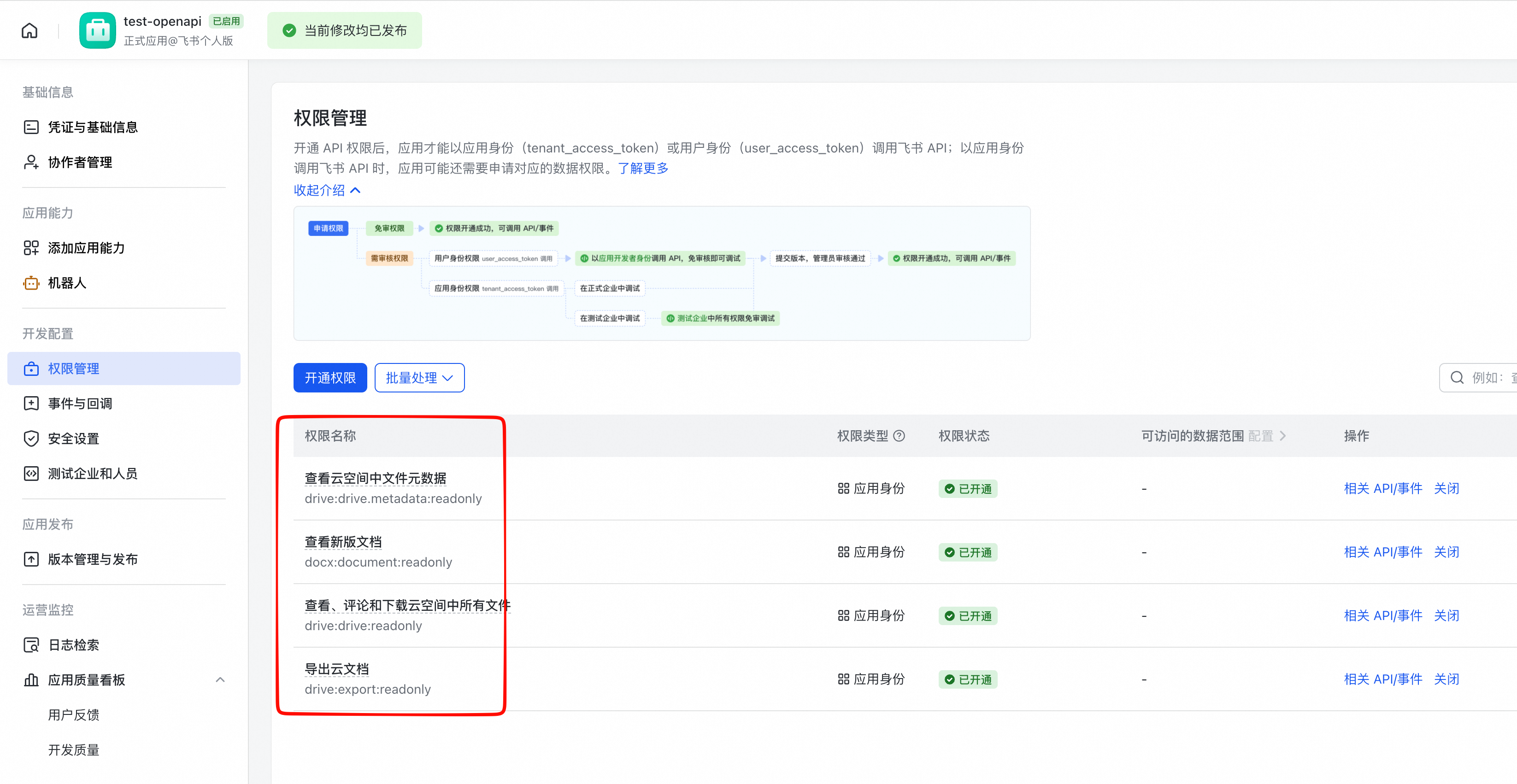
- Embedded images and attachments. Enable Download images and attachments from cloud documents (下载云文档中的图片和附件)
docs:document.media:downloadto download images and supported attachments. Download media - Embedded spreadsheets. Enable View, comment, and export spreadsheets (查看、评论和导出电子表格)
sheets:spreadsheet:readonlyto query worksheets and read cell values. Query worksheets · Read a single range - Embedded Bitable tables. Enable View, comment, and export Base (查看、评论和导出多维表格)
bitable:app:readonlyto read fields and records. List fields · Search records - Embedded whiteboards. Enable View board nodes (查看画板节点)
board:whiteboard:node:readto import whiteboards as images. Download a whiteboard as an image - Titles of referenced documents. Looking up document titles also uses
drive:drive.metadata:readonly. If you only configure Feishu Wiki, enable this scope as needed. Get file metadata - Names in @mentions. Enable Get basic contact information (获取通讯录基本信息)
contact:contact.base:readonlyand Get basic user information (获取用户基本信息)contact:user.base:readonlyto look up members and read their names. The app's directory access must include the members mentioned. Get user information
drive:drive:readonly, it also covers downloading embedded images and attachments and reading embedded spreadsheets. - View wiki (查看知识库)
-
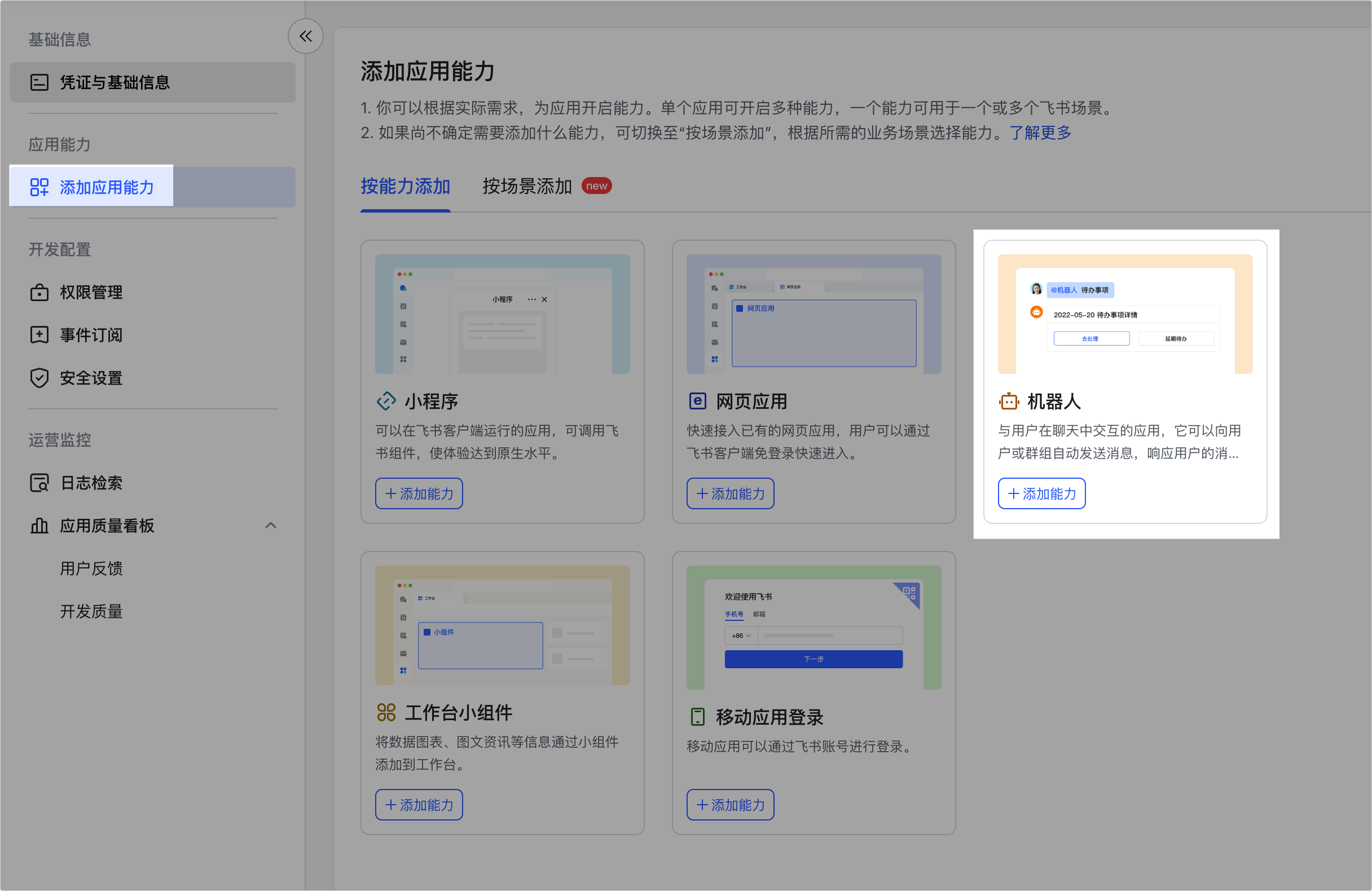
Enable the Bot capability so resource administrators can grant access through Add document app (添加文档应用). Create and publish an app version. If approval is required, wait for the app and its permissions to take effect before testing. Grant an app access to Feishu Docs · Feishu setup example
Grant access to the source resources
-
Feishu Wiki. Ask a space administrator to add the Feishu app you published in the previous step as a viewer of the target wiki space.
-
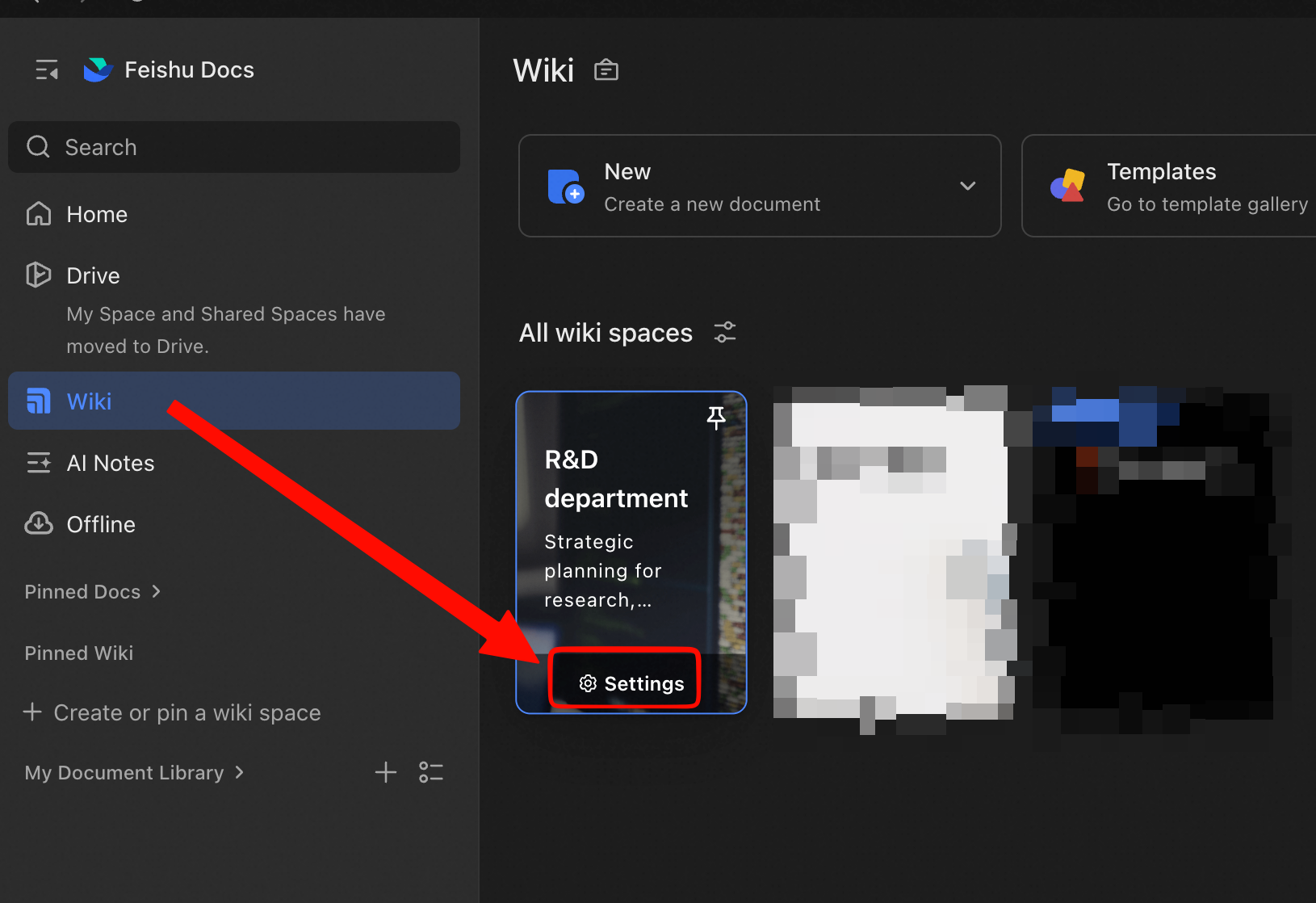
Open Wiki in Feishu Docs and select Settings on the target space card.
-
Open Members. Under Roles and permissions, select Viewer, then select Add Member.
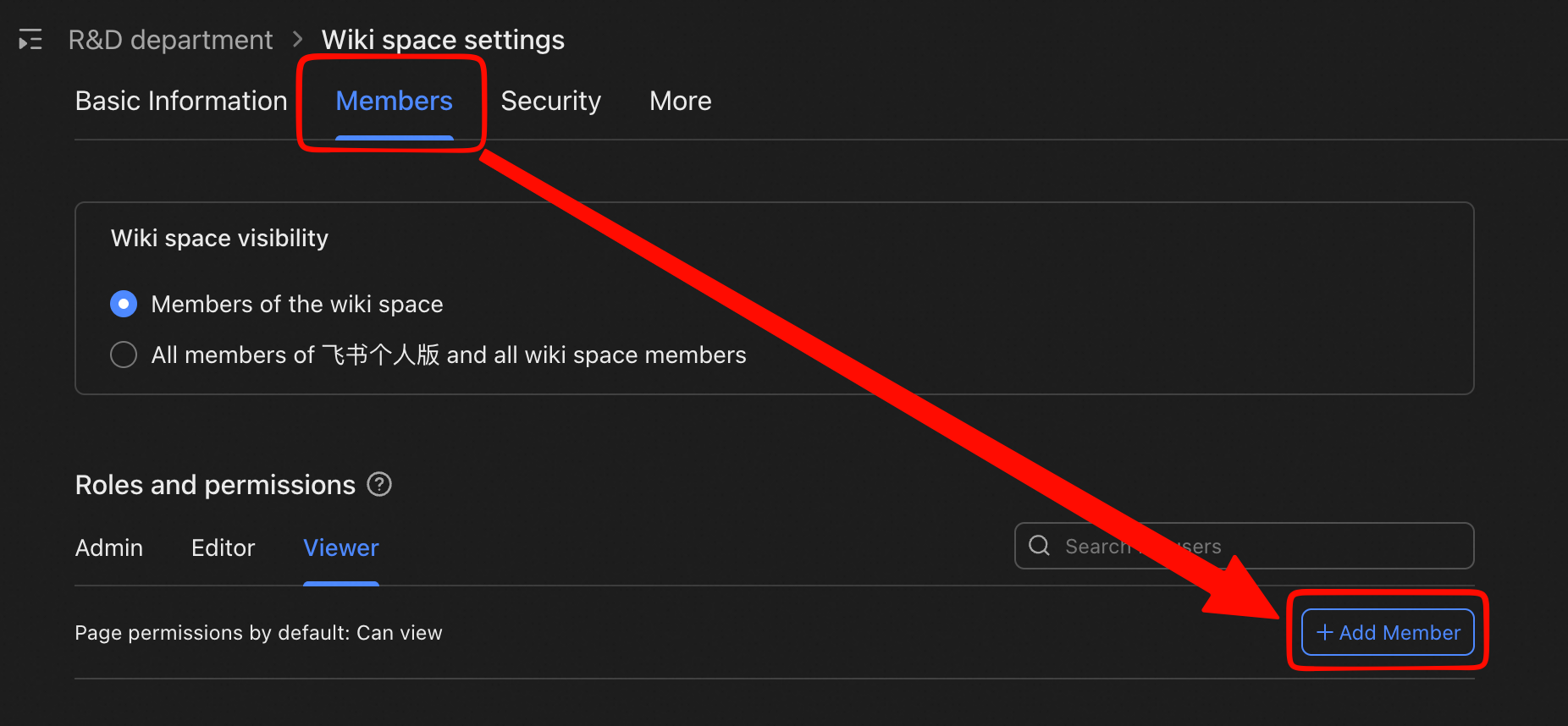
-
In the Add Viewer dialog, search for the Feishu app by name, select it, and confirm.
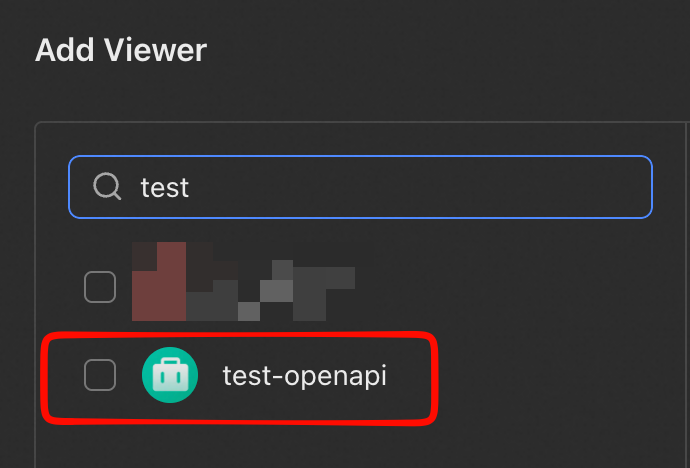
-
Open Wiki in Feishu Docs and select Settings on the target space card.
-
Feishu Drive. Ask the folder owner to share the target folder with the Feishu app you published in the previous step.
-
In Drive in Feishu Docs, right-click the target folder and select Share.
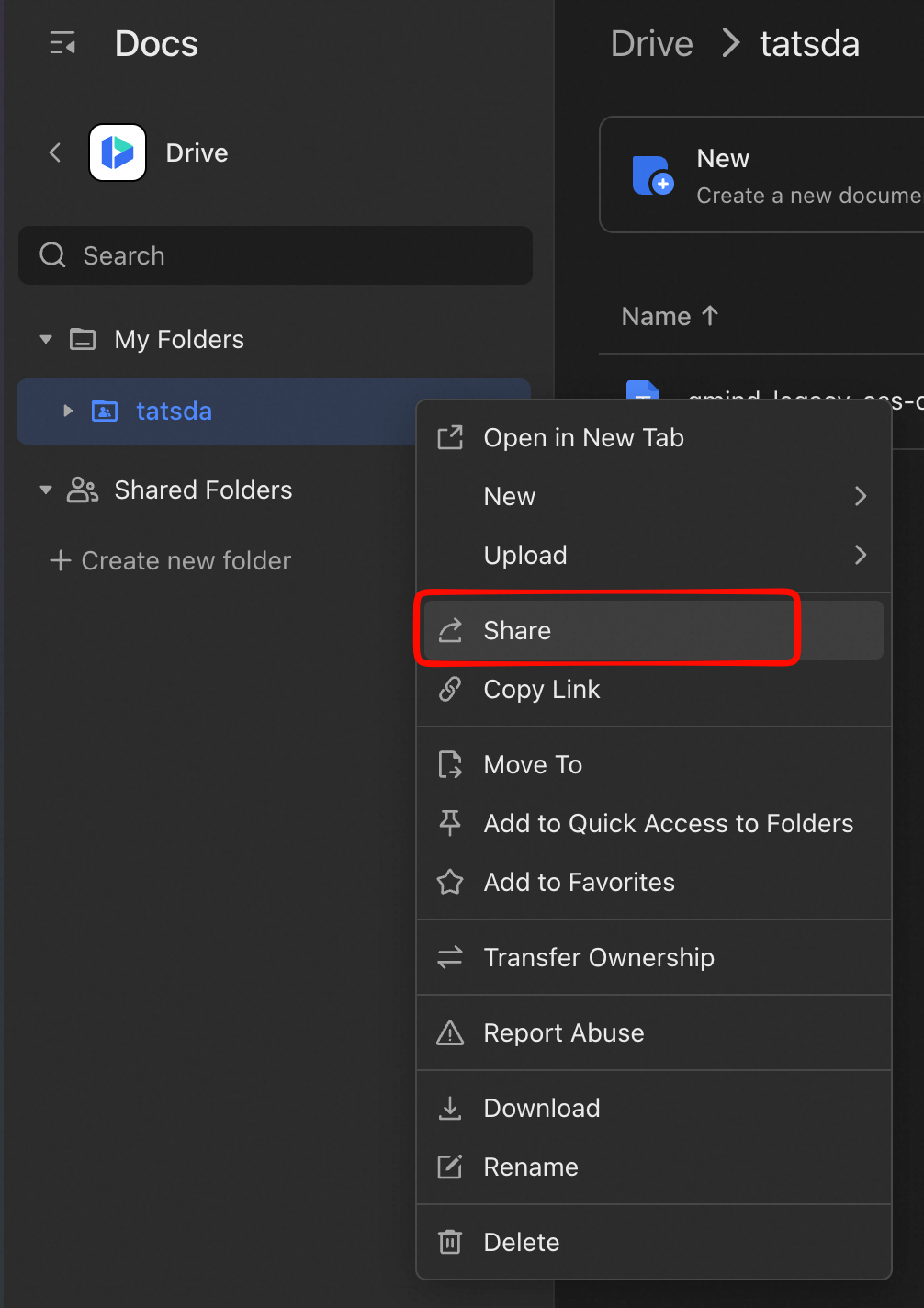
-
In Invite collaborators, search for the Feishu app by name and select it. Give the app viewing access and confirm sharing.
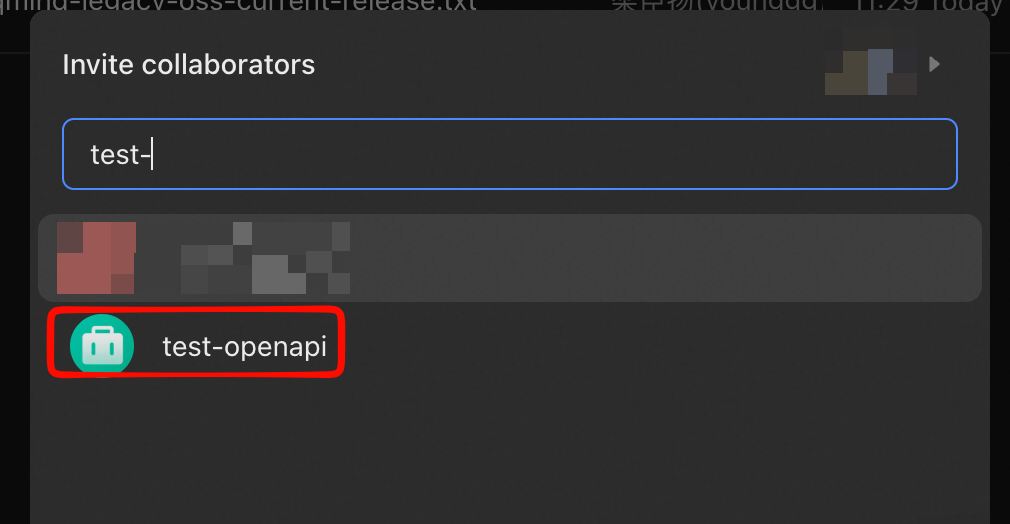
-
In Drive in Feishu Docs, right-click the target folder and select Share.
app_id, and app_secret. When creating a cloud drive data source, paste the copied Feishu folder URL into Drive folder link.
Select Test connection. For Feishu Drive, QMind extracts the folder_token from the link and checks whether the app can read the folder. After the test passes, expand the target wiki space or Drive folder in Choose resources and select what to sync.
DingTalk
-
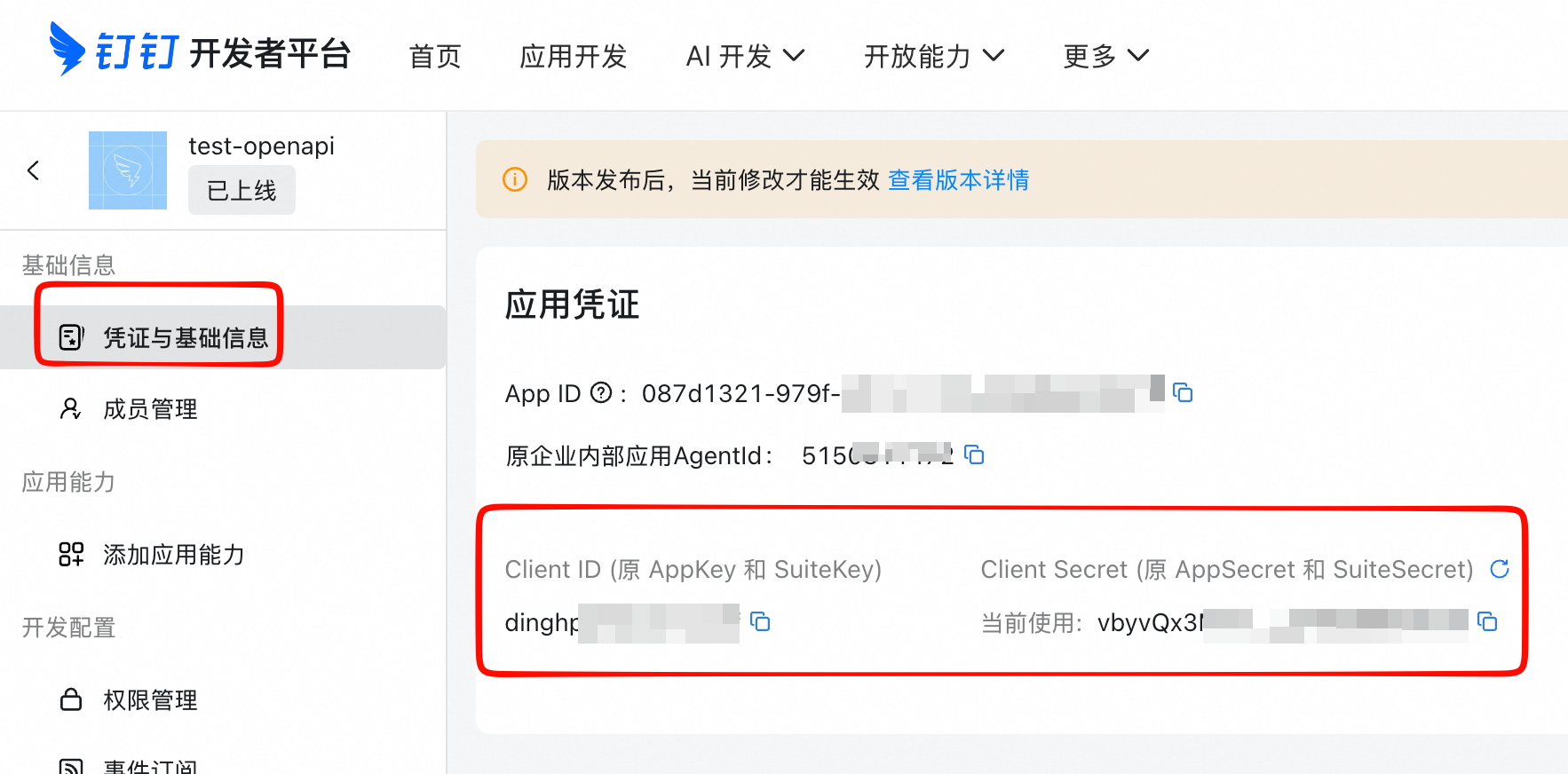
In the DingTalk organization that owns the target knowledge base, create an internal enterprise app. In its app details, copy the Client ID (AppKey) and Client Secret (AppSecret). DingTalk Open Platform · Internal app credentials
-
Open Permissions Management (权限管理) in the DingTalk developer console. Importing online documents from a knowledge base requires the following three permissions. Search by name and verify the permission code.
- Read knowledge bases (知识库读权限)
Wiki.Workspace.Readlists the knowledge bases the operator can access. - Read knowledge base nodes (知识库节点读权限)
Wiki.Node.Readlists folders and documents in the knowledge base. - Read enterprise storage files (企业存储文件读权限)
Storage.File.Readreads the content blocks of online documents. DingTalk knowledge base APIs and permissions
- Read knowledge base documents (知识库文档读权限)
Document.WorkspaceDocument.Readlooks up the storage space and file ID of an uploaded file. Look up the file location by UUID - Read enterprise storage file download information (企业存储文件下载信息读权限)
Storage.DownloadInfo.Readretrieves the download URL for the original file. Get file download information
Publish the app and confirm the permissions have taken effect.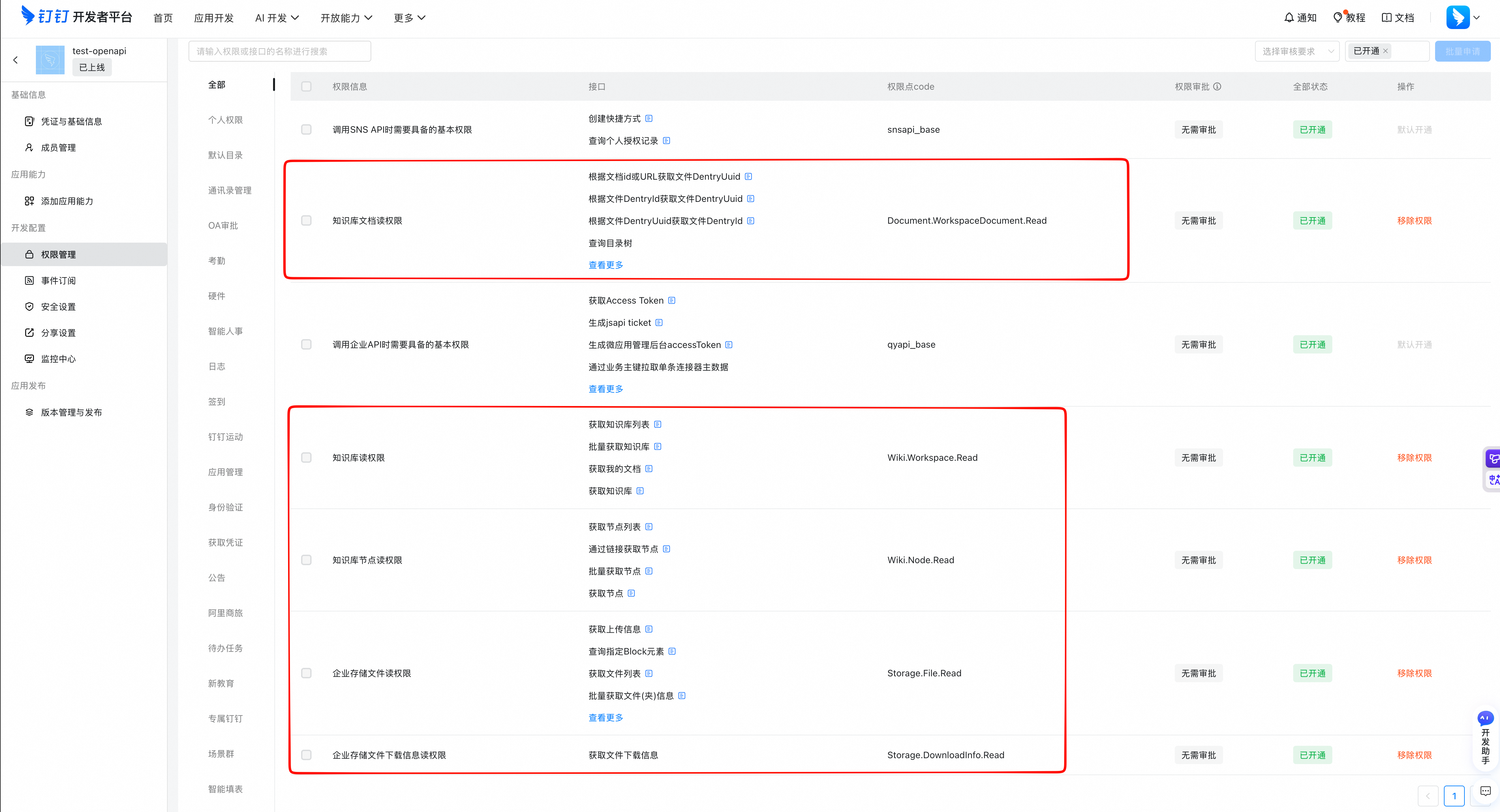
- Read knowledge bases (知识库读权限)
- Enter your own DingTalk Union ID in Operator unionId in QMind. Get the operator Union ID
- Back in QMind, choose DingTalk. Enter a connection name and fill in the three credential fields, then select Save and test connection. The test lists the knowledge bases the operator can access and attempts to read a document. For the first test, have an online document the operator can open so you can verify that the connection can list and read it.
Get the operator Union ID
1. Get your User ID
Method 1. Use dws
dws (DingTalk Workspace CLI) is a command-line tool for DingTalk that can look up your user information from a terminal. Follow the official guide to install it. You can also ask an enterprise administrator to look up your User ID using Method 2 below. Official dws introduction and installation guide
After installation, run the following command in a terminal. Follow the prompts to open a browser, sign in with your own DingTalk account, and authorize access.
user_id directly from the result, as highlighted in the screenshot below.
userId.
Method 2. Use the enterprise admin console
Ask an enterprise administrator to sign in to the DingTalk admin console, open Contacts → Member management, find your account, and copy the value in the Employee UserID (员工UserID) column.
2. Get your Union ID
Use an app with Read member information (成员信息读权限) qyapi_get_member enabled.
-
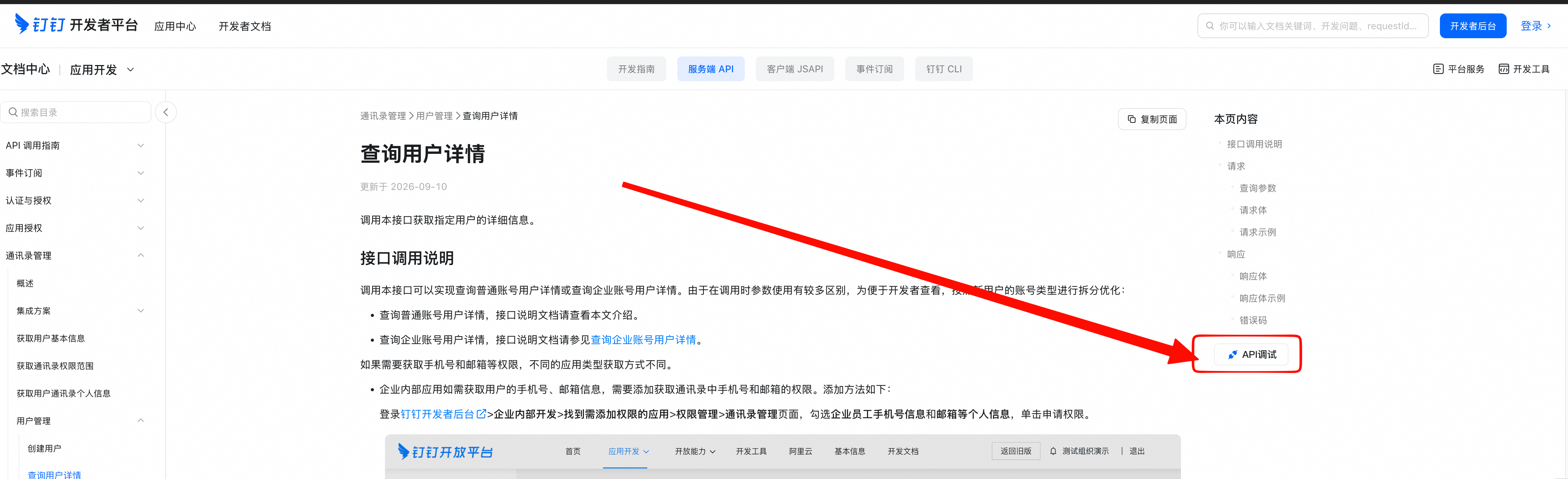
Open the DingTalk Query user details page and select API debugging (API 调试).
-
In the debugger, select the app you created and select Get Token (获取 Token) to populate
access_token. Enter the User ID from the previous step in the request body'suseridfield, then select Start debugging (发起调试).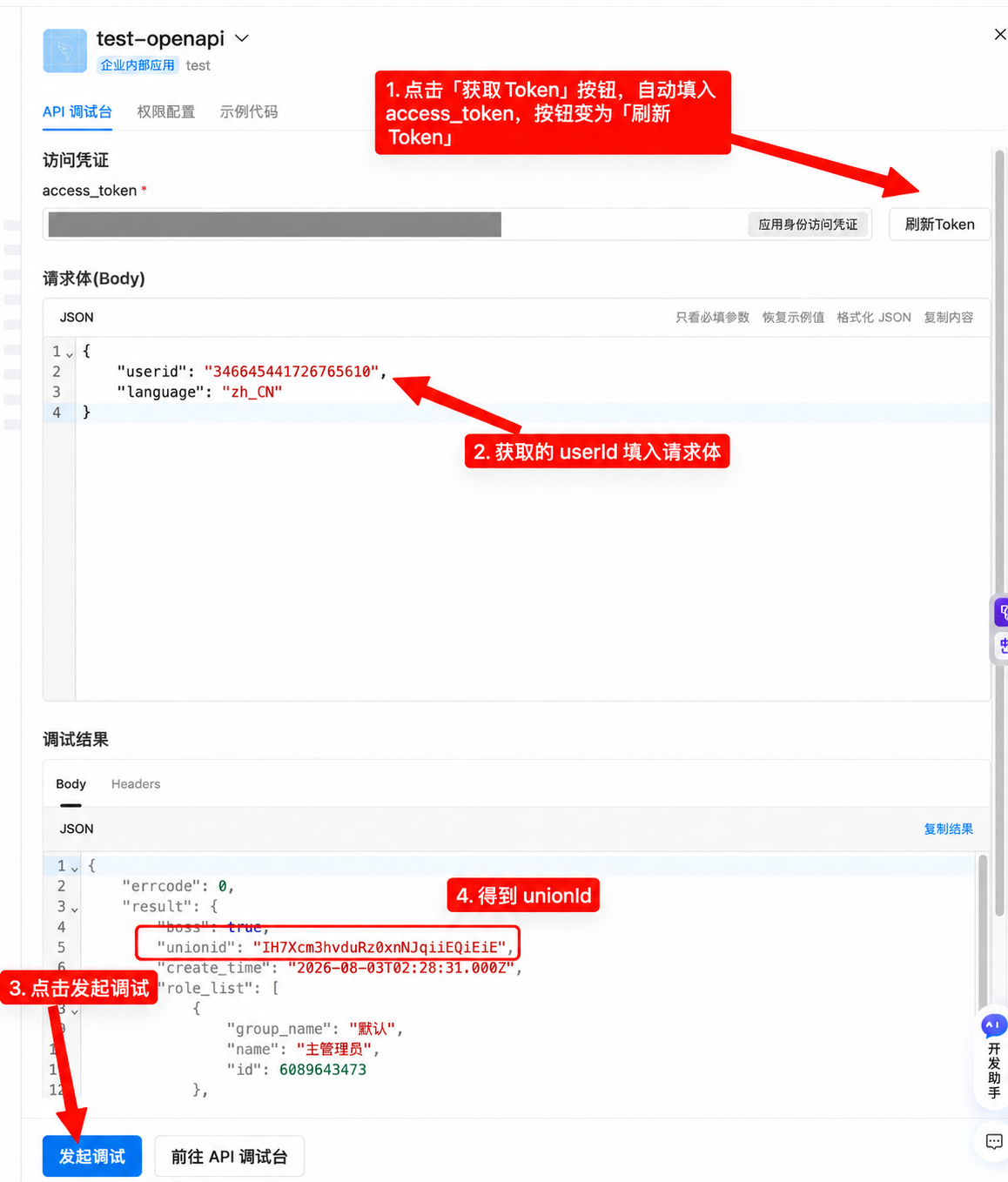
-
After the request succeeds, copy
result.unionidfrom the response into Operator unionId in QMind.
First import and troubleshooting
After the connection test passes, select a small document or folder in Choose resources. Select Continue, choose a sync mode, and select Import. Return to the source tree and wait for processing to finish. Then search for a sentence from the document to confirm you can find it.
| What you see | What to check |
|---|---|
| Save and test connection fails, but the form shows Credentials configured | The connection was saved. Select Replace credentials, enter a valid pair from the same app, and run the test again. For Feishu, use the official API testing console to check whether the app can obtain a tenant access token. For DingTalk, also check the unionId, app permissions, and whether the operator can read at least one document. |
| The connection test passes, but the target space, folder, or file is missing | In Feishu, confirm that the app can list the target space or folder and has access to the document. In DingTalk, confirm that the operator can open the resource and the app has permission to list the relevant nodes. |
| Choose resources shows a token for the Feishu Drive root folder | If QMind cannot read the folder name, it displays the folder_token. Check whether the Feishu app has drive:drive.metadata:readonly, then test the connection again after the scope takes effect. |
| You can select documents, but some files are missing after import | Compare a readable online document with a file that failed. Check access to document content, attachment download permissions, and whether QMind supports the file type. |
| A document appears in the source tree, but search does not find it | Check the document's processing status and search again once processing finishes. |