

This guide explains how to configure Single Sign-On (SSO) for your organization using SAML 2.0 or OIDC.
Applicable plans: Teams, Enterprise
Overview
Single Sign-On (SSO) allows members of your organization to authenticate using their corporate Identity Provider (IDP) without managing separate login credentials in Qoder. Qoder supports the two most widely adopted SSO protocols:
- SAML 2.0 — A mature, XML-based enterprise authentication standard used by Okta, Microsoft Entra ID (Azure AD), OneLogin, Alibaba Cloud IDaaS, and more.
- OIDC (OpenID Connect) — A modern identity layer built on top of OAuth 2.0 that supports one-click configuration via a Discovery URL. Typical providers include Okta, Azure AD, Google Workspace, Auth0, Authing, and Alibaba Cloud RAM.
Advantages of SSO
- Enhanced Security: Centralize authentication through your corporate Identity Provider.
- Improved User Experience: A single set of credentials provides access to all corporate applications.
- Simplified User Management: Users on verified email domains are automatically provisioned and added to the organization on first login.
Which protocol should I choose?
| Protocol | When to use |
|---|---|
| SAML | Your IDP only supports SAML; you need IdP-initiated SSO; you already run a SAML-based authentication stack. |
| OIDC | Your IDP exposes OIDC / OAuth 2.0 endpoints; you want one-click setup via a Discovery URL; you prefer a lighter JSON-based integration. |
Only one SSO protocol can be active per organization at a time. To switch protocols, deactivate the current one before creating a new configuration.
Prerequisites
Before configuring SSO, please ensure you meet the following requirements:
- Admin Permissions: You must have administrative permissions within your organization.
- Identity Provider Permissions: You must have permission to configure applications within your organization's Identity Provider (IDP).
- DNS Access Permissions: You must have permission to add a TXT record to your organization's email domain for verification purposes.
Configuration Process
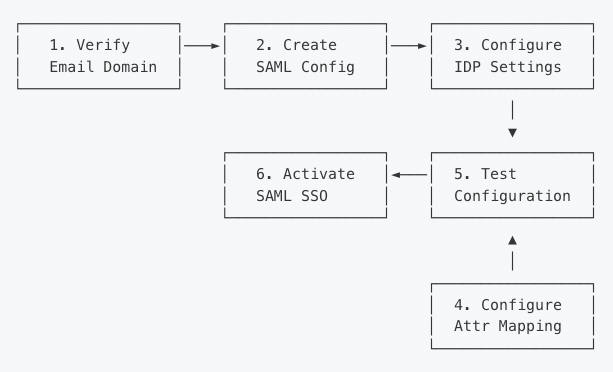
The SSO configuration process consists of the following steps, regardless of whether you choose SAML or OIDC:
Step 1: Verify Email Domain
Before configuring SSO, you must first verify ownership of your company's email domain to ensure that only users with an email address from a verified domain can log in through your organization's SSO.
For configuration instructions, see Domain Verification.
Step 2: Create SSO Configuration
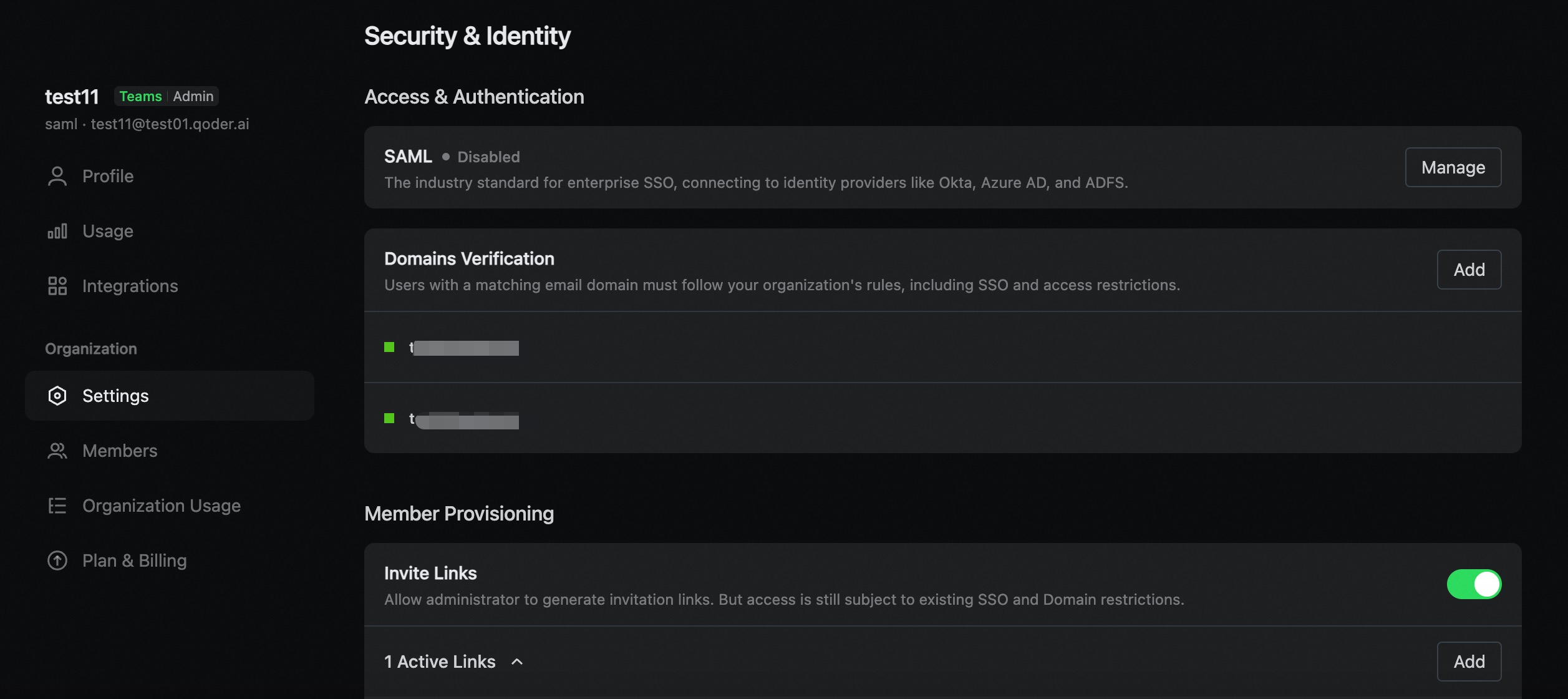
- Administrators navigate to Organization Settings > Security & Identity.
- Choose SAML Configuration or OIDC Configuration depending on your IDP.
- SAML
- OIDC
Create the SAML configuration for your organization. The system will automatically generate the SP certificates and private keys.After initialization, Qoder will automatically generate the following information for you. You will need this information for the subsequent configuration of your Identity Provider (IDP):
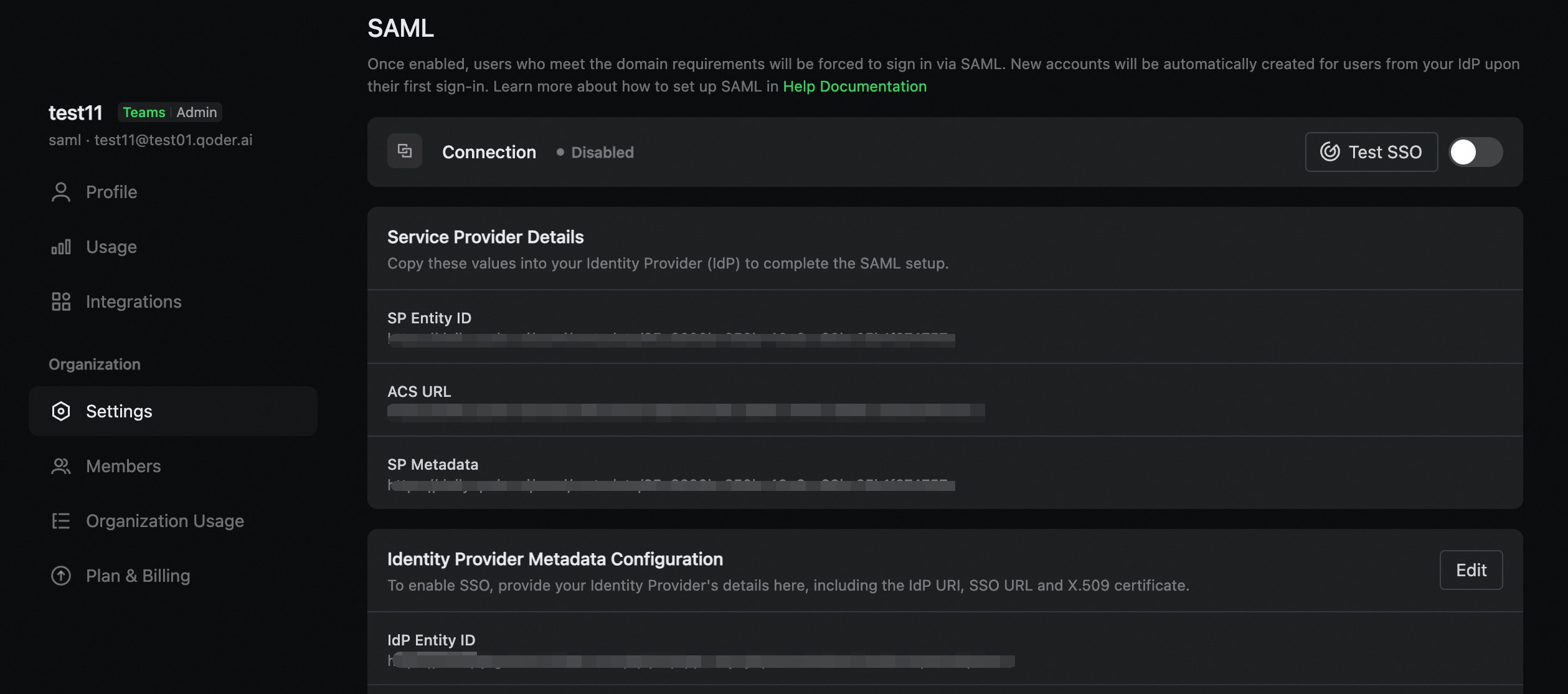
- SP Entity ID
- SP Metadata URL
- SP ACS (Assertion Consumer Service) URL
- SP certificates and private keys
| Field | Example Value |
|---|---|
| SP Entity ID | https://qoder.com/saml/metadata/{org_id} |
| SP Metadata URL | https://qoder.com/saml/metadata/{org_id} |
| SP ACS URL | https://qoder.com/sso/callback/saml/{org_id} |
Step 3: Configure Identity Provider (IDP)
- SAML
- OIDC
You can configure the SAML IDP using one of two methods: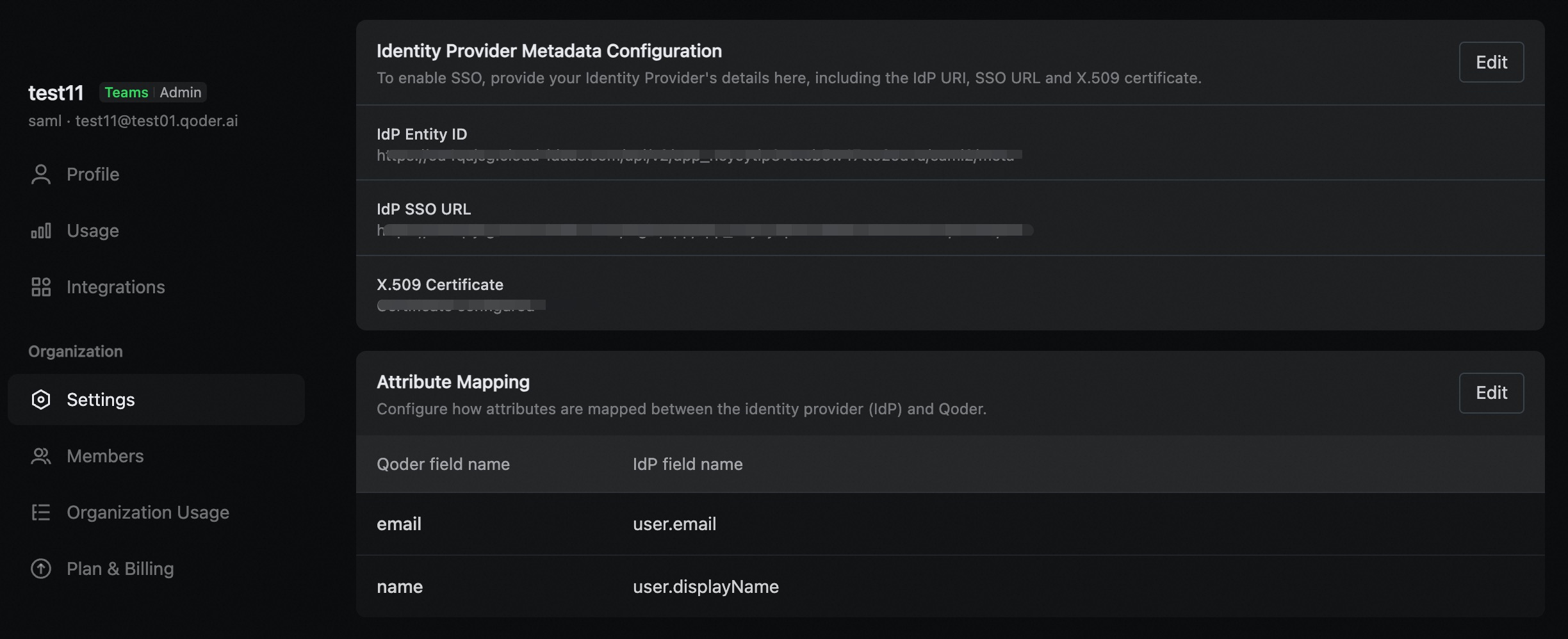
Method A: Automatic Configuration (Recommended)
If your IDP provides a metadata URL, use this method for automatic configuration:- In the SAML Configuration page, locate the Identity Provider Metadata Configuration section.
- Select the Import from URL configuration mode.
- Enter your IDP Metadata URL (e.g.,
https://your-idp.example.com/app/metadata). - Click Save.
- IDP Entity ID
- SSO URL
- Signing certificates
Method B: Manual Configuration
If your IDP doesn't provide a metadata URL, follow these steps to configure settings manually:- In the SAML Configuration page, select the Manual Configuration mode.
- Fill in the following fields:
- IDP Entity ID: The entity identifier for your identity provider.
- IDP SSO URL: The SSO login endpoint URL.
- IDP Public Certificate: The signing certificate in PEM format (optional but recommended).
- Click Save.
Step 4: Configure Attribute Mapping
SSO supports automatic user provisioning and mapping. You need to configure how user attributes from your Identity Provider (IDP) are mapped to system fields.
- SAML
- OIDC
- In the SAML Configuration page, scroll to the Attribute Mapping section.
- Configure the attribute mappings:
- Email Attribute: The name of the attribute from your IDP for the user's email address (e.g.,
user.email). Required. - Name Attribute: The name of the attribute from your IDP for the user's display name (e.g.,
user.name).
- Email Attribute: The name of the attribute from your IDP for the user's email address (e.g.,
- Click Save.
Step 5: Test Configuration
Before activating, test your SSO configuration to ensure all settings are correct:
- In the SSO Configuration page, click the Test SSO button.
- The system will run a series of validation checks (certificates/signatures, metadata endpoint, Discovery document, attribute mapping, etc.).
- Review the test results.

Step 6: Activate SSO
Once testing passes, you can activate SSO:
- In the SSO Configuration page, ensure all test checks have passed.
- Click the Enable SSO toggle.
- Confirm the activation in the dialog box that appears.
- The SSO status will change to Active.
- Organization members can now log in using SAML or OIDC SSO.
- Users with verified email domains will be automatically routed to your organization's SSO login after entering their email on the login page.
Important Recommendation:After activating SSO, the current administrator should not log out immediately. Instead, use a separate user account from a verified domain to test the SSO login and verify the configuration. This ensures that if there is an issue with the SSO setup, the administrator can still access the settings to make adjustments and avoid being locked out.