

QMind helps you consolidate scattered materials — documents, web pages, and RepoWiki — into a single notebook and query the entire knowledge base conversationally.
QMind is designed for individuals: you import materials yourself and can share notebooks with organization members for collaboration. It is independent from the team-oriented Enterprise Knowledge capability, which aggregates knowledge generated on Qoder IDE.
The default storage limits for each plan are listed below. Storage is calculated per user from the total size of original source files across all notebooks. Multiple notebooks share the same allowance.
Storage is calculated using 1 GB = 1024 MB. Each file must also meet the 500 MB upload limit described below, and the total storage after importing must remain within your plan's allowance.
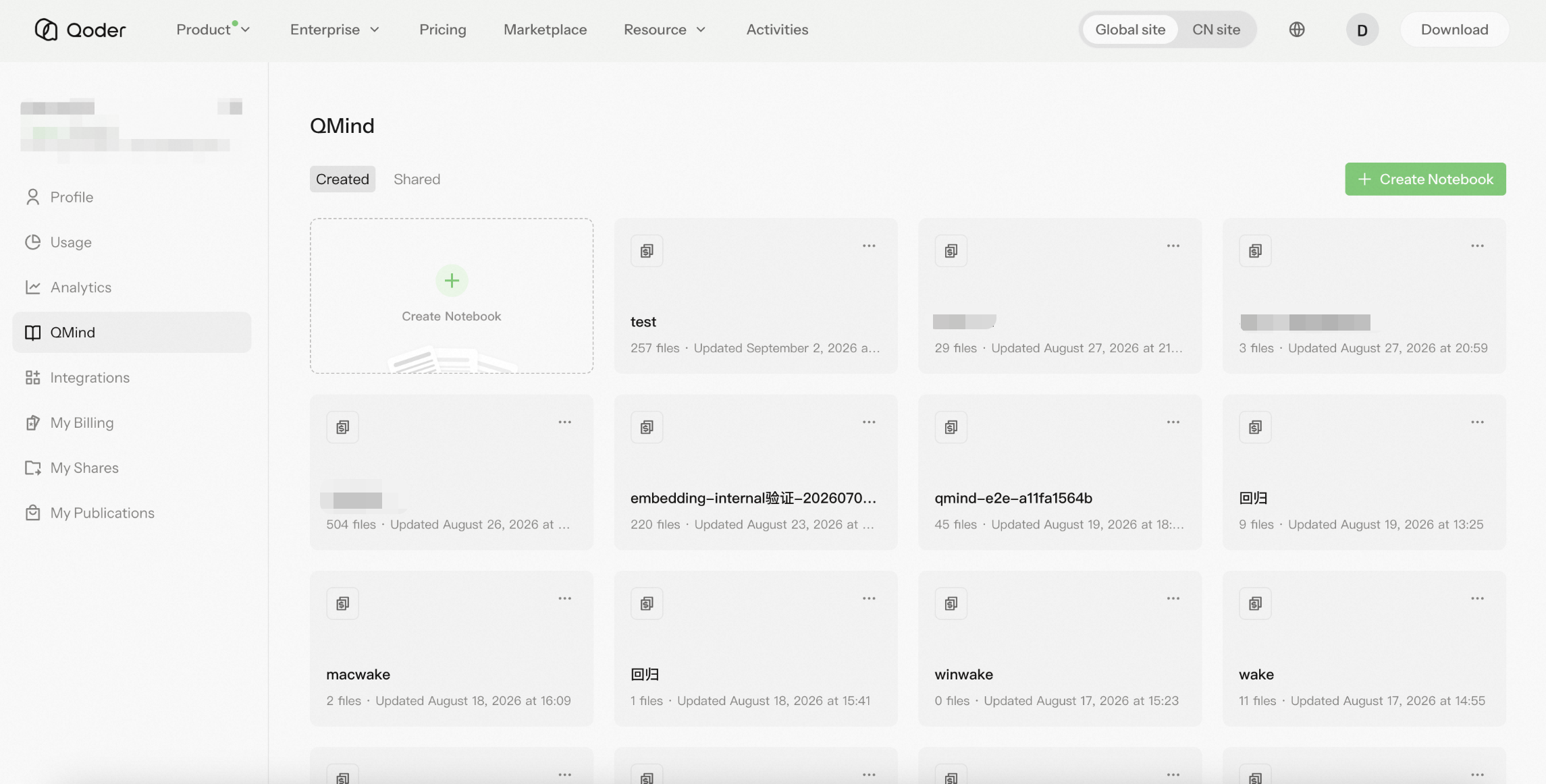
Navigate to QMind from the left sidebar. The homepage shows "Selected Showcase Notebooks" at the top, with "Created" and "Shared" tabs below listing existing notebooks with file counts and update times.
Click "Create Notebook" to create a new empty notebook.
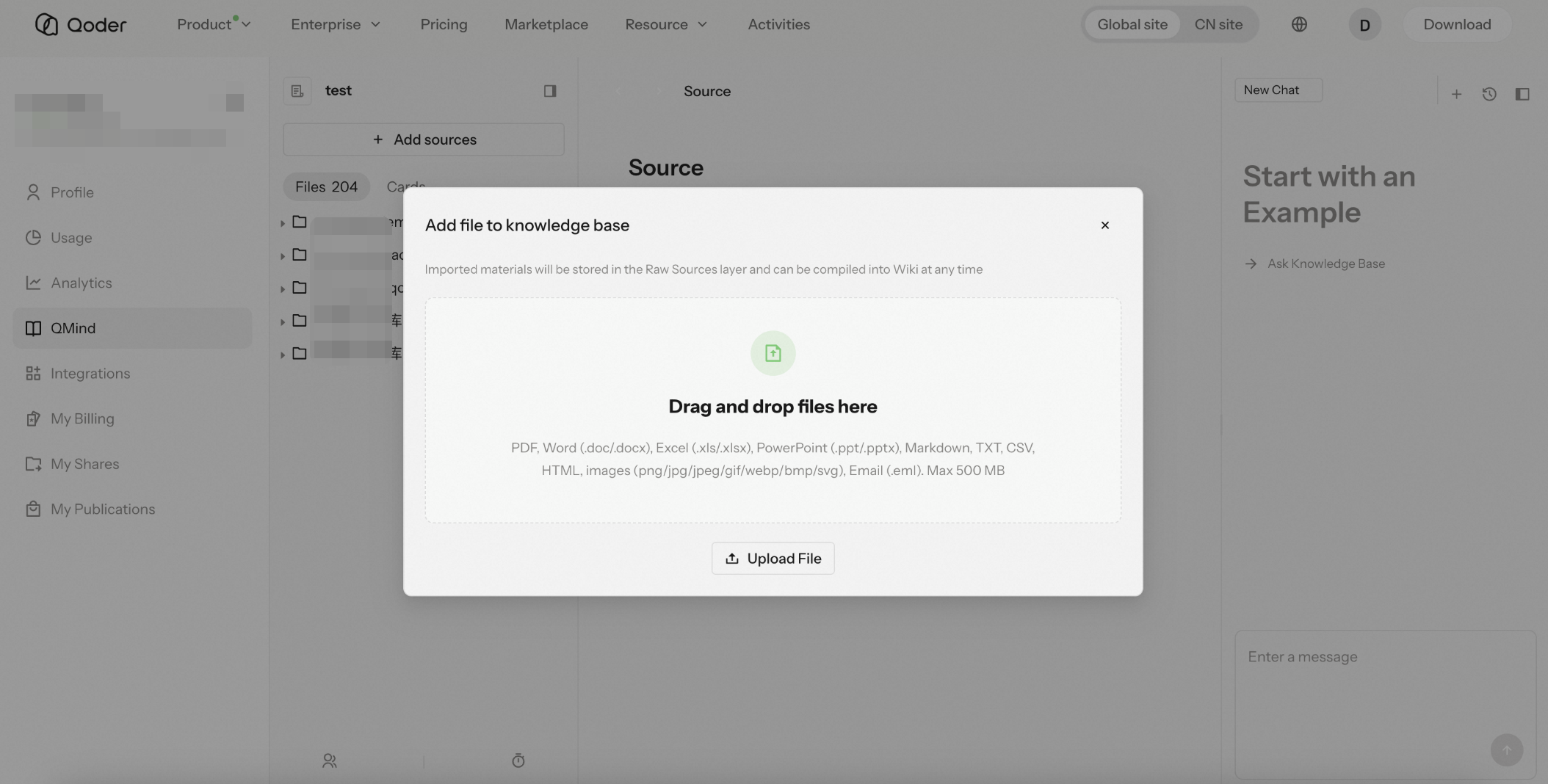
After entering a notebook, click "Add File" to open the "Add materials to knowledge base" dialog. Imported materials are stored in "Raw Sources."
QMind supports three types of data sources:
Supports PDF, Word (.doc/.docx), Excel (.xls/.xlsx), PowerPoint (.ppt/.pptx), Markdown, TXT, CSV, HTML, and images (.png/.jpg/.jpeg/.gif/.webp/.bmp/.svg). Maximum file size is 500 MB. You can also drag and drop files into the dialog.
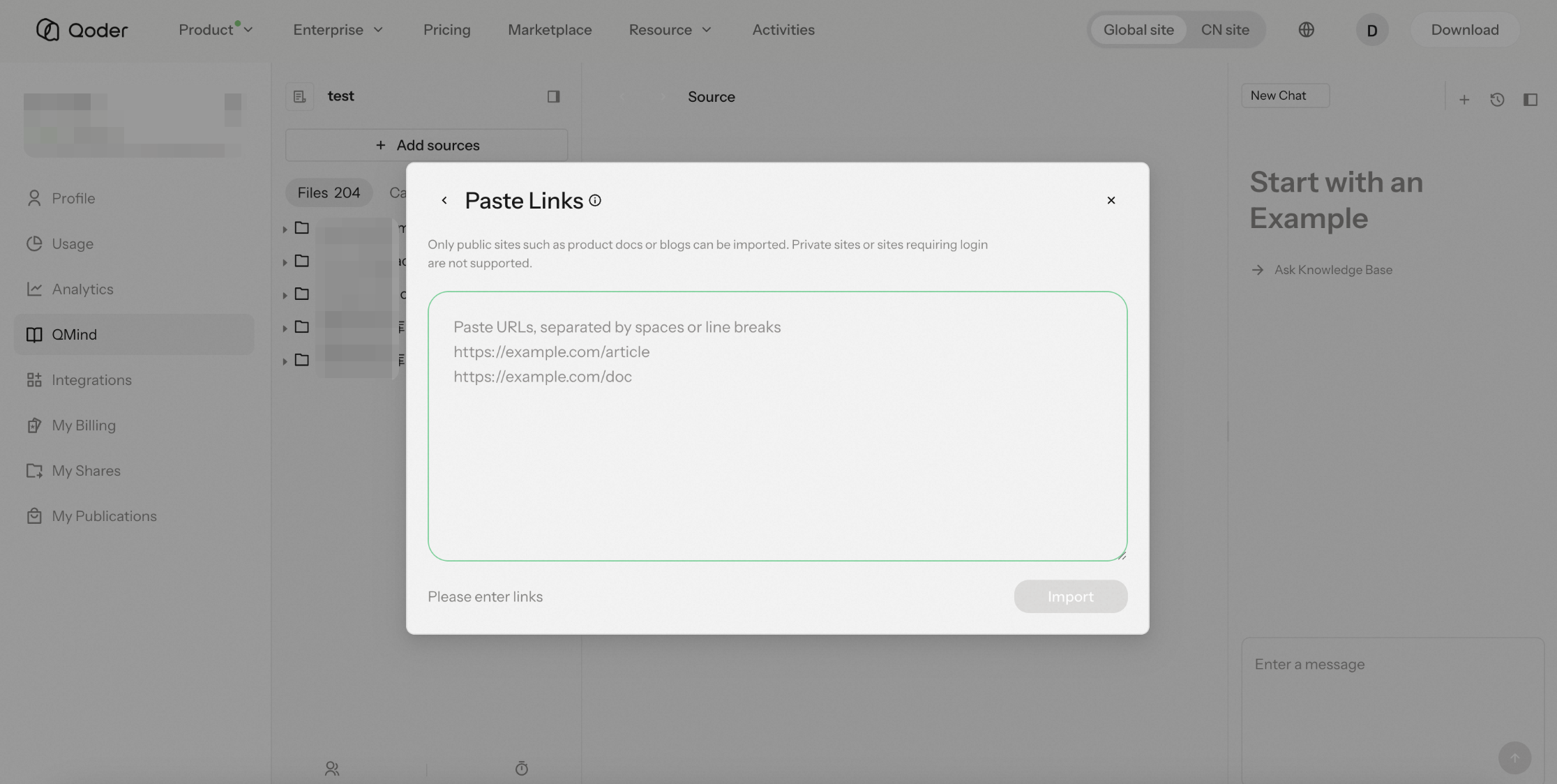
Paste a web page URL to include its content in the knowledge base.
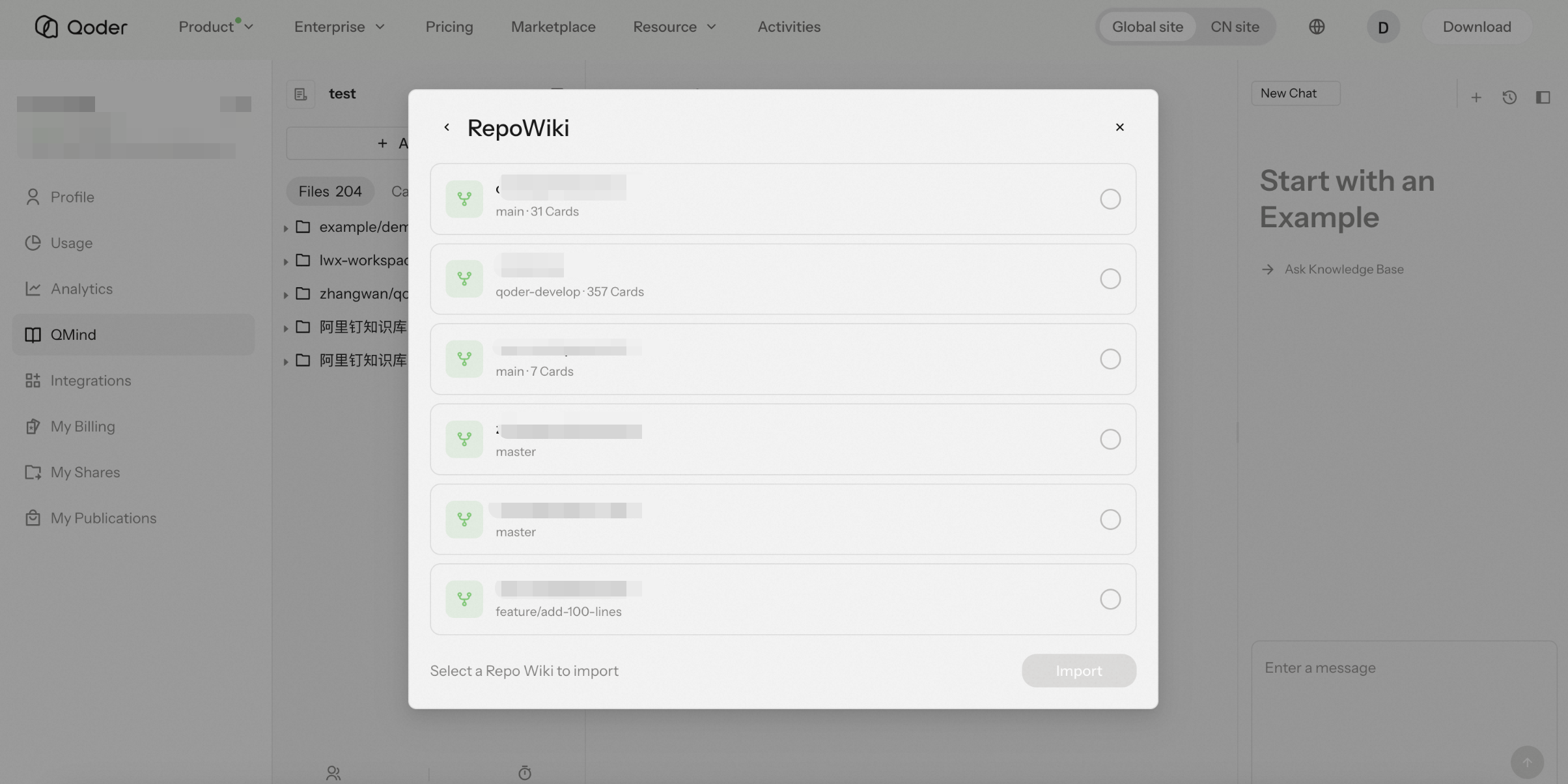
Import an existing RepoWiki as a data source. The dialog lists available RepoWikis showing repository name, branch or commit, and card count; select one and click "Import" to add it to the current notebook.
The notebook's left panel organizes content under "File." The center area displays knowledge details and renders body text, charts such as pie charts and Gantt charts, and relationship graphs. Use the forward and back buttons at the top to navigate between entries.
Use the right conversation panel to retrieve knowledge from the knowledge base.
Beyond in-product chat retrieval, QMind knowledge can also be consumed through a Skill or Plugin from the Marketplace on the Qoder website.
Search "QMind" in the Marketplace to get the corresponding Skill and Plugin. Use them to invoke knowledge already deposited in your QMind knowledge base, integrating retrieval capabilities into your development and collaboration workflows.
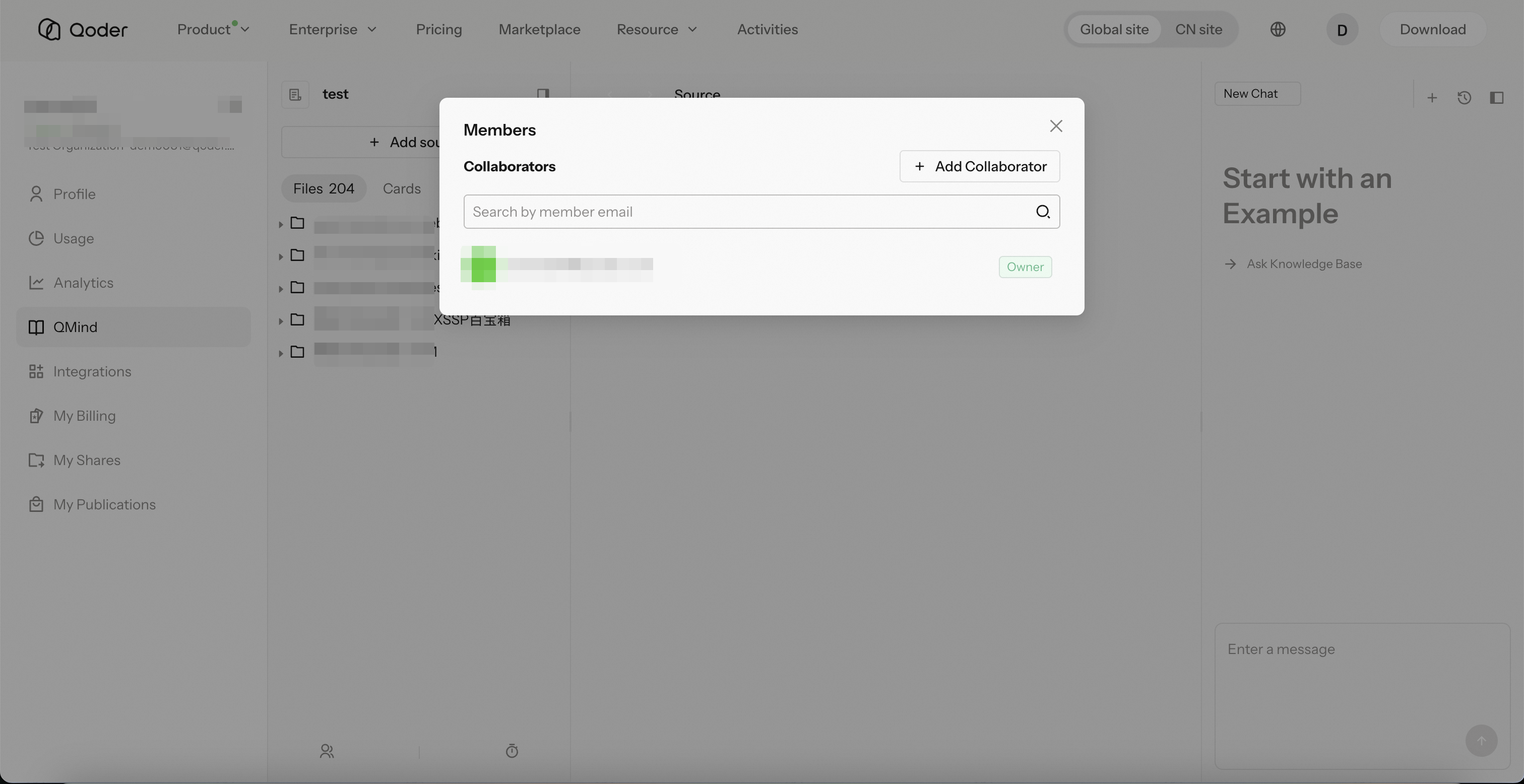
Notebooks can be shared with organization members for collaboration:
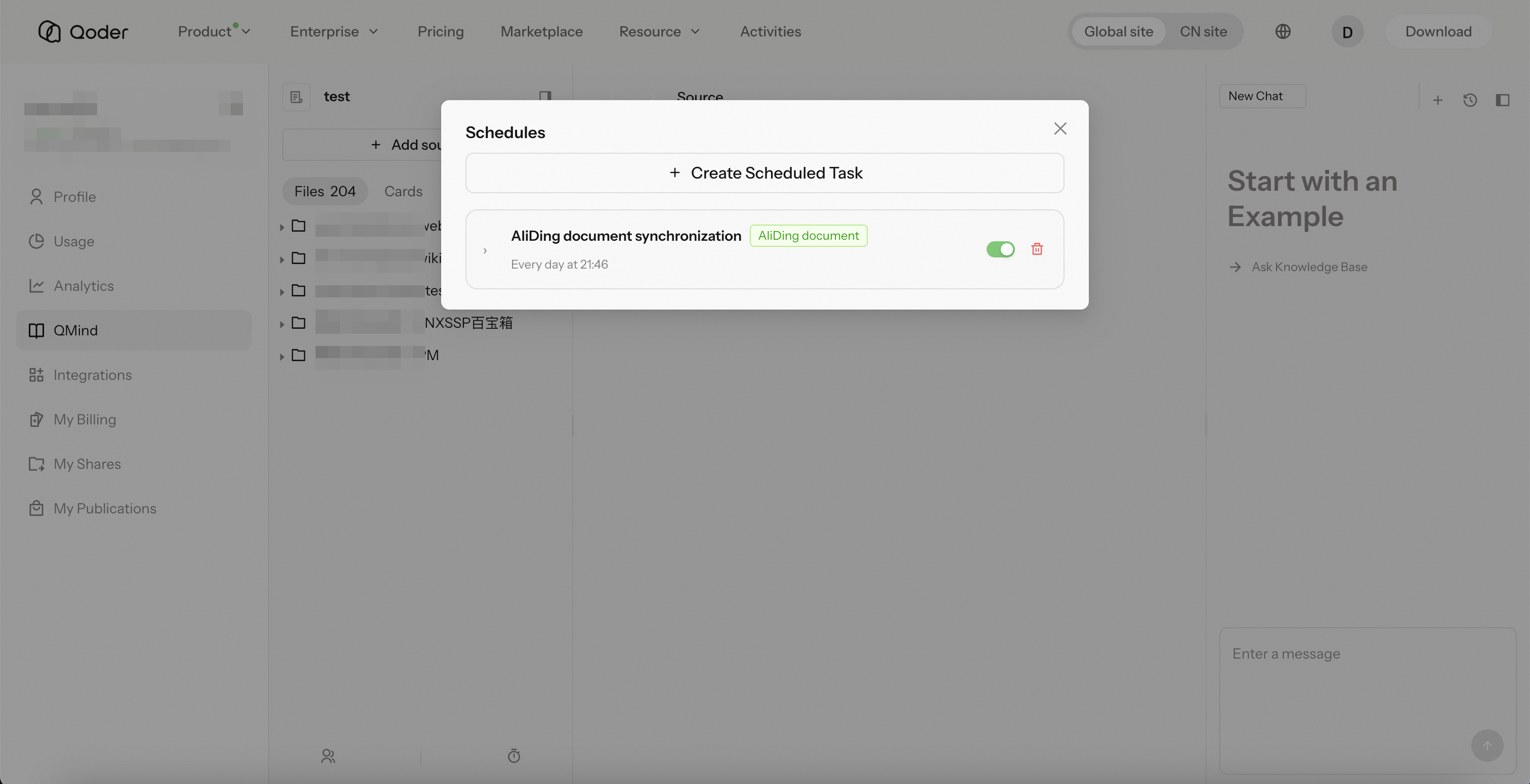
QMind supports configuring scheduled tasks for knowledge bases to keep knowledge automatically updated. In "Create Scheduled Task," select a task type:
Core Concepts
| Concept | Description |
|---|---|
| Notebook | The basic unit of a knowledge base; a notebook aggregates a set of related materials and the knowledge generated from them |
| Raw Sources | Imported source files, links, and RepoWiki |
| Knowledge Retrieval | Query the knowledge base directly for answers |
Knowledge Base Storage Limits
The default storage limits for each plan are listed below. Storage is calculated per user from the total size of original source files across all notebooks. Multiple notebooks share the same allowance.
| Plan | Storage Limit per User |
|---|---|
| Free | 100 MB |
| Pro Trial | 1 GB |
| Pro | 1 GB |
| Pro+ | 1 GB |
| Ultra | 1 GB |
| Teams | 2 GB |
| Enterprise | 5 GB |
| Organization Free | 100 MB |
Creating a Notebook
Navigate to QMind from the left sidebar. The homepage shows "Selected Showcase Notebooks" at the top, with "Created" and "Shared" tabs below listing existing notebooks with file counts and update times.
Click "Create Notebook" to create a new empty notebook.
Adding Materials & Data Sources
After entering a notebook, click "Add File" to open the "Add materials to knowledge base" dialog. Imported materials are stored in "Raw Sources."
QMind supports three types of data sources:
Upload File
Supports PDF, Word (.doc/.docx), Excel (.xls/.xlsx), PowerPoint (.ppt/.pptx), Markdown, TXT, CSV, HTML, and images (.png/.jpg/.jpeg/.gif/.webp/.bmp/.svg). Maximum file size is 500 MB. You can also drag and drop files into the dialog.
Page Link
Paste a web page URL to include its content in the knowledge base.
RepoWiki (Import Repository Wiki)
Import an existing RepoWiki as a data source. The dialog lists available RepoWikis showing repository name, branch or commit, and card count; select one and click "Import" to add it to the current notebook.
Browsing Knowledge & Visualization
The notebook's left panel organizes content under "File." The center area displays knowledge details and renders body text, charts such as pie charts and Gantt charts, and relationship graphs. Use the forward and back buttons at the top to navigate between entries.
Asking Questions & Knowledge Retrieval
Use the right conversation panel to retrieve knowledge from the knowledge base.
Consuming via Marketplace Skills or Plugins
Beyond in-product chat retrieval, QMind knowledge can also be consumed through a Skill or Plugin from the Marketplace on the Qoder website.
Search "QMind" in the Marketplace to get the corresponding Skill and Plugin. Use them to invoke knowledge already deposited in your QMind knowledge base, integrating retrieval capabilities into your development and collaboration workflows.
- Skill: QMind Skill
- Plugin: QMind Plugin
Sharing & Collaboration
Notebooks can be shared with organization members for collaboration:
- Go to "Member Management" → "Add Collaborator"
- Add by email: enter one or more email addresses (press Enter to confirm, or paste an email list)
- Select a role for the recipient (e.g., "Viewer")
- Click "Add"
Scheduled Tasks
QMind supports configuring scheduled tasks for knowledge bases to keep knowledge automatically updated. In "Create Scheduled Task," select a task type:
| Task Type | Description |
|---|---|
| Source Refresh | Periodically refresh imported data sources and pull the latest content |