

Configure display and response languages, system behavior, network diagnostics, environments, devices, and application updates.
Select Settings in the lower-left corner to open global settings. These changes affect the current account or local runtime rather than one Waker. Validate each change with a new chat or a limited task.
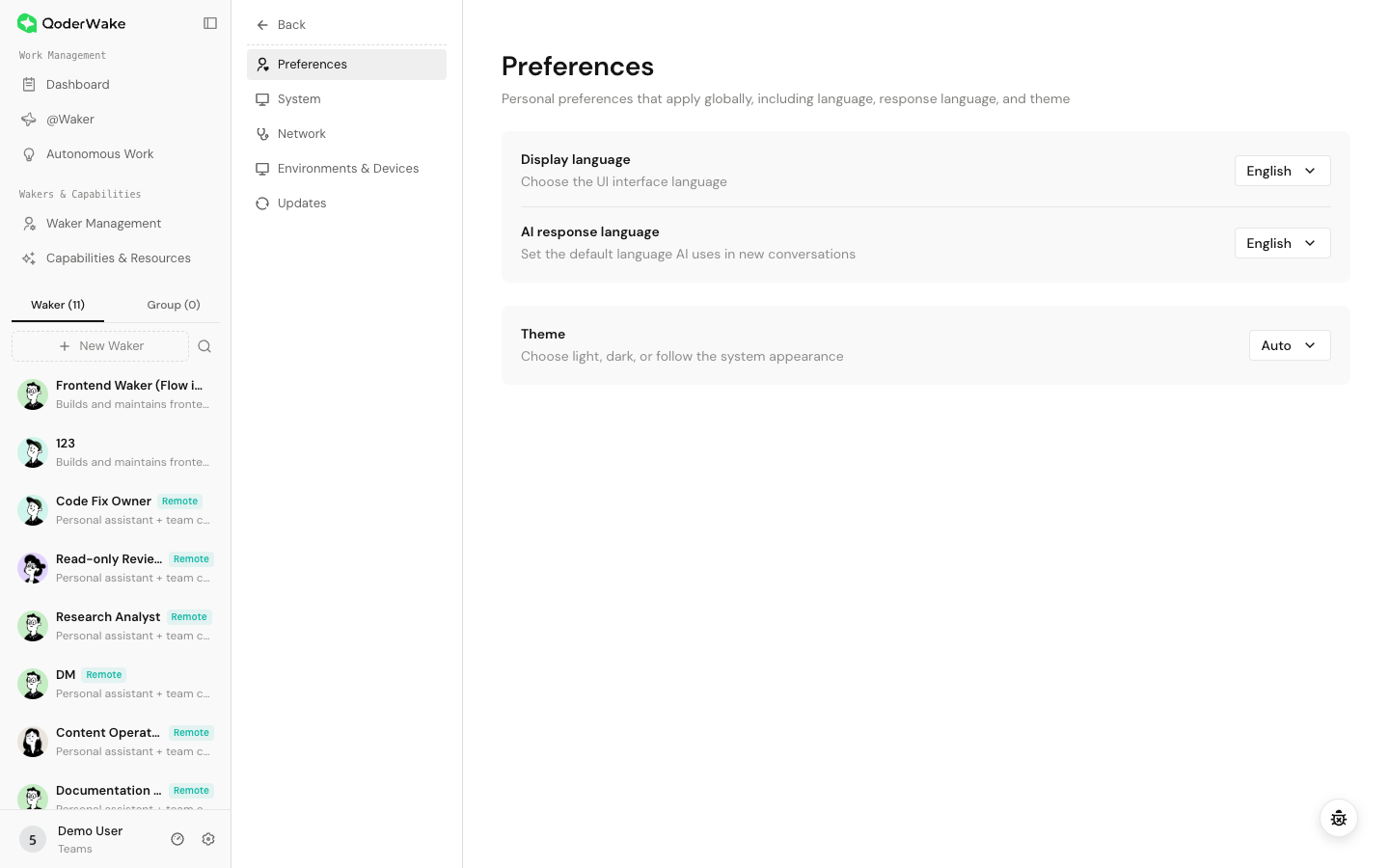
Display language controls navigation, buttons, prompts, and system text. After selecting Chinese or English, wait for the page to switch and review the primary entries.
User-created Waker, Group, project, and chat names are not translated automatically. When preparing English documentation, use English test data in addition to changing the product language.
AI response language sets the default for new chats. It does not rewrite existing chats and does not override a language explicitly requested in the current message.
Create a new task to verify the change. An existing chat continuing in its previous language is expected.
Select light, dark, or follow system. Use one theme consistently when capturing a workflow so localized screenshots have comparable layout and contrast.
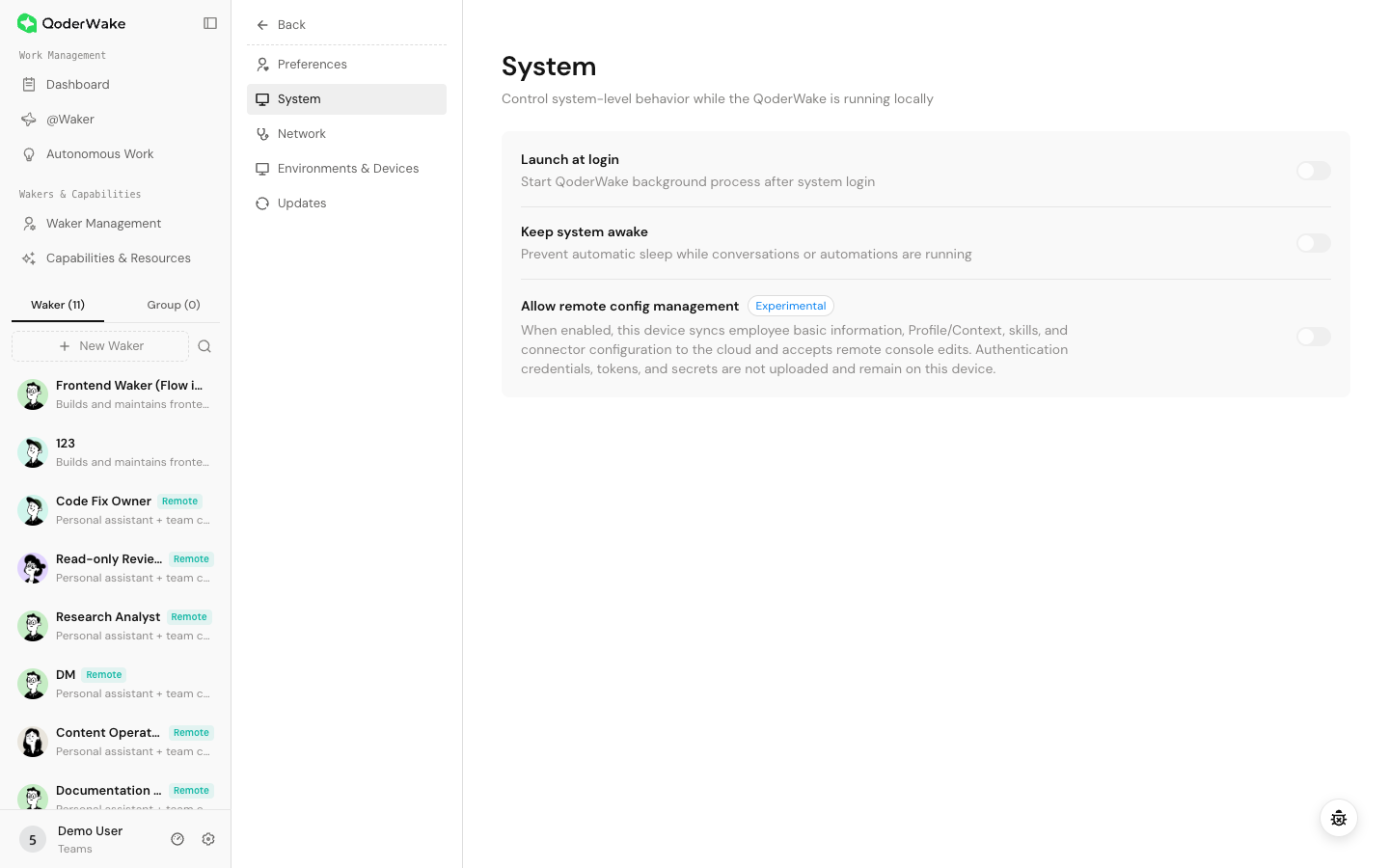
When enabled, QoderWake starts its background process after operating-system sign-in. Local environments that host scheduled or remote work should enable it, while still ensuring that the user session, network, and account remain available.
When enabled, QoderWake prevents the computer from sleeping while chats or automated tasks are running. This is useful for long local jobs.
Keep-awake does not prevent network loss, shutdown, sign-out, or service crashes.
This is an experimental feature. When enabled, the device synchronizes Waker metadata, Profile or Context, Skills, and connector configuration, and can accept changes from a remote console. Authentication secrets, tokens, and keys remain local.
Before enabling it:
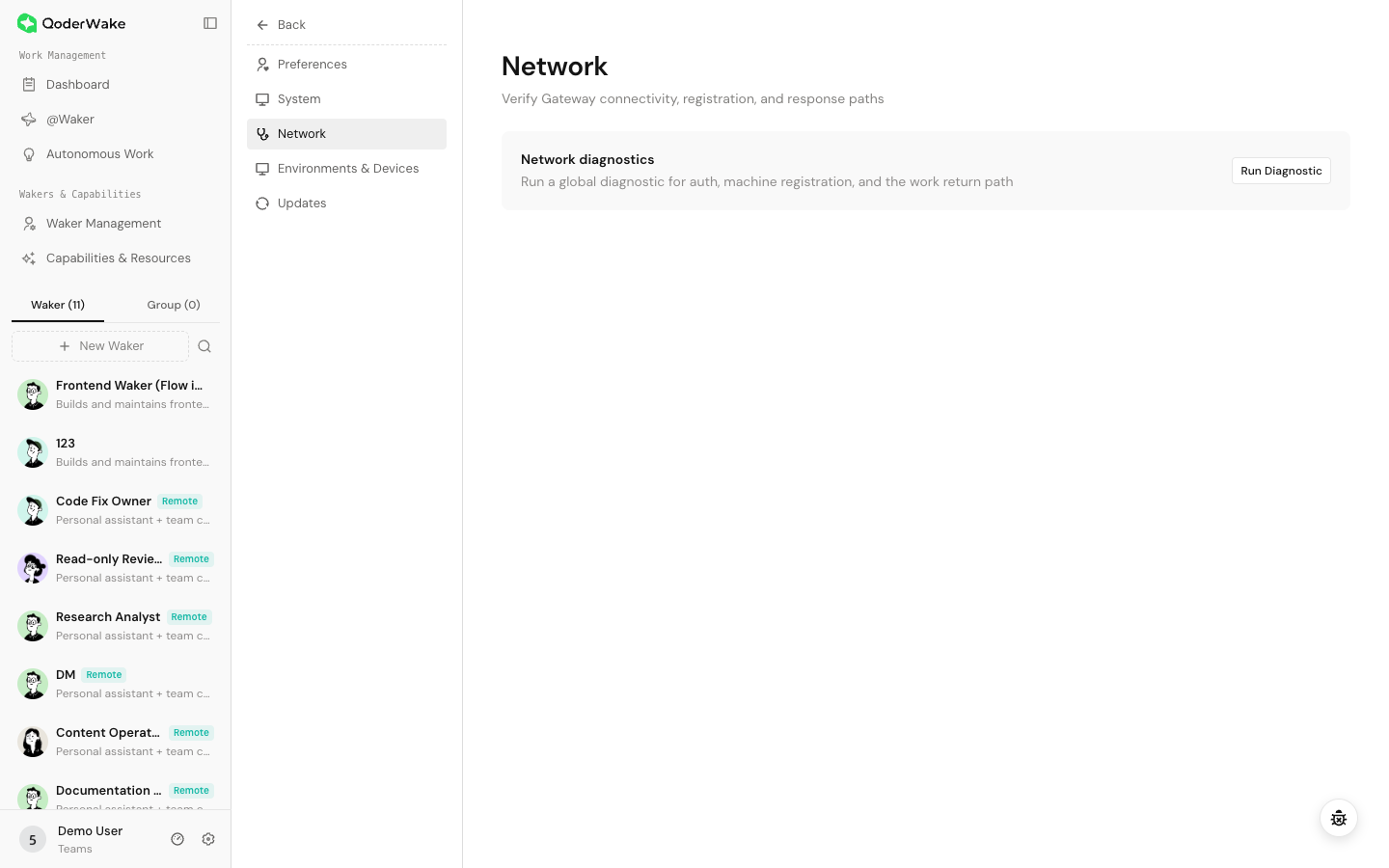 Network diagnostics tests authentication, machine registration, and the Work return path between QoderWake and the gateway.
Environments & Devices lists local and remote environments, connection state, application version, and the number of Wakers on each environment.
Select Add device and follow the account and device connection process. After completion, verify that:
Before unbinding, check:
Updates displays the current version, update channel, downloaded version, and available actions.
Preferences
Display language
Display language controls navigation, buttons, prompts, and system text. After selecting Chinese or English, wait for the page to switch and review the primary entries.
User-created Waker, Group, project, and chat names are not translated automatically. When preparing English documentation, use English test data in addition to changing the product language.
AI response language
AI response language sets the default for new chats. It does not rewrite existing chats and does not override a language explicitly requested in the current message.
Create a new task to verify the change. An existing chat continuing in its previous language is expected.
Theme
Select light, dark, or follow system. Use one theme consistently when capturing a workflow so localized screenshots have comparable layout and contrast.
System
Start at login
When enabled, QoderWake starts its background process after operating-system sign-in. Local environments that host scheduled or remote work should enable it, while still ensuring that the user session, network, and account remain available.
Keep system awake
When enabled, QoderWake prevents the computer from sleeping while chats or automated tasks are running. This is useful for long local jobs.
Keep-awake does not prevent network loss, shutdown, sign-out, or service crashes.
Allow remote configuration management
This is an experimental feature. When enabled, the device synchronizes Waker metadata, Profile or Context, Skills, and connector configuration, and can accept changes from a remote console. Authentication secrets, tokens, and keys remain local.
Before enabling it:
- confirm that the account and device are within the intended management scope;
- keep local-directory and external-connector permissions limited;
- ensure configuration changes can be audited;
- rerun a limited validation after a remote change.
Network diagnostics
- Open Network Diagnostics.
- Select Start diagnostics.
- Wait for every check and record the failed item and error message.
- Fix the network, proxy, authentication, or registration issue and rerun the test.
- After all checks pass, return to the original feature and perform the real task.
Manage environments and devices
Environments & Devices lists local and remote environments, connection state, application version, and the number of Wakers on each environment.
Review a device
- Select Refresh to retrieve the latest state.
- Identify the device from its local/remote label, name, version, and online status.
- Confirm that a Waker that needs local files runs on the correct device.
Add a device
Select Add device and follow the account and device connection process. After completion, verify that:
- the new device appears online;
- its application version meets the requirement;
- a Waker can be assigned to the environment;
- a read-only task can access an intended local file.
Unbind a device
Before unbinding, check:
- Wakers running on the device;
- Autonomous Work that depends on it or its directories;
- Groups, projects, and @Waker chats using those Wakers;
- configurations and artifacts that must be migrated or retained.
Update the application
Updates displays the current version, update channel, downloaded version, and available actions.
- Complete or stop running work and save important artifacts.
- Review the current version and update information.
- Download or install as directed. If a restart is required, restart immediately or at an appropriate maintenance time.
- Reopen the console and verify the effective version.
- Check Wakers, devices, projects, connectors, and one critical task.
Validate setting changes
| Change | Validation |
|---|---|
| Display language | Review navigation, buttons, and system prompts |
| AI response language | Start a new chat and send a normal request |
| Startup or keep-awake | Restart or observe a long-running task |
| Remote management | Change one test configuration from an authorized console and inspect the result |
| Network | Rerun diagnostics and then retest the original feature |
| Device | Run a read-only directory task on the target device |
| Application version | Confirm the version and run a critical regression task |
Troubleshooting
| Symptom | Action |
|---|---|
| Some text remains unchanged after language switch | User-created names are not translated; refresh and inspect system text |
| Existing chat ignores the new response language | Validate in a new chat |
| Automation still stops during sleep | Check keep-awake, OS power settings, network, and service state |
| Device shows offline | Host/service → network → account → application version |
| Downloaded update is not active | Restart as directed and confirm the effective version |
| Diagnostics pass but connector fails | Check connector authorization, external-account permissions, and service status |