

Create a knowledge base, add and compile sources, manage members, and bind reliable knowledge to Wakers.
A knowledge base stores stable information that must be searched and shared repeatedly. The complete path is: create → add sources → check processing → compile knowledge cards → manage members and Wakers → validate in a new chat.
Keep one-off requirements in the current task and role rules in the Waker profile or memory. Do not put every type of context into a knowledge base.
Path: left navigation → Capabilities & Resources → Knowledge Base.
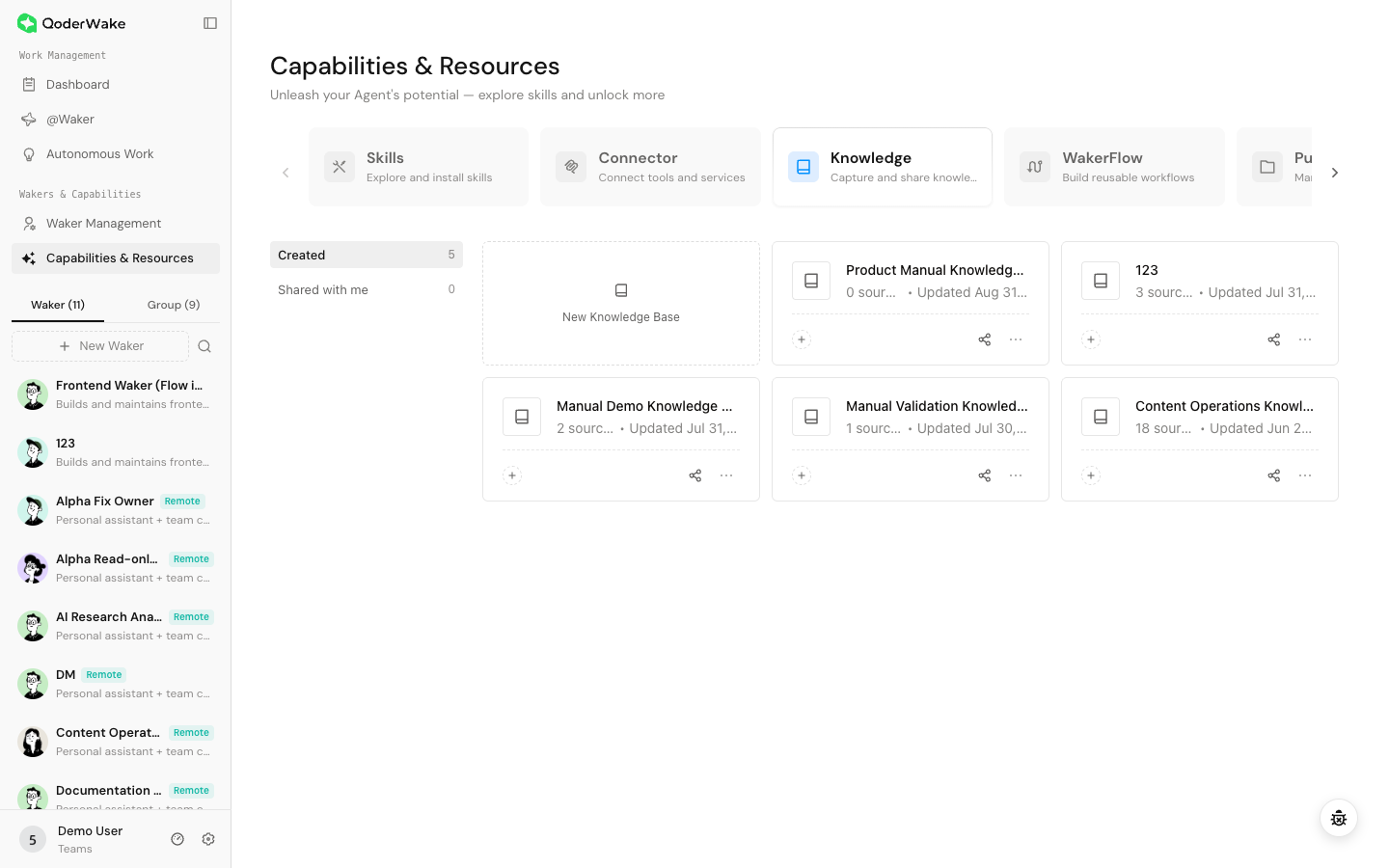 The list distinguishes:
Featured knowledge bases are ready-to-use public or product knowledge:
Select Add source. The available source types vary by edition and version and can include local files and URLs.
Use folders for topic, edition, or product line when the collection grows, but keep the hierarchy shallow. Include a version or effective date in titles when needed.
Sources are imported raw materials. Cards are structured knowledge compiled from those materials. A source can upload successfully while the new information is still unavailable for reliable retrieval because compilation has not run.
Check both lists. Cards should be readable and should not turn headers, error pages, or duplicate paragraphs into official knowledge.
Open Settings from the knowledge base sidebar.
Use automatic or scheduled compilation for frequently updated sources. Before enabling it, confirm that:
Open Members to review the owner and collaborators.
Use the Waker assignment entry in the knowledge-base list, or open a Waker → Knowledge Base.
Test at least three question types:
Open Knowledge Base
Path: left navigation → Capabilities & Resources → Knowledge Base.
- Created by me: you own the knowledge base and can maintain sources, members, and settings.
- Shared with me: another owner granted access; available operations depend on your member permission.
- Featured: a product-provided read-only knowledge base. You can inspect and bind it to a Waker, but cannot edit its sources or cards. Availability depends on region and version.
Create a knowledge base
- Select New Knowledge Base.
- Enter a title that clearly identifies the topic and scope.
- Open it and confirm that source, card, member, schedule, and settings entries are available.
Use a Featured knowledge base
Featured knowledge bases are ready-to-use public or product knowledge:
- Open Featured and review its description, scope, and last update.
- Bind it from the knowledge base or from the target Waker's Knowledge settings.
- The Waker receives read-only access. You cannot upload sources, edit cards, or manage members in the Featured item.
- Start a new chat and test one known fact, one boundary case, and one unsupported question.
Add sources
Select Add source. The available source types vary by edition and version and can include local files and URLs.
Upload a local file
- Select a file that meets the format and size requirements shown by the upload dialog.
- Wait for upload and parsing to finish.
- Open the source and confirm that its title, body, and pages were extracted correctly.
Import a URL
- Enter a complete
https://orhttp://address. - Wait while QoderWake retrieves and processes the page.
- Open the source and confirm that the content is the intended body, not a sign-in, error, or empty page.
Organize and maintain sources
Use folders for topic, edition, or product line when the collection grows, but keep the hierarchy shallow. Include a version or effective date in titles when needed.
- Remove obsolete, duplicate, and conflicting versions.
- Identify the authoritative source when several documents describe the same rule.
- Re-upload or update a source when the original changes.
- Recompile and rerun validation questions after replacing or removing material.
Understand Sources and Cards
Sources are imported raw materials. Cards are structured knowledge compiled from those materials. A source can upload successfully while the new information is still unavailable for reliable retrieval because compilation has not run.
Check both lists. Cards should be readable and should not turn headers, error pages, or duplicate paragraphs into official knowledge.
Configure and run compilation
Open Settings from the knowledge base sidebar.
Select a template
- Open Compilation template.
- Select a template appropriate to the source type and expected use.
- Add a prompt only when you need to specify the knowledge to extract or exclude. Never include credentials or temporary tasks.
Compile manually
- Open Compilation settings.
- Confirm that all sources are complete, then select Start compilation.
- Wait for completion and review Cards.
- Compare several cards with their source material.
Compile automatically or on a schedule
Use automatic or scheduled compilation for frequently updated sources. Before enabling it, confirm that:
- the frequency will not produce unnecessary repeated work;
- compilation starts only after source processing completes;
- failures have a visible status and retry path.
Manage members
Open Members to review the owner and collaborators.
- Invite only people who need this topic.
- Grant view, edit, or management access according to responsibility.
- Remove members when their role changes.
- Recheck membership before uploading sensitive sources.
Bind the knowledge base to Wakers
Use the Waker assignment entry in the knowledge-base list, or open a Waker → Knowledge Base.
- Select only Wakers whose role requires the topic.
- Confirm that source processing and compilation have completed.
- Save the assignment.
- Start a new chat and validate retrieval.
Validate knowledge
Test at least three question types:
- A fact that exists: the answer is accurate and the basis can be checked.
- A boundary or exception: the correct rule is used without mixing another topic.
- A fact that does not exist: the Waker says the evidence is insufficient instead of inventing an answer.
Update or delete
- Recompile after changing sources and inspect affected cards.
- Before deleting a source, confirm that it is not the only authoritative copy.
- Before deleting a knowledge base, unbind Wakers and check dependent Autonomous Work, Groups, and IM use cases.
- Deleting a knowledge base does not retract earlier replies or clear related chat history.
Troubleshooting
| Symptom | Check |
|---|---|
| Source remains processing | File format and size → network → refresh state → re-upload |
| URL imports no useful content | Public access → sign-in requirement → use file upload |
| Uploaded but not used | Processing → compilation → Waker binding → new chat |
| Answer mixes policies | Other bound knowledge bases → conflicting sources → recompile |
| Member cannot see it | Member identifier and permission → Shared with me → sign in again |
| Featured knowledge base cannot be edited | Featured content is read-only; bind it to a Waker or maintain additions in your own knowledge base |
| Old answer remains after update | Old source still present → recompile → new chat |