

Qoder Web コンソールから OpenAPI キーを作成する手順。
組織の管理者は、OpenAPI アクセス用の API キー を作成できます。キーは作成者と概ね同じ API アクセス権限を持ち、製品の権限モデル内で動作します。キーは必要最小限に作成し、閲覧できる人を制限してください。
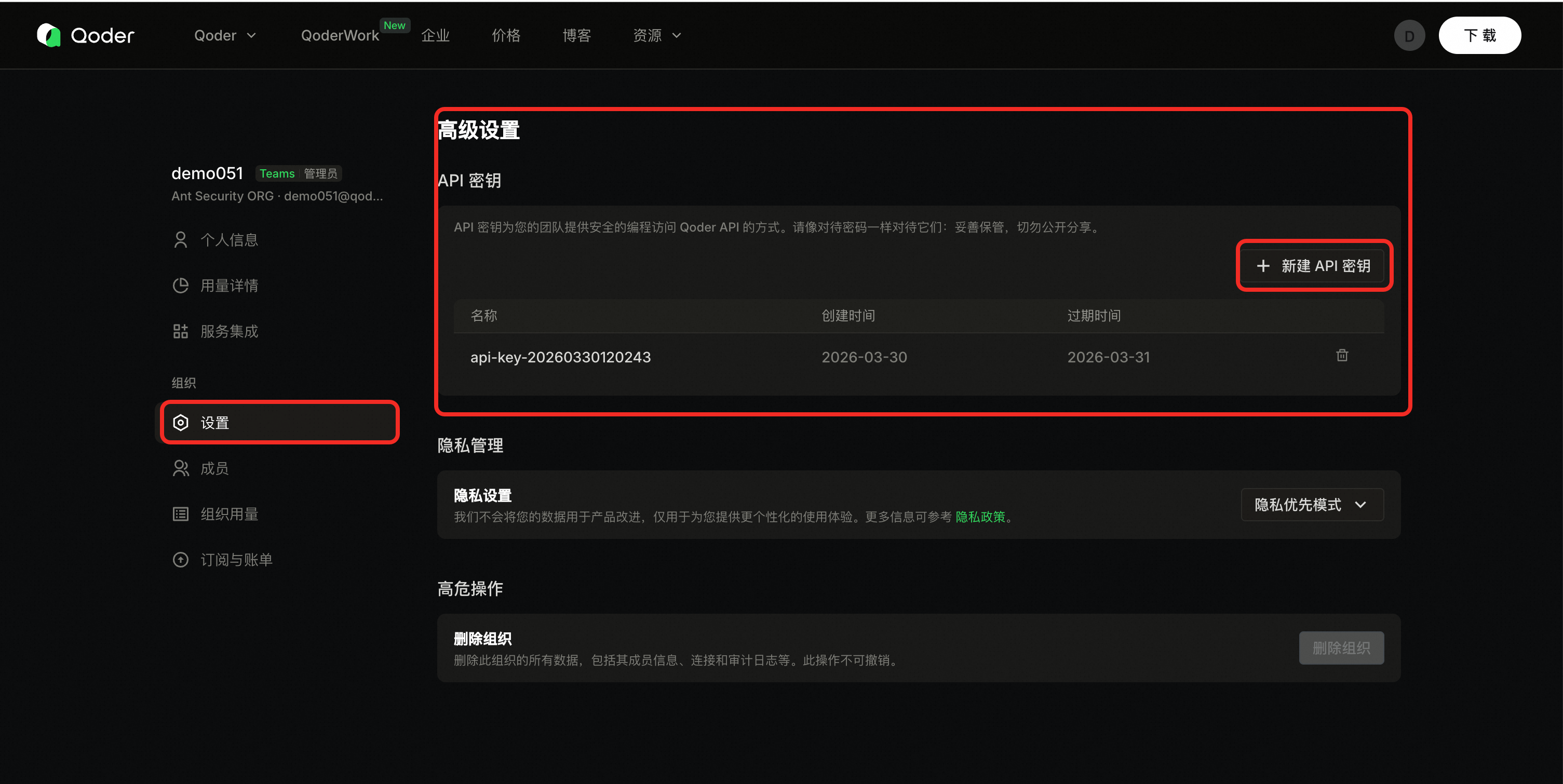
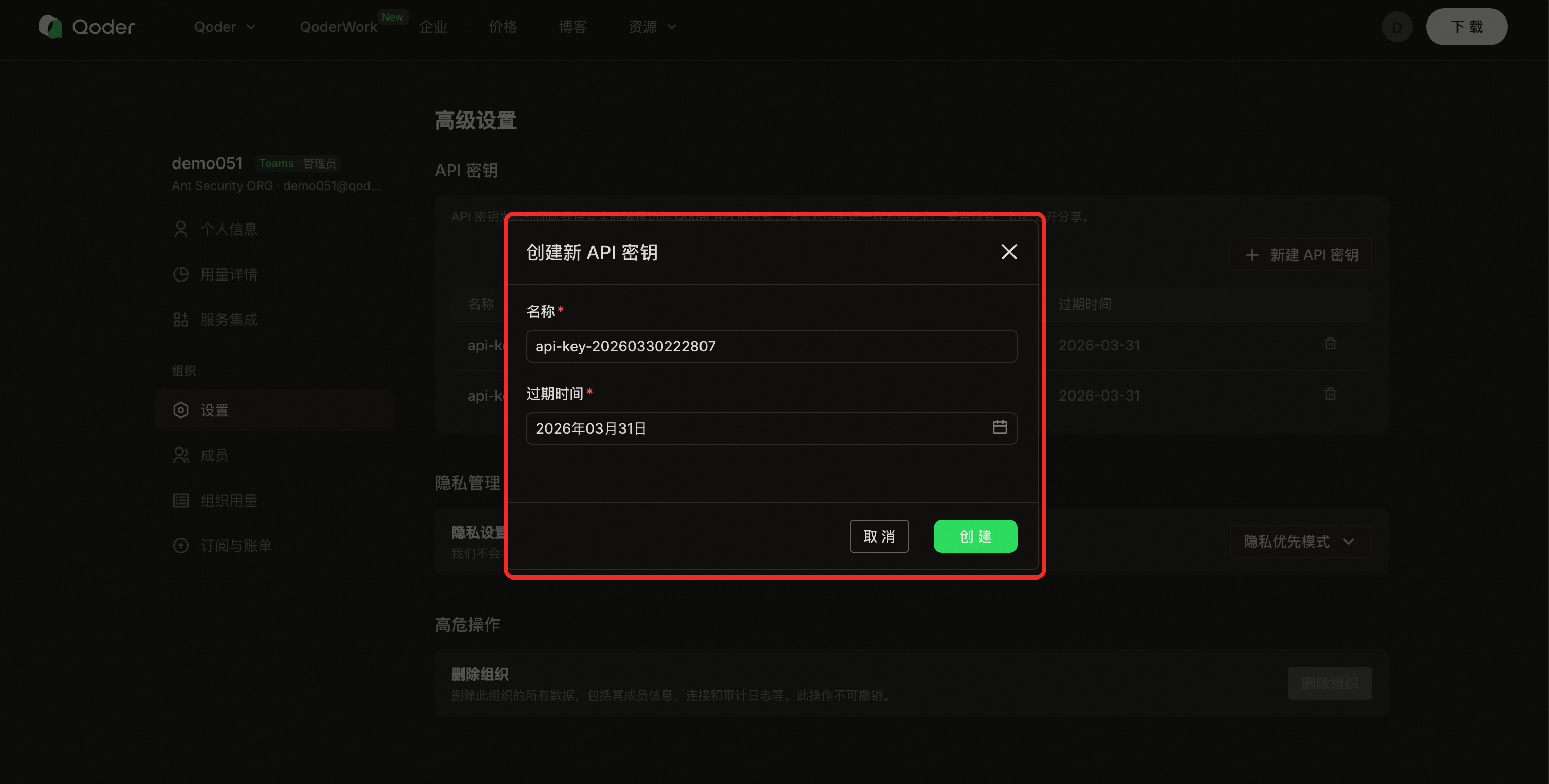
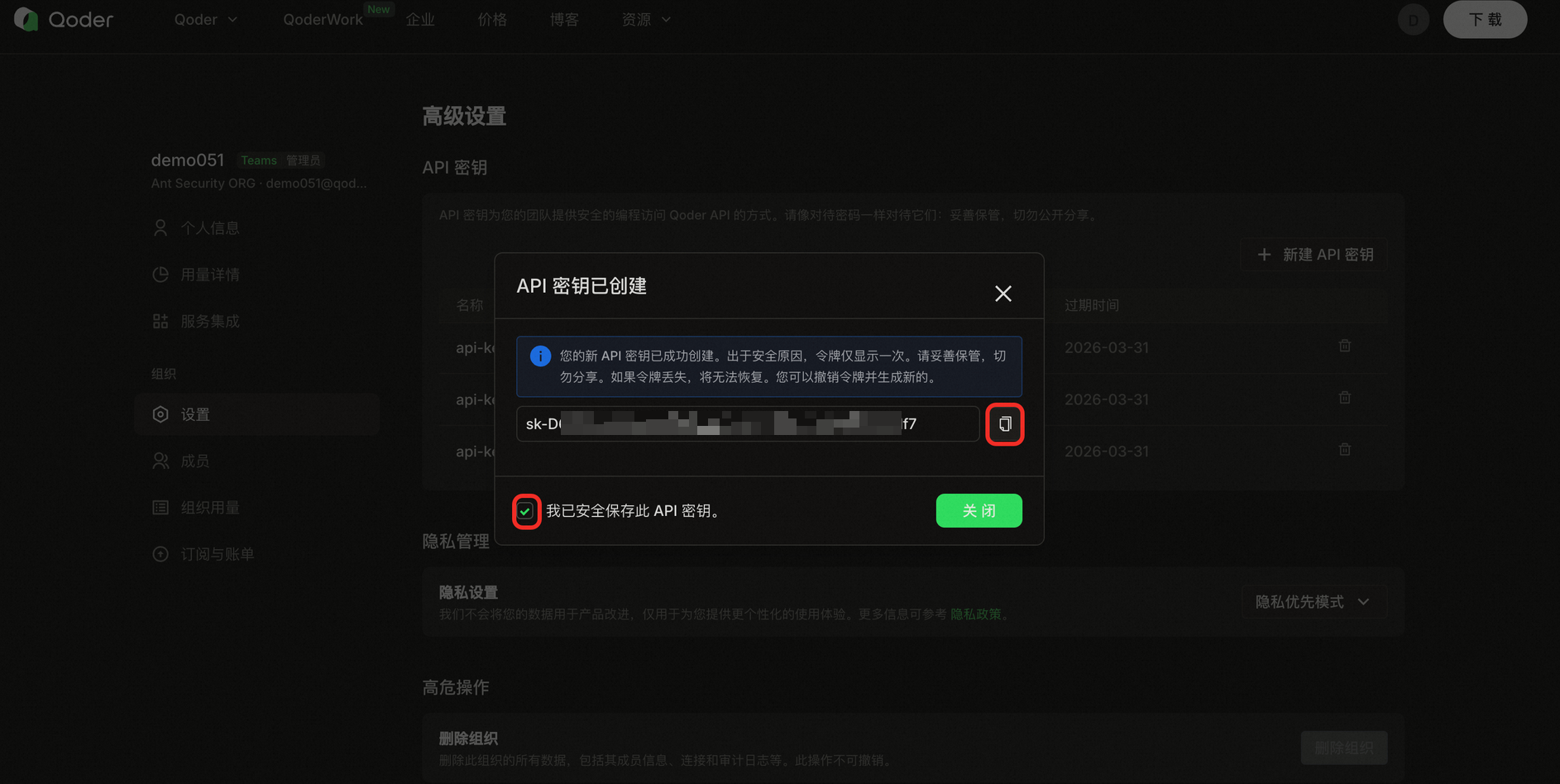
参考スクリーンショット(実際の UI は多少異なる場合があります):
前提条件
- 組織管理者権限を持つアカウントでサインインしてください。
- 組織の設定画面を開いてください。
手順
-
組織設定を開きます(
{orgid}を置き換え):https://qoder.com/organizations/{orgid}/settings - 左側のナビゲーションで 設定 を開き、詳細設定 から API キー を見つけます。
- API キーを作成 をクリックします。
- 名前と有効期限を入力し、作成します。
- キーをすぐにコピーし、「このAPIキーを保存しました」を確認して完了します。
スクリーンショット
参考スクリーンショット(実際の UI は多少異なる場合があります):
フォームフィールド
| フィールド | 説明 |
|---|---|
| キー名 | リスト内でキーを識別するためのラベル(文字数制限はコンソールに依存、通常最大100文字)。 |
| 有効期限 | 約 1年 までの有効期限を選択できます。期限切れのキーは動作を停止します。 |
作成後
- キーは 環境変数 またはシークレットマネージャーに保存してください—ハードコードしないでください。
- システムや環境ごとに 別々のキー を使用し、他に影響を与えずに取り消しできるようにしてください。
- 詳細なガイダンスは API キーのセキュリティ を参照してください。