対象プラン:すべてのプラン。ナレッジベースの保存容量の上限はプランによって異なります。
基本概念
| 概念 | 説明 |
|---|
| ノートブック(Notebook) | ナレッジベースの基本単位です。関連する一連の資料と、そこから生成された知識をまとめます。 |
| 元資料(Raw Sources) | 取り込んだ元のファイル、リンク、RepoWiki です。 |
| ナレッジ検索 | ナレッジベースに直接質問して回答を取得します。 |
ナレッジベースの容量上限
各プランのデフォルトの容量上限は次のとおりです。容量は、すべてのノートブックにある元資料のファイルサイズをユーザー単位で合計して計算します。複数のノートブックで同じ容量枠を共有します。
| プラン(Plan) | ユーザーあたりの容量上限 |
|---|
| Free | 100 MB |
| Pro Trial(体験版) | 1 GB |
| Pro | 1 GB |
| Pro+ | 1 GB |
| Ultra | 1 GB |
| Teams | 2 GB |
| Enterprise | 5 GB |
| Organization Free(組織向け無料プラン) | 100 MB |
ノートブックを作成する
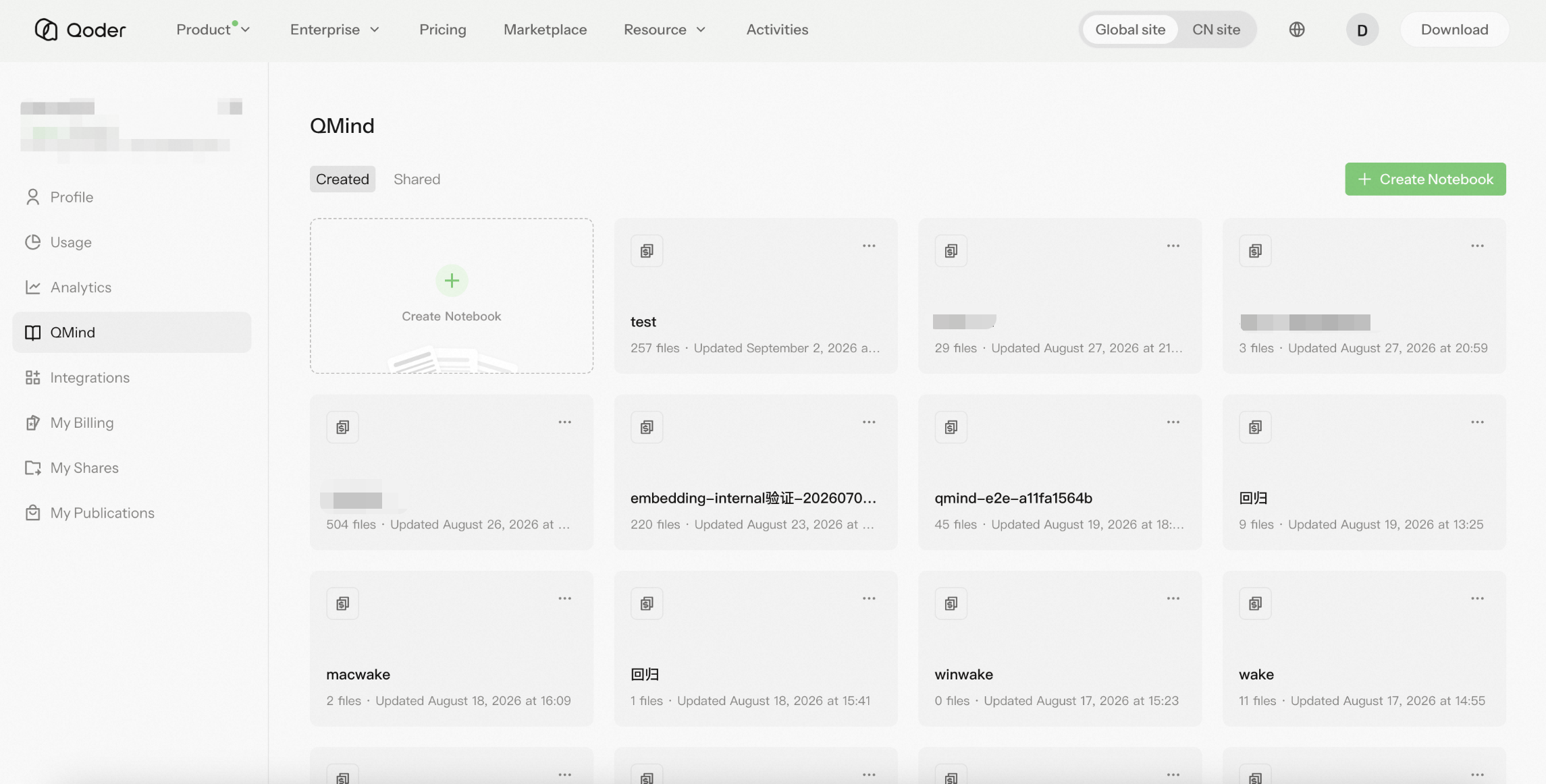
左側のナビゲーションから QMind を開きます。ホームページ上部には「注目のサンプルノートブック(Selected Showcase Notebooks)」が表示され、その下の「作成済み(Created)」と「共有(Shared)」タブに、既存のノートブック、ファイル数、更新日時が表示されます。
「ノートブックを作成(Create Notebook)」をクリックして、空のノートブックを作成します。
資料とデータソースを追加する
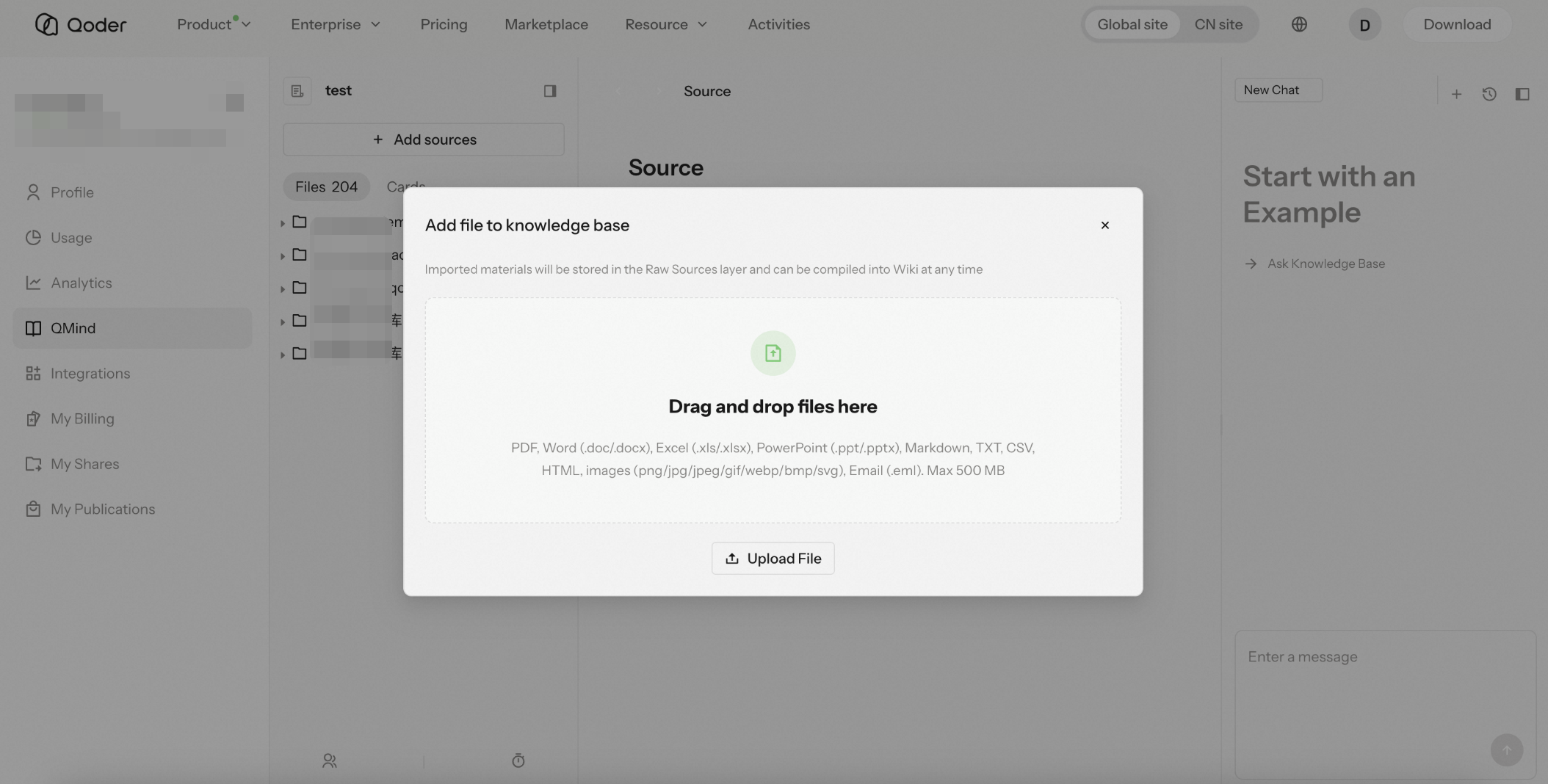
ノートブックを開き、「ファイルを追加(Add File)」をクリックして、「ナレッジベースに資料を追加」ダイアログを開きます。取り込んだ資料は「元資料(Raw Sources)」に保存されます。
QMind は次の 3 種類のデータソースをサポートします。
ファイルをアップロード(Upload File)
ファイルを選択するか、ダイアログに直接ドラッグ&ドロップしてアップロードできます。対応するファイル形式、推奨サイズ、アップロード上限は次のとおりです。
| ファイル形式 | 拡張子 | 推奨ファイルサイズ | 1 ファイルあたりのアップロード上限 |
|---|
| PDF | .pdf | ≤ 500 MB | 500 MB |
| Word | .doc、.docx | ≤ 500 MB | 500 MB |
| Excel | .xls、.xlsx | ≤ 20 MB | 500 MB |
| PowerPoint | .ppt、.pptx | ≤ 500 MB | 500 MB |
| Markdown | .md、.markdown、.mdown、.mdx | ≤ 20 MB | 500 MB |
| TXT | .txt | ≤ 20 MB | 500 MB |
| CSV | .csv | ≤ 20 MB | 500 MB |
| HTML | .html、.htm | ≤ 20 MB | 500 MB |
| メール | .eml | ≤ 20 MB | 500 MB |
| 画像 | .png、.jpg、.jpeg、.gif、.webp、.bmp、.ico、.tiff、.tif、.svg | ≤ 20 MB | 20 MB |
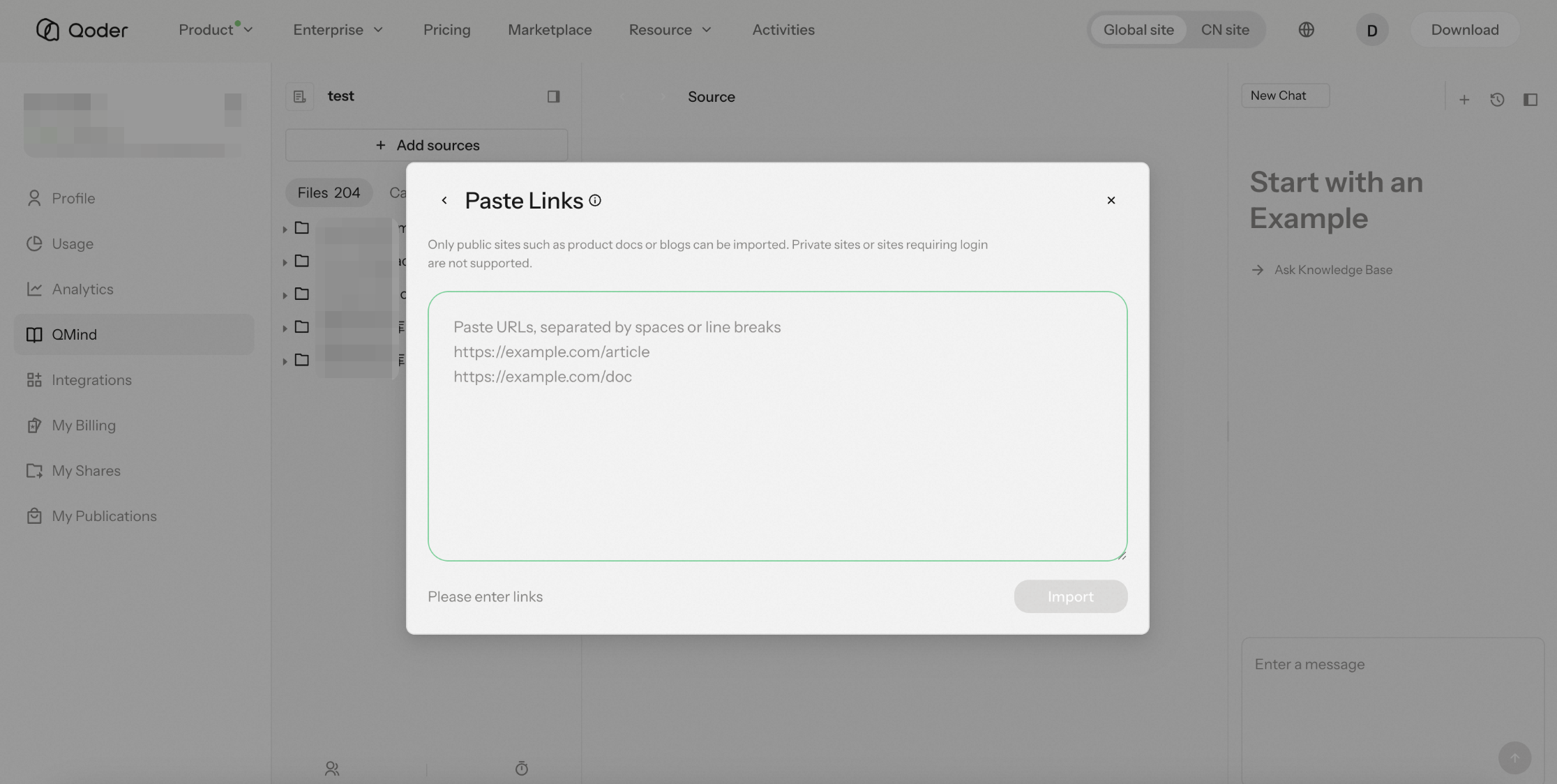
Web ページのリンク(Page Link)
Web ページの URL を貼り付けて、その内容をナレッジベースに取り込みます。
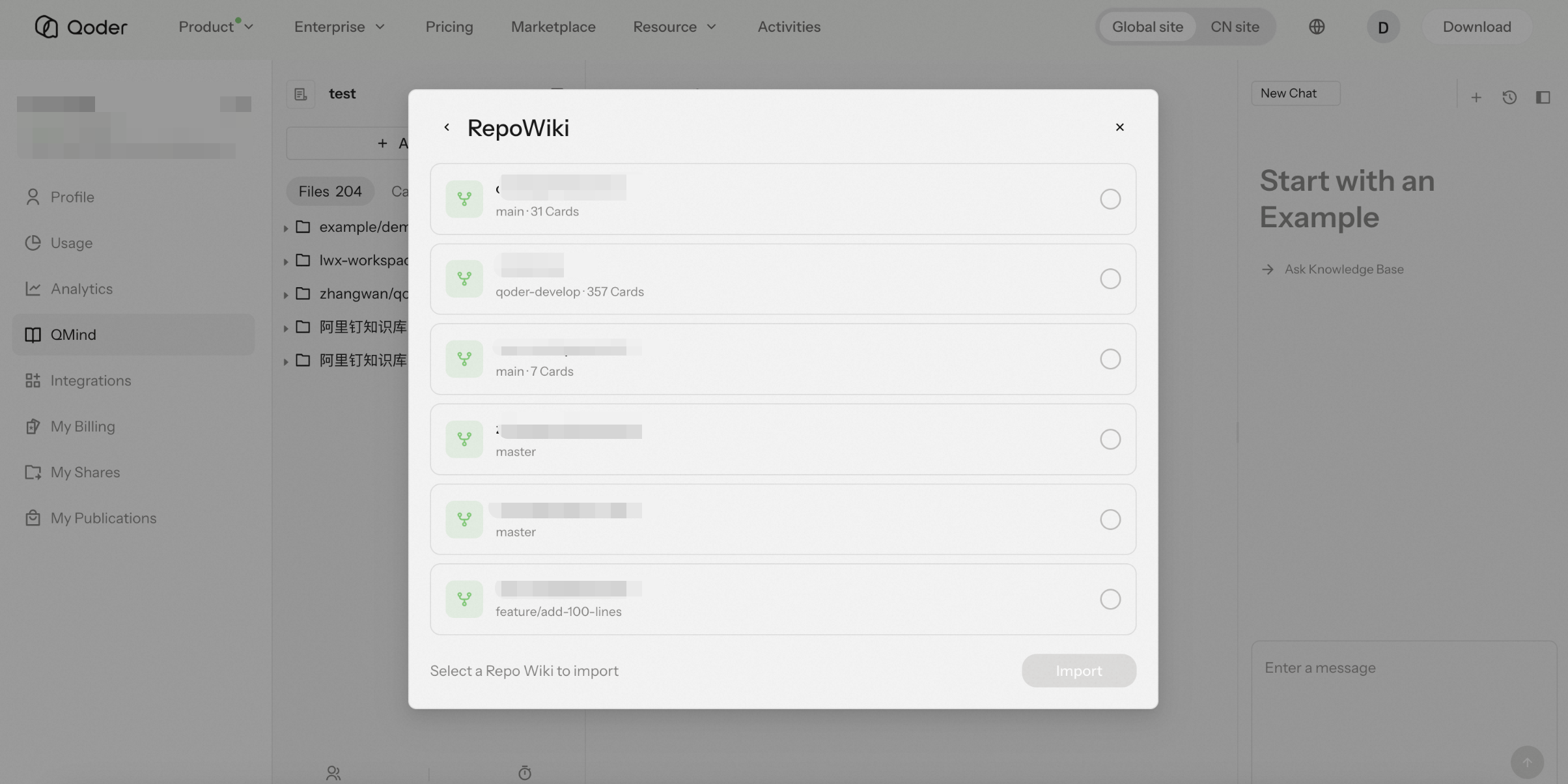
RepoWiki(リポジトリ Wiki を取り込む)
生成済みの RepoWiki をデータソースとして取り込みます。ダイアログには、取り込み可能な RepoWiki と、そのリポジトリ名、ブランチまたはコミット、カード数が表示されます。対象を選択して「取り込む(Import)」をクリックすると、現在のノートブックに追加されます。
知識の参照と可視化
ノートブックの左側では「ファイル(File)」で内容を整理します。中央の詳細領域には、本文、円グラフやガントチャートなどの図表、関係図が表示されます。上部の進む/戻るボタンで項目を切り替えられます。
質問とナレッジ検索
右側の対話領域で、ナレッジベースの内容を検索できます。
Marketplace の Skill または Plugin から利用する
QMind の知識は、製品内の対話検索だけでなく、Qoder Web サイトの Marketplace にある Skill または Plugin からも利用できます。
Marketplace で「QMind」を検索して、対応する Skill と Plugin を取得します。QMind ナレッジベースに蓄積された知識を呼び出し、開発や共同作業のワークフローに検索機能を組み込めます。
QoderWake と Qoder で QMind を利用する
QoderWake と Qoder には QMind MCP が組み込まれており、対話やタスクでナレッジベースを検索し、資料を読むことができます。Marketplace から QMind Skill や Plugin を別途インストールする必要はありません。利用できるナレッジベースは、現在のアカウントのアクセス権と、Waker への紐付けまたはナレッジベースの適用範囲によって決まります。
QoderWake で利用する
- 対象 Waker の「ナレッジベース(Knowledge Base)」ページを開き、「ナレッジベースを紐付ける(Bind knowledge base)」を選択します。
- 自分が作成したもの、自分と共有されたもの、または利用可能な注目のナレッジベースを選び、紐付けを確定します。ナレッジベース一覧の Waker 設定から対象 Waker に紐付けることもできます。
- 資料の処理が完了したことを確認し、その Waker と新しい対話を開始します。利用するナレッジベース名と目的を質問に含めます。
- 回答の Source links(参照元リンク) から引用資料を開き、回答の根拠を確認します。
例:
まず紐付け済みの「製品マニュアル」ナレッジベースを検索し、シングルサインオンの設定方法を根拠とともに説明してください。資料に記載されていない内容は明示してください。
Waker はデフォルトで紐付け済みのナレッジベースを検索します。範囲を絞る場合は、質問にナレッジベース名を指定します。ナレッジベースを共有しただけでは Waker に紐付けられないため、対象 Waker への紐付けが必要です。初回の紐付けや紐付け変更後は、新しい対話を開始してください。
詳しくは QoderWake のナレッジベースを参照してください。
Qoder で利用する
- 左側のサイドバーから「Knowledge Center」→「Knowledge Base」を開きます。既存のナレッジベースを選ぶか新規作成し、資料の処理が完了したことを確認します。
- ナレッジベースのメニューから「Manage scope」を開き、「User」または「Workspace」を選択します。Workspace を選んだ場合は、利用するワークスペースを選択して保存します。
- 適用範囲内でタスクを開き、ナレッジベースを検索するよう自然言語で依頼し、必要な成果を伝えます。
- タスクの「Knowledge」リソースで、そのタスク中に検索または参照された資料を確認します。
User 範囲のナレッジベースは、現在のユーザーの通常のタスクと、現在および今後作成するすべてのワークスペースのタスクで利用できます。Workspace 範囲は、選択したワークスペースのタスクでのみ有効です。ワークスペースのタスクでは User 範囲のナレッジベースも利用できます。
例:
まず「プロジェクト規約」ナレッジベースを検索し、現在のプロジェクトのコードと照合して、この API が認証規約を満たしているか確認してください。根拠と修正が必要な箇所を示してください。
Qoder は組み込み MCP を通じてタスクの適用範囲内のナレッジベースを見つけ、質問に関連する資料を選んで検索し、必要に応じて原文を読みます。ナレッジベース名と質問の範囲を明示すると、関連する内容を見つけやすくなります。
詳しくは Qoder のナレッジベースを参照してください。
共有と共同利用
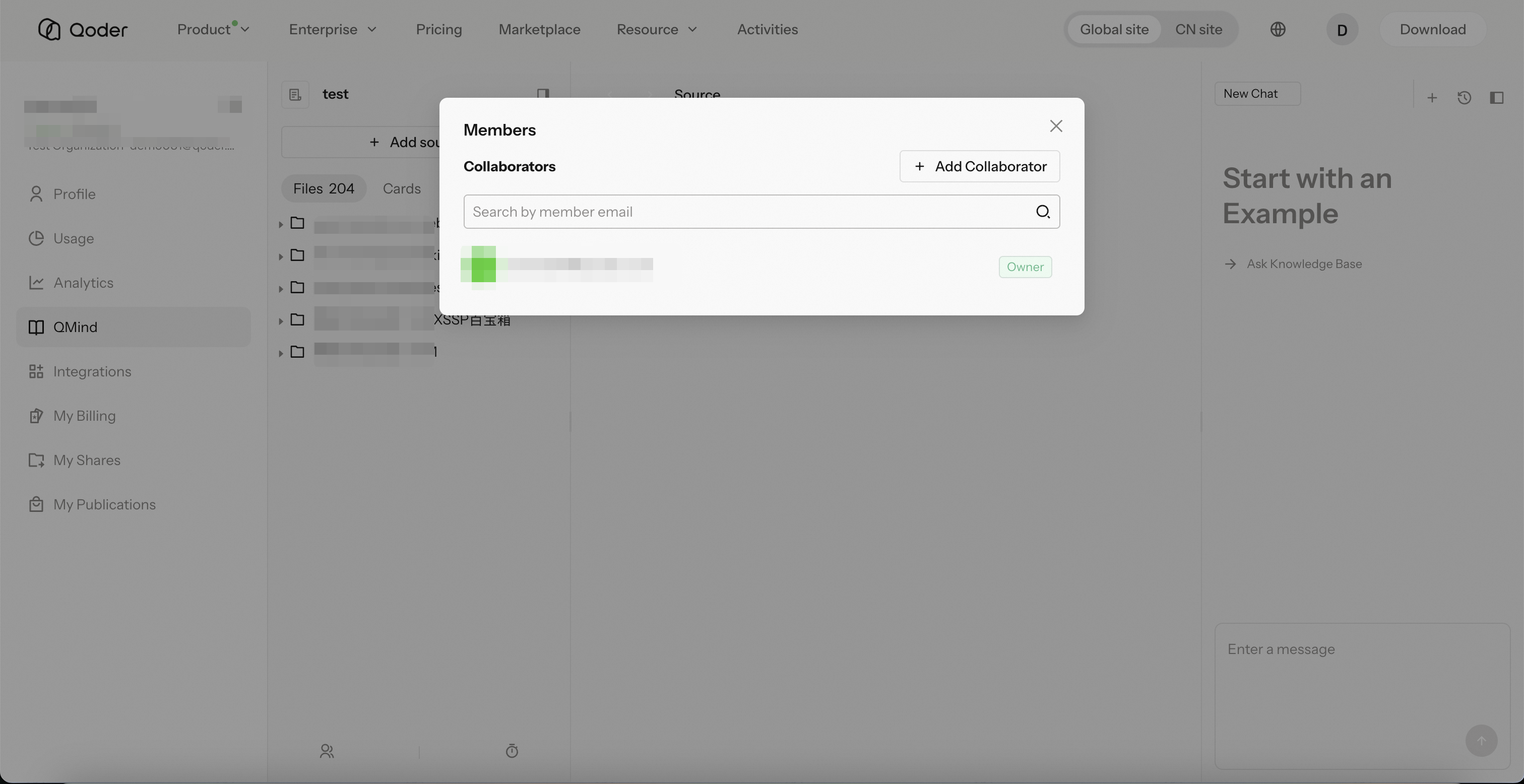
ノートブックを組織のメンバーと共有して共同利用できます。
- 「メンバー管理(Member Management)」→「共同編集者を追加(Add Collaborator)」を開きます。
- メールアドレスで追加します。1 つ以上のメールアドレスを入力し、Enter キーで確定するか、メールアドレスの一覧を貼り付けます。
- 相手のロール(「閲覧者(Viewer)」など)を選択します。
- 「追加(Add)」をクリックします。
共有されたユーザーは、QMind ホームの「共有(Shared)」タブでノートブックを確認できます。
スケジュールタスク
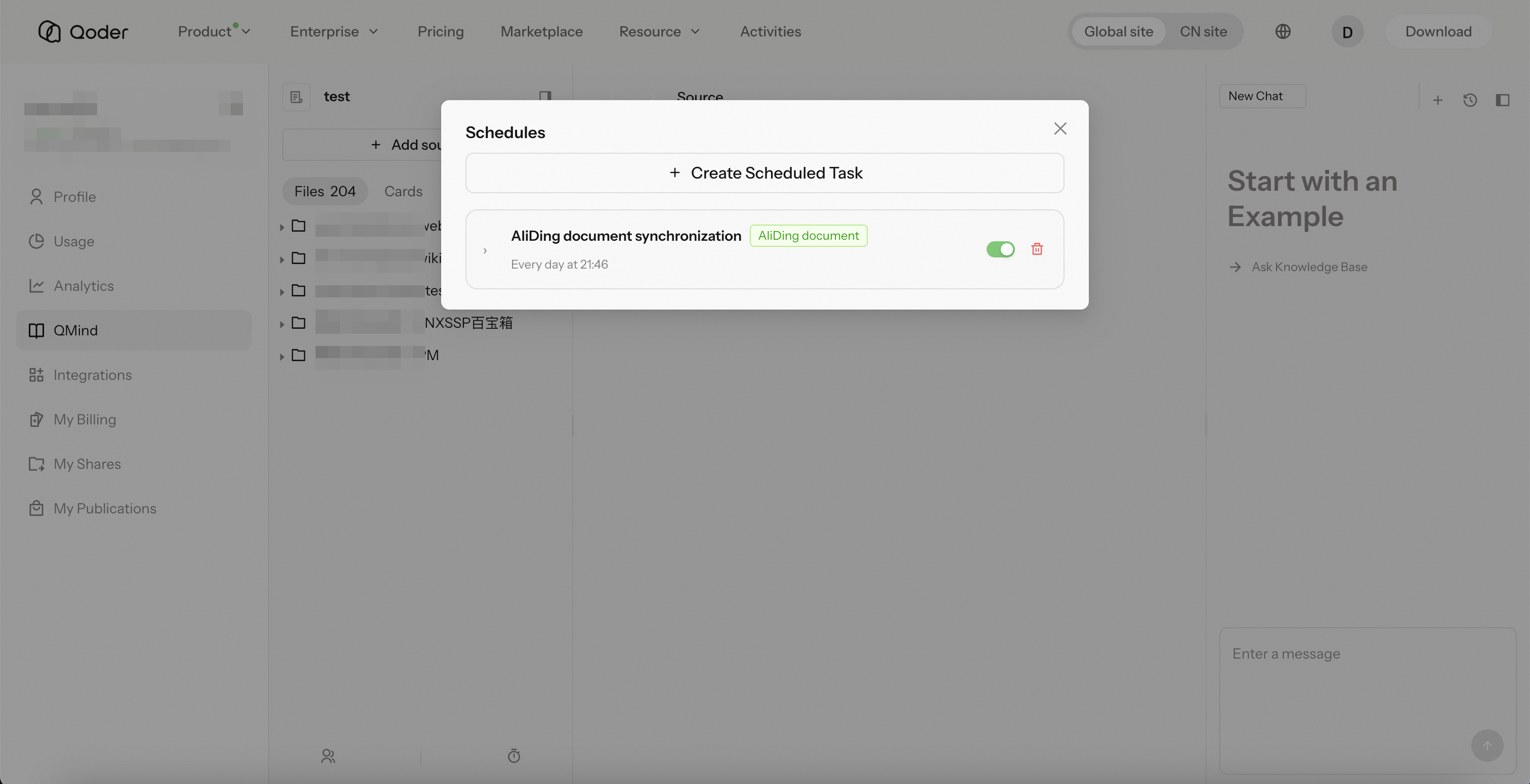
QMind では、知識を最新の状態に保つために、ナレッジベースのスケジュールタスクを設定できます。「スケジュールタスクを作成(Create Scheduled Task)」でタスクタイプを選択します。
| タスクタイプ | 説明 |
|---|
| データソースの更新(Source Refresh) | 取り込み済みのデータソースを定期的に更新し、最新の内容を取得します。 |