

Let QoderWork directly operate applications on your computer
Beyond processing files and data in conversation, QoderWork can also "see" and "control" your computer screen — clicking buttons, filling forms, and switching between applications. This capability is called Computer Use, and it enables QoderWork to complete tasks that require interacting with graphical interfaces.
Describe any task that requires graphical interface interaction directly in the conversation. QoderWork will automatically determine when to engage Computer Use:
Before using Computer Use, you need to enable "Computer Control" in the Connectors:
After enabling the connector, QoderWork will guide you through granting two system permissions on first use:
Once authorized, QoderWork will ask for your confirmation when the AI attempts to operate an application. You can choose an execution policy in settings:
When QoderWork performs Computer Use, you'll see a fully transparent operation flow in the conversation:
Be clear about the target application and path
Tell QoderWork which app to operate and where to go — this is much clearer than just "set something up for me."
Break complex instructions into steps
If the workflow has many steps, give them to the AI in stages — complete the first step, confirm it worked, then continue.
Combine with Skills for automation
Frequently repeated interface workflows can be saved as a Skill, so you can trigger the entire process with a single phrase.
Core Capabilities
Screen Perception
Reads the visible content of the target application window — understanding layout, button text, form states, and other visual information. Continuously takes screenshots during operation to confirm whether the previous step succeeded before deciding on the next action.
Mouse & Keyboard Control
Supports the full range of human input: clicking, double-clicking, dragging, text entry, and keyboard shortcuts. Operates at pixel-level precision, accurately clicking even small UI elements.
Background Autonomous Execution
Drives mouse, keyboard, and screenshots in the background without stealing your foreground focus. You can continue using your computer for other things while the AI quietly completes the task behind the scenes.
Cross-Application Workflows
Switches between multiple desktop applications, chaining multi-step operations into complete workflows. Dynamically adjusts the next step based on real-time feedback rather than following a rigid script.
Use Cases
- Operating desktop apps without APIs — When the target app has no command line or plugin support, AI operates the graphical interface directly. For example, adjusting parameters in design tools or bulk-modifying settings in an admin panel.
- Cross-application workflows — When a task spans multiple apps, AI automatically switches windows, copies data, and fills forms end-to-end.
- GUI verification and testing — Confirm whether interface changes work as expected, reproduce issues that only appear in the GUI, or check an app's response to specific action sequences.
- Information gathering — Extract data from apps with no export feature, or consolidate information scattered across multiple applications.
System Requirements
- macOS 14 or later
- Accessibility and Screen Recording permissions must be granted
How to Use
Describe any task that requires graphical interface interaction directly in the conversation. QoderWork will automatically determine when to engage Computer Use:
Enable Computer Use
Before using Computer Use, you need to enable "Computer Control" in the Connectors:
1
Open Connectors
Go to Extensions → Connectors, find the "Computer Control" card and click to enable it.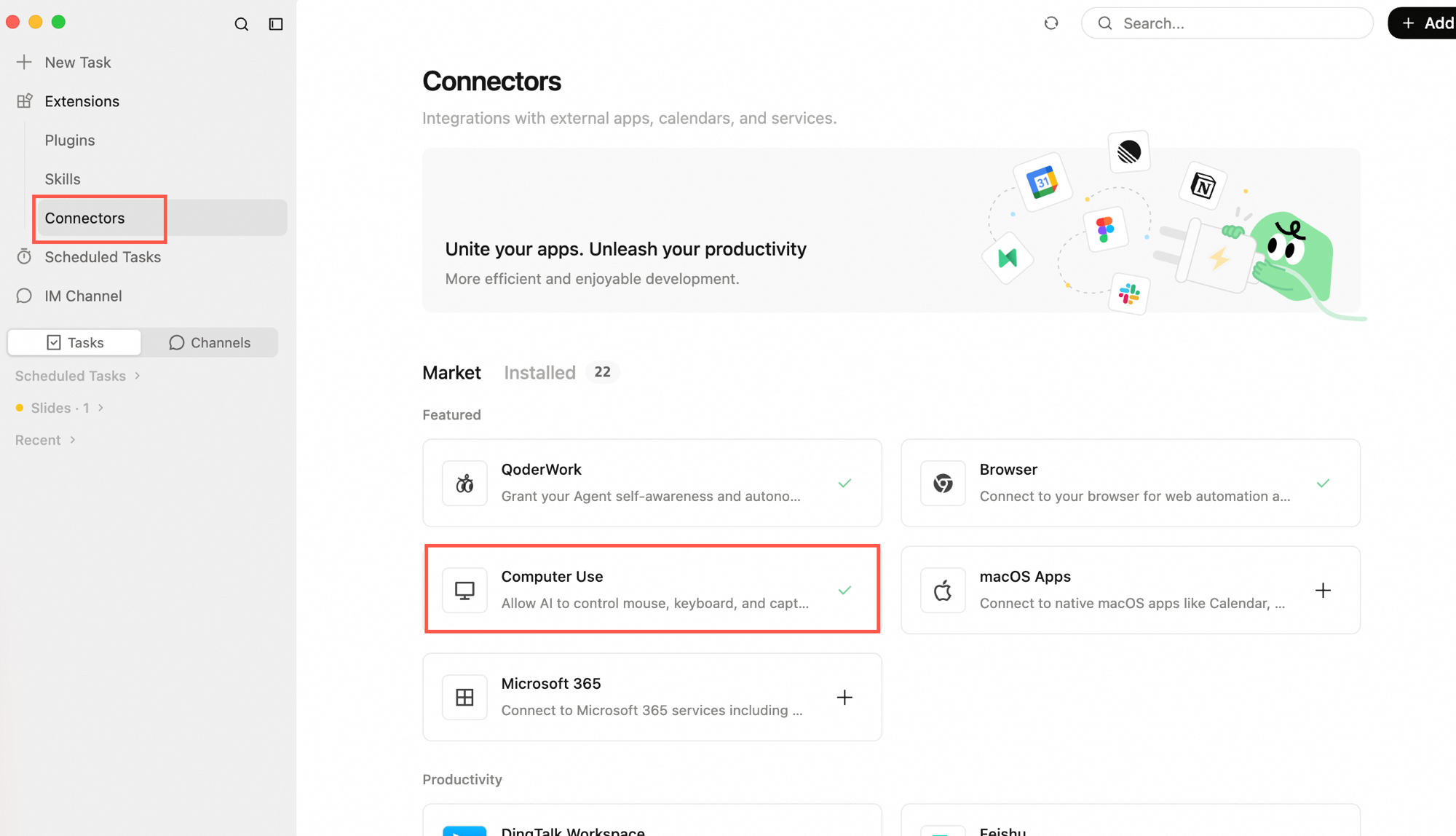
2
Review permission details
A popup will show the connector's capabilities:
- AI Enhancement Tools — Provides desktop automation capabilities: click, type, scroll, screenshot and other desktop control tools
- Always Respects Permissions — Computer Use will handle system permissions as needed during operation
- You're Always in Control — You can disable this connector at any time from this popup
System Permissions
After enabling the connector, QoderWork will guide you through granting two system permissions on first use:
1
Accessibility permission
Allows QoderWork to read the UI element tree of applications and perform clicks, typing, and other actions. Simply allow it when the system prompt appears.
2
Screen Recording permission
Allows QoderWork to capture application window screenshots so the AI can "see" the current interface state. Add QoderWork in System Settings → Privacy & Security → Screen Recording.
| Policy | Description |
|---|---|
| Ask every time (default) | AI asks for your confirmation each time before operating the desktop |
| Auto-execute | AI performs desktop operations directly without per-action confirmation |
| Disabled | Completely turn off Computer Use |
The Process
When QoderWork performs Computer Use, you'll see a fully transparent operation flow in the conversation:
- Screenshot — AI captures the current screen to understand the interface state
- Action description — Explains what it's about to do before each step
- Execution — Performs clicks, typing, scrolling, and other actions
- Confirmation — Takes another screenshot after the action to verify the result matches expectations
Typical Scenarios
Extracting Data from Applications
Adjusting System Settings
Cross-Application Information Gathering
Tips
Be clear about the target application and path
Tell QoderWork which app to operate and where to go — this is much clearer than just "set something up for me."
Break complex instructions into steps
If the workflow has many steps, give them to the AI in stages — complete the first step, confirm it worked, then continue.
Combine with Skills for automation
Frequently repeated interface workflows can be saved as a Skill, so you can trigger the entire process with a single phrase.
Security Considerations
- Some actions are irreversible — Actions the AI performs in desktop apps (such as sending messages or deleting files) may not be undoable. For high-risk scenarios, use the "Ask every time" policy.
- Screen content is captured — AI perceives the interface through screenshots, so anything visible on screen (including sensitive information) may be captured. Close windows containing passwords or private data before running automation.
- Be cautious with network actions — If AI operates an app where you're logged in, it can send emails, submit forms, etc. on your behalf. Stay vigilant with such operations.
Limitations
- CAPTCHAs and two-factor authentication — AI cannot complete CAPTCHAs, SMS verification codes, or facial recognition. You'll need to handle these manually.
- Speed — Computer Use requires capturing and analyzing screen images, making it slower than pure text operations.
- Precision — When interfaces are complex or elements are densely packed, click accuracy may not be perfect. If an action fails, try providing a more specific description.