> ## Documentation Index
> Fetch the complete documentation index at: https://docs.qoder.com/llms.txt
> Use this file to discover all available pages before exploring further.
# MCP 常见问题
本指南帮助你在安装和运行 Model Context Protocol(MCP)服务时诊断并解决常见问题,包括缺少依赖环境、服务初始化失败以及配置错误。
## **无法添加或安装 MCP(Model Context Protocol)服务**
### **问题:缺少 NPX 运行环境**
#### **错误消息**
`failed to start command: exec: "npx": executable file not found in $PATH`
#### **原因**
`npx` 命令行工具(属于 Node.js 生态)未安装,或未在系统的 `PATH` 中可用。
#### **解决方案**
安装 [Node.js](https://nodejs.org/) V18 或更高版本(内含 NPM V8 及以上)。较早版本可能导致工具运行失败。
#### **安装步骤**
* Windows
安装 [nvm-windows](https://github.com/coreybutler/nvm-windows) 以管理多个版本:
```shellscript theme={null}
nvm install 22.14.0 # 安装指定版本。
nvm use 22.14.0
```
验证是否已成功安装。
```shellscript theme={null}
node -v
npx -v
```
然后,终端会显示已安装的 Node.js 版本号。
* **macOS**
使用 Homebrew(如需请先安装)。
```shellscript theme={null}
# 1. 更新 Homebrew 并安装 Node.js
brew update
brew install node
# 2. 验证安装并确认版本
echo "Node.js version: $(node -v)"
echo "npm version: $(npm -v)"
echo "npx version: $(npx -v)"
# 3. 配置环境变量(如需要)
echo 'export PATH="/usr/local/opt/node@16/bin:$PATH"' >> ~/.zshrc
```
### **问题:缺少 UVX 环境**
#### **错误消息**
`failed to start command: exec: "uvx": executable file not found in $PATH`
#### **原因**
用于借助 `uv` 在隔离环境中运行 Python 脚本的 `uvx` 命令尚未安装。
#### **解决方案**
安装 `uv`,一款快速的 Python 包安装工具与虚拟环境管理器。
**安装步骤**
* Windows
```shellscript theme={null}
powershell -ExecutionPolicy ByPass -c "irm https://astral.sh/uv/install.ps1 | iex"
```
* macOS 与 Linux
```shellscript theme={null}
curl -LsSf https://astral.sh/uv/install.sh | sh
```
验证安装是否成功。
```shellscript theme={null}
uv --version
```
然后,终端会显示已安装的 uv 的版本号。
### **问题:无法初始化 MCP(Model Context Protocol)客户端**
#### **错误信息**
`failed to initialize MCP client: context deadline exceeded`
#### **可能原因**
* MCP(Model Context Protocol)服务参数配置不正确
* 网络问题导致资源无法下载
* 企业网络安全策略阻止初始化
#### **解决方案**
1. 在 UI 中点击**复制完整命令**。
2. 在终端运行该命令以获取更详细的错误输出。 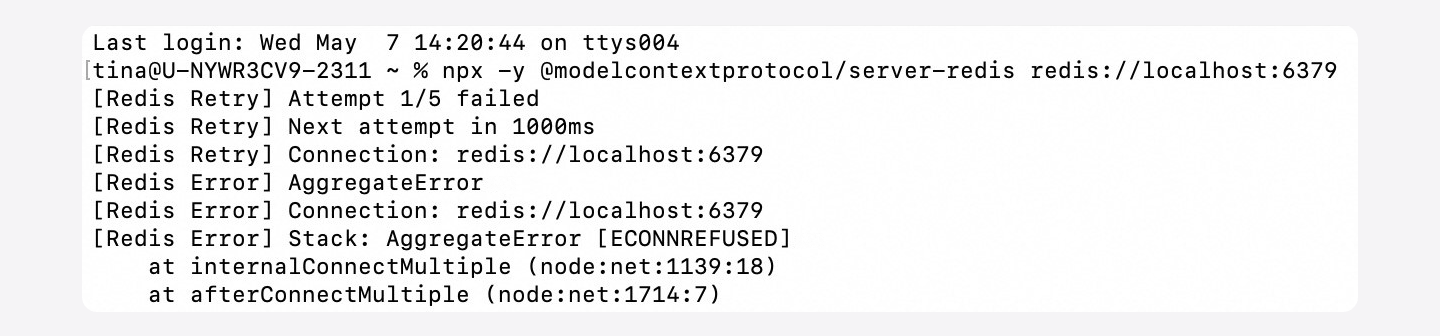 3. 根据具体错误进行分析与处理。
**常见问题 1**:配置错误
错误可能表示配置无效,例如 Redis 连接 URL 不正确。
修复:在 MCP 服务器设置中检查并纠正配置。
**常见问题 2**:Node.js 被安全软件拦截
企业级安全工具可能会阻止 Node.js 的运行。
修复:在安全软件中将 Node.js 或相关进程加入白名单。
3. 根据具体错误进行分析与处理。
**常见问题 1**:配置错误
错误可能表示配置无效,例如 Redis 连接 URL 不正确。
修复:在 MCP 服务器设置中检查并纠正配置。
**常见问题 2**:Node.js 被安全软件拦截
企业级安全工具可能会阻止 Node.js 的运行。
修复:在安全软件中将 Node.js 或相关进程加入白名单。
## **工具使用相关问题**
### **问题:因环境或参数错误导致工具执行失败**
#### **症状**
调用 MCP(Model Context Protocol)工具时出现异常行为或报错。
#### **原因**
某些 MCP 服务器(如 MasterGo、Figma)在设置时需要在参数中手动配置 `API_KEY` 或 `TOKEN`。
#### **解决方案**
1. 在 Qoder IDE 左上角,点击用户图标,或使用键盘快捷键(`⌘` `⇧` `,`(macOS)或 `Ctrl` `Shift` `,`(Windows)),然后选择 **Qoder 设置**。
2. 在左侧导航栏,点击 **MCP**。
3. 找到相关服务器并点击 **Edit**。
4. 在 **Edit MCP Server** 页面,检查 **Arguments** 中的参数。
5. 将其替换为正确的值,重新连接服务器并重试。
### **问题:LLM 无法调用 MCP 工具**
**原因 1:** 未处于 Agent Mode
如果未打开任何项目目录,Qoder 会默认进入 Ask 模式,而该模式不支持调用 MCP 工具。
**解决方案:** 打开项目目录并切换到 Agent Mode。
**原因 2:** MCP 服务器未连接
服务器断开连接会阻止调用工具。
**解决方案**:在界面中点击 Retry 图标。系统会尝试自动重启 MCP 服务器。
> **最佳实践:** 避免为 MCP 服务器及其工具使用过于相似的名称(例如 `TextAnalyzer-Pro` 和 `TextAnalyzer-Plus` 都包含一个 `fetchText` 工具),以避免调用时产生歧义。
### **问题:MCP(Model Context Protocol)服务器列表无法加载**
#### 症状
服务器列表一直处于加载状态。
#### **解决方案**
重启 Qoder IDE 后再试。