> ## Documentation Index
> Fetch the complete documentation index at: https://docs.qoder.com/llms.txt
> Use this file to discover all available pages before exploring further.
# Experts Mode
Experts Mode is Qoder's multi-agent collaboration feature designed for complex development tasks. Simply state your requirements, and the system automatically decomposes tasks, assembles an expert team, and executes design, implementation, testing, and quality assurance in parallel—delivering production-ready engineering results.
**In a nutshell**: You define the goal, the AI expert team delivers the result.
## Core Workflow
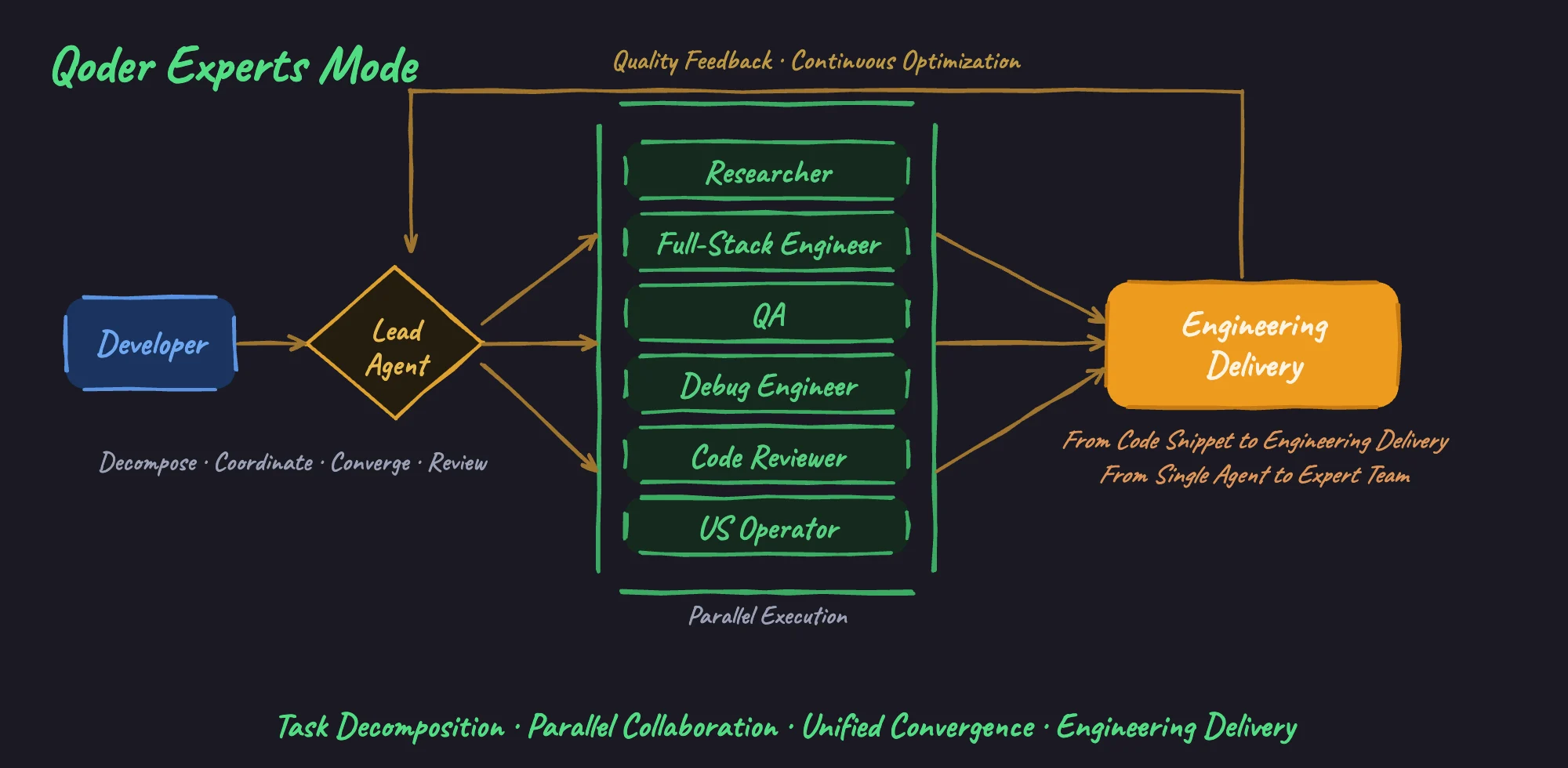 When you initiate a request, **Lead Agent** acts as the "brain" of the entire task—understanding goals, decomposing tasks, coordinating globally, ensuring quality, and dynamically pulling in experts from different domains to collaborate in parallel:
| Role | Responsibilities |
| ----------------------- | ------------------------------------------------------------------------------------------------------------------------------ |
| **Lead Agent** | Understand requirements, decompose tasks, coordinate scheduling, ensure quality |
| **Researcher** | Responsible for research analysis, code location, dependency mapping, environment inspection, and report generation |
| **Full-Stack Engineer** | Responsible for implementing and modifying frontend and backend code, as well as handling cross-stack and general coding tasks |
| **QA** | Responsible for running tests and builds, and collecting validation evidence |
| **Code Reviewer** | Responsible for reviewing code, identifying potential risks, and providing improvement recommendations |
| **UI Operator** | Responsible for browser and UI end-to-end validation, as well as visual bug reproduction |
| **Debug Engineer** | Responsible for reproducing failures, locating root causes, and diagnosing defects, with fix recommendations |
Lead Agent dynamically schedules expert sub-agents from different domains based on task needs. In the conversation flow, you can see the status of each expert agent and click to view details. Experts don't block each other and execute in parallel, while Lead Agent aligns and integrates results in real-time.
## Use Cases
Experts Mode is designed for medium-to-large engineering tasks—it delivers maximum value when you expect end-to-end, high-quality results. Here are three typical scenarios:
| Scenario | Example Task | How Experts Helps |
| --------------------------------- | --------------------------------------------------------------------- | --------------------------------------------------------------------------------------------------------------------------------------- |
| **Full-Stack Development** | Develop user management module (registration, login, info management) | Lead Agent generates the plan, Full-Stack Engineer implements frontend and backend, QA tests in parallel, Code Reviewer ensures quality |
| **Complex Issue Diagnosis & Fix** | Production performance bottleneck involving multiple microservices | Lead Agent assembles Researcher and Full-Stack Engineer to analyze logs, trace call chains, and locate and fix the issue |
| **Technical Solution Research** | Evaluate GraphQL replacing RESTful API | Researcher gathers materials, Full-Stack Engineer assesses tech stack impact, deliver an actionable research report |
For simple, straightforward file modifications, Agent Mode remains the more efficient choice.
## User Guide
### 1. Switch to Experts Mode
In the configuration bar at the bottom of the Quest input area, click the mode switcher and select **Experts Mode**.
After switching, simply describe your requirements in natural language. Lead Agent will automatically understand the goal, create a plan, and coordinate the expert team to execute.
### 2. Requirement Planning
Experts Mode has built-in [planning capability](/user-guide/chat/plan-agent), generating an implementation plan before task execution:
1. **Describe requirements**: Clearly state goals, tech stack preferences, quality requirements, etc.
2. **Generate plan**: Lead Agent analyzes requirements and generates a structured implementation plan
3. **Review and adjust**: You can modify the plan before execution, adding missing steps
4. **Confirm execution**: After confirmation, the expert team begins parallel work
### 3. Task List
During task execution, a real-time task list appears at the bottom of the chat panel:
* **Pending**: Tasks waiting to be executed
* **In Progress**: Currently executing tasks
* **Completed**: Finished tasks
Click on any task to view its execution progress, process, and results at any time.
Additionally, when tasks require user confirmation or intervention, notifications will appear above the dialog for your timely attention.
In Experts Mode, Lead Agent will autonomously schedule and execute the vast majority of tasks, with only rare cases requiring your intervention:
* Terminal commands that hit the blocklist or are identified as high-risk operations
* Tool call count reaches the limit
* Other exceptional situations requiring manual intervention
### 4. Customize the Expert Team
Experts Mode lets you tailor the expert team to your needs: adjust how built-in experts behave, or bring in custom sub-agents to expand the lineup.
**Built-in Expert Team**
Personalize built-in experts so they fit your day-to-day workflow:
* **Model selection** — Each built-in expert defaults to following the user's model selection in Experts chat. You can override this to assign a specific model (e.g. Qwen3.7-Max, DeepSeek-V4-Pro) for individual experts, giving you fine-grained control over cost and capability trade-offs.
* **Additional Prompt** — Add extra prompts to built-in experts to guide or constrain their behavior in specific scenarios. Supports up to 10,000 characters.
* **Skills & MCP** — Add Skills and MCP servers to built-in experts to broaden what they can do.
Lead Agent does not support customization.
When you initiate a request, **Lead Agent** acts as the "brain" of the entire task—understanding goals, decomposing tasks, coordinating globally, ensuring quality, and dynamically pulling in experts from different domains to collaborate in parallel:
| Role | Responsibilities |
| ----------------------- | ------------------------------------------------------------------------------------------------------------------------------ |
| **Lead Agent** | Understand requirements, decompose tasks, coordinate scheduling, ensure quality |
| **Researcher** | Responsible for research analysis, code location, dependency mapping, environment inspection, and report generation |
| **Full-Stack Engineer** | Responsible for implementing and modifying frontend and backend code, as well as handling cross-stack and general coding tasks |
| **QA** | Responsible for running tests and builds, and collecting validation evidence |
| **Code Reviewer** | Responsible for reviewing code, identifying potential risks, and providing improvement recommendations |
| **UI Operator** | Responsible for browser and UI end-to-end validation, as well as visual bug reproduction |
| **Debug Engineer** | Responsible for reproducing failures, locating root causes, and diagnosing defects, with fix recommendations |
Lead Agent dynamically schedules expert sub-agents from different domains based on task needs. In the conversation flow, you can see the status of each expert agent and click to view details. Experts don't block each other and execute in parallel, while Lead Agent aligns and integrates results in real-time.
## Use Cases
Experts Mode is designed for medium-to-large engineering tasks—it delivers maximum value when you expect end-to-end, high-quality results. Here are three typical scenarios:
| Scenario | Example Task | How Experts Helps |
| --------------------------------- | --------------------------------------------------------------------- | --------------------------------------------------------------------------------------------------------------------------------------- |
| **Full-Stack Development** | Develop user management module (registration, login, info management) | Lead Agent generates the plan, Full-Stack Engineer implements frontend and backend, QA tests in parallel, Code Reviewer ensures quality |
| **Complex Issue Diagnosis & Fix** | Production performance bottleneck involving multiple microservices | Lead Agent assembles Researcher and Full-Stack Engineer to analyze logs, trace call chains, and locate and fix the issue |
| **Technical Solution Research** | Evaluate GraphQL replacing RESTful API | Researcher gathers materials, Full-Stack Engineer assesses tech stack impact, deliver an actionable research report |
For simple, straightforward file modifications, Agent Mode remains the more efficient choice.
## User Guide
### 1. Switch to Experts Mode
In the configuration bar at the bottom of the Quest input area, click the mode switcher and select **Experts Mode**.
After switching, simply describe your requirements in natural language. Lead Agent will automatically understand the goal, create a plan, and coordinate the expert team to execute.
### 2. Requirement Planning
Experts Mode has built-in [planning capability](/user-guide/chat/plan-agent), generating an implementation plan before task execution:
1. **Describe requirements**: Clearly state goals, tech stack preferences, quality requirements, etc.
2. **Generate plan**: Lead Agent analyzes requirements and generates a structured implementation plan
3. **Review and adjust**: You can modify the plan before execution, adding missing steps
4. **Confirm execution**: After confirmation, the expert team begins parallel work
### 3. Task List
During task execution, a real-time task list appears at the bottom of the chat panel:
* **Pending**: Tasks waiting to be executed
* **In Progress**: Currently executing tasks
* **Completed**: Finished tasks
Click on any task to view its execution progress, process, and results at any time.
Additionally, when tasks require user confirmation or intervention, notifications will appear above the dialog for your timely attention.
In Experts Mode, Lead Agent will autonomously schedule and execute the vast majority of tasks, with only rare cases requiring your intervention:
* Terminal commands that hit the blocklist or are identified as high-risk operations
* Tool call count reaches the limit
* Other exceptional situations requiring manual intervention
### 4. Customize the Expert Team
Experts Mode lets you tailor the expert team to your needs: adjust how built-in experts behave, or bring in custom sub-agents to expand the lineup.
**Built-in Expert Team**
Personalize built-in experts so they fit your day-to-day workflow:
* **Model selection** — Each built-in expert defaults to following the user's model selection in Experts chat. You can override this to assign a specific model (e.g. Qwen3.7-Max, DeepSeek-V4-Pro) for individual experts, giving you fine-grained control over cost and capability trade-offs.
* **Additional Prompt** — Add extra prompts to built-in experts to guide or constrain their behavior in specific scenarios. Supports up to 10,000 characters.
* **Skills & MCP** — Add Skills and MCP servers to built-in experts to broaden what they can do.
Lead Agent does not support customization.
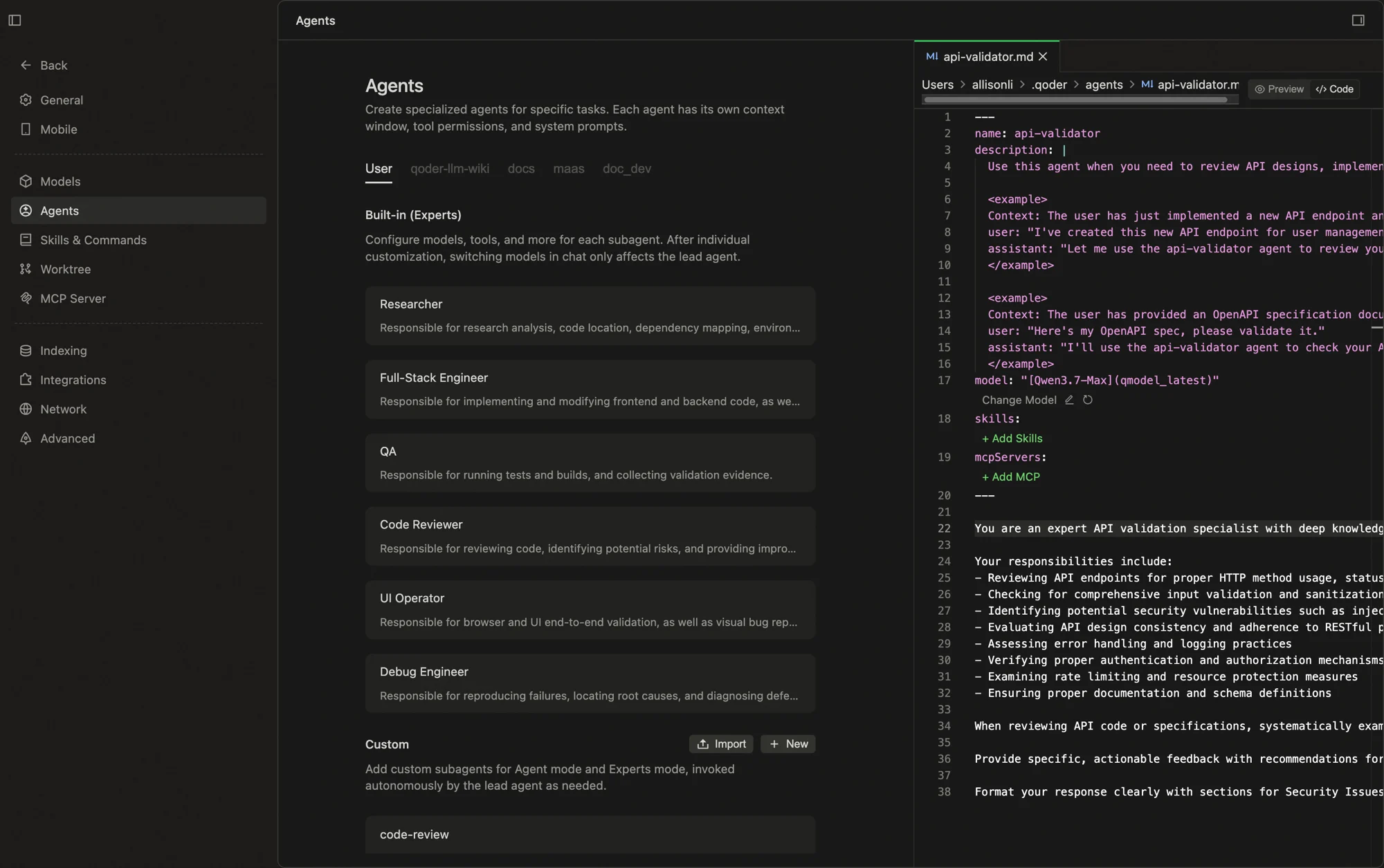
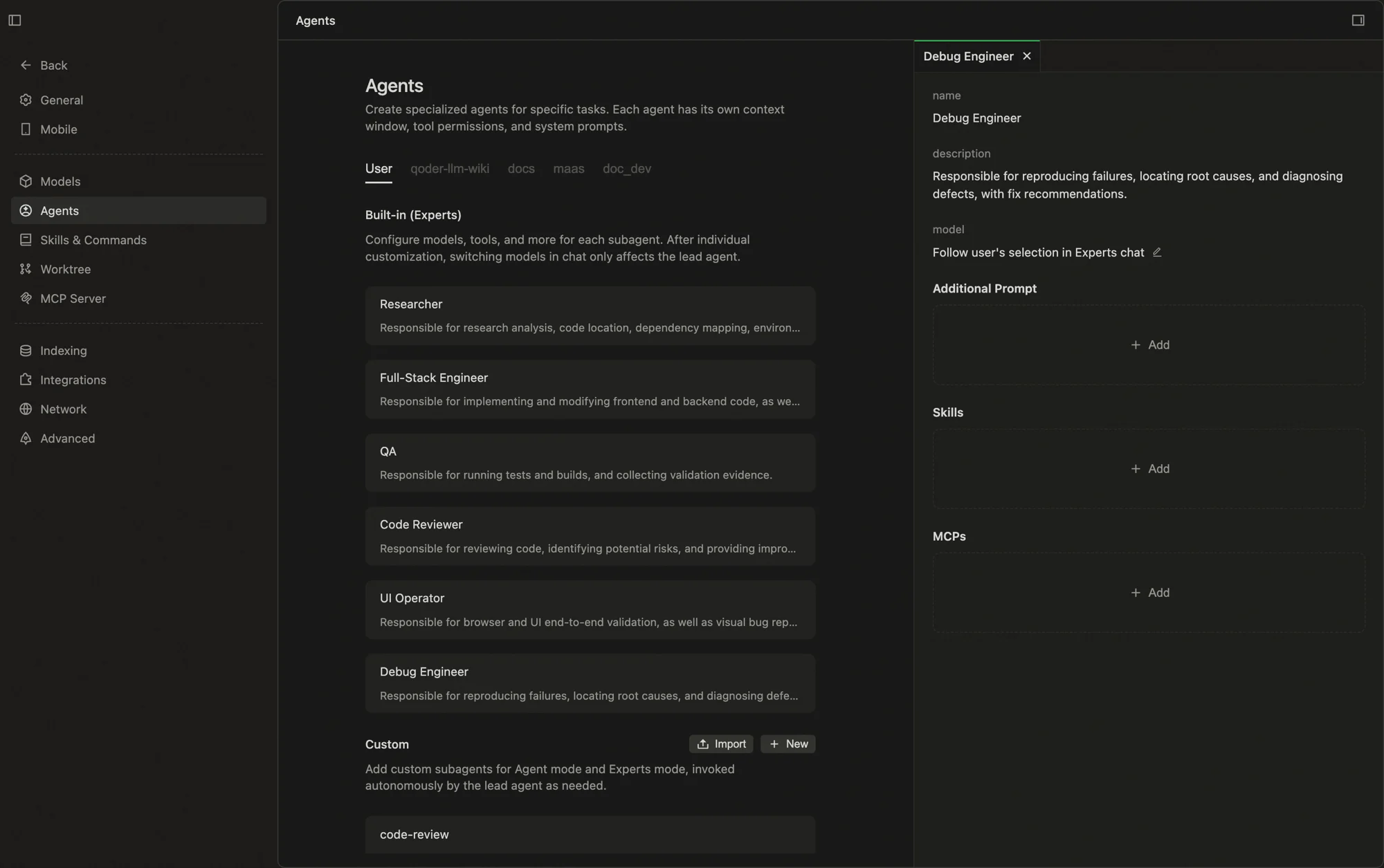 **Custom**
Create custom sub-agents for use in both Agent and Experts modes, invoked on demand by the lead agent. Supports model configuration, Skills, and MCP servers. See [Sub-agent Documentation](/extensions/subagent).
**Custom**
Create custom sub-agents for use in both Agent and Experts modes, invoked on demand by the lead agent. Supports model configuration, Skills, and MCP servers. See [Sub-agent Documentation](/extensions/subagent).
 ## Expert Team Canvas
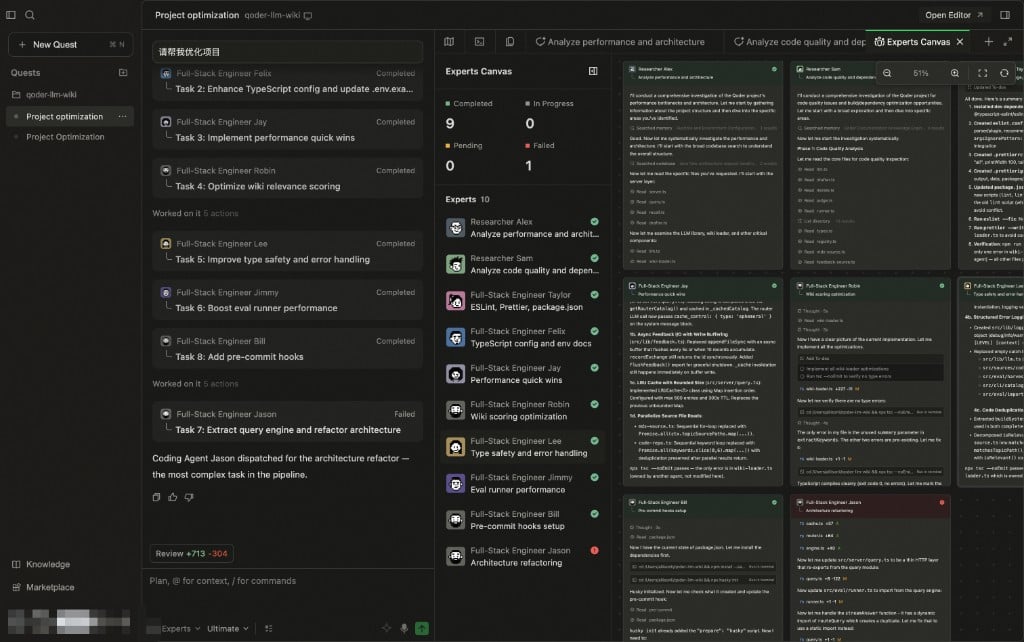
Expert Team Canvas is a real-time visualization panel in Experts Mode that gives you a bird's-eye view of every expert's task progress and execution workflow in a single window. When the expert team is handling complex tasks in parallel, the canvas helps you stay on top of everything — which tasks are done, which are running, and what each expert is working on — without scrolling through conversation history.
### How to open
During task execution in Experts Mode, a task progress card appears at the top of the conversation area. Click an expert's avatar on the card to open the Expert Team Canvas.
### Layout
The canvas includes a task overview panel and a canvas view:
**Task overview panel**
The top section shows a task summary with counts of completed and in-progress tasks for a quick progress check. Below it lists all participating experts and their tasks, each marked with the current status (completed, in progress, pending). Click any expert's avatar to auto-scroll to their task area.
**Canvas view**
Displays each expert's task progress and workflow as cards laid out side by side. Each card corresponds to one expert's work, showing execution steps, output summaries, and current status — making it easy to see the full picture at a glance.
## Expert Team Canvas
Expert Team Canvas is a real-time visualization panel in Experts Mode that gives you a bird's-eye view of every expert's task progress and execution workflow in a single window. When the expert team is handling complex tasks in parallel, the canvas helps you stay on top of everything — which tasks are done, which are running, and what each expert is working on — without scrolling through conversation history.
### How to open
During task execution in Experts Mode, a task progress card appears at the top of the conversation area. Click an expert's avatar on the card to open the Expert Team Canvas.
### Layout
The canvas includes a task overview panel and a canvas view:
**Task overview panel**
The top section shows a task summary with counts of completed and in-progress tasks for a quick progress check. Below it lists all participating experts and their tasks, each marked with the current status (completed, in progress, pending). Click any expert's avatar to auto-scroll to their task area.
**Canvas view**
Displays each expert's task progress and workflow as cards laid out side by side. Each card corresponds to one expert's work, showing execution steps, output summaries, and current status — making it easy to see the full picture at a glance.
 ## Best Practices
### Help Experts Understand Your Intent Better
| Tip | Description |
| -------------------------------- | ---------------------------------------------------------------------------- |
| **Describe the end goal** | Clearly state what result you want, not just what operation to perform |
| **Provide context** | Relevant business background, existing code structure, technical constraints |
| **Specify quality requirements** | Whether tests, documentation, code standard checks are needed |
| **Indicate priorities** | Which are must-haves, which are nice-to-haves |
### Intervene Anytime Without Interruption
During expert team execution, you can intervene and adjust at any time without stopping the conversation:
* **Correct direction**: Notice something off track? Directly state what needs improvement, Lead Agent will adjust in real-time
* **Add requirements**: Have new ideas or missed something? Add anytime, the expert team will incrementally improve
* **Change priorities**: Requirements changed? Inform the new focus, the team will reallocate resources
## FAQ
1. Can I modify requirements during execution?
Yes. You can add information or adjust direction at any time. Lead Agent will coordinate the expert team to adapt to changes.
2. What about the cost and time for Experts Mode?
Experts Mode is suitable for medium-to-high complexity tasks. Compared to single Agent, it takes more time but delivers significantly better quality (internal testing shows \~67% quality improvement). For simple tasks, single Agent is more efficient.
3. How does the terminal tool work in Experts Mode?
In Experts Mode, the terminal tool automatically runs Terminal commands without requiring manual confirmation each time. Potentially dangerous commands are automatically executed in a sandboxed environment.
## Best Practices
### Help Experts Understand Your Intent Better
| Tip | Description |
| -------------------------------- | ---------------------------------------------------------------------------- |
| **Describe the end goal** | Clearly state what result you want, not just what operation to perform |
| **Provide context** | Relevant business background, existing code structure, technical constraints |
| **Specify quality requirements** | Whether tests, documentation, code standard checks are needed |
| **Indicate priorities** | Which are must-haves, which are nice-to-haves |
### Intervene Anytime Without Interruption
During expert team execution, you can intervene and adjust at any time without stopping the conversation:
* **Correct direction**: Notice something off track? Directly state what needs improvement, Lead Agent will adjust in real-time
* **Add requirements**: Have new ideas or missed something? Add anytime, the expert team will incrementally improve
* **Change priorities**: Requirements changed? Inform the new focus, the team will reallocate resources
## FAQ
1. Can I modify requirements during execution?
Yes. You can add information or adjust direction at any time. Lead Agent will coordinate the expert team to adapt to changes.
2. What about the cost and time for Experts Mode?
Experts Mode is suitable for medium-to-high complexity tasks. Compared to single Agent, it takes more time but delivers significantly better quality (internal testing shows \~67% quality improvement). For simple tasks, single Agent is more efficient.
3. How does the terminal tool work in Experts Mode?
In Experts Mode, the terminal tool automatically runs Terminal commands without requiring manual confirmation each time. Potentially dangerous commands are automatically executed in a sandboxed environment.