> ## Documentation Index
> Fetch the complete documentation index at: https://docs.qoder.com/llms.txt
> Use this file to discover all available pages before exploring further.
# Tools
Qoder offers a rich set of tools covering programming scenarios such as file search, file reading, directory browsing, semantic symbol retrieval, file editing, error checking, and command execution. It can also integrate with Model Context Protocol (MCP) services, allowing developers to configure more extensions to further optimize the coding experience.
## **Search**
In Agent Mode, Qoder uses search tools to retrieve information from the following scopes:
| **Scope** | **Description** |
| :---------- | :------------------------------------------------------ |
| Codebase | A code search tool for codebase exploration |
| Files | Searches for files within the project. |
| Code | Searches for specific code snippets within the project. |
| Directory | Views the project directory structure. |
| Web | Performs a free web search without requiring API keys. |
| Web content | Retrieves content from web pages. |
## **Edit**
In Agent Mode, Qoder uses the following tools to modify code files:
| **Function** | **Description** |
| :----------- | :---------------------------------- |
| Modify files | Modifies specific code files. |
| View files | Displays the content of code files. |
## **Execute commands**
In Agent Mode, Qoder uses the following tools to write and run commands based on earlier conditions.
| **Function** | **Description** |
| :------------------ | :------------------------------------------------- |
| Run a command | Executes commands in the terminal. |
| Get terminal output | Retrieves the output from previously run commands. |
## **Find problems**
In Agent Mode, Qoder uses the following tool to find code problems.
| **Function** | **Description** |
| :---------------- | :-------------------------------------------------------------------- |
| Get code problems | Finds code issues within the project (in the \*\*Problem \*\*window). |
## **Update memories**
In Agent Mode, Qoder uses the following tool to update memories according to your requirements:
| **Function** | **Description** |
| :-------------- | :--------------------------------------------- |
| Update memories | Updates persistent memory based on user input. |
## Diff view
Whenever AI suggests code modifications—whether through Agent Mode or Inline Chat—the changes are presented in a clear, contextual diff view so you can review them before applying. This gives you full visibility and control over every modification.
### Diff preview format
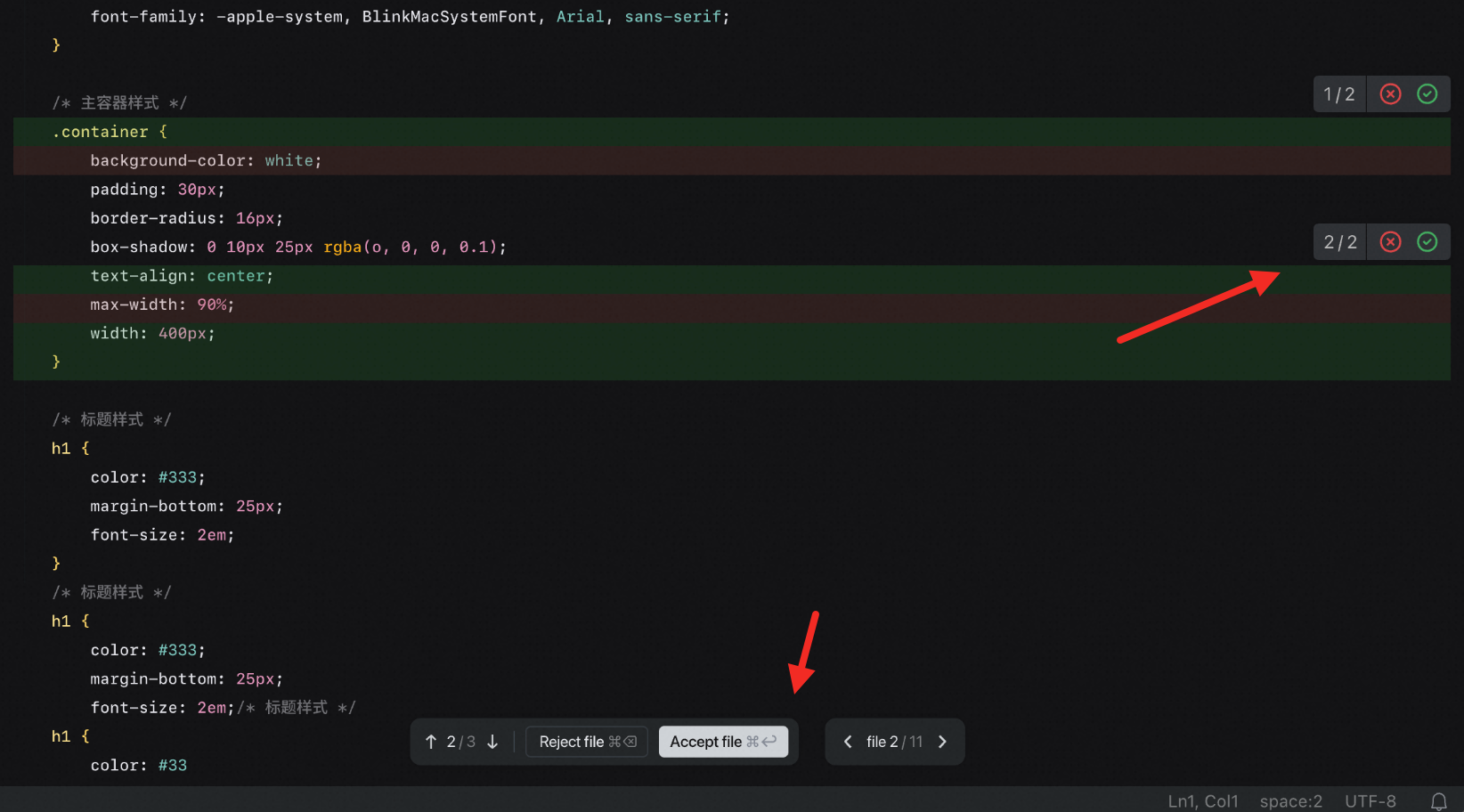
The preview displays changes using standard diff notation:
* Added lines are shown in green
* Removed lines are shown in red
* Unchanged surrounding code is displayed in a neutral tone, preserving context and helping you understand the scope of the change
This inline diff format helps you see exactly what will change, understand why the change is made, and assess how it fits into the existing codebase—then accept, edit, or reject each change with confidence.
Example:
```diff theme={null}
function validate(user) {
- return user.id !== undefined;
+ return user.id && user.status === 'active'; }
```
### Review mode
After an Agent completes its task or a conversation turn, the system displays all modifications, providing a comprehensive overview of changes across the entire codebase. Since code changes are applied directly, any unsatisfactory modification can be reverted by clicking **Reject**.
#### Per-change controls
In the top-right corner of each change block, use **Reject** to discard that specific change.
#### File-level controls
At the bottom of the file:
* **Reject** to discard all suggested modifications in the current file
* **Navigate** between files that have pending changes
 #### Handle multiple-file changes
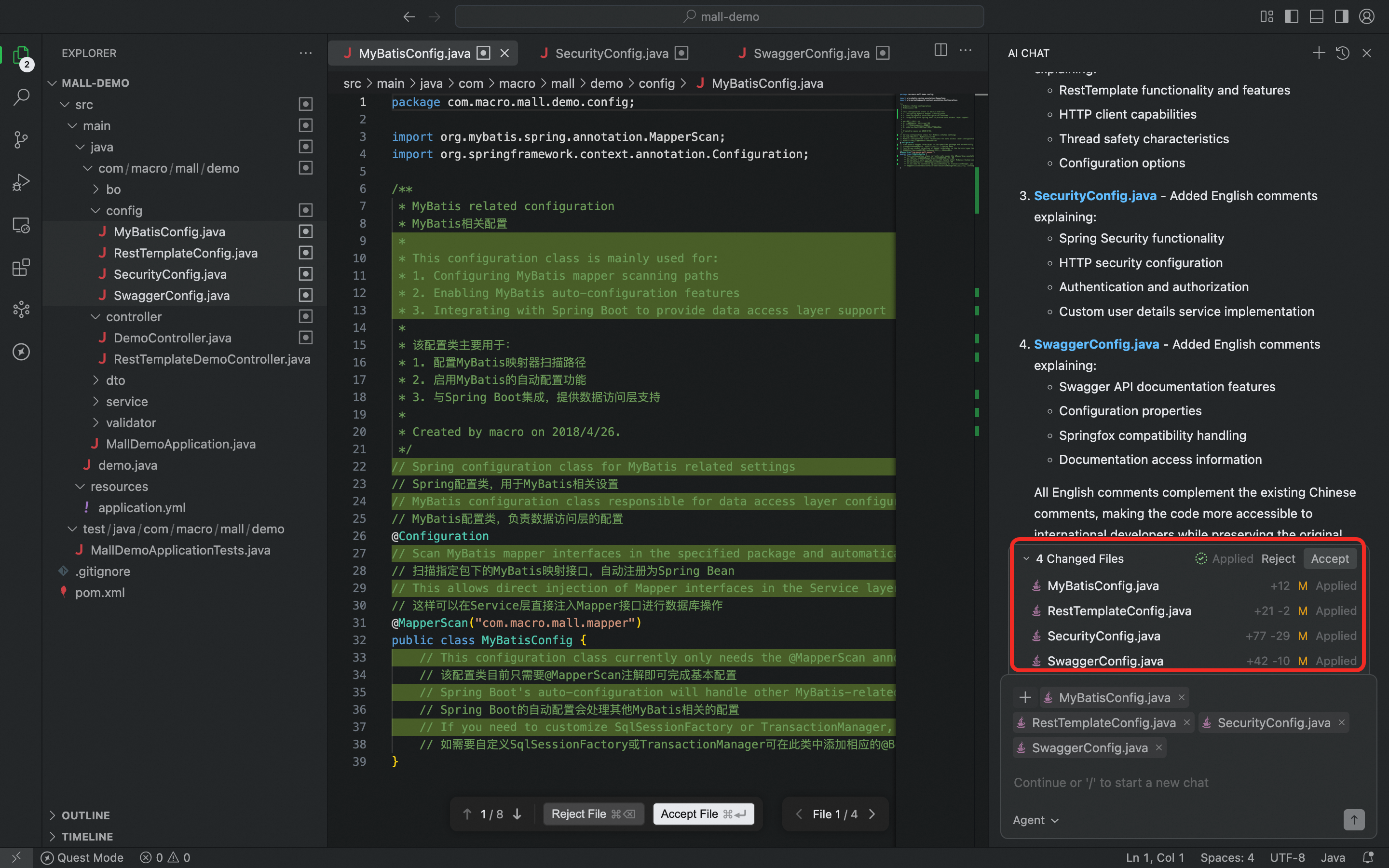
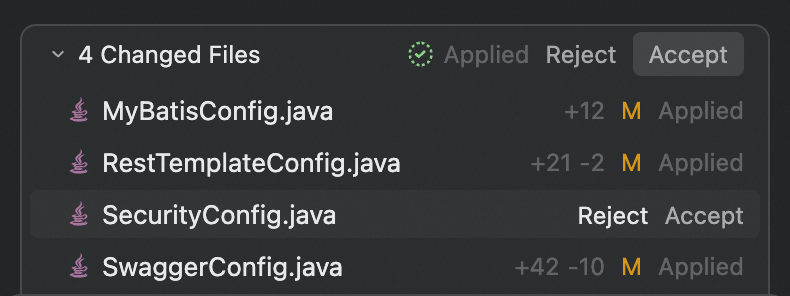
When changes span multiple files, the affected file names appear above the Chat panel. Click **Reject All** to discard changes across all listed files (a secondary confirmation prompt prevents accidental operations); click a file name to jump to that file with diffs displayed; or hover over a file name to show **Reject** for that file only.
#### Handle multiple-file changes
When changes span multiple files, the affected file names appear above the Chat panel. Click **Reject All** to discard changes across all listed files (a secondary confirmation prompt prevents accidental operations); click a file name to jump to that file with diffs displayed; or hover over a file name to show **Reject** for that file only.
 ## Message queue
The message queue lets you keep typing what to do next while the Agent is running a task. New messages enter a pending list and queue up in order, then run once the current task finishes. You can also trigger Steer on any message in the queue at any time to add direction or adjust requirements while the task is running.
The message queue is also available in Quest.
### Queuing and execution
While an Agent task is running, type into the input box and press Enter — the message appears as a new entry at the top of the pending list. When the current task finishes, the Agent automatically processes the queued messages in order, and the queue area collapses once the list is empty.
How the queue executes differs by mode:
* **Ask and Agent modes**: queued messages wait for the current turn to end by default, then run automatically in order. You can click the **Steer** button on any queued message at any time to have the Agent step in immediately.
* **Experts mode**: the Agent proactively decides when to batch-fetch and take over queued messages — no manual steering needed.
### Steer
Click the **Steer** button on a message in the queue to hand that content to the Agent immediately, letting it take on new direction or adjusted requirements mid-execution and reducing the cost of interruptions and restarts.
Once Steer is triggered, the model decides how to weave the input in based on the current task progress.
### Other queue actions
Hover over a message entry in the pending list to reveal its actions:
* **Drag to reorder**: adjust message order with the handle on the left; the new order takes effect immediately.
* **Edit**: the message content is loaded back into the input box; after editing, press Enter to update the entry in place, keeping its position.
* **Delete**: removes the message from the queue; the order of the remaining messages is unchanged.
## Message queue
The message queue lets you keep typing what to do next while the Agent is running a task. New messages enter a pending list and queue up in order, then run once the current task finishes. You can also trigger Steer on any message in the queue at any time to add direction or adjust requirements while the task is running.
The message queue is also available in Quest.
### Queuing and execution
While an Agent task is running, type into the input box and press Enter — the message appears as a new entry at the top of the pending list. When the current task finishes, the Agent automatically processes the queued messages in order, and the queue area collapses once the list is empty.
How the queue executes differs by mode:
* **Ask and Agent modes**: queued messages wait for the current turn to end by default, then run automatically in order. You can click the **Steer** button on any queued message at any time to have the Agent step in immediately.
* **Experts mode**: the Agent proactively decides when to batch-fetch and take over queued messages — no manual steering needed.
### Steer
Click the **Steer** button on a message in the queue to hand that content to the Agent immediately, letting it take on new direction or adjusted requirements mid-execution and reducing the cost of interruptions and restarts.
Once Steer is triggered, the model decides how to weave the input in based on the current task progress.
### Other queue actions
Hover over a message entry in the pending list to reveal its actions:
* **Drag to reorder**: adjust message order with the handle on the left; the new order takes effect immediately.
* **Edit**: the message content is loaded back into the input box; after editing, press Enter to update the entry in place, keeping its position.
* **Delete**: removes the message from the queue; the order of the remaining messages is unchanged.