> ## Documentation Index
> Fetch the complete documentation index at: https://docs.qoder.com/llms.txt
> Use this file to discover all available pages before exploring further.
# Slides
Slides is a vertical workspace for slide creation. Switch the workspace mode and send a request, and the right side of the window turns into a slide-specific HTML canvas.
## Workspace
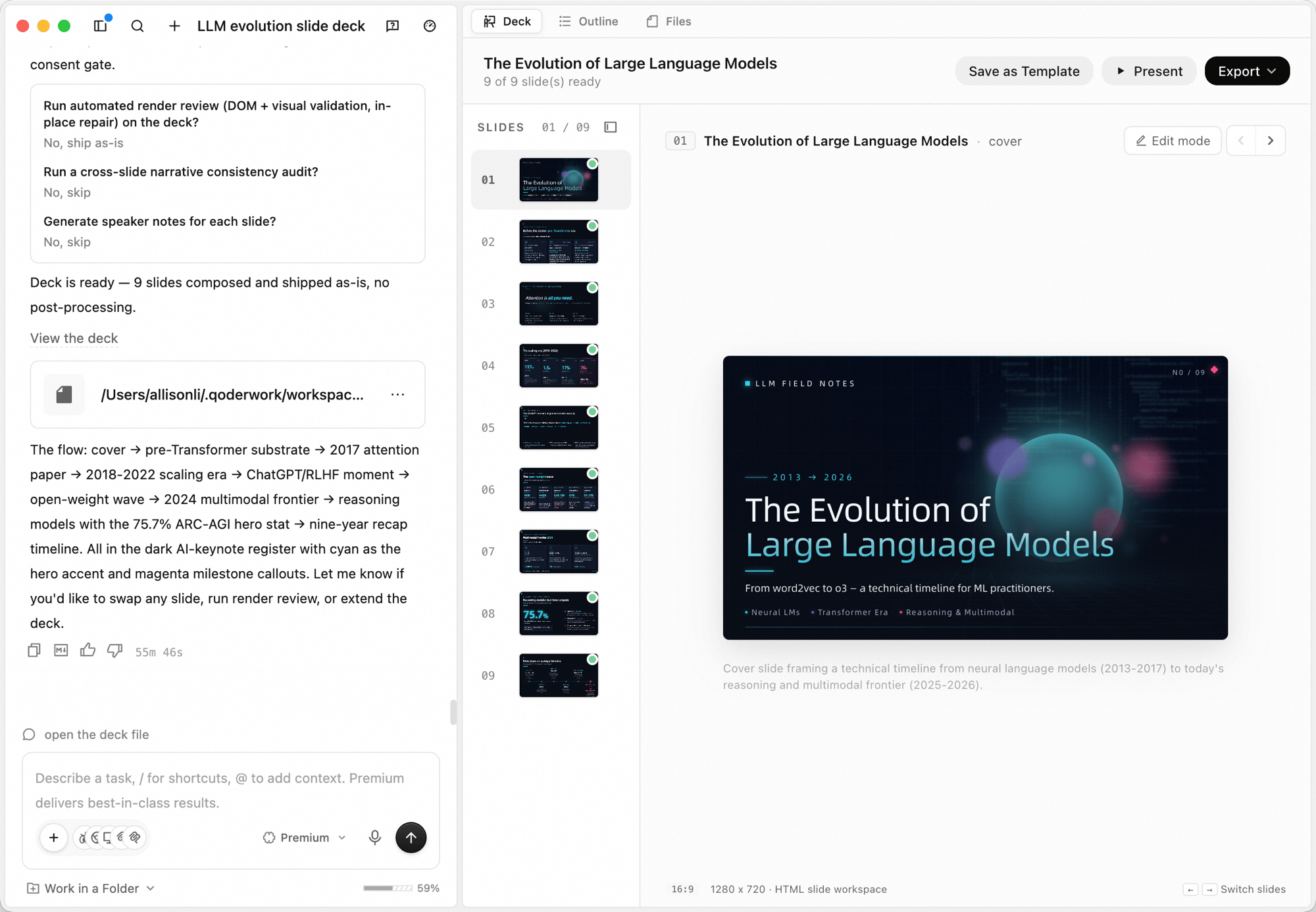 The right side of the window has three tabs:
| Tab | What it does |
| :---------- | :------------------------------------------------------------------------------------------------------ |
| **Deck** | The rendered slides, navigable left/right |
| **Outline** | The outline the agent uses to drive deck generation. You confirm the outline before slides are produced |
| **Files** | The underlying source files behind the deck |
The canvas is a **16:9 HTML slide workspace** (default 1280 × 720). Use the left/right arrows in the bottom-right corner — or your keyboard arrows — to switch between slides.
## Creating a deck
In the input box, click the workspace switcher (defaults to **General**) and choose **Slides**.
The right side of the window has three tabs:
| Tab | What it does |
| :---------- | :------------------------------------------------------------------------------------------------------ |
| **Deck** | The rendered slides, navigable left/right |
| **Outline** | The outline the agent uses to drive deck generation. You confirm the outline before slides are produced |
| **Files** | The underlying source files behind the deck |
The canvas is a **16:9 HTML slide workspace** (default 1280 × 720). Use the left/right arrows in the bottom-right corner — or your keyboard arrows — to switch between slides.
## Creating a deck
In the input box, click the workspace switcher (defaults to **General**) and choose **Slides**.
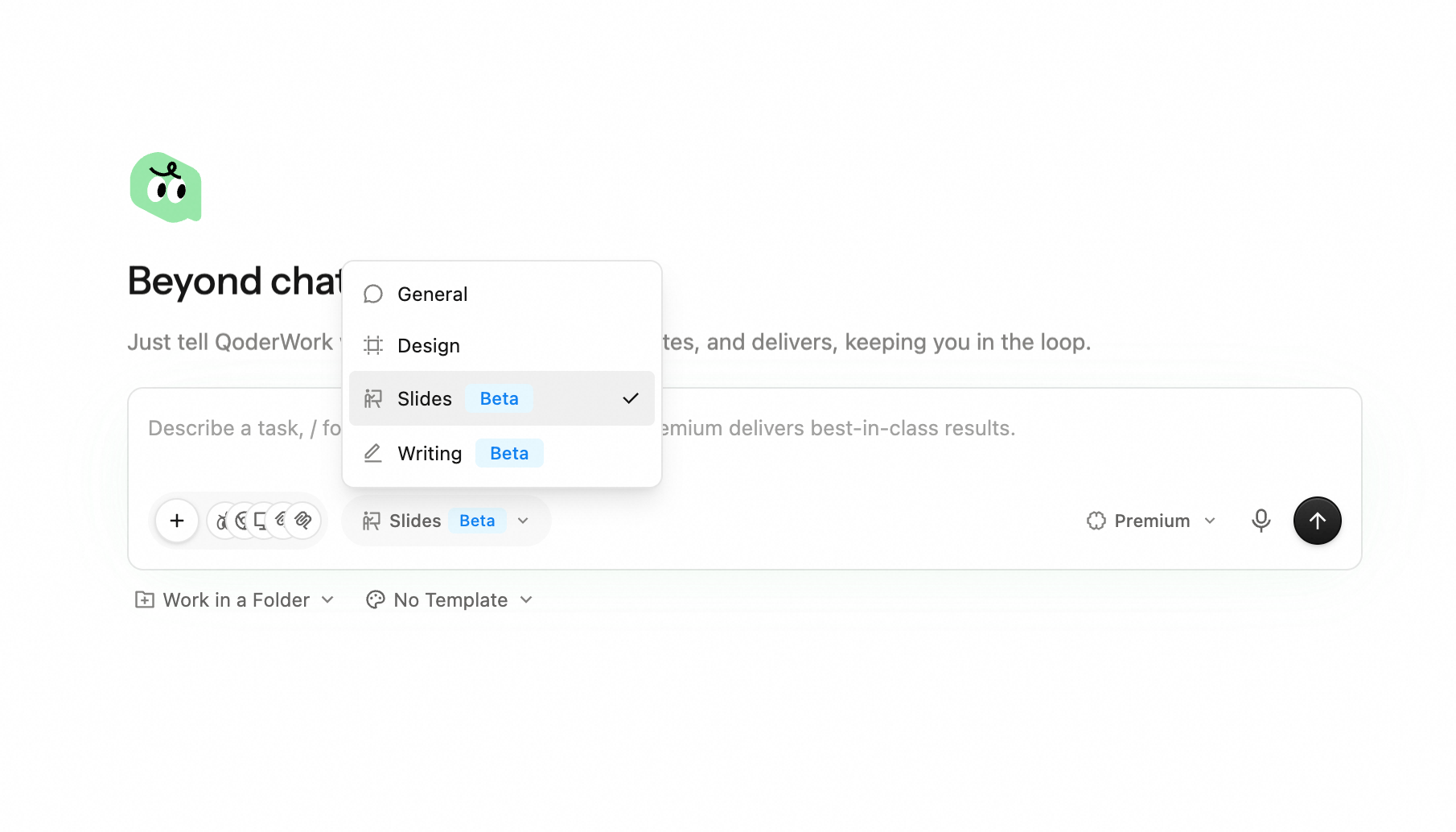 The default workspace can be changed in QoderWork settings — set Slides as your default if it's the surface you live in.
Describe the topic, audience, and the structure you have in mind. For example: *"The Development Journey of Large Language Models – A Slide Presentation."*
You can also dictate the brief with the microphone — see [Voice Input](/qoderwork/voice-input).
The default workspace can be changed in QoderWork settings — set Slides as your default if it's the surface you live in.
Describe the topic, audience, and the structure you have in mind. For example: *"The Development Journey of Large Language Models – A Slide Presentation."*
You can also dictate the brief with the microphone — see [Voice Input](/qoderwork/voice-input).
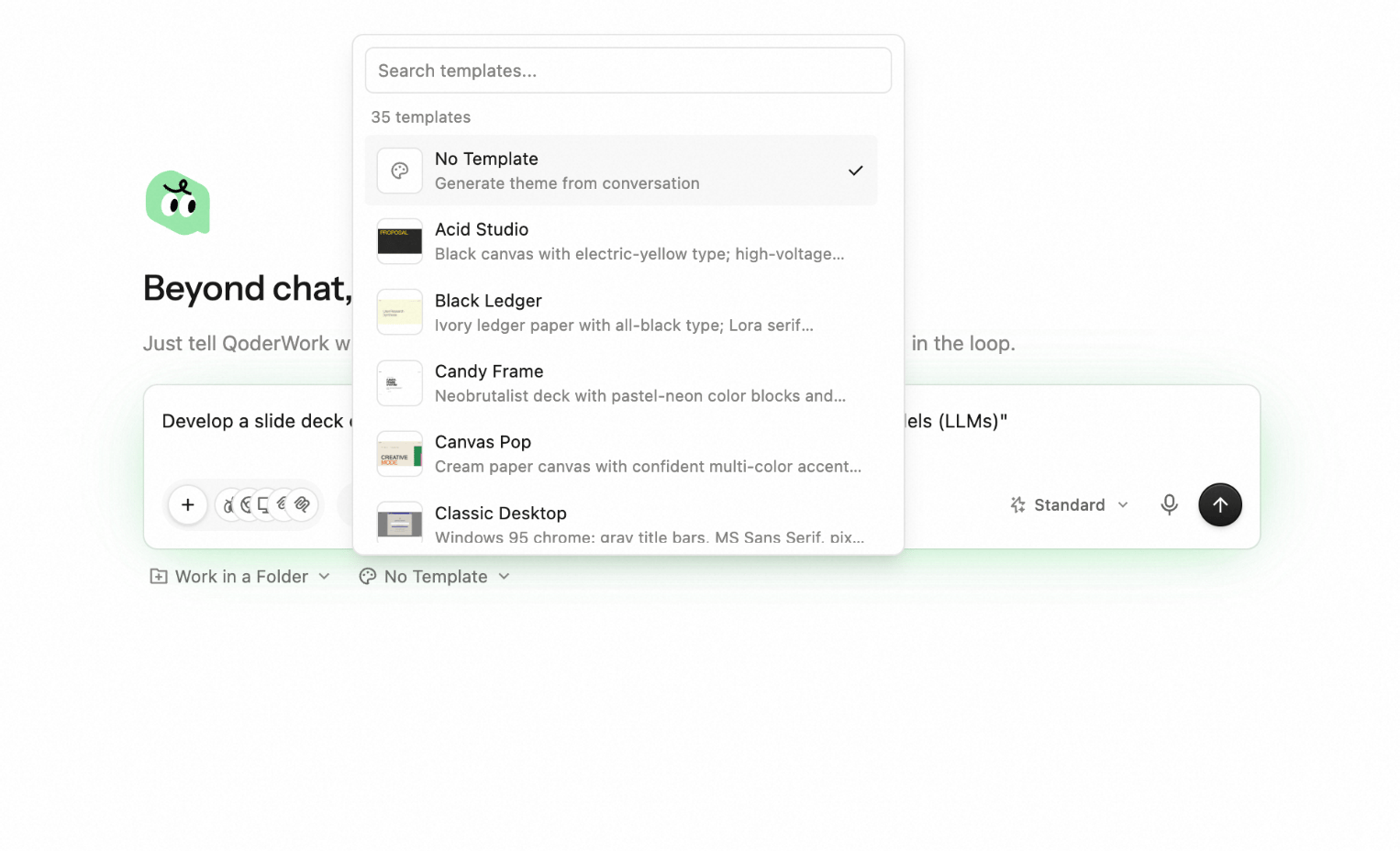
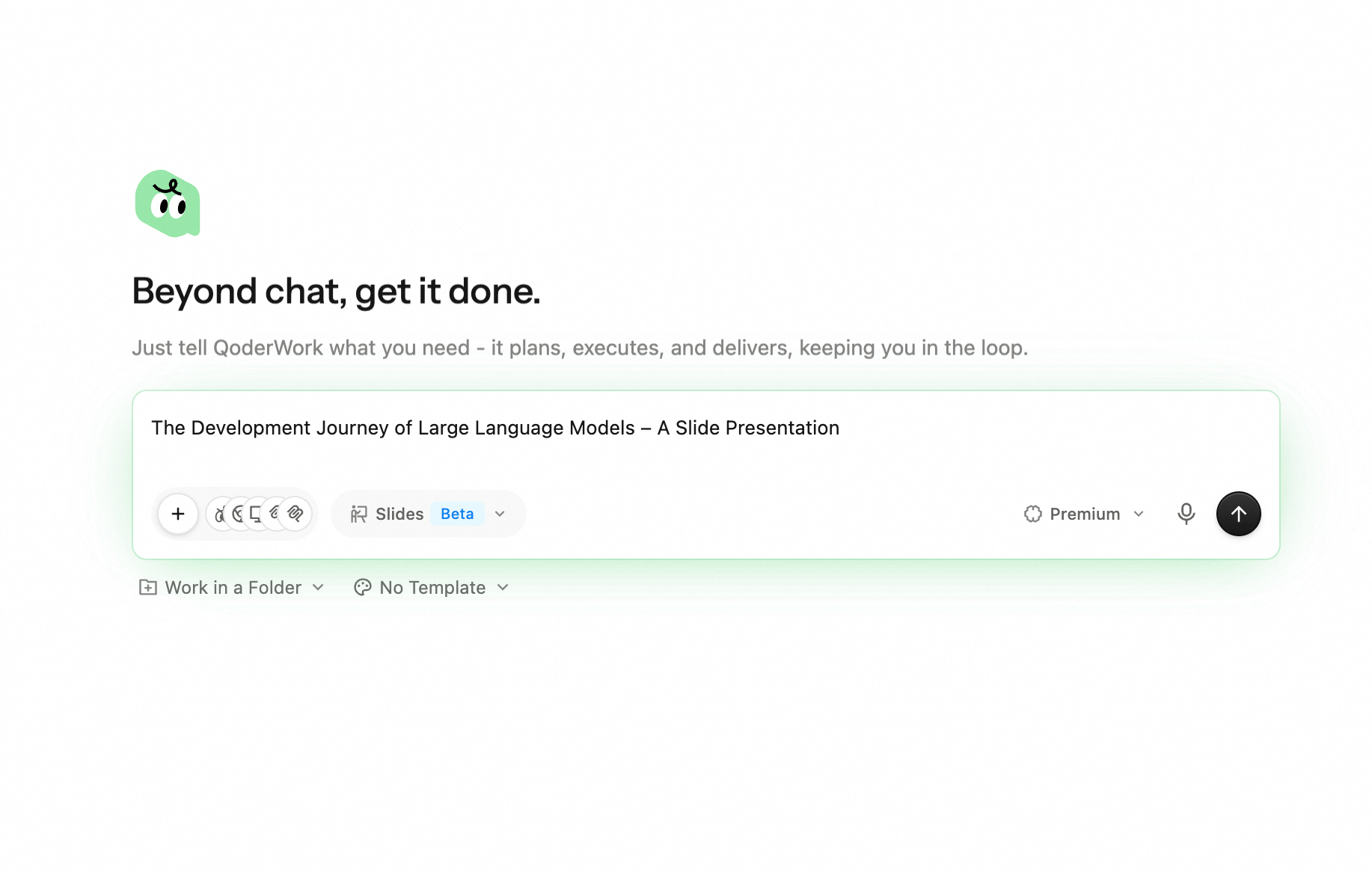 * Click the **No Template** button under the input box to pick from 35 built-in templates for the visual tone — or leave it as **No Template** to have the agent generate a theme from the conversation.
* Click **Work in a Folder** to pin the task to a local directory. The agent writes deck source files there, which makes long-term management and collaboration easier.
* Click the **No Template** button under the input box to pick from 35 built-in templates for the visual tone — or leave it as **No Template** to have the agent generate a theme from the conversation.
* Click **Work in a Folder** to pin the task to a local directory. The agent writes deck source files there, which makes long-term management and collaboration easier.
 Before kicking off, the agent asks a few questions about audience, length, and language. Answering them grounds the deck in your actual context; if you'd rather skip the back-and-forth, hit **Let AI decide** at the bottom.
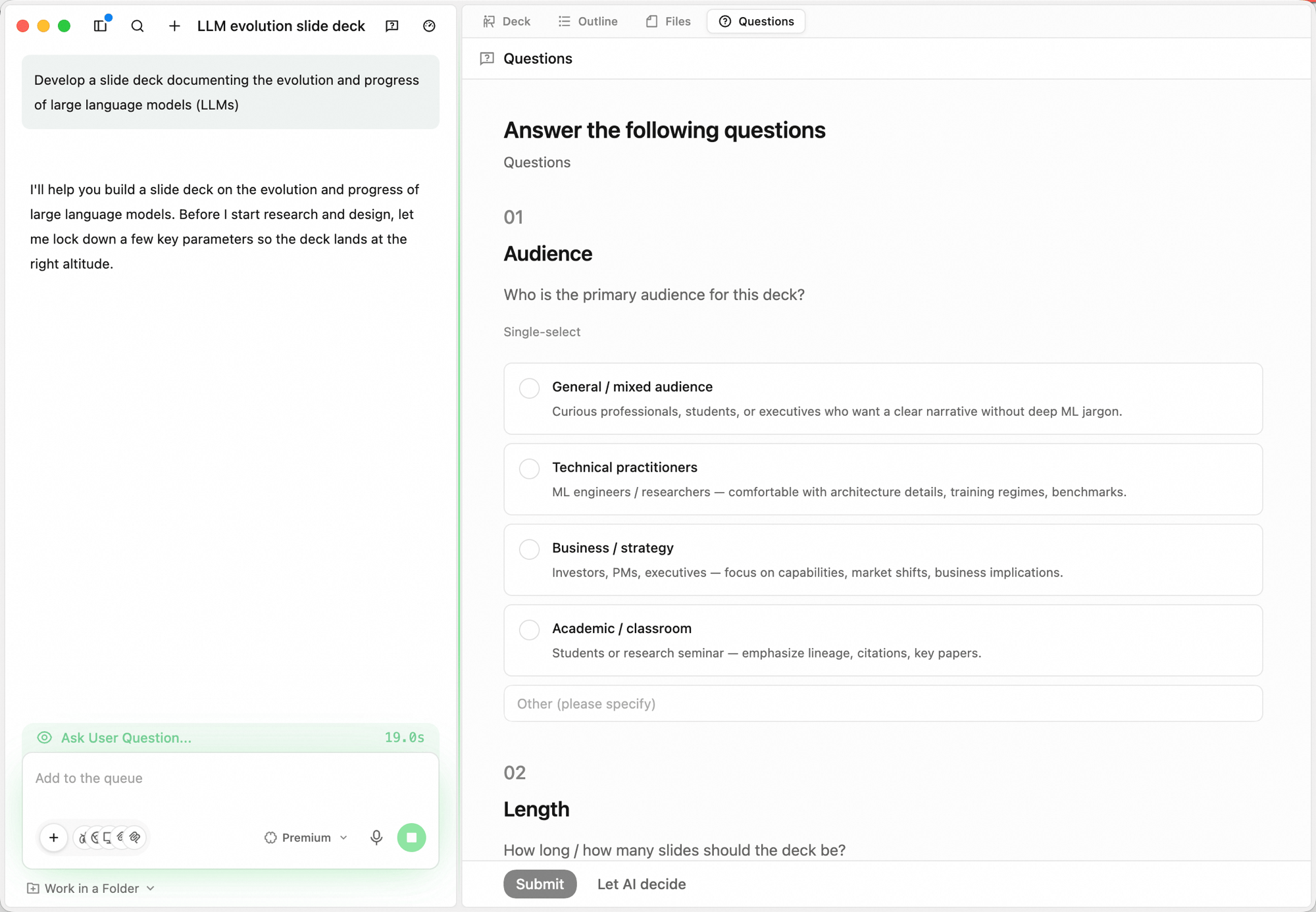 Once your answers are in, the agent proposes an outline under the **Outline** tab. Each section gets a one-line summary and a layout tag (cover slide, text outline, image-side, two-column, etc.). Click **Accept outline** to create the slide slots, or **Reject with feedback** to push back on structure or pacing before any slides are produced.
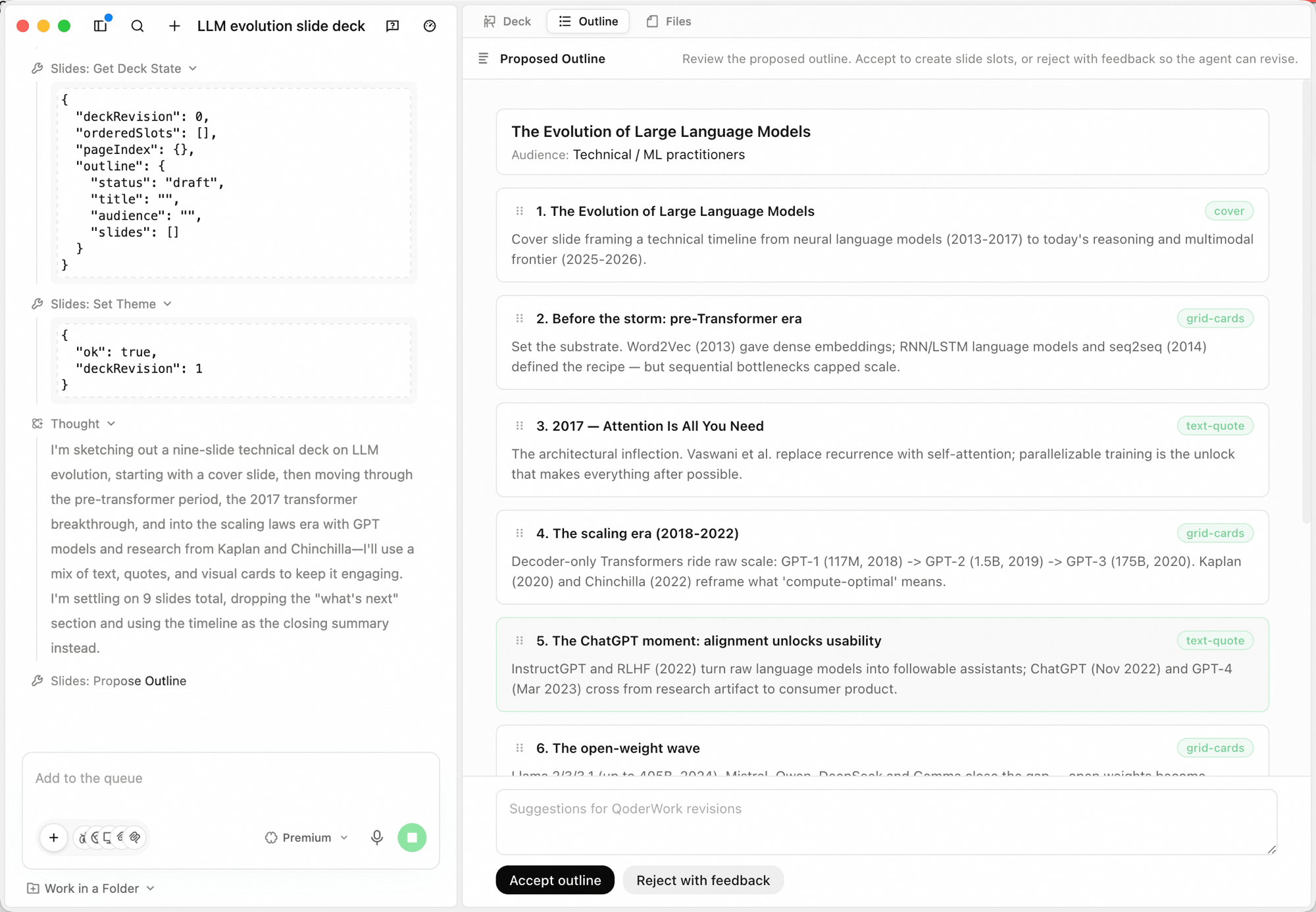 Once the outline is confirmed, the agent creates slide slots and fills them in page by page. The center pane shows slide thumbnails (`SLIDES — N / N`); the right pane renders the current slide. This phase is mostly hands-off — step away for a coffee — but if a page lands obviously off, drop a note in the bottom input box and the agent will adjust before moving on.
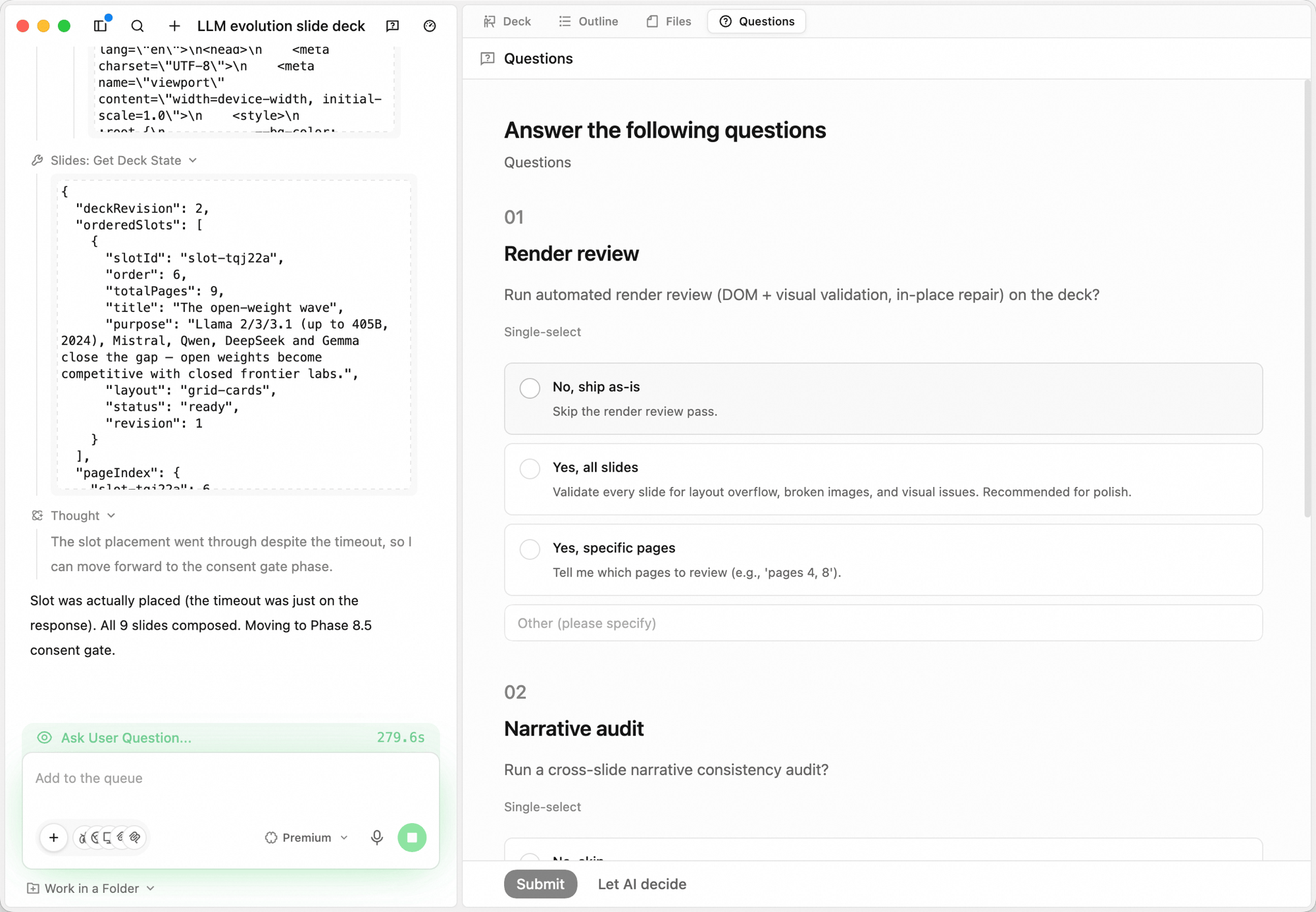
When every slide is composed, the agent asks whether to run any post-processing — multi-select, or skip them all to finish.
Once the outline is confirmed, the agent creates slide slots and fills them in page by page. The center pane shows slide thumbnails (`SLIDES — N / N`); the right pane renders the current slide. This phase is mostly hands-off — step away for a coffee — but if a page lands obviously off, drop a note in the bottom input box and the agent will adjust before moving on.
When every slide is composed, the agent asks whether to run any post-processing — multi-select, or skip them all to finish.
 Once everything is ready, the canvas header switches to "N of N slide(s) ready" and the top-right exposes **Save as Template / Present / Export**. Click any thumbnail in the left list to jump; the right pane renders the current slide.
## Iterating
* **Add to the queue.** Send follow-up instructions in the bottom input box — *"swap to a comparison-table layout"* — they're applied after the current step.
* **Stop a run.** Click the stop button next to the input to halt generation mid-flight.
* **Switch tabs to inspect.** Open **Outline** to re-read the structure, or **Files** to inspect the source files behind the deck.
* **Switch models.** Use the model dropdown (e.g. **Standard**) to change models for the next step.
Strong briefs name the audience and the takeaway, not just the topic. *"5-min internal update for the engineering team — what shipped, what's next, one ask"* lands far better than *"weekly update."*
## Present, export, save as template
The top-right corner has three actions:
* **Present** — switch to a fullscreen presentation view for live demos and reviews.
* **Export** — download the deck as **PPTX**, **PDF**, or **HTML**.
* **Save as Template** — save the current deck as a reusable template for future runs.
## Use cases
### Internal review deck
```plaintext theme={null}
Make a 10-slide internal review deck for our weekly engineering sync.
Cover: shipped this week (3 items), in-progress (2 items), risks &
asks (1 slide), next week's focus. Use a clean, monochrome layout.
```
### Conference talk from a doc
```plaintext theme={null}
@design-launch.md
Turn this launch doc into a 15-minute conference talk in 18 slides.
Open with the problem, demo halfway through, end with a call to action.
```
### Quick proposal deck
```plaintext theme={null}
Build a short proposal deck (8 slides) for a new partnership.
Audience: enterprise BD lead. Tone: confident, evidence-driven.
Sections: problem, our angle, proof points, the ask.
```
### Training course slides
```plaintext theme={null}
Create a 20-slide onboarding training deck for new hires.
Cover: company intro, org structure, product line overview,
dev workflow & toolchain, team culture, common FAQ.
Insert an interactive Q&A slide every 3-4 pages.
Style: friendly and approachable, use brand colors.
```
### Product demo deck
```plaintext theme={null}
@product-features.md
Turn this feature list into a 12-slide product demo deck.
Audience: technical decision-makers at prospective clients.
Structure: pain point intro → product overview → 3 core feature
demos (2 slides each) → competitive comparison → case study →
next steps. Include speaker notes.
```
## Next Steps
Generate designs as code on a canvas
AI-assisted writing and polishing
Once everything is ready, the canvas header switches to "N of N slide(s) ready" and the top-right exposes **Save as Template / Present / Export**. Click any thumbnail in the left list to jump; the right pane renders the current slide.
## Iterating
* **Add to the queue.** Send follow-up instructions in the bottom input box — *"swap to a comparison-table layout"* — they're applied after the current step.
* **Stop a run.** Click the stop button next to the input to halt generation mid-flight.
* **Switch tabs to inspect.** Open **Outline** to re-read the structure, or **Files** to inspect the source files behind the deck.
* **Switch models.** Use the model dropdown (e.g. **Standard**) to change models for the next step.
Strong briefs name the audience and the takeaway, not just the topic. *"5-min internal update for the engineering team — what shipped, what's next, one ask"* lands far better than *"weekly update."*
## Present, export, save as template
The top-right corner has three actions:
* **Present** — switch to a fullscreen presentation view for live demos and reviews.
* **Export** — download the deck as **PPTX**, **PDF**, or **HTML**.
* **Save as Template** — save the current deck as a reusable template for future runs.
## Use cases
### Internal review deck
```plaintext theme={null}
Make a 10-slide internal review deck for our weekly engineering sync.
Cover: shipped this week (3 items), in-progress (2 items), risks &
asks (1 slide), next week's focus. Use a clean, monochrome layout.
```
### Conference talk from a doc
```plaintext theme={null}
@design-launch.md
Turn this launch doc into a 15-minute conference talk in 18 slides.
Open with the problem, demo halfway through, end with a call to action.
```
### Quick proposal deck
```plaintext theme={null}
Build a short proposal deck (8 slides) for a new partnership.
Audience: enterprise BD lead. Tone: confident, evidence-driven.
Sections: problem, our angle, proof points, the ask.
```
### Training course slides
```plaintext theme={null}
Create a 20-slide onboarding training deck for new hires.
Cover: company intro, org structure, product line overview,
dev workflow & toolchain, team culture, common FAQ.
Insert an interactive Q&A slide every 3-4 pages.
Style: friendly and approachable, use brand colors.
```
### Product demo deck
```plaintext theme={null}
@product-features.md
Turn this feature list into a 12-slide product demo deck.
Audience: technical decision-makers at prospective clients.
Structure: pain point intro → product overview → 3 core feature
demos (2 slides each) → competitive comparison → case study →
next steps. Include speaker notes.
```
## Next Steps
Generate designs as code on a canvas
AI-assisted writing and polishing