> ## Documentation Index
> Fetch the complete documentation index at: https://docs.qoder.com/llms.txt
> Use this file to discover all available pages before exploring further.
# System Settings
> Overview of all QoderWork settings: preferences, profile, system, voice, shortcuts, desk, security, and experimental features
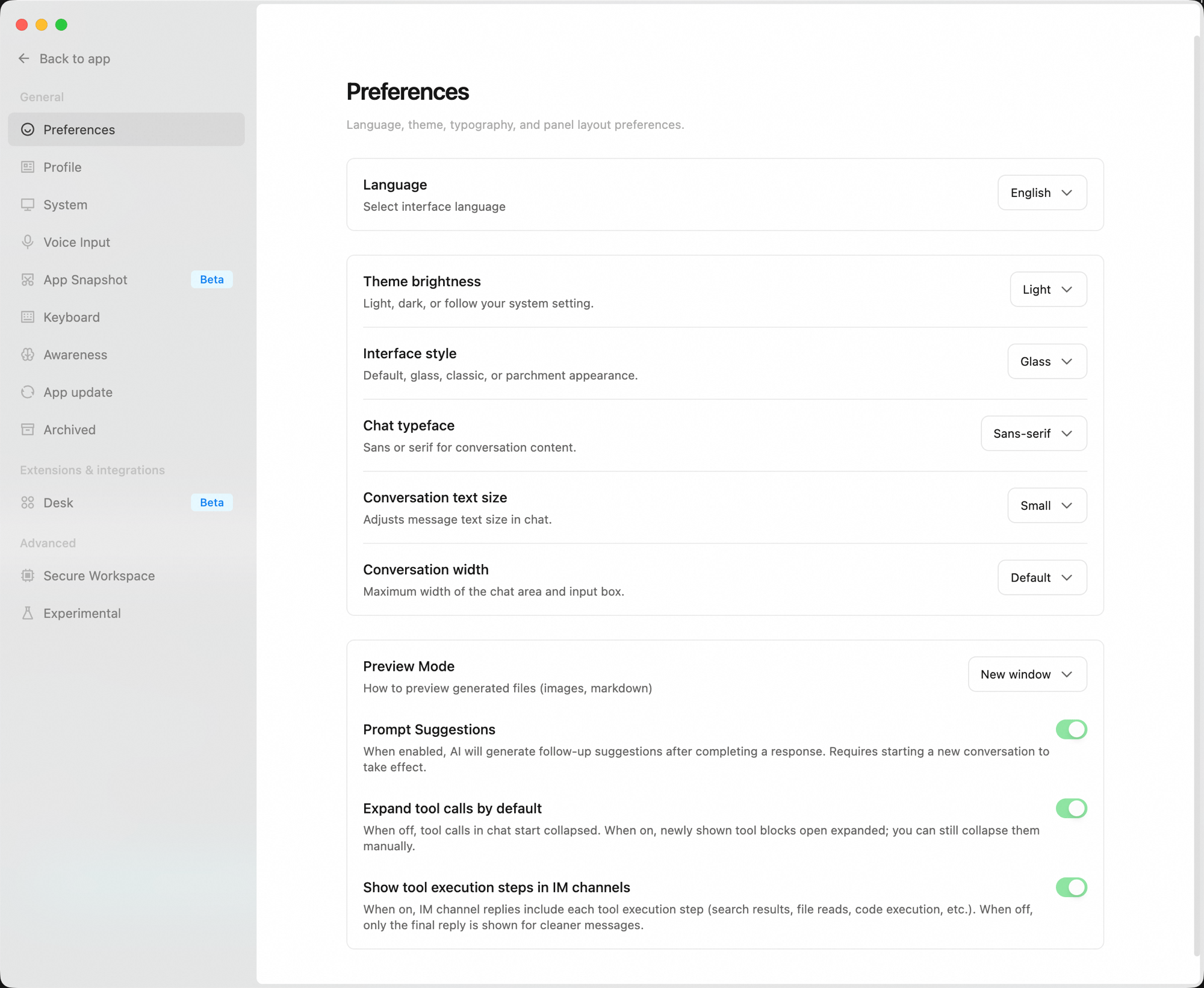
Click the **gear icon** at the bottom of the left sidebar to open the settings panel. Settings are organized into three groups: **General**, **Extensions & integrations**, and **Advanced**.
 ## General
### Preferences
Personalize the interface and conversation experience:
| Setting | Description |
| :------------------------------------------- | :----------------------------------------------------------------------------------------------------------------------- |
| **Language** | Choose the interface language (Chinese / English / Japanese). Changes take effect immediately. |
| **Theme brightness** | Light, Dark, or Auto (follows system) |
| **Interface Style** | Default, Glass, Classic, or Parchment appearance |
| **Chat typeface** | Sans-serif or Serif |
| **Conversation text size** | Adjust the text size in conversations |
| **Conversation width** | Maximum width of the conversation area and input bar |
| **Preview Mode** | How to preview generated files (images, Markdown) |
| **Prompt Suggestions** | When on, AI automatically generates a next-step suggestion after each reply (requires a new conversation to take effect) |
| **Expand tool calls by default** | When on, newly displayed tool blocks are expanded by default; can still be collapsed manually |
| **Show tool execution steps in IM channels** | When on, IM replies stream each tool step in real time; when off, only the final reply is shown |
### Profile
Manage your avatar and account information:
* **Avatar** — Customize the background color (11 options) and icon (username initials or Emoji).
* **Email** — Displays the email address linked to your current account (read-only).
* **Subscription** — Shows your current plan. Click "View plans & pricing" to go to the pricing page.
* **Sign out** — Sign out on this device. You can sign back in at any time.
### System Settings
System-level options including startup, wake lock, and notifications:
| Setting | Description |
| :------------------------ | :------------------------------------------------------------------------- |
| **Launch at login** | Automatically start QoderWork when you log in |
| **Keep system awake** | Prevent the computer from sleeping while an Agent is working |
| **Desktop notifications** | Send a system notification when the Agent needs a reply or finishes a task |
| **Sound notifications** | Play a sound when the Agent completes a task |
| **Network proxy** | Configure how the app routes network traffic (Follow system / Custom) |
**System permissions** — The following permissions can be granted in System Settings:
| Permission | Used for |
| :--------------------------- | :----------------------------------------------------- |
| **Full Disk Access** | Reading and writing project files |
| **Screen Recording & Audio** | Screen content recognition, feedback screenshots |
| **Accessibility** | Listening for global hotkeys (quick launch, etc.) |
| **Microphone** | Voice input |
| **Automation** | Working with system apps: reminders, calendar, notes |
| **Notifications** | Desktop notifications for task completion and messages |
| **Location Services** | Tasks involving geographic location |
**Data sharing** — Your data is never used to improve the product; it is only used to provide basic services. You can switch to Privacy Mode here. For enterprise accounts, this setting can only be changed by an admin in the organization settings.
### Voice Input
Global voice input hotkey and transcription settings (see [Voice Input](/qoderwork/voice-input)):
* **Enable voice input** — Enable the global voice input hotkey. Press once to start recording; press again to stop and transcribe.
* **Enable bottom floating window** — When no window is focused, pressing the voice hotkey pops up a floating window at the bottom of the screen. When off, pressing the hotkey has no effect (the microphone button in the input bar is not affected).
* **Hotkey mode** — Choose how to trigger recording: single key or a key combination (e.g. Ctrl+Shift+Space).
* **Trigger key** — The selected key only triggers voice input when pressed alone; normal key combinations are not affected.
### App Snapshot
Capture the frontmost app's screenshot and readable text as conversation context (see [App Snapshots](/qoderwork/app-snapshots)):
* **Global hotkey** — Select the trigger (e.g., pressing both left and right Option keys simultaneously).
### Keyboard Shortcuts
View and customize keyboard shortcuts. Search for a shortcut or click any entry to record a new combination.
**General**
| Action | macOS | Windows |
| :------------- | :---- | :------- |
| Open Settings | `⌘ ,` | `Ctrl ,` |
| Toggle Sidebar | `⌘ \` | `Ctrl \` |
**Tasks**
| Action | macOS | Windows |
| :--------------------- | :------ | :--------- |
| Quick Switch Task | `⌃ Tab` | `Ctrl Tab` |
| Create New Task | `⌘ N` | `Ctrl N` |
| Search All Tasks | `⌘ G` | `Ctrl G` |
| Search in Current Task | `⌘ F` | `Ctrl F` |
**Conversation**
| Action | macOS | Windows |
| :---------------- | :------------- | :-------------- |
| Send Message | `↵` or `⌘ ↵` | `↵` or `Ctrl ↵` |
| Insert Line Break | `⇧ ↵` or `⌃ ↵` | `Shift ↵` |
**QuickPick** — A global quick-task window. Submit tasks without switching to the main window. Supports a key combination (e.g. ⌥ Space) or double-tap modifier key as trigger modes.
### Awareness
Cross-session memory and collaboration style personalization. See [Awareness](/qoderwork/memory).
### App Update
Check for and install new versions of QoderWork (same as "Check for Updates" in the menu bar). When a new version is available, a prompt appears — only after you confirm does QoderWork download and relaunch. If you're already on the latest version, you'll see a "You're up to date" message.
### Archived
Manage archived tasks. Restore or permanently delete individual tasks, or use "Delete all" in the top-right corner to clear everything at once.
## Extensions & integrations
### Workspaces
Configure workspace modes and the default mode for new tasks:
| Workspace | Description |
| :---------- | :---------------------------------- |
| **General** | Chat with AI assistant (default) |
| **Design** | Design on a canvas |
| **Slides** | Create presentations with AI Slides |
| **Writing** | Write, edit, and polish documents |
**Slide templates** — Manage built-in and custom slide templates. Import your own templates here.
## Advanced
### Secure Work Environment
Runs tasks in a separate isolated space on your computer — faster execution, more stable, and all files and data stay on your device:
* **Enable Secure Work Environment** — When on, tasks run in an isolated environment that doesn't affect other files on your computer and never touches the real system.
* **Clean up workspace files to free disk space** — Deletes downloaded workspace files. Your conversation history and artifacts are not affected.
### Experimental Features
Try new features early. Some are still being refined:
| Feature | Description |
| :---------------------------- | :----------------------------------------------------------------------------------------------------------------------- |
| **Generative UI** | Lets AI render interactive HTML components (charts, dashboards, forms, etc.) in chat. Takes effect in new conversations. |
| **Pop out as window** | Run a task in a standalone window. Right-click any task in the sidebar to pop it out. |
| **Conversation list filters** | Adds filter buttons at the bottom of the sidebar to filter by project, activity time, group, and sort order. |
## Next Steps
Write briefs the agent can act on precisely
Ready-to-use prompt templates organized by scenario
## General
### Preferences
Personalize the interface and conversation experience:
| Setting | Description |
| :------------------------------------------- | :----------------------------------------------------------------------------------------------------------------------- |
| **Language** | Choose the interface language (Chinese / English / Japanese). Changes take effect immediately. |
| **Theme brightness** | Light, Dark, or Auto (follows system) |
| **Interface Style** | Default, Glass, Classic, or Parchment appearance |
| **Chat typeface** | Sans-serif or Serif |
| **Conversation text size** | Adjust the text size in conversations |
| **Conversation width** | Maximum width of the conversation area and input bar |
| **Preview Mode** | How to preview generated files (images, Markdown) |
| **Prompt Suggestions** | When on, AI automatically generates a next-step suggestion after each reply (requires a new conversation to take effect) |
| **Expand tool calls by default** | When on, newly displayed tool blocks are expanded by default; can still be collapsed manually |
| **Show tool execution steps in IM channels** | When on, IM replies stream each tool step in real time; when off, only the final reply is shown |
### Profile
Manage your avatar and account information:
* **Avatar** — Customize the background color (11 options) and icon (username initials or Emoji).
* **Email** — Displays the email address linked to your current account (read-only).
* **Subscription** — Shows your current plan. Click "View plans & pricing" to go to the pricing page.
* **Sign out** — Sign out on this device. You can sign back in at any time.
### System Settings
System-level options including startup, wake lock, and notifications:
| Setting | Description |
| :------------------------ | :------------------------------------------------------------------------- |
| **Launch at login** | Automatically start QoderWork when you log in |
| **Keep system awake** | Prevent the computer from sleeping while an Agent is working |
| **Desktop notifications** | Send a system notification when the Agent needs a reply or finishes a task |
| **Sound notifications** | Play a sound when the Agent completes a task |
| **Network proxy** | Configure how the app routes network traffic (Follow system / Custom) |
**System permissions** — The following permissions can be granted in System Settings:
| Permission | Used for |
| :--------------------------- | :----------------------------------------------------- |
| **Full Disk Access** | Reading and writing project files |
| **Screen Recording & Audio** | Screen content recognition, feedback screenshots |
| **Accessibility** | Listening for global hotkeys (quick launch, etc.) |
| **Microphone** | Voice input |
| **Automation** | Working with system apps: reminders, calendar, notes |
| **Notifications** | Desktop notifications for task completion and messages |
| **Location Services** | Tasks involving geographic location |
**Data sharing** — Your data is never used to improve the product; it is only used to provide basic services. You can switch to Privacy Mode here. For enterprise accounts, this setting can only be changed by an admin in the organization settings.
### Voice Input
Global voice input hotkey and transcription settings (see [Voice Input](/qoderwork/voice-input)):
* **Enable voice input** — Enable the global voice input hotkey. Press once to start recording; press again to stop and transcribe.
* **Enable bottom floating window** — When no window is focused, pressing the voice hotkey pops up a floating window at the bottom of the screen. When off, pressing the hotkey has no effect (the microphone button in the input bar is not affected).
* **Hotkey mode** — Choose how to trigger recording: single key or a key combination (e.g. Ctrl+Shift+Space).
* **Trigger key** — The selected key only triggers voice input when pressed alone; normal key combinations are not affected.
### App Snapshot
Capture the frontmost app's screenshot and readable text as conversation context (see [App Snapshots](/qoderwork/app-snapshots)):
* **Global hotkey** — Select the trigger (e.g., pressing both left and right Option keys simultaneously).
### Keyboard Shortcuts
View and customize keyboard shortcuts. Search for a shortcut or click any entry to record a new combination.
**General**
| Action | macOS | Windows |
| :------------- | :---- | :------- |
| Open Settings | `⌘ ,` | `Ctrl ,` |
| Toggle Sidebar | `⌘ \` | `Ctrl \` |
**Tasks**
| Action | macOS | Windows |
| :--------------------- | :------ | :--------- |
| Quick Switch Task | `⌃ Tab` | `Ctrl Tab` |
| Create New Task | `⌘ N` | `Ctrl N` |
| Search All Tasks | `⌘ G` | `Ctrl G` |
| Search in Current Task | `⌘ F` | `Ctrl F` |
**Conversation**
| Action | macOS | Windows |
| :---------------- | :------------- | :-------------- |
| Send Message | `↵` or `⌘ ↵` | `↵` or `Ctrl ↵` |
| Insert Line Break | `⇧ ↵` or `⌃ ↵` | `Shift ↵` |
**QuickPick** — A global quick-task window. Submit tasks without switching to the main window. Supports a key combination (e.g. ⌥ Space) or double-tap modifier key as trigger modes.
### Awareness
Cross-session memory and collaboration style personalization. See [Awareness](/qoderwork/memory).
### App Update
Check for and install new versions of QoderWork (same as "Check for Updates" in the menu bar). When a new version is available, a prompt appears — only after you confirm does QoderWork download and relaunch. If you're already on the latest version, you'll see a "You're up to date" message.
### Archived
Manage archived tasks. Restore or permanently delete individual tasks, or use "Delete all" in the top-right corner to clear everything at once.
## Extensions & integrations
### Workspaces
Configure workspace modes and the default mode for new tasks:
| Workspace | Description |
| :---------- | :---------------------------------- |
| **General** | Chat with AI assistant (default) |
| **Design** | Design on a canvas |
| **Slides** | Create presentations with AI Slides |
| **Writing** | Write, edit, and polish documents |
**Slide templates** — Manage built-in and custom slide templates. Import your own templates here.
## Advanced
### Secure Work Environment
Runs tasks in a separate isolated space on your computer — faster execution, more stable, and all files and data stay on your device:
* **Enable Secure Work Environment** — When on, tasks run in an isolated environment that doesn't affect other files on your computer and never touches the real system.
* **Clean up workspace files to free disk space** — Deletes downloaded workspace files. Your conversation history and artifacts are not affected.
### Experimental Features
Try new features early. Some are still being refined:
| Feature | Description |
| :---------------------------- | :----------------------------------------------------------------------------------------------------------------------- |
| **Generative UI** | Lets AI render interactive HTML components (charts, dashboards, forms, etc.) in chat. Takes effect in new conversations. |
| **Pop out as window** | Run a task in a standalone window. Right-click any task in the sidebar to pop it out. |
| **Conversation list filters** | Adds filter buttons at the bottom of the sidebar to filter by project, activity time, group, and sort order. |
## Next Steps
Write briefs the agent can act on precisely
Ready-to-use prompt templates organized by scenario