> ## Documentation Index
> Fetch the complete documentation index at: https://docs.qoder.com/llms.txt
> Use this file to discover all available pages before exploring further.
# Windows Installation Guide
> A complete guide to installing and setting up QoderWork on Windows.
## System Requirements
| Requirement | Minimum |
| ------------ | ---------------------------- |
| OS | Windows 10 (64-bit) or later |
| Architecture | x86\_64 (AMD64) |
| Storage | 500 MB free space |
| Network | Stable internet connection |
## Installation Steps
Visit [qoderwork.com](https://qoderwork.com/) and click the **Windows** button to download the latest `.exe` installer.
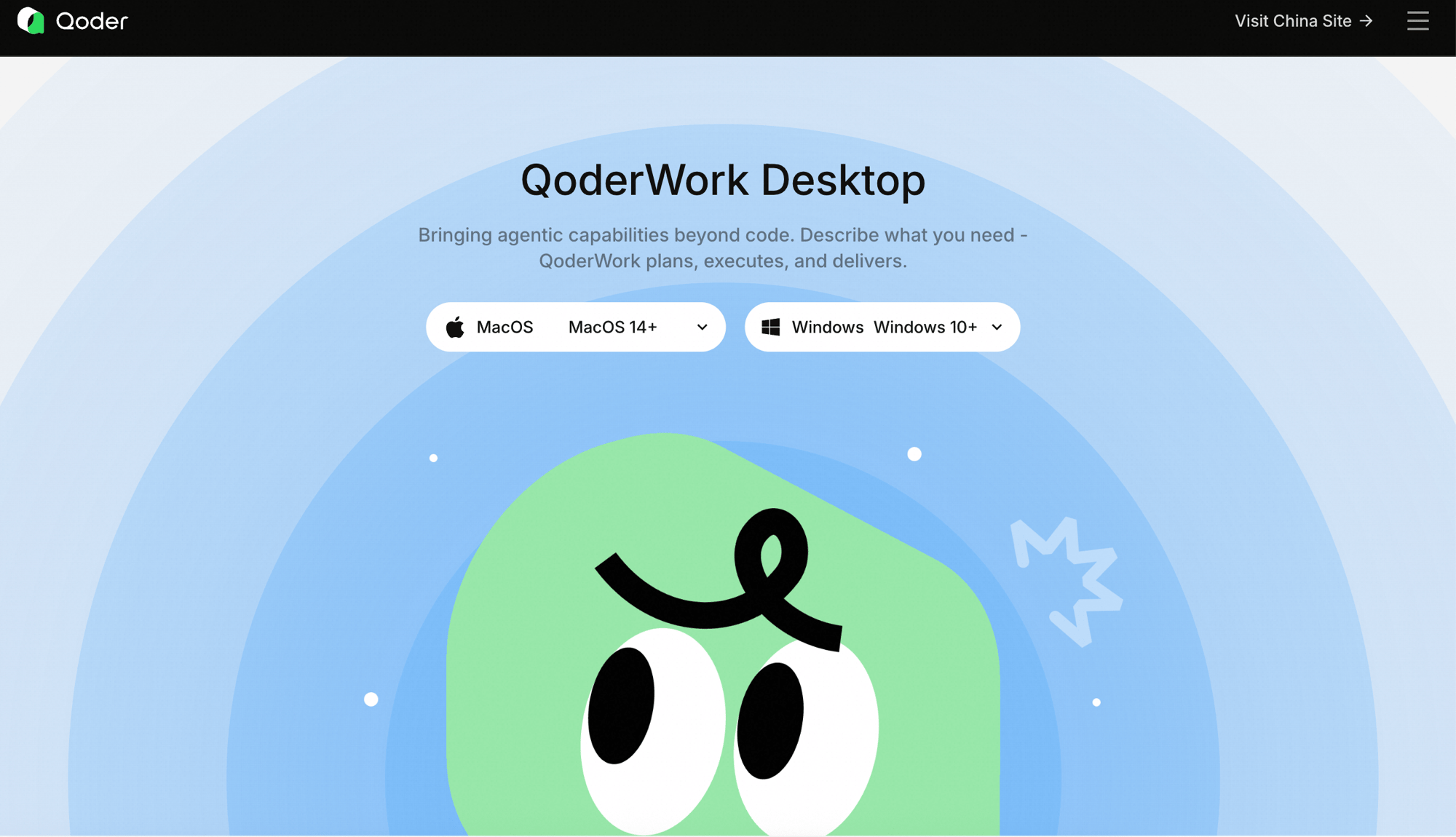 Windows offers two installers with identical functionality; they differ only in install scope and permissions:
* **System (labeled X64 (System) on the download page)** — installs to `Program Files`, available to every Windows account on the machine, and requires admin rights to install. Best for a personal machine where you have admin rights, or when multiple accounts need to share one QoderWork install.
* **User (labeled X64 (User) on the download page)** — installs to the current user's directory (`%LOCALAPPDATA%`), is available only to the signed-in account, and needs **no admin rights**. Best for machines without admin rights or under corporate management.
When in doubt, choose **User** — it needs no admin rights and is the simplest to install.
1. Double-click the downloaded `.exe` file to launch the setup wizard.
2. Follow the prompts to choose an installation location (the default is usually fine).
3. Click **Install** and wait for the process to complete.
If Windows Defender SmartScreen shows a "Windows protected your PC" warning, click **More info → Run anyway** to proceed.
After installation, search for "Qoder" in the **Start Menu** and open it, or double-click the desktop shortcut.
On a fresh install, QoderWork walks you through signing in. You can use an existing Qoder account or create a new one — email and third-party login are both supported.
Windows offers two installers with identical functionality; they differ only in install scope and permissions:
* **System (labeled X64 (System) on the download page)** — installs to `Program Files`, available to every Windows account on the machine, and requires admin rights to install. Best for a personal machine where you have admin rights, or when multiple accounts need to share one QoderWork install.
* **User (labeled X64 (User) on the download page)** — installs to the current user's directory (`%LOCALAPPDATA%`), is available only to the signed-in account, and needs **no admin rights**. Best for machines without admin rights or under corporate management.
When in doubt, choose **User** — it needs no admin rights and is the simplest to install.
1. Double-click the downloaded `.exe` file to launch the setup wizard.
2. Follow the prompts to choose an installation location (the default is usually fine).
3. Click **Install** and wait for the process to complete.
If Windows Defender SmartScreen shows a "Windows protected your PC" warning, click **More info → Run anyway** to proceed.
After installation, search for "Qoder" in the **Start Menu** and open it, or double-click the desktop shortcut.
On a fresh install, QoderWork walks you through signing in. You can use an existing Qoder account or create a new one — email and third-party login are both supported.
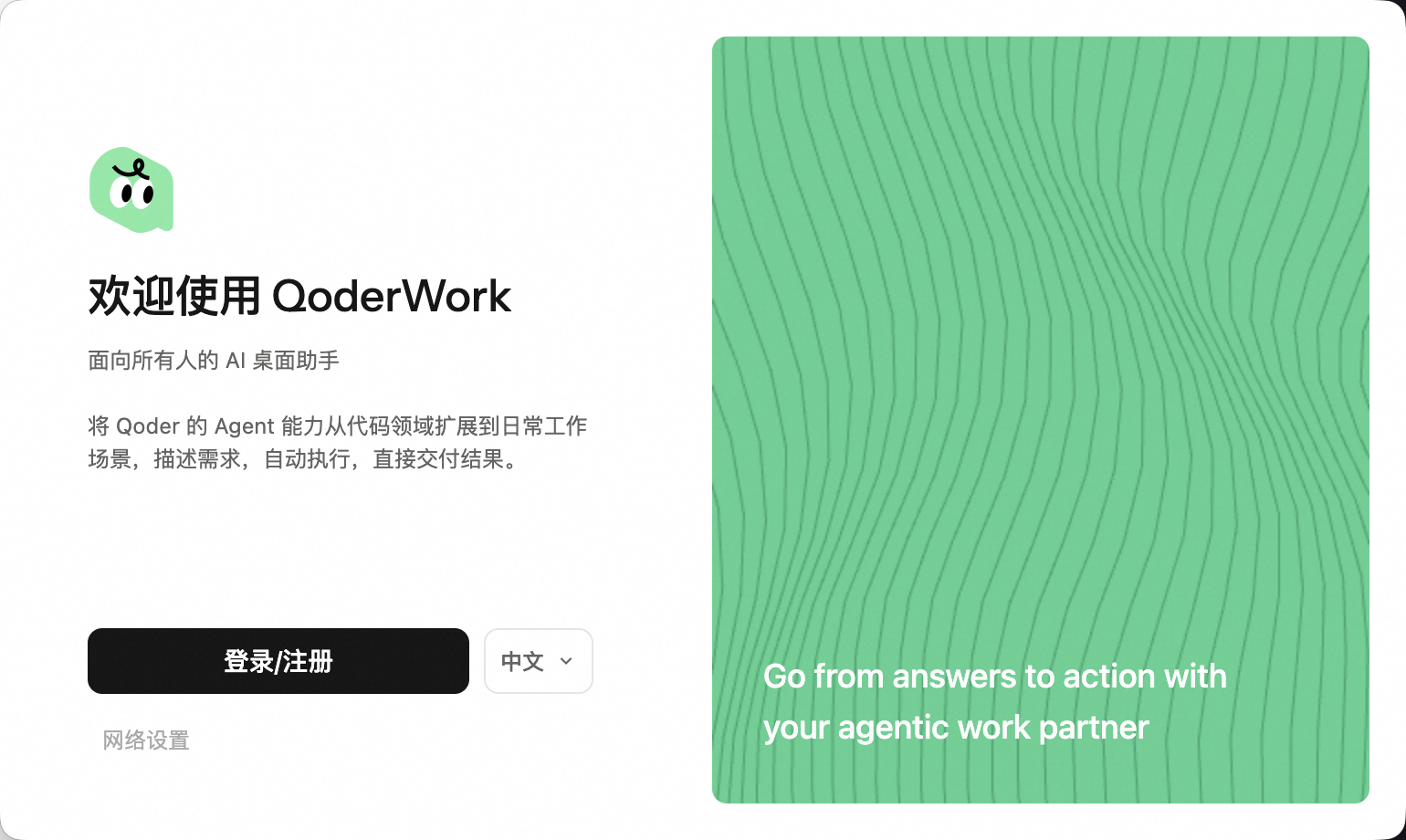 Returning users skip this screen: QoderWork keeps your session, restores previous tasks, and drops you straight into the workspace. The account area lives in the **lower-left corner** of the window — click the avatar to expand the account menu.
QoderWork shares one account system with Qoder Desktop and Qoder CLI, so your Credits balance and plan entitlements travel across every Qoder product.
QoderWork is a standalone app — there is no "switch to a QoderWork tab inside another product." Once you sign in you land directly in the main workspace, with the navigation sidebar on the left.
Returning users skip this screen: QoderWork keeps your session, restores previous tasks, and drops you straight into the workspace. The account area lives in the **lower-left corner** of the window — click the avatar to expand the account menu.
QoderWork shares one account system with Qoder Desktop and Qoder CLI, so your Credits balance and plan entitlements travel across every Qoder product.
QoderWork is a standalone app — there is no "switch to a QoderWork tab inside another product." Once you sign in you land directly in the main workspace, with the navigation sidebar on the left.
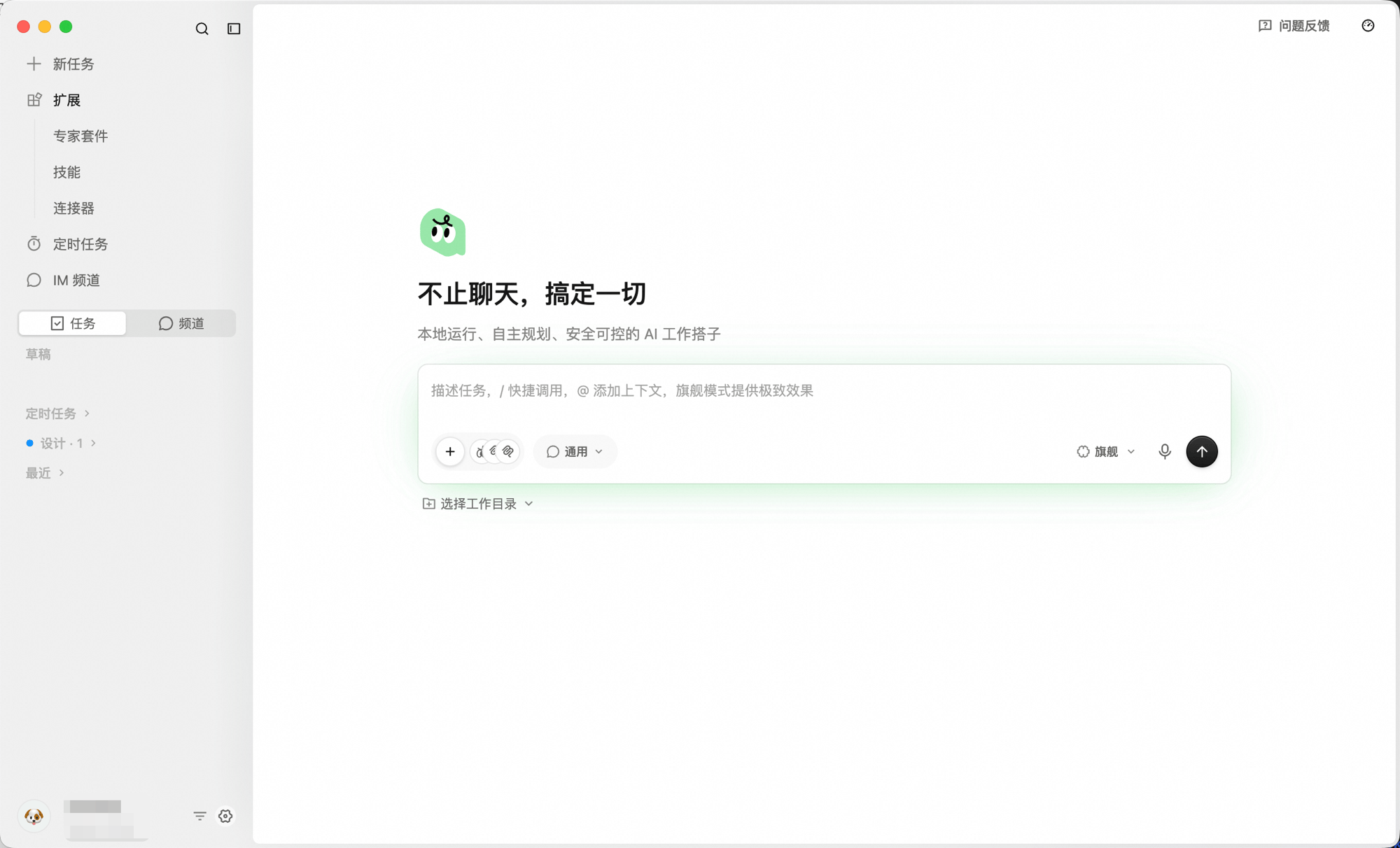 The sidebar holds every common entry point:
* **New Task** — start a new task.
* **Expert Kits / Skills / Connectors** — install capability extensions for the AI.
* **Scheduled Tasks** — tasks that run on a schedule.
* **IM Channel** — chat-channel collaboration.
* **Tasks / Channels** — review and return to past work.
## Updating QoderWork
QoderWork checks for new versions in the background by default. When one is available, the app surfaces an update prompt — the download and relaunch only happen after you confirm. Nothing is replaced without your consent.
To check immediately, click **Help → Check for Updates** in the menu bar.
## Uninstalling
1. Open **Settings → Apps → Installed apps**.
2. Search for "Qoder", click the three-dot menu on the right, and select **Uninstall**.
3. Follow the uninstall wizard to complete the process.
To also remove configuration data, delete the following directory:
```
%USERPROFILE%\.qoderwork
```
## Next Steps
Run your first task in 5 minutes
Get familiar with QoderWork's window layout
The sidebar holds every common entry point:
* **New Task** — start a new task.
* **Expert Kits / Skills / Connectors** — install capability extensions for the AI.
* **Scheduled Tasks** — tasks that run on a schedule.
* **IM Channel** — chat-channel collaboration.
* **Tasks / Channels** — review and return to past work.
## Updating QoderWork
QoderWork checks for new versions in the background by default. When one is available, the app surfaces an update prompt — the download and relaunch only happen after you confirm. Nothing is replaced without your consent.
To check immediately, click **Help → Check for Updates** in the menu bar.
## Uninstalling
1. Open **Settings → Apps → Installed apps**.
2. Search for "Qoder", click the three-dot menu on the right, and select **Uninstall**.
3. Follow the uninstall wizard to complete the process.
To also remove configuration data, delete the following directory:
```
%USERPROFILE%\.qoderwork
```
## Next Steps
Run your first task in 5 minutes
Get familiar with QoderWork's window layout