> ## Documentation Index
> Fetch the complete documentation index at: https://docs.qoder.com/llms.txt
> Use this file to discover all available pages before exploring further.
# macOS Installation Guide
> A complete guide to installing, signing in to, and maintaining QoderWork on macOS.
QoderWork on macOS is a native desktop app that lives at `/Applications/QoderWork.app` and runs entirely on your machine. This guide takes you from a fresh Mac through the first successful task — covering system requirements, the install flow, signing in, and routine maintenance like updating and uninstalling.
## System Requirements
Before you start, double-check that your Mac meets the minimum requirements. QoderWork drives intensive AI workflows locally, so a recent macOS release and enough free disk space matter.
| Requirement | Minimum |
| ---------------- | ---------------------------------------------------------------------------------- |
| Operating System | **macOS 14 or later** |
| Architecture | Apple Silicon or Intel |
| Storage | 500 MB free for the app, plus extra room for task artifacts |
| Network | Stable internet connection (used during sign-in, model calls, and skill downloads) |
If you're on an older macOS, update through **System Settings → General → Software Update** before installing. Older releases will refuse to launch the app.
## Installation Steps
Open [qoderwork.com](https://qoderwork.com/). Click the macOS button to download the latest `.dmg`.
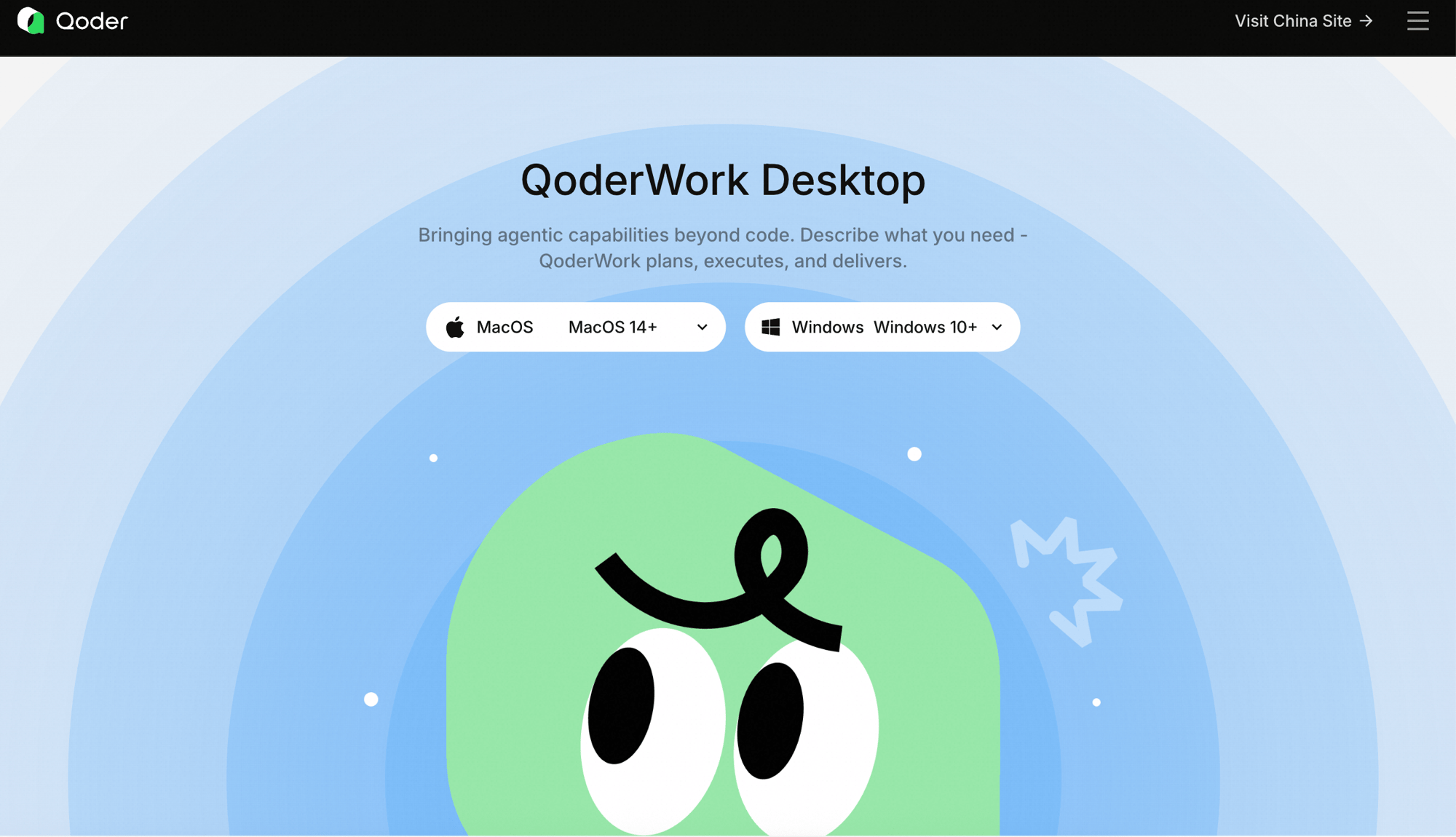 The macOS installer comes in two chip-specific builds with identical functionality — just pick the one that matches your Mac:
* **ARM64 (Apple Silicon)** — for Macs with an M-series chip.
* **X64 (Intel)** — for Intel-based Macs.
The download page auto-detects and marks the build that matches your machine ("Your Mac"), so just pick the highlighted one. Not sure which chip you have? Click the Apple menu → About This Mac.
Double-click the downloaded `.dmg` file. In the window that opens, drag the **QoderWork** icon onto the **Applications** folder shortcut. Wait for the copy to finish, then eject the disk image from Finder's sidebar so it doesn't keep mounting on every reboot.
The installed app lives at `/Applications/QoderWork.app` — you can pin it to the Dock for quicker access.
Open QoderWork from **Launchpad**, **Spotlight** (`⌘ + Space`, type "QoderWork"), or directly from the Applications folder.
The very first launch may be blocked by Gatekeeper with a message like *"QoderWork.app can't be opened because Apple cannot check it for malicious software."* Open **System Settings → Privacy & Security**, scroll to the bottom, find the entry for QoderWork, and click **Open Anyway**. This only happens once.
QoderWork prompts new installations to sign in straight away. Use your existing Qoder account, or register a new one — email and third-party providers are both supported.
The macOS installer comes in two chip-specific builds with identical functionality — just pick the one that matches your Mac:
* **ARM64 (Apple Silicon)** — for Macs with an M-series chip.
* **X64 (Intel)** — for Intel-based Macs.
The download page auto-detects and marks the build that matches your machine ("Your Mac"), so just pick the highlighted one. Not sure which chip you have? Click the Apple menu → About This Mac.
Double-click the downloaded `.dmg` file. In the window that opens, drag the **QoderWork** icon onto the **Applications** folder shortcut. Wait for the copy to finish, then eject the disk image from Finder's sidebar so it doesn't keep mounting on every reboot.
The installed app lives at `/Applications/QoderWork.app` — you can pin it to the Dock for quicker access.
Open QoderWork from **Launchpad**, **Spotlight** (`⌘ + Space`, type "QoderWork"), or directly from the Applications folder.
The very first launch may be blocked by Gatekeeper with a message like *"QoderWork.app can't be opened because Apple cannot check it for malicious software."* Open **System Settings → Privacy & Security**, scroll to the bottom, find the entry for QoderWork, and click **Open Anyway**. This only happens once.
QoderWork prompts new installations to sign in straight away. Use your existing Qoder account, or register a new one — email and third-party providers are both supported.
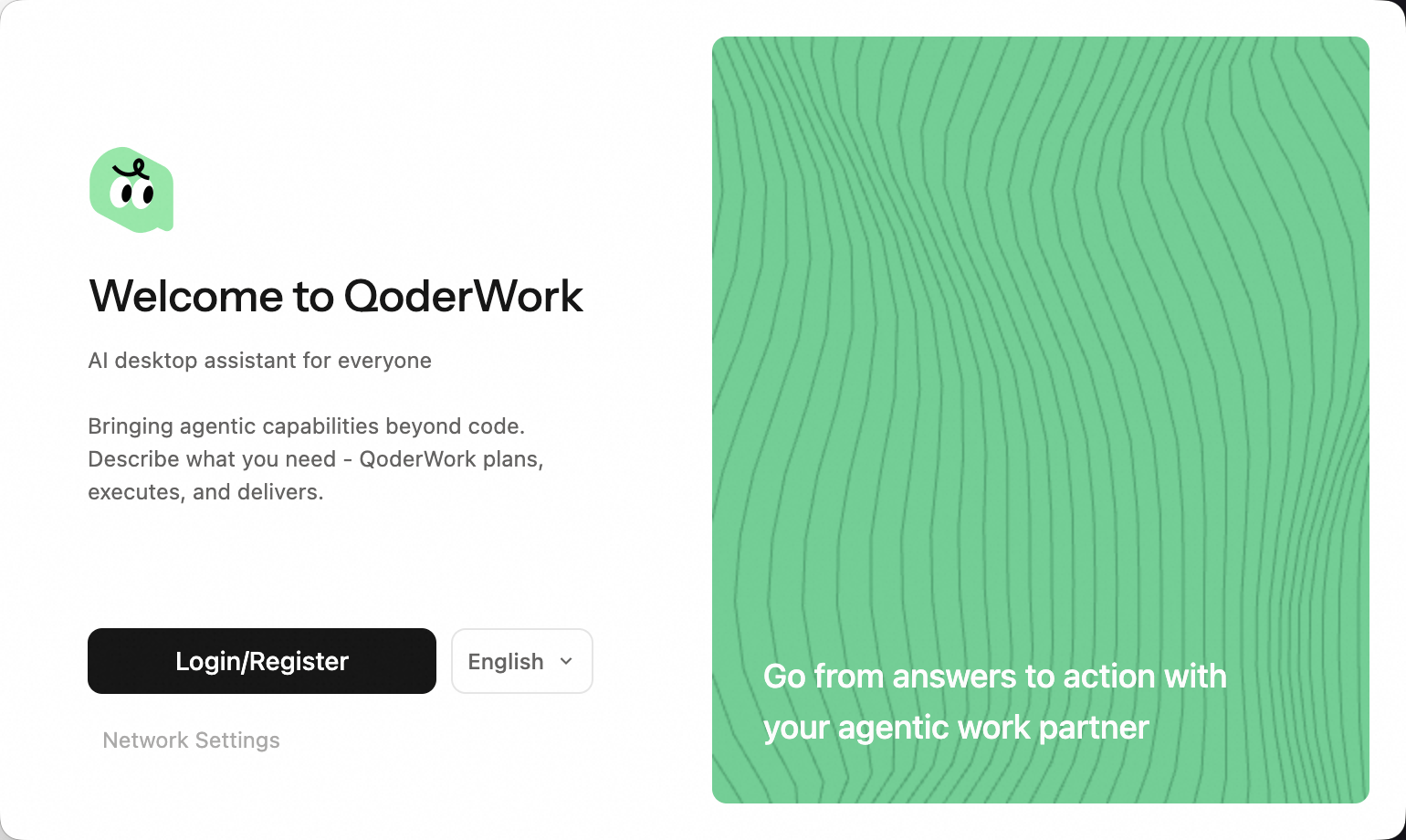 Returning users won't see this screen at all: QoderWork remembers your session, restores your previous tasks, and drops you directly into the workspace. Your account always lives in the **bottom-left corner** of the window. Click the avatar there to expand the account menu, which gives you quick access to plan status, settings, preferences, documentation, the changelog, and **Log out**.
Because QoderWork shares the same account system as Qoder Desktop and Qoder CLI, your Credits balance and plan entitlements move with you across all Qoder products.
QoderWork is a standalone app — there is no separate "QoderWork tab" inside another product. Once signed in, you land directly on the main workspace with the sidebar on the left.
Returning users won't see this screen at all: QoderWork remembers your session, restores your previous tasks, and drops you directly into the workspace. Your account always lives in the **bottom-left corner** of the window. Click the avatar there to expand the account menu, which gives you quick access to plan status, settings, preferences, documentation, the changelog, and **Log out**.
Because QoderWork shares the same account system as Qoder Desktop and Qoder CLI, your Credits balance and plan entitlements move with you across all Qoder products.
QoderWork is a standalone app — there is no separate "QoderWork tab" inside another product. Once signed in, you land directly on the main workspace with the sidebar on the left.
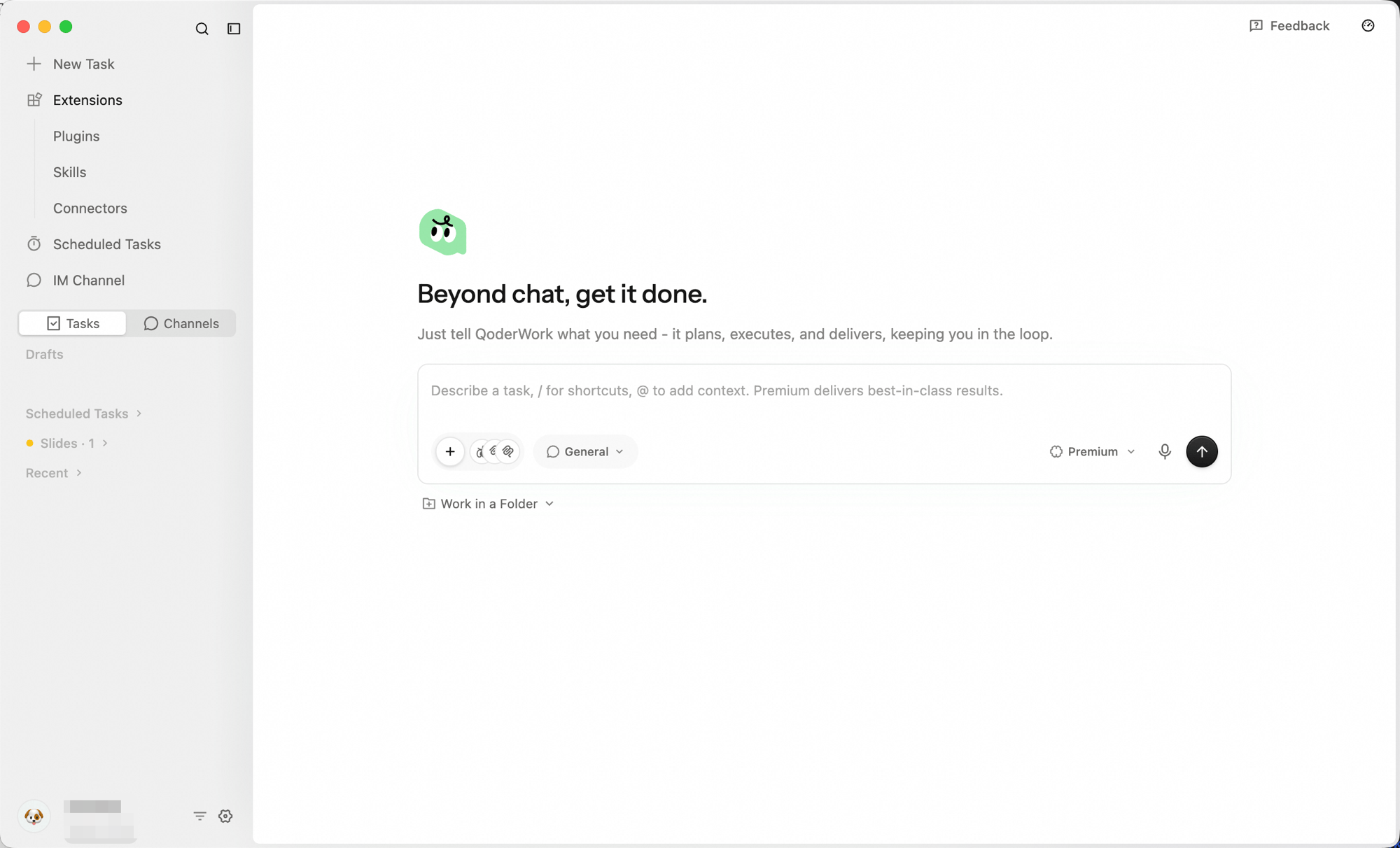 The sidebar gives you everything you need:
* **New Task** to start fresh,
* **Expert Kits / Skills / Connectors** to extend what the AI can do,
* **Scheduled Tasks** for recurring jobs,
* **IM Channel** for chat-based collaboration,
* and **Tasks / Channels** to revisit past work.
## Updating QoderWork
QoderWork checks for new versions in the background by default. When one is available, the app surfaces an update prompt — the download and relaunch only happen after you confirm. Nothing is replaced without your consent.
To check immediately, click **QoderWork → Check for Updates** from the macOS menu bar.
## Uninstalling
If you ever need to remove QoderWork:
1. Quit the app (right-click in the Dock → **Quit**).
2. Open **Finder → Applications**, then drag **QoderWork** to the Trash.
3. Empty the Trash to complete the removal.
To also clear local configuration and cached task data, remove the app's support directory:
```bash theme={null}
rm -rf ~/.qoderwork
```
Note that this deletes local task history that hasn't been synced. Sign out from the account menu first if you want to keep things tidy on the server side.
## Next Steps
Run your first task in 5 minutes
Get familiar with QoderWork's window layout
The sidebar gives you everything you need:
* **New Task** to start fresh,
* **Expert Kits / Skills / Connectors** to extend what the AI can do,
* **Scheduled Tasks** for recurring jobs,
* **IM Channel** for chat-based collaboration,
* and **Tasks / Channels** to revisit past work.
## Updating QoderWork
QoderWork checks for new versions in the background by default. When one is available, the app surfaces an update prompt — the download and relaunch only happen after you confirm. Nothing is replaced without your consent.
To check immediately, click **QoderWork → Check for Updates** from the macOS menu bar.
## Uninstalling
If you ever need to remove QoderWork:
1. Quit the app (right-click in the Dock → **Quit**).
2. Open **Finder → Applications**, then drag **QoderWork** to the Trash.
3. Empty the Trash to complete the removal.
To also clear local configuration and cached task data, remove the app's support directory:
```bash theme={null}
rm -rf ~/.qoderwork
```
Note that this deletes local task history that hasn't been synced. Sign out from the account menu first if you want to keep things tidy on the server side.
## Next Steps
Run your first task in 5 minutes
Get familiar with QoderWork's window layout