> ## Documentation Index
> Fetch the complete documentation index at: https://docs.qoder.com/llms.txt
> Use this file to discover all available pages before exploring further.
# Viewing Results
> Use Working Folders to let QoderWork process your local files
QoderWork can directly read and write files on your computer—no manual uploading or downloading needed. To protect your privacy and security, all file access requires your explicit authorization. This page explains how to use the Working Folder feature to efficiently process local files.
## Working Folder
A "Working Folder" is a local directory you authorize QoderWork to access. Once selected, AI can read all files and subfolders within it. This is the core mechanism for how QoderWork handles file-related tasks.
### Selecting a Working Folder
Click **+ New Task** to create a conversation.
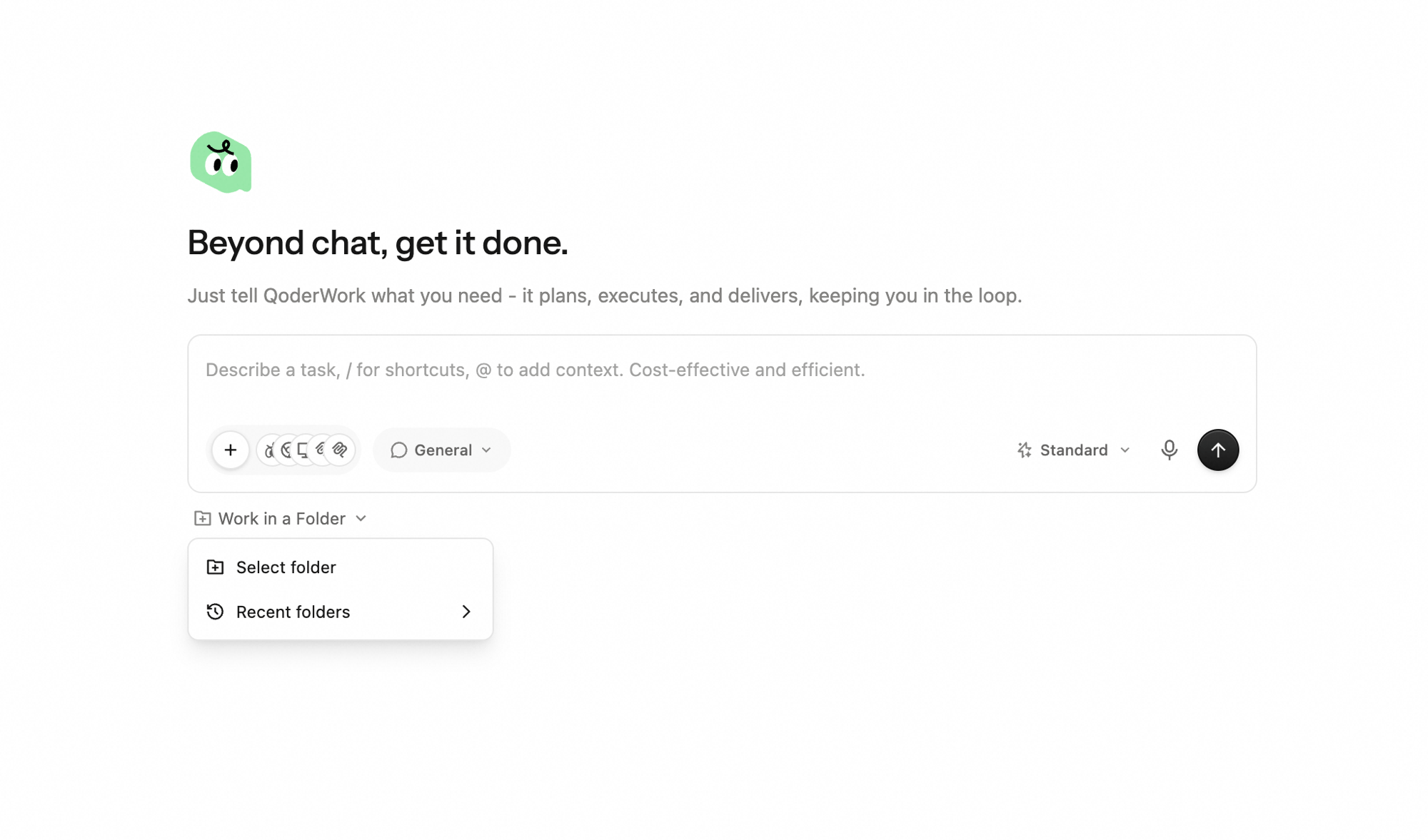
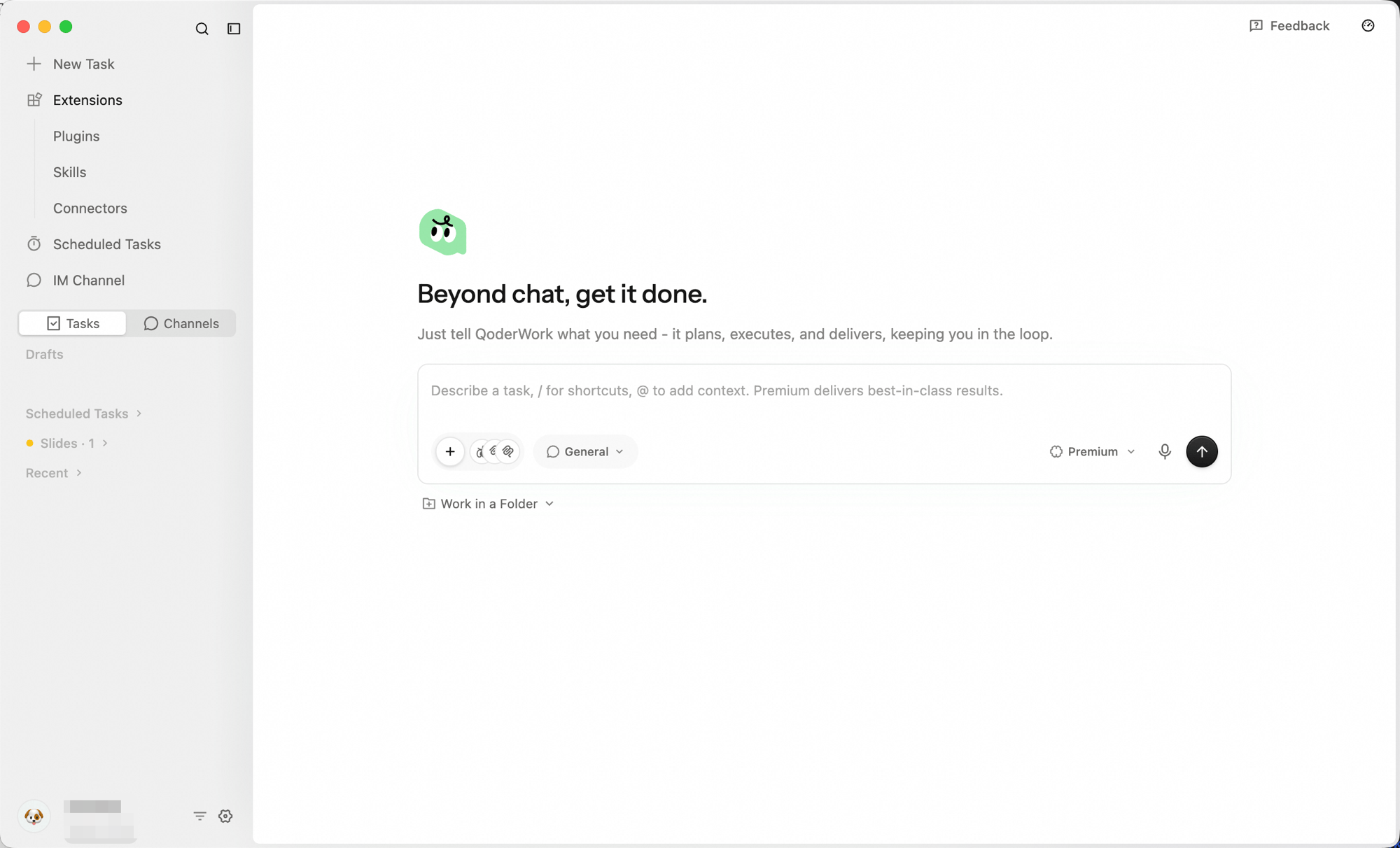 Below the input box, click **Work in a Folder**. A file picker will appear — select the folder you want to work with.
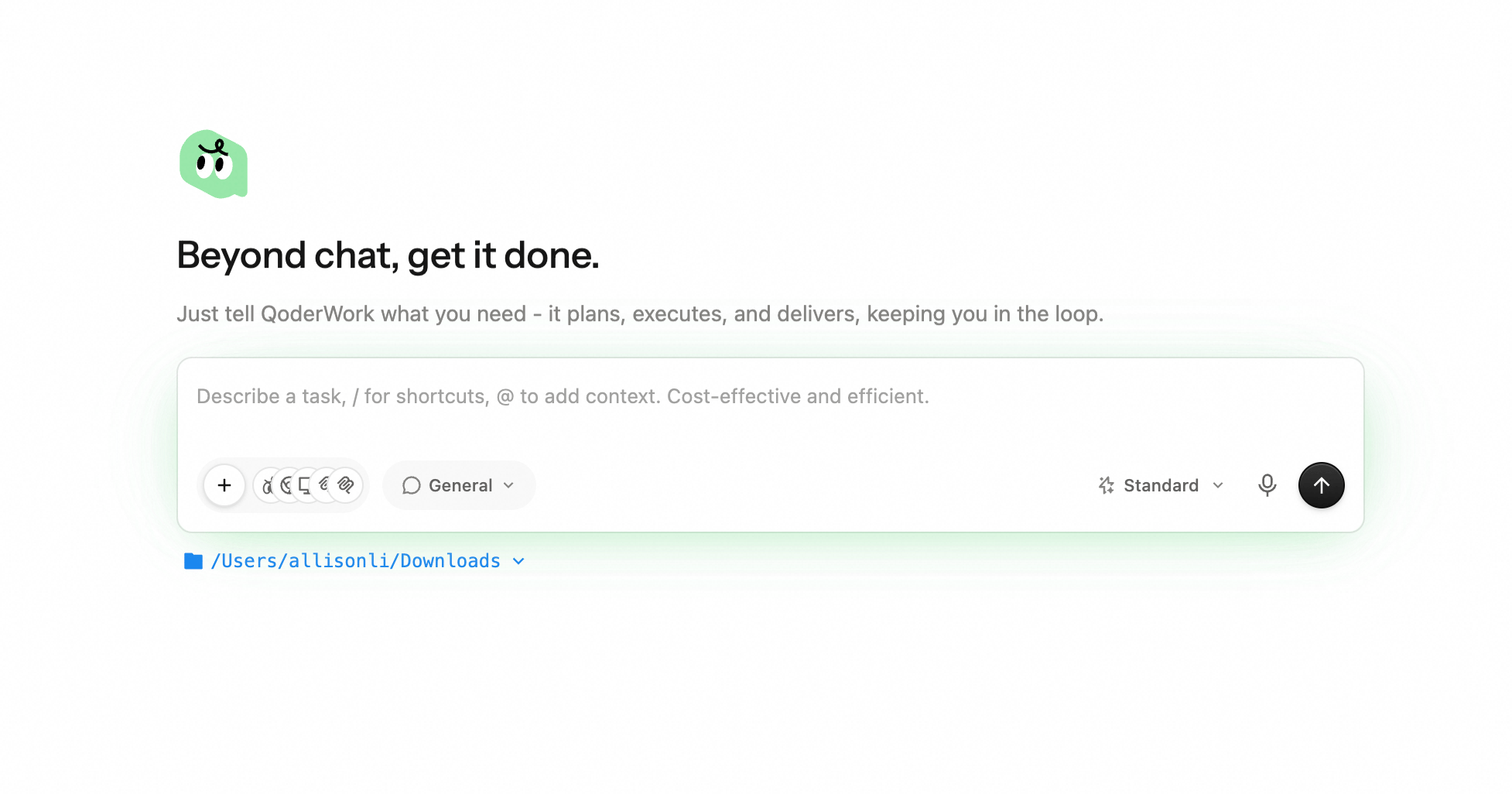
 Once selected, the folder name appears below the input box. Now just type your task—the AI will automatically read the folder's contents.
 Each task can only be associated with one Working Folder. If you need to process files from different folders, create separate tasks for each.
### When to Use a Working Folder
| Scenario | Recommended Approach |
| :--------------------------------------------------------- | :------------------------------------------- |
| Processing a single file (e.g., one PDF) | Drag and drop directly into the conversation |
| Processing multiple related files (e.g., a set of reports) | Use a Working Folder |
| Files are added over time (e.g., monthly data) | Use a Working Folder |
| You need output saved to a specific location | Use a Working Folder |
## File Security
QoderWork follows strict security rules for file operations:
**Only accesses directories you authorize.** If a task needs files from other locations, QoderWork will ask for your permission first.
**Never permanently deletes files.** Even if you ask to "delete files," QoderWork moves them to the system trash rather than permanently deleting them.
**File content is never permanently stored.** File content is sent to the AI model for understanding and analysis during processing but is not permanently saved in the cloud.
## Input and Output
### Supported Input File Types
QoderWork can read virtually all common file formats:
* **Documents**: PDF, Word (.docx), Markdown, plain text, RTF
* **Spreadsheets**: Excel (.xlsx/.xls), CSV, TSV
* **Images**: PNG, JPG, SVG, GIF (with OCR text recognition)
* **Code**: Source files in any programming language
* **Presentations**: PowerPoint (.pptx)
* **Data**: JSON, YAML, XML, SQL
### Supported Output File Types
QoderWork can generate files in various formats:
* **Documents**: Word (.docx), PDF, Markdown, HTML
* **Spreadsheets**: Excel (.xlsx), CSV
* **Presentations**: PowerPoint (.pptx)
* **Images**: PNG, SVG
* **Data Visualization**: Interactive HTML reports
* **Code**: Code files in any language
* **Other**: JSON, XML, and other structured data
### Viewing and Retrieving Output
After a task completes, generated files appear as cards in the conversation. You can:
* Click a card to open the file directly on your system
* Files are already saved in your Working Folder—access them via Finder / File Explorer anytime
## Folder Organization Tips
Good folder organization significantly improves QoderWork's effectiveness.
### One Folder, One Topic
Keep files for the same type of work in one folder. Don't mix unrelated content.
```plaintext theme={null}
Good
Desktop/Q1-Sales-Report/
├── January-Sales.xlsx
├── February-Sales.xlsx
├── March-Sales.xlsx
└── Historical-Comparison.xlsx
Not ideal
Desktop/Work/
├── January-Sales.xlsx
├── Weekend-Trip-Guide.pdf
├── Cat-Photo.jpg
└── February-Sales.xlsx
```
### Clear File Naming
Use dates or sequential numbers at the beginning so files have a natural order:
```plaintext theme={null}
Good
2024-01-Monthly-Report.xlsx
2024-02-Monthly-Report.xlsx
2024-03-Monthly-Report.xlsx
Not ideal
Report.xlsx
Report(1).xlsx
New-Report-Final-v2.xlsx
```
### Keep Formats Consistent
If multiple files in a folder need to be processed together (e.g., merging multiple reports), make sure they use the same format and column names. Consistent formatting dramatically improves accuracy when QoderWork aligns data.
## Common Operations
### Batch Read and Summarize
```plaintext theme={null}
Read all Excel files in the folder,
merge all data, calculate total monthly sales,
and save a summary as "Annual-Summary.xlsx"
```
### Batch Format Conversion
```plaintext theme={null}
Convert all PDFs in the folder to Word format.
Preserve original formatting and images.
Save converted files in the same folder.
```
### Organize Files by Rules
```plaintext theme={null}
Scan all files in the current folder.
Automatically create subfolders by file type and sort them:
Images → images/
Documents → docs/
Spreadsheets → spreadsheets/
Other → misc/
```
### Extract Content from Images
```plaintext theme={null}
Read all receipt photos in the folder.
Extract the date, amount, and merchant from each receipt.
Compile everything into an Excel spreadsheet.
```
## Next Steps
Pick models, workspaces, and extensions for new tasks
Enable expert kits for domain-specific work
Generate designs as code on a canvas
Each task can only be associated with one Working Folder. If you need to process files from different folders, create separate tasks for each.
### When to Use a Working Folder
| Scenario | Recommended Approach |
| :--------------------------------------------------------- | :------------------------------------------- |
| Processing a single file (e.g., one PDF) | Drag and drop directly into the conversation |
| Processing multiple related files (e.g., a set of reports) | Use a Working Folder |
| Files are added over time (e.g., monthly data) | Use a Working Folder |
| You need output saved to a specific location | Use a Working Folder |
## File Security
QoderWork follows strict security rules for file operations:
**Only accesses directories you authorize.** If a task needs files from other locations, QoderWork will ask for your permission first.
**Never permanently deletes files.** Even if you ask to "delete files," QoderWork moves them to the system trash rather than permanently deleting them.
**File content is never permanently stored.** File content is sent to the AI model for understanding and analysis during processing but is not permanently saved in the cloud.
## Input and Output
### Supported Input File Types
QoderWork can read virtually all common file formats:
* **Documents**: PDF, Word (.docx), Markdown, plain text, RTF
* **Spreadsheets**: Excel (.xlsx/.xls), CSV, TSV
* **Images**: PNG, JPG, SVG, GIF (with OCR text recognition)
* **Code**: Source files in any programming language
* **Presentations**: PowerPoint (.pptx)
* **Data**: JSON, YAML, XML, SQL
### Supported Output File Types
QoderWork can generate files in various formats:
* **Documents**: Word (.docx), PDF, Markdown, HTML
* **Spreadsheets**: Excel (.xlsx), CSV
* **Presentations**: PowerPoint (.pptx)
* **Images**: PNG, SVG
* **Data Visualization**: Interactive HTML reports
* **Code**: Code files in any language
* **Other**: JSON, XML, and other structured data
### Viewing and Retrieving Output
After a task completes, generated files appear as cards in the conversation. You can:
* Click a card to open the file directly on your system
* Files are already saved in your Working Folder—access them via Finder / File Explorer anytime
## Folder Organization Tips
Good folder organization significantly improves QoderWork's effectiveness.
### One Folder, One Topic
Keep files for the same type of work in one folder. Don't mix unrelated content.
```plaintext theme={null}
Good
Desktop/Q1-Sales-Report/
├── January-Sales.xlsx
├── February-Sales.xlsx
├── March-Sales.xlsx
└── Historical-Comparison.xlsx
Not ideal
Desktop/Work/
├── January-Sales.xlsx
├── Weekend-Trip-Guide.pdf
├── Cat-Photo.jpg
└── February-Sales.xlsx
```
### Clear File Naming
Use dates or sequential numbers at the beginning so files have a natural order:
```plaintext theme={null}
Good
2024-01-Monthly-Report.xlsx
2024-02-Monthly-Report.xlsx
2024-03-Monthly-Report.xlsx
Not ideal
Report.xlsx
Report(1).xlsx
New-Report-Final-v2.xlsx
```
### Keep Formats Consistent
If multiple files in a folder need to be processed together (e.g., merging multiple reports), make sure they use the same format and column names. Consistent formatting dramatically improves accuracy when QoderWork aligns data.
## Common Operations
### Batch Read and Summarize
```plaintext theme={null}
Read all Excel files in the folder,
merge all data, calculate total monthly sales,
and save a summary as "Annual-Summary.xlsx"
```
### Batch Format Conversion
```plaintext theme={null}
Convert all PDFs in the folder to Word format.
Preserve original formatting and images.
Save converted files in the same folder.
```
### Organize Files by Rules
```plaintext theme={null}
Scan all files in the current folder.
Automatically create subfolders by file type and sort them:
Images → images/
Documents → docs/
Spreadsheets → spreadsheets/
Other → misc/
```
### Extract Content from Images
```plaintext theme={null}
Read all receipt photos in the folder.
Extract the date, amount, and merchant from each receipt.
Compile everything into an Excel spreadsheet.
```
## Next Steps
Pick models, workspaces, and extensions for new tasks
Enable expert kits for domain-specific work
Generate designs as code on a canvas