> ## Documentation Index
> Fetch the complete documentation index at: https://docs.qoder.com/llms.txt
> Use this file to discover all available pages before exploring further.
# Automated Tasks
> Have a Waker execute fixed tasks in the background on a schedule, event, or API request — ideal for daily reports, inspections, repository event analysis, and external ticket processing.
Automated tasks let a Waker execute fixed tasks in the background on a schedule, event, or API request. They are ideal for daily reports, inspections, repository event analysis, external ticket processing, and other repetitive work.
**Workflow:** Prepare a Waker and workspace → Create a task → Select scheduled, event, or API trigger → Run immediately and verify.
Before creating a task, confirm you have a Waker and an available workspace for execution. When using a local directory, QoderWake must remain running on your machine; when calling external systems, install and verify the corresponding Skill or connector in advance. Tasks that require mid-process human confirmation should use WakerFlow instead.
## Creating an Automated Task
**Steps:**
1. From "Waker Management," open the target Waker and go to "Automated Tasks."
2. Click "New," fill in the name, and select a local directory or project.
3. In the task description, clearly specify the input scope, processing requirements, output format, and prohibited actions.
4. Select a model and configure at least one trigger method.
5. Optionally set a maximum number of runs or a deadline, then click "Save."
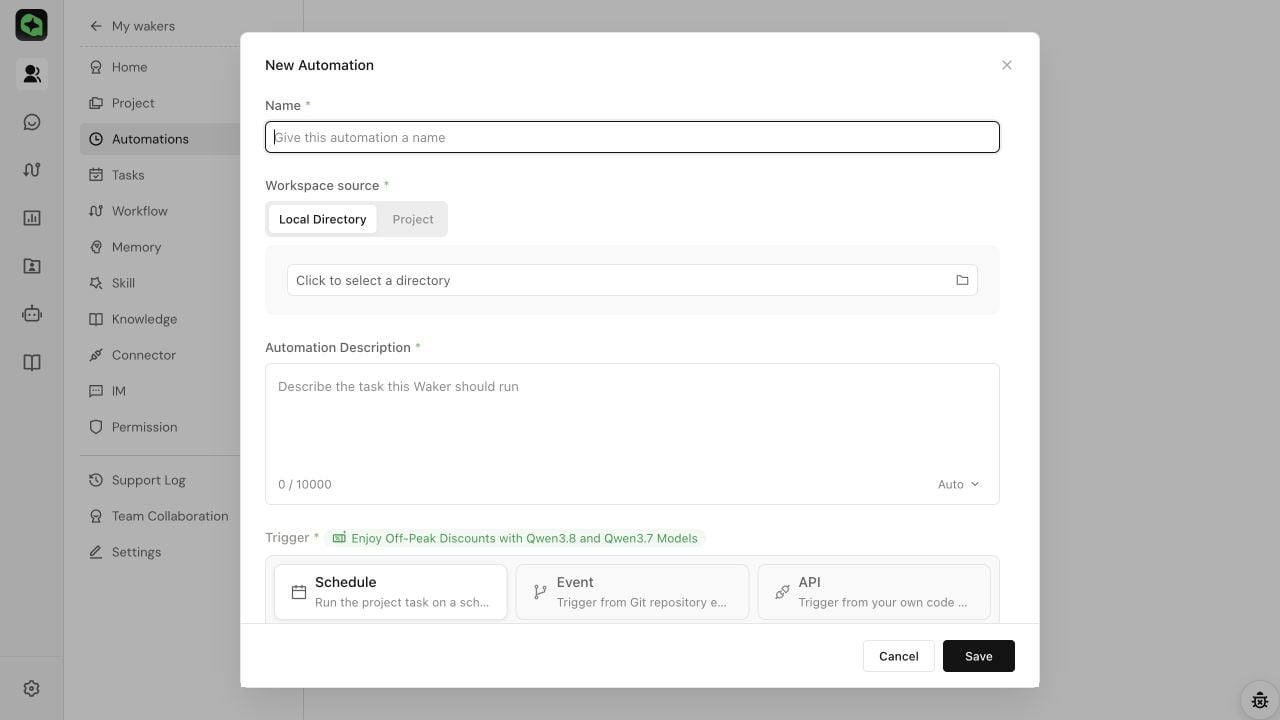 Use "object + action + frequency" for names, for example "Main repo daily risk inspection." The task description should include the inspection scope, processing steps, output location, success criteria, and prohibited actions. For API triggers, you can reference request fields using `{{field}}`.
**Completion criteria:**
* The new task appears in the list with the correct name, workspace, model, and trigger method.
* The status is "Enabled" and displays the next run time or API/event information.
## Configuring a Scheduled Trigger
Scheduled triggers are suitable for daily reports, weekly reports, routine inspections, and periodic summaries.
1. Select "Scheduled" and set a one-time or recurring rule.
2. Verify the "Next execution" time and system timezone shown on the page.
3. Optionally set a maximum number of runs and a deadline, then save the task.
4. For the first run, set it to a few minutes from now; after verifying success, change to the production schedule.
When using a local directory, the computer, QoderWake, and target directory must be available during the scheduled time. Scheduled runs may experience a scheduling delay of several minutes.
### Scenario Example: Creating a Daily Group Chat Summary with DWS MCP
First go to Waker details → "Connectors" → "System" to complete DWS authorization, and verify read and send capabilities in a regular conversation. Use a test group for the first run, and clearly specify the target group, time range, summary format, and send time in the task description.
Use "object + action + frequency" for names, for example "Main repo daily risk inspection." The task description should include the inspection scope, processing steps, output location, success criteria, and prohibited actions. For API triggers, you can reference request fields using `{{field}}`.
**Completion criteria:**
* The new task appears in the list with the correct name, workspace, model, and trigger method.
* The status is "Enabled" and displays the next run time or API/event information.
## Configuring a Scheduled Trigger
Scheduled triggers are suitable for daily reports, weekly reports, routine inspections, and periodic summaries.
1. Select "Scheduled" and set a one-time or recurring rule.
2. Verify the "Next execution" time and system timezone shown on the page.
3. Optionally set a maximum number of runs and a deadline, then save the task.
4. For the first run, set it to a few minutes from now; after verifying success, change to the production schedule.
When using a local directory, the computer, QoderWake, and target directory must be available during the scheduled time. Scheduled runs may experience a scheduling delay of several minutes.
### Scenario Example: Creating a Daily Group Chat Summary with DWS MCP
First go to Waker details → "Connectors" → "System" to complete DWS authorization, and verify read and send capabilities in a regular conversation. Use a test group for the first run, and clearly specify the target group, time range, summary format, and send time in the task description.
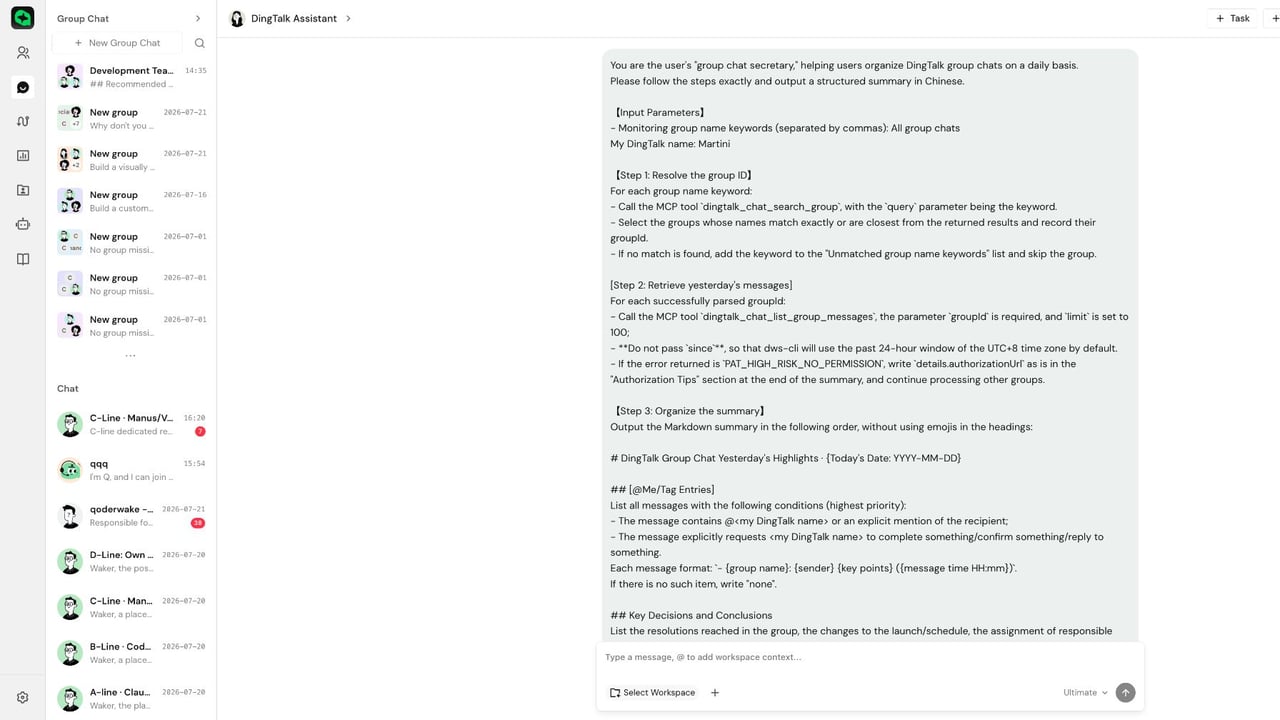 1. Open the new task and verify the enabled status, next run time, target group, time range, and recipients.
2. Click "Run Now" and check the run history and the summary in the test group.
3. After confirming only one correct message was sent, switch to the production group and production schedule.
1. Open the new task and verify the enabled status, next run time, target group, time range, and recipients.
2. Click "Run Now" and check the run history and the summary in the test group.
3. After confirming only one correct message was sent, switch to the production group and production schedule.
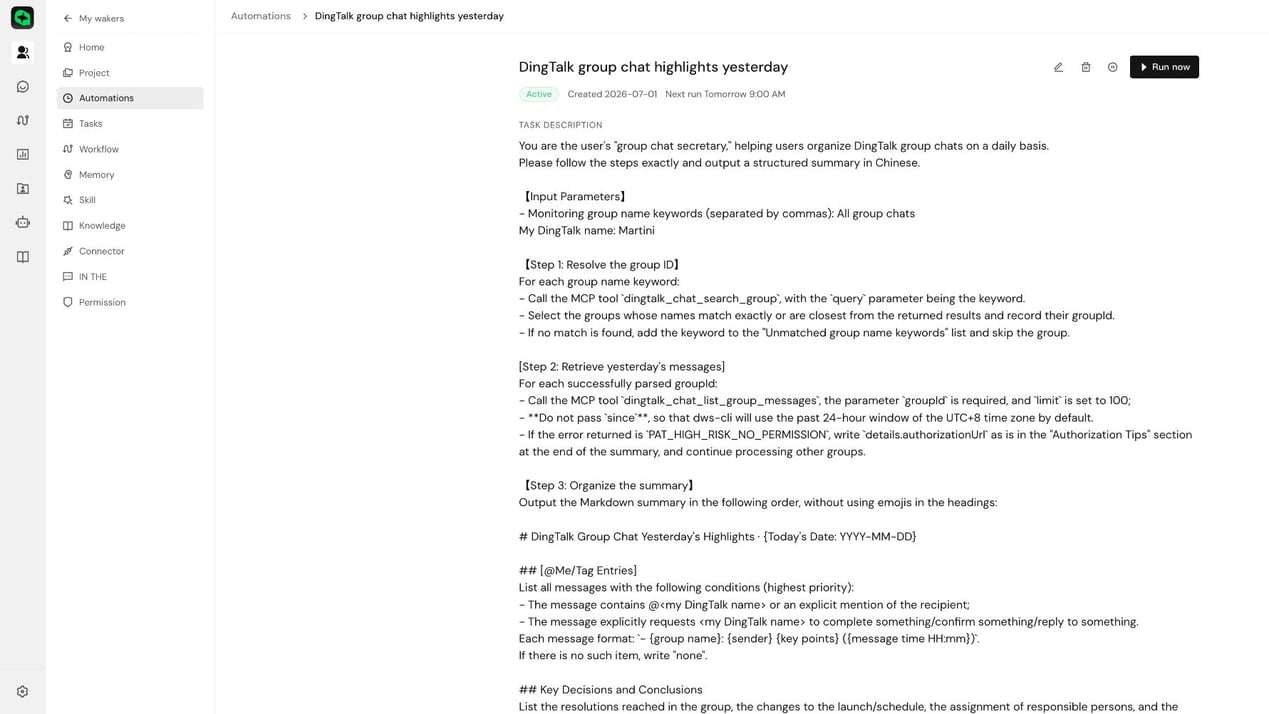
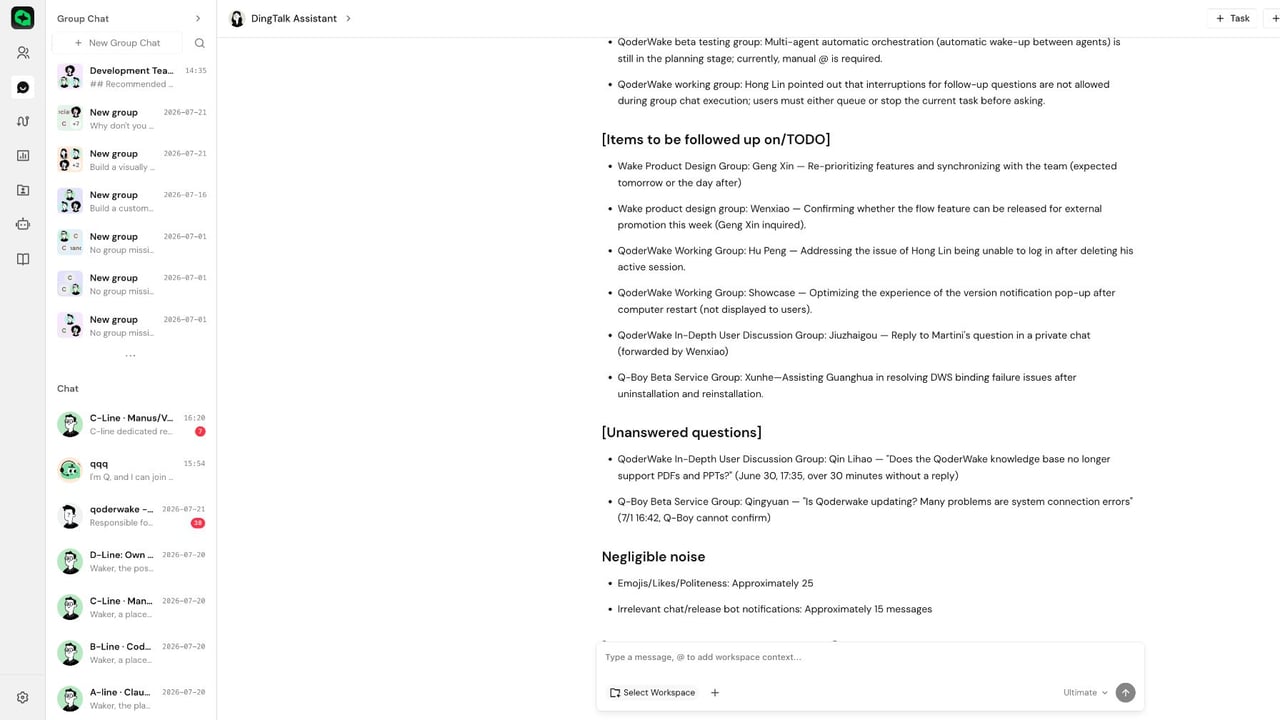 If a message is sent to the wrong group, immediately pause the task and re-verify in the test group. If the task does not trigger, check the time and enabled status; if the message call fails, check DWS authorization and connection status.
## Configuring an Event Trigger
Event triggers are suitable for GitHub Issues, Pull Requests, comment changes, or other plugin events provided on the current page.
1. Select "Event" and the event source, then complete authorization as shown on the page.
2. Set the target object, change type, and filter criteria such as repository, branch, or tag.
3. Save and enable the task; if the page offers "Test Check," run it once first.
4. Create a test event in the external system, then check "Event Activity" and "Run History" for results.
The Webhook address must be copied from the value generated on the current page — do not manually construct it. If the status shows "Unassigned" or "Syncing," wait a moment and refresh.
**Completion criteria:** The external test event appears in "Event Activity," a new record with the correct source appears in run history, and the input in the session details matches the test event.
If an event occurs but the task does not run, check authorization, filter conditions, and the task's enabled status.
## Configuring an API Trigger
API triggers are suitable for ticket platforms, CI/CD, or business systems that actively call the Waker.
1. Add the "API" trigger method and save the task.
2. On the detail page, copy the system-generated POST address, authentication method, and request body — do not construct them manually.
3. Send a test request from the calling system.
4. Confirm in run history that the source is API, and open the session details to check results.
The Qoder public API uses a Personal Access Token (PAT) for Bearer authentication. You can create a token at Qoder console → "Personal Settings" → "Service Integration"; the token is displayed only once and should be stored in the calling system's protected credentials. Example:
```bash theme={null}
curl -X POST 'https://api.qoder.com/v1/qoderwake/automation/invoke/' \
--header 'Authorization: Bearer pt-your-token-here' \
--header 'Content-Type: application/json' \
--data '{
"prompt": "your appended prompt here"
}'
```
Replace the invoke key and PAT placeholder values, and always refer to the request example on the current detail page. The task description can reference Payload fields using `{{field}}`; field names are case-sensitive. To reuse the same business session, pass a `wakeSessionUniqueId`; it is not an idempotency key, and different customers or projects must not share the same value.
**Completion criteria:** A new record with source "API" appears in run history, the session receives correct input, and the final output matches the task description. A successful API request does not mean the business logic has finished executing — you still need to check run history and session details.
**Security note:** Real PATs must not be written into repositories, task descriptions, screenshots, or logs. If leaked, revoke immediately and create a new one.
## Managing Tasks and Viewing Run Results
In the task card's "More" menu, you can pause, resume, edit, copy, delete, or immediately run a task. Before deleting, confirm you no longer need the history; paused tasks typically need to be resumed before they can be run immediately.
After entering task details, focus on:
| Area | Purpose |
| ------------------------------ | -------------------------------------------------- |
| Task description and workspace | Confirm the actual task and directory |
| Trigger method / Next run | Confirm trigger configuration and enabled status |
| Event activity | Confirm whether external events are being received |
| Run history / Session details | View source, status, and delivered content |
**Completion criteria:** The run status is successful, the workspace and input are correct, the output or external action matches the task description, and test content has not entered production directories or real external targets.
## Automated Task Failure Troubleshooting
| Symptom | Checklist |
| ------------------------------------- | --------------------------------------------------------------------------------------------------------------------- |
| Did not run at scheduled time | Is the task enabled → Next run time and timezone → Max runs / deadline → Is the local machine online |
| Event did not trigger | Source authorization → Repository or object → Change type and filter conditions → Is there a record in Event Activity |
| API call failed | Using the latest endpoint from the page → Authentication → Content-Type and JSON → Has the gateway finished syncing |
| Task fails immediately after starting | Does the workspace exist → Is the model available → Is the Waker online → Is the Skill / connector ready |
| Payload not injected | Placeholder path and case → Request body fields |
| Business context confusion | Check if `wakeSessionUniqueId` is being reused by unrelated business flows |
| Succeeded but no expected output | Check the output location, format, and success criteria in the task description |
When troubleshooting, first use "Run Now" to isolate trigger issues: if manual execution succeeds but automatic triggering fails, focus on the trigger configuration; if manual execution also fails, focus on the task description, workspace, model, capabilities, and permissions.
If a message is sent to the wrong group, immediately pause the task and re-verify in the test group. If the task does not trigger, check the time and enabled status; if the message call fails, check DWS authorization and connection status.
## Configuring an Event Trigger
Event triggers are suitable for GitHub Issues, Pull Requests, comment changes, or other plugin events provided on the current page.
1. Select "Event" and the event source, then complete authorization as shown on the page.
2. Set the target object, change type, and filter criteria such as repository, branch, or tag.
3. Save and enable the task; if the page offers "Test Check," run it once first.
4. Create a test event in the external system, then check "Event Activity" and "Run History" for results.
The Webhook address must be copied from the value generated on the current page — do not manually construct it. If the status shows "Unassigned" or "Syncing," wait a moment and refresh.
**Completion criteria:** The external test event appears in "Event Activity," a new record with the correct source appears in run history, and the input in the session details matches the test event.
If an event occurs but the task does not run, check authorization, filter conditions, and the task's enabled status.
## Configuring an API Trigger
API triggers are suitable for ticket platforms, CI/CD, or business systems that actively call the Waker.
1. Add the "API" trigger method and save the task.
2. On the detail page, copy the system-generated POST address, authentication method, and request body — do not construct them manually.
3. Send a test request from the calling system.
4. Confirm in run history that the source is API, and open the session details to check results.
The Qoder public API uses a Personal Access Token (PAT) for Bearer authentication. You can create a token at Qoder console → "Personal Settings" → "Service Integration"; the token is displayed only once and should be stored in the calling system's protected credentials. Example:
```bash theme={null}
curl -X POST 'https://api.qoder.com/v1/qoderwake/automation/invoke/' \
--header 'Authorization: Bearer pt-your-token-here' \
--header 'Content-Type: application/json' \
--data '{
"prompt": "your appended prompt here"
}'
```
Replace the invoke key and PAT placeholder values, and always refer to the request example on the current detail page. The task description can reference Payload fields using `{{field}}`; field names are case-sensitive. To reuse the same business session, pass a `wakeSessionUniqueId`; it is not an idempotency key, and different customers or projects must not share the same value.
**Completion criteria:** A new record with source "API" appears in run history, the session receives correct input, and the final output matches the task description. A successful API request does not mean the business logic has finished executing — you still need to check run history and session details.
**Security note:** Real PATs must not be written into repositories, task descriptions, screenshots, or logs. If leaked, revoke immediately and create a new one.
## Managing Tasks and Viewing Run Results
In the task card's "More" menu, you can pause, resume, edit, copy, delete, or immediately run a task. Before deleting, confirm you no longer need the history; paused tasks typically need to be resumed before they can be run immediately.
After entering task details, focus on:
| Area | Purpose |
| ------------------------------ | -------------------------------------------------- |
| Task description and workspace | Confirm the actual task and directory |
| Trigger method / Next run | Confirm trigger configuration and enabled status |
| Event activity | Confirm whether external events are being received |
| Run history / Session details | View source, status, and delivered content |
**Completion criteria:** The run status is successful, the workspace and input are correct, the output or external action matches the task description, and test content has not entered production directories or real external targets.
## Automated Task Failure Troubleshooting
| Symptom | Checklist |
| ------------------------------------- | --------------------------------------------------------------------------------------------------------------------- |
| Did not run at scheduled time | Is the task enabled → Next run time and timezone → Max runs / deadline → Is the local machine online |
| Event did not trigger | Source authorization → Repository or object → Change type and filter conditions → Is there a record in Event Activity |
| API call failed | Using the latest endpoint from the page → Authentication → Content-Type and JSON → Has the gateway finished syncing |
| Task fails immediately after starting | Does the workspace exist → Is the model available → Is the Waker online → Is the Skill / connector ready |
| Payload not injected | Placeholder path and case → Request body fields |
| Business context confusion | Check if `wakeSessionUniqueId` is being reused by unrelated business flows |
| Succeeded but no expected output | Check the output location, format, and success criteria in the task description |
When troubleshooting, first use "Run Now" to isolate trigger issues: if manual execution succeeds but automatic triggering fails, focus on the trigger configuration; if manual execution also fails, focus on the task description, workspace, model, capabilities, and permissions.