# Credits
Source: https://docs.qoder.com/Credits
## **What are Qoder Credits?**
Users don't have unlimited access to premium large language models. Instead, there's a quota system based on credits. Credits represent the resource quota consumed by AI when performing tasks. In Qoder, the following user requests will consume Credits:
* Editor
* Inline Chat
* Ask Mode
* Agent Mode
* Quest
* Agent Mode
* Experts Mode
* Knowledge Engine
* Repo Wiki
* Knowledge Card
Keep in mind that the number of Credits used can vary depending on the complexity of the task and the specific premium model involved. For a detailed breakdown of how Credits are consumed for different tasks, check out our [Task and Credits Consumption Guide](https://docs.qoder.com/Credits#task-and-credits-consumption-guide).
## **How to deduct the Credits?**
Credits acquired at different times have varying expiration dates. Our system automatically uses the credits that are set to expire first, ensuring you maximize the value of your credits.
Even when a user has used up their quota for premium models, i.e. their credits have been depleted, we still provide a limited daily allowance of basic model calls. This ensures that our users can continue to use our product's core features without interruption.
## **Error**
Failed Qoder model requests do not result in Credits deductions. Credits are only consumed when a model API call is successful.
## **Task and Credits Consumption Guide**
Different tasks require different models, each with its own associated costs. To address this, we've analyzed the resource consumption of our users' online activities. Based on this data, we've established a correlation between the usage of various models and credits consumption. This approach helps our users better understand how we calculate and deduct credits for different operations.
> For example, a single Ask Mode request in Editor might use a premium large language model, consuming a certain number of Input and Output Tokens. The credits deducted are calculated based on the model used and the total token consumption for both input and output. When a User sends an Agent Mode request in Editor, it often involves multiple premium model calls behind the scenes, using significantly more resources than a simple Ask request. Quest Experts Mode coordinates multiple agents in parallel and typically uses even more resources. As for the Knowledge Engine, Repo Wiki resource consumption is measured based on the model inference required to generate a knowledge base for a specific code repository.
The values shown in the table are just estimates based on our statistical analysis. Actual credits deductions may vary and will be based on real-time usage. We're also working on optimizations to ensure we can get the same work done while using fewer resources.
| | Median (50K context window) | Median (200K context window) |
| :--------------------------- | :-------------------------- | :--------------------------- |
| Editor - Ask Mode | \~ 3 Credits / User Request | \~ 4 Credits / User Request |
| Editor - Agent Mode | \~ 7 Credits / User Request | \~ 12 Credits / User Request |
| Quest - Agent Mode | / | \~ 50 Credits / User Request |
| Quest - Experts Mode | / | \~ 75 Credits / User Request |
| Knowledge Engine - Repo Wiki | / | \~ 50 Credits / Repository |
**Note:** In the future, as we roll out new features, we may update our credits consumption rates based on the resources these features require. This means the number of credits deducted for certain actions might change to reflect the actual resource usage of new functionalities.
## **Checking Your Credits Usage**
### View Usage in IDE
You can find the Credits usage button in the bottom-right corner of the IDE. Click it to view a usage preview and shared add-on credits status.
### View Usage on Website
Log in to the Qoder website. Click on your avatar in the top-right corner. Navigate to Settings > Usage.
Here, you'll find your current Plan and a breakdown of available and used Credits:
* **Plan Credits**: Credits included in your subscription plan, valid for the current billing period. They reset to zero when the period ends.
* **Add-on Credits**: Acquired through purchases or promotional events, for personal use only. See [Credit Packs](https://docs.qoder.com/account/pricing#credit-pack) for details.
* **Usage Priority**: The system always consumes Credits expiring soonest first. When expiration dates are the same, Plan Credits are used before Add-on Credits.
* **Expiration**: Different types of Credits have their own expiration dates. You can view the projected expiration in the Credits log. (Note that actual expiration may occur earlier due to factors like account upgrades. See the Credits log section below for details.)
**Get More Credits**: Once your Credits run out, you can still use basic models, subject to their own usage limits. You can [upgrade your plan](https://qoder.com/pricing) or [purchase a Credit Pack](https://docs.qoder.com/account/pricing#credit-pack) at any time.
**Get More Credits**: Once your Credits run out, you can still use basic models, subject to their own usage limits. You can [purchase a Credit Pack](https://docs.qoder.com/account/pricing#credit-pack) at any time.
## **Credits Log: Credits History and Tracking**
The credits acquisition history provides a comprehensive record of all credits received, including the reason for acquisition, the amount, and the effective and expiration dates. This allows you to easily track your credit sources.
Common acquisition types:
| Description | Details |
| :-------------- | :----------------------------------- |
| Plan Credits | Credits included in your plan |
| Credit Purchase | Purchased via Credit Packs |
| Bonus Credits | Granted through events or promotions |
Important Note on Expiration Dates: \
Please be aware that the expiration dates shown in the credits log are based on the initial projection at the time of issuance. Actual expiration dates may change due to account upgrades or other factors. To determine the true expiration date, you'll need to consider your Plan change history.
Remember, the credits log only shows the history of credits acquisitions. To check your current available credits usage, please refer to the 'Credits Usage' card in your account dashboard.
# Billing
Source: https://docs.qoder.com/account/Billing
This article covers billing for Qoder and shows you how to view and manage your subscription and invoices.
This article covers billing for Qoder **personal plans**. For Enterprise (Teams) plan billing and pricing, see [Teams Pricing](/account/teams/teams-pricing).
## Manage Your Plan
Sign in to the [Qoder website](https://qoder.com/account/plan), click your avatar in the top-right corner, and go to **Settings > Plan & Billing**.
Here, you can view your current subscription plan and easily upgrade to a higher tier.
## Orders & Invoices
In the **Invoices** section, you can view your entire payment history and download any of your past invoices for your records.
### Items & Order Types
| Item | Description |
| :---------- | :------------------- |
| Pro Plan | Pro subscription |
| Pro+ Plan | Pro+ subscription |
| Ultra Plan | Ultra subscription |
| Credit Pack | Personal Credit Pack |
| Order Type | Description |
| :--------- | :----------- |
| Purchase | New purchase |
| Renewal | Renewal |
You can filter the order list by Item and Order Type to quickly find the record you need.
### Order Status
| Status | Description |
| :-------- | :----------------------------- |
| Unpaid | Order created, pending payment |
| Paid | Payment completed successfully |
| Cancelled | Order has been cancelled |
### Invoice Details
Each order includes detailed item information such as the product name, quantity, discount details, and tax. For paid orders, the payment method is also recorded.
## Billing Cycle
Our subscriptions operate on a monthly billing cycle.
Your plan will automatically renew each month on the same date you originally subscribed. The renewal payment is processed one day before your current cycle expires. If the renewal payment fails, your subscription for the next cycle will be canceled, your account will be downgraded to the Community Edition, and any unused Credits will be forfeited.
**Billing Cycle Examples:**
* **Standard Subscription:** If you subscribe on August 16, 2025, your current billing cycle will end at 23:59:59 on September 16, 2025.
* **End-of-Month Subscription:** If you subscribe on February 28, 2025, your cycle ends at 23:59:59 on March 28, 2025. If you subscribe on March 31, 2025, your cycle ends at 23:59:59 on April 30, 2025 (as April does not have 31 days).
Credit Packs are one-time prepaid purchases and are not subject to auto-renewal. Each pack is valid for 1 month from the date of purchase; any unused Credits expire automatically.
## Accepted Payment Methods
We currently accept Visa, Mastercard, and Alipay. More payment methods are coming soon.
## Canceling Your Subscription
On the **Plan & Billing** page, find the **Plan** card and click **Manage > Cancel Subscription**.
Please note that the cancellation will take effect at the end of your current billing cycle. This means your subscription will not automatically renew. Your current subscription will remain active until its expiration date.
### **Billing FAQ**
**Why did my payment fail?**
A payment can fail for several reasons, including:
* **Insufficient funds:** Your account does not have enough money to cover the charge.
* **Expired or invalid card:** The card you used for the payment has expired, or the details were entered incorrectly.
* **Bank decline:** Your bank has rejected the payment request. Please contact your bank for more information.
**How do I update my billing information?**
You can update your billing address and manage payment methods on the **Settings > Plan & Billing > Manage Billing Information** page. **Your default payment method will be automatically charged for subscription renewals.** This change will apply to all future purchases and renewals.
We use Antom for secure payment processing. Please note that changes only affect future transactions; we are unable to modify information on past invoices.
**When does my plan renew and my limits reset?**
Your Individual plan will automatically renew on the last day of each billing cycle. The renewed plan becomes active on the following day, which marks the start of your new subscription period. At that time, your usage quotas will be refreshed according to your active plan.
**How can I request a refund?**
**Subscription refunds**: You are eligible for a refund if you request it within 24 hours of subscribing and have not used any Credits. To apply, please send your Qoder account and bills to [refund@qoder.com](mailto:refund@qoder.com). Qoder's support team will assist you with your issue as soon as possible. Refunds will take 5-10 days.
**Credit Pack refunds**: Credit Packs are **not refundable**. Please confirm your needs before purchasing.
**I have other billing questions. How can I get help?**
If you have a billing question that isn't answered here, please email us at [**contact@qoder.com**](mailto:contact@qoder.com).
For faster support, please write to us from the email address associated with your account and provide a detailed description of your issue.
# Pricing
Source: https://docs.qoder.com/account/pricing
For individual users, Qoder offers Community Edition, Pro, Pro+ and Ultra plans. For teams, we also offer a Teams plan. See our [Teams pricing](https://docs.qoder.com/account/teams/teams-pricing) for more details. Find the perfect plan for your needs.
## **Individual Plans**
The contents of each plan are as follows, and the paid plan is used as a natural monthly subscription. [Credits](https://docs.qoder.com/Credits) are used as the resource usage unit of Qoder.
| Plan | **Community Edition** | **Pro** | **Pro+** | Ultra |
| :-------------- | :---------------------------------------------------------------------------------------------------- | :------------------------------------------------------------------------------------------------------------------------------------------------- | :------------------------------------------------------------------------------------------------------------------------------------------------- | -------------------------------------------------------------------------------------------------------------------------------------------------- |
| Price | Free | 20 USD/mo | 60 USD/mo | 200 USD/mo |
| Functionalities | - 2-week Pro trial - Limited completions and next edits (NES) - Bring Your Own Key (BYOK) | - More completions and next edits (NES) - Limited Credits for chat and agent requests - Quest - Repo Wiki - Knowledge Card | - More completions and next edits (NES) - Limited Credits for chat and agent requests - Quest - Repo Wiki - Knowledge Card | - More completions and next edits (NES) - Limited Credits for chat and agent requests - Quest - Repo Wiki - Knowledge Card |
| Quota | - Basic models for limited user messages. | - 2,000 Credits / month for premium models - Once run out of credits, Qoder will switch to basic models, which have limited user messages. | - 6,000 Credits / month for premium models - Once run out of credits, Qoder will switch to basic models, which have limited user messages. | - 20,000 Credits / month for premium models - Once run out of credits, Qoder will switch to basic models, which have limited user messages. |
**NOTE**: Your Pro, Pro+ and Ultra plan quota covers premium model resources equivalent in value to your subscription fee (\$20 for Pro, \$60 for Pro+ and \$200 for Ultra) , plus any extra resource bonuses we provide. Credits in your plan are valid for the duration of your current subscription period. These credits will automatically reset to zero when your subscription period ends.
The 2-week Pro Trial includes
* 300 credits
* Unlimited Completions & Next Edits
* Chat Ask & Agent
* Experts Mode
* Quest
* Repo Wiki
* Knowledge Card
## Which plan should I choose?
The Pro Plan is ideal for your day-to-day development if you primarily use code completion and light Agent assistance.
If you are a heavy user of the Agent for autonomous coding, the Pro+ Plan is designed to better meet your more demanding needs.
The Ultra plan is recommended for users who frequently run long-running tasks, such as Quest.
## **Checking Your Credits Usage**
You can view your credits usage for the current subscription period at any time through the Usage page in your personal settings. Different features consume credits at varying rates. See the [Credits](https://docs.qoder.com/Credits) section for details.
## **What Happens When You Run Out of Credits?**
When you're running low on credits, you'll see clear notifications on your personal usage page and in Qoder. If you completely run out of credits quota, you'll automatically switch to the basic models service, which will continue to serve you. Basic models have a daily limit; if you reach this limit, you'll need to wait until the next day to continue using the service.
Here's how to get more Credits:
* [Upgrade to a higher plan](https://qoder.com/pricing) for a larger Credits allowance
* [Purchase a Credit Pack](#credit-pack) for on-demand top-ups
* [Purchase a Credit Pack](#credit-pack) for on-demand top-ups
## **Credit Packs**
Pro, Pro+, and Ultra subscribers can purchase Credit Packs at any time to top up their Credits. When your plan allowance isn't enough, a Credit Pack is the quickest way to keep going.
### Pricing & Specs
| Item | Details |
| :------------ | :---------------------------------------------------- |
| Payment model | Prepaid, one-time purchase, stackable |
| Unit price | 0.02 USD / Credit |
| Minimum | 1,000 Credits |
| Increment | 1,000 Credits |
| Validity | **1 month** from purchase date, unused Credits expire |
| Refunds | **Not refundable** |
You can hold multiple Credit Packs at the same time — each one has its own independent expiration.
### How to Purchase
1. Log in to [Qoder](https://qoder.com/account/usage) and go to **Settings > Usage**.
2. Click the purchase button in the **Get More Credits** card.
3. Choose the number of Credits you need (minimum 1,000, in increments of 1,000).
4. Review the order (including any discount details) and complete payment.
### Viewing Your Credit Packs
After purchase, check the **Add-on Credits** card on the **Usage** page to see your active Credit Packs. A "**Credit Purchase**" entry will also appear in your Credits log.
### Usage Priority
When you have Credits from multiple sources (Plan Credits and Add-on Credits), the system always consumes the ones expiring soonest first.
## **Pro Trial Rules**
We're happy to offer new users a free 14-day Pro trial upon their first sign-in to Qoder Client (**requires latest version; not available on virtual machines**), along with 300 credits to explore our Pro Plan features. To ensure a fair and quick experience for everyone, we've set reasonable usage limits. This offer is limited to one account per user; any additional trial accounts created will be frozen.
## **Upgrading Your Subscription Plan**
You can upgrade your subscription plan at any time. Any unused credits from your current plan will automatically carry over and won't be lost. Please note that once your credits carry over, this action cannot be reversed.
* Upgrading from Pro Trial: If you upgrade during the trial period, any unused gifted credits will automatically transfer to your account as an add-on pack, maintaining their original expiration date.
* Upgrading from Pro to Pro+: If you upgrade from Pro to Pro+ mid-subscription, unused credits from your Pro Plan will automatically transfer to your account as an add-on pack, keeping their original expiration date. Your original Pro Plan will immediately become inactive, and your new Pro+ Plan subscription period will begin.
Upgrading never wastes your existing Credits — go ahead with confidence.
## **Downgrading Your Subscription Plan**
Subscription cancellation is available at any time. Your current plan remains fully active through the end of your billing period, after which your account automatically reverts to the Community Edition. Please note that any unused credits will expire upon downgrade and cannot be transferred.
We don't support immediate plan downgrades within a subscription period.
## **Advanced Features**
In contrast to the Community Edition, paid plans offer the following advanced features:
* Quest: An AI-assisted programming feature designed for task delegation, long-running development tasks. For more information, see [Quest](https://docs.qoder.com/user-guide/quest/overview).
* Repo Wiki: Automatically generates structured documentation for your project while continuously tracking code and documentation changes. For more information, see [Repo Wiki](https://docs.qoder.com/user-guide/repo-wiki).
## **For Teams**
The Teams plan is now officially available for teams. Please see our [Teams Pricing](https://docs.qoder.com/account/teams/teams-pricing) for more information.
For billing-related questions, please refer to the [Billing](https://docs.qoder.com/account/Billing) section.
# Skills
Source: https://docs.qoder.com/en/cli/Skills
A Skill is a folder containing a `SKILL.md` that teaches Qoder CLI how to do something specific: reviewing PRs using your team’s standards, generating commit messages in your preferred format, or querying your company’s database schema. When you ask Qoder CLI something that matches a Skill’s purpose, Qoder CLI automatically applies it.
**Key features**:
* **Intelligent invocation**: The model autonomously decides when to use a Skill based on user requests and Skill descriptions
* **Modular design**: Each Skill focuses on solving a specific type of task
* **Flexible extension**: Supports both user-level and project-level custom Skills
## Quick Start
This example creates a Skill for generating API documentation.
### 1. Create the Skill directory
Create a directory in your user-level Skills folder. User-level Skills are available across all your projects. You can also create project-level Skills in `.qoder/skills/` to share with your team.
```bash theme={null}
# Create user-level Skills directory
mkdir -p ~/.qoder/skills/api-doc-generator
```
### 2. Write SKILL.md
Every Skill needs a `SKILL.md` file, starting with YAML metadata between `---` markers that must include `name` and `description`, followed by Markdown instructions.
Create `~/.qoder/skills/api-doc-generator/SKILL.md`:
```markdown theme={null}
---
name: api-doc-generator
description: Generate comprehensive API documentation from code. Use when creating API docs, documenting endpoints, or generating OpenAPI specs.
---
# API Documentation Generator
When generating API documentation:
1. Identify all API endpoints and routes
2. Document request/response formats
3. Include authentication requirements
4. Add example requests and responses
5. Generate OpenAPI/Swagger specification if needed
```
### 3. Load and verify the Skill
New sessions load Skills at startup. If Qoder CLI is already running, use `/skills reload` to refresh the discovered Skills. Verify successful loading:
```
What Skills are available?
```
Or use the command:
```
/skills
```
The conversation should show `api-doc-generator` with its description.
### 4. Test the Skill
Open an API route file in your project and ask a question matching the Skill's description:
```
Generate documentation for this API
```
Qoder CLI applies the `api-doc-generator` Skill and generates relevant API documentation. If not triggered, try rephrasing using keywords from the description.
## How Skills Work
Skills can be loaded via command or automatically invoked by the model. The model decides which Skill to use based on request content—no explicit specification needed.
1. Discovery: At startup, Qoder CLI loads each Skill's name and description, enabling fast startup while letting the model understand each Skill's applicable scenarios.
2. Activation: When a request matches a Skill's description, the model requests to use that Skill and loads the full `SKILL.md`. Some Skills can run without an extra confirmation; Skills that need additional capabilities may ask for approval. Write descriptions that include keywords users commonly use.
3. Execution: The model executes according to Skill instructions, loading referenced files or running scripts as needed.
### Where Skills live
Storage location determines a Skill's availability:
| Location | Path | Scope | Use cases |
| ------------- | --------------------------------------- | ----------------------------- | ---------------------------------------------------------- |
| User-level | `~/.qoder/skills/{skill-name}/SKILL.md` | All projects for current user | Personal workflows, experimental Skills, personal tools |
| Project-level | `.qoder/skills/{skill-name}/SKILL.md` | Current project only | Team workflows, project-specific knowledge, shared scripts |
When names conflict, project-level Skills override user-level Skills.
### Skills vs Commands
Core difference: **Skills are triggered automatically** based on your request, while Commands require you to type `/command-name` explicitly.
| Feature | Skill | Command |
| -------------- | ------------------------------------------------- | ------------------------ |
| Trigger method | Automatic (model-based) or manual (`/skill-name`) | Manual (`/command-name`) |
| Primary use | Domain expertise, complex workflows | Quick preset tasks |
| Storage | `skills/` directory | `commands/` directory |
| Permission | May require approval depending on the Skill | Not required |
> **Note:** Internally, Skills convert to a special Command type and share the same execution mechanism.
## When to Use Skills
**Use Skills for**:
* **Complex specialized tasks**: Workflows requiring domain expertise (code review, PDF processing, API design)
* **Standardized processes**: Tasks following fixed steps (commit conventions, deployment flows)
* **Team knowledge sharing**: Package best practices for sharing
* **Repetitive work**: Frequently executed tasks requiring specialized guidance
**Use Commands for**:
* Simple, quick operations
* Tasks requiring explicit user triggering
* Tasks not needing complex prompt guidance
## Create a Skill
### Choose Storage Location
| **Location** | Path | **Applies to** |
| ------------- | --------------------------------------- | ----------------------------- |
| User-level | `~/.qoder/skills/{skill-name}/SKILL.md` | All projects for current user |
| Project-level | `.qoder/skills/{skill-name}/SKILL.md` | Current project only |
> **Tip:** Project-level Skills override user-level Skills with the same name.
**Create the directory**:
```bash theme={null}
# User-level
mkdir -p ~/.qoder/skills/my-skill-name
# Project-level
mkdir -p .qoder/skills/my-skill-name
```
### Organize Directory Structure
**Directory structure example**:
```
{skill-name}/
├── SKILL.md # Required: main file
├── REFERENCE.md # Optional: reference
├── EXAMPLES.md # Optional: documentation examples
├── scripts/ # Optional: helper scripts
│ └── helper.py
└── templates/ # Optional: template files
└── template.txt
```
Reference auxiliary files in `SKILL.md` for progressive disclosure:
```markdown theme={null}
For better usage,see [REFERENCE.md]. For examples, see [EXAMPLES.md].
Run the helper script:
python scripts/helper.py input.txt
```
### Write SKILL.md
Create `SKILL.md` with YAML frontmatter and Markdown content:
```markdown theme={null}
---
name: skill-name
description: Brief description of functionality and when to use
---
# Skill Name
## Instructions
Provide clear step-by-step guidance.
## Examples
Show specific usage examples.
```
**Frontmatter fields**:
| Field | Required | Description | Constraints |
| ------------- | -------- | --------------------------------------------------------- | ------------------------------------------------------ |
| `name` | Yes | Unique Skill identifier | Lowercase letters, numbers, hyphens only; max 64 chars |
| `description` | Yes | Functional description for model to determine when to use | Max 1024 chars |
> **Important:** The `description` field is critical for the model to discover when to use your Skill. Include what it does and when to use it. See "Best Practices" section for details.
## Use Skills
### Automatic Trigger
Describe your need directly, the model automatically determines whether to use a Skill:
```
Analyze the errors in this log file
```
The model recognizes and invokes the `log-analyzer` Skill.
### Manual Trigger
Use `/skill-name` to trigger manually:
```
/log-analyzer
```
### View Available Skills
**In CLI**:
```
What Skills are available?
```
**Through file system**:
```bash theme={null}
# List user-level Skills
ls ~/.qoder/skills/
# List project-level Skills
ls .qoder/skills/
# View SKILL.md files
ls ~/.qoder/skills/*/SKILL.md
ls .qoder/skills/*/SKILL.md
```
## Update and Delete
### Update a Skill
Edit `SKILL.md` directly. New sessions load the updated Skill on startup. If Qoder CLI is already running, run `/skills reload` to refresh the discovered Skills.
### Delete a Skill
Delete the Skill directory:
```bash theme={null}
# User-level
rm -rf ~/.qoder/skills/my-skill
# Project-level
rm -rf .qoder/skills/my-skill
```
> **Warning:** Deleting a Skill directory permanently removes all files with no recovery.
## Best Practices
### Keep Skills Focused
Each Skill should focus on one specific domain or task type.
**Recommended**:
* `log-analyzer` - Log analysis
* `security-auditor` - Security auditing
* `database-migrator` - Database migration
**Not recommended**:
* `coding-helper` - Too broad
### Write Clear Descriptions
The `description` should include: what the Skill does, when to use it, and key trigger words.
**Comparison**:
```yaml theme={null}
# Not recommended: vague
description: Helps with logs
# Recommended: specific
description: Analyze log files to identify errors, patterns, and performance issues. Use when debugging logs, investigating errors, or monitoring application behavior.
```
### Test Before Sharing
Before sharing, ensure:
* Skill triggers in expected scenarios
* Instructions are clear
* Common edge cases are covered
### Document Version Changes
Add version history to SKILL.md:
```markdown theme={null}
## Version History
- v2.0.0 (2026-10-01): Breaking API changes
- v1.1.0 (2026-09-15): New features
- v1.0.0 (2026-09-01): Initial release
```
## Troubleshooting
### Skill Not Triggering
**Check file location**:
```bash theme={null}
ls ~/.qoder/skills/*/SKILL.md
ls .qoder/skills/*/SKILL.md
```
Confirm SKILL.md exists with correct path.
**Check YAML format**:
View SKILL.md to verify frontmatter has no syntax errors (indentation, quote matching).
**Check description specificity**:
Use clear, specific descriptions:
```yaml theme={null}
# Recommended: clear purpose and trigger conditions
description: Analyze log files to identify errors, patterns, and performance issues. Use when debugging logs, investigating errors, or monitoring application behavior.
# Not recommended: vague
description: For logs
```
### Skill Execution Errors
**Check dependency availability**:
The CLI automatically installs required dependencies when needed (or requests permission).
**Check script permissions**:
```bash theme={null}
chmod +x .qoder/skills/my-skill/scripts/*.py
```
### Multiple Skills Conflict
When the CLI confuses similar Skills, use different trigger terms in descriptions to distinguish them.
## Examples
### Example 1: Simple Skill
Analyze log files and diagnose issues.
**Directory structure**:
```
log-analyzer/
└── SKILL.md
```
**SKILL.md**:
```markdown theme={null}
---
name: log-analyzer
description: Analyze log files to identify errors, patterns, and performance issues. Use when debugging logs, investigating errors, or monitoring application behavior.
---
# Log Analyzer
## Instructions
1. Read the log file to understand its format
2. Identify and categorize issues:
- Error patterns and stack traces
- Warning messages
- Performance bottlenecks
- Unusual patterns or anomalies
3. Provide summary with:
- Issue severity and frequency
- Root cause analysis
- Recommended solutions
## Analysis tips
- Focus on recent critical errors first
- Look for recurring patterns
- Check timestamp correlations across entries
```
### Example 2: Use multiple files
Database migration and version management tool.
**Directory structure**:
```
database-migrator/
├── SKILL.md
├── MIGRATION_GUIDE.md
├── ROLLBACK.md
└── scripts/
├── generate_migration.py
├── validate_schema.py
└── backup_db.sh
```
**SKILL.md**:
````markdown theme={null}
---
name: database-migrator
description: Generate and manage database migrations, schema changes, and data transformations. Use when creating migrations, modifying database schema, or managing database versions. Requires sqlalchemy and alembic packages.
---
# Database Migrator
## Quick start
Generate a new migration:
```bash
python scripts/generate_migration.py --name add_user_table
```
For detailed migration patterns, see [MIGRATION_GUIDE.md](MIGRATION_GUIDE.md).
For rollback strategies, see [ROLLBACK.md](ROLLBACK.md).
## Workflow
1. **Analyze changes**: Compare current schema with desired state
2. **Generate migration**: Create migration file with up/down operations
3. **Validate**: Run `python scripts/validate_schema.py` to check syntax
4. **Backup**: Execute `scripts/backup_db.sh` before applying
5. **Apply**: Run migration in staging environment first
6. **Verify**: Check data integrity after migration
## Requirements
Install required packages:
```bash
pip install sqlalchemy alembic psycopg2-binary
```
## Safety checks
- Always backup before migrations
- Test rollback procedures
- Validate data integrity after changes
- Use transactions for atomic operations
````
# ACP
Source: https://docs.qoder.com/en/cli/acp
# What is ACP
ACP is a protocol between clients and Agents, which can be used for CLI integration with various editors. For more details, see: [Agent Client Protocol](https://agentclientprotocol.com/overview/introduction). Qoder CLI implements this protocol standard, and through this feature, it can be integrated into any client that implements the ACP protocol.
## Features
### Running Modes
Supports two running modes:
* Default mode: equivalent to CLI's default startup mode, runs according to default permission settings
* Bypass Permissions mode: equivalent to the CLI's `--yolo` mode, skips permission checks, and automatically executes tools, etc.
### Slash Commands
Currently supported commands are listed below. Command functions are the same as their corresponding commands in CLI:
* `/init`: Performs project understanding and generates the `AGENTS.md` memory file
* `/memory`: Shows or refreshes memory information
* `/about`: Shows version information
* `/help`: Shows available ACP commands
### Other Features
| **Feature** | **Support** | **Description** |
| :-------------------------- | :---------- | :-------------------------------------------------------------------- |
| Built-in Tools | ✅ | Provides the same built-in tools as CLI |
| Subagent | ✅ | Provides the same Subagent capability as CLI |
| MCP Server | ✅ | Provides the same Stdio, SSE, Streamable HTTP type MCP support as CLI |
| Permission Configuration | ✅ | Provides the same permission configuration capability as CLI |
| Context Compression | ✅ | Provides the same context compression mechanism as CLI |
| Multimodal | ✅ | Supports images |
| File Operations or Terminal | ✅ | Uses capabilities provided by the IDE side through the ACP protocol |
## Getting Started
Before starting, please ensure that Qoder CLI is installed. For installation instructions, refer to the Qoder CLI Quick Start. Currently supported operating systems and CPU architectures are as follows:
* **Supported operating systems:** macOS, Linux, Windows
* **Supported CPU architectures:** arm64, amd64 (Windows arm64 architecture is temporarily not supported)
### Starting ACP Server
If you have ACP client development scenarios and expect to implement Agent Server through Qoder CLI, you can start the CLI directly through commands. Simply pass the `--acp` parameter when starting Qoder CLI, and the CLI will start as an ACP server. ACP clients can communicate with this server using standard input/output.
```
qodercli --acp
```
### Starting in Zed IDE
Integrating Qoder CLI with Zed IDE only requires adding the following extension configuration to the Zed configuration file to add Qoder CLI support in Zed IDE. After configuration is complete, you can select Qoder CLI when creating a Thread.
* macOS / Linux platform configuration
```
{
...
"agent_servers": {
"Qoder CLI": {
"type": "custom",
"command": "qodercli",
"args": ["--acp"]
}
}
}
```
* Windows platform configuration
```
{
...
"agent_servers": {
"Qoder CLI": {
"type": "custom",
"command": "~\\AppData\\Roaming\\npm\\qodercli.cmd",
"args": ["--acp"]
}
}
}
```
Note: In Zed version 0.215.2 and earlier, the type does not need to be configured.
Zed IDE configuration file paths for different operating systems:
* **macOS:** \~/.config/zed/settings.json
* **Linux**: \~/.config/zed/settings.json
* **Windows**: \~\AppData\Roaming\Zed\settings.json
## Login and Usage
ACP clients use the same login state as Qoder CLI. Currently, you need to log in through Qoder CLI. If you have already logged in and used Qoder CLI, you can use the ACP client normally without logging in again.
### Log in through Qoder CLI
If you have never logged into Qoder CLI, please enter the following command in the terminal to open the login interface:
```
qodercli login
```
Qoder CLI starts the browser login flow, prints the login URL, and opens it in your browser when possible. Follow the terminal instructions to complete authentication.
### Log in through Environment Variables
Qoder CLI supports detecting the `QODER_PERSONAL_ACCESS_TOKEN` environment variable to complete authentication at startup. Therefore, ACP clients can configure this environment variable to allow Qoder CLI to automatically log in. You can obtain a Personal Access Token on this page: [https://qoder.com/account/integrations](https://qoder.com/account/integrations)
Below is an example configuration for adding the Qoder Access Token environment variable in Zed IDE.
```
{
...
"agent_servers": {
"Qoder CLI": {
"env": {
"QODER_PERSONAL_ACCESS_TOKEN": "your_personal_access_token_here"
},
"command": "qodercli",
"args": ["--acp"]
}
}
}
```
# Cloud Mode
Source: https://docs.qoder.com/en/cli/cloud-mode
The `--remote` mode runs your Qoder CLI tasks directly on a cloud VM managed by Qoder. Your local machine doesn't need to stay on or active — the entire flow from issuing the command to producing results is hosted in the cloud, and the local terminal is just the entry point.
> Complements the existing [Remote Control](https://docs.qoder.com/cli/remote-control) mode.
## When to use it
* **Long-running tasks**: training, bulk refactors, large-scale code review where you can't keep the local machine occupied.
* **Offline kickoff**: write a prompt on a plane or subway, and check the results later.
* **Consistent environment**: team members share the same dependencies and toolchain — no more "works on my machine."
* **Resource isolation**: the cloud VM has its own CPU / memory / network quota, so it doesn't compete with local resources.
## Quick start
### 1. Launch a task in the cloud
Pass `--remote` directly in your terminal:
```bash theme={null}
qodercli --remote "review the auth middleware in src/middleware and suggest improvements"
```
If you encounter a `Cannot find package` error, the current CLI version may not have the cloud dependency fully bundled. Use the [HTTP API Quickstart](/cloud-agents/quickstart) to call the Cloud Agents API directly via curl instead.
The CLI will:
1. Create a new Cloud Session in the selected remote environment.
2. Send the task description to the cloud Agent.
3. Stream the cloud Agent's output (reasoning, tool calls, final results) back to the local terminal in real time.
4. After the task completes, print the session URL to the local terminal so you can follow up via the Web console:
```plaintext theme={null}
Cloud remote session created.
Session ID: qs_01krxhzz******351vhya
Environment: Default (env_01kqs75n******6x6hmj53ds)
URL: https://qoder.com/agents/session/qs_01krxhzz******351vhya
```
Once the task is launched, closing the local terminal does not stop it — the cloud Agent keeps running. Reopen the CLI or visit the Web console next time to resume tracking.
### 2. Pick a cloud environment with /remote-env
In an existing qodercli interactive session, run:
```plaintext theme={null}
/remote-env
```
The CLI shows an environment picker:
```plaintext theme={null}
Remote Environment
Select the default cloud environment.
❯ 1. Default
2. Sessions: test · Network: trusted
```
Your selection is written to the user-level config `~/.qoder/settings.json`:
```json theme={null}
{
"remote": {
"defaultCloudEnvironmentId": "env_01kq********hmj53ds"
}
}
```
All subsequent `--remote` invocations reuse this default environment — no need to pick it every time.
## Command reference
### `qodercli --remote ""`
| Item | Description |
| ----------------------------- | --------------------------------------------------------------------------------------------------------- |
| Purpose | Launch a cloud session from the CLI and run the task on a Qoder-managed VM |
| Context | Does not depend on the local working directory; all reads and writes happen in the cloud environment |
| Interrupt behavior | Pressing `Ctrl+C` locally only detaches the terminal subscription; the cloud task keeps running |
| Login required | Yes (first run triggers `qodercli login`) |
| Github authorization required | You must authorize Qoder for the matching Github repo (Qoder website > Integrations > Github integration) |
**Example**:
```bash theme={null}
# Basic usage
qodercli --remote "summarize the latest 50 PRs in this repo"
```
### `/remote-env`
| Item | Description |
| -------------- | ------------------------------------------------------------------------------------ |
| Where it works | Only inside the qodercli interactive session (type `/` and pick it) |
| Purpose | Select / switch / create a cloud execution environment as the default for `--remote` |
| Scope | User level (written to `~/.qodercli/config.json`), shared across terminals |
## FAQ
**Q: Can `--remote` mode read uncommitted local changes?**
No. `--remote` tasks run inside an isolated cloud VM and access the remote Github project that corresponds to the current environment.
**Q: Can I run multiple `--remote` tasks at once on the same machine?**
Yes. Each `--remote` invocation creates an independent cloud Session — they don't interfere with each other. You can view the task list in the [Cloud Agents Console](https://qoder.com/agents).
## Related documents
* [Remote Control Guide](./remote-control)
# Command
Source: https://docs.qoder.com/en/cli/command
Control Qoder CLI's behavior during an interactive session with slash commands.
Commands are shortcuts in Qoder CLI that trigger specific tasks, prefixed with a slash (`/`). Type `/` in TUI mode to view available commands and select one to execute.
## Quick Start
**In TUI mode:**
1. Start Qoder CLI:
```bash theme={null}
qodercli
```
2. Type `/` to view the command list
3. Select a command and press Enter to execute:
```bash theme={null}
/config
```
**In Headless mode:**
Prompt commands that submit instructions can be executed in Headless mode. Commands that open an interactive picker or dialog must be used in TUI mode.
```bash theme={null}
# Execute with additional instructions
qodercli -p '/review Focus on security vulnerabilities'
# Execute a custom prompt command
qodercli -p '/git-commit'
```
## Command Types
Qoder CLI commands are divided into two types:
| Type | Description | Mode | Extensibility |
| ---------- | ------------------------------------------------- | -------------- | -------------------------- |
| **TUI** | Provides interactive UI (dialogs, list selection) | TUI | Built-in, not customizable |
| **Prompt** | Submits preset prompts to guide CLI tasks | TUI + Headless | User-customizable |
## Built-in Commands
| Command | Type | Purpose |
| -------------------- | ------ | ----------------------------------------------------------------------------------------------------------- |
| `/agents` | TUI | Manage Subagent configurations |
| `/tasks` | TUI | List and manage background tasks |
| `/workflows` | TUI | Open the workflow task panel. See [Dynamic workflows](/en/cli/workflows) |
| `/clear` | TUI | Clear conversation history and free up context |
| `/commands` | TUI | Manage extend commands for current workspace |
| `/compact` | Prompt | Summarize current session to compact the context, usage: /compact \[instructions] |
| `/config` | TUI | Manage Qoder CLI configurations |
| `/export [filename]` | TUI | Export current session to a file, usage: /export \[filename] |
| `/feedback` | TUI | Submit feedback about Qoder CLI, usage: /feedback content |
| `/help` | TUI | Show help and available commands |
| `/init` | TUI | Initialize a new `AGENTS.md` file with codebase documentation |
| `/login` | TUI | Sign in with your Qoder account |
| `/logout` | TUI | Sign out of your Qoder account |
| `/mcp` | TUI | List and manage mcp servers |
| `/memory` | TUI | Open the memory overview; open the auto-memory folder or use `/memory manage` for topic files |
| `/model` | TUI | List and manage settings of model level |
| `/effort [level]` | TUI | Set reasoning effort for the current model, or open model options when no level is provided |
| `/context-window` | TUI | Set the context window for the current model, or open model options |
| `/fast [on\|off]` | TUI | Toggle fast mode for the current model, or open model options |
| `/quest` | Prompt | Intelligent workflow orchestrator that guides users through feature development using specialized subagents |
| `/quit` | TUI | Quit the program, equivalent to /exit |
| `/release-notes` | TUI | View release notes |
| `/resume` | TUI | Resume a previous conversation from history |
| `/review` | Prompt | Review local pending git changes, usage: /review \[instruction] |
| `/setup-github` | TUI | Set up Qoder GitHub Actions |
| `/skills` | TUI | Manage Skill commands for current workspace |
| `/status` | TUI | Show Qoder CLI status |
| `/upgrade` | TUI | Open browser to upgrade your Qoder account plan |
| `/usage` | TUI | Show current plan usage summary |
| `/vim` | TUI | Open external editor for input |
## Creating Commands
Custom commands allow you to define frequently used prompts as Markdown files that Qoder CLI can execute. Commands are organized by scope (project-specific or personal).
### Method 1: AI-Assisted Generation (Recommended)
Use TUI's built-in AI assistance to quickly generate command configurations:
1. Run `/commands` in TUI to open the commands panel
2. Press `Tab` to switch to User or Project tab
3. Select "Create new command..." and press `Enter`
4. Describe the command you want to create:
```
> View all git changes and make a good commit
```
5. Qoder CLI auto-generates the configuration file
6. Find the generated file for fine-tuning:
```bash theme={null}
# Project-level (Project tab)
.qoder/commands/
# User-level (User tab)
~/.qoder/commands/
```
### Method 2: Manual Configuration (Advanced)
Create Markdown configuration files directly for full control over command prompts.
#### Configuration Format
Command files use Markdown format with YAML frontmatter and a system prompt:
```markdown theme={null}
---
name: command-name
description: Brief description shown in command list
---
This is the system prompt content.
When a user executes this command, this prompt guides the CLI to complete the task.
Supports multi-line text and Markdown formatting.
```
#### Field Reference
| Field | Required | Description |
| ------------- | :------: | --------------------------------------------------------- |
| `name` | Yes | Unique command name for `/command-name` invocation |
| `description` | Yes | Command description, supports multi-line with YAML syntax |
#### Naming Conventions
* Use lowercase letters and hyphens (e.g., `git-commit`)
* Avoid spaces or special characters
* Filename should match the `name` field
* Commands inside subdirectories use `:` as the namespace separator (e.g., `commands/git/commit.md` registers as `/git:commit`)
* `frontmatter.name` is only used as the display label in the TUI; the slash-command identity is always derived from the file path
* If a directory contains `SKILL.md`, the directory registers as a single command (e.g., `/git`) and sibling `.md` files in the same directory are ignored
* Command name segments are preserved verbatim with no character substitution; stick to typeable characters in filenames for the best experience
#### Example
A command for generating Git commit messages:
```markdown theme={null}
---
name: git-commit
description: Review all git changes and generate a well-structured commit message following conventional commit standards.
---
You are an expert Git commit message generator. Your role is to analyze all git changes in the repository and create clear, concise, and meaningful commit messages that follow conventional commit standards.
When analyzing changes, you will:
1. Examine all staged and unstaged changes using `git diff` and related commands
2. Identify the type of changes (feat, fix, chore, docs, style, refactor, test, etc.)
3. Determine the scope of changes (which component/module was affected)
4. Summarize the primary change in a clear subject line (50 characters or less)
5. Provide a detailed body explanation if the changes are complex
6. Follow conventional commit format: `(): `
Your commit message structure should be:
- Subject line: Brief summary starting with change type
- Blank line
- Body (if needed): Detailed explanation of what changed and why
- Wrap lines at 72 characters
Best practices you follow:
- Use imperative mood ("add" not "added")
- Be specific about what was changed
- Reference issue numbers when relevant
- Keep subject line under 50 characters
- Explain the 'why' behind significant changes
- Group related changes logically
If you encounter unclear changes or need more context, ask clarifying questions. If there are no changes, inform the user accordingly.
```
### Storage Locations and Priority
| Level | Path | Scope | Version Control |
| ----------------- | ------------------------------------- | -------------------- | -------------------------- |
| **Project-level** | `.qoder/commands/.md` | Current project only | Recommended (team sharing) |
| **User-level** | `~/.qoder/commands/.md` | All projects | Not committed (personal) |
**Priority:** Project-level commands take precedence over user-level commands with the same name.
Run `/commands` to reload and list available slash commands after creating or modifying command files while Qoder CLI is running.
## Using Custom Commands
### View Command Details
1. Run `/commands` in TUI to open the commands panel
2. Press `Tab` to switch between User and Project tabs
3. Select a command and press `Enter` to view details:
```
------------------------------------------------------------------------------------------
Extend Commands: [User] Project
Name: git-commit
Description
[project] Review all git changes and generate a well-structured commit message...
System Prompt
You are an expert Git commit message generator...
```
4. Press `Esc` to exit the details view
### Execute Commands
Type the command name (starting with `/`) in TUI. CLI auto-displays matching commands:
```
╭───────────────────────────────────────────────────────╮
│ > /git-commit │
╰───────────────────────────────────────────────────────╯
/git-commit [user] Use this command when you need to review all git changes ...
```
Press `Enter` to execute. CLI follows the command's system prompt:
```
> /git-commit
● I'll help you create a commit message by analyzing the git changes in your repository.
Let me first check the current status.
● Bash (git status)
...
```
## FAQ
### Custom command not recognized
**Problem:** Created command doesn't appear or execute in TUI
**Solution:**
1. Check file path (`~/.qoder/commands/` or `.qoder/commands/`)
2. Verify frontmatter format (starts and ends with `---`)
3. Run `/commands` to reload the command list. If the issue remains, restart CLI (`/quit` then run `qodercli` again).
### Frontmatter parsing failed
**Problem:** YAML format is incorrect
**Solution:**
* Ensure frontmatter starts and ends with `---`
* Use `|` syntax for multi-line `description` fields
* Check indentation (YAML is indentation-sensitive)
```yaml theme={null}
---
name: my-command
description: |
First line of description
Second line of description
---
```
# Hooks
Source: https://docs.qoder.com/en/cli/hooks
Hooks let you intercept the Agent's main execution flow at key points in Qoder CLI while remaining decoupled from the CLI itself. Common use cases include: blocking dangerous operations before tool execution, sending desktop notifications when a task completes, automatically running lint after writing files, and more.
Hooks are defined via JSON configuration files — no code changes required. Edit the config file and they take effect immediately.
## Quick Start
The following example demonstrates how to use a Hook to block dangerous commands — automatically preventing execution when the Agent attempts to run `rm -rf`.
**Step 1: Create the script**
```bash theme={null}
mkdir -p ~/.qoder/hooks
cat > ~/.qoder/hooks/block-rm.sh << 'EOF'
#!/bin/bash
input=$(cat)
command=$(echo "$input" | jq -r '.tool_input.command')
if echo "$command" | grep -q 'rm -rf'; then
echo "Dangerous command blocked: $command" >&2
exit 2
fi
exit 0
EOF
chmod +x ~/.qoder/hooks/block-rm.sh
```
**Step 2: Edit the configuration file**
Add the following to `~/.qoder/settings.json`:
```json theme={null}
{
"hooks": {
"PreToolUse": [
{
"matcher": "Bash",
"hooks": [
{
"type": "command",
"command": "~/.qoder/hooks/block-rm.sh"
}
]
}
]
}
}
```
**Step 3: Verify**
Start Qoder CLI and ask the Agent to run a command containing `rm -rf`. The Hook will block execution and report back to the Agent.
## Configuration
### Configuration File Locations
Hook configuration is loaded from the following three files. All three sources are **loaded and merged together** (hooks for the same event do not override each other):
```
~/.qoder/settings.json # User level, applies to all projects
${project}/.qoder/settings.json # Project level, applies to the current project; can be committed to git for team sharing
${project}/.qoder/settings.local.json # Project level (local), recommended to add to .gitignore
```
### Configuration Format
```json theme={null}
{
"hooks": {
"EventName": [
{
"matcher": "match condition",
"hooks": [
{
"type": "command",
"command": "command to execute",
"timeout": 600
}
]
}
]
}
}
```
A single event can contain multiple matcher groups, and each group can contain multiple hook entries.
**Group (HookDefinition) fields:**
| Field | Required | Description |
| --------- | -------- | ------------------------------------------------------------------------------------------------------------------------------------------------------------------- |
| `matcher` | No | Match condition; matches all if omitted |
| `hooks` | Yes | Array of hook entries in this group |
| `async` | No | When `true`, all hooks in the group run in the background without blocking the current operation; results are injected as additional context in the next model turn |
### Hook Entry Types
Each hook entry declares its type via `type`. Different types support different fields.
#### command (run a shell command)
```json theme={null}
{
"type": "command",
"command": "~/.qoder/hooks/check.sh",
"timeout": 600,
"shell": "bash",
"env": { "FOO": "bar" }
}
```
| Field | Required | Description |
| --------------- | -------- | ---------------------------------------------------------------------------------------------------------------------------------------------------------------------------- |
| `command` | Yes | The shell command to execute |
| `timeout` | No | Timeout in seconds, default 600 |
| `shell` | No | `"bash"` or `"powershell"`; system default if omitted |
| `env` | No | Extra environment variables, merged with the system environment |
| `if` | No | Conditional filter, e.g. `"ToolName"` or `"ToolName(arg_pattern)"`, fires only when the tool name / argument matches |
| `async` | No | When `true`, this single hook runs in the background; overrides the group-level `async` |
| `asyncRewake` | No | When `true`, runs in the background; if it exits with code 2, the CLI builds a system reminder from stderr/stdout/error and wakes the model — useful for long-running checks |
| `rewakeMessage` | No | With `asyncRewake`, overrides the prefix of the injected system message |
| `rewakeSummary` | No | With `asyncRewake`, overrides the one-line summary (max 300 chars) |
| `once` | No | When `true`, the hook is removed from the registry after its first successful execution; only effective for session-scoped hooks |
| `statusMessage` | No | Custom description shown in the spinner / status line |
| `args` | No | Optional argv array. When set, the hook runs in exec form (no shell). See [Exec form vs Shell form](#exec-form-vs-shell-form) below. |
##### Referencing placeholders in `command`
Placeholders like `${QODER_PROJECT_DIR}` and `${QODER_PLUGIN_ROOT}` are exported as environment variables in the hook's subprocess (see [Environment Variables](#environment-variables)). Under `bash`, the shell expands them at runtime — the command template is not pre-substituted by the CLI. Recommended writing styles:
* **Double-quote the placeholder** (recommended): `"${QODER_PLUGIN_ROOT}"/scripts/hook.sh`. Paths containing spaces or shell metacharacters (`'`, `$`, backticks, etc.) parse correctly as a single token.
* **Plain shell variable syntax**: `"$QODER_PLUGIN_ROOT/scripts/hook.sh"`. Equivalent to the form above when wrapped in double quotes.
* **Unquoted** (not recommended): `${QODER_PLUGIN_ROOT}/scripts/hook.sh`. POSIX shells still apply field splitting and pathname expansion to unquoted parameter expansions, so paths containing spaces or `*` will be split or globbed.
> The preflight check that warns when `${QODER_PLUGIN_ROOT}` or `${QODER_PLUGIN_DATA}` is used outside a plugin only matches the `${...}` form (to avoid false positives on literal `$VAR` text). Plugin authors who want preflight coverage should prefer the `${...}` form.
Under `powershell`, `${QODER_PROJECT_DIR}`, `${QODER_PLUGIN_ROOT}`, and `${QODER_PLUGIN_DATA}` are substituted into the command template by the CLI before invocation (because PowerShell uses `$env:NAME` rather than `${NAME}` for environment access).
##### Exec form vs Shell form
Command hooks support two execution forms:
* **Shell form** (default): `command` is a shell snippet. The CLI runs `bash -c ""` (or PowerShell). Pipes, redirection, glob expansion, and `${VAR}` env-var expansion all work.
* **Exec form** (when `args` is set): `command` is the path/name of a single executable, and each element of `args` is one literal argv entry. The CLI runs the binary directly without a shell — no quoting, splitting, or globbing is performed. The `shell` field is ignored when `args` is set.
```json theme={null}
{
"type": "command",
"command": "/usr/bin/python3",
"args": ["${QODER_PLUGIN_ROOT}/scripts/check.py", "--strict"]
}
```
Choose based on what the hook needs:
* **Default to shell form** — env-var expansion handles paths containing spaces, single quotes, `$`, backticks, etc. when you wrap placeholders in double quotes (`"${QODER_PLUGIN_ROOT}"/scripts/check.sh`).
* **Use shell form when** the hook needs pipes (`grep | tee`), redirection (`>`), globs (`*.json`), or other shell features.
* **Use exec form when** the path or arguments contain shell metacharacters that would require complex quoting, or when you want to be certain no shell parsing happens.
Caveats for exec form on Windows:
* `.bat`/`.cmd` scripts cannot be exec'd directly. Use `{"command": "cmd.exe", "args": ["/c", "script.bat"]}` instead.
* MSYS / Cygwin programs receive argv in their own conventions; consult the target program's documentation for any argument quoting it expects internally.
#### http (send an HTTP request)
The hook input is POSTed as JSON to the URL; the response is expected to be a JSON HookOutput.
```json theme={null}
{
"type": "http",
"url": "https://example.com/hook",
"headers": { "Authorization": "Bearer ${MY_TOKEN}" },
"timeout": 600
}
```
| Field | Required | Description |
| ------------------------------- | -------- | ------------------------------------------------------------------------------------------------------ |
| `url` | Yes | URL that receives the POST |
| `headers` | No | Custom request headers; values support `${ENV_VAR}` interpolation |
| `allowedEnvVars` | No | Whitelist of environment variables allowed to be interpolated in `headers`; all are allowed if omitted |
| `timeout` | No | Timeout in seconds, default 600 |
| `if` / `once` / `statusMessage` | No | Same as command |
#### prompt (single LLM call)
Evaluate the hook event via an isolated single-turn LLM call. The model returns `{ ok, reason }`: `ok=true` means allow, `ok=false` means block, and `reason` is shown to the Agent on block.
```json theme={null}
{
"type": "prompt",
"prompt": "Decide whether the command is safe; when not safe, return ok=false and provide a reason.",
"model": "haiku",
"timeout": 30
}
```
| Field | Required | Description |
| ------------------------------- | -------- | -------------------------------------------------------------------------------------- |
| `prompt` | Yes | The prompt template sent to the evaluator. The serialized event JSON is appended to it |
| `model` | No | Model override; uses the session default if omitted |
| `timeout` | No | Timeout in seconds, default 30 |
| `if` / `once` / `statusMessage` | No | Same as command |
**Isolated evaluation.** The evaluator runs in its own session, sees only your `prompt` and the current event, and has no view into the main conversation's prior tool calls, model output, or anything that happened earlier. Write conditions that can be decided from the event itself; rules that depend on conversation history cannot be evaluated here — use a `command` hook that maintains its own state, or an `agent` hook that can inspect the filesystem.
#### agent (sub-agent verification)
Spawn a sub-agent to verify a condition. The sub-agent must call the `StructuredOutput` tool with `{ ok: boolean, reason?: string }`: `ok=true` allows, `ok=false` blocks.
```json theme={null}
{
"type": "agent",
"prompt": "Review the following changes: $ARGUMENTS",
"tools": ["Read", "Grep"],
"maxTurns": 50,
"timeout": 60
}
```
| Field | Required | Description |
| ------------------------------- | -------- | --------------------------------------------------------------------------------------------------------------------------------------------------------------------------------------------------------------------- |
| `prompt` | Yes | Verification prompt; supports the `$ARGUMENTS` placeholder (replaced with the hook input JSON) |
| `tools` | No | Whitelist of tools the sub-agent may use. Inherits all available tools when omitted, but tools unsafe inside hooks (recursive Agent calls, plan-mode tools, interactive prompts, etc.) are filtered out automatically |
| `maxTurns` | No | Max agentic turns, default 50 |
| `model` | No | Model override |
| `timeout` | No | Timeout in seconds, default 60 |
| `if` / `once` / `statusMessage` | No | Same as command |
**Isolated evaluation.** Like `prompt`, the sub-agent runs in its own session and cannot see the main conversation history. The difference is tool access: it can read files, grep the codebase, and run checks, making it suitable when verification must inspect real state.
### Matcher and `if` Rules
`matcher` (group level) filters when a hook fires. Different events match against different fields (see each event description) — typically tool names, event triggers, or sources:
| Syntax | Meaning | Example |
| ------------------ | --------------------- | ------------------------------------- |
| Omitted or `"*"` | Match all | All tools fire |
| Exact value | Exact match | `"Bash"` matches only the Bash tool |
| `\|` separated | Match multiple values | `"Write\|Edit"` matches Write or Edit |
| Regular expression | Regex match | `"mcp__.*"` matches all MCP tools |
`if` (entry level) is a finer per-hook filter, of the form `"ToolName"` or `"ToolName(arg_pattern)"`:
* The tool-name part reuses the same matching logic as `matcher` (so regex and `|` are supported).
* The `arg_pattern` inside parentheses uses **glob matching** (not regex), and is checked against the tool's primary argument (e.g., Bash's `command`, file tools' `file_path`).
Examples:
| `if` value | Meaning |
| --------------- | -------------------------------------------------------------- |
| `"Bash"` | Fires when the tool is Bash |
| `"Bash(git *)"` | Fires when the tool is Bash and the command starts with `git ` |
| `"Edit(*.ts)"` | Fires when the tool is Edit and `file_path` matches `*.ts` |
## Writing Hook Scripts
Hook scripts receive JSON input via stdin and control behavior through exit codes and stdout. This section describes the input/output format common to all events. Event-specific fields are listed in [Event Reference](#event-reference).
### Input
Hook scripts receive JSON data via **stdin**. All events include the following common fields:
| Field | Description |
| ----------------- | ----------------------------------------------------- |
| `session_id` | Current session ID |
| `transcript_path` | Path to the current transcript file |
| `cwd` | Current working directory |
| `hook_event_name` | Name of the triggered event |
| `permission_mode` | Current permission mode (when the event provides one) |
| `agent_id` | Current agent ID (when the event provides one) |
| `agent_type` | Current agent type (when the event provides one) |
Different events append additional fields on top of these (see each event description).
Parse input with `jq`:
```bash theme={null}
#!/bin/bash
input=$(cat)
tool_name=$(echo "$input" | jq -r '.tool_name')
```
### Output
Hooks control behavior through exit codes and stdout.
#### Exit codes
* `0`: success; stdout is parsed according to the rules below.
* `2`: blocking; stderr content is fed back to the Agent (only effective for events that support blocking).
* Other values: non-blocking error; stdout is ignored, stderr is written to diagnostic logs, the main flow continues.
#### Common stdout JSON fields
When exit is 0 and stdout is valid JSON, the CLI parses it according to the fields below; otherwise stdout is treated as plain text (only `SessionStart` / `UserPromptSubmit` inject plain-text stdout into the conversation as additional context).
| Field | Description |
| -------------------- | --------------------------------------------------------------------------------------------------------------------------------------------------------------------------------------------- |
| `continue` | When `false`, requests stopping subsequent execution |
| `stopReason` | With `continue: false`, explains the reason to the Agent |
| `suppressOutput` | When `true`, do not display the hook output to the user |
| `systemMessage` | A hook system message shown to the user only — it is NOT injected into the model context |
| `decision` | `"allow"` or `"deny"`, event-specific decision; `"deny"` is equivalent to exit 2. To request user authorization (`"ask"`), use `PreToolUse`'s `hookSpecificOutput.permissionDecision` instead |
| `reason` | Reason for the decision; shown to the user / model |
| `hookSpecificOutput` | Container for event-specific fields (see each event) |
Event-specific fine-grained control fields (such as `PreToolUse`'s `permissionDecision` or `PostToolUse`'s `updatedToolOutput`) live inside `hookSpecificOutput`. **When emitting `hookSpecificOutput`, you must include `hookEventName`** — otherwise the entire JSON output is rejected and the TUI shows ` hook error: hookSpecificOutput is missing required field "hookEventName"`. Example:
```json theme={null}
{
"hookSpecificOutput": {
"hookEventName": "PreToolUse",
"permissionDecision": "ask"
}
}
```
### Environment Variables
The following environment variables are available when hook scripts execute:
| Variable | Description |
| ------------------- | ------------------------------------------------------- |
| `QODER_PROJECT_DIR` | Working directory of the current project |
| `QODER_PLUGIN_ROOT` | Plugin root directory when the hook comes from a plugin |
| `QODER_PLUGIN_DATA` | Plugin data directory when the hook comes from a plugin |
## Event Reference
Events are grouped by purpose. For each event, the matcher field, additional stdin fields, blocking support, and available `hookSpecificOutput` fields are listed.
### Overview
| Event | matcher matches | exit 2 blocks | Key input fields |
| -------------------- | ------------------------------------------- | ----------------------------------- | ------------------------------------------------ |
| `SessionStart` | `source` (startup/resume/clear/compact/new) | — | `source`, `model` |
| `SessionEnd` | `reason` | — | `reason` |
| `UserPromptSubmit` | — | ✅ | `prompt` |
| `PreToolUse` | tool name | ✅ | `tool_name`, `tool_input` |
| `PostToolUse` | tool name | — | `tool_name`, `tool_input`, `tool_response` |
| `PostToolUseFailure` | tool name | — | `tool_name`, `error`, `error_type` |
| `PermissionRequest` | tool name | — | `tool_name`, `tool_input` |
| `PermissionDenied` | tool name | — | `tool_name`, `tool_input`, `reason` |
| `Stop` | — | ✅ | `stop_hook_active`, `last_assistant_message` |
| `StopFailure` | `error_type` | — | `error_type`, `error` |
| `SubagentStart` | agent type | — | `agent_id`, `agent_type` |
| `SubagentStop` | agent type | ✅ | `agent_id`, `agent_type`, `stop_hook_active` |
| `PreCompact` | `trigger` | ✅ | `trigger`, `custom_instructions` |
| `PostCompact` | `trigger` | — | `trigger`, `compact_summary` |
| `Notification` | `notification_type` | — | `notification_type`, `message` |
| `InstructionsLoaded` | `load_reason` | — | `file_path`, `memory_type`, `load_reason` |
| `ConfigChange` | `source` | ✅ (except `policy_settings` source) | `source`, `file_path` |
| `CwdChanged` | — | — | `old_cwd`, `new_cwd` |
| `FileChanged` | filename basename | — | `file_path`, `event` |
| `WorktreeCreate` | — | non-zero exit fails | `name` |
| `WorktreeRemove` | — | — | `worktree_path` |
| `Elicitation` | `mcp_server_name` | ✅ | `mcp_server_name`, `message`, `requested_schema` |
| `ElicitationResult` | `mcp_server_name` | ✅ | `mcp_server_name`, `action`, `content` |
### Session Lifecycle
#### SessionStart
Triggered when a session starts.
**matcher field:** Session source
| matcher value | Trigger scenario |
| ------------- | ---------------------------------- |
| `startup` | New session started |
| `resume` | Existing session resumed |
| `clear` | Reset via `/clear` |
| `compact` | After context compaction completes |
| `new` | New session (other sources) |
**Additional input fields:**
```json theme={null}
{
"source": "startup",
"model": "Auto"
}
```
**hookSpecificOutput:** `additionalContext` (context injected into the conversation)
> When the hook returns plain text (not JSON), the stdout is also injected into the conversation as context.
#### SessionEnd
Triggered when a session ends.
**matcher field:** End reason
| matcher value | Trigger scenario |
| ----------------------------- | ------------------------------------ |
| `clear` | Ended via `/clear` |
| `resume` | Switched to another session |
| `logout` | User logged out |
| `prompt_input_exit` | User exited input (Ctrl+D, etc.) |
| `bypass_permissions_disabled` | Bypass-permissions mode was disabled |
| `other` | Other reasons |
**Additional input fields:**
```json theme={null}
{
"reason": "prompt_input_exit"
}
```
#### UserPromptSubmit
Triggered after the user submits a prompt and before the Agent processes it. Can prevent the prompt from entering the conversation.
**Additional input fields:**
```json theme={null}
{
"prompt": "Write a sorting function for me"
}
```
**Blocking:** exit 2 rejects the prompt; stderr is shown to the user.
**hookSpecificOutput:**
* `additionalContext`: injected alongside the prompt
* `sessionTitle`: a suggested session title
> When the hook returns plain text (not JSON), the stdout is also injected into the conversation as context.
### Tool Calls
#### PreToolUse
Triggered before tool execution. Can block tool execution or modify the input.
**matcher field:** Tool name (e.g. `Bash`, `Write`, `Edit`, `Read`, `Glob`, `Grep`; MCP tool names like `mcp__server__tool`)
**Additional input fields:**
```json theme={null}
{
"tool_name": "Bash",
"tool_input": {"command": "rm -rf /tmp/build"},
"tool_use_id": "toolu_01ABC123"
}
```
> For MCP tools, `mcp_context` (with `server_name`, `tool_name`, connection info) and `original_request_name` are also included.
**Blocking:** exit 2; stderr is returned to the Agent as an error.
**hookSpecificOutput:**
| Field | Description |
| -------------------------- | ------------------------------------------------------------------------------------ |
| `permissionDecision` | `"allow"` / `"deny"` / `"ask"`, equivalent to top-level `decision`; takes precedence |
| `permissionDecisionReason` | Reason; takes precedence over top-level `reason` |
| `updatedInput` | Modified tool input that replaces the original `tool_input` |
| `additionalContext` | Extra context injected into the conversation |
#### PostToolUse
Triggered after a tool executes successfully.
**matcher field:** Tool name
**Additional input fields:**
```json theme={null}
{
"tool_name": "Write",
"tool_input": {"file_path": "/path/to/file.ts", "content": "..."},
"tool_response": {"success": true, "bytes_written": 1024},
"tool_use_id": "toolu_01ABC123"
}
```
> `tool_response` is an object whose shape depends on the tool. MCP tools also receive `mcp_context` / `original_request_name`.
**hookSpecificOutput:**
| Field | Description |
| ---------------------- | -------------------------------------------------------------------------- |
| `updatedToolOutput` | Replaces the tool response (works for any tool) |
| `updatedMCPToolOutput` | Replaces only MCP tool responses (lower priority than `updatedToolOutput`) |
| `additionalContext` | Extra context injected into the conversation |
#### PostToolUseFailure
Triggered after a tool execution fails.
**matcher field:** Tool name
**Additional input fields:**
```json theme={null}
{
"tool_name": "Bash",
"tool_input": {"command": "npm test"},
"tool_use_id": "toolu_01ABC123",
"error": "Command exited with non-zero status code 1",
"error_type": "execution_failed",
"is_interrupt": false
}
```
**hookSpecificOutput:** `additionalContext`
#### PermissionRequest
Triggered when a tool requires user authorization. Can auto-allow, deny, or modify the input.
**matcher field:** Tool name
**Additional input fields:**
```json theme={null}
{
"tool_name": "Bash",
"tool_input": {"command": "rm -rf node_modules"},
"permission_suggestions": []
}
```
**hookSpecificOutput:** `decision` object whose fields depend on `behavior`.
`behavior: "allow"` (allow execution; optionally rewrite input or persist permissions):
```json theme={null}
{
"behavior": "allow",
"updatedInput": { "command": "..." },
"updatedPermissions": []
}
```
| Field | Description |
| -------------------- | ----------------------------------------------------------- |
| `behavior` | Must be `"allow"` |
| `updatedInput` | Modified tool input that replaces the original `tool_input` |
| `updatedPermissions` | Persisted permission rule updates |
`behavior: "deny"` (reject execution; optionally show a message):
```json theme={null}
{
"behavior": "deny",
"message": "...",
"interrupt": false
}
```
| Field | Description |
| ----------- | ------------------------------------------------------------------ |
| `behavior` | Must be `"deny"` |
| `message` | Message shown to the user |
| `interrupt` | Whether to interrupt the current operation and surface to the user |
> `PermissionRequest` hooks do not support `"ask"` behavior. To prompt the user interactively, use `PreToolUse`'s `permissionDecision: "ask"` instead.
#### PermissionDenied
Triggered when the permission classifier denies a tool call. The hook can request a retry.
**matcher field:** Tool name
**Additional input fields:**
```json theme={null}
{
"tool_name": "Bash",
"tool_input": {"command": "..."},
"tool_use_id": "toolu_01ABC123",
"reason": "Auto mode classifier blocked this call"
}
```
**hookSpecificOutput:** `retry: true` requests a retry of the tool call.
### Agent Flow
#### Stop
Triggered when the main Agent finishes responding with no pending tool calls. Can prevent the Agent from stopping and let it continue working.
**Additional input fields:**
```json theme={null}
{
"stop_hook_active": false,
"last_assistant_message": "..."
}
```
| Field | Description |
| ------------------------ | ------------------------------------------------------------------------------------------ |
| `stop_hook_active` | Whether the current turn is being driven by a Stop hook (use this to avoid infinite loops) |
| `last_assistant_message` | The last assistant message before stopping |
**Blocking:** exit 2; stderr is injected into the conversation as a message and the Agent continues working.
**hookSpecificOutput:** `clearContext: true` to clear the conversation context.
#### StopFailure
Triggered when the Agent stops unexpectedly due to an error. Notification only — output and exit code are ignored.
**matcher field:** `error_type` (e.g. `rate_limit`, `server_error`)
**Additional input fields:**
```json theme={null}
{
"error_type": "rate_limit",
"error": "...",
"error_details": "...",
"last_assistant_message": "..."
}
```
`error_type` values: `rate_limit` / `authentication_failed` / `billing_error` / `invalid_request` / `server_error` / `max_output_tokens` / `unknown`.
#### SubagentStart
Triggered when a sub-agent starts.
**matcher field:** Agent type name
**Additional input fields:**
```json theme={null}
{
"agent_id": "a1b2c3d4",
"agent_type": "task"
}
```
**hookSpecificOutput:** `additionalContext`
#### SubagentStop
Triggered when a sub-agent completes. Can prevent the sub-agent from stopping (similar to `Stop`).
**matcher field:** Agent type name
**Additional input fields:**
```json theme={null}
{
"agent_id": "a1b2c3d4",
"agent_type": "task",
"stop_hook_active": false,
"agent_transcript_path": "...",
"last_assistant_message": "..."
}
```
**Blocking:** exit 2; stderr is injected into the sub-agent's conversation.
**hookSpecificOutput:** `clearContext: true` to clear the sub-agent's context.
### Context Compaction
#### PreCompact
Triggered before context compaction. Can block compaction.
**matcher field:** Trigger method
| matcher value | Trigger scenario |
| ------------- | ----------------------------------------------------------------- |
| `manual` | User runs `/compact` manually |
| `auto` | Triggered automatically when the context window is near its limit |
**Additional input fields:**
```json theme={null}
{
"trigger": "manual",
"custom_instructions": "Preserve all tool call results"
}
```
**Blocking:** exit 2 prevents this compaction.
#### PostCompact
Triggered after context compaction completes.
**matcher field:** Trigger method (same as PreCompact)
**Additional input fields:**
```json theme={null}
{
"trigger": "manual",
"compact_summary": "Compaction summary..."
}
```
**hookSpecificOutput:** `additionalContext`
### Notifications
#### Notification
Triggered when a user-facing notification is emitted (permission requests, idle prompts, elicitation, etc.).
**matcher field:** Notification type
| matcher value | Trigger scenario |
| ---------------------- | ---------------------------- |
| `permission_prompt` | Tool permission request |
| `idle_prompt` | Idle prompt |
| `auth_success` | Successful authentication |
| `elicitation_dialog` | MCP elicitation dialog opens |
| `elicitation_response` | User responds to elicitation |
| `elicitation_complete` | Elicitation flow completes |
**Additional input fields:**
```json theme={null}
{
"notification_type": "permission_prompt",
"message": "Agent is requesting permission to run: rm -rf node_modules",
"title": "Permission Required",
"details": {}
}
```
**hookSpecificOutput:** `additionalContext`
### Context and Configuration Loading
#### InstructionsLoaded
Triggered when an instruction / memory file is loaded. Notification only — output and exit code are ignored.
**matcher field:** `load_reason` (e.g. `session_start`, `include`)
**Additional input fields:**
```json theme={null}
{
"file_path": "/abs/path/AGENTS.md",
"memory_type": "project",
"load_reason": "session_start",
"globs": ["**/AGENTS.md"],
"trigger_file_path": "...",
"parent_file_path": "..."
}
```
`load_reason` values: `session_start` / `nested_traversal` / `path_glob_match` / `include` / `compact`.
#### ConfigChange
Triggered when a configuration file changes during a session.
**matcher field:** Config source
| matcher value | Trigger scenario |
| ------------------ | ----------------------------------------------------- |
| `user_settings` | User-level `~/.qoder/settings.json` |
| `project_settings` | Project-level `${project}/.qoder/settings.json` |
| `local_settings` | Project-local `${project}/.qoder/settings.local.json` |
| `policy_settings` | Policy configuration |
| `skills` | Skill directory changes |
| `agents` | Custom agent directory changes |
**Additional input fields:**
```json theme={null}
{
"source": "user_settings",
"file_path": "/abs/path/settings.json"
}
```
**Blocking:** exit 2 prevents the change from being applied to the current session. **Exception**: when `source` is `policy_settings`, hooks still fire for audit purposes but the change is enforced and cannot be blocked.
### Working Directory and Files
#### CwdChanged
Triggered when the working directory changes.
**Additional input fields:**
```json theme={null}
{
"old_cwd": "/old",
"new_cwd": "/new"
}
```
**hookSpecificOutput:**
| Field | Description |
| ------------------- | --------------------------------------------------------- |
| `additionalContext` | Context injected into the conversation |
| `watchPaths` | Absolute paths to register with the `FileChanged` watcher |
#### FileChanged
Triggered when a watched file changes.
**matcher field:** Basename of the changed file (supports exact match, `|` multi-value, regex)
**Additional input fields:**
```json theme={null}
{
"file_path": "/abs/path/file.ts",
"event": "change"
}
```
`event` values: `change` / `add` / `unlink`.
**hookSpecificOutput:** `additionalContext`, `watchPaths` (same as CwdChanged)
### Worktree Isolation
#### WorktreeCreate
Triggered when an isolated worktree needs to be created. The hook must return the absolute path of the worktree; any non-zero exit code is treated as failure.
**Additional input fields:**
```json theme={null}
{
"name": "feature-x"
}
```
**Returning the path:** write the absolute path to stdout, or place it in `hookSpecificOutput.worktreePath`.
#### WorktreeRemove
Triggered when a worktree is being removed. Notification only — failures are surfaced via stderr.
**Additional input fields:**
```json theme={null}
{
"worktree_path": "/abs/path/worktree"
}
```
### MCP Interaction
#### Elicitation
Triggered when an MCP server requests user input (elicitation). The hook can auto-accept, decline, or cancel.
**matcher field:** `mcp_server_name`
**Additional input fields:**
```json theme={null}
{
"mcp_server_name": "my-server",
"message": "Please confirm",
"mode": "...",
"url": "...",
"elicitation_id": "...",
"requested_schema": {}
}
```
**Blocking:** exit 2 declines the elicitation.
**hookSpecificOutput:**
| Field | Description |
| --------- | ------------------------------------- |
| `action` | `"accept"` / `"decline"` / `"cancel"` |
| `content` | Input content provided when `accept` |
#### ElicitationResult
Triggered after the user responds to an elicitation. The hook can override the response.
**matcher field:** `mcp_server_name`
**Additional input fields:**
```json theme={null}
{
"mcp_server_name": "my-server",
"action": "accept",
"content": {},
"mode": "...",
"elicitation_id": "..."
}
```
**Blocking:** exit 2 rewrites action to `decline`.
**hookSpecificOutput:** `action`, `content` (override the response)
## Practical Examples
### Desktop Notifications
Pop up a desktop notification when the Agent needs authorization or sends a notification.
Script `~/.qoder/hooks/notify.sh` (macOS):
```bash theme={null}
#!/bin/bash
input=$(cat)
ntype=$(echo "$input" | jq -r '.notification_type')
if [ "$ntype" = "permission_prompt" ]; then
osascript -e 'display notification "Authorization required" with title "Qoder CLI"'
else
osascript -e 'display notification "New notification" with title "Qoder CLI"'
fi
exit 0
```
Configuration:
```json theme={null}
{
"hooks": {
"Notification": [
{
"hooks": [
{
"type": "command",
"command": "~/.qoder/hooks/notify.sh"
}
]
}
]
}
}
```
### Auto-Lint After Writing Files
Run lint checks automatically every time the Agent writes or edits a file.
Script `${project}/.qoder/hooks/auto-lint.sh`:
```bash theme={null}
#!/bin/bash
input=$(cat)
file_path=$(echo "$input" | jq -r '.tool_input.file_path')
case "$file_path" in
*.js|*.ts|*.jsx|*.tsx)
npx eslint "$file_path" --fix 2>/dev/null
;;
esac
exit 0
```
Configuration: event `PostToolUse`, matcher `Write|Edit`, command `.qoder/hooks/auto-lint.sh`.
### Keep the Agent Working
When the Agent stops, check whether there are unfinished tasks; if so, inject a message to keep the Agent working.
Script `~/.qoder/hooks/check-continue.sh`:
```bash theme={null}
#!/bin/bash
if [ -n "$(git status --porcelain 2>/dev/null)" ]; then
echo "Uncommitted changes detected, please complete git commit" >&2
exit 2
fi
exit 0
```
Configuration: event `Stop`, command `~/.qoder/hooks/check-continue.sh`.
# MCP Servers
Source: https://docs.qoder.com/en/cli/mcp-servers
Qoder CLI can connect to Model Context Protocol (MCP) servers to use external tools and data sources. After a server is added, its tools become available to the agent in interactive and non-interactive sessions.
## Quick Start
Add a stdio MCP server with `qodercli mcp add`. The command after `--` is the server process Qoder CLI should launch.
```shell theme={null}
qodercli mcp add playwright -- npx -y @playwright/mcp@latest
```
Stdio servers start automatically with the CLI. If Qoder CLI is already running, use `/mcp reload` to rediscover MCP servers and tools; new sessions discover them on startup.
## Server Types
Use `-t` to choose the MCP transport type.
| Type | Use when |
| :------ | :--------------------------------------------------------------- |
| `stdio` | The MCP server runs as a local command. |
| `sse` | The MCP server is exposed through a Server-Sent Events endpoint. |
| `http` | The MCP server is exposed through an HTTP endpoint. |
| `ws` | The MCP server is exposed through a WebSocket endpoint. |
If you do not specify a type, local command servers should use the default stdio behavior.
## Scopes
Use `-s` to choose where the MCP server configuration is stored.
| Scope | Use when |
| :-------- | :----------------------------------------------------------------------------------------------------- |
| `user` | You want the server available to your local account across projects. |
| `local` | You want the server available only for the current project on your machine. This is the default scope. |
| `project` | You want the server configuration shared with the project. |
MCP server configuration is stored in these files:
```md theme={null}
# User-level configuration.
~/.qoder/settings.json
# Local project-specific configuration. Usually not committed.
${project}/.qoder/settings.local.json
# Project-level configuration. Usually committed with the project.
${project}/.mcp.json
```
## Manage Servers
List configured servers:
```shell theme={null}
qodercli mcp list
```
Remove a server:
```shell theme={null}
qodercli mcp remove playwright
```
## Recommended Servers
Common MCP servers include:
```shell theme={null}
qodercli mcp add context7 -- npx -y @upstash/context7-mcp@latest
qodercli mcp add deepwiki -- npx -y mcp-deepwiki@latest
qodercli mcp add chrome-devtools -- npx chrome-devtools-mcp@latest
```
## Permissions
MCP tools still pass through Qoder CLI permissions. In the default mode, calling an MCP tool usually asks for confirmation. You can approve a specific tool, approve all tools from one MCP server, or configure rules in settings.
MCP tool names commonly use this format:
```text theme={null}
mcp____
```
Examples:
```json theme={null}
{
"permissions": {
"allow": [
"mcp__context7__*"
],
"deny": []
}
}
```
## Troubleshooting
If an MCP tool is not available:
* Run `qodercli mcp list` and confirm the server is configured.
* If Qoder CLI is already running, run `/mcp reload` after adding or changing a server.
* Confirm the command after `--` works in your terminal.
* For `npx`-based servers, confirm Node.js and network access are available.
* Check permission prompts if the server is connected but tool calls are blocked.
# Memory
Source: https://docs.qoder.com/en/cli/memory
Qoder CLI rebuilds context for every session. Knowledge that should carry across sessions comes from two memory systems:
* Static memory: durable instructions maintained by you or your team. It includes `AGENTS.md` files and rules, useful for coding standards, project structure, commands, and collaboration rules.
* Auto-memory: local Markdown memories saved by Qoder CLI when the feature is enabled, useful for preferences, feedback, project background, and references that should be available later.
Memory is context, not an enforcement layer. To block commands, tools, or paths regardless of model behavior, use permissions or Hooks.
## Memory Types
| Mechanism | Written by | Best for | Scope | View with |
| ------------- | ---------------- | ----------------------------------------------------------------------------------------------------------------------------------------- | --------------------------------------------- | ---------------------------------------------------------------------------- |
| Static memory | You or your team | Explicit, stable instructions to apply every session; use `AGENTS.md` for broad guidance and rules for topic- or file-scoped instructions | User, project, local project, plugin-provided | `/memory` |
| Auto-memory | Qoder CLI | Reusable learnings from conversation, such as preferences, feedback, project background, and references | Project; optional user scope | `/memory` opens the auto-memory folder; `/memory manage` manages topic files |
## Static Memory
Static memory is written and maintained explicitly by you or your team. Use `AGENTS.md` for broad project guidance and stable conventions, and use rules to split related instructions into Markdown files by topic or file area.
### Static Memory Files
`AGENTS.md` is the default context file name in Qoder CLI, and rules are Markdown rule files kept under `rules/` directories. When memory is loaded or refreshed, Qoder CLI reads available static memory files and injects matching content as session context.
#### Common Locations
```text theme={null}
~/.qoder/AGENTS.md
/AGENTS.md
/AGENTS.local.md
/.qoder/rules/*.md
```
| Location | Purpose | Commit it? |
| ----------------------------- | --------------------------------------------------------------------------- | ---------- |
| `~/.qoder/AGENTS.md` | Cross-project preferences and personal workflow habits for the current user | No |
| `/AGENTS.md` | Team-shared project rules, architecture notes, and common commands | Yes |
| `/AGENTS.local.md` | Machine-local project notes, such as local URLs or personal test data | No |
| `/.qoder/rules/*.md` | Focused project rules split by topic or file area | Yes |
Advanced setups can change the file name with `context.fileName`, which accepts a single string or an array of strings. The default is `AGENTS.md`.
#### Loading Logic
When memory is loaded or refreshed, Qoder CLI searches upward for project memory and checks the project rules directory at each level:
* User memory: loads `AGENTS.md` from the user config directory.
* Project and local project memory: in trusted workspaces, searches from the current workspace directory upward for `AGENTS.md`, `AGENTS.local.md`, and `.qoder/rules/**/*.md`, stopping by default at the directory containing `.git`.
* Rule frontmatter decides how rules load: always-on rules load with the surrounding project memory; file-scoped rules load on demand only after Qoder CLI accesses a matching file; manual and model-decision rules do not inject their body at startup.
* Subdirectory memory: not preloaded at startup. Only after Qoder CLI successfully reads a file inside a subdirectory does it walk upward from that file's directory and load any not-yet-loaded `AGENTS.md`, `AGENTS.local.md`, or matching `.qoder/rules/**/*.md`. That on-demand content enters later context and appears in `/memory`.
For example, starting in `/repo/packages/app` checks:
```text theme={null}
/repo/packages/app/AGENTS.md
/repo/packages/app/.qoder/rules/*.md
/repo/packages/AGENTS.md
/repo/packages/.qoder/rules/*.md
/repo/AGENTS.md
/repo/.qoder/rules/*.md
```
Starting in `/repo` does not preload `/repo/packages/app/AGENTS.md` or `/repo/packages/app/.qoder/rules/*.md`; they are loaded on demand only after Qoder CLI accesses a file under `packages/app`.
### Rules
Rules are focused instructions kept as separate Markdown files under a `rules/` directory, instead of one large `AGENTS.md`. Split them by topic (testing, API, security) or by the part of the codebase they govern. Each rule is a plain Markdown file; optional frontmatter controls when it applies.
Qoder CLI rule frontmatter is compatible with rule settings configured in Qoder Desktop. Rules synced or copied from Qoder Desktop can keep their existing trigger settings.
#### Where Rules Live
Rules come from two scopes:
| Scope | Location | Applies to | Commit it? |
| ------- | -------------------------------- | ------------------------------------------------------ | ---------- |
| Project | `/.qoder/rules/**/*.md` | The project where the file lives, shared with the team | Yes |
| User | `~/.qoder/rules/**/*.md` | Every project you open, personal to your machine | No |
Project rules can sit at any level of the workspace, including nested subdirectories, and are discovered by walking up from the working directory. User rules are read from your user config directory and apply across all projects.
#### Supported Activation Modes
Qoder CLI supports four rule activation modes. If no loading-related frontmatter is set, the rule is always-on by default. When `trigger` is present, it takes precedence over `alwaysApply`.
| Activation mode | Best for | Configuration | Loading behavior |
| --------------- | ------------------------------------------------------------- | -------------------------------------------------------------------- | ---------------------------------------------------------------------------------------- |
| Always-on | General rules that should apply in every session | No loading frontmatter, `trigger: always_on`, or `alwaysApply: true` | Loads the rule body when memory is loaded or refreshed. |
| Manual | Rules that should only be used when explicitly introduced | `trigger: manual` or `alwaysApply: false` | Does not automatically inject the rule body. |
| Model decision | Rules that can be selected from a short relevance description | `trigger: model_decision` + a non-empty `description` | Injects only the rule path and description; the model reads the rule body when relevant. |
| File-scoped | Rules that apply only to certain files or directories | `trigger: glob` + `glob`, or `paths` | Loads the rule body on demand after Qoder CLI accesses a matching file. |
`trigger: model_decision` requires a non-empty `description`, and `trigger: glob` requires a valid `glob`. If the required field is missing, the rule body is not injected automatically.
#### Configuration Examples
Always-on rules can omit frontmatter or set the mode explicitly:
```markdown theme={null}
---
trigger: always_on
---
# General Project Conventions
- Run tests before submitting changes.
- Update documentation when public APIs change.
```
Manual rules are not injected into context automatically:
```markdown theme={null}
---
trigger: manual
---
# Release Checklist
- Confirm the version number is updated.
- Confirm the changelog is complete.
```
Model-decision rules need a `description` so the model can decide whether to read the rule body:
```markdown theme={null}
---
trigger: model_decision
description: Use when changing API handlers, schemas, or error envelopes.
---
# API Rules
- Validate request bodies with the shared schemas in `src/api/schema/`.
- Every handler must return the standard error envelope.
```
For file-scoped rules, use `trigger: glob` + `glob`:
```markdown theme={null}
---
trigger: glob
glob:
- src/api/**
- "**/*.test.ts"
---
# API Rules
- Validate request bodies with the shared schemas in `src/api/schema/`.
- Every handler must return the standard error envelope.
```
You can also use `paths` directly for path-scoped rules:
```markdown theme={null}
---
paths:
- src/api/**
- "**/*.test.ts"
---
```
#### Frontmatter Options
| Option | Values | Behavior |
| ------------- | ----------------------------------------------- | ------------------------------------------------------------------------------------------------------------------------------------------------------------------------------------------------ |
| `trigger` | `always_on`, `manual`, `model_decision`, `glob` | Activation mode. `always_on` is always-on; `manual` is manual; `model_decision` lets the model decide and requires a non-empty `description`; `glob` is file-scoped and requires a valid `glob`. |
| `alwaysApply` | `true`, `false` | Compatibility setting. `true` is equivalent to `trigger: always_on`; `false` is equivalent to `trigger: manual`. |
| `description` | String | Description for model-decision rules, used to decide whether to read the rule body. |
| `glob` | One glob or a list of globs | Used with `trigger: glob` to define the file range where the rule applies. |
| `paths` | One glob or a list of globs | Defines the file range where the rule applies, equivalent to `trigger: glob` + `glob`. |
Notes on `glob` and `paths`:
* They are lists of glob patterns. Project-rule globs match relative to the directory that contains the `.qoder/` folder; user-rule globs match relative to the current project root.
* They are internal routing metadata: they decide when the rule applies and are not injected into the model context with the rule body.
Patterns use gitignore-style matching. Common examples:
| Pattern | Matches |
| ---------------------- | --------------------------------------------------- |
| `**/*.ts` | All TypeScript files in any directory |
| `src/**/*` | All files under `src/`, at any depth |
| `*.md` | Markdown files in any directory |
| `/*.md` | Markdown files in the project root only |
| `src/components/*.tsx` | Files directly under `src/components/` (not nested) |
#### Updating Rules Mid-Session
After a rule loads, Qoder CLI keeps watching the file for the rest of the session. Editing a loaded rule — regardless of how it was loaded, project or user scope — is detected on the next turn, so you can refine a rule and have Qoder CLI follow the updated version without restarting. A path-scoped rule is also picked up the first time it matches an accessed file.
### Writing Good Instructions
Use `AGENTS.md` for facts and conventions that should still matter next session. Good entries include:
* Build, test, format, and release commands
* Project layout and important module boundaries
* Code style, naming, and review requirements
* Team workflows for commits, branches, or test data
* Repository-specific security or compliance notes
Avoid storing:
* Temporary state for the current task
* Fast-changing schedule or progress notes
* Long duplicated content that can already be read from code or README files
* Policies that must be enforced. Use permissions or Hooks for enforcement
Specific, verifiable instructions work best:
```markdown theme={null}
# Development
- Use `pnpm test` before committing changes.
- API handlers live in `src/api/handlers/`.
- Do not modify generated files under `src/generated/`.
```
### Import Other Files
`AGENTS.md` can import another file with `@path/to/file`. Relative paths resolve from the file containing the import.
```markdown theme={null}
# Project Notes
See @README.md for the high-level architecture.
Use @docs/testing.md for test data setup.
```
Import behavior:
* Relative paths, absolute paths, and `~/` paths are supported.
* `@...` inside Markdown inline code or fenced code blocks is ignored.
* Project and local project memory files can import files inside the project boundary by default. Imports outside that boundary require explicit approval or a security setting.
* Imports are expanded recursively with a depth limit to avoid infinite cycles.
To mention `@README.md` literally, wrap it in backticks: `` `@README.md` ``.
## Auto-Memory
When auto-memory is enabled, Qoder CLI saves useful cross-session information as local Markdown files while you work. It does not save every conversation turn; it decides whether a detail is useful enough for future sessions.
### What Auto-Memory Stores
Auto-memory uses four content types:
| Type | Use |
| ----------- | ------------------------------------------------------------------------------------- |
| `user` | User role, long-term preferences, and cross-project habits |
| `feedback` | Corrections or confirmations about how Qoder CLI should work with you |
| `project` | Project background, constraints, or decision reasons not directly derivable from code |
| `reference` | Locations of external systems, boards, dashboards, or documents |
Auto-memory files are local to the machine. They do not become shared with other machines just because you commit code. They can also become stale; when a memory mentions a file, function, setting, or external state, Qoder CLI should verify the current fact before acting on it.
### Enable Auto-Memory
Auto-memory runs only in interactive sessions. In the current implementation, the effective switch is an environment variable:
```bash theme={null}
QODER_MEMORY=1 qodercli
```
To also enable the cross-project user-scope auto-memory root:
```bash theme={null}
QODER_MEMORY=1 QODER_MEMORY_USER=1 qodercli
```
`QODER_MEMORY_USER` only takes effect when `QODER_MEMORY` is enabled. When auto-memory is not enabled, `/memory` can still manage `AGENTS.md` files; `/memory manage` shows that auto-memory is unavailable.
### Auto-Memory Storage
Project-scope auto-memory is stored under the Qoder project config directory:
```text theme={null}
~/.qoder/projects//memory/
```
When user-scope auto-memory is enabled, Qoder CLI also uses:
```text theme={null}
~/.qoder/memory/
```
Each auto-memory directory contains a `MEMORY.md` index and optional topic files:
```text theme={null}
memory/
├── MEMORY.md
├── user-preferences.md
├── feedback-testing.md
└── project-release-context.md
```
`MEMORY.md` is an index, not the place for long-form memory content. At startup, Qoder CLI loads each active auto-memory root's `MEMORY.md`, up to the first 200 lines or about 25KB. Detailed notes should live in topic files referenced by the index.
## View and Manage
In TUI, run:
```text theme={null}
/memory
```
`/memory` opens the memory overview. It shows user, project, and local project memory files, and shows `Open auto-memory folder` entries when auto-memory is enabled. Selecting one opens the corresponding auto-memory folder with the system file manager.
To manage auto-memory topic files inside the TUI:
```text theme={null}
/memory manage
```
`/memory manage` opens the auto-memory manager. It lets you view, open, edit, or delete auto-memory topic files. When a topic file is deleted, Qoder CLI also removes the corresponding `MEMORY.md` index entry.
### Remember or Forget
Use natural language:
```text theme={null}
Remember that this project's integration tests require local Redis first.
```
Or:
```text theme={null}
Forget the old deployment-script memory.
```
If the information is really a team rule or project instruction, ask Qoder CLI to write it to `AGENTS.md` instead:
```text theme={null}
Add this testing rule to the project AGENTS.md.
```
## Troubleshooting
### Qoder CLI Is Not Following `AGENTS.md`
* Run `/memory` and confirm the target file appears.
* Confirm the current directory is trusted; untrusted folders do not apply project settings, Hooks, MCP, or `AGENTS.md` files.
* Look for conflicting instructions between user, project, and local project files.
* Check whether `agentsMdExcludes` excludes the file.
* Make vague instructions more specific and verifiable.
### `@` Imports Do Not Load
* Confirm the path exists and is not inside Markdown inline code or a fenced code block.
* Imports outside the project boundary are blocked by default; approve the external import or adjust the security setting.
* npm package names, mentions, and plain `@word` text are not treated as file imports.
### Auto-Memory Does Not Appear
* Confirm you are in a TUI interactive session.
* Confirm the session was started with `QODER_MEMORY=1`.
* Run `/memory` and check whether the auto-memory folder entry appears, or run `/memory manage` to check whether the auto-memory manager is available.
* Auto-memory does not save something every turn. Creating zero memories is normal when no reusable information was found.
### Memory Is Stale
Memory reflects what was true when it was written. For current code, configuration, or external systems, trust the current files and systems first. If a memory is stale, update or delete it.
# Model
Source: https://docs.qoder.com/en/cli/model
Qoder CLI includes world-class SOTA AI models and provides a flexible selection mechanism to help you find the right balance between development efficiency, output quality, and cost.
## Model Selection
### Tiered Models (Default)
The model tier selector provides five high-performance model pools for developers, each with a different balance between cost and performance. Like driving modes in a smart car, you can choose the right gear for each task.
| Tier | Description | Use Cases | Credit Usage |
| -------------------- | ----------------------------------------------------------------------------- | ------------------------------------------------------------------ | ------------ |
| Smart Routing (Auto) | Intelligently selects the most suitable model, balancing performance and cost | Most daily development work, recommended as the default | \~1.0x |
| Ultimate | Expert-level deep reasoning and thinking capabilities | Complex system design, high-difficulty problem analysis | \~1.6x |
| Performance | Advanced reasoning capabilities and high-quality output | Core feature implementation, architecture design, code refactoring | \~1.1x |
| Efficient | Standard reasoning capabilities with high cost-effectiveness | Basic code generation, unit tests, daily Q\&A | \~0.3x |
| Lite | Basic reasoning capabilities, free to use | Quick validation, basic logic implementation, quick Q\&A | Free |
> Lite mode is available only for Team users. It may respond more slowly during peak hours and does not currently support multimodal Q\&A.
#### Credit Usage Comparison
The table below shows example Credit usage for a moderately complex coding task. Actual usage may vary depending on the task, codebase, context length, and model parameters.
| Model Tier | Credit Usage Rate | Example Task Usage |
| ----------- | ----------------- | ------------------ |
| Auto | \~1.0x | 10 Credits |
| Ultimate | \~1.6x | 20 Credits |
| Performance | \~1.1x | 11 Credits |
| Efficient | \~0.3x | 3 Credits |
| Lite | Free | 0 Credits |
### Frontier Models (New Models)
The New Models tab shows the specific models currently available. It is suitable when you have a clear model preference or want to verify specific capabilities.
Available models, descriptions, Credit usage rates, and supported parameters may change with server-side model list updates. Refer to the `/model` interface and `--list-models` output for the current list.
> Currently, only some models are open for direct selection.
| Model Name | Description | Credit Usage Rate |
| ----------------- | --------------------------------------------------------------------------------------------------------------------- | ----------------- |
| Qwen3.7-Max | Comprehensive leap in agentic capabilities, autonomously handling long-horizon complex tasks | 0.5x |
| Qwen3.7-Plus | Comprehensive leap in reasoning capability, efficiency, and multimodal experience | 0.1x |
| DeepSeek-V4-Pro | Excels at complex reasoning, code generation, and engineering tasks | 0.5x |
| DeepSeek-V4-Flash | Fast reasoning and low cost with balanced capabilities | 0.1x |
| GLM-5.2 | Excels at complex systems engineering and long-horizon tasks | 0.6x |
| Kimi-K2.7-Code | Kimi's latest model, built for long-context coding: precise instruction following and reliable long-horizon execution | 0.3x |
| MiniMax-M3 | Native multimodal perception, frontier coding capabilities, and 1M context depth for demanding workflows | 0.2x |
**Kimi-K2.7-Code** provides a **Fast** toggle in the parameter panel. Turning it on increases response speed to about 6x, and the Credit rate rises from 0.3x to 0.6x.
### Custom Models (Custom)
Connect models from your own provider subscriptions. Qoder supports a curated list of providers. Configure your API key to start using them.
Qoder supports accessing third-party provider model resources via API keys.
**Applicable For**: Individual plan
**Supported Providers**: Alibaba Cloud Model Studio, DeepSeek, Z.ai, Kimi, MiniMax, Xiaomi MIMO
## Model Parameters
Some models support configurable parameters to better adapt to different task types. Available parameters depend on the current model. The CLI shows supported options in the `/model` model list and model parameter panel.
### Context Window
The context window controls the maximum context length available for the conversation. Common options include:
| Option | Description |
| ------ | ------------------------------------------------------------- |
| 200K | Standard context window, sufficient for most tasks |
| 400K | Extended context for larger codebases or longer conversations |
| 1M | Maximum context for extremely large-scale projects |
In TUI mode, type `/context-window` to open the model parameter panel and adjust the context window.
### Thinking Effort
Controls how deeply the model reasons before generating a response. Available options vary by model. After you select a model, the interface shows the levels supported by that model.
| Option | Description |
| ------ | ------------------------------------------------------- |
| low | Minimal reasoning, fastest response |
| medium | Moderate reasoning depth |
| high | Deep reasoning for complex tasks |
| xhigh | Deep analysis for high-difficulty problems |
| max | Maximum reasoning depth for the most complex challenges |
Use `/effort` in TUI mode to adjust the current model's thinking effort. Run it without arguments to open the model parameter panel, or pass a level directly:
```text theme={null}
/effort high
/effort auto --session-only
/effort off
```
By default, changes are saved to `~/.qoder/settings.json`; add `--session-only` to apply them only to the current session.
### Fast Mode
Some models provide Fast mode to prioritize response speed. Credit usage may change after it is enabled. Refer to the model parameter panel for details.
```text theme={null}
/fast on
```
### Supported Models
Currently, Ultimate, Performance, DeepSeek-V4-Pro, DeepSeek-V4-Flash, Qwen3.7-Max, Qwen3.7-Plus, GLM-5.2, MiniMax-M3, and Kimi-K2.7-Code support parameter configuration. Qwen3.7-Max, Qwen3.7-Plus, GLM-5.2, and MiniMax-M3 support only context window configuration; Kimi-K2.7-Code supports only enabling Fast mode; the remaining models support both context window and thinking effort.
## Switching Models
### Switch in TUI
Type `/model` in TUI mode to open the model selector. The interface has three tabs: Default, New Models, and Custom.
```text theme={null}
/model
```
`↑` / `↓` to navigate, `Tab` to switch tabs, `Enter` to confirm, `Esc` to close.
Your selection is automatically saved to `~/.qoder/settings.json` and persists across sessions.
### Command-Line Flags
Use the `--model`, `--reasoning-effort`, and `--context-window` flags to specify model settings at startup. These apply to the current session only and are not persisted:
```bash theme={null}
qodercli --model efficient # Efficient tier
qodercli --model auto # Auto tier
qodercli --reasoning-effort high
qodercli --context-window 400000
```
### List Available Models
Use `--list-models` to print the models available to the current account without opening the TUI. This is useful for scripts and automation:
```bash theme={null}
qodercli --list-models
```
## Adding a Custom Model
1. Type `/model` and switch to the **Custom** tab
2. Select `Add custom model...` and press `Enter`
3. Follow the prompts to select Provider -> Model Type -> Model
4. Enter your API key and any other required fields
5. Once verified, the model is saved and ready to use
To delete a custom model, select it in the Custom tab and press `d`.
# Permissions
Source: https://docs.qoder.com/en/cli/permissions
## Permission Modes
Permission modes determine how Qoder handles tool calls — each mode balances automation and security differently.
| Mode | Best for | Behavior |
| :-------------------------- | :---------------------------------- | :------------------------------------------------------------------------------------------------------------------------------------------------------- |
| `default` | Normal interactive use | Safe reads and internal actions run automatically; sensitive actions require confirmation. |
| `accept_edits` | Routine coding tasks | Automatically approves safe file edits inside working directories. Shell commands, external actions, and sensitive paths still go through normal checks. |
| `auto` | Autonomous runs, Goal execution | Zero prompts. Safe reads and workspace edits are auto-approved; risky actions are denied or evaluated by the AI classifier. |
| `bypass_permissions` (YOLO) | Trusted local experiments only | Skips all approval prompts. All tool calls are allowed automatically. |
| `dont_ask` | Headless flows that must not prompt | Never prompts. Any action that would normally ask is denied instead. |
### Plan Mode
Plan is an independent **work state** (not a permission policy) that can coexist with any permission mode above. Toggle it with the `/plan` command. While active, Qoder explores code in read-only mode and outputs proposals; writes are restricted to plan files. On exit you can choose a follow-up permission mode or start a Goal execution.
### Goal Mode
Goal is an autonomous execution state. Enter via `/goal set ` — this automatically switches to `auto` mode and locks Shift+Tab switching to ensure zero-interruption execution. Goal can coexist with Plan (plan first, execute second). Exit with `/goal clear` or `/goal pause`.
### Mode Cycling
In interactive sessions, press **Shift+Tab** to cycle through all permission modes. Press **Ctrl+Y** to jump directly to YOLO mode.
### Startup Parameters
Use `--permission-mode` to set the default behavior for the current session:
```shell theme={null}
qodercli --permission-mode default
qodercli --permission-mode accept_edits
qodercli --permission-mode plan # Legacy compat: translates to default + enters Plan work state
qodercli --permission-mode auto
qodercli --permission-mode bypass_permissions
qodercli --permission-mode yolo # Equivalent to bypass_permissions
qodercli --permission-mode dont_ask
# Shortcuts
qodercli --yolo # Equivalent to --permission-mode bypass_permissions
qodercli --dangerously-skip-permissions # Same as above
```
In interactive sessions, you can also press **Ctrl+Y** to quickly switch to YOLO mode.
Multiple naming formats are supported (case-insensitive):
| Standard (snake\_case) | camelCase | Alias |
| :--------------------- | :------------------ | :------------- |
| `accept_edits` | `acceptEdits` | — |
| `bypass_permissions` | `bypassPermissions` | `yolo`, `YOLO` |
| `dont_ask` | `dontAsk` | — |
Example:
```shell theme={null}
# The following are equivalent
qodercli --permission-mode bypass_permissions
qodercli --permission-mode bypassPermissions
qodercli --permission-mode yolo
qodercli --yolo
qodercli --dangerously-skip-permissions
```
Non-default modes only take effect in trusted directories. If the current directory is not trusted, Qoder falls back to `default`.
## How Decisions Are Made
Qoder checks permissions before every tool call. The result is always one of three outcomes:
* **`allow`**: Execute the tool immediately.
* **`ask`**: Requires external confirmation before execution.
* **`deny`**: Block the tool call.
Permissions apply to file reads and edits, Bash commands, web fetches, MCP tools, subagents, and other built-in tools.
### Decision Order
Qoder evaluates permissions in a fixed order:
1. Check `deny` rules first — if matched, deny immediately.
2. Tool's own safety checks (e.g., dangerous command detection, sensitive path detection).
3. `ask` rules — if matched, mark as requiring confirmation.
4. Tool-level `allow` rules and mode-based auto-allow behavior.
5. If the final result is still `ask`, the runtime environment determines how to consume it.
Broad allow rules do not mean all actions execute silently — safety checks and ask rules have higher priority.
### How `ask` Is Consumed in Different Environments
| Environment | `ask` outcome | Notes |
| :----------------------------- | :----------------------------------- | :---------------------------------------------- |
| **TUI** (interactive terminal) | Confirmation prompt | User selects allow/deny in the terminal. |
| **Headless** (`-p`/`--prompt`) | Auto-deny | No interaction available; `ask` becomes `deny`. |
| **SDK** (stdio protocol) | Sends `canUseTool` callback to host | Host program decides allow/deny. |
| **ACP** (IDE integration) | Sends `requestPermission` RPC to IDE | IDE prompts or auto-decides. |
Headless mode (`-p`/`--prompt`) can be combined with permission modes:
```shell theme={null}
# Headless + accept_edits: file edits auto-approved, Bash denied
qodercli -p "refactor the utils module" --permission-mode accept_edits
# Headless + bypass_permissions: all allowed (trusted scenarios only)
qodercli -p "run the migration" --yolo
# Headless + precise allow rules: only specific tools allowed
qodercli -p "check status" --allowed-tools 'Read,Bash(git status)'
```
## Permission Configuration
### Configuration Sources (8-Layer Priority)
Rules merge from multiple sources, from lowest to highest priority:
| Layer | Source | Description |
| :---- | :---------------- | :-------------------------------------------------------------------------- |
| 1 | `userSettings` | `~/.qoder/settings.json` (user global) |
| 2 | `projectSettings` | `/.qoder/settings.json` (project-level, team-shared) |
| 3 | `localSettings` | `/.qoder/settings.local.json` (machine-local, add to `.gitignore`) |
| 4 | `flagSettings` | `--settings ` CLI argument specifying an additional file |
| 5 | `cliArg` | `--allowed-tools` / `--disallowed-tools` CLI arguments |
| 6 | `command` | `/allow`, `/deny` in-session commands |
| 7 | `session` | Runtime temporary rules ("Allow for this session" in prompts) |
Higher-priority sources override lower ones. If organization policy enables `allowManagedPermissionRulesOnly`, only policy-managed rules are used.
**How each source is configured:**
* **Layers 1-3 (settings files)**: Write `permissions.allow` / `permissions.deny` / `permissions.ask` arrays in the corresponding JSON file. `settings.local.json` is ideal for machine-local approval rules; add it to `.gitignore`.
* **Layer 4 (flagSettings)**: `qodercli --settings ./custom-settings.json` specifies an additional settings file. Same format as standard settings.json.
* **Layer 5 (cliArg)**: Configured via `--permission-mode`, `--allowed-tools`, `--disallowed-tools`, `--tools` CLI arguments; applies to current session only.
* **Layer 6 (command)**: Type `/allow Bash(npm test)` or `/deny WebFetch` in-session; persisted to `settings.local.json`.
* **Layer 7 (session)**: Temporary rules from selecting "Allow for this session" in prompts; lost when the process exits.
### Mode Configuration
**Set default mode** — configure `general.defaultPermissionMode` in settings:
```json theme={null}
{
"general": {
"defaultPermissionMode": "accept_edits"
}
}
```
Supported values:
| Value | Behavior | Aliases |
| -------------------- | ------------------------------------------------------------------- | --------------------------- |
| `default` | Prompts for approval on every action | — |
| `accept_edits` | Auto-approves file edits, shell commands still require confirmation | `acceptEdits` |
| `plan` | Read-only mode (legacy compat: maps to default + Plan work state) | — |
| `auto` | AI classifier evaluates action safety | — |
| `bypass_permissions` | Skip all permission checks (YOLO) | `yolo`, `bypassPermissions` |
| `dont_ask` | Non-interactive: deny anything requiring approval | `dontAsk` |
Case-insensitive. All aliases are accepted.
**Disable YOLO mode** — organization admins can prevent users from entering bypass\_permissions mode:
```json theme={null}
{
"security": {
"disableYoloMode": true
}
}
```
When set, `--yolo`, `--permission-mode bypass_permissions`, and Ctrl+Y are all disabled, and the Shift+Tab cycle skips this mode. Sub-agents declaring bypass are also downgraded to acceptEdits.
**Disable Plan mode** — if the Plan workflow is not needed:
```json theme={null}
{
"general": {
"plan": {
"enabled": false
}
}
}
```
When set, the `/plan` command is unavailable, `--permission-mode plan` falls back to default, and EnterPlanMode/ExitPlanMode tools are not registered.
**Auto mode classifier configuration** — guide the AI classifier's decisions with natural language rules:
```json theme={null}
{
"autoMode": {
"allow": [
"running npm/yarn/pnpm scripts defined in package.json",
"creating or editing test files"
],
"soft_deny": [
"deleting files outside the test directory",
"modifying CI/CD configuration"
],
"environment": [
"This is a Node.js monorepo with pnpm workspaces",
"The project uses Vitest for testing"
]
}
}
```
| Field | Purpose |
| :------------ | :---------------------------------------------------------- |
| `allow` | Operation descriptions the classifier tends to auto-approve |
| `soft_deny` | Operation descriptions the classifier tends to deny |
| `environment` | Environment context provided to the classifier |
These rules are **soft guidance** — injected into the classifier prompt as reference; the final decision is still made by the AI classifier. For security, `autoMode` configuration is only read from trusted sources (user global settings and localSettings); project settings are excluded to prevent malicious privilege escalation.
### Permission Rule Configuration
Rules are grouped under `allow`, `ask`, and `deny`:
```json theme={null}
{
"permissions": {
"allow": [
"Read(/src/**)",
"Edit(/src/**)",
"Bash(npm run test:*)"
],
"ask": [
"Bash(npm publish:*)",
"WebFetch"
],
"deny": [
"Read(*.pem)",
"Bash(rm -rf:*)"
]
}
}
```
### Rule Syntax
| Form | Meaning |
| :------------------ | :----------------------------------------------------------------------------- |
| `ToolName` | Applies to the entire tool. |
| `ToolName(content)` | Applies to a specific path, command, agent type, or other tool-specific value. |
| `*` | Matches all tools. |
Use canonical tool names: `Read`, `Edit`, `Write`, `Bash`, `Grep`, `Glob`, `WebFetch`, `WebSearch`, `Agent`, and MCP names like `mcp__github__create_issue`.
If the content contains parentheses, escape them:
```json theme={null}
{
"permissions": {
"allow": [
"Bash(python -c \"print\\(1\\)\")"
]
}
}
```
`ToolName(*)` is equivalent to `ToolName` (tool-level rule).
### Command-Line Overrides
```shell theme={null}
qodercli --allowed-tools 'Read,Grep,Bash(git status)'
qodercli --disallowed-tools 'Bash(rm -rf:*),mcp__github__delete_repo'
qodercli --tools 'Read,Grep,Edit'
```
`--allowed-tools` and `--disallowed-tools` use the same rule syntax as settings. `--tools` restricts the available built-in tool set for the current run (unlisted tools are denied).
## Trust Directories
Qoder treats the startup current working directory (CWD) as the **main trust directory**. Within trusted directories:
* File reads are allowed by default
* File writes can be auto-approved in `accept_edits` and `auto` modes
* Non-default permission modes (auto, bypass, etc.) are allowed to take effect
If the current directory is not trusted, Qoder forces a fallback to `default` mode.
### Extending Trust
Add additional trusted working directories via `--add-dir`, the `/add-dir` command, or `permissions.additionalDirectories`:
```shell theme={null}
qodercli --add-dir ../shared
```
```json theme={null}
{
"permissions": {
"additionalDirectories": ["../shared"]
}
}
```
You can also configure `permissions.trustDirectories` in global settings to permanently trust frequently-used directories.
### Protected Paths
Some paths are protected because editing them can change execution behavior, credentials, or tool behavior. Examples include `.git`, `.vscode`, `.idea`, `.husky`, most `.qoder` configuration files, shell startup files like `.bashrc`/`.zshrc`, Git config, `.mcp.json`, and `.ripgreprc`. In normal interactive modes these paths require explicit approval; in `auto` mode they are denied.
## File Access Rules
Path-scoped read rules use `Read(...)`. Path-scoped write rules use `Edit(...)`; they cover file editing and writing checks for `Edit`, `Write`, and `NotebookEdit`. An `Edit(...)` allow rule also implies read permission for the same path.
File rules use gitignore-style matching.
| Pattern | Meaning |
| :--------------- | :--------------------------------------------------------------------------------------------------------------------------------------------- |
| `/src/**` | Rooted at the rule source's root directory. In project/local settings, relative to project root; in user settings, relative to home directory. |
| `~/Documents/**` | Home-directory-based path. |
| `//tmp/data/**` | Absolute path from system `/`. Use double slash for absolute paths. |
| `*.secret` | Rootless filename pattern that matches at any location. |
Examples:
```json theme={null}
{
"permissions": {
"allow": [
"Read(/src/**)",
"Edit(/src/**)",
"Read(~/Documents/specs/**)"
],
"ask": [
"Edit(/package.json)",
"Read(~/Downloads/**)"
],
"deny": [
"Read(*.pem)",
"Edit(/.git/**)",
"Edit(//etc/**)"
]
}
}
```
## Bash Rules
`Bash(...)` rules can match exact commands, command prefixes, or wildcard patterns.
| Rule | Matches |
| :--------------------- | :---------------------------------------------------------- |
| `Bash(npm run build)` | Exactly `npm run build`. |
| `Bash(npm run test:*)` | `npm run test` and commands beginning with `npm run test `. |
| `Bash(git log *)` | Glob-style wildcard matching. |
| `Bash(git status)` | Exactly `git status`. |
Examples:
```json theme={null}
{
"permissions": {
"allow": [
"Bash(git status)",
"Bash(git log:*)",
"Bash(npm run test:*)"
],
"ask": [
"Bash(npm publish:*)",
"Bash(git push:*)"
],
"deny": [
"Bash(rm -rf:*)",
"Bash(sudo:*)"
]
}
}
```
Shell matching is conservative:
* `deny` and `ask` rules see through common wrappers and environment variable prefixes, so `Bash(rm -rf:*)` still catches wrapped destructive commands.
* Prefix and wildcard `allow` rules do not silently approve compound commands unless every top-level command segment is independently allowed.
* Some provably read-only shell commands can be automatically allowed after deny, ask, and path checks.
* Dangerous commands (destructive deletes, force pushes) can still force confirmation even with broad allow rules. In `auto` mode, dangerous shell commands are denied.
Avoid broad rules like `Bash` or `Bash(*)` unless you fully trust the session.
## Web and MCP Rules
Web tools can be controlled at the tool level. Use `ask` when every web fetch should require confirmation, or `deny` when web access should be blocked for a session or project.
```json theme={null}
{
"permissions": {
"ask": [
"WebFetch"
],
"deny": [
"WebSearch"
]
}
}
```
MCP tools use fully qualified names:
```text theme={null}
mcp____
```
Supported MCP patterns include:
| Rule | Meaning |
| :-------------------------- | :-------------------------------------- |
| `mcp__github__create_issue` | A single MCP tool. |
| `mcp__github__*` | All tools from the `github` MCP server. |
| `mcp__github` | All tools from the `github` MCP server. |
| `mcp__*` | All MCP tools. |
Example:
```json theme={null}
{
"permissions": {
"allow": [
"mcp__context7__*"
],
"ask": [
"mcp__github__create_issue"
]
}
}
```
MCP server configs can also set `alwaysAllow` for tools from that server. To enable only selected MCP servers for a run, use `--allowed-mcp-server-names`.
```shell theme={null}
qodercli --allowed-mcp-server-names context7,github
```
## Hooks and Permissions
Qoder's Hook system has two injection points in the permission decision pipeline, allowing custom scripts to influence allow/deny behavior.
### Hook Events That Affect Permissions
| Hook Event | Trigger | Permission Impact | | |
| :------------------ | :--------------------------------------------- | :------------------------------------------------------------------------------ | ------ | ------------------------------------------------ |
| `PreToolUse` | Before tool execution (permission check phase) | Can return \`permissionDecision: "allow" | "deny" | "ask"\` to directly override the pipeline result |
| `PermissionRequest` | After pipeline produces `ask`, before prompt | Can return `decision.behavior` as `allow` or `deny` to replace user interaction | | |
Other hook events (`PostToolUse`, `SessionStart`, `Stop`, etc.) do not participate in permission decisions.
### PreToolUse Hook
Triggered before tool execution. The hook script can inspect the tool name and parameters, returning a permission decision:
```json theme={null}
{
"hooks": {
"PreToolUse": [
{
"matcher": "Bash",
"hooks": [
{
"type": "command",
"command": "python ./scripts/check-bash-command.py"
}
]
}
]
}
}
```
Hook scripts receive JSON input via stdin (containing `tool_name`, `tool_input`, `session_id`, etc.) and output JSON results via stdout:
```json theme={null}
{
"hookSpecificOutput": {
"hookEventName": "PreToolUse",
"permissionDecision": "deny",
"permissionDecisionReason": "Command blocked by security policy"
}
}
```
`permissionDecision` values:
* `"allow"`: Skip permission pipeline, approve directly
* `"deny"`: Skip permission pipeline, deny directly
* `"ask"`: Continue through normal permission pipeline (default behavior)
### PermissionRequest Hook
Triggered after the permission pipeline produces `ask`, before the prompt/callback. Suitable for automated approval systems or external notifications (e.g., Slack/email alerts):
```json theme={null}
{
"hooks": {
"PermissionRequest": [
{
"hooks": [
{
"type": "command",
"command": "node ./scripts/auto-approve-safe-ops.js"
}
]
}
]
}
}
```
Output format:
```json theme={null}
{
"hookSpecificOutput": {
"hookEventName": "PermissionRequest",
"decision": {
"behavior": "allow",
"updatedInput": {},
"updatedPermissions": []
}
}
}
```
### Hook Priority vs. Permission Modes
Hook permission decisions have **higher priority** than permission modes — even in `bypass_permissions` mode, a PreToolUse hook returning `deny` will still block execution. This provides an unbypassable interception capability for organization-level security policies.
Execution order:
1. Hook `PreToolUse` → if returns allow/deny, short-circuit
2. Permission pipeline (rules + mode + safety checks)
3. If result is `ask` → Hook `PermissionRequest` → if returns allow/deny, short-circuit
4. Finally, the runtime environment consumes `ask` (prompt/deny/callback)
# Plugins
Source: https://docs.qoder.com/en/cli/plugins
A plugin is a directory in Qoder CLI that bundles commands, sub-agents, Skills, Hooks, MCP servers, and other extensions for installation, enable/disable management, and sharing. A plugin directory may contain one or more of these resources, and the CLI auto-discovers and loads them after installation.
## Quick Start
The following example creates a minimal plugin containing a single Skill and installs it from a local directory.
### 1. Create the plugin directory
```bash theme={null}
mkdir -p ~/my-plugin/.qoder-plugin
mkdir -p ~/my-plugin/skills/hello
```
### 2. Write the manifest
Declaring a `plugin.json` is recommended for every plugin so it has stable metadata; at minimum include `name` (see [Manifest Fields](#manifest-fields) below):
`~/my-plugin/.qoder-plugin/plugin.json`:
```json theme={null}
{
"name": "my-plugin",
"version": "0.1.0",
"description": "My first plugin"
}
```
### 3. Add a Skill
`~/my-plugin/skills/hello/SKILL.md`:
```markdown theme={null}
---
name: hello
description: Greet the user. Use when the user says "say hi".
---
# Hello Skill
Greet the user warmly.
```
### 4. Install
```bash theme={null}
qodercli plugins install ~/my-plugin
```
After seeing `Plugin "my-plugin@local" installed successfully. Run /plugins reload to apply.`, restart the CLI or run `/plugins reload` in the TUI to start using the Skill.
## Plugin Directory Layout
`.qoder-plugin/plugin.json` is the recommended location for the manifest. When omitted, the CLI still loads the directory by convention and uses the directory name as the plugin name. Convention directories are **auto-discovered when present, otherwise ignored**.
```
my-plugin/
├── .qoder-plugin/
│ └── plugin.json # Recommended: manifest (declares name/version/etc.)
├── commands/ # Custom commands (.md files or subdirectories)
├── agents/ # Custom sub-agents
├── skills/ # Custom Skills
├── hooks/
│ └── hooks.json # Hook configuration
├── output-styles/ # Output styles
├── bin/ # Plugin executables
└── .mcp.json # MCP servers shipped with this plugin
```
Convention directory behavior:
| Directory / File | Purpose |
| ------------------ | ----------------------------------------------------------------------------------------------------------------------------------- |
| `commands/` | Register custom slash commands; same structure as `~/.qoder/commands/` |
| `agents/` | Register custom sub-agents |
| `skills/` | Register Skills; same structure as `~/.qoder/skills/` |
| `hooks/hooks.json` | Hook configuration; uses the `{ "hooks": ... }` wrapper, where the inner `hooks` value matches the `hooks` field in `settings.json` |
| `output-styles/` | Custom output styles |
| `bin/` | Plugin executables |
| `.mcp.json` | MCP server declarations bundled with the plugin |
Agents shipped in `agents/` can also declare `isolation: worktree`, which is useful for implementation Subagents that should run in an isolated copy.
## Manifest Fields
Only `name` is required in `plugin.json`; other fields are optional.
| Field | Required | Description |
| ------------- | -------- | ------------------------------------------------------------------------------------------- |
| `name` | Yes | Unique plugin identifier; cannot contain spaces; kebab-case recommended (e.g., `my-plugin`) |
| `version` | No | Semantic version (e.g., `1.0.0`) |
| `description` | No | Brief description |
| `author` | No | Author information |
| `homepage` | No | Documentation or homepage URL |
| `repository` | No | Source repository URL |
| `license` | No | SPDX license identifier (e.g., `MIT`) |
| `keywords` | No | Tags for discovery and categorization |
> Advanced: the manifest can also explicitly declare `commands` / `agents` / `skills` / `hooks` / `outputStyles` to override the default directory conventions or use inline content (note the manifest field uses camelCase `outputStyles`, while the convention directory remains `output-styles/`). When not declared, the CLI auto-discovers via the conventions above.
## Installation Scope
Plugins can be installed at three scopes:
| Scope | Description | Use case |
| --------- | ----------------------------------------------------------------------------------------------------------------------- | ------------------------------------- |
| `user` | Globally available; applies to all of the current user's projects (default) | Personal frequently-used plugins |
| `project` | Applies only to the current project; written to project-level `settings.json`, can be committed to git for team sharing | Team-shared, project-specific plugins |
| `local` | Applies only to the current project; written to project-local `settings.local.json`, recommended to add to `.gitignore` | Local experimental plugins |
## Commands
Plugin commands live under the `qodercli plugins` subcommand group, aliased as `plugin`.
### Install: `plugins install`
Install a plugin from a local directory path:
```bash theme={null}
qodercli plugins install ~/my-plugin
qodercli plugins install ./relative/path/to/plugin
qodercli plugins install /abs/path/to/plugin --scope project
```
| Argument / Option | Description |
| --------------------- | ------------------------------------------------------------ |
| `` | Local plugin directory path (absolute, relative, or `~/...`) |
| `-s, --scope ` | Installation scope: `user` (default), `project`, `local` |
After installation, restart the CLI or run `/plugins reload` in the TUI to apply changes.
### Uninstall: `plugins uninstall`
```bash theme={null}
qodercli plugins uninstall my-plugin
qodercli plugins uninstall my-plugin --scope project --keep-data
```
Aliases: `remove` / `rm`.
| Argument / Option | Description |
| --------------------- | ------------------------------------------------------------- |
| `` | Installed plugin name |
| `-s, --scope ` | Scope to uninstall from: `user` (default), `project`, `local` |
| `--keep-data` | Preserve the plugin's data directory |
### Enable / Disable: `plugins enable` / `plugins disable`
```bash theme={null}
qodercli plugins enable my-plugin
qodercli plugins disable my-plugin
qodercli plugins enable my-plugin --scope project
qodercli plugins disable --all
```
| Argument / Option | Description |
| --------------------- | ---------------------------------------------------------------- |
| `` | Installed plugin name |
| `-s, --scope ` | Scope to write to; auto-detected if omitted |
| `-a, --all` | (`disable` only) Disable all enabled plugins in the chosen scope |
Enable / disable is implemented by updating the `enabledPlugins` field in the corresponding `settings.json`. Disabled plugins are not loaded in new sessions.
### List: `plugins list`
```bash theme={null}
qodercli plugins list
qodercli plugins list --json
qodercli plugins list --plugin-dir ./local-plugins ./more-plugins
```
| Option | Description |
| ------------------------------ | ---------------------------------------------------------------------------- |
| `--json` | Output as JSON |
| `-o, --output-format ` | `text` or `json` (equivalent to `--json`) |
| `--plugin-dir ` | Additional directories to scan and merge into the listing (does not install) |
### Validate: `plugins validate`
Validate that a local plugin directory matches the conventions; useful during development:
```bash theme={null}
qodercli plugins validate ~/my-plugin
```
The command lists the commands, Skills, Hooks, and other components it discovers, and prints a notice when no convention subdirectory exists. Note: `validate` does not fail in that case — but `plugins install` for a local plugin requires at least one recognizable component or resource (either a convention directory or a resource explicitly declared in the manifest).
> **Recommended**: always declare `name`, `version`, etc. in `.qoder-plugin/plugin.json`. This is the recommended way to organize a Qoder plugin — without it, the plugin can only be identified by its directory name in `plugins list`, `enabledPlugins`, and other places, which is fragile across environments.
## The `enabledPlugins` Setting
Enable / disable state is stored in the `enabledPlugins` field of `settings.json`:
```json theme={null}
{
"enabledPlugins": {
"my-plugin@local": true,
"another-plugin@local": false
}
}
```
* `true`: enables the plugin
* `false`: explicitly disables the plugin
> The configuration key must match the installed plugin ID exactly (locally installed plugins have IDs of the form `name@local`). Run `plugins list` to see each plugin's identifier.
Prefer `plugins enable` / `plugins disable` over hand-editing this field — the commands handle scope selection, dependency resolution, and other details for you.
## Writing Plugin Hooks
A plugin may declare its own Hooks in `hooks/hooks.json`. The file uses a **wrapped** shape: a top-level object with a `hooks` field whose value matches the `hooks` field in `settings.json`:
```json theme={null}
{
"hooks": {
"PreToolUse": [
{
"matcher": "Bash",
"hooks": [
{
"type": "command",
"command": "\"${QODER_PLUGIN_ROOT}\"/scripts/check.sh"
}
]
}
]
}
}
```
> Note this differs from `settings.json`: `settings.json` uses the bare `hooks` field, while a plugin's `hooks/hooks.json` requires the extra `{ "hooks": ... }` wrapper.
When executed, plugin Hooks receive two extra environment variables:
| Variable | Description |
| ------------------- | ------------------------------------------------------------------------------------------------------ |
| `QODER_PLUGIN_ROOT` | Installation root of the current plugin |
| `QODER_PLUGIN_DATA` | Data directory of the current plugin (separate from the install dir to preserve state across upgrades) |
See [Hooks](./hooks) for more on writing Hooks.
## Marketplace
A marketplace is a centralized distribution source for plugins. By adding a marketplace, you can browse and install published plugins without managing local directories manually.
### Add a Marketplace
Multiple source formats are supported:
```bash theme={null}
# Git repository (HTTPS / SSH)
qodercli plugins marketplace add https://git.example.com/org/my-marketplace.git
qodercli plugins marketplace add git@git.example.com:org/my-marketplace.git
# Owner/repo shorthand (for supported git hosts)
qodercli plugins marketplace add org/my-marketplace
# Local directory
qodercli plugins marketplace add /path/to/marketplace
# URL pointing to a marketplace.json
qodercli plugins marketplace add https://example.com/marketplace.json
```
### List Configured Marketplaces
```bash theme={null}
qodercli plugins marketplace list
qodercli plugins marketplace list --json
```
### Update a Marketplace
Refresh the plugin catalog from the source:
```bash theme={null}
# Update a specific marketplace
qodercli plugins marketplace update my-marketplace
# Update all marketplaces
qodercli plugins marketplace update
```
### Remove a Marketplace
```bash theme={null}
qodercli plugins marketplace remove my-marketplace
```
Removing a marketplace also uninstalls all plugins that were installed from it.
### Install Plugins from a Marketplace
Once a marketplace is added, install plugins by name:
```bash theme={null}
qodercli plugins install hello-world
```
The CLI searches all configured marketplaces and installs the plugin. The resulting plugin ID takes the form `name@marketplace-name`.
### List Available Plugins
```bash theme={null}
qodercli plugins list --available --json
```
Returns all plugins from configured marketplaces that are not yet installed.
### Update Installed Marketplace Plugins
```bash theme={null}
qodercli plugins update hello-world
```
# Qoder Action
Source: https://docs.qoder.com/en/cli/qoder-action
Qoder Action is a standard GitHub Actions component that brings the powerful capabilities of Qoder CLI into your GitHub workflow, enabling intelligent code collaboration directly within PRs and Issues. With simple configuration, you can run Qoder CLI on GitHub Actions Runners to provide your team with two core out-of-the-box capabilities: automated PR reviews and @qoder interactive collaboration.
[Visit Qoder Action Repository →](https://github.com/QoderAI/qoder-action)
## Key Features
* **Automated PR Reviews**: Every pull request automatically receives a comprehensive code review, detecting code defects, security vulnerabilities, test coverage gaps, and other issues—improving code quality before merging
* **@qoder On-Demand Assistance**: Mention @qoder in any comment to get code explanations, implementation suggestions, or direct fixes
* **Deep Project Understanding**: Respects your project's coding standards, architectural patterns, and business logic
* **Quick Setup**: Complete configuration in minutes and immediately boost team efficiency
* **Secure and Reliable**: Code runs on GitHub Runners, ensuring data security
## Quick Start
### Option 1: Quick Setup (Recommended)
Run the `/setup-github` command in qodercli and follow the guided setup.
### Option 2: Manual Setup
#### 1. Install GitHub App and Get Access Token
1. Visit [Qoder Integrations](https://integrations.qoder.com)
2. Link your Qoder account with your GitHub account and install the qoderai GitHub App to your target repository
3. Generate a Qoder Personal Access Token
**Note**: If you previously installed qoderai, visit the [GitHub App installation list](https://github.com/settings/installations) to check if qoderai has any permission upgrade requests. If so, please grant the necessary permissions.
#### 2. Add Qoder Access Token to Repository Secrets
In your repository, go to **Settings > Secrets and variables > Actions** and add `QODER_PERSONAL_ACCESS_TOKEN` with your Qoder Personal Access Token.
#### 3. Select and Install Workflow
Visit [Qoder Action examples](https://github.com/QoderAI/qoder-action/tree/main/examples), choose a workflow that fits your needs, and copy it to your repository's `.github/workflows/` directory.
* **Code Review**: Automatically analyzes pull request code quality, test coverage, and security issues
* **Assistant**: Enables interactive conversations (@qoder) in Issues and PRs to explain code or fix problems
#### 4. Start Using
* **Code Review**: Create a new pull request and wait for Qoder's feedback
* **Assistant**: Comment `@qoder explain this code` or `@qoder fix this issue` in any Issue or PR
## Best Practices
### Customize Output Language
Specify the output language in the prompt:
```
- name: Run Qoder Code Review
uses: QoderAI/qoder-action@v0
with:
qoder_personal_access_token: ${{ secrets.QODER_PERSONAL_ACCESS_TOKEN }}
prompt: |
/review-pr
REPO:${{ github.repository }} PR_NUMBER:${{ github.event.pull_request.number }}
OUTPUT_LANGUAGE: Chinese
```
### Define Review Rules Using AGENTS.md
Create an `AGENTS.md` file in your repository root. Qoder CLI will automatically load its content as context:
```
# Project Code Review Guidelines
## Review Focus
- All database queries must use parameterized queries; string concatenation is prohibited
- API endpoints must include authorization checks
- Sensitive information (passwords, tokens) must not be hardcoded or logged
- All external input must be validated and sanitized
## Checks to Ignore
- Code duplication checks in test files (`*.test.js`, `*.spec.ts`)
- Code style issues in auto-generated files (`generated/`, `dist/`)
- Complexity warnings in mock data files
## Team Conventions
- Use async/await instead of Promise.then()
- Component names use PascalCase
- Utility functions use camelCase
- Constants use UPPER_SNAKE_CASE
```
### Skip Reviews Based on PR Size
For large PRs, you can add skip conditions to avoid excessive credit consumption:
```
steps:
- name: Check PR Size
id: check_size
run: |
# Get the number of lines added in the PR
LINES_CHANGED=$(jq .pull_request.additions < $GITHUB_EVENT_PATH)
echo "Lines changed: $LINES_CHANGED"
# Skip review if over 500 lines to control costs
if [ "$LINES_CHANGED" -gt 500 ]; then
echo "skip=true" >> $GITHUB_OUTPUT
else
echo "skip=false" >> $GITHUB_OUTPUT
fi
- uses: QoderAI/qoder-action@v0
if: steps.check_size.outputs.skip == 'false' # Only execute if PR size is within threshold
# ... other configuration
```
**For more configuration examples,** visit the [Recipes documentation](https://github.com/QoderAI/qoder-action/tree/main/recipes) for complete configuration examples and best practices.
## Technical Support
* **GitHub Repository**: [https://github.com/QoderAI/qoder-action](https://github.com/QoderAI/qoder-action)
* **Issue Reporting**: [https://github.com/QoderAI/qoder-action/issues](https://github.com/QoderAI/qoder-action/issues)
# Quick Start
Source: https://docs.qoder.com/en/cli/quick-start
# Install
* Supported operating system: macOS, Linux, Windows(Windows Terminal).
* Supported CPU architecture: arm64, amd64
> Windows on Arm (arm64) is not yet supported.
You can install via:
**MacOS / Linux**
```shell theme={null}
curl -fsSL https://qoder.com/install | bash
```
**Windows PowerShell**
```shell theme={null}
irm https://qoder.com/install.ps1 | iex
```
**Windows CMD**
```shell theme={null}
curl -fsSL https://qoder.com/install.cmd -o install.cmd && install.cmd
```
After installation, run the following command. If it prints the CLI version, the installation was successful.
```shell theme={null}
qodercli --version
```
# Sign in
Authentication is required before using Qoder. The CLI will automatically prompt you to sign in the first time you execute a command.
There are two primary methods to authenticate:
* Interactive Sign in (Recommended)
* Environment Variable (for automated scripts)
**Method 1: Sign in via TUI**
This method allows you to log in directly from the terminal's text-based user interface (TUI).
```shell theme={null}
# Start Qoder CLI in the terminal
qodercli
# In the interactive prompt, enter /login
/login
```
The you can Choose one login method as you need:
* **login with browser**: This will open a Sign in page in your default web browser to complete authentication.
* **login with qoder personal access token**: You will be prompted to paste your Qoder Personal Access Token directly into the terminal.
After you make a selection, the application will guide you through the final steps.
> You can get your personal access token on the page: [https://qoder.com/account/integrations](https://qoder.com/account/integrations)
**Method 2: Sign in via Environment Variable**
For non-interactive sessions or automated environments (e.g., CI/CD pipelines), you can authenticate by setting an environment variable.
```shell theme={null}
# Example for Linux/macOS
export QODER_PERSONAL_ACCESS_TOKEN="your_personal_access_token_here"
```
```shell theme={null}
# Example for Windows (Command Prompt)
set QODER_PERSONAL_ACCESS_TOKEN="your_personal_access_token_here"
```
> If a valid token is set both via the `/login` command and this environment variable, the token provided through `/login` will take precedence.
# Use
Now that you're signed in, you can refer to [Using CLI](https://docs.qoder.com/en/cli/using-cli) and learn how to use the Qoder CLI.
# Upgrade
Automatic upgrade is enabled by default. You can also upgrade manually by the following these methods:
**MacOS / Linux**
```shell theme={null}
curl -fsSL https://qoder.com/install | bash -s -- --force
```
**Windows PowerShell**
```shell theme={null}
irm https://qoder.com/install.ps1 | iex
```
**Windows CMD**
```shell theme={null}
curl -fsSL https://qoder.com/install.cmd -o install.cmd && install.cmd
```
**Use the built-in update feature**
```shell theme={null}
qodercli update
```
To disable automatic upgrade, set `general.enableAutoUpdate` to `false` in `~/.qoder/settings.json`.
```json theme={null}
{
"general": {
"enableAutoUpdate": false
}
}
```
# Sign out
You can sign out using the `/logout` command as you need.
```shell theme={null}
# In the interactive prompt, enter /logout
/logout
```
> If you authenticated using the `QODER_PERSONAL_ACCESS_TOKEN` environment variable, you must unset the variable before running `/logout`.
# Remote Control
Source: https://docs.qoder.com/en/cli/remote-control
Remote Control lets developers stay in control of running Qoder CLI Agents even when away from the computer — use your phone or browser to make critical decisions at key moments.
Qoder CLI offers two remote control modes:
Enable remote listening in an existing CLI session to monitor and control running tasks from your phone.
Run CLI as a background daemon and dispatch new tasks from your phone at any time — no need to open a session first.
## Remote control mode (remote control of local tasks)
Best when you already have a CLI session running on your computer and need to step away while keeping an eye on things. Once enabled, task progress syncs to your phone in real time. Your local computer must remain active.
In a running qodercli session, type:
```bash theme={null}
/remote-control
```
On success, a QR code and URL will appear. Scan the QR code with your phone camera, or copy the URL to open in a browser.
Open the Qoder mobile app (log in with the same account). You will see the connected CLI session.
Once connected, you can:
* View the local CLI's running status in real time
* Approve or reject operations that need authorization
* Send new tasks from your phone, e.g. "Optimize the interaction on this project page"
Your local terminal executes the tasks you dispatch remotely. All output files are saved on your local computer.
In the CLI, type:
```bash theme={null}
/remote-control stop
```
## Daemon mode (dispatch tasks directly from mobile)
Daemon mode is also called a Daemon session.
Best when you want to keep your computer on standby and dispatch new tasks from your phone at any time. In daemon mode, the CLI continuously receives and processes multiple tasks from the Qoder mobile app. Your local computer must remain active.
Run directly in your project directory (no need to start a qodercli session first):
```bash theme={null}
qodercli remote-control
```
On success, a QR code and URL will appear. Scan the QR code with your phone camera, or copy the URL to open in a browser.
Tap the "+" button in the bottom-right corner of the Qoder mobile app to create a new task.
* You can send a second task without waiting for the first to finish
* Each task's status and results are displayed independently
The CLI processes tasks sequentially or in parallel. All generated files are saved on the computer running the CLI.
Press `Ctrl+C` to exit.
## FAQ
**How do I check remote control status?**
Type `/remote-control status` in the CLI to view the current remote control connection status.
**How do I access the web version?**
Visit [https://qoder.com/agents](https://qoder.com/agents) in your browser to manage your remote tasks.
# Subagents
Source: https://docs.qoder.com/en/cli/sdk/agents
Subagents are specialized roles that the main session can delegate to temporarily. The Qoder Agent SDK supports two kinds of subagents:
* **Built-in subagents**: Provided by qodercli, such as general search, code exploration, planning, and related roles.
* **Custom subagents**: Defined by SDK users through `options.agents`, suitable for business review, test execution, security analysis, and other specialized roles.
This guide focuses on using built-in subagents from the SDK and defining custom subagents when needed. You can read it from top to bottom or jump to a specific configuration item. For complete type definitions, see [Agents Reference](/en/cli/sdk/references).
Unless otherwise noted, "Agent" in this guide means a subagent that the main session can delegate to. `options.agent` is a special usage that runs a subagent definition as the main session role.
## Built-in Subagents
When using a built-in subagent, you do not need to write the subagent definition yourself. You only need to know its name and reference it from the SDK.
Common built-in subagents currently provided by qodercli:
| Name | Purpose |
| ----------------- | -------------------------------------------------------------------------------------------------------------------------------------- |
| `general-purpose` | General-purpose subagent, suitable for searching code, researching complex problems, and executing multi-step tasks |
| `Explore` | Read-only code exploration subagent, suitable for quickly finding files, searching keywords, and understanding code structure |
| `Plan` | Read-only planning subagent, suitable for designing implementation plans, identifying key files, and analyzing architectural tradeoffs |
The built-in subagent list can change with the qodercli version and current configuration. In the interactive CLI, enter `/agents` to view the currently discovered subagents. From the command line, you can also run:
```bash theme={null}
qodercli agents list
```
After an SDK session is initialized, use `q.supportedAgents()` to read the subagents actually available to the current session:
```typescript theme={null}
import { query } from '@qoder-ai/qoder-agent-sdk';
const q = query({ prompt: 'List available agents.' });
const agents = await q.supportedAgents();
```
`q.supportedAgents()` returns subagents registered through `options.agents` and built-in, user, project, and plugin subagents discovered by the current CLI that are suitable for SDK sessions. `general-purpose`, `Explore`, and `Plan` may appear by default in SDK sessions; the interactive CLI helper agents `qoder-guide` and `statusline-setup` are not supported in SDK sessions and are not returned by `q.supportedAgents()`. See [AgentInfo](/en/cli/sdk/references#agentinfo) for the return structure.
***
## Using Built-in Subagents
### Run as the Main Session Role
If you want the whole session to run under a built-in subagent role, pass the built-in subagent name directly to `options.agent`. You do not need to redefine it in `options.agents`.
```typescript theme={null}
import { query } from '@qoder-ai/qoder-agent-sdk';
const q = query({
prompt: 'Summarize this project architecture and identify the most important modules.',
options: {
agent: 'general-purpose',
},
});
```
`options.agent` can reference a subagent registered by the SDK, or a built-in, user, project, or plugin subagent discovered by the current CLI and suitable for SDK sessions.
### Delegate as a Subagent
Subagent delegation happens through the built-in `Agent` tool. The main session's available tool set must include `Agent`; otherwise the model has no entry point for delegation. In SDK usage, a common pattern is to pre-authorize that tool call path and name the desired subagent in the prompt.
```typescript theme={null}
const q = query({
prompt: 'Use the Explore agent to find where authentication is implemented.',
options: {
// Pre-authorize Agent tool calls. If options.tools restricts the tool set, include 'Agent' there too.
allowedTools: ['Agent'],
},
});
```
`allowedTools: ['Agent']` allows or pre-authorizes this class of tool calls. If you also use `options.tools` to restrict the main session tool allowlist, include `Agent` in `tools` as well. Do not put `Agent` in `disallowedTools`.
The subagent name must match the discovered result exactly, including case. For example, current built-in names include `Explore`, `Plan`, and `general-purpose`. If unsure, call `q.supportedAgents()` first.
***
## Custom Subagents
When built-in subagents do not fit your business or project constraints, define custom subagents with `options.agents`. For example:
* Read-only code review subagent: can only read files and search, and cannot modify code.
* Test execution subagent: can run test commands and analyze failure reasons.
* Security review subagent: focuses only on authentication, authorization, injection, sensitive information leakage, and related risks.
* Business support subagent: can only call specific MCP tools, such as order lookup, ticket search, or internal knowledge base search.
Custom subagents usually involve three steps:
1. Define the subagent name, usage description, and system prompt in `options.agents`.
2. Narrow the tools it can use with `tools` or `disallowedTools`.
3. Let the main session delegate to it through the `Agent` tool, or use `options.agent` to let it drive the main session directly.
> **The `Agent` tool is required**: Custom subagents need the main session to delegate through the built-in `Agent` tool. The Agent tool must be included in `allowedTools` because Qoder invokes subagents through the Agent tool.
***
## Defining Custom Subagents with options.agents
Minimal example: register a read-only code review subagent.
```typescript theme={null}
import { query } from '@qoder-ai/qoder-agent-sdk';
const q = query({
prompt: 'Use the code-reviewer agent to review the authentication module.',
options: {
// Pre-authorize Agent tool calls. If options.tools restricts the tool set, include 'Agent' there too.
allowedTools: ['Agent'],
agents: {
'code-reviewer': {
description:
'Reviews code for correctness, security issues, and maintainability problems.',
prompt: `You are a code review specialist.
Review the requested code and report concrete findings.
Sort findings by severity and include file paths when possible.`,
tools: ['Read', 'Grep', 'Glob'],
},
},
},
});
for await (const message of q) {
// Consume streamed messages according to your application needs.
}
```
There are three key points in this example:
* `options.agents` registers the custom subagent available to this session.
* Subagent delegation happens through the `Agent` tool; this example must use `allowedTools: ['Agent']` to pre-authorize that call path.
* The subagent's own `tools` only allow reading and searching, so it cannot edit files or execute commands.
### `options.agents` Input
`options.agents` maps subagent names to subagent definitions. See [AgentDefinition](/en/cli/sdk/references#agentdefinition) for the complete type.
| Field | Type | Required | How to set it | Description |
| ----------------- | ---------------------- | -------- | -------------------------------------------------------- | ------------------------------------------------------------------------------------------ |
| `description` | `string` | Yes | One sentence describing when to use this subagent | Routing description for the model; affects whether it is invoked |
| `prompt` | `string` | Yes | The subagent's role, boundaries, and output requirements | System prompt for this subagent |
| `tools` | `string[]` | No | For example `['Read', 'Grep', 'Glob']` | Tool allowlist; when set, only listed tools can be used |
| `disallowedTools` | `string[]` | No | For example `['Bash', 'Write']` | Tool blocklist, useful when excluding only a few tools |
| `model` | `string` | No | For example `'inherit'`, `'auto'`, `'performance'` | Model configuration for the subagent |
| `maxTurns` | `number` | No | For example `8` | Limits how many turns the subagent may execute |
| `effort` | `EffortLevel` | No | For example `'low'`, `'medium'`, `'high'`, `'max'` | Controls reasoning effort |
| `permissionMode` | `PermissionMode` | No | For example `'default'`, `'acceptEdits'`, `'plan'` | Controls the permission mode for tool calls inside the subagent |
| `skills` | `string[]` | No | For example `['review']` | Skills preloaded into the subagent context |
| `mcpServers` | `AgentMcpServerSpec[]` | No | MCP server names or configurations | Limits or adds MCP servers for the subagent |
| `initialPrompt` | `string` | No | First-turn automatic input | Only takes effect when this subagent becomes the main session role through `options.agent` |
***
## Configuring the Subagent Role
`description` and `prompt` are the two most important fields for a custom subagent.
### `description`
`description` explains when this subagent should be used. The model uses it to decide whether to delegate.
```typescript theme={null}
description:
'Runs project tests, analyzes failing output, and suggests fixes.'
```
A good `description` should state the task boundary clearly. Avoid generic descriptions such as `A helpful agent` or `Helper`.
### `prompt`
`prompt` defines the subagent's role, boundaries, and output format. TypeScript users get a type error if they omit `prompt`; JavaScript users should also always provide it.
```typescript theme={null}
prompt: `You are a code review specialist.
Only review the requested code; do not edit files.
Return findings sorted by severity, with file paths and suggested fixes.`
```
If `prompt` only says something vague like "you are a helpful assistant", the model may still call the subagent, but the subagent will behave much like a general assistant: it will not know what to prioritize, what to avoid, or how to return results.
At minimum, `prompt` should explain three things:
| What to explain | Example |
| --------------------- | ------------------------------------------------------ |
| What task it owns | `Review code for security and maintainability issues.` |
| What it should not do | `Do not edit files. Do not run commands.` |
| How to return results | `Return findings sorted by severity with file paths.` |
***
## Configuring Model and Reasoning
First make `description` and `prompt` clear, then consider `model`, `effort`, and `maxTurns`. The former decides whether the subagent is invoked correctly and whether it understands its boundaries. The latter mainly tunes quality, speed, and cost after the role is clear.
| Option | Controls | When to adjust first |
| ---------- | ------------------------------------------------------- | ---------------------------------------------------------------------------------------------------- |
| `model` | Which model tier the subagent uses | This subagent repeatedly handles a fixed type of task and you need stable capability and credit cost |
| `effort` | How much reasoning budget to spend under the same model | The same subagent occasionally receives a more complex task that needs more careful reasoning |
| `maxTurns` | The maximum number of turns | The task may explore too deeply or run too long, or you want a hard cost limit |
Use this order of judgment:
1. Start with no setting, or set `model: 'inherit'`, so the subagent follows the main session model.
2. For frequent, simple, low-risk tasks, use `model: 'efficient'` or `model: 'lite'` to reduce cost.
3. For architecture design, complex refactors, cross-module reviews, and other high-risk tasks, use `model: 'performance'` or `model: 'ultimate'`.
4. If the model tier stays the same but you want the subagent to think more on the current task, increase `effort`.
5. If you are worried about runaway exploration, combine it with `maxTurns`.
Common combinations:
| Scenario | Recommended configuration | Description |
| ---------------------------------------------- | --------------------------------------------------------- | ------------------------------------------------------------------- |
| Quick Q\&A, format conversion, simple locating | `model: 'efficient'`, `effort: 'low'`, `maxTurns: 3` | Cheap and fast, suitable for low-risk tasks |
| Read-only code exploration and module mapping | `model: 'auto'` or `'inherit'`, `effort: 'medium'` | Let routing or the main session model decide the capability tier |
| Code review, security review, migration plan | `model: 'performance'`, `effort: 'high'` | Better for tasks that require careful tradeoffs and issue discovery |
| Complex system design and difficult analysis | `model: 'ultimate'`, `effort: 'high'` or `'max'` | Higher cost; recommended only for critical complex tasks |
| Batch helper subtasks | `model: 'efficient'`, `effort: 'low'`, smaller `maxTurns` | Helps control total cost in multi-subagent collaboration |
Example: give different subagents different strategies.
```typescript theme={null}
agents: {
explorer: {
description: 'Quickly searches code and summarizes relevant files.',
prompt: 'Find relevant files and return a concise summary. Do not edit.',
tools: ['Read', 'Grep', 'Glob'],
model: 'efficient',
effort: 'low',
maxTurns: 5,
},
architect: {
description: 'Designs complex implementation plans across modules.',
prompt: 'Analyze tradeoffs carefully and return an implementation plan with risks.',
tools: ['Read', 'Grep', 'Glob'],
model: 'performance',
effort: 'high',
maxTurns: 10,
},
}
```
For complete values, see [Agents Reference - model](/en/cli/sdk/references#model), [Agents Reference - maxTurns](/en/cli/sdk/references#maxturns), and [Agents Reference - effort](/en/cli/sdk/references#effort).
***
## Controlling Subagent Tools
Custom subagents and the main session use the same tool names. Built-in tool names include `Read`, `Grep`, `Glob`, and `Bash`; custom MCP tools use the full format `mcp__{serverName}__{toolName}`. These settings decide which tools the subagent can see and call.
### The Main Session's `Agent` Tool
`options.agents` only registers subagents. It does not automatically make the model call them. To delegate a task, the main session's tool set must contain `Agent`. The default tool set usually registers it. If you use `options.tools` to limit the main session's available tools, remember to include `Agent`. If you set `disallowedTools: ['Agent']`, delegation is disabled.
### Tool Allowlist: `tools`
`tools` is the subagent's tool allowlist. Once set, the subagent can only use listed tools.
```typescript theme={null}
tools: ['Read', 'Grep', 'Glob']
```
Common tool combinations:
| Scenario | Recommended tools | Description |
| ------------------- | --------------------------------------- | --------------------------------------------------------- |
| Read-only analysis | `Read`, `Grep`, `Glob` | Can inspect code; cannot modify files or run commands |
| Run tests | `Bash`, `Read`, `Grep` | Can execute test commands and analyze output |
| Write code | `Read`, `Edit`, `Write`, `Grep`, `Glob` | Can read and write files but cannot run commands directly |
| Call business tools | `mcp__server__tool` | Only allows specific custom tools |
### Tool Blocklist: `disallowedTools`
`disallowedTools` is useful when you want to allow most tools while excluding a few.
```typescript theme={null}
disallowedTools: ['Bash', 'Write']
```
Usually avoid setting both `tools` and `disallowedTools` unless you are certain of the final tool set.
### Relationship to Main Session Tool Configuration
A subagent's `tools` and `disallowedTools` only apply to that subagent. They do not inherit the main session's tool allowlist or blocklist trimming. Even if the main session only pre-authorizes the `Agent` delegation path, the subagent can still use its own configured `Read`, `Grep`, and related tools.
```typescript theme={null}
query({
prompt: 'Use the analyst agent to inspect the repository.',
options: {
// Pre-authorize the main session to call the Agent tool.
allowedTools: ['Agent'],
agents: {
analyst: {
description: 'Reads and summarizes code structure.',
prompt: 'Inspect relevant files and return a concise summary. Do not edit files.',
tools: ['Read', 'Grep', 'Glob'],
},
},
},
});
```
***
## Controlling Subagent Permissions
The tool set decides which tools a subagent can call. Permission settings decide how those tool calls are approved or blocked. You can configure `permissionMode` separately on a subagent to control permission behavior for its internal tool execution.
### Permission Mode: `permissionMode`
```typescript theme={null}
agents: {
planner: {
description: 'Plans implementation work without making changes.',
prompt: 'Read relevant files and return an implementation plan. Do not edit files.',
tools: ['Read', 'Grep', 'Glob'],
permissionMode: 'plan',
},
}
```
For complete values and semantics of `permissionMode`, see [Agents Reference - permissionMode](/en/cli/sdk/references#permissionmode). If the host needs to approve tool calls one by one, use the session-level `canUseTool` callback.
***
## Loading Skills for Subagents
`skills` preloads specialized skills for a subagent. It is useful when you want to bind a specific workflow, team convention, or tool usage pattern to one subagent instead of putting it in every prompt.
```typescript theme={null}
agents: {
reviewer: {
description: 'Reviews pull requests using the team review workflow.',
prompt: 'Review the requested changes and return actionable findings.',
tools: ['Read', 'Grep', 'Glob'],
skills: ['review'],
},
}
```
Recommendations:
| Scenario | How to configure |
| -------------------------------------------------- | --------------------------------------------------------------------- |
| The subagent always follows a specialized workflow | Put the corresponding skill in the subagent's `skills` |
| Only the main session needs a skill | Use session-level `options.skills`; do not put it in the subagent |
| A plugin-provided skill | Use the plugin-qualified name, for example `sdk-test-plugin:sdk-echo` |
Subagent `skills` only affect that subagent's context. They are not the same as main-session `options.skills`. For session-level skill behavior, see [Skills](/en/cli/sdk/skills).
***
## Configuring Subagent mcpServers
`mcpServers` limits or adds MCP servers for a subagent. It is suitable for exposing business tools only to the subagents that need them, such as order lookup, ticket search, or internal knowledge base search.
You can reference an MCP server already configured at the session level:
```typescript theme={null}
const q = query({
prompt: 'Use the support agent to check the latest order status.',
options: {
mcpServers: {
orders: {
type: 'stdio',
command: 'node',
args: ['servers/orders.js'],
},
},
allowedTools: ['Agent'],
agents: {
support: {
description: 'Answers customer support questions using order tools.',
prompt: 'Use order tools when needed and return a concise answer.',
mcpServers: ['orders'],
tools: ['mcp__orders__get_order'],
},
},
},
});
```
You can also configure a dedicated MCP server for a specific subagent:
```typescript theme={null}
agents: {
knowledge: {
description: 'Searches the internal knowledge base.',
prompt: 'Search the knowledge base and cite the relevant entries.',
mcpServers: [
{
kb: {
type: 'stdio',
command: 'node',
args: ['servers/kb.js'],
},
},
],
tools: ['mcp__kb__search'],
},
}
```
Recommendations:
| Scenario | How to configure |
| ----------------------------------------- | ------------------------------------------------------------------------------------------------------------------ |
| Multiple subagents share one MCP server | Configure the server in session-level `options.mcpServers`, then reference its name in the subagent's `mcpServers` |
| Only one subagent needs a business tool | Put the server in that subagent's `mcpServers`, and use `tools` to limit callable tools |
| You only want to call a specific MCP tool | Also set `tools: ['mcp__server__tool']` to avoid exposing every tool from the server |
For the MCP server configuration structure, see [MCP](/en/cli/sdk/mcp) and [Agents Reference - mcpServers](/en/cli/sdk/references#mcpservers).
***
## Invoking Subagents
Subagents have three common invocation modes.
### Automatic Invocation
The model decides whether to call a subagent based on the task and each subagent's `description`. Clear descriptions improve routing accuracy.
```typescript theme={null}
agents: {
tester: {
description: 'Runs tests and analyzes test failures.',
prompt: 'Run relevant tests and explain any failures clearly.',
tools: ['Bash', 'Read', 'Grep'],
},
}
```
### Explicit Invocation
If you want the model to use a specific subagent, name it in the prompt.
```typescript theme={null}
const q = query({
prompt: 'Use the tester agent to run the unit tests and summarize failures.',
options: {
// Pre-authorize Agent tool calls. If options.tools restricts the tool set, include 'Agent' there too.
allowedTools: ['Agent'],
agents: {
tester: {
description: 'Runs tests and analyzes failures.',
prompt: 'Run the requested tests and explain failures clearly.',
tools: ['Bash', 'Read', 'Grep'],
},
},
},
});
```
### Run as the Main Session Role
`options.agent` makes the main session run directly as a subagent identity.
```typescript theme={null}
const q = query({
prompt: 'Plan the refactor for the payment module.',
options: {
agents: {
planner: {
description: 'Plans implementation work before code changes.',
prompt: 'Break the task into clear steps, risks, and validation checks.',
tools: ['Read', 'Grep', 'Glob'],
model: 'inherit',
},
},
agent: 'planner',
},
});
```
`options.agent` can reference a custom subagent in `options.agents`, or a built-in, user, project, or plugin subagent discovered by the current CLI.
***
## Subagent Context and Results
A subagent runs in an independent context. It receives its own system prompt and delegation prompt, but it does not directly inherit the parent session's full history.
| Subagent can see | Subagent cannot see |
| ------------------------------------------------------------------- | ---------------------------------------------------------- |
| Its own `prompt` | Full parent-session conversation history |
| The task prompt passed by the main session through the `Agent` tool | Intermediate tool results from the parent session |
| Its own available tool definitions | Parent session private reasoning that was not passed to it |
| Skills preloaded by configuration | Intermediate context from other Agents |
The main channel for passing information from the parent session to a subagent is the task prompt passed when calling the Agent tool. If a subagent needs specific file paths, error messages, or business context, make the main session pass them explicitly during delegation.
When a subagent completes, the parent session receives its final response, not the full context of every internal tool call. This is one of the main benefits of using subagents to isolate context.
***
## Combined Examples
### Multi-role Collaboration
Register multiple subagents with different roles. The main session decides whether and when to call them based on the task.
```typescript theme={null}
const q = query({
prompt: 'Add input validation to the user registration endpoint.',
options: {
// Pre-authorize Agent tool calls. If options.tools restricts the tool set, include 'Agent' there too.
allowedTools: ['Agent'],
agents: {
researcher: {
description: 'Reads existing code to understand patterns and constraints.',
prompt: 'Research relevant files and report implementation constraints. Do not edit.',
tools: ['Read', 'Grep', 'Glob'],
maxTurns: 8,
},
implementer: {
description: 'Implements code changes following existing project conventions.',
prompt: 'Implement the requested change with minimal, idiomatic edits.',
tools: ['Read', 'Edit', 'Write', 'Grep', 'Glob'],
maxTurns: 12,
},
tester: {
description: 'Runs tests and explains failures.',
prompt: 'Run relevant tests, summarize results, and identify failing cases.',
tools: ['Bash', 'Read', 'Grep'],
maxTurns: 6,
},
},
},
});
```
### Automatically Run the First Task After Startup
`initialPrompt` only takes effect when that subagent becomes the main session role through `options.agent`:
```typescript theme={null}
const q = query({
prompt: '',
options: {
agents: {
auditor: {
description: 'Audits code for security risks.',
prompt: 'Scan code for security risks and produce a concise report.',
initialPrompt: 'Start with the authentication and session management code.',
tools: ['Read', 'Grep', 'Glob'],
effort: 'high',
},
},
agent: 'auditor',
},
});
```
If `auditor` is called as a subagent through the main session's `Agent` tool, `initialPrompt` is ignored.
***
## Common Pitfalls
* When directly using a built-in subagent, do not redefine a subagent with the same name in `options.agents` unless you intentionally want to override it.
* Calling subagents depends on the main session's `Agent` tool. `allowedTools: ['Agent']` pre-authorizes it; if you use `options.tools` to restrict main-session tools, include `Agent` there too.
* Subagent names are case-sensitive and must match the discovered result, such as `Explore` and `Plan` with capitalized first letters.
* `description` tells the model when to call the subagent; `prompt` tells the subagent what to do after it is called.
* Subagents cannot spawn their own subagents. Do not put `Agent` in a subagent's `tools`.
* `initialPrompt` only takes effect for the main session role specified by `options.agent`; it is ignored when the agent is delegated to as a subagent.
* Dedicated MCP servers for subagents can be configured through `mcpServers`; see [MCP](/en/cli/sdk/mcp) for MCP connection methods.
***
## Continue Reading
* [Agents Reference](/en/cli/sdk/references): Complete reference for `AgentDefinition`, `AgentInfo`, `options.agent`, and `options.agents`.
* [Tools](/en/cli/sdk/tools): Built-in tools, custom tools, and tool permissions.
* [Permissions](/en/cli/sdk/permissions): `permissionMode`, `allowedTools`, and `canUseTool`.
* [Skills](/en/cli/sdk/skills): Session-level and subagent-level skill configuration.
# SDK Authentication
Source: https://docs.qoder.com/en/cli/sdk/authentication
`query()` requires authentication configuration to start a session. The recommended approach is to use a Personal Access Token (PAT) injected via environment variables, ideal for scripts, CI, and host application integration.
If you have already logged in locally via `qodercli`, you can also reuse the existing credentials.
## Generating a PAT
Generate a Personal Access Token at [qoder.com/account/integrations](https://qoder.com/account/integrations):
1. Sign in to your Qoder account
2. Open **Account → Integrations**
3. Create a new PAT, picking expiry and scopes as needed
4. **Copy it immediately** — the value cannot be retrieved again after the page is closed; if lost, you must regenerate
> A single account can hold multiple PATs. Issuing separate tokens per environment (local scripts, CI, production) makes per-token revocation possible.
## Recommended Usage
### Reading PAT from the Default Environment Variable
The default environment variable name is `QODER_PERSONAL_ACCESS_TOKEN`.
```bash theme={null}
export QODER_PERSONAL_ACCESS_TOKEN=""
node agent.mjs
```
```js theme={null}
import { accessTokenFromEnv, query } from '@qoder-ai/qoder-agent-sdk';
const q = query({
prompt: 'Summarize the purpose of this project in one sentence.',
options: {
auth: accessTokenFromEnv(),
},
});
try {
for await (const message of q) {
if (message.type === 'result') {
console.log(message.subtype);
}
}
} finally {
await q.close?.();
}
```
### Reading PAT from a Custom Environment Variable
```js theme={null}
import { accessTokenFromEnv, query } from '@qoder-ai/qoder-agent-sdk';
const q = query({
prompt: 'Check whether the README contains installation steps.',
options: {
auth: accessTokenFromEnv('MY_QODER_PAT'),
},
});
```
Equivalent explicit form:
```js theme={null}
auth: {
type: 'accessToken',
accessToken: { envVar: 'MY_QODER_PAT' },
}
```
If the same-named variable is set in both `options.env` and `process.env`, the SDK reads the value from `options.env` first.
### Passing the PAT Directly
If your host application has already obtained a PAT from a secrets management service, existing credentials, or backend API, you can pass it directly. Do not hard-code token literals in source code.
```js theme={null}
import { accessToken, query } from '@qoder-ai/qoder-agent-sdk';
const token = await readTokenFromSecretManager();
const q = query({
prompt: 'List the most recently modified files.',
options: {
auth: accessToken(token),
},
});
```
### Reusing qodercli Login Session
If you have already completed login via `qodercli` on the local machine, you can let the SDK delegate to the CLI to read the existing credentials. This method works well in interactive local environments and is not recommended for stateless CI.
```js theme={null}
import { qodercliAuth, query } from '@qoder-ai/qoder-agent-sdk';
const q = query({
prompt: 'Summarize the current workspace.',
options: {
auth: qodercliAuth(),
},
});
```
## API Overview
| Option | Purpose |
| ---------------------------- | --------------------------------------------------------------------------------------------------------------------------------- |
| `accessTokenFromEnv()` | Read PAT from `QODER_PERSONAL_ACCESS_TOKEN`. |
| `accessTokenFromEnv(envVar)` | Read PAT from a specified environment variable. |
| `accessToken(token)` | Use a PAT already obtained by the caller. |
| `qodercliAuth()` | Reuse the local `qodercli` login session. |
| `onAuthExpired` | Callback when the token expires, authentication fails, or the CLI exits with an auth error. Fires at most once per query session. |
## Error Handling
### Missing auth Configuration
`query()` will throw `auth_not_configured` before starting:
```js theme={null}
try {
query({ prompt: 'hello' });
} catch (error) {
if (error?.code === 'auth_not_configured') {
console.error('Please configure options.auth');
}
}
```
### Environment Variable Not Set
When using `{ envVar }` but the variable is empty, the SDK will throw `auth_access_token_env_var_not_configured`:
```js theme={null}
try {
const q = query({
prompt: 'hello',
options: {
auth: accessTokenFromEnv('MY_QODER_PAT'),
},
});
for await (const _message of q) {
// Initialization failures do not reach this loop.
}
} catch (error) {
if (error?.code === 'auth_access_token_env_var_not_configured') {
console.error('MY_QODER_PAT is not set');
}
}
```
### Authentication Failure During Execution
When the remote rejects the token, the token expires, or the CLI exits with an auth error, use `onAuthExpired` to trigger a re-login or token refresh flow:
```js theme={null}
const q = query({
prompt: 'Continue with the current task.',
options: {
auth: accessTokenFromEnv(),
onAuthExpired() {
showSignInRequired();
},
},
});
for await (const message of q) {
if (message.type === 'result' && message.subtype !== 'success') {
console.error(message.errors?.join('\n') ?? message.subtype);
}
}
```
The SDK does not automatically refresh PATs. The host application should create a new `query()` session with a new `auth` configuration after obtaining a new token.
## Best Practices
* In production and CI, prefer environment variables or secrets management services; never hard-code tokens.
* Do not write tokens to logs, error objects, or debug output.
* For automated environments, use PATs rather than relying on local `qodercli` login session.
* For user-facing applications, register `onAuthExpired` to convert authentication failures into clear sign-in prompts.
* When rotating tokens, create a new query session; do not reuse a session that has already failed authentication.
# File Checkpoint and Rewind
Source: https://docs.qoder.com/en/cli/sdk/checkpoint
`enableFileCheckpointing` is one of the `query()` options. It enables the CLI to take snapshots before and after tools modify files; once enabled, the caller can use `q.rewindFiles(userMessageId, ...)` to roll back files to the state they were in when a particular user message started processing. These two features must be used together: without checkpointing enabled, rewind is not available.
## Enabling File Checkpoint
```typescript theme={null}
import { query } from '@qoder-ai/qoder-agent-sdk';
const q = query({
prompt: 'Refactor src/foo.ts into a clearer implementation',
options: {
cwd: '/path/to/project',
enableFileCheckpointing: true,
allowedTools: ['Read', 'Edit', 'Write'],
permissionMode: 'acceptEdits',
},
});
```
> **Advanced: when you also need to adjust other CLI configuration via `settings`**
>
> `query()` options also accepts a `settings` field — either a `Settings` object or an absolute path string to a settings file. Its relationship with `enableFileCheckpointing`:
>
> * When passing a `settings` object, the SDK automatically merges `general.fileCheckpointing.enabled = true` — no need to write it manually.
> * When passing a `settings` file path string, the SDK will not rewrite the file contents; you need to configure it yourself in that file:
>
> ```json theme={null}
> {
> "general": {
> "fileCheckpointing": {
> "enabled": true
> }
> }
> }
> ```
>
> Just setting `enableFileCheckpointing: true` without passing `settings` is sufficient for scenarios that only need rewind.
***
## Using Explicit User Message IDs
Rewind uses user message IDs as anchor points. For precise rollback, it's recommended to use structured input and generate your own `uuid`, so the UI can reliably reference "go back to before that message."
```typescript theme={null}
import { randomUUID } from 'node:crypto';
import { query } from '@qoder-ai/qoder-agent-sdk';
const userMessageId = randomUUID();
async function* input() {
yield {
type: 'user' as const,
uuid: userMessageId,
parent_tool_use_id: null,
message: {
role: 'user' as const,
content: [
{
type: 'text' as const,
text: 'Rewrite notes.txt into a two-line summary.',
},
],
},
};
// If your application needs to call rewind later within the same session,
// keep yielding subsequent user inputs here instead of closing the stream.
}
const q = query({
prompt: input(),
options: {
cwd: '/path/to/project',
enableFileCheckpointing: true,
allowedTools: ['Read', 'Write'],
permissionMode: 'acceptEdits',
},
});
```
***
## Dry Run Preview
A dry run lets you see whether rollback is possible, which files would be affected, and overall insertion/deletion statistics. Dry run does not modify files.
The returned `RewindFilesResult` contains these fields:
| Field | Type | Description |
| -------------- | ----------- | --------------------------------------------------------------------------------------------------------- |
| `canRewind` | `boolean` | Whether rollback can be performed. In dry run mode failures don't throw — this field indicates the status |
| `error` | `string?` | Diagnostic message when `canRewind=false`, can be displayed directly to the user |
| `filesChanged` | `string[]?` | Absolute paths of affected files — useful for listing each file that will be reverted in the UI |
| `insertions` | `number?` | Total lines that were inserted and will be "undone" by the rollback (aggregate) |
| `deletions` | `number?` | Total lines that were deleted and will be "undone" by the rollback (aggregate) |
> The SDK currently only returns the list of affected files and aggregate line-level statistics in `RewindFilesResult` — it does not return per-file diffs. If you need per-file differences, you can read the disk contents based on `filesChanged` after the dry run and compare them with the checkpoint, or use git/workspace diffing tools after executing the rewind.
```typescript theme={null}
const preview = await q.rewindFiles(userMessageId, { dryRun: true });
if (!preview.canRewind) {
// Show the diagnostic message in the UI.
console.error(preview.error);
return;
}
// Overall stats across all affected files.
console.log({
files: preview.filesChanged?.length ?? 0,
insertions: preview.insertions ?? 0,
deletions: preview.deletions ?? 0,
});
// Per-file listing — useful for a confirmation dialog.
for (const file of preview.filesChanged ?? []) {
console.log(`will be reverted: ${file}`);
}
```
***
## Executing Rewind
```typescript theme={null}
const result = await q.rewindFiles(userMessageId);
console.log(result.filesChanged);
```
***
## Failure Semantics
| Call Form | Behavior When Rewind Is Not Possible |
| ----------------------------------- | -------------------------------------------------------------------------------------------- |
| `rewindFiles(id, { dryRun: true })` | Resolves with `{ canRewind: false, error }`, convenient for displaying diagnostics in the UI |
| `rewindFiles(id)` (execution mode) | Promise rejects; the caller should use `try/catch` to display the failure reason |
```typescript theme={null}
try {
await q.rewindFiles(userMessageId);
} catch (error) {
console.error(error instanceof Error ? error.message : String(error));
}
```
***
## Options Reference
| Field | Type | Description |
| ------------------------- | -------------------- | ------------------------------------------------------------------------------------------------------ |
| `enableFileCheckpointing` | `boolean` | Enable file checkpointing for use with `rewindFiles()` |
| `settings` | `string \| Settings` | Settings passed to the CLI; when passing an object, the SDK merges `general.fileCheckpointing.enabled` |
***
## Return Value Reference
```typescript theme={null}
type RewindFilesResult = {
canRewind: boolean;
error?: string;
filesChanged?: string[];
insertions?: number;
deletions?: number;
};
```
***
## Best Practices
* **Save user message IDs**: Applications that need rollback capability should save the `uuid` when sending messages; do not rely on UI text to look them up.
* **Dry run before rewinding**: Show the impact scope first, then let the user confirm the rollback.
* **Refresh UI after rollback**: Rewind only changes files, not conversation history; the UI needs to reload relevant views based on `filesChanged`.
* **Show `error` to the user on failure**: The `error` text when `canRewind=false` can typically be displayed directly to end users for diagnostics.
# Cloud Agent (experimental)
Source: https://docs.qoder.com/en/cli/sdk/cloud-agent
By default, `query()` launches the bundled qodercli locally. Pass `options.experimentalCloudAgent` and the SDK switches to the Qoder Cloud Agent runtime instead — the agent and session run in a Qoder Cloud container, while the local process only sends requests and consumes the SSE event stream.
> **Status**: experimental / unstable. The API shape may change between minor versions; do not depend on unreleased fields in production code paths.
## When to use
* You don't want to manage qodercli, the bundled binary, or a local runtime
* You need a long-lived agent reused across machines (the agent is persisted in the Cloud)
* You want session context to live in the Cloud so multiple processes / hosts can resume it
Local-CLI-only capabilities — `mcpServers` / `settings` / `hooks` / `plugins` / local permissions / checkpoint — are **not** available under the Cloud runtime; passing any of them throws synchronously.
## Prerequisites
* **Personal Access Token (PAT)**: generated at [qoder.com/account/integrations](https://qoder.com/account/integrations); see [SDK Authentication](/en/cli/sdk/authentication). The Cloud runtime accepts only `accessToken()` / `accessTokenFromEnv()`. Passing `qodercliAuth()` / `jobToken()` throws synchronously.
* **Cloud `environment_id`**: required when creating a session. Get it from the Qoder console or the management API.
```bash theme={null}
export QODER_PERSONAL_ACCESS_TOKEN=""
export QODER_CLOUD_AGENT_ENVIRONMENT_ID=""
```
## First call: create agent + create session
The most common entry path — create a new Cloud Agent and immediately open a session for it to run a prompt:
```typescript theme={null}
import { accessTokenFromEnv, query } from '@qoder-ai/qoder-agent-sdk';
const q = query({
prompt: 'Summarize this repository in one short paragraph.',
options: {
auth: accessTokenFromEnv(),
experimentalCloudAgent: {
agent: {
create: {
name: 'my-cloud-agent',
model: 'ultimate',
system: 'You are a concise code assistant.',
tools: [
{
type: 'agent_toolset_20260401',
enabled_tools: ['read', 'glob', 'grep'],
},
],
},
},
session: {
create: {
environment_id: process.env.QODER_CLOUD_AGENT_ENVIRONMENT_ID!,
title: 'first-cloud-session',
},
},
},
},
});
for await (const msg of q) {
if (msg.type === 'result') {
console.log('done:', msg.subtype, msg.result);
}
}
```
When the turn finishes, read `session_id` from the final `result` message — later turns use it to resume the same session (see [Multi-turn: resuming a session](#multi-turn-resuming-a-session)).
### Built-in tool allowlist
`tools[].enabled_tools` currently supports: `bash`, `write`, `glob`, `web_fetch`, `read`, `edit`, `grep`, `web_search`. Omit `tools` to give the agent no tools.
### Mounting files into a session
After uploading a file via the Files API, mount it into the session container with `session.create.resources`:
```typescript theme={null}
session: {
create: {
environment_id,
resources: [
{ type: 'file', file_id: 'file_abc123', path: '/workspace/data.json' },
],
},
}
```
## Reusing an existing agent
If you already have an `agent.id` (created via the console or a previous call), pass `agent: { id }` and skip `create`:
```typescript theme={null}
experimentalCloudAgent: {
agent: { id: 'agent_xxx' },
session: { create: { environment_id } },
}
```
## Multi-turn: resuming a session
Once you have a `session_id` from the first turn, the next call passes **only `session: { id }`** — do **not** include `agent`. The session already binds an agent, and combining the two throws synchronously.
```typescript theme={null}
// Turn 1: create agent + session
const first = query({
prompt: 'My favorite color is teal. Reply with: noted.',
options: {
auth: accessTokenFromEnv(),
experimentalCloudAgent: {
agent: { create: { name: 'demo', model: 'ultimate' } },
session: { create: { environment_id } },
},
},
});
let sessionId: string | undefined;
for await (const msg of first) {
if (msg.type === 'result') sessionId = msg.session_id;
}
// Turn 2: continue the same Cloud session
const second = query({
prompt: 'What is my favorite color?',
options: {
auth: accessTokenFromEnv(),
experimentalCloudAgent: {
session: { id: sessionId! },
},
},
});
for await (const msg of second) {
if (msg.type === 'result') console.log(msg.result); // → "teal"
}
```
Session context lives in the Cloud, so the script can restart or move between machines between turns — as long as you have the `session_id`, you can resume.
## Consuming SSE events
The Cloud runtime streams session events back over SSE. The SDK wraps each event as a `cloud_agent_event` message:
```typescript theme={null}
for await (const msg of q) {
if (msg.type === 'cloud_agent_event') {
console.log(msg.event, msg.data); // e.g. "user.message", "agent.message", "session.status_idle"
} else if (msg.type === 'result') {
// SDK synthesizes a result after receiving session.status_idle for the current turn
console.log('turn end:', msg.subtype);
}
}
```
Event shape:
| Field | Description |
| ------------ | ------------------------------------------------------------------------------ |
| `event` | Cloud event name (e.g. `user.message`, `agent.message`, `session.status_idle`) |
| `id` | Event ID in the SSE stream; usable as a replay anchor |
| `data` | Cloud event payload (includes `turn_id` and other fields) |
| `session_id` | Cloud session ID this event belongs to |
### History replay isolation
When resuming an existing session, the SSE stream first replays history events. The SDK isolates by `turn_id`: only the **current turn**'s `session.status_idle` triggers the `result` terminal — historical events will not end your query early.
### SSE tuning
```typescript theme={null}
experimentalCloudAgent: {
session: { id: sessionId },
stream: {
afterId: 'evt_xxx', // start replay after this event ID
deltaFlushIntervalMs: 250, // delta merge / flush interval (SDK default if omitted)
},
}
```
### Abnormal close
If SSE disconnects before the current turn reaches a terminal event, the SDK synthesizes an error `result` (`subtype !== 'success'`, `is_error: true`) so callers can handle it uniformly.
## The `result` terminal
| Field | Description |
| ----------------------------------------- | ----------------------------------------------------------------------- |
| `subtype` | `success` or an error subtype |
| `is_error` | Boolean; whether the turn ended abnormally |
| `session_id` | Cloud session ID (backfilled by the SDK on the create branch) |
| `result` | Agent's text reply for the turn (multiple text blocks are concatenated) |
| `usage` / `modelUsage` / `total_cost_usd` | Backfilled from the current turn's `span.model_request_end.usage` |
## Constraints at a glance
* `agent` and `session` each have their own `id` / `create` union — they are mutually exclusive (enforced by the TypeScript types).
* When passing an existing `session.id`, **do not** also pass `agent`.
* `session.create` must include `environment_id` explicitly.
* The Cloud runtime rejects local-CLI-only top-level options: `model`, `agent`, `mcpServers`, `settings`, `hooks`, `plugins`, `permissionMode`, etc. Passing any of them throws synchronously.
* The Cloud runtime does not support `q.setModel()`, `q.reloadPlugins()`, MCP OAuth, etc. Only `for await` consumption and `q.close()` are guaranteed.
## Error codes
| code | When it triggers |
| ---------------------------------------- | ------------------------------------------------------------ |
| `cloud_agent_auth_requires_access_token` | Non-PAT auth was used (e.g. `qodercliAuth()` / `jobToken()`) |
| `cloud_agent_api_error` | Cloud OpenAPI returned non-2xx, or the SSE channel failed |
## Related docs
* [SDK Authentication](/en/cli/sdk/authentication) — PAT acquisition and environment variables
* [Multi-turn Conversation](/en/cli/sdk/multi-turn-conversation) — multi-turn under the local runtime
* [API References](/en/cli/sdk/references) — full fields for `Options.experimentalCloudAgent` and `SDKCloudAgentEventMessage`
# Hooks
Source: https://docs.qoder.com/en/cli/sdk/hooks
Hooks allow you to inject custom logic at key lifecycle points of an AI session, enabling audit logging, security controls, context injection, and dynamic behavior modification.
## Event Overview
| Event | Trigger | Controllable Behavior |
| -------------------- | ----------------------------- | ---------------------------------------- |
| `PreToolUse` | Before tool invocation | Intercept / allow / modify input |
| `PostToolUse` | After tool succeeds | Audit / inject context / override output |
| `PostToolUseFailure` | After tool fails | Error handling / logging |
| `UserPromptSubmit` | Before user prompt is sent | Inject context / intercept |
| `SessionStart` | Session begins | Initialize / inject context |
| `SessionEnd` | Session ends | Cleanup / logging |
| `Stop` | AI stops generating | Prevent stop, force continuation |
| `SubagentStart` | Subagent starts | Observe / log |
| `SubagentStop` | Subagent stops | Observe / log |
| `PreCompact` | Before context compaction | Observe / log |
| `PostCompact` | After context compaction | Observe / log |
| `CwdChanged` | Working directory changes | Observe / log |
| `InstructionsLoaded` | Instruction file loaded | Observe / log |
| `FileChanged` | File created/modified/deleted | Observe / log |
| `PermissionRequest` | Permission requested | Auto-approve / deny permission requests |
For complete event type definitions, see [Hooks Reference](/en/cli/sdk/references#hooks-reference).
## Configuration
Configure hooks in `QueryOptions.hooks`:
```typescript theme={null}
import { query } from '@qoder-ai/qoder-agent-sdk';
import type { HookCallback, HookCallbackMatcher } from '@qoder-ai/qoder-agent-sdk';
const result = query({
prompt: 'perform task',
options: {
hooks: {
PreToolUse: [{ matcher: 'Bash', hooks: [myHook] }],
PostToolUse: [{ hooks: [auditHook] }],
SessionEnd: [{ hooks: [logHook] }],
},
},
});
for await (const message of result) {
// process messages
}
```
### Matchers
The `matcher` field is a regex pattern — hooks only fire when the tool name matches:
```typescript theme={null}
const result = query({
prompt: 'perform task',
options: {
hooks: {
PreToolUse: [
{ matcher: 'Bash', hooks: [bashAuditHook] }, // Bash only
{ matcher: 'File.*|Write|Edit', hooks: [fileAuditHook] }, // File operations
{ hooks: [generalLogHook] }, // All tools (no matcher)
],
},
},
});
```
### Callback Functions
Each hook callback receives the event input, tool use ID, and abort signal:
```typescript theme={null}
type HookCallback = (
input: HookInput,
toolUseID: string | undefined,
options: { signal: AbortSignal },
) => Promise;
```
#### Inputs
All events share common fields: `hook_event_name` (event type), `session_id` (session ID), `transcript_path` (transcript file path), `cwd` (working directory). Each event also has event-specific fields, such as `tool_name` and `tool_input` for `PreToolUse`.
For complete input type definitions, see [Hooks Reference](/en/cli/sdk/references#basehookinput).
#### Outputs
Callbacks return an object that controls behavior through these fields:
* `continue: false` — Terminate the session
* `decision: "block"` + `reason` — Block tool execution or prevent AI from stopping
* `hookSpecificOutput` — Event-specific output, such as modifying tool input (`updatedInput`), overriding tool output (`updatedToolOutput`), or injecting context (`additionalContext`)
For complete output type definitions, see [Hooks Reference](/en/cli/sdk/references#hookjsonoutput).
## Examples
### Security Interception (PreToolUse)
Block dangerous shell commands:
```typescript theme={null}
const securityHook: HookCallback = async (input) => {
if (input.hook_event_name !== 'PreToolUse') return {};
if (input.tool_name === 'Bash') {
const cmd = String((input.tool_input as any)?.command ?? '');
if (cmd.includes('rm -rf')) {
return {
hookSpecificOutput: {
hookEventName: 'PreToolUse',
permissionDecision: 'deny',
permissionDecisionReason: 'Destructive delete operations are not allowed',
},
};
}
}
return {};
};
```
### Redact Sensitive Information (PostToolUse)
Override tool output to replace AK/Token and other sensitive information:
```typescript theme={null}
const secretRedactHook: HookCallback = async (input) => {
if (input.hook_event_name !== 'PostToolUse') return {};
const content = typeof input.tool_response === 'string'
? input.tool_response
: JSON.stringify(input.tool_response);
const redacted = content
.replace(/(?:LTAI|AKID)[A-Za-z0-9]{16,}/g, '')
.replace(/Bearer\s+[A-Za-z0-9\-._~+/]+=*/g, 'Bearer ');
if (redacted === content) return {};
return {
hookSpecificOutput: {
hookEventName: 'PostToolUse',
updatedToolOutput: redacted,
},
};
};
```
### Truncate Long Output (PostToolUse)
Trim overly long Bash output, keeping head and tail:
```typescript theme={null}
const bashSummarizeHook: HookCallback = async (input) => {
if (input.hook_event_name !== 'PostToolUse') return {};
if (input.tool_name !== 'Bash') return {};
const content = String(input.tool_response ?? '');
const THRESHOLD = 50 * 1024;
if (content.length <= THRESHOLD) return {};
const head = content.slice(0, 8 * 1024);
const tail = content.slice(-4 * 1024);
const omitted = content.length - head.length - tail.length;
return {
hookSpecificOutput: {
hookEventName: 'PostToolUse',
updatedToolOutput: `${head}\n\n[... OMITTED ${omitted} chars ...]\n\n${tail}`,
},
};
};
```
### Force Continuation (Stop)
Prevent the AI from stopping when the task is incomplete:
```typescript theme={null}
const keepGoingHook: HookCallback = async (input) => {
if (input.hook_event_name !== 'Stop') return {};
if (!isTaskComplete()) {
return {
decision: 'block',
reason: 'Please continue completing the remaining tasks',
};
}
return {};
};
```
### Auto-Approve Permissions (PermissionRequest)
Automatically approve Read tool permission requests:
```typescript theme={null}
const autoApproveRead: HookCallback = async (input) => {
if (input.hook_event_name !== 'PermissionRequest') return {};
if (input.tool_name === 'Read') {
return {
hookSpecificOutput: {
hookEventName: 'PermissionRequest',
decision: { behavior: 'allow' },
},
};
}
return {};
};
```
> For the complete permission model, see [Permissions](/en/cli/sdk/permissions).
### Audit and Security Controls (Combined)
Combine audit logging with security interception:
```typescript theme={null}
import { query } from '@qoder-ai/qoder-agent-sdk';
import type { HookCallback } from '@qoder-ai/qoder-agent-sdk';
import * as fs from 'fs';
const auditLog = fs.createWriteStream('audit.log', { flags: 'a' });
const securityHook: HookCallback = async (input, toolUseID) => {
if (input.hook_event_name === 'PreToolUse') {
// Audit log
auditLog.write(JSON.stringify({
event: 'tool_call',
tool: input.tool_name,
input: input.tool_input,
timestamp: new Date().toISOString(),
}) + '\n');
// Security check: block curl to external domains
if (input.tool_name === 'Bash') {
const cmd = String((input.tool_input as any)?.command ?? '');
if (/curl\s+https?:\/\/(?!localhost)/.test(cmd)) {
return {
hookSpecificOutput: {
hookEventName: 'PreToolUse',
permissionDecision: 'deny',
permissionDecisionReason: 'HTTP requests to external domains are not allowed',
},
};
}
}
}
return {};
};
const result = query({
prompt: 'run deployment',
options: {
hooks: {
PreToolUse: [{ hooks: [securityHook] }],
},
},
});
for await (const message of result) {
// process messages
}
```
***
## Notes
* Hook callbacks should return quickly to avoid blocking AI execution.
* `matcher` uses JavaScript regex syntax, matching the `tool_name` field.
* `continue: false` terminates the session — only effective for `PreToolUse`, `PostToolUse`, `PostToolUseFailure`, `UserPromptSubmit`, `Stop`, `SubagentStop` events. Observation events (e.g. `SessionEnd`, `CwdChanged`) ignore this field.
* When multiple hooks return conflicting `decision` values, `"deny"` / `"block"` takes precedence (strictest rule wins).
* When multiple hooks set `updatedToolOutput`, the **last non-empty value** wins. For chained transforms (e.g. redact then truncate), execute them sequentially within a single callback.
# MCP Integration
Source: https://docs.qoder.com/en/cli/sdk/mcp
MCP (Model Context Protocol) is an open protocol for AI Agents to invoke external tools. The SDK lets you define MCP Servers and equip your Agent with tools; the underlying CLI handles connection management, tool discovery, and other runtime work.
## Architecture Overview
```
┌────────────────────────────────────────────────────────────┐
│ Your Node.js application (SDK Host) │
│ │
│ ┌──────────────────────────┐ │
│ │ createSdkMcpServer(...) │ ← In-Process tools │
│ │ + tool(...) │ defined inline, no extra process │
│ └──────────────────────────┘ │
│ │ │
│ ▼ │
│ ┌──────────────────────────┐ │
│ │ query({ mcpServers }) │── stdio ─▶ qodercli child │
│ └──────────────────────────┘ │
│ │ │
│ ├── stdio ──▶ MCP server (process)
│ ├── sse ──▶ MCP server (HTTP/SSE)
│ └── http ──▶ MCP server (Streamable HTTP)
└────────────────────────────────────────────────────────────┘
```
* **In-Process**: The tool is a JS function running in your own process. The McpServer instance communicates with the CLI via the SDK's control channel without spawning an additional child process.
* **External**: You declare a child process or remote URL in the configuration; the CLI handles connection, discovery, and invocation.
***
## Three Integration Methods
| Method | Config type | Process Boundary | Use Case |
| -------------- | ----------------------------------------- | ---------------- | -------------------------------------------------------------- |
| **In-Process** | `'sdk'` (created by `createSdkMcpServer`) | Same process | Custom application tools that need direct access to host state |
| **Stdio** | `'stdio'` (can be omitted) | Child process | Existing MCP toolkits (`@modelcontextprotocol/server-*`) |
| **SSE / HTTP** | `'sse'` / `'http'` | Remote | Remote services, SaaS tools, services requiring OAuth |
All three methods can be **mixed** — register multiple servers of different types in the same `query()`.
***
## In-Process Server (Recommended)
In-process tools are the most straightforward extension method: define a regular async function, add a Zod schema, and it becomes callable by the Agent.
### 30-Second Getting Started
```typescript theme={null}
import { query, createSdkMcpServer, tool } from '@qoder-ai/qoder-agent-sdk';
import { z } from 'zod';
const greet = tool(
'greet',
'Greet someone.',
{ name: z.string().describe('Recipient name') },
async ({ name }) => ({
content: [{ type: 'text', text: `Hello, ${name}!` }],
}),
);
const server = createSdkMcpServer({
name: 'my_tools',
tools: [greet],
});
const q = query({
prompt: 'Use the greet tool to greet Alice',
options: {
mcpServers: { my_tools: server },
allowedTools: ['mcp__my_tools__greet'],
},
});
for await (const msg of q) {
if (msg.type === 'result') console.log(msg.result);
}
```
### `tool()` Full Signature
```typescript theme={null}
function tool(
name: string,
description: string,
inputSchema: Schema,
handler: (args: z.infer>, extra: unknown) => Promise,
extras?: ToolExtras,
): SdkMcpToolDefinition;
type ToolExtras = {
annotations?: ToolAnnotations; // see "What annotations are actually consumed" below
};
```
| Parameter | Description |
| -------------------- | ----------------------------------------------------------------------------------------------------------------------- |
| `name` | Tool name; the fully-qualified name will be `mcp____` |
| `description` | Description for the model, determining when the AI invokes it — **clearly state what the tool does and when to use it** |
| `inputSchema` | Zod raw shape (not `z.object(...)`, just pass the field object) |
| `handler` | Actual logic, returns `CallToolResult` |
| `extras.annotations` | MCP tool annotations, see table below |
#### Annotations Actually Consumed
The three fields below are consumed by the SDK and returned to the host via `mcpServerStatus().tools[i].annotations`:
| Field | What it does | Host-side reads as |
| ----------------- | ------------------------------------------------------------------------------------------------------------------------------------------------------------------------------- | ------------------------- |
| `readOnlyHint` | Declares the tool is **read-only**. Read-only tools may run concurrently (they don't block each other in the same batch); the TUI renders a `[read-only]` badge in tool details | `annotations.readOnly` |
| `destructiveHint` | Declares the tool performs **destructive operations**. The TUI renders a `[destructive]` badge in tool details | `annotations.destructive` |
| `openWorldHint` | Declares the tool interacts with the **outside world** (e.g., web search, third-party API calls). The TUI renders an `[open-world]` badge in tool details | `annotations.openWorld` |
> Note that host-side field names **drop the `Hint` suffix**: `readOnlyHint` → `annotations.readOnly`, and so on. The `annotations` object only contains fields that were explicitly set.
>
> ⚠️ **These fields do NOT affect auto-mode permission decisions**. CLI treats server-declared annotations as unverifiable advisory metadata (servers can freely under- or over-declare) and intentionally keeps them out of the permission pipeline — admitting them would launder authority for the server's self-assessment. **To hard-block specific tools, use the `allowedTools` allowlist or hooks** — annotations are for host-side identification (`mcpServerStatus`) and TUI display only.
`idempotentHint` and `title` are not currently supported — passing them won't error, but the SDK won't consume them or return them to the host. If your application needs this information, maintain the mapping yourself on the host side.
#### `CallToolResult` Structure
```typescript theme={null}
type CallToolResult = {
content: Array<
| { type: 'text'; text: string }
| { type: 'image'; data: string; mimeType: string } // base64
| { type: 'audio'; data: string; mimeType: string }
| { type: 'resource'; resource: { uri: string; text?: string; blob?: string; mimeType?: string } }
| { type: 'resource_link'; uri: string; title?: string; name?: string }
>;
isError?: boolean; // when true, the AI sees this as a failed result
};
```
**Use `isError: true` for operational failures** instead of throwing exceptions — exceptions will terminate the entire tool call and the AI won't get information; `isError` lets the AI know "this call failed, please try another approach."
```typescript theme={null}
const queryDb = tool(
'query_db',
'Read-only SQL query.',
{ sql: z.string() },
async ({ sql }) => {
if (!/^\s*SELECT/i.test(sql)) {
return {
isError: true,
content: [{ type: 'text', text: 'Only SELECT statements are allowed' }],
};
}
const rows = await db.query(sql);
return { content: [{ type: 'text', text: JSON.stringify(rows) }] };
},
{ annotations: { readOnlyHint: true } },
);
```
### `createSdkMcpServer()` Full Signature
```typescript theme={null}
function createSdkMcpServer(options: {
name: string; // server name (determines tool prefix mcp____)
version?: string; // defaults to '1.0.0'
tools?: Array>;
}): McpSdkServerConfigWithInstance;
```
The return value is shaped like `{ type: 'sdk', name, instance }` and can be directly placed into `options.mcpServers`.
> ⚠️ **Do not reuse the same server config across multiple `query()` calls**: Each query binds an independent transport. Reusing the same config has no side effects, but you won't get "cross-query shared state" capability either — for shared state, place it in module scope outside the handler closure.
### Multi-tool Example
```typescript theme={null}
const searchDocs = tool(
'search_docs',
'Search internal docs and return relevant snippets.',
{
query: z.string().describe('Search keywords'),
maxResults: z.number().int().min(1).max(20).optional()
.describe('Maximum number of results, defaults to 5'),
},
async ({ query, maxResults = 5 }) => {
const hits = await docs.search(query, maxResults);
return { content: [{ type: 'text', text: JSON.stringify(hits) }] };
},
{ annotations: { readOnlyHint: true } },
);
const server = createSdkMcpServer({
name: 'kb',
tools: [searchDocs, queryDb /* ... */],
});
```
***
## Stdio Server
Communicates with MCP servers via a child process's stdin/stdout. The `@modelcontextprotocol/server-*` packages on NPM are all stdio implementations.
```typescript theme={null}
type McpStdioServerConfig = {
type?: 'stdio'; // optional; stdio is the default
command: string; // executable command
args?: string[]; // command arguments
env?: Record; // environment variables
isProxy?: boolean; // proxy flag (aggregates multiple backends)
};
```
```typescript theme={null}
const q = query({
prompt: 'Read the title from the project README',
options: {
mcpServers: {
fs: {
command: 'npx',
args: ['-y', '@modelcontextprotocol/server-filesystem', '/path/to/project'],
},
gh: {
command: 'npx',
args: ['-y', '@modelcontextprotocol/server-github'],
env: { GITHUB_TOKEN: process.env.GITHUB_TOKEN! },
},
},
},
});
```
***
## SSE / HTTP Server
```typescript theme={null}
type McpSSEServerConfig = {
type: 'sse';
url: string;
headers?: Record;
isProxy?: boolean;
};
type McpHttpServerConfig = {
type: 'http'; // Streamable HTTP
url: string;
headers?: Record;
isProxy?: boolean;
};
```
```typescript theme={null}
const q = query({
prompt: 'Query this month\'s sales data',
options: {
mcpServers: {
analytics: {
type: 'http',
url: 'https://analytics.example.com/mcp',
headers: { Authorization: `Bearer ${process.env.ANALYTICS_TOKEN}` },
},
},
},
});
```
For remote services requiring OAuth, see [OAuth Authentication](#oauth-authentication).
***
## Tool Naming and Allowlists
The CLI uniformly prefixes MCP tools when exposing them to the model:
```
mcp____
```
For example, server name `my_tools` with tool name `greet` gives the model the tool name `mcp__my_tools__greet`.
### `tools`: Restrict Which Tools the Model Can See
Use `tools` when you want the model to **only see a subset of tools**. The CLI adds every built-in tool not in the list to the disallow set — effectively a visibility allowlist:
```typescript theme={null}
options: {
mcpServers: { my_tools: server },
tools: [
'Read', 'Grep', // built-in tools you still want
'mcp__my_tools__greet',
'mcp__my_tools__search_docs',
],
}
```
> ⚠️ **Omitting `tools` means everything is exposed**: all built-in tools plus every tool from connected MCP servers reach the model. For production, list them explicitly to tighten scope.
### `allowedTools`: Pre-approval (**Not** a Visibility Allowlist)
`allowedTools` adds listed tools to the "always-allow" rule set — calls **skip the permission prompt**, but unlisted tools are **not** hidden. Use it to whitelist low-risk MCP tools for unattended use:
```typescript theme={null}
options: {
mcpServers: { my_tools: server },
allowedTools: [
'mcp__my_tools__greet', // pre-approved, no prompt
'mcp__my_tools__search_docs',
],
}
```
Omitting `allowedTools` just means no pre-approval rules — the model still sees and can call every tool, write operations simply route through the regular `permissionMode` approval flow. See [Permissions docs](/en/cli/sdk/permissions#controlling-tool-scope-tools-allowedtools-disallowedtools) for full semantics.
### `allowedMcpServerNames`: Process-Server Allowlist
Only filters **process-based** (stdio/sse/http) servers; **does not affect in-process servers**. Combined with `strictMcpConfig: true`, it can prevent the CLI from loading additional local configurations:
```typescript theme={null}
options: {
mcpServers: {
keep: makeStdioConfig('...'),
drop: makeStdioConfig('...'),
},
allowedMcpServerNames: ['keep'], // 'drop' still appears in status but does not connect
strictMcpConfig: true, // skip loading MCP servers from settings.json / .mcp.json
}
```
> ⚠️ **Omitting `allowedMcpServerNames` means all process servers connect**; to tighten, list them explicitly. In-process servers are never filtered by this field.
***
## Runtime Management (Query API)
The `Query` object returned by `query()` exposes several MCP-related methods. All methods communicate with the CLI via the control channel and are asynchronous and idempotent.
> ⚠️ **Caching Principle**: MCP server config/auth state changes rebuild the tools list, which **breaks the prompt prefix cache mid-session**. The SDK provides methods for "querying status + completing auth before the first message"; the server set itself should be configured once at startup via `options.mcpServers`, restarting `query()` when necessary.
### Querying Status
```typescript theme={null}
const status = await q.mcpServerStatus();
// Returns McpServerStatus[], each item includes:
// { name, status: 'pending' | 'connecting' | 'connected' | 'failed' | 'needs-auth' | 'disabled', tools?, ... }
for (const s of status) {
console.log(`${s.name}: ${s.status}`);
if (s.status === 'connected') {
console.log(' tools:', s.tools?.map((t) => t.name));
}
}
```
> 💡 The MCP handshake occurs after the CLI completes `initialize` but before the first user message. Query status only after `initializationResult()` has returned to get real results — handshake IO may take a few hundred milliseconds; consider using `pollUntil` to wait for `connected` before proceeding.
### Subscribing to Status Changes
MCP status uses **pull** rather than push: call `await q.mcpServerStatus()`. Implement polling in your own code when needed.
### Changing the Server Set? Use Process-level Configuration
To keep the prompt prefix cache stable, server set changes are completed once at startup:
| What You Want to Do | How to Do It |
| -------------------------------------- | ----------------------------------------------------------------------------------------- |
| Add / remove / replace servers | Configure in `options.mcpServers`; restart `query()` when the set needs to change |
| Enable only some process-based servers | `options.allowedMcpServerNames` allowlist |
| Reconnect a server | Restart `query()` (reconnection rediscovers tools, affecting cache) |
| Log out of a server | Restart `query()` without that token; or clear via external credential store then restart |
### Controlling Request Timeout
```typescript theme={null}
options: {
controlRequestTimeoutMs: 20_000, // default 60_000; pass 0 to disable
}
```
After timeout, the SDK automatically writes a `control_cancel_request` and rejects the current Promise.
***
## OAuth Authentication
Remote MCP servers (HTTP/SSE) often require OAuth. The CLI has a complete built-in OAuth 2.0 + PKCE + Dynamic Client Registration (RFC 7591) implementation.
> ⚠️ **Caching Principle**: After OAuth completes, the CLI reconnects to the server and rediscovers tools, which **inevitably breaks the prompt prefix cache mid-session**. Therefore, only "actively-driven" auth mode is supported — **complete all auth before the first `streamInput`** so the tools list stabilizes before sending the first user message.
> 💡 **This section only covers CLI-driven OAuth**: The CLI performs metadata discovery, PKCE, token exchange, and token persistence. There is another **server-driven** auth path — where the server uses MCP `elicitation/create` to have the client redirect to a URL for authorization (typical example: GitHub MCP). The two paths are independent and won't trigger simultaneously: with server-driven auth, `mcpServerStatus()` won't show `needs-auth`, and `mcpAuthenticate` shouldn't be called; instead, the host uses `onElicitation` to handle the request. See [Elicitation: Server Requests User Input](#elicitation-server-requests-user-input).
The host controls OAuth timing, completing it **before** sending the first user message:
```typescript theme={null}
const q = query({
prompt: userMessages(), // AsyncIterable — no message is sent yet
options: {
mcpServers: {
// Assume this remote server uses the CLI-driven standard OAuth (metadata discovery + PKCE).
// If you connect to a server like GitHub MCP that implements OAuth on its own side, use onElicitation instead.
analytics: { type: 'http', url: 'https://analytics.example.com/mcp' },
},
},
});
// Wait for handshake to complete
await q.initializationResult();
// Find servers that need authentication
const status = await q.mcpServerStatus();
for (const s of status.filter((x) => x.status === 'needs-auth')) {
const result = await q.mcpAuthenticate(s.name);
if (result.requiresUserAction) {
await openInBrowser(result.authUrl!);
const callbackUrl = await waitForUserPasteCallback();
await q.mcpSubmitOAuthCallbackUrl(s.name, callbackUrl);
}
// Silent path (cached client + valid refresh token): result.requiresUserAction === false
// No UI prompt needed; just proceed to the next step.
}
// At this point the tools list is stable; sending the first user message
// will let the prompt prefix cache be established cleanly.
for await (const msg of q) { /* ... */ }
```
| Pull Method | Purpose | When to Call |
| -------------------------------------- | ------------------------------------------------------------------------------------------------------------------------------------ | ---------------------------------- |
| `mcpAuthenticate(name, redirectUri?)` | Initiate OAuth; returns `{ authUrl?, requiresUserAction }`. When silent renewal succeeds, `requiresUserAction: false` — no UI needed | **Before the first `streamInput`** |
| `mcpSubmitOAuthCallbackUrl(name, url)` | Submit the complete callback URL (with code/state) | **Before the first `streamInput`** |
`redirectUri` is optional, overriding the default OAuth callback target (Electron custom protocol, enterprise intranet callback addresses, etc.).
The CLI stores tokens in the system Keychain by default (macOS / Linux Secret Service), falling back to `~/.qoder/mcp-oauth-tokens.json` (0o600 permissions + cross-process locking).
***
## Elicitation: Server Requests User Input
MCP `elicitation/create` is a **server → client** request used to have the client display an interaction to the user. The SDK exposes these requests to the host via `Options.onElicitation`.
### Two Modes
| Mode | Trigger Scenario | Typical Use |
| -------- | ---------------------------------------------------------------------------------------------------------- | ---------------------------------------------------------- |
| `'form'` | Server requests structured input; request carries `requestedSchema` (MCP restricted subset of JSON Schema) | API key entry, configuration input, secondary confirmation |
| `'url'` | Server asks user to visit a URL to complete an action; request carries `url` + `elicitationId` | Server-side OAuth, device code activation, account linking |
URL mode completes asynchronously: after the server receives user authorization in its own callback, it sends `notifications/elicitation/complete` — the SDK projects this as an `SDKElicitationCompleteMessage` pushed into the `Query` message stream.
### Callback Signature
```typescript theme={null}
import type { OnElicitation, ElicitationRequest, ElicitationResult } from '@qoder-ai/qoder-agent-sdk';
type OnElicitation = (
request: ElicitationRequest,
options: { signal: AbortSignal },
) => Promise;
type ElicitationRequest = {
serverName: string; // name of the MCP server that issued the request
message: string; // explanation shown to the user
mode?: 'form' | 'url'; // defaults to form
url?: string; // required when mode='url'
elicitationId?: string; // required when mode='url'; used to correlate later completion notifications
requestedSchema?: Record; // field schema carried when mode='form'
title?: string;
displayName?: string;
description?: string;
};
type ElicitationResult = {
action: 'accept' | 'decline' | 'cancel';
content?: Record; // populated when accept + form
};
```
`signal` will abort on `q.close()` / interrupt; long-running processes should check it.
### Form Mode Example
```typescript theme={null}
const q = query({
prompt: userMessages(),
options: {
mcpServers: { my_server: { type: 'http', url: '...' } },
onElicitation: async (request) => {
if (request.mode !== 'url' && request.requestedSchema) {
// Show a form in the UI and collect the user's input
const filled = await showForm(request.message, request.requestedSchema);
if (!filled) return { action: 'cancel' };
return { action: 'accept', content: filled };
}
return { action: 'decline' };
},
},
});
```
### URL Mode Example (with elicitation\_complete)
```typescript theme={null}
const q = query({
prompt: userMessages(),
options: {
mcpServers: { gh: { type: 'http', url: 'https://mcp.github.com/mcp' } },
onElicitation: async (request, { signal }) => {
if (request.mode !== 'url' || !request.url) {
return { action: 'cancel' };
}
// Open the browser so the user can authorize; we only acknowledge "I have started the flow"
// Real completion is signaled by notifications/elicitation/complete from the server side
await openInBrowser(request.url);
return { action: 'accept' };
},
},
});
// Listen for system/elicitation_complete to learn when server-side authorization is done
for await (const msg of q) {
if (msg.type === 'system' && msg.subtype === 'elicitation_complete') {
console.log(`server '${msg.mcp_server_name}' finished elicitation ${msg.elicitation_id}`);
// The server now has its token; subsequent tool calls can succeed directly.
}
}
```
> 💡 **Do not await the browser redirect inside `onElicitation`**. The URL mode design is: the callback immediately returns `accept` (= user has started the flow), and the CLI does not block the control channel; the real "completion" signal comes from the subsequent `elicitation_complete` message. If you await the entire OAuth redirect, you'll trigger the control request timeout (`controlRequestTimeoutMs`).
### Boundary with the OAuth Path
* **CLI-driven OAuth** (`mcpAuthenticate` / `mcpSubmitOAuthCallbackUrl`): Token stored in qodercli Keychain; driven when `mcpServerStatus()` shows `needs-auth`; **does NOT trigger** `onElicitation`.
* **Server-driven elicit URL**: Token stays internal to the server; `mcpServerStatus()` won't show `needs-auth`; **handled via `onElicitation`**; completed via `system/elicitation_complete`.
The two paths are not mutually exclusive but don't overlap: the same server typically uses only one. If unsure which path a server uses: check whether it sends `elicitation/create` to the client during handshake — if it does, it's server-driven.
### Hook Channel
Hosts can also attach hooks in `settings.json` to intercept elicitation, with behavior taking priority over `onElicitation`:
| Hook Event | Timing | Capability |
| -------------------------------------------- | --------------------------------------------------- | ------------------------------------------------------------------------ |
| `Elicitation` | When server request arrives, before `onElicitation` | Auto `accept` / `decline` / `cancel` (short-circuit UI), or pass through |
| `ElicitationResult` | After user responds | Rewrite `action` / `content`, or block (force decline) |
| `Notification` (type=`elicitation_complete`) | When URL mode completion notification arrives | Trigger IDE / system notification |
> ⚠️ qodercli 0.2.x only sends `elicitation: {}` (empty object, compatible with Spring AI Java MCP SDK) in the MCP capability declaration. The MCP SDK server-side interprets this as equivalent to `{ form: {} }`, so **currently only form mode actually arrives at the client from remote servers**. The URL mode protocol layer is complete, but requires the CLI to explicitly declare `elicitation.url` for the server-side `elicitInput({ mode: 'url' })` to pass validation — this will evolve with CLI version updates.
***
## Options Reference
| Field | Type | Default | Description |
| ------------------------- | --------------------------------- | -------- | ---------------------------------------------------------------------------------------------------------------------------------------- |
| `mcpServers` | `Record` | – | Server name → config |
| `allowedMcpServerNames` | `string[]` | – | Process-based server allowlist (does not affect in-process); omitting means all are open |
| `strictMcpConfig` | `boolean` | `false` | Prevent CLI from loading additional MCP from user config files |
| `tools` | `string[]` | – | **Model-visible tool allowlist**; omitting means every built-in + MCP tool is visible |
| `allowedTools` | `string[]` | – | **Pre-approval** list (skip permission prompts; **does not** control visibility); omitting means no pre-approval rules |
| `disallowedTools` | `string[]` | – | Explicit deny list; takes precedence over allow |
| `controlRequestTimeoutMs` | `number` | `60_000` | Control request timeout (including mcp series), 0 to disable |
| `onElicitation` | `OnElicitation` | – | Triggered when an MCP server actively requests user input (form / url modes), see [Elicitation](#elicitation-server-requests-user-input) |
### Methods on Query
| Method | Description | When to Call |
| -------------------------------------- | ------------------------------------------------------------------- | ---------------------------------- |
| `mcpServerStatus()` | Get current status of all MCP servers | Any time |
| `mcpAuthenticate(name, redirectUri?)` | Actively initiate OAuth; returns `{ authUrl?, requiresUserAction }` | **Before the first `streamInput`** |
| `mcpSubmitOAuthCallbackUrl(name, url)` | Submit OAuth callback | **Before the first `streamInput`** |
> For adding/removing/modifying the server set, use `options.mcpServers` (configured at startup) + restart `query()`; see [Changing the Server Set? Use Process-level Configuration](#changing-the-server-set-use-process-level-configuration).
***
## Type Reference
```typescript theme={null}
import type {
// Factory function return value
McpSdkServerConfigWithInstance,
// Union type — pass into options.mcpServers
McpServerConfig,
// Individual transport types
McpStdioServerConfig,
McpSSEServerConfig,
McpHttpServerConfig,
McpSdkServerConfig,
// Status
McpServerStatus,
McpServerStatusConfig,
// OAuth
// (OAuthToken / McpOAuthRequest / McpOAuthResolution are exposed via coreTypes)
// Elicitation
OnElicitation,
ElicitationRequest,
ElicitationResult,
SDKElicitationCompleteMessage,
} from '@qoder-ai/qoder-agent-sdk';
import { tool, createSdkMcpServer } from '@qoder-ai/qoder-agent-sdk';
import type {
AnyZodRawShape,
InferShape,
SdkMcpToolDefinition,
} from '@qoder-ai/qoder-agent-sdk';
```
McpServerStatus `status` enum:
| Value | Meaning |
| -------------- | -------------------------------------------------------------- |
| `'pending'` | Registered, connection not yet started |
| `'connecting'` | Handshaking |
| `'connected'` | Connected, tools are callable |
| `'failed'` | Connection failed (check the `error` field) |
| `'needs-auth'` | Requires OAuth, proceed with auth flow |
| `'disabled'` | Disabled (determined by CLI internal config or external state) |
***
## Best Practices
1. **Write descriptions for the AI**: The `tool()` `description` determines when the AI selects it. Clearly state "what it does, when to use it, what it should NOT be used for."
2. **Use `.describe()` on fields**: Always add `.describe(...)` to Zod fields; the AI uses this information to construct call parameters.
3. **Use `isError` for failures, don't throw exceptions**: Let the AI see the result. Exceptions confuse the model and may trigger retries.
4. **Prefer read-only + `readOnlyHint`**: Be cautious with write operations; pair with `canUseTool` or hooks for secondary confirmation.
5. **Keep server names short**: They appear in tool prefixes; overly long names waste tokens.
6. **Place in-process shared state in module scope**: Handlers are closures, but each query still reuses the same server instance.
7. **Complete OAuth before the first `streamInput`**: Use `mcpAuthenticate` + `mcpSubmitOAuthCallbackUrl`. Completing auth mid-session inevitably breaks the prompt prefix cache.
8. **Pull MCP status with `mcpServerStatus()`**: The push channel has been retired; poll as needed.
9. **Set a reasonable `controlRequestTimeoutMs`**: Remote server handshakes may take seconds; the default 60s is usually sufficient, but set it explicitly in CI environments.
10. **Use `strictMcpConfig` for isolation**: Prevent MCP servers declared in the user's local `settings.json` / `.mcp.json` from interfering with your application.
***
## Complete Example
```typescript theme={null}
import { query, createSdkMcpServer, tool } from '@qoder-ai/qoder-agent-sdk';
import { z } from 'zod';
// 1. Define application tools
const getUserOrders = tool(
'get_user_orders',
'Query a user\'s orders, optionally filtered by status.',
{
userId: z.string().describe('User UUID'),
status: z.enum(['pending', 'paid', 'shipped', 'cancelled']).optional()
.describe('Filter by order status'),
},
async ({ userId, status }) => {
try {
const orders = await db.getOrders(userId, status);
return { content: [{ type: 'text', text: JSON.stringify(orders) }] };
} catch (err) {
return {
isError: true,
content: [{ type: 'text', text: `Query failed: ${(err as Error).message}` }],
};
}
},
{ annotations: { readOnlyHint: true } },
);
// 2. Assemble the server
const myServer = createSdkMcpServer({
name: 'crm',
tools: [getUserOrders /* , ... */],
});
// 3. Start query (use AsyncIterable so no message is sent yet)
async function* userMessages() {
yield {
type: 'user' as const,
message: { role: 'user' as const, content: 'List the recently paid orders for user-123' },
parent_tool_use_id: null,
};
}
const q = query({
prompt: userMessages(),
options: {
mcpServers: {
crm: myServer,
// Assume a remote server that uses CLI-driven OAuth (GitHub MCP uses elicit-URL, not this path)
analytics: { type: 'http', url: 'https://analytics.example.com/mcp' },
},
allowedTools: ['mcp__crm__get_user_orders'],
controlRequestTimeoutMs: 30_000,
},
});
// 4. Wait for handshake; actively drive auth before the first user message
await q.initializationResult();
const status = await q.mcpServerStatus();
for (const s of status.filter((x) => x.status === 'needs-auth')) {
const result = await q.mcpAuthenticate(s.name);
if (result.requiresUserAction) {
const callbackUrl = await openInBrowserAndWaitForCallback(result.authUrl!);
await q.mcpSubmitOAuthCallbackUrl(s.name, callbackUrl);
}
// Silent refresh success: requiresUserAction === false; no UI required
}
// 5. Consume messages (tools list is now stable; prompt prefix cache will be established correctly)
for await (const msg of q) {
if (msg.type === 'result') {
console.log(msg.subtype === 'success' ? msg.result : msg);
break;
}
}
await q.close?.();
```
# Model Selection
Source: https://docs.qoder.com/en/cli/sdk/model-policy
`query()` offers two model-selection modes:
* **Fixed model (default)**: the entire session uses one model.
* **Dynamic selection**: a callback is called before every LLM request to return the model. You can route by purpose (main conversation, sub-agent, context compaction, etc.) or return a BYOK credential to use your own API key.
The two modes are mutually exclusive: passing the callback switches to dynamic-selection mode and the fixed-model setting is ignored.
## Fixed model
Specify it via the model option; omit to use the account default:
```typescript theme={null}
import { qodercliAuth, query } from '@qoder-ai/qoder-agent-sdk';
const q = query({
prompt: 'Analyze this code',
options: {
auth: qodercliAuth(),
model: 'performance',
},
});
```
## Dynamic selection
Provide a callback function that is invoked before every LLM request:
```typescript theme={null}
import { qodercliAuth, query, type ModelPolicyProvider } from '@qoder-ai/qoder-agent-sdk';
const resolveModel: ModelPolicyProvider = (context) => {
return { model: 'performance' };
};
const q = query({
prompt: 'Analyze this code',
options: {
auth: qodercliAuth(),
resolveModel,
},
});
```
The callback receives the request's purpose, session info, and the list of currently available models.
### Routing by purpose
Use a different model per purpose:
```typescript theme={null}
const resolveModel: ModelPolicyProvider = (context) => {
switch (context.purpose) {
case 'main': return { model: 'performance' };
case 'subagent': return { model: 'efficient' };
case 'compact': return { model: 'lite' };
default: return { model: 'auto' };
}
};
```
Purposes cover scenarios like main conversation, sub-agent, context compaction, WebFetch, and image generation. For the full list, see [SDK References](/en/cli/sdk/references).
### Returning model parameters
Return `parameters` with the selected model to override the context window and thinking depth for that LLM request. These keys are camelCase at the SDK control boundary:
```typescript theme={null}
const resolveModel: ModelPolicyProvider = (context) => {
return {
model: 'ultimate',
parameters: {
contextWindow: 200000,
reasoningEffort: 'high',
},
};
};
```
Choose values supported by the selected model. The available context-window and thinking-effort metadata is exposed on `context.availableModels` through `ModelInfo.context_config` and `ModelInfo.thinking_config`.
### Timeout
The callback has a default timeout (in milliseconds). Increase it when the callback performs remote I/O:
```typescript theme={null}
{ resolveModel, resolveModelTimeoutMs: 800 }
```
### BYOK: use your own API key
The callback can also return a BYOK credential object — that request will be routed to a third-party provider:
```typescript theme={null}
const resolveModel: ModelPolicyProvider = () => ({
model: {
provider: 'bailian',
model: 'qwen3.5-plus-cp',
api_key: process.env.MY_API_KEY!,
},
});
```
The available provider/model catalog can be fetched at runtime, so the front-end can render selectors and an API-key input.
## Runtime operations
While a session is running you can fetch the account's currently available model list:
```typescript theme={null}
import { qodercliAuth, query } from '@qoder-ai/qoder-agent-sdk';
const q = query({
prompt: '...',
options: { auth: qodercliAuth() },
});
const models = await q.getAvailableModels();
for (const m of models) {
console.log(`${m.value}\t${m.displayName}\t${m.isEnabled ?? true}`);
}
```
You can also switch the current model in fixed-model mode, or fetch the BYOK provider catalog. For specific method signatures, see [SDK References](/en/cli/sdk/references).
## Error handling
Dynamic-selection mode has **no automatic fallback** — a callback that times out, throws, or returns an empty model causes the query to fail. Handle errors inside the callback:
```typescript theme={null}
const resolveModel: ModelPolicyProvider = async (context) => {
try {
const policy = await fetchRemotePolicy(context);
return { model: policy.model };
} catch {
return { model: 'auto' }; // fallback, must be non-empty
}
};
```
For full field and type definitions, see [SDK References](/en/cli/sdk/references).
# Multi-turn Conversation
Source: https://docs.qoder.com/en/cli/sdk/multi-turn-conversation
`query()` supports two input modes:
* **Single-message query mode**: submit one user message; the SDK closes the session after the current reply completes. See the [Quickstart](/en/cli/sdk/quick-start).
* **Multi-message session mode**: keep the session open and carry on a multi-turn conversation with the model.
***
## Multi-message session
Define a sequence that yields user messages in order:
```typescript theme={null}
import { qodercliAuth, query, type SDKUserMessage } from '@qoder-ai/qoder-agent-sdk';
async function* messages(): AsyncGenerator {
yield {
type: 'user',
message: { role: 'user', content: [{ type: 'text', text: 'Analyze this codebase for security issues' }] },
parent_tool_use_id: null,
};
// You can wait for any external condition before yielding the next message
await new Promise((resolve) => setTimeout(resolve, 2000));
yield {
type: 'user',
message: { role: 'user', content: [{ type: 'text', text: 'Now write a short report' }] },
parent_tool_use_id: null,
};
}
for await (const msg of query({
prompt: messages(),
options: {
auth: qodercliAuth(),
allowedTools: ['Read', 'Grep'],
},
})) {
if (msg.type === 'result' && msg.subtype === 'success') {
console.log(msg.result);
}
}
```
The model replies once for each user message it receives. Once the message sequence finishes, the session closes automatically. For message field definitions see [`SDKUserMessage`](/en/cli/sdk/references#sdkusermessage).
***
## Managing the session lifecycle
In multi-message sessions, **the lifecycle of the object returned by `query()` is owned by the caller**. The SDK only closes the session as a side effect of the message sequence finishing on its own; in every other case the caller has to decide when to wrap up, otherwise the session keeps hanging.
Common scenarios where the caller needs to manage closure manually:
* The message sequence itself doesn't end, for example a generator that loops on external input:
```typescript theme={null}
async function* fromUserUI(): AsyncGenerator {
while (true) {
const text = await waitForUserInput(); // your UI's input source
yield {
type: 'user',
message: { role: 'user', content: [{ type: 'text', text }] },
parent_tool_use_id: null,
};
}
}
```
* You want to terminate before the message sequence would end naturally: timeout, user cancellation, other business conditions.
Two ways to close:
### Automatic management (recommended; Node 22+ or runtimes with explicit resource management)
Use this when the session's lifetime aligns with a function or block scope — it's released automatically when the scope ends.
```typescript theme={null}
{
await using q = query({ prompt: fromUserUI(), options: { auth: qodercliAuth() } });
for await (const msg of q) { /* ... */ }
} // Automatically closes when leaving scope
```
### Manual close
Use this when the close trigger comes from outside: timeout, user cancellation, or other business conditions.
```typescript theme={null}
const q = query({ prompt: fromUserUI(), options: { auth: qodercliAuth() } });
setTimeout(() => q.close(), 30_000); // Force-close after 30 seconds
for await (const msg of q) { /* ... */ }
```
# Permission Control
Source: https://docs.qoder.com/en/cli/sdk/permissions
The Qoder Agent SDK's permission control capabilities manage what the model can do within a single `query()` session. It can restrict which tools are visible to the model, set default authorization policies, delegate tool execution approval to the host application, and apply new rules to the current session after user authorization.
Permission control is not a standalone API but a set of configurations placed in `query({ options })`. Typically, you first decide which tools the model is allowed to use in this session, then decide under what conditions those tools can execute, and finally integrate runtime approval, dynamic rule updates, settings, or hooks as needed.
```typescript theme={null}
const messages = query({
prompt: 'Inspect the repository and summarize risky changes.',
options: {
auth: accessTokenFromEnv(),
cwd: '/path/to/project',
tools: ['Read', 'Grep', 'Bash'],
allowedTools: ['Read', 'Grep'],
disallowedTools: ['Bash'],
permissionMode: 'default',
},
});
for await (const message of messages) {
console.log(message);
}
```
The example above expresses a common policy: the model can see `Read`, `Grep`, and `Bash`; `Read` and `Grep` are pre-authorized; `Bash` is denied. In real projects, you can further add `canUseTool` to route unauthorized operations to your product UI, approval system, or risk control service.
## Quick Start: Host Application Approving Tool Calls
When you need to route tool calls through your own approval logic, use `canUseTool`. The SDK passes the tool name, tool input, and a set of displayable approval information to your callback at runtime. When the callback returns `allow`, the tool continues executing; when it returns `deny`, the tool is rejected.
```typescript theme={null}
const readOrder = tool(
'read_order',
'Read an order by ID.',
{ orderId: z.string() },
async ({ orderId }) => ({
content: [{ type: 'text', text: `order:${orderId}` }],
}),
);
const server = createSdkMcpServer({
name: 'orders',
tools: [readOrder],
});
query({
prompt: 'Read order 1001.',
options: {
auth: accessTokenFromEnv(),
mcpServers: { orders: server },
permissionMode: 'default',
async canUseTool(toolName, input, options) {
if (toolName !== 'mcp__orders__read_order') {
return {
behavior: 'deny',
message: 'Only order reads are allowed in this workflow.',
toolUseID: options.toolUseID,
};
}
return {
behavior: 'allow',
updatedInput: input,
toolUseID: options.toolUseID,
};
},
},
});
```
In this example, `read_order` is an SDK MCP tool. When the model invokes it, the full tool name will be `mcp__orders__read_order`. `canUseTool` only allows this tool to execute and returns the original input as `updatedInput`. Returning `toolUseID` lets the runtime accurately match the approval result to this specific tool invocation.
## Controlling Default Policy: permissionMode
`permissionMode` determines the session's default permission policy. Use this to express "what mode is this session overall in," such as planning first, auto-accepting edits, denying without asking, or skipping permission checks in controlled environments.
```typescript theme={null}
query({
prompt: 'Plan the migration. Do not edit files yet.',
options: {
auth: accessTokenFromEnv(),
cwd: '/path/to/project',
permissionMode: 'plan',
planModeInstructions: 'Only produce a concise migration checklist.',
},
});
```
`plan` mode is designed for having the model produce a plan first. `planModeInstructions` can override the plan mode workflow instructions, having the model output the plan in your desired format.
| Mode | Behavior |
| ------------------- | -------------------------------------------------------------------------------------------------------------------------------- |
| `default` | Standard permission behavior. Tool calls are processed according to tools, allow/deny rules, dynamic approval, or runtime policy |
| `acceptEdits` | Auto-accepts file edit operations; use this when workspace modification is confirmed |
| `bypassPermissions` | Skips permission checks; must also set `allowDangerouslySkipPermissions: true` |
| `yolo` | Compatibility alias for `bypassPermissions`; also requires `allowDangerouslySkipPermissions: true` |
| `plan` | Plan mode; designed for producing an execution plan first; no actual changes by default |
| `dontAsk` | No interactive prompts. Operations not pre-authorized or allowed by rules are denied |
| `auto` | Runtime capability automatically determines allow or deny. Safe in-workspace file edits may be auto-approved |
To switch modes within the same session, use the returned `Query` object:
```typescript theme={null}
const q = query({
prompt: 'Plan the change first.',
options: {
auth: accessTokenFromEnv(),
cwd: '/path/to/project',
permissionMode: 'plan',
},
});
await q.setPermissionMode('default');
```
`bypassPermissions` and `yolo` are both high-risk modes. The SDK requires explicitly passing `allowDangerouslySkipPermissions: true` to prevent callers from accidentally turning a normal session into one that skips permission checks.
```typescript theme={null}
query({
prompt: 'Run the trusted local maintenance task.',
options: {
auth: accessTokenFromEnv(),
cwd: '/path/to/project',
permissionMode: 'bypassPermissions',
allowDangerouslySkipPermissions: true,
},
});
```
## Controlling Tool Scope: tools, allowedTools, disallowedTools
Tool control answers "which tools can the model see, and which tools are allowed or denied by default." These three fields often appear together but have different semantics.
```typescript theme={null}
query({
prompt: 'Inspect the repo without modifying it.',
options: {
auth: accessTokenFromEnv(),
cwd: '/path/to/project',
tools: ['Read', 'Grep', 'Bash'],
allowedTools: ['Read', 'Grep'],
disallowedTools: ['Bash'],
},
});
```
This configuration means: only provide `Read`, `Grep`, and `Bash` tools for this session; `Read` and `Grep` are pre-authorized; `Bash` is denied — even if the model wants to call it, it won't execute.
| Field | Purpose | Suitable Scenario |
| ----------------- | ------------------------------------------------ | ----------------------------------------- |
| `tools` | Restrict the available tool set for this session | Narrowing model capability boundaries |
| `allowedTools` | Add allow rules | Let low-risk tools skip repeated approval |
| `disallowedTools` | Add deny rules | Explicitly deny high-risk tools |
When the same tool matches both allow and deny, deny takes priority. This ensures deny rules cannot be bypassed by broader allow rules.
MCP tools also use full tool name matching. For example, with SDK MCP server named `orders` and tool named `read_order`, the full tool name is `mcp__orders__read_order`.
```typescript theme={null}
query({
prompt: 'Read order 1001.',
options: {
auth: accessTokenFromEnv(),
mcpServers: { orders: server },
allowedTools: ['mcp__orders__read_order'],
},
});
```
## Runtime Approval: canUseTool
`canUseTool` is designed for scenarios where the host application needs to participate in approval. For example, you want to display permission requests in your own UI for the user to click "allow once," "always allow this session," or "deny"; or you need to call an enterprise risk control service to determine whether a command can execute.
```typescript theme={null}
query({
prompt: 'Create a changelog file for this release.',
options: {
auth: accessTokenFromEnv(),
cwd: '/path/to/project',
permissionMode: 'default',
async canUseTool(toolName, input, options) {
showApprovalDialog({
title: options.title ?? toolName,
description: options.description,
input,
});
const approved = await waitForUserApproval(options.signal);
if (!approved) {
return {
behavior: 'deny',
message: 'Rejected by user.',
toolUseID: options.toolUseID,
};
}
return {
behavior: 'allow',
updatedInput: input,
toolUseID: options.toolUseID,
};
},
},
});
```
The `canUseTool` signature:
```typescript theme={null}
type CanUseTool = (
toolName: string,
input: Record,
options: {
signal: AbortSignal;
suggestions?: PermissionUpdate[];
blockedPath?: string;
decisionReason?: string;
title?: string;
displayName?: string;
description?: string;
toolUseID: string;
agentID?: string;
},
) => Promise;
```
Key field explanations:
| Field | Description |
| ----------------------------------------------- | ---------------------------------------------------------------------------------------------- |
| `toolName` | Full tool name, e.g., `Read`, `Bash`, `mcp__orders__read_order` |
| `input` | Original parameters for this tool invocation |
| `options.toolUseID` | This tool invocation's ID; recommended to include when returning approval results |
| `options.signal` | Aborts when the authorization request is cancelled; UI or remote approval should listen for it |
| `options.title` / `displayName` / `description` | Human-readable text generated at runtime; can be used directly in approval UI |
| `options.suggestions` | Permission update suggestions from runtime; can be used for "always allow this session" |
| `options.blockedPath` | Restricted path in path-related authorization scenarios |
| `options.decisionReason` | Human-readable approval reason from runtime; can be used for display or audit |
| `options.agentID` | Agent ID when a sub-Agent initiates the tool call |
Returning `allow` means the tool continues executing:
```typescript theme={null}
return {
behavior: 'allow',
updatedInput: input,
toolUseID: options.toolUseID,
};
```
`updatedInput` is the final parameters the tool receives. You can return them as-is or modify them after approval. For example, add a tenant ID to queries, rewrite paths to a safe directory, or remove disallowed fields.
Returning `deny` means the tool is rejected:
```typescript theme={null}
return {
behavior: 'deny',
message: 'This command is not allowed in the current workspace.',
toolUseID: options.toolUseID,
};
```
`deny.message` is required; it becomes part of the denial reason, available to the model, logs, or host application. When the SDK receives a CLI authorization request but no `canUseTool` is configured, it returns an error rather than defaulting to allow.
When the permission system directly denies a tool call, a structured permission denial message may appear in the message stream:
```typescript theme={null}
type SDKPermissionDeniedMessage = {
type: 'system';
subtype: 'permission_denied';
tool_name: string;
tool_use_id?: string;
message?: string;
decision_reason?: string;
decision_reason_type?: string;
};
```
These messages are common in `permissionMode: 'dontAsk'`, auto-deny, or rule-deny scenarios. Host applications can use them to update UI state or write audit logs.
## Updating Permissions Within a Session: PermissionUpdate
`PermissionUpdate` is used to update permission rules in the current session after an approval. The most common scenario is when a user selects "always allow this session" in the approval UI. You can return the runtime-provided `suggestions` as-is, or construct explicit rules yourself.
```typescript theme={null}
async function canUseTool(toolName, input, options) {
const decision = await showApprovalDialog({
toolName,
suggestions: options.suggestions,
});
if (decision === 'always-allow-this-session') {
return {
behavior: 'allow',
updatedInput: input,
toolUseID: options.toolUseID,
updatedPermissions: options.suggestions,
};
}
if (decision === 'allow-once') {
return {
behavior: 'allow',
updatedInput: input,
toolUseID: options.toolUseID,
};
}
return {
behavior: 'deny',
message: 'Rejected by user.',
toolUseID: options.toolUseID,
};
}
```
You can also construct rules directly:
```typescript theme={null}
return {
behavior: 'allow',
updatedInput: input,
toolUseID: options.toolUseID,
updatedPermissions: [
{
type: 'addRules',
behavior: 'allow',
destination: 'session',
rules: [{ toolName: 'mcp__orders__read_order' }],
},
],
};
```
Supported update types:
| Type | Purpose |
| ------------------- | --------------------------------- |
| `addRules` | Append allow, ask, or deny rules |
| `replaceRules` | Replace rules |
| `removeRules` | Remove rules |
| `setMode` | Switch permission mode |
| `addDirectories` | Append allowed access directories |
| `removeDirectories` | Remove directory authorizations |
Recommended to write dynamic permission updates to the current session:
```typescript theme={null}
destination: 'session'
```
`session` only affects permission checks for the remainder of the current query session. When persistence to local, project, or user-level configuration is needed, prefer using the settings management workflow rather than relying on dynamic updates in a single tool approval callback.
## Accessing Additional Directories: additionalDirectories
By default, the session uses `cwd` as the primary working directory. When the model needs to read or modify directories outside `cwd`, explicitly pass `additionalDirectories`.
```typescript theme={null}
query({
prompt: 'Inspect the app and the shared package.',
options: {
auth: accessTokenFromEnv(),
cwd: '/repo/app',
additionalDirectories: ['/repo/packages/shared'],
},
});
```
This configuration means the session's main working directory is `/repo/app`, and the model is also allowed to access `/repo/packages/shared`. This works well for monorepos, cross-repository debugging, shared library investigation, and similar scenarios.
During execution, directory authorization can also be adjusted via `PermissionUpdate`:
```typescript theme={null}
return {
behavior: 'allow',
updatedInput: input,
toolUseID: options.toolUseID,
updatedPermissions: [
{
type: 'addDirectories',
destination: 'session',
directories: ['/repo/packages/shared'],
},
],
};
```
Directory authorization is part of the permission boundary. Don't add broad directories to `additionalDirectories` as a universal default; the safer approach is to add the minimal directory set needed per task.
## External Authorization Tool: permissionPromptToolName
`permissionPromptToolName` is used to delegate permission requests to a permission prompt tool in the runtime environment, rather than implementing `canUseTool` in the SDK host. Use this when you have existing external approval tools, remote execution environments, or unified permission gateways.
```typescript theme={null}
query({
prompt: 'Run the task.',
options: {
auth: accessTokenFromEnv(),
permissionPromptToolName: 'mcp__permission_server__approve',
},
});
```
Three things to note:
* `permissionPromptToolName` must be a prompt tool name recognizable by the current runtime environment.
* `permissionPromptToolName` and `canUseTool` are mutually exclusive; they cannot be passed simultaneously.
* When the SDK host needs to handle approval itself, prefer `canUseTool`.
The permission prompt tool receives the following input:
```typescript theme={null}
type PermissionPromptToolInput = {
tool_name: string;
input: Record;
tool_use_id?: string;
};
```
It needs to return a permission result:
```typescript theme={null}
type PermissionPromptToolOutput =
| {
behavior: 'allow';
updatedInput: Record;
updatedPermissions?: PermissionUpdate[];
toolUseID?: string;
}
| {
behavior: 'deny';
message: string;
interrupt?: boolean;
toolUseID?: string;
};
```
`allow.updatedInput` is the final parameters used when executing the tool. If you want to keep the original parameters, return the received `input` as-is. `deny.message` is required. `interrupt: true` means deny and also interrupt the current Agent flow.
## Using settings to Provide Permission Rules
`settings` is ideal for providing static permission configuration before the session starts. It's more appropriate than `canUseTool` for expressing "what this project allows by default, what it denies, and what additional directories exist."
```typescript theme={null}
query({
prompt: 'Inspect the project.',
options: {
auth: accessTokenFromEnv(),
cwd: '/path/to/project',
settings: {
permissions: {
allow: ['Read', 'Grep'],
deny: ['Bash'],
ask: ['Write'],
defaultMode: 'default',
additionalDirectories: ['/path/to/shared-lib'],
},
},
},
});
```
Field descriptions:
| Field | Description |
| ------------------------------------------ | ----------------------------------------------------- |
| `permissions.allow` | Allow rules |
| `permissions.deny` | Deny rules |
| `permissions.ask` | Always-ask rules |
| `permissions.defaultMode` | Default permission mode |
| `permissions.disableBypassPermissionsMode` | Set to `'disable'` to disable bypass permissions mode |
| `permissions.additionalDirectories` | Additional accessible directories |
If your application reads and applies the default permission mode from settings, consider performing your own product-level confirmation before executing high-risk modes. Modes like `bypassPermissions` and `yolo` should only appear in explicitly trusted environments.
## Using hooks for Advanced Interception and Auditing
Hooks are suitable when you've already integrated the SDK hooks system and want finer-grained control in the tool lifecycle. Compared to `canUseTool`, hooks are better suited for cross-cutting concerns such as auditing, alerting, unified interception, and recording denial reasons.
```typescript theme={null}
query({
prompt: 'Inspect the repo.',
options: {
auth: accessTokenFromEnv(),
cwd: '/path/to/project',
hooks: {
PreToolUse: [
{
matcher: 'Bash',
hooks: [
async (input) => {
return {
hookSpecificOutput: {
hookEventName: 'PreToolUse',
permissionDecision: 'deny',
permissionDecisionReason: 'Shell commands are disabled here.',
},
};
},
],
},
],
},
},
});
```
The main permission-related hooks are three types:
| Hook | Trigger Timing | Common Use |
| ------------------- | ---------------------------------- | -------------------------------------------------------- |
| `PreToolUse` | Before tool invocation | Pre-allow, deny, request ask, or pass to subsequent flow |
| `PermissionRequest` | When entering a permission request | Return allow or deny directly before the normal prompt |
| `PermissionDenied` | After permission is denied | Auditing, alerting, recording denial reasons |
`PreToolUse` can return:
```typescript theme={null}
{
hookSpecificOutput: {
hookEventName: 'PreToolUse',
permissionDecision: 'allow' | 'deny' | 'ask' | 'defer',
permissionDecisionReason?: string,
updatedInput?: Record,
},
}
```
`PermissionRequest` can return a permission result similar to tool approval:
```typescript theme={null}
{
hookSpecificOutput: {
hookEventName: 'PermissionRequest',
decision: {
behavior: 'deny',
message: 'Denied by policy.',
},
},
}
```
`PermissionDenied` is typically used for observing results, not for allowing tools. Its input includes the denied tool name, tool input, tool invocation ID, and denial reason.
## MCP Tool Policy
If the permission policy naturally belongs to a specific MCP server, you can declare tool-level permission policy directly in the MCP server config. This way the policy follows the MCP server configuration rather than being scattered in global `allowedTools` or `disallowedTools`.
```typescript theme={null}
query({
prompt: 'Use repo tools.',
options: {
auth: accessTokenFromEnv(),
mcpServers: {
repo_tools: {
type: 'http',
url: process.env.REPO_TOOLS_MCP_URL!,
tools: [
{ name: 'search', permission_policy: 'always_allow' },
{ name: 'write_file', permission_policy: 'always_ask' },
{ name: 'delete_file', permission_policy: 'always_deny' },
],
},
},
},
});
```
Policy meanings:
| Policy | Behavior |
| -------------- | -------------------------------------- |
| `always_allow` | Matched tool is directly allowed |
| `always_ask` | Matched tool enters authorization flow |
| `always_deny` | Matched tool is directly denied |
`name` can be the MCP tool's original name or the full tool name, e.g., `mcp__repo_tools__search`. During actual matching, the runtime maps policy names to the current MCP tool invocation.
# Plugins
Source: https://docs.qoder.com/en/cli/sdk/plugins
`options.plugins` is used to load local plugin directories into the current query session. The SDK converts each local plugin into a `--plugin-dir ` startup argument; commands, agents, skills, and MCP servers included in the plugin are automatically discovered and available for the session.
## Loading Local Plugins
```typescript theme={null}
import { query } from '@qoder-ai/qoder-agent-sdk';
const q = query({
prompt: 'List the commands and agents contributed by the current plugins',
options: {
plugins: [
{ type: 'local', path: '/path/to/my-plugin' },
],
},
});
const init = await q.initializationResult();
console.log(init.commands);
console.log(init.agents);
console.log(init.plugins);
```
You can pass multiple local plugins at once:
```typescript theme={null}
const q = query({
options: {
plugins: [
{ type: 'local', path: '/path/to/plugin-a' },
{ type: 'local', path: '/path/to/plugin-b' },
],
},
});
```
***
## Plugin Directory Layout
A local plugin typically contains:
```
my-plugin/
.qoder-plugin/plugin.json
commands/
agents/
skills/
.mcp.json
```
`.qoder-plugin/plugin.json` declares the plugin name, version, and description. The other directories are automatically scanned by the CLI based on file type.
***
## Plugin-contributed Slash Commands
`commands/*.md` files in the plugin will appear in the initialization result and in `supportedCommands()`.
```typescript theme={null}
const commands = await q.supportedCommands();
console.log(commands.map((cmd) => cmd.name));
```
## Plugin-contributed Agents
`agents/*.md` files in the plugin will appear in the initialization result and in `supportedAgents()`.
```typescript theme={null}
const agents = await q.supportedAgents();
console.log(agents.map((agent) => agent.name));
```
## Plugin-contributed Skills
`skills/*/SKILL.md` files in the plugin are registered with a plugin-qualified name (`plugin:skill`). To make them callable in the main session, they must be explicitly listed in `options.skills`; see [Skills documentation](/en/cli/sdk/skills#enabling-plugin-skills).
## Plugin-contributed MCP Servers
`.mcp.json` in the plugin is started by the CLI and included in the MCP status.
```typescript theme={null}
const servers = await q.mcpServerStatus();
console.log(servers);
```
***
## Temporarily Overriding an Installed Plugin with the Same Name
Plugins loaded via `options.plugins` are session-scoped. During the current session, if a local plugin shares a name with an installed plugin, the local plugin takes priority in capability discovery. This is useful for plugin development, debugging, and canary testing.
```typescript theme={null}
const q = query({
options: {
// The local version only takes effect for this query session and does not
// touch the user's global install state.
plugins: [{ type: 'local', path: './my-plugin-dev' }],
},
});
```
***
## Reloading Plugins at Runtime
If the plugin directory changes, you can call `reloadPlugins()` within the same query session to have the CLI rescan plugin resources.
```typescript theme={null}
const refreshed = await q.reloadPlugins();
console.log(refreshed.commands);
console.log(refreshed.agents);
console.log(refreshed.plugins);
console.log(refreshed.mcpServers);
console.log(refreshed.error_count);
```
Typical use cases:
* Refreshing after adding or deleting `commands/*.md` during plugin development.
* After installing or updating a local plugin without restarting the host application.
* When the host UI needs to display commands, agents, plugins, and MCP status after a reload.
***
## Options Reference
| Field | Type | Description |
| ---------------- | ------------------------------------ | ------------------------------------------------------------------------------------------------- |
| `plugins` | `SdkPluginConfig[]` | Load local plugin directories; currently the common form is `{ type: 'local', path }` |
| `settings` | `string \| Settings` | Settings passed to the CLI, which can include fields like `enabledPlugins`, `pluginConfigs`, etc. |
| `settingSources` | `('user' \| 'project' \| 'local')[]` | Controls which settings sources the CLI reads |
Enterprise policy fields like `settings.enabledPlugins`, `settings.pluginConfigs`, `settings.allowedChannelPlugins`, and `settings.strictPluginOnlyCustomization` are passed through by the SDK types, but the actual pipeline depends on the specific CLI version. Verify against your environment before use.
***
## Return Value Reference
### `initializationResult()`
```typescript theme={null}
type SDKControlInitializeResponse = {
commands?: Array<{ name: string; description?: string; argumentHint?: string }>;
agents?: Array<{ name: string; description?: string; model?: string }>;
skills?: Array<{ name: string; description?: string; source?: string }>;
plugins?: Array<{ name: string; path: string; source?: string }>;
// Also includes models, account, output_style and other fields
};
```
### `reloadPlugins()`
```typescript theme={null}
type SDKControlReloadPluginsResponse = {
commands: Array<{ name: string; description?: string; argumentHint?: string }>;
agents: Array<{ name: string; description?: string }>;
plugins: Array<{ name: string; path: string; source?: string }>;
mcpServers: Array>;
error_count: number;
};
```
***
## Best Practices
* **Read `initializationResult()` first for the host UI**: It is the stable entry point for displaying commands, agents, skills, and plugins.
* **Use `options.plugins` during plugin development**: It only affects the current session without modifying the user's global install state.
* **Prepare user prompts before reloading**: `reloadPlugins()` triggers the CLI to rescan disk, which may briefly change the available resource list; synchronize UI updates accordingly.
* **Check `error_count` for diagnostics**: If `error_count > 0` after reload, some plugin resources failed to load; display the source to the user.
***
## Current Limitations
* In some qodercli versions, local plugin commands, agents, and MCP can appear correctly in the initialization result, but plugin skills may not appear in `initializationResult().skills` — this is a CLI-side discovery pipeline issue.
* Under the current qodercli implementation, non-existent `--plugin-dir` paths are silently ignored in SDK mode; to explicitly diagnose plugin loading failures, currently the only option is `reloadPlugins().error_count` as a fallback.
* `reloadPlugins()` is a runtime control API exposed by the SDK; if the current CLI version returns internal errors related to `this._plugins`, an upgrade to the fixed qodercli is needed.
# Quick Start
Source: https://docs.qoder.com/en/cli/sdk/python/quick-start
Qoder Agent SDK lets you call Qoder AI capabilities from Python — read/write files, search code, execute commands, and more — embedding an AI Agent into your application or script with just a few lines of code.
## Prerequisites
* Python 3.10+
## Install
```bash theme={null}
pip install qoder-agent-sdk
```
## Authentication
The SDK authenticates via a Personal Access Token (PAT), ideal for scripts, CI pipelines, and third-party integration scenarios.
Generate a PAT at [qoder.com/account/integrations](https://qoder.com/account/integrations) (copy it immediately — the value cannot be retrieved again after the page is closed). For full steps, custom environment variables, and reusing the local `qodercli` login session, see [SDK Authentication](/en/cli/sdk/python/authentication).
Once you have a PAT, set the environment variable first:
```bash theme={null}
export QODER_PERSONAL_ACCESS_TOKEN=""
python agent.py
```
Then configure authentication using `access_token_from_env()`:
```python theme={null}
from qoder_agent_sdk import QoderAgentOptions, access_token_from_env, query
options = QoderAgentOptions(auth=access_token_from_env())
async for message in query(prompt="Hello", options=options):
print(message)
```
The SDK reads this environment variable before starting qodercli and writes the parsed access token into a one-time auth payload. You typically don't need to pass the PAT via the `env` option; if `options.env` is explicitly provided, the SDK reads the same-named variable from it first.
> **Security Note**: Do not hard-code PATs in your code repository. Inject them via environment variables or a secrets management service.
## Choosing Between `query()` and `QoderSDKClient`
| Scenario | Use | Why |
| --------------------------------------------------------------- | ---------------- | ------------------------------------------------------------- |
| One-shot, stateless task (single prompt → get result) | `query()` | Async generator, ready to use, finishes when the process ends |
| Multi-turn conversation, deciding the next step from each reply | `QoderSDKClient` | Long-lived connection, stateful |
### Minimal example: `query()`
```python theme={null}
import anyio
from qoder_agent_sdk import (
AssistantMessage,
QoderAgentOptions,
TextBlock,
access_token_from_env,
query,
)
async def main():
options = QoderAgentOptions(auth=access_token_from_env())
async for msg in query(prompt="What is 2 + 2?", options=options):
if isinstance(msg, AssistantMessage):
for block in msg.content:
if isinstance(block, TextBlock):
print(block.text)
anyio.run(main)
```
### Minimal example: `QoderSDKClient`
```python theme={null}
import anyio
from qoder_agent_sdk import (
AssistantMessage,
QoderAgentOptions,
QoderSDKClient,
TextBlock,
access_token_from_env,
)
async def main():
options = QoderAgentOptions(auth=access_token_from_env())
async with QoderSDKClient(options=options) as client:
await client.query("What's the capital of France?")
async for msg in client.receive_response():
if isinstance(msg, AssistantMessage):
for block in msg.content:
if isinstance(block, TextBlock):
print(block.text)
# Decide the next turn from what we just heard
await client.query("What's the population of that city?")
async for msg in client.receive_response():
if isinstance(msg, AssistantMessage):
for block in msg.content:
if isinstance(block, TextBlock):
print(block.text)
anyio.run(main)
```
## Full example
Create `agent.py`:
```python theme={null}
import anyio
from qoder_agent_sdk import (
AssistantMessage,
QoderAgentOptions,
ResultMessage,
TextBlock,
ToolUseBlock,
access_token_from_env,
query,
)
async def main():
options = QoderAgentOptions(
auth=access_token_from_env(),
allowed_tools=["Read", "Write", "Edit", "Glob", "Grep", "Bash"],
permission_mode="acceptEdits", # Auto-approve file edits
)
async for message in query(
prompt=(
"Analyze the codebase, find functions without test coverage, "
"and write unit tests for them."
),
options=options,
):
if isinstance(message, AssistantMessage):
for block in message.content:
if isinstance(block, TextBlock):
print(block.text) # AI text response
elif isinstance(block, ToolUseBlock):
print(f"Tool: {block.name}") # Tool being called
elif isinstance(message, ResultMessage):
print(f"Done: {message.subtype}") # Final result
anyio.run(main)
```
```bash theme={null}
python agent.py
```
The Agent will autonomously browse the project, find functions lacking test coverage, generate test files, and run them for verification.
## Next Steps
* [SDK Authentication](/en/cli/sdk/python/authentication) — PAT, environment variables, and auth error handling
* [Multi-turn Conversation](/en/cli/sdk/python/multi-turn-conversation) — Multi-message session, managing the session lifecycle
* [Streaming Output](/en/cli/sdk/python/streaming-output) — Receive incremental content in real time, typewriter effect
* [Hooks](/en/cli/sdk/python/hooks) and [Permissions](/en/cli/sdk/python/permissions) — Intercept and approve tool calls in the agent loop
# Quick Start
Source: https://docs.qoder.com/en/cli/sdk/quick-start
Qoder Agent SDK lets you call Qoder AI capabilities from TypeScript — read/write files, search code, execute commands, and more — embedding an AI Agent into your application or script with just a few lines of code.
## Prerequisites
* Node.js 18+
## Install
```bash theme={null}
npm install @qoder-ai/qoder-agent-sdk
```
## Authentication
The SDK authenticates via a Personal Access Token (PAT), ideal for scripts, CI pipelines, and third-party integration scenarios.
Generate a PAT at [qoder.com/account/integrations](https://qoder.com/account/integrations) (copy it immediately — the value cannot be retrieved again after the page is closed). For full steps, custom environment variables, and reusing local `qodercli` credentials, see [SDK Authentication](/en/cli/sdk/authentication).
Once you have a PAT, set the environment variable first:
```bash theme={null}
export QODER_PERSONAL_ACCESS_TOKEN=""
node agent.mjs
```
Then configure authentication using `accessTokenFromEnv()`:
```js theme={null}
import { accessTokenFromEnv, query } from '@qoder-ai/qoder-agent-sdk';
const stream = query({
prompt: 'Hello',
options: {
auth: accessTokenFromEnv(),
},
});
```
The SDK reads this environment variable before starting qodercli and writes the parsed access token into a one-time auth payload. You typically don't need to pass the PAT via the `env` option; if `options.env` is explicitly provided, the SDK reads the same-named variable from it first.
> **Security Note**: Do not hard-code PATs in your code repository. Inject them via environment variables or a secrets management service.
## Example
Create `agent.mjs`:
```js theme={null}
import { accessTokenFromEnv, query } from '@qoder-ai/qoder-agent-sdk';
for await (const message of query({
prompt: 'Analyze the codebase, find functions without test coverage, and write unit tests for them.',
options: {
auth: accessTokenFromEnv(),
allowedTools: ['Read', 'Write', 'Edit', 'Glob', 'Grep', 'Bash'],
permissionMode: 'acceptEdits', // Auto-approve file edits
},
})) {
if (message.type === 'assistant') {
for (const block of message.message.content) {
if (block.type === 'text') {
console.log(block.text); // AI text response
} else if (block.type === 'tool_use') {
console.log(`Tool: ${block.name}`); // Tool being called
}
}
} else if (message.type === 'result') {
console.log(`Done: ${message.subtype}`); // Final result
}
}
```
```bash theme={null}
node agent.mjs
```
The Agent will autonomously browse the project, find functions lacking test coverage, generate test files, and run them for verification.
## Next Steps
* [SDK Authentication](/en/cli/sdk/authentication) — PAT, environment variables, and auth error handling
* [Multi-turn Conversation](/en/cli/sdk/multi-turn-conversation) — Multi-message session, managing the session lifecycle
* [Streaming Output](/en/cli/sdk/streaming-output) — Receive incremental content in real time, typewriter effect
* [SDK References](/en/cli/sdk/references) — Complete SDK reference
# SDK References
Source: https://docs.qoder.com/en/cli/sdk/references
## Functions
### `query()`
The SDK's main entry function. Creates an async generator that streams `SDKMessage` in message arrival order.
```typescript theme={null}
function query(params: {
prompt: string | AsyncIterable;
options?: Options;
}): Query
```
#### Parameters
| Parameter | Type | Description |
| :-------- | :--------------------------------------------------------------- | :------------------------------------------------------------------- |
| `prompt` | `string \| AsyncIterable<`[`SDKUserMessage`](#sdkusermessage)`>` | Pass a string for single-turn; pass an async iterable for multi-turn |
| `options` | [`Options`](#options) | Optional session configuration |
#### Return Value
Returns `Query` — an `AsyncGenerator<`[`SDKMessage`](#sdkmessage)`, void>`, consumed via `for await`.
## Types
### `Options`
Configuration object for `query()`.
| Field | Type | Default | Description |
| :-------------------------------- | :------------------------------------------------------------------------------------------------ | :--------------------------- | :---------------------------------------------------------------------------------------------------------------------------------------------------------------------------- |
| `abortController` | `AbortController` | `new AbortController()` | Controller to cancel the session |
| `additionalDirectories` | `string[]` | `[]` | Additional directories accessible to the AI |
| `agent` | `string` | `undefined` | Agent name used by the main session; see [Agents Reference](#optionsagent) |
| `agents` | `Record` | `undefined` | Programmatically defined subagents; see [Agents Reference](#optionsagents) |
| `allowDangerouslySkipPermissions` | `boolean` | `false` | Allow skipping permission checks; used with `permissionMode: 'bypassPermissions'` |
| `allowedTools` | `string[]` | `[]` | Tool allowlist; listed tools are pre-authorized. Built-in tool names are listed in [Tools Reference](#built-in-tool-list) |
| `auth` | [`AuthOptions`](#authoptions) | `undefined` | Authentication configuration, **required for `query()`** |
| `canUseTool` | [`CanUseTool`](#canusetool) | `undefined` | Custom tool permission callback |
| `continue` | `boolean` | `false` | Continue the most recent session |
| `cwd` | `string` | `process.cwd()` | Working directory |
| `disallowedTools` | `string[]` | `[]` | Tool blocklist; priority is higher than `allowedTools` and `permissionMode`. Built-in tool names are listed in [Tools Reference](#built-in-tool-list) |
| `enableFileCheckpointing` | `boolean` | `false` | Enable file checkpointing for use with `rewindFiles()`; see [Checkpoint](/en/cli/sdk/checkpoint) |
| `env` | `Record` | `process.env` | Environment variables passed to the CLI process |
| `proxy` | `string` | `undefined` | Proxy URL for the CLI process; supports `http://`, `https://`, `socks5://`, and `socks://` |
| `executable` | `'bun' \| 'deno' \| 'node'` | Auto-detected | JavaScript runtime |
| `executableArgs` | `string[]` | `[]` | Arguments passed to the runtime |
| `experimentalCloudAgent` | [`CloudAgentOptions`](#cloudagentoptions) | `undefined` | Switch to the Qoder Cloud Agent runtime (experimental); see [Cloud Agent](/en/cli/sdk/cloud-agent) |
| `extraArgs` | `Record` | `{}` | Additional arguments passed to the CLI |
| `fallbackModel` | `string` | `undefined` | Fallback model when the main model fails |
| `forkSession` | `boolean` | `false` | Fork into a new session ID when used with `resume` |
| `hooks` | `Partial>` | `{}` | Lifecycle hooks; see [Hooks](/en/cli/sdk/hooks) |
| `includeHookEvents` | `boolean` | `false` | Include hook lifecycle events in the message stream |
| `includePartialMessages` | `boolean` | `false` | Include `stream_event` streaming fragments; see [Streaming Output](/en/cli/sdk/streaming-output) |
| `maxTurns` | `number` | `undefined` | Maximum conversation turns (tool call round-trips) |
| `mcpServers` | `Record` | `{}` | MCP server configuration; see [MCP](/en/cli/sdk/mcp) |
| `model` | `string` | CLI default | Model to use; options: `'auto'` / `'ultimate'` / `'performance'` / `'efficient'` / `'lite'` |
| `pathToQoderCLIExecutable` | `string` | Auto-resolved bundled binary | Path to qodercli executable |
| `permissionMode` | [`PermissionMode`](#permissionmode) | `'default'` | Session permission mode |
| `permissionPromptToolName` | `string` | `undefined` | MCP tool name for permission prompts; mutually exclusive with `canUseTool` |
| `planModeInstructions` | `string` | `undefined` | Override plan mode workflow body when `permissionMode: 'plan'` |
| `plugins` | [`SdkPluginConfig`](#sdkpluginconfig)`[]` | `[]` | Load local plugins; see [Plugins](/en/cli/sdk/plugins) |
| `promptSuggestions` | `boolean` | `false` | Emit `prompt_suggestion` messages after each turn's result |
| `resolveModel` | [`ModelPolicyProvider`](#modelpolicyprovider) | `undefined` | Dynamic model-selection callback. Passing it switches the query into dynamic-callback mode; see [Model Policy](/en/cli/sdk/model-policy) |
| `resolveModelTimeoutMs` | `number` | `500` | Callback timeout in milliseconds; only effective when `resolveModel` is passed |
| `resume` | `string` | `undefined` | Session ID to resume |
| `resumeSessionAt` | `string` | `undefined` | Resume from a specified message UUID |
| `sandbox` | [`SandboxSettings`](#sandboxsettings) | `undefined` | Sandbox configuration |
| `sessionId` | `string` | Auto-generated | Specify session UUID |
| `settings` | `string \| Settings` | `undefined` | Inline settings object or settings file path |
| `settingSources` | [`SettingSource`](#settingsource)`[]` | CLI default | Which filesystem settings to load; pass `[]` to skip user/project/local |
| `skills` | `string[] \| 'all'` | `undefined` | Enabled Skills; pass `'all'` to enable all; see [Skills](/en/cli/sdk/skills) |
| `spawnQoderCLIProcess` | `(options: SpawnOptions) => SpawnedProcess` | `undefined` | Custom process spawn function |
| `strictMcpConfig` | `boolean` | `false` | Strict MCP validation |
| `systemPrompt` | `string \| { type: 'preset'; preset: 'qodercli'; append?: string }` | `undefined` | System prompt. String overrides; preset form appends after qodercli preset |
| `toolConfig` | [`ToolConfig`](#toolconfig) | `undefined` | Built-in tool behavior configuration; see [Tools](/en/cli/sdk/tools) |
| `tools` | `string[] \| { type: 'preset'; preset: 'qodercli' }` | `undefined` | Tool set. Pass a string array to restrict available tools; pass an empty array to disable all tools. Built-in tool names are listed in [Tools Reference](#built-in-tool-list) |
### `AuthOptions`
```typescript theme={null}
type AuthOptions =
| { type: 'accessToken'; accessToken: string | { envVar: string } }
| { type: 'qodercli' };
```
| Form | Description |
| :------------------------------------------------- | :-------------------------------------------------------------------------------------- |
| `{ type: 'accessToken'; accessToken: string }` | Pass PAT directly |
| `{ type: 'accessToken'; accessToken: { envVar } }` | Read PAT from specified environment variable; defaults to `QODER_PERSONAL_ACCESS_TOKEN` |
| `{ type: 'qodercli' }` | Reuse local `qodercli login` session |
Convenience constructors: `accessToken(token)` / `accessTokenFromEnv(envVar?)` / `qodercliAuth()`; see [SDK Authentication](/en/cli/sdk/authentication).
### `options.agents`
**Type:** `Record`
Registers custom Agents available to the current `query()` session. The object key is the Agent name and the value is that Agent's definition.
> **The `Agent` tool is required**: Custom subagents require the main session to delegate through the built-in `Agent` tool. The Agent tool must be included in `allowedTools` because Qoder invokes subagents through the Agent tool.
```typescript theme={null}
const q = query({
prompt: 'Use the reviewer agent to inspect recent changes.',
options: {
allowedTools: ['Agent'],
agents: {
reviewer: {
description: 'Reviews code quality and reports actionable findings.',
prompt: 'Review the requested code and report concrete issues.',
tools: ['Read', 'Grep', 'Glob'],
},
},
},
});
```
After registration, the model can invoke these subagents through the built-in `Agent` tool. The main session must include `Agent` in its tool set to delegate work; `allowedTools: ['Agent']` is the required pre-authorization form. If you use `options.tools` to narrow the main session's available tools, include `Agent` there as well.
### `options.agent`
**Type:** `string`
Specifies which Agent identity the main session should run as. The value can be a name registered in `options.agents`, or a built-in / plugin Agent name discovered by the current CLI.
```typescript theme={null}
const q = query({
prompt: 'Plan the implementation.',
options: {
agents: {
planner: {
description: 'Plans work before implementation.',
prompt: 'Break work into steps, risks, and validation checks.',
tools: ['Read', 'Grep', 'Glob'],
},
},
agent: 'planner',
},
});
```
When set, the main session uses that Agent's `prompt`, `model`, and tool restrictions. When omitted, the session uses the default main-session behavior.
### `AgentDefinition`
Definition of a custom Agent. The fields below are the stable capabilities currently covered and verified by the SDK.
```typescript theme={null}
type AgentDefinition = {
description: string;
prompt: string;
tools?: string[];
disallowedTools?: string[];
model?: string;
mcpServers?: AgentMcpServerSpec[];
skills?: string[];
initialPrompt?: string;
maxTurns?: number;
effort?: EffortLevel;
permissionMode?: PermissionMode;
};
```
| Field | Type | Required | Description |
| ----------------- | ---------------------- | -------- | ------------------------------------------------------------------------------------------ |
| `description` | `string` | Yes | Agent purpose description; the model uses it to decide when to invoke the Agent |
| `prompt` | `string` | Yes | Agent system prompt |
| `tools` | `string[]` | No | Tool allowlist for this Agent |
| `disallowedTools` | `string[]` | No | Tools excluded from this Agent's tool set |
| `model` | `string` | No | Model override; `'inherit'` means inherit the main session model |
| `mcpServers` | `AgentMcpServerSpec[]` | No | MCP server specs available to this Agent |
| `skills` | `string[]` | No | Skill names preloaded into the Agent context |
| `initialPrompt` | `string` | No | First user input automatically submitted when this Agent is used as the main session Agent |
| `maxTurns` | `number` | No | Maximum API turns for the Agent |
| `effort` | `EffortLevel` | No | Reasoning effort level |
| `permissionMode` | `PermissionMode` | No | Permission mode for tool execution inside this Agent |
#### `description`
Describes what tasks the Agent is suitable for. It affects whether the model chooses this Agent.
```typescript theme={null}
description: 'Runs project tests, analyzes failing output, and suggests fixes.'
```
Prefer a clear triggering scenario. Avoid broad descriptions such as `Helpful assistant`.
#### `prompt`
The Agent's system prompt. Use it to define the role, constraints, and output format.
```typescript theme={null}
prompt: `You are a security reviewer.
Check for authentication bypass, authorization bugs, injection risks, and secret leaks.
Return findings sorted by severity.`
```
#### `tools`
Tool allowlist for the Agent. When set, the Agent can only use the listed tools.
```typescript theme={null}
tools: ['Read', 'Grep', 'Glob']
```
When `tools` is omitted, the subagent default tool set is used. A subagent's tool set does not inherit trimming from the main session's `allowedTools`.
#### `disallowedTools`
Excludes specific tools from the Agent's tool set.
```typescript theme={null}
disallowedTools: ['Bash', 'Write']
```
When `disallowedTools` is omitted, the subagent does not inherit trimming from the main session's `disallowedTools`. Usually avoid setting both `tools` and `disallowedTools` unless you know the final tool set explicitly.
#### `model`
Specifies the model for the Agent. When omitted, the session default model is used. Supported model tiers include:
| Value | Tier | Description | Suitable for | Credit cost |
| ------------- | ------------- | ------------------------------------------------------------------- | ----------------------------------------------------- | ----------- |
| `auto` | Smart routing | Intelligently selects the best model, balancing capability and cost | Most daily development work; recommended default | \~1.0x |
| `ultimate` | Ultimate | Expert-level deep reasoning and thinking capability | Complex system design and difficult analysis | \~1.6x |
| `performance` | Performance | Advanced reasoning and high-quality output | Core implementation, architecture design, refactoring | \~1.1x |
| `efficient` | Efficient | Standard reasoning with good cost efficiency | Basic code generation, unit tests, daily Q\&A | \~0.3x |
| `lite` | Lite | Basic reasoning, free to use | Quick validation, simple logic, quick questions | 0x |
Agents also support two special forms:
| Value | Description |
| ------------- | ------------------------------------------------------------------ |
| `inherit` | Inherit the main session model |
| Full model ID | Directly specify a model ID supported by the current CLI / backend |
#### `mcpServers`
Limits or adds MCP servers available to this Agent.
```typescript theme={null}
type AgentMcpServerSpec =
| string
| Record;
```
The string form references an MCP server already configured in the session. The object form configures a dedicated MCP server for this Agent. For the MCP server configuration shape, see [SDK References - McpServerConfig](#mcpserverconfig).
#### `skills`
List of skill names to preload into the Agent context. Plain skill names and plugin-qualified names are both supported.
```typescript theme={null}
skills: ['review', 'sdk-test-plugin:sdk-echo']
```
For session-level skill behavior, see [Skills](/en/cli/sdk/skills).
#### `initialPrompt`
Automatically submitted as the first user input when this Agent becomes the main session Agent through `options.agent`.
```typescript theme={null}
initialPrompt: 'Start by scanning authentication and session management code.'
```
This field only takes effect for the main session Agent. It is ignored when the Agent is invoked as a subagent through the `Agent` tool.
#### `maxTurns`
Limits the Agent's maximum API turns. Use it to control cost, execution time, and loop risk.
```typescript theme={null}
maxTurns: 6
```
#### `effort`
```typescript theme={null}
type EffortLevel = 'low' | 'medium' | 'high' | 'max';
```
Controls the Agent's reasoning effort level. Higher `effort` is usually suitable for complex reviews, architecture analysis, and high-risk changes, but increases latency and token usage.
#### `permissionMode`
Controls the permission mode for tool execution inside this Agent. It uses the same semantics as the session-level `permissionMode`, but its scope is limited to this Agent. For the session-level permission chain, `allowedTools` / `disallowedTools` / `canUseTool` priority, and examples, see [Permission Control](/en/cli/sdk/permissions#controlling-default-policy-permissionmode).
```typescript theme={null}
type PermissionMode =
| 'default'
| 'acceptEdits'
| 'bypassPermissions'
| 'yolo'
| 'plan'
| 'dontAsk'
| 'auto';
```
| Value | Meaning | Suitable for |
| --------------------- | ---------------------------------------------------------------------------------------------------------------------------------- | -------------------------------------------------------------------------------- |
| `'default'` | Standard permission behavior. Tool calls still pass through tool sets, allow / deny rules, runtime approval, or CLI default policy | Most interactive subagents |
| `'acceptEdits'` | Automatically accepts file-edit operations; other sensitive operations still follow the permission flow | A subagent that is approved to modify workspace files |
| `'bypassPermissions'` | Skips permission checks. High-risk mode, usually only for trusted automation or test environments | Controlled CI, temporary validation, one-off automation |
| `'yolo'` | Compatibility alias for `'bypassPermissions'`; also skips permission checks | Compatibility with older configs; not recommended for new code |
| `'plan'` | Plan mode. Suitable for producing a plan first; by default it does not perform real changes | Planning, design, review, or cases where the subagent should not modify files |
| `'dontAsk'` | Does not ask interactively; operations that are not pre-authorized or allowed by rules are denied | Non-interactive environments, or workflows that should fail instead of prompting |
| `'auto'` | Runtime capability decides allow or deny automatically; safe workspace file edits may be auto-allowed | Reduce confirmation interruptions while retaining runtime judgment |
For permission semantics, see [Permission Control](/en/cli/sdk/permissions).
### `AgentInfo`
Agent summary returned by `q.supportedAgents()`.
```typescript theme={null}
type AgentInfo = {
name: string;
description: string;
model?: string;
};
```
| Field | Type | Description |
| ------------- | --------------------- | ------------------------------------------------------------------------- |
| `name` | `string` | Agent name |
| `description` | `string` | Agent purpose description |
| `model` | `string \| undefined` | Agent model override; usually empty when unset or when `model: 'inherit'` |
```typescript theme={null}
const q = query({
prompt: 'List agents.',
options: {
agents: {
reviewer: {
description: 'Reviews code quality.',
prompt: 'Review code and report findings.',
},
},
},
});
const agents = await q.supportedAgents();
```
The returned list may include Agents registered through `options.agents`, and may also include built-in, project, user, or plugin Agents discovered by the current CLI. The actual available entries depend on the qodercli version and current configuration.
### Context and Invocation Boundaries
* Subagents use independent context and do not receive the parent session's full history.
* The main information passed from the parent session to a subagent is the task prompt supplied to the `Agent` tool.
* A subagent's intermediate tool results do not directly enter the parent session; the parent session receives the subagent's final response.
* Subagents cannot spawn their own subagents, so do not put `Agent` in a subagent's `tools`.
* `initialPrompt` only takes effect for the main session Agent specified by `options.agent`.
***
### Model Policy
Dynamic model-selection capability of `query()`. Two modes: fixed-model (no `resolveModel`, uses `options.model` or backend default) and dynamic-callback (pass `resolveModel`, the callback decides the model before every LLM call). For full concepts, triggers and error handling see [Model Policy](/en/cli/sdk/model-policy).
#### `options.resolveModel`
**Type:** [`ModelPolicyProvider`](#modelpolicyprovider)
Entry point for dynamic-callback mode. Once passed, dynamic-callback mode is enabled and the SDK calls this callback before every LLM request to fetch the model. The `model` returned by the callback is the final model for that request; **there is no automatic fallback**.
#### `options.resolveModelTimeoutMs`
**Type:** `number`, default `500`
Callback timeout, in milliseconds. On timeout [`ModelPolicyTimeoutError`](#modelpolicytimeouterror) is thrown and the query fails (no fallback). Only effective when `resolveModel` is passed.
### `ModelPolicyProvider`
Callback function signature. May be synchronous or asynchronous.
```typescript theme={null}
type ModelPolicyProvider = (
context: ModelPolicyContext,
) => ModelPolicyResult | Promise;
```
Triggering scenarios are distinguished by [`QoderModelPurpose`](#qodermodelpurpose):
| Scenario | `purpose` | Notes |
| ------------------ | ------------- | ------------------------------------------------------------------------------------ |
| Main conversation | `'main'` | Re-invoked between turns / tools — a session may trigger many times |
| Subagent | `'subagent'` | Subagents share the same provider |
| WebFetch tool | `'web_fetch'` | After WebFetch retrieves content, a second LLM call summarises it |
| ImageGen tool | `'image_gen'` | Used to pick the image-generation model |
| Context compaction | `'compact'` | Before compaction starts, the callback is queried for the compaction model |
| BYOK | any | Set `model` to a [`CustomModel`](#custommodel) object to route via a third-party LLM |
Behavioural notes:
* The callback may be triggered many times within a single session (re-invoked before every turn / tool / sub-task).
* The `model` returned by the callback is the final model for that request; the SDK does not re-validate it.
* Throwing an exception or returning an empty `model` fails the query. See [Model Policy — Error handling](/en/cli/sdk/model-policy#error-handling).
### `ModelPolicyContext`
The context passed to the callback on every invocation.
```typescript theme={null}
interface ModelPolicyContext {
purpose: QoderModelPurpose;
sessionId: string;
availableModels: ModelInfo[];
}
```
| Field | Type | Required | Description |
| ----------------- | ----------------------------------------- | -------- | --------------------------------------------------------------------------------------------------------------------------------------- |
| `purpose` | [`QoderModelPurpose`](#qodermodelpurpose) | yes | Purpose of this LLM call |
| `sessionId` | `string` | yes | Current session ID; the same value is passed across callback invocations within a session, so it can be used as a cache / telemetry key |
| `availableModels` | [`ModelInfo`](#modelinfo)`[]` | yes | The models currently available to the account, supplied by the CLI on every `get_model_policy` request |
### `QoderModelPurpose`
```typescript theme={null}
type QoderModelPurpose =
| 'main'
| 'subagent'
| 'web_fetch'
| 'image_gen'
| 'compact';
```
| Value | Triggering scenario |
| ------------- | ---------------------------------------------------- |
| `'main'` | Main-conversation LLM call |
| `'subagent'` | Subagent call |
| `'web_fetch'` | Secondary LLM call triggered by the WebFetch tool |
| `'image_gen'` | Image-generation call triggered by the ImageGen tool |
| `'compact'` | Context compaction / summarisation |
### `ModelPolicyResult`
The callback's return value.
```typescript theme={null}
interface ModelPolicyResult {
model: string | (CustomModel & { model: string });
parameters?: Record;
}
```
| Field | Type | Required | Description |
| ------------ | ----------------------------------------------------------------- | -------- | --------------------------------------------------------------------- |
| `model` | `string \| (`[`CustomModel`](#custommodel)` & { model: string })` | yes | String: model identifier; object: BYOK credentials + model identifier |
| `parameters` | `Record` | no | Per-request model-parameter overrides. SDK control keys use camelCase |
Supported `parameters` keys:
| Key | Type | Description |
| ----------------- | -------- | -------------------------------------------------------------------------------------------------------------------------------------------------------------------------------------------------------------------------------------------- |
| `contextWindow` | `number` | Context-window size in tokens for this LLM request. Choose a value supported by the selected model, usually from [`ModelInfo.context_config`](#modelcontextconfig) |
| `reasoningEffort` | `string` | Thinking / reasoning depth for this LLM request. Choose a level supported by the selected model, usually from [`ModelInfo.thinking_config`](#modelthinkingconfig). Common levels include `none`, `low`, `medium`, `high`, `xhigh`, and `max` |
`model` forms:
* **String** — any model ID supported by the backend (such as `auto` / `performance` / `glm51`); the exact set of valid values is returned in real time by [`q.getAvailableModels()`](#qgetavailablemodels). Must be **non-empty**, otherwise the query fails.
* **`CustomModel` object** (BYOK) — the SDK extracts the object's `model` field as the model identifier for this call, and forwards the remaining fields as credentials to the CLI for routing to a third-party LLM.
### `CustomModel`
BYOK credentials. In the `resolveModel` callback, set the `model` field to this object directly, and that LLM request will be routed to a third-party provider.
```typescript theme={null}
interface CustomModel {
provider: string;
model: string;
api_key: string;
style?: string;
}
```
| Field | Type | Required | Description |
| ---------- | -------- | -------- | -------------------------------------------------------------------------------- |
| `provider` | `string` | yes | Provider key — must match a [`BYOKProviderInfo.key`](#byokproviderinfo) |
| `model` | `string` | yes | Model identifier — extracted by the SDK as the model ID for this call |
| `api_key` | `string` | yes | The API Key supplied by the user |
| `style` | `string` | no | Upstream protocol style, e.g. `"openai"` / `"anthropic"`; defaults to `"openai"` |
Notes:
* `provider` must match a `key` in the catalog, otherwise backend authentication fails.
* A wrong `api_key` causes authentication to fail, which fails the query directly (dynamic-callback mode does not fall back).
* BYOK calls report `total_cost_usd` as 0 on the platform; token usage is reported as-is and billed by the provider.
### BYOK catalog types
The provider/model catalog returned by [`q.listByokProviders()`](#qlistbyokproviders).
```typescript theme={null}
interface SDKControlGetByokConfigResponse {
providers: BYOKProviderInfo[];
}
interface BYOKProviderInfo {
key: string;
display_name: string;
api_key_url: string;
types: BYOKModelTypeInfo[];
}
interface BYOKModelTypeInfo {
key?: string;
display_name: string;
models: BYOKModelInfo[];
}
interface BYOKModelInfo {
key: string;
display_name: string;
is_vl: boolean;
is_reasoning: boolean;
format: string;
max_input_tokens: number;
}
```
#### `BYOKProviderInfo`
| Field | Type | Description |
| -------------- | --------------------- | -------------------------------------------------------- |
| `key` | `string` | Provider key — fill into `CustomModel.provider` for BYOK |
| `display_name` | `string` | Display name |
| `api_key_url` | `string` | URL pointing the user where to obtain an API Key |
| `types` | `BYOKModelTypeInfo[]` | Model groups under this provider |
#### `BYOKModelTypeInfo`
| Field | Type | Description |
| -------------- | --------------------- | -------------------------------------------- |
| `key` | `string \| undefined` | Group key, common values: `cp` / `tp` / `pg` |
| `display_name` | `string` | Group display name |
| `models` | `BYOKModelInfo[]` | Models within the group |
#### `BYOKModelInfo`
| Field | Type | Description |
| ------------------ | --------- | ----------------------------------------------- |
| `key` | `string` | Model ID — fill into `CustomModel.model` |
| `display_name` | `string` | Display name |
| `is_vl` | `boolean` | Whether vision / multi-modal input is supported |
| `is_reasoning` | `boolean` | Whether this is a reasoning model |
| `format` | `string` | Upstream protocol format (e.g. `openai`) |
| `max_input_tokens` | `number` | Maximum input token count |
### `ModelInfo`
Summary of an available model returned by [`q.getAvailableModels()`](#qgetavailablemodels). Also used as the element type of [`ModelPolicyContext.availableModels`](#modelpolicycontext).
```typescript theme={null}
interface ModelInfo {
value: string;
displayName: string;
description: string;
isEnabled: boolean;
isNew?: boolean;
isFree?: boolean;
priceFactor?: number;
context_config?: ModelContextConfig;
thinking_config?: ModelThinkingConfig;
promotion?: ModelPromotion;
serverModel?: ServerModelJson;
}
```
| Field | Type | Description |
| ----------------- | ------------------------------------------------------------ | --------------------------------------------------------------------------------------------------------------------- |
| `value` | `string` | Model identifier — usable as [`ModelPolicyResult.model`](#modelpolicyresult) or [`q.setModel()`](#qsetmodel) argument |
| `displayName` | `string` | Display name |
| `description` | `string` | Model description text |
| `isEnabled` | `boolean` | Whether currently available |
| `isNew` | `boolean \| undefined` | Whether this is a newly launched model |
| `isFree` | `boolean \| undefined` | Whether this is a free model |
| `priceFactor` | `number \| undefined` | Price factor |
| `context_config` | [`ModelContextConfig`](#modelcontextconfig) `\| undefined` | Context-window configuration (tier label -> token count) |
| `thinking_config` | [`ModelThinkingConfig`](#modelthinkingconfig) `\| undefined` | Thinking / reasoning configuration |
| `promotion` | [`ModelPromotion`](#modelpromotion) `\| undefined` | Promotion / discount info from the model list API; absent means no promotion |
| `serverModel` | [`ServerModelJson`](#servermodeljson) `\| undefined` | Raw model entry from the model list API, forwarded verbatim by the CLI |
### `ModelContextConfig`
Context-window configuration keyed by tier label, such as `"200K"` or `"1M"`.
```typescript theme={null}
type ModelContextConfig = Record;
interface ModelContextWindowEntry {
token_count: number;
is_default?: boolean;
}
```
| Field | Type | Description |
| ------------- | ---------------------- | -------------------------------- |
| `token_count` | `number` | Token count for this tier |
| `is_default` | `boolean \| undefined` | Whether this is the default tier |
### `ModelThinkingConfig`
Thinking / reasoning configuration for a model.
```typescript theme={null}
interface ModelThinkingConfig {
disabled?: ModelThinkingDisabled;
enabled?: ModelThinkingEnabled;
}
interface ModelThinkingDisabled {
description?: string;
}
interface ModelThinkingEnabled {
description?: string;
efforts?: Record;
is_default?: boolean;
}
interface ModelEffortEntry {
description?: string;
is_default?: boolean;
}
```
| Field | Type | Description |
| ----------------- | ----------------------------------------------- | -------------------------------------------------------------------------------- |
| `disabled` | `ModelThinkingDisabled \| undefined` | Configuration shown when thinking is disabled |
| `enabled` | `ModelThinkingEnabled \| undefined` | Configuration shown when thinking is enabled, including effort levels |
| `enabled.efforts` | `Record \| undefined` | Per-effort metadata, such as `"low"` / `"high"` descriptions and default markers |
### `ModelPromotion`
Promotion / discount info forwarded from the model list API. Nested field names stay in the server's snake\_case form.
```typescript theme={null}
type LocalizedModelText = {
en?: string;
zh?: string;
} & Record;
interface ModelPromotion {
active: boolean;
badge?: LocalizedModelText;
description?: LocalizedModelText;
discount_factor?: number;
before_promotion_price_factor?: number;
timezone?: string;
rule_id?: string;
window_start?: string;
window_end?: string;
}
```
| Field | Type | Description |
| ------------------------------- | --------------------------------- | -------------------------------------------------------- |
| `active` | `boolean` | Whether the promotion is currently active for this model |
| `badge` | `LocalizedModelText \| undefined` | Short localized label |
| `description` | `LocalizedModelText \| undefined` | Longer localized description |
| `discount_factor` | `number \| undefined` | Discounted price factor while the promotion is active |
| `before_promotion_price_factor` | `number \| undefined` | Original price factor before the promotion |
| `timezone` | `string \| undefined` | IANA timezone used to evaluate the promotion window |
| `rule_id` | `string \| undefined` | Server rule identifier |
| `window_start` | `string \| undefined` | Daily window start, in `HH:mm` format |
| `window_end` | `string \| undefined` | Daily window end, in `HH:mm` format |
### `ServerModelJson`
Raw JSON-compatible model entry from the model list API. Use this when a server field is needed before it has a first-class `ModelInfo` field.
```typescript theme={null}
type ServerModelJson = Record;
```
### `UsageInfo`
Account quota and usage snapshot returned by [`q.getUsageInfo()`](#qgetusageinfo).
```typescript theme={null}
interface UsageInfo {
userId?: string;
userType?: string;
totalUsagePercentage?: number;
isHighestTier?: boolean;
expiresAt?: number;
upgradeUrl?: string;
userQuota?: UsageQuotaBucket;
addOnQuota?: UsageAddOnQuotaBucket;
isQuotaExceeded?: boolean;
isPlanQuotaProrated?: boolean;
orgResourcePackage?: UsageOrgResourcePackage;
}
interface UsageQuotaBucket {
total?: number;
used?: number;
remaining?: number;
percentage?: number;
unit?: string;
}
interface UsageAddOnQuotaBucket extends UsageQuotaBucket {
detailUrl?: string;
}
interface UsageOrgResourcePackage {
used?: number;
cap?: number;
remaining?: number;
percentage?: number;
available?: boolean;
unit?: string;
}
```
| Field | Type | Description |
| ---------------------- | -------------------------------------- | ------------------------------------------------------------------------------------------------------ |
| `userId` | `string \| undefined` | Account identifier |
| `userType` | `string \| undefined` | Plan tier (e.g. `free`, `pro`, `teams`) |
| `totalUsagePercentage` | `number \| undefined` | Overall usage across all buckets, `0`–`100` |
| `isHighestTier` | `boolean \| undefined` | Whether the account is already on the highest plan |
| `expiresAt` | `number \| undefined` | Current plan/quota expiry, Unix epoch milliseconds |
| `upgradeUrl` | `string \| undefined` | Upgrade page URL, when an upgrade is available |
| `userQuota` | `UsageQuotaBucket \| undefined` | Included plan quota bucket |
| `addOnQuota` | `UsageAddOnQuotaBucket \| undefined` | Purchased add-on quota bucket, when the account has add-on quota (`detailUrl` links to the usage page) |
| `isQuotaExceeded` | `boolean \| undefined` | Whether all available quota is exhausted |
| `isPlanQuotaProrated` | `boolean \| undefined` | Whether the plan quota is prorated for the current period |
| `orgResourcePackage` | `UsageOrgResourcePackage \| undefined` | Organization-shared resource package (`available` indicates it can be drawn from) |
Each bucket reports `used` / `remaining` / `percentage` against its `total` (or `cap` for the org package) in `unit` (typically `credits`).
Missing fields, or fields with an unexpected runtime type, are omitted from the returned object.
### `ModelPolicyTimeoutError`
```typescript theme={null}
class ModelPolicyTimeoutError extends Error {}
```
Thrown by the SDK when the `resolveModel` callback exceeds `options.resolveModelTimeoutMs` without returning. The query fails directly, with no fallback.
### `q.setModel()`
```typescript theme={null}
setModel(model?: string): Promise;
```
Switches the model for fixed-model mode at runtime. Takes effect on the next LLM call. Effective only in fixed-model mode; in dynamic-callback mode, calling it does not override the callback's result. Valid model IDs: see [`ModelInfo.value`](#modelinfo).
### `q.getAvailableModels()`
```typescript theme={null}
getAvailableModels(): Promise;
```
Fetches the latest model list available to the current account in real time. Always returns the latest result, no caching; returns an empty array (does not throw) when the list cannot be fetched temporarily. In dynamic-callback mode, [`ModelPolicyContext.availableModels`](#modelpolicycontext) already carries the same up-to-date list, so calling this method explicitly is unnecessary.
### `q.listByokProviders()`
```typescript theme={null}
listByokProviders(): Promise;
```
Returns the BYOK provider/model catalog available to the current account as an array:
* Returns `null`: the CLI does not support this API (graceful fallback, no exception).
* Returns an array (may be empty): the list of providers available to the current account (an empty array means the account has not enabled BYOK).
Field semantics: see [BYOK catalog types](#byok-catalog-types).
### `q.getUsageInfo()`
```typescript theme={null}
getUsageInfo(): Promise;
```
Fetches the current account's quota and usage information from the running CLI in real time.
* Returns `null`: the CLI is unauthenticated, an older CLI version does not support this API, or the CLI did not return an object (graceful fallback, no exception).
* Returns a [`UsageInfo`](#usageinfo) object: the known account quota and usage fields whose runtime types are valid. Missing or invalid fields are omitted.
```typescript theme={null}
import { query, qodercliAuth } from '@qoder-ai/qoder-agent-sdk';
const q = query({
prompt: userMessages(),
options: { auth: qodercliAuth() },
});
const usage = await q.getUsageInfo();
if (usage) {
console.log(`Plan: ${usage.userType}, used ${usage.totalUsagePercentage}%`);
console.log(`Plan quota: ${usage.userQuota?.remaining}/${usage.userQuota?.total} ${usage.userQuota?.unit} left`);
}
```
Return type: see [`UsageInfo`](#usageinfo).
***
### `CanUseTool`
Host-defined custom tool permission approval callback.
```typescript theme={null}
type CanUseTool = (
toolName: string,
input: Record,
options: CanUseToolOptions,
) => Promise;
```
#### `CanUseToolOptions`
```typescript theme={null}
type CanUseToolOptions = {
signal: AbortSignal;
suggestions?: PermissionUpdate[];
blockedPath?: string;
decisionReason?: string;
decisionReasonType?: PermissionDecisionReasonType;
classifierApprovable?: boolean;
title?: string;
displayName?: string;
description?: string;
toolUseID: string;
agentID?: string;
exitPlanMode?: ExitPlanModeApprovalDetails;
};
```
| `options` Field | Type | Description |
| :-------------------------------------- | :----------------------------- | :---------------------------------------------------------------------- |
| `signal` | `AbortSignal` | Aborted when cancelled |
| `suggestions` | `PermissionUpdate[]` | Permission update suggestions from CLI |
| `blockedPath` | `string` | File path triggering authorization (file-related scenarios only) |
| `decisionReason` | `string` | Human-readable authorization reason from CLI |
| `decisionReasonType` | `PermissionDecisionReasonType` | Permission reason classification |
| `classifierApprovable` | `boolean` | Whether the current call can be auto-approved by the runtime classifier |
| `title` / `displayName` / `description` | `string` | Human-readable authorization text generated at runtime |
| `toolUseID` | `string` | This tool invocation's ID |
| `agentID` | `string` | Sub-Agent ID initiating the call |
| `exitPlanMode` | `ExitPlanModeApprovalDetails` | Approval details for exiting plan mode |
For full usage and examples, see [Permission Control](/en/cli/sdk/permissions#runtime-approval-canusetool).
### `PermissionMode`
```typescript theme={null}
type PermissionMode =
| 'default'
| 'acceptEdits'
| 'bypassPermissions'
| 'yolo'
| 'plan'
| 'dontAsk'
| 'auto';
```
| Value | Meaning | Suitable for |
| :-------------------- | :----------------------------------------------------------------------------------------------------------------------- | :------------------------------------------------------------------------------- |
| `'default'` | Standard permission behavior. Tool calls are handled by `tools`, allow / deny rules, dynamic approval, or runtime policy | Most interactive sessions |
| `'acceptEdits'` | Automatically accepts file-edit operations; other sensitive operations still follow the permission flow | Sessions that are approved to modify workspace files |
| `'bypassPermissions'` | Skips permission checks; must also set `allowDangerouslySkipPermissions: true` | Trusted automation or test environments |
| `'yolo'` | Compatibility alias for `'bypassPermissions'`; must also set `allowDangerouslySkipPermissions: true` | Compatibility with older configs; not recommended for new code |
| `'plan'` | Plan mode. Suitable for producing a plan first; by default it does not perform real changes | Planning, design, review |
| `'dontAsk'` | Does not ask interactively; operations that are not pre-authorized or allowed by rules are denied | Non-interactive environments, or workflows that should fail instead of prompting |
| `'auto'` | Runtime capability decides allow or deny automatically; safe workspace file edits may be auto-allowed | Reduce confirmation interruptions while retaining runtime judgment |
For more details, see [Permission Control](/en/cli/sdk/permissions#controlling-default-policy-permissionmode).
### `PermissionResult`
Return value of `CanUseTool`.
```typescript theme={null}
type PermissionResult =
| {
behavior: 'allow';
updatedInput?: Record;
updatedPermissions?: PermissionUpdate[];
toolUseID?: string;
decisionClassification?: PermissionDecisionClassification;
}
| {
behavior: 'deny';
message: string;
interrupt?: boolean;
toolUseID?: string;
decisionClassification?: PermissionDecisionClassification;
};
```
`allow.updatedInput` replaces the actual parameters the tool receives when modified. `deny.interrupt: true` denies and also interrupts the Agent.
### `McpServerConfig`
MCP server configuration, passed to `Options.mcpServers`.
```typescript theme={null}
type McpServerConfig =
| McpStdioServerConfig
| McpSSEServerConfig
| McpHttpServerConfig
| McpSdkServerConfigWithInstance;
```
#### `McpStdioServerConfig`
```typescript theme={null}
type McpStdioServerConfig = {
type?: 'stdio';
command: string;
args?: string[];
env?: Record;
};
```
#### `McpSSEServerConfig`
```typescript theme={null}
type McpSSEServerConfig = {
type: 'sse';
url: string;
headers?: Record;
};
```
#### `McpHttpServerConfig`
```typescript theme={null}
type McpHttpServerConfig = {
type: 'http';
url: string;
headers?: Record;
};
```
#### `McpSdkServerConfigWithInstance`
```typescript theme={null}
type McpSdkServerConfigWithInstance = {
type: 'sdk';
name: string;
instance: McpServer;
};
```
Returned by the `createSdkMcpServer()` factory; see [MCP - In-Process Server](/en/cli/sdk/mcp#in-process-server-recommended).
### `SdkPluginConfig`
Load local plugins.
```typescript theme={null}
type SdkPluginConfig = {
type: 'local';
path: string;
};
```
| Field | Type | Description |
| :----- | :-------- | :------------------------------------------------ |
| `type` | `'local'` | Currently only local is supported |
| `path` | `string` | Absolute or relative path to the plugin directory |
### `CloudAgentOptions`
Type of `Options.experimentalCloudAgent`. Configures the agent / session reference for the Cloud runtime; full usage in [Cloud Agent](/en/cli/sdk/cloud-agent).
```typescript theme={null}
type CloudAgentOptions =
| {
session: { id: string };
agent?: never;
stream?: CloudAgentStreamOptions;
}
| {
agent: CloudAgentReference;
session: { create: CloudSessionCreateParams };
stream?: CloudAgentStreamOptions;
};
type CloudAgentReference =
| { id: string; create?: never }
| { create: AgentCreateParams; id?: never };
type CloudAgentStreamOptions = {
afterId?: string;
deltaFlushIntervalMs?: number;
};
```
| Field | Type | Description |
| :---------------------------- | :------------------------------------------------------ | :-------------------------------------------------------------------- |
| `agent.id` | `string` | Reuse an existing Cloud Agent; mutually exclusive with `agent.create` |
| `agent.create` | [`AgentCreateParams`](#agentcreateparams) | Create a new Cloud Agent; mutually exclusive with `agent.id` |
| `session.id` | `string` | Reuse an existing Cloud session; `agent` must not be passed |
| `session.create` | [`CloudSessionCreateParams`](#cloudsessioncreateparams) | Create a new Cloud session; `environment_id` is required |
| `stream.afterId` | `string` | SSE replay anchor — start after this event ID |
| `stream.deltaFlushIntervalMs` | `number` | Delta merge / flush interval, in milliseconds |
### `AgentCreateParams`
Request body for creating a new Cloud Agent, matching the agent-create fields of the Qoder Cloud OpenAPI.
```typescript theme={null}
type AgentCreateParams = {
model: string;
name: string;
description?: string | null;
system?: string | null;
tools?: Array<{
type: 'agent_toolset_20260401';
enabled_tools?: Array<
| 'bash'
| 'write'
| 'glob'
| 'web_fetch'
| 'read'
| 'edit'
| 'grep'
| 'web_search'
>;
}>;
mcp_servers?: Array<{ name: string; type: 'url'; url: string }>;
skills?: Array<{ skill_id: string; type: 'custom' }>;
metadata?: Record;
};
```
| Field | Type | Description |
| :------------ | :----------------------- | :------------------------------------------------------------------------------------------------------ |
| `model` | `string` | Model identifier. Accepted values: `'auto'` / `'ultimate'` / `'performance'` / `'efficient'` / `'lite'` |
| `name` | `string` | Human-readable agent name |
| `description` | `string \| null` | Description |
| `system` | `string \| null` | System prompt |
| `tools` | see above | Built-in toolset; `enabled_tools` controls the allowlist |
| `mcp_servers` | see above | URL-based MCP server connections |
| `skills` | see above | User-defined custom skills |
| `metadata` | `Record` | Arbitrary key-value metadata |
### `CloudSessionCreateParams`
Request body for creating a new Cloud session.
```typescript theme={null}
type CloudSessionCreateParams = {
environment_id: string;
resources?: Array<{ type: 'file'; file_id: string; path?: string }>;
title?: string | null;
vault_ids?: Array;
memory_store_ids?: Array;
};
```
| Field | Type | Description |
| :----------------- | :--------------- | :------------------------------------------------------------------- |
| `environment_id` | `string` | Container environment ID; **required** |
| `resources` | see above | Resources mounted into the session container (currently only `file`) |
| `title` | `string \| null` | Session title |
| `vault_ids` | `string[]` | Credential vault IDs |
| `memory_store_ids` | `string[]` | Memory store IDs |
### `SandboxSettings`
Sandbox behavior configuration.
```typescript theme={null}
type SandboxSettings = {
enabled?: boolean;
autoAllowBashIfSandboxed?: boolean;
excludedCommands?: string[];
allowUnsandboxedCommands?: boolean;
network?: SandboxNetworkConfig;
filesystem?: SandboxFilesystemConfig;
ignoreViolations?: { file?: string[]; network?: string[] };
enableWeakerNestedSandbox?: boolean;
};
```
| Field | Type | Default | Description |
| :------------------------- | :------------------------ | :---------- | :------------------------------------------------------------------------------ |
| `enabled` | `boolean` | `false` | Enable sandbox |
| `autoAllowBashIfSandboxed` | `boolean` | `true` | Auto-allow bash when sandbox is enabled |
| `excludedCommands` | `string[]` | `[]` | Commands that statically bypass sandbox (e.g., `['docker']`) |
| `allowUnsandboxedCommands` | `boolean` | `true` | Allow model to request running commands outside sandbox (falls to `canUseTool`) |
| `network` | `SandboxNetworkConfig` | `undefined` | Network restrictions |
| `filesystem` | `SandboxFilesystemConfig` | `undefined` | Filesystem restrictions |
| `ignoreViolations` | `{ file?, network? }` | `undefined` | Violations to ignore by pattern |
#### `SandboxNetworkConfig`
```typescript theme={null}
type SandboxNetworkConfig = {
allowLocalBinding?: boolean;
allowUnixSockets?: string[];
allowAllUnixSockets?: boolean;
httpProxyPort?: number;
socksProxyPort?: number;
};
```
#### `SandboxFilesystemConfig`
```typescript theme={null}
type SandboxFilesystemConfig = {
allowWrite?: string[];
denyWrite?: string[];
denyRead?: string[];
allowRead?: string[];
allowManagedReadPathsOnly?: boolean;
};
```
### `SettingSource`
Controls which filesystem settings are loaded.
```typescript theme={null}
type SettingSource = 'user' | 'project' | 'local';
```
| Value | Meaning | Location |
| :---------- | :------------------------------------------- | :--------------------------- |
| `'user'` | User-level global settings | `~/.qoder/settings.json` |
| `'project'` | Project shared settings (version controlled) | `.qoder/settings.json` |
| `'local'` | Project local settings (gitignored) | `.qoder/settings.local.json` |
When omitted, all sources are loaded per CLI defaults; pass `[]` to skip entirely.
### `ToolConfig`
Built-in tool behavior configuration.
```typescript theme={null}
type ToolConfig = {
askUserQuestion?: {
previewFormat?: 'markdown' | 'html';
};
};
```
### Built-in Tool List
In `tools`, `allowedTools`, `disallowedTools`, `canUseTool`, hook matchers, and Agent tool allowlists, built-in tools use the runtime tool names in the table below.
| Category | Tool name | Description |
| ----------------- | ------------------ | -------------------------------- |
| Command execution | `Bash` | Execute shell commands |
| File operations | `Read` | Read file contents |
| File operations | `Edit` | Edit files by string matching |
| File operations | `Write` | Create or overwrite files |
| Search | `Glob` | Search by filename pattern |
| Search | `Grep` | Search by content regex |
| Network | `WebFetch` | Fetch and process URL content |
| Network | `WebSearch` | Web search |
| Agent | `Agent` | Invoke a subagent |
| Interaction | `AskUserQuestion` | Ask the user a question |
| Notebook | `NotebookEdit` | Edit notebook cells |
| Background tasks | `TaskOutput` | Send output to a background task |
| Background tasks | `TaskStop` | Stop a background task |
| Plan / worktree | `ExitPlanMode` | Exit plan mode |
| Plan / worktree | `EnterWorktree` | Enter a git worktree |
| Plan / worktree | `ExitWorktree` | Exit a worktree |
| Config | `Config` | Read or write configuration |
| Todo | `TodoWrite` | Manage todo items |
| MCP resources | `ListMcpResources` | List MCP resources |
| MCP resources | `ReadMcpResource` | Read an MCP resource |
| MCP invocation | `Mcp` | Generic MCP tool call |
Custom MCP tool names use this format:
```text theme={null}
mcp__{serverName}__{toolName}
```
### `tool()`
Creates a type-safe SDK MCP tool definition.
```typescript theme={null}
function tool(
name: string,
description: string,
inputSchema: Schema,
handler: (
args: InferShape,
extra: RequestHandlerExtra,
) => Promise,
extras?: ToolExtras,
): SdkMcpToolDefinition;
```
| Parameter | Type | Required | Meaning | Current Qoder behavior |
| ------------- | ------------------------------------------ | -------- | ----------------------------------------------------------------------------------------------- | -------------------------------------------------------------------------------------------------------------------------------------- |
| `name` | `string` | Yes | Unique tool identifier within the current MCP server | Forms the model-visible full tool name `mcp__{serverName}__{name}`; registration requires it to be non-empty |
| `description` | `string` | Yes | Tool description shown to the model; describe when to use it, what it does, and what it returns | Forwarded into the tool list and directly affects whether the model calls the tool correctly; registration requires it to be non-empty |
| `inputSchema` | `Schema extends AnyZodRawShape` | Yes | Zod raw shape defining tool input parameters | The SDK uses it to generate the MCP input schema and infer handler `args` as `InferShape` |
| `handler` | `(args, extra) => Promise` | Yes | Async function executed when the tool is called | Executed by the SDK when the model calls the tool; the return value is sent back to the model as a tool result |
| `extras` | `ToolExtras` | No | Extra tool metadata, currently used for `annotations` | The SDK registers supported annotations on the MCP server; this does not replace permission configuration |
`tool()` itself is a factory for defining tools. Registration constraints such as non-empty `name`, non-empty `description`, and duplicate tool names are validated by `createSdkMcpServer()` when tools are registered.
#### `AnyZodRawShape`
```typescript theme={null}
type AnyZodRawShape = ZodRawShapeCompat;
```
`AnyZodRawShape` is compatible with Zod 3 / Zod 4. It represents a field object, not `z.object(...)`.
#### `InferShape`
```typescript theme={null}
type InferShape = ShapeOutput;
```
`InferShape` infers the handler `args` type from the Zod raw shape.
#### `SdkMcpToolDefinition`
```typescript theme={null}
type SdkMcpToolDefinition<
Schema extends AnyZodRawShape = AnyZodRawShape,
> = {
name: string;
description: string;
inputSchema: Schema;
annotations?: ToolAnnotations;
handler: (
args: InferShape,
extra: RequestHandlerExtra,
) => Promise;
};
```
#### `ToolExtras`
```typescript theme={null}
type ToolExtras = {
annotations?: ToolAnnotations;
};
```
#### `ToolAnnotations`
```typescript theme={null}
type ToolAnnotations = {
title?: string;
readOnlyHint?: boolean;
destructiveHint?: boolean;
openWorldHint?: boolean;
};
```
| Field | Type | Optional | Meaning | Current Qoder behavior |
| ----------------- | --------- | -------- | ------------------------------------------------------------- | -------------------------------------------------------------------------------------------------------------------------------------------------------- |
| `title` | `string` | Yes | Human-readable title for the tool | MCP metadata; currently not documented as a verified Qoder behavioral capability |
| `readOnlyHint` | `boolean` | Yes | Marks that the tool does not modify state | Current observable effect: read-only tools can be eligible for concurrent execution within the same batch of tool calls; this is not a permission switch |
| `destructiveHint` | `boolean` | Yes | Marks that the tool may perform destructive updates | Risk metadata; currently does not automatically block an authorized tool execution |
| `openWorldHint` | `boolean` | Yes | Marks whether the tool interacts with the external open world | External-interaction metadata; currently does not automatically block an authorized tool execution |
These fields are metadata and scheduling hints, not permission switches. Whether execution is allowed is still determined by `tools`, `allowedTools`, `disallowedTools`, `permissionMode`, `canUseTool`, and hooks. In the feature documentation, the verified behavior capabilities are `readOnlyHint`, `destructiveHint`, and `openWorldHint`; `title` is retained here only as MCP metadata in the type reference.
### `createSdkMcpServer()`
Creates an MCP server that runs in the same process as the SDK.
```typescript theme={null}
function createSdkMcpServer(
options: CreateSdkMcpServerOptions,
): McpSdkServerConfigWithInstance;
```
#### `CreateSdkMcpServerOptions`
```typescript theme={null}
type CreateSdkMcpServerOptions = {
name: string;
version?: string;
tools?: Array>;
};
```
| Field | Default | Description |
| --------- | ----------- | ------------------------------------------------------------------- |
| `name` | Required | MCP server name; it becomes part of `mcp__{serverName}__{toolName}` |
| `version` | `'1.0.0'` | Server version information |
| `tools` | `undefined` | Tools registered to this server |
#### Return Value
Returns `McpSdkServerConfigWithInstance`, which can be passed directly as a value in `options.mcpServers`. For the full MCP server configuration, see [McpServerConfig](#mcpserverconfig).
```typescript theme={null}
type McpSdkServerConfigWithInstance = {
type: 'sdk';
name: string;
instance: McpServer;
};
```
### `CallToolResult`
A tool handler returns the MCP protocol `CallToolResult`.
```typescript theme={null}
type CallToolResult = {
content: McpToolResultContent[];
isError?: boolean;
_meta?: Record;
};
```
#### `McpToolResultContent`
```typescript theme={null}
type McpToolResultContent =
| { type: 'text'; text: string }
| { type: 'image'; data: string; mimeType: string }
| { type: 'audio'; data: string; mimeType: string }
| {
type: 'resource_link';
uri: string;
name?: string;
description?: string;
mimeType?: string;
}
| {
type: 'resource';
resource: {
uri: string;
mimeType?: string;
text?: string;
blob?: string;
};
};
```
| Field | Description |
| --------- | ----------------------------------------------------- |
| `content` | Array of content blocks returned to the model |
| `isError` | When `true`, indicates the tool failed semantically |
| `_meta` | Tool-result metadata, forwarded with the MCP response |
### Built-in Tool Input and Output Types
The SDK provides input / output structures for built-in tools at the type level. Note: these are TypeScript type names; permission configuration still uses the runtime tool names above.
#### `AgentInput` / `AgentOutput`
```typescript theme={null}
type AgentInput = {
prompt: string;
agent?: string;
timeout_ms?: number;
};
type AgentOutput = {
result: string;
agent?: string;
error?: string;
};
```
#### `BashInput` / `BashOutput`
```typescript theme={null}
type BashInput = {
command: string;
timeout?: number;
description?: string;
run_in_background?: boolean;
dangerouslyDisableSandbox?: boolean;
};
type BashOutput = {
stdout: string;
stderr: string;
exitCode: number;
interrupted?: boolean;
};
```
#### `FileReadInput` / `FileReadOutput`
The runtime tool name is `Read`; the type names remain `FileReadInput` / `FileReadOutput`.
```typescript theme={null}
type FileReadInput = {
file_path: string;
offset?: number;
limit?: number;
pages?: string;
};
type FileReadOutput =
| {
type: 'text';
text: string;
file_path: string;
totalLines?: number;
}
| {
type: 'image';
source: {
type: 'base64';
media_type: string;
data: string;
};
file_path: string;
}
| {
type: 'notebook';
cells: Array<{
cell_number: number;
cell_type: 'code' | 'markdown' | 'raw';
source: string;
outputs?: string[];
}>;
file_path: string;
}
| {
type: 'pdf';
pages: Array<{
page_number: number;
content: string;
}>;
file_path: string;
totalPages: number;
}
| {
type: 'parts';
parts: Array<
| { type: 'text'; text: string }
| { type: 'image'; source: { type: 'base64'; media_type: string; data: string } }
>;
file_path: string;
}
| {
type: 'file_unchanged';
file_path: string;
message: string;
};
```
#### `FileEditInput` / `FileEditOutput`
The runtime tool name is `Edit`.
```typescript theme={null}
type FileEditInput = {
file_path: string;
old_string: string;
new_string: string;
replace_all?: boolean;
};
type FileEditOutput = {
success: boolean;
file_path: string;
diff?: string;
error?: string;
};
```
#### `FileWriteInput` / `FileWriteOutput`
The runtime tool name is `Write`.
```typescript theme={null}
type FileWriteInput = {
file_path: string;
content: string;
};
type FileWriteOutput = {
success: boolean;
file_path: string;
bytesWritten?: number;
error?: string;
};
```
#### `GlobInput` / `GlobOutput`
```typescript theme={null}
type GlobInput = {
pattern: string;
path?: string;
};
type GlobOutput = {
files: string[];
totalMatches: number;
truncated?: boolean;
};
```
#### `GrepInput` / `GrepOutput`
```typescript theme={null}
type GrepInput = {
pattern: string;
path?: string;
glob?: string;
type?: string;
output_mode?: 'content' | 'files_with_matches' | 'count';
head_limit?: number;
offset?: number;
context?: number;
'-A'?: number;
'-B'?: number;
'-C'?: number;
'-i'?: boolean;
'-n'?: boolean;
multiline?: boolean;
};
type GrepOutput = {
results: string;
matchCount: number;
truncated?: boolean;
};
```
#### `WebFetchInput` / `WebFetchOutput`
```typescript theme={null}
type WebFetchInput = {
url: string;
prompt: string;
};
type WebFetchOutput = {
content: string;
url: string;
statusCode?: number;
error?: string;
redirectUrl?: string;
};
```
#### `WebSearchInput` / `WebSearchOutput`
```typescript theme={null}
type WebSearchInput = {
query: string;
allowed_domains?: string[];
blocked_domains?: string[];
};
type WebSearchOutput = {
results: Array<{
title: string;
url: string;
snippet: string;
}>;
query: string;
};
```
#### `AskUserQuestionInput` / `AskUserQuestionOutput`
```typescript theme={null}
type AskUserQuestionInput = {
question: string;
options?: string[];
default?: string;
};
type AskUserQuestionOutput = {
answer: string;
};
```
#### `NotebookEditInput` / `NotebookEditOutput`
```typescript theme={null}
type NotebookEditInput = {
notebook_path: string;
cell_id?: string;
cell_type?: 'code' | 'markdown';
new_source: string;
edit_mode?: 'replace' | 'insert' | 'delete';
};
type NotebookEditOutput = {
success: boolean;
notebook_path: string;
error?: string;
};
```
#### `TaskOutputInput`
```typescript theme={null}
type TaskOutputInput = {
task_id: string;
output: string;
};
```
#### `TaskStopInput` / `TaskStopOutput`
```typescript theme={null}
type TaskStopInput = {
task_id: string;
reason?: string;
};
type TaskStopOutput = {
success: boolean;
task_id: string;
error?: string;
};
```
#### `ExitPlanModeInput` / `ExitPlanModeOutput`
```typescript theme={null}
type ExitPlanModeInput = {
confirm?: boolean;
};
type ExitPlanModeOutput = {
success: boolean;
error?: string;
};
```
#### `ConfigInput` / `ConfigOutput`
```typescript theme={null}
type ConfigInput = {
action: 'get' | 'set' | 'list';
key?: string;
value?: unknown;
scope?: 'user' | 'project' | 'local';
};
type ConfigOutput = {
success: boolean;
value?: unknown;
values?: Record;
error?: string;
};
```
#### `EnterWorktreeInput` / `EnterWorktreeOutput`
```typescript theme={null}
type EnterWorktreeInput = {
name?: string;
};
type EnterWorktreeOutput = {
worktree_path: string;
branch_name: string;
success: boolean;
error?: string;
};
```
#### `ExitWorktreeInput` / `ExitWorktreeOutput`
```typescript theme={null}
type ExitWorktreeInput = {
action: 'keep' | 'remove';
discard_changes?: boolean;
};
type ExitWorktreeOutput = {
success: boolean;
error?: string;
uncommitted_files?: string[];
unmerged_commits?: string[];
};
```
#### `TodoWriteInput` / `TodoWriteOutput`
```typescript theme={null}
type TodoWriteInput = {
todos: Array<{
id?: string;
content: string;
status: 'pending' | 'in_progress' | 'completed';
priority?: 'low' | 'medium' | 'high';
}>;
};
type TodoWriteOutput = {
success: boolean;
todos: Array<{
id: string;
content: string;
status: 'pending' | 'in_progress' | 'completed';
priority?: 'low' | 'medium' | 'high';
}>;
error?: string;
};
```
#### `ListMcpResourcesInput` / `ListMcpResourcesOutput`
```typescript theme={null}
type ListMcpResourcesInput = {
server_name: string;
};
type ListMcpResourcesOutput = {
resources: Array<{
uri: string;
name: string;
description?: string;
mimeType?: string;
}>;
server_name: string;
};
```
#### `ReadMcpResourceInput`
```typescript theme={null}
type ReadMcpResourceInput = {
server_name: string;
uri: string;
};
```
#### `McpInput` / `McpOutput`
```typescript theme={null}
type McpInput = {
server_name: string;
tool_name: string;
arguments?: Record;
};
type McpOutput = {
content: unknown;
isError?: boolean;
};
```
#### `ToolInputSchemas`
```typescript theme={null}
type ToolInputSchemas =
| AgentInput
| BashInput
| FileReadInput
| FileEditInput
| FileWriteInput
| GlobInput
| GrepInput
| WebFetchInput
| WebSearchInput
| AskUserQuestionInput
| NotebookEditInput
| TaskOutputInput
| TaskStopInput
| ExitPlanModeInput
| ConfigInput
| EnterWorktreeInput
| ExitWorktreeInput
| TodoWriteInput
| ListMcpResourcesInput
| ReadMcpResourceInput
| McpInput;
```
#### `ToolOutputSchemas`
```typescript theme={null}
type ToolOutputSchemas =
| AgentOutput
| BashOutput
| FileReadOutput
| FileEditOutput
| FileWriteOutput
| GlobOutput
| GrepOutput
| WebFetchOutput
| WebSearchOutput
| AskUserQuestionOutput
| NotebookEditOutput
| TaskStopOutput
| ExitPlanModeOutput
| ConfigOutput
| EnterWorktreeOutput
| ExitWorktreeOutput
| TodoWriteOutput
| ListMcpResourcesOutput
| McpOutput;
```
***
## Hooks Reference
For usage guide and examples, see [Hooks](/en/cli/sdk/hooks).
### Event Overview
| Event | Trigger | Controllable Behavior |
| -------------------- | ----------------------------- | ---------------------------------------- |
| `PreToolUse` | Before tool invocation | Intercept / allow / modify input |
| `PostToolUse` | After tool succeeds | Audit / inject context / override output |
| `PostToolUseFailure` | After tool fails | Error handling / logging |
| `UserPromptSubmit` | Before user prompt is sent | Inject context / intercept |
| `SessionStart` | Session begins | Initialize / inject context |
| `SessionEnd` | Session ends | Cleanup / logging |
| `Stop` | AI stops generating | Prevent stop, force continuation |
| `SubagentStart` | Subagent starts | Observe / log |
| `SubagentStop` | Subagent stops | Observe / log |
| `PreCompact` | Before context compaction | Observe / log |
| `PostCompact` | After context compaction | Observe / log |
| `CwdChanged` | Working directory changes | Observe / log |
| `InstructionsLoaded` | Instruction file loaded | Observe / log |
| `FileChanged` | File created/modified/deleted | Observe / log |
| `PermissionRequest` | Permission requested | Auto-approve / deny permission requests |
### `HookEvent`
Union type of registrable hook events.
```typescript theme={null}
type HookEvent =
| 'PreToolUse'
| 'PostToolUse'
| 'PostToolUseFailure'
| 'UserPromptSubmit'
| 'SessionStart'
| 'SessionEnd'
| 'Stop'
| 'SubagentStart'
| 'SubagentStop'
| 'PreCompact'
| 'PostCompact'
| 'CwdChanged'
| 'InstructionsLoaded'
| 'FileChanged'
| 'PermissionRequest';
```
### `HookCallback`
```typescript theme={null}
type HookCallback = (
input: HookInput,
toolUseID: string | undefined,
options: { signal: AbortSignal }
) => Promise;
```
### `HookCallbackMatcher`
```typescript theme={null}
interface HookCallbackMatcher {
matcher?: string;
hooks: HookCallback[];
timeout?: number;
}
```
| Field | Type | Description |
| :-------- | :--------------- | :---------------------------------------- |
| `matcher` | `string` | Optional regex; filters by `tool_name` |
| `hooks` | `HookCallback[]` | Callback list executed on match |
| `timeout` | `number` | Optional timeout in seconds (default: 60) |
### `BaseHookInput`
Common input fields shared by all hook events.
```typescript theme={null}
interface BaseHookInput {
hook_event_name: string;
session_id: string;
transcript_path: string;
cwd: string;
}
```
| Field | Type | Description |
| :---------------- | :------- | :--------------------------------------------- |
| `hook_event_name` | `string` | Event type identifier (e.g. `"PreToolUse"`) |
| `session_id` | `string` | Unique identifier for the current session |
| `transcript_path` | `string` | Path to session transcript file (JSONL format) |
| `cwd` | `string` | Current working directory of the session |
### `HookJSONOutput`
Return type for hook callbacks.
```typescript theme={null}
interface HookJSONOutput {
continue?: boolean;
stopReason?: string;
decision?: string;
reason?: string;
hookSpecificOutput?: object;
}
```
| Field | Type | Default | Description |
| :------------------- | :-------- | :------ | :-------------------------------------------------------------------------------------------------------------------------------------------------------- |
| `continue` | `boolean` | `true` | Set to `false` to terminate the session. Only effective for `PreToolUse`, `PostToolUse`, `PostToolUseFailure`, `UserPromptSubmit`, `Stop`, `SubagentStop` |
| `stopReason` | `string` | — | Human-readable reason for stopping (used with `continue: false`) |
| `decision` | `string` | — | `"approve"` or `"block"`. `"block"` prevents tool execution; for `Stop` events, `"block"` prevents stopping and forces continuation |
| `reason` | `string` | — | Reason for the decision (shown to the model; for `Stop` event `"block"`, injected as a continuation prompt) |
| `hookSpecificOutput` | `object` | — | Event-specific output (see each event type) |
> When multiple hooks return conflicting `decision` values, `"deny"` / `"block"` takes precedence (strictest rule wins).
***
### `PreToolUseHookInput`
```typescript theme={null}
interface PreToolUseHookInput extends BaseHookInput {
hook_event_name: 'PreToolUse';
permission_mode: string | undefined;
tool_name: string;
tool_input: unknown;
}
```
| Field | Type | Description |
| :---------------- | :-------------------- | :------------------------------ |
| `permission_mode` | `string \| undefined` | Current session permission mode |
| `tool_name` | `string` | Name of the tool being called |
| `tool_input` | `unknown` | Arguments passed to the tool |
**`hookSpecificOutput`:**
| Field | Type | Description |
| :------------------------- | :------------------------ | :-------------------------------------------------- |
| `hookEventName` | `"PreToolUse"` | Must be set |
| `permissionDecision` | `string` | `"allow"` / `"deny"` / `"ask"` / `"defer"` |
| `permissionDecisionReason` | `string` | Reason for the permission decision |
| `updatedInput` | `Record` | Modified tool input, replaces original `tool_input` |
| `additionalContext` | `string` | Extra context injected into the model's next turn |
### `PostToolUseHookInput`
```typescript theme={null}
interface PostToolUseHookInput extends BaseHookInput {
hook_event_name: 'PostToolUse';
tool_name: string;
tool_input: unknown;
tool_response: unknown;
}
```
| Field | Type | Description |
| :-------------- | :-------- | :------------------------------- |
| `tool_name` | `string` | Name of the tool that was called |
| `tool_input` | `unknown` | Arguments passed to the tool |
| `tool_response` | `unknown` | Tool execution result |
**Output behavior:**
| Field | Location | Behavior |
| :------------------------------------- | :-------------------- | :------------------------------------------------------------------ |
| `hookSpecificOutput.updatedToolOutput` | Event-specific output | **Overrides** `tool_response`; model only sees the overridden value |
| `hookSpecificOutput.additionalContext` | Event-specific output | **Appends** supplementary context without modifying original result |
| `decision: "block"` + `reason` | Top-level output | Prevents agent from further processing this tool result |
**`hookSpecificOutput`:**
| Field | Type | Description |
| :------------------ | :-------------- | :------------------------------------------- |
| `hookEventName` | `"PostToolUse"` | Must be set |
| `updatedToolOutput` | `string` | Overrides tool response content |
| `additionalContext` | `string` | Extra context appended alongside tool result |
> When multiple hooks set `updatedToolOutput`, the **last non-empty value** wins. For chained transforms, execute them sequentially within a single callback.
### `PostToolUseFailureHookInput`
```typescript theme={null}
interface PostToolUseFailureHookInput extends BaseHookInput {
hook_event_name: 'PostToolUseFailure';
tool_name: string;
tool_input: unknown;
error: string;
is_interrupt: boolean | undefined;
}
```
| Field | Type | Description |
| :------------- | :--------------------- | :----------------------------------- |
| `tool_name` | `string` | Name of the failed tool |
| `tool_input` | `unknown` | Arguments passed to the tool |
| `error` | `string` | Error message |
| `is_interrupt` | `boolean \| undefined` | Whether caused by an interrupt/abort |
### `UserPromptSubmitHookInput`
```typescript theme={null}
interface UserPromptSubmitHookInput extends BaseHookInput {
hook_event_name: 'UserPromptSubmit';
prompt: string;
}
```
| Field | Type | Description |
| :------- | :------- | :-------------- |
| `prompt` | `string` | User input text |
**`hookSpecificOutput`:**
| Field | Type | Description |
| :------------------ | :------------------- | :---------------------------------------- |
| `hookEventName` | `"UserPromptSubmit"` | Must be set |
| `additionalContext` | `string` | Extra context appended to the user prompt |
### `SessionStartHookInput`
```typescript theme={null}
interface SessionStartHookInput extends BaseHookInput {
hook_event_name: 'SessionStart';
source: string;
}
```
| Field | Type | Description |
| :------- | :------- | :----------------------------------------------------------------------- |
| `source` | `string` | Session start reason: `"startup"` / `"resume"` / `"clear"` / `"compact"` |
**`hookSpecificOutput`:**
| Field | Type | Description |
| :------------------ | :--------------- | :-------------------------------- |
| `hookEventName` | `"SessionStart"` | Must be set |
| `additionalContext` | `string` | Context injected at session start |
### `SessionEndHookInput`
```typescript theme={null}
interface SessionEndHookInput extends BaseHookInput {
hook_event_name: 'SessionEnd';
reason: string;
}
```
| Field | Type | Description |
| :------- | :------- | :---------------------------------------------------------------------------------------------------------------------------- |
| `reason` | `string` | Session end reason: `"clear"` / `"resume"` / `"logout"` / `"prompt_input_exit"` / `"other"` / `"bypass_permissions_disabled"` |
### `StopHookInput`
```typescript theme={null}
interface StopHookInput extends BaseHookInput {
hook_event_name: 'Stop';
stop_hook_active: boolean;
}
```
| Field | Type | Description |
| :----------------- | :-------- | :----------------------------------------------- |
| `stop_hook_active` | `boolean` | Whether a Stop hook is currently preventing stop |
Return `{ decision: 'block', reason: '...' }` to prevent the AI from stopping and force continuation. `reason` is injected as a continuation prompt into the model context.
### `SubagentStartHookInput`
```typescript theme={null}
interface SubagentStartHookInput extends BaseHookInput {
hook_event_name: 'SubagentStart';
agent_id: string;
agent_type: string;
}
```
| Field | Type | Description |
| :----------- | :------- | :----------------------------------------- |
| `agent_id` | `string` | Unique identifier of the subagent instance |
| `agent_type` | `string` | Type/role of the subagent |
### `SubagentStopHookInput`
```typescript theme={null}
interface SubagentStopHookInput extends BaseHookInput {
hook_event_name: 'SubagentStop';
stop_hook_active: boolean;
}
```
| Field | Type | Description |
| :----------------- | :-------- | :----------------------------------------------- |
| `stop_hook_active` | `boolean` | Whether a Stop hook is currently preventing stop |
### `PreCompactHookInput`
```typescript theme={null}
interface PreCompactHookInput extends BaseHookInput {
hook_event_name: 'PreCompact';
trigger: string;
custom_instructions: string | null;
}
```
| Field | Type | Description |
| :-------------------- | :--------------- | :----------------------------------------- |
| `trigger` | `string` | Trigger reason: `"manual"` / `"auto"` |
| `custom_instructions` | `string \| null` | Custom instructions for compaction summary |
### `PostCompactHookInput`
```typescript theme={null}
interface PostCompactHookInput extends BaseHookInput {
hook_event_name: 'PostCompact';
trigger: string;
compact_summary: string;
}
```
| Field | Type | Description |
| :---------------- | :------- | :----------------------------------------- |
| `trigger` | `string` | Trigger reason: `"manual"` / `"auto"` |
| `compact_summary` | `string` | Summary generated after context compaction |
### `CwdChangedHookInput`
```typescript theme={null}
interface CwdChangedHookInput extends BaseHookInput {
hook_event_name: 'CwdChanged';
old_cwd: string;
new_cwd: string;
}
```
| Field | Type | Description |
| :-------- | :------- | :---------------------------------- |
| `old_cwd` | `string` | Working directory before the change |
| `new_cwd` | `string` | Working directory after the change |
### `InstructionsLoadedHookInput`
```typescript theme={null}
interface InstructionsLoadedHookInput extends BaseHookInput {
hook_event_name: 'InstructionsLoaded';
load_reason: string;
}
```
| Field | Type | Description |
| :------------ | :------- | :------------------------------------------------------ |
| `load_reason` | `string` | Load reason: `"nested_traversal"` / `"path_glob_match"` |
### `FileChangedHookInput`
```typescript theme={null}
interface FileChangedHookInput extends BaseHookInput {
hook_event_name: 'FileChanged';
file_path: string;
event: string;
}
```
| Field | Type | Description |
| :---------- | :------- | :-------------------------------------------------- |
| `file_path` | `string` | Path of the changed file |
| `event` | `string` | Filesystem event: `"change"` / `"add"` / `"unlink"` |
### `PermissionRequestHookInput`
```typescript theme={null}
interface PermissionRequestHookInput extends BaseHookInput {
hook_event_name: 'PermissionRequest';
tool_name: string;
tool_input: unknown;
permission_suggestions: PermissionUpdate[] | undefined;
}
```
| Field | Type | Description |
| :----------------------- | :-------------------------------- | :------------------------- |
| `tool_name` | `string` | Tool requesting permission |
| `tool_input` | `unknown` | Tool input arguments |
| `permission_suggestions` | `PermissionUpdate[] \| undefined` | Suggested permission rules |
**`hookSpecificOutput`:**
| Field | Type | Description |
| :-------------- | :-------------------- | :------------------------------ |
| `hookEventName` | `"PermissionRequest"` | Must be set |
| `decision` | `object` | Permission decision (see below) |
`decision` is one of:
* **Approve:** `{ behavior: "allow", updatedInput?: Record, updatedPermissions?: PermissionUpdate[] }`
* **Deny:** `{ behavior: "deny", message?: string }`
## Message Types
### `SDKMessage`
Discriminated union of all messages flowing from `Query`.
```typescript theme={null}
type SDKMessage =
| SDKAssistantMessage
| SDKUserMessage
| SDKUserMessageReplay
| SDKResultMessage
| SDKSystemMessage
| SDKPartialAssistantMessage
| SDKCompactBoundaryMessage
| SDKStatusMessage
| SDKMcpStatusChangeMessage
| SDKAPIRetryMessage
| SDKLocalCommandOutputMessage
| SDKHookStartedMessage
| SDKHookProgressMessage
| SDKHookResponseMessage
| SDKTaskStartedMessage
| SDKTaskProgressMessage
| SDKTaskNotificationMessage
| SDKSessionStateChangedMessage
| SDKSessionTitleChangedMessage
| SDKBridgeStateMessage
| SDKFilesPersistedEvent
| SDKElicitationCompleteMessage
| SDKPermissionDeniedMessage
| SDKPromptSuggestionMessage
| SDKCloudAgentEventMessage;
```
Callers should first branch on `message.type`, then further dispatch on `subtype` (only `system` / `result` types have subtypes).
### `SDKAssistantMessage`
AI's complete reply, delivered once per turn.
```typescript theme={null}
type SDKAssistantMessage = {
type: 'assistant';
uuid: string;
session_id: string;
parent_tool_use_id: string | null;
message: {
role: 'assistant';
content: Array<
| { type: 'text'; text: string }
| { type: 'tool_use'; id: string; name: string; input: unknown }
| { type: 'thinking'; thinking: string }
>;
};
};
```
### `SDKUserMessage`
User message or tool result feedback.
```typescript theme={null}
type SDKUserMessage = {
type: 'user';
uuid?: string;
session_id?: string;
parent_tool_use_id: string | null;
message: {
role: 'user';
content: Array<
| { type: 'text'; text: string }
| { type: 'image'; source: { type: 'base64'; media_type: string; data: string } }
| { type: 'tool_result'; tool_use_id: string; content: string | unknown[]; is_error?: boolean }
>;
};
isSynthetic?: boolean;
tool_use_result?: unknown;
};
```
### `SDKUserMessageReplay`
Historical user messages replayed during session resume.
```typescript theme={null}
type SDKUserMessageReplay = SDKUserMessage & {
uuid: string;
session_id: string;
isReplay: true;
};
```
### `SDKResultMessage`
Final message when the entire session ends.
```typescript theme={null}
type SDKResultMessage =
| {
type: 'result';
subtype: 'success';
uuid: string;
session_id: string;
duration_ms: number;
duration_api_ms: number;
is_error: boolean;
num_turns: number;
result: string;
permission_denials: SDKPermissionDenial[];
}
| {
type: 'result';
subtype:
| 'error_max_turns'
| 'error_during_execution'
| 'error_max_structured_output_retries';
// Same common fields as success
errors: string[];
};
```
### `SDKSystemMessage`
Session initialization message (`subtype: 'init'`). Other system events are delivered via separate message types; see the various `SDK*Message` types below.
```typescript theme={null}
type SDKSystemMessage = {
type: 'system';
subtype: 'init';
uuid: string;
session_id: string;
qodercli_version: string;
protocol_version?: string;
apiKeySource: 'user' | 'project' | 'org' | 'temporary';
cwd: string;
model: string;
permissionMode: PermissionMode;
tools: string[];
slash_commands: string[];
output_style: string;
agents?: string[];
skills: string[];
plugins: { name: string; path: string; source?: string }[];
mcp_servers: { name: string; status: string }[];
fast_mode_state?: 'off' | 'cooldown' | 'on';
};
```
### `SDKPartialAssistantMessage`
Requires `includePartialMessages: true`; streams out incrementally per token. For full usage, see [Streaming Output](/en/cli/sdk/streaming-output).
```typescript theme={null}
type SDKPartialAssistantMessage = {
type: 'stream_event';
uuid: string;
session_id: string;
parent_tool_use_id: string | null;
event: {
type: string;
index?: number;
delta?: {
type?: string;
text?: string;
partial_json?: string;
thinking?: string;
};
content_block?: {
type: string;
id?: string;
name?: string;
text?: string;
};
};
};
```
### `SDKCompactBoundaryMessage`
Boundary marker for context compaction completion.
```typescript theme={null}
type SDKCompactBoundaryMessage = {
type: 'system';
subtype: 'compact_boundary';
uuid: string;
session_id: string;
compact_metadata: {
trigger: 'manual' | 'auto';
pre_tokens: number;
preserved_segment?: {
head_uuid: string;
anchor_uuid: string;
tail_uuid: string;
};
};
};
```
### `SDKStatusMessage`
Session running state changes (e.g., compacting).
```typescript theme={null}
type SDKStatusMessage = {
type: 'system';
subtype: 'status';
status: 'compacting' | null;
permissionMode?: PermissionMode;
uuid: string;
session_id: string;
};
```
### `SDKMcpStatusChangeMessage`
MCP connection pool state change.
```typescript theme={null}
type SDKMcpStatusChangeMessage = {
type: 'system';
subtype: 'mcp_status_change';
servers: McpServerStatus[];
uuid: string;
session_id: string;
};
```
### `SDKAPIRetryMessage`
Automatic retry on network/service errors.
```typescript theme={null}
type SDKAPIRetryMessage = {
type: 'system';
subtype: 'api_retry';
attempt: number;
max_retries: number;
retry_delay_ms: number;
error_status: number | null;
error: SDKAssistantMessageError;
uuid: string;
session_id: string;
};
```
### `SDKLocalCommandOutputMessage`
Output from local slash commands.
```typescript theme={null}
type SDKLocalCommandOutputMessage = {
type: 'system';
subtype: 'local_command_output';
content: string;
uuid: string;
session_id: string;
};
```
### `SDKHookStartedMessage`
Hook begins execution.
```typescript theme={null}
type SDKHookStartedMessage = {
type: 'system';
subtype: 'hook_started';
hook_id: string;
hook_name: string;
hook_event: string;
uuid: string;
session_id: string;
};
```
### `SDKHookProgressMessage`
Hook execution output in progress.
```typescript theme={null}
type SDKHookProgressMessage = {
type: 'system';
subtype: 'hook_progress';
hook_id: string;
hook_name: string;
hook_event: string;
stdout: string;
stderr: string;
output: string;
uuid: string;
session_id: string;
};
```
### `SDKHookResponseMessage`
Hook finishes.
```typescript theme={null}
type SDKHookResponseMessage = {
type: 'system';
subtype: 'hook_response';
hook_id: string;
hook_name: string;
hook_event: string;
output: string;
stdout: string;
stderr: string;
exit_code?: number;
outcome: 'success' | 'error' | 'cancelled';
uuid: string;
session_id: string;
};
```
### `SDKTaskStartedMessage`
Sub-Agent task starts.
```typescript theme={null}
type SDKTaskStartedMessage = {
type: 'system';
subtype: 'task_started';
task_id: string;
tool_use_id?: string;
description: string;
task_type?: string;
workflow_name?: string;
prompt?: string;
uuid: string;
session_id: string;
};
```
### `SDKTaskProgressMessage`
Sub-Agent task progress.
```typescript theme={null}
type SDKTaskProgressMessage = {
type: 'system';
subtype: 'task_progress';
task_id: string;
tool_use_id?: string;
description: string;
usage: {
total_tokens: number;
tool_uses: number;
duration_ms: number;
};
last_tool_name?: string;
summary?: string;
uuid: string;
session_id: string;
};
```
### `SDKTaskNotificationMessage`
Sub-Agent task finishes.
```typescript theme={null}
type SDKTaskNotificationMessage = {
type: 'system';
subtype: 'task_notification';
task_id: string;
tool_use_id?: string;
status: 'completed' | 'failed' | 'stopped';
output_file: string;
summary: string;
usage?: {
total_tokens: number;
tool_uses: number;
duration_ms: number;
};
uuid: string;
session_id: string;
};
```
### `SDKSessionStateChangedMessage`
Main session running state change.
```typescript theme={null}
type SDKSessionStateChangedMessage = {
type: 'system';
subtype: 'session_state_changed';
state: 'idle' | 'running' | 'requires_action';
uuid: string;
session_id: string;
};
```
### `SDKSessionTitleChangedMessage`
Session title change.
```typescript theme={null}
type SDKSessionTitleChangedMessage = {
type: 'system';
subtype: 'session_title_changed';
title: string;
source: 'ai' | 'custom';
revision: number;
uuid: string;
session_id: string;
};
```
### `SDKBridgeStateMessage`
Bridge connection state change.
```typescript theme={null}
type SDKBridgeStateMessage = {
type: 'system';
subtype: 'bridge_state';
state: string;
detail?: string;
uuid: string;
session_id: string;
};
```
### `SDKFilesPersistedEvent`
File checkpoint persistence result.
```typescript theme={null}
type SDKFilesPersistedEvent = {
type: 'system';
subtype: 'files_persisted';
files: { filename: string; file_id: string }[];
failed: { filename: string; error: string }[];
processed_at: string;
uuid: string;
session_id: string;
};
```
### `SDKElicitationCompleteMessage`
MCP elicitation complete.
```typescript theme={null}
type SDKElicitationCompleteMessage = {
type: 'system';
subtype: 'elicitation_complete';
mcp_server_name: string;
elicitation_id: string;
uuid: string;
session_id: string;
};
```
### `SDKPermissionDeniedMessage`
Tool call short-circuited by permission policy (`dontAsk` / `auto` / deny rule, etc.).
```typescript theme={null}
type SDKPermissionDeniedMessage = {
type: 'system';
subtype: 'permission_denied';
tool_name: string;
tool_use_id: string;
agent_id?: string;
decision_reason_type?: string;
decision_reason?: string;
message: string;
uuid: string;
session_id: string;
};
```
### `SDKPromptSuggestionMessage`
When `promptSuggestions: true` is enabled, next-step suggestions that may be received after each turn's result.
```typescript theme={null}
type SDKPromptSuggestionMessage = {
type: 'prompt_suggestion';
suggestion: string;
uuid: string;
session_id: string;
};
```
### `SDKCloudAgentEventMessage`
Under the Cloud runtime (`options.experimentalCloudAgent`), events forwarded from the Qoder Cloud session SSE stream. See [Cloud Agent](/en/cli/sdk/cloud-agent) for full usage.
```typescript theme={null}
type SDKCloudAgentEventMessage = {
type: 'cloud_agent_event';
event: string;
id?: string;
data: unknown;
uuid: string;
session_id: string;
};
```
| Field | Type | Description |
| :----------- | :-------- | :---------------------------------------------------------------------------- |
| `event` | `string` | Cloud event name, e.g. `user.message`, `agent.message`, `session.status_idle` |
| `id` | `string` | SSE event ID; usable as `stream.afterId` for replay |
| `data` | `unknown` | Cloud event payload (includes `turn_id` and other fields) |
| `session_id` | `string` | Cloud session ID this event belongs to |
### `SDKPermissionDenial`
Element in the `SDKResultMessage.permission_denials` array.
```typescript theme={null}
type SDKPermissionDenial = {
tool_name: string;
tool_use_id: string;
tool_input: Record;
};
```
# Session Control
Source: https://docs.qoder.com/en/cli/sdk/session-control
By default, `query()` starts a brand new session with each call. Through several fields in `options`, you can specify a session ID, resume a historical session, or fork from an existing session.
## Concepts
A session corresponds to a persisted conversation history on the CLI side (including context, tool call records, compaction boundaries, etc.), identified by a UUID. The `init` system message contains the current `session_id`, which also serves as the anchor point for subsequent resume/fork operations.
The `auth: accessTokenFromEnv()` shown in the examples below can be replaced with any other authentication method used in your project. See [SDK Authentication](/en/cli/sdk/authentication).
## Creating New Sessions
### Default
Without passing any session-related fields, a new session is created each time:
```typescript theme={null}
const q = query({
prompt: 'Hello',
options: { auth: accessTokenFromEnv() },
});
```
### Specifying a Session ID
Let the caller determine the session UUID (suitable when the host manages its own session index):
```typescript theme={null}
import { randomUUID } from 'node:crypto';
const sessionId = randomUUID();
const q = query({
prompt: 'Hello',
options: {
auth: accessTokenFromEnv(),
sessionId,
},
});
```
## Resuming Sessions
### Resume by ID
```typescript theme={null}
const q = query({
prompt: 'Continue the previous conversation',
options: {
auth: accessTokenFromEnv(),
resume: 'previous-session-id',
},
});
```
### Resume the Most Recent
When you don't know the session ID, use `continue: true` to pick up the most recently modified session:
```typescript theme={null}
const q = query({
prompt: 'Continue',
options: {
auth: accessTokenFromEnv(),
continue: true,
},
});
```
Do not pass `resume` and `continue` simultaneously.
## Forking Sessions
Derive a new session from an existing one, preserving the original context but obtaining a new session ID. The original session is unaffected:
```typescript theme={null}
const q = query({
prompt: 'Based on the prior context, explore a different direction',
options: {
auth: accessTokenFromEnv(),
resume: 'source-session-id',
forkSession: true,
},
});
```
To specify an ID for the forked new session:
```typescript theme={null}
options: {
auth: accessTokenFromEnv(),
resume: 'source-session-id',
forkSession: true,
sessionId: 'my-new-session-id',
}
```
## Field Reference
| Field | Type | Behavior |
| ------------- | --------- | ---------------------------------------------------------------------------------- |
| `sessionId` | `string` | Used alone: creates with this ID; with `forkSession`: ID of the new forked session |
| `resume` | `string` | Session ID to resume |
| `continue` | `boolean` | `true` resumes the most recent session |
| `forkSession` | `boolean` | Used with `resume`; forks rather than continues |
## Getting the Current Session ID
Listen for the `init` message:
```typescript theme={null}
for await (const msg of q) {
if (msg.type === 'system' && msg.subtype === 'init') {
console.log('session_id:', msg.session_id);
}
}
```
# Skills
Source: https://docs.qoder.com/en/cli/sdk/skills
`options.skills` controls which skills the `Skill` tool can invoke in the current session. The SDK compiles it into the CLI's `Skill` allowlist and merges it with `allowedTools` before passing to qodercli.
## SDK Does Not Load Built-in Skills
When the SDK launches the CLI it **always** appends `--disable-builtin-skills`, so the session never sees the CLI's factory built-in skills (`simplify`, `debug`, `security-review`, `quest`, `batch`, `agent-creator`, `hook-config`, `mcp-config`, `skill-creator`, …). No `source: 'built-in'` entries appear in `init.skills`, and the model's system prompt does not see them either.
This is fixed SDK behavior with no opt-in; if you want the capability of a CLI built-in skill, either ship your own copy of the SKILL.md via a plugin / user dir / project dir, or run the CLI directly outside the SDK.
The session can still pick up skills contributed from these sources:
* **plugin skills**: loaded via `options.plugins`, addressed with the plugin-qualified name (`plugin:skill`).
* **user / project skills**: discovered when you opt into `user` / `project` / `local` via `options.settingSources`.
* **agent-preloaded skills**: declared on `options.agents[name].skills`, scoped to that sub-agent only.
To reliably confirm what was discovered in a session, run `query()` once and read `init.skills` — don't hard-code the set.
***
## Using CLI Default Policy
When `skills` is not passed, the SDK does not inject an additional `Skill` allowlist, leaving everything to the CLI's own policy. Because built-ins are disabled, a session with no `settingSources` / `plugins` will see an empty `init.skills` array.
```typescript theme={null}
import { query } from '@qoder-ai/qoder-agent-sdk';
const q = query({
prompt: 'Analyze the test coverage of this project',
options: {
cwd: '/path/to/project',
},
});
```
## Enabling All Discovered Skills
```typescript theme={null}
const q = query({
prompt: 'Use an appropriate skill to perform a code review',
options: {
cwd: '/path/to/project',
settingSources: ['project'],
skills: 'all',
},
});
```
`skills: 'all'` allows the `Skill` tool to invoke every skill the CLI currently discovers (sources are determined by `settingSources` / `plugins`; built-ins are no longer included).
## Enabling Only Specific Skills
```typescript theme={null}
const q = query({
prompt: 'Use the review skill to inspect recent changes',
options: {
cwd: '/path/to/project',
settingSources: ['project'],
skills: ['review'],
},
});
```
## Enabling Plugin Skills
Plugin skills use plugin-qualified names. For plugin loading methods, see [Plugins documentation](/en/cli/sdk/plugins).
```typescript theme={null}
const q = query({
prompt: 'Use the echo skill provided by the plugin to handle this input',
options: {
plugins: [{ type: 'local', path: '/path/to/sdk-test-plugin' }],
skills: ['sdk-test-plugin:sdk-echo'],
},
});
```
## Merging with Explicit Tool Allowlist
```typescript theme={null}
const q = query({
prompt: 'Read the source and use the review skill to produce a list of issues',
options: {
cwd: '/path/to/project',
settingSources: ['project'],
allowedTools: ['Read', 'Grep'],
skills: ['review'],
},
});
```
The above configuration ultimately allows `Read`, `Grep`, and `Skill(review)`.
## Hiding Discovered Skills
`options.skills` controls tool permissions, not discovery filtering. To truly keep a plugin / user / project skill out of `init.skills` and the model's system prompt, use `settings.skillOverrides`.
```typescript theme={null}
const q = query({
prompt: 'Handle this task',
options: {
plugins: [{ type: 'local', path: '/path/to/sdk-test-plugin' }],
settings: {
skillOverrides: {
'sdk-test-plugin:sdk-echo': 'off',
},
},
},
});
```
* `'off'`: Completely hidden — not in `init.skills`, not in model system prompt, `Skill` tool invocations are also rejected.
* Other values: `'on'` (default), `'name-only'` (only shows name, not description), `'user-invocable-only'` (invisible to model, user can still trigger via `/name`).
* Scope of effect: every SDK-visible source (plugin, user, project, …) respects this override; CLI built-ins are already blocked by `--disable-builtin-skills`, so overrides for them have nothing to act on.
* Key naming rules: Plugin skills use the plugin-qualified name `plugin:skill`; non-plugin skills use bare names. Both forms can be written simultaneously; matching is attempted against the fully qualified name first, then falls back to the bare name.
> `options.skills` only controls tool invocation permissions, **it cannot be used to hide skill discovery / context exposure**.
***
## Reading Skills Discovered in the Current Session
The initialization result includes skills discovered by the CLI in this session, which the host UI can use to display "currently available capabilities."
```typescript theme={null}
const q = query({
prompt: 'Do not execute any task yet',
options: {
cwd: '/path/to/project',
settingSources: ['project'],
skills: 'all',
},
});
const init = await q.initializationResult();
console.log(init.skills?.map((skill) => skill.name));
```
> `skills` is context and tool visibility control, not a security boundary. Unlisted skills won't be exposed to the model via the `Skill` tool, but skill files are still on disk and can still be accessed by regular file reading tools.
***
## Custom Agent Preloading Skills
If you define custom sub-Agents via `options.agents`, you can declare `skills` in the Agent definition. When the main session invokes the `Agent` tool, the sub-Agent will run with the specified skills loaded.
```typescript theme={null}
const q = query({
prompt: 'Dispatch a helper agent that uses the sdk-agent-marker skill to return the marker',
options: {
cwd: '/path/to/project',
allowedTools: ['Agent'],
agents: {
'sdk-skill-helper': {
description: 'Invoke when the sdk-agent-marker skill is needed.',
prompt: 'You are a helper agent that only reads and runs the specified skill.',
skills: ['sdk-agent-marker'],
maxTurns: 2,
},
},
},
});
```
These `skills` only affect that Agent's context and are not equivalent to enabling the same-named skill for the main session.
***
## Options Reference
| Field | Type | Description |
| ---------------- | ------------------------------------ | ------------------------------------------------------------------------------------------ |
| `skills` | `string[] \| 'all'` | Controls which skills the main session can invoke via the `Skill` tool |
| `agents` | `Record` | Custom Agents; each Agent can declare an independent `skills` preload list |
| `allowedTools` | `string[]` | Tool allowlist; merged with `Skill(...)` entries compiled from `skills` with deduplication |
| `settingSources` | `('user' \| 'project' \| 'local')[]` | Controls whether the CLI scans user / project dirs for skills (default empty = sandboxed) |
| `plugins` | `PluginSpec[]` | Loads plugins; skills inside contribute to the discovered set |
`settings` also has several skill-related fields that the SDK passes through; actual effects depend on whether the CLI version implements them:
| Field | Purpose |
| ------------------------------- | ----------------------------------------------------------------------------------------------------------------------------------- |
| `skillOverrides` | Set `'on' \| 'name-only' \| 'user-invocable-only' \| 'off'` per skill name; plugin, user, project sources all respect this override |
| `skillListingMaxDescChars` | Character limit per description in skill listing (SDK default 1536); exceeding it triggers truncation |
| `skillListingBudgetFraction` | Context window fraction reserved for skill listing (SDK default 0.01 = 1%); exceeding it triggers compression |
| `strictPluginOnlyCustomization` | Restrict one or more of `skills`, `agents`, `hooks`, `mcp` to only accept contributions from plugin sources |
***
## Return Value Reference
```typescript theme={null}
type SDKControlInitializeResponse = {
skills?: Array<{ name: string; description?: string; source?: string }>;
// ...also returns commands / agents / plugins and similar fields
};
```
***
## Best Practices
* **Enable `skills` as needed**: `skills: 'all'` is ideal for development and debugging; end-user-facing products should typically pass an explicit list.
* **Want a CLI built-in's behavior? Ship your own copy**: the SDK will not inject `simplify` / `security-review` and the rest. Provide your own SKILL.md via a plugin or a `settingSources`-visible directory.
* **Don't treat `skills` as a sandbox**: Security boundaries should be controlled collectively by `allowedTools`, `disallowedTools`, `canUseTool`, permission mode, and sandboxing.
* **Use `initializationResult().skills` for UI**: This is the stable entry point for the CLI discovery pipeline, used to display "currently available skills."
* **Manage sub-Agent `skills` separately**: They are independent lists from the main session's `options.skills` and do not override each other.
# Streaming Output
Source: https://docs.qoder.com/en/cli/sdk/streaming-output
By default, a model's reply is delivered as a single complete message at the end of each turn. With streaming output enabled, the SDK pushes fine-grained incremental chunks as the model generates them — useful for typewriter effects, or for rendering reasoning and tool-invocation progress separately.
## Enable
Set `includePartialMessages: true` in `options`:
```typescript theme={null}
import { qodercliAuth, query } from '@qoder-ai/qoder-agent-sdk';
const q = query({
prompt: 'Write a short analysis report',
options: {
auth: qodercliAuth(),
includePartialMessages: true,
},
});
```
## Typewriter effect
The model's text reply arrives as a sequence of incremental chunks; printing each chunk as it lands gives a typewriter effect:
```typescript theme={null}
for await (const msg of q) {
if (msg.type === 'stream_event') {
const delta = msg.event.delta;
if (delta?.type === 'text_delta') {
process.stdout.write(delta.text);
}
}
}
```
## Reasoning
Reasoning-capable models emit "thinking" chunks before their final reply:
```typescript theme={null}
if (delta?.type === 'thinking_delta') {
process.stdout.write(delta.thinking);
}
```
## Tool invocation arguments
Tool-call arguments are also generated incrementally — for example, you can use this to render the file content the model is writing in real time:
```typescript theme={null}
if (delta?.type === 'input_json_delta') {
process.stdout.write(delta.partial_json);
}
```
For the full event structure, see [SDK References](/en/cli/sdk/references).
# Tools
Source: https://docs.qoder.com/en/cli/sdk/tools
Tools are capabilities the model can call while executing a task. The Qoder Agent SDK supports two kinds of tools:
* **Built-in tools**: Provided by Qoder CLI, such as reading files, searching, executing commands, and invoking subagents.
* **Custom tools**: Defined by SDK users through `tool()` and `createSdkMcpServer()`, then exposed to the model.
This guide focuses on defining custom tools. For the complete built-in tool list, see [Tools Reference - Built-in Tool List](/en/cli/sdk/references#built-in-tool-list).
## Built-in Tools
When using built-in tools, you do not implement the tools yourself. You only control which tools are available, which tools are pre-authorized, and which tools are denied for the current session through `query()` options.
```typescript theme={null}
query({
prompt: 'Read this repository and summarize risks in the authentication module. Do not modify files.',
options: {
auth: accessTokenFromEnv(),
cwd: '/path/to/project',
tools: ['Read', 'Grep', 'Glob'],
allowedTools: ['Read', 'Grep', 'Glob'],
},
});
```
Common built-in tools include `Read`, `Edit`, `Write`, `Bash`, `Glob`, `Grep`, `WebFetch`, `WebSearch`, and `Agent`. The complete list and names are defined by [Tools Reference - Built-in Tool List](/en/cli/sdk/references#built-in-tool-list). Input and output structures are documented in [Built-in Tool Input and Output Types](/en/cli/sdk/references#built-in-tool-input-and-output-types), such as [`FileReadInput` / `FileReadOutput`](/en/cli/sdk/references#filereadinput-filereadoutput), [`BashInput` / `BashOutput`](/en/cli/sdk/references#bashinput-bashoutput), and [`AgentInput` / `AgentOutput`](/en/cli/sdk/references#agentinput-agentoutput). If you need TypeScript-level unified representations, see [`ToolInputSchemas`](/en/cli/sdk/references#toolinputschemas) and [`ToolOutputSchemas`](/en/cli/sdk/references#tooloutputschemas).
***
## Custom Tools
Define a custom tool when you want the model to call your own business capability, such as order lookup, internal knowledge base search, approval system calls, or read-only database access.
Custom tools usually involve three steps:
1. Create a tool with `tool()`.
2. Register the tool in an MCP server with `createSdkMcpServer()`.
3. Attach the server through `mcpServers` in `query({ options })`, and control calls with permission settings.
***
## Custom Tool Integration Steps
First, here is a complete minimal example. The following sections then explain each step.
```typescript theme={null}
import {
accessTokenFromEnv,
createSdkMcpServer,
query,
tool,
} from '@qoder-ai/qoder-agent-sdk';
import { z } from 'zod';
const lookupOrder = tool(
'lookup_order',
'Look up an order by order ID.',
{
orderId: z.string().describe('Order ID, such as O-1001'),
},
async ({ orderId }) => {
const order = await orders.find(orderId);
if (!order) {
return {
isError: true,
content: [{ type: 'text', text: `Order not found: ${orderId}` }],
};
}
return {
content: [{ type: 'text', text: JSON.stringify(order) }],
};
},
{ annotations: { readOnlyHint: true } },
);
const orderTools = createSdkMcpServer({
name: 'orders',
tools: [lookupOrder],
});
const messages = query({
prompt: 'Check the status of order O-1001 and summarize it in one sentence.',
options: {
auth: accessTokenFromEnv(),
mcpServers: { orders: orderTools },
allowedTools: ['mcp__orders__lookup_order'],
},
});
for await (const message of messages) {
if (message.type === 'result') {
console.log(message.result);
}
}
```
### Step 1: Create a Tool with `tool()`
This step defines the tool itself: its name, description, input parameters, execution logic, and metadata.
#### `tool()` Arguments
`tool()` defines a tool. It has five arguments. See [`tool()`](/en/cli/sdk/references#tool) for the complete type.
| Argument | Type | Required | Meaning |
| ------------- | ------------------------------- | -------- | ----------------------------------------------------------------------------------------- |
| `name` | `string` | Yes | Unique tool identifier within the current MCP server |
| `description` | `string` | Yes | Tool description for the model; explain when to use it, what it does, and what it returns |
| `inputSchema` | `Schema extends AnyZodRawShape` | Yes | Zod raw shape that defines tool input parameters |
| `handler` | Function | Yes | Async execution function that receives parsed parameters and returns `CallToolResult` |
| `extras` | `ToolExtras` | No | Extra tool metadata, currently used for `annotations` |
#### Configure Input Parameters
`inputSchema` takes a Zod raw shape, meaning a field object, not `z.object(...)`. See [`AnyZodRawShape`](/en/cli/sdk/references#anyzodrawshape) for the type and [`InferShape`](/en/cli/sdk/references#infershape) for handler parameter inference.
```typescript theme={null}
{
query: z.string().describe('Search keywords'),
maxResults: z.number().int().min(1).max(10).optional()
.describe('Maximum number of snippets to return'),
source: z.enum(['docs', 'tickets', 'wiki']).default('docs')
.describe('Where to search'),
}
```
Common patterns:
| Need | Pattern |
| ------------------ | --------------------------------------- |
| Required string | `z.string().describe('...')` |
| Optional parameter | `z.string().optional().describe('...')` |
| Default value | `z.number().default(5)` |
| Enum | `z.enum(['docs', 'tickets'])` |
| Numeric range | `z.number().min(1).max(10)` |
#### Configure Tool Metadata
`extras.annotations` passes MCP tool annotations. The SDK keeps them on the tool definition and forwards them when registering the tool with the MCP server. See [`ToolExtras`](/en/cli/sdk/references#toolextras) and [`ToolAnnotations`](/en/cli/sdk/references#toolannotations) for the complete fields.
| Field | Type | Optional | Meaning |
| ----------------- | --------- | -------- | --------------------------------------------------------- |
| `title` | `string` | Yes | Human-readable title for the tool |
| `readOnlyHint` | `boolean` | Yes | Marks the tool as read-only and not modifying state |
| `destructiveHint` | `boolean` | Yes | Marks that the tool may modify or delete data |
| `openWorldHint` | `boolean` | Yes | Marks that the tool accesses external systems or networks |
These fields do not replace permission configuration. Whether a tool call is allowed is still determined by `tools`, `allowedTools`, `disallowedTools`, `permissionMode`, `canUseTool`, and hooks. Current `mcpServerStatus().tools[]` does not echo annotations back to the host application. If your host UI needs to show this information, keep your own mapping next to the tool definition.
Example:
```typescript theme={null}
tool(
'search_docs',
'Search internal product documentation.',
{ query: z.string().describe('Search keywords') },
async ({ query }) => ({ content: [{ type: 'text', text: query }] }),
{
annotations: {
readOnlyHint: true,
destructiveHint: false,
openWorldHint: false,
},
},
);
```
### Step 2: Register with an MCP Server
[`createSdkMcpServer()`](/en/cli/sdk/references#createsdkmcpserver) registers one or more tools as an in-process MCP server. The server name becomes part of the full tool name, so keep it short and stable.
```typescript theme={null}
const kbTools = createSdkMcpServer({
name: 'kb',
version: '1.0.0',
tools: [searchDocs],
});
```
| Field | How to set it | Description |
| --------- | --------------------------- | ------------------------------------------------------------- |
| `name` | For example `kb`, `orders` | Server name; forms full tool names like `mcp__{name}__{tool}` |
| `version` | For example `'1.0.0'` | Informational version, optional |
| `tools` | `[searchDocs, lookupOrder]` | Tools registered to this server |
See [`CreateSdkMcpServerOptions`](/en/cli/sdk/references#createsdkmcpserveroptions) for the full option type and [`createSdkMcpServer()` return value](/en/cli/sdk/references#createsdkmcpserver-return-value) for the return value.
### Step 3: Attach to `query()`
After you put the server in `options.mcpServers`, the CLI discovers its tools and calls back into your handler through the SDK when the model needs them.
```typescript theme={null}
query({
prompt: 'Search docs for the refund policy and summarize it.',
options: {
auth: accessTokenFromEnv(),
mcpServers: { kb: kbTools },
allowedTools: ['mcp__kb__search_docs'],
},
});
```
The full custom tool name format is:
```text theme={null}
mcp__{serverName}__{toolName}
```
For example, if the server name is `orders` and the tool name is `lookup_order`, the full name is `mcp__orders__lookup_order`. Use this full name in `allowedTools`, `disallowedTools`, `canUseTool`, hook matchers, and subagent `tools` configuration.
***
## Controlling Tool Permissions
When the model calls tools, the SDK provides multiple permission layers. You can decide:
* Which tools are provided to the current session.
* Which tools are allowed by default.
* Which tools are explicitly denied.
* Whether the host application should make a dynamic decision before each tool call.
### Permission Control Overview
| Method | Purpose | Granularity | Use case |
| ------------------------------------------------- | -------------------------------------------------------- | ----------- | ----------------------------------------------------------- |
| `tools` | Limits the visible tool set for this session | Session | Narrow the tools the model can see at the source |
| `allowedTools` / `disallowedTools` | Pre-authorizes or denies specific tools | Tool | You know exactly which tools to allow or deny |
| `permissionMode` | Sets the default permission policy for the whole session | Global | Quickly switch plan mode, accept edits, or skip permissions |
| [`canUseTool`](/en/cli/sdk/references#canusetool) | Runs custom logic before each call | Call | Decide dynamically based on arguments |
| `hooks.PreToolUse` | Intercepts tool calls through the hooks lifecycle | Call | You already use hooks and want shared auditing or blocking |
These methods can be combined. A common pattern is to use `tools` to narrow the visible set, `allowedTools` / `disallowedTools` for static rules, and `canUseTool` for argument-level decisions.
### Method 1: `tools`, `allowedTools`, `disallowedTools`
`tools` controls the tools visible to this session. `allowedTools` and `disallowedTools` control permission rules. Custom MCP tools must use full names.
```typescript theme={null}
// Only expose read/search tools to this session.
query({
prompt: 'Analyze the repository without editing files.',
options: {
tools: ['Read', 'Glob', 'Grep'],
allowedTools: ['Read', 'Glob', 'Grep'],
},
});
// Explicitly deny high-risk tools.
query({
prompt: 'Review the project and report issues.',
options: {
disallowedTools: ['Bash', 'Write', 'Edit'],
},
});
// Use full names for custom MCP tools.
query({
prompt: 'Check order O-1001.',
options: {
mcpServers: { orders: orderTools },
allowedTools: ['mcp__orders__lookup_order'],
},
});
// Disable all tools. The model can only answer from its context.
query({
prompt: 'Explain what this SDK does at a high level.',
options: { tools: [] },
});
```
When the same tool matches both allow and deny rules, the deny rule takes precedence.
### Method 2: `permissionMode`
`permissionMode` sets the default permission behavior for the whole session with one option.
```typescript theme={null}
query({
prompt: 'Refactor the code.',
options: {
permissionMode: 'acceptEdits',
},
});
```
| Mode | Effect |
| --------------------- | --------------------------------------------------------------------------------------------------------- |
| `'default'` | Standard permission behavior; sensitive operations are handled by rules or runtime policy |
| `'acceptEdits'` | Automatically accepts file edit operations; other sensitive operations still follow the permission policy |
| `'bypassPermissions'` | Skips permission checks; must also set `allowDangerouslySkipPermissions: true` |
| `'yolo'` | Compatibility alias for `'bypassPermissions'`; must also set `allowDangerouslySkipPermissions: true` |
| `'plan'` | Plan mode, suitable for asking the model to produce a plan first |
| `'dontAsk'` | Does not ask interactively; operations that are not pre-authorized or allowed by rules are denied |
| `'auto'` | Runtime capability decides allow or deny automatically |
### Method 3: `canUseTool`
[`canUseTool`](/en/cli/sdk/references#canusetool) runs before a tool call. You can allow or deny based on the tool name, arguments, and approval context.
```typescript theme={null}
query({
prompt: 'Check order O-1001.',
options: {
auth: accessTokenFromEnv(),
mcpServers: { orders: orderTools },
allowedTools: ['mcp__orders__lookup_order'],
async canUseTool(toolName, input, options) {
if (toolName !== 'mcp__orders__lookup_order') {
return {
behavior: 'deny',
message: 'Only order lookup is allowed in this workflow.',
toolUseID: options.toolUseID,
};
}
return {
behavior: 'allow',
updatedInput: input,
toolUseID: options.toolUseID,
};
},
},
});
```
Common return values:
| Return | Effect |
| ---------------------------------------------------------- | ------------------------------------------------------------------ |
| `{ behavior: 'allow' }` | Allows execution with the original arguments |
| `{ behavior: 'allow', updatedInput: {...} }` | Allows execution and replaces tool arguments |
| `{ behavior: 'deny', message: 'reason' }` | Denies execution; the model can see the reason and try another way |
| `{ behavior: 'deny', message: 'reason', interrupt: true }` | Denies and interrupts the current agent loop |
When using custom tools in a subagent, use the full tool name as well:
```typescript theme={null}
query({
prompt: 'Use the order-support agent to check order O-1001.',
options: {
auth: accessTokenFromEnv(),
mcpServers: { orders: orderTools },
allowedTools: ['Agent'],
agents: {
'order-support': {
description: 'Handles order lookup and explains order status.',
prompt: 'Use order tools to answer order status questions clearly.',
tools: ['mcp__orders__lookup_order'],
},
},
},
});
```
### Method 4: `hooks.PreToolUse`
If you already use the hooks system, use `PreToolUse` to intercept or audit tool calls in one place.
```typescript theme={null}
query({
prompt: 'Run the test command.',
options: {
allowedTools: ['Bash'],
hooks: {
PreToolUse: [
{
matcher: 'Bash',
hooks: [
async (input) => {
const command = (input.tool_input as { command: string }).command;
if (command.includes('rm -rf')) {
return {
hookSpecificOutput: {
hookEventName: 'PreToolUse',
permissionDecision: 'deny',
permissionDecisionReason: 'rm -rf is not allowed',
},
};
}
return {
hookSpecificOutput: {
hookEventName: 'PreToolUse',
permissionDecision: 'allow',
},
};
},
],
},
],
},
},
});
```
For `canUseTool` parameter structure, see [`CanUseToolOptions`](/en/cli/sdk/references#canusetooloptions). For return structure, see [`PermissionResult`](/en/cli/sdk/references#permissionresult). For a more complete permission strategy, see [Permissions](/en/cli/sdk/permissions).
***
## How the SDK Handles Tool Errors
Tool handlers have two error paths.
### Business Failure: Return `isError: true`
For expected business failures, return `isError: true`. The SDK passes this [`CallToolResult`](/en/cli/sdk/references#calltoolresult) to the CLI. The model can see the failure content and may retry or choose another path.
```typescript theme={null}
return {
isError: true,
content: [{
type: 'text',
text: JSON.stringify({
error: 'VALIDATION_ERROR',
message: 'Only SELECT statements are allowed.',
}),
}],
};
```
Good cases for `isError: true`:
* Arguments are valid, but no business result exists, such as an order not found.
* A security policy rejects execution, such as only allowing `SELECT` queries.
* An external service returns a business error that can be explained.
### Unexpected Exception: Handler Throws
If a handler throws, the MCP layer converts the exception into an error result, and the agent loop does not crash just because a normal tool exception occurred. However, the model usually only sees the exception message, which is less controllable than explicitly returning `isError: true`.
```typescript theme={null}
const toolThatMayThrow = tool(
'fetch_user',
'Fetch a user by ID.',
{ userId: z.string() },
async ({ userId }) => {
const response = await userService.fetch(userId);
if (!response.ok) {
throw new Error('User service failed');
}
return { content: [{ type: 'text', text: await response.text() }] };
},
);
```
Recommendation: use `isError: true` for predictable business failures, and throw only for truly unexpected exceptions.
***
## Tool Return Values
Tool handlers return MCP [`CallToolResult`](/en/cli/sdk/references#calltoolresult). Text content is the most common:
```typescript theme={null}
return {
content: [{ type: 'text', text: 'done' }],
};
```
You can also return structured JSON strings, which help the model understand and continue processing:
```typescript theme={null}
return {
content: [{
type: 'text',
text: JSON.stringify({
orderId: 'O-1001',
status: 'shipped',
eta: '2026-05-20',
}),
}],
};
```
Common content blocks; see [`McpToolResultContent`](/en/cli/sdk/references#mcptoolresultcontent) for the complete union type:
| Type | Shape | Description |
| ----------------- | ---------------------------------------------------------------- | ---------------------------------------------------------- |
| Text | `{ type: 'text', text }` | Most common; suitable for natural language or JSON strings |
| Image | `{ type: 'image', data, mimeType }` | `data` is base64 |
| Audio | `{ type: 'audio', data, mimeType }` | `data` is base64 |
| Resource link | `{ type: 'resource_link', uri, name?, description?, mimeType? }` | Returns a referenceable resource |
| Embedded resource | `{ type: 'resource', resource }` | Returns text or binary resource content |
See [Tools Reference - CallToolResult](/en/cli/sdk/references#calltoolresult) for complete type definitions.
***
## Common Pitfalls
* When writing permission configuration for custom tools, use the full `mcp__server__tool` name.
* Pass a Zod raw shape as the third argument to `tool()`, not `z.object(...)`.
* Tool descriptions should explain when to use the tool, what it does, and what it returns. Avoid vague descriptions like `query` or `helper`.
* `readOnlyHint` is tool metadata and a scheduling hint, not a permission switch. Whether execution is allowed is still determined by permission configuration.
* Avoid putting a huge all-purpose business entry point into one universal tool. A tool should complete one clear class of action.
***
## Continue Reading
* [Tools Reference](/en/cli/sdk/references): Built-in tool list, `tool()`, `createSdkMcpServer()`, `CallToolResult`, and built-in tool input/output types.
* [MCP Integration](/en/cli/sdk/mcp): stdio, SSE, HTTP, OAuth, and other MCP server integration methods.
* [Permissions](/en/cli/sdk/permissions): `permissionMode`, `allowedTools`, `canUseTool`, and permission rule updates.
* [Subagent Guide](/en/cli/sdk/agents): Let different agents use different tool sets.
# Subagent
Source: https://docs.qoder.com/en/cli/subagent
A Subagent is a specialized agent in Qoder CLI for handling a specific class of work. It can have its own system prompt, tool set, model configuration, permission mode, runtime limits, and hooks. Use Subagents to delegate focused work such as code exploration, implementation planning, API review, test authoring, and migration assessment.
## Quick Start
1. Run `/agents` in TUI to open the configuration panel.
2. Press `Tab` to switch to the `User` or `Project` tab.
3. Select `Create new agent...`, enter a Subagent description, and confirm.
4. After generation, invoke it directly in the conversation:
```text theme={null}
Use the api-reviewer subagent to review this API design
```
## What a Subagent Is
Use a Subagent when a task spans many files, needs stable domain-specific criteria, or would otherwise fill the main conversation with search and analysis details. The main session understands the user goal and coordinates the work; the Subagent completes a clear subtask and returns its result to the main session.
Core benefits:
| Benefit | Description |
| -------------------------------------- | -------------------------------------------------------------------------------------------------------------------------------------------------------------------------------------------------- |
| Keep the main session focused | Each Subagent has its own conversation context, system prompt, tool registry, transcript, and compression flow. Its intermediate search and reasoning do not directly enter the main conversation. |
| Improve specialized task quality | Configure task-specific prompts, tool allowlists, tool denylists, MCP servers, models, permissions, and runtime limits so review, exploration, and planning tasks follow stable criteria. |
| Reuse team workflows | User-level and project-level Subagents can be reused repeatedly and shared with a project, giving teams a consistent workflow for recurring tasks. |
| Control tool and permission boundaries | Each Subagent can have its own tool set and permission mode, reducing the chance that a high-risk task uses the wrong capability. |
| Orchestrate complex work | Qoder CLI can dispatch independent Subagents in parallel. When background Subagent sessions are enabled, independent work can also run in the background and notify the main session later. |
Core capabilities:
| Capability | Description |
| --------------------- | -------------------------------------------------------------------------------------------------------------------------------------------------------------------------------------------------- |
| Isolated context | Each Subagent has its own conversation context, system prompt, tool registry, transcript, and compression flow. Its intermediate search and reasoning do not directly enter the main conversation. |
| Custom capability set | Configure task-specific prompts, tool allowlists, tool denylists, MCP servers, models, permissions, and runtime limits. |
| Concurrent execution | Qoder CLI can dispatch multiple independent Subagents in parallel. |
| Background execution | When background Subagent sessions are enabled, independent work can run in the background and notify the main session later. |
| Workspace isolation | Use `worktree` isolation when a Subagent should run in a separate git worktree. |
If you already know the exact file or command, use the direct tool. Subagents are best for open-ended, multi-step work that needs judgment and synthesis.
## Built-In Subagents
Qoder CLI registers a set of built-in Subagents. The exact list in the `BuiltIn` tab of `/agents` can vary by version, runtime mode, and enabled features.
Common built-in Subagents:
| Name | Capability |
| ----------------- | ----------------------------------------------------------------------------------------------------------------------------------------------------------------------------------------------------------------------------- |
| `general-purpose` | General research Subagent for complex search, multi-file analysis, call-path tracing, and multi-step work. When a dispatch omits the Subagent type, the agent tool defaults to this Subagent. |
| `Explore` | Fast read-only code exploration for finding files, searching symbols, and understanding existing implementations. It inherits available tools, removes write and control tools, and uses exploration-oriented model settings. |
| `Plan` | Read-only implementation planning for outlining the approach, critical files, sequencing, and architectural trade-offs before editing. |
Depending on mode and feature flags, you may also see:
| Name | When It Appears | Capability |
| ------------------ | ------------------------- | ------------------------------------------------------------------------------------------------------ |
| `qoder-guide` | Non-SDK mode | Answers Qoder CLI usage, configuration, Skills, Agents, MCP, and Hooks questions. |
| `statusline-setup` | TUI mode | Configures a custom status line. It may read shell configuration, create scripts, and update settings. |
| `SaveMemory` | Memory management enabled | Manages cross-session memories, preferences, and facts. |
Built-in Subagents are provided and maintained by Qoder CLI. They are not edited like user-level or project-level Subagents. To customize behavior, create a custom Subagent with a new name or the same name and rely on source priority.
## View and Use Subagents
### View Available Subagents
#### TUI
In TUI, enter:
```text theme={null}
/agents
```
The `/agents` panel groups Subagents by source and lets you inspect details, create Subagents, enable or disable them, edit custom entries, and reload definitions. After changing `.qoder/agents/` or `~/.qoder/agents/`, run:
```text theme={null}
/agents reload
```
#### Non-Interactive
In non-interactive environments, use:
```bash theme={null}
qodercli agents list
```
The list includes all discovered Subagents. When a Subagent is shadowed by a higher-priority source with the same name, the listing marks it as shadowed.
### Sources and Priority
Qoder CLI discovers Subagents from multiple sources. Same-name definitions override each other by priority, from low to high:
| Priority | Source | Entry | Description |
| -------- | -------- | -------------------------- | ---------------------------------------------------------------------------------------------------------------------------------------- |
| 1 | Built-in | `BuiltIn` tab in `/agents` | Capabilities shipped with Qoder CLI. They are provided and maintained by Qoder CLI and are usually not edited directly. |
| 2 | User | `~/.qoder/agents/*.md` | User-level Subagents. They apply across this user's projects. |
| 3 | Project | `.qoder/agents/*.md` | Project-level Subagents. They apply to the current project, are suitable for project sharing, and depend on folder trust. |
| 4 | Plugin | Installed plugins | Subagents provided by plugins. The `Plugin` tab appears only when plugin Subagents exist, and they are usually maintained by the plugin. |
| 5 | Flag | `--agents` JSON | Temporary Subagents injected into the current process. They have the highest priority and only apply to this command or session. |
The highest-priority same-name definition is active; overridden definitions are marked as `shadowed` in `qodercli agents list`.
### Explicit Invocation
#### TUI Mode
In a TUI conversation, the most stable way to invoke a Subagent is to name it directly in the input:
```text theme={null}
Use the api-reviewer subagent to review this API design
```
You can also mention a loaded Subagent with `@` in TUI input:
```text theme={null}
@api-reviewer review this API design and return only required changes
```
#### Headless Mode
In Headless mode, pass the same natural-language request through `qodercli -p`:
```bash theme={null}
qodercli -p "Use the api-reviewer subagent to review this API design"
```
### Implicit Invocation
#### TUI Mode
In a TUI conversation, you can describe the task and let Qoder CLI match it against each Subagent's `description`:
```text theme={null}
Review this API design
```
#### Headless Mode
In Headless mode, pass only the task description through `qodercli -p`:
```bash theme={null}
qodercli -p "Review this API design"
```
If a specific Subagent must be used, name it explicitly; in TUI, you can also use `@name`.
### Use a Subagent as the Session Agent
`--agent` uses an already loaded Subagent as the main agent for the current session. In this mode, that definition's `initialPrompt` is used as the session's initial prompt.
#### TUI Mode
Specify `--agent` when starting TUI:
```bash theme={null}
qodercli --agent api-reviewer
```
After TUI starts, the current session uses `api-reviewer` as the main agent. Running an agent from the `/agents` panel does not switch the main session agent; it submits an `@agent-name` request for a single Subagent invocation.
#### Headless Mode
In Headless mode, use it together with `-p`:
```bash theme={null}
qodercli --agent api-reviewer -p "Review this API design"
```
### Orchestrate Multiple Subagents
Describe the Subagent execution order in natural language, and Qoder CLI will process the task according to that sequence.
#### TUI Mode
Enter the orchestration request directly in a TUI conversation:
```text theme={null}
First use the general-purpose subagent to check the implementation approach, then use the api-reviewer subagent to review the API design
```
#### Headless Mode
In Headless mode, pass the same orchestration request through `qodercli -p`:
```bash theme={null}
qodercli -p "First use the general-purpose subagent to check the implementation approach, then use the api-reviewer subagent to review the API design" --max-turns 10
```
For independent tasks, explicitly ask for parallel dispatch. For dependent work, describe the order as shown above. `--max-turns` limits the whole Headless query. To limit a single Subagent invocation, set `maxTurns` in that Subagent's configuration.
## Customize Subagents
### Create Persistent Local Subagent Definitions
#### Method 1: AI-Assisted Generation (Recommended)
This is the easiest way to create a Subagent. Describe what you need in natural language, and Qoder CLI generates a complete configuration file for you.
Steps:
1. Run `/agents` in TUI to open the configuration panel.
2. Press `Tab` to switch to the `User` or `Project` tab.
3. Select `Create new agent...` and press `Enter`.
4. Enter a Subagent description and press `Enter` to confirm.
```text theme={null}
> /agents
------------------------------------------------------------------------------------------
Agents: User [Project] BuiltIn
-> Create new agent...
Agent list:
No project agents found.
Press Enter to select - Esc to exit - Tab to cycle tabs - Up/Down to navigate
```
After you enter a description, Qoder CLI generates the configuration:
```text theme={null}
> /agents
------------------------------------------------------------------------------------------
Agents: User [Project] BuiltIn
Describe the agent:
> Help me review RESTful api design
Press Enter to select - Esc to exit - Tab to cycle tabs - Up/Down to navigate
```
When generation finishes, you can find and refine the configuration file in the selected directory:
```bash theme={null}
# Project-level (Project tab)
.qoder/agents/
# User-level (User tab)
~/.qoder/agents/
```
Tip: start with AI-assisted generation, then iterate until the Subagent matches your specific workflow. This gives you a strong customizable baseline.
#### Method 2: Write Configuration Manually (Advanced)
If you need full control over Subagent configuration, create a Markdown configuration file manually:
```bash theme={null}
# Project-level, only active in the current project, suitable for version control
.qoder/agents/api-reviewer.md
# User-level, active across this user's projects
~/.qoder/agents/api-reviewer.md
```
Markdown files must start with YAML frontmatter. Frontmatter declares configuration; the Markdown body is the local Subagent's system prompt.
```markdown theme={null}
---
name: api-reviewer
description: Review API designs, endpoint naming, request methods, status codes, error responses, and versioning.
tools: [Read, Grep, Glob]
disallowedTools: [Write, Edit]
permissionMode: default
model: inherit
maxTurns: 8
timeoutMins: 10
color: cyan
---
You are an API design reviewer.
Focus on:
- Resource naming and URL structure
- Request method semantics
- Status code and error response consistency
- Pagination, filtering, and versioning
Return concise findings grouped by severity. Include concrete examples when possible.
```
To run a Subagent in a separate worktree, add this to its frontmatter:
```yaml theme={null}
isolation: worktree
```
The filename does not define the Subagent name. The actual name comes from the frontmatter `name` field.
### Inject Temporary Subagents with `--agents`
`--agents` is useful for Headless runs, scripts, and one-off automation. It accepts a JSON object whose keys are Subagent names and whose values are definitions. Subagents injected with `--agents` only exist for the current process and have the highest priority for name conflicts.
```bash theme={null}
qodercli \
--agents '{"api-reviewer":{"description":"Review API designs","prompt":"You are an API reviewer.","tools":["Read","Grep","Glob"],"maxTurns":6}}' \
-p "Use the api-reviewer subagent to review docs/api.yaml"
```
`--agents` uses the `prompt` field as the system prompt. The current JSON schema supports `description`, `prompt`, `tools`, `disallowedTools`, `mcpServers`, `model`, `effort`, `color`, `maxTurns`, `initialPrompt`, `skills`, and `permissionMode`. Use Markdown configuration when you need `timeoutMins`, `temperature`, `hooks`, `memory`, `background`, or `isolation`.
## Configure Subagents
### Select a Scope
When creating or injecting a custom Subagent, choose one of these scopes:
| Scope | Configuration Entry |
| ------- | ---------------------- |
| Project | `.qoder/agents/*.md` |
| User | `~/.qoder/agents/*.md` |
| Flag | `--agents` |
### Configure Tools
`tools` and `disallowedTools` can be comma-separated strings or string arrays. String arrays can use either YAML inline-array syntax or YAML block-list syntax:
```yaml theme={null}
tools: Read,Grep,Glob
```
```yaml theme={null}
tools: [Read, Grep, Glob]
```
```yaml theme={null}
tools:
- Read
- Grep
- Glob
```
Common tool names include `Read`, `Grep`, `Glob`, `Bash`, `Write`, `Edit`, `WebFetch`, `WebSearch`, and `Agent`.
MCP tools use fully qualified names:
```yaml theme={null}
tools:
- mcp__docs__search
- mcp__docs__*
- mcp__*
```
To allow a Subagent to call only specific other Subagents, use the `Agent(name)` expression:
```yaml theme={null}
tools:
- Read
- Grep
- Agent(Explore, Plan)
```
To prevent further Subagent dispatch entirely, disable `Agent`:
```yaml theme={null}
disallowedTools: [Agent]
```
Tool handling order is: register allowed tools from `tools`, then remove tools listed in `disallowedTools`. MCP tools must be discovered through `mcpServers` or global MCP configuration and also allowed by `tools` before the Subagent can use them.
### Configure MCP
Reference an already configured MCP server:
```yaml theme={null}
mcpServers:
- docs
```
Or define an MCP server inline for this Subagent:
```yaml theme={null}
mcpServers:
docs:
command: ./scripts/docs-mcp
args: ["--stdio"]
include_tools: ["search", "read"]
```
`mcpServers` supports both array and object formats. Inline server fields:
| Field | Meaning |
| ------------------ | ----------------------------------------------- |
| `command` | Command that starts a stdio MCP server. |
| `args` | Command argument array. |
| `env` | Environment variables passed to the MCP server. |
| `cwd` | MCP server working directory. |
| `url` / `http_url` | Remote MCP server URL. |
| `headers` | Remote request headers. |
| `tcp` | TCP connection address. |
| `type` | Transport type, `sse` or `http`. |
| `timeout` | Connection or call timeout. |
| `trust` | Whether to trust this MCP server. |
| `description` | Server description. |
| `include_tools` | Include only specific MCP tools. |
| `exclude_tools` | Exclude specific MCP tools. |
### Define Hooks
`hooks` in Subagent frontmatter are scoped to that Subagent session. Supported events include `PreToolUse`, `PostToolUse`, `PostToolUseFailure`, `Stop`, `SubagentStart`, `SubagentStop`, and `Notification`.
`hooks` does not support string shorthand. The value of each event must be a matcher array, and each matcher declares one or more hooks through its own `hooks` array.
Inside a Subagent, `Stop` is remapped to `SubagentStop`, so it fires when that Subagent finishes rather than when the main session ends.
```yaml theme={null}
hooks:
PreToolUse:
- matcher: Bash
hooks:
- type: command
command: ./scripts/check-subagent-command.sh
timeout: 30
statusMessage: Checking command
Stop:
- hooks:
- type: command
command: ./scripts/subagent-finished.sh
```
Each event contains matchers; each matcher has a `hooks` array with these hook types:
| `type` | Required Field | Description |
| --------- | -------------- | -------------------------------------------------------------------------------------------------- |
| `command` | `command` | Run a local command. Optional `shell`, `timeout`, `if`, and `statusMessage`. |
| `http` | `url` | Call an HTTP endpoint. Optional `headers`, `allowedEnvVars`, `timeout`, `if`, and `statusMessage`. |
| `prompt` | `prompt` | Run a model check from a prompt. Optional `model`, `timeout`, `if`, and `statusMessage`. |
| `agent` | `prompt` | Run an independent hook agent. Optional `model`, `timeout`, `if`, and `statusMessage`. |
The frontmatter schema accepts `once`, but ordinary Subagent frontmatter does not preserve one-shot hook semantics. If you need one-shot behavior, implement it in the hook command or external state.
### Configure Permission Modes
`permissionMode` controls approval behavior for Subagent tool calls.
| Value | Meaning |
| ------------------- | ---------------------------------------------------------------------------------------- |
| `default` | Use the default permission policy and ask when needed. |
| `acceptEdits` | Automatically accept edit operations. |
| `bypassPermissions` | Skip permission prompts. If security policy disables it, it is demoted to `acceptEdits`. |
| `dontAsk` | Do not proactively ask; operations that require asking are denied. |
| `auto` | Use automatic policy classification. |
| `plan` | Enter this Subagent's own planning state, useful for read-only planning. |
Use the canonical values above in public configuration. Runtime parsing also tolerates case and separator variants; `yolo` is parsed as `bypassPermissions` for compatibility, but `bypassPermissions` is the recommended spelling.
Notes:
* If `permissionMode` is omitted, the Subagent inherits the current parent session mode.
* If the parent session is already in `acceptEdits`, `bypassPermissions`, or `auto`, the Subagent cannot make itself stricter through its own configuration.
* `plan` does not affect the main session's plan state. It only applies inside the Subagent's isolated context.
### Configure Remote Subagents
Remote Subagents are loaded from Agent Cards. They do not use the Markdown body as a system prompt; behavior comes from the remote Agent Card's exposed capabilities and description.
```markdown theme={null}
---
kind: remote
name: docs-helper
description: Answer questions using the remote documentation agent.
agentCardUrl: https://agent.example/.well-known/agent-card.json
---
```
You can also use `agentCardJson` to inline the Agent Card JSON. Remote Subagents support the `auth` field; common auth types include `apiKey`, `http`, and `oauth`. If authentication is required, prefer user-level configuration so credentials are not committed to the project repository.
### Override Existing Subagents with `settings.json`
`settings.json` cannot create new Subagents. It only overrides Subagents that have already been discovered. Current overrides support enabled state, model configuration, runtime limits, tool allowlists, and appended MCP servers.
```json theme={null}
{
"agents": {
"overrides": {
"api-reviewer": {
"enabled": true,
"tools": ["Read", "Grep", "Glob"],
"runConfig": {
"maxTurns": 6,
"maxTimeMinutes": 10
},
"modelConfig": {
"model": "auto",
"generateContentConfig": {
"temperature": 0.2
}
},
"mcpServers": {
"docs": {
"command": "./scripts/docs-mcp",
"args": ["--stdio"]
}
}
}
}
}
}
```
Common uses:
* Set `"enabled": false` to hide a Subagent temporarily.
* Give one Subagent a different model and temperature.
* Limit maximum turns or maximum runtime for automation.
* Tighten the tool set without editing the original Markdown.
* Append MCP servers to an existing local Subagent.
Plugin-provided Subagents apply an additional safety policy: `hooks`, `mcpServers`, and `permissionMode` are removed, and `isolation` is preserved only when it is `worktree`.
### Local Subagent Full Field Reference
The fields below apply to Markdown frontmatter. Unknown fields are ignored.
| Field | Required | Values | Meaning |
| ----------------- | :------: | ---------------------------------------------------------------------------------------------------------- | ---------------------------------------------------------------------------------------------------------------------------------------------- |
| `name` | Yes | Non-empty string | Subagent name. Prefer clear, stable names that are easy to mention in natural language. |
| `description` | Yes | Non-empty string | Description of when to use this Subagent. Qoder CLI uses it for selection. |
| `background` | No | Boolean | Whether the Subagent should launch in the background by default. Requires background Subagent sessions to be enabled. |
| `color` | No | `red`, `blue`, `green`, `yellow`, `purple`, `orange`, `pink`, `cyan` | Color shown while the Subagent is running in TUI. |
| `disallowedTools` | No | String or string array | Tool denylist, applied after tools are registered. |
| `effort` | No | `low`, `medium`, `high`, `xhigh`, `max`, or positive integer | Reasoning effort or budget. |
| `hooks` | No | Hook configuration object | Frontmatter hooks scoped only to this Subagent session. |
| `initialPrompt` | No | String | Initial prompt when this definition is used through `--agent` as the session agent. Normal Subagent calls do not inject it as the task prompt. |
| `isolation` | No | Prefer `worktree` | Isolation mode. `worktree` runs the Subagent in a separate git worktree. Omitted means the default workspace. |
| `kind` | No | `local` | Type. Omitted definitions are treated as local Subagents. Remote Subagents use `remote`; see below. |
| `maxTurns` | No | Positive integer | Maximum conversation turns for one Subagent invocation. |
| `mcpServers` | No | Server-name array, inline server object, or a mix | Extra MCP discovery for this Subagent. Actual use is still controlled by `tools` and `disallowedTools`. |
| `memory` | No | `user`, `project`, `local` | Persistent memory scope for this Subagent. Only active when global automatic memory is enabled. |
| `model` | No | Any model name or model alias; common values include `inherit`, `auto`, `lite`, `efficient`, `performance` | Model used by this Subagent. Omitted means `inherit`, using the current session model. |
| `permissionMode` | No | `default`, `acceptEdits`, `bypassPermissions`, `dontAsk`, `auto`, `plan` | Permission mode for this Subagent. Omitted means inherit the current parent session mode. |
| `skills` | No | String or string array | Restrict which Skills this Subagent can use. |
| `temperature` | No | Number | Model temperature. When omitted, the loader writes a default temperature configuration. |
| `timeoutMins` | No | Positive integer | Maximum runtime for one Subagent invocation, in minutes. |
| `tools` | No | String or string array; supports `*` | Tool allowlist. Omitted means use the current available tool set; `*` means all tools. |
## Test the Result
After creating or editing a Subagent, verify it in this order:
1. Run `/agents reload` or start a new session.
2. Confirm it appears under the expected source in `/agents` or `qodercli agents list`.
3. Check that `description` clearly explains when it should be used.
4. Invoke it by explicit name once:
```text theme={null}
Use the api-reviewer subagent to review this API:
POST /login
GET /logout
```
5. If it is configured as read-only, ask it not to modify files and confirm no write operation appears.
6. If it has `disallowedTools`, ask for a blocked capability and confirm it chooses another path or explains the restriction.
7. If it uses MCP, confirm the target MCP tool is discovered and not blocked by `tools`.
8. If it uses `background` or background execution, confirm the main session does not wait for the full result and that completion arrives as a later notification.
If it is not invoked, first use the explicit name or `@name`. If it is still unavailable, check load errors in the `/agents` panel.
## Best Practices
* Give each Subagent one clear responsibility instead of mixing review, implementation, testing, and release work.
* Write `description` for selection, and write the body prompt for the Subagent itself. Both should be specific.
* Start with read-only tools, then add `Edit`, `Write`, or `Bash` only when needed.
* For higher-risk Subagents, set `maxTurns`, `timeoutMins`, and an explicit `permissionMode`.
* Use `isolation: worktree` when a Subagent needs an isolated working copy, then inspect the returned worktree path and actual diff.
* If the Subagent depends on MCP tools, configure both `mcpServers` and `tools` so the tools are discovered and allowed.
* Use project-level Subagents for team-shared standards and user-level Subagents for personal preferences or cross-project workflows.
* Test with explicit invocation before relying on implicit selection.
* For plugin-shipped Subagents, do not depend on `hooks`, `mcpServers`, or `permissionMode`, because the plugin safety policy removes those fields.
## FAQ
### How is a Subagent different from the main session?
A Subagent runs in an independent context with its own system prompt, tool set, runtime limits, and permission declaration. Its result is returned to the main session, which can summarize or continue the work.
### Why does my project-level Subagent not appear?
Confirm the file is at `.qoder/agents/.md`, the frontmatter includes at least `name` and `description`, and the current project is trusted. Then run `/agents reload` and check load errors in the `/agents` panel.
### Why did a same-name Subagent not take effect?
Higher-priority sources override lower-priority sources. The order is Built-in \< User \< Project \< Plugin \< Flag. Use `qodercli agents list` to see shadowed entries.
### What is the difference between `description` and the body prompt?
`description` explains when to call the Subagent and affects selection. The body prompt is the system prompt the Subagent sees after it is invoked and affects how it performs the task.
### Can multiple Subagents run at the same time?
Yes. Qoder CLI can dispatch independent Subagents concurrently. For dependent work, describe the order in your prompt.
### Can a Subagent call another Subagent?
Yes, if the `Agent` tool remains available. Use `Agent(name)` or `Agent(name1, name2)` to allow only specific Subagents. Use `disallowedTools: [Agent]` to prevent further dispatch.
### Why can my Subagent not use the MCP tool I configured?
First confirm the MCP server is discovered through `mcpServers` or global MCP configuration. Then confirm `tools` allows the fully qualified MCP tool name. `mcpServers` discovers tools; it does not automatically authorize every MCP tool.
### Why did the Subagent permission mode not become stricter?
If the parent session is already in `acceptEdits`, `bypassPermissions`, or `auto`, the Subagent cannot make itself stricter through `permissionMode`. If `permissionMode` is omitted, it inherits the current parent session mode.
### Where do background Subagent results appear?
When running in the background, the main session first receives a launch result. The task result arrives later as a completion notification. Do not summarize expected results before the notification arrives.
### Can I edit built-in or plugin Subagents?
Built-in and plugin Subagents are not meant to be edited directly. Create a user-level or project-level Subagent instead. If you use the same name to override behavior, pay attention to source priority and plugin safety policy.
# Tools
Source: https://docs.qoder.com/en/cli/tools
Qoder CLI uses tools to work with your local workspace and external information sources. Tools can search and read project content, modify files, run commands, fetch web content, manage context, and connect to external services through MCP.
Tools are available in both interactive TUI sessions and non-interactive print mode. The exact set of tools depends on the current session, enabled features, MCP configuration, and permission settings.
Use `/tools` in the TUI to view the tools currently available in the session.
## **Search and Explore**
Qoder CLI uses search and exploration tools to understand the current task before taking action.
| Scope | Description |
| :---------- | :-------------------------------------------------------------------------------- |
| Files | Find files in the current workspace. |
| Code | Search code, text, and configuration files. |
| Directory | Explore project structure and locate relevant paths. |
| Web | Search for external information when the task requires current or public context. |
| Web content | Retrieve content from specific web pages. |
## **Read Project Context**
Qoder CLI can read files and other project artifacts to gather context for the current request.
| Function | Description |
| :------------------------ | :---------------------------------------------------------------------- |
| View files | Read source files, documentation, configuration, and other text assets. |
| Read large files | Read a focused section when the whole file is too large. |
| Read document-like assets | Inspect supported document formats, such as PDFs, when available. |
## **Edit Files**
When a task requires changes, Qoder CLI can create or modify files in the workspace.
| Function | Description |
| :------------- | :-------------------------------------------------------------------------- |
| Modify files | Update existing files with targeted changes. |
| Create files | Add new files such as source files, tests, documentation, or configuration. |
| Edit notebooks | Modify notebook content when notebook support is available. |
File edits pass through the permission system. Depending on the permission mode and rules, Qoder CLI may apply the change directly, ask for confirmation, or block the action.
## **Execute Commands**
Qoder CLI can run shell commands when the task requires local execution.
| Function | Description |
| :------------- | :--------------------------------------------------------------------------------- |
| Run commands | Execute build, test, package, Git, inspection, or custom shell commands. |
| Run long tasks | Keep track of commands that take time, such as test suites or development scripts. |
Shell commands usually carry more risk than read-only actions. Use permission rules to allow routine commands and ask or deny sensitive ones.
## **Manage Context**
Some tools help Qoder CLI keep track of the current task and conversation state.
| Function | Description |
| :-------------------- | :------------------------------------------------------------------------- |
| Track tasks | Maintain a lightweight plan or task list while work is in progress. |
| Ask for clarification | Request user input when a decision or missing detail blocks progress. |
| Manage memory | Store durable information when memory features are available. |
| Use skills | Load specialized instructions or workflows when configured. |
| Plan work | Enter or exit Plan mode when the task should be analyzed before execution. |
Memory and skills provide context to the model, but they are not security boundaries. Use permissions and hooks to enforce hard policy.
## **Delegate and Automate**
Qoder CLI can use delegation and automation capabilities when they are enabled for the current environment.
| Function | Description |
| :------------- | :----------------------------------------------------------------- |
| Subagents | Delegate focused work to specialized agents. |
| Workflows | Run configured workflows for repeatable tasks. |
| Goals | Track and execute longer-running objectives. |
| Worktrees | Work in a separate Git worktree when parallel sessions are needed. |
| Scheduled work | Create or manage scheduled tasks when scheduling is enabled. |
Availability depends on product configuration, feature flags, and the current session.
## **MCP Tools**
Qoder CLI can connect to Model Context Protocol (MCP) servers to use external tools and data sources. After an MCP server is configured, its tools appear in the same `/tools` view and go through the same permission system.
MCP tools are useful for integrating with systems such as issue trackers, code hosts, databases, browser automation, internal platforms, or custom company services.
For MCP setup, see [MCP Servers](/en/cli/mcp-servers).
## **Control Tool Usage**
Tool visibility and tool execution are controlled separately.
| Control | Description |
| :----------------------------------------------------------- | :----------------------------------------------------- |
| `--tools` | Limits which tools are visible in the current session. |
| `--allowed-tools` | Pre-approves selected tools or tool patterns. |
| `--disallowed-tools` | Blocks selected tools or tool patterns. |
| `permissions.allow` / `permissions.ask` / `permissions.deny` | Persistent permission rules in settings files. |
| `tools.exclude` | Removes tools from discovery at startup. |
Examples:
```shell theme={null}
# Read-only exploration
qodercli --tools Read Grep Glob --allowed-tools 'Read,Grep,Glob'
# Allow a routine status command
qodercli --allowed-tools 'Read,Grep,Bash(git status)'
# Block file edits in a non-interactive review
qodercli -p "review this repository" --disallowed-tools 'Write,Edit'
```
For permission modes, rule syntax, and decision order, see [Permissions](/en/cli/permissions). For hooks that intercept tool calls, see [Hooks](/en/cli/hooks).
# Using CLI
Source: https://docs.qoder.com/en/cli/using-cli
## TUI Mode
Run `qodercli` from any project root to enter the default TUI (interactive) mode. You can chat with the CLI by text or execute special functions via slash commands.
### Input modes
Multiple input modes are available in the TUI:
| Command | Description |
| :------ | :------------------------------------------------------------------------ |
| `>` | Dialog mode (default). Type any text to chat with the CLI. |
| `!` | Bash mode. From dialog mode, enter `!` to run shell commands directly. |
| `/` | Slash mode. From dialog mode, type `/` to open and run built-in commands. |
| `\` `⏎` | Enter to start multiline input. |
### Built-in tools
Qoder CLI ships with tools like Grep, Read, Write, and Bash for file/directory operations and shell command execution.
For more details about tool capabilities and controls, see [Tools](/en/cli/tools).
### Slash commands
Quickly access features and settings with these built-in slash commands:
| Command | Description |
| :--------------- | :---------------------------------------------------------------------------- |
| `/login` | Log in to your Qoder account |
| `/help` | Show TUI help |
| `/init` | Initialize or update the `AGENTS.md` memory file in the project |
| `/memory` | Open the memory overview for user, project, local, and auto-memory entries |
| `/quest` | Spec-driven delegated task |
| `/review` | Code review for local changes |
| `/resume` | List and resume sessions |
| `/clear` | Clear the current session context history |
| `/compact` | Summarize the current session’s context history |
| `/usage` | Show your current credit usage |
| `/status` | Show CLI status: version, model, account, API connectivity, tool status, etc. |
| `/config` | Show system configuration of Qoder CLI |
| `/effort` | Adjust reasoning effort and related options for the current model |
| `/agents` | Subagent commands: list, create, manage subagents |
| `/tasks` | List running background tasks |
| `/release-notes` | Show Qoder CLI release notes |
| `/vim` | Open an external editor to edit input |
| `/feedback` | Send feedback about Qoder CLI |
| `/quit` | Exit TUI |
| `/logout` | Log out of your Qoder account |
### Advanced startup options
When launching the CLI, use the following options to control its behavior:
| Command | Description | Example |
| :------------------- | :------------------------------ | :----------------------------------------------- |
| `-w` | Specify the workspace directory | `qodercli -w /Users/demo/projects/nacos` |
| `-c` | Continue the last session | `qodercli -c` |
| `-r` | Resume a specific session | `qodercli -r *******-c09a-40a9-82a7-a565413fa39` |
| `--allowed-tools` | Allow only specified tools | `qodercli --allowed-tools=Read,Write` |
| `--disallowed-tools` | Disallow specified tools | `qodercli --disallowed-tools=Read,Write` |
| `--max-turns` | Maximum dialog turns | `qodercli --max-turns=10` |
| `--yolo` | Skip permission checks | `qodercli --yolo` |
For permission-related flags and settings, see [Permissions](/en/cli/permissions).
## Print Mode
Print mode is non-interactive. Run `qodercli --print` to enter. Output is printed according to `--output-format`.
### Flags
Global options can be used with any command:
| Option | Description | Example |
| :------------------- | :------------------------------------- | :-------------------------------------------------- |
| `-p` | Run the Agent non-interactively | `qodercli -q -p hi` |
| `--output-format` | Output format: text, json, stream-json | `qodercli --output-format=json` |
| `-w` | Specify the workspace directory | `qodercli -w /Users/qoder_user/projects/qoder_demo` |
| `-c` | Continue the last session | `qodercli -c` |
| `-r` | Resume a specific session | `qodercli -r ********-c09a-40a9-82a7-a565413fa393` |
| `--allowed-tools` | Allow only specified tools | `qodercli --allowed-tools=Read,Write` |
| `--disallowed-tools` | Disallow specified tools | `qodercli --disallowed-tools=Read,Write` |
| `--max-turns` | Maximum dialog turns | `qodercli --max-turns=10` |
| `--yolo` | Skip permission checks | `qodercli --yolo` |
## Worktree
Use `--worktree [name]` to start a Qoder CLI session in a separate Git worktree. This is useful when you want to run parallel sessions against the same repository without sharing the same working directory.
> Requirements: run the command inside a Git repository and make sure Git is installed locally.
### Start in a worktree
```shell theme={null}
qodercli --worktree feature-a
qodercli --worktree feature-a "Implement the login fix"
qodercli --worktree
```
If you omit the worktree name, Qoder CLI generates one automatically. After the worktree is prepared, Qoder CLI changes into that worktree and starts the session normally.
When the session ends, Qoder CLI prints the worktree path and the command for resuming the session:
```shell theme={null}
cd && qodercli --resume
```
To remove the worktree manually, run:
```shell theme={null}
git worktree remove
```
## Memory
Qoder CLI carries context across sessions with `AGENTS.md` files and optional auto-memory. Common files include user-level `~/.qoder/AGENTS.md`, project-level `${project}/AGENTS.md`, and local project-level `${project}/AGENTS.local.md`.
### Automatically generate
Start TUI in the target project and enter `/init` to generate `AGENTS.md` in the project directory.
### Manually manage
* Create `AGENTS.md` in the project and edit its content.
* In TUI, enter `/memory` to manage user, project, and local memory files.
* When auto-memory is enabled, use `/memory` to open the auto-memory folder, or enter `/memory manage` to manage automatically saved memory files.
For details, see [Memory](/en/cli/memory).
# Dynamic workflows
Source: https://docs.qoder.com/en/cli/workflows
Dynamic workflows let Qoder CLI run a structured multi-agent process in the background. Use them when a task needs phased execution, broad fan-out, cross-checking, or a repeatable process that should be visible while it runs.
A workflow moves the orchestration plan into a JavaScript script. The script decides which subagents to start, how to group work into phases, how to combine intermediate results, and what final output should return to the session.
## **When to Use Workflows**
| Use | Best for |
| :------- | :---------------------------------------------------------------------------------------- |
| Subagent | One focused side task where only the summary needs to return to the main conversation. |
| Skill | Reusable instructions, domain knowledge, or a process that the main agent should follow. |
| Workflow | Repeatable orchestration across many subagents, phases, branches, or verification passes. |
Choose a workflow when the task is larger than a single agent call: repository audits, broad research, migration planning, release checks, cross-file sweeps, or review processes that need independent perspectives before a final answer.
## **What Workflows Do**
| Capability | Description |
| :------------------------- | :------------------------------------------------------------------------------- |
| Scripted orchestration | Keep the loop, branches, phases, and intermediate state in a workflow script. |
| Multi-agent fan-out | Start multiple subagents for independent slices of work. |
| Phased execution | Show progress through named stages such as scan, analyze, verify, and summarize. |
| Parallel or pipelined work | Run independent branches together, or move each item through staged processing. |
| Background execution | Continue using Qoder CLI while the workflow runs. |
| Reusable flows | Save named workflows for project, personal, plugin, or built-in use. |
## **Run a Workflow**
Ask Qoder CLI to use a workflow in natural language:
```text theme={null}
Use a workflow to review this repository for security risks and summarize findings.
```
You can also ask for a saved or built-in workflow by name:
```text theme={null}
Use the deep-research workflow to investigate the tradeoffs of this architecture decision.
```
Qoder CLI may create a workflow for the current request, or use a saved workflow if one matches the task. When a dynamic workflow is generated, Qoder CLI shows the planned workflow before it runs. You can run it, view the raw script, reject with feedback, or cancel.
Workflows run as background tasks. After launch, Qoder CLI returns a workflow run ID and keeps execution progress available in the task UI.
## **Monitor Workflows**
Use `/workflows` in the TUI to open the workflow task panel.
```text theme={null}
/workflows
```
From the panel, you can inspect running and completed workflow tasks, view status, phases, agents, logs, output paths, errors, and final results. `/tasks` also shows workflow tasks together with other background tasks.
When a workflow is running, the detail view lets you inspect individual agents. If an agent is still controllable, you can skip or retry that agent from the workflow detail view.
## **Saved Workflows**
Saved workflows let you reuse a known process by name. Qoder CLI discovers workflows from these locations:
| Scope | Location | Use when |
| :------- | :------------------------ | :---------------------------------------------------------------- |
| Project | `.qoder/workflows` | The workflow belongs to the current repository or team. |
| User | `~/.qoder/workflows` | The workflow is personal and should be available across projects. |
| Plugin | Plugin-provided workflows | The workflow is shipped as part of a plugin. |
| Built-in | Qoder CLI built-ins | The workflow is provided by Qoder CLI. |
Project workflows take priority over plugin and built-in workflows when names overlap. Use project workflows for team-owned processes that should travel with the repository, and user workflows for personal processes that should not be committed.
A saved workflow is a JavaScript file that starts with an exported `meta` object. The metadata gives Qoder CLI a name, description, phases, and optional usage hints or input schema.
```js theme={null}
export const meta = {
name: "repo-audit",
description: "Audit a repository area and summarize risks",
whenToUse: "Use when the user asks for a structured repository audit",
phases: [
{ title: "Scan", detail: "Find relevant files and areas" },
{ title: "Analyze", detail: "Run focused analysis agents" },
{ title: "Summarize", detail: "Merge findings into a final report" }
]
};
```
After saving it under `.qoder/workflows/repo-audit.js`, you can ask Qoder CLI:
```text theme={null}
Run the repo-audit workflow for the authentication module.
```
Saved workflows can receive input through `args`. Use `args` for target paths, issue IDs, research questions, options, or any other value that should change per run without editing the workflow script.
## **How Workflows Run**
Workflow scripts are plain JavaScript. They can use workflow helpers such as `agent()`, `parallel()`, `pipeline()`, `phase()`, `log()`, `workflow()`, `args`, and `budget`.
1. Qoder CLI selects a saved workflow or creates a dynamic workflow for the task.
2. If review is required, Qoder CLI shows the workflow name, phases, script, and run options.
3. The workflow launches as a background task.
4. The script starts child agents and groups them into phases.
5. Intermediate results stay inside the workflow runtime instead of filling the main conversation.
6. Final output is written to the workflow run output and summarized back into the session.
Workflow runs store scripts, manifests, journals, transcripts, and output under the session directory in `.qoder/sessions`.
## **Permissions and Safety**
Dynamic workflows can run multiple subagents and may consume tokens quickly. Start with a narrow target when validating a large or expensive workflow.
Workflow scripts do not get direct access to your shell, filesystem, network, Node.js APIs, or MCP servers. Side effects happen through child agents, and those agents still go through Qoder CLI tools, permissions, hooks, and sandbox settings.
Use [Permissions](/en/cli/permissions) to control what workflow child agents can do, and [Hooks](/en/cli/hooks) to enforce organization-specific policy before or after tool calls.
# Qwen 3.7 Discount Rates
Source: https://docs.qoder.com/events/offpeakrate
Qwen3.7-Max is Qwen's latest flagship model, designed for the agent era with significant improvements in coding, long-horizon autonomous execution, and complex engineering tasks. Qwen3.7-Plus is a cost-effective multimodal agent foundation, combining visual understanding with deep reasoning capabilities.
To help developers and knowledge workers get more from every Credit, multipliers for both models are now reduced around the clock:
* During Off-Peak hours (14:00–00:00 UTC daily), savings reach up to 80%;
* During Regular hours, Qwen3.7-Max stays at 50% off for all-day productivity.
Pro Trial and paid users are automatically eligible. No signup required.
## Rates at a glance
| Model | Window | Standard | Discounted | Savings |
| :----------- | :--------------------- | :------- | :--------- | :---------- |
| Qwen3.7-Max | Off-Peak (14:00–00:00) | 0.5x | 0.1x | 80% |
| Qwen3.7-Max | Regular (00:00–14:00) | 0.5x | 0.25x | 50% |
| Qwen3.7-Plus | Off-Peak (14:00–00:00) | 0.1x | 0.04x | 60% |
| Qwen3.7-Plus | Regular (00:00–14:00) | 0.1x | 0.1x | No discount |
The canonical window is defined in UTC. Weekends and public holidays are included. Other models are billed at standard rates. Discounts affect Credits pricing only; model quality is unaffected.
## Discount period
* **Off-Peak discount**: Effective June 23, 2026
* **Regular-hours discount (Qwen3.7-Max)**: Effective June 25, 2026
* **End date**: Not yet announced. Changes will be communicated through official channels in advance.
## Eligibility
**Users covered**: Pro Trial / Pro / Pro+ / Ultra / Teams
**Products covered**: Qoder Desktop / QoderWork / Qoder JetBrains Plugins / Qoder CLI / QoderWake / Qoder Cloud Agents / Qoder Mobile/Web App
**Activation**: Automatic. Update to the latest version. No code, opt-in, or signup required.
## How to use
1. Update Qoder to the latest version.
2. Switch to Qwen3.7-Max or Qwen3.7-Plus in the model selector.
3. Make requests during the applicable window. The discount applies automatically.
## Local hours
The canonical Off-Peak window is **14:00–00:00 UTC** daily. Regular hours are **00:00–14:00 UTC** daily.
Times below reflect 2026 northern-hemisphere summer (DST). During winter, some regions shift by 1 hour. The UTC window is always exact.
| Your timezone | Off-Peak hours (local) | Regular hours (local) | Off-Peak coverage |
| :------------------------------- | :--------------------- | :-------------------- | :-------------------------- |
| US West PDT (UTC-7) | 07:00–17:00 | 17:00–07:00 | Your workday |
| US East EDT (UTC-4) | 10:00–20:00 | 20:00–10:00 | Workday into evening |
| UK BST (UTC+1) | 15:00–01:00 (+1) | 01:00–15:00 | Afternoon to after midnight |
| EU Central CEST (UTC+2) | 16:00–02:00 (+1) | 02:00–16:00 | Afternoon to late night |
| India IST (UTC+5:30) | 19:30–05:30 (+1) | 05:30–19:30 | Evening to early morning |
| Singapore / HK / Beijing (UTC+8) | 22:00–08:00 | 08:00–22:00 | Evening to morning |
| Japan / Korea JST (UTC+9) | 23:00–09:00 | 09:00–23:00 | Night to morning |
| Australia East AEST (UTC+10) | 00:00–10:00 | 10:00–00:00 | After midnight to morning |
## Terms
* **Non-transferable**: This discount is non-transferable and cannot be exchanged for cash.
* **Credits count toward allowance**: Credits consumed during discount windows count toward your monthly plan allowance. They are not bonus Credits.
* **Cancellation/forfeiture**: If you violate any obligation, term, condition, policy, law, or rule related to your account or any Qoder service or product, Qoder reserves the right to immediately cancel, forfeit, and/or recover all benefits granted.
* **Changes**: Qoder reserves the right to terminate or modify this activity or change its terms, discount structure, or eligibility criteria at any time. Any changes will be communicated by updating this document or through other means.
**Contact us**: If you have any questions, please reach out at [contact@qoder.com](mailto:contact@qoder.com).
## FAQ
**Q: When does this activity end?**
There is no announced end date. We will notify you in advance through the Qoder website, email, X, and other official channels.
**Q: Which models are eligible for discounts?**
During Off-Peak hours (14:00–00:00 UTC): both Qwen3.7-Max and Qwen3.7-Plus. During Regular hours (00:00–14:00 UTC): Qwen3.7-Max only (50% off). Other models are not part of this activity.
**Q: Can I still get the discount after my Credits are exhausted?**
No. You will need to upgrade your plan, purchase an add-on pack, or wait for the next billing cycle.
**Q: Is model quality affected during discount windows?**
No. Same model, same reasoning, same context length (user configurable). The discount affects Credits pricing only.
**Q: Do Credits consumed during discount windows count toward my monthly allowance?**
Yes. The discount reduces the Credits multiplier; it does not grant bonus Credits. Usage still counts toward your plan allowance.
**Q: Can Community (free) plan users participate?**
New users receive a 14-day Pro Trial with 300 Credits upon first login to Qoder. Pro Trial users are automatically eligible and get discounted rates when using Qwen3.7-Max/Plus during the applicable windows. Community users who are not on Pro Trial, or who have exhausted their Credits, are not eligible.
**Q: If I subscribe or upgrade now, can I get the discount?**
Yes. Any subscription or upgrade during the activity period automatically qualifies. Use Qwen3.7-Max or Qwen3.7-Plus during the applicable window to get the discount.
# Qwen3.7-Max: 200 Free Daily Calls — Limited Time
Source: https://docs.qoder.com/events/qwen-max-daily-free
Qwen3.7-Max is the latest flagship model from the Qwen family, purpose-built for Agent scenarios with significant improvements in long-chain reasoning, cross-file code comprehension, and complex engineering task execution. According to the latest Code Arena leaderboard, Alibaba ranks second globally among large-model providers thanks to Qwen3.7-Max.
To help everyone experience the latest flagship model Qwen3.7-Max, starting today (June 1) we are adding an extra benefit on top of the existing limited-time half-price offer across all Qoder products: **all users get 200 free model requests per day**.
## Campaign Period
* **Start date**: June 1, 2026, Singapore time
* **End date**: June 22, 2026, 23:59:59 Singapore time
## Offer Details
* **Benefit**: Starting today, all users receive 200 free Qwen3.7-Max model calls per day, reset at midnight every day (note: after exceeding 200 model requests, the Qwen3.7-Max half-price offer still applies).
* **Eligible users**: All users, including Community edition users, Pro Trial users, and Pro / Pro+ / Ultra / Teams users.
* **Products**: International: Qoder Desktop, JetBrains Plugin, CLI, QoderWork, QoderWake; China: QoderWork, Qoder CLI.
* **Activation**: Automatic — just log in successfully and select the Qwen3.7-Max model.
## How to Use
1. Update your product to the latest version (any of the products listed above).
2. Switch the model to Qwen3.7-Max and start using it immediately.
## Other Terms
* **Non-transferable**: Rewards are non-transferable and cannot be redeemed for cash.
* **Cancellation/Forfeiture**: Qoder reserves the right to immediately cancel, forfeit, and/or reclaim all issued rewards if a user violates any obligations, terms, conditions, policies, laws, or rules associated with their account or any Qoder service or product.
* **Campaign period**: This limited-time offer has a defined start and end date. Qoder reserves the right to terminate or modify this promotion or its terms at any time.
* **Changes**: Qoder reserves the right to change the terms, reward structure, or eligibility criteria of this limited-time offer at any time. Any changes will be communicated by updating this document or through other means.
**Contact us**: If you have any questions, please reach out to [contact@qoder.com](mailto:contact@qoder.com).
## FAQ
**Q: When does the campaign end?**
The campaign ends at 23:59:59 Singapore time on June 22, 2026. We recommend trying it out soon.
**Q: How does this relate to the previous "100 free calls for new users" campaign?**
This campaign is an upgrade of the earlier limited-time "100 free calls for new users" trial. On one hand, it doubles the number of free calls; on the other, it expands eligibility to all users. In short:
* For new users: 100 free daily calls → upgraded to 200 free daily calls.
* For existing users: no free calls → upgraded to 200 free daily calls.
**Q: What happens after the 200 free calls are used up?**
Once the daily quota is exhausted, you can wait for it to reset the next day, or become a paid user (Pro / Pro+ / Ultra / Teams) to automatically enjoy the Qwen3.7-Max half-price benefit.
**Q: Why can't some of my accounts enjoy this benefit?**
Each person can participate only once. The benefit is granted to the first account that logs in on a given computer/device during the campaign (additional accounts registered or logged in later on the same device are not eligible). Also, please make sure you have updated the product to the latest version.
**Q: How can I check my free call usage and remaining balance?**
You can view your free call usage in the "Usage Overview" section of the product client. In the CLI, use the /usage command to check. Note: please update the product to the latest version.
**Q: Why can't I complete tasks or why do I see charges in the credits log even though I still have free calls?**
Since the Qwen3.7-Max model does not support certain scenarios (such as image generation), even if you have selected this model, some scenarios may still involve calls to other paid models.
In this case, users who have run out of Credits will be unable to complete the task, while users who still have Credits will incur corresponding charges (for scenarios other than image generation, if other paid models are called, hovering over "Credits" or "Cost" on the corresponding entry in the Credits log on the website will show the relevant explanation).
**Q: Why did I use up my quota before reaching 200 conversations?**
Note that 200 model requests ≠ 200 conversations. How many rounds you can actually chat depends on the complexity of each task. For example, in an Agent scenario, if you ask it to "search three competitors and write a comparison report," the model might need to: make one call to plan → one call to run the search → one call to read the results → one call to consolidate the output — a single Enter can consume 4 model requests.
**Q: Are other models discounted during the campaign?**
No, this campaign applies exclusively to the Qwen3.7-Max model.
**Q: Are Teams plan users eligible?**
Yes. Teams plan users are fully covered by this campaign.
# Qwen3.7-Max at Half Price — Limited Time
Source: https://docs.qoder.com/events/qwen-max-discount
Qwen3.7-Max is the latest flagship model from the Qwen family, purpose-built for Agent scenarios with significant improvements in long-chain reasoning, cross-file code comprehension, and complex engineering task execution. To help everyone experience this new flagship model as soon as possible, we are launching a dual limited-time offer starting May 26: half-price across all Qoder products, plus 100 free daily calls for newly registered users.
## Campaign Period
* **Start date**: May 26, 2026, Singapore time
* **End date**: June 22, 2026, 23:59:59 Singapore time
## Offer Details
### Half-Price Discount
* **Products**: Qoder Desktop / JetBrains Plugin / CLI / QoderWork / QoderWake
* **Eligible users**: Pro / Pro+ / Ultra / Teams
* **Model**: Qwen3.7-Max
* **Benefit**: Qwen3.7-Max at half price
* **Activation**: Automatic — no action needed
### Free Trial for New Users
* **Products**: Qoder Desktop / JetBrains Plugin / CLI / QoderWork / QoderWake
* **Eligible users**: Users who register for the first time during the campaign and become Pro Trial users
* **Model**: Qwen3.7-Max
* **Benefit**: 100 free Qwen3.7-Max model calls per day, resetting daily (Singapore time 00:00)
* **Activation**: After registering and logging into any eligible product as a Pro Trial user, you automatically receive 100 daily Qwen3.7-Max model calls
## How to Use
1. Update Qoder to the latest version (any of Desktop / JetBrains Plugin / CLI / QoderWork / QoderWake)
2. Switch to Qwen3.7-Max in the model selector and start using it immediately
## Other Terms
* **Non-transferable**: Rewards are non-transferable and cannot be redeemed for cash.
* **Cancellation/Forfeiture**: Qoder reserves the right to immediately cancel, forfeit, and/or reclaim all issued rewards if a user violates any obligations, terms, conditions, policies, laws, or rules associated with their account or any Qoder service or product.
* **Campaign period**: This limited-time offer has a defined start and end date. Qoder reserves the right to terminate or modify this promotion or its terms at any time.
* **Changes**: Qoder reserves the right to change the terms, reward structure, or eligibility criteria of this limited-time offer at any time. Any changes will be communicated by updating this document or through other means.
**Contact us**: If you have any questions, please reach out to [contact@qoder.com](mailto:contact@qoder.com).
## FAQ
**Q: When does the campaign end?**
The campaign ends at 23:59:59 Singapore time on June 22, 2026. We recommend trying it out soon.
**Q: Are other models discounted during the campaign?**
No, this campaign applies exclusively to the Qwen3.7-Max model.
**Q: What happens after a new user's 100 free daily calls are used up?**
Once the daily quota is exhausted, you can wait for it to reset the next day, or upgrade to a paid plan at any time to automatically enjoy the Qwen3.7-Max half-price benefit.
**Q: Are Teams plan users eligible?**
Yes. Teams plan users are fully covered by this campaign.
**Q: Can I participate in the half-price offer if I subscribe to or upgrade to Pro / Pro+ / Ultra / Teams now?**
Yes. Subscribing or upgrading at any time during the campaign period automatically qualifies you for Qwen3.7-Max at half price.
# Ultimate at Half Price — Limited Time
Source: https://docs.qoder.com/events/ultimatediscount
Note: This promotion ends on June 12, 2026 at 00:00 SGT. We recommend checking out the Qwen3.7-Max promotions:
* [Qwen3.7-Max at Half Price — Limited Time](/events/qwen-max-discount)
* [Qwen3.7-Max: 200 Free Daily Calls — Limited Time](/events/qwen-max-daily-free)
The Ultimate tier is Qoder's strongest built-in model tier — running the industry's frontier-class models. It's purpose-built for the hardest engineering jobs: long-context reasoning, multi-file refactors, architecture-level design. This upgrade brings notable gains in code understanding and engineering execution. To mark the new release, Ultimate is now half off, for a limited time.
## What's Changing
* **Starts**: April 26, 2026
* **Ends**: June 12, 2026 at 00:00 SGT
* **Products**: Qoder IDE / Qoder JetBrains plugin / Qoder CLI
* **Eligible users**: Personal plans — Pro / Pro+ / Ultra
* **Tier**: Ultimate model tier
* **Pricing**: Ultimate is now half price (drops from 1.6x to 0.8x)
* **Activation**: Automatic. No claim. No toggle.
* **Note**: Some tasks involve sub-agents calling specific models, which are not covered by the half-price offer
## How to Use It
1. Update Qoder to the latest version (IDE / JetBrains / CLI)
2. Switch to Ultimate in the model tier selector
## Other Terms
* **Non-Transferability**: Rewards are non-transferable and cannot be redeemed for cash.
* **Cancellation/Forfeiture**: Qoder reserves the right to immediately cancel, forfeit, and/or reclaim all issued rewards if a user violates any obligations, terms, conditions, policies, laws, or rules related to their account or any Qoder service or product.
* **Promotion Period**: This limited-time offer has specific start and end dates. Qoder reserves the right to terminate or modify this promotion or its terms at any time.
* **Changes to the Promotion**: Qoder reserves the right to change the terms, reward structure, or eligibility criteria of this limited-time offer at any time. Notice of any changes will be provided by updating this document or through other forms of notification.
**Contact Us**: If you have any questions, please contact us at [contact@qoder.com](mailto:contact@qoder.com).
## FAQ
**Q: When does this end?**
TBD. We'll announce the end date ahead of time via Qoder's official channels (website, email, X). We recommend starting sooner rather than later.
**Q: Do other model tiers also get the discount?**
No. This campaign applies to the Ultimate tier only.
**Q: Are Add-on Credits covered?**
Yes. Add-on Credits also bill at the half rate (0.8x) on the Ultimate tier during the campaign.
**Q: Does this apply to Teams plans?**
Personal plans only this round (Pro / Pro+ / Ultra).
**Q: If I subscribe or upgrade now, do I get this?**
Yes. Any new or upgraded Pro / Pro+ / Ultra subscription during the campaign automatically gets Ultimate at half price.
# Hooks
Source: https://docs.qoder.com/extensions/hooks
Hooks let you run custom logic at key points during Agent execution in the Qoder IDE and JetBrains plugin — no source code changes required. Edit a JSON config file to:
* Block dangerous operations before a tool runs
* Auto-lint after every file write to enforce code style
* Send a desktop notification when the Agent finishes, so you don't have to watch the IDE
Unlike prompt instructions, hooks are deterministic — when the event fires, your script runs. No model interpretation, no drift.
## Supported Events
The IDE / JB plugin currently supports five hook events:
| Event | When It Fires | Blockable |
| ---------------------- | -------------------------------------------------------------- | --------- |
| **UserPromptSubmit** | After the user submits a prompt, before the Agent processes it | Yes |
| **PreToolUse** | Before a tool executes | Yes |
| **PostToolUse** | After a tool executes successfully | No |
| **PostToolUseFailure** | After a tool execution fails | No |
| **Stop** | When the Agent completes its response | Yes |
## Quick Start
Here is an example that blocks `rm -rf` commands:
```bash theme={null}
mkdir -p ~/.qoder/hooks
cat > ~/.qoder/hooks/block-rm.sh << 'EOF'
#!/bin/bash
input=$(cat)
command=$(echo "$input" | jq -r '.tool_input.command')
if echo "$command" | grep -q 'rm -rf'; then
echo "Dangerous command blocked: $command" >&2
exit 2
fi
exit 0
EOF
chmod +x ~/.qoder/hooks/block-rm.sh
```
Add the following to `~/.qoder/settings.json`:
```json theme={null}
{
"hooks": {
"PreToolUse": [
{
"matcher": "Bash",
"hooks": [
{
"type": "command",
"command": "~/.qoder/hooks/block-rm.sh"
}
]
}
]
}
}
```
Open your IDE and ask the Agent to run a command containing `rm -rf` in the Qoder plugin panel. The hook blocks execution and feeds the error message back to the Agent.
## Use Cases
| Scenario | Event | Description |
| ------------------------ | ------------------ | ---------------------------------------------------------------------------------- |
| Block dangerous commands | PreToolUse | Prevent the Agent from running `rm -rf`, `DROP TABLE`, etc. |
| Validate file paths | PreToolUse | Restrict the Agent to creating or editing files only within a designated directory |
| Auto-lint / format | PostToolUse | Run ESLint / Prettier automatically after every file write |
| Audit logging | PostToolUse | Record every tool invocation for security audits |
| Failure alerting | PostToolUseFailure | Send an alert or write an error log when a tool call fails |
| Prompt content screening | UserPromptSubmit | Detect sensitive data (passwords, keys, etc.) in user input |
| Auto-inject context | UserPromptSubmit | Automatically append project conventions or coding standards to every prompt |
| Desktop notification | Stop | Show a system notification when the Agent finishes |
## How It Works
The hook lifecycle comes down to three steps: **write a script, register it in config, and it takes effect automatically**.
When the Agent reaches a lifecycle event (such as "before a tool call"), the plugin checks whether any hooks are registered for it:
1. The plugin loads all hook configurations at startup.
2. During Agent execution, the plugin encounters a lifecycle event (e.g. `PreToolUse`).
3. The plugin iterates through every hook group registered for that event and evaluates the `matcher` against the current context.
4. Hooks with a matching matcher run their shell scripts in order.
5. Each script receives event context as JSON via `stdin` and returns a decision through its exit code and `stdout`.
6. The plugin reads the result and decides what to do next — proceed or block.
## Prerequisites
* **jq**: The example scripts use jq to parse JSON. Install it with `brew install jq` on macOS or `apt install jq` on Linux.
* **Script permissions**: Every hook script must be executable (`chmod +x`).
## Creating Hooks
### 1. Decide What You Need: Pick an Event and a Matcher
Start by deciding where to intervene and what to match:
```plaintext theme={null}
I want to intercept/handle [what operation] at [what point]?
↓ ↓
write a matcher pick an event
```
| Requirement | Event | Matcher |
| ---------------------------------------------- | ------------------ | ------------------ |
| Check before the Agent runs any shell command | PreToolUse | `"Bash"` |
| Process after the Agent writes or edits a file | PostToolUse | `"Write \| Edit"` |
| Log when any tool call fails | PostToolUseFailure | `"Bash"` or omit |
| Screen every user prompt | UserPromptSubmit | Omit (matches all) |
| Trigger a notification when the Agent stops | Stop | Omit (matches all) |
| Intercept only MCP tools | PreToolUse | `"mcp__.*"` |
### 2. Write the Hook Script
A hook script is a standard shell script that follows this protocol:
**Input**: JSON event context delivered via `stdin`.
**Output**: Determined by the exit code.
```plaintext theme={null}
exit 0 → Allow (continue execution)
exit 2 → Block (stop the action; stderr is injected into the conversation)
other → Error (continue execution; stderr is shown to the user)
```
**Script template:**
```bash theme={null}
#!/bin/bash
# 1. Read the JSON input from stdin
input=$(cat)
# 2. Extract the fields you care about with jq
# Different events provide different fields — see the "Hook Events" section
tool_name=$(echo "$input" | jq -r '.tool_name')
tool_input=$(echo "$input" | jq -r '.tool_input')
# 3. Write your logic
if [ "$tool_name" = "Bash" ]; then
command=$(echo "$input" | jq -r '.tool_input.command')
# Check for dangerous operations
if echo "$command" | grep -qE 'rm\s+-rf|DROP\s+TABLE'; then
# Block: exit 2 + stderr message is fed back to the Agent
echo "Operation denied: $command" >&2
exit 2
fi
fi
# 4. Allow
exit 0
```
You can also output JSON on `stdout` when exiting with `exit 0` for finer-grained control:
```bash theme={null}
#!/bin/bash
input=$(cat)
# Output JSON for fine-grained control (only parsed when exit code is 0)
echo '{"hookSpecificOutput":{"hookEventName":"PreToolUse","permissionDecision":"deny","permissionDecisionReason":"This operation is not allowed"}}'
exit 0
```
### 3. Register the Script in Your Config
Add the script path under the corresponding event in your settings file:
```json theme={null}
{
"hooks": {
"EventName": [
{
"matcher": "match condition (optional)",
"hooks": [
{
"type": "command",
"command": "path/to/script"
}
]
}
]
}
}
```
### 4. Test and Debug
You can test your scripts directly from the terminal by piping JSON input:
```bash theme={null}
# Simulate a PreToolUse event
echo '{"tool_name":"Bash","tool_input":{"command":"rm -rf /"},"hook_event_name":"PreToolUse"}' \
| ~/.qoder/hooks/block-rm.sh
echo "Exit code: $?"
```
Check the stderr output (the block message):
```bash theme={null}
echo '{"tool_name":"Bash","tool_input":{"command":"rm -rf /"}}' \
| ~/.qoder/hooks/block-rm.sh 2>&1
```
## Configuring Hooks
### Config File Locations
Hook configurations are loaded from the following files. When hooks are defined at multiple levels, they are **merged** and executed together (listed from lowest to highest priority):
| Location | Scope | Priority | Shareable | Description |
| ---------------------------- | --------------------- | ---------- | --------- | ---------------------------------------- |
| `~/.qoder/settings.json` | User-level | 1 (lowest) | No | Personal config, applies to all projects |
| `.qoder/settings.json` | Project-level | 2 | Yes | Commit to Git and share with your team |
| `.qoder/settings.local.json` | Project-level (local) | 3 | No | Gitignored; for your personal dev setup |
The IDE / JB plugin and the CLI share the same config files. Hot reload is not yet supported — restart the IDE after editing hook configurations for changes to take effect.
### Config Format
```json theme={null}
{
"hooks": {
"EventName": [
{
"matcher": "match condition",
"hooks": [
{
"type": "command",
"command": "command to execute"
}
]
}
]
}
}
```
| Field | Required | Description |
| --------- | -------- | ------------------------------------------------------------------------------------------------------------------------------ |
| `type` | Yes | Must be `"command"` |
| `command` | Yes | Shell command or path to the script to run |
| `timeout` | No | Timeout in seconds (defaults to 30). Custom values are not yet supported; configurable timeouts are coming in a future release |
| `matcher` | No | Match condition. If omitted, the hook fires on every occurrence of that event |
You can define multiple matcher groups under a single event, and each group can contain multiple hook commands.
### Matcher Rules
`matcher` determines when a hook fires. What it matches against depends on the event (see each event's description).
| Pattern | Meaning | Example |
| -------------- | --------------------- | ----------------------------------------- |
| Omit or `"*"` | Match everything | All tools trigger the hook |
| Exact value | Exact match | `"Bash"` fires only for the Bash tool |
| `\|`-separated | Match multiple values | `"Write \| Edit"` fires for Write or Edit |
| Regex | Regex match | `"mcp__.*"` matches all MCP tools |
### Tool Name Mapping
Qoder supports two sets of tool names — native names and Claude Code-compatible names. You can use either in your matchers; the plugin maps them internally. For example, `matcher: "Bash"` is equivalent to `matcher: "run_in_terminal"`.
| Qoder native name | Compatible name | Description |
| ----------------------- | --------------- | ---------------------------- |
| `run_in_terminal` | `Bash` | Execute shell commands |
| `read_file` | `Read` | Read file contents |
| `create_file` | `Write` | Create / write a file |
| `search_replace` | `Edit` | Edit a file |
| `delete_file` | - | Delete a file |
| `grep_code` | `Grep` | Search file contents |
| `search_file` | `Glob` | Match files by name |
| `list_dir` | `LS` | List a directory |
| `task` | `Task` | Launch a subtask / sub-agent |
| `Skill` | - | Invoke a skill |
| `search_web` | `WebSearch` | Web search |
| `fetch_content` | `WebFetch` | Fetch web page content |
| `todo_write` | `TodoWrite` | Write a TODO |
| `ask_user_question` | - | Ask the user a question |
| `search_memory` | - | Search memory |
| `update_memory` | - | Update memory |
| `switch_mode` | - | Switch mode |
| `create_plan` | - | Create a plan |
| `run_preview` | - | Preview a web app |
| `mcp____` | same | MCP tools |
## Writing Hook Scripts
Hook scripts receive JSON input via stdin and communicate results through their exit code and stdout. This section covers the input/output format common to all events. For event-specific fields, see [Hook Events](#hook-events).
### Input
Your hook script receives JSON data via **stdin**. Every event includes these common fields:
| Field | Description | Always Present |
| --------------------- | ------------------------------------------ | -------------- |
| `session_id` | Current session ID | Yes |
| `cwd` | Current working directory | Yes |
| `hook_event_name` | Name of the event that triggered this hook | Yes |
| `transcript_path` | Path to the session context JSONL file | Yes |
| `tool_name` | Tool name (tool-related events only) | No |
| `tool_input` | Tool input parameters | No |
| `tool_response` | Tool execution result (PostToolUse only) | No |
| `extra.email` | User's Git email | No |
| `extra.repo` | Repository path (group/repo format) | No |
| `extra.branch` | Current branch | No |
| `extra.request_time` | Request time (RFC3339) | No |
| `extra.response_time` | Response time (RFC3339) | No |
Each event adds its own fields on top of these (see the individual event descriptions).
Parse the input with `jq`:
```bash theme={null}
#!/bin/bash
input=$(cat)
tool_name=$(echo "$input" | jq -r '.tool_name')
```
### Output
Hooks communicate results through their exit code and stdout.
**Exit code** determines the basic behavior:
| Exit code | Meaning | Behavior |
| --------- | ------- | ------------------------------------------------------------------------------------- |
| `0` | Success | Continue execution; stdout JSON is parsed |
| `2` | Block | Stop the action; stderr is injected into the conversation (only for blockable events) |
| Other | Error | Non-blocking error; stderr is shown to the user; execution continues |
**stdout JSON** (only parsed when exit code is 0) provides fine-grained control for certain events. See each event's description for the supported fields. When the exit code is non-zero, stdout is ignored.
### Environment Variables
When a hook script runs, the plugin injects the following environment variables that your script can reference:
| Variable | Description |
| ---------------------------- | ---------------------------------------------- |
| `QODER_SESSION_ID` | Session ID |
| `QODER_TOOL_NAME` | Current tool name |
| `QODER_CWD` | Working directory |
| `QODER_TRANSCRIPT_PATH` | Transcript file path |
| `QODER_TOOL_INPUT_FILE_PATH` | File path the tool operates on (if applicable) |
## Hook Events
### UserPromptSubmit
Fires after the user submits a prompt in the IDE plugin panel, before the Agent begins processing it. Use it for prompt screening, content filtering, or auto-injecting context.
**Matcher:** None. This event fires for all user input.
**Extra input fields:**
```json theme={null}
{
"session_id": "abc-123",
"cwd": "/path/to/project",
"hook_event_name": "UserPromptSubmit",
"prompt": "Write me a sorting function"
}
```
**Blocking the prompt:** Exit with code 2. The stderr content is displayed to the user as an error, and the Agent does not process the prompt.
**stdout JSON fields (when exit code is 0):**
```json theme={null}
{
"hookSpecificOutput": {
"hookEventName": "UserPromptSubmit",
"additionalContext": "## Current Git status\n..."
}
}
```
| Field | Type | Description |
| -------------------------------------- | ------ | --------------------------------------------------------- |
| `hookSpecificOutput.hookEventName` | string | Fixed to `"UserPromptSubmit"` |
| `hookSpecificOutput.additionalContext` | string | Additional context injected into the Agent's conversation |
**Example: Auto-append project conventions to every prompt**
```bash theme={null}
#!/bin/bash
input=$(cat)
prompt=$(echo "$input" | jq -r '.prompt')
# Automatically append a coding standards reminder
echo '{"hookSpecificOutput":{"hookEventName":"UserPromptSubmit","additionalContext":"Follow the coding standards defined in the project .editorconfig."}}'
exit 0
```
### PreToolUse
Fires before a tool executes. **Can block tool execution.** This is the most commonly used hook event — ideal for blocking dangerous commands, validating file paths, or enforcing permissions.
**Matcher:** Tool name (e.g. `Bash`, `Write`, `Edit`, `Read`, `Glob`, `Grep`, or MCP tool names like `mcp__server__tool`).
**Extra input fields:**
```json theme={null}
{
"session_id": "abc-123",
"cwd": "/path/to/project",
"hook_event_name": "PreToolUse",
"tool_name": "Bash",
"tool_input": { "command": "rm -rf /tmp/build" }
}
```
**Blocking tool execution:** Exit with code 2. The stderr content is returned to the Agent as an error. See the [Quick Start](#quick-start) for a full example.
**stdout JSON fields (when exit code is 0):**
```json theme={null}
{
"hookSpecificOutput": {
"hookEventName": "PreToolUse",
"permissionDecision": "allow",
"permissionDecisionReason": "Safe read operation",
"updatedInput": { "command": "npm test --coverage" },
"additionalContext": "Added coverage flag"
}
}
```
| Field | Type | Description |
| --------------------------------------------- | ------ | ---------------------------------------------------------------------------- |
| `hookSpecificOutput.hookEventName` | string | Fixed to `"PreToolUse"` |
| `hookSpecificOutput.permissionDecision` | string | `"allow"` (proceed), `"deny"` (reject), or `"ask"` (prompt the user) |
| `hookSpecificOutput.permissionDecisionReason` | string | Reason for the decision, shown to the Agent / user when denying or asking |
| `hookSpecificOutput.updatedInput` | object | Modified tool input parameters (optional; use this to rewrite the tool call) |
| `hookSpecificOutput.additionalContext` | string | Additional context (optional) |
### PostToolUse
Fires after a tool executes successfully. Not blockable. Use it for auto-linting, logging, or result analysis.
**Matcher:** Tool name.
**Extra input fields:**
```json theme={null}
{
"session_id": "abc-123",
"cwd": "/path/to/project",
"hook_event_name": "PostToolUse",
"tool_name": "Write",
"tool_input": { "file_path": "/path/to/file.ts", "content": "..." },
"tool_response": "File written successfully"
}
```
**stdout JSON fields (when exit code is 0):**
```json theme={null}
{
"hookSpecificOutput": {
"hookEventName": "PostToolUse",
"feedback": "File formatted with Prettier. 3 issues auto-fixed."
}
}
```
| Field | Type | Description |
| ---------------------------------- | ------ | ------------------------------------------------------------ |
| `hookSpecificOutput.hookEventName` | string | Fixed to `"PostToolUse"` |
| `hookSpecificOutput.feedback` | string | Feedback displayed to the user (e.g. a lint results summary) |
### PostToolUseFailure
Fires when a tool call fails. Not blockable. Use it for error monitoring, retry suggestions, or logging.
**Matcher:** Tool name.
**Extra input fields:**
```json theme={null}
{
"session_id": "abc-123",
"cwd": "/path/to/project",
"hook_event_name": "PostToolUseFailure",
"tool_name": "Bash",
"tool_input": { "command": "npm test" },
"error": "Command exited with non-zero status code 1"
}
```
| Field | Type | Description |
| ------- | ------ | ------------------------------------------------ |
| `error` | string | The error message from the failed tool execution |
### Stop
Fires after the Agent completes its response (i.e. the Agent has no more tool calls to make). **Can block the Agent from stopping.** Use it for quality gates, desktop notifications, logging, task status reports, or Harness self-evolution.
**Matcher:** None. This event fires whenever the Agent stops.
**Extra input fields:**
```json theme={null}
{
"session_id": "abc-123",
"cwd": "/path/to/project",
"hook_event_name": "Stop",
"stop_hook_active": true,
"last_assistant_message": "I've finished writing the sorting function."
}
```
| Field | Type | Description |
| ------------------------ | ------- | --------------------------------------------------------------------------------------------------------------------------------------------------------------- |
| `stop_hook_active` | boolean | `true` when the Agent is retrying after a previous Stop hook block. **Your script must check this field and exit 0 when it is true to prevent infinite loops.** |
| `last_assistant_message` | string | The Agent's last text response |
**Blocking the Agent from stopping:** Exit with code 2. The block reason is injected into the conversation as a user message, and the Agent continues working.
**stdout JSON fields (when exit code is 0):**
```json theme={null}
{
"decision": "block",
"reason": "Tests failing. Fix them before completing."
}
```
| Field | Type | Description |
| ---------- | ------ | ------------------------------------------------------------------------ |
| `decision` | string | `"block"` (prevent the Agent from stopping and make it continue working) |
| `reason` | string | Reason for blocking; injected into the conversation as a message |
**Preventing infinite loops:** When a Stop hook blocks the Agent (exit 2), the Agent retries and the Stop event fires again with `stop_hook_active: true`. Your script **must** check this field and `exit 0` when it is `true`, otherwise the hook will block indefinitely.
## Work with Hooks
### Block Dangerous Commands
Check for destructive operations like `rm -rf` or `DROP TABLE` before the Agent runs a shell command.
Script `~/.qoder/hooks/block-dangerous.sh`:
```bash theme={null}
#!/bin/bash
input=$(cat)
command=$(echo "$input" | jq -r '.tool_input.command')
# Check for dangerous patterns
if echo "$command" | grep -qE 'rm\s+-rf|DROP\s+TABLE|mkfs|dd\s+if='; then
echo "Dangerous command blocked: $command" >&2
exit 2
fi
exit 0
```
Config: event `PreToolUse`, matcher `Bash` , command `~/.qoder/hooks/block-dangerous.sh`.
### Auto-Lint After File Writes
Automatically run a linter every time the Agent writes or edits a file.
Script `${project}/.qoder/hooks/auto-lint.sh`:
```bash theme={null}
#!/bin/bash
input=$(cat)
file_path=$(echo "$input" | jq -r '.tool_input.file_path')
# Only lint JS/TS files
case "$file_path" in
*.js|*.ts|*.jsx|*.tsx)
npx eslint "$file_path" --fix 2>/dev/null
;;
esac
exit 0
```
Config: event `PostToolUse`, matcher `Write|Edit`, command `.qoder/hooks/auto-lint.sh`.
### Log Tool Failures
Write to a log file whenever one of the Agent's tool calls fails, making it easier to troubleshoot.
Script `~/.qoder/hooks/log-failure.sh`:
```bash theme={null}
#!/bin/bash
input=$(cat)
tool_name=$(echo "$input" | jq -r '.tool_name')
error=$(echo "$input" | jq -r '.error')
timestamp=$(date '+%Y-%m-%d %H:%M:%S')
echo "[$timestamp] $tool_name failed: $error" >> ~/.qoder/hooks/failure.log
exit 0
```
Config: event `PostToolUseFailure`, no matcher (matches all tools), command `~/.qoder/hooks/log-failure.sh`.
### Desktop Notification on Completion
Show a system notification when the Agent finishes a task. Great for long-running tasks.
Script `~/.qoder/hooks/notify-done.sh` (macOS):
```bash theme={null}
#!/bin/bash
input=$(cat)
message=$(echo "$input" | jq -r '.last_assistant_message // "Task complete"' | head -c 100)
osascript -e "display notification \"$message\" with title \"Qoder Agent\""
exit 0
```
Config: event `Stop`, no matcher, command `~/.qoder/hooks/notify-done.sh`.
### Prompt Content Screening
Screen user prompts for sensitive data (passwords, keys, etc.) before submission to prevent accidental leaks.
Script `~/.qoder/hooks/check-prompt.sh`:
```bash theme={null}
#!/bin/bash
input=$(cat)
prompt=$(echo "$input" | jq -r '.prompt')
# Check for possible credentials
if echo "$prompt" | grep -qiE '(password|secret|api_key|token)\s*[:=]\s*\S+'; then
echo "Detected possible sensitive data in your prompt. Please review and resubmit." >&2
exit 2
fi
exit 0
```
Config: event `UserPromptSubmit`, no matcher, command `~/.qoder/hooks/check-prompt.sh`.
### Full Config Example
Here is a complete configuration with hooks for all five events:
```json theme={null}
{
"hooks": {
"UserPromptSubmit": [
{
"hooks": [
{
"type": "command",
"command": "~/.qoder/hooks/check-prompt.sh"
}
]
}
],
"PreToolUse": [
{
"matcher": "Bash",
"hooks": [
{
"type": "command",
"command": "~/.qoder/hooks/block-dangerous.sh"
}
]
},
{
"matcher": "Write|Edit",
"hooks": [
{
"type": "command",
"command": ".qoder/hooks/validate-file-path.sh"
}
]
}
],
"PostToolUse": [
{
"matcher": "Write|Edit",
"hooks": [
{
"type": "command",
"command": ".qoder/hooks/auto-lint.sh"
}
]
}
],
"PostToolUseFailure": [
{
"hooks": [
{
"type": "command",
"command": "~/.qoder/hooks/log-failure.sh"
}
]
}
],
"Stop": [
{
"hooks": [
{
"type": "command",
"command": "~/.qoder/hooks/notify-done.sh"
}
]
}
]
}
}
```
## Things to Keep in Mind
* **Timeout handling:** Hook scripts have a default timeout of 30 seconds. If a script times out, it is killed and treated as an allow (proceed). Configurable timeouts are coming in a future release.
* **Error handling:** If a script exits with an unexpected code (anything other than 0 or 2), the error message is shown to the user but the Agent continues without interruption.
* **Script permissions:** Make sure your scripts are executable (`chmod +x`).
* **Config merging:** When the same event has hooks defined at multiple config levels, they execute in order from lowest to highest priority. If any hook blocks (exit 2), the remaining hooks for that event are skipped.
* **jq dependency:** The example scripts rely on `jq` to parse JSON. Make sure it is installed on your system (`brew install jq` on macOS, `apt install jq` on Linux).
## Best Practice Scenarios
### Who Should Use Hooks
Hook value depends on your role. Here's a quick mapping:
#### For Individual Developers
| Scenario | Description | Practice |
| ------------------------------- | ------------------------------------------------------------------------------------ | ---------- |
| **Prompt Enhancement** | Auto-inject project-specific skills and coding standards — no manual input each time | Scenario 1 |
| **Sensitive Data Interception** | Prevent passwords, keys, internal IPs from being sent to the model | Scenario 2 |
| **Dangerous Command Blocking** | Block `rm -rf`, `git push --force`, and other destructive commands | Scenario 6 |
| **Harness Self-Evolution** | Auto-detect reusable lessons at session end and trigger a retrospective | Scenario 8 |
#### For Teams / Enterprises
| Scenario | Description | Practice |
| ------------------------------ | ----------------------------------------------------------------------------------------------- | ---------- |
| **Rule/Skill Usage Analytics** | Track which Rules and Skills fire across the team, assess asset quality | Scenario 3 |
| **File Edit Tracking** | Record which files the Agent modifies, for change audits and impact analysis | Scenario 4 |
| **Global Usage Analytics** | Collect conversation content, tool calls, model replies — full pipeline for efficiency analysis | Scenario 5 |
| **Safety Controls** | Enforce a team-wide dangerous-command blocklist | Scenario 6 |
| **Quality Gates** | Auto-run build/tests before the Agent finishes; block and fix if they fail | Scenario 7 |
Individual scenarios are typically configured in `~/.qoder/settings.json` (user-level) or `.qoder/settings.local.json` (project-level local). Team scenarios should go in `.qoder/settings.json` (project-level) and be committed to Git to ensure uniform enforcement.
***
### Scenario 1: Prompt Enhancement — Auto-Inject Skills
> **Pain point:** You have to manually specify a Skill every time, or forget to load project-specific context.
> **Solution:** Use a `UserPromptSubmit` hook to **auto-inject a prompt hint** guiding the Agent to use a specific Skill.
**Config:**
```json theme={null}
{
"hooks": {
"UserPromptSubmit": [
{
"hooks": [
{
"type": "command",
"command": ".qoder/hooks/inject-skill-hint.sh"
}
]
}
]
}
}
```
**Script** `.qoder/hooks/inject-skill-hint.sh`:
```bash theme={null}
#!/bin/sh
# 功能:在 Prompt 提交时,注入 Skill 使用提示(每个会话仅注入一次)
INPUT=$(cat)
# === 会话级去重:同一 session 只注入一次 ===
# 未来可使用 SessionStart 事件(即将支持)替代,届时无需去重逻辑
SESSION_ID=$(printf '%s' "$INPUT" | jq -r '.session_id // empty')
DEDUP_DIR="/tmp/hook-dedup"
mkdir -p "$DEDUP_DIR"
if [ -n "$SESSION_ID" ] && [ -f "$DEDUP_DIR/skill-hint-$SESSION_ID" ]; then
exit 0 # 本会话已注入过,跳过
fi
# ============================================
# 读取项目约定的 skill 使用规则(可根据项目自定义)
SKILL_HINT=""
# === 请根据你的项目实际情况修改以下内容 ===
# 示例1:始终提示使用 git-commit skill
# SKILL_HINT="如果用户要求提交代码,请使用 /git-commit skill"
# ============================================
if [ -z "$SKILL_HINT" ]; then
exit 0
fi
# 标记本会话已注入
[ -n "$SESSION_ID" ] && touch "$DEDUP_DIR/skill-hint-$SESSION_ID"
cat < **Pain point:** Users may accidentally include passwords, keys, internal IPs, or personal data in their prompts, risking information leakage.
> **Solution:** Use a `UserPromptSubmit` hook to **detect sensitive content and block the prompt**.
**Config:**
```json theme={null}
{
"hooks": {
"UserPromptSubmit": [
{
"hooks": [
{
"type": "command",
"command": ".qoder/hooks/block-sensitive-prompt.sh"
}
]
}
]
}
}
```
**Script** `.qoder/hooks/block-sensitive-prompt.sh`:
```bash theme={null}
#!/bin/sh
# 功能:检测用户 Prompt 中的敏感信息,命中则阻断
INPUT=$(cat)
# 提取用户 Prompt 内容
PROMPT=$(printf '%s' "$INPUT" | jq -r '.prompt // empty')
if [ -z "$PROMPT" ]; then
exit 0
fi
# === 请根据团队安全规范调整敏感词规则 ===
# 1. 密钥/凭证类模式
SECRET_PATTERNS="password=|passwd=|secret_key=|access_key=|AKIA[0-9A-Z]{16}|token=[a-zA-Z0-9]{20,}"
# 2. 内部网络信息
INTERNAL_PATTERNS="10\.[0-9]+\.[0-9]+\.[0-9]+|192\.168\.|172\.(1[6-9]|2[0-9]|3[01])\."
# 3. 自定义敏感词(团队内部术语、项目代号等)
# CUSTOM_PATTERNS="项目代号X|内部接口地址"
# 合并所有模式
ALL_PATTERNS="$SECRET_PATTERNS|$INTERNAL_PATTERNS"
# 执行检测
MATCH=$(echo "$PROMPT" | grep -oiE "$ALL_PATTERNS" | head -1)
if [ -n "$MATCH" ]; then
echo "检测到敏感信息: $MATCH" >&2
exit 2 # 阻断 Prompt 提交
fi
# ============================================
exit 0
```
**Key points:**
* `UserPromptSubmit` is a **blockable event**; `exit 2` directly prevents the prompt from reaching the Agent
* Sensitive patterns support **regular expressions** for flexible matching (e.g. AWS AKIA prefix, internal IP ranges)
* Consider extracting patterns to a **separate config file** (e.g. `.qoder/hooks/sensitive-patterns.txt`) for team-wide maintenance
* For more precise detection, call external tools like `gitleaks` or `trufflehog`
> **Difference from Scenario 1:** Scenario 1 uses `exit 0` + `additionalContext` for prompt **enhancement** (injecting context), while this scenario uses `exit 2` for prompt **blocking** (rejecting non-compliant input). Both can coexist under the same `UserPromptSubmit` event and execute in config order.
***
### Scenario 3: Rule/Skill Usage Analytics
> **Pain point:** Many Rules and Skills are configured but actual usage rates are unknown.
> **Solution:** Use the **Transcript system** + `Stop` hook to **automatically analyze and record** Rule/Skill trigger data after each conversation.
**Config:**
```json theme={null}
{
"hooks": {
"Stop": [
{
"hooks": [
{
"type": "command",
"command": ".qoder/hooks/analyze-rule-skill-usage.sh"
}
]
}
]
}
}
```
**Script** `.qoder/hooks/analyze-rule-skill-usage.sh`:
```bash theme={null}
#!/bin/sh
# 功能:在 Agent 完成响应时,分析本次会话的 Rule/Skill 使用情况
INPUT=$(cat)
# 从 stdin 提取字段
TRANSCRIPT_PATH=$(printf '%s' "$INPUT" | jq -r '.transcript_path // empty')
SESSION_ID=$(printf '%s' "$INPUT" | jq -r '.session_id // empty')
if [ -z "$TRANSCRIPT_PATH" ] || [ ! -f "$TRANSCRIPT_PATH" ]; then
exit 0
fi
# === 📝 分析逻辑 — 请根据实际需求调整 ===
# 1. 提取 session_meta 中的 rules 信息(JSONL 逐行解析)
RULES_META=$(jq -c 'select(.data.meta_type == "rules") | .data.content' "$TRANSCRIPT_PATH" 2>/dev/null | head -1)
# 2. 提取 slash_command 信息(用户通过 / 触发的 Skill)
SLASH_SKILL_META=$(jq -c 'select(.data.meta_type == "slash_command") | .data.content' "$TRANSCRIPT_PATH" 2>/dev/null | head -1)
# 3. 提取 tool_name="Skill" 的调用(Agent 主动触发的 Skill 工具调用)
# 说明:除了用户手动 /skill-name 触发外,Agent 也会自行调用 Skill 工具
AUTO_SKILL_CALLS=$(jq -c 'select(.message.content[ ]? | select(.type == "tool_use" and .name == "Skill"))' "$TRANSCRIPT_PATH" 2>/dev/null)
AUTO_SKILL_COUNT=$(printf '%s' "$AUTO_SKILL_CALLS" | grep -c . 2>/dev/null || echo 0)
AUTO_SKILL_NAMES=$(printf '%s' "$AUTO_SKILL_CALLS" | jq -r '.message.content[ ] | select(.type == "tool_use" and .name == "Skill") | .input.skill' 2>/dev/null | sort -u | jq -R -s 'split("\n") | map(select(. != ""))')
# 4. 统计全部工具调用次数
TOOL_COUNT=$(jq -c 'select(.message.content[ ]?.type == "tool_use")' "$TRANSCRIPT_PATH" 2>/dev/null | wc -l | tr -d ' ')
# 5. 记录到统计文件
STATS_DIR="$HOME/.qoder/stats"
mkdir -p "$STATS_DIR"
DATE=$(date +%Y-%m-%d)
STATS_FILE="$STATS_DIR/usage-${DATE}.jsonl"
jq -n --arg ts "$(date -u +%Y-%m-%dT%H:%M:%SZ)" --arg sid "$SESSION_ID" \
--argjson tc "$TOOL_COUNT" \
--argjson rules "${RULES_META:-null}" \
--argjson slash_skill "${SLASH_SKILL_META:-null}" \
--argjson auto_skill_count "$AUTO_SKILL_COUNT" \
--argjson auto_skill_names "${AUTO_SKILL_NAMES:-null}" \
'{timestamp:$ts, session_id:$sid, tool_calls:$tc, rules:$rules, slash_skill:$slash_skill, auto_skill: {count:$auto_skill_count, names:$auto_skill_names}}' >> "$STATS_FILE"
# ============================================
exit 0
```
**Transcript auto-recorded metadata includes:**
* **session\_meta(rules):** All Rules loaded in this session (name, trigger type, file path)
* **session\_meta(slash\_command):** Skills used in this session (name, type, file path)
* **session\_meta(session\_info):** Session mode (agent/plan) and type
> **Advanced usage:** Write a periodic summary script to read `~/.qoder/stats/` JSONL files and generate Rule/Skill usage reports.
***
### Scenario 4: File Edit Tracking
> **Pain point:** Unclear which files the Agent modified in a session and how many times.
> **Solution:** Use a `PostToolUse` hook matching file-edit tools to **log every file change in real time**.
**Config:**
```json theme={null}
{
"hooks": {
"PostToolUse": [
{
"matcher": "Edit|Write|search_replace|create_file",
"hooks": [
{
"type": "command",
"command": ".qoder/hooks/track-file-changes.sh"
}
]
}
]
}
}
```
**Script** `.qoder/hooks/track-file-changes.sh`:
```bash theme={null}
#!/bin/sh
# 功能:追踪 Agent 的文件编辑操作
INPUT=$(cat)
SESSION_ID=$(printf '%s' "$INPUT" | jq -r '.session_id // empty')
TOOL_NAME=$(printf '%s' "$INPUT" | jq -r '.tool_name // empty')
FILE_PATH="$QODER_TOOL_INPUT_FILE_PATH"
if [ -z "$FILE_PATH" ]; then
exit 0
fi
# === 📝 文件变更追踪逻辑 ===
# 记录变更日志
CHANGE_LOG="$HOME/.qoder/stats/file-changes.jsonl"
mkdir -p "$(dirname "$CHANGE_LOG")"
TIMESTAMP=$(date -u +%Y-%m-%dT%H:%M:%SZ)
BRANCH=$(printf '%s' "$INPUT" | jq -r '.extra.branch // empty')
REPO=$(printf '%s' "$INPUT" | jq -r '.extra.repo // empty')
echo "{\"ts\":\"$TIMESTAMP\",\"session\":\"$SESSION_ID\",\"tool\":\"$TOOL_NAME\",\"file\":\"$FILE_PATH\",\"branch\":\"$BRANCH\",\"repo\":\"$REPO\"}" >> "$CHANGE_LOG"
# ============================================
exit 0
```
**Advanced usage:**
* Use `additionalContext` to **feed change statistics back to the Agent** (e.g. "15 files modified in this session")
* Integrate with your team's code analytics system to track AI-assisted change volume
***
### Scenario 5: Global Usage Analytics
> **Pain point:** No quantitative data on overall Agent usage — can't assess AI-assisted coding efficiency and quality. This includes: what questions users ask, what text the model returns, which tools are called and their results.
> **Solution:** Use a **multi-event hook combo** to build full-pipeline usage data collection. `UserPromptSubmit` captures user questions, `PostToolUse` captures tool call results, `Stop` analyzes the complete session summary via Transcript (model replies, tool call distribution, etc.).
**Config:**
```json theme={null}
{
"hooks": {
"UserPromptSubmit": [
{
"hooks": [
{
"type": "command",
"command": "~/.qoder/hooks/usage-tracker.sh"
}
]
}
],
"PostToolUse": [
{
"hooks": [
{
"type": "command",
"command": "~/.qoder/hooks/usage-tracker.sh"
}
]
}
],
"Stop": [
{
"hooks": [
{
"type": "command",
"command": "~/.qoder/hooks/usage-tracker.sh"
}
]
}
]
}
}
```
**Script** `~/.qoder/hooks/usage-tracker.sh`:
```bash theme={null}
#!/bin/sh
# 功能:全局使用情况追踪(统一入口,按事件类型分发)
INPUT=$(cat)
EVENT=$(printf '%s' "$INPUT" | jq -r '.hook_event_name // empty')
SESSION_ID=$(printf '%s' "$INPUT" | jq -r '.session_id // empty')
TIMESTAMP=$(date -u +%Y-%m-%dT%H:%M:%SZ)
# 获取额外上下文
EMAIL=$(printf '%s' "$INPUT" | jq -r '.extra.email // empty')
REPO=$(printf '%s' "$INPUT" | jq -r '.extra.repo // empty')
BRANCH=$(printf '%s' "$INPUT" | jq -r '.extra.branch // empty')
# === 📝 数据采集逻辑 ===
STATS_DIR="$HOME/.qoder/stats"
mkdir -p "$STATS_DIR"
DATE=$(date +%Y-%m-%d)
case "$EVENT" in
UserPromptSubmit)
# 采集用户提问内容(截取前 200 字符避免日志过大)
PROMPT=$(printf '%s' "$INPUT" | jq -r '.prompt // empty')
PROMPT_PREVIEW=$(printf '%.200s' "$PROMPT")
echo "{\"ts\":\"$TIMESTAMP\",\"event\":\"prompt\",\"session\":\"$SESSION_ID\",\"email\":\"$EMAIL\",\"repo\":\"$REPO\",\"branch\":\"$BRANCH\",\"prompt_preview\":\"$PROMPT_PREVIEW\"}" >> "$STATS_DIR/events-${DATE}.jsonl"
;;
PostToolUse)
TOOL_NAME=$(printf '%s' "$INPUT" | jq -r '.tool_name // empty')
# 采集工具调用结果(截取前 500 字符)
TOOL_RESPONSE=$(printf '%s' "$INPUT" | jq -r '.tool_response // empty')
TOOL_RESPONSE_PREVIEW=$(printf '%.500s' "$TOOL_RESPONSE")
echo "{\"ts\":\"$TIMESTAMP\",\"event\":\"tool_use\",\"session\":\"$SESSION_ID\",\"tool\":\"$TOOL_NAME\",\"repo\":\"$REPO\",\"tool_response_preview\":\"$TOOL_RESPONSE_PREVIEW\"}" >> "$STATS_DIR/events-${DATE}.jsonl"
;;
Stop)
# 📊 通过 Transcript 采集完整会话摘要
TRANSCRIPT_PATH=$(printf '%s' "$INPUT" | jq -r '.transcript_path // empty')
SUMMARY=""
if [ -n "$TRANSCRIPT_PATH" ] && [ -f "$TRANSCRIPT_PATH" ]; then
USER_MSG_COUNT=$(jq -c 'select(.type == "user" and (.message.content | type == "string"))' "$TRANSCRIPT_PATH" 2>/dev/null | wc -l | tr -d ' ')
USER_PROMPTS=$(jq -r 'select(.type == "user" and (.message.content | type == "string")) | .message.content' "$TRANSCRIPT_PATH" 2>/dev/null | head -20)
ASSISTANT_TEXT_COUNT=$(jq -c 'select(.type == "assistant" and (.message.content[ ]? | select(.type == "text")))' "$TRANSCRIPT_PATH" 2>/dev/null | wc -l | tr -d ' ')
ASSISTANT_TEXTS=$(jq -r 'select(.type == "assistant") | .message.content[ ]? | select(.type == "text") | .text' "$TRANSCRIPT_PATH" 2>/dev/null | head -20)
TOOL_CALL_COUNT=$(jq -c 'select(.type == "assistant") | .message.content[ ]? | select(.type == "tool_use")' "$TRANSCRIPT_PATH" 2>/dev/null | wc -l | tr -d ' ')
TOOL_NAMES=$(jq -r 'select(.type == "assistant") | .message.content[ ]? | select(.type == "tool_use") | .name' "$TRANSCRIPT_PATH" 2>/dev/null | sort | uniq -c | sort -rn | head -10)
TOOL_SUCCESS=$(jq -c 'select(.type == "user") | .message.content[ ]? | select(.type == "tool_result" and .is_error == false)' "$TRANSCRIPT_PATH" 2>/dev/null | wc -l | tr -d ' ')
TOOL_ERROR=$(jq -c 'select(.type == "user") | .message.content[ ]? | select(.type == "tool_result" and .is_error == true)' "$TRANSCRIPT_PATH" 2>/dev/null | wc -l | tr -d ' ')
SUMMARY="user_msgs:${USER_MSG_COUNT},assistant_texts:${ASSISTANT_TEXT_COUNT},tool_calls:${TOOL_CALL_COUNT},tool_success:${TOOL_SUCCESS},tool_error:${TOOL_ERROR}"
fi
echo "{\"ts\":\"$TIMESTAMP\",\"event\":\"stop\",\"session\":\"$SESSION_ID\",\"repo\":\"$REPO\",\"summary\":\"$SUMMARY\"}" >> "$STATS_DIR/events-${DATE}.jsonl"
if [ -n "$TRANSCRIPT_PATH" ] && [ -f "$TRANSCRIPT_PATH" ]; then
SUMMARY_DIR="$STATS_DIR/sessions"
mkdir -p "$SUMMARY_DIR"
cat < "$SUMMARY_DIR/${SESSION_ID}.json"
{
"session_id": "$SESSION_ID",
"timestamp": "$TIMESTAMP",
"repo": "$REPO",
"branch": "$BRANCH",
"email": "$EMAIL",
"user_message_count": $USER_MSG_COUNT,
"assistant_text_count": $ASSISTANT_TEXT_COUNT,
"tool_call_count": $TOOL_CALL_COUNT,
"tool_success": $TOOL_SUCCESS,
"tool_error": $TOOL_ERROR,
"tool_distribution": "$TOOL_NAMES",
"user_prompts_preview": $(printf '%s' "$USER_PROMPTS" | head -c 2000 | jq -Rs .),
"assistant_texts_preview": $(printf '%s' "$ASSISTANT_TEXTS" | head -c 2000 | jq -Rs .),
"transcript_path": "$TRANSCRIPT_PATH"
}
SUMMARY_EOF
fi
;;
esac
# ============================================
exit 0
```
**Data collection dimensions:**
| Event | Collected Data | Source |
| ------------------ | ------------------------------------------------------------------------------------------------- | ---------------------------------------------------- |
| `UserPromptSubmit` | User question (first 200 chars) | `prompt` field in stdin JSON |
| `PostToolUse` | Tool name + result (first 500 chars) | `tool_name` and `tool_response` fields in stdin JSON |
| `Stop` | Full session summary: user questions, model replies, tool call distribution, success/failure rate | JSONL file at `transcript_path` |
> **Why analyze via Transcript in Stop?** `UserPromptSubmit` and `PostToolUse` only capture data from the current interaction, while the Transcript file at `Stop` time contains the complete session history — enabling extraction of model reply text, tool call distribution, and success/failure rates in one pass. See [Transcript File Format](#transcript-file-format) for details.
***
### Scenario 6: Safety Controls — Dangerous Command Blocking
> **Pain point:** The Agent may execute `rm -rf`, `git push --force`, or other dangerous commands.
> **Solution:** Use a `PreToolUse` hook matching `Bash|run_in_terminal` to **intercept dangerous commands before execution**.
**Config:**
```json theme={null}
{
"hooks": {
"PreToolUse": [
{
"matcher": "Bash|run_in_terminal",
"hooks": [
{
"type": "command",
"command": ".qoder/hooks/block-dangerous-commands.sh"
}
]
}
]
}
}
```
**Script** `.qoder/hooks/block-dangerous-commands.sh`:
```bash theme={null}
#!/bin/sh
# 功能:拦截危险 Shell 命令
INPUT=$(cat)
# 提取要执行的命令(从 tool_input.command 中读取)
COMMAND=$(printf '%s' "$INPUT" | jq -r '.tool_input.command // empty')
# === 📝 危险命令黑名单 — 请根据团队规范调整 ===
DANGEROUS_PATTERNS="rm -rf|git push --force|git push -f|DROP TABLE|DROP DATABASE|format |mkfs"
if echo "$COMMAND" | grep -qiE "$DANGEROUS_PATTERNS"; then
echo "检测到危险命令: $COMMAND" >&2
exit 2 # 阻断执行
fi
# ============================================
exit 0
```
**Key points:**
* `exit 2` immediately blocks execution; stderr content is **fed back to the Agent** as the block reason
* The Agent will **attempt an alternative** (e.g. a safer command) after being blocked
* For richer feedback, return JSON on stdout:
```json theme={null}
{"hookSpecificOutput":{"permissionDecision":"deny","permissionDecisionReason":"Command contains rm -rf, blocked for safety"}}
```
***
### Scenario 7: Quality Gate Before Agent Completion
> **Pain point:** The Agent claims the task is done, but tests are failing or issues remain.
> **Solution:** Use a `Stop` hook (blockable) to **run quality checks before the Agent finishes**; block and force the Agent to keep working if checks fail.
**Config:**
```json theme={null}
{
"hooks": {
"Stop": [
{
"hooks": [
{
"type": "command",
"command": ".qoder/hooks/quality-gate.sh",
"timeout": 120
}
]
}
]
}
}
```
**Script** `.qoder/hooks/quality-gate.sh`:
```bash theme={null}
#!/bin/sh
# 功能:Agent 完成前的质量门禁检查
INPUT=$(cat)
# 检查是否已经是 Stop Hook 触发的循环(防止无限循环)
STOP_HOOK_ACTIVE=$(printf '%s' "$INPUT" | jq -r '.stop_hook_active // false')
if [ "$STOP_HOOK_ACTIVE" = "true" ]; then
exit 0 # 已经是 Stop Hook 触发的重试,放行
fi
# === 📝 质量检查逻辑 — 请根据项目实际情况调整 ===
ERRORS=""
# 1. 检查是否有编译错误
# if ! make build 2>/dev/null; then
# ERRORS="${ERRORS}\n- 编译失败,请修复编译错误"
# fi
# 2. 检查是否有测试失败
# if ! make test 2>/dev/null; then
# ERRORS="${ERRORS}\n- 测试未通过,请修复失败的测试"
# fi
# 3. 检查是否有未提交的 TODO 标记
# TODO_COUNT=$(grep -r "TODO(agent)" . --include="*.go" 2>/dev/null | wc -l | tr -d ' ')
# if [ "$TODO_COUNT" -gt 0 ]; then
# ERRORS="${ERRORS}\n- 发现 $TODO_COUNT 个未完成的 TODO 标记"
# fi
# ============================================
if [ -n "$ERRORS" ]; then
cat < **Pain point:** Lessons and decisions from each task are scattered in conversation history with no automated sedimentation process.
> **Solution:** Use a `Stop` hook to **automatically trigger a Harness self-evolution flow**, analyzing whether the conversation produced reusable lessons and driving the asset lifecycle.
**Config:**
```json theme={null}
{
"hooks": {
"Stop": [
{
"hooks": [
{
"type": "command",
"command": ".qoder/hooks/harness-evolution.sh"
}
]
}
]
}
}
```
**Script** `.qoder/hooks/harness-evolution.sh`:
```bash theme={null}
#!/bin/sh
# 功能:Agent 完成响应时,触发 Harness 自进化流程
INPUT=$(cat)
# ⚠️ 【关键】防止无限循环:检查 stop_hook_active 标志
# 当 Stop Hook 阻断 Agent 后,Agent 会重新尝试完成,此时 stop_hook_active=true
# 必须在此处放行,否则会陷入「阻断→重试→再阻断」的死循环
STOP_HOOK_ACTIVE=$(printf '%s' "$INPUT" | jq -r '.stop_hook_active // false')
if [ "$STOP_HOOK_ACTIVE" = "true" ]; then
exit 0 # 已经是 Stop Hook 触发的重试,直接放行
fi
TRANSCRIPT_PATH=$(printf '%s' "$INPUT" | jq -r '.transcript_path // empty')
SESSION_ID=$(printf '%s' "$INPUT" | jq -r '.session_id // empty')
if [ -z "$TRANSCRIPT_PATH" ] || [ ! -f "$TRANSCRIPT_PATH" ]; then
exit 0
fi
# === 📝 Harness 自进化检测逻辑 ===
# 1. 统计本次会话的工具调用和文件变更
EDIT_COUNT=$(jq -c 'select(.message.content[ ]?.type == "tool_use")' "$TRANSCRIPT_PATH" 2>/dev/null | wc -l | tr -d ' ')
# 2. 检查是否涉及架构设计、决策讨论、规范制定等关键词
# HAS_DECISION=$(jq -r 'select(.message.content | type == "string") | .message.content' "$TRANSCRIPT_PATH" 2>/dev/null | grep -c '架构\|方案\|规范\|最佳实践' || echo 0)
# 3. 记录会话摘要到 inbox,供后续批量复盘
SEDIMENTATION_DIR="$HOME/.ai/inbox"
mkdir -p "$SEDIMENTATION_DIR"
echo "{\"session_id\":\"$SESSION_ID\",\"timestamp\":\"$(date -u +%Y-%m-%dT%H:%M:%SZ)\",\"tool_calls\":$EDIT_COUNT,\"transcript\":\"$TRANSCRIPT_PATH\"}" >> "$SEDIMENTATION_DIR/pending-review.jsonl"
# 4. 可选方案 A:调用外部分析总结系统
# 通过 transcript 和会话上下文调用自己的分析服务
# curl -s -X POST http://localhost:8080/api/analyze \
# -H 'Content-Type: application/json' \
# -d "{\"session_id\":\"$SESSION_ID\",\"transcript\":\"$TRANSCRIPT_PATH\"}" \
# > /dev/null 2>&1 &
# 5. 可选方案 B:通过阻断触发分析总结 Skill
# 取消下面的注释,可让 Agent 被阻断后自动进入复盘 Skill 流程
# 注意:/retro 是自定义的沉淀复盘技能,你可以替换为自己团队的复盘 Skill。
# cat <<'EOF'
# {"decision":"block","reason":"任务已完成。检测到本次对话可能有值得沉淀的经验(文件变更较多)。请运行 /retro 进行复盘,提炼可复用的经验并沉淀到资产体系。"}
# EOF
# exit 2
# ============================================
exit 0
```
**Key points:**
* **Preventing infinite loops (mandatory):** Stop hook scripts **must check `stop_hook_active`**. When the Agent retries after being blocked by a Stop hook, this field is `true` — exit 0 immediately to avoid an infinite loop
* Use `exit 2` + `decision:"block"` to **block the Agent from completing** and force a retrospective
* `pending-review.jsonl` logs sessions for later batch review
* Can be combined with a `/retro` Skill (custom retrospective skill) to form an **auto-detect → remind → sediment** closed loop
**Current implementation options:**
> Hooks currently only support `command` type handlers (executing external scripts), so Harness self-evolution has two implementation paths: (A) call an external analysis service, or (B) block the Agent and trigger a retrospective Skill.
**Future direction:**
> The hook system plans to support `prompt` type and `agent` type handlers. Once available, Harness self-evolution will upgrade from "script-driven" to "Agent-driven", enabling true **end-to-end automated knowledge sedimentation**.
***
## Transcript File Format
The Transcript is a **session log file** automatically generated by Qoder, located at the path pointed to by `transcript_path` (e.g. `~/.qoder/projects//transcript/.jsonl`). Each line is an independent JSON object appended in chronological order, recording the complete session interaction.
### Common Fields Per Line
| Field | Type | Description |
| ----------- | ------ | --------------------------------------------------------------- |
| `type` | string | Record type: `session_meta` / `user` / `assistant` / `progress` |
| `sessionId` | string | Session ID |
| `uuid` | string | Unique ID for this record |
| `timestamp` | string | ISO 8601 timestamp |
| `cwd` | string | Current working directory |
| `message` | object | Message content (present for `user`/`assistant` types) |
| `data` | object | Metadata (present for `session_meta`/`progress` types) |
### Record Types
**1. `session_meta` — Session metadata (first line)**
The first line of every Transcript file records the session's basic information:
```json theme={null}
{
"type": "session_meta",
"sessionId": "86379a0e-...",
"data": {
"meta_type": "session_info",
"content": {
"mode": "agent",
"session_type": "assistant"
}
}
}
```
* `data.content.mode`: Session mode (`agent` / `plan` / `ask` / `debug`)
* `data.content.session_type`: Session type (`assistant` / `inline_chat`, etc.)
**2. `user` — User messages**
User messages come in two forms:
**User question** (`message.content` is a string):
```json theme={null}
{
"type": "user",
"message": {
"role": "user",
"content": "Delete comments from test.py"
}
}
```
**Tool result** (`message.content` is an array containing `tool_result`):
```json theme={null}
{
"type": "user",
"message": {
"role": "user",
"content": [
{
"type": "tool_result",
"tool_use_id": "call_d498c5988a...",
"content": "Contents of /path/to/file.py, from line 1-23 ...",
"is_error": false
}
]
},
"toolUseResult": "Contents of /path/to/file.py ..."
}
```
* `is_error`: Whether the tool execution failed
* `toolUseResult`: Shortcut field for the tool result (same as `content[0].content`)
**3. `assistant` — Model replies**
Model reply `message.content` is always an array containing two element types:
**Text reply** (`type: "text"`):
```json theme={null}
{
"type": "assistant",
"message": {
"role": "assistant",
"content": [
{
"type": "text",
"text": "I'll help you delete comments from test.py. Let me read the file first.\n\n"
}
]
}
}
```
**Tool call** (`type: "tool_use"`):
```json theme={null}
{
"type": "assistant",
"message": {
"role": "assistant",
"content": [
{
"type": "tool_use",
"id": "call_d498c5988a...",
"name": "read_file",
"input": {
"file_path": "/path/to/file.py"
}
}
]
}
}
```
* `name`: Tool name (e.g. `read_file`, `search_replace`, `run_in_terminal`, `Skill`)
* `input`: Tool call parameters
* `id`: Corresponds to `tool_use_id` in the subsequent `tool_result`
**4. `progress` — Hook trigger records**
Records when hook scripts fire and which commands run:
```json theme={null}
{
"type": "progress",
"data": {
"type": "hook_progress",
"hookEvent": "UserPromptSubmit",
"hookName": "UserPromptSubmit",
"command": ".qoder/hooks/inject-skill-hint.sh"
}
}
```
### Session Timeline Example
A typical session's Transcript record order:
```plaintext theme={null}
L1 session_meta ← Session start, record mode and type
L2 progress ← UserPromptSubmit Hook fires
L3 user (string) ← User question: "Delete comments from test.py"
L4 assistant (text) ← Model reply: "I'll help you..."
L5 assistant (tool_use) ← Model calls read_file
L6 user (tool_result) ← read_file returns file content
L7 assistant (text) ← Model reply: "Now I'll delete..."
L8 assistant (tool_use) ← Model calls search_replace
L9 user (tool_result) ← search_replace succeeds
L10 assistant (text) ← Model reply: "Successfully deleted..."
L11 progress ← Stop Hook fires
L12 assistant (text) ← Final reply after Stop Hook
```
### Common jq Extraction Commands
```bash theme={null}
TRANSCRIPT="$TRANSCRIPT_PATH"
# Extract all user questions (filter out tool results)
jq -r 'select(.type == "user" and (.message.content | type == "string")) | .message.content' "$TRANSCRIPT"
# Extract all model text replies
jq -r 'select(.type == "assistant") | .message.content[ ]? | select(.type == "text") | .text' "$TRANSCRIPT"
# Extract all tool calls (tool name + parameters)
jq -c 'select(.type == "assistant") | .message.content[ ]? | select(.type == "tool_use") | {name, input}' "$TRANSCRIPT"
# Count tool call distribution (tool name + count)
jq -r 'select(.type == "assistant") | .message.content[ ]? | select(.type == "tool_use") | .name' "$TRANSCRIPT" | sort | uniq -c | sort -rn
# Extract failed tool calls
jq -c 'select(.type == "user") | .message.content[ ]? | select(.type == "tool_result" and .is_error == true)' "$TRANSCRIPT"
# Get session mode
jq -r 'select(.type == "session_meta") | .data.content.mode' "$TRANSCRIPT"
# Get Hook trigger records
jq -c 'select(.type == "progress" and .data.type == "hook_progress") | {event: .data.hookEvent, command: .data.command}' "$TRANSCRIPT"
```
***
## Design Principles
| Principle | Description |
| ------------------------- | --------------------------------------------------------------------------------- |
| **Fail fast** | Hook scripts should be lightweight to avoid blocking the Agent's main flow |
| **Graceful degradation** | Abnormal exit codes (not 0 or 2) do not block the Agent, ensuring fault tolerance |
| **Single responsibility** | Each script does one thing; combine multiple hooks for complex logic |
| **Idempotent design** | The same event may fire multiple times; scripts should be idempotent |
| **Loop prevention** | Stop hooks must check `stop_hook_active` to prevent infinite retries |
### Recommended Hook Combinations
| Goal | Recommended Combination |
| -------------------------- | ------------------------------------------------------------------------ |
| **Safety controls** | `PreToolUse(Bash)` dangerous command blocking |
| **Quality assurance** | `Stop` quality gate |
| **Data-driven insights** | `UserPromptSubmit` + `PostToolUse` + `Stop` full-pipeline collection |
| **Harness self-evolution** | `Stop` sedimentation detection + `UserPromptSubmit` Skill guidance |
| **Team collaboration** | Project-level `.qoder/settings.json` with unified config, shared via Git |
## Debugging Guide
### Step 1: Confirm the Hook Fires
When a hook **does not fire as expected**, add debug logging at the **very start** of the script:
```bash theme={null}
#!/bin/sh
# ===== Debug mode: confirm hook fires =====
INPUT=$(cat)
printf '[HOOK DEBUG] %s hook triggered, event=%s\n' "$(date '+%H:%M:%S')" "$(printf '%s' "$INPUT" | jq -r '.hook_event_name')" >> /tmp/hook-debug.log
printf '%s' "$INPUT" | jq . >> /tmp/hook-debug.log
echo "---" >> /tmp/hook-debug.log
# ===== Remove debug code when done =====
# ... your actual logic ...
exit 0
```
Then trigger an Agent operation and check the log:
```bash theme={null}
$ tail -f /tmp/hook-debug.log
[HOOK DEBUG] 14:32:01 hook triggered, event=PreToolUse
{
"session_id": "abc123",
"hook_event_name": "PreToolUse",
"tool_name": "run_in_terminal",
"tool_input": {
"command": "ls -la"
},
...
}
---
```
> **Troubleshooting:** If no output appears, the hook is not firing. Check your config file location, event name, matcher pattern, and script path.
### Step 2: Reproduce Locally with Real Input
Use the JSON captured in Step 1 to test the script **outside of Qoder**:
```bash theme={null}
# Pipe the captured input to simulate stdin
$ cat /tmp/hook-debug.json | sh .qoder/hooks/pre-tool-check.sh
$ echo $? # Check exit code: 0=allow, 2=block
# Or manually construct test input
$ echo '{"hook_event_name":"PreToolUse","tool_name":"run_in_terminal","tool_input":{"command":"rm -rf /"}}' | sh .qoder/hooks/pre-tool-check.sh
$ echo $? # Expected: 2 (block dangerous command)
```
> **Tip:** Save common test cases as files for repeated validation.
### Step 3: Other Debugging Methods
1. **Check the Transcript:** `~/.qoder/projects//transcript/.jsonl` — parse with `jq` line by line
2. **Check Hook logs:** Search for `[hook]` prefix in Qoder logs for execution results and timing
3. **Start simple:** First verify the hook fires with a bare `exit 0`, then add business logic incrementally
4. **Clean up:** Remove debug code (`/tmp/hook-debug.log` writes) after debugging to avoid performance impact
## Quick Start Template
### Minimal Config
Save the following to `~/.qoder/settings.json` (user-level) or `/.qoder/settings.json` (project-level):
```json theme={null}
{
"hooks": {
"PreToolUse": [
{
"matcher": "Bash",
"hooks": [
{
"type": "command",
"command": ".qoder/hooks/pre-tool-check.sh"
}
]
}
],
"PostToolUse": [
{
"matcher": "Edit|Write",
"hooks": [
{
"type": "command",
"command": ".qoder/hooks/post-edit-track.sh"
}
]
}
],
"Stop": [
{
"hooks": [
{
"type": "command",
"command": ".qoder/hooks/on-stop.sh"
}
]
}
]
}
}
```
### Project Directory Structure
```plaintext theme={null}
/
├── .qoder/
│ ├── settings.json ← Hook config (Git-shared)
│ ├── settings.local.json ← Local override config (.gitignore)
│ └── hooks/ ← Hook scripts directory
│ ├── pre-tool-check.sh
│ ├── post-edit-track.sh
│ └── on-stop.sh
└── ...
```
# Plugins
Source: https://docs.qoder.com/extensions/plugins
**Plugins** package **Skills**, **Commands**, and **MCP** capabilities into installable units. Installing plugins extends Qoder with specific domain knowledge or external tool integrations. Plugins can be acquired from the Marketplace, or built and shared by developers.
Plugins are currently only available in Quest.
## Plugin components
A plugin can bundle any combination of the following components:
| Component | Description |
| --------------- | --------------------------------------------- |
| **Skills** | Specific agent capabilities for complex tasks |
| **Commands** | Agent-executable command files and shortcuts |
| **MCP Servers** | Model Context Protocol integrations |
## Discover and install
Available plugins can be browsed in the **Marketplace** within the IDE. Clicking on a plugin opens its details page, displaying the specific capabilities it ships (including exact skills, commands, or MCP servers) prior to installation.
## Manage and try out
* **Version and status management**: Plugin versions and enablement states can be viewed and managed in the **Installed** list.
* **Functionality testing**: Clicking the **Try now** button initiates a chat session with an **Agent** to test the installed plugin capabilities.
## Settings and dependencies
Plugins installed via the marketplace automatically configure their underlying tools. In Qoder Settings, the specific skills, commands, and MCP entries introduced by plugins are displayed:
# Skills
Source: https://docs.qoder.com/extensions/skills
Skills are a mechanism in Qoder for packaging domain expertise into reusable capabilities. Each Skill contains a `SKILL.md` file that defines the skill's description, instructions, and optional auxiliary files. Skills work identically in both Qoder IDE and CLI.
**Key features**:
* **Intelligent invocation**: The model autonomously decides when to use a Skill based on user requests and descriptions
* **Modular design**: Each Skill focuses on solving a specific type of task
* **Flexible extension**: Supports both user-level and project-level custom Skills
## Use Cases
**When to use Skills**:
* **Complex specialized tasks**: Workflows requiring domain expertise (code review, PDF processing, API design)
* **Standardized processes**: Tasks following fixed steps (commit conventions, deployment flows)
* **Team knowledge sharing**: Package best practices for team use
* **Repetitive work**: Frequently executed tasks requiring specialized guidance
## Built-in Skills
In the IDE chat or Quest, type `/` to run bundled helpers (examples):
| Name | Purpose |
| :----------------- | :---------------------------------------------------------------- |
| `/create-skill` | Scaffold a new Skill with guidance |
| `/create-skill-ui` | Generate an interactive HTML widget surface for a Skill |
| `/vercel-deploy` | One-click Vercel deploy flow (OAuth and build) |
| `/create-subagent` | Scaffold a custom sub-agent |
| `/canvas` | Create or edit .canvas.tsx visual artifacts in the Canvas preview |
### Skill UI
Skill UI lets agents render interactive HTML components during execution — forms, charts, config panels, and more. The generated components are embedded directly in the conversation flow, so you can interact without leaving the chat. The first time you use a Skill UI, the agent needs to create the interface for that Skill.
In Quest's Agent mode, use the `/create-skill-ui` command. The agent will create an HTML Widget interface for the specified Skill, which you can preview and iterate on in real time before saving as a template file.
### Vercel Deploy
`/vercel-deploy` is a one-click deployment capability in Quest. It automates the entire workflow of deploying your web project to Vercel — from CLI setup and OAuth login to building and production deployment.
Use the `/vercel-deploy` command in the Quest conversation, and Qoder will automatically start the deployment workflow. On the first deployment, Qoder will guide you through Vercel OAuth login. Follow the prompts to complete account linking in your browser. Once authorized, Qoder will automatically build your project and deploy it to Vercel's production environment. After a successful deployment, you'll receive a live URL.
* **Vercel account required**: Make sure you have a Vercel account before deploying. You can create one during the authorization flow if you don't have one yet.
* **Project must be a buildable web app**: Vercel supports Next.js, React, Vue, Svelte, and other major frameworks. If the project lacks a valid build configuration, deployment may fail. Verify that your project builds successfully locally before deploying.
### Canvas
Canvas turns text, data, or analysis into a laid-out panel with stat cards, tables, charts, and other views. The output is a standard `.canvas.tsx` file that the Agent renders live in the Canvas preview. To change what is shown or how it looks, keep prompting the Agent in the conversation—it updates the source and re-renders automatically.
Use the `/canvas` command in chat and the Agent can create or edit the corresponding `.canvas.tsx` file and render it live in the Canvas preview.
#### Use cases
* **Dashboards**: After the Agent analyzes logs or metrics, it can build a dashboard in Canvas with KPIs and trend charts at a glance.
* **Structured reports**: Turn dense findings (for example profiling or dependency analysis) into sectioned panels instead of long walls of text.
* **Architecture and flow visualization**: When clarifying system behavior or writing docs, render state flows, module dependencies, or high-level architecture so the team stays aligned.
## How to Use
There are two triggering methods:
1. **Automatic Trigger**: Describe your need directly, and the model will automatically determine whether to use an appropriate Skill:
```
Analyze the errors in this log file
```
The model will automatically recognize and invoke the `log-analyzer` Skill.
2. **Manual Trigger**: Use `/skill-name` to trigger manually:
```
/log-analyzer
```
## Creating Skills
You can create or obtain custom Skills in three ways:
### 1. Auto-create with Built-in Skill
`create-skill` is Qoder's built-in skill creation assistant. It guides you step-by-step through an interactive dialogue to create SKILL.md files that conform to specifications.
**Usage**:
```bash theme={null}
/create-skill
```
If you're unfamiliar with the SKILL.md file format, we recommend using `/create-skill` first to generate an initial template, then adjust and optimize it based on your actual needs.
**Use case**: Quickly create custom skills without needing to understand the detailed skill file format.
### 2. Install via Skills CLI
Use the [skills CLI](https://github.com/vercel-labs/skills) to install third-party Skills from the [skills.sh](https://skills.sh) marketplace or GitHub with one command.
Execute the following commands in the Qoder IDE terminal:
```bash theme={null}
# Install from skills.sh marketplace
npx skills add vercel-labs/agent-browser -a qoder
# Install specific skill from GitHub repository
npx skills add https://github.com/anthropics/skills --skill skill-creator -a qoder
```
> See [skills CLI documentation](https://github.com/vercel-labs/skills) for more usage patterns.
**Use case**: Install mature, community-shared skills for ready-to-use functionality.
### 3. Create Manually
If you want to fully customize a skill, you can manually create a SKILL.md file and place it in the specified directory.
**Steps**:
1. Create the skill directory and SKILL.md file
2. Place the file in one of the following paths:
| Location | Path | Scope |
| ------------- | --------------------------------------- | ----------------------------- |
| User-level | `~/.qoder/skills/{skill-name}/SKILL.md` | All projects for current user |
| Project-level | `.qoder/skills/{skill-name}/SKILL.md` | Current project only |
3. Restart Qoder IDE and type `/` in the dialog to view the loaded Skills list
> **Note**: When a skill with the same name exists at both user-level and project-level, the project-level skill takes priority.
**Use case**: Need to fully customize skill content or directly import existing skill files.
## Example Scenarios
### Log Analysis
Create a `log-analyzer` Skill that automatically activates when you say "analyze this log", helping identify errors, performance issues, and anomaly patterns.
### API Documentation Generation
Create an `api-doc-generator` Skill that automatically identifies API endpoints and generates standard documentation and OpenAPI specs.
### Code Review
Create a `code-reviewer` Skill that automatically reviews code according to team standards, checking for potential issues and best practices.
## Full Documentation
For the complete guide on Skills, including how to create them, write SKILL.md files, best practices, and troubleshooting, see [Skills Full Documentation](/en/cli/Skills).
# Custom Agent
Source: https://docs.qoder.com/extensions/subagent
Custom Agent is an AI Agent in Qoder designed to handle specific tasks. You can create custom agents to extend Qoder's capabilities, with each agent having its own independent context window, tool permissions, and system prompt. Currently, the scheduling method for custom agents is through the subagent approach.
## Create a Custom Agent
### Method 1: Using create-agent (Recommended)
Qoder provides a built-in `create-agent` skill that helps you quickly create custom agents through interactive guidance.
**Usage**:
```bash theme={null}
/create-agent
```
`create-agent` will guide you through the following steps:
* Define the agent's name and description
* Select required tool permissions
* Automatically generate system prompt template
* Save the agent file to the correct location
If this is your first time creating a custom agent, we recommend using `/create-agent` to automatically generate the configuration file, ensuring correct formatting and all necessary fields.
### Method 2: Manual Creation
You can also manually create a `.md` file in one of the following locations:
| Scope | Path | Availability |
| ------------- | ----------------------------------------- | -------------------- |
| User-level | `~/.qoder/agents/.md` | All projects |
| Project-level | `${project}/.qoder/agents/.md` | Current project only |
The file should contain a frontmatter block defining basic information, followed by the system prompt content:
```markdown theme={null}
---
name: code-review
description: Code review expert, checks code quality and security
tools: Read, Grep, Glob, Bash
model: "[ModelName](modelId)"
skills:
- {skillName1}
- {skillName2}
mcpServers:
- {mcpServerName1}
- {mcpServerName2}
---
You are a senior code reviewer responsible for ensuring code quality.
Review checklist:
1. Code readability
2. Naming conventions
3. Error handling
4. Security checks
5. Test coverage
```
| Field | Required | Description |
| ------------- | -------- | ------------------------------------------------------------------------------------- |
| `name` | Yes | Unique identifier for the Custom Agent |
| `description` | Yes | Brief description of functionality and expertise, used for automatic selection |
| `model` | No | Specify the model to use. If not set, follows the model selection in the conversation |
| `tools` | No | List of allowed tools, comma-separated |
| `skills` | No | List of allowed skills |
| `mcpServers` | No | List of allowed MCP servers |
#### MCP servers
Custom agents support configuring MCP (Model Context Protocol) servers, enabling agents to invoke external tools and services. Add the `mcpServers` field in the agent configuration to associate MCP servers, extending the agent's capabilities.
#### Model configuration
Custom agents support specifying which model to use. In the Quest view, go to **Setting → Agents**, select the target agent and click **Change Model** to assign the most suitable model for each agent's role.
#### Tools List
| Tool Name | Description |
| ----------- | ------------------------------------------ |
| `Bash` | Execute shell commands in your environment |
| `Edit` | Make targeted edits to specific files |
| `Write` | Create or overwrite files |
| `Glob` | Find files based on pattern matching |
| `Grep` | Search for patterns in file content |
| `Read` | Read the contents of files |
| `WebFetch` | Fetch content from a specified URL |
| `WebSearch` | Perform web searches with domain filtering |
## Using in IDE
There are two ways to invoke custom agents:
### Method 1: Automatic Trigger
In the Chat panel, describe the task in natural language, and the model will automatically recognize the intent and select the appropriate custom agent based on description:
```
Help me review the implementation of this interface
```
The model will automatically identify and invoke the `code-review` agent.
### Method 2: Manual Trigger
Use `/agent-name` to manually trigger a specific agent:
```
/code-review
```
## Detailed Documentation
For a complete guide on Custom Agents, including automatic creation and CLI usage, see [CLI Usage Documentation](/en/cli/using-cli#subagent).
# Introduction
Source: https://docs.qoder.com/index
Qoder ( /ˈkoʊdər/ ) is an agentic coding platform designed for real software development. It seamlessly integrates enhanced context engineering with intelligent agents to gain a comprehensive understanding of your codebase and systematically tackles software development tasks.
Qoder offers two primary workspaces—**Editor** and **Quest**:
* **Editor** keeps NEXT, Inline Chat, and the Chat panel alongside your code for in-flow collaboration and rapid iteration.
* **Quest** is a dedicated window for **autonomous delegation**: hand off long-running, multi-step work to agents, with task boards, progress tracking, and artifact review in one workspace.
Switch between them whenever you want to pair "code with me" with "run it for me."
Beyond these workspaces, Qoder brings together code generation, Q\&A, multi-file edits, and agentic automation—so you can think deeper, move faster, and build with more confidence in real software projects.
Install Qoder and begin coding with AI assistance in minutes.
Stay up to date with the latest features, enhancements, and bug fixes.
Access the latest installers for your platform.
**Autonomous delegation** in a dedicated window—hand off long-running, multi-step work to agents, and track board, status, and artifacts in one workspace.
Extend Qoder’s capabilities by connecting to external tools and services via Model Context Protocol (MCP) servers.
The Knowledge Engine is Qoder's core module that automatically accumulates and manages business knowledge from your daily development.
Bring agentic coding to JetBrains IDEs, empowering developers to command AI agents without leaving their IDE.
Build, code and automate complex tasks without ever leaving your terminal or workflow.
# Agentic Chat
Source: https://docs.qoder.com/plugins/ai-chat
Agentic Chat moves beyond simple Q\&A, empowering an AI agent to autonomously use tools, make decisions, and execute complex tasks directly from the chat panel. It’s the ultimate shift from a passive assistant to an active development partner.
Agentic Chat has the following core capabilities:
* **Codebase awareness:** Qoder automatically understands the full context of your task by intelligently analyzing your project and natural language descriptions.
* **Project-level changes:** Based on your high-level instructions, Qoder can perform complex, multi-file changes across your entire project.
* **Memory awareness:** Qoder features a persistent, LLM-based memory, allowing it to learn and adapt to you and your projects over time.
* **Tool use:** To accomplish complex tasks, Qoder can autonomously select and use a powerful suite of built-in tools.
* **To-dos:** For complex objectives, Agent Mode generates a structured, step-by-step task list to guide its work.
* **Command execution:** Qoder intelligently determines, generates, and executes necessary terminal commands to complete its tasks.
## How to use Agentic chat
To start a chat after installing Qoder Plugin on JetBrains IDEs, click the Qoder icon in the side navigation bar or use the keyboard shortcuts (Press`⌘ ⇧ L` on macOS or `Ctrl Shift L` on Windows/Linux) to open the Chat panel. Sign in, and you can start chatting.
Qoder Plugin provides Chat capabilities in two modes:
* **Ask Mode** help developers solve coding problems, fix errors, debug, and troubleshoot runtime errors
* **Agent Mode** offers to-dos generation, multi-file edits, autonomous decision-making, codebase-level awareness, and tool use to complete end-to-end coding tasks.
## Features
### Codebase indexing
Qoder automatically indexes your project, giving the AI a deep understanding of your code for smarter search and more relevant suggestions—all in real time. [Learn more ➔](https://docs.qoder.com/user-guide/indexing)
### Memory
Qoder remembers your conversations, building a personal memory of you and your projects for smarter assistance and more relevant solutions—getting more helpful with every chat. [Learn more ➔](https://docs.qoder.com/user-guide/chat/memory)
### Rules
Qoder enforces your custom project rules, guiding the AI to understand your unique coding standards for suggestions that consistently match your project's style—ensuring it always codes your way. [Learn more ➔](https://docs.qoder.com/user-guide/rules)
### Tools
Qoder equips its AI with powerful tools, letting it read files, run commands, and edit your code to solve problems autonomously—turning conversation into concrete action. [Learn more ➔](https://docs.qoder.com/user-guide/chat/tools)
### To-dos
Qoder breaks down your complex goals into a step-by-step plan, providing a transparent roadmap of its actions for easy tracking and approval—turning a big idea into a clear path forward.
### Web search
Qoder gives its AI live web access, enabling it to solve complex problems and answer questions using the most current online resources—breaking free from the limits of static training data.
### Terminal
Qoder gives its AI direct control of the terminal, letting it install packages, run tests, and manage servers to complete tasks from start to finish—automating the manual work so you don't have to.
### MCP
Qoder Agent Mode connects to your external tools via MCP, letting the AI interact with services like JIRA and custom APIs for richer context and automated actions—extending its power far beyond just code. [Learn more ➔](https://docs.qoder.com/user-guide/chat/model-context-protocol)
### Checkpoints
Qoder Agent Mode provides a safety net by automatically saving snapshots of the project's state, allowing you to easily revert any changes made by the agent.
### History
Qoder offers a complete audit trail of every action the agent has taken, including commands run and files modified, for full transparency. You can access History via opening the Qoder **Chat** panel and clicking the icon.
## **Keyboard shortcuts**
| **Action** | **macOS** | **Windows/Linux** |
| :--------------------------- | :-------- | :---------------- |
| Submit a message | `⏎` | `⏎` |
| Insert a new line in input | `⇧ ⏎` | `Shift ⏎` |
| Add context | `@` | `@` |
| Add selected to chat | `⌘ ⌥ I` | `Ctrl Alt I` |
| Accept all suggested changes | `⌘ ⏎` | `Ctrl ⏎` |
| Reject all suggested changes | `⌘ ⌫` | `Ctrl Backspace` |
# Database
Source: https://docs.qoder.com/plugins/database
## Overview
Qoder supports using database connections in JetBrains IDE as AI context. Through the @database feature, AI can generate SQL, perform schema analysis, or generate related code based on actual database table structures.
## Prerequisites
Before using database features, you need to configure database connections in JetBrains IDE:
1. Open the Database tool window
2. Create a database connection
3. Test if the connection is working
For detailed configuration instructions: [https://www.jetbrains.com/help/idea/database-tool-window.html](https://www.jetbrains.com/help/idea/database-tool-window.html)
## Usage
### Referencing Database in Ask/Agent Mode
**Add database to context:**
1. Click "Add Context" in the Qoder input box
2. Select @database
3. Select the target database Schema
**Note:**
* SQL files added to context are generated based on the database schema
* If a database has multiple schemas, multiple corresponding schema SQL files will be generated
After adding, you can directly ask AI database-related questions, such as:
* Generate SQL to query a specific table
* Analyze table structure design
* Generate code based on table structure
**Execute generated SQL:**
SQL code blocks returned in Ask Mode will have an execute button. Click to execute directly.
**Note:** Qoder executes SQL in the currently active database Query Console, so you need to open the corresponding database's Query Console in advance.
### Generate SQL in Query Console
1. Open the database's Query Console
2. Press `Ctrl + Shift + I`
3. Enter natural language description
4. Press Enter to generate SQL
Qoder will automatically use the current database schema as context.
### Using Slash Commands
You can create custom commands to quickly complete common operations.
**Create commands:**
1. Click the profile icon in the Qoder window
2. Select "Settings" → "Commands"
3. Create a new command
**Invoke commands:**
In the Qoder dialog, type `/` followed by the command name to invoke it. For example, type `/sql` to invoke the SQL generation command.
**Common command examples:**
Generate SQL (/sql):
```
Generate SQL statements based on current database schema
```
Database Review (/db-review):
```
Review database schema, check: naming conventions, index design, data types, table relationships
```
Generate Test Data (/mock-data):
```
Generate INSERT test data based on table structure
```
**Tip:** If a command only involves database operations (such as NL2SQL), you can add "Don't scan project files!" at the beginning to avoid scanning project files, saving tokens and avoiding ambiguity. Note that [AGENTS.md](http://AGENTS.md) and Rules files will still be included.
## Using in DataGrip
**Add Qoder to toolbar:**
1. Click the "..." icon at the top
2. Select "Qoder"
3. Click the pin icon to fix it
**Usage:**
* Click the Qoder button in Query Console
* Or press the shortcut `Ctrl + Shift + I`
Qoder will automatically select the corresponding database schema.
**Suggestion:** Add an [AGENTS.md](http://AGENTS.md) file in the project directory to describe table naming conventions, SQL guidelines, or specific data annotations and other project conventions.
## Practical Scenarios
### Database Design
#### Agent Mode (for complex scenarios)
**Suitable for:**
* Need to reference design documents
* Need to generate SQL that complies with specific specifications
* Need to generate migration scripts in specific formats (such as Flyway)
**Steps:**
1. Add relevant documents to context in Agent Mode
2. Describe requirements in natural language
3. Generate SQL file
4. Open and execute the SQL file
#### Query Console Mode (for simple scenarios)
**Suitable for:**
* Simple database structure design
* Table structure adjustments
* Minor modifications
**Steps:**
1. Open the database Schema's Query Console
2. Enter requirements
3. Adjust and execute the generated SQL
#### Database Design Best Practices
**Provide table structure examples:**
If you have standard table structure samples, you can provide them to Qoder as reference:
```
-- Table-level comment example
CREATE TABLE user_info (
id INT COMMENT 'User ID (standard field name: user_id, primary key)',
name VARCHAR(50) COMMENT 'User name (standard field name: name, real name)',
created_at DATETIME COMMENT 'Registration time (standard field name: created_at, account creation time)',
status TINYINT COMMENT 'Status (standard field name: status, enum: 0-disabled 1-normal 2-frozen)',
PRIMARY KEY (id)
) COMMENT='User basic information table | Standard table name: user_information | Business domain: User domain | Update method: Real-time';
```
**Design specification recommendations:**
Naming conventions:
* Use clear descriptive names; table and field names should directly express meaning (e.g., user, order\_item), singular form recommended
* Maintain naming consistency; uniformly use snake\_case or camelCase
* Avoid abbreviations; use customer\_address instead of cust\_addr
* Add prefixes for boolean fields, such as is\_active, has\_paid
Structure design:
* Clear primary keys; each table has a clear primary key, named id or table\_name\_id
* Clear foreign key relationships; foreign keys named like user\_id, order\_id, clearly pointing to associated tables
* Add timestamps; include created\_at, updated\_at fields
Documentation and comments:
* Add table comments explaining the table's purpose
* Add field comments explaining field meaning, value range, units, etc.
* Explain enum values; for status fields, comment on the meaning of each value
Type selection:
* Use appropriate data types; avoid using VARCHAR for everything
* Set reasonable length limits
* Clear NULL value strategy; which fields allow NULL, which are required
* Clear default values; specify if there are clear default values
### Annotating Legacy Databases
For legacy databases with non-standard naming, you can use JSON files for annotation to help AI better understand the database structure.
**Example scenario:**
Suppose there is the following legacy database table:
```
CREATE TABLE tbl_yonghu (
id BIGINT AUTO_INCREMENT PRIMARY KEY,
xin_bie CHAR(2) NOT NULL,
nian_ling INT NOT NULL,
gonghao VARCHAR(32) NOT NULL UNIQUE,
jiru_date VARCHAR(32)
);
```
If you cannot adjust the existing database structure, you can create a `db-metadata.json` file for annotation:
```
{
"type": "database",
"description": "Database table structure annotation, use definitions here as standard",
"tables": {
"tbl_yonghu": {
"label": "User table",
"description": "Store system user information",
"required": [
"id",
"xin_bie",
"nian_ling",
"gonghao"
],
"columns": {
"id": {
"label": "User ID",
"type": "int",
"description": "Unique identifier"
},
"xin_bie": {
"label": "Gender",
"type": "char(2)",
"description": "User gender",
"enum": ["Male", "Female"]
},
"nian_ling": {
"label": "Age",
"type": "int",
"description": "User age"
},
"gonghao": {
"label": "Employee ID",
"type": "varchar(16)",
"description": "User's employee ID",
"unique": true
},
"jiru_date": {
"label": "Join date",
"type": "varchar(16)",
"description": "User's join date",
"format": "date",
"nullable": true
}
}
}
}
}
```
**Usage:**
When adding database schema to context, also add this JSON annotation file. Qoder will reference this JSON when understanding the database structure, thereby generating code and SQL more accurately.
## Notes
### Very Large Number of Database Tables
If the database schema is very large (many tables, such as in ERP, CRM scenarios), it may exceed the Agent's context limit.
**Solutions:**
* Export the database schema as multiple SQL files
* Add them to context in batches by adding files
* Only add tables relevant to the current task
### Database Dialect
Qoder automatically adds the database dialect as a comment to the database schema, so you don't need to manually declare the database type.
**If you need to manually add SQL files to context:**
* You can add comments in the SQL file to indicate the database type, for example: `-- dialect: mysql`
* You can also declare the database type in the global [AGENTS.md](http://AGENTS.md)
# Inline Chat
Source: https://docs.qoder.com/plugins/inline-chat
Inline Chat brings the power of AI directly into your editor, allowing you to refactor, generate, and understand code without ever leaving your file. It's the fastest way to make targeted changes and get contextual answers.
## **How to use Inline Chat**
To start an Inline Chat, select a code block to modify it or place your cursor to generate new code, then use the keyboard shortcut (Press`⌘ ⇧ I` on macOS or `Ctrl Shift I` on Windows/Linux) to open the chat window.
## **Scenarios**
**Scenario 1: Refactoring or modifying existing code**
This is perfect for improving, commenting, or changing a block of code.
1. **Select** **the code** you want to modify.
2. Press `⌘ ⇧ I` (or `Ctrl Shift I`) to open Inline Chat.
3. Type your request, for example:
* *"Refactor this to be more efficient."*
* *"Add JSDoc comments to this function."*
* *"Convert this to an async/await function."*
4. Qoder will analyze your request and generate the changes directly in a diff view for your approval.
**Scenario 2: Generating new code snippets**
Use this to write new functions, boilerplate, or test cases from scratch.
1. **Place your cursor** on an empty line where the new code should go.
2. Press `⌘ ⇧ I` (or `Ctrl Shift I`) to open Inline Chat.
3. Type your request, for example:
* *"Write a function that fetches data from 'api/users'."*
* *"Generate a regular expression to validate an email address."*
4. Qoder will generate the new code snippet in place.
## **Keyboard shortcuts**
| **Action** | **macOS** | **Windows/Linux** |
| :--------------------------- | :-------- | :---------------- |
| Open an inline chat | `⌘ ⇧ I` | `Ctrl Shift I` |
| Accept a single change | `⌘ Y` | `Ctrl Y` |
| Reject a single change | `⌘ N` | `Ctrl N` |
| Accept all suggested changes | `⌘ ⏎` | `Ctrl ⏎` |
| Reject all suggested changes | `⌘ ⌫` | `Ctrl Backspace` |
# Introduction
Source: https://docs.qoder.com/plugins/introduction
Qoder is an agentic coding platform designed for real software development. And here **Qoder Plugin** brings the agentic coding to **JetBrains IDEs**, empowering developers to command AI agents without ever leaving the comfort of their IDE.
It goes beyond simple code completion. Qoder helps you think deeper, code smarter, and build better by automating intricate workflows, maintaining project context, and enabling seamless AI-assisted development.
## **Code suggestion: Codebase-aware code completion**
Qoder’s code completion engine goes beyond single-file analysis to understand the context of your entire project. By analyzing your codebase, dependencies, and existing patterns, it provides intelligent suggestions that are both syntactically correct and architecturally consistent.
**Key Capabilities:**
* **Whole-function generation:** Generates complete functions and code blocks, not just single lines.
* **Predictive suggestions:** Anticipates your next coding step based on the broader context of your work.
* **Architectural consistency:** Suggestions align with your project’s existing design patterns and coding style, reducing the need for refactoring.
This feature is designed to keep you in a state of flow, minimizing repetitive coding and allowing you to focus on higher-level problem-solving.
## **Ask Mode: Conversational problem solving**
Ask Mode acts as an integrated AI expert that you can consult directly within your IDE. It synthesizes information from a vast knowledge base of technical documentation with a live understanding of your project's code to provide accurate, context-aware answers.
**Use it to:**
* **Debug code:** Paste code snippets and error messages to get step-by-step debugging guidance.
* **Troubleshoot runtime errors:** Understand the root cause of cryptic errors and receive actionable solutions.
* **Explain concepts:** Ask for explanations of unfamiliar APIs, libraries, or programming concepts.
* **Explore solutions:** Discuss implementation strategies and architectural choices before writing code.
Ask Mode eliminates the need to switch to a browser, keeping your development process smooth and uninterrupted.
## **Agent Mode: Autonomous task completion**
Agent Mode allows you to delegate complex, multi-step development tasks to Qoder. Simply describe your objective in natural language, and the agent will autonomously create a plan and execute it from start to finish.
**How it works:**
1. **Objective:** You provide a high-level goal (e.g., "Refactor the `UserService` to use async/await").
2. **Planning:** The agent breaks the objective down into a series of logical steps.
3. **Execution:** It utilizes a suite of integrated tools to carry out the plan.
**Integrated Tools:**
* Codebase Search and Navigation
* File Reading and Editing
* Integrated Terminal for running commands (e.g., `npm install`, `git commit`)
Use Agent Mode for end-to-end tasks like implementing new features, writing unit tests, or performing large-scale refactorings.
## **Customization: MCP & project rules**
Qoder can be precisely tailored to your specific project needs and team standards through two primary mechanisms.
* **Project-specific rules:** By creating configuration files in the `.qoder/rules` directory, you can instruct Qoder on your project's specific conventions. This ensures that its suggestions and actions align with your preferred frameworks, coding styles, and architectural patterns.
* **Model Context Protocol (MCP):** MCP is an integration layer that allows Qoder to connect to external data sources. You can use it to provide additional context, such as your company's internal documentation, private APIs, or database schemas, enabling Qoder to generate code that is fully compliant with your proprietary systems.
## Supported JetBains IDEs and versions
Requires JetBrains IDEs version **2020.3 or later**. The plugin is fully compatible with both local and remote development environments.
**Supported IDEs include:**
* IntelliJ IDEA
* Android Studio
* PyCharm
* GoLand
* CLion
* ...and other JetBrains IDEs.
**Remote development:**
* The plugin is fully functional within JetBrains Remote Development workflows (including SSH, WSL, and Dev Containers).
## Sign up for Qoder
Every developer is invited to [Sign up](https://qoder.com/users/sign-up) for a free Qoder account and will receive 300 Credits upon successful registration. Should you need more, you can easily purchase a plan at any time. You can read more about our offerings for individuals and businesses at [https://qoder.com/pricing](https://qoder.com/pricing).
# Keyboard Shortcuts
Source: https://docs.qoder.com/plugins/keyboard-shortcuts
Qoder Plugins on JetBrains IDEs offer a rich set of keyboard shortcuts designed to streamline your workflow. You can use them to quickly access key features like completion, Agentic Chat, and Inline chat.
## **G**eneral
| **Action** | **macOS** | **Windows/Linux** |
| :------------------- | :-------- | :---------------- |
| Open/Close Chat | `⌘ ⇧ L` | `Ctrl Shift L` |
| Open Plugin Settings | `⌘ ,` | `Ctrl Alt S` |
## **Chat**
| **Action** | **macOS** | **Windows/Linux** |
| :--------------------------- | :-------- | :---------------- |
| Submit a message | `⏎` | `⏎` |
| Insert a new line in input | `⇧ ⏎` | `Shift ⏎` |
| Add context | `@` | `@` |
| Add selected to chat | `⌘ ⌥ I` | `Ctrl Alt I` |
| Accept all suggested changes | `⌘ ⏎` | `Ctrl ⏎` |
| Reject all suggested changes | `⌘ ⌫` | `Ctrl Backspace` |
## Completion
| **Action** | **macOS** | **Windows/Linux** |
| :------------------------------ | :-------- | :---------------- |
| Accept inline suggestion | `Tab` | `Tab` |
| Discard inline suggestion | `esc` | `esc` |
| Show previous inline suggestion | `⌥ [` | `Alt [` |
| Show next inline suggestion | `⌥ ]` | `Alt ]` |
| Trigger inline suggestion | `⌥ P` | `Alt P` |
## **Inline chat**
| **Action** | **macOS** | **Windows/Linux** |
| :--------------------------- | :-------- | :---------------- |
| Open an inline chat | `⌘ ⇧ I` | `Ctrl Shift I` |
| Accept a single change | `⌘ Y` | `Ctrl Y` |
| Reject a single change | `⌘ N` | `Ctrl N` |
| Accept all suggested changes | `⌘ ⏎` | `Ctrl ⏎` |
| Reject all suggested changes | `⌘ ⌫` | `Ctrl Backspace` |
# NEXT Code Suggestions
Source: https://docs.qoder.com/plugins/next
Predict your coding intent and generate the next code segment.
NEXT is Qoder's core intelligent coding feature. It dynamically predicts code changes based on the complete context of your current code, combined with code modifications and cursor position. With Qoder NEXT, you can efficiently complete code changes with just a Tab.
## Core Capabilities of NEXT
* **Intelligent Context Awareness** - Analyzes not only the current file but also the broader project context, including:
* Immediate context of the current file
* Recently opened files and other recent files
* Dependencies and relationships between different files across the codebase
This ensures code suggestions are not only functionally accurate but also fully aligned with your project's established coding standards and architectural patterns.
* **Line-level and Method-level Completion** - Provides multi-level code suggestions from single lines to complete methods
* **Proactive Need Prediction** - AI predicts your needs without asking, proactively providing intelligent suggestions at the cursor position
* **Multi-line Smart Editing** - Edit multiple lines of code at once near the cursor
* **Continuous Learning** - Optimizes suggestions based on recent changes and previously accepted edits
* **Automated Assistance** - Automatically imports dependencies, reducing manual operations
## How to Use NEXT
### Enable Settings
Before using NEXT, confirm that the feature is enabled in Qoder plugin settings.
### Triggering Methods
**Automatic Trigger:**
* Automatically generates code suggestions as you write code
* Also triggers intelligent suggestions when you enter natural language prompts in comments
**Manual Trigger:**
* Press `⌥ P` (macOS) or `Alt P` (Windows/Linux) to request code suggestions
### Suggestion Display Modes
Qoder intelligently adjusts the display mode of suggestions to provide the best comparison experience:
**Ghost View:** By default, code completions are displayed as gray text.
**Side-by-Side View:** If there are multiple modifications inline/between lines, it automatically displays in a side-by-side Diff view for easy comparison.
**Inline View:** If code changes are too wide to display comfortably in the editor, Qoder automatically switches to inline view to ensure readability and avoid horizontal scrolling.
### Accept or Reject Suggestions
When code suggestions appear in the editor, you can:
**Using Mouse:**
* Hover over "Accept/Reject" to operate
**Using Keyboard:**
| **Action** | **macOS** | **Windows/Linux** |
| :------------------------------ | :-------- | :---------------- |
| **Accept suggestion** | `Tab` | `Tab` |
| **Reject suggestion** | `Esc` | `Esc` |
| **Manually trigger suggestion** | `⌥ P` | `Alt P` |
### Cross-location Navigation
**Same-file Navigation:** If the next edit location is not in the current view, click "Tab to Jump" or press `Tab` to jump to the edit location in the same file.
**Cross-file Navigation:** If the edit is in another file, click "Tab to Jump" or press `Tab` to jump to the edit location in the target file.
## Typical Use Cases
### Consistent Renaming
When you rename a variable or function, NEXT prompts you to update all occurrences of that identifier throughout the file, ensuring consistency with a single click.
### Smart Refactoring
Discovers opportunities to simplify code, such as converting code blocks to more modern syntax or extracting logic into separate methods, and presents the refactored code for your review and approval.
### Function Parameter Updates
After adding new parameters to a function definition, automatically suggests updating all call sites that use the function, eliminating tedious manual searching.
### Pattern Completion
After you declare a new variable or add annotations to a class field, predicts the next logical operation—such as initializing that variable or applying similar annotations to other fields—and provides corresponding code suggestions.
### Instant Documentation
Place the cursor above a function and type `/` to trigger automatic suggestions that generate complete, context-aware comment blocks (such as JSDoc), describing the function, its parameters, and return values.
# Quick Start
Source: https://docs.qoder.com/plugins/quick-start
Qoder plugins bring the agentic coding to JetBrains IDEs, empowering developers to command AI agents without ever leaving the comfort of their IDE.
1. Ensure your operating system is macOS, Windows, or Linux.
2. Download and install a compatible version of JetBrains IDEs (2020.3 or later), Qoder supports all JetBrians IDEs like IntelliJ IDEA, Android Studio, PyCharm, GoLand, CLion and more.
**Method 1: Install from marketplace**
1. Open your JetBrains IDE and navigate to the **Settings** page (Press `⌘ ,` on macOS and `Ctrl Alt S` on Linux/Windows).
2. Search Qoder Plugin quickly by typing `Qoder` in the input box and clicking `Enter`.
3. Click **Install**.
**Method 2: Manual installation**
If you encounter any issues while installing the Qoder Plugin from the JetBrains Marketplace, you can install as follow steps:
1. Click the following link and download the installation package.
[Qoder\_JetBrains\_latest](https://download.qoder.com/qoderjb/qoder-jetbrains-latest.zip)
2. Open your JetBrains IDE and navigate to the **Settings** page.
3. Select **Plugins**.
4. Click the settings icon and then **Install Plugin from Disk**.
5. Open the downloaded `.zip` file to install it.
After the installation is complete, restart the JetBrains IDE.
1. Click the Qoder icon in the right-side navigation bar.
2. Click **Sign in** in the displayed section.
Choose to work with an local project or clone a sample from GitHub.
* **Trigger code suggestions in the Editor**
1. Enter a partial code snippet or a code request in natural language. Example: "Initialize a list."
2. Press `⌥ P` (macOS) or `Alt P` (Windows/Linux). Suggestions will appear automatically.
3. Press **Tab** to accept a suggestion.
Code suggetions of Qoder Plugin supports multi-line edits, and seamless autocomplete.
* **Initiate an inline chat**
Use Inline Chat to get AI help directly within your code context.
1. In the editor, press `⌘ ⇧ I` (macOS) or `Ctrl Shift I` (Windows/Linux). The Inline Chat window will open.
2. Type your request and press **Enter**. Example: "Add a method for handling file updates."
3. To apply the AI-generated code, press `⌘ ⏎` (macOS) or `Ctrl Enter` (Windows/Linux).
* **Start a chat**
Click the Qoder icon in the navigation bar or press`⌘ ⇧ L` (macOS) or `Ctrl Shift L` (Windows/Linux) for broader tasks in Ask or Agent Mode.
1. In the Chat panel on the right, enter your request. Example: "Create tests for this function and run them.”
2. Press **Enter**. The AI agent will generate a test file with relevant test cases.
3. Click **Run** as prompted to execute the tests.
# Settings
Source: https://docs.qoder.com/plugins/settings
Qoder Plugin provides two categories of settings:
* **Your Settings:** For customizing your experience with rules, MCP, and memory settings.
* **Plugin Settings:** For controlling plugin features like the response language, auto-run behavior, and updates and more.
## **Your settings**
You can access and manage your configurations by navigating to the **Your Settings** panel. To do this, open the Qoder **Chat** panel, click the dropdown menu in the top-right corner, and select **Your Settings**.
This panel allows you to view and manage the following:
* **MCP Servers:** Manage your MCP (Model Context Protocol) servers and tools. This section allows you to:
* Install new MCP tools to connect with external systems.
* Modify or remove existing server configurations as needed.
* **Memory:** This section provides insight into the memories Qoder has built based on your interactions. You can review what Qoder has learned, including:
* Your personal coding habits, coding style and more.
* Contextual information and key architectural details of the current project.
Additionally, it offers simple memory management operations, such as disabling automatic learning and clearing stored memories.
* **Rules:** Define and manage project-specific rules to guide Qoder's behavior. These rules ensure that its suggestions and actions align with your coding standards and architectural patterns. You can:
* Add multiple rules for the current project.
* Modify or delete existing rules.
* **Codebase Indexing:** Monitor and control how Qoder analyzes your project's codebase. In this section, you can:
* Check the real-time progress of codebase indexing.
* Configure which files and directories to ignore, optimizing performance and ensuring Qoder focuses only on relevant code.
## Plugin settings
The Qoder Plugin Settings panel lets you control core features like **Code Completion, NES and Agentic Chat** , as well as general options such as **HTTP proxy settings**, **update preferences**, and the AI's **response language**, etc.
You can access plugin settings of Qoder in two primary ways:
**Method 1: Via the Qoder Panel**
This method is quick and direct from the Qoder interface.
1. Open the **Qoder Chat** panel in your IDE.
2. Click the **dropdown menu** (usually a gear or three-dots icon) in the top-right corner.
3. Select **Plugin Settings**.
**Method 2: Via IDE Settings/Preferences**
This is the standard method for accessing any plugin's settings within the JetBrains environment.
1. Open the IDE's main settings dialog:
* On **macOS**: Go to `IntelliJ IDEA > Preferences...` or press `⌘ ,` .
* On **Windows/Linux**: Go to `File > Settings...` or press `Ctrl Alt S` .
2. In the left-hand panel of the settings window, find and select **Qoder**.
You can manage settings for:
* **Completion Settings:** Enable, disable, and completion length.
* **NES Settings:** Control how edit suggestions are displayed and executed.
* **Chat Settings:** Customize the Chat interface and its capabilities, like using tools, auto-run behavior and more.
* **HTTP Proxy Settings:** Configure network settings for connecting through a proxy server.
* **Updates Settings:** Enable or disable automatic updates to ensure you are always on the latest version or to manage updates manually.
* **General Settings:** Set the **preferred language for all AI-generated responses** and Display UI. Also, you are free to configure the local storage path as well.
# Quick Start
Source: https://docs.qoder.com/quick-start
This topic walks you through a hands-on project using Qoder's core features as an individual user. By the end, you'll know how to use **NEXT** (next-edit suggestions), **Inline Chat**, and **Ask / Agent** in the Chat panel. When you need **autonomous delegation** for long-running, multi-step work, open the **Quest** window—let agents carry execution forward while you track board, progress, and artifacts in one workspace. These are the main entry points for AI-assisted coding and delegation. See [Chat overview](./user-guide/chat/overview), [NEXT](./user-guide/chat/next-edit-suggestion), [Inline Chat](./user-guide/chat/inline-chat), and [Quest overview](./user-guide/quest/overview).
Qoder Individual Edition is currently available as a free trial for all users. The trial duration is subject to change. For the latest information, please check product updates.
1. Download the installer from [https://qoder.com/download](https://qoder.com/download).
2. Double-click the file to begin installation.
3. Launch Qoder by double-clicking the Qoder IDE icon.
1. In the upper-right corner of your Qoder IDE, click the user icon or use the keyboard shortcut (`⌘` `⇧` `,` (macOS) or `Ctrl` `Shift` `,` (Windows)), and select **Sign in**.
2. On the web page that appears:
* Click **Sign up** at the bottom and complete the registration process, or
* Use your Google or GitHub account to sign up directly.
3. Return to the Qoder IDE. You're now signed in and ready to start.
Choose to work with a local project or clone a sample from GitHub.
* **Use a local project**
1. Click **Open** or use the keyboard shortcut:
* macOS: `⌘` `O`
* Windows: `Ctrl` `O`
2. Browse to your project folder, select a file, and open it.
* **Clone a project**
1. Click **Clone repo**.
2. In the search bar at the top:
* Enter a project URL and click **Clone from URL**, or
* Click **Clone from GitHub** and follow the prompts.
3. Complete the steps to clone the project.
* **Use NEXT (next-edit suggestions)**
NEXT surfaces context-aware edit suggestions at your cursor to kick off AI-assisted coding.
1. Type partial code or a natural-language request—for example, "Initialize a list."
2. Press `⌥` `P` (macOS) or `Alt` `P` (Windows) to show suggestions.
3. Press **Tab** to accept the current suggestion.
NEXT supports multi-line edits and smooth completion. For full behavior, see [NEXT](./user-guide/chat/next-edit-suggestion).
* **Open Inline Chat**
Use Inline Chat to get AI help in your code context.
1. In the editor, press `⌘` `I` (macOS) or `Ctrl` `I` (Windows) to open Inline Chat.
2. Enter your request and send—for example, "Add a method for handling file updates."
3. Press `⌘` `⏎` (macOS) or `Ctrl` `Enter` (Windows) to apply generated code.
See [Inline Chat](./user-guide/chat/inline-chat).
* **Use Ask / Agent in Chat**
Press `⌘` `L` (macOS) or `Ctrl` `L` (Windows) to open **Chat**, then choose **Ask** or **Agent** in the toolbar for larger tasks.
1. Enter a request on the right—for example, "Create tests for this function and run them."
2. After sending, follow Ask or Agent prompts to apply changes or run commands.
3. Use **Run** or confirm actions as the UI suggests.
**Ask** is Q\&A–first; **Agent** suits multi-file implementation.
* **Open Quest**
**Quest** is for **autonomous delegation**: start long-running, multi-step tasks in a dedicated window, let agents keep execution moving, and review board, status, and deliverables in one workspace. See [Quest overview](./user-guide/quest/overview).
# FAQ
Source: https://docs.qoder.com/troubleshooting/common-issue
These FAQs answer common questions about Qoder, including installation, login, supported platforms, language compatibility, data security, billing, network issues, and troubleshooting.
If you encounter any issues, please try restarting Qoder first. If the problem persists, contact us at [contact@qoder.com](mailto:contact@qoder.com). Our support team will assist you as soon as possible.
## Getting started
### What should I do if Qoder is stuck on "Qoder starting"?
Try the following steps:
1. Check your environment. a. Ensure Qoder is updated to the latest version. b. Confirm your operating system and system architecture support Qoder.
2. Test network connectivity.
a. Run the following command in your terminal to check connectivity. If you receive`pong`, your network is connected. Otherwise, check your firewall or ask your IT admin to whitelist these domains.
```bash theme={null}
curl https://{hosts}/algo/api/v1/ping
// You can replace {hosts} with any of the following options:
1. api1.qoder.sh
2. api2.qoder.sh
3. api3.qoder.sh
```
b. If you need to use a proxy, set the proxy address in the following format:
```plaintext theme={null}
http(s)://username:password@proxy_server_address:port
```
c. Clear DNS cache:
* Windows: `ipconfig /flushdns`.
* macOS: `sudo killall -HUP mDNSResponder`.
1. Clear the local cache.
a. Terminate the Qoder process.
b. Delete the `.Qoder` directory:
* Windows:
* `C:\Users\[username]\.Qoder`
* C:\Users\Username\AppData\Local\Programs\Qoder\\
```
Windows:
C:\Users\[username]\.Qoder
C:\Users\Username\AppData\Local\Programs\Qoder\
macOS:
/Applications/Qoder.app
```
c. Restart Qoder.
1. Manually startup if the issue persists:
a. Go to the directory: `.Qoder/bin/x.x.x/CPU_architecture_64_system/`
```
Windows:C:\Users\Username\AppData\Local\Programs\Qoder\resources\app\resources\bin$version`CPU_architecture_64_system`\Qoder.exe
Mac:/Applications/Qoder.app/Contents/Resources/app/resources\bin$versionCPU_ahicture_64_system\Qoder
```
b. Run:
```bash theme={null}
Qoder.exe start or Qoder start
```
c. Try logging in again.
2. (Optional) Troubleshooting security issues
a. If you see an "incompatible program" message or Qoder won't start:
i. Click the Qoder icon in the bottom right corner, and select **Advanced Settings**.
ii. Move the extraction path to a non-C drive folder ( because your company might restrict users' read or write access to the C drive), and make sure the path ends with an empty folder.
iii. Restart Qoder.
b. Add Qoder to firewall/Security Software allowlists:
i. **Control Panel** > **System and Security** > **Windows Defender Firewall** > **Allowed apps**.
ii. Company security software may also require you to allow:
```plaintext theme={null}
Windows:
C:\Users\Username\AppData\Local\Programs\Qoder\resources\app\resources\bin\$version\CPU_architecture_64_system\Qoder.exe
C:\Users\Username\.qoder\bin\qoder.exe
Mac:
/Applications/Qoder.app/Contents/Resources/app/resources\bin\$version\CPU_architecture_64_system\Qoder
```
````
## Login and Permissions
### What if login fails or I see a permission denied error?
- Expired login sessions will require you to try again.
- Ensure your network allows access to the domains listed below and proxy (if required) is configured. See [Configure a network proxy](https://docs.qoder.com/user-guide/configure-network-proxy) for details.
```plaintext
api1.qoder.sh
api2.qoder.sh
api3.qoder.sh
````
* After changing settings, completely exit Qoder and relaunch.
### Proxy and Connectivity
* Qoder supports HTTP, HTTPS, and Socks5 proxies. Configure these inside Qoder’s settings. For more details, see [Configure a network proxy](https://docs.qoder.com/user-guide/configure-network-proxy).
* To test connection, run:
```powershell theme={null}
curl https://{hosts}/algo/api/v1/ping
//You can replace {hosts} with any of the following options:
1. api1.qoder.sh
2. api2.qoder.sh
3. api3.qoder.sh
```
If `pong` is returned, your network is connected to the Qoder server.
### **How to troubleshoot network issues?**
To better assist you with resolving the issue, please follow the steps below and provide the relevant information:
1. Go to "Qoder Settings" > "Network" > Run Diagnostics, and send us the complete diagnostic results.
2. Are you currently using a VPN, proxy, or corporate network? If so, please try disabling these services or switching to another network connection.
3. Try selecting different model tiers in the chat interface to see if there is any improvement in response speed.
4. If the issue persists after the above steps, please provide the following information for further investigation:
* Specific examples of delays along with corresponding timestamps;
* Open "Help" > "Toggle Developer Tools" > Check the console error logs and send screenshots;
* Does this issue occur across all projects or only within a specific workspace?
* Can other users reproduce this issue under the same network conditions?
Please submit the above information via the "Issue Reporting" feature.
## **Account Management**
### **My account is suspended. How can I reactivate it?**
If your account was suspended due to **having too many free trial accounts**, you can reactivate it by following these steps:
1. Sign in to the [Qoder website](https://qoder.com/), click your avatar in the \
top-right corner, and go to **Settings** > **Usage**.
2. On the Usage page, find the suspension notice banner at the top and click Reactivate Account.
3. **Confirm the policy notice:** Our policy allows the free Pro Trial only on your **first account** to prevent abuse. Reactivating \
will forfeit any remaining Credits (resetting them to zero) of this account. Once confirmed, this account will automatically reactivate and return to normal use.
### Why was my Pro Trial revoked?
According to our Terms of Service:
* The Pro trial (including the 300 Credits trial allowance) is limited to one time per user. Any trial obtained by registering multiple accounts will be revoked.
* Using the Pro trial on virtual machines is not supported.
Therefore, your Pro trial has been revoked and you have been notified via email. You can still continue to use Qoder. If you need more Credits, please [visit our website](https://qoder.com/pricing) to upgrade your subscription plan.
### How much does it cost?
Qoder offers flexible pricing to suit a variety of needs. New users are eligible for a free 2-week Pro Trial, giving them full access to all Pro-exclusive features.
After your trial ends, you have several options:
* Upgrade to the Pro plan
* Upgrade to the Pro+ plan, and get 3 times the Credits allowance compared to the Pro plan
* Upgrade to the Ultra plan, and get 10 times the Credits allowance compared to the Pro plan, suitable for heavy Agent users
* Upgrade to the Team or Enterprise edition
* Do nothing and be automatically downgraded to our Community Edition
Usage on Qoder is measured in Credits. Each paid plan includes a specific amount of Credits, allowing you to choose the plan that best fits your needs. For more details, please visit our [Pricing](https://qoder.com/pricing) Page.
Please note that all prices shown exclude applicable taxes (such as VAT or sales tax) unless stated otherwise. The final tax amount depends on several factors, including but not limited to your billing address or tax registration number.
To ensure a fair trial experience for all users, the Pro Trial is limited to one account per user. Any additional trial accounts created will be suspended.
### How does the Pro trial work?
When new users sign in to any Qoder Client, including the Qoder IDE, Qoder CLI, or Jetbrains Plugin (**requires latest version; not available on virtual machines**) for the first time, they will receive a one-time, free 2-week (14-day) Pro trial. This trial includes 300 Credits and full access to Pro-exclusive features. Upon expiration, your account will be automatically downgraded to the Community Edition, and any unused trial Credits will be cleared.
If you upgrade to a paid plan (Excluding the Teams edition) before the trial ends, your remaining trial Credits will be automatically converted into a Credit Pack and will remain in your account with their original expiration date. This ensures you won't lose any unused Credits for upgrading early.
To ensure a fair trial experience for all users, the Pro Trial is limited to one account per user. Any additional trial accounts created will be suspended.
### What happens when my free trial ends?
You have several options when your trial ends. You can choose to:
* Upgrade to a paid plan: Choose a subscription that best fits your needs to unlock more resources. See our [Pricing](https://qoder.com/pricing) Page.
* Switch to the Community Edition: You can always use our Community Edition, which is perfect for BYOK scenarios.
### What happens if I run out of my Credits during the trial?
You can upgrade to the Pro, Pro+, or Ultra plan at any time to get more Credits. If you choose to stay on the Community Edition, you can use BYOK to connect models.
When using the basic model, here's what changes:
* You'll switch to the Basic Model: You can continue to use our service with a daily usage limit.
* Performance may vary: The Basic Model is not as powerful for complex tasks.
### **What should I do if I reach my usage limit?**
For the usage of lightweight free models, there are daily and monthly usage limits that refresh at the corresponding periods.
If you trigger the usage limit prompt for lightweight free models when using Q\&A or inline editing, please switch to other model types such as Auto to continue using. If you have no Credits available, please [upgrade your subscription plan](https://docs.qoder.com/account/pricing) before continuing.
## Teams
### What is the Teams subscription plan?
For organizational and team use cases, we have launched the Teams subscription plan, which includes but is not limited to the following features, and continues to evolve:
* Centralized payment for organizational bills
* Centralized admin console, supporting enforced management of member access permissions, data privacy mode, etc.
* Support for account domain restrictions and access control for non-domain accounts
* Support for Single Sign-On (SSO)
For details, see [Teams Information](https://docs.qoder.com/account/teams/teams-pricing).
### **Can the Credits allowance included with a seat be shared within the organization?**
The Credits for a seat cannot be shared within the organization.
* Each seat includes a 2000 Credits allowance. The seat's allowance cannot be transferred or shared.
* A seat's Credits are only valid for the current subscription period. At the end of the subscription period, any unused Credits will automatically be reset to 0.
To solve the issue of some members having insufficient credits within a subscription period, we will soon be launching a shared resource pack to replenish Credits on demand.
### **Why is my Credits quota lower than others?**
A seat's Credits quota is determined by when it was purchased or activated. If a seat is added mid-cycle, both the fee and the allocated quota will be **prorated** for the remaining time. Don't worry, your quota will be restored to the full amount at the start of the next cycle.
* **For organizations that purchased seats directly from our website:** The available quota for the current cycle depends on the seat's purchase date. If a seat is purchased mid-billing cycle, the initial fee and the available quota are **prorated** based on the remaining time. Your quota will reset to the standard amount at the beginning of the next full billing cycle.
* **For organizations that redeemed via a cloud marketplace:** The available quota for the current cycle is determined by the date you joined the organization. If you join mid-billing cycle, both the initial cost and the available quota are **prorated** based on the remaining time. Your quota will reset to the standard amount at the beginning of the next full billing cycle.
### **Can the Teams issue Chinese-style invoices?**
Purchases made on the official website support downloading purchase service invoices, but do not support issuing official Chinese-style invoices.
You can purchase redemption codes through third-party channels that support issuing Chinese invoices. Currently, Qoder is available for purchase on the [****Alibaba Cloud Chinese Marketplace****](https://market.aliyun.com/detail/cmgj00072560.html?spm=5176.730005.result.2.bbb8414aScXLKN\&innerSource=search_qoder#sku=yuncode6656000001). The value, usage rules, and validity period of a redemption code are subject to the rules of the channel from which it was purchased.
If purchasing through a third-party channel, please consult with the channel beforehand to confirm if they can issue an invoice in the required format.
For purchasing redemption codes through third-party channels, please refer to the [**instructions**](https://docs.qoder.com/account/teams/about-redeem).
### **How are seats billed?**
Seats are charged based on the number of members with billable roles in the organization. When a member with a billable role is added, one seat is immediately and automatically consumed. If there are not enough available seats, you will not be able to add new members with billable roles. In this case, please manually upgrade your seat count to ensure members can be added and use the service normally.
A seat becomes active immediately on the day of purchase, and the subscription period begins. It expires at the end of the subscription period.
See more [**billing information**](https://docs.qoder.com/account/teams/teams-pricing#how-seats-are-billed).
If an organization is created via redemption code mode, adding a member with a billable role will automatically consume one seat-month from the balance. The seat-month credits redeemed into the organization's balance are valid for 2 years and can be used anytime within the validity period. The organization balance from redeemed codes does not expire with the subscription period. For purchasing redemption codes, please see the [**instructions**](https://docs.qoder.com/account/teams/about-redeem).
### **Why did I get a "Join Organization Failed" error when trying to log in?**
If you encounter the "Join Organization Failed" error during login, it means your email domain has been linked to a Qoder Teams organization by your administrator. This setting is designed to automatically add all accounts under that domain to the organization. However, the process failed because the organization has run out of available seats.
To resolve this, please contact your company's IT administrator and ask them to purchase more seats. Once additional seats are available, simply try logging in again. You will then be automatically added to the organization and can start using the Teams Plan.
## Supported platforms
* macOS: 11.0 and above
* Windows: 10/11
## Supported Programming Languages
Qoder supports all major languages with enhanced experience in:
* JavaScript, TypeScript, Python, Go, C/C++, C# and Java
## Data security
### Does Qoder store my code?
* Qoder does not store or share your code. During code completion, your code context is required but is never stored or used for other purposes.
* Chat logs (except actual code) may be anonymized for algorithm improvement only if you explicitly submit feedback (e.g., thumbs up/down).
See [Privacy policy](https://qoder.com/privacy-policy) for details.
### Is my code snippet shared with other users?
No. The system does not share your code snippets with other users. When using the large language model for code completion, we need to get your code context information to complete the completion, but the context information will not be stored or used for any other purpose.
### Can I directly use the code generated by Qoder?
The code generated by Qoder is only suggested code. Its usability cannot be guaranteed, and developers should review the code themselves and decide whether to adopt it.
## Troubleshooting & Common Issues
### High CPU or Memory Usage
* Large projects may cause high resource consumption during code indexing.
* Add file patterns or directories that don't need to be indexed to `.qoderignore` at your project root ( just like `.gitignore`).
* After editing `.qoderignore`, restart Qoder.
### Qoder Extension Host Crash
**Error**: "extension host terminated unexpectedly 3 times within the last 5 minutes"
* May be caused by a memory leak.
* Use the [extension bisect](https://code.visualstudio.com/blogs/2021/02/16/extension-bisect) to confirm if Qoder is causing the issue.
* Try reinstalling Qoder and restarting.
* On Windows, ensure security software isn't blocking Qoder.
If the issue continues, email us with [contact@qoder.com](mailto:contact@qoder.com) .
* OS and Qoder version
* Steps to reproduce
* Verbose Qoder logs (run `qoder --verbose`)
* For crash dumps: run `qoder --crash-reporter-directory `, reproduce the error, and send us any `.dmp` files.
## Support
If you need further assistance, please contact us at [contact@qoder.com](mailto:contact@qoder.com).
# MCP Common Issues
Source: https://docs.qoder.com/troubleshooting/mcp-common-issue
This guide helps you diagnose and resolve common issues when installing and running Model Context Protocol (MCP) servers, including missing environments, server initialization failures, and configuration errors.
## **Failed to add or install the MCP servers**
### **Issue: NPX environment missing**
#### **Error message**
`failed to start command: exec: "npx": executable file not found in $PATH`
#### **Cause**
The `npx` command-line tool, part of the Node.js ecosystem, is not installed or not accessible in your system’s `PATH`.
#### **Solution**
Install [Node.js](https://nodejs.org/) V18 or later (which includes NPM V8+ ). Earlier versions may cause tool failures.
#### **Installation steps**
* Windows
Install [nvm-windows](https://github.com/coreybutler/nvm-windows) to manage multiple versions:
```shellscript theme={null}
nvm install 22.14.0 # Install a specified version.
nvm use 22.14.0
```
Verify the installation.
```shellscript theme={null}
node -v
npx -v
```
Then, the terminal will display the installed Node.js version number.
* **macOS**
Use Homebrew (install first if needed).
```shellscript theme={null}
# 1. Update Homebrew and install Node.js.
brew update
brew install node
# 2. Verify installation and confirm the versions.
echo "Node.js version: $(node -v)"
echo "npm version: $(npm -v)"
echo "npx version: $(npx -v)"
# 3. Configure environment variables (if necessary).
echo 'export PATH="/usr/local/opt/node@16/bin:$PATH"' >> ~/.zshrc
```
### **Issue: UVX environment missing**
#### **Error message**
`failed to start command: exec: "uvx": executable file not found in $PATH`
#### **Cause**
The `uvx` command, used to run Python scripts in isolated environments via `uv`, is not installed.
#### **Solution**
Install `uv`, a fast Python package installer and virtual environment manager.
**Installation steps**
* Windows
```shellscript theme={null}
powershell -ExecutionPolicy ByPass -c "irm https://astral.sh/uv/install.ps1 | iex"
```
* macOS and Linux
```shellscript theme={null}
curl -LsSf https://astral.sh/uv/install.sh | sh
```
Verify the installation.
```shellscript theme={null}
uv --version
```
Then, the terminal will display the installed uv version number.
### **Issue: Unable to initialize MCP Client**
#### **Error message**
`failed to initialize MCP client: context deadline exceeded`
#### **Possible causes**
* Incorrect MCP servers parameters
* Network issues preventing resource download
* Corporate network security policies blocking initialization
#### **Solution**
1. Click **Copy complete command** in the UI.
2. Run the command in the terminal to get detailed error output.
3. Analyze and resolve based on the specific error.
**Common issue 1**: Configuration error
The error may indicate an invalid configuration, such as an incorrect Redis connection URL.
Fix: Review and correct the configuration in the MCP servers settings.
**Common issue 2**: Node.js blocked by security software
Corporate security tools may block Node.js execution.
Fix: Add Node.js or the relevant process to the whitelist in your security software.
## **Tool usage issues**
### **Issue: Tools fail due to environment or parameter errors**
#### **Symptoms**
Unexpected behavior or errors when calling MCP tools.
#### **Cause**
Some MCP servers (e.g., MasterGo, Figma) require manual configuration of `API_KEY` or `TOKEN` in the arguments during setup.
#### **Solution**
1. In the upper-left corner of your Qoder IDE, click the user icon or use the keyboard shortcut (`⌘` `⇧` `,` (macOS)or`Ctrl` `shift` `,`(Windows)), and select **Qoder Settings**.
2. In the left-side navigation pane, click **MCP**.
3. Find the relevant server and click **Edit**.
4. In the **Edit MCP Server** page, check the parameters in **Arguments**.
5. Replace with correct values, reconnect the server, and retry.
### **Issue: LLM fails to call MCP tools**
**Cause 1:** Not in Agent Mode
If no project directory is open, Qoder defaults to Ask Mode, which does not support MCP tool calls.
**Fix:** Open a project directory and switch to Agent Mode.
**Cause 2:** MCP server not connected
A disconnected server prevents tool invocation.
**Fix**: Click Retry icon in the interface. The system will attempt to restart the MCP server automatically.
> **Best Practice:** Avoid naming MCP servers and their tools too similarly (for example, both `TextAnalyzer-Pro` and `TextAnalyzer-Plus` having a `fetchText` tool), to prevent ambiguity during calls.
### **Issue: MCP server list fails to load**
#### Symptoms
The server list shows a continuous loading state.
#### **Solution**
Restart the Qoder IDE and try again.
# Terminal Execution Exceptions
Source: https://docs.qoder.com/troubleshooting/terminal-execution-exceptions
## Introduction
When using Qoder Agent Mode, terminal execution relies heavily on your local environment and shell configuration. You may encounter issues such as:
* Inability to launch the terminal
* Commands not executing
* No output returned
This topic provides common troubleshooting methods to resolve these issues.
### Common troubleshooting methods
#### Method 1: Configure a supported shell
Qoder supports several shells. Ensure you're using a compatible one.
1. Open Qoder.
2. Press`Cmd + Shift + P` (MacOS)or`Ctrl + Shift + P`(Windows/Linux) to open the Command Palette.
3. Type `Terminal: Select Default Profile` and select it.
4. Choose a supported shell:
* Linux/macOS: `bash`, `fish`, `pwsh`, `zsh`
* Windows: `Git Bash`, `pwsh`
5. Completely close and reopen Qoder for changes to take effect.
#### Method 2: Manually install shell integration
If terminal integration still fails, install shell integration manually by adding the appropriate line to your shell’s configuration file.
* zsh (`~/.zshrc`):
```shellscript theme={null}
[[ "$TERM_PROGRAM" == "vscode" ]] && . "$(code --locate-shell-integration-path zsh)"
```
* Bash (`~/.bashrc`):
```shellscript theme={null}
[[ "$TERM_PROGRAM" == "vscode" ]] && . "$(code --locate-shell-integration-path bash)"
```
* PowerShell (`$Profile`):
```shellscript theme={null}
if ($env:TERM_PROGRAM -eq "vscode") { . "$(code --locate-shell-integration-path pwsh)" }
```
* Fish (`~/.config/fish/config.fish`):
```shellscript theme={null}
string match -q "$TERM_PROGRAM" "vscode"; and . (code --locate-shell-integration-path fish)
```
After editing the file:
1. Save the changes.
2. Restart Qoder completely.
For other shells, refer to manual shell integration.
### If issues persist
If you still don’t receive terminal output:
* Click the "Terminate Terminal" button to close the current terminal session.
* Run the command again. This refreshes the terminal connection and often resolves transient issues.
### Windows-specific troubleshooting
#### Git Bash
1. Download and install Git for Windows from: [https://git-scm.com/downloads/win](https://git-scm.com/downloads/win).
2. Exit and reopen Qoder.
3. Set “Git Bash” as the default terminal:
a. Open the Command Palette.
b. Run: `Terminal: Select Default Profile` .
c. Select Git Bash.
#### PowerShell
1. Ensure you’re using PowerShell 7 or later.\
Check your version:
```powershell theme={null}
$PSVersionTable.PSVersion
```
2. If needed, update PowerShell .
3. By default, PowerShell restricts script execution for security. You may need to adjust the execution policy.
a. Open PowerShell as Administrator:
* Press `Win + X`
* Select Windows PowerShell (Admin) or Windows Terminal (Admin)
b. Check the current policy:
```powershell theme={null}
Get-ExecutionPolicy
# If the output is RemoteSigned, Unrestricted, or Bypass, you probably do not need to change the execution policy. These settings should allow shell integration to work properly.
# If the output is Restricted or AllSigned, you may need to change the policy to enable shell integration.
```
c. Update the policy for your user:
```powershell theme={null}
Set-ExecutionPolicy RemoteSigned -Scope CurrentUser
# This will set the RemoteSigned policy for the current user only, which is safer than changing it system-wide.
```
d. Confirm with `Y` when prompted, then verify:
```powershell theme={null}
Get-ExecutionPolicy
```
e. Restart Qoder and retry.
#### WSL
If using Windows Subsystem for Linux (WSL):
1. Add the following line to your \~/.bashrc:
```sh theme={null}
. "$(code --locate-shell-integration-path bash)"
```
2. Reload your shell or runsource \~/.bashrc.
3. Retry the terminal command in Qoder.
### Abnormal Terminal Output
**Symptoms:**
* Garbled characters, block symbols
* Escape sequences (e.g., `^[[1m`, `^[[32m`)
* Command output is truncated or formatting is messy.
**Possible Causes:**
Third-party shell personalization configurations, such as Powerlevel10k, Oh My Zsh, or custom Fish themes.
#### Solution 1: Disable Complex Prompts/Themes for Agent Execution (Recommended)
Detect if the Agent is running by checking the `QODER_AGENT` environment variable. If it is active, bypass loading complex themes or prompt configurations during shell startup to avoid conflicts.
**zsh** (`~/.zshrc`):
```bash theme={null}
if [[ -n "$QODER_AGENT" ]]; then
# Skip theme during Agent execution
else
[[ -r ~/.p10k.zsh ]] && source ~/.p10k.zsh
fi
```
**Bash** (`~/.bashrc`):
```bash theme={null}
if [[ -n "$QODER_AGENT" ]]; then
PS1='\u@\h \W \$ ' # Use simple prompt during Agent execution
fi
```
#### Solution 2: Temporarily Disable
Comment out theme-related configurations in your shell config file and restart Qoder to test. If the issue is resolved, re-enable items one by one to locate the conflicting component.
For example, commenting out Powerlevel10k in `~/.zshrc`:
```bash theme={null}
# source /path/to/powerlevel10k/powerlevel10k.zsh-theme
```
***
# Troubleshooting Guide
Source: https://docs.qoder.com/troubleshooting/troubleshooting-guide
This guide explains how to use the Qoder diagnostic script to troubleshoot startup and connectivity issues with Qoder. The script automatically collects critical system information, including environment details, network settings, Qoder service status, and relevant logs, enabling quick diagnosis and resolution of common problems.
## **Prerequisites**
Before running the diagnostic script, ensure the following:
* Operating System: Windows
* Permissions: Run the script with administrator privileges for full access to system settings and logs.
* Script file: Download and save the [windows\_Qoder.bat](https://qoder-ide.oss-ap-southeast-1.aliyuncs.com/Diagnosis/windows_qoder.bat) script as a `.bat` file (example: `qoder_Debug.bat`).
* Installation path: Confirm that Qoder is installed in the default directory `C:\Users\\.qoder`.
## **Run the diagnostic script**
### **Step 1: Run the script**
1. Locate the saved `.bat` file.
Example: `qoder_Debug.bat`
2. Double-click the file to execute the script.
3. The script will run automatically, collecting system and application data.
⚠️ Allow the script to complete fully. Do not close the command window prematurely.
### **Step 2: View the generated log**
Once the script finishes:
* A compressed archive (ZIP) containing the collected log files and key configuration files will be automatically generated.\
The filename follows this format: `qoder-diagnosis_YYYYMMDD_HHMMSS.zip`\
*Example: \_*`qoder-diagnosis_Sat_2025-10-11_16-00-03.93.zip`
* The main log file is included in the archive, with the naming format: `Qoder_Log_YYYYMMDD_HHMMSS.txt`\
*Example: \_*`Qoder_Log_20250405_143022.txt`
* You can send the entire diagnostic ZIP package to the Qoder official team to assist with issue investigation and troubleshooting.
##
## **Common issues**
| Issue type | Issue | Solution |
| -------------------- | ---------------------------------- | -------------------------------------------------------------------------------------------------------------------------------------------------------------------------------------------------------------------------------------------------------------------------------------------------------------------------------------------------------------------------------------------------------------------------------------------------------- |
| Network | Check proxy settings | The script checks whether a proxy is enabled. Review the section `[Network Settings 0x0 means proxy is disabled]` to confirm expected behavior. If a proxy is in use, manually configure the network proxy for Qoder in the settings. |
| Qoder Server Status | Existence of Qoder.exe | The script verifies if Qoder.exe exists. If an error occurs: 1. Check the installation path. 2. Delete the .qoder directory. 3. Restart your IDE to regenerate the directory. |
| | Version and startup test | Check the \[Version Test] and \[Start Qoder] sections to confirm: \* Qoder version \* Connection to the public server If it shows "failed," use the URL from the error message to configure proxy access in settings. |
| | Qoder.exe running but logon fails | Add the executable to Windows Firewall whitelist: Path: 1. windows:C:\Users\用户名\AppData\Local\Programs\Qoder\resources\app\resources\bin\`CPU\_architecture\_64\_system`\Qoder.exe 2. Mac:/Applications/Qoder.app/Contents/Resources/app/resources\bin\`CPU\_architecture\_64\_system\`\Qoder Steps: Control Panel → System and Security → Windows Defender Firewall → Allowed Apps → Allow another app Then retry login. |
| System compatibility | System and hardware information | The script collects: \* OS version (e.g., Windows 10/11) \* CPU model Check \[Operating System Information] to ensure your system meets Qoder's requirements: \* Windows 10 or later (64-bit) \* x86\_64-compatible CPU |
| Log analysis | Qoder application logs | The generated log includes the last 80 lines of `qoder.log`. Use this to identify runtime errors, warnings, or connection issues. |
| | Directory structure and file size | The script lists the full directory structure and file sizes under .qoder. Use this to: \* Check disk usage. \* Verify file integrity (such as missing or abnormally small files). |
| Note | Binary execution restrictions | Some corporate environments restrict or block binary execution, which may prevent Qoder from running. If the app fails to start, contact your IT department for permission adjustments. |
| Unresolvable issues | Issues beyond self-troubleshooting | If you cannot resolve the issue, contact us at: [contact@qoder.com](mailto:contact@qoder.com). Please attach the generated log file: `Qoder_Log_YYYYMMDD_HHMMSS.txt` for faster support. |
# Agent Mode
Source: https://docs.qoder.com/user-guide/chat/agent
Agent Mode features autonomous decision-making, environment awareness, and tool utilization capabilities. It can leverage project search, file editing, terminal access, and other tools to execute coding tasks efficiently. Additionally, you can configure Model Context Protocol (MCP) tools to further extend the AI coding assistant's capabilities, making it even more aligned with development workflows.
The main difference between Agent Mode and Ask Mode is that Agent Mode can autonomously apply changes without requiring constant confirmation from you.
Agent Mode offers the following core features:
* Project-level changes: Based on task description, Agent Mode can autonomously break down tasks and modify multiple code files. Through multi-turn conversations, code optimization or snapshot rollbacks can be achieved to complete tasks more efficiently.
* Plan making: Based on your inputs, Agent Mode can create a step-by-step plan for you to review.
* Automatic environment awareness: Agent Mode automatically detects project frameworks, technology stacks, required code files, and error messages from task descriptions, eliminating the need to manually add project context.
* Tool utilization: Agent Mode autonomously uses various built-in tools, such as file read/write, code queries, and error troubleshooting. It also supports automatic discovery and use of MCP tools.
* Command execution: Agent Mode autonomously decides which commands to execute. It then generates these commands and runs them in the terminal.
## **Planning**
Agent autonomously recognizes intent and automatically generates a plan for complex tasks. The generated plan is presented for your review, and upon confirmation, execution proceeds according to the plan. For more details on how Planning works, see [Planning](./plan-agent).
For medium-to-large tasks that require strict alignment on technical solutions or involve complex steps, we recommend using the [Code with Spec](/user-guide/quest/spec-driven) mode in the Quest workspace to generate a structured document before writing code.
## **Make plans by to-dos**
Based on your inputs, Qoder will generate a plan with To-dos for you to review, breaking down complex issues into manageable, sequential steps. If you would like to add more steps, just enter your requirements and Qoder will add corresponding To-dos to the plan.
At the bottom of chats, you can view the progress of each task:
* Empty circle - Task has not yet started.
* Loading circle - Task is currently in progress.
* Checkbox - Task is completed.
## **Code modification and review**
### **Multi-file edits**
In Agent Mode, Qoder might modify multiple code files. Each modification involves two stages: "Generating" and "Applying". You can check file statuses in the chat box or the Workspace:
* **Generating**: Producing code suggestions based on task breakdown.
* **Applying**: Integrating suggestions with original files to create change files.
* **Applied**: Code changes are completed and await review.
Click on a file to view the suggestion generation process and the change diff.
### **Review, accept, or reject modifications**
Click the **View Changes** button to compare modifications. Then:
* Use the up or down arrow to navigate and view changes in the current file.
* Accept or reject each change.
* Use the forward and backward arrows in the file-level operation area to switch between changed files.
* Accept or reject at the file level.
* Partially modify change files.
## **Multi-turn iterations**
### **Refine requirements in multiple turns**
In Agent Mode, after completing the current conversation and generating code changes, you can continue to refine your requirements by submitting additional queries. Qoder will incorporate the previous code changes, analyze the updated requirements, and produce new code change files accordingly. If you need to undo all code changes generated in the current conversation, click the **Revert** button in the chat stream to trigger an automatic rollback.
## **Programming tools**
Agent Mode supports using built-in programming tools autonomously. These tools support file searching, file reading, directory traversal, semantic symbol retrieval, file modification, error message retrieval, commands execution, and more. Agent Mode can also plan its next steps based on the returned results.
## **Execute commands**
Agent Mode autonomously chooses and runs commands based on requirements. By default, commands must be confirmed before execution.
* Clicking **Run** submits the command for execution.
* Clicking **Cancel** skips the command.
For tasks running in the background, a "Running in Background" indicator will appear. Agent Mode continues working on other tasks and returns to check the output when needed.
An allowed list for automatic command execution can be configured in **Qoder Settings**. Access **Qoder Settings** via the user icon or keyboard shortcuts (`⌘` `⇧` `,` (macOS) or `Ctrl` `Shift` `,` (Windows)), and navigate to **Chat**. Multiple commands should be separated by commas.
## **MCP tools**
Qoder's Agent Mode can integrate with MCP (Model Context Protocol) services. You can configure your own MCP services for the agent, extending the capabilities of the AI coding assistant to better fit your workflow.
The agent can also connect to third-party MCP service marketplaces to install the necessary MCP services with one click.
For more details, see [MCP](/user-guide/chat/model-context-protocol).
# Ask Mode
Source: https://docs.qoder.com/user-guide/chat/ask
**Ask** is for “think first, change later”: Qoder answers questions using read-only understanding of your repo context, explains trade-offs, and can suggest copy-pastable snippets. It **does not autonomously rewrite the whole workspace** the way **Agent** does. Great for design reviews, API learning, small examples, and planning refactors.
Ask can still comment on and optimize code, suggest fixes, and help troubleshoot build errors.
## Input expectations and tips
* **State the goal**: what problem you are solving and the shape of the answer you want (pseudo-code only vs production-ready).
* **State constraints**: language/runtime versions, performance or security boundaries, modules that must not change.
* **Attach context**: use `@` or send selections to chat; smaller scopes usually yield better answers.
* **Work in steps**: validate each step before asking for the next.
* **When you need runnable snippets**: specify environment and dependencies so the model does not assume a default stack.
## **Ask for help**
When you're unsure how to solve a coding problem, open the Chat panel by clicking the toggle AI side bar button in the top-right corner, or using the keyboard shortcut (`⌘` `L`(macOS)or`Ctrl` `L`(Windows)). Then, make sure the pull-down bar in the chat box is set to Ask mode.
To ask about specific code, highlight it with your cursor and click send to chat button or using the keyboard shortcut. You can also select entire files. Qoder will then answer based on the information you gave it.
# Browser Agent
Source: https://docs.qoder.com/user-guide/chat/browser-agent
Browser Agent is a capability extension in Agent Mode that uses a browser to complete tasks. It can open web pages, browse content, click buttons, fill out forms, scroll pages, and take screenshots to provide feedback on page status in a controlled environment, helping you complete automated tasks that "require actual web access."
Simply describe your needs in natural language during an Agent session (e.g., "check the latest prices on the official website and summarize the differences"), and the Agent will automatically dispatch the Browser Agent when needed, without requiring you to manually switch modes or write scripts.
## **Core Capabilities**
The Browser Agent has the following main capabilities:
* **Open and Navigate Web Pages**
* Open specified web pages based on URLs you provide.
* Jump to new pages or tabs within the same site, such as clicking navigation links or pagination links.
* Support multi-step navigation tasks, such as "open page A -> click menu B -> enter detail page C."
* **Read and Extract Information**
* Read visible text content on the current page, such as titles, paragraphs, lists, and tables.
* Extract key information from pages and summarize or compare it for you in natural language.
* "Search" for relevant information on a page based on your instructions, such as "find price-related content on this page."
* **Interact and Operate Pages**
* Click buttons, links, switch tabs, or expand/collapse folded content.
* Enter text in input boxes, search boxes, and other form elements, and submit forms.
* Scroll through pages to browse more content and avoid missing key information.
* **Visual Feedback and Status Awareness**
* Take screenshots of the current page status as needed when performing complex steps, for subsequent judgment and explanation.
* Sense whether the page has finished loading, whether a form has been successfully submitted, whether it has jumped to a new page, etc., to decide the next operation.
## **Usage Scenarios**
You can consider using the Browser Agent in the following scenarios:
* **Information Retrieval and Comparison**
* Visit product websites, documentation sites, or blogs to extract key information and generate summaries.
* Compare multiple pages or multiple solutions, such as price, feature, or configuration differences.
* **Online Operations and Process Walkthroughs**
* Walk through a "web-based" operation process, such as registering an account or submitting a work order (provided permissions allow and risks are controllable).
* Help you organize typical usage steps for a web backend system and output a draft of operation instructions.
* **Assist Development and Testing**
* Open online documentation or API references to extract parts relevant to your current code.
* Browse the interface of a web application to help you check page structure, copy, or interaction logic, and provide optimization suggestions.
> It is recommended to specify goals and constraints in the task description (e.g., "read only, do not submit any forms" or "only access public documentation pages") to help the Agent complete tasks more safely and stably.
## **Browser type**
Browser Agent supports two browser types that you can switch between based on your needs:
* **Built-in browser**: A lightweight browser panel built into the IDE — no additional setup required, suitable for quick previews and simple page interactions.
* **Chrome**: Uses your local Chrome browser for execution, supporting more complex web applications and pages that require specific browser features or extensions.
You can switch between browser types in the Browser Agent settings.
## **How to Use in Agent Mode**
Browser Agent is built into Agent Mode and requires no separate configuration. You can invoke it in two ways:
1. Automatic invocation: Agent Mode intelligently determines when Browser Agent is needed based on your request.
2. Explicit invocation: Use the `/browser` command to explicitly request Browser Agent.
Detailed usage steps:
Open Qoder's chat panel and switch to Agent Mode
Choose to use `/browser` for explicit invocation, or directly describe your needs in natural language, for example:
`/browser Open https://example.com and summarize the main features`→ Try in Qoder
`/browser Check the 2025 pricing plans and organize them into a table`→ Try in Qoder
`/browser Analyze the theme customization options in this component library`→ Try in Qoder
Browser Agent will:
* Execute necessary web interactions
* Provide detailed explanations of actions taken
* Share screenshots for visual verification
* Present extracted data in structured format
## **Usage Suggestions and Best Practices**
* **Clarify Goals and Boundaries**
* Try to explain "the result to be achieved" in one sentence, rather than just describing a single operation.
* For security or permission-sensitive operations, clearly state "do not perform submission/payment/deletion operations."
* **Provide Stable Entry Links**
* Prioritize providing specific page URLs rather than vague search terms, which can reduce navigation interference.
* If you need to operate across multiple pages, you can list key pages or paths in the prompt.
* **Moderately Split Tasks**
* For very long processes (such as complex configuration wizards), you can split them into multiple small goals, execute them step by step, and confirm intermediate results.
* After each stage ends, adjust the next instruction appropriately based on the results returned by the Browser Agent.
## **Safety and Limitations**
When using Browser Agent, please note the following:
* **Permissions and Privacy**
* Avoid having the Browser Agent enter or expose any sensitive information (such as passwords, access tokens, personal privacy data, etc.) on web pages.
* For operations involving account login, payment, or data writing, please prioritize manual completion, and then let the Agent perform read-only verification or explanation.
* **Page Compatibility and Stability**
* Some sites that rely heavily on front-end frameworks or complex interactions may have slow loading or difficulty identifying elements.
* If page structure or copy changes frequently, some steps may fail to execute. In this case, you can provide a more explicit description or switch to a more stable entry page.
* **Result Reliability**
* Browser Agent's answers are based on real-time accessed web page content, but the web page itself may not be authoritative information. It is recommended to verify yourself before making key decisions.
* For scenarios requiring legal, compliance, or high-risk business judgment, you should not rely solely on the automated results of Browser Agent.
***
Through Browser Agent, you can enable Qoder to not only "understand your code" but also "understand the web pages you are visiting," completing code editing and web page operation collaboration in the same conversation, greatly reducing the cost of switching back and forth between browsers and IDEs.
# Computer Use Agent
Source: https://docs.qoder.com/user-guide/chat/computer-use-agent
Computer Use is a Qoder capability extension that lets the agent perceive your screen the way a person does and click, type, and scroll on your computer. When a task involves a graphical interface and can't be completed through the command line or an API, the agent can drive desktop apps and browsers directly — while you keep working in the foreground on your own things.
Computer Use is currently in Beta and is available on macOS and Windows — the experience and the underlying capabilities are still being improved.
## **Core Capabilities**
* Reads the visible content of the target app window and understands the layout, button text, form state, and other visual cues.
* Takes screenshots throughout the run to confirm the page has loaded and the previous action took effect before deciding the next step.
* Supports the full range of human input: clicks, double-clicks, drags, text entry, and keyboard shortcuts.
* Operates at pixel-level precision so it can target small UI elements accurately.
* The agent independently drives the mouse, keyboard, and screenshots, deciding each step based on the interface state.
* On macOS, operations run in the background without stealing your foreground focus; on Windows, operations run in the foreground, so you can see the cursor move and each action take place (see the platform differences below).
* Switches between desktop apps and chains multi-step operations into a complete flow.
* Adjusts the next step based on what just happened, instead of replaying a fixed script.
## **Usage Scenarios**
* **Drive desktop apps that lack an API**: when the target app has no CLI or plugin, the agent works the GUI directly — adjusting parameters in a design tool, batch-updating settings in an admin console, and so on.
* **Automate cross-app flows**: when a task spans several apps, the agent switches windows, copies data, and fills forms to complete the workflow end to end.
* **GUI verification and testing**: confirm that a UI change behaves as intended, reproduce a bug that only surfaces in the GUI, or check how the app responds to a specific sequence of actions.
* **Collect and organize information**: pull data out of apps with no export feature, or consolidate information that's scattered across several screens.
> For web apps, prefer the [Browser Agent](/user-guide/chat/browser-agent) first.
## **System Requirements**
* macOS 14 (Sonoma) or later.
* Windows 10 or later.
## **Differences between Windows and macOS**
Windows handles input and window management quite differently from macOS, so we reimplemented the entire desktop-control capability independently on Windows. There are two differences in how it feels to use:
* **Operations happen in the foreground**: Windows' input mechanism requires the target window to be in the foreground to receive actions, so you'll see the cursor move and each action actually take place. Press `Esc` at any time to interrupt.
* **Dialog boxes are recognized**: on Windows, apps like Office often pop up confirmation and warning dialogs. These are separate windows that don't appear in the main window's screenshot. Qoder automatically detects and composites them, so it can recognize and handle these dialogs and won't get stuck on prompts like "Save?".
## **How to Use**
In the input box, use the `/computer-use` slash command to invoke the capability and describe the task in natural language. The session shows the agent's screenshots and progress in real time — interrupt the task or steer it with follow-up messages at any time.
Every mode of the Editor Window supports Computer Use; the Quest Window supports Computer Use only in Experts mode.
## **App Window Snapshot**
When you want to send the frontmost app window into the conversation as context, **double-tap the `Command` key** to capture a snapshot of the current active app window. The screenshot is auto-attached to Qoder's input box as an image, ready to serve as context for your next instruction — no need to switch windows, take a screenshot manually, and upload it.
Useful scenarios:
* Pull a design mockup, prototype, or reference asset from a design tool straight into the conversation as the basis for generating or modifying code.
* When you hit an error or unusual screen in a browser, database client, terminal, or other app, send the snapshot to the agent for triage and analysis.
* While reading API documentation, a technical blog, or a tutorial, snap the key page so the agent can implement the feature or fix the code against the latest reference shown on screen.
To turn the capability off, open Settings, go to **Integrations**, find **App Window Snapshot**, and pick **Disabled** from the dropdown on the right.
## **Permissions and Approvals**
The first time you enable Computer Use, Qoder shows a permission walkthrough that requests two system permissions:
* **Accessibility**: lets Qoder read the UI element tree and perform clicks, typing, and other accessibility actions.
* **Screen Recording**: lets Qoder capture screenshots of the active window so the agent can perceive the interface state.
Click **Open Settings** and the system jumps to the matching settings pane — drag Qoder Computer Use into the application list there to complete the authorization.
When the agent tries to operate a specific app, Qoder asks for your approval. The default is **Ask every time**, and you can change it in settings: open Settings, go to the **Integrations** page, find **Computer Use Agent** under **Built-in Agent**, and click the dropdown on the right to choose an execution policy.
* **Ask every time**: the agent asks for your confirmation each time it needs to drive the desktop.
* **Auto-run**: the agent runs desktop actions on its own, without per-action confirmation.
* **Disabled**: turn Computer Use off entirely.
The same setting controls both the Editor Window and the Quest Window.
## **Cautions**
* **Granting access means granting control**: once enabled, the agent can drive other apps on your computer with the same effect as if you took the action yourself. Disable it in settings when you don't need it.
* **Some actions can't be undone**: the agent's actions inside desktop apps (sending messages, deleting files) may be irreversible. For high-risk scenarios, prefer the **Ask every time** policy.
* **Screen contents are screenshotted**: the agent perceives the interface through screenshots, so anything visible on screen — including sensitive information — may be captured. Close windows that contain passwords or private data before running automation.
# @Mention
Source: https://docs.qoder.com/user-guide/chat/context
Add context to AI conversations to help AI understand your needs and generate code that follows your project standards. You can add code files, project folders, local attachments, and project rules.
## Ways to add context
| Method | Action | Description |
| ----------------- | -------------------------------------------------------------------------------- | ------------------------------------------------------------------------ |
| **Click button** | Click the context selector button `@` in the lower-right corner of the input box | Opens the selector window to browse all context types |
| **Type @** | Type `@` and continue typing | Searches files, folders, and rules in real time with highlighted matches |
| **Drag or paste** | Drag files or images to the chat box | Supports md, xmind, xlsx, docx, pdf, jpg, png |
## Context types
| Type | Purpose | Common scenarios |
| ---------------- | ---------------------------------- | ------------------------------------------------------------------- |
| **@file** | Reference code files or rule files | Query implementations, refactor code, understand modules |
| **@folder** | Reference entire directories | Refactor module structure, generate tests, cross-file queries |
| **@attachments** | Reference local files or images | Generate code from mockups, analyze documents, process spreadsheets |
| **@rule** | Reference project rules | Generate code following team styles, enforce standards |
## @file
Reference code files in your project. Supports querying and modification.
### How to add
* Type `@file` and enter the file name to search
* Drag files from the file explorer to the chat box
> Rule files (such as files in the `.qoder/rules` directory) can also be found via `@file` search.
## @folder
Reference entire directories. Useful when you need to understand or modify a group of related files.
### How to add
Type `@folder` and enter the directory name to search
## @attachments
Reference local files or images to let AI analyze document content, generate code from designs, or process spreadsheet data.
### Supported file types
| Type | Formats | Scenarios |
| ------------ | ------------- | ------------------------------------------------------- |
| Images | jpg, png | Generate frontend code, analyze layouts, extract text |
| Documents | md, pdf, docx | Analyze content, extract information, generate comments |
| Spreadsheets | xlsx | Analyze data structures, generate processing code |
| Mind maps | xmind | Understand architecture, generate code frameworks |
### How to add
* Type `@attachments` to select local files
* Drag or paste files directly to the chat box
* Images are displayed separately at the top of the input box with preview support
## @rule
Reference project rules to make AI follow specific coding styles, framework conventions, or business standards.
Rules are embedded in every model call as persistent, reusable context. They're ideal for defining coding styles, naming conventions, and framework usage patterns that need to stay consistent across your entire project.
### How to add
* Type `@rule` to select configured rules
* When the rule list is empty, create new rules directly via the quick entry without going to the settings page
> Rule files (such as `.md` files in the `.qoder/rules` directory) can be referenced as `@rule` (persistent context) or found via `@file` search (regular file).
## Add to Chat
Files (including code files and Spec files) support fine-grained selection for adding context. You can select any content snippet in a file and add it to the current conversation by:
* Clicking **Add to Chat** in the floating menu
* Using the shortcut `Command+L` (macOS) / `Ctrl+L` (Windows/Linux)
The selected content will be attached as context to the input box, helping the agent understand your intent more precisely.
## **Best practices**
### **Combine context types**
Combine different context types in one prompt:
```
@src/api.js @tests/api.test.js @rule coding-style
Add test cases for this API module and ensure they follow team coding standards
```
### **Leverage recommendations**
After typing `@`, Qoder displays commonly used files at the top of the list:
* **Current file**: The file you're editing
* **Recently opened**: The 2 most recently accessed files
Click recommended files to add them quickly without searching.
### **Use instant search**
After typing `@` and continuing to type, Qoder searches matching files, folders, and rules in real time with highlighted matching characters.
# Custom Models
Source: https://docs.qoder.com/user-guide/chat/custom-models
Qoder supports accessing third-party provider model resources via API keys.
**Applicable For**: Users with Individuals plans
**Supported Providers**: Alibaba Cloud Model Studio, DeepSeek, Z.ai, Kimi, MiniMax, Xiaomi MIMO
**Special Note**:
Repo Wiki uses a fixed model and is billed separately. When generating, there will be a prompt notifying you of the additional credit consumption.
## Adding Custom Models
**1.Open Qoder Settings:** Click Qoder in the upper left corner of the IDE, select Settings -> Qoder Settings to open the Qoder settings panel
**2.Navigate to Models Panel:** Select "Models" in the left sidebar
**3.Add Model:** Click **+ Add**, select the provider and choose the desired model, then enter your API key
Click "Get API Key" to navigate to the provider's key management page.
**4.Verify Connection:** Click **Add** and the system will automatically verify the connection status
**5.Use Model:** After configuration, you can select the configured model in the chat interface to start using it
## Managing Custom Models
In the "Models" panel, you can perform the following operations on custom models:
| **Operation** | **Description** |
| -------------- | ------------------------------------------------------------ |
| Edit | Modify model name alias |
| Delete | Remove model, cannot be used after deletion |
| Enable/Disable | Control whether the model is displayed in the selection list |
## FAQ
### 1. Does using custom models consume Credits?
Custom model fees are directly billed by the provider's API account and do not use Qoder Credits. However, certain features (such as Browser Agent, Code Review Agent in Agent Mode, and Repo Wiki) use fixed models and will consume Qoder Credits when used.
### 2. How to obtain API keys?
Provider API key URLs:
* **DeepSeek**: [platform.deepseek.com](https://platform.deepseek.com/)
* **GLM**: [open.bigmodel.cn](https://open.bigmodel.cn/)
* **Kimi**: [platform.moonshot.cn](https://platform.moonshot.cn/)
* **MiniMax**: [platform.minimaxi.com](https://platform.minimaxi.com/)
* **Xiaomi MIMO**: [platform.xiaomimimo.com](https://platform.xiaomimimo.com/)
* **Alibaba Cloud Model Studio**: [bailian.console.aliyun.com](https://bailian.console.aliyun.com/)
### 3. What to do if adding a model fails?
Please check the following:
1. Whether the API key is correct with no extra spaces
2. Whether the API key has expired or been disabled
3. Whether the provider account has sufficient balance
4. Whether the network connection is normal
### 4. Can I add multiple models from the same provider?
Yes. You can add different versions of models from the same provider or use different API keys.
# MCP
Source: https://docs.qoder.com/user-guide/chat/model-context-protocol
Model Context Protocol (MCP) extends Qoder's capabilities by enabling seamless integration with external systems and data sources. This topic covers the core concepts, supported transport types, configuration steps, and practical use cases for MCP.
## What is MCP?
[MCP](https://modelcontextprotocol.io/introduction) is an open protocol that standardizes how applications provide context and tools to large language models (LLMs). By exposing functionality through a consistent interface, MCP allows LLMs to interact with external systems—such as APIs, databases, and local tools—in a structured and secure way.
### Why use MCP
MCP enables Qoder Agent to connect with a wide range of external systems and data sources via standardized interfaces. This enhances the agent's ability to:
* Retrieve real-time information
* Perform actions in external systems
* Process structured or unstructured data
It supports personalized workflows and empowers developers to build more intelligent, context-aware AI assistants.
### How it works
MCP servers expose their capabilities (such as functions and data access) through the MCP protocol. Qoder discovers and invokes these capabilities based on user input and tool metadata.
Qoder supports two standard transport types:
* **Standard Input/Output (STDIO)**
* Communication occurs through stdin/stdout streams.
* Ideal for local tools and command-line integrations.
* Requires local environment setup—best suited for professional developers.
* **Server-Sent Events (SSE)**
* Uses HTTP POST for client-to-server requests and event streams for server-to-client responses.
* Hosted remotely—easy to configure and use.
* Highly recommended for beginners and quick prototyping.
* Also supports Streamable HTTP
## Configure MCP servers
### Open MCP settings
1. In the upper-right corner of your Qoder IDE, click the user icon or use the keyboard shortcut (`⌘` `⇧` `,` (macOS) or `Ctrl` `Shift` `,` (Windows)), and select **Qoder Settings**.
2. In the left-side navigation pane, click **MCP**.
### Option 1: Connect your own MCP server
1. On the **My Servers** tab, click **+ Add** in the upper-right corner.
2. In the JSON file that appears, add your server details:
* Name
* Transport type (STDIO, SSE)
* Command and arguments (for STDIO)
* Endpoint URL (for SSE or Streamable HTTP)
> **Note:** for Streamable HTTP, configure the endpoint the same way as SSE and Qoder will automatically detect and use it
Example:
```json theme={null}
{
"mcpServers": {
"github": {
"command": "npx",
"args": [
"-y",
"@modelcontextprotocol/server-github"
],
"env": {
"GITHUB_PERSONAL_ACCESS_TOKEN": ""
}
}
}
}
```
3. Close the file and click **Save** when prompted.
After saving, the new server appears in your list. The link icon means the connection is successful. Expand the entry to view the available tools.
> **Tip:** In the server details, you can configure the per-request timeout using the **Request Timeout** drop-down. If a request runs longer than this value, Qoder stops the call and shows a timeout message in the chat.
### Option 2: Use an MCP server from MCP Square
1. Click the **MCP Square** tab.
2. Browse the list of available servers and click **Install** on the one you want.
> **Note:** Some MCP servers require additional environment variables—such as `API_KEY` or `ACCESS_TOKEN`—to function. These must be configured manually.
3. Go to the **My Servers** tab to confirm the installation. Expand the details to see the tools list.
> **Note:** If a server fails to start due to missing dependencies, click **Quick Fix**. If the issue persists, install the dependencies manually. For troubleshooting, see [MCP common issues](https://docs.qoder.com/troubleshooting/mcp-common-issue).
## Use MCP tools
Qoder automatically selects the appropriate MCP tool based on:
* Your input prompt
* The tool's name and description
Before Qoder calls an MCP tool, you are prompted with a confirmation. To automatically run all the subsequent MCP servers, select this confirmation. Then, the agent uses the tool's output to proceed with the next steps in the workflow.
### Steps
1. In the Chat panel, switch to Agent mode and enter your prompt.
2. Before calling a tool, Qoder prompts for confirmation. Press `⌘` `⏎` (macOS) or `Ctrl` `Enter` (Windows) to execute.
3. After execution, the result appears in the chat.
Expand the response to view detailed input and output.
4. Review any generated code and accept changes as needed.
## Example scenarios
### Scenario 1: Retrieve and process web content (remote MCP via SSE)
Use an MCP server to fetch and convert web content from HTML to Markdown for easier reading.
**Step 1: Get the MCP SSE server endpoint**
1. Visit the official MCP marketplace website.
2. Copy the SSE endpoint URL for the [fetch server](https://mcpservers.org/servers/modelcontextprotocol/fetch).
**Step 2: Add the MCP server**
In the Qoder IDE, go to the **MCP** page, and edit the MCP server with the following:
* Name:`fetch`
* Type:`SSE`
* Server endpoint: Paste the copied URL.
Example:
```json theme={null}
{
"mcpServers": {
"fetch": {
"type": "sse",
"url": "https://mcp.api-inference.modelscope.net/******/sse"
}
}
}
```
**Step 3: Complete configuration**
Once saved, the link icon confirms the server is ready. Expand the details to see the tools list.
**Step 4: Use in Qoder**
In Agent mode, enter:
```plaintext theme={null}
Summarize this document: https://docs.qoder.com/user-guide/chat/overview
```
### Scenario 2: Query city weather (local MCP via STDIO)
Use a local MCP server to retrieve real-time weather data.
**Step 1: Check prerequisites**
Ensure Node.js is installed. You can ask Qoder to verify:
```plaintext theme={null}
Check my local environment to ensure Node.js is installed
```
**Step 2: Add an MCP server**
In the Qoder IDE, go to the **MCP** page, and edit MCP server with the followings:
* Name:`weather`
* Type:`STDIO`
* Command:`npx`
* Arguments:
```shellscript theme={null}
-y @h1deya/mcp-server-weather
```
Example:
```json theme={null}
{
"mcpServers": {
"weather": {
"command": "npx",
"args": [
"-y",
"@h1deya/mcp-server-weather"
]
}
}
}
```
**Step 3: Complete configuration**
Once saved, the link icon confirms the server is ready. Expand the details to see the tools list.
**Step 4: Use in Qoder**
In Agent mode, enter a prompt such as:
```plaintext theme={null}
Check the weather in San Francisco, United States
```
Then, follow up with:
```plaintext theme={null}
Are there any weather alerts in the United States tomorrow?
```
## References
* [MCP common issues](https://docs.qoder.com/troubleshooting/mcp-common-issue)
* [Terminal execution exceptions](https://docs.qoder.com/troubleshooting/terminal-execution-exceptions)
# Model Selector
Source: https://docs.qoder.com/user-guide/chat/model-tier-selector
Qoder includes world-class SOTA AI models and offers a flexible selection mechanism to help you find the optimal balance between development efficiency, output quality, and cost.
In addition to built-in models, you can also connect your own models via API keys. See [Custom Models](/user-guide/chat/custom-models) for details.
## Model Selector
The Model Selector offers two selection methods: **Tier Selection** and **Specific Model**, to meet different scenario needs.
### Tier Selection
The Model Tier Selector provides developers with five high-performance model pools, each striking a different balance between cost and performance. Like driving modes in a smart car, choose the right gear for each task.
| **Tier** | **Description** | **Use Cases** | **Credit Usage** |
| ------------------------ | ----------------------------------------------------------------------------- | ------------------------------------------------------------------ | ---------------- |
| **Auto (Smart Routing)** | Intelligently selects the most suitable model, balancing performance and cost | Most daily development work, recommended as default | \~1.0× |
| **Ultimate** | Expert-level deep reasoning and thinking capabilities | Complex system design, high-difficulty problem analysis | \~1.6× |
| **Performance** | Advanced reasoning capabilities, high-quality output | Core feature implementation, architecture design, code refactoring | \~1.1× |
| **Efficient** | Standard reasoning capabilities, high cost-effectiveness | Basic code generation, unit tests, daily Q\&A | \~0.3× |
| **Lite** | Basic reasoning capabilities, free to use | Quick validation, basic logic implementation, quick Q\&A | Free |
Lite mode may have slower response times during peak hours and does not currently support multimodal Q\&A.
#### Credit Consumption Comparison
The table below shows Credit consumption examples for different tiers when completing a moderately complex coding task:
| **Model Tier** | **Credit Consumption Rate** | **Example Task Consumption** |
| -------------- | --------------------------- | ---------------------------- |
| Auto | \~1.0× | 10 Credits |
| Ultimate | \~1.6× | 20 Credits |
| Performance | \~1.1× | 11 Credits |
| Efficient | \~0.3× | 3 Credits |
| Lite | Free | 0 Credits |
> Due to variations in tasks and codebases, actual consumption rates may differ.
Experts Mode is selected separately from model tiers. In Experts Mode, you can choose between **Auto (1.0x)** and **Ultimate (1.6x)** tiers. It coordinates multiple expert agents in parallel, so actual Credit usage depends on task complexity, expert turns, and tools invoked.
### Specific Model
In addition to tier selection, you can directly choose a specific model from a particular provider. Ideal for scenarios where you have clear model preferences or specific requirements.
> Currently, only a selection of models is available for direct selection.
| **Model Name** | **Description** | **Credit Consumption Rate** |
| ----------------- | -------------------------------------------------------------------------------------------------------------------------- | --------------------------- |
| Qwen3.7-Max | Qwen's latest model, with top-tier agentic capabilities, autonomously handles complex tasks up to 35 hours long | 0.5× |
| Qwen3.7-Plus | Comprehensive leap in reasoning capability, efficiency, and multimodal experience | 0.1× |
| DeepSeek-V4-Pro | Excels at complex reasoning, code generation, and engineering tasks | 0.5× |
| DeepSeek-V4-Flash | Fast reasoning and low cost with balanced capabilities | 0.1× |
| GLM-5.2 | Excels at complex systems engineering and long-horizon tasks | 0.6× |
| Kimi-K2.7-Code | Kimi's latest model, purpose-built for long-context coding: precise instruction following, reliable long-horizon execution | 0.3× |
| MiniMax-M3 | Native multimodal perception, frontier coding, and 1M context depth for highly demanding workflows | 0.2× |
**Kimi-K2.7-Code** exposes a **Fast** toggle in its parameter panel. Turning it on delivers \~6× response speed, with the Credit rate rising from 0.3× to 0.6×.
### Model Parameters
Some models support configuring parameters to better adapt to different task types. In the model selector dropdown, hover over a model name to reveal a parameter panel on the left, then click the **Edit** button to configure parameters.
#### Context
Controls the maximum context window size available for the conversation.
| **Option** | **Description** |
| ---------- | -------------------------------------------------------------- |
| 200K | Standard context window, sufficient for most tasks |
| 400K | Extended context for larger codebases or lengthy conversations |
| 1M | Maximum context for extremely large-scale projects |
#### Thinking Effort
Controls how deeply the model reasons before generating a response. Available options vary by model — the interface will show the supported levels after you select a model.
| **Option** | **Description** |
| ---------- | ------------------------------------------------------------- |
| low | Minimal reasoning, fastest responses |
| medium | Balanced reasoning depth |
| high | Thorough reasoning for complex tasks |
| xhigh | Deep analysis for high-difficulty problems |
| max | Maximum reasoning depth, best for the most complex challenges |
#### Supported Models
Currently, Ultimate, Performance, DeepSeek-V4-Pro, DeepSeek-V4-Flash, Qwen3.7-Max, Qwen3.7-Plus, GLM-5.2, MiniMax-M3, and Kimi-K2.7-Code support parameter configuration. Qwen3.7-Max, Qwen3.7-Plus, GLM-5.2, and MiniMax-M3 support Context only; Kimi-K2.7-Code only supports enabling Fast Mode; the others support both Context and Thinking Effort.
### How to Switch
1. In the AI Chat input box, click the model selector dropdown menu
2. Select **Model Tier** or **Specific Model**
3. The selection takes effect immediately, and the new model will apply to subsequent conversations in the current session
When your account has no Credits, only the Lite tier is available. Upgrade or acquire more Credits to unlock other tiers.
***
## FAQ
### Will the model list be updated?
Yes. Qoder continuously introduces outstanding new models from the industry, and will retire or replace some older models based on model performance and market conditions, keeping the model list high-quality and reliable.
### Can I switch models within the same conversation?
Yes. You can switch model tiers or specific models at any time using the dropdown menu in the chat input box. The new selection takes effect instantly for subsequent conversations, allowing you to adjust dynamically based on real-time task needs.
### What's the difference between model tiers and specific models?
The Model Tier Selector intelligently matches the most suitable model based on the selected tier—you don't need to know which specific model is being used. Specific model selection lets you directly choose a particular model from a specific provider, ideal for scenarios where you have clear preferences or specific requirements.
### How is Credit consumption calculated for different models?
Your Credit consumption is determined by the number of tokens used per request and the unit price of the model used. For detailed billing rules, please refer to [Credits](/Credits).
### Is Lite mode completely free? Are there any limitations?
Lite mode is currently free, but responses may be slower during peak hours, and it does not yet support multimodal Q\&A.
# Overview
Source: https://docs.qoder.com/user-guide/chat/overview
**Editor** is Qoder’s core AI workspace in the IDE: you get real-time code predictions and completions through [**Next Edit Suggestion**](/user-guide/next-edit-suggestion) while coding, and can use **Ask** or **Agent** in the chat panel for questions, edits, and multi-step work.
## Start a new chat
### Open the chat panel
After signing in to Qoder, click the toggle AI sidebar button in the top right corner to open the chat panel.
You can also use the shortcut:
| Action | macOS | Windows |
| :---------------------- | :------ | :--------- |
| Open / close chat panel | `⌘` `L` | `Ctrl` `L` |
### View chat history
Click the history icon in the top right corner of the chat panel to view all chat history.
### Choose a mode
* [Ask](/user-guide/chat/ask): Q\&A mode that answers programming questions, provides solutions, and offers suggestions based on context, without modifying code.
* [Agent](/user-guide/chat/agent): Autonomous coding mode featuring self-decision making, environment awareness, and tool usage. Leveraging tools like project search, planning, file editing, and terminal operations, it completes coding tasks end-to-end. Supports MCP tool configuration to deeply integrate with your development workflow.
### Input requirements
After selecting a mode, describe your request in the input box. The following tips can help you achieve better results:
* **Structured requests**: Clearly state what you want Qoder to do, outlining the goals and steps of your coding task.
* **Provide context**: Attach files, images, code changes, and other relevant information to help Qoder understand the background and generate more accurate solutions.
* **Clear expectations**: Specify preferences or guidelines, such as programming language, coding standards, output format, or change objectives. For example: "When generating code changes, please add comments for each method."
* **Iterative feedback**: Provide feedback on code suggestions or answers. For complex tasks, break down the requirements and iterate step-by-step, collaborating with Qoder to complete them.
## Next Edit Suggestion
In addition to interacting with AI in the Chat panel, Qoder provides the [**Next Edit Suggestion**](/user-guide/next-edit-suggestion) feature seamlessly integrated into the code editor. Based on your current cursor position, context, and recent changes, it automatically predicts and generates the code you are likely to write next. Simply press `Tab` to quickly accept the suggestion, making your coding process much smoother.
## Separate chat windows
Separate chat windows allow you to split ongoing conversations into individual windows. When initiating multiple Agent tasks simultaneously, you can view the execution progress and results of each task in parallel, freeing you from switching back and forth between tabs.
### How to use
At the top of the Chat panel, right-click the conversation tab you want to separate, and select **Move into New Window** from the right-click menu. The conversation will open in an independent window.
The separated window is completely independent of the main window. You can freely adjust its size and position, distributing them flexibly across multiple screens.
### Use cases
* **Parallel multi-task monitoring**: When running multiple Agent tasks simultaneously, allocate different sessions to separate windows to monitor the execution status of each task in real time.
* **Split-screen comparison**: When you need to compare the output of two sessions, place them side-by-side in left and right windows for easy viewing.
## Recommendation cards
After the agent completes a task turn and replies, a set of recommendation cards will automatically appear at the end of the message. Based on current code changes, project status, and conversation context, these cards predict your most likely next step—click to populate it directly into the input box, ready to be sent or further edited. After the agent finishes execution, it will generate new recommendation cards based on the latest context.
Recommendation cards are triggered in Agent mode.
### Recommendation types
* **Review Code Changes**: Triggered after the agent completes code generation or modification, allowing you to review whether the new code meets project standards and check for potential defects.
* **Run Feature Test**: Triggered when changes to frontend files (.tsx, .jsx, .vue, .html, .css) are detected, enabling you to verify page rendering and interaction effects in the browser.
* **AI Suggestion**: Generated autonomously by the agent based on the current conversation context.
- Recommendation cards are inferred from context and may not exactly match your actual intent.
- Recommendation cards are only clickable on the latest agent reply; they will disappear from the previous turn once a new message is sent.
- Tasks triggered by clicking recommendation cards follow the billing rules of the model selected for the current session.
# Planning Agent
Source: https://docs.qoder.com/user-guide/chat/plan-agent
# **Overview**
The Planning feature allows Agent Mode to create an **implementation proposal and plan** before modifying code or executing commands.\
For medium to large tasks (such as multi-file feature development, refactoring, or high-risk changes), Planning provides clear visibility, controlled execution flow, and a definite implementation path.
With Planning enabled, Qoder generates a structured proposal and plan based on your natural language requirements. You can review and adjust this plan before letting the agent execute it step by step automatically.
## **When to Use Planning**
We recommend enabling Planning in the following scenarios:
* Handling **complex features** that involve multiple modules or files.
* Expecting **multiple iterations** (design, implementation, testing, cleanup, etc.).
For smaller changes (such as "fix a typo" or "rename a variable"), you can directly use the agent to execute and save time without using Planning.
## **How to Use Planning in Agent Mode**
The Planning agent is built into Agent Mode and requires no separate configuration. You can invoke it in two ways:
* Automatic invocation: Agent Mode will intelligently determine when planning is needed based on your request.
* Explicit invocation: Use the /plan command to explicitly request the Planning agent.
Detailed usage steps are as follows:
### **1. Describe Your Task**
Choose to explicitly invoke using /plan, or directly describe your requirements in natural language. When describing, we recommend including the following information:
* The goal of the change or the feature to be implemented.
* Any constraints (such as "cannot break existing API" or "must maintain current behavior for legacy paths").
* Optional: mention important file or module paths.
The clearer and more specific your description, the better the generated plan will match your actual needs.
### **2. Generate a Plan**
When Planning is enabled in the session, Qoder will:
* Analyze your requirements and relevant engineering context.
* Generate a complete plan for you based on requirements, including objectives, technical approach, tech stack, implementation plan, and more.
At this stage, no files are modified and no commands are executed—the output is only a reviewable plan.
### **3. Review and Adjust the Plan**
Before execution begins, you can modify the plan according to your expectations, such as:
* Edit the proposal content to make it more precise and understandable.
* Add steps that the AI didn't cover but you consider important.
You can also directly collaborate with Qoder in natural language to adjust the plan, such as: "Add a step to update documentation at the end."
### **4. Start Execution**
Once you confirm the plan is correct, you can start execution:
* The agent will read files, modify code, run commands, or call MCP tools just like in normal Agent Mode.
* To-do statuses will be updated in real-time at the bottom of the chat (not started/in progress/completed).
Depending on your settings, some operations (especially terminal commands or MCP tool calls) may still require manual confirmation before execution.
### **5. Adjustments During Execution**
During plan execution:
* You can view status changes for each to-do item at any time.
* If you find issues with the plan itself or execution results, you can pause, explain new requirements in the chat, and then let Qoder update the plan before continuing.
* For blocking issues (such as test failures, missing dependencies, etc.), Qoder will clearly indicate them in the conversation and plan the next steps accordingly.
This way, you always maintain decision-making power while the agent handles the specific mechanical work.
### **6. Wrap-up and Review**
After all to-do items are completed (or you actively terminate execution):
* Qoder can summarize what work was completed step by step during this execution (such as which files each To-do modified).
* You can combine the diff view, local testing, or PR workflow to perform normal code review of the final results.
* If there are follow-up work requirements, you can start a new Planning process again to continue iterating.
## **Best Practices**
* **Clearly describe goals**: Write your first prompt as if assigning a task to a colleague, explaining the scope, constraints, and acceptance criteria.
* **Enable Planning by default for high-risk tasks**: Such as refactoring, interface adjustments, changes involving core paths, etc.
* **Iteratively optimize the plan**: If the first version of the plan is not ideal, you can have Qoder adjust it, such as "focus more on the testing part" or "minimize changes to public interfaces."
* **Keep each step small enough**: A good to-do item should allow you to see its scope of impact within a relatively small diff.
By leveraging Planning, you can maintain the high efficiency of the agent while obtaining a carefully designed implementation proposal, achieving a better balance between safety and efficiency.
# Context compression
Source: https://docs.qoder.com/user-guide/chat/smart-context-control
The AI uses a context window—its short-term memory—to keep track of your conversation. It processes your latest message along with previous ones that fit within this window, which has a fixed size measured in tokens. The longer the chat, the more tokens each message uses.
## How it Works
Qoder’s **Smart Context Control** gives you visibility and control over your conversation’s context window to help you balance detail, performance, and cost.
The system continuously monitors your token usage. When your conversation reaches a threshold (typically >40% of the maximum context window), Qoder surfaces two intelligent actions:
### Compact Chat
* **Summarizes** the entire conversation into a concise, dense context that preserves essential logic, decisions, and code.
* **Reduces future token consumption** significantly.
* **Note**: This is a *lossy compression*—minor details may be generalized or omitted for efficiency.
### New Chat
* **Starts a fresh chat** with an empty context window.
* **Ideal** when switching to a completely unrelated task. Prevents irrelevant history from inflating token usage or confusing the model.
> **Smart Context Control is disabled in two scenarios to protect quality**:
>
> * Early in a conversation (when token savings would be negligible).
> * While the AI is generating a response (to avoid interrupting or corrupting output).
# Tools
Source: https://docs.qoder.com/user-guide/chat/tools
Qoder offers a rich set of tools covering programming scenarios such as file search, file reading, directory browsing, semantic symbol retrieval, file editing, error checking, and command execution. It can also integrate with Model Context Protocol (MCP) services, allowing developers to configure more extensions to further optimize the coding experience.
## **Search**
In Agent Mode, Qoder uses search tools to retrieve information from the following scopes:
| **Scope** | **Description** |
| :---------- | :------------------------------------------------------ |
| Codebase | A code search tool for codebase exploration |
| Files | Searches for files within the project. |
| Code | Searches for specific code snippets within the project. |
| Directory | Views the project directory structure. |
| Web | Performs a free web search without requiring API keys. |
| Web content | Retrieves content from web pages. |
## **Edit**
In Agent Mode, Qoder uses the following tools to modify code files:
| **Function** | **Description** |
| :----------- | :---------------------------------- |
| Modify files | Modifies specific code files. |
| View files | Displays the content of code files. |
## **Execute commands**
In Agent Mode, Qoder uses the following tools to write and run commands based on earlier conditions.
| **Function** | **Description** |
| :------------------ | :------------------------------------------------- |
| Run a command | Executes commands in the terminal. |
| Get terminal output | Retrieves the output from previously run commands. |
## **Find problems**
In Agent Mode, Qoder uses the following tool to find code problems.
| **Function** | **Description** |
| :---------------- | :-------------------------------------------------------------------- |
| Get code problems | Finds code issues within the project (in the \*\*Problem \*\*window). |
## **Update memories**
In Agent Mode, Qoder uses the following tool to update memories according to your requirements:
| **Function** | **Description** |
| :-------------- | :--------------------------------------------- |
| Update memories | Updates persistent memory based on user input. |
## Diff view
Whenever AI suggests code modifications—whether through Agent Mode or Inline Chat—the changes are presented in a clear, contextual diff view so you can review them before applying. This gives you full visibility and control over every modification.
### Diff preview format
The preview displays changes using standard diff notation:
* Added lines are shown in green
* Removed lines are shown in red
* Unchanged surrounding code is displayed in a neutral tone, preserving context and helping you understand the scope of the change
This inline diff format helps you see exactly what will change, understand why the change is made, and assess how it fits into the existing codebase—then accept, edit, or reject each change with confidence.
Example:
```diff theme={null}
function validate(user) {
- return user.id !== undefined;
+ return user.id && user.status === 'active'; }
```
### Review mode
After an Agent completes its task or a conversation turn, the system displays all modifications, providing a comprehensive overview of changes across the entire codebase. Since code changes are applied directly, any unsatisfactory modification can be reverted by clicking **Reject**.
#### Per-change controls
In the top-right corner of each change block, use **Reject** to discard that specific change.
#### File-level controls
At the bottom of the file:
* **Reject** to discard all suggested modifications in the current file
* **Navigate** between files that have pending changes
#### Handle multiple-file changes
When changes span multiple files, the affected file names appear above the Chat panel. Click **Reject All** to discard changes across all listed files (a secondary confirmation prompt prevents accidental operations); click a file name to jump to that file with diffs displayed; or hover over a file name to show **Reject** for that file only.
## Message queue
The message queue lets you keep typing what to do next while the Agent is running a task. New messages enter a pending list and queue up in order, then run once the current task finishes. You can also trigger Steer on any message in the queue at any time to add direction or adjust requirements while the task is running.
The message queue is also available in Quest.
### Queuing and execution
While an Agent task is running, type into the input box and press Enter — the message appears as a new entry at the top of the pending list. When the current task finishes, the Agent automatically processes the queued messages in order, and the queue area collapses once the list is empty.
How the queue executes differs by mode:
* **Ask and Agent modes**: queued messages wait for the current turn to end by default, then run automatically in order. You can click the **Steer** button on any queued message at any time to have the Agent step in immediately.
* **Experts mode**: the Agent proactively decides when to batch-fetch and take over queued messages — no manual steering needed.
### Steer
Click the **Steer** button on a message in the queue to hand that content to the Agent immediately, letting it take on new direction or adjusted requirements mid-execution and reducing the cost of interruptions and restarts.
Once Steer is triggered, the model decides how to weave the input in based on the current task progress.
### Other queue actions
Hover over a message entry in the pending list to reveal its actions:
* **Drag to reorder**: adjust message order with the handle on the left; the new order takes effect immediately.
* **Edit**: the message content is loaded back into the input box; after editing, press Enter to update the entry in place, keeping its position.
* **Delete**: removes the message from the queue; the order of the remaining messages is unchanged.
# Ultra Review Agent
Source: https://docs.qoder.com/user-guide/chat/ultra-review
Ultra Review is Qoder's next-generation code review capability. Instead of a single pass-through review, it breaks the review into multiple independent dimensions that run in parallel, then merges and deduplicates the results to produce a structured report with a higher signal-to-noise ratio and more precise issue localization.
## Core capabilities
* **Multi-dimensional parallel review**: Requirement completeness, coding correctness, and change impact are evaluated simultaneously in a single review pass
* **Strict finding threshold**: Each finding must meet all three criteria — confirmed (not speculative), introduced by the current change, and backed by citable evidence — filtering out speculative and unrelated issues
* **Precise code pinpointing**: Every issue is anchored to a specific file and line number, with evidence snippets and actionable fix suggestions
* **Severity grading**: Findings are categorized into three levels — Critical (must fix) / Warning (should fix) / Suggestion (consider fixing)
* **Single-point fault tolerance**: When a dimension produces no output due to the target scope, the other dimensions still return their conclusions normally, with the missing dimension noted in the report
## Three parallel perspectives
Ultra Review splits the review into three independent dimensions running in parallel, each focused on a single concern to avoid cross-dimension interference and diluted depth:
* **Completeness**: Does the change truly implement the intended requirements? Are acceptance criteria, API contracts, and state branches all covered, or is there missing or half-implemented logic?
* **Correctness**: Logic flaws, null pointer and out-of-bounds errors, error handling and edge cases, concurrency and resource leaks, and obvious security or performance risks.
* **Impact**: Side effects introduced by the change (global state, IO, concurrency, lifecycle hooks), and breaking changes to existing contracts (API, defaults, schema, backward-compatible configuration).
Findings from all three dimensions go through a unified merge and deduplication pass — issues hitting the same code location are consolidated into a single entry, keeping the one with the strongest evidence.
## Review scope
`/ultra-review` reviews the following scope by default:
1. Uncommitted code changes (both staged and unstaged) are reviewed first
2. If there are no uncommitted changes, it automatically falls back to the most recent commit
3. You can also explicitly specify a target, such as a commit hash, file path, Pull Request, or a code snippet
## How to use
Ultra Review is built into Qoder — no additional setup required. Use the `/ultra-review` slash command in the input box and optionally specify the review scope.
Ultra Review is currently not available in Quest window's agent mode.
## Best practices
For large changes, review in batches by module or by commit for more granular feedback.
If the change involves specific business context or implicit constraints, briefly describe the context in your request for more relevant review conclusions.
# Commands
Source: https://docs.qoder.com/user-guide/commands
## Custom Commands
The Custom Commands feature allows you to encapsulate frequently used prompts and workflows into reusable commands. Simply type `/` in the Agent dialog to quickly invoke these commands, significantly improving your daily development efficiency.
Whether you frequently perform code reviews, generate test cases, or need quick access to project specifications, custom commands can simplify repetitive operations into "one-click" tasks.
### Command Types and Scope
| Feature | User Commands | Project Commands |
| -------------------------- | --------------------------------------------------------------------------------------------------------------------------------------------------- | ------------------------------------------------------------------------------------------------------------------ |
| **Scope** | Applies to all projects for the current user | Only effective in the current project root directory and its subdirectories |
| **Storage Path** | - macOS / Linux: `/home//.qoder/commands/` or `/Users//.qoder/commands/` - Windows: `C:\Users\\.qoder\commands\` | `/.qoder/commands/` |
| **Directory Organization** | Supports categorization by folders under the `commands` directory | Supports categorization by folders under the `commands` directory |
| **Use Cases** | General development tasks, such as: • Code review • Generate unit tests | Project-specific tasks, such as: • Check project API specifications • Validate configuration file format |
| **Sharing** | Limited to current user only | Can be shared with team members via Git or other version control systems |
> **Note**: User-level commands do not support cross-device synchronization. You can manually migrate configuration files.
>
> **Note**: Before creating a project-level command, please open the target project first; if user-level and project-level commands with the same name exist simultaneously, a scope indicator will be attached in the list for easy distinction.
### Creating Custom Commands
1. **Open the Command Management Interface**
* Method 1: Go to the Commands page in Qoder Settings and click the **"Add"** button
* Method 2: Type `/` in the dialog and click the **"Add Command"** shortcut at the bottom (if available)
2. Enter a **unique command name** (e.g., `gen-test`) in the top search bar, then press **Enter**.
3. Command name rules:
* Only lowercase letters, numbers, hyphens (`-`), and underscores (`_`) are supported
* Name cannot be empty
* Recommended length is under 100 characters
* Cannot duplicate an existing command name within the same scope
4. Select the command type:
* **User-level**: Universal commands applicable to all projects
* **Project-level**: Only available in the current project; cannot be created if no project is open
5. Fill in the command description and body content in the editing area. It's recommended to start with a brief description of its purpose, followed by the complete prompt or steps in the body.
6. After saving, return to the conversation and type `/` in the dialog to see the newly created command.
> **Note**: If the command body is empty or only retains the default placeholder content, the command will not appear in the available list.
### Command Updates and List Refresh
When you add, modify, or delete command files, the command list will refresh to the latest state, allowing you to seamlessly continue using the latest version in your conversation.
Common refresh scenarios include:
* After adding a command, a new option will appear in the list
* After modifying command content, subsequent selections will use the updated content
* After deleting a command, the corresponding item will disappear from the list
If you maintain many commands simultaneously, it is recommended to:
* Place commands into different subdirectories by purpose for easier organization
* Provide clear descriptions for commands to facilitate searching and identification in the list
* Regularly clean up old, unused commands to reduce duplication and confusion
### Example Commands
```
## Overview
Execute project test suite and resolve detected issues through systematic troubleshooting and verification.
## Testing Phases
1. **Environment Setup**
- Verify development environment
- Check dependencies status
- Confirm test data availability
- Validate configuration settings
2. **Test Execution**
- Run unit test suite
- Execute integration tests
- Perform smoke tests
- Check code coverage
3. **Issue Resolution**
- Document test failures
- Analyze error patterns
- Debug failed cases
- Implement fixes
## Validation Matrix
### Core Tests
- [ ] Unit test completion
- [ ] API test verification
- [ ] Database test results
- [ ] Cache behavior check
### System Health
- [ ] Memory usage normal
- [ ] Response times acceptable
- [ ] Error rates within limits
- [ ] Resource utilization stable
## Resolution Flow
1. **Fix Implementation**
- Address critical issues first
- Apply necessary patches
- Update test cases
- Document changes
```
→ Try in Qoder
```
## Overview
Create and save a structured markdown file (agents.md) that defines AI agent specifications for model comprehension.
## Generation Workflow
1. **File Creation**
- Set file path: ./docs/agents.md
- Create directory if not exists
- Initialize markdown file
- Set file permissions
2. **Content Generation**
- Write file header
- Generate metadata section
- Create main content blocks
- Add version control info
3. **Document Structure**
- Define agent identity
- List capabilities and limits
- Specify interaction rules
- Document dependencies
## File Components
### Required Sections
- [ ] File metadata
- [ ] Agent definition
- [ ] Capability matrix
- [ ] Interaction protocols
- [ ] Version information
### File Operations
- [ ] Directory check
- [ ] File creation
- [ ] Content writing
- [ ] Permission setting
## Validation Steps
1. **File Verification**
- Check file existence
- Validate markdown syntax
- Verify content structure
- Confirm file accessibility
```
→ Try in Qoder
# Configure a Network Proxy
Source: https://docs.qoder.com/user-guide/configure-network-proxy
If your company network restricts direct internet access, you may need to configure a network proxy for Qoder to function properly.
## **Why a proxy is needed**
Many corporate networks use an HTTP proxy server to inspect outbound traffic before it reaches the Internet. This helps enforce security policies by detecting suspicious activity and blocking unauthorized access. In such environments, Qoder must be configured to route requests through the proxy.
## **How to configure a network proxy**
1. Go to **Preferences** > **Qoder Settings**.
Under **Advanced**, you'll find **Proxy Settings**.
2. Choose one of the following proxy modes:
* Use **system** global configuration (default)\
Qoder automatically uses the proxy settings configured in your operating system.
* Set up a network proxy **manually**\
Enter the proxy address and port. Qoder supports the following proxy types:
* HTTP
* HTTPS
* SOCKS5
> Note: Be sure to provide the complete address, including the protocol and port. Example: `https://127.0.0.xxx:8080`
* No network proxy\
Select this option if no proxy is needed. If you choose manual configuration but leave the field blank, no proxy will be used.
> Important: Ensure the proxy URL is complete and correctly formatted. An incomplete or incorrect configuration may prevent Qoder from accessing online services.
# One-click prompt optimization
Source: https://docs.qoder.com/user-guide/context/optimize-prompt
Prompts entered in the chat box can be automatically optimized using attached context and conversation history.
* **Enter a prompt**: Type an initial idea in the input box (for example: "Add a ticket escalation feature").
* **Enhance prompt**: Click the **Enhance prompt ** button on the right side of the input box. The system generates a detailed, actionable prompt based on the input and available context.
* **Review and edit**: The generated prompt includes goals, constraints, and implementation guidance, and can be edited before submission.
* **Undo or submit**: The enhancement can be undone, or the optimized prompt can be submitted directly.
# Voice input
Source: https://docs.qoder.com/user-guide/context/voice-input
You can use voice input in the chat input box to describe your requirements. This feature applies to Editor and Quest.
**How to use**:
1. Click the **microphone** icon on the right side of the input box.
2. Speak your requirements—your voice will be automatically transcribed into text.
3. Review and edit the transcribed text, then send it.
**Tips**:
* The languages supported by voice input depend on your system's speech recognition service.
* Voice input can be used in combination with manual typing and context attachments.
# Deeplinks
Source: https://docs.qoder.com/user-guide/deeplink
Deeplinks are a navigation mechanism based on a custom URL that allows you to launch Qoder Desktop directly from a browser, documentation, terminal, or other external environment—opening a specific page or performing a specific action such as starting a chat, creating a Quest task, importing a rule, or adding an MCP service configuration.
For Deeplinks that involve writing content or importing configurations, Qoder Desktop will display a confirmation dialog for you to review before proceeding. Some Deeplinks also require you to be logged in first.
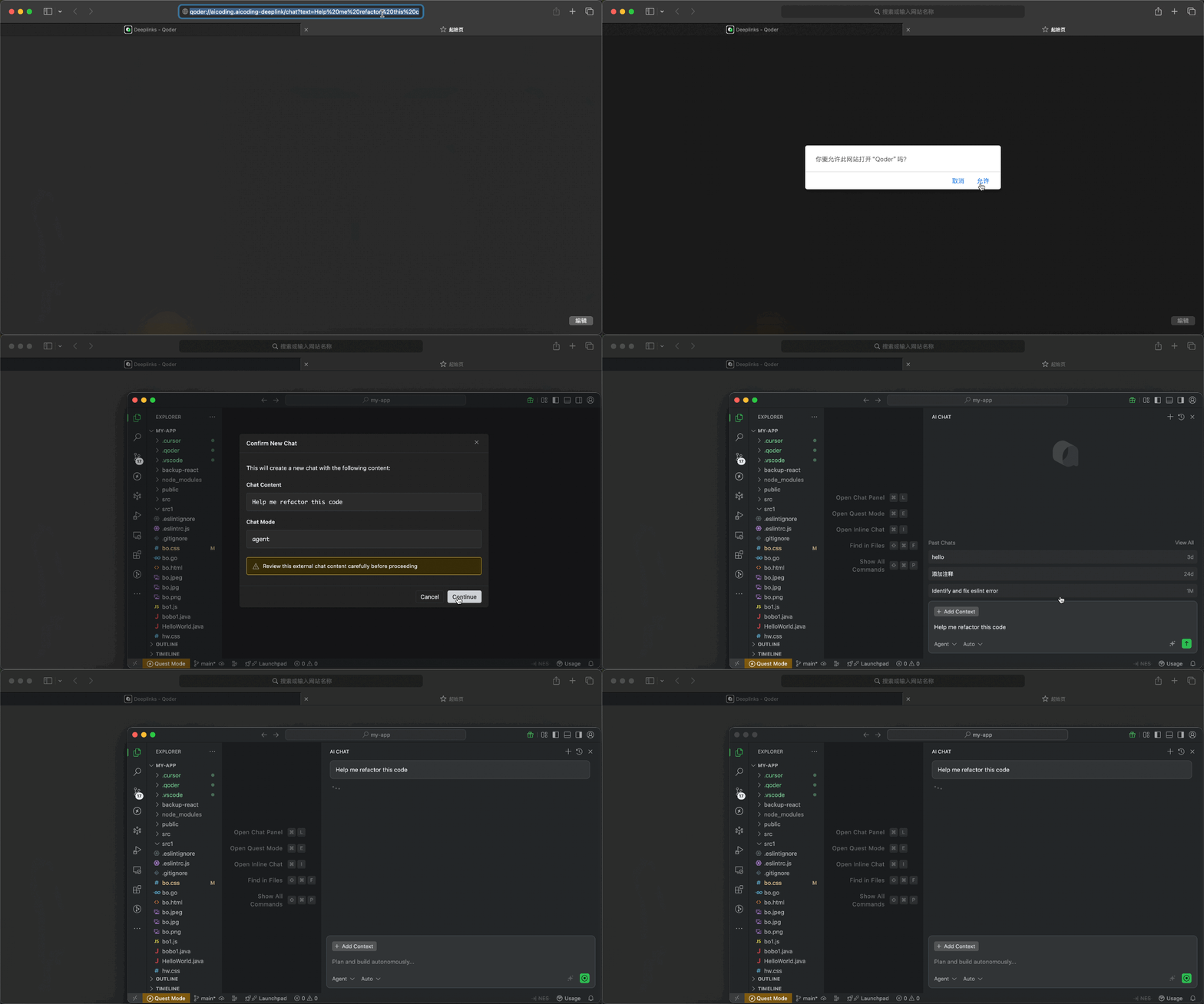
## URL Format
```
{scheme}://{host}/{path}?{parameters}
```
| Component | Description | Example |
| ------------ | ---------------------------- | -------------------------------------------------- |
| `scheme` | Protocol | `qoder` |
| `host` | Deeplinks handler identifier | `aicoding.aicoding-deeplink` |
| `path` | Action path | `/chat`, `/quest`, `/rule`, `/command`, `/mcp/add` |
| `parameters` | URL query parameters | `text=hello&mode=agent` |
## Available Deeplink Types
| Path | Description | Login Required |
| ---------- | --------------------- | -------------- |
| `/chat` | Create Chat | Yes |
| `/quest` | Create Quest task | Yes |
| `/rule` | Create rule | No |
| `/command` | Create custom command | No |
| `/mcp/add` | Add MCP service | No |
***
## Create Chat /chat
Open a chat session directly via a link. When opening the link, Qoder Desktop will first show the content to be brought into the new conversation. After confirmation, it will create a new chat and pre-fill the text into the input box without sending it automatically. You must be logged in before using it.
### URL Format
```
qoder://aicoding.aicoding-deeplink/chat?text={prompt}&mode={mode}&isNewChat={isNewChat}
```
### Parameters
| Parameter | Required | Description |
| ----------- | -------- | ---------------------------------------------------------------------------------------------------- |
| `text` | Yes | The prompt content to pre-fill |
| `mode` | No | Chat mode: `agent`, `ask`, `chat`, or `experts` when Experts is enabled. `ask` is handled as `chat`. |
| `isNewChat` | No | Whether to create a new chat. Defaults to `true`; set to `false` to pre-fill the current chat. |
### Example
```
qoder://aicoding.aicoding-deeplink/chat?text=Help%20me%20refactor%20this%20code&mode=agent
```
### Generate Link Code
```typescript theme={null}
function generateChatDeeplink(text: string, mode?: 'agent' | 'ask' | 'chat' | 'experts', isNewChat?: boolean): string {
if (!text) {
throw new Error('Missing required parameter: text');
}
const url = new URL('qoder://aicoding.aicoding-deeplink/chat');
url.searchParams.set('text', text);
if (mode) {
url.searchParams.set('mode', mode);
}
if (isNewChat !== undefined) {
url.searchParams.set('isNewChat', String(isNewChat));
}
return url.toString();
}
// Example
const deeplink = generateChatDeeplink('Help me refactor this code', 'agent');
console.log(deeplink);
// qoder://aicoding.aicoding-deeplink/chat?text=Help+me+refactor+this+code&mode=agent
```
```python theme={null}
from urllib.parse import urlencode
def generate_chat_deeplink(text: str, mode: str = None, is_new_chat: bool = None) -> str:
if not text:
raise ValueError('Missing required parameter: text')
params = {'text': text}
if mode:
params['mode'] = mode
if is_new_chat is not None:
params['isNewChat'] = str(is_new_chat).lower()
return f"qoder://aicoding.aicoding-deeplink/chat?{urlencode(params)}"
# Example
deeplink = generate_chat_deeplink('Help me refactor this code', 'agent')
print(deeplink)
```
***
## Create Quest Task /quest
Open or focus the independent Quest window and pre-fill a new Quest draft. When opening the link, you can review the task description and execution mode before deciding whether to proceed. You must be logged in before using it.
### URL Format
```
qoder://aicoding.aicoding-deeplink/quest?text={description}&agentClass={agentClass}
```
### Parameters
| Parameter | Required | Description |
| ------------ | -------- | --------------------------------------------------------- |
| `text` | Yes | Task description |
| `agentClass` | No | Execution mode: `LocalAgent` (default) or `LocalWorktree` |
#### Execution Modes
| Mode | Description |
| --------------- | -------------------------------- |
| `LocalAgent` | Execute in current workspace |
| `LocalWorktree` | Execute in isolated git worktree |
### Example
```
qoder://aicoding.aicoding-deeplink/quest?text=Implement%20user%20authentication%20with%20JWT&agentClass=LocalWorktree
```
### Generate Link Code
```typescript theme={null}
type AgentClass = 'LocalAgent' | 'LocalWorktree';
function generateQuestDeeplink(text: string, agentClass?: AgentClass): string {
if (!text) {
throw new Error('Missing required parameter: text');
}
const url = new URL('qoder://aicoding.aicoding-deeplink/quest');
url.searchParams.set('text', text);
if (agentClass) {
url.searchParams.set('agentClass', agentClass);
}
return url.toString();
}
// Example
const deeplink = generateQuestDeeplink('Implement user authentication with JWT', 'LocalWorktree');
console.log(deeplink);
```
```python theme={null}
from urllib.parse import urlencode
def generate_quest_deeplink(text: str, agent_class: str = None) -> str:
if not text:
raise ValueError('Missing required parameter: text')
params = {'text': text}
if agent_class:
params['agentClass'] = agent_class
return f"qoder://aicoding.aicoding-deeplink/quest?{urlencode(params)}"
# Example
deeplink = generate_quest_deeplink('Implement user authentication with JWT', 'LocalWorktree')
print(deeplink)
```
***
## Create Rule /rule
Import rules to guide AI behavior via a link. Rules can define coding standards, project conventions, or specific instructions for AI responses. When opening the link, you can first review the rule name and content before deciding whether to import it; upon confirmation, the corresponding rule will be created.
### URL Format
```
qoder://aicoding.aicoding-deeplink/rule?name={ruleName}&text={ruleContent}
```
### Parameters
| Parameter | Required | Description |
| --------- | -------- | ---------------------------- |
| `name` | Yes | Rule name (used as filename) |
| `text` | Yes | Rule content |
### Example
```
qoder://aicoding.aicoding-deeplink/rule?name=typescript-conventions&text=Always%20use%20strict%20TypeScript%20types
```
### Generate Link Code
```typescript theme={null}
function generateRuleDeeplink(name: string, text: string): string {
if (!name || !text) {
throw new Error('Missing required parameters: name and text');
}
const url = new URL('qoder://aicoding.aicoding-deeplink/rule');
url.searchParams.set('name', name);
url.searchParams.set('text', text);
return url.toString();
}
// Example
const deeplink = generateRuleDeeplink(
'typescript-conventions',
`Always use strict TypeScript types.
Avoid using 'any' type.
Prefer interfaces over type aliases for object shapes.`
);
console.log(deeplink);
```
```python theme={null}
from urllib.parse import urlencode
def generate_rule_deeplink(name: str, text: str) -> str:
if not name or not text:
raise ValueError('Missing required parameters: name and text')
params = {'name': name, 'text': text}
return f"qoder://aicoding.aicoding-deeplink/rule?{urlencode(params)}"
# Example
deeplink = generate_rule_deeplink(
'typescript-conventions',
"""Always use strict TypeScript types.
Avoid using 'any' type.
Prefer interfaces over type aliases for object shapes."""
)
print(deeplink)
```
***
## Add MCP Service /mcp/add
Quickly add MCP (Model Context Protocol) service configurations via a link. MCP services extend AI capabilities by providing additional tools and context sources. When opening the link, Qoder Desktop will first display the service information to be added and open the MCP settings page, allowing you to review and confirm simultaneously.
### URL Format
```
qoder://aicoding.aicoding-deeplink/mcp/add?name={serverName}&config={base64EncodedConfig}
```
### Parameters
| Parameter | Required | Description |
| --------- | -------- | --------------------------------------------- |
| `name` | Yes | MCP service name |
| `config` | Yes | Base64 encoded MCP service JSON configuration |
> Note: The configuration must contain either `command` or `url`; if the name already exists, it cannot be added again.
### Example
```
qoder://aicoding.aicoding-deeplink/mcp/add?name=postgres&config=JTdCJTIyY29tbWFuZCUyMiUzQSUyMm5weCUyMiUyQyUyMmFyZ3MlMjIlM0ElNUIlMjIteSUyMiUyQyUyMiU0MG1vZGVsY29udGV4dHByb3RvY29sJTJGc2VydmVyLXBvc3RncmVzJTIyJTJDJTIycG9zdGdyZXNxbCUzQSUyRiUyRmxvY2FsaG9zdCUyRm15ZGIlMjIlNUQlN0Q%3D
```
### Generate Link Code
MCP service JSON configuration encoding Process:
1. Create the configuration JSON object
2. Serialize with `JSON.stringify()`
3. URL encode with `encodeURIComponent()`
4. Base64 encode with `btoa()`
5. URL encode the result with `encodeURIComponent()`
```typescript theme={null}
interface McpServerConfig {
command?: string;
args?: string[];
url?: string;
env?: Record;
}
function generateMcpAddDeeplink(name: string, config: McpServerConfig): string {
if (!name) {
throw new Error('Missing required parameter: name');
}
if (!config) {
throw new Error('Missing required parameter: config');
}
if (!config.command && !config.url) {
throw new Error('Config must contain either "command" or "url"');
}
const configJson = JSON.stringify(config);
const base64Config = btoa(encodeURIComponent(configJson));
const encodedName = encodeURIComponent(name);
const encodedConfig = encodeURIComponent(base64Config);
return `qoder://aicoding.aicoding-deeplink/mcp/add?name=${encodedName}&config=${encodedConfig}`;
}
// Example 1: PostgreSQL MCP Server
const postgresDeeplink = generateMcpAddDeeplink('postgres', {
command: 'npx',
args: ['-y', '@modelcontextprotocol/server-postgres', 'postgresql://localhost/mydb']
});
console.log(postgresDeeplink);
// Example 2: GitHub MCP Server with environment variables
const githubDeeplink = generateMcpAddDeeplink('github', {
command: 'npx',
args: ['-y', '@modelcontextprotocol/server-github'],
env: { GITHUB_PERSONAL_ACCESS_TOKEN: '' }
});
console.log(githubDeeplink);
// Example 3: HTTP-based MCP Server
const httpDeeplink = generateMcpAddDeeplink('custom-server', {
url: 'https://mcp.example.com/sse'
});
console.log(httpDeeplink);
```
```python theme={null}
import json
import base64
from urllib.parse import quote
def generate_mcp_add_deeplink(name: str, config: dict) -> str:
if not name:
raise ValueError('Missing required parameter: name')
if not config:
raise ValueError('Missing required parameter: config')
if 'command' not in config and 'url' not in config:
raise ValueError('Config must contain either "command" or "url"')
config_json = json.dumps(config)
config_encoded = quote(config_json)
config_base64 = base64.b64encode(config_encoded.encode()).decode()
encoded_name = quote(name)
encoded_config = quote(config_base64)
return f"qoder://aicoding.aicoding-deeplink/mcp/add?name={encoded_name}&config={encoded_config}"
# Example 1: PostgreSQL MCP Server
postgres_deeplink = generate_mcp_add_deeplink('postgres', {
'command': 'npx',
'args': ['-y', '@modelcontextprotocol/server-postgres', 'postgresql://localhost/mydb']
})
print(postgres_deeplink)
# Example 2: GitHub MCP Server with environment variables
github_deeplink = generate_mcp_add_deeplink('github', {
'command': 'npx',
'args': ['-y', '@modelcontextprotocol/server-github'],
'env': { 'GITHUB_PERSONAL_ACCESS_TOKEN': '' }
})
print(github_deeplink)
```
***
***
## Create Command /command
Quickly create custom commands via links, ideal for distributing common prompt templates, project operation guides, or team-agreed commands. When opening the link, Qoder Desktop will first display the command name, scope, description, and content before creating it upon confirmation.
### URL Format
```
qoder://aicoding.aicoding-deeplink/command?name={name}&text={content}&description={description}&scope={scope}
```
### Parameters
| Parameter | Required | Description |
| ------------- | -------- | ------------------------------------------------------------------------------------ |
| `name` | Yes | Command name, must only contain lowercase letters, numbers, hyphens, and underscores |
| `text` | Yes | Command content |
| `description` | No | Command description |
| `scope` | No | Scope: `user` or `project`, default is `user` |
#### Scope
| Scope | Description |
| --------- | -------------------------------------------------------- |
| `user` | Adds only to the current user environment |
| `project` | Adds to the current workspace, suitable for team sharing |
### Example
```
qoder://aicoding.aicoding-deeplink/command?name=review_pr&text=Please%20help%20me%20review%20this%20PR&description=Review%20pull%20request&scope=user
```
### Generate Link Code
```typescript theme={null}
type CommandScope = 'user' | 'project';
function generateCommandDeeplink(
name: string,
text: string,
description?: string,
scope: CommandScope = 'user'
): string {
if (!name) {
throw new Error('Missing required parameter: name');
}
if (!text) {
throw new Error('Missing required parameter: text');
}
if (!/^[a-z0-9_-]+$/.test(name)) {
throw new Error('Command name can only contain lowercase letters, numbers, hyphens and underscores');
}
const url = new URL('qoder://aicoding.aicoding-deeplink/command');
url.searchParams.set('name', name);
url.searchParams.set('text', text);
if (description) {
url.searchParams.set('description', description);
}
url.searchParams.set('scope', scope);
return url.toString();
}
// Example
const deeplink = generateCommandDeeplink(
'review_pr',
'Please help me review this PR',
'Review pull request'
);
console.log(deeplink);
```
```python theme={null}
import re
from urllib.parse import urlencode
def generate_command_deeplink(name: str, text: str, description: str = None, scope: str = 'user') -> str:
if not name:
raise ValueError('Missing required parameter: name')
if not text:
raise ValueError('Missing required parameter: text')
if not re.match(r'^[a-z0-9_-]+$', name):
raise ValueError('Command name can only contain lowercase letters, numbers, hyphens and underscores')
if scope not in ('user', 'project'):
raise ValueError('Invalid scope value. Valid values are: user, project')
params = {
'name': name,
'text': text,
'scope': scope,
}
if description:
params['description'] = description
return f"qoder://aicoding.aicoding-deeplink/command?{urlencode(params)}"
# Example
deeplink = generate_command_deeplink('review_pr', 'Please help me review this PR', 'Review pull request')
print(deeplink)
```
### Usage Notes
1. After clicking the link, Qoder Desktop will first display the command information for your confirmation.
2. `name` cannot be empty and can only use lowercase letters, numbers, hyphens, and underscores.
3. `scope=project` requires you to have a workspace currently open; otherwise, it cannot be created.
4. Commands with the same name cannot be created repeatedly.
***
## Security Considerations
> **Important**: Always review Deeplinks content before clicking.
* **Never include sensitive data**: Do not embed API keys, passwords, or proprietary code in Deeplinks
* **Verify the source**: Only click Deeplinks from trusted sources
* **Review before confirming**: Qoder Desktop always shows a confirmation dialog - carefully review the content before proceeding
* **No automatic execution**: Deeplinks never execute automatically; user confirmation is always required
## Troubleshooting
| Issue | Possible Cause | Solution |
| ------------------------------- | -------------------------------- | ------------------------------------------------------------------------------------ |
| "Unregistered deeplink path" | Unsupported deeplink path | Check if the path is supported and ensure Qoder version is 0.2.21 or above |
| "Missing required parameter" | Parameter not provided | Check that all required parameters are included in the URL |
| "Invalid JSON config" | Malformed JSON | Validate JSON structure before encoding |
| "Quest Mode is disabled" | Quest feature not enabled | Enable Quest Mode in Settings |
| Login prompt appears | Deeplink requires authentication | Sign in to your account first |
| "Invalid Base64 encoded config" | Incorrect MCP config encoding | Ensure correct encoding order: JSON → encodeURIComponent → btoa → encodeURIComponent |
## URL Length Limits
Deeplink URLs should not exceed **8,000 characters**. For longer content, consider:
* Shortening the prompt or rule content
* Using external references instead of inline content
* Splitting into multiple deeplinks
# Indexing
Source: https://docs.qoder.com/user-guide/indexing
Qoder automatically indexes your codebase by generating file embeddings when you open a project. This enables AI-powered code understanding, intelligent recommendations, and semantic search. Indexing happens incrementally, so new or modified files are processed in real time—no manual intervention required.
## **Configure indexing**
1. In the upper-right corner of your Qoder IDE, click the user icon or use the keyboard shortcut (`⌘` `⇧` `,` (macOS)or`Ctrl` `shift` `,`(Windows)), and select **Qoder Settings**.
2. In the left-side navigation pane, click **Indexing**.
3. Choose one of the following:
* To manually enable indexing, click **Create** next to **Codebase Indexing**.
* To enable continuous background indexing, toggle on **Automatic Indexing**.
> **Note:** **Codebase indexing supports codebases up to 100,000 files**. Automatic indexing is enabled by default for codebases with fewer than 10,000 files. For larger codebases, indexing need to be enabled manually.
## **Ignore files**
By default, Qoder indexes all project files except:
* Files and directories specified in `.gitignore`
* Files listed in `.qoderignore`
### **Specify custom ignore files**
You can define additional files or directories to exclude from indexing.
1. In the upper-right corner of the Qoder IDE, click the user icon or use the keyboard shortcut (`⌘` `⇧` `,` (macOS)or`Ctrl` `shift` `,`(Windows)), and select **Qoder Settings**.
2. In the left-side navigation pane, click **Indexing**.
3. Click **Manage** next to **Ignore Files**.
4. Add your custom patterns.
**Pattern examples**
| **Pattern** | **Description** |
| :---------- | :-------------------------------------------- |
| config.json | Ignores a specific file |
| dist/ | Ignores an entire directory |
| \*.log | Ignores all files with .log extension |
| \*\*/logs | Ignores logs directories at any nesting level |
| !app/ | Excludes a path from being ignored (negation) |
**To check if a specific file is ignored, use the following command:**
`git check-ignore -v [file]`
## **FAQs**
### **Where can I view indexed codebases?**
A centralized index list is not currently available. You can inspect indexed codebases within the indexing settings of each project.
### **Is my source code stored on Qoder servers?**
No. Qoder does not store your source code.
# Inline Chat
Source: https://docs.qoder.com/user-guide/inline-chat
Inline Chat lets developers converse directly in the code editor, so they can edit code in a single file.
## **Open inline chat**
* macOS: `⌘` `I`
* Windows: `Ctrl` `I`
## **Add context**
In the inline chat window, type `@` to add context. You can add files, rules. Select the context you want to mention, and Qoder will consider it along with your request, then modify the current code file or answer your question.
## **Example scenarios**
### **Scenario 1: Modify code snippets**
To modify a code file or snippet, select it and open the inline chat window as described above. Enter your code modification requirements, such as adding comments or refactoring code. Qoder will then generate code changes in the code editor.
### **Scenario 2: Add code snippets**
Open the inline chat window and enter your coding requirements. Qoder will then generate code suggestions.
# Keyboard Shortcuts
Source: https://docs.qoder.com/user-guide/keyboard-shortcuts
Qoder allows you to use keyboard shortcuts to streamline your workflow, including features like inline chat and diff navigation.
Below is a comprehensive list of default shortcuts grouped by functionality.
## **General**
| **Command** | **macOS** | **Windows** |
| :------------------- | :-------- | :------------- |
| Open/Close Chat | `⌘ L` | `Ctrl L` |
| Open Settings | `⌘ ,` | `Ctrl ,` |
| Open Qoder Settings | `⌘ ⇧ ,` | `Ctrl Shift ,` |
| Open command palette | `⌘ ⇧ P` | `Ctrl Shift P` |
## **Chat**
| **Command** | **macOS** | **Windows** |
| :--------------------------- | :-------- | :--------------- |
| Submit a message | `⏎` | `⏎` |
| Insert a new line in input | `⇧ ⏎` | `Shift ⏎` |
| Accept all suggested changes | `⌘ ⏎` | `Ctrl ⏎` |
| Reject all suggested changes | `⌘ ⌫` | `Ctrl Backspace` |
## **Inline Chat**
| **Command** | **macOS** | **Windows** |
| :------------------ | :-------- | :---------- |
| Open an inline chat | `⌘ I` | `Ctrl I` |
| Send to chat | `⌘ L` | `Ctrl L` |
## **Code Selection and Context**
| **Command** | **macOS** | **Windows** |
| :-------------------------------- | :-------- | :---------- |
| Add context to chat | `#` | `#` |
| Invoke shortcut commands | `/` | `/` |
| Add the current selection to chat | `⌘ L` | `Ctrl L` |
## **Diff View**
| **Command** | **macOS** | **Windows** |
| :------------------------------ | :-------- | :--------------------- |
| Accept a single change | `⌘ ⇧ ⏎` | `Ctrl Shift ⏎` |
| Reject a single change | `⌘ ⇧ ⌫` | `Ctrl Shift Backspace` |
| Accept all changes in file | `⌘ ⏎` | `Ctrl ⏎` |
| Reject all changes in file | `⌘ ⌫` | `Ctrl Backspace` |
| Navigate to the next file | `⌘ ⇧ [` | `Ctrl Shift [` |
| Navigate to the previous file | `⌘ ⇧ ]` | `Ctrl Shift ]` |
| Navigate to the next change | `⌥ J` | `Alt` `J` |
| Navigate to the previous change | `⌥ K` | `Alt` `K` |
## **Quest**
| **Command** | **macOS** | **Windows** |
| :------------------- | :-------- | :---------- |
| Open the Quest panel | `⌘ E` | `Ctrl E` |
# Knowledge Card
Source: https://docs.qoder.com/user-guide/knowledge-engine/knowledge-cards
Generated synchronously with the Repo Wiki, a **Knowledge Card** is a high-density knowledge unit extracted from code. It stores architecture documents, code specifications (Spec), and tech stack information in a format that the Agent can easily consume directly. It continuously tracks code changes during every commit, maintaining real-time accuracy and relevance.
## Use Cases
* **Architecture Document-Driven System Understanding**: Based on pre-built architecture documents, the Agent can quickly answer questions like "What is the overall design concept of this module?" or "What are the dependencies between these services?" without repeatedly searching the codebase.
* **Code Specification (Spec)-Guided Development Tasks**: When you need to ensure code style, interface design, or business logic complies with team standards, the Agent can refer directly to the specification knowledge, supporting scenarios like:
* Automatically aligning with naming conventions and interface agreements when adding features
* Quickly verifying if implementations meet spec requirements during code review
* Identifying potential risks that violate specs when fixing bugs
* **Tech Stack Knowledge Accelerating Technical Decisions**: Combining pre-configured tech stack information, the Agent efficiently supports the following tasks in context-limited or cross-language/framework scenarios:
* Evaluating compatibility when introducing new dependencies
* Generating code snippets that conform to the current tech stack style
* Answering technical environment questions like "Which frameworks and versions are used in the current project?"
## Knowledge Card Types
* **Architecture Documents**
Records the overall design concepts of modules, service dependencies, and key decisions, helping the Agent understand the complete system without reading code line-by-line.
* **Code Specifications (Spec)**
Accumulates team coding standards, naming conventions, interface agreements, and business logic constraints, ensuring the Agent automatically aligns with team standards when generating code.
* **Tech Stack**
Records frameworks, libraries, and version information used in the project, helping the Agent make decisions that match the current technical environment when introducing new dependencies or generating code snippets.
## Knowledge Card Generation
It is recommended to select the main branch and core development branches for generation to cover the core content of the project. During generation, completed cards can be previewed in real-time without waiting for the entire process to finish.
**Generation Recommendation**: Prioritize **Knowledge Card** generation on the main branch (`main` / `master`) and frequently used team development branches to ensure the Agent understands the most critical business logic and code structures.
## Editing Generated Knowledge
After Knowledge Cards are generated, you can manually modify existing knowledge by invoking the `/knowledge` command in the input box. Simply type your instructions describing the desired changes, or upload local files as reference material, to update the content of your Knowledge Cards.
## Sharing and Multilingual Knowledge
**Knowledge Card** sharing helps knowledge flow more efficiently within your team.
Once a team administrator enables the **Knowledge Engine** toggle in the Web console, any Knowledge Cards generated by a team member are automatically synced to the team. Other members simply open the same repository branch and click **Generate** to automatically retrieve the team's latest knowledge—no manual pulling required. Any changes to the project's knowledge by team members are synced to everyone, ensuring the team's knowledge stays consistent and up-to-date.
Automatic team sharing is only available in the Teams plan. Alternatively, you can manage knowledge via Git sync.
When you generate **Knowledge Card** locally, the system automatically saves the data to a dedicated directory in your code repository: `.qoder/repowiki`. You can commit and push this directory to a remote branch. Team members can then pull the generated Knowledge Card content via `git pull`—no extra configuration required.
Additionally, **Knowledge Card** supports **multiple languages**. You can select your preferred language when generating them (currently supporting **English** and **Chinese**). Based on your language choices, the system automatically creates independent subdirectories for each selected language (e.g., `zh/`, `en/`).
## Billing
**Knowledge Card** generation and updates consume Credits as usual. You can check the consumption records in [Usage - Credits](https://qoder.com/account/usage).
# Memory
Source: https://docs.qoder.com/user-guide/knowledge-engine/memory
Qoder offers long-term memory capabilities. As developers interact with Qoder, it gradually builds a comprehensive memory base that includes information about the individual developer, specific projects, and encountered issues. This memory is automatically organized and updated over time.
With this capability, Qoder can engage with developers more effectively and, over time, develop a deeper understanding of each developer's unique needs and context.
## **Active memory**
Switch to Agent Mode in the Chat panel and type what you'd like Qoder to remember. Qoder will save the information. You can retrieve it later by asking in the Chat panel.
## **View memories**
Click **Knowledge Center** in the bottom bar or left navigation to enter the **Memory** panel and view saved memories. Here you can:
* **Search and filter**: Support searching memories and filtering by maturity, category, and project.
* **Manage memories**: You can edit or remove unwanted entries. Alternatively, you can also view them in Editor's **Qoder Settings** > **Memories**.
## **Memory scope**
When a developer works on a project, both global memories—reflecting personal preferences—and project-specific memories are activated and applied throughout all interactions with Qoder.
# Overview
Source: https://docs.qoder.com/user-guide/knowledge-engine/overview
The Knowledge Engine is a core capability module of Qoder, responsible for automatically accumulating and managing the business knowledge generated during your daily development. It enables the Agent to understand your project better with each conversation—reducing repeated mistakes, improving answer accuracy, and lowering Credit consumption.
The Knowledge Engine includes three types of knowledge sources:
* [**Repo Wiki**](./repo-wiki): Structured documentation automatically generated based on the codebase, covering project architecture, module relationships, and implementation details.
* [**Knowledge Card**](./knowledge-engine/knowledge-cards): High-density knowledge units extracted from code, including architecture documents, code specifications (Spec), and tech stack information.
* [**Conversation Memory (Memory)**](./chat/memory): Pitfalls, decision rationales, and project experience automatically extracted from each conversation, persistently accumulated as reusable knowledge.
These three types of knowledge flow into the same engine, requiring no manual organization, and the Agent will automatically invoke them when needed.
**Two paths for automatic knowledge accumulation:**
* **Code side**: When generating the Repo Wiki, the system automatically extracts code intent, design plans, and contextual discussions into Knowledge Card content;
* **Conversation side**: Pitfalls, decision rationales, and project experience during interactions with the Agent are automatically extracted into Memory knowledge.
# NEXT Code Suggestion
Source: https://docs.qoder.com/user-guide/next-edit-suggestion
Predicts your intent and suggests the NEXT code.
NEXT helps you get started with AI-assisted coding by offering intelligent, context-aware edits right at your cursor.
With Qoder NEXT, you can:
* Edit multiple lines at once near your cursor.
* Get suggestions based on recent changes and previously accepted edits.
* Navigate seamlessly within files to the next suggestions.
* Get automatic dependency import.
* Get cross-file modification suggestions, eliminating the need to search for related changes manually.
## **How it works**
Qoder automatically displays suggestions either inline or side by side, depending on the width of the changed code and NEXT prompt:
* If the combined width exceeds your editor's width, suggestions appear inline.
* Otherwise, they are shown side-by-side for easier comparison.
To accept or reject a suggestion:
* Hover over **Accept**/**Reject**, or
* Press `Tab`to accept, `Esc` to reject.
If the next edit is outside your current view:
* Click **Tab to Jump** or press `Tab` to go to the edit location in the same file.
* For edits in other files, click **Tab to Jump** or press `Tab` to navigate to the edit location of the target file.
To preview the suggested changes
* Hold down the` `⌥` (Mac)`key /`Alt` (Windows) key to preview.
* Release to restore the original code.
## **Settings**
### Enable NEXT
1. In the upper-right corner of your Qoder IDE, click the user icon or use the keyboard shortcut (`⌘` `⇧` `,` (macOS)or`Ctrl` `shift` `,`(Windows)), and select **Qoder Settings**.
2. In the panel that appears, click **NEXT**.
3. Turn on **NEXT**.
### Trigger When Commenting
NEXT is enabled in comment blocks by default. You can disable it in Settings.
### Auto import
When turn on, NEXT can automatically import necessary modules for typescript.
### Quick Settings
Click the NEXT icon in the bottom-right corner to access quick settings where you can:
1. Turn NEXT on or off globally.
2. Enable or disable NEXT for specific file extensions, e.g., markdown or plaintext.
## **Display behavior**
NEXT supports intelligent editing for deletions, modifications, and additions, with visual diffs tailored to the type of change.
## **Scenarios**
Here are some common scenarios that demonstrate how Qoder NEXT can improve your coding efficiency:
* **Multi-point predictions within a single file**\
When you modify a variable or function name, NEXT automatically identifies all related usage points in the same file and suggests updates across multiple locations simultaneously.
* **Automatic dependency imports**\
As you write code that references external libraries or modules, NEXT automatically detects and adds the required import statements, eliminating manual imports.
* **Function-level autocompletion** \
NEXT predicts entire function implementations based on your context, generating complete function bodies with proper logic and structure rather than just line-by-line suggestions.
* **Cross-file edit predictions**\
When you make changes in one file, NEXT analyzes your codebase and proactively suggests related modifications in other files, saving you from hunting down dependencies manually.
# Agent Mode
Source: https://docs.qoder.com/user-guide/quest/agent-mode
Agent Mode is the autonomous programming capability within Quest. The Agent completes development tasks end-to-end — autonomously clarifying requirements, planning solutions, executing code, and verifying results, without continuous manual intervention.
## Use cases
* **Feature development and refactoring**: Ideal for developing new features, fixing tough bugs, or refactoring code. For tasks requiring clear technical plans, we recommend the Spec-driven scenario. The Agent will review the project context and generate a structured Spec document first, ensuring the overall direction aligns with your expectations before coding begins.
* **Rapid prototype validation**: Best for validating product ideas or building demo prototypes from scratch. Choose the Prototype exploration scenario to skip the Spec and jump straight into coding. You can see the actual running results immediately using the real-time preview capabilities in the Summary Files area.
* **Automated tool building**: Great for writing batch processing scripts, data cleaning tools, or custom CLI scripts. By choosing the Tool creation scenario, the Agent will automatically evaluate your environment and select the most appropriate tech stack to build the tool end-to-end.
* **Rapid iterative optimization**: Perfect for exploratory adjustments. You can let the Agent deliver a basic MVP version first, and after reviewing the initial results, continue to rapidly iterate by adding natural language requirements in the chat (e.g., "make the button larger" or "switch to a dark theme").
## User guide
### Create a task
Click the **New Quest** button at the top of the left task list, and select **Agent** mode in the popup panel. Here, you can specify your initial requirements and choose whether to enable Spec-driven execution.
### Edit sent messages
If you realize you missed crucial context or gave incorrect instructions during a conversation, you can click a sent message bubble to enter edit mode. In edit mode, you can:
* **Modify prompts**: Re-edit your input text to make it more precise.
* **Modify attached context**: Add, remove, or replace files, code snippets, and screenshots attached to the message.
* **Switch models and modes**: Switch to a more powerful model based on task difficulty or change the conversation mode.
After resubmitting your modifications, the workspace files will safely roll back to the state prior to that conversation turn. All file changes generated from that message onwards will be automatically discarded, allowing you to correct the course without any burden.
Context compression and one-click prompt optimization features are not supported in edit mode; manual adjustments are required.
### Revert
During the Agent's autonomous execution, if it takes a technical approach you don't like or you're unsatisfied with the code generated in the current turn, you can click the **Revert** button in the chat stream. The workspace will immediately be restored to the state before that turn's operations, and the reverted content can be viewed and compared in the Diff View. This gives you a perfectly safe space for trial and error.
Experts mode currently does not support Revert.
## Best practices
### Write good task descriptions
Avoid vague instructions like "fix the code." Clearly specify your specific goals, preferred tech stack, and acceptance criteria (e.g., "Write a React table component with pagination"). Use `@` to reference related files or code snippets, which greatly helps the Agent accurately understand the project context.
### Choose the right scenario and environment
* **By complexity**: For complex feature development involving multiple files, use Spec-driven mode to ensure a clear plan. For quick validations of small ideas, use Prototype exploration to skip the Spec.
* **Environment isolation**: For simple local tweaks, use the Local environment for quick feedback. For heavy development involving many files, we strongly recommend using the Worktree environment to fully isolate changes and keep your main branch safe.
### Utilize iteration effectively
Don't expect AI to deliver a perfect, complex system on the first try. Let the Agent complete an MVP version first, confirm the general direction, and then continuously add detailed requirements through multiple conversation turns. In Spec-driven mode, rely on conversation to let the Agent modify the Spec rather than editing it manually, ensuring the Agent maintains the best context understanding. The Agent supports unlimited iterations, allowing you to collaborate with it just like guiding a real engineer until you are completely satisfied.
# Execution Environments
Source: https://docs.qoder.com/user-guide/quest/execution-environments
Quest supports execution environments such as Local and Worktree. This article introduces the use cases and configuration for different environments, helping you safely and efficiently isolate and execute tasks.
| Environment | Behavior | Best for |
| :----------- | :------------------------------------------------------------------------------------------------------------------------------------------------ | :------------------------------------------------------------------- |
| **Local** | Work directly in your open workspace; edits land in the project you have open | Quick tasks, fast validation |
| **Worktree** | A separate [Git worktree](https://git-scm.com/docs/git-worktree) checkout so changes stay isolated from your main branch until you apply or merge | Medium complexity, many apply iterations, parallel tasks in one repo |
Quest supports parallel tasks across environments where your plan allows.
## Worktree
Worktree mode uses a separate Git worktree checkout in the background so the Agent can execute tasks in an isolated environment. Your main workspace stays clean, and multiple worktrees can run in parallel.
### When to Use
| Scenario | Description |
| ------------------------- | ------------------------------------------------------------------------------------------------------------------------------------------------------ |
| **Parallel Tasks** | Handle multiple requirements or refactoring efforts at the same time, advancing each track independently without interference |
| **High-risk Refactoring** | Let the Agent boldly attempt architecture changes or large-scale renames; if you're not happy, discard the result and your main workspace is untouched |
### How to Use
#### Create a Worktree
1. In the run-environment area at the top of the chat panel, click the current mode (e.g., "Local")
2. Choose **Worktree** from the dropdown
3. In the branch dropdown next to the mode selector, choose which local branch the Agent should base the worktree on
4. Enter a task and send it. The Agent runs the work in a separate worktree.
If your main workspace has uncommitted changes, the panel shows an **Include uncommitted changes** toggle. When enabled, those changes are synced into the worktree at creation time so the Agent sees your latest code.
#### Move to Local
When the Agent finishes work in the worktree, you can bring the results back to your main workspace to continue development:
In the task list on the left, find the corresponding worktree session and click **Move to local** on that session. This moves the worktree's branch state and uncommitted changes back to your main local workspace, so you can continue the work locally.
Before you move to local, your local workspace must be clean (no uncommitted changes). Commit or stash your current changes first.
#### Review & Commit
If you don't need to bring the changes back locally, you can commit directly from the worktree: open the **Changes** panel on the right of the session to review all file changes the Agent made. Once everything looks good, create a new branch and commit the code from the panel.
### Startup Script
If you need to run initialization steps automatically when a Worktree is created (such as installing dependencies or copying environment variable files), go to Settings and find **Worktree configuration for local tasks** to edit the startup script.
### Cleanup
#### Automatic Cleanup
The system automatically cleans up older worktrees to free up disk space. You can configure the cleanup policy at the bottom of the management panel:
* **Maximum retained**: Each workspace retains 15 worktrees by default.
#### Manual Cleanup
* In the session list on the left, **Delete** a worktree session to remove the corresponding worktree along with it.
* You can also manage and delete worktrees you no longer need from Settings.
### Notes
* **Requires a Git repository**: The project must be a Git repository for the Worktree option to appear.
* **Keep the workspace clean before handoff**: When you move to local, your local workspace must have no uncommitted changes.
* **Disk usage**: Each worktree is a separate file checkout. For large projects, multiple worktrees can consume significant disk space. Set a sensible maximum retained count to avoid running out of space.
# Experts Mode
Source: https://docs.qoder.com/user-guide/quest/experts-mode
Experts Mode is Qoder's multi-agent collaboration feature designed for complex development tasks. Simply state your requirements, and the system automatically decomposes tasks, assembles an expert team, and executes design, implementation, testing, and quality assurance in parallel—delivering production-ready engineering results.
**In a nutshell**: You define the goal, the AI expert team delivers the result.
## Core Workflow
When you initiate a request, **Lead Agent** acts as the "brain" of the entire task—understanding goals, decomposing tasks, coordinating globally, ensuring quality, and dynamically pulling in experts from different domains to collaborate in parallel:
| Role | Responsibilities |
| ----------------------- | ------------------------------------------------------------------------------------------------------------------------------ |
| **Lead Agent** | Understand requirements, decompose tasks, coordinate scheduling, ensure quality |
| **Researcher** | Responsible for research analysis, code location, dependency mapping, environment inspection, and report generation |
| **Full-Stack Engineer** | Responsible for implementing and modifying frontend and backend code, as well as handling cross-stack and general coding tasks |
| **QA** | Responsible for running tests and builds, and collecting validation evidence |
| **Code Reviewer** | Responsible for reviewing code, identifying potential risks, and providing improvement recommendations |
| **UI Operator** | Responsible for browser and UI end-to-end validation, as well as visual bug reproduction |
| **Debug Engineer** | Responsible for reproducing failures, locating root causes, and diagnosing defects, with fix recommendations |
Lead Agent dynamically schedules expert sub-agents from different domains based on task needs. In the conversation flow, you can see the status of each expert agent and click to view details. Experts don't block each other and execute in parallel, while Lead Agent aligns and integrates results in real-time.
## Use Cases
Experts Mode is designed for medium-to-large engineering tasks—it delivers maximum value when you expect end-to-end, high-quality results. Here are three typical scenarios:
| Scenario | Example Task | How Experts Helps |
| --------------------------------- | --------------------------------------------------------------------- | --------------------------------------------------------------------------------------------------------------------------------------- |
| **Full-Stack Development** | Develop user management module (registration, login, info management) | Lead Agent generates the plan, Full-Stack Engineer implements frontend and backend, QA tests in parallel, Code Reviewer ensures quality |
| **Complex Issue Diagnosis & Fix** | Production performance bottleneck involving multiple microservices | Lead Agent assembles Researcher and Full-Stack Engineer to analyze logs, trace call chains, and locate and fix the issue |
| **Technical Solution Research** | Evaluate GraphQL replacing RESTful API | Researcher gathers materials, Full-Stack Engineer assesses tech stack impact, deliver an actionable research report |
For simple, straightforward file modifications, Agent Mode remains the more efficient choice.
## User Guide
### 1. Switch to Experts Mode
In the configuration bar at the bottom of the Quest input area, click the mode switcher and select **Experts Mode**.
After switching, simply describe your requirements in natural language. Lead Agent will automatically understand the goal, create a plan, and coordinate the expert team to execute.
### 2. Requirement Planning
Experts Mode has built-in [planning capability](/user-guide/chat/plan-agent), generating an implementation plan before task execution:
1. **Describe requirements**: Clearly state goals, tech stack preferences, quality requirements, etc.
2. **Generate plan**: Lead Agent analyzes requirements and generates a structured implementation plan
3. **Review and adjust**: You can modify the plan before execution, adding missing steps
4. **Confirm execution**: After confirmation, the expert team begins parallel work
### 3. Task List
During task execution, a real-time task list appears at the bottom of the chat panel:
* **Pending**: Tasks waiting to be executed
* **In Progress**: Currently executing tasks
* **Completed**: Finished tasks
Click on any task to view its execution progress, process, and results at any time.
Additionally, when tasks require user confirmation or intervention, notifications will appear above the dialog for your timely attention.
In Experts Mode, Lead Agent will autonomously schedule and execute the vast majority of tasks, with only rare cases requiring your intervention:
* Terminal commands that hit the blocklist or are identified as high-risk operations
* Tool call count reaches the limit
* Other exceptional situations requiring manual intervention
### 4. Customize the Expert Team
Experts Mode lets you tailor the expert team to your needs: adjust how built-in experts behave, or bring in custom sub-agents to expand the lineup.
**Built-in Expert Team**
Personalize built-in experts so they fit your day-to-day workflow:
* **Model selection** — Each built-in expert defaults to following the user's model selection in Experts chat. You can override this to assign a specific model (e.g. Qwen3.7-Max, DeepSeek-V4-Pro) for individual experts, giving you fine-grained control over cost and capability trade-offs.
* **Additional Prompt** — Add extra prompts to built-in experts to guide or constrain their behavior in specific scenarios. Supports up to 10,000 characters.
* **Skills & MCP** — Add Skills and MCP servers to built-in experts to broaden what they can do.
Lead Agent does not support customization.
**Custom**
Create custom sub-agents for use in both Agent and Experts modes, invoked on demand by the lead agent. Supports model configuration, Skills, and MCP servers. See [Sub-agent Documentation](/extensions/subagent).
## Expert Team Canvas
Expert Team Canvas is a real-time visualization panel in Experts Mode that gives you a bird's-eye view of every expert's task progress and execution workflow in a single window. When the expert team is handling complex tasks in parallel, the canvas helps you stay on top of everything — which tasks are done, which are running, and what each expert is working on — without scrolling through conversation history.
### How to open
During task execution in Experts Mode, a task progress card appears at the top of the conversation area. Click an expert's avatar on the card to open the Expert Team Canvas.
### Layout
The canvas includes a task overview panel and a canvas view:
**Task overview panel**
The top section shows a task summary with counts of completed and in-progress tasks for a quick progress check. Below it lists all participating experts and their tasks, each marked with the current status (completed, in progress, pending). Click any expert's avatar to auto-scroll to their task area.
**Canvas view**
Displays each expert's task progress and workflow as cards laid out side by side. Each card corresponds to one expert's work, showing execution steps, output summaries, and current status — making it easy to see the full picture at a glance.
## Best Practices
### Help Experts Understand Your Intent Better
| Tip | Description |
| -------------------------------- | ---------------------------------------------------------------------------- |
| **Describe the end goal** | Clearly state what result you want, not just what operation to perform |
| **Provide context** | Relevant business background, existing code structure, technical constraints |
| **Specify quality requirements** | Whether tests, documentation, code standard checks are needed |
| **Indicate priorities** | Which are must-haves, which are nice-to-haves |
### Intervene Anytime Without Interruption
During expert team execution, you can intervene and adjust at any time without stopping the conversation:
* **Correct direction**: Notice something off track? Directly state what needs improvement, Lead Agent will adjust in real-time
* **Add requirements**: Have new ideas or missed something? Add anytime, the expert team will incrementally improve
* **Change priorities**: Requirements changed? Inform the new focus, the team will reallocate resources
## FAQ
1. Can I modify requirements during execution?
Yes. You can add information or adjust direction at any time. Lead Agent will coordinate the expert team to adapt to changes.
2. What about the cost and time for Experts Mode?
Experts Mode is suitable for medium-to-high complexity tasks. Compared to single Agent, it takes more time but delivers significantly better quality (internal testing shows \~67% quality improvement). For simple tasks, single Agent is more efficient.
3. How does the terminal tool work in Experts Mode?
In Experts Mode, the terminal tool automatically runs Terminal commands without requiring manual confirmation each time. Potentially dangerous commands are automatically executed in a sandboxed environment.
# Goal-driven
Source: https://docs.qoder.com/user-guide/quest/goal-driven
When you choose **Goal** mode in Quest, you only describe the outcome you want — Quest plans the path on its own, iterates continuously, and verifies the result. It's a good fit for tasks that take multiple steps and where you'd rather "have a result delivered" than direct each step yourself.
## Core capabilities
* You describe the goal; Quest breaks it down, plans the execution path, and keeps pushing forward without step-by-step instructions.
* After each round, Quest evaluates the current progress and judges whether the goal is met. If not, it automatically moves on to the next iteration.
* Pause, edit the goal, or delete the task at any time during a run. Pausing preserves the full context and intermediate artifacts.
* After you edit the goal, Quest continues against the new goal from the next round — it doesn't reset existing progress.
## Use cases
* **Long-running coding tasks**: work with clear success criteria and a verification loop — e.g. raising test coverage, performance tuning, cross-file consistency fixes. Quest autonomously iterates and verifies until the goal is met.
* **Large-scale refactoring**: code migrations, whole-repo framework upgrades, batch API replacements — tasks that can't be planned out step by step in advance. Describe the desired end state as a Goal, and Quest plans the path and keeps iterating.
## How to use
Click the "**+**" button on the input box and turn on the **Goal** toggle, or type `/goal` in the input box.
Describe the end state you want in natural language. A goal should describe the **expected result** rather than specific steps — Quest plans the execution path itself.
Example: `/goal raise the project's test coverage above 80%`
After you send the goal, Quest enters an autonomous execution loop:
* A Goal progress card appears above the input box, showing the current goal and run status.
* Quest evaluates progress after each round and continues automatically if the goal isn't met, ending on its own once the goal is reached.
The Goal progress card supports the following actions:
* **Edit**: click the edit button in the top-right corner of the card to change the goal description. Editing during a run takes effect after the current round ends; editing while paused takes effect immediately.
* **Pause and resume**: pausing preserves the full context and all intermediate artifacts; click resume to pick up from where it stopped.
* **Delete**: deletes the current goal task and returns the conversation to a normal chat state. Files and messages already generated are not deleted.
## Goal vs. Spec
| | Goal-driven | Spec-driven |
| --------------------- | ----------------------------------------------------------- | ----------------------------------------------------------------------------------- |
| **Positioning** | Goal-oriented; the Agent plans the path autonomously | Spec as the blueprint; implemented item by item per the plan |
| **Input** | Describe the desired end state | A structured solution description |
| **Execution** | The Agent iterates on its own and judges completeness | Executes the Spec task list in order |
| **Typical scenarios** | Raising test coverage, code refactoring, performance tuning | New feature development, building to a design, delivering well-defined requirements |
## Best practices
* **Describe a verifiable end state**: a good goal is "test coverage reaches 80%," not "write some tests." Quest needs a clear completion criterion to judge whether the goal is met.
* **Include key constraints**: if there's something you don't want changed, say so in the goal. For example, "optimize the internal implementation without modifying the public API."
* **Keep the scope reasonable**: an overly grand goal (such as "make the whole project better") makes it hard for Quest to stay focused. Breaking it into specific, measurable sub-goals works better.
* **Combine with scheduled tasks**: long-running Goal tasks are also well suited to running overnight. Use `/schedule` to set up a [scheduled task](./scheduled-tasks) trigger.
# Overview
Source: https://docs.qoder.com/user-guide/quest/overview
Quest has evolved into a dedicated window for agent-first workflows, bringing task management, status tracking, and artifact review into one place for a more focused delegation experience.
It integrates **Agent** and **Experts** sub-modes; you simply describe your goal, and the AI autonomously completes the development task — from requirement clarification to code delivery — progressing entirely within a unified task interface.
**Core philosophy: Define the goal. Review the result.**
## Core capabilities
Supports parallel advancement of multiple projects and tasks, completing coordination, command, and execution in a unified interface, significantly improving R\&D collaboration efficiency and resource utilization.
Through multi-agent division of labor and collaboration, it supports end-to-end execution from coding to delivery, enhancing complex task processing capabilities and overall delivery quality.
Continuously accumulates project knowledge, task experience, and context memory during use, driving capability reuse, experience inheritance, and continuous optimization of results.
Flexibly defines expert roles, workflows, and capability boundaries according to your needs, creating an exclusive team of agent experts tailored to your own scenarios.
## How to use
Quest is built into Qoder. Click the **Open Quest** button in the top right corner of the Editor to enter the Quest window.
Before you start a task, choose **Agent mode** or **Experts mode** based on the work you want to delegate:
* **Agent mode**: A single agent works autonomously to deliver tasks end-to-end.
* **Experts mode**: Multiple agents collaborate in parallel—best for full-stack development, technical research, and complex debugging.
When you use Quest together with the **Knowledge Engine**, the Agent understands your project better with every conversation—fewer repeated pitfalls, sharper answers, and lower Credit usage.
## Feature overview
Quest uses a three-column layout: the left column contains the task management area and extensions, the center is the conversation area, and the right is the function area.
### Task management area
The task management area is organized by **workspace**. After you open a workspace, you can create and manage Quests there, or open the same workspace in the **Editor** to keep coding. Quests in the workspace support **Pin**, **Fork**, rename, and delete. Each Quest shows a status: **Running**, **Action Required**, **Ready**, or **Error**.
For quick questions or tasks not tied to a specific project, you can start a conversation without binding to a project.
### My Quests board
My Quests is a global task board that aggregates all Quest tasks across workspaces, grouped by status, so you can quickly assess the state of your work. Click the board icon next to the Quests heading to enter.
* **Search bar**: A search box at the top lets you filter tasks by keyword
* **Workspace filter**: Tab-based filtering by workspace (e.g. All, or individual workspaces with task counts) to quickly narrow scope
* **Three-column kanban**: Tasks are automatically sorted into three status columns
* **Running** (blue): Tasks currently being executed
* **Waiting** (orange): Tasks awaiting user action (e.g. Action Required)
* **Completed** (green): Finished tasks
* **Task cards**: Each card shows the task name, description, workspace, and status badge — click to jump directly into the corresponding Quest conversation
### Extensions
A tools strip at the bottom of the left column provides global entry points Quest relies on—so you can reuse project knowledge, extensions, and preferences across tasks:
* **Knowledge hub**: Central place for knowledge Quest can use during runs, including auto-generated [Repo Wiki](../repo-wiki), [Knowledge Cards](../knowledge-engine/knowledge-cards) distilled from code and discussion, and [Memory](../chat/memory) captured from conversations.
* **Plugin marketplace**: Browse and install official plugins to extend what Quest can do; installed plugins can be invoked by agents in tasks, see [Plugins](../../extensions/plugins).
* **Settings**: Open system and preference settings—account, models, shortcuts, proxy, appearance, and Quest-specific execution behavior.
### Conversation area
The conversation area is Quest’s main surface for dialogue, execution, and input:
* **Conversation flow**: Full transcript—your instructions, model replies, intermediate steps, and outputs.
* **Execution steps**: While a task runs, shows step-by-step progress, command output, and status, with rich content such as code blocks, logs, and file references.
* **Input box**: `@` references for files, folders, and symbols; model selection; microphone for voice input; context compression at the bottom.
* **Changes entry point**: After a run, a review entry appears above the thread; click it to open the **Review** panel on the right.
* **Quick conversation locator**: The Quest window adds a side-rail locator to jump quickly to a target part of the conversation.
### Function area
The function area expands and collapses from the side rail and includes:
* **Summary**: **Progress** for run status, **summary files** for the current Spec and code changes, and **references** to knowledge and tools used in the task (e.g. Repo Wiki, Memory, Skills, MCP), with clickable links.
* **Review and submit**
* **Diff view**: Detailed side-by-side diff for code changes.
* **Review and reject**: In **View changes**, inspect every modified file; reject per file or reject all.
* **Go to file**: Jump from a change to the corresponding source for a closer read.
* **Commit and push**: With a local Git repo, use **Commit**; when a remote is linked, **push** or open a PR.
See [Review and commit](./review-and-commit) for the full Diff view, review mode, and commit/push workflow.
* **Other panels**: Beyond summary and review, Quest surfaces built-in panels as needed for dev, debug, and backend work:
* **Terminal and file tree**: Workspace tree plus integrated terminal for structure and manual commands.
* **Browser**: In-IDE browser for previews or docs, see [Browser and Browser Agent](../chat/browser-agent).
* **Spec panel**: Shown when Spec-driven mode is on, see [Spec-driven mode](./spec-driven).
* **Supabase panel**: Connect and manage Supabase projects and preview schema, see [Supabase integration](./supabase).
## Tiled layout
Split the current view into multiple panes by dragging Quest tasks, so you can run and manage multiple tasks in parallel without constantly switching between tabs.
Tiled layout makes it easier to work on several tasks at once and compare outputs from different agents. You can expand a pane to focus on a single conversation, drag agents into different tile zones, and use keyboard shortcuts for quick navigation and arrangement. Your layout is preserved across sessions.
### How to use
Drag Quest tasks into different pane zones.
### Use cases
* Monitor multiple agents' progress simultaneously and compare outputs from different approaches
* Review code changes in one pane while continuing to iterate in another
* Reduce context-switching overhead when running several tasks in parallel
## Important notes
* **Cannot switch scenarios after start**: Please confirm your scenario selection before starting a task.
* **Editing messages triggers rollback**: Resubmitting an edited message rolls back workspace files to the state before the current conversation.
* **Mode selection sets execution strategy**: Agent and Experts modes are determined at task creation; subsequent conversations execute based on that mode's characteristics and cannot be switched.
# Review and commit
Source: https://docs.qoder.com/user-guide/quest/review-and-commit
Whenever Qoder makes code changes in Quest, you can review the full diff, decide what to keep or discard, and commit and push — all from the **Review** panel on the right.
## Review panel overview
The Review panel is divided into three areas:
* **Top toolbar**: scope switcher, global Stage All / Discard All actions, the commit button, and more.
* **File list**: the changed files within the current scope, with list / file-tree view toggle and search.
* **Diff view**: a line-level comparison for a single file, with per-file Stage / Discard actions.
## Switch the view scope
A single dropdown at the top of the panel lets you choose the scope:
| Option | Meaning |
| ------------------- | ---------------------------------------------------------------------------------------------------- |
| **Current Quest** | All changes accumulated in the current Quest |
| **Last Turn** | Changes from the most recent turn |
| **All Uncommitted** | All uncommitted changes in the workspace — every file with changes not yet committed in `git status` |
## Annotate code and diffs
If you spot something to adjust while reviewing, you can add annotations to specific parts of the code and diff views and hand that feedback straight to the agent. This helps it understand exactly what you want changed, without separately describing "which spot and how."
## Stage and discard
Once you've reviewed the diff, you can Stage / Unstage / Discard right in the panel.
Stage / Unstage require the current directory to be a Git repository.
**Global actions** (buttons at the top of the panel)
* `Stage All`: add every unstaged file in the current scope to the staging area.
* `Discard All`: discard all uncommitted changes in the current scope — requires a second confirmation and cannot be undone.
**Per-file actions** (buttons on the right of each file row)
* Unstaged files: show `Stage` and `Discard`.
* Staged files: show `Unstage` and `Discard`.
Actions take effect on click. Staging or discarding partial (hunk-level) changes within a file is not yet supported.
**External-change warning**: In the Current Quest / Last Turn scopes, if a file has other changes made outside this conversation, a yellow ⚠️ marker appears next to the file name.
## Commit and push
The Commit entry is available in every scope — you can commit the whole workspace from All Uncommitted, or commit from Current Quest / Last Turn to **commit only the files in the current scope**.
The top action bar has an action button with a dropdown. It defaults to **Commit** and can switch to:
* **Push**: push your local commits to the remote.
* **Create New Branch**: create a new branch from the current changes and commit to it.
Clicking Commit opens the commit dialog:
* You can manually control whether unstaged changes are included.
* The commit message can be written by hand or generated automatically.
# Scheduled tasks
Source: https://docs.qoder.com/user-guide/quest/scheduled-tasks
In Quest, you can schedule a task to run automatically at a specified time using the `/schedule` command or a natural-language description.
## Use cases
* **Overnight code maintenance**: focus on feature work during the day and schedule time-consuming tasks such as refactoring, dead-code cleanup, and naming-convention fixes to run overnight.
* **Tests and documentation**: before you leave, schedule Quest to fill in test cases for the day's changes or generate module documentation, and review the results when you arrive the next morning.
* **Security and dependency scans**: schedule security-vulnerability scans and dependency checks regularly to keep the project's health up to date.
* **Combine with Goal mode**: schedule a [Goal](./goal-driven) task to run overnight so Quest can iterate autonomously toward the goal, making full use of off-peak hours.
## How to use
**Command trigger**: type `/schedule` followed by a task description in the input box, for example:
```
/schedule At 10 PM tonight, fill in tests for the code I changed today
```
**Natural-language trigger**: just include the timing intent in your message, for example "refactor the code I changed today tonight to improve readability." Once Quest recognizes the intent, it confirms any missing information and completes the creation.
After it's created, a scheduled-task card appears in the conversation flow. If you need to adjust it, click **Edit** on the card to open the form. When the scheduled time arrives, Quest starts the task automatically; the execution process and results appear in the corresponding conversation, where you can view them the next time you open it.
Make sure Qoder is running at the scheduled execution time. If "Keep system awake" is enabled, Qoder prevents the system from sleeping before the task time.
### Convert a Spec into a scheduled task
In [Spec-driven](./spec-driven) mode, after you finish requirement clarification and Spec generation as usual, click the **Schedule** button in the **build on** area of the Spec card, set the execution time, and save — Quest will then run that Spec automatically at the scheduled time.
### Edit the task form
Click the task card or the task entry in the **Summary** on the right to open the edit form, which includes the following fields:
* **Task name**: a short description of the task.
* **Scheduled time**: pick a date and time.
* **Task instructions**: the full prompt Quest uses when it runs.
* **Model selection**: defaults to the current conversation's model; you can switch it.
* **Goal toggle**: choose whether to run the task in Goal mode.
### Find and manage tasks
* **Clock icon in the left sidebar**: conversations with pending scheduled tasks show a clock marker in the conversation history list. The icon disappears automatically once all tasks have run or been deleted.
* **Summary panel on the right**: when a conversation contains scheduled tasks, a **Scheduled tasks** section appears in the Summary panel, listing all tasks; click one to jump to its edit form.
* **Multiple tasks per conversation**: you can create multiple scheduled tasks in the same conversation; they are managed independently and don't affect each other.
## Best practices
* **Write clear task instructions**: you won't be present when a scheduled task runs, so Quest relies entirely on the task instructions. Write them like a handover note for a colleague — make the scope, focus, and constraints explicit.
* **Make the most of Goal + scheduled tasks**: for goals that need continuous iteration, such as "raise test coverage to 80%," enabling Goal mode and scheduling it to run overnight works best.
# Spec-driven development
Source: https://docs.qoder.com/user-guide/quest/spec-driven
In Quest, click the "**+**" button on the input box and turn on the **Spec** toggle (next to the **Goal** toggle) when you create a task to enable Spec-driven development: Quest aligns on scope, produces a structured **Spec**, lets you review it, then executes against it. This is the path for features that need traceable requirements and acceptance criteria.
## Workflow
After inputting your task, Quest may ask clarifying questions (in multiple-choice format):
* **Recommend**: Let Quest automatically select default answers
* **Continue**: Manually select and continue
* **Skip**: Skip questions and proceed with the conversation
Quest generates a structured Spec document:
* Requirement description
* Design plan
* Task breakdown
* Acceptance criteria
The Spec is displayed in the **Spec Tab** in the output area, with streaming output and download support.
* View the complete document in the **Spec Tab** on the right
* Modify Spec through **conversation** (can adjust anytime before clicking Build)
* You can also add **annotations** to specific parts of the Spec document and hand that feedback straight to the agent to adjust the Spec — no need to gather your comments into a separate message
* Click **Build** when satisfied to begin execution
* **To-do List**: Real-time task progress in the conversation area
* **Changed Files**: View code changes in the output area
* **Add requirements mid-task**: Send new requirements in the input box anytime — Quest adjusts the plan
After execution completes, review the run's code changes in the **Review** panel on the right, then stage and commit them — **Commit**, **Push**, or **Create New Branch** from the changes. See [Review and commit](./review-and-commit) for the full diff review, stage / discard, and commit / push flow.
## Convert a Spec into a scheduled task
After you finish requirement clarification and generate a Spec, you don't have to run it right away — instead of clicking **Build**, click the **Schedule** button on the Spec card, set the execution time, and save, and Quest will run that Spec automatically at the scheduled time. This is handy for moving time-consuming development work to off-peak overnight hours.
## Set a Spec as a Goal
After a Spec is generated, if you want Quest to iterate on it autonomously and keep pushing it forward, turn on the **Goal** toggle on the Spec card, then click **Build**. Once enabled, Quest runs that Spec in [Goal mode](./goal-driven) — evaluating progress at the end of each round and continuing to iterate until it's done, with no need to issue step-by-step commands.
# Supabase Integration
Source: https://docs.qoder.com/user-guide/quest/supabase
[Supabase](https://supabase.com/) is an open-source Firebase alternative that provides PostgreSQL databases, user authentication, file storage, and real-time data sync. Quest supports authorizing and connecting to Supabase projects directly, so you can handle frontend development and backend data management within the IDE — no switching between browser and editor.
You can connect multiple Supabase projects simultaneously and preview database table schemas (Schema) directly in the IDE to stay on top of your backend data model.
**Core features:**
* **Multi-project connections**: Authorize and connect to multiple Supabase projects for quick switching between environments (development, testing, production) or different services.
* **Database schema preview**: View database table structures of connected projects directly in the IDE — including table names, fields, types, and relationships — without opening the Supabase Dashboard.
* **Enhanced database capabilities**: AI agents are aware of your database structure and can automatically generate table creation statements, data schemas, and query logic based on task requirements, ensuring frontend-backend data model consistency.
* **One-click authorization**: Securely connect to Supabase through the OAuth flow — no need to manually configure API Keys or connection strings.
**Supported Supabase services:**
After connecting a Supabase project, you can use the following services in Quest:
* **Database (PostgreSQL)** — Full SQL support for storing and querying application data. AI can automatically generate the tables and data schemas you need. See [Supabase Database docs](https://supabase.com/docs/guides/database/overview).
* **Authentication** — Securely manage user registration, login, and access control. Supports multiple auth methods including email/password and OAuth providers like Google and GitHub. See [Supabase Auth docs](https://supabase.com/docs/guides/auth).
* **Storage** — Upload and manage images and other files through Supabase Storage, suitable for user avatars, file uploads, and static media resources. See [Supabase Storage docs](https://supabase.com/docs/guides/storage).
* **Realtime** — Push data changes to your application in real time, supporting live chat, dynamic feeds, collaborative dashboards, and more. See [Supabase Realtime docs](https://supabase.com/docs/guides/realtime).
**How to use:**
When building a project in Quest, if the AI determines a Supabase connection is needed, it will prompt you in the chat panel. You can also connect proactively:
Go to [Supabase](https://supabase.com/) to register an account and create an organization and project.
In Quest, click the **Supabase** tab at the top of the tool panel. Click the **Authorize** button, follow the prompts to complete the OAuth flow, select your Supabase organization, and confirm.
After authorization, the panel displays your organizations and projects. Find the target project and click **Connect** to link it to the current Quest project.
Once connected, you can preview database table schemas directly in the Supabase panel, and the AI will use this schema information to assist your development.
Qoder projects can only connect to active Supabase projects. To switch organizations, click the toggle button next to the organization name.
**Use cases:**
* **Full-stack app rapid scaffolding**: Describe your application requirements in Quest, and the AI automatically generates the frontend UI and configures the Supabase backend — including database tables, authentication flows, and storage strategies.
* **Data model design and validation**: Use the in-IDE schema preview to check whether AI-generated data models meet your expectations in real time, and adjust before continuing development.
* **Multi-environment management**: Connect to both development and production Supabase projects simultaneously to easily view and compare data structures across environments.
AI-generated database operations (such as creating tables or modifying schemas) take effect directly on the connected Supabase project. For production environments, confirm operations carefully before executing.
* **Authorization security**: The authorization process uses OAuth — Qoder does not store your Supabase password. Authorize only the organizations and projects you need, following the principle of least privilege.
* **Network dependency**: Supabase integration requires a network connection to access Supabase cloud services. Ensure your network environment is working properly.
# Task Management
Source: https://docs.qoder.com/user-guide/quest/task-management
Quest provides flexible task management capabilities. This article explains how to create, pause, and resume tasks, as well as how to use features like Fork to efficiently manage your development workflow.
### Create a task
Click the **New Quest** button at the top of the left task list. You can configure the following when creating a task:
* **Mode selection**: Choose between Agent or Experts mode, which are suited for different scenarios.
* **Agent Mode**: End-to-end autonomous programming driven by a single agent. You describe the goal, and the Agent autonomously clarifies requirements, plans solutions, executes code, and verifies results. Suitable for feature development, prototype validation, tool building, etc.
* **Experts Mode**: Multi-agent collaboration where a Team Lead automatically breaks down the task and forms an expert team. Frontend, Backend, QA, and Code Review experts execute in parallel without waiting for each other; the Team Lead aligns and integrates results in real-time to deliver a viable engineering outcome. Suitable for full-stack development, complex issue diagnosis and repair, technical research, and other medium-to-large tasks.
* **Branch management**: Quest supports creating and switching Git branches for tasks, making it easy to isolate code changes.
* **Execution environment**: Local mode and Worktree mode. See the [Execution environments](./execution-environments) section below for details.
* **Spec-driven**: Choose whether to enable Spec-driven development. If enabled, the Agent will first generate a structured Spec document (requirement description, design plan, task breakdown, acceptance criteria) and wait for your confirmation before executing.
### Group, sort & filter
The top of the left **Quests** list provides view and filter controls that help you locate and switch between tasks quickly when you have many. Click the filter icon to open the customize menu:
* **Group by**: Group tasks by a dimension. Defaults to **Workspace**.
* **Sort by**: Adjust the task order. Defaults to **Updated**.
* **Filter by**: Filter which tasks are shown by **Status**, **Read**, and **Archive**; each defaults to **All**.
* **Reset**: Restore the default group, sort, and filter settings in one click.
### Pause and resume
During task execution, click the **Pause** button to pause. Once paused, click **Resume** to continue execution.
### Add requirements
During execution, send new requirements directly in the input box. Quest will adjust the plan and continue working.
### Task status management
The task lifecycle includes four states:
| Status | Description |
| :------------------ | :------------------------------------------------------ |
| **Running** | The Agent is currently executing |
| **Action Required** | Waiting for user confirmation or input |
| **Ready** | Task is complete, conversation can continue iteratively |
| **Error** | An error occurred during execution |
### Fork conversation
Click the more button on a session and select **Fork** to create an independent new session from the current one. The new session inherits the original session's complete context and message history, but subsequent conversations are independent and do not affect each other.
Ideal for trying different solutions based on the same discussion or splitting a task into multiple independent parallel threads.
# Terminal and Sandbox
Source: https://docs.qoder.com/user-guide/quest/terminal-and-sandbox
The Agent executes shell commands directly in the terminal while performing tasks. Qoder employs a tiered security model that automatically determines whether a command is executed directly, isolated in a sandbox, or paused awaiting your confirmation, based on the current execution mode and the command's risk level. The goal is to prevent accidental destructive operations while maintaining automation efficiency.
## Execution modes
Qoder provides different execution modes tailored for various use cases, balancing automation efficiency with security protection.
### Agent Mode
* **Directly executed commands**: Routine development commands that do not fall into built-in risk categories (e.g., `npm install`, `git status`, `python test.py`) run automatically without intervention.
* **Commands requiring confirmation**: Commands that trigger potential risk categories or match your configured blocklist will pause execution and wait for you to approve or reject them in the IDE.
### Experts Mode
Experts Mode has a higher degree of automation.
* **Directly executed commands**: All commands not in the built-in risk categories execute directly, ignoring user-defined blocklists.
* **Sandboxed commands**: Potentially dangerous commands execute automatically in the sandbox without requiring your confirmation.
* **Permission escalation**: If a command fails in the sandbox due to restrictions, or if the model anticipates guaranteed failure in the sandbox, the AI will analyze the cause and may request a permission escalation. Qoder will then pause and ask for your approval to execute the command in the terminal.
## Potentially dangerous commands
Commands involving categories such as file deletion, disk operations, permission management, and network configuration will be identified as potential risks by the system. In Agent Mode, these commands will pause and wait for your confirmation; in Experts Mode, these commands will automatically execute in the sandbox.
Additionally, the AI model independently assesses risk based on command semantics, even if a command is not in the above categories.
## Sandbox
The sandbox is an isolated execution environment used in Experts Mode. Potentially dangerous commands run inside it, ensuring they can only access the workspace directory and preventing accidental operations from affecting system files.
### Platform requirements
* **macOS**: Works out of the box with no extra configuration. Implements kernel-level isolation based on the native Seatbelt framework.
* **Windows**: Implemented via a proprietary sandbox engine distributed with the IDE. Supports Windows 7 and above. Runs directly in the native Windows terminal without requiring WSL or other dependencies.
* **Linux**: Requires bubblewrap (`bwrap`). Builds a lightweight isolated environment based on kernel user namespaces. On first use, if `bwrap` is missing, Qoder will prompt and guide you through a one-click installation (auto-detecting `apt` / `dnf` / `yum` / `pacman` / `zypper`). If skipped, execution degrades to non-sandboxed mode with a warning.
### How the sandbox works
The sandbox allows workspace operations while preventing unauthorized access:
* **File System**: The workspace directory is writable, while other directories are read-only; sensitive paths like `~/.ssh` are invisible to sandboxed processes.
### Sandbox escalation workflow
In Experts Mode, the following may occur when a command runs in the sandbox:
1. The command executes in the sandbox and fails.
2. The AI analyzes the failure to determine if it was caused by sandbox restrictions.
3. If caused by sandbox limits, the AI requests a permission escalation.
4. Qoder pauses and asks for your approval.
5. Once approved, the command executes directly in the terminal (without sandbox limits).
You can choose to cancel the command, letting the Agent try a different approach; or choose to execute it in the terminal, re-running the command without sandbox restrictions.
### Important notes
* **Domain-level Network Filtering**: Network control is currently a coarse on/off switch; granular domain-level filtering is planned.
* **Linux Container Environments**: When using Qoder inside containers like Docker, sandbox isolation is limited to file system and network isolation.
* **Windows Sandbox is User-Mode**: Designed to prevent accidental writes and unintended outbound connections; it cannot fully mitigate adversarial attacks (e.g., if a process already has escalated privileges).
* **Shell Theme Compatibility**: Certain shell themes (e.g., Powerlevel9k/Powerlevel10k) may interfere with terminal output. If command output appears truncated or garbled, we recommend disabling the theme or switching to a simpler prompt while the Agent is running.
# Remote Control
Source: https://docs.qoder.com/user-guide/remote-control
Qoder Mobile supports remote control for Quest running on your computer. When you need to step away from your desk while Quest tasks are still running, you can use your phone to continue monitoring task progress, approving critical operations, and reviewing plans. This keeps tasks moving by letting you respond at key decision points without having to return to your computer.
[Install Qoder Mobile](https://qoder.com/mobile) on your phone and sign in with your current account. Once signed in, the mobile app automatically links to your Desktop account.
Go to **Settings** > **Mobile** and turn on the **Allow Qoder Mobile to control the current device** toggle.
Once enabled, Qoder Mobile can access the local folders of created tasks, allowing you to remotely view and interact with Quest tasks. You can browse task context, check execution progress, and approve operations when a task needs confirmation.
Turn on the **Keep the computer awake** toggle.
This prevents the computer from going to sleep while Qoder is running. If the computer enters sleep mode, the remote connection will be interrupted and running Quest tasks will no longer be accessible remotely. It is recommended to keep this option enabled whenever you use remote control.
After completing these steps, open Qoder Mobile to start controlling Quest tasks running on your computer. Whether you are commuting, between meetings, or briefly away from your desk, you can follow task progress, handle approvals, and provide input at key decision points without returning to your computer.
# Repo Wiki
Source: https://docs.qoder.com/user-guide/repo-wiki
Repo Wiki automatically generates structured documentation for your project and continuously tracks changes in code and documentation.
When you query knowledge points, code explanations, or add feature enhancements during development, Repo Wiki deeply analyzes the project structure and code implementation. Combining Repo Wiki with context information, it provides more accurate and detailed answers and documentation support, giving the agent a deeper understanding of the codebase.
## Use Cases
* **Architecture and Implementation Queries**\
Relying on pre-built architectural knowledge, the agent can quickly answer questions like "How is X implemented?" or "Which services depend on this module?" with almost no need to invoke tools.
* **Agent-Driven Development Tasks**\
When context width is limited, Repo Wiki accelerates code location, supporting tasks such as:
* Adding new features
* Fixing bugs
## Repo Wiki Generation
The Wiki in your repository is not static—it stays synchronized with your code.
The Wiki updates in three key scenarios. Understanding when and why it triggers helps you keep the Wiki updated in real-time.
1. **Initial Wiki Generation**
When you open a project for the first time, no Wiki exists by default. You can generate it from scratch with one click.
2. **Code Changes Detected**
After the initial generation, the system continuously monitors code changes.
If you modify content already recorded by the Wiki (e.g., function signatures, class definitions, API endpoints), the system detects the inconsistency between the current code and the existing Wiki. You can click **Update** to regenerate only the affected parts.
3. **Git Directory Sync**
If you directly edit Markdown files in the Git directory, the system detects inconsistencies between the Git content and the Wiki. You can click **Sync** to synchronize the Git changes and update the Wiki.
4. **Generation Limits**
* A maximum of 10,000 files per project. If your project contains more than 10,000 files, it is recommended to exclude non-essential paths in Qoder Settings → Codebase Indexing → Index Exclusions.
* Only supports Git repositories with at least one commit.
## Intervening in Wiki Generation
Repo Wiki is not a "generate once and read-only" artifact. You can guide the direction through a configuration file before generation, or modify it anytime after generation. Every knowledge revision made by the team is recognized by the system as new cognitive deposits—it won't be overwritten by the next automatic update, but instead reverse-synced to the corresponding knowledge cards—truly embedding human judgment into knowledge assets.
### /knowledge Command
Type `/knowledge` in the chat input to intervene in Repo Wiki and Knowledge Cards:
| Operation | Description |
| -------------- | ------------------------------------------------------------------- |
| **Generate** | Generate Wiki or Knowledge Cards for the project for the first time |
| **Modify** | Make partial modifications to existing knowledge content |
| **Supplement** | Append new content to existing knowledge |
| **Rewrite** | Completely rewrite a knowledge page or card |
**How to use:**
1. Invoke `/knowledge` in the input box
2. Enter your instruction describing the desired changes
3. Optionally upload local files as reference (e.g., design docs, API docs)
4. The Agent will modify the corresponding knowledge content based on your instruction
Manually modified content is marked and protected by the system—it won't be overwritten during the next automatic update, making every team knowledge revision a persistent knowledge asset.
### wiki\_plan.yaml — Pre-Generation Configuration
Through a configuration file, you can inject guiding intent before Wiki generation to control direction and scope.
Type `/knowledge-plan` in the chat input to create or edit the `wiki_plan.yaml` pre-generation configuration file, controlling the generation strategy for Wiki and Knowledge Cards.
**File location:**
```text theme={null}
/.qoder/repowiki/wiki_plan.yaml
```
This file is shared with the team via Git commits.
**Configuration structure:**
```yaml theme={null}
version: 1
repowiki:
template: "" # Preset template (architecture / product_requirement)
notes: # Inject guidance prompts during the planning phase
- text: "Prompt text"
author: "Author"
documents: # Page allowlist (strictly outputs listed pages when provided)
- title: "Page title"
goal: "Writing intent for this page"
parent: "" # Optional, parent page title
hints: "" # Optional, additional writing hints
knowledgecard:
notes: # Inject guidance prompts for knowledge card planning
- text: "Prompt text"
scope:
include: [] # File allowlist (.gitignore syntax)
exclude: [] # File blocklist (.gitignore syntax)
```
**Key configuration options:**
| Option | Description |
| ------------------------- | -------------------------------------------------------------------------------------------------------------------------------- |
| `repowiki.template` | Preset template: `architecture` (comprehensive technical analysis) or `product_requirement` (product requirements format output) |
| `repowiki.notes` | Guidance prompts injected during planning to direct AI focus |
| `repowiki.documents` | Page allowlist; when provided, pages are strictly generated per the list |
| `knowledgecard.notes` | Knowledge card guidance prompts, influencing module partitioning |
| `scope.include / exclude` | Controls which files are visible during generation |
**Example:**
```yaml theme={null}
version: 1
repowiki:
notes:
- text: "Documentation should focus on business workflows rather than code details, targeting new engineers"
documents:
- title: "System Architecture Overview"
goal: "Describe overall system architecture, core modules and their interactions"
- title: "Order System"
goal: "Explain the full order lifecycle"
parent: "System Architecture Overview"
knowledgecard:
notes:
- text: "Focus on modeling the payment and order core subsystems"
scope:
include:
- "src/**"
exclude:
- "**/test/**"
```
After modifying `wiki_plan.yaml`, you need to manually trigger "Generate" or "Regenerate" for changes to take effect.
## Repo Wiki Sharing
Supports Wiki sharing to facilitate more efficient knowledge flow within the team.
Once a team administrator enables the **Knowledge Engine** toggle in the Web console, any Repo Wiki generated by a team member is automatically synced to the team. Other members simply open the same repository branch and click **Generate** to automatically retrieve the team's latest knowledge—no manual pulling required. Any changes to the project's knowledge by team members are synced to everyone, ensuring the team's knowledge stays consistent and up-to-date.
Automatic team sharing is only available in the Teams plan. Alternatively, you can manage knowledge via Git sync.
When generating a Wiki locally, the system automatically creates a dedicated directory in your code repository: `.qoder/repowiki`.
You can commit and push this directory to a remote branch. Team members can then pull the generated Wiki content via `git pull`—no extra configuration required.
## Multilingual Support
The Wiki system supports **multiple languages**—you can select your preferred language when generating the Wiki. Currently, **English** and **Chinese** are supported.
When generating the Wiki, the system automatically creates independent directories for each selected language under the Git directory based on your language choices (e.g., `repowiki/zh/`, `repowiki/en/`).
## Billing
Generating and updating the Repo Wiki consumes Credits as usual. You can check the consumption records in [Usage - Credits](https://qoder.com/account/usage).
# Rules
Source: https://docs.qoder.com/user-guide/rules
Qoder enables project-specific rule configuration. Stored in the `.qoder/rules`directory, these rules apply exclusively to the current project. They optimize model adaptation to your coding preferences—including project frameworks and code styles.
## **How rules work**
Large language models (LLMs) rely on general knowledge, so they lack your project's specific context and rules. Qoder rules address this limitation by strategically injecting predefined context into prompts, which helps guide AI responses to more consistently align with your project’s standards and requirements.
### **Storage and sharing**
* Rule files are stored directly in your project directory and are shared with team members via version control systems like Git, alongside your codebase.
* For local-only rules (not shared), add the `.qoder/rules` directory to your project's `.gitignore` file.
### **Limitations**
* Allows a maximum of **100,000 total characters across** **all active rule files** (excess content will be truncated).
* Supports natural language only—no images or links.
## **Rule types**
| **Type** | **Description** | **Use case** |
| :------------- | :---------------------------------------------------------------------------------- | :------------------------------------------------------------------------------ |
| Apply Manually | Applies manually via `@rule` in the Chat panel or inline chat. | On-demand workflows, custom prompts |
| Model Decision | The AI evaluates the rule description in Agent Mode and decides when to apply it. | Scenario-specific tasks (such as generating unit tests or code comments) |
| Always Apply | Applies to all Chat and Inline Chat requests. | Enforcing project-wide standards (such as coding style or documentation format) |
| Specific Files | Applies to all files matching the wildcard patterns (such as `.js`or `src/**/.ts`). | Programing language- or directory-specific rules |
## **AGENTS.md Compatibility**
Qoder rules are now compatible with AGENTS.MD. To enable this functionality:
1. Simply copy your `AGENTS.md` file to your project directory
2. The Agent will automatically recognize and utilize the rules defined in the file
3. No additional configuration is required - the integration works seamlessly
This compatibility allows you to leverage existing AGENTS.md configurations within the Qoder rules framework, providing a smooth transition and enhanced functionality for your AI-assisted development workflow.
> In case of conflicts between AGENTS.md content and rules content, rules content takes precedence.
## **Best practices**- **Be concise**: Keep rules focused and unambiguous.
* **Structure clearly**: Use bullets points, numbered lists, or Markdown formatting for readability.
* **Include examples**: Provide "good" code samples to guide the model.
* **Iterate and optimize**: Refine rules based on model output and feedback.
## **Configure rules**
1. In the upper-right corner of your Qoder IDE, click the user icon or use the keyboard shortcut (`⌘` `⇧` `,` (macOS)or`Ctrl` `shift` `,`(Windows)), and select **Qoder Settings**.
2. In the left-side navigation pane, click **Rules**.
3. Click **Add**.
4. In the search bar at the top, enter a unique rule name and press **Enter**.
5. Select a rule type:
* **Apply Manually**
* **Model Decision**: Enter scenario description.
* Example: "Generate a unit test."
* **Specific Files**: Provide comma-separated file path wildcards.
* Examples: `*.md`, `src/*.java`.
* **Always Apply**
6. Close the window to save your changes.
## **Next steps**
To edit or delete an existing rule, click the corresponding icon on the **Rules** page.
# Archive an agent
Source: https://docs.qoder.com/cloud-agents/api/agents/archive
Archive an Agent. Archived Agents are hidden from default listings but can still be retrieved by ID.
`POST /api/v1/cloud/agents/{agent_id}/archive`
Archives the specified Agent. Archived Agents are hidden from the default list but remain retrievable by ID.
## Headers
| Header | Required | Description |
| --------------- | -------- | -------------- |
| `Authorization` | Yes | `Bearer ` |
## Path parameters
| Parameter | Type | Required | Description |
| ---------- | ------ | -------- | ----------------------- |
| `agent_id` | string | Yes | Agent unique identifier |
## Request body
No request body.
## Example request
```bash theme={null}
curl -X POST "https://api.qoder.com/api/v1/cloud/agents/agent_019eXXXX.../archive" \
-H "Authorization: Bearer $QODER_PAT"
```
## Example response
**HTTP 200 OK**
```json theme={null}
{
"type": "agent",
"id": "agent_019eXXXXXXXXXXXXXXXXXXXXXXXXXXXX",
"name": "doc-test-agent-updated",
"description": "Used for API documentation testing",
"model": "ultimate",
"system": "You are an updated documentation testing assistant.",
"tools": [],
"mcp_servers": [],
"skills": [],
"metadata": {},
"multiagent": null,
"version": 2,
"archived_at": "2026-05-18T15:27:22.698411Z",
"created_at": "2026-05-18T15:26:39.61669Z",
"updated_at": "2026-05-18T15:27:22.698411Z"
}
```
## Response fields
Returns the full Agent object after archival. `updated_at` reflects the time of the archive operation.
| Field | Type | Description |
| ------------- | ------------------------------------------------------------------------ | ------------------------------------------------- |
| `type` | string | Always `"agent"` |
| `id` | string | Agent unique identifier |
| `name` | string | Agent name |
| `description` | string | Agent description |
| `model` | string | Model identifier |
| `system` | string | System prompt |
| `tools` | array of [Agent tool](/cloud-agents/api/agents/schemas#agent-tool) | Tool configuration list |
| `mcp_servers` | array of [MCP server](/cloud-agents/api/agents/schemas#mcp-server) | MCP server configuration |
| `skills` | array of [Skill binding](/cloud-agents/api/agents/schemas#skill-binding) | Skill bindings |
| `metadata` | [Metadata object](/cloud-agents/api/conventions/schemas#metadata-object) | Custom metadata |
| `multiagent` | [Multiagent](/cloud-agents/api/agents/schemas#multiagent) \| null | Agents configuration, `null` when not set |
| `version` | integer | Current version |
| `archived_at` | string\|null | Archive time (ISO 8601), `null` when not archived |
| `created_at` | string | Creation time (ISO 8601) |
| `updated_at` | string | Last update time (ISO 8601), refreshed on archive |
## Errors
| HTTP | Type | Trigger |
| ---- | ---------------------- | -------------------------------------- |
| 401 | `authentication_error` | PAT invalid or expired |
| 403 | `permission_error` | Not authorized to archive this Agent |
| 404 | `not_found_error` | Agent with the given ID does not exist |
See [Errors](/cloud-agents/api/conventions/errors) for the full error envelope.
## Notes
* Archive retains Agent data.
* Archived Agents are excluded from the default list returned by `GET /api/v1/cloud/agents`.
* Pass `include_archived=true` on `GET /api/v1/cloud/agents` to include archived Agents in list results.
* They remain retrievable via `GET /api/v1/cloud/agents/{agent_id}`.
* The operation is idempotent; archiving an already-archived Agent does not raise an error.
* Archiving does not increment the Agent `version` and does not create a version snapshot.
## Related
Create a reusable, versioned agent configuration.
# Create an agent
Source: https://docs.qoder.com/cloud-agents/api/agents/create
Create a new Agent configuration.
`POST /api/v1/cloud/agents`
Creates a new Agent configuration.
## Headers
| Header | Required | Description |
| ----------------- | -------- | --------------------------------------------- |
| `Authorization` | Yes | `Bearer ` |
| `Content-Type` | Yes | `application/json` |
| `Idempotency-Key` | No | Idempotency key to prevent duplicate creation |
## Request body
| Field | Type | Required | Description |
| ------------- | ------------------------------------------------------------------------ | -------- | --------------------------------------------------------------------------------------------------------------------- |
| `name` | string | Yes | Agent name, 1-256 characters |
| `model` | string | Yes | Model identifier, such as `"ultimate"`. Use [List models](/cloud-agents/api/models/list) to discover available values |
| `system` | string | No | System prompt, at most 100000 characters |
| `description` | string | No | Agent description, at most 2048 characters |
| `tools` | array of [Agent tool](/cloud-agents/api/agents/schemas#agent-tool) | No | Tool configuration list, up to 128 entries |
| `mcp_servers` | array of [MCP server](/cloud-agents/api/agents/schemas#mcp-server) | No | MCP server configuration list, up to 20 entries. Authentication is configured through [Vaults](/cloud-agents/vaults). |
| `skills` | array of [Skill binding](/cloud-agents/api/agents/schemas#skill-binding) | No | Skill bindings, up to 20 entries |
| `metadata` | [Metadata object](/cloud-agents/api/conventions/schemas#metadata-object) | No | Custom metadata. Defaults to `{}` |
| `multiagent` | [Multiagent](/cloud-agents/api/agents/schemas#multiagent) | No | Agents configuration. When set, requires an `agent_toolset_20260401` tool entry |
## Example request
```bash theme={null}
curl -X POST "https://api.qoder.com/api/v1/cloud/agents" \
-H "Authorization: Bearer $QODER_PAT" \
-H "Content-Type: application/json" \
-d '{
"name": "doc-test-agent",
"model": "ultimate",
"system": "You are a documentation testing assistant.",
"tools": [
{
"type": "agent_toolset_20260401",
"enabled_tools": ["Bash", "Read", "Write", "Edit", "Glob", "Grep", "WebFetch", "WebSearch"]
}
],
"mcp_servers": [
{
"type": "url",
"name": "weather-service",
"url": "https://mcp.example.com/mcp"
}
]
}'
```
## Example response
**HTTP 200 OK**
```json theme={null}
{
"type": "agent",
"id": "agent_019eXXXXXXXXXXXXXXXXXXXXXXXXXXXX",
"name": "doc-test-agent",
"description": "",
"model": "ultimate",
"system": "You are a documentation testing assistant.",
"tools": [
{
"type": "agent_toolset_20260401",
"enabled_tools": ["Bash", "Read", "Write", "Edit", "Glob", "Grep", "WebFetch", "WebSearch"]
}
],
"mcp_servers": [
{
"type": "url",
"name": "weather-service",
"url": "https://mcp.example.com/mcp"
}
],
"skills": [],
"metadata": {},
"multiagent": null,
"version": 1,
"archived_at": null,
"created_at": "2026-05-18T15:26:39.61669Z",
"updated_at": "2026-05-18T15:26:39.61669Z"
}
```
## Response fields
| Field | Type | Description |
| ------------- | ------------------------------------------------------------------------ | ------------------------------------------------- |
| `type` | string | Always `"agent"` |
| `id` | string | Agent unique identifier with the `agent_` prefix |
| `name` | string | Agent name |
| `description` | string | Agent description |
| `model` | string | Model identifier |
| `system` | string | System prompt |
| `tools` | array of [Agent tool](/cloud-agents/api/agents/schemas#agent-tool) | Tool configuration list |
| `mcp_servers` | array of [MCP server](/cloud-agents/api/agents/schemas#mcp-server) | MCP server configuration |
| `skills` | array of [Skill binding](/cloud-agents/api/agents/schemas#skill-binding) | Skill bindings |
| `metadata` | [Metadata object](/cloud-agents/api/conventions/schemas#metadata-object) | Custom metadata |
| `multiagent` | [Multiagent](/cloud-agents/api/agents/schemas#multiagent) \| null | Agents configuration, `null` when not set |
| `version` | integer | Current version, starting at 1 |
| `archived_at` | string\|null | Archive time (ISO 8601), `null` when not archived |
| `created_at` | string | Creation time (ISO 8601) |
| `updated_at` | string | Last update time (ISO 8601) |
## Errors
| HTTP | Type | Trigger |
| ---- | ----------------------- | ---------------------------------------------------------------------------- |
| 400 | `invalid_request_error` | Missing required field `name` |
| 400 | `invalid_request_error` | `name` exceeds 256 characters |
| 400 | `invalid_request_error` | Missing required field `model` |
| 400 | `invalid_request_error` | `tools` exceeds the maximum of 128 entries |
| 400 | `invalid_request_error` | Invalid `mcp_servers` or `skills` configuration |
| 400 | `invalid_request_error` | `skills` exceeds the maximum of 20 entries |
| 400 | `invalid_request_error` | `multiagent.type` is not `"coordinator"` |
| 400 | `invalid_request_error` | `multiagent.agents` is empty or exceeds the maximum of 20 entries |
| 400 | `invalid_request_error` | `multiagent` is set but `tools` is missing an `agent_toolset_20260401` entry |
| 400 | `invalid_request_error` | Agent ID referenced in `multiagent.agents` does not exist |
| 401 | `authentication_error` | PAT invalid or expired |
| 403 | `permission_error` | Not authorized for this operation |
See [Errors](/cloud-agents/api/conventions/errors) for the full error envelope.
### Error response example
```json theme={null}
{
"type": "error",
"request_id": "cb80235f-76a2-4ff3-9e28-5aa2da12dc14",
"error": {
"type": "invalid_request_error",
"message": "name must be between 1 and 256 characters"
}
}
```
## Related
Create a reusable, versioned agent configuration.
# Get an agent
Source: https://docs.qoder.com/cloud-agents/api/agents/get
Retrieve the full details of a single Agent by ID.
`GET /api/v1/cloud/agents/{agent_id}`
Returns the full details of the specified Agent.
## Headers
| Header | Required | Description |
| --------------- | -------- | -------------- |
| `Authorization` | Yes | `Bearer ` |
## Path parameters
| Parameter | Type | Required | Description |
| ---------- | ------ | -------- | ------------------------------------------------ |
| `agent_id` | string | Yes | Agent unique identifier with the `agent_` prefix |
## Query parameters
| Parameter | Type | Required | Description |
| --------- | ------- | -------- | -------------------------------------------------------------------------- |
| `version` | integer | No | Return a specific Agent version snapshot. Omit to return the current Agent |
## Example request
```bash theme={null}
curl -X GET "https://api.qoder.com/api/v1/cloud/agents/agent_019eXXXXXXXXXXXXXXXXXXXXXXXXXXXX" \
-H "Authorization: Bearer $QODER_PAT"
```
## Example response
**HTTP 200 OK**
```json theme={null}
{
"type": "agent",
"id": "agent_019eXXXXXXXXXXXXXXXXXXXXXXXXXXXX",
"name": "doc-test-agent",
"description": "",
"model": "ultimate",
"system": "You are a documentation testing assistant.",
"tools": [],
"mcp_servers": [],
"skills": [
{"type": "custom", "skill_id": "skill_019e5d133c057536872f745e0b6dbd5d"}
],
"metadata": {},
"multiagent": null,
"version": 1,
"archived_at": null,
"created_at": "2026-05-18T15:26:39.61669Z",
"updated_at": "2026-05-18T15:26:39.61669Z"
}
```
## Response fields
When `version` is omitted, the response is the current [Agent object](/cloud-agents/api/agents/schemas#agent-object). When `version` is provided, the response is an [Agent version snapshot](/cloud-agents/api/agents/schemas#agent-version-snapshot).
| Field | Type | Description |
| ------------- | ------------------------------------------------------------------------ | ------------------------------------------------- |
| `type` | string | Always `"agent"` |
| `id` | string | Agent unique identifier |
| `name` | string | Agent name |
| `description` | string | Agent description |
| `model` | string | Model identifier |
| `system` | string | System prompt |
| `tools` | array of [Agent tool](/cloud-agents/api/agents/schemas#agent-tool) | Tool configuration list |
| `mcp_servers` | array of [MCP server](/cloud-agents/api/agents/schemas#mcp-server) | MCP server configuration |
| `skills` | array of [Skill binding](/cloud-agents/api/agents/schemas#skill-binding) | Skill bindings |
| `metadata` | [Metadata object](/cloud-agents/api/conventions/schemas#metadata-object) | Custom metadata |
| `multiagent` | [Multiagent](/cloud-agents/api/agents/schemas#multiagent) \| null | Agents configuration, `null` when not set |
| `version` | integer | Current version |
| `archived_at` | string\|null | Archive time (ISO 8601), `null` when not archived |
| `created_at` | string | Creation time (ISO 8601) |
| `updated_at` | string | Last update time (ISO 8601) |
## Errors
| HTTP | Type | Trigger |
| ---- | ----------------------- | -------------------------------------- |
| 400 | `invalid_request_error` | `version` is not a positive integer |
| 401 | `authentication_error` | PAT invalid or expired |
| 403 | `permission_error` | Not authorized for this Agent |
| 404 | `not_found_error` | Agent with the given ID does not exist |
See [Errors](/cloud-agents/api/conventions/errors) for the full error envelope.
### Error response example
```json theme={null}
{
"type": "error",
"request_id": "cb80235f-76a2-4ff3-9e28-5aa2da12dc14",
"error": {
"type": "not_found_error",
"message": "Agent 'agent_nonexistent' was not found."
}
}
```
## Related
Create a reusable, versioned agent configuration.
# List agents
Source: https://docs.qoder.com/cloud-agents/api/agents/list
List Agents under the current account with cursor pagination.
`GET /api/v1/cloud/agents`
Lists Agents under the current account. Archived Agents are excluded unless `include_archived=true` is provided.
## Headers
| Header | Required | Description |
| --------------- | -------- | -------------- |
| `Authorization` | Yes | `Bearer ` |
## Query parameters
| Parameter | Type | Required | Default | Description |
| ------------------ | ------- | -------- | ------- | -------------------------------------------------------------------------------- |
| `limit` | integer | No | 20 | Items per page. Range 1-100; values above 100 return `400 invalid_request_error` |
| `page` | string | No | - | Cursor returned by the previous response's `next_page` |
| `include_archived` | boolean | No | `false` | Set to `true` to include archived Agents |
| `created_at[gte]` | string | No | - | Include Agents created at or after this RFC 3339 timestamp |
| `created_at[lte]` | string | No | - | Include Agents created at or before this RFC 3339 timestamp |
See [Pagination](/cloud-agents/api/conventions/pagination) for cursor semantics.
## Example request
```bash theme={null}
curl -X GET "https://api.qoder.com/api/v1/cloud/agents?limit=2" \
-H "Authorization: Bearer $QODER_PAT"
```
## Example response
**HTTP 200 OK**
```json theme={null}
{
"data": [
{
"type": "agent",
"id": "agent_019eXXXXXXXXXXXXXXXXXXXXXXXXXXXX",
"name": "doc-test-agent",
"description": "",
"model": "ultimate",
"system": "You are a documentation testing assistant.",
"tools": [],
"mcp_servers": [],
"skills": [],
"metadata": {},
"multiagent": null,
"version": 1,
"archived_at": null,
"created_at": "2026-05-18T15:26:39.61669Z",
"updated_at": "2026-05-18T15:26:39.61669Z"
},
{
"type": "agent",
"id": "agent_019eYYYYYYYYYYYYYYYYYYYYYYYYYYYY",
"name": "test-agent-e2e",
"description": "Agent used for end-to-end testing",
"model": "ultimate",
"system": "You are a testing assistant.",
"tools": [],
"mcp_servers": [],
"skills": [],
"metadata": {},
"multiagent": null,
"version": 2,
"archived_at": null,
"created_at": "2026-05-18T03:04:33.952256Z",
"updated_at": "2026-05-18T03:05:28.023697Z"
}
],
"first_id": "agent_019eXXXXXXXXXXXXXXXXXXXXXXXXXXXX",
"last_id": "agent_019eYYYYYYYYYYYYYYYYYYYYYYYYYYYY",
"has_more": true,
"next_page": "agent_019eYYYYYYYYYYYYYYYYYYYYYYYYYYYY"
}
```
## Response fields
| Field | Type | Description |
| ----------- | ---------------------------------------------------------------------- | ------------------------------------------------------------------------------------ |
| `data` | array of [Agent object](/cloud-agents/api/agents/schemas#agent-object) | Agents on the current page |
| `first_id` | string | ID of the first record on this page |
| `last_id` | string | ID of the last record on this page |
| `has_more` | boolean | Whether more records remain |
| `next_page` | string\|null | Cursor for the next page. Equals `last_id` when `has_more` is true, otherwise `null` |
## Pagination
Page forward (next page):
```bash theme={null}
curl "https://api.qoder.com/api/v1/cloud/agents?limit=20&page=agent_019eYYYY..."
```
## Errors
| HTTP | Type | Trigger |
| ---- | ----------------------- | ------------------------------------------------------ |
| 400 | `invalid_request_error` | `limit` is not a positive integer |
| 400 | `invalid_request_error` | Invalid pagination cursor |
| 400 | `invalid_request_error` | `created_at[gte]` or `created_at[lte]` is not RFC 3339 |
| 401 | `authentication_error` | PAT invalid or expired |
| 403 | `permission_error` | Not authorized for this operation |
See [Errors](/cloud-agents/api/conventions/errors) for the full error envelope.
## Notes
* Records are returned in descending ID order by default.
* Archived Agents do not appear in the default listing. Pass `include_archived=true` to include them.
* Pagination is cursor-based; offset-based pagination is not supported.
## Related
Create a reusable, versioned agent configuration.
# List agent versions
Source: https://docs.qoder.com/cloud-agents/api/agents/list-versions
List the version history of an Agent in descending order by version number.
`GET /api/v1/cloud/agents/{agent_id}/versions`
Returns the version history of the specified Agent, sorted by version number in descending order (newest first).
## Headers
| Header | Required | Description |
| --------------- | -------- | -------------- |
| `Authorization` | Yes | `Bearer ` |
## Path parameters
| Parameter | Type | Required | Description |
| ---------- | ------ | -------- | ----------------------- |
| `agent_id` | string | Yes | Agent unique identifier |
## Query parameters
| Parameter | Type | Required | Default | Description |
| --------- | ------- | -------- | ------- | -------------------------------------------------------------------------------- |
| `limit` | integer | No | 20 | Items per page. Range 1-100; values above 100 return `400 invalid_request_error` |
| `page` | string | No | - | Cursor returned by the previous response's `next_page` |
See [Pagination](/cloud-agents/api/conventions/pagination) for cursor semantics.
## Example request
```bash theme={null}
curl -X GET "https://api.qoder.com/api/v1/cloud/agents/agent_019eXXXX.../versions" \
-H "Authorization: Bearer $QODER_PAT"
```
## Example response
**HTTP 200 OK**
```json theme={null}
{
"data": [
{
"type": "agent",
"id": "agent_019eXXXXXXXXXXXXXXXXXXXXXXXXXXXX",
"name": "doc-test-agent-updated",
"description": "Used for API documentation testing",
"model": "ultimate",
"system": "You are an updated documentation testing assistant.",
"tools": [],
"mcp_servers": [],
"skills": [],
"metadata": {},
"multiagent": null,
"version": 2,
"archived_at": null,
"created_at": "2026-05-18T15:26:39.61669Z",
"updated_at": "2026-05-18T15:27:07.967138Z"
},
{
"type": "agent",
"id": "agent_019eXXXXXXXXXXXXXXXXXXXXXXXXXXXX",
"name": "doc-test-agent",
"description": "",
"model": "ultimate",
"system": "You are a documentation testing assistant.",
"tools": [],
"mcp_servers": [],
"skills": [],
"metadata": {},
"multiagent": null,
"version": 1,
"archived_at": null,
"created_at": "2026-05-18T15:26:39.61669Z",
"updated_at": "2026-05-18T15:26:39.61669Z"
}
],
"first_id": "2",
"last_id": "1",
"has_more": false,
"next_page": null
}
```
## Response fields
| Field | Type | Description |
| ----------- | ------------------------------------------------------------------------------------------ | ------------------------------------------------------------------------------------ |
| `data` | array of [Agent version snapshot](/cloud-agents/api/agents/schemas#agent-version-snapshot) | Version snapshots on the current page |
| `first_id` | string | Version identifier of the first record on this page |
| `last_id` | string | Version identifier of the last record on this page |
| `has_more` | boolean | Whether more versions remain |
| `next_page` | string\|null | Cursor for the next page. Equals `last_id` when `has_more` is true, otherwise `null` |
## Version history
* Creating an Agent stores version 1.
* Every successful update stores the next version.
* Each version stores the full Agent snapshot at that point in time.
* Useful for auditing changes or reference during rollback.
## Errors
| HTTP | Type | Trigger |
| ---- | ----------------------- | ----------------------------------------------- |
| 400 | `invalid_request_error` | `limit` is not a positive integer |
| 400 | `invalid_request_error` | Invalid pagination cursor |
| 400 | `invalid_request_error` | `page` is not a positive integer version cursor |
| 401 | `authentication_error` | PAT invalid or expired |
| 403 | `permission_error` | Not authorized for this Agent |
| 404 | `not_found_error` | Agent with the given ID does not exist |
See [Errors](/cloud-agents/api/conventions/errors) for the full error envelope.
## Notes
* For this endpoint, `first_id` and `last_id` are the version numbers as strings (such as `"1"`, `"2"`).
* Versions are sorted in descending order by default (latest first).
* Archiving an Agent does not create a new version snapshot.
* Combine with the OCC mechanism on `POST /api/v1/cloud/agents/{agent_id}` to track configuration changes.
## Related
Create a reusable, versioned agent configuration.
# Agent schemas
Source: https://docs.qoder.com/cloud-agents/api/agents/schemas
Agent object, tool, MCP server, and skill binding structures.
## Agent object
Returned by create, list, update, archive, and `GET /api/v1/cloud/agents/{agent_id}` when `version` is omitted.
| Field | Type | Description |
| ------------- | ---------------------------------------- | ------------------------------------------------------------------------------------------ |
| `id` | string | Agent ID with the `agent_` prefix |
| `type` | string | Always `"agent"` |
| `name` | string | Agent name, 1-256 characters |
| `description` | string | Agent description, at most 2048 characters |
| `model` | string | Model identifier. Requests and responses use a string value |
| `system` | string | System prompt, at most 100000 characters |
| `tools` | array of [Agent tool](#agent-tool) | Tool configuration list, up to 128 entries. Defaults to `[]` |
| `mcp_servers` | array of [MCP server](#mcp-server) | MCP server list, up to 20 entries. Defaults to `[]` |
| `skills` | array of [Skill binding](#skill-binding) | Skill bindings, up to 20 entries. Defaults to `[]` |
| `metadata` | object | [Metadata object](/cloud-agents/api/conventions/schemas#metadata-object). Defaults to `{}` |
| `multiagent` | [Multiagent](#multiagent) \| null | Agents configuration. Returned as `null` when not set |
| `version` | integer | Current Agent version, starting at `1` |
| `archived_at` | string \| null | Archive time in UTC, or `null` when not archived |
| `created_at` | string | Creation time in UTC |
| `updated_at` | string | Last update time in UTC |
## Agent version snapshot
Returned by `GET /api/v1/cloud/agents/{agent_id}` when `version` is provided, and by `GET /api/v1/cloud/agents/{agent_id}/versions`.
| Field | Type | Description |
| ------------- | ---------------------------------------- | ------------------------------------------------------------------------ |
| `id` | string | Agent ID with the `agent_` prefix |
| `type` | string | Always `"agent"` |
| `name` | string | Agent name |
| `description` | string | Agent description |
| `model` | string | Model identifier |
| `system` | string | System prompt |
| `tools` | array of [Agent tool](#agent-tool) | Tool configuration list |
| `mcp_servers` | array of [MCP server](#mcp-server) | MCP server list |
| `skills` | array of [Skill binding](#skill-binding) | Skill bindings |
| `metadata` | object | [Metadata object](/cloud-agents/api/conventions/schemas#metadata-object) |
| `multiagent` | [Multiagent](#multiagent) \| null | Agents configuration |
| `version` | integer | Version number for this snapshot |
| `archived_at` | string \| null | Archive time in UTC, or `null` when not archived in the snapshot |
| `created_at` | string | Agent creation time in UTC |
| `updated_at` | string | Last update time for this snapshot in UTC |
## Agent tool
`tools[]` is a union distinguished by `type`.
| Field | Type | Applies to | Description |
| ------------------ | ------------------------------------ | --------------------------------------- | ----------------------------------------------------------------------------------------------------------------------------------------------------------------------------------------------------------------------------------------------- |
| `type` | string | All | Required. Valid values: `agent_toolset_20260401`, `mcp_toolset`, `custom` |
| `enabled_tools` | array of string | `agent_toolset_20260401` | Built-in tool allowlist. A non-empty array is a strict allowlist. Omit it or pass `[]` to use the default built-in toolset, with `disallowed_tools` and `configs[].enabled` still applied. Values must use one of the built-in tool names below |
| `disallowed_tools` | array of string | `agent_toolset_20260401` | Built-in tools to hide and deny. Values must use one of the built-in tool names below. A tool cannot appear in both `enabled_tools` and `disallowed_tools` |
| `configs` | array of [Tool config](#tool-config) | `agent_toolset_20260401`, `mcp_toolset` | Per-tool enablement and permission rules. This is where per-tool permissions are configured |
| `mcp_server_name` | string | `mcp_toolset` | Required. Must match one `mcp_servers[].name` value |
| `name` | string | `custom` | Required custom tool name. It must not collide with a built-in tool name and must not start with `mcp__` |
| `description` | string | `custom` | Required custom tool description |
| `input_schema` | object | `custom` | Required JSON Schema object. `input_schema.type` must be `"object"` |
Custom tools do not support `permission_policy`; configure permissions through `configs[].permission_policy` on `agent_toolset_20260401` or `mcp_toolset` entries.
## Built-in tool names
Use these built-in tool names:
| Tool name |
| ------------------ |
| `Bash` |
| `DeliverArtifacts` |
| `Edit` |
| `Glob` |
| `Grep` |
| `Read` |
| `WebFetch` |
| `WebSearch` |
| `Write` |
## Tool config
Used in `tools[].configs[]`.
| Field | Type | Required | Description |
| ------------------- | --------------------------------------- | -------- | ----------------------------------------------------------------------------------------------------------------------------------------------------- |
| `name` | string | Yes | Tool name to configure. For `agent_toolset_20260401`, use one built-in tool name. For `mcp_toolset`, use the raw tool name exposed by that MCP server |
| `enabled` | boolean | No | `false` hides and denies the named tool. `true` explicitly enables the named tool |
| `permission_policy` | [Permission policy](#permission-policy) | No | Runtime permission behavior for this tool |
## Permission policy
| Field | Type | Required | Description |
| ------ | ------ | -------- | --------------------------------------------------------- |
| `type` | string | Yes | Valid values: `always_allow`, `always_ask`, `always_deny` |
`always_allow` executes without pausing, `always_ask` pauses for a `user.tool_confirmation` event, and `always_deny` returns a denied tool result.
## MCP server
Used in `mcp_servers[]`.
| Field | Type | Required | Description |
| ------ | ------ | -------- | ---------------------------------------- |
| `name` | string | Yes | Unique MCP server name within this Agent |
| `type` | string | Yes | Supported value: `"url"` |
| `url` | string | Yes | Streamable HTTP MCP endpoint URL |
Authentication for MCP servers is configured through [Vaults](/cloud-agents/vaults).
## Skill binding
Used in `skills[]`.
| Field | Type | Required | Description |
| ---------- | ------ | -------- | --------------------------------- |
| `type` | string | Yes | Valid values: `qoder`, `custom` |
| `skill_id` | string | Yes | Skill identifier |
| `version` | string | No | Optional non-empty version string |
## Multiagent
Used in the Agent's `multiagent` field to configure the Agents capability. When set, coordinator control tools (`create_agent`, `send_to_agent`, `list_agents`, `Agent`) are automatically injected at runtime.
When using `multiagent`, the `tools` array must include an `agent_toolset_20260401` type entry.
| Field | Type | Required | Description |
| -------- | ---------------------------------------------------------- | -------- | ------------------------------------------------- |
| `type` | string | Yes | Must be `"coordinator"` |
| `agents` | array of [Multiagent agent entry](#multiagent-agent-entry) | Yes | Roster of delegatable Agents, 1-20 unique entries |
### Multiagent agent entry
`multiagent.agents[]` supports three formats:
**Object format**:
| Field | Type | Required | Description |
| --------- | ------- | ----------- | ---------------------------------------------------------------------------------------------------------------------------- |
| `type` | string | Yes | `"agent"` references another Agent; `"self"` references the coordinator itself |
| `id` | string | Conditional | Agent ID. Required when `type` is `"agent"` |
| `version` | integer | No | Specific Agent version. When omitted, uses the latest active version. Supports positive integers or positive integer strings |
| `name` | string | No | Display name for the child Agent |
**String shorthand**: Pass an Agent ID string directly, equivalent to `{"type": "agent", "id": ""}`.
Example:
```json theme={null}
{
"type": "coordinator",
"agents": [
{"type": "agent", "id": "agent_019f00000001", "name": "Research Agent"},
{"type": "agent", "id": "agent_019f00000002", "version": 3},
{"type": "self"},
"agent_019f00000003"
]
}
```
## Related
Create a reusable, versioned agent configuration.
# Update an agent
Source: https://docs.qoder.com/cloud-agents/api/agents/update
Update an Agent configuration with optimistic concurrency control.
`POST /api/v1/cloud/agents/{agent_id}`
Updates the configuration of the specified Agent. Uses optimistic concurrency control (OCC); the request body must include the current `version`.
## Headers
| Header | Required | Description |
| --------------- | -------- | ------------------ |
| `Authorization` | Yes | `Bearer ` |
| `Content-Type` | Yes | `application/json` |
## Path parameters
| Parameter | Type | Required | Description |
| ---------- | ------ | -------- | ----------------------- |
| `agent_id` | string | Yes | Agent unique identifier |
## Request body
| Field | Type | Required | Description |
| ------------- | ------------------------------------------------------------------------ | -------- | --------------------------------------------------------------------------------------------------------------------------- |
| `version` | integer | Yes | Current version (OCC). Must match the server-side version. |
| `name` | string | No | Agent name, 1-256 characters |
| `model` | string | No | Model identifier. Use [List models](/cloud-agents/api/models/list) to discover available values |
| `system` | string | No | System prompt, at most 100000 characters |
| `description` | string | No | Agent description, at most 2048 characters |
| `tools` | array of [Agent tool](/cloud-agents/api/agents/schemas#agent-tool) | No | Replaces the stored tool configuration list. Maximum 128 entries |
| `mcp_servers` | array of [MCP server](/cloud-agents/api/agents/schemas#mcp-server) | No | Replaces the stored MCP server list. Maximum 20 entries. `mcp_toolset` entries in `tools` must reference names in this list |
| `skills` | array of [Skill binding](/cloud-agents/api/agents/schemas#skill-binding) | No | Replaces the stored skill binding list. Maximum 20 entries |
| `metadata` | object | No | Metadata patch. String values upsert keys; `null` values delete keys from stored metadata |
## Example request
```bash theme={null}
curl -X POST "https://api.qoder.com/api/v1/cloud/agents/agent_019eXXXX..." \
-H "Authorization: Bearer $QODER_PAT" \
-H "Content-Type: application/json" \
-d '{
"name": "doc-test-agent-updated",
"model": "ultimate",
"system": "You are an updated documentation testing assistant.",
"description": "Used for API documentation testing",
"version": 1
}'
```
## Example response
**HTTP 200 OK**
```json theme={null}
{
"type": "agent",
"id": "agent_019eXXXXXXXXXXXXXXXXXXXXXXXXXXXX",
"name": "doc-test-agent-updated",
"description": "Used for API documentation testing",
"model": "ultimate",
"system": "You are an updated documentation testing assistant.",
"tools": [],
"mcp_servers": [],
"skills": [],
"metadata": {},
"multiagent": null,
"version": 2,
"archived_at": null,
"created_at": "2026-05-18T15:26:39.61669Z",
"updated_at": "2026-05-18T15:27:07.967138Z"
}
```
## Response fields
| Field | Type | Description |
| ------------- | ------------------------------------------------------------------------ | ------------------------------------------------- |
| `type` | string | Always `"agent"` |
| `id` | string | Agent unique identifier with the `agent_` prefix |
| `name` | string | Agent name |
| `description` | string | Agent description |
| `model` | string | Model identifier |
| `system` | string | System prompt |
| `tools` | array of [Agent tool](/cloud-agents/api/agents/schemas#agent-tool) | Tool configuration list |
| `mcp_servers` | array of [MCP server](/cloud-agents/api/agents/schemas#mcp-server) | MCP server configuration |
| `skills` | array of [Skill binding](/cloud-agents/api/agents/schemas#skill-binding) | Skill bindings |
| `metadata` | [Metadata object](/cloud-agents/api/conventions/schemas#metadata-object) | Custom metadata |
| `multiagent` | [Multiagent](/cloud-agents/api/agents/schemas#multiagent) \| null | Agents configuration, `null` when not set |
| `version` | integer | New version after the update |
| `archived_at` | string\|null | Archive time (ISO 8601), `null` when not archived |
| `created_at` | string | Creation time (ISO 8601) |
| `updated_at` | string | Last update time (ISO 8601) |
## Optimistic concurrency control (OCC)
Updates use the version number for optimistic locking:
1. The client first calls `GET` to obtain the current `version`.
2. The update sends that `version` in the request body.
3. The server checks whether the supplied `version` matches the current value.
4. On match, the update succeeds and `version` increments by 1.
5. On mismatch, the server returns `409 Conflict`.
This prevents concurrent updates from overwriting each other.
## Errors
| HTTP | Type | Trigger |
| ---- | ----------------------- | ----------------------------------------------- |
| 400 | `invalid_request_error` | Malformed body or invalid field value |
| 400 | `invalid_request_error` | `tools` exceeds the maximum of 128 entries |
| 400 | `invalid_request_error` | `mcp_servers` exceeds the maximum of 20 entries |
| 400 | `invalid_request_error` | `skills` exceeds the maximum of 20 entries |
| 401 | `authentication_error` | PAT invalid or expired |
| 403 | `permission_error` | Not authorized to update this Agent |
| 404 | `not_found_error` | Agent with the given ID does not exist |
| 409 | `conflict_error` | `version` mismatch (concurrent modification) |
See [Errors](/cloud-agents/api/conventions/errors) for the full error envelope.
### Error response example
**Version conflict (409):**
```json theme={null}
{
"type": "error",
"request_id": "cb80235f-76a2-4ff3-9e28-5aa2da12dc14",
"error": {
"type": "conflict_error",
"message": "Version conflict. Expected version 99, got 1."
}
}
```
## Notes
* `version` is required; omitting it causes the update to fail.
* `version` increments on each successful update.
* Updates use merge semantics: optional fields not included in the request body retain their current values. Only explicitly provided fields are updated.
* When `tools`, `mcp_servers`, or `skills` is provided, the supplied array replaces the stored array for that field.
* When `metadata` is provided, string values are merged into the stored metadata object and `null` values delete existing keys.
* View the change history with `GET /api/v1/cloud/agents/{agent_id}/versions`.
## Related
Create a reusable, versioned agent configuration.
# Authentication
Source: https://docs.qoder.com/cloud-agents/api/conventions/authentication
Authenticate Qoder Cloud Agents API requests with a Personal Access Token (PAT).
The Qoder Cloud Agents API uses **Personal Access Tokens (PATs)** for authentication. Every API request must include a valid PAT in the HTTP headers.
## Obtaining a PAT
1. Sign in to the [Qoder console](https://qoder.com).
2. Open **Settings → API Tokens**.
3. Click **Create token** and configure the name and scopes.
4. Copy the generated token. The full value is shown only once—store it securely.
PATs are prefixed with `pt-`, e.g. `pt-your-token-here`. Never commit tokens to source control or share them.
## Bearer header format
Pass the PAT in the `Authorization` header of every request as a bearer token:
```text theme={null}
Authorization: Bearer pt-your-token-here
```
### Full request example
```bash theme={null}
# List Agents
curl -s https://api.qoder.com/api/v1/cloud/agents \
-H "Authorization: Bearer $QODER_PAT"
```
## Environment variable (recommended)
Store the PAT as an environment variable to avoid hard-coding:
```bash theme={null}
# Add to ~/.bashrc or ~/.zshrc
export QODER_PAT="pt-your-token-here"
```
```bash theme={null}
# Verify the configuration
curl -s https://api.qoder.com/api/v1/cloud/agents?limit=1 \
-H "Authorization: Bearer $QODER_PAT"
```
## Security recommendations
* Use separate PATs for development, staging, and production.
* Rotate tokens regularly.
* Apply least-privilege scopes when issuing tokens.
* Revoke any leaked token immediately from the console.
## Related
How Qoder Cloud Agents fits together.
# Errors
Source: https://docs.qoder.com/cloud-agents/api/conventions/errors
Unified error envelope, error types, and troubleshooting for the Qoder Cloud Agents API.
The Qoder Cloud Agents API returns errors in a consistent envelope. Each error response carries structured fields suitable for programmatic handling and debugging.
## Error envelope
All error responses follow this JSON structure:
```json theme={null}
{
"type": "error",
"request_id": "cb80235f-76a2-4ff3-9e28-5aa2da12dc14",
"error": {
"type": "",
"message": "",
"param": ""
}
}
```
### Field descriptions
| Field | Type | Required | Description |
| --------------- | ------ | -------- | -------------------------------------------------------------- |
| `type` | string | Yes | Always `"error"` |
| `request_id` | string | Yes | Request correlation ID from `x-request-id` or a generated UUID |
| `error.type` | string | Yes | Error type identifier |
| `error.message` | string | Yes | Human-readable error description |
| `error.param` | string | No | Name of the request parameter that caused the error |
## Error types
| HTTP status | `error.type` | Description |
| ----------- | ----------------------- | --------------------------------------------------------- |
| 400 | `invalid_request_error` | Invalid or missing request parameters |
| 401 | `authentication_error` | Authentication failed; token missing or invalid |
| 403 | `permission_error` | Authenticated but not authorized for the resource |
| 404 | `not_found_error` | Target resource does not exist |
| 409 | `conflict_error` | Resource state conflict (for example, duplicate creation) |
| 500 | `api_error` | Internal server error |
## Error type details
### 400 — `invalid_request_error`
The request format or parameters are invalid.
**Common triggers:**
* Missing required field (for example, `name`)
* Field type mismatch (such as a number where a string is expected)
* Body exceeds the 4 MB limit
* Malformed JSON
```json theme={null}
{
"type": "error",
"request_id": "cb80235f-76a2-4ff3-9e28-5aa2da12dc14",
"error": {
"type": "invalid_request_error",
"message": "Missing required field: name",
"param": "name"
}
}
```
```bash theme={null}
# Example trigger: missing the name field
curl -X POST https://api.qoder.com/api/v1/cloud/agents \
-H "Authorization: Bearer $QODER_PAT" \
-H "Content-Type: application/json" \
-d '{}'
```
### 401 — `authentication_error`
Authentication failed.
**Common triggers:**
* Missing `Authorization` header
* Malformed PAT
* PAT expired or revoked
* `x-api-key` used instead of a bearer token
```json theme={null}
{
"type": "error",
"request_id": "cb80235f-76a2-4ff3-9e28-5aa2da12dc14",
"error": {
"type": "authentication_error",
"message": "Invalid API key or token."
}
}
```
```bash theme={null}
# Example trigger: invalid token
curl -s https://api.qoder.com/api/v1/cloud/agents \
-H "Authorization: Bearer pt-invalid-token"
```
### 403 — `permission_error`
Authenticated but not authorized.
**Common triggers:**
* The PAT does not have access to the target Agent (different user or organization)
* The PAT scopes do not cover this operation
* Attempting to operate on an archived and locked resource
```json theme={null}
{
"type": "error",
"request_id": "cb80235f-76a2-4ff3-9e28-5aa2da12dc14",
"error": {
"type": "permission_error",
"message": "You do not have permission to access this agent."
}
}
```
```bash theme={null}
# Example trigger: accessing another user's Agent
curl -s https://api.qoder.com/api/v1/cloud/agents/agent_other_user_123 \
-H "Authorization: Bearer $QODER_PAT"
```
### 404 — `not_found_error`
The target resource does not exist.
**Common triggers:**
* Agent, Session, or Environment ID does not exist
* The resource is no longer available
* URL path typo
```json theme={null}
{
"type": "error",
"request_id": "cb80235f-76a2-4ff3-9e28-5aa2da12dc14",
"error": {
"type": "not_found_error",
"message": "Agent not found: agent_nonexistent_123"
}
}
```
```bash theme={null}
# Example trigger: nonexistent Agent
curl -s https://api.qoder.com/api/v1/cloud/agents/agent_nonexistent_123 \
-H "Authorization: Bearer $QODER_PAT"
```
### 409 — `conflict_error`
Resource state conflict prevents the operation.
**Common triggers:**
* Same idempotency key reused with a different request body
* Operating on a terminated Session
* Creating a duplicate uniquely-named resource
```json theme={null}
{
"type": "error",
"request_id": "cb80235f-76a2-4ff3-9e28-5aa2da12dc14",
"error": {
"type": "conflict_error",
"message": "A request with this idempotency key has already been processed with different parameters."
}
}
```
### 500 — `api_error`
Internal server error.
**Common triggers:**
* Service temporarily unavailable
* Internal component failure
* Database connection timeout
```json theme={null}
{
"type": "error",
"request_id": "cb80235f-76a2-4ff3-9e28-5aa2da12dc14",
"error": {
"type": "api_error",
"message": "An internal error occurred. Please try again later."
}
}
```
For 500 errors, retry with exponential backoff (for example, 1s → 2s → 4s).
## Error handling best practices
1. Branch on `error.type` rather than the HTTP status code.
2. Log `request_id` and `error.message` for diagnostics.
3. Inspect `error.param` when present to locate the offending field.
4. Do not retry 4xx errors unless the request was modified.
5. Retry 5xx errors with exponential backoff (up to 3 attempts).
```bash theme={null}
# Request with error handling
response=$(curl -s -w "\n%{http_code}" \
https://api.qoder.com/api/v1/cloud/agents \
-H "Authorization: Bearer $QODER_PAT")
http_code=$(echo "$response" | tail -1)
body=$(echo "$response" | sed '$d')
if [ "$http_code" -ge 400 ]; then
error_type=$(echo "$body" | python3 -c "import sys,json; print(json.load(sys.stdin)['error']['type'])")
echo "API error: $error_type"
fi
```
## Related
How Qoder Cloud Agents fits together.
# API Overview
Source: https://docs.qoder.com/cloud-agents/api/conventions/overview
Introduction to the Qoder Cloud Agents API, gateway URL, request limits, and required headers.
The Qoder Cloud Agents API provides full management capabilities for cloud-hosted AI Agents, covering Agent creation, environment configuration, session management, event streaming, and more. All endpoints follow REST conventions and use JSON for requests and responses.
The API is currently in Beta. Some functionality may change in future releases.
## Gateway URL
| Environment | URL |
| ----------- | ------------------------------------ |
| Production | `https://api.qoder.com/api/v1/cloud` |
## Versioning
The API is currently at version `v1`. All endpoints are versioned through the `v1` segment in the URL prefix `/api/v1/cloud` — no additional version header is required.
## Available APIs
| Resource | Description | Base path |
| ------------- | ------------------------------------------------------------- | ------------------------------------- |
| Agents | Agent CRUD and archival | `/agents` |
| Environments | Runtime environment configuration | `/environments` |
| Sessions | Agent session creation and lifecycle | `/sessions` |
| Events | Session event stream reads and pushes | `/events` |
| Files | File upload and association | `/files` |
| Vaults | Secure storage for sensitive credentials | `/vaults` |
| Skills | Agent skill registration and management | `/skills` |
| Memory Stores | Persistent memory storage | `/memory_stores` |
| Deployments | Scheduled deployment automation | `/deployments` |
| Work | Self-hosted Environment work queue and worker lease lifecycle | `/environments/{environment_id}/work` |
## Request size limits
* Maximum request body size: **4 MB**
* Requests exceeding this limit are truncated, causing JSON parsing to fail with `400 invalid_request_error` (message: "Request body must be valid JSON.").
## Required headers
Every API request must include the authentication header; Content-Type is recommended but not mandatory — the server can auto-detect:
```text theme={null}
Authorization: Bearer $QODER_PAT
Content-Type: application/json # recommended but not mandatory, server can auto-detect
```
## Beta status
1. The API surface is broadly stable, but signatures may receive minor adjustments in future iterations.
2. New functionality ships behind new beta identifiers.
3. Lock the API version and add compatibility handling when running in production.
4. All current features are available without an additional Beta header.
## Quick connectivity check
```bash theme={null}
# List Agents under the current account (verifies auth and connectivity)
curl -s https://api.qoder.com/api/v1/cloud/agents?limit=1 \
-H "Authorization: Bearer $QODER_PAT"
```
Successful response:
```json theme={null}
{
"data": [],
"first_id": null,
"last_id": null,
"has_more": false
}
```
## Rate Limiting
The API application layer currently has no active rate limiting. The gateway layer has global burst traffic suppression and DDoS protection, which may return 429 or 503 when triggered. Clients should implement exponential backoff retry for 5xx/429 (1s → 2s → 4s, max 3 retries).
## Next steps
* [Common data structures](/cloud-agents/api/conventions/schemas) — shared envelopes, metadata, timestamps, and ID prefixes
* [Authentication](/cloud-agents/api/conventions/authentication) — obtain and use a PAT
* [Errors](/cloud-agents/api/conventions/errors) — error codes and troubleshooting
* [Pagination](/cloud-agents/api/conventions/pagination) — pagination for list endpoints
## Related
How Qoder Cloud Agents fits together.
# Pagination
Source: https://docs.qoder.com/cloud-agents/api/conventions/pagination
Cursor-based pagination scheme used by all list endpoints in the Qoder Cloud Agents API.
List endpoints in the Qoder Cloud Agents API use **cursor-based pagination**. Use the `next_page` value from a response as the `page` query parameter on the next request. Cursors remain stable even as data changes.
## Request parameters
| Parameter | Type | Required | Default | Description |
| ----------- | ------- | -------- | ------- | ------------------------------------------------------------- |
| `limit` | integer | No | 20 | Items per page, range 1–100 |
| `page` | string | No | — | Opaque cursor returned by the previous response's `next_page` |
| `before_id` | string | No | — | Compatibility cursor: returns records before this ID |
| `after_id` | string | No | — | Compatibility cursor: returns records after this ID |
`page`, `before_id`, and `after_id` are mutually exclusive. Sending more than one cursor returns `400 invalid_request_error`.
## Response structure
All list endpoints return the same pagination envelope:
```json theme={null}
{
"data": [
{ "id": "agent_abc123", "name": "my-agent", "...": "..." },
{ "id": "agent_def456", "name": "another-agent", "...": "..." }
],
"next_page": "agent_def456",
"first_id": "agent_abc123",
"last_id": "agent_def456",
"has_more": true
}
```
### Field descriptions
| Field | Type | Description |
| ----------- | -------------- | ---------------------------------------------------------------------- |
| `data` | array | Resources on the current page |
| `next_page` | string \| null | Opaque cursor for the next page. Pass it as the `page` query parameter |
| `first_id` | string \| null | ID of the first record on this page |
| `last_id` | string \| null | ID of the last record on this page |
| `has_more` | boolean | Whether more records remain |
## Basic usage
### Fetch the first page
```bash theme={null}
# Get the first 10 Agents
curl -s "https://api.qoder.com/api/v1/cloud/agents?limit=10" \
-H "Authorization: Bearer $QODER_PAT"
```
### Fetch the next page
Use `next_page` from the previous response as `page`:
```bash theme={null}
# Get the next 10 Agents
curl -s "https://api.qoder.com/api/v1/cloud/agents?limit=10&page=agent_def456" \
-H "Authorization: Bearer $QODER_PAT"
```
### Compatibility cursors
Some endpoints also accept `before_id` and `after_id` for ID-based cursor compatibility:
```bash theme={null}
# Get the 10 records after agent_def456
curl -s "https://api.qoder.com/api/v1/cloud/agents?limit=10&after_id=agent_def456" \
-H "Authorization: Bearer $QODER_PAT"
```
## Full traversal example
The script below iterates through every Agent:
```bash theme={null}
#!/bin/bash
# Iterate over all Agents and print names
BASE_URL="https://api.qoder.com/api/v1/cloud"
next_page=""
page_num=1
while true; do
url="$BASE_URL/agents?limit=50"
if [ -n "$next_page" ]; then
url="$url&page=$next_page"
fi
response=$(curl -s "$url" \
-H "Authorization: Bearer $QODER_PAT")
count=$(echo "$response" | python3 -c "import sys,json; d=json.load(sys.stdin); print(len(d['data']))")
next_page=$(echo "$response" | python3 -c "import sys,json; print(json.load(sys.stdin).get('next_page') or '')")
echo "Page ${page_num}: ${count} records"
echo "$response" | python3 -c "
import sys, json
data = json.load(sys.stdin)['data']
for item in data:
print(f\" - {item['id']}: {item.get('name', 'unnamed')}\")
"
if [ -z "$next_page" ]; then
break
fi
page_num=$((page_num + 1))
sleep 0.1
done
echo "Done"
```
## `limit` behavior
| Value | Behavior |
| ------------- | -------------------------------------------------------------------------------------------- |
| Omitted | Defaults to 20 |
| 1 | Minimum, returns 1 record |
| 100 | Maximum, returns 100 records |
| 0 or negative | Returns 400 `invalid_request_error` with message `Field 'limit' must be a positive integer.` |
| > 100 | Returns 400 `invalid_request_error` with message `limit exceeds maximum of 100` |
Passing `limit > 100` returns 400. Use `limit=100` and `page` to page through larger result sets.
```bash theme={null}
# Fetch a single record to check whether data exists
curl -s "https://api.qoder.com/api/v1/cloud/agents?limit=1" \
-H "Authorization: Bearer $QODER_PAT"
```
## Empty results
When there is no data or the end of the list has been reached:
```json theme={null}
{
"data": [],
"next_page": null,
"first_id": null,
"last_id": null,
"has_more": false
}
```
## Notes
1. **Cursor stability** — `page` cursors are opaque and should be passed back exactly as returned.
2. **Sort order** — records are returned in descending creation time by default (newest first).
3. **Compatibility cursors** — `before_id` and `after_id` are retained for ID-based cursor compatibility.
4. **Concurrent paging** — paging is safe to perform concurrently from multiple clients.
## Related
How Qoder Cloud Agents fits together.
# Common data structures
Source: https://docs.qoder.com/cloud-agents/api/conventions/schemas
Shared envelopes and reusable objects used across the Cloud Agents API.
This page defines cross-resource structures used by multiple API groups. Resource-specific structures are documented in each resource directory's data-structures page.
## Metadata object
`metadata` is a flat object for caller-defined string attributes.
| Rule | Description |
| -------------------- | ------------------------------------ |
| Shape | JSON object whose values are strings |
| Maximum keys | 16 |
| Maximum key length | 64 Unicode characters |
| Maximum value length | 512 Unicode characters |
| Default | `{}` when omitted |
Example:
```json theme={null}
{
"team": "docs",
"project": "cloud-agents"
}
```
## Paginated list
List endpoints return a cursor pagination envelope.
| Field | Type | Description |
| ---------- | -------------- | -------------------------------------------------------------------- |
| `data` | array | Resource objects on the current page |
| `has_more` | boolean | Whether more records are available |
| `first_id` | string \| null | Cursor ID of the first returned item, or `null` when `data` is empty |
| `last_id` | string \| null | Cursor ID of the last returned item, or `null` when `data` is empty |
## Error envelope
Error responses use this envelope:
```json theme={null}
{
"type": "error",
"request_id": "cb80235f-76a2-4ff3-9e28-5aa2da12dc14",
"error": {
"type": "invalid_request_error",
"message": "Field 'name' is required."
}
}
```
| Field | Type | Description |
| --------------- | ------ | ------------------------------------------------------------------------------------------------------------------------------------------------ |
| `type` | string | Always `"error"` |
| `error.type` | string | Error category, such as `invalid_request_error`, `authentication_error`, `permission_error`, `not_found_error`, `conflict_error`, or `api_error` |
| `error.message` | string | Human-readable error message |
## Timestamp
Timestamps are ISO 8601 / RFC 3339 strings in UTC, for example `"2026-05-18T15:26:39.61669Z"`. Some fields are nullable; each resource schema calls that out explicitly.
## ID prefixes
| Resource | Prefix |
| ---------------- | ----------- |
| Agent | `agent_` |
| Environment | `env_` |
| Session | `sess_` |
| Session event | `evt_` |
| Session thread | `sthr_` |
| Turn | `turn_` |
| File | `file_` |
| Vault | `vault_` |
| Vault credential | `vcred_` |
| Skill | `skill_` |
| Memory store | `memstore_` |
| Memory entry | `mem_` |
| Memory version | `memver_` |
| Work item | `work_` |
## Related
How Qoder Cloud Agents fits together.
# Archive an environment
Source: https://docs.qoder.com/cloud-agents/api/environments/archive
Archive an environment. Archived environments cannot host new sessions but existing sessions are unaffected.
`POST /api/v1/cloud/environments/{environment_id}/archive`
Archives the specified environment. Once archived, `archived_at` is set and the environment cannot host new sessions; existing sessions are unaffected.
## Headers
| Header | Required | Description |
| --------------- | -------- | -------------- |
| `Authorization` | Yes | `Bearer ` |
## Path parameters
| Parameter | Type | Required | Description |
| ---------------- | ------ | -------- | ------------------------------------------------------ |
| `environment_id` | string | Yes | Environment unique identifier (with the `env_` prefix) |
## Request body
No request body.
## Example request
```bash theme={null}
curl -s -X POST 'https://api.qoder.com/api/v1/cloud/environments/env_019e3bb39b6774d8878cd0b9d237574b/archive' \
-H "Authorization: Bearer $QODER_PAT"
```
## Example response
**HTTP 200 OK**
```json theme={null}
{
"id": "env_019e3bb39b6774d8878cd0b9d237574b",
"type": "environment",
"name": "doc-test-env",
"description": "Environment used for API documentation testing",
"config": {
"type": "cloud",
"networking": {
"type": "limited",
"allowed_hosts": [],
"allow_package_managers": false,
"allow_mcp_servers": false
},
"packages": {
"type": "packages",
"apt": ["curl"],
"npm": [],
"pip": []
}
},
"metadata": {},
"archived_at": "2026-05-18T15:28:08.459536Z",
"created_at": "2026-05-18T15:28:07.017808Z",
"updated_at": "2026-05-18T15:28:08.459536Z"
}
```
## Response fields
| Field | Type | Description |
| ------------- | ------------------------------------------------------------------------------- | ---------------------------------------- |
| `id` | string | Environment unique identifier |
| `type` | string | Always `"environment"` |
| `name` | string | Environment name |
| `description` | string | Environment description |
| `config` | [Environment config](/cloud-agents/api/environments/schemas#environment-config) | Environment configuration |
| `metadata` | [Metadata object](/cloud-agents/api/conventions/schemas#metadata-object) | Custom metadata |
| `archived_at` | string\|null | Archive time (ISO 8601) |
| `created_at` | string | Creation time (ISO 8601) |
| `updated_at` | string | Time of the archive operation (ISO 8601) |
## Errors
| HTTP | Type | Trigger |
| ---- | ---------------------- | -------------------------------------------- |
| 401 | `authentication_error` | PAT invalid or expired |
| 403 | `permission_error` | Not authorized for this resource |
| 404 | `not_found_error` | Environment with the given ID does not exist |
See [Errors](/cloud-agents/api/conventions/errors) for the full error envelope.
## Notes
* The operation is idempotent; archiving an already-archived environment does not raise an error.
## Related
Choose the container, network, and dependencies your agent runs in.
# Create an environment
Source: https://docs.qoder.com/cloud-agents/api/environments/create
Create a new cloud execution environment for hosting Agent sessions.
`POST /api/v1/cloud/environments`
Creates a new cloud execution environment for hosting Agent sessions.
## Headers
| Header | Required | Description |
| --------------- | -------- | ------------------ |
| `Authorization` | Yes | `Bearer ` |
| `Content-Type` | Yes | `application/json` |
## Request body
| Field | Type | Required | Description |
| ------------- | ------------------------------------------------------------------------------- | -------- | --------------------------------- |
| `name` | string | Yes | Non-empty environment name |
| `description` | string | No | Environment description |
| `config` | [Environment config](/cloud-agents/api/environments/schemas#environment-config) | Yes | Environment configuration |
| `metadata` | [Metadata object](/cloud-agents/api/conventions/schemas#metadata-object) | No | Custom metadata. Defaults to `{}` |
## Example request
```bash theme={null}
curl -s -X POST 'https://api.qoder.com/api/v1/cloud/environments' \
-H "Authorization: Bearer $QODER_PAT" \
-H 'Content-Type: application/json' \
-d '{
"name": "doc-test-env",
"config": {
"type": "cloud",
"networking": {
"type": "limited"
},
"packages": {
"apt": ["curl"]
}
}
}'
```
## Example request: with setup script
```bash theme={null}
curl -s -X POST 'https://api.qoder.com/api/v1/cloud/environments' \
-H "Authorization: Bearer $QODER_PAT" \
-H 'Content-Type: application/json' \
-d '{
"name": "doc-test-env-with-setup",
"config": {
"type": "cloud",
"networking": {"type": "unrestricted"},
"packages": {
"npm": ["pnpm@9"]
},
"setup_script": "set -euo pipefail\n[ -d /workspace/.git ] || git clone https://github.com/me/repo /workspace\ncd /workspace && pnpm install --frozen-lockfile"
}
}'
```
## Example response
**HTTP 200 OK**
```json theme={null}
{
"id": "env_019e3bb39b6774d8878cd0b9d237574b",
"type": "environment",
"name": "doc-test-env",
"description": "",
"config": {
"type": "cloud",
"networking": {
"type": "limited",
"allowed_hosts": [],
"allow_package_managers": false,
"allow_mcp_servers": false
},
"packages": {
"type": "packages",
"apt": ["curl"],
"npm": [],
"pip": []
}
},
"metadata": {},
"archived_at": null,
"created_at": "2026-05-18T15:28:07.017808Z",
"updated_at": "2026-05-18T15:28:07.017808Z"
}
```
## Response fields
| Field | Type | Description |
| ------------- | ------------------------------------------------------------------------------- | ---------------------------------------------------- |
| `id` | string | Environment unique identifier with the `env_` prefix |
| `type` | string | Always `"environment"` |
| `name` | string | Environment name |
| `description` | string | Environment description |
| `config` | [Environment config](/cloud-agents/api/environments/schemas#environment-config) | Environment configuration |
| `metadata` | [Metadata object](/cloud-agents/api/conventions/schemas#metadata-object) | Custom metadata |
| `archived_at` | string\|null | Archive time (ISO 8601), `null` when not archived |
| `created_at` | string | Creation time (ISO 8601) |
| `updated_at` | string | Last update time (ISO 8601) |
## Errors
| HTTP | Type | Trigger |
| ---- | ----------------------- | ------------------------------------------------------- |
| 400 | `invalid_request_error` | Missing required field `name` |
| 400 | `invalid_request_error` | Missing required field `config` |
| 400 | `invalid_request_error` | Invalid `config` or `metadata` value |
| 400 | `invalid_request_error` | `config.setup_script` is not a string, or exceeds 64 KB |
| 401 | `authentication_error` | PAT invalid or expired |
| 403 | `permission_error` | Not authorized for this operation |
See [Errors](/cloud-agents/api/conventions/errors) for the full error envelope.
## Related
Choose the container, network, and dependencies your agent runs in.
# Delete an environment
Source: https://docs.qoder.com/cloud-agents/api/environments/delete
Delete an Environment.
`DELETE /api/v1/cloud/environments/{environment_id}`
Deletes an Environment and returns a deletion confirmation. If the Environment is still referenced by Sessions or tool calls, the API returns `409` and you should archive it instead.
## Headers
| Header | Required | Description |
| --------------- | -------- | -------------- |
| `Authorization` | Yes | `Bearer ` |
## Path parameters
| Parameter | Type | Required | Description |
| ---------------- | ------ | -------- | ------------------------------------------------------ |
| `environment_id` | string | Yes | Environment unique identifier (with the `env_` prefix) |
## Example request
```bash theme={null}
curl -X DELETE 'https://api.qoder.com/api/v1/cloud/environments/env_019e3bb39b6774d8878cd0b9d237574b' \
-H "Authorization: Bearer $QODER_PAT"
```
## Example response
**HTTP 200 OK**
```json theme={null}
{
"id": "env_019e3bb39b6774d8878cd0b9d237574b",
"type": "environment_deleted"
}
```
Successful deletion is signalled by `"type": "environment_deleted"` in the response body.
## Errors
| HTTP | Type | Trigger |
| ---- | ----------------------- | --------------------------------------------------------- |
| 401 | `authentication_error` | PAT invalid or expired |
| 403 | `permission_error` | Not authorized for this resource |
| 404 | `not_found_error` | Environment with the given ID does not exist |
| 409 | `invalid_request_error` | Environment is still referenced by Sessions or tool calls |
**HTTP 404 Not Found**
```json theme={null}
{
"type": "error",
"request_id": "cb80235f-76a2-4ff3-9e28-5aa2da12dc14",
"error": {
"type": "not_found_error",
"message": "Environment 'env_does_not_exist_0000000000000000000000000000' was not found."
}
}
```
**HTTP 409 Conflict**
```json theme={null}
{
"type": "error",
"request_id": "cb80235f-76a2-4ff3-9e28-5aa2da12dc14",
"error": {
"type": "invalid_request_error",
"message": "Environment 'env_019e3bb39b6774d8878cd0b9d237574b' is in use and cannot be deleted: 1 session still reference it. Archive the environment instead."
}
}
```
See [Errors](/cloud-agents/api/conventions/errors) for the full error envelope.
## Related
Choose the container, network, and dependencies your agent runs in.
# Get an environment
Source: https://docs.qoder.com/cloud-agents/api/environments/get
Retrieve the full details of a single environment by ID.
`GET /api/v1/cloud/environments/{environment_id}`
Returns the full details of a single environment by ID.
## Headers
| Header | Required | Description |
| --------------- | -------- | -------------- |
| `Authorization` | Yes | `Bearer ` |
## Path parameters
| Parameter | Type | Required | Description |
| ---------------- | ------ | -------- | ------------------------------------------------------ |
| `environment_id` | string | Yes | Environment unique identifier (with the `env_` prefix) |
## Example request
```bash theme={null}
curl -s -X GET 'https://api.qoder.com/api/v1/cloud/environments/env_019e3bb39b6774d8878cd0b9d237574b' \
-H "Authorization: Bearer $QODER_PAT"
```
## Example response
**HTTP 200 OK**
```json theme={null}
{
"id": "env_019e3bb39b6774d8878cd0b9d237574b",
"type": "environment",
"name": "doc-test-env",
"description": "",
"config": {
"type": "cloud",
"networking": {
"type": "limited",
"allowed_hosts": [],
"allow_package_managers": false,
"allow_mcp_servers": false
},
"packages": {
"type": "packages",
"apt": ["curl"],
"npm": [],
"pip": []
}
},
"metadata": {},
"archived_at": null,
"created_at": "2026-05-18T15:28:07.017808Z",
"updated_at": "2026-05-18T15:28:07.017808Z"
}
```
## Response fields
| Field | Type | Description |
| ------------- | ------------------------------------------------------------------------------- | ---------------------------------------------------- |
| `id` | string | Environment unique identifier with the `env_` prefix |
| `type` | string | Always `"environment"` |
| `name` | string | Environment name |
| `description` | string | Environment description |
| `config` | [Environment config](/cloud-agents/api/environments/schemas#environment-config) | Environment configuration |
| `metadata` | [Metadata object](/cloud-agents/api/conventions/schemas#metadata-object) | Custom metadata |
| `archived_at` | string\|null | Archive time (ISO 8601), `null` when not archived |
| `created_at` | string | Creation time (ISO 8601) |
| `updated_at` | string | Last update time (ISO 8601) |
## Errors
| HTTP | Type | Trigger |
| ---- | ---------------------- | -------------------------------------------- |
| 401 | `authentication_error` | PAT invalid or expired |
| 403 | `permission_error` | Not authorized for this resource |
| 404 | `not_found_error` | Environment with the given ID does not exist |
See [Errors](/cloud-agents/api/conventions/errors) for the full error envelope.
## Related
Choose the container, network, and dependencies your agent runs in.
# List environments
Source: https://docs.qoder.com/cloud-agents/api/environments/list
List environments under the current account with cursor pagination.
`GET /api/v1/cloud/environments`
Lists environments under the current account with cursor pagination. Archived environments are excluded by default.
## Headers
| Header | Required | Description |
| --------------- | -------- | -------------- |
| `Authorization` | Yes | `Bearer ` |
## Query parameters
| Parameter | Type | Required | Default | Description |
| ------------------ | ------- | -------- | ------- | -------------------------------------------------------------------------------- |
| `limit` | integer | No | 20 | Items per page. Range 1-100; values above 100 return `400 invalid_request_error` |
| `page` | string | No | - | Cursor returned by the previous response's `next_page` |
| `include_archived` | boolean | No | `false` | Set to `true` to include archived environments |
| `created_at[gte]` | string | No | - | Include environments created at or after this RFC 3339 timestamp |
| `created_at[lte]` | string | No | - | Include environments created at or before this RFC 3339 timestamp |
See [Pagination](/cloud-agents/api/conventions/pagination) for cursor semantics.
## Example request
```bash theme={null}
curl -s -X GET 'https://api.qoder.com/api/v1/cloud/environments' \
-H "Authorization: Bearer $QODER_PAT"
```
## Example response
**HTTP 200 OK**
```json theme={null}
{
"data": [
{
"id": "env_019e3bb39b6774d8878cd0b9d237574b",
"type": "environment",
"name": "doc-test-env",
"description": "",
"config": {
"type": "cloud",
"networking": {
"type": "limited",
"allowed_hosts": [],
"allow_package_managers": false,
"allow_mcp_servers": false
},
"packages": {
"type": "packages",
"apt": ["curl"],
"npm": [],
"pip": []
}
},
"metadata": {},
"archived_at": null,
"created_at": "2026-05-18T15:28:07.017808Z",
"updated_at": "2026-05-18T15:28:07.017808Z"
},
{
"id": "env_019e2590d33f711fabf42f2857cecd8a",
"type": "environment",
"name": "default",
"description": "",
"config": {
"type": "cloud",
"networking": {
"type": "limited",
"allowed_hosts": [],
"allow_package_managers": false,
"allow_mcp_servers": false
},
"packages": {
"type": "packages",
"apt": [],
"npm": [],
"pip": []
}
},
"metadata": {},
"archived_at": null,
"created_at": "2026-05-14T08:18:28.800813Z",
"updated_at": "2026-05-14T08:18:28.800813Z"
}
],
"first_id": "env_019e3bb39b6774d8878cd0b9d237574b",
"has_more": false,
"last_id": "env_019e2590d33f711fabf42f2857cecd8a",
"next_page": null
}
```
## Response fields
| Field | Type | Description |
| ----------- | ---------------------------------------------------------------------------------------- | ------------------------------------------------------------------------------------ |
| `data` | array of [Environment object](/cloud-agents/api/environments/schemas#environment-object) | Environments on the current page |
| `first_id` | string | ID of the first record on this page |
| `last_id` | string | ID of the last record on this page |
| `has_more` | boolean | Whether more records remain |
| `next_page` | string\|null | Cursor for the next page. Equals `last_id` when `has_more` is true, otherwise `null` |
## Errors
| HTTP | Type | Trigger |
| ---- | ----------------------- | ------------------------------------------------------ |
| 400 | `invalid_request_error` | `limit` is not a positive integer |
| 400 | `invalid_request_error` | Invalid pagination cursor |
| 400 | `invalid_request_error` | `created_at[gte]` or `created_at[lte]` is not RFC 3339 |
| 401 | `authentication_error` | PAT invalid or expired |
| 403 | `permission_error` | Not authorized for this resource |
See [Errors](/cloud-agents/api/conventions/errors) for the full error envelope.
## Notes
* Records are returned in descending ID order by default.
* Archived environments do not appear in the default listing. Pass `include_archived=true` to include them.
* Pagination is cursor-based; offset-based pagination is not supported.
## Related
Choose the container, network, and dependencies your agent runs in.
# Environment schemas
Source: https://docs.qoder.com/cloud-agents/api/environments/schemas
Environment object and configuration structures.
## Environment object
Returned by create, get, list, update, and archive endpoints.
| Field | Type | Description |
| ------------- | ----------------------------------------- | ------------------------------------------------------------------------------------------ |
| `id` | string | Environment ID with the `env_` prefix |
| `type` | string | Always `"environment"` |
| `name` | string | Environment name |
| `description` | string | Environment description |
| `config` | [Environment config](#environment-config) | Environment configuration |
| `metadata` | object | [Metadata object](/cloud-agents/api/conventions/schemas#metadata-object). Defaults to `{}` |
| `archived_at` | string \| null | Archive time in UTC, or `null` when not archived |
| `created_at` | string | Creation time in UTC |
| `updated_at` | string | Last update time in UTC |
## Environment config
| Field | Type | Required | Description |
| -------------- | ------------------------------------------------- | -------- | --------------------------------------------------------------------------------- |
| `type` | string | Yes | `"cloud"` or `"self_hosted"` |
| `networking` | [Environment networking](#environment-networking) | No | Network access configuration |
| `packages` | [Environment packages](#environment-packages) | No | Package declarations associated with the environment |
| `setup_script` | string | No | User setup script text. See [Environment setup script](#environment-setup-script) |
For `self_hosted`, the config must be exactly:
```json theme={null}
{"type": "self_hosted"}
```
Other config fields are only valid when `type` is `"cloud"`.
## Environment packages
`packages` maps package managers to arrays of package spec strings. Cloud environment responses include `type` plus `apt`, `npm`, and `pip`; omitted arrays are returned as `[]`.
| Key | Type | Description | Example |
| ------ | --------------- | ----------------------------------------- | ------------------------------------ |
| `type` | string | Always `"packages"` in responses | `"packages"` |
| `apt` | array of string | Debian/Ubuntu system package declarations | `["git", "curl", "build-essential"]` |
| `npm` | array of string | Node.js package declarations | `["typescript@5.0.0", "eslint"]` |
| `pip` | array of string | Python package declarations | `["pandas", "PyYAML==6.0.1"]` |
## Environment setup script
`setup_script` is a shell script executed during sandbox preparation, after `packages` are installed. It runs through `/bin/bash -lc`. Use it for initialization steps that cannot be expressed as `packages`, for example, cloning a repository, writing config files, or warming caches.
| Constraint | Value |
| ------------ | -------------------------------------------------- |
| Type | string |
| Max length | 64 KB |
| Interpreter | `/bin/bash -lc` |
| Timeout | 10 minutes |
| When it runs | Sandbox preparation, after `packages` installation |
On success a completion marker is written inside the sandbox so the script does not run twice in the same sandbox; when the sandbox is recreated, the script runs again.
A non-zero exit aborts session startup. The error response includes the `setup_script` exit code and a stderr excerpt to help diagnose the failure.
```json theme={null}
{
"config": {
"type": "cloud",
"networking": {"type": "unrestricted"},
"setup_script": "set -euo pipefail\n[ -d /workspace/.git ] || git clone https://github.com/me/repo /workspace\ncd /workspace && pnpm install --frozen-lockfile"
}
}
```
## Environment networking
| Field | Type | Required | Description |
| ------------------------ | --------------- | -------- | ------------------------------------------------------------------------- |
| `type` | string | Yes | Valid values: `limited`, `unrestricted` |
| `allowed_hosts` | array of string | No | Host allowlist values returned with the config. Defaults to `[]` |
| `allow_package_managers` | boolean | No | Package manager access flag returned with the config. Defaults to `false` |
| `allow_mcp_servers` | boolean | No | MCP server access flag returned with the config. Defaults to `false` |
## Related
Choose the container, network, and dependencies your agent runs in.
# Update an environment
Source: https://docs.qoder.com/cloud-agents/api/environments/update
Update the properties of an environment, such as name, description, or configuration.
`POST /api/v1/cloud/environments/{environment_id}`
Updates the properties of the specified environment (name, description, configuration, and so on).
## Headers
| Header | Required | Description |
| --------------- | -------- | ------------------ |
| `Authorization` | Yes | `Bearer ` |
| `Content-Type` | Yes | `application/json` |
## Path parameters
| Parameter | Type | Required | Description |
| ---------------- | ------ | -------- | ------------------------------------------------------ |
| `environment_id` | string | Yes | Environment unique identifier (with the `env_` prefix) |
## Request body
Only the fields included in the request are updated; omitted fields remain unchanged.
| Field | Type | Required | Description |
| ------------- | ------------------------------------------------------------------------------- | -------- | ----------------------------------------------------------------------------------------- |
| `name` | string | No | Environment name |
| `description` | string | No | Environment description |
| `config` | [Environment config](/cloud-agents/api/environments/schemas#environment-config) | No | Replaces the stored environment configuration |
| `metadata` | object | No | Metadata patch. String values upsert keys; `null` values delete keys from stored metadata |
## Example request
```bash theme={null}
curl -s -X POST 'https://api.qoder.com/api/v1/cloud/environments/env_019e3bb39b6774d8878cd0b9d237574b' \
-H "Authorization: Bearer $QODER_PAT" \
-H 'Content-Type: application/json' \
-d '{
"description": "Environment used for API documentation testing"
}'
```
## Example response
**HTTP 200 OK**
```json theme={null}
{
"id": "env_019e3bb39b6774d8878cd0b9d237574b",
"type": "environment",
"name": "doc-test-env",
"description": "Environment used for API documentation testing",
"config": {
"type": "cloud",
"networking": {
"type": "limited",
"allowed_hosts": [],
"allow_package_managers": false,
"allow_mcp_servers": false
},
"packages": {
"type": "packages",
"apt": ["curl"],
"npm": [],
"pip": []
}
},
"metadata": {},
"archived_at": null,
"created_at": "2026-05-18T15:28:07.017808Z",
"updated_at": "2026-05-18T15:28:08.093156Z"
}
```
## Response fields
| Field | Type | Description |
| ------------- | ------------------------------------------------------------------------------- | ------------------------------------------------- |
| `id` | string | Environment unique identifier |
| `type` | string | Always `"environment"` |
| `name` | string | Environment name |
| `description` | string | Updated description |
| `config` | [Environment config](/cloud-agents/api/environments/schemas#environment-config) | Environment configuration |
| `metadata` | [Metadata object](/cloud-agents/api/conventions/schemas#metadata-object) | Custom metadata |
| `archived_at` | string\|null | Archive time (ISO 8601), `null` when not archived |
| `created_at` | string | Creation time (ISO 8601) |
| `updated_at` | string | Last update time (refreshed) |
## Errors
| HTTP | Type | Trigger |
| ---- | ----------------------- | --------------------------------------------------- |
| 400 | `invalid_request_error` | Invalid request body, `config`, or `metadata` value |
| 401 | `authentication_error` | PAT invalid or expired |
| 403 | `permission_error` | Not authorized for this resource |
| 404 | `not_found_error` | Environment with the given ID does not exist |
See [Errors](/cloud-agents/api/conventions/errors) for the full error envelope.
## Notes
* Omitted fields remain unchanged.
* When `config` is provided, it replaces the stored configuration.
* When `metadata` is provided, string values are merged into the stored metadata object and `null` values delete existing keys.
## Related
Choose the container, network, and dependencies your agent runs in.
# Acknowledge work item
Source: https://docs.qoder.com/cloud-agents/api/environments/work/ack
Acknowledge a delivered work item before executing it.
`POST /api/v1/cloud/environments/{environment_id}/work/{work_id}/ack`
Acknowledges a delivered work item and moves it from `queued` to `starting`. Workers should ack after poll and before executing the Session work.
Ack is safe to retry for items already in `starting` or `active`. It conflicts for `stopping` or `stopped` items.
## Path parameters
| Parameter | Type | Description |
| ---------------- | ------ | ------------------------------------- |
| `environment_id` | string | Environment ID with the `env_` prefix |
| `work_id` | string | Work item ID with the `work_` prefix |
## Headers
| Header | Required | Description |
| --------------- | -------- | ------------------------------------------------------------------------------- |
| `Authorization` | Yes | `Bearer $QODER_PAT` |
| `Worker-ID` | No | Stable worker identity. If poll stored a different `Worker-ID`, ack returns 409 |
## Example request
```bash theme={null}
curl -X POST "https://api.qoder.com/api/v1/cloud/environments/env_019e64e01a137caf953ac2ac7b42ec5c/work/work_019f3be4fd2475d9a784bf2c739e1194/ack" \
-H "Authorization: Bearer $QODER_PAT" \
-H "Worker-ID: byoc-worker-01"
```
## Example response
**HTTP 200 OK**
```json theme={null}
{
"id": "work_019f3be4fd2475d9a784bf2c739e1194",
"type": "work",
"environment_id": "env_019e64e01a137caf953ac2ac7b42ec5c",
"data": {
"type": "session",
"id": "sess_019f3be3fa66750bb9a1fbcde85b5fe1"
},
"state": "starting",
"created_at": "2026-07-01T08:15:01Z",
"acknowledged_at": "2026-07-01T08:15:04Z",
"started_at": null,
"latest_heartbeat_at": null,
"stop_requested_at": null,
"stopped_at": null,
"metadata": {}
}
```
## Response fields
Returns the acknowledged [Work item object](/cloud-agents/api/environments/work/schemas#work-item-object).
## Errors
| HTTP | Type | Trigger |
| ---- | ----------------------- | ----------------------------------------------------------------------------------------------- |
| 400 | `invalid_request_error` | The Environment is not `self_hosted` |
| 401 | `authentication_error` | PAT invalid or expired |
| 403 | `permission_error` | Not authorized for this operation |
| 404 | `not_found_error` | Environment or work item not found |
| 409 | `invalid_request_error` | Work item was claimed by another worker, changed state concurrently, or is `stopping`/`stopped` |
See [Errors](/cloud-agents/api/conventions/errors) for the full error envelope.
## Notes
* After ack, the first heartbeat usually uses `expected_last_heartbeat=NO_HEARTBEAT`.
* Ack triggers an immediate dispatch pass so work can proceed without waiting for the next dispatcher tick.
## Related
Choose the container, network, and dependencies your agent runs in.
# Get work item
Source: https://docs.qoder.com/cloud-agents/api/environments/work/get
Retrieve one work item from a self-hosted Environment.
`GET /api/v1/cloud/environments/{environment_id}/work/{work_id}`
Retrieves a single work item scoped to a `self_hosted` Environment.
## Path parameters
| Parameter | Type | Description |
| ---------------- | ------ | ------------------------------------- |
| `environment_id` | string | Environment ID with the `env_` prefix |
| `work_id` | string | Work item ID with the `work_` prefix |
## Headers
| Header | Required | Description |
| --------------- | -------- | ------------------- |
| `Authorization` | Yes | `Bearer $QODER_PAT` |
## Example request
```bash theme={null}
curl -X GET "https://api.qoder.com/api/v1/cloud/environments/env_019e64e01a137caf953ac2ac7b42ec5c/work/work_019f3be4fd2475d9a784bf2c739e1194" \
-H "Authorization: Bearer $QODER_PAT"
```
## Example response
**HTTP 200 OK**
```json theme={null}
{
"id": "work_019f3be4fd2475d9a784bf2c739e1194",
"type": "work",
"environment_id": "env_019e64e01a137caf953ac2ac7b42ec5c",
"data": {
"type": "session",
"id": "sess_019f3be3fa66750bb9a1fbcde85b5fe1"
},
"state": "active",
"created_at": "2026-07-01T08:15:01Z",
"acknowledged_at": "2026-07-01T08:15:04Z",
"started_at": "2026-07-01T08:15:06Z",
"latest_heartbeat_at": "2026-07-01T08:16:06.120394Z",
"stop_requested_at": null,
"stopped_at": null,
"metadata": {
"job": "daily-report"
}
}
```
## Response fields
Returns a [Work item object](/cloud-agents/api/environments/work/schemas#work-item-object).
## Errors
| HTTP | Type | Trigger |
| ---- | ----------------------- | ------------------------------------ |
| 400 | `invalid_request_error` | The Environment is not `self_hosted` |
| 401 | `authentication_error` | PAT invalid or expired |
| 403 | `permission_error` | Not authorized for this operation |
| 404 | `not_found_error` | Environment or work item not found |
See [Errors](/cloud-agents/api/conventions/errors) for the full error envelope.
## Related
Choose the container, network, and dependencies your agent runs in.
# Send work heartbeat
Source: https://docs.qoder.com/cloud-agents/api/environments/work/heartbeat
Extend a self-hosted work item lease.
`POST /api/v1/cloud/environments/{environment_id}/work/{work_id}/heartbeat`
Sends a heartbeat for a work item and extends the worker lease. The first successful heartbeat moves a `starting` item to `active`.
Use `expected_last_heartbeat` for optimistic lease ownership. If another worker has taken over the item, the precondition fails with 412.
## Path parameters
| Parameter | Type | Description |
| ---------------- | ------ | ------------------------------------- |
| `environment_id` | string | Environment ID with the `env_` prefix |
| `work_id` | string | Work item ID with the `work_` prefix |
## Headers
| Header | Required | Description |
| --------------- | -------- | ------------------- |
| `Authorization` | Yes | `Bearer $QODER_PAT` |
## Query parameters
| Parameter | Type | Required | Description |
| ------------------------- | ------- | -------- | -------------------------------------------------------------------------------------------------------------- |
| `expected_last_heartbeat` | string | No | Either `NO_HEARTBEAT` or the last heartbeat timestamp returned by the server. Omit for an unconditional update |
| `desired_ttl_seconds` | integer | No | Desired lease TTL. Must be positive; accepted values are clamped to the supported range of 10 to 600 seconds |
## Example request
```bash theme={null}
curl -X POST "https://api.qoder.com/api/v1/cloud/environments/env_019e64e01a137caf953ac2ac7b42ec5c/work/work_019f3be4fd2475d9a784bf2c739e1194/heartbeat?expected_last_heartbeat=NO_HEARTBEAT&desired_ttl_seconds=60" \
-H "Authorization: Bearer $QODER_PAT"
```
## Example response
**HTTP 200 OK**
```json theme={null}
{
"type": "work_heartbeat",
"last_heartbeat": "2026-07-01T08:15:06.120394Z",
"lease_extended": true,
"state": "active",
"ttl_seconds": 60
}
```
## Response fields
Returns a [Work heartbeat object](/cloud-agents/api/environments/work/schemas#work-heartbeat-object).
## Errors
| HTTP | Type | Trigger |
| ---- | --------------------------- | ----------------------------------------------------------------------------- |
| 400 | `invalid_request_error` | `desired_ttl_seconds` is not a positive integer |
| 400 | `invalid_request_error` | `expected_last_heartbeat` is neither `NO_HEARTBEAT` nor an RFC 3339 timestamp |
| 400 | `invalid_request_error` | The Environment is not `self_hosted` |
| 401 | `authentication_error` | PAT invalid or expired |
| 403 | `permission_error` | Not authorized for this operation |
| 404 | `not_found_error` | Environment or work item not found |
| 409 | `invalid_request_error` | Work item is `queued` or `stopped` and cannot be heartbeated |
| 412 | `precondition_failed_error` | `expected_last_heartbeat` does not match the current lease owner |
See [Errors](/cloud-agents/api/conventions/errors) for the full error envelope.
## Related
Choose the container, network, and dependencies your agent runs in.
# List work items
Source: https://docs.qoder.com/cloud-agents/api/environments/work/list
List work items for a self-hosted Environment.
`GET /api/v1/cloud/environments/{environment_id}/work`
Lists work items for a `self_hosted` Environment. Results use cursor pagination and are returned in ascending ID order, which matches queue creation order.
## Path parameters
| Parameter | Type | Description |
| ---------------- | ------ | ------------------------------------- |
| `environment_id` | string | Environment ID with the `env_` prefix |
## Headers
| Header | Required | Description |
| --------------- | -------- | ------------------- |
| `Authorization` | Yes | `Bearer $QODER_PAT` |
## Query parameters
| Parameter | Type | Required | Default | Description |
| ----------- | ------- | -------- | ------- | -------------------------------------------------------------------------------- |
| `limit` | integer | No | 20 | Items per page. Range 1-100; values above 100 return `400 invalid_request_error` |
| `page` | string | No | - | Cursor returned by the previous response's `next_page` |
| `before_id` | string | No | - | Return records before this work item ID |
| `after_id` | string | No | - | Return records after this work item ID |
`page`, `before_id`, and `after_id` are mutually exclusive. See [Pagination](/cloud-agents/api/conventions/pagination) for cursor semantics.
## Example request
```bash theme={null}
curl -X GET "https://api.qoder.com/api/v1/cloud/environments/env_019e64e01a137caf953ac2ac7b42ec5c/work?limit=2" \
-H "Authorization: Bearer $QODER_PAT"
```
## Example response
**HTTP 200 OK**
```json theme={null}
{
"data": [
{
"id": "work_019f3be4fd2475d9a784bf2c739e1194",
"type": "work",
"environment_id": "env_019e64e01a137caf953ac2ac7b42ec5c",
"data": {
"type": "session",
"id": "sess_019f3be3fa66750bb9a1fbcde85b5fe1"
},
"state": "queued",
"created_at": "2026-07-01T08:15:01Z",
"acknowledged_at": null,
"started_at": null,
"latest_heartbeat_at": null,
"stop_requested_at": null,
"stopped_at": null,
"metadata": {
"job": "daily-report"
}
}
],
"first_id": "work_019f3be4fd2475d9a784bf2c739e1194",
"last_id": "work_019f3be4fd2475d9a784bf2c739e1194",
"has_more": false,
"next_page": null
}
```
## Response fields
| Field | Type | Description |
| ----------- | ------------------------------------------------------------------------------------------ | ------------------------------------------------------------------------------------ |
| `data` | array of [Work item objects](/cloud-agents/api/environments/work/schemas#work-item-object) | Work items on the current page |
| `first_id` | string\|null | ID of the first record on this page |
| `last_id` | string\|null | ID of the last record on this page |
| `has_more` | boolean | Whether more records remain |
| `next_page` | string\|null | Cursor for the next page. Equals `last_id` when `has_more` is true, otherwise `null` |
## Errors
| HTTP | Type | Trigger |
| ---- | ----------------------- | ----------------------------------------------------------------- |
| 400 | `invalid_request_error` | `limit` is not a positive integer |
| 400 | `invalid_request_error` | More than one of `page`, `before_id`, and `after_id` was provided |
| 400 | `invalid_request_error` | The Environment is not `self_hosted` |
| 401 | `authentication_error` | PAT invalid or expired |
| 403 | `permission_error` | Not authorized for this operation |
| 404 | `not_found_error` | Environment not found |
See [Errors](/cloud-agents/api/conventions/errors) for the full error envelope.
## Related
Choose the container, network, and dependencies your agent runs in.
# Poll work
Source: https://docs.qoder.com/cloud-agents/api/environments/work/poll
Claim one available work item from a self-hosted Environment.
`GET /api/v1/cloud/environments/{environment_id}/work/poll`
Claims one available work item for a `self_hosted` Environment. Polling with no available work returns **HTTP 200 OK** with a JSON `null` body.
Polling delivers a work item but does not acknowledge it. A worker should call [Acknowledge work item](/cloud-agents/api/environments/work/ack) before executing the Session work.
## Path parameters
| Parameter | Type | Description |
| ---------------- | ------ | ------------------------------------- |
| `environment_id` | string | Environment ID with the `env_` prefix |
## Headers
| Header | Required | Description |
| --------------- | -------- | --------------------------------------------------------------------------- |
| `Authorization` | Yes | `Bearer $QODER_PAT` |
| `Worker-ID` | No | Stable worker identity. Recommended for queue stats and ack identity checks |
## Query parameters
| Parameter | Type | Required | Default | Description |
| ----------------------- | ------- | -------- | ------- | ---------------------------------------------------------------------------------------------------------------------------- |
| `block_ms` | integer | No | - | Long-poll wait time in milliseconds. Must be between 1 and 999. Omit for non-blocking poll |
| `reclaim_older_than_ms` | integer | No | 5000 | Redeliver a queued item when it was delivered but not acknowledged for at least this many milliseconds. Must be non-negative |
## Example request
```bash theme={null}
curl -X GET "https://api.qoder.com/api/v1/cloud/environments/env_019e64e01a137caf953ac2ac7b42ec5c/work/poll?block_ms=999" \
-H "Authorization: Bearer $QODER_PAT" \
-H "Worker-ID: byoc-worker-01"
```
## Example response: work available
**HTTP 200 OK**
```json theme={null}
{
"id": "work_019f3be4fd2475d9a784bf2c739e1194",
"type": "work",
"environment_id": "env_019e64e01a137caf953ac2ac7b42ec5c",
"data": {
"type": "session",
"id": "sess_019f3be3fa66750bb9a1fbcde85b5fe1"
},
"state": "queued",
"created_at": "2026-07-01T08:15:01Z",
"acknowledged_at": null,
"started_at": null,
"latest_heartbeat_at": null,
"stop_requested_at": null,
"stopped_at": null,
"metadata": {}
}
```
## Example response: no work
**HTTP 200 OK**
```json theme={null}
null
```
## Response fields
Returns a [Work item object](/cloud-agents/api/environments/work/schemas#work-item-object), or `null` when no item is available.
## Errors
| HTTP | Type | Trigger |
| ---- | ----------------------- | ----------------------------------------------------- |
| 400 | `invalid_request_error` | `block_ms` is not an integer between 1 and 999 |
| 400 | `invalid_request_error` | `reclaim_older_than_ms` is not a non-negative integer |
| 400 | `invalid_request_error` | The Environment is not `self_hosted` |
| 401 | `authentication_error` | PAT invalid or expired |
| 403 | `permission_error` | Not authorized for this operation |
| 404 | `not_found_error` | Environment not found |
See [Errors](/cloud-agents/api/conventions/errors) for the full error envelope.
## Notes
* `Worker-ID` is a worker-chosen business identifier, not an authentication credential.
* If both poll and ack provide `Worker-ID`, ack fails with 409 when the values do not match.
* Long polling waits at most once for `block_ms`; clients should repeat polling when they receive `null`.
## Related
Choose the container, network, and dependencies your agent runs in.
# Work schemas
Source: https://docs.qoder.com/cloud-agents/api/environments/work/schemas
Self-hosted work item, heartbeat, and queue statistics structures.
Work APIs are used by external workers attached to a `self_hosted` Environment. A worker polls for queued Session work, acknowledges the item it will run, keeps the lease alive with heartbeats, and stops the item when the work is complete or must be aborted.
## Work item object
Returned by list, poll, get, update metadata, acknowledge, and stop endpoints.
| Field | Type | Description |
| --------------------- | ------------ | -------------------------------------------------------------------------------- |
| `id` | string | Work item ID with the `work_` prefix |
| `type` | string | Always `"work"` |
| `environment_id` | string | Environment ID with the `env_` prefix |
| `data` | object | Work payload descriptor |
| `data.type` | string | Currently always `"session"` |
| `data.id` | string | Session ID with the `sess_` prefix |
| `state` | string | Work item state. See [Work states](#work-states) |
| `created_at` | string | Creation time in UTC |
| `acknowledged_at` | string\|null | Time when a worker acknowledged the item, or `null` before ack |
| `started_at` | string\|null | Time when the first heartbeat moved the item to `active`, or `null` before start |
| `latest_heartbeat_at` | string\|null | Latest heartbeat timestamp, or `null` before the first heartbeat |
| `stop_requested_at` | string\|null | Time when a graceful stop was requested, or `null` |
| `stopped_at` | string\|null | Time when the item reached `stopped`, or `null` while live |
| `metadata` | object | String-only metadata associated with the work item |
## Work states
| State | Description |
| ---------- | ----------------------------------------------------------------------------- |
| `queued` | The work item is available to poll, or was delivered but not yet acknowledged |
| `starting` | A worker acknowledged the item and should begin executing it |
| `active` | A worker sent a heartbeat and owns the current lease |
| `stopping` | A graceful stop was requested; the worker should drain and confirm stop |
| `stopped` | The item is no longer live and cannot be heartbeated |
## Work metadata
Work metadata is a string-only map. When a Session creates a work item, the Session metadata is projected into this string map. Use [Update work item metadata](/cloud-agents/api/environments/work/update-metadata) to merge changes:
* String values upsert a key.
* `null` deletes a key.
* Omitting `metadata` leaves the current metadata unchanged.
## Work heartbeat object
Returned by [Send work heartbeat](/cloud-agents/api/environments/work/heartbeat).
| Field | Type | Description |
| ---------------- | ------- | ------------------------------------------- |
| `type` | string | Always `"work_heartbeat"` |
| `last_heartbeat` | string | Server timestamp for the accepted heartbeat |
| `lease_extended` | boolean | Always `true` for a successful heartbeat |
| `state` | string | Current work item state after the heartbeat |
| `ttl_seconds` | integer | Current lease TTL in seconds |
## Work queue stats object
Returned by [Get work queue stats](/cloud-agents/api/environments/work/stats).
| Field | Type | Description |
| ------------------ | ------------ | ------------------------------------------------------------------------------- |
| `type` | string | Always `"work_queue_stats"` |
| `depth` | integer | Queued items currently claimable by workers |
| `pending` | integer | Queued items delivered recently but not yet acknowledged |
| `oldest_queued_at` | string\|null | Creation time of the oldest queued item, or `null` when the queue is empty |
| `workers_polling` | integer | Distinct `Worker-ID` values that polled this environment in the last 30 seconds |
## Related
Choose the container, network, and dependencies your agent runs in.
# Get work queue stats
Source: https://docs.qoder.com/cloud-agents/api/environments/work/stats
Read queue depth and worker polling statistics for a self-hosted Environment.
`GET /api/v1/cloud/environments/{environment_id}/work/stats`
Returns queue statistics for a `self_hosted` Environment.
## Path parameters
| Parameter | Type | Description |
| ---------------- | ------ | ------------------------------------- |
| `environment_id` | string | Environment ID with the `env_` prefix |
## Headers
| Header | Required | Description |
| --------------- | -------- | ------------------- |
| `Authorization` | Yes | `Bearer $QODER_PAT` |
## Example request
```bash theme={null}
curl -X GET "https://api.qoder.com/api/v1/cloud/environments/env_019e64e01a137caf953ac2ac7b42ec5c/work/stats" \
-H "Authorization: Bearer $QODER_PAT"
```
## Example response
**HTTP 200 OK**
```json theme={null}
{
"type": "work_queue_stats",
"depth": 3,
"pending": 1,
"oldest_queued_at": "2026-07-01T08:15:01Z",
"workers_polling": 2
}
```
## Response fields
Returns a [Work queue stats object](/cloud-agents/api/environments/work/schemas#work-queue-stats-object).
## Errors
| HTTP | Type | Trigger |
| ---- | ----------------------- | ------------------------------------ |
| 400 | `invalid_request_error` | The Environment is not `self_hosted` |
| 401 | `authentication_error` | PAT invalid or expired |
| 403 | `permission_error` | Not authorized for this operation |
| 404 | `not_found_error` | Environment not found |
See [Errors](/cloud-agents/api/conventions/errors) for the full error envelope.
## Notes
* `depth` counts queued items that are claimable now.
* `pending` counts queued items delivered within the recent redelivery window but not yet acknowledged.
* `workers_polling` only counts poll requests that included `Worker-ID`.
## Related
Choose the container, network, and dependencies your agent runs in.
# Stop work item
Source: https://docs.qoder.com/cloud-agents/api/environments/work/stop
Request or confirm stop for a self-hosted work item.
`POST /api/v1/cloud/environments/{environment_id}/work/{work_id}/stop`
Stops a work item. The request body is optional; an empty body or `{}` sends the default `force=false` request, also called a graceful stop.
For `starting` or `active` items, `force=false` moves the item to `stopping`. The worker should drain the in-flight work, then call this endpoint again to confirm completion and move the item to `stopped`. `force=true` moves any live item directly to `stopped`.
## Path parameters
| Parameter | Type | Description |
| ---------------- | ------ | ------------------------------------- |
| `environment_id` | string | Environment ID with the `env_` prefix |
| `work_id` | string | Work item ID with the `work_` prefix |
## Headers
| Header | Required | Description |
| --------------- | -------- | -------------------------------------- |
| `Authorization` | Yes | `Bearer $QODER_PAT` |
| `Content-Type` | No | `application/json` when a body is sent |
## Request body
| Field | Type | Required | Default | Description |
| ------- | ------- | -------- | ------- | ------------------------------------------------------------- |
| `force` | boolean | No | `false` | If `true`, force the item to `stopped` without graceful drain |
## Example request: `force=false`
```bash theme={null}
curl -X POST "https://api.qoder.com/api/v1/cloud/environments/env_019e64e01a137caf953ac2ac7b42ec5c/work/work_019f3be4fd2475d9a784bf2c739e1194/stop" \
-H "Authorization: Bearer $QODER_PAT" \
-H "Content-Type: application/json" \
-d '{}'
```
## Example request: `force=true`
```bash theme={null}
curl -X POST "https://api.qoder.com/api/v1/cloud/environments/env_019e64e01a137caf953ac2ac7b42ec5c/work/work_019f3be4fd2475d9a784bf2c739e1194/stop" \
-H "Authorization: Bearer $QODER_PAT" \
-H "Content-Type: application/json" \
-d '{"force": true}'
```
## Example response
**HTTP 200 OK**
```json theme={null}
{
"id": "work_019f3be4fd2475d9a784bf2c739e1194",
"type": "work",
"environment_id": "env_019e64e01a137caf953ac2ac7b42ec5c",
"data": {
"type": "session",
"id": "sess_019f3be3fa66750bb9a1fbcde85b5fe1"
},
"state": "stopping",
"created_at": "2026-07-01T08:15:01Z",
"acknowledged_at": "2026-07-01T08:15:04Z",
"started_at": "2026-07-01T08:15:06Z",
"latest_heartbeat_at": "2026-07-01T08:16:06.120394Z",
"stop_requested_at": "2026-07-01T08:16:30Z",
"stopped_at": null,
"metadata": {}
}
```
## Response fields
Returns the updated [Work item object](/cloud-agents/api/environments/work/schemas#work-item-object).
## Errors
| HTTP | Type | Trigger |
| ---- | ----------------------- | ------------------------------------ |
| 400 | `invalid_request_error` | Request body is not valid JSON |
| 400 | `invalid_request_error` | The Environment is not `self_hosted` |
| 401 | `authentication_error` | PAT invalid or expired |
| 403 | `permission_error` | Not authorized for this operation |
| 404 | `not_found_error` | Environment or work item not found |
See [Errors](/cloud-agents/api/conventions/errors) for the full error envelope.
## State transitions
`force=false` means an empty body, `{}`, or `{"force": false}`. `force=true` means `{"force": true}`.
| `force` | Current state | Result |
| ------- | ---------------------- | ----------------------------------- |
| `false` | `queued` | `stopped` |
| `false` | `starting` or `active` | `stopping` |
| `false` | `stopping` | `stopped` |
| `false` | `stopped` | Returns the existing `stopped` item |
| `true` | Any live state | `stopped` |
## Related
Choose the container, network, and dependencies your agent runs in.
# Update work item metadata
Source: https://docs.qoder.com/cloud-agents/api/environments/work/update-metadata
Merge metadata changes into a work item.
`POST /api/v1/cloud/environments/{environment_id}/work/{work_id}`
Updates the string-only metadata map on a work item. This endpoint uses merge-patch semantics: string values upsert keys and `null` values delete keys.
## Path parameters
| Parameter | Type | Description |
| ---------------- | ------ | ------------------------------------- |
| `environment_id` | string | Environment ID with the `env_` prefix |
| `work_id` | string | Work item ID with the `work_` prefix |
## Headers
| Header | Required | Description |
| --------------- | -------- | ------------------- |
| `Authorization` | Yes | `Bearer $QODER_PAT` |
| `Content-Type` | Yes | `application/json` |
## Request body
| Field | Type | Required | Description |
| ---------- | ------ | -------- | ------------------------------------------------------------------------------------------------------------------------ |
| `metadata` | object | No | Merge patch for work metadata. String values upsert keys; `null` deletes keys. Omit to return the current item unchanged |
## Example request
```bash theme={null}
curl -X POST "https://api.qoder.com/api/v1/cloud/environments/env_019e64e01a137caf953ac2ac7b42ec5c/work/work_019f3be4fd2475d9a784bf2c739e1194" \
-H "Authorization: Bearer $QODER_PAT" \
-H "Content-Type: application/json" \
-d '{
"metadata": {
"worker": "byoc-worker-01",
"obsolete_key": null
}
}'
```
## Example response
**HTTP 200 OK**
```json theme={null}
{
"id": "work_019f3be4fd2475d9a784bf2c739e1194",
"type": "work",
"environment_id": "env_019e64e01a137caf953ac2ac7b42ec5c",
"data": {
"type": "session",
"id": "sess_019f3be3fa66750bb9a1fbcde85b5fe1"
},
"state": "active",
"created_at": "2026-07-01T08:15:01Z",
"acknowledged_at": "2026-07-01T08:15:04Z",
"started_at": "2026-07-01T08:15:06Z",
"latest_heartbeat_at": "2026-07-01T08:16:06.120394Z",
"stop_requested_at": null,
"stopped_at": null,
"metadata": {
"job": "daily-report",
"worker": "byoc-worker-01"
}
}
```
## Response fields
Returns the updated [Work item object](/cloud-agents/api/environments/work/schemas#work-item-object).
## Errors
| HTTP | Type | Trigger |
| ---- | ----------------------- | ----------------------------------------------- |
| 400 | `invalid_request_error` | Request body is not valid JSON |
| 400 | `invalid_request_error` | A `metadata` value is neither string nor `null` |
| 400 | `invalid_request_error` | The Environment is not `self_hosted` |
| 401 | `authentication_error` | PAT invalid or expired |
| 403 | `permission_error` | Not authorized for this operation |
| 404 | `not_found_error` | Environment or work item not found |
See [Errors](/cloud-agents/api/conventions/errors) for the full error envelope.
## Related
Choose the container, network, and dependencies your agent runs in.
# Delete a file
Source: https://docs.qoder.com/cloud-agents/api/files/delete
Delete a File.
`DELETE /api/v1/cloud/files/{file_id}`
Deletes a File and returns a deletion confirmation.
## Path parameters
| Parameter | Type | Description |
| --------- | ------ | ------------------------------- |
| `file_id` | string | File ID with the `file_` prefix |
## Headers
| Header | Required | Description |
| --------------- | -------- | ------------------- |
| `Authorization` | Yes | `Bearer $QODER_PAT` |
## Example request
```bash theme={null}
curl -X DELETE https://api.qoder.com/api/v1/cloud/files/file_019e3bb8c1387743bf4ef115aae5acb1 \
-H "Authorization: Bearer $QODER_PAT"
```
## Example response
**HTTP 200 OK**
```json theme={null}
{
"id": "file_019e3bb8c1387743bf4ef115aae5acb1",
"type": "file_deleted"
}
```
Successful deletion is signalled by `"type": "file_deleted"` in the response body.
## Errors
| HTTP | Type | Trigger |
| ---- | ---------------------- | -------------------------------------------- |
| 401 | `authentication_error` | Missing or invalid authentication token |
| 404 | `not_found_error` | File does not exist |
| 409 | `conflict_error` | File is still referenced by active resources |
See [Errors](/cloud-agents/api/conventions/errors) for the full error envelope.
## Related
Upload files to give your agent context, and download files it produces.
# Download file content
Source: https://docs.qoder.com/cloud-agents/api/files/download
Get a presigned download URL for a file.
`GET /api/v1/cloud/files/{file_id}/content`
Returns a [File content link](/cloud-agents/api/files/schemas#file-content-link). The returned URL is time-limited and can be used to download the file content directly.
Files can be downloaded only when the File object's `downloadable` field is `true`.
## Path parameters
| Parameter | Type | Required | Description |
| --------- | ------ | -------- | ------------------------------- |
| `file_id` | string | Yes | File ID with the `file_` prefix |
## Headers
| Header | Required | Description |
| --------------- | -------- | ------------------- |
| `Authorization` | Yes | `Bearer $QODER_PAT` |
## Example request
```bash theme={null}
curl -X GET "https://api.qoder.com/api/v1/cloud/files/file_019e3bb9b0c2752688aeb5fdacf00565/content" \
-H "Authorization: Bearer $QODER_PAT"
```
## Example response
**HTTP 200 OK**
```json theme={null}
{
"expires_at": "2026-05-18T16:34:52Z",
"url": "https://storage.qoder.com/files/..."
}
```
## Response fields
| Field | Type | Description |
| ------------ | ------ | -------------------------------------------------- |
| `url` | string | Presigned download URL |
| `expires_at` | string | UTC expiration time for the URL in RFC 3339 format |
## Notes
* Request a new URL after `expires_at`.
* Clients should parse the JSON response, read the `url` field, and send a GET request to that URL.
## Errors
| HTTP | Type | Trigger |
| ---- | ---------------------- | -------------------------------------------- |
| 401 | `authentication_error` | Missing or invalid authentication token |
| 403 | `permission_error` | File cannot be downloaded through `/content` |
| 404 | `not_found_error` | File with the given ID does not exist |
| 409 | `conflict_error` | File exists but is not in `ready` status |
| 410 | `not_found_error` | File is in `deleted` status |
See [Errors](/cloud-agents/api/conventions/errors) for the full error envelope.
## Related
Upload files to give your agent context, and download files it produces.
# Get file metadata
Source: https://docs.qoder.com/cloud-agents/api/files/get
Retrieve metadata for a single file by file ID.
`GET /api/v1/cloud/files/{file_id}`
Retrieves a single [File object](/cloud-agents/api/files/schemas#file-object). Files in `deleted` status are not returned by this endpoint.
## Path parameters
| Parameter | Type | Required | Description |
| --------- | ------ | -------- | ------------------------------- |
| `file_id` | string | Yes | File ID with the `file_` prefix |
## Headers
| Header | Required | Description |
| --------------- | -------- | ------------------- |
| `Authorization` | Yes | `Bearer $QODER_PAT` |
## Example request
```bash theme={null}
curl -X GET "https://api.qoder.com/api/v1/cloud/files/file_019e3bb8c1387743bf4ef115aae5acb1" \
-H "Authorization: Bearer $QODER_PAT"
```
## Example response
**HTTP 200 OK**
```json theme={null}
{
"id": "file_019e3bb8c1387743bf4ef115aae5acb1",
"type": "file",
"filename": "qoder-test-upload.txt",
"mime_type": "text/plain",
"size_bytes": 110,
"downloadable": true,
"scope": {
"id": "sess_019e3bb8e6c47d18",
"type": "session"
},
"metadata": {
"project": "demo"
},
"created_at": "2026-05-18T15:33:44Z"
}
```
## Response fields
| Field | Type | Description |
| -------------- | -------------- | --------------------------------------------------------------------------------------------------------------------- |
| `id` | string | File ID with the `file_` prefix |
| `type` | string | Always `"file"` |
| `filename` | string | Stored file name |
| `size_bytes` | integer | File size in bytes |
| `mime_type` | string | MIME type supplied by the upload or detected from the file name |
| `downloadable` | boolean | Whether this file can be downloaded through the `/content` endpoint |
| `scope` | object \| null | Scope object when the file is associated with another resource, for example `{ "id": "sess_...", "type": "session" }` |
| `metadata` | object | Custom metadata object supplied on upload; defaults to `{}` |
| `created_at` | string | UTC creation time in RFC 3339 format |
## Errors
| HTTP | Type | Trigger |
| ---- | ---------------------- | --------------------------------------------------------------- |
| 401 | `authentication_error` | Missing or invalid authentication token |
| 404 | `not_found_error` | File with the given ID does not exist or is in `deleted` status |
See [Errors](/cloud-agents/api/conventions/errors) for the full error envelope.
## Related
Upload files to give your agent context, and download files it produces.
# List files
Source: https://docs.qoder.com/cloud-agents/api/files/list
List files under the current account with pagination and filters.
`GET /api/v1/cloud/files`
Retrieves files under the current account.
## Headers
| Header | Required | Description |
| --------------- | -------- | ------------------- |
| `Authorization` | Yes | `Bearer $QODER_PAT` |
## Query parameters
| Parameter | Type | Required | Description |
| ----------- | ------- | -------- | --------------------------------------------------------------------------------------------------------------- |
| `limit` | integer | No | Maximum number of files per page. Default 20, range 1-100. Values above 100 return `400 invalid_request_error`. |
| `page` | string | No | Claude-style forward cursor. Equivalent to `after_id`; mutually exclusive with `before_id` and `after_id` |
| `after_id` | string | No | Cursor pagination: return files after this ID. Mutually exclusive with `page` and `before_id` |
| `before_id` | string | No | Cursor pagination: return files before this ID. Mutually exclusive with `page` and `after_id` |
| `name` | string | No | Case-insensitive prefix search on file name |
| `scope_id` | string | No | Filter files associated with a resource scope, currently a Session ID |
## Example request
```bash theme={null}
# Basic list
curl -X GET "https://api.qoder.com/api/v1/cloud/files" \
-H "Authorization: Bearer $QODER_PAT"
# Filter by Session scope with a page size
curl -X GET "https://api.qoder.com/api/v1/cloud/files?scope_id=sess_019e3bb8e6c47d18&limit=10" \
-H "Authorization: Bearer $QODER_PAT"
# Cursor pagination
curl -X GET "https://api.qoder.com/api/v1/cloud/files?limit=10&page=file_019e3bb8e6c47d18" \
-H "Authorization: Bearer $QODER_PAT"
```
## Example response
**HTTP 200 OK**
```json theme={null}
{
"data": [
{
"id": "file_019e3bb8e6c47d189212a79642136696",
"type": "file",
"filename": "report.txt",
"mime_type": "text/plain",
"size_bytes": 110,
"downloadable": true,
"scope": {
"id": "sess_019e3bb8e6c47d18",
"type": "session"
},
"metadata": {
"project": "demo"
},
"created_at": "2026-05-18T15:33:53Z"
}
],
"next_page": null,
"first_id": "file_019e3bb8e6c47d189212a79642136696",
"has_more": false,
"last_id": "file_019e3bb8e6c47d189212a79642136696"
}
```
## Response fields
| Field | Type | Description |
| ----------- | -------------- | ------------------------------------------------------------------------- |
| `data` | array | Array of [File objects](/cloud-agents/api/files/schemas#file-object) |
| `next_page` | string \| null | Forward cursor for the next page; use as `page` when `has_more` is `true` |
| `first_id` | string \| null | ID of the first file on the current page; `null` when `data` is empty |
| `last_id` | string \| null | ID of the last file on the current page; `null` when `data` is empty |
| `has_more` | boolean | Whether more files are available |
## Pagination
Results are sorted by `created_at` and `id`. To page through files:
1. Make the first request with `limit` to fetch the first page.
2. If `has_more` is `true`, use `page=` to fetch the next page.
3. Use `before_id=` to page backward.
## Errors
| HTTP | Type | Trigger |
| ---- | ----------------------- | ------------------------------------------------------------------------------------ |
| 400 | `invalid_request_error` | Invalid `limit`, or more than one of `page`, `before_id`, and `after_id` is provided |
| 401 | `authentication_error` | Missing or invalid authentication token |
See [Errors](/cloud-agents/api/conventions/errors) for the full error envelope.
## Related
Upload files to give your agent context, and download files it produces.
# File data structures
Source: https://docs.qoder.com/cloud-agents/api/files/schemas
Shared File API structures and upload constraints.
## File object
Upload, get, and list endpoints return File objects.
| Field | Type | Description |
| -------------- | -------------- | --------------------------------------------------------------------------------------------------------- |
| `id` | string | File ID with the `file_` prefix |
| `type` | string | Always `"file"` |
| `filename` | string | Stored file name |
| `size_bytes` | integer | File size in bytes |
| `mime_type` | string | MIME type supplied by the upload or detected from the file name |
| `downloadable` | boolean | Whether this file can be downloaded through `GET /api/v1/cloud/files/{file_id}/content` |
| `scope` | object \| null | Scope object when associated with another resource, for example `{ "id": "sess_...", "type": "session" }` |
| `metadata` | object | Custom metadata object supplied on upload; defaults to `{}` |
| `created_at` | string | UTC creation time in RFC 3339 format |
## File content link
`GET /api/v1/cloud/files/{file_id}/content` returns this object.
| Field | Type | Description |
| ------------ | ------ | -------------------------------------------------- |
| `url` | string | Presigned download URL |
| `expires_at` | string | UTC expiration time for the URL in RFC 3339 format |
## Upload form fields
`POST /api/v1/cloud/files` uses `multipart/form-data`.
| Field | Type | Required | Description |
| ---------- | ----------- | -------- | ------------------------------------------------------------------------------------------------------------------------------------- |
| `file` | file | Yes | Text-based file content |
| `name` | string | No | Stored file name. Defaults to the uploaded file name. After server sanitization, length must be 1-255 bytes and cannot be `.` or `..` |
| `metadata` | JSON string | No | Valid JSON encoded as a form field. Maximum raw length is 8 KB. Defaults to `{}` |
## Supported upload file types
The upload endpoint accepts text-based files only.
| Category | Accepted values |
| ----------------------- | ---------------------------------------------------------------------------------------------------------------------------------------------------------------------------------------------------------------------------------------------------------------------------------------------------------------------------------------------------------------------------------------------------------------------------------------------------------------------------------------------------------------------------------------------------- |
| MIME type | Any `text/*` MIME type, plus `application/json`, `application/xml`, `application/javascript`, `application/x-yaml`, and `application/x-toml` |
| Extension | `.txt`, `.md`, `.csv`, `.json`, `.xml`, `.yaml`, `.yml`, `.toml`, `.ini`, `.conf`, `.cfg`, `.env`, `.log`, `.html`, `.htm`, `.css`, `.scss`, `.less`, `.js`, `.jsx`, `.ts`, `.tsx`, `.vue`, `.svelte`, `.py`, `.go`, `.rs`, `.java`, `.kt`, `.scala`, `.c`, `.cpp`, `.cc`, `.h`, `.hpp`, `.rb`, `.php`, `.swift`, `.r`, `.lua`, `.pl`, `.sh`, `.bash`, `.zsh`, `.fish`, `.ps1`, `.sql`, `.graphql`, `.gql`, `.proto`, `.dockerfile`, `.makefile`, `.gitignore`, `.editorconfig`, `.eslintrc`, `.prettierrc`, `.tex`, `.rst`, `.adoc`, `.org`, `.svg` |
| Extensionless file name | `dockerfile`, `makefile`, `gemfile`, `rakefile`, `procfile`, `vagrantfile`, `justfile`, `brewfile` |
## Related
Upload files to give your agent context, and download files it produces.
# Upload a file
Source: https://docs.qoder.com/cloud-agents/api/files/upload
Upload a text-based file for use in Sessions, tools, or Agent outputs.
`POST /api/v1/cloud/files`
Uploads a text-based file and returns a [File object](/cloud-agents/api/files/schemas#file-object).
## Headers
| Header | Required | Description |
| --------------- | -------- | --------------------- |
| `Authorization` | Yes | `Bearer $QODER_PAT` |
| `Content-Type` | Yes | `multipart/form-data` |
## Request body
| Field | Type | Required | Description |
| ---------- | ----------- | -------- | ------------------------------------------------------------------------------------------------------------------------------------- |
| `file` | file | Yes | Text-based file content. See [Supported upload file types](/cloud-agents/api/files/schemas#supported-upload-file-types) |
| `name` | string | No | Stored file name. Defaults to the uploaded file name. After server sanitization, length must be 1-255 bytes and cannot be `.` or `..` |
| `metadata` | JSON string | No | Valid JSON encoded as a form field. Maximum raw length is 8 KB. Defaults to `{}` |
## Example request
```bash theme={null}
curl -X POST "https://api.qoder.com/api/v1/cloud/files" \
-H "Authorization: Bearer $QODER_PAT" \
-F "file=@./my-document.txt" \
-F "name=my-document.txt" \
-F 'metadata={"project":"demo"}'
```
## Example response
**HTTP 200 OK**
```json theme={null}
{
"id": "file_019e3bb8c1387743bf4ef115aae5acb1",
"type": "file",
"filename": "my-document.txt",
"mime_type": "text/plain",
"size_bytes": 110,
"downloadable": false,
"scope": null,
"metadata": {
"project": "demo"
},
"created_at": "2026-05-18T15:33:44Z"
}
```
## Response fields
| Field | Type | Description |
| -------------- | -------------- | --------------------------------------------------------------------------------------------------------------------- |
| `id` | string | File ID with the `file_` prefix |
| `type` | string | Always `"file"` |
| `filename` | string | Stored file name |
| `size_bytes` | integer | File size in bytes |
| `mime_type` | string | MIME type supplied by the upload or detected from the file name |
| `downloadable` | boolean | Whether this file can be downloaded through the `/content` endpoint |
| `scope` | object \| null | Scope object when the file is associated with another resource, for example `{ "id": "sess_...", "type": "session" }` |
| `metadata` | object | Custom metadata object supplied on upload; defaults to `{}` |
| `created_at` | string | UTC creation time in RFC 3339 format |
## Notes
* The multipart request body is limited to about 5 MB of file content plus multipart overhead.
* Only text-based files are accepted. Binary document, image, audio, video, and archive files are rejected.
* The server sanitizes `name` by keeping the base file name and replacing path separators or null bytes with `_`.
## Errors
| HTTP | Type | Trigger |
| ---- | ----------------------- | ---------------------------------------------------------------------------------------------------------------------------- |
| 400 | `invalid_request_error` | Missing `file`, invalid multipart form, unsupported file type, invalid `name`, invalid `metadata`, or request body too large |
| 401 | `authentication_error` | Missing or invalid authentication token |
| 500 | `api_error` | File storage backend is unavailable |
See [Errors](/cloud-agents/api/conventions/errors) for the full error envelope.
## Related
Upload files to give your agent context, and download files it produces.
# Add a Session resource
Source: https://docs.qoder.com/cloud-agents/api/sessions/add-resource
Attach a file resource to an existing Session.
`POST /api/v1/cloud/sessions/{session_id}/resources`
Attaches one file resource to an existing Session. GitHub repository and Memory Store resources are attached when creating the Session; this add endpoint accepts only `type: "file"`.
## Path parameters
| Parameter | Type | Description |
| ------------ | ------ | ---------------------------------- |
| `session_id` | string | Session ID with the `sess_` prefix |
## Headers
| Header | Required | Description |
| --------------- | -------- | ------------------- |
| `Authorization` | Yes | `Bearer $QODER_PAT` |
| `Content-Type` | Yes | `application/json` |
## Request body
| Field | Type | Required | Description |
| ------------ | -------------- | -------- | ----------------------------------------------------------- |
| `type` | string | Yes | Must be `"file"` |
| `file_id` | string | Yes | File ID obtained from the Files API. The file must be ready |
| `mount_path` | string \| null | No | Mount path. Defaults to `/mnt/session/uploads/` |
## Example request
```bash theme={null}
curl -X POST https://api.qoder.com/api/v1/cloud/sessions/sess_019e392c0d1e74e095d21ea4c6b41def/resources \
-H "Authorization: Bearer $QODER_PAT" \
-H "Content-Type: application/json" \
-d '{
"type": "file",
"file_id": "file_abc123def456",
"mount_path": "/data/inputs/spec.md"
}'
```
## Example response
**HTTP 200 OK**
```json theme={null}
{
"id": "sesr_0e4323e8f47ba34853f5409e",
"type": "file",
"file_id": "file_019ef2a07a06704fb899908c29eed779",
"mount_path": "/mnt/session/uploads/file_019ef2a07a06704fb899908c29eed779",
"created_at": "2026-06-23T05:53:19.77484Z",
"updated_at": "2026-06-23T05:53:38.185714Z"
}
```
## Errors
| HTTP | Type | Trigger |
| ---- | ----------------------- | ----------------------------------------------------------------------------------------------------- |
| 400 | `invalid_request_error` | Malformed request, unsupported type, missing `file_id`, or invalid mount path |
| 401 | `authentication_error` | PAT invalid or expired |
| 404 | `not_found_error` | Session or file does not exist |
| 409 | `invalid_request_error` | Session is archived or terminated, file is not ready, or the file is already attached to this session |
**HTTP 400 Bad Request**
```json theme={null}
{
"type": "error",
"request_id": "cb80235f-76a2-4ff3-9e28-5aa2da12dc14",
"error": {
"type": "invalid_request_error",
"message": "Field 'type' must be 'file'."
}
}
```
**HTTP 400 Bad Request**
```json theme={null}
{
"type": "error",
"request_id": "cb80235f-76a2-4ff3-9e28-5aa2da12dc14",
"error": {
"type": "invalid_request_error",
"message": "Field 'file_id' is required."
}
}
```
**HTTP 404 Not Found**
```json theme={null}
{
"type": "error",
"request_id": "cb80235f-76a2-4ff3-9e28-5aa2da12dc14",
"error": {
"type": "not_found_error",
"message": "File 'file_fake_test_id' was not found."
}
}
```
See [Errors](/cloud-agents/api/conventions/errors) for the full error envelope.
## Related
Run an agent against an environment as a stateful conversation.
# Archive a session
Source: https://docs.qoder.com/cloud-agents/api/sessions/archive
Archive a Session.
`POST /api/v1/cloud/sessions/{session_id}/archive`
Archives a Session and returns the updated [Session object](/cloud-agents/api/sessions/schemas#session-object). Archiving sets `archived_at`; the `status` field itself does not become `"archived"`.
## Path parameters
| Parameter | Type | Description |
| ------------ | ------ | ---------------------------------- |
| `session_id` | string | Session ID with the `sess_` prefix |
## Headers
| Header | Required | Description |
| --------------- | -------- | ------------------- |
| `Authorization` | Yes | `Bearer $QODER_PAT` |
## Example request
```bash theme={null}
curl -X POST https://api.qoder.com/api/v1/cloud/sessions/sess_019e3bb1e8c171fd9abbb1477ffb84cc/archive \
-H "Authorization: Bearer $QODER_PAT"
```
## Example response
**HTTP 200 OK**
Returns the [Session object](/cloud-agents/api/sessions/schemas#session-object) with `archived_at` populated.
```json theme={null}
{
"id": "sess_019ef30a4f0275678965d496ab542ef0",
"type": "session",
"agent": {
"id": "agent_019eda46c02b754499cdd3e282dbb8f1",
"type": "agent",
"version": 1,
"name": "dev-agent",
"description": "",
"model": {"id": "ultimate", "effective_context_window": 200000},
"system": "You are an expert software engineer.",
"tools": [{"enabled_tools": ["Bash", "Read", "Write", "Edit", "Glob", "Grep"], "type": "agent_toolset_20260401"}],
"skills": [],
"mcp_servers": []
},
"archived_at": "2026-06-23T05:53:07.524734Z",
"created_at": "2026-06-22T02:38:23.006797Z",
"deployment_id": null,
"environment_id": "env_019eed3178647ceb92c821573e9f9bad",
"metadata": {},
"outcome_evaluations": [],
"resources": [],
"stats": {"active_seconds": 0, "duration_seconds": 0},
"status": "idle",
"title": "test-patch-title",
"updated_at": "2026-06-23T05:53:07.524734Z",
"environment_variables": {},
"vault_ids": []
}
```
## Errors
| HTTP | Type | Trigger |
| ---- | ---------------------- | ---------------------- |
| 401 | `authentication_error` | PAT invalid or expired |
| 404 | `not_found_error` | Session does not exist |
**HTTP 404 Not Found**
```json theme={null}
{
"type": "error",
"request_id": "cb80235f-76a2-4ff3-9e28-5aa2da12dc14",
"error": {
"type": "not_found_error",
"message": "Session 'sess_does_not_exist_0000000000000000000000000000' was not found."
}
}
```
See [Errors](/cloud-agents/api/conventions/errors) for the full error envelope.
## Related
Run an agent against an environment as a stateful conversation.
# Archive a Session thread
Source: https://docs.qoder.com/cloud-agents/api/sessions/archive-thread
Archive a child thread in a managed-agent Session.
`POST /api/v1/cloud/sessions/{session_id}/threads/{thread_id}/archive`
Archives a child thread. Current CAS returns `409` when asked to archive the coordinator/main thread.
## Path parameters
| Parameter | Type | Description |
| ------------ | ------ | ---------------------------------- |
| `session_id` | string | Session ID with the `sess_` prefix |
| `thread_id` | string | Thread ID with the `sthr_` prefix |
## Headers
| Header | Required | Description |
| --------------- | -------- | ------------------- |
| `Authorization` | Yes | `Bearer $QODER_PAT` |
## Example request
```bash theme={null}
curl -X POST "https://api.qoder.com/api/v1/cloud/sessions/sess_019f00000000000000000000000000aa/threads/sthr_019f00000000000000000000000002bb/archive" \
-H "Authorization: Bearer $QODER_PAT"
```
## Example response
**HTTP 200 OK**
Returns the [Session Thread object](/cloud-agents/api/sessions/schemas#session-thread-object).
```json theme={null}
{
"id": "sthr_019ef2a07a06704fb899908c29eed779",
"type": "session_thread",
"session_id": "sess_019ef2a07a0670b3b68a84f0f3c5c98e",
"parent_thread_id": "sthr_019ef2a07a06704fb899908c29eed778",
"agent": {
"id": "agent_019e390add9f7bac9b6cc806db46fcbd",
"type": "agent",
"version": 2,
"name": "doc-test-agent",
"description": "",
"model": {"id": "ultimate", "effective_context_window": 200000},
"system": "You are an expert software engineer.",
"tools": [{"enabled_tools": ["Bash", "Read", "Write", "Edit", "Glob", "Grep"], "type": "agent_toolset_20260401"}],
"skills": [],
"mcp_servers": []
},
"status": "terminated",
"stats": null,
"archived_at": "2026-06-23T06:00:00.000Z",
"created_at": "2026-06-23T05:53:19.774840Z",
"updated_at": "2026-06-23T06:00:00.000Z"
}
```
## Errors
| HTTP | Type | Trigger |
| ---- | ----------------------- | ----------------------------------------------------------------------------------------------------------------- |
| 401 | `authentication_error` | PAT invalid or expired |
| 404 | `not_found_error` | Session or thread does not exist |
| 409 | `invalid_request_error` | Coordinator/main thread cannot be archived, the thread is not in `idle` status, or another version/state conflict |
**HTTP 404 Not Found**
```json theme={null}
{
"type": "error",
"request_id": "cb80235f-76a2-4ff3-9e28-5aa2da12dc14",
"error": {
"type": "not_found_error",
"message": "Session thread 'sthr_fakefakefake_xxxxxxxxxxxxxxxx' was not found."
},
"request_id": "b5822072-f264-48da-9d61-6d48ffb07551"
}
```
**HTTP 409 Conflict**
```json theme={null}
{
"type": "error",
"request_id": "cb80235f-76a2-4ff3-9e28-5aa2da12dc14",
"error": {
"type": "invalid_request_error",
"message": "Version or state conflict."
}
}
```
The 409 response uses a single generic `"Version or state conflict."` message regardless of whether the conflict is caused by the coordinator role, a non-idle thread status, or another concurrency conflict. Disambiguate by inspecting the thread state via `GET /api/v1/cloud/sessions/{session_id}/threads/{thread_id}`.
See [Errors](/cloud-agents/api/conventions/errors) for the full error envelope.
## Related
Learn the coordinator and child thread collaboration model.
Inspect all threads in a session and their statuses.
Full field reference for the Session Thread object.
# Cancel a session
Source: https://docs.qoder.com/cloud-agents/api/sessions/cancel
Request cancellation of current Session work.
`POST /api/v1/cloud/sessions/{session_id}/cancel`
Requests cancellation of the current turn in a Session. Cancel on a running Session returns **HTTP 202 Accepted** and the Session transitions through `canceling` back to `idle`. Cancel on an idle Session is a safe no-op and returns **HTTP 200 OK**.
## Path parameters
| Parameter | Type | Description |
| ------------ | ------ | ---------------------------------- |
| `session_id` | string | Session ID with the `sess_` prefix |
## Headers
| Header | Required | Description |
| --------------- | -------- | ------------------- |
| `Authorization` | Yes | `Bearer $QODER_PAT` |
## Example request
```bash theme={null}
curl -X POST https://api.qoder.com/api/v1/cloud/sessions/sess_019ef30a4f0275678965d496ab542ef0/cancel \
-H "Authorization: Bearer $QODER_PAT"
```
## Example response
**HTTP 200 OK** (no-op) or **HTTP 202 Accepted** (cancellation applied)
```json theme={null}
{
"id": "sess_019ef30a4f0275678965d496ab542ef0",
"type": "session",
"status": "canceling"
}
```
The `status` field is `"canceling"` in both cases. After the turn aborts, the Session returns to `idle`.
## Errors
| HTTP | Type | Trigger |
| ---- | ---------------------- | ------------------------------------------- |
| 401 | `authentication_error` | PAT invalid or expired |
| 404 | `not_found_error` | Session does not exist or has been archived |
> **Note:** Calling cancel on an already-idle Session is a safe no-op and returns HTTP 200. The response always uses the same lightweight format regardless of whether cancellation was applied (202) or was a no-op (200).
**HTTP 404 Not Found**
```json theme={null}
{
"type": "error",
"request_id": "cb80235f-76a2-4ff3-9e28-5aa2da12dc14",
"error": {
"type": "not_found_error",
"message": "Session 'sess_does_not_exist_0000000000000000000000000000' was not found."
}
}
```
See [Errors](/cloud-agents/api/conventions/errors) for the full error envelope.
## Related
Run an agent against an environment as a stateful conversation.
# Create a session
Source: https://docs.qoder.com/cloud-agents/api/sessions/create
Create a new Session bound to an Agent and Environment.
`POST /api/v1/cloud/sessions`
Creates a Session. The new Session starts in the `idle` state; send events to begin work.
## Headers
| Header | Required | Description |
| --------------- | -------- | ------------------- |
| `Authorization` | Yes | `Bearer $QODER_PAT` |
| `Content-Type` | Yes | `application/json` |
## Request body
| Field | Type | Required | Description |
| ------------------------------- | ---------------- | -------- | ----------------------------------------------------------------------------------------------------------------------------------------------------------------------------------------------------------------------------------------------------------------------------------------------------------------------------- |
| `agent` | string or object | Yes | Agent ID, or an object with `id`, mandatory `type: "agent"`, and optional `version`. See [Agent reference](/cloud-agents/api/sessions/schemas#agent-reference) |
| `environment_id` | string | Yes | Existing Environment ID with the `env_` prefix |
| `title` | string \| null | No | Session title |
| `metadata` | object | No | Session metadata |
| `environment_variables` | string | No | Session-level environment variables to inject into the agent runtime, formatted as a single string of `KEY=VALUE` pairs separated by `;` (or newlines, full-width `;` is also accepted). The response field is a JSON object — see [Validation](#environment-variables-validation). Not supported on self-hosted environments |
| `incremental_streaming_enabled` | boolean | No | Enables incremental streaming events for this Session. Default: `false`. When `true`, list and stream event APIs expose incremental agent events such as `agent.message_start`, `agent.content_block_delta`, and `agent.message_stop` in addition to the final full events |
| `resources` | array | No | File, GitHub repository, or Memory Store resources to attach at creation |
| `vault_ids` | array | No | Vault IDs available to the Session |
Legacy request fields `environment`, `delta_flush_interval_ms`, `vaults`, and `memory_store_ids` are not supported. Use `resources[]` with `type: "memory_store"` to attach Memory Stores.
### Environment variables validation
Names must match `[A-Za-z_][A-Za-z0-9_]*`. Reserved names `SERVER_ENDPOINT`, `USER_ID`, `WORK_DIR`, and any name with the `CAW_` or `QODER_` prefix are rejected. Each value cannot exceed 8 KiB; the entire field cannot exceed 64 entries or 64 KiB combined. Duplicate keys, malformed entries, or use on self-hosted environments return 400 `invalid_request_error`.
## Resource parameters
| Resource type | Required fields | Optional fields |
| ------------------- | ------------------------------------ | ------------------------ |
| `file` | `type`, `file_id` | `mount_path` |
| `github_repository` | `type`, `url`, `authorization_token` | `mount_path`, `checkout` |
| `memory_store` | `type`, `memory_store_id` | `access`, `instructions` |
Self-hosted environments currently do not support Session resources.
## Example request
```bash theme={null}
curl -X POST https://api.qoder.com/api/v1/cloud/sessions \
-H "Authorization: Bearer $QODER_PAT" \
-H "Content-Type: application/json" \
-d '{
"agent": {"id": "agent_019e390add9f7bac9b6cc806db46fcbd", "type": "agent", "version": 2},
"environment_id": "env_019e2590d33f711fabf42f2857cecd8a",
"title": "Code review session",
"metadata": {"purpose": "review"},
"environment_variables": "FEATURE_FLAG=on;LOG_LEVEL=debug",
"incremental_streaming_enabled": true,
"resources": [
{
"type": "github_repository",
"url": "https://github.com/your-org/your-repo",
"mount_path": "/data/workspace/your-repo",
"authorization_token": "ghp_xxxxxxxxxxxxxxxxxxxxxxxxxxxx"
},
{
"type": "memory_store",
"memory_store_id": "memstore_019eed05b61e78cea61bfd366e072878",
"access": "read_write",
"instructions": "Use this memory for long-lived project context."
}
],
"vault_ids": ["vault_019eed0519807975983d0ffc4b4b4c79"]
}'
```
## Example response
**HTTP 200 OK**
Returns a [Session object](/cloud-agents/api/sessions/schemas#session-object).
```json theme={null}
{
"id": "sess_019e3bb1e8c171fd9abbb1477ffb84cc",
"type": "session",
"agent": {
"id": "agent_019e390add9f7bac9b6cc806db46fcbd",
"type": "agent",
"name": "doc-test-agent",
"description": "Documentation example Agent",
"model": {
"id": "ultimate",
"effective_context_window": 200000
},
"system": "You are a test assistant.",
"tools": [],
"skills": [],
"mcp_servers": [],
"version": 2
},
"environment_id": "env_019e2590d33f711fabf42f2857cecd8a",
"title": "Code review session",
"status": "idle",
"metadata": {"purpose": "review"},
"environment_variables": {"FEATURE_FLAG": "on", "LOG_LEVEL": "debug"},
"incremental_streaming_enabled": true,
"resources": [],
"vault_ids": ["vault_019eed0519807975983d0ffc4b4b4c79"],
"deployment_id": null,
"outcome_evaluations": [],
"stats": {"active_seconds": 0, "duration_seconds": 0},
"archived_at": null,
"created_at": "2026-05-18T15:26:15.747298Z",
"updated_at": "2026-05-18T15:26:15.747298Z"
}
```
## Errors
| HTTP | Type | Trigger |
| ---- | ----------------------- | ---------------------------------------------------------------------------------------- |
| 400 | `invalid_request_error` | Malformed request, missing required field, unsupported legacy field, or invalid resource |
| 401 | `authentication_error` | PAT invalid or expired |
| 404 | `not_found_error` | Agent, Environment, file, Memory Store, or Vault does not exist |
| 409 | `invalid_request_error` | A referenced file is not ready, or resource paths/IDs conflict |
**HTTP 400 Bad Request**
```json theme={null}
{
"type": "error",
"request_id": "cb80235f-76a2-4ff3-9e28-5aa2da12dc14",
"error": {
"type": "invalid_request_error",
"message": "Field 'agent' is required."
}
}
```
**HTTP 404 Not Found**
```json theme={null}
{
"type": "error",
"request_id": "cb80235f-76a2-4ff3-9e28-5aa2da12dc14",
"error": {
"type": "not_found_error",
"message": "Agent 'agent_does_not_exist_0000000000000000000000000000' was not found."
}
}
```
Note: an `agent` value without the `agent_` prefix (or an `environment_id` without the `env_` prefix) is also resolved to a 404 `not_found_error` rather than a 400.
See [Errors](/cloud-agents/api/conventions/errors) for the full error envelope.
## Related
Run an agent against an environment as a stateful conversation.
# Delete a session
Source: https://docs.qoder.com/cloud-agents/api/sessions/delete
Delete a Session.
`DELETE /api/v1/cloud/sessions/{session_id}`
Deletes a Session and returns a deletion confirmation.
## Path parameters
| Parameter | Type | Description |
| ------------ | ------ | ---------------------------------- |
| `session_id` | string | Session ID with the `sess_` prefix |
## Headers
| Header | Required | Description |
| --------------- | -------- | ------------------- |
| `Authorization` | Yes | `Bearer $QODER_PAT` |
## Example request
```bash theme={null}
curl -X DELETE https://api.qoder.com/api/v1/cloud/sessions/sess_019e3bb1e8c171fd9abbb1477ffb84cc \
-H "Authorization: Bearer $QODER_PAT"
```
## Example response
**HTTP 200 OK**
```json theme={null}
{
"id": "sess_019e3bb1e8c171fd9abbb1477ffb84cc",
"type": "session_deleted"
}
```
Successful deletion is signalled by `"type": "session_deleted"` in the response body.
## Errors
| HTTP | Type | Trigger |
| ---- | ---------------------- | ---------------------- |
| 401 | `authentication_error` | PAT invalid or expired |
| 404 | `not_found_error` | Session does not exist |
**HTTP 404 Not Found**
```json theme={null}
{
"type": "error",
"request_id": "cb80235f-76a2-4ff3-9e28-5aa2da12dc14",
"error": {
"type": "not_found_error",
"message": "Session 'sess_does_not_exist_0000000000000000000000000000' was not found."
}
}
```
See [Errors](/cloud-agents/api/conventions/errors) for the full error envelope.
# Delete a Session resource
Source: https://docs.qoder.com/cloud-agents/api/sessions/delete-resource
Remove a resource from a Session.
`DELETE /api/v1/cloud/sessions/{session_id}/resources/{resource_id}`
Removes one resource from a Session.
## Path parameters
| Parameter | Type | Description |
| ------------- | ------ | ----------------------------------- |
| `session_id` | string | Session ID with the `sess_` prefix |
| `resource_id` | string | Resource ID with the `sesr_` prefix |
## Headers
| Header | Required | Description |
| --------------- | -------- | ------------------- |
| `Authorization` | Yes | `Bearer $QODER_PAT` |
## Example request
```bash theme={null}
curl -X DELETE https://api.qoder.com/api/v1/cloud/sessions/sess_019e392c0d1e74e095d21ea4c6b41def/resources/sesr_0e4323e8f47ba34853f5409e \
-H "Authorization: Bearer $QODER_PAT"
```
## Example response
**HTTP 200 OK**
```json theme={null}
{
"id": "sesr_0e4323e8f47ba34853f5409e",
"type": "session_resource_deleted"
}
```
## Errors
| HTTP | Type | Trigger |
| ---- | ---------------------- | ---------------------------------- |
| 401 | `authentication_error` | PAT invalid or expired |
| 404 | `not_found_error` | Session or resource does not exist |
**HTTP 404 Not Found**
```json theme={null}
{
"type": "error",
"request_id": "cb80235f-76a2-4ff3-9e28-5aa2da12dc14",
"error": {
"type": "not_found_error",
"message": "Session resource 'sesr_does_not_exist_xxxxxxxxxxxxxxxxxxxxxxx' was not found."
}
}
```
**HTTP 404 Not Found**
```json theme={null}
{
"type": "error",
"request_id": "cb80235f-76a2-4ff3-9e28-5aa2da12dc14",
"error": {
"type": "not_found_error",
"message": "Session 'sess_does_not_exist_xxxxxxxxxxxxxxxxxxxxxxx' was not found."
}
}
```
See [Errors](/cloud-agents/api/conventions/errors) for the full error envelope.
# Get a session
Source: https://docs.qoder.com/cloud-agents/api/sessions/get
Retrieve a Session by ID.
`GET /api/v1/cloud/sessions/{session_id}`
Returns one [Session object](/cloud-agents/api/sessions/schemas#session-object).
## Path parameters
| Parameter | Type | Description |
| ------------ | ------ | ---------------------------------- |
| `session_id` | string | Session ID with the `sess_` prefix |
## Headers
| Header | Required | Description |
| --------------- | -------- | ------------------- |
| `Authorization` | Yes | `Bearer $QODER_PAT` |
## Example request
```bash theme={null}
curl -X GET https://api.qoder.com/api/v1/cloud/sessions/sess_019e3bb1e8c171fd9abbb1477ffb84cc \
-H "Authorization: Bearer $QODER_PAT"
```
## Example response
**HTTP 200 OK**
Returns the [Session object](/cloud-agents/api/sessions/schemas#session-object). The nested `agent` follows the [Session embedded agent](/cloud-agents/api/sessions/schemas#session-embedded-agent) shape.
```json theme={null}
{
"id": "sess_019ef30a4f0275678965d496ab542ef0",
"type": "session",
"agent": {
"description": "",
"id": "agent_019eda46c02b754499cdd3e282dbb8f1",
"mcp_servers": [],
"model": {
"id": "ultimate",
"effective_context_window": 200000
},
"name": "dev-agent",
"skills": [],
"system": "You are an expert software engineer.",
"tools": [{"enabled_tools": ["Bash", "Read", "Write", "Edit", "Glob", "Grep"], "type": "agent_toolset_20260401"}],
"type": "agent",
"version": 1
},
"archived_at": null,
"created_at": "2026-06-23T05:53:19.77484Z",
"deployment_id": null,
"environment_id": "env_019eed3178647ceb92c821573e9f9bad",
"environment_variables": {},
"metadata": {"purpose": "doc-verification"},
"outcome_evaluations": [],
"resources": [],
"stats": {"active_seconds": 0, "duration_seconds": 0},
"status": "idle",
"title": "doc-review-test",
"updated_at": "2026-06-23T05:53:19.77484Z",
"vault_ids": []
}
```
## Errors
| HTTP | Type | Trigger |
| ---- | ---------------------- | ---------------------- |
| 401 | `authentication_error` | PAT invalid or expired |
| 404 | `not_found_error` | Session does not exist |
**HTTP 404 Not Found**
```json theme={null}
{
"type": "error",
"request_id": "cb80235f-76a2-4ff3-9e28-5aa2da12dc14",
"error": {
"type": "not_found_error",
"message": "Session 'sess_does_not_exist_0000000000000000000000000000' was not found."
}
}
```
See [Errors](/cloud-agents/api/conventions/errors) for the full error envelope.
## Related
Run an agent against an environment as a stateful conversation.
# Get a Session resource
Source: https://docs.qoder.com/cloud-agents/api/sessions/get-resource
Retrieve one resource attached to a Session.
`GET /api/v1/cloud/sessions/{session_id}/resources/{resource_id}`
Returns one Session resource by ID.
## Path parameters
| Parameter | Type | Description |
| ------------- | ------ | ----------------------------------- |
| `session_id` | string | Session ID with the `sess_` prefix |
| `resource_id` | string | Resource ID with the `sesr_` prefix |
## Headers
| Header | Required | Description |
| --------------- | -------- | ------------------- |
| `Authorization` | Yes | `Bearer $QODER_PAT` |
## Example request
```bash theme={null}
curl https://api.qoder.com/api/v1/cloud/sessions/sess_019e392c0d1e74e095d21ea4c6b41def/resources/sesr_0e4323e8f47ba34853f5409e \
-H "Authorization: Bearer $QODER_PAT"
```
## Example response
**HTTP 200 OK**
```json theme={null}
{
"id": "sesr_0e4323e8f47ba34853f5409e",
"type": "file",
"file_id": "file_019ef2a07a06704fb899908c29eed779",
"mount_path": "/mnt/session/uploads/file_019ef2a07a06704fb899908c29eed779",
"created_at": "2026-06-23T05:53:19.77484Z",
"updated_at": "2026-06-23T05:53:44.995459Z"
}
```
See [Session resource](/cloud-agents/api/sessions/schemas#session-resource) for all resource shapes.
## Errors
| HTTP | Type | Trigger |
| ---- | ---------------------- | ---------------------------------- |
| 401 | `authentication_error` | PAT invalid or expired |
| 404 | `not_found_error` | Session or resource does not exist |
**HTTP 404 Not Found**
```json theme={null}
{
"type": "error",
"request_id": "cb80235f-76a2-4ff3-9e28-5aa2da12dc14",
"error": {
"type": "not_found_error",
"message": "Session resource 'sesr_does_not_exist_xxxxxxxxxxxxxxxxxxxxxxx' was not found."
}
}
```
**HTTP 404 Not Found**
```json theme={null}
{
"type": "error",
"request_id": "cb80235f-76a2-4ff3-9e28-5aa2da12dc14",
"error": {
"type": "not_found_error",
"message": "Session 'sess_does_not_exist_xxxxxxxxxxxxxxxxxxxxxxx' was not found."
}
}
```
See [Errors](/cloud-agents/api/conventions/errors) for the full error envelope.
# Get a Session thread
Source: https://docs.qoder.com/cloud-agents/api/sessions/get-thread
Retrieve one thread in a managed-agent Session.
`GET /api/v1/cloud/sessions/{session_id}/threads/{thread_id}`
Returns one Session thread.
## Path parameters
| Parameter | Type | Description |
| ------------ | ------ | ---------------------------------- |
| `session_id` | string | Session ID with the `sess_` prefix |
| `thread_id` | string | Thread ID with the `sthr_` prefix |
## Headers
| Header | Required | Description |
| --------------- | -------- | ------------------- |
| `Authorization` | Yes | `Bearer $QODER_PAT` |
## Example request
```bash theme={null}
curl -X GET "https://api.qoder.com/api/v1/cloud/sessions/sess_019f00000000000000000000000000aa/threads/sthr_019f00000000000000000000000002bb" \
-H "Authorization: Bearer $QODER_PAT"
```
## Example response
```json theme={null}
{
"id": "sthr_019f00000000000000000000000002bb",
"type": "session_thread",
"session_id": "sess_019f00000000000000000000000000aa",
"parent_thread_id": "sthr_019f00000000000000000000000001aa",
"agent": {"id": "agent_019f000000000000000000000000002b", "type": "agent", "version": 2},
"status": "running",
"stats": null,
"archived_at": null,
"created_at": "2026-06-15T08:01:00.000Z",
"updated_at": "2026-06-15T08:01:00.000Z"
}
```
See [Session Thread object](/cloud-agents/api/sessions/schemas#session-thread-object) for the response shape.
## Errors
| HTTP | Type | Trigger |
| ---- | ---------------------- | -------------------------------- |
| 401 | `authentication_error` | PAT invalid or expired |
| 404 | `not_found_error` | Session or thread does not exist |
**HTTP 404 Not Found** (session does not exist)
```json theme={null}
{
"type": "error",
"request_id": "cb80235f-76a2-4ff3-9e28-5aa2da12dc14",
"error": {
"type": "not_found_error",
"message": "Session 'sess_doesnotexist_xxxxxxxxxxxxxxxxxxxxxxxx' was not found."
}
}
```
**HTTP 404 Not Found** (thread does not exist)
```json theme={null}
{
"type": "error",
"request_id": "cb80235f-76a2-4ff3-9e28-5aa2da12dc14",
"error": {
"type": "not_found_error",
"message": "Session thread 'sthr_fakefakefake_xxxxxxxxxxxxxxxx' was not found."
}
}
```
See [Errors](/cloud-agents/api/conventions/errors) for the full error envelope.
# List sessions
Source: https://docs.qoder.com/cloud-agents/api/sessions/list
List Sessions with cursor pagination.
`GET /api/v1/cloud/sessions`
Retrieves Sessions under the current account. Archived Sessions are excluded by default.
## Headers
| Header | Required | Description |
| --------------- | -------- | ------------------- |
| `Authorization` | Yes | `Bearer $QODER_PAT` |
## Query parameters
| Parameter | Type | Required | Description |
| ------------------ | --------------- | -------- | --------------------------------------------------------------------------------------------------------------------------------------------------------------------- |
| `limit` | integer | No | Maximum number of records to return. Default 20, range 1-100. Values above 100 return `400 invalid_request_error`. |
| `page` | string | No | Opaque cursor from a previous response's `next_page` |
| `order` | string | No | Sort direction: `desc` (default) or `asc` |
| `include_archived` | boolean | No | Set to `true` to include archived Sessions |
| `statuses` | string or array | No | Filter by Session lifecycle status. Allowed values: `running`, `idle`, `rescheduling`, `terminated`. Archived Sessions are filtered separately via `include_archived` |
| `agent_id` | string | No | Filter by Agent ID |
| `agent_version` | integer | No | Filter by Agent version |
| `deployment_id` | string | No | Filter by Deployment ID |
| `memory_store_id` | string | No | Filter Sessions that have a Memory Store resource |
| `created_at[gt]` | string | No | Return Sessions created after this RFC 3339 timestamp |
| `created_at[gte]` | string | No | Return Sessions created at or after this RFC 3339 timestamp |
| `created_at[lt]` | string | No | Return Sessions created before this RFC 3339 timestamp |
| `created_at[lte]` | string | No | Return Sessions created at or before this RFC 3339 timestamp |
## Example request
```bash theme={null}
curl -X GET "https://api.qoder.com/api/v1/cloud/sessions?limit=3&include_archived=true" \
-H "Authorization: Bearer $QODER_PAT"
```
## Example response
**HTTP 200 OK**
```json theme={null}
{
"data": [
{
"id": "sess_019e3bb1e8c171fd9abbb1477ffb84cc",
"type": "session",
"agent": {
"id": "agent_019e390add9f7bac9b6cc806db46fcbd",
"type": "agent",
"version": 2,
"name": "doc-verification-agent",
"description": "",
"model": {"id": "ultimate", "effective_context_window": 200000},
"system": "You are an expert software engineer.",
"tools": [{"enabled_tools": ["Bash", "Read", "Write", "Edit", "Glob", "Grep"], "type": "agent_toolset_20260401"}],
"skills": [],
"mcp_servers": []
},
"environment_id": "env_019e2590d33f711fabf42f2857cecd8a",
"title": "API-doc-verification-session",
"status": "idle",
"metadata": {},
"resources": [],
"vault_ids": [],
"deployment_id": null,
"outcome_evaluations": [],
"stats": {"active_seconds": 0, "duration_seconds": 0},
"environment_variables": {},
"archived_at": null,
"created_at": "2026-05-18T15:26:15.747298Z",
"updated_at": "2026-05-18T15:26:15.747298Z"
}
],
"first_id": "sess_019e3bb1e8c171fd9abbb1477ffb84cc",
"has_more": false,
"last_id": "sess_019e3bb1e8c171fd9abbb1477ffb84cc",
"next_page": null
}
```
## Response fields
| Field | Type | Description |
| ----------- | -------------- | ----------------------------------------------------------------------------- |
| `data` | array | Array of [Session objects](/cloud-agents/api/sessions/schemas#session-object) |
| `has_more` | boolean | `true` when additional pages exist beyond the current result set |
| `first_id` | string | ID of the first Session in the current page |
| `last_id` | string | ID of the last Session in the current page |
| `next_page` | string \| null | Opaque cursor for the next page, or `null` when there are no more results |
## Errors
| HTTP | Type | Trigger |
| ---- | ----------------------- | -------------------------------------- |
| 400 | `invalid_request_error` | Invalid pagination or filter parameter |
| 401 | `authentication_error` | PAT invalid or expired |
**HTTP 400 Bad Request**
```json theme={null}
{
"type": "error",
"request_id": "cb80235f-76a2-4ff3-9e28-5aa2da12dc14",
"error": {
"type": "invalid_request_error",
"message": "Field 'limit' must be a positive integer."
}
}
```
See [Errors](/cloud-agents/api/conventions/errors) for the full error envelope.
## Related
Run an agent against an environment as a stateful conversation.
# List events
Source: https://docs.qoder.com/cloud-agents/api/sessions/list-events
List public events in a Session.
`GET /api/v1/cloud/sessions/{session_id}/events`
Retrieves public Session events with cursor pagination. If the `Accept` header requests `text/event-stream`, this route switches to SSE streaming; use `Accept: application/json` or omit the SSE media type for the paginated JSON response.
If the Session was created with `incremental_streaming_enabled: true`, the response may include persisted incremental agent events. If the flag is `false` or omitted, incremental events are hidden and only full public events are returned.
## Path parameters
| Parameter | Type | Description |
| ------------ | ------ | ---------------------------------- |
| `session_id` | string | Session ID with the `sess_` prefix |
## Headers
| Header | Required | Description |
| --------------- | -------- | ------------------- |
| `Authorization` | Yes | `Bearer $QODER_PAT` |
## Query parameters
| Parameter | Type | Required | Description |
| ----------------- | --------------- | -------- | --------------------------------------------------------------------------------------------------------------------- |
| `limit` | integer | No | Maximum number of events to return. Default 20, range 1-100. Values above 100 return `400 invalid_request_error`. |
| `page` | string | No | Opaque cursor from a previous response's `next_page`. Mutually exclusive with `before_id` and `after_id` |
| `before_id` | string | No | Return events ordered before this event ID. Mutually exclusive with `page` and `after_id` |
| `after_id` | string | No | Return events ordered after this event ID. Mutually exclusive with `page` and `before_id` |
| `order` | string | No | Sort direction: `asc` (default) or `desc` |
| `types` | string or array | No | Filter by event type. Unrecognized event types are silently ignored — the response simply contains no matching events |
| `created_at[gt]` | string | No | Return events created after this RFC 3339 timestamp |
| `created_at[gte]` | string | No | Return events created at or after this RFC 3339 timestamp |
| `created_at[lt]` | string | No | Return events created before this RFC 3339 timestamp |
| `created_at[lte]` | string | No | Return events created at or before this RFC 3339 timestamp |
## Example request
```bash theme={null}
curl -X GET "https://api.qoder.com/api/v1/cloud/sessions/sess_019e392c0d1e74e095d21ea4c6b41def/events?limit=5&types=user.message,agent.message" \
-H "Authorization: Bearer $QODER_PAT"
```
## Example response
**HTTP 200 OK**
```json theme={null}
{
"data": [
{
"id": "evt_019e392c0d787cfaa21bda98e06cd913",
"type": "user.message",
"content": [
{"type": "text", "text": "Hello, this is a test message."}
],
"processed_at": "2026-05-18T03:40:48.888851795Z"
},
{
"id": "evt_771c1195bcbd4a07834d4ed4dd6450ca",
"type": "agent.message",
"content": [
{"type": "text", "text": "Hello! How can I help you today?"}
],
"processed_at": "2026-05-18T03:40:55.123Z"
}
],
"first_id": "evt_019e392c0d787cfaa21bda98e06cd913",
"has_more": false,
"last_id": "evt_771c1195bcbd4a07834d4ed4dd6450ca",
"next_page": null
}
```
## Event types
See [Public event types](/cloud-agents/api/sessions/schemas#public-event-types) for the full set of event types exposed by list and stream endpoints.
For incremental streaming Sessions, use the top-level event types `agent.message_start`, `agent.content_block_start`, `agent.content_block_delta`, `agent.content_block_stop`, `agent.message_delta`, and `agent.message_stop` when filtering `types`. Do not filter by `text_delta` or `input_json_delta`; those are nested `delta.type` values inside `agent.content_block_delta`.
## Response fields
| Field | Type | Description |
| ----------- | -------------- | ------------------------------------------------------------------------------- |
| `data` | array | List of public [Event objects](/cloud-agents/api/sessions/schemas#event-object) |
| `has_more` | boolean | Whether more results are available beyond this page |
| `first_id` | string \| null | ID of the first event in the current page |
| `last_id` | string \| null | ID of the last event in the current page |
| `next_page` | string \| null | Opaque cursor for the next page, or `null` when there are no more results |
## Errors
| HTTP | Type | Trigger |
| ---- | ----------------------- | -------------------------------------------------------------------------------------------------------------------------------------------------------- |
| 400 | `invalid_request_error` | Invalid `limit` (non-integer or non-positive), invalid `order`, invalid timestamp filter, or simultaneously providing `page` with `before_id`/`after_id` |
| 401 | `authentication_error` | PAT invalid or expired |
> **Note:** This endpoint returns HTTP 200 with an empty `data` array for non-existent Session IDs, enabling clients to poll safely. Use `GET /api/v1/cloud/sessions/{id}` to verify Session existence.
### Example: 400 invalid `order`
```json theme={null}
{
"error": {
"message": "Field 'order' must be one of: asc, desc.",
"type": "invalid_request_error"
},
"request_id": "74c9b7ee-f2f4-450a-9283-933fd3315cf8",
"type": "error"
}
```
### Example: 400 invalid `limit`
```json theme={null}
{
"error": {
"message": "Field 'limit' must be a positive integer.",
"type": "invalid_request_error"
},
"request_id": "d582074b-11ec-45cb-9c94-929278a19261",
"type": "error"
}
```
See [Errors](/cloud-agents/api/conventions/errors) for the full error envelope.
## Related
Stream agent thinking, messages, tool calls, and status over SSE.
# List Session resources
Source: https://docs.qoder.com/cloud-agents/api/sessions/list-resources
List resources attached to a Session.
`GET /api/v1/cloud/sessions/{session_id}/resources`
Retrieves Session resources with cursor pagination.
## Path parameters
| Parameter | Type | Description |
| ------------ | ------ | ---------------------------------- |
| `session_id` | string | Session ID with the `sess_` prefix |
## Query parameters
| Parameter | Type | Required | Description |
| ----------- | ------- | -------- | -------------------------------------------------------------------------------------------------------------------- |
| `limit` | integer | No | Maximum number of resources to return. Default 20, range 1-100. Values above 100 return `400 invalid_request_error`. |
| `page` | string | No | Opaque cursor from a previous response's `next_page`. Mutually exclusive with `before_id` and `after_id` |
| `before_id` | string | No | Return resources ordered before this resource ID. Mutually exclusive with `page` and `after_id` |
| `after_id` | string | No | Return resources ordered after this resource ID. Mutually exclusive with `page` and `before_id` |
## Headers
| Header | Required | Description |
| --------------- | -------- | ------------------- |
| `Authorization` | Yes | `Bearer $QODER_PAT` |
## Example request
```bash theme={null}
curl https://api.qoder.com/api/v1/cloud/sessions/sess_019e392c0d1e74e095d21ea4c6b41def/resources \
-H "Authorization: Bearer $QODER_PAT"
```
## Response fields
| Field | Type | Description |
| ----------- | -------------- | --------------------------------------------------------------- |
| `data` | array | Array of Session resource objects |
| `has_more` | boolean | Whether more pages exist beyond this result set |
| `first_id` | string \| null | ID of the first resource in this page |
| `last_id` | string \| null | ID of the last resource in this page |
| `next_page` | string \| null | Opaque cursor for the next page; pass as `page` query parameter |
## Example response
**HTTP 200 OK**
```json theme={null}
{
"data": [
{
"id": "sesr_0e4323e8f47ba34853f5409e",
"type": "file",
"file_id": "file_019ef2a07a06704fb899908c29eed779",
"mount_path": "/mnt/session/uploads/file_019ef2a07a06704fb899908c29eed779",
"created_at": "2026-06-23T05:53:19.77484Z",
"updated_at": "2026-06-23T05:53:38.185714Z"
}
],
"first_id": "sesr_0e4323e8f47ba34853f5409e",
"last_id": "sesr_0e4323e8f47ba34853f5409e",
"has_more": false,
"next_page": null
}
```
See [Session resource](/cloud-agents/api/sessions/schemas#session-resource) for resource shapes.
## Errors
| HTTP | Type | Trigger |
| ---- | ----------------------- | ------------------------------------------------------------------------------------------------------------- |
| 400 | `invalid_request_error` | Invalid `limit` (non-integer or non-positive), or simultaneously providing `page` with `before_id`/`after_id` |
| 401 | `authentication_error` | PAT invalid or expired |
| 404 | `not_found_error` | Session does not exist |
**HTTP 404 Not Found**
```json theme={null}
{
"type": "error",
"request_id": "cb80235f-76a2-4ff3-9e28-5aa2da12dc14",
"error": {
"type": "not_found_error",
"message": "Session 'sess_does_not_exist_xxxxxxxxxxxxxxxxxxxxxxx' was not found."
}
}
```
See [Errors](/cloud-agents/api/conventions/errors) for the full error envelope.
# List thread events
Source: https://docs.qoder.com/cloud-agents/api/sessions/list-thread-events
List events scoped to one Session thread.
`GET /api/v1/cloud/sessions/{session_id}/threads/{thread_id}/events`
Retrieves public events for one thread with cursor pagination.
If the Session was created with `incremental_streaming_enabled: true`, the response may include persisted incremental agent events scoped to the requested thread. If the flag is `false` or omitted, incremental events are hidden.
## Path parameters
| Parameter | Type | Description |
| ------------ | ------ | ---------------------------------- |
| `session_id` | string | Session ID with the `sess_` prefix |
| `thread_id` | string | Thread ID with the `sthr_` prefix |
## Headers
| Header | Required | Description |
| --------------- | -------- | ------------------- |
| `Authorization` | Yes | `Bearer $QODER_PAT` |
## Query parameters
| Parameter | Type | Required | Description |
| ----------- | ------- | -------- | ----------------------------------------------------------------------------------------------------------------- |
| `limit` | integer | No | Maximum number of events to return. Default 20, range 1-100. Values above 100 return `400 invalid_request_error`. |
| `page` | string | No | Opaque cursor from a previous response's `next_page`. Mutually exclusive with `before_id` and `after_id` |
| `before_id` | string | No | Return events ordered before this event ID. Mutually exclusive with `page` and `after_id` |
| `after_id` | string | No | Return events ordered after this event ID. Mutually exclusive with `page` and `before_id` |
## Example request
```bash theme={null}
curl -X GET "https://api.qoder.com/api/v1/cloud/sessions/sess_019f00000000000000000000000000aa/threads/sthr_019f00000000000000000000000002bb/events?limit=20" \
-H "Authorization: Bearer $QODER_PAT"
```
## Example response
```json theme={null}
{
"data": [
{
"id": "evt_019f00000000000000000000000003cc",
"type": "agent.message",
"content": [{"type": "text", "text": "Thread response"}],
"processed_at": "2026-06-15T08:02:00.000Z"
}
],
"first_id": "evt_019f00000000000000000000000003cc",
"has_more": false,
"last_id": "evt_019f00000000000000000000000003cc",
"next_page": null
}
```
## Response fields
| Field | Type | Description |
| ----------- | ------------------------------------------------------------------------ | --------------------------------------------------- |
| `data` | array of [Event object](/cloud-agents/api/sessions/schemas#event-object) | Thread-scoped events |
| `has_more` | boolean | Whether more results are available beyond this page |
| `first_id` | string \| null | ID of the first event in the current page |
| `last_id` | string \| null | ID of the last event in the current page |
| `next_page` | string \| null | Opaque cursor for the next page |
## Errors
| HTTP | Type | Trigger |
| ---- | ----------------------- | ------------------------------------------------------------------------------------------------------------- |
| 400 | `invalid_request_error` | Invalid `limit` (non-integer or non-positive), or simultaneously providing `page` with `before_id`/`after_id` |
| 401 | `authentication_error` | PAT invalid or expired |
| 404 | `not_found_error` | Session or thread does not exist |
**HTTP 404 Not Found**
```json theme={null}
{
"type": "error",
"request_id": "cb80235f-76a2-4ff3-9e28-5aa2da12dc14",
"error": {
"type": "not_found_error",
"message": "Session thread 'sthr_fakefakefake_xxxxxxxxxxxxxxxx' was not found."
},
"request_id": "b5822072-f264-48da-9d61-6d48ffb07551"
}
```
See [Errors](/cloud-agents/api/conventions/errors) for the full error envelope.
## Related
Understand thread event semantics in multi-agent collaboration.
Receive thread events in real time via Server-Sent Events.
View all threads in a session.
# List Session threads
Source: https://docs.qoder.com/cloud-agents/api/sessions/list-threads
List threads in a managed-agent Session.
`GET /api/v1/cloud/sessions/{session_id}/threads`
Retrieves threads in a Session. The coordinator thread is listed before child threads.
## Path parameters
| Parameter | Type | Description |
| ------------ | ------ | ---------------------------------- |
| `session_id` | string | Session ID with the `sess_` prefix |
## Headers
| Header | Required | Description |
| --------------- | -------- | ------------------- |
| `Authorization` | Yes | `Bearer $QODER_PAT` |
## Query parameters
| Parameter | Type | Required | Description |
| --------- | ------- | -------- | ------------------------------------------------------------------------------------------------------------------ |
| `limit` | integer | No | Maximum number of threads to return. Default 20, range 1-100. Values above 100 return `400 invalid_request_error`. |
| `page` | string | No | Opaque cursor from a previous response's `next_page` |
## Example request
```bash theme={null}
curl -X GET "https://api.qoder.com/api/v1/cloud/sessions/sess_019f00000000000000000000000000aa/threads?limit=10" \
-H "Authorization: Bearer $QODER_PAT"
```
## Example response
**HTTP 200 OK**
```json theme={null}
{
"data": [
{
"id": "sthr_019f00000000000000000000000001aa",
"type": "session_thread",
"session_id": "sess_019f00000000000000000000000000aa",
"parent_thread_id": null,
"agent": {"id": "agent_019f000000000000000000000000001a", "type": "agent", "version": 1},
"status": "idle",
"stats": null,
"archived_at": null,
"created_at": "2026-06-15T08:00:00.000Z",
"updated_at": "2026-06-15T08:05:00.000Z"
}
],
"first_id": "sthr_019f00000000000000000000000001aa",
"has_more": false,
"last_id": "sthr_019f00000000000000000000000001aa",
"next_page": null
}
```
## Response fields
| Field | Type | Description |
| ----------- | ----------------------------------------------------------------------------------- | --------------------------------------------------- |
| `data` | array of [Session Thread](/cloud-agents/api/sessions/schemas#session-thread-object) | Thread objects |
| `has_more` | boolean | Whether more results are available beyond this page |
| `first_id` | string \| null | ID of the first thread in the current page |
| `last_id` | string \| null | ID of the last thread in the current page |
| `next_page` | string \| null | Opaque cursor for the next page |
## Errors
| HTTP | Type | Trigger |
| ---- | ----------------------- | ---------------------------- |
| 400 | `invalid_request_error` | Invalid pagination parameter |
| 401 | `authentication_error` | PAT invalid or expired |
| 404 | `not_found_error` | Session does not exist |
**HTTP 404 Not Found**
```json theme={null}
{
"type": "error",
"request_id": "cb80235f-76a2-4ff3-9e28-5aa2da12dc14",
"error": {
"type": "not_found_error",
"message": "Session 'sess_doesnotexist_xxxxxxxxxxxxxxxxxxxxxxxx' was not found."
}
}
```
See [Errors](/cloud-agents/api/conventions/errors) for full error envelope reference.
## Related
Learn the coordinator and child thread collaboration model.
Terminate a specific child thread.
Full field reference for the Session Thread object.
# Session data structures
Source: https://docs.qoder.com/cloud-agents/api/sessions/schemas
Shared Session, resource, event, and thread structures.
## Session object
Returned by create, get, list, update, and archive endpoints.
| Field | Type | Description |
| ------------------------------- | ---------------------------------------------- | ---------------------------------------------------------------------------------------------------------------------------------------------------------------------------------------------------------------------------------------------------- |
| `id` | string | Session ID with the `sess_` prefix |
| `type` | string | Always `"session"` |
| `agent` | object | Agent snapshot used by this Session. See [Session embedded agent](#session-embedded-agent) for the field shape |
| `environment_id` | string | Environment ID used by this Session |
| `status` | string | Session lifecycle status: `rescheduling`, `running`, `idle`, `canceling`, or `terminated`. `canceling` is a transient state returned by the Cancel endpoint acknowledgement; poll the Session or listen for status events to observe the final state |
| `title` | string \| null | Session title |
| `metadata` | object | Session metadata |
| `environment_variables` | object | Session-level environment variables exported into the agent runtime, returned as a JSON object (`{"NAME":"value"}`). Empty Sessions return `{}`. The request format is a single string (see [Create a Session](/cloud-agents/api/sessions/create)) |
| `incremental_streaming_enabled` | boolean | Whether this Session exposes incremental streaming events. Defaults to `false` when omitted at creation |
| `resources` | array of [Session resource](#session-resource) | File, GitHub repository, or Memory Store resources attached to the Session |
| `vault_ids` | array of string | Vault IDs attached to the Session |
| `deployment_id` | string \| null | Deployment ID when the Session was created by a Deployment, otherwise `null` |
| `outcome_evaluations` | array | Outcome evaluation results. New Sessions return `[]` |
| `stats` | [Session stats](#session-stats) | Session statistics |
| `archived_at` | string \| null | Archive time, or `null` when not archived |
| `created_at` | string | Creation time |
| `updated_at` | string | Last update time |
Session responses no longer include legacy fields such as `agent_id`, `turn_status`, `memory_store_ids`, or `usage`.
## Agent reference
`agent` in create requests can be either a string Agent ID or this object:
| Field | Type | Required | Description |
| --------- | ------- | ---------------------- | --------------------------------------------------------------------------------------------------------------------------------------------------------------------- |
| `id` | string | Yes | Agent ID with the `agent_` prefix |
| `type` | string | Yes (object form only) | Must be the literal `"agent"`. Missing or other values return 400 when the object form is used. The bare-string form (passing the Agent ID directly) skips this check |
| `version` | integer | No | Agent version to snapshot. Omit or pass `0` to use the latest active version |
## Session embedded agent
The `agent` returned inside a [Session object](#session-object) is the Agent snapshot pinned to the Session, but several Agent fields are stripped before they are exposed:
* `created_at`, `updated_at` — never included on the embedded Agent.
* `archived`, `archived_at` — never included; the Session preserves access to the snapshot regardless of the source Agent's archive state.
* `metadata` — Agent-level metadata is stripped; only Session-level `metadata` is exposed.
* `instructions` — replaced by `system`.
For a coordinator multi-agent setup, `agent.multiagent.agents[]` is hydrated server-side from stub `{type, id, version}` references into full Agent definitions (see [Multiagent roster element](#multiagent-roster-element)). Inside a [Session Thread object](#session-thread-object), the `agent` field additionally drops the `multiagent` block — coordinator threads only carry the per-agent snapshot.
### `agent.model.effective_context_window`
Sessions return an additional response-only `effective_context_window` (int64, in tokens) inside `agent.model`. It is the runtime-resolved context window the Session will use for this Agent (after applying environment-level overrides). Absent or non-positive values are omitted; clients should treat the field as informational.
## Session resource
`resources[]` is a union distinguished by `type`.
### File resource
| Field | Type | Required | Description |
| ------------ | ------ | ------------- | -------------------------------------------------------------------------------------- |
| `id` | string | Response only | Resource ID |
| `type` | string | Yes | `"file"` |
| `file_id` | string | Yes | File ID with the `file_` prefix. The file must be ready |
| `mount_path` | string | No | Mount path in the container. Defaults to `/mnt/session/uploads/` when omitted |
| `created_at` | string | Response only | Resource creation time |
| `updated_at` | string | Response only | Resource update time |
### GitHub repository resource
| Field | Type | Required | Description |
| --------------------- | ------ | ---------------- | ---------------------------------------------------------------------------------- |
| `id` | string | Response only | Resource ID |
| `type` | string | Yes | `"github_repository"` |
| `url` | string | Yes | Repository URL |
| `authorization_token` | string | Yes (write only) | GitHub token used to access the repository. It is not returned in responses |
| `mount_path` | string | No | Clone target path in the container. Defaults from the repository name when omitted |
| `checkout` | object | No | Git checkout target, for example `{"type":"branch","name":"main"}` |
| `created_at` | string | Response only | Resource creation time |
| `updated_at` | string | Response only | Resource update time |
### Memory Store resource
| Field | Type | Required | Description |
| ----------------- | -------------- | ------------- | ------------------------------------------------------------------------------------------------------------------------ |
| `type` | string | Yes | `"memory_store"` |
| `memory_store_id` | string | Yes | Memory Store ID with the `memstore_` prefix |
| `access` | string \| null | No | Optional access mode. Allowed values: `"read_write"`, `"read_only"`. Empty string or omitted means default (no override) |
| `instructions` | string \| null | No | Optional instructions stored on the Session resource. Maximum 4096 characters |
| `name` | string \| null | Response only | Current Memory Store name when available |
| `description` | string | Response only | Current Memory Store description when available |
| `mount_path` | string \| null | Response only | Current implementation returns `null` unless an existing resource snapshot contains a value |
Memory Store resources do not include `id`, `created_at`, or `updated_at` fields.
## Session stats
| Field | Type | Description |
| ------------------ | ------ | ------------------------------------------------------------ |
| `active_seconds` | number | Active processing time in seconds. New Sessions start at `0` |
| `duration_seconds` | number | Session duration in seconds. New Sessions start at `0` |
## Multiagent roster element
When the embedded Agent declares `multiagent.type = "coordinator"`, every entry inside `agent.multiagent.agents[]` returned by Session endpoints is hydrated from the original stub references into a full Agent definition (subject to the same field stripping as the [Session embedded agent](#session-embedded-agent), and additionally without its own `multiagent` field).
| Field | Type | Description |
| ------------------ | ---------------- | ------------------------------------------------------------------------------------------------------------- |
| `type` | string | `"agent"` for a sibling Agent reference, or `"self"` for the coordinator itself |
| `id` | string | Agent ID. Present for `type = "agent"`; mirrors the coordinator's own ID when `type = "self"` |
| `version` | integer | Pinned Agent version. Present for `type = "agent"` |
| `name` | string | Hydrated Agent name |
| `description` | string \| null | Hydrated Agent description |
| `system` | string | Hydrated Agent system prompt (replaces `instructions`) |
| `model` | string \| object | Same shape as on the embedded Agent, including `effective_context_window` when set |
| Other Agent fields | varies | Tools, MCP servers, skills, and other Agent fields, with the same field stripping rules as the embedded Agent |
Stub references that fail to resolve (for example, the referenced Agent version no longer exists) are returned unchanged.
## Event object
Events returned by send, list, and stream endpoints are event-specific JSON objects. Public event responses expose only the Claude-compatible fields for each event type.
| Field | Type | Description |
| -------------- | ------ | --------------------------------------------------------------------------------------- |
| `id` | string | Event ID with the `evt_` prefix |
| `type` | string | Event type |
| `processed_at` | string | Present when the event has been processed. Many agent-generated events omit this field. |
Depending on `type`, an event may also include fields such as `content`, `input`, `name`, `tool_use_id`, `mcp_tool_use_id`, `custom_tool_use_id`, `result`, `deny_message`, `rubric`, `outcome_id`, `session_thread_id`, `stop_reason`, `error`, or `usage`.
## Incremental streaming event types
Incremental streaming is controlled by the Session creation field `incremental_streaming_enabled`; it is not selected by a stream request parameter. When the flag is `false` or omitted, list and stream endpoints continue to expose only the existing full public events. When the flag is `true`, the same endpoints can also expose these incremental event types:
`agent.message_start`, `agent.content_block_start`, `agent.content_block_delta`, `agent.content_block_stop`, `agent.message_delta`, and `agent.message_stop`.
These are the only top-level incremental event types. Names such as `text_delta`, `thinking_delta`, `input_json_delta`, and `tool_output_delta` are not event `type` values; they appear only as `delta.type` inside `agent.content_block_delta`.
| Event type | Key fields | Description |
| --------------------------- | -------------------------------------- | ---------------------------------------------------------------------------------------------------------------------- |
| `agent.message_start` | `message_id`, `message` | Starts an assistant message. `message` follows the provider raw stream message shape and initially has empty `content` |
| `agent.content_block_start` | `message_id`, `index`, `content_block` | Starts one content block, such as text, thinking, redacted thinking, or tool use |
| `agent.content_block_delta` | `message_id`, `index`, `delta` | Carries a delta for the content block at `index` |
| `agent.content_block_stop` | `message_id`, `index` | Ends the content block at `index` |
| `agent.message_delta` | `message_id`, `delta`, `usage` | Carries message-level deltas such as `stop_reason`, `stop_sequence`, optional usage, and optional context management |
| `agent.message_stop` | `message_id` | Ends the assistant message |
Incremental events may also include `session_id`, `session_thread_id`, `turn_id`, `parent_tool_use_id`, and `processed_at` when available.
Supported `agent.content_block_delta.delta.type` values:
| `delta.type` | Fields | Notes |
| ------------------- | -------------- | ------------------------------------------------------------------------------------------------------------------------------- |
| `text_delta` | `text` | Text output chunk |
| `thinking_delta` | `thinking` | Thinking chunk when the model/provider emits it |
| `signature_delta` | `signature` | Signature chunk for a thinking block when available |
| `input_json_delta` | `partial_json` | Tool input JSON chunk. This is the wire shape for the product-level tool input delta concept |
| `tool_output_delta` | varies | Reserved for future tool output streaming. Current implementations return full tool results through `agent.tool_result` instead |
Example `agent.content_block_delta`:
```json theme={null}
{
"id": "evt_019efd3b90007c9b88be2a4e6d8c52a0",
"type": "agent.content_block_delta",
"session_id": "sess_019efd3b89d57bd18be423420cf5683f",
"session_thread_id": "sthr_019efd3b89ff7ba19ddef9174cedba52",
"turn_id": "turn_019efd3b8a117ca3a7f6b8bfbb4a4bb1",
"message_id": "msg_019efd3b8c0d7d48a970f01dd6117d11",
"index": 0,
"delta": {
"type": "text_delta",
"text": "Hello"
},
"processed_at": "2026-06-25T05:23:31.123Z"
}
```
## Client event request types
`POST /api/v1/cloud/sessions/{session_id}/events` accepts exactly these client-sent event types:
| Type | Required fields | Notes |
| ------------------------- | ----------------------- | --------------------------------------------------------------------------------------------------------------------------------------- |
| `user.message` | `content` | `content` must be a non-empty array of content blocks |
| `user.interrupt` | none | `session_thread_id` is optional and is echoed as `null` when omitted |
| `user.tool_confirmation` | `tool_use_id`, `result` | `result` must be `allow` or `deny`; `deny_message` is optional |
| `user.tool_result` | `tool_use_id` | Use this to return a built-in tool result; `content` and `is_error` are optional |
| `user.custom_tool_result` | `custom_tool_use_id` | `content` and `is_error` are optional |
| `user.define_outcome` | `description`, `rubric` | `rubric` is an object such as `{"type":"text","content":"..."}` or `{"type":"file","file_id":"file_..."}`; `max_iterations` is optional |
| `system.message` | `content` | `content` must be a non-empty array of text content blocks; the event must follow a user/tool result event |
## Public event types
List and stream endpoints can expose these event types:
`user.message`, `user.interrupt`, `user.tool_confirmation`, `user.custom_tool_result`, `user.define_outcome`, `user.tool_result`, `system.message`, `agent.custom_tool_use`, `agent.mcp_tool_result`, `agent.mcp_tool_use`, `agent.message`, `agent.message_start`, `agent.content_block_start`, `agent.content_block_delta`, `agent.content_block_stop`, `agent.message_delta`, `agent.message_stop`, `agent.thinking`, `agent.thread_context_compacted`, `agent.thread_message_received`, `agent.thread_message_sent`, `agent.tool_result`, `agent.tool_use`, `session.deleted`, `session.error`, `session.status_idle`, `session.status_rescheduled`, `session.status_running`, `session.status_terminated`, `session.thread_created`, `session.thread_status_idle`, `session.thread_status_rescheduled`, `session.thread_status_running`, `session.thread_status_terminated`, `session.updated`, `span.model_request_start`, `span.model_request_end`, `span.outcome_evaluation_start`, `span.outcome_evaluation_ongoing`, and `span.outcome_evaluation_end`.
## Session Thread object
In managed-agent scenarios, each thread within a Session is represented by this structure.
| Field | Type | Description |
| ------------------ | -------------- | --------------------------------------------------------------------------------------------------------------------------------------------------------- |
| `id` | string | Thread ID with the `sthr_` prefix |
| `type` | string | Always `"session_thread"` |
| `session_id` | string | Owning Session ID |
| `parent_thread_id` | string \| null | Parent thread ID. `null` for the coordinator thread |
| `agent` | object | Agent snapshot used by this thread. Same shape as the [Session embedded agent](#session-embedded-agent), with the `multiagent` block additionally removed |
| `status` | string | Thread lifecycle status: `running`, `idle`, `rescheduling`, or `terminated` |
| `stats` | object \| null | Thread statistics. Current implementation returns `null` |
| `archived_at` | string \| null | Archive time, or `null` when not archived |
| `created_at` | string | Creation time |
| `updated_at` | string | Last update time |
Thread responses no longer include legacy fields such as `agent_id`, `agent_version`, `name`, `role`, `stop_reason`, `created_by_tool_use_id`, or `usage`.
## Related
Run an agent against an environment as a stateful conversation.
# Send events
Source: https://docs.qoder.com/cloud-agents/api/sessions/send-event
Send user or system events to a Session.
`POST /api/v1/cloud/sessions/{session_id}/events`
Sends one or more accepted events to a Session. User messages trigger asynchronous Agent processing; use the list or stream endpoints to read Agent output.
## Path parameters
| Parameter | Type | Description |
| ------------ | ------ | ---------------------------------- |
| `session_id` | string | Session ID with the `sess_` prefix |
## Headers
| Header | Required | Description |
| --------------- | -------- | ------------------- |
| `Authorization` | Yes | `Bearer $QODER_PAT` |
| `Content-Type` | Yes | `application/json` |
## Request body
| Field | Type | Required | Description |
| -------- | ----- | -------- | -------------------------------- |
| `events` | array | Yes | Non-empty array of event objects |
## Supported event types
| Type | Required fields | Notes |
| ------------------------- | ----------------------- | -------------------------------------------------------------------------------------------------------------------------------------------------------------------------------------------------------------------------------------------------------------------------------------------- |
| `user.message` | `content` | `content` must be a non-empty array of content blocks |
| `user.interrupt` | none | `session_thread_id` is optional |
| `user.tool_confirmation` | `tool_use_id`, `result` | `result` must be `allow` or `deny`. `deny_message` is optional and only allowed when `result = "deny"` |
| `user.tool_result` | `tool_use_id` | Use this to return a built-in tool result; `content` and `is_error` are optional |
| `user.custom_tool_result` | `custom_tool_use_id` | Use this to return a client-side custom tool result; `content` and `is_error` are optional |
| `user.define_outcome` | `description`, `rubric` | `rubric` is an object: either `{"type":"text","content":"..."}` or `{"type":"file","file_id":"file_..."}`; unknown fields are rejected. `max_iterations` is optional and must be an integer between 1 and 20. The server assigns an `outcome_id` (prefix `outc_`) — clients must not pass it |
| `system.message` | `content` | `content` must be a non-empty array of text content blocks. At most one `system.message` per request, and it must be the final event of the batch, immediately following `user.message`, `user.tool_result`, or `user.custom_tool_result` |
Plain string `content` is not supported for `user.message` or `system.message`.
## Example request
```bash theme={null}
curl -X POST https://api.qoder.com/api/v1/cloud/sessions/sess_019e392c0d1e74e095d21ea4c6b41def/events \
-H "Authorization: Bearer $QODER_PAT" \
-H "Content-Type: application/json" \
-d '{
"events": [
{
"type": "user.message",
"content": [
{"type": "text", "text": "Help me analyze the performance of this code."}
]
}
]
}'
```
## Example response
**HTTP 200 OK**
```json theme={null}
{
"data": [
{
"id": "evt_019e3bb2c153764da54e4d3acbef52b6",
"type": "user.message",
"content": [
{"type": "text", "text": "Help me analyze the performance of this code."}
],
"processed_at": "2026-05-18T15:27:11.187413896Z"
}
]
}
```
## Human-in-the-loop responses
When the stream emits an `agent.tool_use` that requires confirmation, reply with `user.tool_confirmation`:
```json theme={null}
{
"events": [
{
"type": "user.tool_confirmation",
"tool_use_id": "evt_01JZ6Q3FB6SG8F7J1M2N",
"result": "deny",
"deny_message": "Do not delete files in this directory."
}
]
}
```
When the stream emits `agent.custom_tool_use`, execute the tool in your client and reply with `user.custom_tool_result`:
```json theme={null}
{
"events": [
{
"type": "user.custom_tool_result",
"custom_tool_use_id": "evt_01JZ6R1V9Z8K2M3N4P5Q",
"content": [{"type": "text", "text": "Order status: shipped"}]
}
]
}
```
## Errors
| HTTP | Type | Trigger |
| ---- | ----------------------- | --------------------------------------------------------------------------------------------------------------------------------------- |
| 400 | `invalid_request_error` | Empty `events`, unsupported event type, missing required field, invalid content blocks, or unsupported legacy field |
| 401 | `authentication_error` | PAT invalid or expired |
| 404 | `not_found_error` | Session or pending action does not exist |
| 409 | `invalid_request_error` | Session is currently processing a turn, or other Session state conflict (note: `type` is `invalid_request_error`, not `conflict_error`) |
### Example: 400 invalid `content`
Sending `user.message` with a plain string instead of a content block array:
```json theme={null}
{
"error": {
"message": "Field 'content' must be a non-empty array of content blocks.",
"type": "invalid_request_error"
},
"request_id": "2c9d3d8a-dd0f-4c27-b2ad-24c8719c97e1",
"type": "error"
}
```
### Example: 404 Session not found
```json theme={null}
{
"error": {
"message": "Session 'sess_doesnotexist_xxxxxxxxxxxxxxxxxxxxxxxx' was not found.",
"type": "not_found_error"
},
"request_id": "590c2a0c-1656-42d3-ba0c-32c755d22e77",
"type": "error"
}
```
### Example: 409 Session is running
Sending a `user.message` while the Session is already processing a turn:
```json theme={null}
{
"error": {
"message": "Session is currently processing a turn. Cancel the current turn or wait for completion.",
"type": "invalid_request_error"
},
"request_id": "ba018d2f-d6b0-4bbe-a53c-2241baca34fe",
"type": "error"
}
```
See [Errors](/cloud-agents/api/conventions/errors) for the full error envelope.
## Related
Stream agent thinking, messages, tool calls, and status over SSE.
# Stream events
Source: https://docs.qoder.com/cloud-agents/api/sessions/stream-events
Stream public Session events over Server-Sent Events.
`GET /api/v1/cloud/sessions/{session_id}/events/stream`
Streams public Session events as Server-Sent Events.
If the Session was created with `incremental_streaming_enabled: true`, this stream also emits incremental agent events such as `agent.message_start`, `agent.content_block_delta`, and `agent.message_stop`. There is no request parameter to turn incremental events on or off per stream connection; use the Session creation field.
## Path parameters
| Parameter | Type | Description |
| ------------ | ------ | ---------------------------------- |
| `session_id` | string | Session ID with the `sess_` prefix |
## Headers
| Header | Required | Description |
| --------------- | -------- | ------------------------------------------------------------------------------------------------------------------------------------------------------------------------ |
| `Authorization` | Yes | `Bearer $QODER_PAT` |
| `Accept` | No | Use `text/event-stream` |
| `Last-Event-ID` | No | If provided, the stream resumes after the specified event ID. Returns `400` if the event ID does not exist, has been archived, or refers to a non-public internal event. |
## Example request
```bash theme={null}
curl -N -X GET "https://api.qoder.com/api/v1/cloud/sessions/sess_019e392c0d1e74e095d21ea4c6b41def/events/stream" \
-H "Authorization: Bearer $QODER_PAT" \
-H "Accept: text/event-stream"
```
## Stream format
Each event is emitted with standard SSE fields:
```text theme={null}
id: evt_019e392c0d787cfaa21bda98e06cd913
event: user.message
data: {"id":"evt_019e392c0d787cfaa21bda98e06cd913","type":"user.message","content":[{"type":"text","text":"Hello"}],"processed_at":"2026-05-18T03:40:48.888851795Z"}
id: evt_a1b2c3d4e5f6a7b8
event: agent.message
data: {"id":"evt_a1b2c3d4e5f6a7b8","type":"agent.message","content":[{"type":"text","text":"Hello! How can I help you today?"}],"processed_at":"2026-05-18T03:40:50.123456789Z"}
id: evt_b2c3d4e5f6a7b8c9
event: session.status_idle
data: {"id":"evt_b2c3d4e5f6a7b8c9","type":"session.status_idle","stop_reason":{"type":"end_turn"},"processed_at":"2026-05-18T03:40:50.987654321Z"}
```
The server sends `: heartbeat` comment lines periodically to keep the connection alive.
## Incremental events
Incremental events are normal SSE messages: the SSE `event:` field and the JSON `data.type` field both contain the public event type.
```text theme={null}
id: evt_019efd3b90007c9b88be2a4e6d8c52a0
event: agent.content_block_delta
data: {"id":"evt_019efd3b90007c9b88be2a4e6d8c52a0","type":"agent.content_block_delta","message_id":"msg_019efd3b8c0d7d48a970f01dd6117d11","index":0,"delta":{"type":"text_delta","text":"Hello"},"processed_at":"2026-06-25T05:23:31.123Z"}
```
Top-level incremental event types are limited to `agent.message_start`, `agent.content_block_start`, `agent.content_block_delta`, `agent.content_block_stop`, `agent.message_delta`, and `agent.message_stop`. Delta names such as `text_delta`, `thinking_delta`, and `input_json_delta` appear inside `agent.content_block_delta.delta.type`; they are not top-level event types. See [Session schemas](/cloud-agents/api/sessions/schemas#incremental-streaming-event-types).
## Errors
| HTTP | Type | Trigger |
| ---- | ----------------------- | ------------------------------------------------------------------------------------------------------------------------------------------------------- |
| 400 | `invalid_request_error` | `Last-Event-ID` does not identify a valid public event in this session (the event does not exist, has been archived, or is a non-public internal event) |
| 401 | `authentication_error` | PAT invalid or expired |
| 404 | `not_found_error` | Session does not exist |
### Example: 404 Session not found
```json theme={null}
{
"error": {
"message": "Session 'sess_doesnotexist_xxxxxxxxxxxxxxxxxxxxxxxx' was not found.",
"type": "not_found_error"
},
"request_id": "b5822072-f264-48da-9d61-6d48ffb07551",
"type": "error"
}
```
See [Errors](/cloud-agents/api/conventions/errors) for the full error envelope.
## Related
Stream agent thinking, messages, tool calls, and status over SSE.
# Stream thread events
Source: https://docs.qoder.com/cloud-agents/api/sessions/stream-thread-events
Stream events scoped to one Session thread.
`GET /api/v1/cloud/sessions/{session_id}/threads/{thread_id}/stream`
Streams public events for one thread as Server-Sent Events.
If the Session was created with `incremental_streaming_enabled: true`, this endpoint also emits incremental agent events scoped to the requested thread. There is no request parameter to enable incremental events per connection.
## Path parameters
| Parameter | Type | Description |
| ------------ | ------ | ---------------------------------- |
| `session_id` | string | Session ID with the `sess_` prefix |
| `thread_id` | string | Thread ID with the `sthr_` prefix |
## Headers
| Header | Required | Description |
| --------------- | -------- | ---------------------------------------------------------------------------------------------------------------------------------------------------------------------------------------------------- |
| `Authorization` | Yes | `Bearer $QODER_PAT` |
| `Accept` | No | Use `text/event-stream` |
| `Last-Event-ID` | No | If provided, the stream resumes after the specified event ID. Returns `400` if the event ID does not exist, has been archived, refers to a non-public internal event, or is not part of this thread. |
## Example request
```bash theme={null}
curl -N -X GET "https://api.qoder.com/api/v1/cloud/sessions/sess_019f00000000000000000000000000aa/threads/sthr_019f00000000000000000000000002bb/stream" \
-H "Authorization: Bearer $QODER_PAT" \
-H "Accept: text/event-stream"
```
## Stream format
```text theme={null}
id: evt_019f00000000000000000000000003cc
event: agent.message
data: {"id":"evt_019f00000000000000000000000003cc","type":"agent.message","content":[{"type":"text","text":"Thread response"}],"processed_at":"2026-06-15T08:02:00.000Z"}
id: evt_c3d4e5f6a7b8c9d0
event: session.thread_status_idle
data: {"agent_name":"my-agent","id":"evt_c3d4e5f6a7b8c9d0","processed_at":"2026-06-15T08:02:01.000Z","session_thread_id":"sthr_019f00000000000000000000000002bb","stop_reason":{"type":"end_turn"},"type":"session.thread_status_idle"}
```
The server sends `: heartbeat` comment lines periodically to keep the connection alive.
## Incremental events
For enabled Sessions, the thread stream can include `agent.message_start`, `agent.content_block_start`, `agent.content_block_delta`, `agent.content_block_stop`, `agent.message_delta`, and `agent.message_stop` for the requested `thread_id`. Delta details such as `text_delta` and `input_json_delta` are nested under `agent.content_block_delta.delta.type`, not exposed as top-level event types. See [Session schemas](/cloud-agents/api/sessions/schemas#incremental-streaming-event-types).
## Errors
| HTTP | Type | Trigger |
| ---- | ----------------------- | ------------------------------------------------------------------------------------------------------------------------------------------------------------------------------------------ |
| 400 | `invalid_request_error` | `Last-Event-ID` does not identify a valid public event in this session/thread (the event does not exist, has been archived, is a non-public internal event, or is not part of this thread) |
| 401 | `authentication_error` | PAT invalid or expired |
| 404 | `not_found_error` | Session or thread does not exist |
**HTTP 404 Not Found**
```json theme={null}
{
"type": "error",
"request_id": "cb80235f-76a2-4ff3-9e28-5aa2da12dc14",
"error": {
"type": "not_found_error",
"message": "Session thread 'sthr_fakefakefake_xxxxxxxxxxxxxxxx' was not found."
},
"request_id": "b5822072-f264-48da-9d61-6d48ffb07551"
}
```
See [Errors](/cloud-agents/api/conventions/errors) for the full error envelope.
## Related
Understand thread event semantics in multi-agent collaboration.
Page through a thread's historical events.
View all threads in a session.
# Update a session
Source: https://docs.qoder.com/cloud-agents/api/sessions/update
Update mutable Session attributes.
`POST /api/v1/cloud/sessions/{session_id}`
Updates mutable Session attributes. Omitted fields are preserved.
## Path parameters
| Parameter | Type | Description |
| ------------ | ------ | ---------------------------------- |
| `session_id` | string | Session ID with the `sess_` prefix |
## Headers
| Header | Required | Description |
| --------------- | -------- | ------------------- |
| `Authorization` | Yes | `Bearer $QODER_PAT` |
| `Content-Type` | Yes | `application/json` |
## Request body
| Field | Type | Required | Description |
| ---------- | -------------- | -------- | ------------------------------------------------------------------------------------------------------------------- |
| `title` | string \| null | No | New Session title. Send `null` to clear it |
| `metadata` | object \| null | No | Metadata patch. Object keys with `null` values delete those keys; top-level `null` is currently a no-op |
| `agent` | object | No | Mid-session Agent update. Only `tools` and `mcp_servers` are supported, and each is a full replacement when present |
> Note: `vault_ids` appears in the public Session shape but is not currently writable through this endpoint — the request will be rejected. Use it only when reading; it is not part of the supported request body. `delta_flush_interval_ms` is also not supported.
## Example request
```bash theme={null}
curl -X POST https://api.qoder.com/api/v1/cloud/sessions/sess_019e3bb1e8c171fd9abbb1477ffb84cc \
-H "Authorization: Bearer $QODER_PAT" \
-H "Content-Type: application/json" \
-d '{
"title": "New title",
"metadata": {"priority": "high", "old_key": null},
"agent": {
"tools": [],
"mcp_servers": []
}
}'
```
## Example response
**HTTP 200 OK**
Returns the updated [Session object](/cloud-agents/api/sessions/schemas#session-object).
## Errors
| HTTP | Type | Trigger |
| ---- | ----------------------- | ---------------------------------------------------------------------------- |
| 400 | `invalid_request_error` | Malformed request body, unsupported field, or unsupported Agent update field |
| 401 | `authentication_error` | PAT invalid or expired |
| 404 | `not_found_error` | Session does not exist |
**HTTP 400 Bad Request**
```json theme={null}
{
"type": "error",
"request_id": "cb80235f-76a2-4ff3-9e28-5aa2da12dc14",
"error": {
"type": "invalid_request_error",
"message": "metadata must be an object"
}
}
```
**HTTP 404 Not Found**
```json theme={null}
{
"type": "error",
"request_id": "cb80235f-76a2-4ff3-9e28-5aa2da12dc14",
"error": {
"type": "not_found_error",
"message": "Session 'sess_does_not_exist_0000000000000000000000000000' was not found."
}
}
```
See [Errors](/cloud-agents/api/conventions/errors) for the full error envelope.
## Related
Run an agent against an environment as a stateful conversation.
# Update a Session resource
Source: https://docs.qoder.com/cloud-agents/api/sessions/update-resource
Rotate a GitHub repository resource token.
`POST /api/v1/cloud/sessions/{session_id}/resources/{resource_id}`
Updates one Session resource. Current CAS supports token rotation only for `github_repository` resources.
## Path parameters
| Parameter | Type | Description |
| ------------- | ------ | ----------------------------------- |
| `session_id` | string | Session ID with the `sess_` prefix |
| `resource_id` | string | Resource ID with the `sesr_` prefix |
## Headers
| Header | Required | Description |
| --------------- | -------- | ------------------- |
| `Authorization` | Yes | `Bearer $QODER_PAT` |
| `Content-Type` | Yes | `application/json` |
## Request body
| Field | Type | Required | Description |
| --------------------- | ------ | -------- | ---------------- |
| `authorization_token` | string | Yes | New GitHub token |
## Example request
```bash theme={null}
curl -X POST https://api.qoder.com/api/v1/cloud/sessions/sess_019e392c0d1e74e095d21ea4c6b41def/resources/sesr_0e4323e8f47ba34853f5409e \
-H "Authorization: Bearer $QODER_PAT" \
-H "Content-Type: application/json" \
-d '{"authorization_token":"ghp_newtoken"}'
```
## Example response
**HTTP 200 OK**
Returns the updated [Session resource](/cloud-agents/api/sessions/schemas#session-resource). The token is not returned.
```json theme={null}
{
"id": "sesr_0e4323e8f47ba34853f5409e",
"type": "github_repository",
"url": "https://github.com/your-org/your-repo",
"mount_path": "/data/workspace/your-repo",
"checkout": {"type": "branch", "name": "main"},
"created_at": "2026-06-23T05:53:19.774840Z",
"updated_at": "2026-06-23T06:01:42.124501Z"
}
```
## Errors
| HTTP | Type | Trigger |
| ---- | ----------------------- | ----------------------------------------------------------- |
| 400 | `invalid_request_error` | Resource is not a `github_repository`, or malformed request |
| 401 | `authentication_error` | PAT invalid or expired |
| 404 | `not_found_error` | Session or resource does not exist |
**HTTP 400 Bad Request**
```json theme={null}
{
"type": "error",
"request_id": "cb80235f-76a2-4ff3-9e28-5aa2da12dc14",
"error": {
"type": "invalid_request_error",
"message": "Field 'authorization_token' is required."
}
}
```
**HTTP 404 Not Found**
```json theme={null}
{
"type": "error",
"request_id": "cb80235f-76a2-4ff3-9e28-5aa2da12dc14",
"error": {
"type": "not_found_error",
"message": "Session resource 'sesr_does_not_exist_xxxxxxxxxxxxxxxxxxxxxxx' was not found."
}
}
```
**HTTP 404 Not Found**
```json theme={null}
{
"type": "error",
"request_id": "cb80235f-76a2-4ff3-9e28-5aa2da12dc14",
"error": {
"type": "not_found_error",
"message": "Session 'sess_does_not_exist_xxxxxxxxxxxxxxxxxxxxxxx' was not found."
}
}
```
See [Errors](/cloud-agents/api/conventions/errors) for the full error envelope.
# Archive a vault
Source: https://docs.qoder.com/cloud-agents/api/vaults/archive
Archive a vault. Archived vaults are not used for active work but remain queryable.
`POST /api/v1/cloud/vaults/{vault_id}/archive`
Archives the specified vault. Archived vaults are no longer used for active work but remain queryable.
## Path parameters
| Parameter | Type | Required | Description |
| ---------- | ------ | -------- | ----------------------- |
| `vault_id` | string | Yes | Vault unique identifier |
## Headers
| Header | Required | Description |
| --------------- | -------- | ------------------- |
| `Authorization` | Yes | `Bearer $QODER_PAT` |
No request body is required.
## Example request
```bash theme={null}
curl -X POST https://api.qoder.com/api/v1/cloud/vaults/vault_019e3bb940277f0db05ab74291acf6ef/archive \
-H "Authorization: Bearer $QODER_PAT"
```
## Example response
**HTTP 200 OK**
```json theme={null}
{
"id": "vault_019e3bb940277f0db05ab74291acf6ef",
"type": "vault",
"display_name": "my-mcp-vault",
"metadata": {},
"archived_at": "2026-05-18T15:34:35.630693Z",
"created_at": "2026-05-18T15:34:16.874877Z",
"updated_at": "2026-05-18T15:34:35.630693Z"
}
```
## Response field changes
The response is a Vault object with the same fields as [Get a vault](/cloud-agents/api/vaults/get).
After a successful archive:
* `archived_at` records the archive time
* `updated_at` is refreshed to the archive operation time
## Errors
| HTTP | Type | Trigger |
| ---- | ----------------- | ----------------------------------------- |
| 401 | `TOKEN_INVALID` | Missing or invalid authentication token |
| 404 | `not_found_error` | Vault does not exist or is not accessible |
See [Errors](/cloud-agents/api/conventions/errors) for the full error envelope.
## Related
Store and inject secrets safely into agent sessions.
# Archive a credential
Source: https://docs.qoder.com/cloud-agents/api/vaults/archive-credential
Archive an active Vault credential.
`POST /api/v1/cloud/vaults/{vault_id}/credentials/{credential_id}/archive`
Archives an active credential in the specified Vault. Archived credentials are excluded from credential lists by default, but can be included with `include_archived=true`.
## Path parameters
| Parameter | Type | Required | Description |
| --------------- | ------ | -------- | -------------------------------------- |
| `vault_id` | string | Yes | Vault ID with the `vault_` prefix |
| `credential_id` | string | Yes | Credential ID with the `vcred_` prefix |
## Headers
| Header | Required | Description |
| --------------- | -------- | ------------------- |
| `Authorization` | Yes | `Bearer $QODER_PAT` |
## Example request
```bash theme={null}
curl -X POST "https://api.qoder.com/api/v1/cloud/vaults/vault_019e3bb940277f0db05ab74291acf6ef/credentials/vcred_019e3bb98877759e862750b495c1fce8/archive" \
-H "Authorization: Bearer $QODER_PAT"
```
## Example response
**HTTP 200 OK**
Returns the archived credential. The response never includes `access_token`.
```json theme={null}
{
"id": "vcred_019e3bb98877759e862750b495c1fce8",
"type": "vault_credential",
"vault_id": "vault_019e3bb940277f0db05ab74291acf6ef",
"auth": {
"type": "static_bearer",
"mcp_server_url": "https://example.com/mcp-stream"
},
"display_name": null,
"metadata": {
"team": "docs"
},
"archived_at": "2026-05-18T15:45:35.387093Z",
"created_at": "2026-05-18T15:34:35.387093Z",
"updated_at": "2026-05-18T15:45:35.387093Z"
}
```
## Response fields
| Field | Type | Description |
| -------------- | ------ | ------------------------------------------------------------------- |
| `id` | string | Credential unique identifier with the `vcred_` prefix |
| `type` | string | Always `"vault_credential"` |
| `vault_id` | string | Owning Vault ID |
| `auth` | object | Sanitized authentication details; secrets are never returned |
| `display_name` | null | Currently always `null` |
| `metadata` | object | Custom metadata object stored with the credential; defaults to `{}` |
| `archived_at` | string | Archive time (ISO 8601) |
| `created_at` | string | Creation time (ISO 8601) |
| `updated_at` | string | Last update time (ISO 8601) |
## Errors
| HTTP | Type | Trigger |
| ---- | ----------------- | --------------------------------------- |
| 401 | `TOKEN_INVALID` | Missing or invalid authentication token |
| 404 | `not_found_error` | Vault or credential does not exist |
| 409 | `conflict_error` | Credential is already archived |
See [Errors](/cloud-agents/api/conventions/errors) for the full error envelope.
## Related
Store and inject secrets safely into agent sessions.
# Create a vault
Source: https://docs.qoder.com/cloud-agents/api/vaults/create
Create a Vault for securely storing MCP server credentials.
`POST /api/v1/cloud/vaults`
Creates a new Vault. A Vault is used to securely store credentials for MCP servers. Add credentials with [Create a credential](/cloud-agents/api/vaults/create-credential) after creating the Vault.
## Headers
| Header | Required | Description |
| --------------- | -------- | ------------------- |
| `Authorization` | Yes | `Bearer $QODER_PAT` |
| `Content-Type` | Yes | `application/json` |
## Request body
| Field | Type | Required | Description |
| -------------- | ------ | -------- | ------------------------------------------ |
| `display_name` | string | Yes | Vault display name, maximum 255 characters |
| `metadata` | object | No | Custom metadata |
## Example request
```bash theme={null}
curl -X POST https://api.qoder.com/api/v1/cloud/vaults \
-H "Authorization: Bearer $QODER_PAT" \
-H "Content-Type: application/json" \
-d '{
"display_name": "my-mcp-vault",
"metadata": {"team": "docs"}
}'
```
## Example response
**HTTP 200 OK**
```json theme={null}
{
"id": "vault_019e3bb940277f0db05ab74291acf6ef",
"type": "vault",
"display_name": "my-mcp-vault",
"metadata": {
"team": "docs"
},
"credentials": [],
"archived_at": null,
"created_at": "2026-05-18T15:34:16.874877Z",
"updated_at": "2026-05-18T15:34:16.874877Z"
}
```
## Response fields
| Field | Type | Description |
| -------------- | -------------- | ------------------------------------------------ |
| `id` | string | Vault unique identifier with the `vault_` prefix |
| `type` | string | Always `"vault"` |
| `display_name` | string | Vault display name |
| `metadata` | object | Custom metadata |
| `credentials` | array | Empty array for normal create requests |
| `archived_at` | string \| null | Archive time, or `null` when active |
| `created_at` | string | Creation time (ISO 8601) |
| `updated_at` | string | Last update time (ISO 8601) |
## Errors
| HTTP | Type | Trigger |
| ---- | ----------------------- | -------------------------------------------------------------------------------------------------- |
| 400 | `invalid_request_error` | Missing `display_name`, invalid `display_name`, invalid `metadata`, or too many inline credentials |
| 401 | `TOKEN_INVALID` | Missing or invalid authentication token |
See [Errors](/cloud-agents/api/conventions/errors) for the full error envelope.
## Related
Store and inject secrets safely into agent sessions.
# Create a credential
Source: https://docs.qoder.com/cloud-agents/api/vaults/create-credential
Add a new MCP server credential to a vault.
`POST /api/v1/cloud/vaults/{vault_id}/credentials`
Adds a new MCP server credential to the specified vault.
## Path parameters
| Parameter | Type | Required | Description |
| ---------- | ------ | -------- | ----------------------- |
| `vault_id` | string | Yes | Vault unique identifier |
## Headers
| Header | Required | Description |
| --------------- | -------- | ------------------- |
| `Authorization` | Yes | `Bearer $QODER_PAT` |
| `Content-Type` | Yes | `application/json` |
## Request body
| Field | Type | Required | Description |
| -------------- | ------ | -------- | ------------------------------------------------------------------------------------------------------------------------ |
| `auth` | object | Yes | Credential authentication details. See [Credential auth object](/cloud-agents/api/vaults/schemas#credential-auth-object) |
| `display_name` | string | No | Accepted for compatibility; currently returned as `null` and not persisted |
| `metadata` | object | No | Custom metadata stored with the credential; defaults to `{}` |
## Example request
```bash theme={null}
curl -X POST https://api.qoder.com/api/v1/cloud/vaults/vault_019e3bb940277f0db05ab74291acf6ef/credentials \
-H "Authorization: Bearer $QODER_PAT" \
-H "Content-Type: application/json" \
-d '{
"auth": {
"type": "static_bearer",
"mcp_server_url": "https://example.com/mcp-stream",
"token": "your-access-token"
},
"metadata": {"team":"docs"}
}'
```
## Example response
**HTTP 200 OK**
```json theme={null}
{
"id": "vcred_019e3bb98877759e862750b495c1fce8",
"type": "vault_credential",
"vault_id": "vault_019e3bb940277f0db05ab74291acf6ef",
"auth": {
"type": "static_bearer",
"mcp_server_url": "https://example.com/mcp-stream"
},
"display_name": null,
"metadata": {
"team": "docs"
},
"archived_at": null,
"created_at": "2026-05-18T15:34:35.387093Z",
"updated_at": "2026-05-18T15:34:35.387093Z"
}
```
## Response fields
| Field | Type | Description |
| -------------- | -------------- | ------------------------------------------------------------------- |
| `id` | string | Credential unique identifier with the `vcred_` prefix |
| `type` | string | Always `"vault_credential"` |
| `vault_id` | string | Owning Vault ID |
| `auth` | object | Sanitized authentication details; secrets are never returned |
| `display_name` | null | Currently always `null` |
| `metadata` | object | Custom metadata object stored with the credential; defaults to `{}` |
| `archived_at` | string \| null | Archive time, or `null` when active |
| `created_at` | string | Creation time (ISO 8601) |
| `updated_at` | string | Last update time (ISO 8601) |
## Errors
| HTTP | Type | Trigger |
| ---- | ----------------------- | --------------------------------------------------------------------------------------------------------- |
| 400 | `invalid_request_error` | Missing `auth`, invalid credential type, missing required auth fields, or invalid `metadata` |
| 401 | `TOKEN_INVALID` | Missing or invalid authentication token |
| 404 | `not_found_error` | Vault does not exist or is not accessible |
| 409 | `conflict_error` | Vault is archived, vault reached the active credential limit, or a duplicate active MCP credential exists |
## Notes
* The response does not return credential secrets, including `token`, `access_token`, `refresh_token`, `client_secret`, or `secret_value`.
* A vault can hold up to 20 active credentials.
* Credentials are `active` immediately after creation.
See [Errors](/cloud-agents/api/conventions/errors) for the full error envelope.
## Related
Store and inject secrets safely into agent sessions.
# Delete a vault
Source: https://docs.qoder.com/cloud-agents/api/vaults/delete
Delete a Vault.
`DELETE /api/v1/cloud/vaults/{vault_id}`
Deletes a Vault and returns a deletion confirmation.
## Path parameters
| Parameter | Type | Description |
| ---------- | ------ | --------------------------------- |
| `vault_id` | string | Vault ID with the `vault_` prefix |
## Headers
| Header | Required | Description |
| --------------- | -------- | ------------------- |
| `Authorization` | Yes | `Bearer $QODER_PAT` |
## Example request
```bash theme={null}
curl -X DELETE https://api.qoder.com/api/v1/cloud/vaults/vault_019e3bb940277f0db05ab74291acf6ef \
-H "Authorization: Bearer $QODER_PAT"
```
## Example response
**HTTP 200 OK**
```json theme={null}
{
"id": "vault_019e3bb940277f0db05ab74291acf6ef",
"type": "vault_deleted"
}
```
Successful deletion is signalled by `"type": "vault_deleted"` in the response body.
## Errors
| HTTP | Type | Trigger |
| ---- | ----------------- | ----------------------------------------- |
| 401 | `TOKEN_INVALID` | Missing or invalid authentication token |
| 404 | `not_found_error` | Vault does not exist or is not accessible |
See [Errors](/cloud-agents/api/conventions/errors) for the full error envelope.
## Related
Store and inject secrets safely into agent sessions.
# Delete a credential
Source: https://docs.qoder.com/cloud-agents/api/vaults/delete-credential
Delete a Vault credential.
`DELETE /api/v1/cloud/vaults/{vault_id}/credentials/{credential_id}`
Deletes a Vault credential and returns a deletion confirmation.
## Path parameters
| Parameter | Type | Description |
| --------------- | ------ | -------------------------------------- |
| `vault_id` | string | Vault ID with the `vault_` prefix |
| `credential_id` | string | Credential ID with the `vcred_` prefix |
## Headers
| Header | Required | Description |
| --------------- | -------- | ------------------- |
| `Authorization` | Yes | `Bearer $QODER_PAT` |
## Example request
```bash theme={null}
curl -X DELETE "https://api.qoder.com/api/v1/cloud/vaults/vault_019e3bb940277f0db05ab74291acf6ef/credentials/vcred_019e3bb98877759e862750b495c1fce8" \
-H "Authorization: Bearer $QODER_PAT"
```
## Example response
**HTTP 200 OK**
```json theme={null}
{
"id": "vcred_019e3bb98877759e862750b495c1fce8",
"type": "vault_credential_deleted"
}
```
Successful deletion is signalled by `"type": "vault_credential_deleted"` in the response body.
## Errors
| HTTP | Type | Trigger |
| ---- | ----------------- | --------------------------------------- |
| 401 | `TOKEN_INVALID` | Missing or invalid authentication token |
| 404 | `not_found_error` | Vault or credential does not exist |
See [Errors](/cloud-agents/api/conventions/errors) for the full error envelope.
## Related
Store and inject secrets safely into agent sessions.
# Get a vault
Source: https://docs.qoder.com/cloud-agents/api/vaults/get
Retrieve a single vault by ID.
`GET /api/v1/cloud/vaults/{vault_id}`
Retrieves the details of a single vault by ID.
## Path parameters
| Parameter | Type | Required | Description |
| ---------- | ------ | -------- | ----------------------- |
| `vault_id` | string | Yes | Vault unique identifier |
## Headers
| Header | Required | Description |
| --------------- | -------- | ------------------- |
| `Authorization` | Yes | `Bearer $QODER_PAT` |
## Example request
```bash theme={null}
curl -X GET https://api.qoder.com/api/v1/cloud/vaults/vault_019e3bb940277f0db05ab74291acf6ef \
-H "Authorization: Bearer $QODER_PAT"
```
## Example response
**HTTP 200 OK**
```json theme={null}
{
"id": "vault_019e3bb940277f0db05ab74291acf6ef",
"type": "vault",
"display_name": "my-mcp-vault",
"metadata": {},
"archived_at": null,
"created_at": "2026-05-18T15:34:16.874877Z",
"updated_at": "2026-05-18T15:34:16.874877Z"
}
```
## Response fields
| Field | Type | Description |
| -------------- | -------------- | ------------------------------------------------ |
| `id` | string | Vault unique identifier with the `vault_` prefix |
| `type` | string | Always `"vault"` |
| `display_name` | string | Display name |
| `metadata` | object | Custom metadata |
| `archived_at` | string \| null | Archive time, or `null` when active |
| `created_at` | string | Creation time (ISO 8601) |
| `updated_at` | string | Last update time (ISO 8601) |
## Errors
| HTTP | Type | Trigger |
| ---- | ----------------- | -------------------------------------------------------------------------------- |
| 401 | `TOKEN_INVALID` | Missing or invalid authentication token |
| 404 | `not_found_error` | Vault does not exist or is not accessible: "Vault '\{vault\_id}' was not found." |
See [Errors](/cloud-agents/api/conventions/errors) for the full error envelope.
## Related
Store and inject secrets safely into agent sessions.
# Get a credential
Source: https://docs.qoder.com/cloud-agents/api/vaults/get-credential
Retrieve a single Vault credential.
`GET /api/v1/cloud/vaults/{vault_id}/credentials/{credential_id}`
Retrieves a single Vault credential. Secret values are never returned.
## Path parameters
| Parameter | Type | Description |
| --------------- | ------ | -------------------------------------- |
| `vault_id` | string | Vault ID with the `vault_` prefix |
| `credential_id` | string | Credential ID with the `vcred_` prefix |
## Headers
| Header | Required | Description |
| --------------- | -------- | ------------------- |
| `Authorization` | Yes | `Bearer $QODER_PAT` |
## Example request
```bash theme={null}
curl -X GET "https://api.qoder.com/api/v1/cloud/vaults/vault_019e3bb940277f0db05ab74291acf6ef/credentials/vcred_019e3bb98877759e862750b495c1fce8" \
-H "Authorization: Bearer $QODER_PAT"
```
## Example response
**HTTP 200 OK**
```json theme={null}
{
"id": "vcred_019e3bb98877759e862750b495c1fce8",
"type": "vault_credential",
"vault_id": "vault_019e3bb940277f0db05ab74291acf6ef",
"auth": {
"type": "static_bearer",
"mcp_server_url": "https://example.com/mcp-stream"
},
"display_name": null,
"metadata": {
"team": "docs"
},
"archived_at": null,
"created_at": "2026-05-18T15:34:35.387093Z",
"updated_at": "2026-05-18T15:34:35.387093Z"
}
```
## Errors
| HTTP | Type | Trigger |
| ---- | ----------------- | --------------------------------------- |
| 401 | `TOKEN_INVALID` | Missing or invalid authentication token |
| 404 | `not_found_error` | Vault or credential does not exist |
See [Errors](/cloud-agents/api/conventions/errors) for the full error envelope.
## Related
Store and inject secrets safely into agent sessions.
# List vaults
Source: https://docs.qoder.com/cloud-agents/api/vaults/list
List vaults under the current account with cursor pagination and optional search.
`GET /api/v1/cloud/vaults`
Retrieves vaults under the current account with cursor pagination and optional name search. Archived vaults are excluded by default.
## Headers
| Header | Required | Description |
| --------------- | -------- | ------------------- |
| `Authorization` | Yes | `Bearer $QODER_PAT` |
## Query parameters
| Parameter | Type | Required | Description |
| ------------------ | ------- | -------- | ----------------------------------------------------------------------------------------------------------------- |
| `limit` | integer | No | Maximum number of records per page. Default 20, range 1-100. Values above 100 return `400 invalid_request_error`. |
| `page` | string | No | Claude-style forward cursor. Equivalent to `after_id`; mutually exclusive with `before_id` and `after_id` |
| `after_id` | string | No | Cursor pagination: return records after this ID. Mutually exclusive with `page` and `before_id` |
| `before_id` | string | No | Cursor pagination: return records before this ID. Mutually exclusive with `page` and `after_id` |
| `include_archived` | boolean | No | Set to `true` to include archived vaults |
| `name` | string | No | Search vaults by display name |
## Example request
```bash theme={null}
# List all vaults
curl -X GET https://api.qoder.com/api/v1/cloud/vaults \
-H "Authorization: Bearer $QODER_PAT"
# Paginate
curl -X GET "https://api.qoder.com/api/v1/cloud/vaults?limit=2" \
-H "Authorization: Bearer $QODER_PAT"
# Search by name, including archived vaults
curl -X GET "https://api.qoder.com/api/v1/cloud/vaults?name=my-mcp&include_archived=true" \
-H "Authorization: Bearer $QODER_PAT"
```
## Example response
**HTTP 200 OK**
```json theme={null}
{
"data": [
{
"id": "vault_019e3bb940277f0db05ab74291acf6ef",
"type": "vault",
"display_name": "my-mcp-vault",
"metadata": {},
"archived_at": null,
"created_at": "2026-05-18T15:34:16.874877Z",
"updated_at": "2026-05-18T15:34:16.874877Z"
}
],
"next_page": null,
"first_id": "vault_019e3bb940277f0db05ab74291acf6ef",
"last_id": "vault_019e3bb940277f0db05ab74291acf6ef",
"has_more": false
}
```
### Empty list response
```json theme={null}
{
"data": [],
"next_page": null,
"first_id": null,
"last_id": null,
"has_more": false
}
```
## Response fields
| Field | Type | Description |
| ----------- | -------------- | ------------------------------------------------------------------------- |
| `data` | array | Array of [Vault objects](/cloud-agents/api/vaults/schemas#vault-object) |
| `next_page` | string \| null | Forward cursor for the next page; use as `page` when `has_more` is `true` |
| `first_id` | string \| null | ID of the first record on the current page |
| `last_id` | string \| null | ID of the last record on the current page (use for cursor pagination) |
| `has_more` | boolean | Whether more pages are available |
## Errors
| HTTP | Type | Trigger |
| ---- | ----------------------- | ------------------------------------------------------------------------------------ |
| 400 | `invalid_request_error` | Invalid `limit`, or more than one of `page`, `before_id`, and `after_id` is provided |
| 401 | `TOKEN_INVALID` | Missing or invalid authentication token |
See [Errors](/cloud-agents/api/conventions/errors) for the full error envelope.
## Related
Store and inject secrets safely into agent sessions.
# List credentials
Source: https://docs.qoder.com/cloud-agents/api/vaults/list-credentials
List all credentials under a specific vault.
`GET /api/v1/cloud/vaults/{vault_id}/credentials`
Lists credentials under the specified vault. Archived credentials are excluded by default.
## Path parameters
| Parameter | Type | Required | Description |
| ---------- | ------ | -------- | ----------------------- |
| `vault_id` | string | Yes | Vault unique identifier |
## Headers
| Header | Required | Description |
| --------------- | -------- | ------------------- |
| `Authorization` | Yes | `Bearer $QODER_PAT` |
## Query parameters
| Parameter | Type | Required | Description |
| ------------------ | ------- | -------- | ----------------------------------------------------------------------------------------------------------------- |
| `limit` | integer | No | Maximum number of records per page. Default 20, range 1-100. Values above 100 return `400 invalid_request_error`. |
| `page` | string | No | Claude-style forward cursor. Equivalent to `after_id`; mutually exclusive with `before_id` and `after_id` |
| `after_id` | string | No | Cursor pagination: return records after this ID. Mutually exclusive with `page` and `before_id` |
| `before_id` | string | No | Cursor pagination: return records before this ID. Mutually exclusive with `page` and `after_id` |
| `include_archived` | boolean | No | Set to `true` to include archived credentials |
| `name` | string | No | Search credentials by MCP server URL |
## Example request
```bash theme={null}
curl -X GET https://api.qoder.com/api/v1/cloud/vaults/vault_019e3bb940277f0db05ab74291acf6ef/credentials \
-H "Authorization: Bearer $QODER_PAT"
```
## Example response
**HTTP 200 OK**
```json theme={null}
{
"data": [
{
"id": "vcred_019e3bb940297658a632dbf920057eff",
"type": "vault_credential",
"vault_id": "vault_019e3bb940277f0db05ab74291acf6ef",
"auth": {
"type": "static_bearer",
"mcp_server_url": "https://example.com/mcp"
},
"display_name": null,
"metadata": {
"team": "docs"
},
"archived_at": null,
"created_at": "2026-05-18T15:34:16.876188Z",
"updated_at": "2026-05-18T15:34:16.876188Z"
}
],
"next_page": null,
"first_id": "vcred_019e3bb940297658a632dbf920057eff",
"last_id": "vcred_019e3bb940297658a632dbf920057eff",
"has_more": false
}
```
## Response fields
| Field | Type | Description |
| ----------- | -------------- | -------------------------------------------------------------------------------------- |
| `data` | array | Array of [Vault credential objects](/cloud-agents/api/vaults/schemas#vault-credential) |
| `next_page` | string \| null | Forward cursor for the next page; use as `page` when `has_more` is `true` |
| `first_id` | string \| null | ID of the first record on the current page |
| `last_id` | string \| null | ID of the last record on the current page |
| `has_more` | boolean | Whether more pages are available |
### VaultCredential object
| Field | Type | Description |
| -------------- | -------------- | ------------------------------------------------------------------- |
| `id` | string | Credential unique identifier with the `vcred_` prefix |
| `type` | string | Always `"vault_credential"` |
| `vault_id` | string | Owning Vault ID |
| `auth` | object | Sanitized authentication details; secrets are never returned |
| `display_name` | null | Currently always `null` |
| `metadata` | object | Custom metadata object stored with the credential; defaults to `{}` |
| `archived_at` | string \| null | Archive time, or `null` when active |
| `created_at` | string | Creation time (ISO 8601) |
| `updated_at` | string | Last update time (ISO 8601) |
## Errors
| HTTP | Type | Trigger |
| ---- | ----------------------- | ------------------------------------------------------------------------------------ |
| 400 | `invalid_request_error` | Invalid `limit`, or more than one of `page`, `before_id`, and `after_id` is provided |
| 401 | `TOKEN_INVALID` | Missing or invalid authentication token |
| 404 | `not_found_error` | Vault does not exist or is not accessible |
## Notes
* The credential list does not return credential secrets.
* Archived credentials are excluded by default. Pass `include_archived=true` to include them.
See [Errors](/cloud-agents/api/conventions/errors) for the full error envelope.
## Related
Store and inject secrets safely into agent sessions.
# Vault data structures
Source: https://docs.qoder.com/cloud-agents/api/vaults/schemas
Shared Vault and credential structures.
## Vault object
Returned by create, get, list, and archive endpoints.
| Field | Type | Description |
| -------------- | ---------------------------------------------- | ------------------------------------------------------------------------ |
| `id` | string | Vault ID with the `vault_` prefix |
| `type` | string | Always `"vault"` |
| `display_name` | string | Vault display name, at most 255 characters |
| `metadata` | object | [Metadata object](/cloud-agents/api/conventions/schemas#metadata-object) |
| `credentials` | array of [Vault credential](#vault-credential) | Present on create responses; empty for normal create requests |
| `archived_at` | string \| null | Archive time, or `null` when active |
| `created_at` | string | Creation time |
| `updated_at` | string | Last update time |
## Vault credential
Returned by create credential, list credentials, archive credential, and nested create-vault responses.
| Field | Type | Description |
| -------------- | ------------------------------------------------- | ------------------------------------------------------------------- |
| `id` | string | Credential ID with the `vcred_` prefix |
| `type` | string | Always `"vault_credential"` |
| `vault_id` | string | Owning Vault ID |
| `auth` | [Credential auth object](#credential-auth-object) | Sanitized auth details; secrets are never returned |
| `display_name` | null | Currently always `null` |
| `metadata` | object | Custom metadata object stored with the credential; defaults to `{}` |
| `archived_at` | string \| null | Archive time, or `null` when active |
| `created_at` | string | Creation time |
| `updated_at` | string | Last update time |
Credential secrets, including `token`, `access_token`, `refresh_token`, `client_secret`, and `secret_value`, are accepted on create requests but are never returned.
## Create credential request
| Field | Type | Required | Description |
| -------------- | ------ | -------- | -------------------------------------------------------------------------- |
| `auth` | object | Yes | Credential authentication details |
| `display_name` | string | No | Accepted for compatibility; currently returned as `null` and not persisted |
| `metadata` | object | No | Custom metadata stored with the credential; defaults to `{}` |
## Credential auth object
### `static_bearer`
| Field | Type | Required | Description |
| ---------------- | ------ | -------- | --------------------------------------------------------- |
| `type` | string | Yes | `static_bearer` |
| `mcp_server_url` | string | Yes | MCP server URL, at most 2048 characters |
| `token` | string | Yes | Bearer token stored securely in the Vault; never returned |
Response auth omits `token`.
### `mcp_oauth`
| Field | Type | Required | Description |
| ---------------- | ------ | -------- | -------------------------------------------------------------------------- |
| `type` | string | Yes | `mcp_oauth` |
| `mcp_server_url` | string | Yes | MCP server URL, at most 2048 characters |
| `access_token` | string | Yes | OAuth access token; never returned |
| `expires_at` | string | No | Access token expiration time in RFC 3339 format |
| `refresh` | object | No | Refresh configuration. Returned without `refresh_token` or `client_secret` |
### `environment_variable`
| Field | Type | Required | Description |
| -------------- | ------ | -------- | ----------------------------------------------------------------------------- |
| `type` | string | Yes | `environment_variable` |
| `secret_name` | string | Yes | Environment variable name. Must match `[A-Za-z_][A-Za-z0-9_]*` |
| `secret_value` | string | Yes | Secret value; never returned |
| `networking` | object | No | Accepted for compatibility; currently a no-op and returned as an empty object |
# Cloud Use
Source: https://docs.qoder.com/cloud-agents/best-practices/cloud-use
Cloud Use is a capability of Qoder Cloud Agents that lets a cloud-resident agent operate your Alibaba Cloud resources under a governed identity, completing tasks end-to-end in the cloud.
This page walks you through setup and a few typical cloud-use scenarios.
## How it works
Setup takes two steps: in the console, authorize the **Alibaba Cloud OpenAPI MCP** via **OAuth**, and import **official Alibaba Cloud skills** from the Skill marketplace as needed. After that, in a cloud session the agent uses a platform-injected machine identity to call the Alibaba Cloud OpenAPI through MCP and complete tasks with those skills. Because the agent runs in the cloud, it can run long-term, be triggered in real time by events, and every cloud action is recorded server-side.
Typical use: ops and incident response, data analytics, data processing, and cost governance — tasks that need an agent to run long-term, trigger in real time, and operate Alibaba Cloud resources under a governed identity.
## Connect to Alibaba Cloud (OAuth · in the console)
Cloud Use operates the cloud through the **Alibaba Cloud OpenAPI MCP**, authenticated with **OAuth** in the console. The five steps below are all done in the console.
Prerequisite: you have an Alibaba Cloud account with permission to install third-party applications in RAM.
Open the MCP onboarding page of the Alibaba Cloud OpenAPI portal, and choose the domain for your account's site:
* **China site**: [https://api.aliyun.com/mcp](https://api.aliyun.com/mcp)
* **International site**: [https://api.alibabacloud.com/mcp](https://api.alibabacloud.com/mcp)
On the page, select **Streamable HTTP Endpoint** and copy your dedicated MCP server URL.
Open the RAM console's **Third-party applications** page for your site:
* **China site**: [https://ram.console.aliyun.com/applications?activeTab=ThirdParty](https://ram.console.aliyun.com/applications?activeTab=ThirdParty)
* **International site**: [https://ram.console.alibabacloud.com/applications?activeTab=ThirdParty](https://ram.console.alibabacloud.com/applications?activeTab=ThirdParty)
Then go to **Third-party applications** → **Install official app** → select **OpenAPI MCP Server** to finish installation.
This is a **prerequisite** for OAuth. If the official app isn't installed, the authorization page fails with "application not authorized to install".
In the [Cloud Agents console](https://qoder.com/cloud/secrets) → **Vaults** → click **Add** to create a credential:
* **Credential type**: `MCP OAuth`
* **MCP server**: select the pinned **"Alibaba Cloud · Cloud Use"** from the dropdown (or choose "Custom URL" and paste the address from [Step 1](#step-1)). If you're unsure of the URL, click "Alibaba Cloud MCP Setup Guide" and follow the guide.
Save, then complete the one-time **OAuth redirect**; the credential status changes to "Authorized".
In the agent's **MCP Servers** settings, select the MCP OAuth credential created in [Step 3](#step-3) (recommended: pick an existing credential from the Vault so you don't re-enter the URL).
When starting a session, choose this agent and link the corresponding Vault. The platform automatically injects the OAuth token into the MCP call chain, and the agent calls tools under the authorized Alibaba Cloud identity.
## Import cloud-use skills
In the console under **Skills → Create → Import from Skill marketplace**:
* Pick the pinned **"Cloud Use"** category to see the curated cloud-use skills;
* Or search for official Alibaba Cloud skills (e.g., RAM Permission Diagnosis, DataWorks Data Development, Quick BI NL2SQL) and import them;
* After **Import**, the skill appears in your **Skills** list and can be used in your agent right away.
## Typical scenarios
### Incident Response
* **Outcome**: on alert → locate root cause → controlled mitigation → fix PR.
* **Key permissions**: logs / monitoring read-only `allow`; restart / scale / shift traffic (mitigation) `ask`; delete / release `deny`.
* **Recommended skills**: RAM Permission Diagnosis & Policy Generator, CloudMonitor 2.0 Lifecycle Management, Elasticsearch Cluster Diagnosis & Repair.
* **Trigger**: event-driven (alert webhook, real time).
### Data Analytics
* **Outcome**: natural-language question → explore schema → generate and run SQL → chart → attribution explanation.
* **Key permissions**: query / run SQL (read-only) `allow`; write operations `deny`.
* **Recommended skills**: Smart-Q Data Analytics (Quick BI), NL2SQL Engine (DMS, 60+ sources), Data Visualization.
* **Trigger**: real-time Q\&A; optional daily digest at 08:00.
### Data Processing
* **Outcome**: read source → rule-based clean / transform / aggregate → write to target dataset → validate row count and schema.
* **Key permissions**: read source `allow`; write back to target table / OSS `ask`; delete source data `deny`. Tasks must be idempotent and re-runnable.
* **Recommended skills**: DataWorks Data Development, ClickHouse Data Migration, MaxCompute Metadata Analysis.
* **Trigger**: daily batch at 02:00 (cron configurable).
### Cost Governance (FinOps)
* **Outcome**: pull bills and utilization → top cost items, each with "estimated monthly savings + a one-line fix".
* **Key permissions**: bills / utilization (read-only) `allow`; stop idle / downsize / lifecycle `ask`.
* **Recommended skills**: EMR Cluster Lifecycle Management (cost tags), MaxCompute Metadata (task cost tracking), DAS Database Autonomy.
* **Trigger**: daily at 09:00 (cron configurable).
## FAQ
**Q: How is this different from running a local coding agent + Alibaba Cloud MCP?**
A: A Cloud Use agent runs in the cloud — it can run 24/7 and be triggered in real time by events (e.g., an alert webhook), without needing your machine online. It operates the cloud under an authorized machine identity, with credentials injected by the platform and never stored locally, and every cloud action is recorded server-side and auditable.
**Q: Authorization fails with "application not authorized to install, please restart the flow to authorize."**
A: Go back to [Step 2](#step-2) and confirm the **OpenAPI MCP Server** official app is installed under **Third-party applications** in Alibaba Cloud RAM, then restart OAuth.
**Q: Where do the Alibaba Cloud charges show up?**
A: Cloud-use consumption runs on the Alibaba Cloud account you authorized — whichever account completes the MCP OAuth authorization is the one billed. The API calls and resource usage are charged to that account, and the bill appears under that account's Billing center.
**Q: Are the China site and the International site different?**
A: Yes. Both the Alibaba Cloud MCP onboarding portal and the RAM console have separate domains for the China site and the International site (onboarding page in [Step 1](#step-1), RAM console in [Step 2](#step-2)). Use the domain that matches your account's site.
**Q: Can multiple sessions reuse the same authorization?**
A: Yes. Authorization and connection live in the **Vault**; the agent only references them. Configure once, attach anywhere.
# Container reference
Source: https://docs.qoder.com/cloud-agents/container-reference
Container types, network policies, and preinstalled packages.
Agent Sessions run inside isolated sandbox containers. This page lists the operating system, preinstalled tools, and resource limits for the runtime.
## Operating system
| Item | Value |
| ------------ | ----------------------------------------------------------------- |
| Distribution | Ubuntu 22.04 LTS (Jammy) |
| Architecture | x86\_64 (amd64) |
| Kernel | Linux 5.10.134 (LIFSEA container engine, based on Linux 5.10 LTS) |
## Preinstalled tools
### System tools
| Tool | Version | Description |
| ----------- | ------------ | --------------- |
| git | 2.34+ | Version control |
| curl | 7.81+ | HTTP client |
| wget | 1.21+ | File download |
| jq | 1.6+ | JSON processing |
| vim | 8.2+ | Text editor |
| unzip / tar | system | Archive tools |
| ssh | OpenSSH 8.9+ | SSH client |
| make | 4.3+ | Build tool |
### Language runtimes
| Language | Version | Package manager |
| -------- | -------- | --------------- |
| Python | 3.12.x | pip 24+ |
| Node.js | 20.x LTS | npm 10+ |
| Go | 1.22.x | go mod |
### Package managers
| Tool | Description |
| ---- | ------------------------- |
| apt | System package management |
| pip | Python packages |
| npm | Node.js packages |
## Working directory
```
/app
```
The Agent's default cwd is `/app`. Note that `$HOME` points to `/data` (a different directory), so `~/` expands to `/data`, not the cwd. For uploaded file mount paths, see [Files and Mounts](/cloud-agents/files).
## Installing extra software
Use the Environment's `packages` field to install additional dependencies:
```json theme={null}
{
"config": {
"packages": {
"apt": ["postgresql-client", "redis-tools", "ffmpeg"]
}
}
}
```
At container startup, the `apt`/`pip`/`npm` keys install system packages, Python packages, and Node.js packages respectively.
You can also instruct the Agent in its system prompt to install additional dependencies on demand.
## Networking
Network access is governed by the Environment's `config.networking` field (object form required):
| Type | Description |
| --------------- | ------------------------------------------------------------------ |
| `unrestricted` | The container can reach the public internet (default) |
| `limited` | Only known-safe public services and package managers are reachable |
| `allowed_hosts` | Only the listed hosts are reachable |
Example:
```json theme={null}
{
"config": {
"networking": {
"type": "allowed_hosts",
"allowed_hosts": [
"api.github.com",
"registry.npmjs.org"
]
}
}
}
```
See [Cloud Environments — Networking Policies](/cloud-agents/environments#networking-policies) for the full field reference.
## Resource limits
| Resource | Default limit | Description |
| -------------- | ------------- | ------------------------------------------------------ |
| CPU | 4 vCPU | Allocated processor cores |
| Memory | 8 GB | Available RAM |
| Disk | 25 GB | Workspace storage (overlay filesystem, \~18 GB usable) |
| Execution time | 30 minutes | Maximum duration of a single turn |
When memory or disk limits are exceeded, the process is OOM-killed or writes fail. Consider reminding the Agent in the system prompt to be mindful of resource usage.
## File persistence
* Within the same Session, files persist across turns.
* **Container temporary storage is retained for 24 hours only.** For Sessions inactive beyond 24 hours, the container disk may be reclaimed and files on disk are not guaranteed to be preserved.
* After disk reclamation, the Session itself remains usable — the platform re-initializes the container environment on demand, but files previously produced on disk (e.g., cloned repositories, generated intermediate artifacts) will be lost.
* When the Session lifecycle ends, the container and its files are destroyed immediately.
* For long-term persistence, upload files to platform storage via the Files API.
Disk reclamation does not terminate the Session. If your workflow depends on intermediate files persisting across days, upload critical artifacts to the Files API at the end of each turn and re-mount them when resuming.
## Execution user
All commands run as **root** inside the container. `whoami` returns `root`, but the `USER` environment variable is not set (empty string). Agents can install system packages and write to any system directory without `sudo`. If restrictions are needed, specify them in the Agent's system prompt.
## Environment variables
Variables preset in the container:
| Variable | Value | Description |
| -------- | ----------------------- | -------------------------------------------------------------------------------------------------------------------- |
| HOME | /data | User home directory (`~/` expands here, different from cwd `/app`) |
| USER | (not set, empty string) | Note: the `USER` environment variable is not injected; use `whoami` to get the actual identity, which returns `root` |
| SHELL | /bin/bash | Default shell |
| LANG | en\_US.UTF-8 | Locale |
Vault credentials are injected as environment variables when you link a Vault to the Session.
## Next steps
Environment configuration reference.
File management.
Credential injection.
Run an agent against an environment.
# Defining an Agent
Source: https://docs.qoder.com/cloud-agents/define-agent
Create a reusable, versioned agent configuration.
An Agent is the core configuration template in Qoder Cloud Agents — it defines what the AI agent can do: which model, what behavior, and which tools. One Agent can be reused across many Sessions, and updates to an Agent don't affect Sessions already running.
## Core elements
Think of an Agent as a "job description":
| Element | What it controls |
| ----------------- | ---------------------------------------- |
| **Model** | The agent's reasoning capability |
| **System prompt** | The agent's behavior and rules |
| **Tools** | What actions the agent can perform |
| **Skills** | Higher-level skills the agent can invoke |
The Agent itself doesn't run anything — it's just configuration. The work happens inside a Session bound to that Agent.
## Field reference
| Field | Type | Required | Description |
| ------------- | ------------ | -------- | --------------------------------------------------------------- |
| `id` | string | — | System-generated, `agent_` prefix + 32 lowercase hex characters |
| `type` | string | — | Always `"agent"` |
| `name` | string | Yes | Agent name; lowercase kebab-case recommended (≤ 64 chars) |
| `description` | string | No | Free-form description; defaults to `""` |
| `model` | string | Yes | Model identifier; see below |
| `system` | string | No | System prompt; defaults to `""` |
| `tools` | array | No | List of tools the agent can use; see below |
| `skills` | array | No | List of associated Skill IDs |
| `mcp_servers` | array | No | List of MCP server configurations; defaults to `[]` |
| `multiagent` | object\|null | No | Agents configuration; returned as `null` when not set |
| `metadata` | object | No | Custom key/value pairs for tagging and filtering |
| `version` | integer | — | Version number, starting at 1 |
| `archived_at` | string\|null | — | Archive time (ISO 8601), `null` when not archived |
| `created_at` | string | — | Creation timestamp (ISO 8601) |
| `updated_at` | string | — | Last update timestamp |
### model
`model` is the identifier of the model the Agent uses. Call [List models](/cloud-agents/api/models/list) to discover the values available to the current account, then pass the model `id` when creating or updating an Agent.
### tools
`tools` is an array of tool objects. Built-in tools are configured through `agent_toolset_20260401`, which selectively enables atomic tools via the `enabled_tools` array:
```json theme={null}
{
"tools": [
{
"type": "agent_toolset_20260401",
"enabled_tools": ["Bash", "Read", "Write", "Edit", "Glob", "Grep", "WebFetch", "WebSearch"]
}
]
}
```
Available `enabled_tools` values:
| Tool name | Description |
| ------------------ | ------------------------------------------------- |
| `Bash` | Run shell commands |
| `Read` | Read file contents |
| `Write` | Create or overwrite files |
| `Edit` | Partially edit files |
| `Glob` | Glob pattern file listing |
| `Grep` | File content search |
| `WebFetch` | HTTP GET a single page |
| `WebSearch` | Web search |
| `DeliverArtifacts` | Deliver files produced under `/data/` to the user |
For custom client-side tools and permission policies, see [Agent Tools](/cloud-agents/tools).
## Managing Agents
For the full CRUD surface see the [API Reference / Agents](/cloud-agents/api/agents/create). Below are common workflow snippets.
### Create
```bash theme={null}
curl -s -X POST https://api.qoder.com/api/v1/cloud/agents \
-H "Authorization: Bearer $QODER_PAT" \
-H "Content-Type: application/json" \
-d '{
"name": "code-reviewer",
"model": "ultimate",
"system": "You are a code review expert. Review code line by line and emit issues and improvements as Markdown.",
"tools": [
{
"type": "agent_toolset_20260401",
"enabled_tools": ["Bash", "Read", "Write"]
}
],
"metadata": {
"team": "backend",
"purpose": "code-review"
}
}' | jq .
```
A successful call returns **200 OK** with `version` set to `1`.
### Read
```bash theme={null}
# Get a single Agent
curl -s https://api.qoder.com/api/v1/cloud/agents/agent_xxx \
-H "Authorization: Bearer $QODER_PAT"
# Paginated list
curl -s "https://api.qoder.com/api/v1/cloud/agents?limit=20" \
-H "Authorization: Bearer $QODER_PAT"
```
### Update
Updates **must** include the current `version`. See "Versioning" below.
```bash theme={null}
curl -s -X POST https://api.qoder.com/api/v1/cloud/agents/agent_xxx \
-H "Authorization: Bearer $QODER_PAT" \
-H "Content-Type: application/json" \
-d '{
"name": "code-reviewer",
"model": "ultimate",
"system": "You are a senior code reviewer focused on security and performance.",
"version": 1
}' | jq .
```
A successful call returns **200 OK** with `version` incremented.
## Versioning
Agents use optimistic concurrency control (OCC):
* On creation, `version` starts at `1`.
* Each successful update increments `version`.
* Updates **must** carry the current `version`. Two failure cases:
* Missing `version` field — returns **400** `invalid_request_error` (`"Field 'version' is required."`)
* `version` present but stale (does not match server) — returns **409** `conflict_error`
This prevents concurrent updates from silently overwriting each other.
### Handling 409
When the held version is stale:
```json theme={null}
{
"type": "error",
"request_id": "cb80235f-76a2-4ff3-9e28-5aa2da12dc14",
"error": {
"type": "conflict_error",
"message": "Version conflict. Expected version 2, got 1."
}
}
```
Recovery:
1. `GET` the Agent to fetch the latest `version`.
2. Merge your changes.
3. `POST` again with the new `version`.
## Best practices
1. **Naming** — use `team-purpose` format (e.g. `backend-code-review`, `frontend-test-gen`).
2. **Tight prompts** — be explicit in `system` about role, output format, and constraints.
3. **Minimal tools** — grant only what the task needs to reduce blast radius.
4. **Use metadata** — tag Agents for later filtering and audit.
5. **Pin versions in production** — when creating a Session, pass `{"id": ..., "version": ...}` so production behavior doesn't shift when the Agent is updated.
## FAQ
**Q: Will updating an Agent affect Sessions that are already running?**
No. Each Session is bound to the Agent's specific version at creation time; later updates don't propagate.
**Q: Is an empty `tools` array allowed?**
Yes. An Agent without tools can only handle plain-text conversation — it can't perform any actions.
**Q: Are there limits on the `name` field?**
Keep it under 64 characters and use lowercase letters, digits, and hyphens.
**Q: How do I roll back to an older version of an Agent?**
Automatic rollback isn't supported yet. Snapshot the configuration before updating, then `POST` it back later (with the latest `version`).
## Next steps
Set up the runtime your Agents execute in.
Create a working session with an Agent.
Tool types and permission policies in depth.
The full Agents CRUD surface.
# Dreams
Source: https://docs.qoder.com/cloud-agents/dreams
As Memory Stores accumulate entries over time, they may contain duplicates, outdated information, or gaps. Dreams provide asynchronous memory consolidation — the system spins up a dedicated Agent to review recent sessions and reorganize the Memory Store by merging, pruning, and supplementing entries.
## Core Concepts
| Concept | Description |
| ------------------- | ------------------------------------------------------------------------------------ |
| Dream | An asynchronous memory consolidation job |
| Input Memory Store | The data source — **never modified** |
| Output Memory Store | An automatically cloned copy where consolidation results are written |
| Dreaming Session | An internal Session created during Dream execution; hidden from normal Session lists |
## Workflow
```
POST /api/v1/cloud/dreams
↓
Clone input Memory Store → produce independent output copy
↓
Create Dreaming Session (built-in Memory Consolidation Agent)
↓
Agent executes: read recent sessions → merge/delete/supplement memories
↓
Dream completes → outputs contain the consolidated Memory Store ID
```
## API Endpoints
| Method | Path | Description |
| ------ | ---------------------- | ------------------------- |
| POST | `/dreams` | Create a Dream |
| GET | `/dreams` | List Dreams |
| GET | `/dreams/{id}` | Get a Dream |
| POST | `/dreams/{id}/cancel` | Cancel a running Dream |
| POST | `/dreams/{id}/archive` | Archive a completed Dream |
## Quick Start
### 1. Trigger memory consolidation
```bash theme={null}
curl -s -X POST 'https://api.qoder.com/api/v1/cloud/dreams' \
-H "Authorization: Bearer $QODER_PAT" \
-H "Content-Type: application/json" \
-d '{
"inputs": [
{ "type": "memory_store", "memory_store_id": "memstore_019e5cdb9c3f71c3b6505eba937a40b4" }
]
}'
```
### 2. Check progress
```bash theme={null}
curl -s 'https://api.qoder.com/api/v1/cloud/dreams/drm_019e86b4a8f070a3b6c5d4e3f2a1b0c9' \
-H "Authorization: Bearer $QODER_PAT"
```
### 3. View results
Once completed, the `outputs` field contains the consolidated Memory Store ID:
```json theme={null}
{
"status": "completed",
"outputs": [
{ "type": "memory_store", "memory_store_id": "memstore_019e86b4b10578059435632bb357c5ed", "files_touched": ["preferences.md", "project/arch.md"] }
]
}
```
## Optional Parameters
| Parameter | Description |
| --------------------------- | ------------------------------------------------------------------------------------- |
| `model` | Model selection: `auto` (default), `lite`, `ultimate` |
| `instructions` | Custom instructions (e.g. "Focus on Python project conventions"), max 4096 characters |
| `inputs[].type: "sessions"` | Specify Session IDs to prioritize (up to 100) |
## Safety Design
* **Copy-on-Write**: The input Memory Store is never modified; all writes target the cloned output
* **Least Privilege**: The Dreaming Agent can only use `memory`, `session_list`, and `session_read` tools — no code execution or network access
* **Single-flight**: Only one active Dream per user (pending or running); duplicate creation returns 409
## FAQ
**Q: Will a Dream modify my original Memory Store?**
A: No. Dreams always operate on a cloned copy. The original Memory Store is completely unaffected.
**Q: How long does a Dream take?**
A: Typically 1-5 minutes, depending on Memory Store size and the number of sessions to review.
# Cloud Environments
Source: https://docs.qoder.com/cloud-agents/environments
Choose the container, network, and dependencies your agent runs in.
An Environment defines the container template a Session runs on: its environment type, networking policy, preinstalled dependencies, setup script, and metadata. You can build different Environments for different scenarios: a strictly isolated audit environment, an analytics environment with data-science libraries, or an open-network environment for general development.
## What an Environment Is
An Environment is the infrastructure layer beneath a Session:
* **Environment type** - `cloud` for managed cloud containers, or `self_hosted` for self-hosted execution.
* **Networking policy** - controls outbound network access.
* **Packages** - preinstalled system, Python, and Node.js dependencies.
* **Setup script** - a user shell script run after package installation during container preparation.
When a Session starts, an isolated runtime is created from the specified Environment template.
## Field Reference
| Field | Type | Required | Description |
| --------------------- | ------------ | -------- | ----------------------------------------------------------- |
| `id` | string | - | System-generated, prefixed with `env_` |
| `type` | string | - | Always `"environment"` |
| `name` | string | Yes | Environment name |
| `description` | string | No | Free-form description; defaults to `""` |
| `config` | object | Yes | Environment configuration |
| `config.type` | string | Yes | Environment type: `"cloud"` or `"self_hosted"` |
| `config.networking` | object | No | Networking policy for `cloud` environments |
| `config.packages` | object | No | Preinstalled package configuration for `cloud` environments |
| `config.setup_script` | string | No | Shell script run during sandbox preparation (max 64 KB) |
| `metadata` | object | No | Custom key/value metadata |
| `archived_at` | string\|null | - | Archive time (ISO 8601), `null` when not archived |
| `created_at` | string | - | Creation timestamp |
| `updated_at` | string | - | Last update timestamp |
## Config Types
`config.type` can be `"cloud"` or `"self_hosted"`.
For `self_hosted`, the config must be exactly:
```json theme={null}
{"type": "self_hosted"}
```
Self-hosted Environments do not launch a managed cloud container. External workers use the [Work API](/cloud-agents/api/environments/work/poll) to poll, acknowledge, heartbeat, and stop Session work for that Environment.
For `cloud`, the config can include `networking`, `packages`, and `setup_script`.
## Networking Policies
`config.networking` supports three request modes. **All modes require the object form** - passing a string shorthand like `"unrestricted"` returns 400.
| Mode | Value | Description |
| --------- | ----------------------------------------------------- | ------------------------------------------------------------------ |
| Open | `{"type": "unrestricted"}` | The container can reach any external address |
| Limited | `{"type": "limited", "allow_package_managers": true}` | Only known-safe public services and package managers are reachable |
| Allowlist | `{"type": "allowed_hosts", "allowed_hosts": [...]}` | Only the listed hosts are reachable |
Cloud Environment responses include these networking fields. Omitted fields are returned with defaults.
| Field | Type | Default |
| ------------------------ | --------------- | --------- |
| `type` | string | `limited` |
| `allowed_hosts` | array of string | `[]` |
| `allow_package_managers` | boolean | `false` |
| `allow_mcp_servers` | boolean | `false` |
### Open
```json theme={null}
{
"config": {
"type": "cloud",
"networking": {"type": "unrestricted"}
}
}
```
Use this for general development tasks that need to download dependencies or call external APIs.
### Limited
```json theme={null}
{
"config": {
"type": "cloud",
"networking": {
"type": "limited",
"allow_package_managers": true
}
}
}
```
Use this when you don't need arbitrary outbound traffic but still want package managers to fetch dependencies.
### Allowlist
```json theme={null}
{
"config": {
"type": "cloud",
"networking": {
"type": "allowed_hosts",
"allowed_hosts": [
"api.github.com",
"registry.npmjs.org",
"pypi.org"
]
}
}
}
```
Use this for security-sensitive workloads where you must whitelist exactly which external services are reachable.
## Preinstalled Packages
Use `config.packages` to specify dependencies installed when the container starts:
```json theme={null}
{
"config": {
"type": "cloud",
"networking": {"type": "unrestricted"},
"packages": {
"apt": ["git", "build-essential", "libssl-dev"],
"pip": ["pandas", "numpy", "scikit-learn"],
"npm": ["typescript", "eslint", "prettier"]
}
}
}
```
| Package manager | Field | Description |
| --------------- | -------------- | ----------------------------- |
| apt | `packages.apt` | Debian/Ubuntu system packages |
| pip | `packages.pip` | Python packages |
| npm | `packages.npm` | Node.js packages |
Preinstalled packages add to environment startup time. Only include packages you really need; install the rest on demand within the Session.
## Setup Script
`config.setup_script` is a shell script executed during sandbox preparation, after `packages` are installed. It runs through `/bin/bash -lc`. Use it for initialization steps that cannot be expressed as `packages` - for example, cloning a repository, writing config files, or warming caches.
| Constraint | Value |
| ------------ | -------------------------------------------------- |
| Type | string |
| Max length | 64 KB |
| Interpreter | `/bin/bash -lc` |
| Timeout | 10 minutes |
| When it runs | Sandbox preparation, after `packages` installation |
```bash theme={null}
# Create an environment that clones the project and warms its dependency cache
curl -s -X POST https://api.qoder.com/api/v1/cloud/environments \
-H "Authorization: Bearer $QODER_PAT" \
-H "Content-Type: application/json" \
-d '{
"name": "node-with-init",
"config": {
"type": "cloud",
"networking": {"type": "unrestricted"},
"packages": {
"npm": ["pnpm@9"]
},
"setup_script": "set -euo pipefail\n[ -d /workspace/.git ] || git clone https://github.com/me/repo /workspace\ncd /workspace && pnpm install --frozen-lockfile"
}
}' | jq .
```
On success a completion marker is written inside the sandbox so the script does not run twice in the same sandbox; when the sandbox is recreated, the script runs again. A non-zero exit aborts session startup, and the error response includes the exit code and a stderr excerpt.
## Create an Environment
```bash theme={null}
# Create a data-science Environment
curl -s -X POST https://api.qoder.com/api/v1/cloud/environments \
-H "Authorization: Bearer $QODER_PAT" \
-H "Content-Type: application/json" \
-d '{
"name": "data-science",
"config": {
"type": "cloud",
"networking": {"type": "unrestricted"},
"packages": {
"apt": ["build-essential"],
"pip": ["pandas", "numpy", "matplotlib", "scikit-learn", "jupyter"]
}
}
}' | jq .
```
A successful call returns **200 OK**:
```json theme={null}
{
"id": "env_019e44eb66bb748cabcd1489f6fa4428",
"type": "environment",
"name": "data-science",
"description": "",
"config": {
"type": "cloud",
"networking": {
"type": "unrestricted",
"allowed_hosts": [],
"allow_package_managers": false,
"allow_mcp_servers": false
},
"packages": {
"type": "packages",
"apt": ["build-essential"],
"npm": [],
"pip": ["pandas", "numpy", "matplotlib", "scikit-learn", "jupyter"]
}
},
"metadata": {},
"archived_at": null,
"created_at": "2026-05-18T10:00:00Z",
"updated_at": "2026-05-18T10:00:00Z"
}
```
## Create a Restricted-Network Environment
```bash theme={null}
# An environment that can only reach internal APIs
curl -s -X POST https://api.qoder.com/api/v1/cloud/environments \
-H "Authorization: Bearer $QODER_PAT" \
-H "Content-Type: application/json" \
-d '{
"name": "secure-internal",
"config": {
"type": "cloud",
"networking": {
"type": "allowed_hosts",
"allowed_hosts": ["internal-api.mycompany.com", "git.mycompany.com"]
},
"packages": {
"apt": ["git", "curl"]
}
}
}' | jq .
```
## Read Environments
```bash theme={null}
# List all Environments
curl -s https://api.qoder.com/api/v1/cloud/environments \
-H "Authorization: Bearer $QODER_PAT"
```
```bash theme={null}
# Get a single Environment
curl -s https://api.qoder.com/api/v1/cloud/environments/env_ds456 \
-H "Authorization: Bearer $QODER_PAT"
```
## Update an Environment
```bash theme={null}
# Add new dependencies to an existing Environment
curl -s -X POST https://api.qoder.com/api/v1/cloud/environments/env_ds456 \
-H "Authorization: Bearer $QODER_PAT" \
-H "Content-Type: application/json" \
-d '{
"name": "data-science",
"config": {
"type": "cloud",
"networking": {"type": "unrestricted"},
"packages": {
"apt": ["build-essential", "libpq-dev"],
"pip": ["pandas", "numpy", "matplotlib", "scikit-learn", "jupyter", "sqlalchemy"]
}
}
}' | jq .
```
Updating an Environment does not affect running Sessions. The new configuration applies to Sessions created after the update.
## Choosing an Environment
| Scenario | Recommended configuration |
| -------------------- | --------------------------------------------------------------------- |
| General development | `default` Environment, no extra setup |
| Data analysis | Preinstall pandas/numpy with open networking |
| Security audits | Allowlist networking with minimal dependencies |
| Frontend development | Preinstall the Node.js toolchain with open access to the npm registry |
| CI/CD integration | Preinstall git/docker CLI with allowlist networking |
## FAQ
**Q: How long do I have to wait after creating an Environment before I can use it?**
A: A new Environment is immediately usable. The actual container provisioning, including dependency installation, happens when a Session starts.
**Q: Can I pin package versions?**
A: pip and npm packages support pinning, such as `"pandas==2.1.0"` or `"typescript@5.0.0"`. apt packages use the default version from the system repository.
**Q: An incorrect networking setting is breaking my Agent. What should I do?**
A: Create a new Environment (or update the existing one) with corrected networking, then start a new Session.
**Q: How many Environments can I create per account?**
A: There is no hard limit. Create only what you need and use a naming convention to keep things organized.
## Next steps
Combine an Agent and an Environment to start running tasks.
Review Agent configuration.
# Session event stream
Source: https://docs.qoder.com/cloud-agents/events-stream
Stream agent thinking, messages, tool calls, and status over SSE.
Qoder Cloud Agents streams public Session events over **Server-Sent Events (SSE)**.
## Connection URL
```text theme={null}
GET https://api.qoder.com/api/v1/cloud/sessions/{session_id}/events/stream
```
Request headers:
```text theme={null}
Authorization: Bearer $QODER_PAT
Accept: text/event-stream
```
The stream endpoint supports the `Last-Event-ID` header for reconnection replay. Pass the last event `id` you received; the stream resumes from the event after that ID. Event-type query filters are not currently supported.
Incremental streaming is enabled per Session at creation time:
```json theme={null}
{
"incremental_streaming_enabled": true
}
```
There is no query parameter or header to enable incremental events for only one stream connection. With the flag enabled, the same stream and list endpoints expose incremental events in addition to the final full events. See [Incremental streaming](/cloud-agents/incremental-streaming) for a quick validation flow.
## SSE format
Each event uses standard SSE fields:
```text theme={null}
id: evt_019e392c0d787cfaa21bda98e06cd913
event: agent.message
data: {"id":"evt_019e392c0d787cfaa21bda98e06cd913","type":"agent.message","content":[{"type":"text","text":"Hello"}],"processed_at":"2026-05-18T03:40:48.888851795Z"}
```
Heartbeat comments may be sent to keep the connection alive.
## Common Event Flow
```text theme={null}
user.message
session.status_running
span.model_request_start
agent.thinking
agent.tool_use
agent.tool_result
agent.message
span.model_request_end
session.status_idle
```
Not every turn contains every event. Managed-agent Sessions can also emit thread events such as `session.thread_created`, `session.thread_status_running`, `agent.thread_message_sent`, and `agent.thread_message_received`.
> Note: Public `agent.thinking` events only carry `id`, `processed_at`, and `type`. The reasoning content is intentionally not exposed; treat the event as a marker that the Agent paused to reason. Several other agent-generated events also omit `processed_at` — treat the field as optional when parsing.
## Incremental events
When `incremental_streaming_enabled` is `true`, clients may receive these top-level incremental event types:
`agent.message_start`, `agent.content_block_start`, `agent.content_block_delta`, `agent.content_block_stop`, `agent.message_delta`, and `agent.message_stop`.
A typical assistant message increment appears in this order:
```text theme={null}
agent.message_start
agent.content_block_start
agent.content_block_delta
agent.content_block_stop
agent.message_delta
agent.message_stop
```
Delta concepts such as text chunks, thinking chunks, and tool input chunks are carried inside `agent.content_block_delta.delta.type`, for example:
```json theme={null}
{
"type": "agent.content_block_delta",
"index": 0,
"delta": {
"type": "text_delta",
"text": "Hello"
}
}
```
Current implementations do not stream tool output chunks; tool results still arrive as full `agent.tool_result` events.
## Connection lifecycle
* `session.status_idle` indicates the current turn finished. The connection should stay open and wait for the next turn.
* `session.status_terminated` and `session.deleted` are terminal — the client should stop reconnecting; further events will not arrive.
* `session.status_rescheduled` is a transient signal; the stream may briefly disconnect, then reconnect once the runtime is ready.
* For network drops mid-stream, reconnect with the `Last-Event-ID` header set to the most recently received event ID; the server will replay events after that point.
## Tool Responses
When the stream emits an `agent.tool_use` that requires confirmation, send `user.tool_confirmation` to `POST /api/v1/cloud/sessions/{session_id}/events` with the tool event ID:
```json theme={null}
{
"events": [
{
"type": "user.tool_confirmation",
"tool_use_id": "evt_01JZ6Q3FB6SG8F7J1M2N",
"result": "allow"
}
]
}
```
When the stream emits `agent.custom_tool_use`, execute the custom tool in your client and send `user.custom_tool_result`.
## Event History
Use the list endpoint for historical events and pagination:
```bash theme={null}
curl -s "https://api.qoder.com/api/v1/cloud/sessions/$SESSION_ID/events?limit=20&order=desc" \
-H "Authorization: Bearer $QODER_PAT"
```
List responses use `data` and `next_page`. See [List events](/cloud-agents/api/sessions/list-events) and [Session schemas](/cloud-agents/api/sessions/schemas#public-event-types).
# Attach and download files
Source: https://docs.qoder.com/cloud-agents/files
Upload files to give your agent context, and download files it produces.
The Files API lets you supply context to a Session — code repositories, configuration, reference docs, and so on. The Agent can read these files to understand the task.
## Workflow
`POST /api/v1/cloud/files` — upload text-based content.
`POST /api/v1/cloud/sessions/{session_id}/resources` — attach the uploaded file to the Session.
The Agent reads the file's contents during the Session and completes the task.
## Upload a file
```
POST https://api.qoder.com/api/v1/cloud/files
Content-Type: multipart/form-data
```
### Parameters
| Field | Type | Required | Description |
| ------ | ------ | -------- | --------------- |
| `file` | binary | Yes | File contents |
| `name` | string | No | Custom filename |
Use the File object's `downloadable` field to decide whether `/content` is available.
```bash theme={null}
curl -X POST https://api.qoder.com/api/v1/cloud/files \
-H "Authorization: Bearer $QODER_PAT" \
-F "file=@./src/main.py"
```
## curl Upload Example
```bash theme={null}
curl -X POST https://api.qoder.com/api/v1/cloud/files \
-H "Authorization: Bearer $QODER_PAT" \
-F "file=@./src/main.py"
```
Response:
```json theme={null}
{
"id": "file_019e6a18dc0978e9a2104c9b269748ac",
"type": "file",
"filename": "main.py",
"size_bytes": 4096,
"downloadable": false,
"mime_type": "text/plain",
"scope": null,
"created_at": "2026-05-01T10:00:00Z"
}
```
Uploading multiple files:
```bash theme={null}
# Upload one at a time
curl -X POST https://api.qoder.com/api/v1/cloud/files \
-H "Authorization: Bearer $QODER_PAT" \
-F "file=@./config.yaml"
curl -X POST https://api.qoder.com/api/v1/cloud/files \
-H "Authorization: Bearer $QODER_PAT" \
-F "file=@./requirements.txt"
```
```json theme={null}
{
"id": "file_019e6a18dc0978e9a2104c9b269748ac",
"type": "file",
"filename": "main.py",
"size_bytes": 4096,
"downloadable": false,
"mime_type": "text/plain",
"scope": null,
"created_at": "2026-05-01T10:00:00Z"
}
```
```bash theme={null}
# Upload one at a time
curl -X POST https://api.qoder.com/api/v1/cloud/files \
-H "Authorization: Bearer $QODER_PAT" \
-F "file=@./config.yaml"
curl -X POST https://api.qoder.com/api/v1/cloud/files \
-H "Authorization: Bearer $QODER_PAT" \
-F "file=@./requirements.txt"
```
## Mount on a session
After uploading, use the Resources API to mount the file on a specific Session:
```
POST https://api.qoder.com/api/v1/cloud/sessions/{session_id}/resources
```
Request body — send a single file resource:
```json theme={null}
{
"type": "file",
"file_id": "file_abc123",
"mount_path": "/data/input.txt"
}
```
```bash theme={null}
curl -X POST https://api.qoder.com/api/v1/cloud/sessions/sess_abc123/resources \
-H "Authorization: Bearer $QODER_PAT" \
-H "Content-Type: application/json" \
-d '{
"resources": [
{"type": "file", "file_id": "file_abc123"}
]
}'
```
```bash theme={null}
curl -X POST https://api.qoder.com/api/v1/cloud/sessions/sess_abc123/resources \
-H "Authorization: Bearer $QODER_PAT" \
-H "Content-Type: application/json" \
-d '{
"resources": [
{"type": "file", "file_id": "file_abc123"},
{"type": "file", "file_id": "file_def456"},
{"type": "file", "file_id": "file_ghi789"}
]
}'
```
## Managing files
### Get file metadata
```bash theme={null}
curl -X POST https://api.qoder.com/api/v1/cloud/sessions/sess_abc123/resources \
-H "Authorization: Bearer $QODER_PAT" \
-H "Content-Type: application/json" \
-d '{
"type": "file",
"file_id": "file_abc123",
"mount_path": "/data/input.txt"
}'
```
To attach multiple files after Session creation, call the endpoint once per file.
Filtering by `scope_id` is supported for Session-scoped files.
### Download a file
Files with `"downloadable": true` can be downloaded:
```bash theme={null}
curl https://api.qoder.com/api/v1/cloud/files/file_abc123/content \
-H "Authorization: Bearer $QODER_PAT" \
-o output.txt
```
For non-downloadable files, requests to `/content` return `403 Forbidden`.
## End-to-end example
```bash theme={null}
# 1. Upload the source file
FILE_ID=$(curl -s -X POST https://api.qoder.com/api/v1/cloud/files \
-H "Authorization: Bearer $QODER_PAT" \
-F "file=@./app.py" | jq -r '.id')
echo "Uploaded: $FILE_ID"
# 2. Create a Session
SESSION_ID=$(curl -s -X POST https://api.qoder.com/api/v1/cloud/sessions \
-H "Authorization: Bearer $QODER_PAT" \
-H "Content-Type: application/json" \
-d '{"agent": "agent_abc123", "environment_id": "env_abc123"}' | jq -r '.id')
# 3. Mount the file on the Session
curl -X POST "https://api.qoder.com/api/v1/cloud/sessions/$SESSION_ID/resources" \
-H "Authorization: Bearer $QODER_PAT" \
-H "Content-Type: application/json" \
-d "{\"type\": \"file\", \"file_id\": \"$FILE_ID\"}"
# 4. Send a task — the Agent can reference mounted files
curl -X POST "https://api.qoder.com/api/v1/cloud/sessions/$SESSION_ID/events" \
-H "Authorization: Bearer $QODER_PAT" \
-H "Content-Type: application/json" \
-d '{
"events": [
{"type": "user.message", "content": [{"type": "text", "text": "Review app.py and fix the bugs."}]}
]
}'
```
## FAQ
**Q: How long are uploaded files retained?** A: Files share the lifecycle of the parent resource (Agent or Session). When the Session is deleted, related files are cleaned up.
**Q: Can I attach files when creating a Session?** A: Yes. Pass file resources in the `resources` field when creating the Session. See [Sessions — Attach Resources at Creation](/cloud-agents/sessions#attach-resources-at-creation).
**Q: Why can't I download some files?** A: For security, some files are only available for the Agent's internal use. To export results, use files whose File object returns `"downloadable": true`.
**Q: Which file formats are supported?** A: The upload API accepts text-based files. Code, configuration, and plain-text reference documents work best.
## Next steps
Attach files at session creation time.
Persist Agent knowledge across Sessions.
The full Files API surface.
# Access GitHub
Source: https://docs.qoder.com/cloud-agents/github-repositories
Mount GitHub repositories into a Session container so the Agent can read, modify code, and open Pull Requests.
Qoder Cloud Agents lets you attach a GitHub repository to a Session as a resource. When the Session starts, the platform clones the repository into the container at the path you choose. The Agent can then read, edit, commit, and push code as if working in a local checkout, and open a Pull Request via the [`gh` CLI](https://cli.github.com/).
Repository resources share their lifecycle with the owning Session. If you need to change the URL or `mount_path`, create a new Session — mounted repositories cannot be swapped on a running Session.
## Workflow
Generate a GitHub Personal Access Token (a fine-grained PAT is recommended) that grants the repository scopes required for the task — read, write, Pull Request creation, etc. The token is a required field on every GitHub repository resource.
Add a `type: "github_repository"` entry to `resources` in the create-Session request, including the URL and PAT.
Once the Session boots, the Agent can read code at the mount path and modify files via `Bash`, `Read`, `Write`, `Edit`, etc.
Have the Agent push a branch with `git push` and open a PR using the `gh` CLI from inside the repository directory.
Repository clones live on the container's ephemeral disk. After 24 hours of inactivity the platform may reclaim the disk; the Session can still resume conversation, but uncommitted changes on disk are lost. See [Container reference — File persistence](/cloud-agents/container-reference#file-persistence).
## Repository resource fields
A GitHub repository resource uses the following fields. Pass them in when you create the Session:
| Field | Type | Required | Description |
| --------------------- | ------ | -------- | -------------------------------------------------------------------------------------------- |
| `type` | string | Yes | Must be `"github_repository"` |
| `url` | string | Yes | Repository URL, e.g. `https://github.com/your-org/your-repo` |
| `mount_path` | string | No | Path to clone into inside the container. Defaults to a path derived from the repository name |
| `authorization_token` | string | Yes | GitHub Personal Access Token used to clone and push the repository |
`authorization_token` is supplied only on the create request or token-rotation request. It is not returned when you fetch Session details or Session resources. Use a least-privilege PAT for each Session and revoke it when finished.
## Mount a GitHub repository at Session creation
Call [Create Session](/cloud-agents/api/sessions/create) with the repository inside `resources[]`:
```bash theme={null}
curl -s -X POST https://api.qoder.com/api/v1/cloud/sessions \
-H "Authorization: Bearer $QODER_PAT" \
-H "Content-Type: application/json" \
-d '{
"agent": {"id": "agent_019e5ce0bf307a1a8f952eb814aea3d5", "type": "agent", "version": 2},
"environment_id": "env_019e44eb66bb748cabcd1489f6fa4428",
"title": "Fix bug in your-repo",
"resources": [
{
"type": "github_repository",
"url": "https://github.com/your-org/your-repo",
"mount_path": "/app/your-repo",
"authorization_token": "ghp_xxxxxxxxxxxxxxxxxxxxxxxxxxxx"
}
]
}' | jq .
```
A successful response is **HTTP 200 OK** and the `resources` array contains the normalized mount description. The token is not returned:
```json theme={null}
{
"id": "sess_019e5ce0bf9074b69c3481e93771a522",
"type": "session",
"agent": {
"id": "agent_019e5ce0bf307a1a8f952eb814aea3d5",
"type": "agent",
"name": "code-reviewer",
"description": "",
"model": {"id": "ultimate", "effective_context_window": 200000},
"system": "You are a code review expert.",
"tools": [
{
"type": "agent_toolset_20260401",
"enabled_tools": ["Bash", "Read", "Write", "Edit", "Glob", "Grep"]
}
],
"skills": [],
"version": 2
},
"environment_id": "env_019e44eb66bb748cabcd1489f6fa4428",
"status": "idle",
"title": "Fix bug in your-repo",
"metadata": {},
"resources": [
{
"type": "github_repository",
"url": "https://github.com/your-org/your-repo",
"mount_path": "/app/your-repo",
"checkout": null,
"created_at": "2026-05-18T12:00:00Z",
"updated_at": "2026-05-18T12:00:00Z"
}
],
"vault_ids": [],
"deployment_id": null,
"outcome_evaluations": [],
"stats": {
"active_seconds": 0,
"duration_seconds": 0
},
"environment_variables": {},
"archived_at": null,
"created_at": "2026-05-18T12:00:00Z",
"updated_at": "2026-05-18T12:00:00Z"
}
```
Agent commands run with cwd `/app`. Setting `mount_path` to `/app/` lets the Agent reference relative paths such as `your-repo/...` directly in system prompts and user messages without changing directories.
## Mount multiple repositories
A single request can attach several repositories under different `mount_path` values, for example to bring frontend and backend code into the same Session:
```bash theme={null}
curl -s -X POST https://api.qoder.com/api/v1/cloud/sessions \
-H "Authorization: Bearer $QODER_PAT" \
-H "Content-Type: application/json" \
-d '{
"agent": {"id": "agent_019e5ce0bf307a1a8f952eb814aea3d5", "type": "agent", "version": 2},
"environment_id": "env_019e44eb66bb748cabcd1489f6fa4428",
"title": "Full-stack debugging",
"resources": [
{
"type": "github_repository",
"url": "https://github.com/your-org/frontend",
"mount_path": "/app/frontend",
"authorization_token": "ghp_xxxxxxxxxxxxxxxxxxxxxxxxxxxx"
},
{
"type": "github_repository",
"url": "https://github.com/your-org/backend",
"mount_path": "/app/backend",
"authorization_token": "ghp_xxxxxxxxxxxxxxxxxxxxxxxxxxxx"
}
]
}' | jq .
```
You can mix repositories with files, Memory Stores, and Vaults; see [Sessions — Attach resources at creation](/cloud-agents/sessions#attach-resources-at-creation).
## Token permission model
GitHub offers two PAT flavours: fine-grained PATs (recommended) and classic PATs. Whichever you choose, follow the principle of least privilege and grant only the scopes the task needs.
### Recommended permissions
The table below maps common Agent actions to fine-grained PAT repository permissions. For a classic PAT, the equivalent is the `repo` scope.
| Agent action | Fine-grained PAT permission (Repository permissions) |
| ------------------------------------------ | ---------------------------------------------------- |
| Clone / read a private repo | `Contents: Read` |
| Create a branch and push | `Contents: Read & Write` |
| Open / comment on Pull Requests | `Pull requests: Read & Write` |
| Read Issues | `Issues: Read` |
| Create / comment on Issues | `Issues: Read & Write` |
| Read repository metadata (always required) | `Metadata: Read` |
A fine-grained PAT can be scoped to specific repositories — even specific organization resources — making it safer than a classic PAT. Issue a fresh, short-lived PAT for each Agent task.
### Security guidance
1. Keep the Session creation request body and any response containing `resources` out of logs, screenshots, and version control — they include the plaintext PAT.
2. Revoke the PAT in GitHub settings as soon as the task ends; fine-grained PATs also support short `Expiration` values.
3. The PAT is required even for public repositories; for those, prefer a read-only, short-lived token to minimize the exposure surface.
4. Use distinct PATs across environments (development vs production) so audit trails remain meaningful.
## Pull Request workflow
Inside a mounted repository directory, the Agent can run `git` and `gh` commands directly. The runtime image ships both `git` and the `gh` CLI, and the platform automatically wires the repository resource's `authorization_token` into the container as `GH_TOKEN` — there is no need to install `gh` or export the token yourself. To drive the full "edit -> push -> open PR" flow:
1. Enable the `agent_toolset_20260401` toolset on the Agent and include at least `Bash`, `Read`, `Write`, and `Edit`. See [Tools](/cloud-agents/tools).
2. State the task, repository path, and target branch clearly in the user message.
The example below assumes Session ID `sess_019e5ce0bf9074b69c3481e93771a522` with a repository mounted at `/app/your-repo`:
```bash theme={null}
curl -s -X POST "https://api.qoder.com/api/v1/cloud/sessions/sess_019e5ce0bf9074b69c3481e93771a522/events" \
-H "Authorization: Bearer $QODER_PAT" \
-H "Content-Type: application/json" \
-d '{
"events": [
{
"type": "user.message",
"content": [
{
"type": "text",
"text": "Please fix issue #128 in /app/your-repo (users cannot refresh their token after login). Full flow:\n1) cd /app/your-repo;\n2) git checkout -b fix/refresh-token;\n3) fix the bug in src/auth/refresh.ts and add unit tests;\n4) git add the changes and git commit -m \"fix(auth): rotate refresh token on login\";\n5) git push -u origin fix/refresh-token;\n6) run gh pr create --base main --head fix/refresh-token --title \"fix(auth): rotate refresh token on login\" --body \"Fixes #128\" to open the Pull Request."
}
]
}
]
}'
```
The platform auto-configures `GH_TOKEN` inside the container from the repository resource's `authorization_token`, so `gh pr create` works out of the box. PR creation fails if that PAT lacks `Pull requests: Read & Write`; provision the PAT with the scopes listed in [Recommended permissions](#recommended-permissions) up front.
## Best practices for Agent configuration
* Enable `Bash`, `Read`, `Write`, `Edit`, `Glob`, and `Grep` in the Agent's `tools` to cover code search and modification.
* State the mount path explicitly in the Agent's `system` prompt, e.g. "Your working directory is `/app/your-repo`. Run all `git` and `gh` commands inside this folder."
* For long tasks, ask the Agent to run `git status` at the end of each turn so nothing is left uncommitted.
* To carry artefacts across Sessions, have the Agent upload key outputs (patches, reports) via the [Files API](/cloud-agents/files); otherwise unuploaded intermediate files are lost when the container disk is reclaimed after 24 hours of inactivity.
## FAQ
**Q: The repository is huge — how do I speed up cloning?**
A: Repository resources currently use a full clone; there is no shallow-clone switch on the resource object. For very large monorepos, narrow the task scope or upload the relevant subdirectories/files via the [Files API](/cloud-agents/files) as supplemental context.
**Q: What if the PAT expires or is revoked?**
A: Subsequent git / `gh` calls return 401. Create a new Session with a fresh PAT. If you have local changes that have not been pushed, ask the Agent to emit a `git diff` patch first and upload it via the [Files API](/cloud-agents/files) for safekeeping.
**Q: Are private forks or organization-internal repositories supported?**
A: Yes — as long as the PAT has `Contents: Read` on the target repository. If the organization enforces SSO, you must authorize the PAT (Authorize button) before it can clone.
**Q: Are git submodules supported?**
A: Repository resources do not expose a separate submodule field. If you need submodules, have the Agent run `git submodule update --init --recursive` inside the repository, and make sure the PAT has read access to every submodule repository.
**Q: Can I swap repositories on a running Session?**
A: No. Once a Session is created with a particular repository mount, that mount cannot be replaced via update calls. Create a new Session if you need a different repository or `mount_path`.
**Q: Will the Agent automatically push changes back to GitHub?**
A: No. Unless the Agent runs `git push` in its turn, edits remain on the container's ephemeral disk. Spell out "push the branch" or "open a PR" in the user message.
**Q: Is GitHub Enterprise Server (GHES) supported?**
A: GitHub repository resources expose only `url`, `mount_path`, and `authorization_token`; there is no separate GHES configuration field. For GitHub Enterprise Server, confirm the GHES endpoint is reachable from the platform and that the token works with `gh`/git for that host.
## Next steps
* [Sessions — Attach resources at creation](/cloud-agents/sessions#attach-resources-at-creation) — overview of resource mounts
* [API — Create a session](/cloud-agents/api/sessions/create) — full request body for Session creation
* [Skills](/cloud-agents/skills) — reuse code review and PR workflows
* [Container reference](/cloud-agents/container-reference) — directory layout and disk behaviour
# Incremental Streaming
Source: https://docs.qoder.com/cloud-agents/incremental-streaming
Enable and verify incremental streaming events for Cloud Agent Sessions.
Incremental streaming lets clients receive assistant output chunks before the final full `agent.message` event. Enable it when you create the Session:
```json theme={null}
{
"incremental_streaming_enabled": true
}
```
The setting is stored on the Session. It is not controlled by a stream request query parameter or header.
## Endpoints
The paths do not change:
| API | Incremental behavior |
| -------------------------------------------------------------------- | ------------------------------- |
| `GET /api/v1/cloud/sessions/{session_id}/events/stream` | Live Session SSE stream |
| `GET /api/v1/cloud/sessions/{session_id}/threads/{thread_id}/stream` | Live thread-scoped SSE stream |
| `GET /api/v1/cloud/sessions/{session_id}/events` | Historical Session event replay |
| `GET /api/v1/cloud/sessions/{session_id}/threads/{thread_id}/events` | Historical thread-scoped replay |
When `incremental_streaming_enabled` is `false` or omitted, these APIs keep the original behavior and hide incremental events.
## Event Model
Public events align with qodercli/Anthropic raw stream events. CAW emits raw stream event types such as `message_start` and `content_block_start`; CAS exposes them publicly by adding the `agent.` prefix to `type` and by adding CAS metadata such as `id`, `session_id`, `session_thread_id`, `turn_id`, `message_id`, `parent_tool_use_id`, and `processed_at`.
Top-level incremental event types:
```text theme={null}
agent.message_start
agent.content_block_start
agent.content_block_delta
agent.content_block_stop
agent.message_delta
agent.message_stop
```
Chunk kinds are nested inside `agent.content_block_delta.delta.type`. They are not top-level event types.
In the current implementation, `agent.content_block_start.content_block.type` can be:
| `content_block.type` | Meaning |
| -------------------- | ----------------------------------------------------------- |
| `thinking` | Thinking block with initial empty `thinking` |
| `text` | Text block with initial empty `text` |
| `tool_use` | Tool-use block with `id`, `name`, and initial empty `input` |
| `delta.type` | Meaning |
| ------------------- | ------------------------------------------------------------------------------------------------------------------------------------------------------------ |
| `text_delta` | Text output chunk |
| `thinking_delta` | Thinking chunk, when emitted by the model/provider |
| `signature_delta` | Signature chunk for thinking blocks, when available |
| `input_json_delta` | Tool input JSON chunk. The product-level `tool_input_delta` concept uses this wire shape, with `partial_json` |
| `tool_output_delta` | Reserved for future tool output streaming. The current implementation does not emit this delta; tool results still return as full `agent.tool_result` events |
Common event shapes:
```json theme={null}
{
"type": "agent.message_start",
"message_id": "asst_...",
"message": {
"id": "asst_...",
"type": "message",
"role": "assistant",
"model": "qwen3-coder-plus",
"content": [],
"stop_reason": null,
"stop_sequence": null,
"usage": {
"input_tokens": 0,
"output_tokens": 0
}
}
}
```
```json theme={null}
{
"type": "agent.content_block_delta",
"message_id": "asst_...",
"index": 0,
"delta": {
"type": "text_delta",
"text": "Hello"
}
}
```
```json theme={null}
{
"type": "agent.message_delta",
"message_id": "asst_...",
"delta": {
"stop_reason": "end_turn",
"stop_sequence": null,
"container": null
},
"usage": {
"input_tokens": 123,
"output_tokens": 45
}
}
```
The full `agent.message` is still returned after the incremental sequence and remains the authoritative final result. For the same text block, appending `text_delta.text` in order should equal the final `agent.message.content[index].text`; if the provider omits a final suffix from stream chunks, CAW emits the remaining suffix as a final `text_delta` before `agent.content_block_stop`.
## Quick Verification
Prerequisites:
* A valid PAT in `QODER_PAT`
* An existing Agent ID in `AGENT_ID`
* An existing Environment ID in `ENVIRONMENT_ID`
* `jq` installed locally
Set the API base. Use the production base by default, or replace it with the Global Test base when validating pre-release deployments.
```bash theme={null}
export BASE_URL="https://api.qoder.com/api/v1/cloud"
# export BASE_URL="https://test-api.qoder.ai/api/v1/cloud"
export QODER_PAT="pat_..."
export AGENT_ID="agent_..."
export AGENT_VERSION="1"
export ENVIRONMENT_ID="env_..."
```
Create a Session with incremental streaming enabled:
```bash theme={null}
SESSION_JSON=$(
jq -n \
--arg agent_id "$AGENT_ID" \
--argjson agent_version "$AGENT_VERSION" \
--arg environment_id "$ENVIRONMENT_ID" \
'{
agent: {id: $agent_id, type: "agent", version: $agent_version},
environment_id: $environment_id,
title: "incremental streaming verification",
incremental_streaming_enabled: true
}' |
curl -s -X POST "$BASE_URL/sessions" \
-H "Authorization: Bearer $QODER_PAT" \
-H "Content-Type: application/json" \
--data-binary @-
)
export SESSION_ID=$(echo "$SESSION_JSON" | jq -r '.id')
echo "$SESSION_JSON" | jq '{id, incremental_streaming_enabled, status}'
```
Expected response:
```json theme={null}
{
"id": "sess_...",
"incremental_streaming_enabled": true,
"status": "idle"
}
```
Open the Session SSE stream in one terminal:
```bash theme={null}
curl -sN "$BASE_URL/sessions/$SESSION_ID/events/stream" \
-H "Authorization: Bearer $QODER_PAT" \
-H "Accept: text/event-stream" |
while IFS= read -r line; do
case "$line" in
event:*) echo "$line" ;;
data:*) echo "${line#data: }" | jq -cr '{type, message_id, index, block_type: .content_block.type, delta_type: .delta.type, text: .delta.text, thinking: .delta.thinking, partial_json: .delta.partial_json}' ;;
esac
done
```
Send a user message from another terminal:
```bash theme={null}
curl -s -X POST "$BASE_URL/sessions/$SESSION_ID/events" \
-H "Authorization: Bearer $QODER_PAT" \
-H "Content-Type: application/json" \
-d '{
"events": [
{
"type": "user.message",
"content": [
{"type": "text", "text": "Reply with exactly one short sentence."}
]
}
]
}' | jq
```
The stream should show the incremental sequence before the final full events:
```text theme={null}
event: agent.message_start
event: agent.content_block_start
event: agent.content_block_delta
{"type":"agent.content_block_delta","delta_type":"text_delta","text":"..."}
event: agent.content_block_stop
event: agent.message_delta
event: agent.message_stop
event: agent.message
event: session.status_idle
```
Verify historical replay:
```bash theme={null}
curl -s "$BASE_URL/sessions/$SESSION_ID/events?limit=100" \
-H "Authorization: Bearer $QODER_PAT" |
jq -r '.data[].type' |
grep -E 'agent\.message_start|agent\.content_block_delta|agent\.message_stop'
```
Verify thread-scoped replay and stream:
```bash theme={null}
export THREAD_ID=$(
curl -s "$BASE_URL/sessions/$SESSION_ID/threads?limit=20" \
-H "Authorization: Bearer $QODER_PAT" |
jq -r '.data[0].id'
)
curl -s "$BASE_URL/sessions/$SESSION_ID/threads/$THREAD_ID/events?limit=100" \
-H "Authorization: Bearer $QODER_PAT" |
jq -r '.data[].type' |
grep -E 'agent\.message_start|agent\.content_block_delta|agent\.message_stop'
```
To watch the thread-scoped live stream, use the same parser loop against the thread stream endpoint:
```bash theme={null}
curl -sN "$BASE_URL/sessions/$SESSION_ID/threads/$THREAD_ID/stream" \
-H "Authorization: Bearer $QODER_PAT" \
-H "Accept: text/event-stream" |
while IFS= read -r line; do
case "$line" in
event:*) echo "$line" ;;
data:*) echo "${line#data: }" | jq -cr '{type, message_id, index, block_type: .content_block.type, delta_type: .delta.type, text: .delta.text, thinking: .delta.thinking, partial_json: .delta.partial_json}' ;;
esac
done
```
## Disabled Control
Create another Session without `incremental_streaming_enabled`, or set it to `false`. The response should include:
```json theme={null}
{
"incremental_streaming_enabled": false
}
```
After sending the same `user.message`, stream and history should contain full events such as `agent.message` and `session.status_idle`, but not the incremental event types listed above.
## Parser Checklist
* Treat SSE `event:` and JSON `data.type` as the public event type.
* Reconstruct text by appending `agent.content_block_delta.delta.text` for events whose `delta.type` is `text_delta`.
* Reconstruct thinking by appending `agent.content_block_delta.delta.thinking` for events whose `delta.type` is `thinking_delta`; a full compatibility `agent.thinking` event may still arrive later.
* For tool input increments, check `delta.type == "input_json_delta"` and append `delta.partial_json`; do not expect a top-level `tool_input_delta` event.
* `tool_output_delta` is not emitted yet; tool execution results return as full `agent.tool_result` events.
* Track `index` to keep multiple content blocks separate.
* Treat `processed_at` as optional on agent-generated events.
* Keep listening after `session.status_idle` if the client supports multiple turns on the same connection.
* Reconnect with `Last-Event-ID` after network drops.
# IP Addresses
Source: https://docs.qoder.com/cloud-agents/ip-addresses
Cloud Agents uses fixed IP address pools for outbound connections made by MCP tool calls. You can use these addresses to configure firewall allowlists so your MCP servers accept traffic from Cloud Agents.
These addresses are dedicated to MCP outbound traffic and are **not** shared with sandbox public-network egress. They will not change without advance notice.
## Outbound IP Addresses (MCP)
These are the stable IP addresses that Cloud Agents uses when an Agent invokes an MCP tool that connects to your external server.
### Global
```
8.216.144.48/28
```
### China (CN)
```
39.102.160.96/28
```
## Firewall Configuration
To allow MCP tool calls from Cloud Agents to reach your server, add the appropriate CIDR block to your inbound firewall rules:
| Your deployment region | CIDR to allowlist |
| ---------------------- | ------------------ |
| Outside mainland China | `8.216.144.48/28` |
| Mainland China | `39.102.160.96/28` |
These IP ranges apply **only** to MCP tool-call egress. Sandbox containers with `unrestricted` or `allowed_hosts` networking use separate, non-overlapping public IP ranges and are not covered here.
## FAQ
**Q: Will these IP addresses change?**
A: Not without advance notice. If ranges are added or rotated, we will announce the change with sufficient lead time for you to update firewall rules.
**Q: Do sandbox outbound connections also come from these IPs?**
A: No. Sandbox public-network egress uses a different IP pool. The ranges on this page are exclusively for MCP tool calls made by the platform on behalf of an Agent.
**Q: Do I need to allowlist both ranges?**
A: Only the range matching your Cloud Agents region. If you use the Global endpoint (`api.qoder.com`), allowlist the Global range. If you use the China endpoint, allowlist the CN range.
# Managed Agents
Source: https://docs.qoder.com/cloud-agents/managed-agents
Use a coordinator Agent to delegate subtasks to child Agents in parallel or sequence.
Managed Agents lets an Agent act as a coordinator to manage and delegate tasks to other Agents, enabling multi-agent collaboration. The coordinator Agent can create child agent threads, send messages, and await results, breaking complex tasks into multiple independent subtasks for parallel or sequential execution.
## Core concepts
Managed Agents is built on the Session Thread model. A single Session can contain multiple threads, each bound to an independent Agent snapshot with its own conversation history and execution context.
| Concept | Description |
| -------------- | -------------------------------------------------------------------------------------------------------------------------------------------------------------------------------------- |
| Coordinator | The coordinator thread; each Session has exactly one. Uses the Agent specified at Session creation time, responsible for orchestration and task delegation |
| Child thread | A child thread created by the coordinator via tool calls. Bound to an Agent from the `multiagent.agents` roster, executes tasks independently and reports results via `send_to_parent` |
| Session Thread | The thread entity, with ID prefix `sthr_`. Contains `role` (coordinator or child), an independent Agent snapshot, and status |
| Mailbox | Inter-thread message queue managed internally by CAS. Messages are enqueued and automatically dispatched by the scheduler based on target thread status |
## Configure managed agents
To enable managed agents, set the `multiagent` field in the Agent configuration:
```bash theme={null}
curl -X POST "https://api.qoder.com/api/v1/cloud/agents" \
-H "Authorization: Bearer $QODER_PAT" \
-H "Content-Type: application/json" \
-d '{
"name": "task-coordinator",
"model": "ultimate",
"system": "You are a task coordinator responsible for delegating tasks to sub-agents.",
"tools": [
{
"type": "agent_toolset_20260401",
"enabled_tools": ["Bash", "Read", "Write"]
}
],
"multiagent": {
"type": "coordinator",
"agents": [
{"type": "agent", "id": "agent_019f000000000000000000000000001a", "name": "Research Agent"},
{"type": "agent", "id": "agent_019f000000000000000000000000002b"},
{"type": "self"}
]
}
}'
```
### `multiagent` field reference
| Field | Type | Required | Description |
| -------- | ------ | -------- | ------------------------------------------------ |
| `type` | string | Yes | Must be `"coordinator"` |
| `agents` | array | Yes | Agent roster for delegation, 1-20 unique entries |
`agents` array elements support three formats:
| Format | Example | Description |
| ---------------------- | ------------------------------------------------------------------------ | ---------------------------------------------------------------------------- |
| Object `type: "agent"` | `{"type": "agent", "id": "agent_xxx", "version": 2, "name": "Reviewer"}` | Reference another Agent. `id` is required; `version` and `name` are optional |
| Object `type: "self"` | `{"type": "self"}` | Reference the coordinator itself as a child Agent |
| String shorthand | `"agent_xxx"` | Equivalent to `{"type": "agent", "id": "agent_xxx"}` |
When configuring `multiagent`, `tools` must include an `agent_toolset_20260401` entry. The system automatically injects `create_agent`, `send_to_agent`, `list_agents`, and `Agent` control tools at runtime.
## Coordinator control tools
When the Session's Agent has `multiagent` configured and the current thread role is coordinator, the following tools are automatically injected:
### `create_agent`
Create a new child Agent thread and send an initial task. Returns immediately with the thread ID without waiting for the child Agent to complete.
| Parameter | Type | Required | Description |
| ------------ | ------ | -------- | -------------------------------------------------------------------------------------- |
| `agent_id` | string | Yes | An Agent ID from the roster, or `"self"`. Values are determined by `multiagent.agents` |
| `agent_name` | string | No | Display name for the child thread |
| `task` | string | Yes | Initial task description sent to the child Agent |
Return example: `"Created agent thread: sthr_019f..."`
### `Agent`
Delegate a focused task to a child Agent and synchronously wait for its result. This is a blocking tool — the coordinator's turn pauses until the child Agent completes (calls `send_to_parent`) or is interrupted.
| Parameter | Type | Required | Description |
| ---------- | ------ | -------- | ---------------------------------------- |
| `agent_id` | string | Yes | An Agent ID from the roster, or `"self"` |
| `prompt` | string | Yes | Task prompt delegated to the child Agent |
### `send_to_agent`
Send a follow-up message to an existing child thread.
| Parameter | Type | Required | Description |
| ----------- | ------ | -------- | --------------------------------------- |
| `thread_id` | string | Yes | Target child thread ID (`sthr_` prefix) |
| `message` | string | Yes | Message content to send |
Return example: `"Message queued for agent thread: sthr_019f..."`
### `list_agents`
List all child threads in the current Session along with their statuses, pending message counts, and the available Agent roster. No parameters required.
## Child control tools
When the thread role is child, the system automatically injects one tool:
### `send_to_parent`
Send a result, status update, or question to the coordinator. The child thread transitions to `idle` status after this call.
| Parameter | Type | Required | Description |
| --------- | ------ | -------- | ---------------------------------- |
| `message` | string | Yes | Message to send to the coordinator |
## Session thread lifecycle
Client creates a Session referencing an Agent with `multiagent` configured.
Client sends a `user.message` event. CAS automatically creates a coordinator thread (`role: coordinator`).
The model calls `create_agent` or `Agent` tool. CAS creates a child thread and enqueues the task message to the mailbox.
The CAS scheduler dispatches the mailbox message to the child thread. CAW loads the child's Agent snapshot and executes independently.
Child calls `send_to_parent`. The message is routed back to the coordinator via the mailbox. The child thread transitions to `idle`.
The coordinator receives the child's report, synthesizes results, and continues processing or initiates new delegations.
When all running threads have stopped, the Session transitions to `idle` status.
## Thread events
In managed agents scenarios, the following new event types appear in the event stream:
| Event type | Description |
| ---------------------------------- | ------------------------------------------------------------ |
| `session.thread_created` | A new child thread was created |
| `session.thread_status_running` | A thread started executing |
| `session.thread_status_idle` | A thread completed or paused |
| `session.thread_status_terminated` | A thread was archived/terminated |
| `agent.thread_message_sent` | Inter-thread message sent (coordinator → child or follow-up) |
| `agent.thread_message_received` | Inter-thread message received (child → coordinator) |
All events include a `session_thread_id` field identifying the thread. You can use the [List Thread Events](/cloud-agents/api/sessions/list-thread-events) and [Thread Event Stream](/cloud-agents/api/sessions/stream-thread-events) endpoints to filter events by thread.
## Limits
| Item | Limit |
| ---------------------------------------- | ----------------------------- |
| Max child agents per Agent configuration | 20 unique entries |
| Max concurrent threads per Session | 25 (including coordinator) |
| Session idle condition | All threads must stop running |
## Next steps
Set the `multiagent` field on Agent creation.
`multiagent` and agent entry field reference.
View all threads in a Session.
Thread object fields and lifecycle.
# Build persistent memory
Source: https://docs.qoder.com/cloud-agents/memory-stores
Give your agent persistent memory across sessions.
Once a Session ends, the Agent's context is gone by default. Memory Stores let an Agent's learnings and outputs persist across Sessions — the next time the Agent runs, it can "remember" earlier work.
## Core concepts
| Concept | Description |
| ------------ | ------------------------------------------------------------------------- |
| Memory Store | A memory repository scoped by project or domain |
| Entry | A single memory, identified by `path`; each entry has a unique `entry_id` |
| Version | An immutable snapshot generated on every write or update |
Hierarchy: **Store → Entry → Version**.
## API endpoints
| Method | Path | Description |
| ------ | ----------------------------------------- | ----------------------------- |
| POST | `/memory_stores` | Create a Memory Store |
| GET | `/memory_stores` | List Memory Stores |
| GET | `/memory_stores/{id}` | Get a Memory Store |
| DELETE | `/memory_stores/{id}` | Delete a Memory Store |
| POST | `/memory_stores/{id}/memories` | Create an Entry |
| GET | `/memory_stores/{id}/memories` | List Entries |
| GET | `/memory_stores/{id}/memories/{entry_id}` | Get an Entry (with `content`) |
| PUT | `/memory_stores/{id}/memories/{entry_id}` | Update an Entry (OCC) |
| DELETE | `/memory_stores/{id}/memories/{entry_id}` | Delete an Entry |
## Path rules
An Entry's `path` must be a relative path:
* Valid: `notes/meeting-2026-05-18.md`, `config.yaml`.
* Invalid: `/notes/meeting.md` (cannot start with `/`).
Paths organize memories like a filesystem.
## End-to-End Flow
### 1. Create a Memory Store
```bash theme={null}
curl -X POST https://api.qoder.com/api/v1/cloud/memory_stores \
-H "Authorization: Bearer $QODER_PAT" \
-H "Content-Type: application/json" \
-d '{
"name": "project-alpha-memory",
"description": "Agent knowledge base for project Alpha"
}'
```
Example response:
```json theme={null}
{
"id": "memstore_019e5cdb9c3f71c3b6505eba937a40b4",
"type": "memory_store",
"name": "project-alpha-memory",
"description": "Agent knowledge base for project Alpha",
"status": "active",
"entry_count": 0,
"total_size": 0,
"metadata": {},
"created_at": "2026-05-18T08:00:00Z",
"updated_at": "2026-05-18T08:00:00Z"
}
```
### 2. Create an Entry
```bash theme={null}
curl -X POST https://api.qoder.com/api/v1/cloud/memory_stores/memstore_019e5cdb9c3f71c3b6505eba937a40b4/memories \
-H "Authorization: Bearer $QODER_PAT" \
-H "Content-Type: application/json" \
-d '{
"path": "decisions/arch-choice.md",
"content": "# Architecture Decision\n\nChose microservices because the team is scaling and needs independent deployments."
}'
```
The list endpoint does not return `content`; call the single-entry endpoint to read contents.
### 3. Get an Entry
Fetch the full content (including `content`) by `entry_id`:
```bash theme={null}
curl https://api.qoder.com/api/v1/cloud/memory_stores/memstore_019e5cdb9c3f71c3b6505eba937a40b4/memories/mem_019e5cdba1b674e4a6a7d4f8c9b3e2a1 \
-H "Authorization: Bearer $QODER_PAT"
```
Response:
```json theme={null}
{
"content": "# Architecture Decision\n\nChose microservices because the team is scaling and we need independent deployments.",
"content_sha256": "1712de0d497a5aeef2beeccf4fbb7d5a16944975438d0c25447b9c1fba13099a",
"created_at": "2026-05-18T08:00:00Z",
"id": "mem_019e5cdb9c3f71c3b6505eba937a40b5",
"metadata": {},
"path": "decisions/arch-choice.md",
"size": 99,
"store_id": "memstore_019e5cdb9c3f71c3b6505eba937a40b4",
"type": "memory",
"updated_at": "2026-05-18T09:30:00Z",
"version": 2
}
```
### 4. Update an Entry
Updates use `PUT` against the `entry_id` and must include the current `version` for optimistic concurrency control. A new version snapshot is generated automatically:
```bash theme={null}
curl -X PUT https://api.qoder.com/api/v1/cloud/memory_stores/memstore_019e5cdb9c3f71c3b6505eba937a40b4/memories/mem_019e5cdba1b674e4a6a7d4f8c9b3e2a1 \
-H "Authorization: Bearer $QODER_PAT" \
-H "Content-Type: application/json" \
-d '{
"content": "# Architecture Decision v2\n\nMoved to a Modular Monolith because microservice operational costs exceeded the budget.",
"version": 1
}'
```
Request fields:
| Field | Type | Required | Description |
| --------- | ------- | -------- | ---------------------------------------------- |
| `content` | string | Yes | New content |
| `version` | integer | Yes | Current Entry version (for conflict detection) |
If the supplied `version` doesn't match the server (concurrent write detected), the API returns **409 Conflict**. Re-`GET` the latest version, then retry.
### 5. Use in a Session
Reference Memory Stores through `resources[]` when creating the Session:
```bash theme={null}
curl -X POST https://api.qoder.com/api/v1/cloud/sessions \
-H "Authorization: Bearer $QODER_PAT" \
-H "Content-Type: application/json" \
-d '{
"agent": "agent_xxx",
"environment_id": "env_xxx",
"resources": [
{
"type": "memory_store",
"memory_store_id": "memstore_019e5cdb9c3f71c3b6505eba937a40b4",
"access": "read_write",
"instructions": "Use this memory for project context."
}
]
}'
```
The Agent can read from and write to linked Memory Stores within the Session.
### Memory Entry paths in sandbox
Memory entries are mounted at `/data/.qoder/awareness/` inside the sandbox. There are no memory\_store or entry\_id naming levels in the sandbox — all entries are flattened under `awareness/`. The Agent cannot see the memory\_store concept; it only reads files by `entry.path`.
## Version tracking
Every create or update on an Entry produces a snapshot. Versions are immutable and provide a complete change history.
## Stat fields
| Field | Description |
| ------------- | ---------------------------------------- |
| `entry_count` | Total number of Entries in the Store |
| `total_size` | Combined byte size of all Entry contents |
## FAQ
**Q: How many Memory Stores can a Session reference?** A: Multiple Stores are supported; link as needed.
**Q: Can an Entry's `path` contain subdirectories?** A: Yes — paths like `notes/2026/05/daily.md` are supported.
**Q: Are there capacity limits on a Memory Store?** A: Refer to your account quota. Limits are typically generous for normal projects.
Create a separate Memory Store per project to keep memories from getting mixed up.
## Next steps
Run an agent against an environment.
Review Agent configuration.
Store and inject secrets safely into agent sessions.
File management.
# Overview
Source: https://docs.qoder.com/cloud-agents/overview
Run AI agents in fully managed cloud sandboxes.
Qoder Cloud Agents is a fully managed runtime for AI agents. You don't have to build your own agent loop, manage tool execution sandboxes, or handle long-lived connections. Define an Agent and start a Session via API, and complex tasks run in the cloud while results stream back in real time.
Manage Agents, Environments, and Sessions in the browser.
## Core concepts
| Concept | Description | Analogy |
| --------------- | ------------------------------------------------------------------------------------- | ------------------------- |
| **Agent** | A reusable configuration template that defines the model, system prompt, and tool set | "Job description" |
| **Environment** | The container runtime for a Session, including network and dependency configuration | "Desk and toolbox" |
| **Session** | A concrete instance of a conversation or task execution | "A specific work session" |
| **Event** | The real-time event stream produced by a Session | "Live progress feed" |
## Workflow
Specify the model, system prompt, and available tools.
Choose the container type, networking policy, and preinstalled dependencies. New accounts do not have a pre-provisioned default environment — you must first `POST /api/v1/cloud/environments` to create one.
Bind an Agent and Environment to create a runtime instance.
Send a `user.message` to the Session and stream the Agent's thinking, messages, and status changes over SSE (or fetch them via polling).
## Verify connectivity
```bash theme={null}
# Verify the PAT and list all Agents
curl -s https://api.qoder.com/api/v1/cloud/agents \
-H "Authorization: Bearer $QODER_PAT"
```
A successful response looks like:
```json theme={null}
{
"data": [],
"first_id": null,
"last_id": null,
"has_more": false
}
```
## When to use Cloud Agents
* **Long-running asynchronous tasks** — code review, large refactors, automated test generation.
* **API integration** — embed agent capabilities in backend services without maintaining a runtime.
* **Batch processing** — fan out parallel Sessions to handle bulk requests.
* **Scheduled jobs** — combine with a scheduler to run periodic inspections or reports.
## Authentication
Every API request must include the following header:
| Header | Value | Description |
| --------------- | -------------- | --------------------- |
| `Authorization` | `Bearer ` | Personal access token |
Create your PAT under "Settings → Personal Access Tokens" in the Qoder console. Treat it as a secret and do not commit it to source control.
## Pagination
List endpoints use cursor-based pagination with this response shape:
```json theme={null}
{
"data": [...],
"first_id": "agent_019e451902fe7a2ca42c2dfc62d9320e",
"last_id": "agent_019e45369b3379e18bfaf59b3aad2fc9",
"has_more": true
}
```
Use the `after_id` and `before_id` query parameters to page through results.
## FAQ
**Q: Can I use Cloud Agents and the Qoder CLI at the same time?**
A: Yes. The CLI is best for local interactive development; Cloud Agents is best for automation and integration. They complement each other.
**Q: How many Sessions can a single Agent run concurrently?**
A: There is no hard limit. The same Agent configuration can back many active Sessions simultaneously.
**Q: How is data secured?**
A: Each Session runs in an isolated container sandbox; Sessions cannot reach one another. Data is wiped when the environment is destroyed.
## Next steps
Get your first Cloud Agent running in five steps.
Manage Agents, Environments, and Sessions from the web UI.
Dive deeper into Agent configuration.
Configure the runtime environment.
Manage Session lifecycle.
# Permission policies
Source: https://docs.qoder.com/cloud-agents/permission-policies
Control which tool calls run, ask, or deny.
Permission policies control what happens when an Agent wants to call a tool. Built-in and MCP tool calls are evaluated as `allow`, `ask`, or `deny`; client-side custom tools always pause so your application can execute them and return the result.
## Runtime behavior
When a tool call is projected into the event stream:
| Event | Meaning | Key fields |
| ----------------------- | ------------------------------- | ---------------------------------------------------------------- |
| `agent.tool_use` | Built-in tool call | `id`, `name`, `input`, `evaluated_permission` |
| `agent.mcp_tool_use` | MCP tool call | `id`, `name`, `input`, `mcp_server_name`, `evaluated_permission` |
| `agent.custom_tool_use` | Client-side custom tool request | `id`, `name`, `input` |
`evaluated_permission` can be:
| Value | Behavior |
| ------- | ------------------------------------------------------ |
| `allow` | The platform executes the tool directly |
| `ask` | The turn pauses and waits for `user.tool_confirmation` |
| `deny` | The platform returns a denied tool result to the Agent |
Custom tools do not support `permission_policy`; they are executed by your client and resolved with `user.custom_tool_result`.
## Configure policies on an agent
Configure built-in and MCP tool permissions inside the Agent `tools` array:
```json theme={null}
{
"tools": [
{
"type": "agent_toolset_20260401",
"enabled_tools": ["Bash", "Read", "Write"],
"configs": [
{"name": "Read", "permission_policy": {"type": "always_allow"}},
{"name": "Write", "permission_policy": {"type": "always_ask"}},
{"name": "Bash", "permission_policy": {"type": "always_deny"}}
]
},
{
"type": "mcp_toolset",
"mcp_server_name": "weather-service",
"configs": [
{"name": "get_forecast", "permission_policy": {"type": "always_ask"}}
]
}
]
}
```
| Location | Applies to | Description |
| ------------------------------------- | -------------- | ----------------------------------------------------------------------------------------------------------------------------------------------------------- |
| `tools[].configs[].permission_policy` | One named tool | Per-tool override. For built-in tools, `name` is a built-in tool name such as `Read`; for MCP tools, `name` is the raw tool name exposed by that MCP server |
| `tools[].configs[].enabled` | One named tool | Set to `false` to disable and deny that tool. When using `enabled_tools`, keep disabled tools out of that allowlist |
`permission_policy.type` values:
| Value | Runtime result |
| -------------- | ----------------------------------------------------------------------------- |
| `always_allow` | `evaluated_permission: "allow"` |
| `always_ask` | `evaluated_permission: "ask"` and the turn waits for `user.tool_confirmation` |
| `always_deny` | `evaluated_permission: "deny"` |
## Pending action flow
When a tool call needs human or client input:
1. The stream emits `agent.tool_use` or `agent.custom_tool_use`.
2. The stream emits `session.status_idle` with `stop_reason.type: "requires_action"`.
3. `stop_reason.event_ids` lists the event IDs that need a response.
4. Your client sends a response event to `POST /api/v1/cloud/sessions/{session_id}/events`.
5. The Agent continues the same turn.
```json theme={null}
{
"type": "session.status_idle",
"status": "idle",
"stop_reason": {
"type": "requires_action",
"event_ids": ["evt_01JZ6Q3FB6SG8F7J1M2N"]
}
}
```
Pending actions do not automatically time out. They remain pending until your client resolves them or the session/turn is cancelled.
## Confirm a tool call
Use the `id` of the `agent.tool_use` event as `tool_use_id`. This is an `evt_...` event ID, not the model provider's internal tool-use ID.
```bash theme={null}
curl -X POST https://api.qoder.com/api/v1/cloud/sessions/sess_abc123/events \
-H "Authorization: Bearer $QODER_PAT" \
-H "Content-Type: application/json" \
-d '{
"events": [
{
"type": "user.tool_confirmation",
"tool_use_id": "evt_01JZ6Q3FB6SG8F7J1M2N",
"result": "allow"
}
]
}'
```
```bash theme={null}
curl -X POST https://api.qoder.com/api/v1/cloud/sessions/sess_abc123/events \
-H "Authorization: Bearer $QODER_PAT" \
-H "Content-Type: application/json" \
-d '{
"events": [
{
"type": "user.tool_confirmation",
"tool_use_id": "evt_01JZ6Q3FB6SG8F7J1M2N",
"result": "deny",
"deny_message": "Only inspect files; do not delete them."
}
]
}'
```
## Complete a custom tool
Custom tools are configured on the Agent with `type: "custom"`; see [Agent Tools](/cloud-agents/tools). When the Agent requests one, execute it in your application and respond with the `agent.custom_tool_use` event ID:
```bash theme={null}
curl -X POST https://api.qoder.com/api/v1/cloud/sessions/sess_abc123/events \
-H "Authorization: Bearer $QODER_PAT" \
-H "Content-Type: application/json" \
-d '{
"events": [
{
"type": "user.custom_tool_result",
"custom_tool_use_id": "evt_01JZ6R1V9Z8K2M3N4P5Q",
"content": [{"type": "text", "text": "Order status: shipped"}]
}
]
}'
```
The `content` value can be a string, one text block, or an array of text blocks. The returned event is stored with content-block shape.
## FAQ
**Q: Can one turn require multiple responses?** A: Yes. `stop_reason.event_ids` may contain multiple event IDs; respond to each pending tool request.
**Q: Do pending actions time out?** A: No. They stay pending until resolved or until the session/turn is cancelled.
**Q: Can custom tools use `permission_policy`?** A: No. Custom tools are client-side, so the client is responsible for executing or refusing them.
## Next steps
Equip your agent with built-in, MCP, and custom tools.
Stream agent thinking, messages, and tool calls over SSE.
Run an agent against an environment.
Review Agent configuration.
# Quickstart
Source: https://docs.qoder.com/cloud-agents/quickstart
Run your first Qoder Cloud Agent in five steps.
Get your first Qoder Cloud Agent running in five steps: obtain a token, pick an environment, create an Agent, create a Session, and exchange messages. The whole flow uses only `curl` — no SDK required.
## Prerequisites
* A Qoder account
* A terminal (macOS, Linux, or WSL)
* `curl`, plus `jq` (optional, for formatting JSON)
The commands in this guide use bash syntax. Windows users should use one of the following:
* **Git Bash** (recommended): included with [Git for Windows](https://git-scm.com/download/win)
* **WSL**: install via `wsl --install`
If using PowerShell, note these differences:
* Set environment variables: `$env:QODER_PAT="your-token"` (not `export`)
* Use real curl: type `curl.exe` (PowerShell aliases `curl` to `Invoke-WebRequest`)
* Install jq separately: `winget install jqlang.jq`
## Step 1: Obtain a PAT
1. Sign in to the [Qoder console](https://qoder.com).
2. Open "Settings → Personal Access Tokens".
3. Click "Create Token", set a name and expiration.
4. Copy the token and export it as an environment variable:
```bash theme={null}
export QODER_PAT="your-personal-access-token"
```
The token is shown only once at creation. Save it immediately — adding it to `~/.bashrc` or `~/.zshrc` is recommended.
## Step 2: Pick an Environment
List the available environments and capture the ID:
```bash theme={null}
curl -s https://api.qoder.com/api/v1/cloud/environments \
-H "Authorization: Bearer $QODER_PAT"
```
Example response:
```json theme={null}
{
"data": [
{
"id": "env_019e44eb66bb748cabcd1489f6fa4428",
"type": "environment",
"name": "default",
"description": "",
"config": {
"type": "cloud",
"networking": {
"type": "unrestricted",
"allowed_hosts": [],
"allow_package_managers": false,
"allow_mcp_servers": false
},
"packages": {
"type": "packages",
"apt": [],
"npm": [],
"pip": []
}
},
"metadata": {},
"archived_at": null,
"created_at": "2026-01-01T00:00:00Z",
"updated_at": "2026-01-01T00:00:00Z"
}
],
"first_id": "env_019e44eb66bb748cabcd1489f6fa4428",
"last_id": "env_019e44eb66bb748cabcd1489f6fa4428",
"has_more": false,
"next_page": null
}
```
If the response returns `"data": []` (empty array), your account has no environments yet. Create one first:
```bash theme={null}
curl -s -X POST https://api.qoder.com/api/v1/cloud/environments \
-H "Authorization: Bearer $QODER_PAT" \
-H "Content-Type: application/json" \
-d '{"name":"default","config":{"type":"cloud","networking":{"type":"unrestricted"}}}'
```
```bash theme={null}
# Extract the environment ID (use jq to avoid error-prone manual copying of long IDs)
ENV_ID=$(curl -s https://api.qoder.com/api/v1/cloud/environments \
-H "Authorization: Bearer $QODER_PAT" | jq -r '.data[0].id')
echo "Environment ID: $ENV_ID"
```
## Step 3: Create an Agent
Define a general-purpose Agent with a shell tool:
```bash theme={null}
AGENT_RESPONSE=$(curl -s -X POST https://api.qoder.com/api/v1/cloud/agents \
-H "Authorization: Bearer $QODER_PAT" \
-H "Content-Type: application/json" \
-d '{
"name": "my-first-agent",
"model": "ultimate",
"system": "You are an efficient programming assistant skilled at writing code and troubleshooting issues.",
"tools": [
{"type": "agent_toolset_20260401", "enabled_tools": ["Bash", "Read", "Write", "Edit", "Glob", "Grep", "WebFetch", "WebSearch"]}
]
}')
echo "$AGENT_RESPONSE" | jq .
AGENT_ID=$(echo "$AGENT_RESPONSE" | jq -r '.id')
echo "Agent ID: $AGENT_ID"
```
Example response:
```json theme={null}
{
"id": "agent_019e451902fe7a2ca42c2dfc62d9320e",
"type": "agent",
"name": "my-first-agent",
"description": "",
"model": "ultimate",
"system": "You are an efficient programming assistant skilled at writing code and troubleshooting issues.",
"tools": [{"type": "agent_toolset_20260401", "enabled_tools": ["Bash", "Read", "Write", "Edit", "Glob", "Grep", "WebFetch", "WebSearch"]}],
"mcp_servers": [],
"skills": [],
"metadata": {},
"multiagent": null,
"version": 1,
"archived_at": null,
"created_at": "2026-05-18T10:00:00Z",
"updated_at": "2026-05-18T10:00:00Z"
}
```
## Step 4: Create a Session
Creating a Session requires two parameters: `agent` (Agent ID or object) and `environment_id` (Environment ID).
Bind the Agent to the Environment to create a runtime instance:
```bash theme={null}
SESSION_RESPONSE=$(curl -s -X POST https://api.qoder.com/api/v1/cloud/sessions \
-H "Authorization: Bearer $QODER_PAT" \
-H "Content-Type: application/json" \
-d "{
\"agent\": \"$AGENT_ID\",
\"environment_id\": \"$ENV_ID\"
}")
echo "$SESSION_RESPONSE" | jq .
SESSION_ID=$(echo "$SESSION_RESPONSE" | jq -r '.id')
echo "Session ID: $SESSION_ID"
```
Example response:
```json theme={null}
{
"id": "sess_019e451b146470cda02c560bf019fb37",
"type": "session",
"agent": {
"id": "agent_019e451902fe7a2ca42c2dfc62d9320e",
"type": "agent",
"name": "my-first-agent",
"model": {"id": "ultimate", "effective_context_window": 200000},
"version": 1
},
"environment_id": "env_019e44eb66bb748cabcd1489f6fa4428",
"status": "idle",
"title": null,
"metadata": {},
"resources": [],
"vault_ids": [],
"deployment_id": null,
"outcome_evaluations": [],
"stats": {"active_seconds": 0, "duration_seconds": 0},
"environment_variables": {},
"archived_at": null,
"created_at": "2026-05-18T10:01:00Z",
"updated_at": "2026-05-18T10:01:00Z"
}
```
The Session starts in `idle` status. It will only begin processing once you send a message in the next step.
## Step 5: Send a Message and Stream Events
Send a user message to the Session, then receive Agent responses live over SSE:
```bash theme={null}
# Send a message (note: the request body wraps events in an array)
curl -s -X POST "https://api.qoder.com/api/v1/cloud/sessions/$SESSION_ID/events" \
-H "Authorization: Bearer $QODER_PAT" \
-H "Content-Type: application/json" \
-d '{
"events": [
{
"type": "user.message",
"content": [{"type": "text", "text": "Write a Python function that computes the Fibonacci sequence and run a test."}]
}
]
}' | jq .
```
```bash theme={null}
# Stream events over SSE
curl -s -N "https://api.qoder.com/api/v1/cloud/sessions/$SESSION_ID/events/stream" \
-H "Authorization: Bearer $QODER_PAT"
```
Example event stream output:
```text theme={null}
id: evt_019ef515680d7a0ebd3160ca45ec5484
event: user.message
data: {"content":[{"text":"Write a Python function that computes the Fibonacci sequence and run a test.","type":"text"}],"id":"evt_019ef515680d7a0ebd3160ca45ec5484","processed_at":"2026-06-23T15:24:41.357659669Z","type":"user.message"}
id: evt_019ef515681a7c52a0b45aa87625f121
event: session.status_running
data: {"id":"evt_019ef515681a7c52a0b45aa87625f121","processed_at":"2026-06-23T15:24:41.357659669Z","type":"session.status_running"}
event: heartbeat
data: {}
id: evt_49dce735a4ab4fc4
event: agent.thinking
data: {"id":"evt_49dce735a4ab4fc4","processed_at":"2026-06-23T15:24:49.357659Z","type":"agent.thinking"}
id: evt_02f80c5a8c245e04
event: agent.message
data: {"content":[{"text":"I'll create a Python module with the Fibonacci function and comprehensive tests.","type":"text"}],"id":"evt_02f80c5a8c245e04","processed_at":"2026-06-23T15:24:49.357659Z","type":"agent.message"}
id: evt_50739b167fb7c6d3
event: agent.tool_use
data: {"evaluated_permission":"allow","id":"evt_50739b167fb7c6d3","input":{"content":"def fibonacci(n): ...","file_path":"/data/fibonacci.py"},"name":"Write","processed_at":"2026-06-23T15:24:49.357659Z","type":"agent.tool_use"}
id: evt_e7c375f3605ff156
event: agent.tool_result
data: {"content":[{"text":"Write file /data/fibonacci.py successfully","type":"text"}],"id":"evt_e7c375f3605ff156","is_error":false,"processed_at":"2026-06-23T15:25:01.853844Z","type":"agent.tool_result"}
id: evt_60eba1483797a419
event: session.status_idle
data: {"id":"evt_60eba1483797a419","processed_at":"2026-06-23T15:25:24.436729Z","stop_reason":{"type":"end_turn"},"type":"session.status_idle"}
```
* Every event (except `heartbeat`) includes an `id:` line and the JSON payload contains `id`, `type`, and `processed_at` fields.
* `heartbeat` events are sent approximately every 15 seconds to keep the connection alive.
* The `content` field in `agent.message` uses the `[{"type":"text","text":"..."}]` array format.
* `session.status_running` / `session.status_idle` carry no extra fields beyond `id`, `type`, `processed_at`, and (for idle) `stop_reason`.
* `agent.thinking` signals that the model is reasoning but contains no `content` or `text` field.
## End-to-End Script
The whole flow combined into a single runnable script:
```bash theme={null}
#!/bin/bash
# Qoder Cloud Agents quickstart script
# Usage: export QODER_PAT="your-token" && bash quickstart.sh
set -euo pipefail
BASE_URL="https://api.qoder.com/api/v1/cloud"
HEADERS=(
-H "Authorization: Bearer $QODER_PAT"
)
echo "=== Step 1: Fetch environment ==="
ENV_ID=$(curl -s "$BASE_URL/environments" "${HEADERS[@]}" | jq -r '.data[0].id')
if [ "$ENV_ID" = "null" ] || [ -z "$ENV_ID" ]; then
echo "No environment found. Creating a default one..."
ENV_ID=$(curl -s -X POST "$BASE_URL/environments" \
"${HEADERS[@]}" \
-H "Content-Type: application/json" \
-d '{"name":"default","config":{"type":"cloud","networking":{"type":"unrestricted"}}}' | jq -r '.id')
fi
echo "Environment ID: $ENV_ID"
echo "=== Step 2: Get or create the Agent ==="
AGENT_ID=$(curl -s "$BASE_URL/agents" "${HEADERS[@]}" | jq -r '.data[0].id')
if [ "$AGENT_ID" = "null" ] || [ -z "$AGENT_ID" ]; then
AGENT_ID=$(curl -s -X POST "$BASE_URL/agents" \
"${HEADERS[@]}" \
-H "Content-Type: application/json" \
-d '{
"name": "quickstart-agent",
"model": "ultimate",
"system": "You are an efficient programming assistant.",
"tools": [{"type": "agent_toolset_20260401", "enabled_tools": ["Bash", "Read", "Write", "Edit", "Glob", "Grep", "WebFetch", "WebSearch"]}]
}' | jq -r '.id')
fi
echo "Agent ID: $AGENT_ID"
echo "=== Step 3: Create the Session ==="
SESSION_ID=$(curl -s -X POST "$BASE_URL/sessions" \
"${HEADERS[@]}" \
-H "Content-Type: application/json" \
-d "{\"agent\": \"$AGENT_ID\", \"environment_id\": \"$ENV_ID\"}" | jq -r '.id')
echo "Session ID: $SESSION_ID"
echo "=== Step 4: Send a message ==="
curl -s -X POST "$BASE_URL/sessions/$SESSION_ID/events" \
"${HEADERS[@]}" \
-H "Content-Type: application/json" \
-d '{
"events": [
{"type": "user.message", "content": [{"type": "text", "text": "Print Hello World and tell me the current system time."}]}
]
}' | jq .
echo "=== Step 5: Stream events ==="
echo "(Press Ctrl+C to exit)"
curl -s -N "$BASE_URL/sessions/$SESSION_ID/events/stream" "${HEADERS[@]}"
```
## FAQ
**Q: I'm getting 401 Unauthorized.**
A: Check that `$QODER_PAT` is set correctly and the token has not expired. Recreate the token and update the environment variable.
**Q: Creating an Agent returns 400 Bad Request.**
A: Verify the request JSON. The `model` field must be a valid value (such as `"ultimate"`), and `tools` must be an array.
**Q: The Session stays in `idle` and emits no events.**
A: A newly created Session starts in `idle` status. You must send a `user.message` event (Step 5) to trigger Agent execution.
**Q: My SSE stream disconnected.**
A: The stream endpoint supports the `Last-Event-ID` header for reconnection replay. Pass the last event `id` you received; the stream resumes from the event after that ID. Event-type query filters are not currently supported.
**Q: `GET /api/v1/cloud/environments` returns an empty array.**
A: New accounts may not have a pre-provisioned environment. Follow the tip in Step 2 to create one manually.
## Next steps
Every field in the Agent configuration.
Customize the runtime environment.
Manage Session lifecycle in depth.
Attach domain expertise to your Agent for better task performance.
# Sessions
Source: https://docs.qoder.com/cloud-agents/sessions
Create, run, inspect, and archive Cloud Agent Sessions.
A Session is a running workspace for an Agent. It binds an Agent snapshot to an Environment, optional resources, and optional Vault credentials. New Sessions start in `idle`; send events to start work.
## Session Status Lifecycle
A Session is a state machine. The `status` field on a Session resource takes one of the following values:
| Status | Description | Transitions to |
| -------------- | -------------------------------------------------------------------------------------------------- | --------------------------------------- |
| `idle` | Session is idle and ready to receive a message | `running`, `rescheduling`, `terminated` |
| `running` | Agent is processing a turn | `idle`, `rescheduling`, `terminated` |
| `rescheduling` | The underlying runtime is being rescheduled; the Session is unavailable until it returns to `idle` | `idle`, `terminated` |
| `terminated` | Session has been terminated (final state) | — |
Two additional lifecycle markers are surfaced outside the `status` field:
* **Archived**: signalled by a non-null `archived_at` timestamp. The `status` value itself does not change to `archived` — the Session remains readable but rejects new events.
* **Cancel response**: the `POST /api/v1/cloud/sessions/{id}/cancel` endpoint always returns a fixed body literal `"status": "canceling"`. This is a response shape, not a Session status — the persisted `status` reverts to `idle` once the turn aborts.
A new Session starts in `idle`, awaiting input.
Sending a `user.message` event moves the Session into `running`.
When the turn completes, the Session returns to `idle`. Repeat for each turn.
Cancelling a running Session aborts the turn and the Session returns to `idle`. The cancel response body uses a fixed `"status": "canceling"` literal regardless of the persisted status. The Session remains reusable.
The runtime may temporarily move into `rescheduling` while the Session is being rescheduled; it returns to `idle` once recovery completes.
Archival (via `archived_at`) or termination ends the Session permanently — it cannot be resumed.
## Cancel Semantics
* **Cancel on `idle`**: No-op. Returns HTTP `200` and the status stays `idle`.
* **Cancel on `running`**: Interrupts the Agent. Returns HTTP `202`. The Session transitions to `canceling`, then back to `idle` once the turn aborts.
* **After cancel**: The Session remains reusable — send the next `user.message` to start a new turn.
```bash theme={null}
# Cancel the current turn
curl -s -X POST "https://api.qoder.com/api/v1/cloud/sessions/$SESSION_ID/cancel" \
-H "Authorization: Bearer $QODER_PAT"
```
Only `archived` and `terminated` are terminal states. A cancelled Session always returns to `idle` and can continue accepting messages.
## Sending Messages to a Running Session (409 Error)
If you send a `user.message` to a Session that is currently `running`, the API returns **HTTP 409**:
```json theme={null}
{
"type": "error",
"request_id": "cb80235f-76a2-4ff3-9e28-5aa2da12dc14",
"error": {
"type": "invalid_request_error",
"message": "Session is currently processing a turn. Cancel the current turn or wait for completion."
}
}
```
This is the most common pitfall for new users. Always wait for `session.status_idle` before sending the next message, or cancel the current turn first.
## Create a Session
Create a Session with an existing `agent` and `environment_id`:
```bash theme={null}
curl -s -X POST "https://api.qoder.com/api/v1/cloud/sessions" \
-H "Authorization: Bearer $QODER_PAT" \
-H "Content-Type: application/json" \
-d '{
"agent": {"id": "agent_019e390add9f7bac9b6cc806db46fcbd", "type": "agent", "version": 2},
"environment_id": "env_019e2590d33f711fabf42f2857cecd8a",
"title": "Code review session",
"metadata": {"purpose": "review"}
}'
```
The create response is a [Session object](/cloud-agents/api/sessions/schemas#session-object). It includes `agent`, `environment_id`, `status`, `resources`, `vault_ids`, `deployment_id`, `outcome_evaluations`, `stats`, `environment_variables`, `archived_at`, `created_at`, and `updated_at`.
Legacy request fields such as `environment`, `delta_flush_interval_ms`, `memory_store_ids`, and `vaults` are not supported. `environment_variables` is supported again — see [Create a session](/cloud-agents/api/sessions/create) for the JSON-string request format and validation rules.
## Attach Resources at Creation
Attach files, repositories, and Memory Stores in the `resources` array:
```json theme={null}
{
"resources": [
{
"type": "file",
"file_id": "file_019e5ce0bf307a1a8f952eb814aea3d5",
"mount_path": "/data/input/spec.md"
},
{
"type": "github_repository",
"url": "https://github.com/your-org/your-repo",
"mount_path": "/data/workspace/your-repo",
"authorization_token": "ghp_xxxxxxxxxxxxxxxxxxxxxxxxxxxx"
},
{
"type": "memory_store",
"memory_store_id": "memstore_019eed05b61e78cea61bfd366e072878",
"access": "read_write",
"instructions": "Use this memory for long-lived project context."
}
]
}
```
To add a file after creation, use [`POST /api/v1/cloud/sessions/{session_id}/resources`](/cloud-agents/api/sessions/add-resource). Current CAS supports post-create add only for file resources. Use the resource list/get/update/delete endpoints to inspect, rotate a GitHub token, or remove resources.
## Send Messages
Send `user.message` events through the Events API. `content` must be a non-empty array of content blocks:
```bash theme={null}
curl -s -X POST "https://api.qoder.com/api/v1/cloud/sessions/$SESSION_ID/events" \
-H "Authorization: Bearer $QODER_PAT" \
-H "Content-Type: application/json" \
-d '{
"events": [
{
"type": "user.message",
"content": [
{"type": "text", "text": "Review this repository and summarize the risks."}
]
}
]
}'
```
The send-events endpoint returns **HTTP 200** with `{"data":[...]}`. It accepts these client event types: `user.message`, `user.interrupt`, `user.tool_confirmation`, `user.tool_result`, `user.custom_tool_result`, `user.define_outcome`, and `system.message`.
## Read Events
Use the event stream for live updates:
```bash theme={null}
curl -s -N "https://api.qoder.com/api/v1/cloud/sessions/$SESSION_ID/events/stream" \
-H "Authorization: Bearer $QODER_PAT" \
-H "Accept: text/event-stream"
```
The stream emits Server-Sent Events with `id`, `event`, and `data`. The stream endpoint supports the `Last-Event-ID` header for reconnection replay; event type query filters are not currently supported.
To receive incremental streaming events, set `incremental_streaming_enabled: true` when creating the Session. The stream can then include `agent.message_start`, `agent.content_block_delta`, and related incremental events before the final full `agent.message`. See [Incremental streaming](/cloud-agents/incremental-streaming) for a quick verification flow.
Use the list endpoint for history and pagination:
```bash theme={null}
curl -s "https://api.qoder.com/api/v1/cloud/sessions/$SESSION_ID/events?limit=20&order=desc" \
-H "Authorization: Bearer $QODER_PAT"
```
List responses use `data` and `next_page`.
## Read and Update Sessions
```bash theme={null}
# Get one Session
curl -s "https://api.qoder.com/api/v1/cloud/sessions/$SESSION_ID" \
-H "Authorization: Bearer $QODER_PAT"
# List Sessions
curl -s "https://api.qoder.com/api/v1/cloud/sessions?limit=20" \
-H "Authorization: Bearer $QODER_PAT"
# Update title, metadata, or Agent configuration (tools, MCP servers)
curl -s -X POST "https://api.qoder.com/api/v1/cloud/sessions/$SESSION_ID" \
-H "Authorization: Bearer $QODER_PAT" \
-H "Content-Type: application/json" \
-d '{"title":"Updated title","metadata":{"priority":"high"}}'
```
Session list uses `page` / `next_page` pagination and supports filters such as `agent_id`, `agent_version`, `deployment_id`, `memory_store_id`, `statuses`, and `created_at[...]`.
## Threads
Managed-agent Sessions can have a coordinator thread and child threads. Thread endpoints use the public `session_thread` shape and do not include legacy thread fields such as `role`, `name`, `agent_id`, `agent_version`, or `stop_reason`.
```bash theme={null}
curl -s "https://api.qoder.com/api/v1/cloud/sessions/$SESSION_ID/threads" \
-H "Authorization: Bearer $QODER_PAT"
```
Child threads can be archived with `POST /api/v1/cloud/sessions/{session_id}/threads/{thread_id}/archive`. Current CAS returns `409` when asked to archive the coordinator/main thread.
## Lifecycle
Archive a Session when it should no longer be used:
```bash theme={null}
curl -s -X POST "https://api.qoder.com/api/v1/cloud/sessions/$SESSION_ID/archive" \
-H "Authorization: Bearer $QODER_PAT"
```
Delete a Session when you need removal confirmation:
```bash theme={null}
curl -s -X DELETE "https://api.qoder.com/api/v1/cloud/sessions/$SESSION_ID" \
-H "Authorization: Bearer $QODER_PAT"
```
Delete returns:
```json theme={null}
{
"id": "sess_019e3bb1e8c171fd9abbb1477ffb84cc",
"type": "session_deleted"
}
```
The cancel endpoint returns `{"id":"...","type":"session","status":"canceling"}`. It responds with **202 Accepted** when there is an active turn to cancel, and **200 OK** (no-op) when the Session is already `idle`.
## Multi-Turn Conversation Workflow
Sessions support multi-turn conversations. The recommended pattern is:
1. Send a `user.message` event.
2. Listen to the SSE stream for updates.
3. Wait for the `session.status_idle` event.
4. Send the next `user.message`.
```bash theme={null}
#!/bin/bash
# Multi-turn conversation example
BASE_URL="https://api.qoder.com/api/v1/cloud"
SESSION_ID="sess_019e5ce0bf9074b69c3481e93771a522"
HEADERS=(
-H "Authorization: Bearer $QODER_PAT"
)
# Turn 1: state the requirement
curl -s -X POST "$BASE_URL/sessions/$SESSION_ID/events" \
"${HEADERS[@]}" \
-H "Content-Type: application/json" \
-d '{"events": [{"type": "user.message", "content": [{"type": "text", "text": "Scaffold a Python Flask project."}]}]}'
# Wait for processing to complete (poll or listen on SSE)
sleep 30
# Turn 2: add follow-up requirements
curl -s -X POST "$BASE_URL/sessions/$SESSION_ID/events" \
"${HEADERS[@]}" \
-H "Content-Type: application/json" \
-d '{"events": [{"type": "user.message", "content": [{"type": "text", "text": "Add unit tests and a CI configuration to the project."}]}]}'
```
Always wait for `session.status_idle` before sending the next message. Sending a message while the Session is still `running` returns HTTP 409.
## Best practices
1. **Pin Agent versions** — In production, always create Sessions with `{"id": ..., "type": "agent", "version": ...}` so Agent updates do not change Session behavior unexpectedly.
2. **Use metadata** — Record business context (task ID, trigger source, etc.) in the `metadata` field for traceability and debugging.
3. **Cancel promptly** — Cancel Sessions you no longer need to free compute resources.
## FAQ
**Q: What happens if I send a message to a `running` Session?**
A: The API returns **HTTP 409** with `type: "invalid_request_error"` and the message *"Session is currently processing a turn. Cancel the current turn or wait for completion."* Either cancel the current turn or wait until the Session returns to `idle` before sending the next message.
**Q: Can I still use a Session after cancelling?**
A: Yes. After cancel, the Session transitions from `canceling` back to `idle`. You can continue the conversation by sending the next `user.message`. Only `archived` and `terminated` are terminal states.
**Q: How do I get the full conversation history?**
A: Use `GET /api/v1/cloud/sessions/{id}/events` to retrieve all events for the Session, including user messages and Agent responses.
**Q: How do I reconnect after an SSE disconnect?**
A: Pass the `Last-Event-ID` header when reconnecting to the SSE stream endpoint. The server will replay events from after that ID.
**Q: `GET /api/v1/cloud/environments` returns an empty array?**
A: Check that your Personal Access Token (PAT) has the required permissions for the target workspace. Environment access is scoped to the authenticated user's permissions.
## API Reference
* [Create a session](/cloud-agents/api/sessions/create)
* [Send events](/cloud-agents/api/sessions/send-event)
* [List events](/cloud-agents/api/sessions/list-events)
* [Stream events](/cloud-agents/api/sessions/stream-events)
* [List Session resources](/cloud-agents/api/sessions/list-resources)
* [List Session threads](/cloud-agents/api/sessions/list-threads)
* [Session schemas](/cloud-agents/api/sessions/schemas)
# Agent Skills
Source: https://docs.qoder.com/cloud-agents/skills
Attach domain expertise to your agent.
Skills add **domain expertise** to an Agent. A Skill is a structured set of instructions and procedures that makes an Agent more capable and reliable on a specific kind of task.
If you use QoderWork or Qoder desktop, you can install the [Cloud Agents skill](https://qoder.com/marketplace/skill?id=official_FjWvobU0) from the skill marketplace to create and manage Cloud Agents directly from your local conversation — no manual API calls needed.
## What Skills Do
* **Inject domain knowledge** — give a generalist Agent specialized abilities (code review, document generation, etc.).
* **Standardize procedures** — ensure the Agent follows consistent steps and produces consistent output.
* **Reusable** — define once and share across multiple Agents.
## Skill File Layout
A Skill is uploaded as a `.zip` archive containing:
```
my-skill/
├── SKILL.md # Required: Skill definition
├── templates/ # Optional: template files
│ └── report.md
└── examples/ # Optional: example files
└── sample.json
```
`SKILL.md` is the core file, written as YAML frontmatter plus Markdown:
```markdown theme={null}
name: code-review
description: Perform structured code reviews and produce improvement suggestions
version: 1.0.0
# Code Review
## Steps
1. Analyze the structure and architecture of the code.
2. Check for common issues (security, performance, maintainability).
3. Output a structured review report.
## Pitfalls
- Don't fixate on formatting — prioritize logic errors.
- Provide concrete fixes rather than vague critiques.
```
## Create a Skill
```
POST https://api.qoder.com/api/v1/cloud/skills
Content-Type: multipart/form-data
```
### curl Example
```bash theme={null}
# Package the skill directory
cd my-skill && zip -r ../my-skill.zip . && cd ..
# Upload
curl -X POST https://api.qoder.com/api/v1/cloud/skills \
-H "Authorization: Bearer $QODER_PAT" \
-F "file=@my-skill.zip"
```
Response:
```json theme={null}
{
"id": "skill_019e5d133c057536872f745e0b6dbd5d",
"type": "skill",
"display_title": "code-review",
"description": "Perform structured code reviews and produce improvement suggestions",
"source": "custom",
"latest_version": "1",
"created_at": "2026-05-01T10:00:00Z",
"updated_at": "2026-05-01T10:00:00Z"
}
```
`latest_version` is maintained by the server and returned as a string. The `version` value in SKILL.md frontmatter (e.g. `1.0.0`) is informational only and is not the server-side version.
## Bind to an Agent
Use `POST` to update the Agent's `skills` field. Include `version` for optimistic concurrency control; when `skills` is provided, it replaces the stored skills array.
```bash theme={null}
curl -X POST https://api.qoder.com/api/v1/cloud/agents/agent_abc123 \
-H "Authorization: Bearer $QODER_PAT" \
-H "Content-Type: application/json" \
-d '{
"version": 1,
"skills": [{"type": "custom", "skill_id": "skill_019e5d133c057536872f745e0b6dbd5d"}, {"type": "custom", "skill_id": "skill_019e5cdc7a9278ba933d4c328096bac5"}]
}'
```
## Versioning
Re-uploading a skill with the same name creates a new version:
```bash theme={null}
# Bump the version field in SKILL.md, then re-upload
curl -X POST https://api.qoder.com/api/v1/cloud/skills \
-H "Authorization: Bearer $QODER_PAT" \
-F "file=@my-skill-v2.zip"
```
Agents linked to the Skill always pick up the latest version.
## Get a Skill
```bash theme={null}
curl https://api.qoder.com/api/v1/cloud/skills/skill_019e5d133c057536872f745e0b6dbd5d \
-H "Authorization: Bearer $QODER_PAT"
```
## List Skills
```bash theme={null}
curl https://api.qoder.com/api/v1/cloud/skills \
-H "Authorization: Bearer $QODER_PAT"
```
Response:
```json theme={null}
{
"data": [
{
"id": "skill_019e5d133c057536872f745e0b6dbd5d",
"type": "skill",
"display_title": "code-review",
"description": "Perform structured code reviews and produce improvement suggestions",
"source": "custom",
"latest_version": "1",
"created_at": "2026-05-01T10:00:00Z",
"updated_at": "2026-05-01T10:00:00Z"
},
{
"id": "skill_019e5cdc7a9278ba933d4c328096bac5",
"type": "skill",
"display_title": "doc-generator",
"description": "Generate technical documentation",
"source": "custom",
"latest_version": "3",
"created_at": "2026-04-20T08:30:00Z",
"updated_at": "2026-04-25T09:15:00Z"
}
],
"next_page": null,
"first_id": "skill_019e5d133c057536872f745e0b6dbd5d",
"last_id": "skill_019e5cdc7a9278ba933d4c328096bac5",
"has_more": false
}
```
## Authoring Tips
1. **State the trigger** — write the `description` so it's clear when this Skill should be used.
2. **Be concrete in steps** — describe precise actions, not vague guidance.
3. **Document pitfalls** — help the Agent avoid common mistakes.
4. **Provide validation** — tell the Agent how to confirm the task is complete.
## FAQ
**Q: How are Skills different from the Agent `system` prompt?** A: `system` is general guidance that applies to every task. A Skill is an on-demand expertise module the Agent activates based on the task at hand.
**Q: How many Skills can an Agent reference?** A: There's no hard limit, but keep it under 10 to maintain predictable behavior.
**Q: When will Skills go GA?** A: The feature is in M2. Reach out if you want early access; broader rollout is coming in a later release.
**Q: Is there a size limit on the zip?** A: A single Skill zip must be 10 MB or less.
## Next steps
Equip Agents with built-in, MCP, and custom tools.
Review Agent configuration.
Manage session lifecycle.
Get your first Cloud Agent running in 5 steps.
# Agent Tools
Source: https://docs.qoder.com/cloud-agents/tools
Equip your agent with built-in, MCP, and custom tools.
Tools determine **what an Agent can do**. By configuring the `tools` field when creating or updating an Agent, you precisely control its capabilities.
## What Tools Do
When executing a task, the Agent decides which capabilities it can call based on the `tools` configuration. Built-in tools are configured through `{ "type": "agent_toolset_20260401", "enabled_tools": [...] }`, selectively enabling atomic tools in the `enabled_tools` array. Client-side custom tools are configured as separate `{ "type": "custom", ... }` entries.
When `enabled_tools` is a non-empty allowlist, tools outside the list are not visible to the model and no invocation attempt is made. When `enabled_tools` is omitted or an empty array, **all** built-in tools are exposed to the model. When the `tools` field itself is omitted or set to `[]`, the model receives no tool schema at all (see FAQ below).
## Available Tools
| Tool name (enabled\_tools value) | Purpose | Typical use cases |
| -------------------------------- | -------------------------------------------------------------------------------------- | ---------------------------------------------------------------- |
| `Bash` | Shell command execution | Installing dependencies, running scripts, calling APIs with curl |
| `Read` | File reading | Viewing mounted files, code reading |
| `Write` | File writing (create/overwrite) | Generating reports, producing output |
| `Edit` | Partial file editing | Changing configuration, editing code |
| `Glob` | Glob pattern file listing | Finding code files |
| `Grep` | File content search | Locating strings |
| `WebFetch` | HTTP GET a single page | Fetching documentation/pages |
| `WebSearch` | Web search | Looking up information |
| `DeliverArtifacts` | Deliver files the Agent produced under `/data/` to the user as downloadable artifacts. | When the user asks for a file/report/export as a deliverable |
Notes:
* Tool names must use the exact values in the table, and event streams use the same values
* Omitting `enabled_tools` or passing an empty array `[]` enables **all** built-in tools (including `DeliverArtifacts` listed above). If you want the Agent to have no tools at all, omit the whole `tools` field or set it to `[]`.
* When `enabled_tools` is a **non-empty allowlist**, only the listed tools are visible to the model. To use `DeliverArtifacts` alongside a custom allowlist, you must include it explicitly (e.g. `["Bash", "Write", "DeliverArtifacts"]`).
* Each tool name in `enabled_tools` is validated — writing an unknown name (e.g. `"Foo"`) returns **400**: `"unknown tool name 'Foo'"`
* Built-in and MCP tool permissions are configured with `configs[].permission_policy`; see [Permission Policies](/cloud-agents/permission-policies).
* The old per-tool-object schema (such as `{"type": "bash_20250124"}`) is no longer supported
## Current Format: Single Object
Built-in tool configuration uses a single object that toggles specific tools via the `enabled_tools` array:
```json theme={null}
{
"tools": [
{
"type": "agent_toolset_20260401",
"enabled_tools": ["Bash", "Read", "Write", "Edit", "Glob", "Grep", "WebFetch", "WebSearch"]
}
]
}
```
Set when creating an Agent:
```bash theme={null}
curl -X POST https://api.qoder.com/api/v1/cloud/agents \
-H "Authorization: Bearer $QODER_PAT" \
-H "Content-Type: application/json" \
-d '{
"name": "dev-agent",
"model": "ultimate",
"system": "You are a development assistant",
"tools": [
{
"type": "agent_toolset_20260401",
"enabled_tools": ["Bash", "Read", "Write", "Edit", "Glob", "Grep", "WebFetch", "WebSearch"]
}
]
}'
```
## Custom Client-Side Tools
Custom tools let your application expose actions that the Agent can request but the platform does not execute directly. When the Agent calls a custom tool, the session pauses with a `requires_action` stop reason. Your client executes the tool and sends the result back with a `user.custom_tool_result` event.
```json theme={null}
{
"tools": [
{
"type": "agent_toolset_20260401",
"enabled_tools": ["Read", "Write"]
},
{
"type": "custom",
"name": "lookup_order",
"description": "Look up an order by ID.",
"input_schema": {
"type": "object",
"properties": {
"order_id": {"type": "string"}
},
"required": ["order_id"]
}
}
]
}
```
Custom tool rules:
* `name`, `description`, and `input_schema` are required.
* `input_schema` must be a JSON Schema object with `"type": "object"`.
* Custom tool names are case-insensitively unique within the Agent.
* A custom tool name must not collide with a built-in tool name such as `Bash` or `Read`.
* Names starting with `mcp__` are reserved for MCP tools.
* `permission_policy` is not supported on custom tools because the client executes them.
See [Send an event](/cloud-agents/api/sessions/send-event) for the `user.custom_tool_result` response flow.
## Configuration Examples
### Minimal (CLI only)
```json theme={null}
{
"tools": [
{
"type": "agent_toolset_20260401",
"enabled_tools": ["Bash"]
}
]
}
```
### Full Development Stack
```json theme={null}
{
"tools": [
{
"type": "agent_toolset_20260401",
"enabled_tools": ["Bash", "Read", "Write", "Edit", "Glob", "Grep", "WebFetch", "WebSearch"]
}
]
}
```
## Update Tool Configuration
Use `POST` to update an Agent's tool configuration. The request must include the current `version`; when `tools` is provided, it replaces the stored tool array.
```bash theme={null}
curl -X POST https://api.qoder.com/api/v1/cloud/agents/agent_abc123 \
-H "Authorization: Bearer $QODER_PAT" \
-H "Content-Type: application/json" \
-d '{
"version": 1,
"tools": [
{
"type": "agent_toolset_20260401",
"enabled_tools": ["Bash", "Read", "Write", "Edit"]
}
]
}'
```
Agent updates use merge semantics for omitted fields. Array fields such as `tools`, `mcp_servers`, and `skills` are replaced when explicitly provided. You must include the `version` field for optimistic concurrency control:
* If the supplied version matches the current version: 200, version increments by 1
* If the supplied version is stale: 409 `{ error: { type: "conflict_error", message: "Version conflict. Expected version N, got M." }}`
Existing Sessions are unaffected; new Sessions use the updated configuration.
## Inspect Current Tool Configuration
```bash theme={null}
curl https://api.qoder.com/api/v1/cloud/agents/agent_abc123 \
-H "Authorization: Bearer $QODER_PAT" | jq '.tools'
```
Example output:
```json theme={null}
[
{
"type": "agent_toolset_20260401",
"enabled_tools": ["Bash", "Read", "Write", "Edit", "Glob", "Grep", "WebFetch", "WebSearch"]
}
]
```
## FAQ
**Q: What if I don't configure `tools`?** A: The Agent has no tools available and can only have plain-text conversations. To give the Agent any tool capability, pass at least `[{"type":"agent_toolset_20260401"}]` (which enables all built-in tools).
**Q: Can I override tools at the Session level?** A: Not currently. Tool configuration is bound to the Agent, and all Sessions for that Agent share the same toolset.
**Q: Does the order of `tools` matter?** A: No. The Agent decides which tool to invoke based on the task context.
**Q: Will the version suffix change over time?** A: Yes. As new tool versions ship, new dated suffixes are introduced. Watch the changelog and adopt the latest suffix.
## Next steps
Control whether tool calls are allowed, prompted, or denied.
Attach domain expertise to your Agent.
Review Agent configuration.
Manage session lifecycle.
# Authenticate with vaults
Source: https://docs.qoder.com/cloud-agents/vaults
Store and inject secrets safely into agent sessions.
Agents often need to access third-party services — GitHub, Jira, databases, or custom MCP servers. Vaults provide secure credential storage so you can hand tokens to us and have them injected into Sessions on demand without hard-coding secrets in your code.
## Core concepts
| Concept | Description |
| ----------- | ----------------------------------------------------------------------------- |
| Vault | A credential container that can hold multiple Credentials |
| Credential | A single credential bound to a specific MCP server URL |
| `auth.type` | Credential auth type: `static_bearer`, `mcp_oauth`, or `environment_variable` |
| `vault_ids` | The list of Vault IDs referenced when creating a Session |
## Security
* `access_token` is **never** returned in API responses.
* Other secrets such as `token`, `refresh_token`, `client_secret`, and `secret_value` are also never returned.
* Credentials are encrypted at rest.
* Only the linked Sessions can read credential contents at runtime.
## End-to-end flow
```bash theme={null}
curl -X POST https://api.qoder.com/api/v1/cloud/vaults \
-H "Authorization: Bearer $QODER_PAT" \
-H "Content-Type: application/json" \
-d '{
"display_name": "My GitHub credentials",
"metadata": {}
}'
```
Example response:
```json theme={null}
{
"id": "vault_019e5cdb9c3f71c3b6505eba937a40b4",
"type": "vault",
"display_name": "My GitHub credentials",
"credentials": [],
"metadata": {},
"archived_at": null,
"created_at": "2026-05-18T08:00:00Z",
"updated_at": "2026-05-18T08:00:00Z"
}
```
Add credentials to a Vault with nested `auth`:
```bash theme={null}
curl -X POST https://api.qoder.com/api/v1/cloud/vaults/vault_019e5cdb9c3f71c3b6505eba937a40b4/credentials \
-H "Authorization: Bearer $QODER_PAT" \
-H "Content-Type: application/json" \
-d '{
"auth": {
"type": "static_bearer",
"mcp_server_url": "https://jira.example.com/mcp",
"token": "jira_token_xxxxxxxx"
}
}'
```
The response returns `type: "vault_credential"` and a sanitized `auth` object. It does not include secret values.
Reference Vaults via `vault_ids` when creating the Session:
```bash theme={null}
curl -X POST https://api.qoder.com/api/v1/cloud/sessions \
-H "Authorization: Bearer $QODER_PAT" \
-H "Content-Type: application/json" \
-d '{
"agent": "agent_xxx",
"vault_ids": ["vault_019e5cdb9c3f71c3b6505eba937a40b4"]
}'
```
At runtime, the Agent automatically gains access to every Credential in the Vault to authenticate to the corresponding MCP servers.
## Parameters
| Parameter | Type | Required | Description |
| --------------------- | ------ | ----------------------- | ------------------------------------------------------- |
| `display_name` | string | Yes | Display name for the Vault |
| `metadata` | object | No | Custom metadata |
| `auth.type` | string | Yes for credentials | `static_bearer`, `mcp_oauth`, or `environment_variable` |
| `auth.mcp_server_url` | string | Yes for MCP credentials | MCP server URL |
| `auth.token` | string | Yes for `static_bearer` | Bearer token value; write-only |
## FAQ
**Q: Can I update a Credential's token?** A: Rotate by deleting the old Credential and creating a new one.
**Q: How many Vaults can a Session reference?** A: There's no hard limit, but group by service for clarity.
**Q: My token leaked. What now?** A: Delete the Credential immediately, revoke the token in the third-party platform, and create a new Credential.
**Q: Can I read stored tokens?** A: No. For security, credential secrets are write-only — you can only delete and recreate.
Use separate Vaults per environment (development vs. production) to avoid mixing credentials.
## Next steps
Run an agent against an environment.
Review Agent configuration.
Give your agent persistent memory across sessions.
Customize the runtime.
# Subagents
Source: https://docs.qoder.com/en/cli/sdk/python/agents
Subagents are specialized roles that the main session can delegate to temporarily. The Qoder Agent SDK Python edition supports two kinds of subagents:
* **Built-in subagents**: Provided by qodercli, such as general-purpose search, code exploration, and planning.
* **Custom subagents**: Defined by SDK users through `QoderAgentOptions.agents`, suitable for business review, test execution, security analysis, and other specialized roles.
This guide focuses on using built-in subagents from the Python SDK and defining custom subagents on demand. For complete type definitions, see [Agents Reference](/en/cli/sdk/python/references#agents-reference).
Unless otherwise noted, "Agent" in this guide means a subagent that the main session can delegate to. `QoderAgentOptions.agent` is a special usage that runs an Agent definition as the main session role.
## Built-in Subagents
When using a built-in subagent, you do not need to write the subagent definition yourself. You only need to know its name and reference it from the SDK.
Common built-in subagents currently provided by qodercli:
| Name | Purpose |
| ----------------- | -------------------------------------------------------------------------------------------------------------------------------------- |
| `general-purpose` | General-purpose subagent, suitable for searching code, researching complex problems, and executing multi-step tasks |
| `Explore` | Read-only code exploration subagent, suitable for quickly finding files, searching keywords, and understanding code structure |
| `Plan` | Read-only planning subagent, suitable for designing implementation plans, identifying key files, and analyzing architectural tradeoffs |
The built-in subagent list can change with the qodercli version and current configuration. In the interactive CLI, enter `/agents` to view the currently discovered subagents. From the command line, you can also run:
```bash theme={null}
qodercli agents list
```
After an SDK session is initialized, use `QoderSDKClient.supported_agents()` to read the subagents actually available to the current session:
```python theme={null}
from qoder_agent_sdk import QoderSDKClient, QoderAgentOptions
client = QoderSDKClient(options=QoderAgentOptions())
await client.connect("List available agents.")
agents = client.supported_agents()
await client.disconnect()
```
`supported_agents()` returns the subagents registered through `agents` plus the built-in, user, project, and plugin subagents discovered by the current CLI. See [AgentInfo](/en/cli/sdk/python/references#agentinfo) for the return structure.
## Using Built-in Subagents
### Run as the Main Session Role
If you want the entire session to run under a built-in subagent role, pass the built-in subagent name directly to `QoderAgentOptions.agent`. You do not need to redefine it in `agents`.
```python theme={null}
from qoder_agent_sdk import QoderAgentOptions, query
options = QoderAgentOptions(agent="general-purpose")
async for message in query(
prompt="Summarize this project architecture and identify the most important modules.",
options=options,
):
print(message)
```
`agent` can reference a subagent registered by the SDK, or a built-in / user / project / plugin subagent discovered by the current CLI.
### Delegate as a Subagent
Subagent delegation happens through the built-in `Agent` tool. The main session's available tool set must include `Agent`; otherwise the model has no entry point for delegation. In SDK usage, a common pattern is to pre-authorize that tool call path and name the desired subagent in the prompt.
```python theme={null}
options = QoderAgentOptions(
allowed_tools=["Agent"],
)
async for message in query(
prompt="Use the Explore agent to find where authentication is implemented.",
options=options,
):
print(message)
```
`allowed_tools=["Agent"]` allows or pre-authorizes this class of tool calls. If you also use `tools` to restrict the main session tool allowlist, include `Agent` in `tools` as well. Do not put `Agent` in `disallowed_tools`.
The subagent name must match the discovered result exactly, including case. For example, current built-in names include `Explore`, `Plan`, and `general-purpose`. If unsure, call `client.supported_agents()` first.
## Custom Subagents
When built-in subagents do not fit your business or project constraints, define custom subagents through `QoderAgentOptions.agents`. For example:
* Read-only code review subagent: can only read files and search; cannot modify code.
* Test execution subagent: can run test commands and analyze failure reasons.
* Security review subagent: focuses only on authentication, authorization, injection, sensitive information leakage, and related risks.
* Business support subagent: can only call specific MCP tools, such as order lookup, ticket search, or internal knowledge base search.
Custom subagents usually involve three steps:
1. Define the subagent name, usage description, and system prompt in `agents`.
2. Narrow the tools it can use with `tools` or `disallowedTools`.
3. Let the main session delegate to it through the `Agent` tool, or use `agent` to let it drive the main session directly.
> **The `Agent` tool is required**: Custom subagents need the main session to delegate through the built-in `Agent` tool, so `allowed_tools` must include the `Agent` tool.
## Defining Custom Subagents with agents
Minimal example: register a read-only code review subagent.
```python theme={null}
import asyncio
from qoder_agent_sdk import AgentDefinition, QoderAgentOptions, query
async def main():
options = QoderAgentOptions(
allowed_tools=["Agent"],
agents={
"code-reviewer": AgentDefinition(
description=(
"Reviews code for correctness, security issues, and "
"maintainability problems."
),
prompt="""You are a code review specialist.
Review the requested code and report concrete findings.
Sort findings by severity and include file paths when possible.""",
tools=["Read", "Grep", "Glob"],
),
},
)
async for message in query(
prompt="Use the code-reviewer agent to review the authentication module.",
options=options,
):
print(message)
asyncio.run(main())
```
There are three key points in this example:
* `QoderAgentOptions.agents` registers the custom subagents available to this session.
* Subagent delegation happens through the `Agent` tool; you must use `allowed_tools=["Agent"]` here to pre-authorize that call path.
* The subagent's own `tools` only allow reading and searching, so it cannot edit files or execute commands.
### `agents` Input
`agents` maps subagent names to `AgentDefinition` objects. See [AgentDefinition](/en/cli/sdk/python/references#agentdefinition) for the complete type.
| Field | Type | Required | How to set it | Description |
| ----------------- | -------------------------------------- | -------- | -------------------------------------------------------- | ---------------------------------------------------------------------------------- |
| `description` | `str` | Yes | One sentence describing when to use this subagent | Routing description for the model; affects whether it is invoked |
| `prompt` | `str` | Yes | The subagent's role, boundaries, and output requirements | System prompt for this subagent |
| `tools` | `list[str]` | No | For example `["Read", "Grep", "Glob"]` | Tool allowlist; when set, only listed tools can be used |
| `disallowedTools` | `list[str]` | No | For example `["Bash", "Write"]` | Tool blocklist, useful when excluding only a few tools |
| `model` | `str` | No | For example `"inherit"`, `"auto"`, or a full model ID | Model configuration for the subagent |
| `maxTurns` | `int` | No | For example `8` | Limits how many turns the subagent may execute |
| `effort` | `"low" \| "medium" \| "high" \| "max"` | No | For example `"high"` | Controls reasoning effort |
| `permissionMode` | `PermissionMode` | No | For example `"default"`, `"acceptEdits"`, `"plan"` | Controls the permission mode for tool calls inside the subagent |
| `skills` | `list[str]` | No | For example `["review"]` | Skills preloaded into the subagent context |
| `mcpServers` | `list[str \| dict[str, Any]]` | No | For example `["orders"]` or `[{"kb": {...}}]` | Limits or adds MCP servers for the subagent |
| `initialPrompt` | `str` | No | First-turn automatic input | Only takes effect when this subagent becomes the main session role through `agent` |
The Python SDK's `AgentDefinition` field names use protocol-style camelCase, such as `disallowedTools`, `maxTurns`, `initialPrompt`, and `permissionMode`, not `disallowed_tools` or `max_turns`.
## Configuring the Subagent Role
`description` and `prompt` are the two most important fields for a custom subagent.
### `description`
`description` explains when this subagent should be used. The model uses it to decide whether to delegate.
```python theme={null}
description="Runs project tests, analyzes failing output, and suggests fixes."
```
A good `description` should state the task boundary clearly. Avoid generic descriptions such as `A helpful agent` or `Helper`.
### `prompt`
`prompt` defines the subagent's role, boundaries, and output format. The Python `AgentDefinition` constructor requires this field.
```python theme={null}
prompt="""You are a code review specialist.
Only review the requested code; do not edit files.
Return findings sorted by severity, with file paths and suggested fixes."""
```
At minimum, `prompt` should explain three things:
| What to explain | Example |
| --------------------- | ------------------------------------------------------ |
| What task it owns | `Review code for security and maintainability issues.` |
| What it should not do | `Do not edit files. Do not run commands.` |
| How to return results | `Return findings sorted by severity with file paths.` |
## Configuring Subagent Model and Reasoning
First make `description` and `prompt` clear, then consider `model`, `effort`, and `maxTurns`. The former decide whether the subagent is invoked correctly and whether it understands its boundaries once invoked. The latter mainly tune quality, speed, and cost after the role is clear.
| Option | Controls | When to adjust first |
| ---------- | ------------------------------------------------------- | --------------------------------------------------------------------------------------------- |
| `model` | Selects which model or model alias the subagent uses | This subagent repeatedly handles a fixed type of task and you need stable capability and cost |
| `effort` | How much reasoning budget to spend under the same model | The same subagent occasionally receives a more complex task that needs more careful reasoning |
| `maxTurns` | The maximum number of turns | The task may explore too deeply or run too long, or you want a hard cost limit |
At the Python type level, `model` is `str | None`. Common values include `"inherit"`, `"auto"`, model aliases, or any full model ID supported by the current CLI / backend. Actual usable values depend on qodercli and backend configuration.
Example: give different subagents different strategies.
```python theme={null}
agents = {
"explorer": AgentDefinition(
description="Quickly searches code and summarizes relevant files.",
prompt="Find relevant files and return a concise summary. Do not edit.",
tools=["Read", "Grep", "Glob"],
model="inherit",
effort="low",
maxTurns=5,
),
"architect": AgentDefinition(
description="Designs complex implementation plans across modules.",
prompt="Analyze tradeoffs carefully and return an implementation plan with risks.",
tools=["Read", "Grep", "Glob"],
model="auto",
effort="high",
maxTurns=10,
),
}
```
For complete field reference, see [Agents Reference - model](/en/cli/sdk/python/references#agentdefinition-model), [Agents Reference - maxTurns](/en/cli/sdk/python/references#agentdefinition-maxturns), and [Agents Reference - effort](/en/cli/sdk/python/references#agentdefinition-effort).
## Controlling Subagent Tools
Custom subagents and the main session use the same tool names. Built-in tool names include `Read`, `Grep`, `Glob`, and `Bash`; custom MCP tools use the full format `mcp__{serverName}__{toolName}`.
### The Main Session's `Agent` Tool
`agents` only registers subagents; it does not automatically make the model call them. To delegate a task, the main session's tool set must contain `Agent`. If you set `QoderAgentOptions.tools` to limit the main session's available tools, remember to include `Agent`. If you set `disallowed_tools=["Agent"]`, delegation is disabled.
### Tool Allowlist: `tools`
`tools` is the subagent's tool allowlist. Once set, the subagent can only use listed tools.
```python theme={null}
tools=["Read", "Grep", "Glob"]
```
Common tool combinations:
| Scenario | Recommended tools | Description |
| ------------------- | --------------------------------------- | --------------------------------------------------------- |
| Read-only analysis | `Read`, `Grep`, `Glob` | Can inspect code; cannot modify files or run commands |
| Run tests | `Bash`, `Read`, `Grep` | Can execute test commands and analyze output |
| Write code | `Read`, `Edit`, `Write`, `Grep`, `Glob` | Can read and write files but cannot run commands directly |
| Call business tools | `mcp__server__tool` | Only allows specific custom tools |
### Tool Blocklist: `disallowedTools`
`disallowedTools` is useful when you want to allow most tools while excluding a few.
```python theme={null}
disallowedTools=["Bash", "Write"]
```
Usually avoid setting both `tools` and `disallowedTools` unless you are certain of the final tool set.
### Relationship to Main Session Tool Configuration
A subagent's `tools` / `disallowedTools` only apply to that subagent. They do not inherit the main session's tool allowlist or blocklist trimming. Even if the main session only pre-authorizes the `Agent` delegation path, the subagent can still use its own configured `Read`, `Grep`, and related tools.
```python theme={null}
options = QoderAgentOptions(
allowed_tools=["Agent"],
agents={
"analyst": AgentDefinition(
description="Reads and summarizes code structure.",
prompt="Inspect relevant files and return a concise summary. Do not edit files.",
tools=["Read", "Grep", "Glob"],
),
},
)
```
## Controlling Subagent Permissions
The tool set decides which tools a subagent can call. Permission settings decide how those tool calls are approved or blocked. You can configure `permissionMode` separately on a subagent to control permission behavior for its internal tool execution.
```python theme={null}
AgentDefinition(
description="Plans implementation work without making changes.",
prompt="Read relevant files and return an implementation plan. Do not edit files.",
tools=["Read", "Grep", "Glob"],
permissionMode="plan",
)
```
For complete values and semantics of `permissionMode`, see [Agents Reference - permissionMode](/en/cli/sdk/python/references#agentdefinition-permissionmode). If the host needs to approve tool calls one by one, use the session-level `can_use_tool` callback; the `context.agent_id` received by the callback can be used to identify whether the call comes from a subagent.
## Loading Skills for Subagents
`skills` preloads specialized skills for a subagent. It is useful when you want to bind a specific workflow, team convention, or tool usage pattern to one subagent instead of putting it in every prompt.
```python theme={null}
AgentDefinition(
description="Reviews pull requests using the team review workflow.",
prompt="Review the requested changes and return actionable findings.",
tools=["Read", "Grep", "Glob"],
skills=["review"],
)
```
A subagent's `skills` only affect that subagent's context. They are not the same as the main session's `QoderAgentOptions.skills`. For session-level skill behavior, see [Skills](/en/cli/sdk/python/skills).
## Configuring Subagent mcpServers
`mcpServers` limits or adds MCP servers for a subagent. It is suitable for exposing business tools only to the subagents that need them, such as order lookup, ticket search, or internal knowledge base search.
You can reference an MCP server already configured at the session level:
```python theme={null}
options = QoderAgentOptions(
mcp_servers={
"orders": {
"command": "python",
"args": ["servers/orders.py"],
},
},
allowed_tools=["Agent"],
agents={
"support": AgentDefinition(
description="Answers customer support questions using order tools.",
prompt="Use order tools when needed and return a concise answer.",
mcpServers=["orders"],
tools=["mcp__orders__lookup_order"],
),
},
)
```
You can also configure a dedicated MCP server for a specific subagent:
```python theme={null}
options = QoderAgentOptions(
allowed_tools=["Agent"],
agents={
"knowledge": AgentDefinition(
description="Searches the internal knowledge base.",
prompt="Search the knowledge base and cite the relevant entries.",
mcpServers=[
{
"kb": {
"command": "python",
"args": ["servers/kb.py"],
},
},
],
tools=["mcp__kb__search"],
),
},
)
```
Recommendations:
| Scenario | How to configure |
| ----------------------------------------- | ----------------------------------------------------------------------------------------------------------------------------- |
| Multiple subagents share one MCP server | Configure the server in session-level `QoderAgentOptions.mcp_servers`, then reference its name in the subagent's `mcpServers` |
| Only one subagent needs a business tool | Put the server in that subagent's `mcpServers` and use `tools` to limit callable tools |
| You only want to call a specific MCP tool | Also set `tools=["mcp__server__tool"]` to avoid exposing every tool from the server |
For complete field status, see [Agents Reference - mcpServers](/en/cli/sdk/python/references#agentdefinition-mcpservers).
## Invoking Subagents
Subagents have three common invocation modes.
### Automatic Invocation
The model decides whether to call a subagent based on the task and each subagent's `description`. Clear descriptions improve routing accuracy.
### Explicit Invocation
If you want the model to use a specific subagent, name it in the prompt.
```python theme={null}
async for message in query(
prompt="Use the tester agent to run the unit tests and summarize failures.",
options=QoderAgentOptions(
allowed_tools=["Agent"],
agents={
"tester": AgentDefinition(
description="Runs tests and analyzes failures.",
prompt="Run the requested tests and explain failures clearly.",
tools=["Bash", "Read", "Grep"],
),
},
),
):
print(message)
```
### Run as the Main Session Role
`QoderAgentOptions.agent` makes the main session run directly as a subagent identity.
```python theme={null}
options = QoderAgentOptions(
agents={
"planner": AgentDefinition(
description="Plans implementation work before code changes.",
prompt="Break the task into clear steps, risks, and validation checks.",
tools=["Read", "Grep", "Glob"],
model="inherit",
),
},
agent="planner",
)
```
`agent` can reference a custom subagent in `agents`, or a built-in / user / project / plugin subagent discovered by the current CLI.
## Subagent Context and Results
A subagent runs in an independent context. It receives its own system prompt and delegation prompt, but it does not directly inherit the parent session's full history.
| Subagent can see | Subagent cannot see |
| ------------------------------------------------------------------- | ---------------------------------------------------------- |
| Its own `prompt` | Full parent-session conversation history |
| The task prompt passed by the main session through the `Agent` tool | Intermediate tool results from the parent session |
| Its own available tool definitions | Parent session private reasoning that was not passed to it |
| Skills preloaded by configuration | Intermediate context from other Agents |
The main channel for passing information from the parent session to a subagent is the task prompt passed when calling the Agent tool. If a subagent needs specific file paths, error messages, or business context, make the main session pass them explicitly during delegation.
When a subagent completes, the parent session receives its final response, not the full context of every internal tool call.
## Combined Examples
### Multi-role Collaboration
Register multiple subagents with different roles. The main session decides whether and when to call them based on the task.
```python theme={null}
options = QoderAgentOptions(
allowed_tools=["Agent"],
agents={
"researcher": AgentDefinition(
description="Reads existing code to understand patterns and constraints.",
prompt="Research relevant files and report implementation constraints. Do not edit.",
tools=["Read", "Grep", "Glob"],
maxTurns=8,
),
"implementer": AgentDefinition(
description="Implements code changes following existing project conventions.",
prompt="Implement the requested change with minimal, idiomatic edits.",
tools=["Read", "Edit", "Write", "Grep", "Glob"],
maxTurns=12,
),
"tester": AgentDefinition(
description="Runs tests and explains failures.",
prompt="Run relevant tests, summarize results, and identify failing cases.",
tools=["Bash", "Read", "Grep"],
maxTurns=6,
),
},
)
```
### Automatically Run the First Task After Startup
`initialPrompt` only takes effect when that subagent becomes the main session role through `agent`:
```python theme={null}
options = QoderAgentOptions(
agents={
"auditor": AgentDefinition(
description="Audits code for security risks.",
prompt="Scan code for security risks and produce a concise report.",
initialPrompt="Start with the authentication and session management code.",
tools=["Read", "Grep", "Glob"],
effort="high",
),
},
agent="auditor",
)
async for message in query(prompt="", options=options):
print(message)
```
If `auditor` is called as a subagent through the main session's `Agent` tool, `initialPrompt` is ignored.
## Common Pitfalls
* When directly using a built-in subagent, do not redefine a subagent with the same name in `agents` unless you intentionally want to override it.
* Calling subagents depends on the main session's `Agent` tool. `allowed_tools=["Agent"]` pre-authorizes it; if you use `tools` to restrict main-session tools, include `Agent` there too.
* Subagent names are case-sensitive and must match the discovered result, such as `Explore` and `Plan` with capitalized first letters.
* `description` tells the model when to call the subagent; `prompt` tells the subagent what to do after it is called.
* Subagents cannot spawn their own subagents. Do not put `Agent` in a subagent's `tools`.
* `initialPrompt` only takes effect for the main session role specified by `agent`; it is ignored when the agent is delegated to as a subagent.
* `AgentDefinition` field names are camelCase, not snake\_case.
* Fields like `background`, `memory`, and `criticalSystemReminder_EXPERIMENTAL` exist as types, but the SDK registration pipeline does not currently use them to change runtime behavior. Check [Agents Reference](/en/cli/sdk/python/references#agentdefinition) before relying on them.
## Continue Reading
* [Agents Reference](/en/cli/sdk/python/references#agents-reference): Complete reference for `AgentDefinition`, `AgentInfo`, `agent`, and `agents`.
* [Tools](/en/cli/sdk/python/tools): Built-in tools, custom tools, and tool permissions.
* [Permissions](/en/cli/sdk/python/permissions): `permissionMode`, `allowed_tools`, and `can_use_tool`.
* [Skills](/en/cli/sdk/python/skills): Session-level and subagent-level skill configuration.
# SDK Authentication
Source: https://docs.qoder.com/en/cli/sdk/python/authentication
`query()` and `QoderSDKClient` require authentication configuration when launching `qodercli` through the SDK. The recommended approach for scripts, CI, and host applications is a Personal Access Token (PAT) injected via environment variables.
If you have already logged in locally via `qodercli`, you can also reuse the existing credentials.
## Generating a PAT
Generate a Personal Access Token at [qoder.com/account/integrations](https://qoder.com/account/integrations):
1. Sign in to your Qoder account
2. Open **Account → Integrations**
3. Create a new PAT, picking expiry and scopes as needed
4. **Copy it immediately** — the value cannot be retrieved again after the page is closed; if lost, you must regenerate
> A single account can hold multiple PATs. Issuing separate tokens per environment (local scripts, CI, production) makes per-token revocation possible.
## Reading PAT from the Default Environment Variable
The default environment variable name is `QODER_PERSONAL_ACCESS_TOKEN`.
```bash theme={null}
export QODER_PERSONAL_ACCESS_TOKEN=""
```
```python theme={null}
from qoder_agent_sdk import QoderAgentOptions, access_token_from_env, query
options = QoderAgentOptions(auth=access_token_from_env())
async for message in query(
prompt="Summarize the purpose of this project in one sentence.",
options=options,
):
print(message)
```
## Reading PAT from a Custom Environment Variable
```python theme={null}
from qoder_agent_sdk import QoderAgentOptions, access_token_from_env
options = QoderAgentOptions(auth=access_token_from_env("MY_QODER_PAT"))
```
If the same-named variable is set in both `options.env` and the process environment, the SDK reads the value from `options.env` first.
## Passing the PAT Directly
If your host application has already obtained a PAT from a secrets management service, existing credentials, or a backend API, you can pass it directly. Do not hard-code token literals in source code.
```python theme={null}
from qoder_agent_sdk import QoderAgentOptions, access_token
token = read_token_from_secret_manager()
options = QoderAgentOptions(auth=access_token(token))
```
## Reusing qodercli Login Session
If you have already completed login locally via `qodercli`, you can let the SDK delegate to the CLI to read the existing credentials.
```python theme={null}
from qoder_agent_sdk import QoderAgentOptions, qodercli_auth
options = QoderAgentOptions(auth=qodercli_auth())
```
## Authentication Failure Callback
When the remote rejects the token, the token expires, or the CLI exits with an auth error, use `on_auth_expired` to trigger a re-login or token refresh flow. It fires at most once per SDK session.
```python theme={null}
from qoder_agent_sdk import QoderAgentOptions, access_token_from_env
def show_sign_in_required() -> None:
print("Authentication has expired. Please sign in again.")
options = QoderAgentOptions(
auth=access_token_from_env(),
on_auth_expired=show_sign_in_required,
)
```
The SDK does not automatically refresh PATs. After obtaining a new token, create a new session with the new `auth` configuration.
## Errors
* Missing auth configuration: `AuthNotConfiguredError`, `code == "auth_not_configured"`.
* Environment variable not set: `AuthAccessTokenEnvVarError`, `code == "auth_access_token_env_var_not_configured"`.
## Best Practices
* In production and CI, prefer environment variables or secrets management services; never hard-code tokens.
* Do not write tokens to logs, error objects, or test snapshots.
* For automated environments, prefer PATs over relying on the local `qodercli` login session.
* For user-facing applications, register `on_auth_expired` to convert authentication failures into clear sign-in prompts.
# File Checkpoint and Rewind
Source: https://docs.qoder.com/en/cli/sdk/python/checkpoint
File checkpoint records the state of local files modified by tools during a session. Once enabled, the host application can call `QoderSDKClient.rewind_files(user_message_id, ...)` to roll back tracked files to the state they were in when a particular user message started processing.
These two capabilities must be used together: without `enable_file_checkpointing=True`, `rewind_files()` has no file snapshots to use.
## Enabling File Checkpoint
`enable_file_checkpointing` is a field on `QoderAgentOptions`. To enable subsequent rewinds, use `QoderSDKClient` to keep the same active session and turn on checkpointing in options:
```python theme={null}
from qoder_agent_sdk import QoderAgentOptions, QoderSDKClient
options = QoderAgentOptions(
cwd="/path/to/project",
enable_file_checkpointing=True,
extra_args={"replay-user-messages": None},
allowed_tools=["Read", "Edit", "Write"],
permission_mode="acceptEdits",
)
async with QoderSDKClient(options=options) as client:
await client.query("Refactor src/foo.py into a cleaner implementation.")
async for message in client.receive_response():
...
```
`extra_args={"replay-user-messages": None}` is not the switch that enables checkpointing. Its purpose is to replay `UserMessage` events in the response stream, carrying the `uuid` that can serve as a rewind anchor. If your application needs the user to click "go back to before this turn," you typically set both.
## Obtaining the Checkpoint ID
`rewind_files()` uses the user message ID as its anchor. The common pattern in the Python SDK is to capture this ID from `UserMessage.uuid` in the response stream:
```python theme={null}
from qoder_agent_sdk import (
QoderAgentOptions,
QoderSDKClient,
ResultMessage,
UserMessage,
)
options = QoderAgentOptions(
cwd="/path/to/project",
enable_file_checkpointing=True,
extra_args={"replay-user-messages": None},
allowed_tools=["Write"],
permission_mode="acceptEdits",
)
checkpoint_id: str | None = None
async with QoderSDKClient(options=options) as client:
await client.query("Rewrite notes.txt as a two-line summary.")
async for message in client.receive_response():
if (
isinstance(message, UserMessage)
and message.uuid
and message.parent_tool_use_id is None
):
checkpoint_id = message.uuid
if isinstance(message, ResultMessage) and message.is_error:
raise RuntimeError(message.result or "Query failed.")
if checkpoint_id is None:
raise RuntimeError("No user message UUID was returned.")
```
`checkpoint_id` is the user message's `uuid` — not the `session_id`, and not the `ResultMessage` ID. It is only valid in the session context that produced the checkpoint; other sessions cannot use this ID to rewind directly.
## Dry Run Preview
Before executing a rewind, it is recommended to preview the impact with `dry_run=True`. A dry run does not modify files, making it suitable for confirmation dialogs or audit logs.
```python theme={null}
preview = await client.rewind_files(checkpoint_id, dry_run=True)
if not preview["canRewind"]:
print(preview.get("error", "Unable to rewind files."))
else:
print(
{
"files": len(preview.get("filesChanged", [])),
"insertions": preview.get("insertions", 0),
"deletions": preview.get("deletions", 0),
}
)
for file_path in preview.get("filesChanged", []):
print(f"will be reverted: {file_path}")
```
`RewindFilesResult` contains these fields:
| Field | Type | Description |
| -------------- | ----------- | ----------------------------------------------------------------------------------------------------- |
| `canRewind` | `bool` | Whether the rewind can be performed. Dry run does not throw on failure; this field signals the result |
| `error` | `str` | Diagnostic message when `canRewind=False` |
| `filesChanged` | `list[str]` | List of file paths that will be reverted, or have already been reverted |
| `insertions` | `int` | Total inserted lines that the rewind will undo (aggregate) |
| `deletions` | `int` | Total deleted lines that the rewind will undo (aggregate) |
The current return value only contains the list of affected files and aggregate line-level statistics — it does not return per-file diffs. When you need to display per-file differences, do a dry run first to obtain `filesChanged`, then combine it with your own workspace diff logic for display.
## Executing Rewind
Once you have confirmed the impact scope, omit `dry_run` to execute the rewind:
```python theme={null}
result = await client.rewind_files(checkpoint_id)
if result["canRewind"]:
print(result.get("filesChanged", []))
```
Rewind only restores the local file state tracked by the checkpoint; it does not roll back conversation history. That is, the model still retains context from earlier turns; the UI must refresh the editor, file tree, or diff view itself based on `filesChanged`.
## Failure Semantics
| Call form | Behavior when rewind is not possible |
| --------------------------------------------- | ------------------------------------------------------------------------------------ |
| `await client.rewind_files(id, dry_run=True)` | Returns `{"canRewind": False, "error": ...}`, suitable for direct diagnostic display |
| `await client.rewind_files(id)` | Raises an exception; the caller should catch it and display the failure reason |
```python theme={null}
try:
await client.rewind_files(checkpoint_id)
except Exception as exc:
print(str(exc))
```
Common failure causes include: `enable_file_checkpointing` is not enabled, the supplied ID is not a valid user message UUID, the ID does not belong to the current session, or the target message has no rewindable file snapshots.
## Settings Relationship
`QoderAgentOptions.settings` can be used together with `enable_file_checkpointing`:
```python theme={null}
options = QoderAgentOptions(
cwd="/path/to/project",
settings={"theme": "dark"},
enable_file_checkpointing=True,
)
```
When `enable_file_checkpointing=True`, the SDK merges `general.fileCheckpointing.enabled = True` into the settings passed to the CLI. Other settings fields are preserved; if a `fileCheckpointing` configuration already exists, `enabled` is taken from the SDK option.
## Boundaries
* Only local file checkpoints are rewound; external side effects from MCP tools, remote services, or databases are not undone.
* File changes made by writing files directly through `Bash` are not treated as rewindable file snapshots.
* File contents can be restored; directory-level side effects such as directory creation may not be undone.
* The checkpoint ID is bound to the session. After resuming the same session, the corresponding ID can still be used; it cannot be mixed across different sessions.
## Field Reference
| Entry point | Type | Description | |
| ------------------------------------------------------------- | ---------------- | ------------------------------ | --------------------------------------------------------------------------------- |
| `QoderAgentOptions.enable_file_checkpointing` | \`bool | None\` | Enables file checkpoint for use with `rewind_files()` |
| `QoderAgentOptions.extra_args` | \`dict\[str, str | None]\` | Pass `{"replay-user-messages": None}` to receive `UserMessage.uuid` in the stream |
| `QoderSDKClient.rewind_files(user_message_id, dry_run=False)` | async method | Preview or execute file rewind | |
## Best Practices
* **Save the user message UUID**: Bind `UserMessage.uuid` to your UI's message records, instead of looking them up by text.
* **Dry run before executing**: Show the affected files and statistics first, then have the user confirm the rewind.
* **Refresh UI after rewind**: Reload relevant file state based on `filesChanged`.
* **Show `error` on failure**: The `error` returned by dry run is typically suitable as user-visible diagnostics.
# Cloud Agent (experimental)
Source: https://docs.qoder.com/en/cli/sdk/python/cloud-agent
By default, `query()` launches the bundled qodercli locally. Pass `options.experimental_cloud_agent` and the SDK switches to the Qoder Cloud Agent runtime instead — the agent and session run in a Qoder Cloud container, while the local process only sends requests and consumes the SSE event stream.
> **Status**: experimental / unstable. The API shape may change between minor versions; do not depend on unreleased fields in production code paths.
## When to use
* You don't want to manage qodercli, the bundled binary, or a local runtime
* You need a long-lived agent reused across machines (the agent is persisted in the Cloud)
* You want session context to live in the Cloud so multiple processes / hosts can resume it
Local-CLI-only capabilities — `mcp_servers` / `settings` / `hooks` / `plugins` / local permissions / checkpoint — are **not** available under the Cloud runtime; passing any of them throws synchronously.
## Prerequisites
* **Personal Access Token (PAT)**: generated at [qoder.com/account/integrations](https://qoder.com/account/integrations); see [SDK Authentication](/en/cli/sdk/python/authentication). The Cloud runtime accepts only `access_token()` / `access_token_from_env()`. Passing `qodercli_auth()` / `job_token()` throws synchronously.
* **Cloud `environment_id`**: required when creating a session. Get it from the Qoder console or the management API.
```bash theme={null}
export QODER_PERSONAL_ACCESS_TOKEN=""
export QODER_CLOUD_AGENT_ENVIRONMENT_ID=""
```
## First call: create agent + create session
The most common entry path — create a new Cloud Agent and immediately open a session for it to run a prompt:
```python theme={null}
import asyncio
import os
from qoder_agent_sdk import QoderAgentOptions, access_token_from_env, query
async def main():
result = await query(
prompt="Summarize this repository in one short paragraph.",
options=QoderAgentOptions(
auth=access_token_from_env(),
experimental_cloud_agent={
"agent": {
"create": {
"name": "my-cloud-agent",
"model": "ultimate",
"system": "You are a concise code assistant.",
"tools": [
{
"type": "agent_toolset_20260401",
"enabled_tools": ["read", "glob", "grep"],
},
],
},
},
"session": {
"create": {
"environment_id": os.environ["QODER_CLOUD_AGENT_ENVIRONMENT_ID"],
"title": "first-cloud-session",
},
},
},
),
)
async for msg in result:
if hasattr(msg, "subtype") and msg.subtype == "success":
print("done:", msg.result)
asyncio.run(main())
```
When the turn finishes, read `session_id` from the final `ResultMessage` — later turns use it to resume the same session (see [Multi-turn: resuming a session](#multi-turn-resuming-a-session)).
### Built-in tool allowlist
`tools[].enabled_tools` currently supports: `bash`, `write`, `glob`, `web_fetch`, `read`, `edit`, `grep`, `web_search`. Omit `tools` to give the agent no tools.
### Mounting files into a session
After uploading a file via the Files API, mount it into the session container with `session.create.resources`:
```python theme={null}
"session": {
"create": {
"environment_id": environment_id,
"resources": [
{"type": "file", "file_id": "file_abc123", "path": "/workspace/data.json"},
],
},
}
```
## Reusing an existing agent
If you already have an `agent.id` (created via the console or a previous call), pass `agent: {"id": ...}` and skip `create`:
```python theme={null}
experimental_cloud_agent={
"agent": {"id": "agent_xxx"},
"session": {"create": {"environment_id": environment_id}},
}
```
## Multi-turn: resuming a session
Once you have a `session_id` from the first turn, the next call passes **only `session: {"id": ...}`** — do **not** include `agent`. The session already binds an agent, and combining the two throws synchronously.
```python theme={null}
import asyncio
import os
from qoder_agent_sdk import QoderAgentOptions, access_token_from_env, query
async def main():
environment_id = os.environ["QODER_CLOUD_AGENT_ENVIRONMENT_ID"]
# Turn 1: create agent + session
session_id = None
first = await query(
prompt="My favorite color is teal. Reply with: noted.",
options=QoderAgentOptions(
auth=access_token_from_env(),
experimental_cloud_agent={
"agent": {"create": {"name": "demo", "model": "ultimate"}},
"session": {"create": {"environment_id": environment_id}},
},
),
)
async for msg in first:
if hasattr(msg, "session_id") and hasattr(msg, "subtype"):
session_id = msg.session_id
# Turn 2: continue the same Cloud session
second = await query(
prompt="What is my favorite color?",
options=QoderAgentOptions(
auth=access_token_from_env(),
experimental_cloud_agent={
"session": {"id": session_id},
},
),
)
async for msg in second:
if hasattr(msg, "result") and msg.result:
print(msg.result) # → "teal"
asyncio.run(main())
```
Session context lives in the Cloud, so the script can restart or move between machines between turns — as long as you have the `session_id`, you can resume.
## Using QoderSDKClient for multi-turn conversations
`QoderSDKClient` provides a higher-level Cloud session management — `connect()` creates/resolves the Cloud session, subsequent `query()` calls reuse it per turn, without needing to manually track `session_id`:
```python theme={null}
import asyncio
import os
from qoder_agent_sdk import QoderAgentOptions, QoderSDKClient, access_token_from_env
async def main():
environment_id = os.environ["QODER_CLOUD_AGENT_ENVIRONMENT_ID"]
client = QoderSDKClient(
options=QoderAgentOptions(
auth=access_token_from_env(),
experimental_cloud_agent={
"agent": {"create": {"name": "demo", "model": "ultimate"}},
"session": {"create": {"environment_id": environment_id}},
},
)
)
# connect() creates the Cloud session; optionally pass a first-turn prompt
await client.connect("My favorite color is teal. Reply with: noted.")
# Consume first turn messages
async for msg in client.receive_messages():
if msg.get("type") == "result":
break
# Turn 2: call query() directly — session is already bound
await client.query("What is my favorite color?")
async for msg in client.receive_messages():
if msg.get("type") == "result":
print(msg.get("result")) # → "teal"
break
await client.close()
asyncio.run(main())
```
> **Note**: The Cloud runtime does not support `client.set_model()`, `client.reload_plugins()`, MCP OAuth, or other local-CLI control methods — calling them raises `ValueError`.
## Consuming SSE events
The Cloud runtime streams session events back over SSE. The SDK wraps each event as a `CloudAgentEventMessage` message:
```python theme={null}
from qoder_agent_sdk import CloudAgentEventMessage
async for msg in result:
if isinstance(msg, CloudAgentEventMessage):
print(msg.event, msg.data) # e.g. "user.message", "agent.message", "session.status_idle"
elif hasattr(msg, "subtype"):
# SDK synthesizes a ResultMessage after receiving session.status_idle for the current turn
print("turn end:", msg.subtype)
```
Event shape (`CloudAgentEventMessage` fields):
| Field | Description |
| ------------ | ------------------------------------------------------------------------------ |
| `event` | Cloud event name (e.g. `user.message`, `agent.message`, `session.status_idle`) |
| `id` | Event ID in the SSE stream; usable as a replay anchor |
| `data` | Cloud event payload (includes `turn_id` and other fields) |
| `uuid` | SDK-generated unique ID for deduplication |
| `session_id` | Cloud session ID this event belongs to |
### History replay isolation
When resuming an existing session, the SSE stream first replays history events. The SDK isolates by `turn_id`: only the **current turn**'s `session.status_idle` triggers the `ResultMessage` terminal — historical events will not end your query early.
### SSE tuning
```python theme={null}
experimental_cloud_agent={
"session": {"id": session_id},
"stream": {
"after_id": "evt_xxx", # start replay after this event ID
"delta_flush_interval_ms": 250, # delta merge / flush interval (SDK default if omitted)
},
}
```
> **Compatibility**: `afterId` / `deltaFlushIntervalMs` (camelCase) are also accepted at runtime.
### Abnormal close
If SSE disconnects before the current turn reaches a terminal event, the SDK synthesizes an error `ResultMessage` (`subtype != 'success'`, `is_error=True`) so callers can handle it uniformly.
## The `ResultMessage` terminal
| Field | Description |
| ------------------------------------------ | ----------------------------------------------------------------------- |
| `subtype` | `"success"` or an error subtype |
| `is_error` | Boolean; whether the turn ended abnormally |
| `session_id` | Cloud session ID (backfilled by the SDK on the create branch) |
| `result` | Agent's text reply for the turn (multiple text blocks are concatenated) |
| `usage` / `model_usage` / `total_cost_usd` | Backfilled from the current turn's `span.model_request_end.usage` |
## Constraints at a glance
* `agent` and `session` each have their own `id` / `create` — they are mutually exclusive.
* When passing an existing `session["id"]`, **do not** also pass `agent`.
* `session["create"]` must include `environment_id` explicitly.
* The Cloud runtime rejects local-CLI-only top-level options: `model`, `agent`, `mcp_servers`, `settings`, `hooks`, `plugins`, `permission_mode`, etc. Passing any of them throws synchronously.
* The Cloud runtime does not support `QoderSDKClient.set_model()`, `reload_plugins()`, MCP OAuth, etc. Only `async for` consumption and `close()` are guaranteed.
## Error codes
| Exception class | When it triggers |
| -------------------------------- | -------------------------------------------------------------- |
| `CloudAgentUnsupportedAuthError` | Non-PAT auth was used (e.g. `qodercli_auth()` / `job_token()`) |
| `CloudAgentApiError` | Cloud OpenAPI returned non-2xx, or the SSE channel failed |
## Related docs
* [SDK Authentication](/en/cli/sdk/python/authentication) — PAT acquisition and environment variables
* [Multi-turn Conversation](/en/cli/sdk/python/multi-turn-conversation) — multi-turn under the local runtime
* [SDK References](/en/cli/sdk/python/references) — full fields for `QoderAgentOptions.experimental_cloud_agent` and `CloudAgentEventMessage`
# Hooks
Source: https://docs.qoder.com/en/cli/sdk/python/hooks
Hooks let you inject custom logic at key lifecycle points of an AI session, enabling audit logging, security controls, context injection, and dynamic behavior modification.
## Event Overview
| Event | Trigger | Controllable Behavior |
| -------------------- | ----------------------------- | ---------------------------------------- |
| `PreToolUse` | Before tool invocation | Intercept / allow / modify input |
| `PostToolUse` | After tool succeeds | Audit / inject context / override output |
| `PostToolUseFailure` | After tool fails | Error handling / logging |
| `UserPromptSubmit` | Before user prompt is sent | Inject context / intercept |
| `SessionStart` | Session begins | Initialize / inject context |
| `SessionEnd` | Session ends | Cleanup / logging |
| `Stop` | AI stops generating | Prevent stop, force continuation |
| `SubagentStart` | Subagent starts | Observe / log |
| `SubagentStop` | Subagent stops | Observe / log |
| `PreCompact` | Before context compaction | Observe / log |
| `PostCompact` | After context compaction | Observe / log |
| `CwdChanged` | Working directory changes | Observe / log |
| `InstructionsLoaded` | Instruction file loaded | Observe / log |
| `FileChanged` | File created/modified/deleted | Observe / log |
| `PermissionRequest` | Permission requested | Auto-approve / deny permission requests |
For complete event type definitions, see [Hooks Reference](/en/cli/sdk/python/references#hooks-reference).
## Configuration
Configure hooks via `QoderAgentOptions.hooks`:
```python theme={null}
from qoder_agent_sdk import query, QoderAgentOptions, HookMatcher
async for msg in query(
prompt="perform task",
options=QoderAgentOptions(
hooks={
"PreToolUse": [HookMatcher(matcher="Bash", hooks=[my_hook])],
"PostToolUse": [HookMatcher(hooks=[audit_hook])],
"SessionEnd": [HookMatcher(hooks=[log_hook])],
},
),
):
... # process messages
```
### Matcher
The `matcher` field is a regex pattern — hooks only fire when the tool name matches:
```python theme={null}
hooks={
"PreToolUse": [
HookMatcher(matcher="Bash", hooks=[bash_audit]), # Bash only
HookMatcher(matcher="File.*|Write|Edit", hooks=[file_audit]), # File operations
HookMatcher(hooks=[general_log]), # All tools (no matcher)
],
}
```
### Callback Functions
Each hook callback receives the event input, tool use ID, and context:
```python theme={null}
HookCallback = Callable[
[HookInput, str | None, HookContext],
Awaitable[HookJSONOutput],
]
```
#### Inputs
All events share common fields: `hook_event_name` (event type), `session_id` (session ID), `transcript_path` (transcript file path), `cwd` (working directory). Each event also has event-specific fields, such as `tool_name` and `tool_input` for `PreToolUse`.
For complete input type definitions, see [Hooks Reference](/en/cli/sdk/python/references#basehookinput).
#### Outputs
Callbacks return a dict that controls behavior through these fields:
* `continue_: False` — Terminate the session (serialized as JSON `"continue"`)
* `decision: "block"` + `reason` — Block tool execution or prevent the AI from stopping
* `hookSpecificOutput` — Event-specific output, such as modifying tool input (`updatedInput`), overriding tool output (`updatedToolOutput`), or injecting context (`additionalContext`)
For complete output type definitions, see [Hooks Reference](/en/cli/sdk/python/references#hookjsonoutput).
## Examples
### Security Interception (PreToolUse)
Block dangerous shell commands:
```python theme={null}
async def security_hook(inp: HookInput, tid: str | None, ctx: HookContext) -> HookJSONOutput:
if inp.get("tool_name") == "Bash":
cmd = (inp.get("tool_input") or {}).get("command", "")
if "rm -rf" in cmd:
return {
"hookSpecificOutput": {
"hookEventName": "PreToolUse",
"permissionDecision": "deny",
"permissionDecisionReason": "Destructive delete operations are not allowed",
},
}
return {}
```
### Redact Sensitive Information (PostToolUse)
Override tool output to replace AK/Token and other sensitive information:
```python theme={null}
import re
async def secret_redact_hook(inp: HookInput, tid: str | None, ctx: HookContext) -> HookJSONOutput:
if inp.get("hook_event_name") != "PostToolUse":
return {}
response = inp.get("tool_response", "")
content = response if isinstance(response, str) else json.dumps(response)
redacted = re.sub(r"(?:LTAI|AKID)[A-Za-z0-9]{16,}", "", content)
redacted = re.sub(r"Bearer\s+[A-Za-z0-9\-._~+/]+=*", "Bearer ", redacted)
if redacted == content:
return {}
return {
"hookSpecificOutput": {
"hookEventName": "PostToolUse",
"updatedToolOutput": redacted,
},
}
```
### Truncate Long Output (PostToolUse)
Trim overly long Bash output, keeping head and tail:
```python theme={null}
async def bash_summarize_hook(inp: HookInput, tid: str | None, ctx: HookContext) -> HookJSONOutput:
if inp.get("hook_event_name") != "PostToolUse":
return {}
if inp.get("tool_name") != "Bash":
return {}
content = str(inp.get("tool_response") or "")
THRESHOLD = 50 * 1024
if len(content) <= THRESHOLD:
return {}
head = content[:8 * 1024]
tail = content[-4 * 1024:]
omitted = len(content) - len(head) - len(tail)
return {
"hookSpecificOutput": {
"hookEventName": "PostToolUse",
"updatedToolOutput": f"{head}\n\n[... OMITTED {omitted} chars ...]\n\n{tail}",
},
}
```
### Force Continuation (Stop)
Prevent the AI from stopping when the task is incomplete:
```python theme={null}
async def keep_going(inp: HookInput, tid: str | None, ctx: HookContext) -> HookJSONOutput:
if inp.get("hook_event_name") != "Stop":
return {}
if not is_task_complete():
return {"decision": "block", "reason": "Please continue completing the remaining tasks"}
return {}
```
### Auto-Approve Permissions (PermissionRequest)
Automatically approve Read tool permission requests:
```python theme={null}
async def auto_approve_read(inp: HookInput, tid: str | None, ctx: HookContext) -> HookJSONOutput:
if inp.get("hook_event_name") != "PermissionRequest":
return {}
if inp.get("tool_name") == "Read":
return {
"hookSpecificOutput": {
"hookEventName": "PermissionRequest",
"decision": {"behavior": "allow"},
},
}
return {}
```
> For the complete permission model, see the [Permissions documentation](/en/cli/sdk/python/permissions).
### Audit and Security Controls (Combined)
Combine audit logging with security interception:
```python theme={null}
import json
import logging
import re
from qoder_agent_sdk import query, QoderAgentOptions, HookMatcher
from qoder_agent_sdk.types import HookInput, HookContext, HookJSONOutput
async def security_hook(inp: HookInput, tid: str | None, ctx: HookContext) -> HookJSONOutput:
if inp.get("hook_event_name") != "PreToolUse":
return {}
# Audit log
logging.info(json.dumps({
"event": "tool_call",
"tool": inp.get("tool_name"),
"input": inp.get("tool_input"),
}))
# Security check: block curl to external domains
if inp.get("tool_name") == "Bash":
cmd = str((inp.get("tool_input") or {}).get("command", ""))
if re.search(r"curl\s+https?://(?!localhost)", cmd):
return {
"hookSpecificOutput": {
"hookEventName": "PreToolUse",
"permissionDecision": "deny",
"permissionDecisionReason": "HTTP requests to external domains are not allowed",
},
}
return {}
async def main():
async for msg in query(
prompt="run deployment",
options=QoderAgentOptions(
hooks={
"PreToolUse": [HookMatcher(hooks=[security_hook])],
},
),
):
pass # process messages
```
## Notes
* Hook callbacks should return quickly to avoid blocking AI execution.
* `matcher` uses Python regex syntax (the `re` module), matching the `tool_name` field.
* `continue_: False` terminates the session — only effective for `PreToolUse`, `PostToolUse`, `PostToolUseFailure`, `UserPromptSubmit`, `Stop`, and `SubagentStop` events. Observation events (e.g., `SessionEnd`, `CwdChanged`) ignore this field.
* When multiple hooks return conflicting `decision` values, `"deny"` / `"block"` takes precedence (strictest rule wins).
* When multiple hooks set `updatedToolOutput`, the **last non-empty value** wins. For chained transforms (e.g., redact then truncate), execute them sequentially within a single callback.
* The Python SDK uses trailing-underscore field names (`continue_`) to avoid conflicts with Python keywords. The SDK automatically converts them to wire-protocol names (`continue`) during serialization.
# MCP Integration
Source: https://docs.qoder.com/en/cli/sdk/python/mcp
MCP (Model Context Protocol) is an open protocol for AI Agents to invoke external tools. The Python SDK has built-in MCP client capabilities — the host application only needs to describe "which MCP servers exist," and the SDK automatically handles connection, tool discovery, message routing, OAuth, and state synchronization.
## Architecture Overview
```
┌────────────────────────────────────────────────────────────┐
│ Your Python application (SDK Host) │
│ │
│ ┌──────────────────────────┐ │
│ │ create_sdk_mcp_server(...) │ ← In-Process tools │
│ │ + @tool(...) │ defined inline, no extra process │
│ └──────────────────────────┘ │
│ │ │
│ ▼ │
│ ┌──────────────────────────┐ │
│ │ query({mcp_servers}) │── stdio ─▶ qodercli child │
│ │ / QoderSDKClient(...) │ │
│ └──────────────────────────┘ │
│ │ │
│ ├── stdio ──▶ MCP server (process)
│ ├── sse ──▶ MCP server (HTTP/SSE)
│ └── http ──▶ MCP server (Streamable HTTP)
└────────────────────────────────────────────────────────────┘
```
* **In-Process**: The tool is a Python async function running in your own process. The product of `create_sdk_mcp_server` communicates with the CLI via the SDK's control channel without spawning a child process.
* **External**: You declare a child process or remote URL in the configuration; the CLI handles connection, discovery, and invocation.
## Three Integration Methods
| Method | Config type | Process Boundary | Use Case |
| -------------- | -------------------------------------------- | ---------------- | -------------------------------------------------------------- |
| **In-Process** | `'sdk'` (created by `create_sdk_mcp_server`) | Same process | Custom application tools that need direct access to host state |
| **Stdio** | `'stdio'` (can be omitted) | Child process | Existing MCP toolkits (`@modelcontextprotocol/server-*`) |
| **SSE / HTTP** | `'sse'` / `'http'` | Remote | Remote services, SaaS tools, services requiring OAuth |
All three methods can be **mixed** — register multiple servers of different types in the same `query()` / `QoderSDKClient`.
> 💡 `mcp_servers` can also accept a `str` / `pathlib.Path` pointing to a JSON configuration file path; the SDK will pass it through to the CLI as `--mcp-config `.
## In-Process Server (Recommended)
In-process tools are the most straightforward extension method: define a regular `async` function, declare a schema with the decorator, and it becomes callable by the Agent. For detailed `@tool()` / schema / handler behavior, see [tools.md](/en/cli/sdk/python/tools); this section only covers parts related to MCP server assembly.
### 30-Second Getting Started
```python theme={null}
import asyncio
from typing import Annotated
from qoder_agent_sdk import (
QoderAgentOptions,
create_sdk_mcp_server,
query,
tool,
)
@tool("greet", "Greet someone.", {"name": Annotated[str, "Recipient name"]})
async def greet(args):
return {"content": [{"type": "text", "text": f"Hello, {args['name']}!"}]}
server = create_sdk_mcp_server(name="my_tools", tools=[greet])
async def main():
options = QoderAgentOptions(
mcp_servers={"my_tools": server},
allowed_tools=["mcp__my_tools__greet"],
)
async for msg in query(prompt="Use the greet tool to greet Alice", options=options):
print(msg)
asyncio.run(main())
```
### `@tool()` / `create_sdk_mcp_server()` Full Signatures
```python theme={null}
def tool(
name: str,
description: str,
input_schema: type | dict[str, Any],
annotations: ToolAnnotations | None = None,
) -> Callable[[Handler], SdkMcpTool[Any]]: ...
def create_sdk_mcp_server(
name: str,
version: str = "1.0.0",
tools: list[SdkMcpTool[Any]] | None = None,
) -> McpSdkServerConfig: ...
```
| Parameter | Description |
| --------------- | -------------------------------------------------------------------------------------------------------------------------------------------------- |
| `name` (tool) | Tool name; the fully-qualified name will be `mcp____` |
| `description` | Description for the model, determining when the AI invokes it — **clearly state What/When** |
| `input_schema` | Three forms: simple dict / `TypedDict` / full JSON Schema dict; see [Tools Reference - `input_schema`](/en/cli/sdk/python/references#input_schema) |
| `annotations` | MCP tool annotations; see table below |
| `name` (server) | Server name (determines tool prefix `mcp____`) |
| `version` | Defaults to `'1.0.0'` |
| `tools` | List of `SdkMcpTool` |
The return value `McpSdkServerConfig` looks like `{"type": "sdk", "name": ..., "instance": ...}` and can be placed directly into `options.mcp_servers`.
#### Annotations Actually Consumed
The three fields below are consumed by the SDK and returned to the host via `get_mcp_status().mcpServers[i].tools[i].annotations`:
| Field | What it does | Host-side reads as |
| ----------------- | ------------------------------------------------------------------------------------------------------------------------------------------------------------------------------- | ------------------------- |
| `readOnlyHint` | Declares the tool is **read-only**. Read-only tools may run concurrently (they don't block each other in the same batch); the TUI renders a `[read-only]` badge in tool details | `annotations.readOnly` |
| `destructiveHint` | Declares the tool performs **destructive operations**. The TUI renders a `[destructive]` badge in tool details | `annotations.destructive` |
| `openWorldHint` | Declares the tool interacts with the **outside world** (e.g., web search, third-party API calls). The TUI renders an `[open-world]` badge in tool details | `annotations.openWorld` |
> Note that host-side field names **drop the `Hint` suffix**: `readOnlyHint` → `annotations.readOnly`, and so on. The `annotations` object only contains fields that were explicitly set.
>
> ⚠️ **These fields do NOT affect auto-mode permission decisions**. The CLI treats server-declared annotations as unverifiable advisory metadata (servers can freely under- or over-declare) and intentionally keeps them out of the permission pipeline — admitting them would launder authority for the server's self-assessment. **To hard-block specific tools, use the `allowed_tools` allowlist or hooks** — annotations are for host-side identification (`get_mcp_status`) and TUI display only.
`idempotentHint` and `title` are not currently consumed by the SDK — passing them won't error, but they neither affect CLI behavior nor appear in `get_mcp_status()`. If your application needs this information, maintain the mapping yourself on the host side.
> 💡 **About `maxResultSizeChars`**: The Python SDK writes `anthropic/maxResultSizeChars` into the tool's `_meta` via `ToolAnnotations(maxResultSizeChars=...)`, and the CLI uses this to relax the default 50K return length limit. This field is a Python-side incremental capability (TS exposes it via the same-named annotation; wire format is identical).
#### Handler Return Value
```python theme={null}
# Success return
{"content": [{"type": "text", "text": "result"}]}
# Business failure: use is_error instead of throwing an exception
{"content": [{"type": "text", "text": "error description"}], "is_error": True}
```
**For business failures, use `is_error: True`** instead of throwing an exception. The full content type description, along with several behavior differences between Python and TS (`resource_link` degrades to text, top-level `_meta` is not passed through, binary embedded resources are skipped), is in [Tools Reference - `CallToolResult`](/en/cli/sdk/python/references#calltoolresult).
```python theme={null}
@tool(
"query_db",
"Read-only SQL query.",
{"sql": Annotated[str, "SQL query statement"]},
annotations=ToolAnnotations(readOnlyHint=True),
)
async def query_db(args):
sql = args["sql"]
if not sql.lstrip().upper().startswith("SELECT"):
return {
"is_error": True,
"content": [{"type": "text", "text": "Only SELECT statements are allowed"}],
}
rows = await db.query(sql)
return {"content": [{"type": "text", "text": json.dumps(rows)}]}
```
### Handler Cancellation Signal
The handler can optionally accept a second parameter `ToolInvocationContext` to cooperatively exit when the CLI cancels the current call via `extra.signal`:
```python theme={null}
@tool("watch", "Watch a counter", {"max": int})
async def watch(args, extra):
for i in range(args["max"]):
if extra.signal.is_set():
return {"content": [{"type": "text", "text": f"aborted at {i}"}]}
await asyncio.sleep(0.01)
return {"content": [{"type": "text", "text": "done"}]}
```
> ⚠️ **Do not reuse the same server config across multiple `query()` calls**: Each query binds an independent transport. Reusing the same config has no side effects, but you also won't get "cross-query shared state" — for shared state, place it in module scope outside the handler closure.
## Stdio Server
Communicates with MCP servers via a child process's stdin/stdout. The `@modelcontextprotocol/server-*` packages on NPM are all stdio implementations.
```python theme={null}
class McpStdioServerConfig(TypedDict):
type: NotRequired[Literal["stdio"]] # optional; stdio is the default
command: str # executable command
args: NotRequired[list[str]] # command arguments
env: NotRequired[dict[str, str]] # environment variables
tools: NotRequired[list[McpServerToolPolicy]]
```
```python theme={null}
options = QoderAgentOptions(
mcp_servers={
"fs": {
"command": "npx",
"args": ["-y", "@modelcontextprotocol/server-filesystem", "/path/to/project"],
},
"gh": {
"command": "npx",
"args": ["-y", "@modelcontextprotocol/server-github"],
"env": {"GITHUB_TOKEN": os.environ["GITHUB_TOKEN"]},
},
},
)
```
When `command` is unreachable or fails to start, it does not bring down the entire query — that server's status stays non-`'connected'`, and other servers are unaffected.
## SSE / HTTP Server
```python theme={null}
class McpSSEServerConfig(TypedDict):
type: Literal["sse"]
url: str
headers: NotRequired[dict[str, str]]
tools: NotRequired[list[McpServerToolPolicy]]
class McpHttpServerConfig(TypedDict):
type: Literal["http"] # Streamable HTTP
url: str
headers: NotRequired[dict[str, str]]
tools: NotRequired[list[McpServerToolPolicy]]
```
```python theme={null}
options = QoderAgentOptions(
mcp_servers={
"analytics": {
"type": "http",
"url": "https://analytics.example.com/mcp",
"headers": {"Authorization": f"Bearer {os.environ['ANALYTICS_TOKEN']}"},
},
},
)
```
Likewise, an unreachable remote URL won't hang the query; the server status stays non-`'connected'`, and other servers are unaffected. For remote services requiring OAuth, see [OAuth Authentication](#oauth-authentication).
## Tool Naming and Allowlists
The CLI uniformly prefixes MCP tools when exposing them to the model:
```
mcp____
```
For example, server name `my_tools` with tool name `greet` gives the model the tool name `mcp__my_tools__greet`. Server names may contain hyphens and other special characters (`my-tools` → `mcp__my-tools__`).
### `tools`: Restrict Which Tools the Model Can See
Use `tools` when you want the model to **only see a subset of tools**. The CLI adds every built-in tool not in the list to the disallow set — effectively a "visibility allowlist":
```python theme={null}
options = QoderAgentOptions(
mcp_servers={"my_tools": server},
tools=[
"Read", "Grep", # built-in tools you still want
"mcp__my_tools__greet",
"mcp__my_tools__search_docs",
],
)
```
> ⚠️ **Omitting `tools` means everything is exposed**: all built-in tools plus every tool from connected MCP servers reach the model. For production, list them explicitly to tighten scope.
### `allowed_tools`: Pre-approval (**Not** a Visibility Allowlist)
`allowed_tools` adds listed tools to the "always-allow" rule set — calls **skip the permission prompt**, but unlisted tools are **not** hidden. Use it to whitelist low-risk MCP tools for unattended use:
```python theme={null}
options = QoderAgentOptions(
mcp_servers={"my_tools": server},
allowed_tools=[
"mcp__my_tools__greet", # pre-approved, no prompt
"mcp__my_tools__search_docs",
],
)
```
Omitting `allowed_tools` just means no pre-approval rules — the model still sees and can call every tool; write operations simply route through the regular `permission_mode` approval flow. See [Permissions docs](/en/cli/sdk/python/permissions#controlling-tool-scope-tools-allowed_tools-disallowed_tools) for full semantics.
### `allowed_mcp_server_names`: Process-Server Allowlist
Only filters **process-based** (stdio/sse/http) servers; **does not affect in-process servers**. Combined with `strict_mcp_config=True`, it can prevent the CLI from loading additional local configurations:
```python theme={null}
options = QoderAgentOptions(
mcp_servers={
"keep": {"command": "..."},
"drop": {"command": "..."},
},
allowed_mcp_server_names=["keep"], # 'drop' still appears in status but does not connect
strict_mcp_config=True, # do not load MCP servers from settings.json / .mcp.json
)
```
> ⚠️ **Omitting `allowed_mcp_server_names` means all process servers connect**; to tighten, list them explicitly. In-process servers are never filtered by this field.
## Runtime Management (QoderSDKClient)
`query()` is a single-shot iterator and cannot change servers or auth mid-stream. For runtime management of MCP, use `QoderSDKClient`, which exposes status queries, OAuth, server add/remove, reconnect / toggle, etc., as public methods.
> ⚠️ **Caching Principle**: MCP server config / auth state changes rebuild the tools list, which **breaks the prompt prefix cache mid-session**. The SDK provides methods for "querying status + completing auth before the first message"; the server set itself should be configured once at startup via `options.mcp_servers`, creating a new `QoderSDKClient` when necessary.
### Querying Status
```python theme={null}
async with QoderSDKClient(options) as client:
status = await client.get_mcp_status()
# Returns McpStatusResponse: {"mcpServers": [McpServerStatus, ...]}
# Each McpServerStatus contains:
# name, status, serverInfo?, error?, config?, scope?, tools?
for server in status["mcpServers"]:
print(f"{server['name']}: {server['status']}")
if server["status"] == "connected":
print(" tools:", [t["name"] for t in server.get("tools", [])])
```
> 💡 The MCP handshake occurs after the CLI completes `initialize` but before the first user message. `QoderSDKClient.connect()` already waits until initialize returns; handshake IO may take a few hundred milliseconds, so poll `get_mcp_status()` until `connected` if needed.
### Subscribing to Status Changes
Pick one of two ways:
**Method 1 (recommended)**: Attach an `on_mcp_status_change` callback on options; it is called every time status changes.
```python theme={null}
async def on_status(msg):
print(f"{msg['server_name']} -> {msg['status']}")
if msg.get("error"):
print(" error:", msg["error"])
options = QoderAgentOptions(
mcp_servers={...},
on_mcp_status_change=on_status,
)
```
**Method 2**: Consume the message stream and filter `system/mcp_status_change`. The callback and the message stream share the same payload; the callback simply removes the need for filtering.
### Runtime Add/Remove Server / Reconnect / Toggle
| Method | Purpose |
| ----------------------------------------- | ------------------------------------------------------------------------------------------------------- |
| `client.set_mcp_servers(servers)` | Replace the current MCP configuration with the full desired mapping; returns `{added, removed, errors}` |
| `client.reconnect_mcp_server(name)` | Reconnect a specific server, typically to recover from a `'failed'` state |
| `client.toggle_mcp_server(name, enabled)` | Enable / disable a server; disabling disconnects it and removes its tools |
> ⚠️ All three methods trigger a tools-list rebuild and therefore break the prompt prefix cache. In production, prefer to configure `mcp_servers` fully at startup; reserve these APIs for debugging and local development.
### Controlling Request Timeout
```python theme={null}
options = QoderAgentOptions(
control_request_timeout_ms=20_000, # default 60_000; pass 0 to disable
)
```
After timeout, the SDK automatically writes a `control_cancel_request` and rejects the current Future.
## OAuth Authentication
Remote MCP servers (HTTP/SSE) often require OAuth. The CLI has a complete built-in OAuth 2.0 + PKCE + Dynamic Client Registration (RFC 7591) implementation. The Python SDK exposes both **inbound (CLI proactively asks the host to complete OAuth)** and **outbound (host actively triggers OAuth)** paths; choose based on your host shape.
> ⚠️ **Caching Principle**: After OAuth completes, the CLI reconnects to the server and rediscovers tools, which **inevitably breaks the prompt prefix cache mid-session**. Complete authentication **before** sending the first user message so the tools list stabilizes before the conversation starts.
> 💡 **This section only covers CLI-driven OAuth**: The CLI performs metadata discovery, PKCE, token exchange, and token persistence itself. There is another **server-driven** auth path — where the server uses MCP `elicitation/create` to have the client redirect to a URL for authorization. The two paths are independent and won't trigger simultaneously. See [Elicitation: Server Requests User Input](#elicitation-server-requests-user-input).
### Inbound: `on_mcp_oauth_required` Callback
When the CLI detects during handshake that a server requires OAuth, it pushes an `McpOAuthRequest` to the SDK via control\_request, and the SDK invokes the host's `on_mcp_oauth_required` callback. The host returns one of the following resolutions:
| Return type | Meaning |
| --------------------------------------- | ---------------------------------------------------------------------------------------------------------------- |
| `OAuthToken` or `{"token": OAuthToken}` | The host runs the entire OAuth flow itself and injects the token directly into the CLI |
| `{"callbackUrl": "..."}` | The host returns the full callback URL (including `code` / `state`); the CLI parses it and exchanges for a token |
| `{"code": "...", "state": "..."}` | The host extracts the code itself and returns it to the CLI |
| `None` | Reject; the CLI marks that server as failed |
```python theme={null}
async def handle_oauth(request: McpOAuthRequest) -> McpOAuthResolution | None:
# Open request['auth_url'] in an Electron BrowserWindow / system browser
callback_url = await open_browser_and_wait_for_callback(request["auth_url"])
return {"callbackUrl": callback_url}
options = QoderAgentOptions(
mcp_servers={"analytics": {"type": "http", "url": "https://analytics.example.com/mcp"}},
on_mcp_oauth_required=handle_oauth,
control_request_timeout_ms=120_000, # user authorization may take a while
)
```
### Outbound: Host Actively Drives Authentication
When the host's own UI has a "Sign in" entry, it can actively invoke:
```python theme={null}
async with QoderSDKClient(options) as client:
status = await client.get_mcp_status()
for server in status["mcpServers"]:
if server["status"] != "needs-auth":
continue
result = await client.mcp_authenticate(server["name"])
if result.get("requiresUserAction"):
await open_in_browser(result["authUrl"])
callback_url = await wait_for_user_paste_callback()
await client.mcp_submit_oauth_callback_url(server["name"], callback_url)
# Silent path (cached client + valid refresh token): requiresUserAction=False
# No UI needed; the server transitions directly to connected
# The tools list is now stable; safe to send user messages
await client.query("first user message")
```
| Method | Purpose | When to Call |
| ---------------------------------------------------------- | --------------------------------------------------------------------------------------------------------------------------- | ----------------------------------------------------------- |
| `client.mcp_authenticate(name, redirect_uri=None)` | Initiate OAuth; returns `{authUrl?, requiresUserAction}`; on silent renewal, `requiresUserAction=False` and no UI is needed | **Before the first user message** |
| `client.mcp_submit_oauth_callback_url(name, callback_url)` | Submit the complete callback URL (with code/state) | **Before the first user message** |
| `client.inject_mcp_token(name, token)` | The host runs the entire OAuth flow itself and injects the `OAuthToken` into the CLI | **Before the first user message** |
| `client.mcp_clear_auth(name)` | Delete the OAuth credentials stored by the CLI — equivalent to "sign out" | Any time; the next tool call will trigger re-authentication |
`redirect_uri` is optional, overriding the default OAuth callback target (Electron custom protocol, enterprise intranet callback addresses, etc.).
The CLI stores tokens in the system Keychain by default (macOS / Linux Secret Service), falling back to `~/.qoder/mcp-oauth-tokens.json` (0o600 permissions + cross-process locking).
## Elicitation: Server Requests User Input
MCP `elicitation/create` is a **server → client** request used to have the client display an interaction to the user (form mode collects structured input; url mode asks the user to visit a URL to complete an action).
> ✅ **The Python SDK is now aligned with the TS SDK**: `QoderAgentOptions.on_elicitation` accepts an async callback that returns `ElicitationResult`, with the same signature as the TS version. When the callback is not set, the SDK still defaults to answering `{"action": "cancel"}`. The `Elicitation` / `ElicitationResult` hook events still fire in parallel as a read-only observation channel.
> ⚠️ **The current CLI does not advertise the `elicitation.url` capability**. A server's `elicit({mode: 'url'})` is rejected directly by the CLI (`MCP error -32602: Client does not support URL-mode elicitation requests`), so **URL-mode elicit will not reach the SDK, and the `system/elicitation_complete` notification will not fire on the current CLI either**. Once the CLI enables the URL capability, this path will automatically become operational.
### Responding to elicit with `on_elicitation`
```python theme={null}
from qoder_agent_sdk import ElicitationRequest, ElicitationResult, QoderAgentOptions
async def on_elicitation(req: ElicitationRequest) -> ElicitationResult:
# Form mode: req["requestedSchema"] is a JSON Schema; the returned content must match.
if req.get("mode") == "form":
return {"action": "accept", "content": {"token": "xxx"}}
# Return decline / cancel for any case you cannot handle; the CLI relays the result back to the MCP server.
return {"action": "decline"}
options = QoderAgentOptions(
mcp_servers={"my_server": {"type": "http", "url": "..."}},
on_elicitation=on_elicitation,
)
```
* Field names follow the TS SDK's camelCase (`serverName / elicitationId / requestedSchema / displayName`); the CLI's snake\_case payload is converted automatically by the SDK.
* Returning `None` is equivalent to `{"action": "cancel"}`, making it convenient for the host to bail out from a fallback path.
* You can also return a `mcp.types.ElicitResult` Pydantic model (the SDK calls `model_dump`).
### Observing elicitation (hook channel)
After `on_elicitation` lands, the `Elicitation` / `ElicitationResult` hooks still fire in parallel — they are a read-only observation channel and do **not** make decisions.
| Hook Event | Timing | Payload TypedDict |
| ------------------- | --------------------------------------- | ----------------------------------------------------------------------------------------------------------------- |
| `Elicitation` | When server request arrives | `ElicitationHookInput` — `mcp_server_name / message / mode / elicitation_id? / requested_schema? / url? / title?` |
| `ElicitationResult` | After SDK / host completes its response | `ElicitationResultHookInput` — `mcp_server_name / action / mode / elicitation_id? / content?` |
```python theme={null}
from qoder_agent_sdk import HookMatcher, QoderAgentOptions
async def on_elicit(input, tool_use_id, context):
print(
"elicit from",
input["mcp_server_name"],
"mode=",
input["mode"],
"schema=",
input.get("requested_schema"),
)
return {"continue_": True}
options = QoderAgentOptions(
mcp_servers={"my_server": {"type": "http", "url": "..."}},
hooks={
"Elicitation": [HookMatcher(hooks=[on_elicit])],
},
)
```
### Boundary with the OAuth Path
* **CLI-driven OAuth** (`mcp_authenticate` / `inject_mcp_token` / `on_mcp_oauth_required`): Token stored in qodercli Keychain; driven when `get_mcp_status()` shows `needs-auth`; **does NOT trigger** the Elicitation hook.
* **Server-driven elicit**: Token stays internal to the server; `get_mcp_status()` does not show `needs-auth`; decisions are made via the `on_elicitation` callback (the SDK auto-cancels when not registered).
The two paths are not mutually exclusive but don't overlap: the same server typically uses only one.
## Options Reference
| Field | Type | Default | Description |
| ---------------------------- | ------------------------------------------- | -------- | ------------------------------------------------------------------------------------------------------------------------ |
| `mcp_servers` | `dict[str, McpServerConfig] \| str \| Path` | `{}` | Server name → config; or a JSON config file path |
| `allowed_mcp_server_names` | `list[str]` | `[]` | Process-based server allowlist (does not affect in-process); empty list means all are open |
| `strict_mcp_config` | `bool` | `False` | Prevent the CLI from loading additional MCP from user config files |
| `tools` | `list[str] \| ToolsPreset \| None` | `None` | **Model-visible tool allowlist**; omitting means every built-in + MCP tool is visible |
| `allowed_tools` | `list[str]` | `[]` | **Pre-approval** list (skip permission prompts; **does not** control visibility); empty list means no pre-approval rules |
| `disallowed_tools` | `list[str]` | `[]` | Explicit deny list; takes precedence over allow |
| `control_request_timeout_ms` | `int` | `60_000` | Control request timeout (including mcp series), 0 to disable |
| `on_mcp_oauth_required` | `OnMcpOAuthRequired \| None` | `None` | Triggered when the CLI detects that a server requires OAuth |
| `on_mcp_status_change` | `OnMcpStatusChange \| None` | `None` | Triggered on every server status change; equivalent to filtering the `system/mcp_status_change` stream |
| `on_elicitation` | `OnElicitation \| None` | `None` | Host decision when a server requests user input via MCP `elicitation/create`; the SDK auto-cancels if not set |
| `hooks['Elicitation']` | `list[HookMatcher]` | – | Read-only observation hook when a server requests user input (decisions go through `on_elicitation`) |
### Methods on QoderSDKClient
| Method | Description | When to Call |
| --------------------------------------------------- | ------------------------------------------------------------------------------- | ---------------------------------- |
| `get_mcp_status()` | Get current status of all MCP servers | Any time |
| `set_mcp_servers(servers)` | Replace the entire MCP server configuration; returns `{added, removed, errors}` | Any time (breaks the prefix cache) |
| `reconnect_mcp_server(name)` | Reconnect a specific server | Any time |
| `toggle_mcp_server(name, enabled)` | Enable / disable a server | Any time |
| `mcp_authenticate(name, redirect_uri=None)` | Actively initiate OAuth | **Before the first user message** |
| `mcp_submit_oauth_callback_url(name, callback_url)` | Submit OAuth callback URL | **Before the first user message** |
| `inject_mcp_token(name, token)` | Inject a token after running the full OAuth flow on the host | **Before the first user message** |
| `mcp_clear_auth(name)` | Delete stored OAuth credentials | Any time |
## Type Reference
```python theme={null}
from qoder_agent_sdk import (
# Factories
create_sdk_mcp_server,
tool,
SdkMcpTool,
# Configs
McpServerConfig,
McpStdioServerConfig,
McpSSEServerConfig,
McpHttpServerConfig,
McpSdkServerConfig,
McpServerToolPolicy,
# Status
McpServerStatus,
McpServerStatusConfig,
McpServerConnectionStatus,
McpServerInfo,
McpToolInfo,
McpToolAnnotations,
McpStatusResponse,
McpStatusChangeMessage,
# Runtime changes
McpSetServersResult,
# OAuth
OAuthToken,
McpOAuthRequest,
McpOAuthResolution,
McpOAuthTokenResolution,
McpOAuthCallbackUrlResolution,
McpOAuthCodeResolution,
OnMcpOAuthRequired,
OnMcpStatusChange,
)
```
`McpServerStatus.status` enum (`McpServerConnectionStatus`):
| Value | Meaning |
| -------------- | ------------------------------------------------------------------- |
| `'pending'` | Registered, connection not yet started |
| `'connecting'` | Handshaking |
| `'connected'` | Connected, tools are callable |
| `'failed'` | Connection failed (check the `error` field) |
| `'needs-auth'` | Requires OAuth, proceed with auth flow |
| `'disabled'` | Disabled (determined by CLI internal config or `toggle_mcp_server`) |
## Best Practices
1. **Write descriptions for the AI**: The `@tool` `description` determines when the AI selects it. Clearly state "what it does, when to use it, what it should NOT be used for."
2. **Add `Annotated` to parameters**: In simple dict / TypedDict, write `Annotated[type, "..."]` on fields; the AI uses this information to construct call arguments.
3. **Use `is_error: True` for failures, don't throw exceptions**: Let the AI see the result. For a complete comparison, see [Tools Guide - How the SDK handles tool errors](/en/cli/sdk/python/tools#how-the-sdk-handles-tool-errors).
4. **Prefer read-only + `readOnlyHint`**: Be cautious with write operations; pair with `can_use_tool` or hooks for secondary confirmation.
5. **Keep server names short**: They appear in tool prefixes; overly long names waste tokens.
6. **Place in-process shared state in module scope**: Handlers are closures, but each query still reuses the same server instance.
7. **Complete OAuth before the first user message**: Use `mcp_authenticate` + `mcp_submit_oauth_callback_url`, the inbound `on_mcp_oauth_required` callback, or `inject_mcp_token`. Completing auth mid-session inevitably breaks the prompt prefix cache.
8. **Pull MCP status with `get_mcp_status()` or `on_mcp_status_change`**: The push channel (status change message) is retained; pick one as needed.
9. **Set a reasonable `control_request_timeout_ms`**: Remote server handshakes may take seconds; the default 60s is usually sufficient. Increase it when waiting for user OAuth actions, and set it explicitly in CI environments.
10. **Use `strict_mcp_config` for isolation**: Prevent MCP servers declared in the user's local `~/.qoder/settings.json` / `.mcp.json` from interfering with your application.
## Complete Example
```python theme={null}
import asyncio
import json
import os
from typing import Annotated
from mcp.types import ToolAnnotations
from qoder_agent_sdk import (
AssistantMessage,
McpOAuthRequest,
McpOAuthResolution,
QoderAgentOptions,
QoderSDKClient,
ResultMessage,
TextBlock,
create_sdk_mcp_server,
tool,
)
# 1. Define application tools
@tool(
"get_user_orders",
"Query a user's orders, optionally filtered by status.",
{
"user_id": Annotated[str, "User UUID"],
"status": Annotated[str, "Filter by order status: pending/paid/shipped/cancelled"],
},
annotations=ToolAnnotations(readOnlyHint=True),
)
async def get_user_orders(args):
try:
orders = await db.get_orders(args["user_id"], args.get("status"))
return {"content": [{"type": "text", "text": json.dumps(orders)}]}
except Exception as e:
return {
"is_error": True,
"content": [{"type": "text", "text": f"Query failed: {e}"}],
}
# 2. Assemble the server
crm = create_sdk_mcp_server(name="crm", tools=[get_user_orders])
# 3. Prepare the inbound OAuth callback (called by the CLI when a remote server requires auth)
async def handle_oauth(request: McpOAuthRequest) -> McpOAuthResolution | None:
callback_url = await open_browser_and_wait_for_callback(request["auth_url"])
return {"callbackUrl": callback_url}
# 4. Start the client; complete authentication before the first message
async def main():
options = QoderAgentOptions(
mcp_servers={
"crm": crm,
"analytics": {"type": "http", "url": "https://analytics.example.com/mcp"},
},
allowed_tools=["mcp__crm__get_user_orders"],
on_mcp_oauth_required=handle_oauth,
control_request_timeout_ms=120_000,
)
async with QoderSDKClient(options) as client:
# Outbound fallback: even when the CLI did not actively go inbound, pull status and drive auth ourselves
status = await client.get_mcp_status()
for server in status["mcpServers"]:
if server["status"] != "needs-auth":
continue
result = await client.mcp_authenticate(server["name"])
if result.get("requiresUserAction"):
callback_url = await open_browser_and_wait_for_callback(result["authUrl"])
await client.mcp_submit_oauth_callback_url(server["name"], callback_url)
# 5. Consume messages (the tools list is now stable; the prefix cache will be established correctly)
await client.query("Find user-123's recent paid orders")
async for msg in client.receive_response():
if isinstance(msg, AssistantMessage):
for block in msg.content:
if isinstance(block, TextBlock):
print(block.text)
elif isinstance(msg, ResultMessage):
if msg.subtype == "success":
print("done, cost=", msg.total_cost_usd)
else:
print("failed:", msg.subtype)
asyncio.run(main())
```
# Model Selection
Source: https://docs.qoder.com/en/cli/sdk/python/model-policy
`query()` offers two model-selection modes:
* **Fixed model (default)**: the entire session uses one model.
* **Dynamic selection**: a callback is called before every LLM request to return the model. You can route by purpose (main conversation, sub-agent, context compaction, etc.) or return a BYOK credential to use your own API key.
The two modes are mutually exclusive: passing a callback switches to dynamic-selection mode and the fixed-model setting is ignored.
## Fixed model
Specify it via the model option; omit to use the account default:
```python theme={null}
from qoder_agent_sdk import query, QoderAgentOptions
options = QoderAgentOptions(model="performance")
async for msg in query(prompt="Analyze this code", options=options):
print(msg)
```
## Dynamic selection
Provide a callback function that is invoked before every LLM request:
```python theme={null}
from qoder_agent_sdk import query, QoderAgentOptions
from qoder_agent_sdk.types import ModelPolicyContext, ModelPolicyResult, ModelPolicyProvider
resolve_model: ModelPolicyProvider = lambda context: {"model": "performance"}
options = QoderAgentOptions(resolve_model=resolve_model)
async for msg in query(prompt="Analyze this code", options=options):
print(msg)
```
The callback receives the request's purpose, session info, and the list of currently available models.
### Routing by purpose
Use a different model per purpose:
```python theme={null}
def resolve_model(context: ModelPolicyContext) -> ModelPolicyResult:
match context.get("purpose"):
case "main": return {"model": "performance"}
case "subagent": return {"model": "efficient"}
case "compact": return {"model": "lite"}
case _: return {"model": "auto"}
```
Purposes cover scenarios like main conversation, sub-agent, context compaction, WebFetch, and image generation. For the full list, see [SDK References](/en/cli/sdk/python/references).
### Timeout
The callback has a default timeout (in milliseconds). Increase it when the callback performs remote I/O:
```python theme={null}
options = QoderAgentOptions(
resolve_model=resolve_model,
resolve_model_timeout_ms=800,
)
```
### BYOK: use your own API key
The callback can also return a BYOK credential object — that request will be routed to a third-party provider:
```python theme={null}
import os
def resolve_model(context: ModelPolicyContext) -> ModelPolicyResult:
return {
"model": {
"provider": "bailian",
"model": "qwen3.5-plus-cp",
"api_key": os.environ["MY_API_KEY"],
},
}
```
The available provider/model catalog can be fetched via runtime methods, so the front-end can render selectors and an API-key input.
## Runtime operations
While a session is running you can fetch the account's currently available model list:
```python theme={null}
from qoder_agent_sdk import query, QoderAgentOptions
options = QoderAgentOptions(...)
async with QoderSDKClient(options=options) as client:
models = await client.get_available_models()
for m in models:
print(f"{m['value']}\t{m['displayName']}\t{m.get('isEnabled', True)}")
```
You can also switch the current model in fixed-model mode, or fetch the BYOK provider catalog. For specific method signatures, see [SDK References](/en/cli/sdk/python/references).
## Error handling
Dynamic-selection mode has **no automatic fallback** — a callback that times out, throws, or returns an empty model causes the query to fail. Handle errors inside the callback:
```python theme={null}
async def resolve_model(context: ModelPolicyContext) -> ModelPolicyResult:
try:
policy = await fetch_remote_policy(context)
return {"model": policy["model"]}
except Exception:
return {"model": "auto"} # fallback, must be non-empty
```
For full field and type definitions, see [SDK References](/en/cli/sdk/python/references).
# Multi-turn Conversation
Source: https://docs.qoder.com/en/cli/sdk/python/multi-turn-conversation
To send multiple user messages within the same session, use `QoderSDKClient` — it maintains a long-lived connection and lets you decide the next message based on the model's reply. For one-shot, stateless queries, use `query()` (see [Quick Start](/en/cli/sdk/python/quick-start)).
## Multi-message session
Each call to `client.query(...)` appends one turn of input; consume the reply to its end with `client.receive_response()`:
```python theme={null}
import anyio
from qoder_agent_sdk import (
AssistantMessage,
QoderAgentOptions,
QoderSDKClient,
ResultMessage,
TextBlock,
access_token_from_env,
)
async def main():
options = QoderAgentOptions(auth=access_token_from_env())
async with QoderSDKClient(options=options) as client:
await client.query("What's the capital of France?")
async for msg in client.receive_response():
if isinstance(msg, AssistantMessage):
for block in msg.content:
if isinstance(block, TextBlock):
print(f"Assistant: {block.text}")
# Decide the next message from the previous reply
await client.query("What's the population of that city?")
async for msg in client.receive_response():
if isinstance(msg, ResultMessage):
print(f"Done: {msg.subtype}")
anyio.run(main)
```
## Managing the session lifecycle
The connection lifecycle of `QoderSDKClient` is owned by the caller. Two ways to manage it:
### Automatic management (recommended)
Use this when the session's lifetime is bound to a function or block scope:
```python theme={null}
async with QoderSDKClient(options=options) as client:
await client.query("Hello")
async for msg in client.receive_response():
...
# Disconnects automatically when leaving the async with scope
```
### Manual management
Use this when the client is held by a long-lived object, or when closure must be triggered by an external condition (timeout, user cancellation, etc.):
```python theme={null}
client = QoderSDKClient(options=options)
await client.connect()
try:
await client.query("Hello")
async for msg in client.receive_response():
...
finally:
await client.disconnect()
```
# Permission Control
Source: https://docs.qoder.com/en/cli/sdk/python/permissions
The Qoder Agent SDK's permission control capabilities manage what the model can do within a single `query()` session. It can restrict which tools are visible to the model, set default authorization policies, delegate tool execution approval to the host application, and apply new rules to the current session after user authorization.
Permission control is not a standalone API but a set of configurations placed in `QoderAgentOptions`. Typically, you first decide which tools the model is allowed to use in this session, then decide under what conditions those tools can execute, and finally integrate runtime approval, dynamic rule updates, settings, or hooks as needed.
```python theme={null}
from qoder_agent_sdk import QoderAgentOptions, query
async for message in query(
prompt="Inspect the repository and summarize risky changes.",
options=QoderAgentOptions(
cwd="/path/to/project",
tools=["Read", "Grep", "Bash"],
allowed_tools=["Read", "Grep"],
disallowed_tools=["Bash"],
permission_mode="default",
),
):
print(message)
```
The example above expresses a common policy: the model can see `Read`, `Grep`, and `Bash`; `Read` and `Grep` are pre-authorized; `Bash` is denied. In real projects, you can further add `can_use_tool` to route unauthorized operations to your product UI, approval system, or risk control service.
## Capability Overview
The permission-related options on `query()` fall into roughly four categories. The first determines the default policy — for example, plan mode, auto-allow edits, or no interactive prompts. The second determines tool scope and tool rules. The third lets the host application participate in runtime approval. The fourth covers more advanced settings, hooks, and MCP tool policies.
| Problem to solve | Recommended entry point | Description |
| ------------------------------------------------------ | ------------------------------------ | ------------------------------------------------------------------- |
| Set the session's default permission behavior | `permission_mode` | Determines how tool calls are handled when no explicit rule matches |
| Explicitly confirm skipping permission checks | `allow_dangerously_skip_permissions` | Use only with `bypassPermissions` or `yolo` |
| Restrict tools visible in this session | `tools` | Tools not included are not provided to the model |
| Pre-authorize specific tools | `allowed_tools` | Matched tools typically skip authorization prompts |
| Deny specific tools | `disallowed_tools` | Matched tools are denied; takes precedence over allow |
| Have the host application approve tool calls | `can_use_tool` | The SDK host returns allow or deny at runtime |
| Delegate approval to an external prompt tool | `permission_prompt_tool_name` | For environments that already provide a permission prompt tool |
| Update the current session's rules after authorization | `PermissionUpdate` | Common for "allow once" or "always allow this session" |
| Allow access to directories outside `cwd` | `add_dirs` | Extend the directory scope accessible in this session |
| Provide permission rules from settings | `settings` | Suitable for static permission configuration at session start |
| Intercept or audit during the lifecycle | `hooks` | Suitable for advanced interception, auditing, and alerting |
| Declare tool policy on an MCP server | MCP tool policy | Declare per-tool allow/ask/deny in the MCP server config |
Common selection patterns:
* Read-only code review with no modifications: set `tools`, pre-authorize `Read` and `Grep` via `allowed_tools`, and deny `Write`, `Edit`, `Bash` via `disallowed_tools`.
* Plan first without making actual changes: use `permission_mode="plan"`.
* Auto-approve safe edits: use `permission_mode="acceptEdits"` or `"auto"`.
* Show your own approval dialog: use `can_use_tool`.
* Let the user select "always allow this session": return `updated_permissions` from the allow result of `can_use_tool`.
* No interactive prompts at all, deny anything not pre-authorized: use `permission_mode="dontAsk"`.
* Access shared directories outside a monorepo: use `add_dirs`.
To stay focused on permission configuration, later examples omit the message-iteration code; in real usage you still need to consume the async message stream returned by `query()`. The Python SDK can use the local `qodercli` login state by default; if your application needs explicit authentication, pass your own auth configuration via `QoderAgentOptions.auth`.
## Quick Start: Have the Host Application Approve Tool Calls
When you need to route tool calls through your own approval logic, use `can_use_tool`. The SDK passes the tool name, tool input, and a set of displayable approval information to your callback at runtime. When the callback returns `PermissionResultAllow`, the tool continues executing; when it returns `PermissionResultDeny`, the tool is rejected.
```python theme={null}
from typing import Any
from qoder_agent_sdk import create_sdk_mcp_server, query, tool
from qoder_agent_sdk.types import (
PermissionResultAllow,
PermissionResultDeny,
QoderAgentOptions,
ToolPermissionContext,
)
@tool("read_order", "Read an order by ID.", {"order_id": str})
async def read_order(args: dict[str, Any]) -> dict[str, Any]:
return {"content": [{"type": "text", "text": f"order:{args['order_id']}"}]}
server = create_sdk_mcp_server(name="orders", tools=[read_order])
async def can_use_tool(
tool_name: str,
input_data: dict[str, Any],
context: ToolPermissionContext,
):
if tool_name != "mcp__orders__read_order":
return PermissionResultDeny(
message="Only order reads are allowed in this workflow."
)
return PermissionResultAllow(updated_input=input_data)
async for _ in query(
prompt="Read order 1001.",
options=QoderAgentOptions(
mcp_servers={"orders": server},
permission_mode="default",
can_use_tool=can_use_tool,
),
):
pass
```
In this example, `read_order` is an SDK MCP tool. When the model invokes it, the full tool name will be `mcp__orders__read_order`. `can_use_tool` only allows this tool to execute and returns the original input as `updated_input`.
## Controlling Default Policy: permission\_mode
`permission_mode` determines the session's default permission policy. Use it to express "what mode is this session overall in" — for example, plan first, auto-accept edits, deny without asking, or skip permission checks in controlled environments.
```python theme={null}
QoderAgentOptions(
cwd="/path/to/project",
permission_mode="plan",
)
```
`plan` mode is designed for having the model produce a plan first, with no actual changes by default.
| Mode | Behavior |
| ------------------- | -------------------------------------------------------------------------------------------------------------------------------- |
| `default` | Standard permission behavior. Tool calls are processed according to tools, allow/deny rules, dynamic approval, or runtime policy |
| `acceptEdits` | Auto-accepts file edit operations; use when workspace modification is confirmed |
| `bypassPermissions` | Skips permission checks; must also set `allow_dangerously_skip_permissions=True` |
| `yolo` | Compatibility alias for `bypassPermissions`; also requires `allow_dangerously_skip_permissions=True` |
| `plan` | Plan mode; designed for producing an execution plan first, with no actual changes by default |
| `dontAsk` | No interactive prompts. Operations not pre-authorized or allowed by rules are denied |
| `auto` | Runtime capability automatically determines allow or deny. Safe in-workspace file edits may be auto-approved |
To switch modes within the same session, use `QoderSDKClient`:
```python theme={null}
from qoder_agent_sdk import QoderSDKClient
async with QoderSDKClient(
options=QoderAgentOptions(
cwd="/path/to/project",
permission_mode="plan",
)
) as client:
await client.set_permission_mode("default")
```
`bypassPermissions` and `yolo` are both high-risk modes. The SDK requires explicitly passing `allow_dangerously_skip_permissions=True` to prevent callers from accidentally turning a normal session into one that skips permission checks.
```python theme={null}
QoderAgentOptions(
cwd="/path/to/project",
permission_mode="bypassPermissions",
allow_dangerously_skip_permissions=True,
)
```
## Controlling Tool Scope: tools, allowed\_tools, disallowed\_tools
Tool control answers "which tools can the model see, and which tools are allowed or denied by default." These three fields often appear together but have different semantics.
```python theme={null}
QoderAgentOptions(
cwd="/path/to/project",
tools=["Read", "Grep", "Bash"],
allowed_tools=["Read", "Grep"],
disallowed_tools=["Bash"],
)
```
This configuration means: only provide `Read`, `Grep`, and `Bash` tools for this session; `Read` and `Grep` are pre-authorized; `Bash` is denied — even if the model wants to call it, it will not execute.
| Field | Purpose | Suitable Scenario |
| ------------------ | ------------------------------------------------ | ----------------------------------------- |
| `tools` | Restrict the available tool set for this session | Narrowing model capability boundaries |
| `allowed_tools` | Add allow rules | Let low-risk tools skip repeated approval |
| `disallowed_tools` | Add deny rules | Explicitly deny high-risk tools |
When the same tool matches both allow and deny, deny takes priority. This ensures deny rules cannot be bypassed by broader allow rules.
MCP tools also use full tool name matching. For example, with an SDK MCP server named `orders` and a tool named `read_order`, the full tool name is `mcp__orders__read_order`.
```python theme={null}
QoderAgentOptions(
mcp_servers={"orders": server},
allowed_tools=["mcp__orders__read_order"],
)
```
## Runtime Approval: can\_use\_tool
`can_use_tool` is designed for scenarios where the host application needs to participate in approval. For example, you want to display permission requests in your own UI for the user to click "allow once," "always allow this session," or "deny"; or you need to call an enterprise risk control service to determine whether a command can execute.
```python theme={null}
async def can_use_tool(
tool_name: str,
input_data: dict[str, Any],
context: ToolPermissionContext,
):
show_approval_dialog(
title=context.title or tool_name,
description=context.description,
input_data=input_data,
)
approved = await wait_for_user_approval(context.signal)
if not approved:
return PermissionResultDeny(message="Rejected by user.")
return PermissionResultAllow(updated_input=input_data)
QoderAgentOptions(
cwd="/path/to/project",
permission_mode="default",
can_use_tool=can_use_tool,
)
```
The `can_use_tool` signature:
```python theme={null}
CanUseTool = Callable[
[str, dict[str, Any], ToolPermissionContext],
Awaitable[PermissionResult],
]
```
Key field explanations:
| Field | Description |
| ------------------------------------------------ | ------------------------------------------------------------------------------------------- |
| `tool_name` | Full tool name, e.g., `Read`, `Bash`, `mcp__orders__read_order` |
| `input_data` | Original parameters for this tool invocation |
| `context.tool_use_id` | This tool invocation's ID |
| `context.signal` | Set when the authorization request is cancelled; UI or remote approval should listen for it |
| `context.title` / `display_name` / `description` | Human-readable text generated at runtime, suitable for use directly in approval UI |
| `context.suggestions` | Permission update suggestions from runtime; can be used for "always allow this session" |
| `context.blocked_path` | Restricted path in path-related authorization scenarios |
| `context.decision_reason` | Human-readable approval reason from runtime; can be used for display or audit |
| `context.agent_id` | Agent ID when a sub-Agent initiates the tool call |
Returning `PermissionResultAllow` means the tool continues executing:
```python theme={null}
return PermissionResultAllow(updated_input=input_data)
```
`updated_input` is the final parameters the tool receives. You can return them as-is, or modify them after approval — for example, add a tenant ID to queries, rewrite paths to a safe directory, or remove disallowed fields.
Returning `PermissionResultDeny` means the tool is rejected:
```python theme={null}
return PermissionResultDeny(
message="This command is not allowed in the current workspace."
)
```
`deny.message` is required; it becomes part of the denial reason, available to the model, logs, or host application. When the SDK receives a CLI authorization request but no `can_use_tool` is configured, it returns an error rather than defaulting to allow.
When the permission system directly denies a tool call, a structured permission denial message may appear in the message stream:
```python theme={null}
from qoder_agent_sdk import SDKPermissionDeniedMessage
if isinstance(message, SDKPermissionDeniedMessage):
print(
message.tool_name,
message.tool_use_id,
message.message,
message.decision_reason,
message.decision_reason_type,
)
```
These messages are common in `permission_mode="dontAsk"`, auto-deny, or rule-deny scenarios. Host applications can use them to update UI state or write audit logs.
## Updating Permissions Within a Session: PermissionUpdate
`PermissionUpdate` is used to update permission rules in the current session after an approval. The most common scenario is when a user selects "always allow this session" in the approval UI. You can return the runtime-provided `suggestions` as-is, or construct explicit rules yourself.
```python theme={null}
async def can_use_tool(
tool_name: str,
input_data: dict[str, Any],
context: ToolPermissionContext,
):
decision = await show_approval_dialog(
tool_name=tool_name,
suggestions=context.suggestions,
)
if decision == "always-allow-this-session":
return PermissionResultAllow(
updated_input=input_data,
updated_permissions=context.suggestions,
)
if decision == "allow-once":
return PermissionResultAllow(updated_input=input_data)
return PermissionResultDeny(message="Rejected by user.")
```
You can also construct rules directly:
```python theme={null}
from qoder_agent_sdk.types import PermissionRuleValue, PermissionUpdate
return PermissionResultAllow(
updated_input=input_data,
updated_permissions=[
PermissionUpdate(
type="addRules",
behavior="allow",
destination="session",
rules=[PermissionRuleValue(tool_name="mcp__orders__read_order")],
)
],
)
```
Supported update types:
| Type | Purpose |
| ------------------- | --------------------------------- |
| `addRules` | Append allow, ask, or deny rules |
| `replaceRules` | Replace rules |
| `removeRules` | Remove rules |
| `setMode` | Switch permission mode |
| `addDirectories` | Append allowed access directories |
| `removeDirectories` | Remove directory authorizations |
Recommended to write dynamic permission updates to the current session:
```python theme={null}
destination = "session"
```
`session` only affects permission checks for the remainder of the current query session. When persistence to local, project, or user-level configuration is needed, prefer using the settings management workflow rather than relying on dynamic updates in a single tool approval callback.
## Accessing Additional Directories: add\_dirs
By default, the session uses `cwd` as the primary working directory. When the model needs to read or modify directories outside `cwd`, explicitly pass `add_dirs`.
```python theme={null}
QoderAgentOptions(
cwd="/repo/app",
add_dirs=["/repo/packages/shared"],
)
```
This configuration means the session's main working directory is `/repo/app`, and the model is also allowed to access `/repo/packages/shared`. This works well for monorepos, cross-repository debugging, shared library investigation, and similar scenarios.
During execution, directory authorization can also be adjusted via `PermissionUpdate`:
```python theme={null}
return PermissionResultAllow(
updated_input=input_data,
updated_permissions=[
PermissionUpdate(
type="addDirectories",
destination="session",
directories=["/repo/packages/shared"],
)
],
)
```
Directory authorization is part of the permission boundary. Don't add broad directories to `add_dirs` as a universal default; the safer approach is to add the minimal directory set needed per task.
## External Authorization Tool: permission\_prompt\_tool\_name
`permission_prompt_tool_name` is used to delegate permission requests to a permission prompt tool in the runtime environment, rather than implementing `can_use_tool` in the SDK host. Use this when you have existing external approval tools, remote execution environments, or unified permission gateways.
```python theme={null}
QoderAgentOptions(
permission_prompt_tool_name="mcp__permission_server__approve",
)
```
Three things to note:
* `permission_prompt_tool_name` must be a prompt tool name recognizable by the current runtime environment.
* `permission_prompt_tool_name` and `can_use_tool` are mutually exclusive; they cannot be passed simultaneously.
* When the SDK host needs to handle approval itself, prefer `can_use_tool`.
The permission prompt tool receives the following input:
```python theme={null}
{
"tool_name": "mcp__orders__read_order",
"input": {"order_id": "1001"},
"tool_use_id": "toolu_...",
}
```
It needs to return a permission result:
```python theme={null}
{
"behavior": "allow",
"updatedInput": {"order_id": "1001"},
"updatedPermissions": [],
"toolUseID": "toolu_...",
}
{
"behavior": "deny",
"message": "Denied by policy.",
"interrupt": True,
"toolUseID": "toolu_...",
}
```
`allow.updatedInput` is the final parameters used when executing the tool. If you want to keep the original parameters, return the received `input` as-is. `deny.message` is required. `interrupt=True` means deny and also interrupt the current Agent flow.
## Using settings to Provide Permission Rules
`settings` is ideal for providing static permission configuration before the session starts. It is more appropriate than `can_use_tool` for expressing "what this project allows by default, what it denies, and what additional directories exist."
```python theme={null}
QoderAgentOptions(
cwd="/path/to/project",
settings={
"permissions": {
"allow": ["Read", "Grep"],
"deny": ["Bash"],
"ask": ["Write"],
"defaultMode": "default",
"additionalDirectories": ["/path/to/shared-lib"],
}
},
)
```
Field descriptions:
| Field | Description |
| ------------------------------------------ | ----------------------------------------------------- |
| `permissions.allow` | Allow rules |
| `permissions.deny` | Deny rules |
| `permissions.ask` | Always-ask rules |
| `permissions.defaultMode` | Default permission mode |
| `permissions.disableBypassPermissionsMode` | Set to `"disable"` to disable bypass permissions mode |
| `permissions.additionalDirectories` | Additional accessible directories |
If your application reads and applies the default permission mode from settings, consider performing your own product-level confirmation before executing high-risk modes. Modes like `bypassPermissions` and `yolo` should only appear in explicitly trusted environments.
## Using hooks for Advanced Interception and Auditing
Hooks are suitable when you have already integrated the SDK hooks system and want finer-grained control in the tool lifecycle. Compared to `can_use_tool`, hooks are better suited for cross-cutting concerns such as auditing, alerting, unified interception, and recording denial reasons.
```python theme={null}
from qoder_agent_sdk import HookMatcher
async def pre_tool_use_hook(inp, tool_use_id, context):
return {
"hookSpecificOutput": {
"hookEventName": "PreToolUse",
"permissionDecision": "deny",
"permissionDecisionReason": "Shell commands are disabled here.",
}
}
QoderAgentOptions(
cwd="/path/to/project",
hooks={
"PreToolUse": [
HookMatcher(matcher="Bash", hooks=[pre_tool_use_hook]),
],
},
)
```
The main permission-related hooks are three types:
| Hook | Trigger Timing | Common Use |
| ------------------- | ---------------------------------- | -------------------------------------------------------- |
| `PreToolUse` | Before tool invocation | Pre-allow, deny, request ask, or pass to subsequent flow |
| `PermissionRequest` | When entering a permission request | Return allow or deny directly before the normal prompt |
| `PermissionDenied` | After permission is denied | Auditing, alerting, recording denial reasons |
`PreToolUse` can return:
```python theme={null}
{
"hookSpecificOutput": {
"hookEventName": "PreToolUse",
"permissionDecision": "deny",
"permissionDecisionReason": "...",
"updatedInput": {},
}
}
```
Where `permissionDecision` can be `"allow"`, `"deny"`, `"ask"`, or `"defer"`.
`PermissionRequest` can return a permission result similar to tool approval:
```python theme={null}
{
"hookSpecificOutput": {
"hookEventName": "PermissionRequest",
"decision": {
"behavior": "deny",
"message": "Denied by policy.",
},
}
}
```
`PermissionDenied` is typically used for observing results, not for allowing tools. Its input includes the denied tool name, tool input, tool invocation ID, and denial reason.
## MCP Tool Policy
If the permission policy naturally belongs to a specific MCP server, you can declare tool-level permission policy directly in the MCP server config. This way the policy follows the MCP server configuration rather than being scattered in global `allowed_tools` or `disallowed_tools`.
```python theme={null}
import os
QoderAgentOptions(
mcp_servers={
"repo_tools": {
"type": "http",
"url": os.environ["REPO_TOOLS_MCP_URL"],
"tools": [
{"name": "search", "permission_policy": "always_allow"},
{"name": "write_file", "permission_policy": "always_ask"},
{"name": "delete_file", "permission_policy": "always_deny"},
],
}
},
)
```
Policy meanings:
| Policy | Behavior |
| -------------- | -------------------------------------- |
| `always_allow` | Matched tool is directly allowed |
| `always_ask` | Matched tool enters authorization flow |
| `always_deny` | Matched tool is directly denied |
`name` can be the MCP tool's original name or the full tool name, e.g., `mcp__repo_tools__search`. During actual matching, the runtime maps policy names to the current MCP tool invocation.
# Plugins
Source: https://docs.qoder.com/en/cli/sdk/python/plugins
`options.plugins` is used to load local plugin directories into the current session. The SDK converts each local plugin into a `--plugin-dir ` startup argument; commands, agents, skills, and MCP servers contained in the plugin all take part in capability discovery for the session.
## Loading Local Plugins
```python theme={null}
from qoder_agent_sdk import QoderAgentOptions, QoderSDKClient
options = QoderAgentOptions(
plugins=[
{"type": "local", "path": "/path/to/my-plugin"},
],
)
async with QoderSDKClient(options) as client:
info = await client.get_server_info()
print(info.get("commands"))
print(info.get("agents"))
print(info.get("plugins"))
```
You can pass multiple local plugins at once; multiple `--plugin-dir` arguments will be written in order:
```python theme={null}
options = QoderAgentOptions(
plugins=[
{"type": "local", "path": "/path/to/plugin-a"},
{"type": "local", "path": "/path/to/plugin-b"},
],
)
```
> 💡 `query()` is a one-shot message stream; it cannot query the init response after the handshake. To read commands / agents / skills contributed by plugins, use `QoderSDKClient` and call `get_server_info()` after `connect()`, or capture `SystemMessage(subtype='init')` in the message stream and read `message.data` yourself.
## Plugin Directory Layout
A local plugin typically contains:
```
my-plugin/
.qoder-plugin/plugin.json
commands/
agents/
skills/
.mcp.json
```
`.qoder-plugin/plugin.json` declares the plugin name, version, and description. The other directories are automatically scanned by the CLI based on file type.
The SDK does not validate whether the path exists or is well-formed:
* A non-existent `--plugin-dir` path is silently ignored in SDK mode; the session still initializes normally.
* Broken frontmatter or `.mcp.json` does not block init; broken commands simply do not appear in the init response.
* To explicitly diagnose plugin loading failures, the only fallback right now is [`reload_plugins().error_count`](#reloading-plugins-at-runtime).
## Plugin-contributed Slash Commands
`commands/*.md` files in a plugin appear in `get_server_info()['commands']`, with names in the plugin-qualified form `:`.
```python theme={null}
async with QoderSDKClient(options) as client:
info = await client.get_server_info()
for cmd in info.get("commands", []):
print(cmd["name"], cmd.get("description"))
```
## Plugin-contributed Agents
`agents/*.md` files in a plugin appear in `get_server_info()['agents']`. The SDK also provides a synchronous convenience method for getting this list directly:
```python theme={null}
async with QoderSDKClient(options) as client:
for agent in client.supported_agents():
print(agent["name"], agent.get("description"))
```
## Plugin-contributed Skills
`skills//SKILL.md` files in a plugin are registered with a plugin-qualified name (`plugin:skill`). To make them callable in the main session, list them explicitly in `options.skills`; see [Skills documentation](/en/cli/sdk/python/skills#enabling-plugin-skills).
## Plugin-contributed MCP Servers
`.mcp.json` in a plugin is started by the CLI and included in the MCP status, which can be read via `get_mcp_status()`:
```python theme={null}
async with QoderSDKClient(options) as client:
status = await client.get_mcp_status()
for server in status["mcpServers"]:
print(server["name"], server["status"])
```
## Temporarily Overriding an Installed Plugin with the Same Name
Local plugins loaded through `options.plugins` are session-scoped. During the current session, if a local plugin shares a name with an installed plugin, the local plugin takes priority in capability discovery for the session. This is useful for plugin development, debugging, and canary testing.
```python theme={null}
options = QoderAgentOptions(
# The local version only takes effect for this query session and does not
# touch the user's global install state.
plugins=[{"type": "local", "path": "./my-plugin-dev"}],
)
```
## Reloading Plugins at Runtime
If the plugin directory changes, you can call `reload_plugins()` within the same `QoderSDKClient` session to have the CLI rescan plugin resources.
```python theme={null}
async with QoderSDKClient(options) as client:
refreshed = await client.reload_plugins()
print(refreshed["commands"])
print(refreshed["agents"])
print(refreshed["plugins"])
print(refreshed["mcpServers"])
print(refreshed["error_count"])
```
Typical use cases:
* Refreshing after adding or deleting `commands/*.md` during plugin development.
* After installing or updating a local plugin without restarting the host application.
* When the host UI needs to display commands, agents, plugins, and MCP status after a reload.
> Note: `reload_plugins()` is only meaningful in `QoderSDKClient` (streaming) mode; the one-shot `query()` stream has no runtime control channel.
## Options Reference
| Field | Type | Description |
| ----------------- | --------------------------------------------------- | ------------------------------------------------------------------------------------------------- |
| `plugins` | `list[SdkPluginConfig]` | Loads local plugin directories; currently the common form is `{"type": "local", "path": ...}` |
| `settings` | `str \| Path \| dict[str, Any] \| None` | Settings passed to the CLI, which can include fields like `enabledPlugins`, `pluginConfigs`, etc. |
| `setting_sources` | `list[Literal["user", "project", "local"]] \| None` | Controls which settings sources the CLI reads |
Enterprise policy fields like `settings.enabledPlugins`, `settings.pluginConfigs`, `settings.allowedChannelPlugins`, and `settings.strictPluginOnlyCustomization` are passed through by the SDK types, but the actual pipeline depends on the specific CLI version. Verify against your environment before use.
## Return Value Reference
### `client.get_server_info()` and `SystemMessage(subtype='init').data`
```python theme={null}
{
"commands": [
{"name": "plugin-a:greet", "description": "...", "argumentHint": "..."},
...
],
"agents": [
{"name": "plugin-a:helper", "description": "...", "model": "sonnet"},
...
],
"skills": [
{"name": "plugin-a:echo", "description": "...", "source": "plugin"},
...
],
"plugins": [
{"name": "plugin-a", "path": "/path/to/plugin-a", "source": "local"},
...
],
# Also includes models / account / output_style and other fields
}
```
### `client.reload_plugins()`
Returns `ReloadPluginsResponse`:
```python theme={null}
{
"commands": list[Any],
"agents": list[Any],
"plugins": list[PluginInfo], # {"name": str, "path": str, "source": str?}
"mcpServers": list[McpServerStatus], # See McpServerStatus in mcp.md
"error_count": int, # Number of plugins that failed to load in this reload
}
```
## Best Practices
* **Read `get_server_info()` first for the host UI**: It is the stable entry point for displaying commands, agents, skills, and plugins. If a one-shot `query()` needs this data, switch to `QoderSDKClient`, or read `SystemMessage(subtype='init').data` from the message stream.
* **Use `options.plugins` during plugin development**: It only affects the current session and does not require modifying the user's global install state.
* **Prepare user prompts before reloading**: `reload_plugins()` triggers the CLI to rescan disk, which may briefly change the available resource list; synchronize UI updates accordingly.
* **Check `error_count` for diagnostics**: If `error_count > 0` after a reload, some plugin resources failed to load; display the source to the user.
## Current Limitations
* In some qodercli versions, local plugin commands, agents, and MCP can appear correctly in the initialization result, but plugin skills may not appear in `get_server_info()['skills']` — this is a CLI-side discovery pipeline issue.
* Under the current qodercli implementation, non-existent `--plugin-dir` paths are silently ignored in SDK mode; to explicitly diagnose plugin loading failures, the only fallback right now is `reload_plugins().error_count`.
* `reload_plugins()` is a runtime control API exposed by `QoderSDKClient`; if the current CLI version returns internal errors related to `this._plugins`, an upgrade to a fixed qodercli is needed.
* `settings.strictPluginOnlyCustomization`, `settings.allowedChannelPlugins`, and template substitution in `settings.pluginConfigs..options` are dict pass-through fields. The SDK does not parse them; whether they take effect depends entirely on the CLI version.
# SDK References
Source: https://docs.qoder.com/en/cli/sdk/python/references
## Functions
### `query()`
The SDK's main entry function. Creates an async iterator that streams messages in arrival order.
```python theme={null}
async def query(
*,
prompt: str | AsyncIterable[dict[str, Any]],
options: QoderAgentOptions | None = None,
) -> AsyncIterator[Message]:
...
```
#### Parameters
| Parameter | Type | Description |
| :-------- | :---------------------------------------- | :------------------------------------------------------------------- |
| `prompt` | `str \| AsyncIterable[dict[str, Any]]` | Pass a string for single-turn; pass an async iterable for multi-turn |
| `options` | [`QoderAgentOptions`](#qoderagentoptions) | Optional session configuration |
#### Return Value
Returns `AsyncIterator[Message]`, consumed via `async for`.
### `QoderSDKClient`
Class-based multi-turn conversation API. Suitable for scenarios that need to keep session state across turns or dynamically switch the model or permission mode.
```python theme={null}
client = QoderSDKClient(options=options)
await client.connect("Initial prompt.")
```
| Method | Description |
| :----------------------------------------------- | :------------------------------------------------------------------------ |
| `client.query(prompt)` | Send a new round of user input |
| `client.receive_response()` | Consume messages until `ResultMessage` |
| `client.receive_messages()` | Background async iterator that receives the entire session message stream |
| `client.connect(prompt)` / `client.disconnect()` | Manually manage the connection |
| `client.interrupt()` | Interrupt the current generation or tool execution |
| `client.set_model(model)` | Switch the model at runtime |
| `client.set_permission_mode(mode)` | Switch the permission mode at runtime |
| `client.stop_task(task_id)` | Stop a background task |
| `client.apply_flag_settings(settings)` | Inject flag-level settings |
| `client.supported_agents()` | List the agents currently available |
| `client.get_mcp_status()` | Get the status of all MCP servers |
| `client.set_mcp_servers(servers)` | Replace the MCP server configuration |
| `client.reconnect_mcp_server(name)` | Reconnect a specific MCP server |
| `client.toggle_mcp_server(name, enabled)` | Enable or disable an MCP server |
| `client.get_available_models()` | Get the list of available models |
## Types
### `QoderAgentOptions`
Configuration object for `query()` and `QoderSDKClient`. The Python SDK uses snake\_case field names.
| Field | Type | Default | Description |
| :----------------------------------- | :------------------------------------------------------ | :------ | :------------------------------------------------------------------------------------------------------------------------------------- |
| `auth` | `InternalAuthOptions \| dict \| None` | `None` | Authentication configuration |
| `on_auth_expired` | `Callable \| None` | `None` | Callback when authentication expires; triggered at most once per session |
| `tools` | `list[str] \| ToolsPreset \| None` | `None` | Tool set. Pass a string array to restrict available tools; built-in tool names are listed in [Built-in Tool List](#built-in-tool-list) |
| `allowed_tools` | `list[str]` | `[]` | Tool allowlist; listed tools are pre-authorized |
| `disallowed_tools` | `list[str]` | `[]` | Tool blocklist; takes priority over `allowed_tools` and `permission_mode` |
| `can_use_tool` | [`CanUseTool`](#canusetool) | `None` | Custom tool permission callback |
| `permission_mode` | [`PermissionMode`](#permissionmode) | `None` | Session permission mode |
| `allow_dangerously_skip_permissions` | `bool` | `False` | Allow skipping permission checks; used together with `permission_mode="bypassPermissions"` |
| `permission_prompt_tool_name` | `str \| None` | `None` | MCP tool name for permission prompts; mutually exclusive with `can_use_tool` |
| `model` | `str \| None` | `None` | Model to use |
| `fallback_model` | `str \| None` | `None` | Fallback model when the main model fails |
| `resolve_model` | [`ModelPolicyProvider`](#modelpolicyprovider) | `None` | Dynamic model-selection callback. Passing it switches into dynamic-callback mode; see [Model Policy](/en/cli/sdk/python/model-policy) |
| `resolve_model_timeout_ms` | `int` | `500` | Callback timeout (milliseconds); only effective when `resolve_model` is passed |
| `system_prompt` | `str \| SystemPromptPreset \| SystemPromptFile \| None` | `None` | System prompt |
| `cwd` | `str \| Path \| None` | `None` | Working directory |
| `env` | `dict[str, str \| None]` | `{}` | Environment variables passed to the CLI process |
| `cli_path` | `str \| Path \| None` | `None` | Path to the qodercli executable |
| `session_id` | `str \| None` | `None` | Specify the session UUID |
| `resume` | `str \| None` | `None` | Session ID to resume |
| `continue_conversation` | `bool` | `False` | Continue the most recent session |
| `fork_session` | `bool` | `False` | When used with `resume`, fork into a new session ID |
| `max_turns` | `int \| None` | `None` | Maximum conversation turns |
| `include_partial_messages` | `bool` | `False` | Include `StreamEvent` streaming fragments; see [Streaming Output](/en/cli/sdk/python/streaming-output) |
| `mcp_servers` | `dict[str, McpServerConfig] \| str \| Path` | `{}` | MCP server configuration; see [MCP](/en/cli/sdk/python/mcp) |
| `allowed_mcp_server_names` | `list[str]` | `[]` | Restrict which MCP servers are available |
| `strict_mcp_config` | `bool` | `False` | Strict MCP validation |
| `hooks` | `dict[HookEvent, list[HookMatcher]] \| None` | `None` | Lifecycle hooks; see [Hooks](/en/cli/sdk/python/hooks) |
| `agents` | `dict[str, AgentDefinition] \| None` | `None` | Programmatically defined subagents; see [Agents Reference](#qoderagentoptionsagents) |
| `agent` | `str \| None` | `None` | Agent name used by the main thread; see [Agents Reference](#qoderagentoptionsagent) |
| `settings` | `str \| Path \| Settings \| None` | `None` | Inline settings object or settings file path |
| `setting_sources` | `list[SettingSource] \| None` | `None` | Which filesystem settings to load |
| `add_dirs` | `list[str \| Path]` | `[]` | Additional directories accessible to the AI |
| `extra_args` | `dict[str, str \| None]` | `{}` | Additional arguments passed to the CLI |
| `plugins` | `list[SdkPluginConfig]` | `[]` | Load local plugins; see [Plugins](/en/cli/sdk/python/plugins) |
| `skills` | `list[str] \| Literal["all"] \| None` | `None` | Enabled skills; pass `"all"` to enable all |
| `enable_file_checkpointing` | `bool \| None` | `None` | Enable file checkpointing |
| `thinking` | `ThinkingConfig \| None` | `None` | Thinking configuration |
### Authentication
```python theme={null}
from qoder_agent_sdk import access_token, access_token_from_env, qodercli_auth
```
| Factory function | Description |
| :-------------------------------- | :----------------------------------------------------------------------- |
| `access_token(token)` | Pass the PAT directly |
| `access_token_from_env()` | Read from the default environment variable `QODER_PERSONAL_ACCESS_TOKEN` |
| `access_token_from_env("MY_PAT")` | Read from a specified environment variable |
| `qodercli_auth()` | Reuse the local `qodercli login` session |
For convenience usage, see [SDK Authentication](/en/cli/sdk/python/authentication).
## Agents Reference
This page summarizes the stable configuration items related to SDK Agents. For getting started and usage scenarios, see [Subagent Usage Guide](/en/cli/sdk/python/agents).
### Sources of Available Agents
The agents available in the current session may come from multiple sources:
| Source | Description |
| --------------------- | ----------------------------------------------------------------- |
| SDK registration | Registered for the current session via `QoderAgentOptions.agents` |
| CLI built-in | Built-in Agents registered when qodercli starts |
| User / project config | Agent definitions in the user or project configuration directory |
| Plugin | Agents provided by loaded plugins |
In the interactive CLI, you can run `/agents` to view the currently discovered Agents; on the command line, run `qodercli agents list`. In the Python SDK, after `QoderSDKClient` connects, call `client.supported_agents()` to get a summary of agents available in the current session.
### `QoderAgentOptions.agents`
**Type:** `dict[str, AgentDefinition] | None`
Registers custom Agents available in the current session. The dict key is the Agent name and the value is that Agent's definition.
> **The `Agent` tool is required**: Custom subagents require the main session to delegate through the built-in `Agent` tool, so `allowed_tools` must include the `Agent` tool.
```python theme={null}
from qoder_agent_sdk import AgentDefinition, QoderAgentOptions
options = QoderAgentOptions(
allowed_tools=["Agent"],
agents={
"reviewer": AgentDefinition(
description="Reviews code quality and reports actionable findings.",
prompt="Review the requested code and report concrete issues.",
tools=["Read", "Grep", "Glob"],
),
},
)
```
After registration, the model can invoke these subagents through the built-in `Agent` tool. The main session must include `Agent` in its tool set to delegate work; `allowed_tools=["Agent"]` is the required pre-authorization form. If you use `tools` to narrow the main session's available tools, include `Agent` there as well.
### `QoderAgentOptions.agent`
**Type:** `str | None`
Specifies which Agent identity the main session runs as. The value can be a name registered in `agents`, or a built-in / plugin Agent name discovered by the current CLI.
```python theme={null}
options = QoderAgentOptions(
agents={
"planner": AgentDefinition(
description="Plans work before implementation.",
prompt="Break work into steps, risks, and validation checks.",
tools=["Read", "Grep", "Glob"],
),
},
agent="planner",
)
```
When set, the main session uses that Agent's `prompt`, `model`, and tool restrictions. When omitted, the default main-session behavior is used.
### `AgentDefinition`
Definition of a custom Agent. The Python SDK's `AgentDefinition` is a dataclass whose field names use the protocol-style camelCase. The fields below are the stable capabilities currently covered and verified by the SDK.
```python theme={null}
from dataclasses import dataclass
from typing import Any, Literal
@dataclass
class AgentDefinition:
description: str
prompt: str
tools: list[str] | None = None
disallowedTools: list[str] | None = None
model: str | None = None
skills: list[str] | None = None
mcpServers: list[str | dict[str, Any]] | None = None
initialPrompt: str | None = None
maxTurns: int | None = None
effort: Literal["low", "medium", "high", "max"] | None = None
permissionMode: PermissionMode | None = None
```
| Field | Type | Required | Description |
| ----------------- | ---------------------------------------------- | -------- | ------------------------------------------------------------------------------------------ |
| `description` | `str` | Yes | Agent purpose description; the model uses it to decide when to invoke the Agent |
| `prompt` | `str` | Yes | Agent system prompt |
| `tools` | `list[str] \| None` | No | Tool allowlist for this Agent |
| `disallowedTools` | `list[str] \| None` | No | Tools excluded from this Agent's tool set |
| `model` | `str \| None` | No | Model override; `"inherit"` means inherit the main session model |
| `mcpServers` | `list[str \| dict[str, Any]] \| None` | No | MCP server specs available to this Agent |
| `skills` | `list[str] \| None` | No | Skill names preloaded into the Agent context |
| `initialPrompt` | `str \| None` | No | First user input automatically submitted when this Agent is used as the main session Agent |
| `maxTurns` | `int \| None` | No | Maximum API turns for the Agent |
| `effort` | `"low" \| "medium" \| "high" \| "max" \| None` | No | Reasoning effort level |
| `permissionMode` | `PermissionMode \| None` | No | Permission mode for tool execution inside this Agent |
The Python SDK serializes `AgentDefinition` into the initialize request via `dataclasses.asdict()`; qodercli then parses it according to the current Agent schema.
#### `description`
Describes what tasks the Agent is suitable for. It affects whether the model chooses this Agent.
```python theme={null}
description="Runs project tests, analyzes failing output, and suggests fixes."
```
Prefer a clear triggering scenario. Avoid broad descriptions such as `Helpful assistant`.
#### `prompt`
The Agent's system prompt. Use it to define the role, constraints, and output format.
```python theme={null}
prompt="""You are a security reviewer.
Check for authentication bypass, authorization bugs, injection risks, and secret leaks.
Return findings sorted by severity."""
```
#### `tools`
Tool allowlist for the Agent. When set, the Agent can only use the listed tools.
```python theme={null}
tools=["Read", "Grep", "Glob"]
```
When `tools` is omitted, the subagent default tool set is used. A subagent's tool set does not inherit trimming from the main session's `allowed_tools`.
#### `disallowedTools`
Excludes specific tools from the Agent's tool set.
```python theme={null}
disallowedTools=["Bash", "Write"]
```
When `disallowedTools` is omitted, the subagent does not inherit trimming from the main session's `disallowed_tools`. Usually avoid setting both `tools` and `disallowedTools` unless you explicitly know the final tool set.
#### `model`
Specifies the model for the Agent; when omitted, the session default model is used. At the Python type level it is `str | None`; the SDK does not restrict specific strings locally. Common model tiers include:
| Value | Tier | Description | Suitable for | Credit cost |
| --------------- | ------------- | ------------------------------------------------------------------- | ----------------------------------------------------- | ----------- |
| `"auto"` | Smart routing | Intelligently selects the best model, balancing capability and cost | Most daily development work; recommended default | \~1.0x |
| `"ultimate"` | Ultimate | Expert-level deep reasoning and thinking capability | Complex system design and difficult analysis | \~1.6x |
| `"performance"` | Performance | Advanced reasoning and high-quality output | Core implementation, architecture design, refactoring | \~1.1x |
| `"efficient"` | Efficient | Standard reasoning with good cost efficiency | Basic code generation, unit tests, daily Q\&A | \~0.3x |
| `"lite"` | Lite | Basic reasoning, free to use | Quick validation, simple logic, quick questions | 0x |
Agents also support two special forms:
| Value | Description |
| ------------- | -------------------------------------------------------------------------- |
| `"inherit"` | Inherit the main session model; usually not echoed in `supported_agents()` |
| Full model ID | Directly specify a model ID supported by the current CLI / backend |
#### `mcpServers`
```python theme={null}
mcpServers: list[str | dict[str, Any]] | None
```
Limits or adds MCP servers available to this Agent. Each entry can be a session-level server name, or an inline server configuration mapping.
Reference a session-level MCP server:
```python theme={null}
options = QoderAgentOptions(
mcp_servers={
"orders": {
"command": "python",
"args": ["servers/orders.py"],
},
},
allowed_tools=["Agent"],
agents={
"support": AgentDefinition(
description="Answers support questions using order tools.",
prompt="Use order tools when needed and return a concise answer.",
mcpServers=["orders"],
tools=["mcp__orders__lookup_order"],
),
},
)
```
Configure a dedicated MCP server for a specific Agent:
```python theme={null}
AgentDefinition(
description="Searches the internal knowledge base.",
prompt="Search the knowledge base and cite relevant entries.",
mcpServers=[
{
"kb": {
"command": "python",
"args": ["servers/kb.py"],
},
},
],
tools=["mcp__kb__search"],
)
```
When you only want to expose a specific MCP tool, also configure `tools=["mcp__server__tool"]` to avoid exposing every tool of that server to the Agent.
#### `skills`
A list of skill names preloaded into the Agent context. Plain skill names and plugin-qualified names are both supported.
```python theme={null}
skills=["review", "sdk-test-plugin:sdk-echo"]
```
For session-level skill behavior, see [Skills](/en/cli/sdk/python/skills).
#### `initialPrompt`
Automatically submitted as the first user input when this Agent becomes the main session Agent through `QoderAgentOptions.agent`.
```python theme={null}
initialPrompt="Start by scanning authentication and session management code."
```
This field only takes effect for the main session Agent. It is ignored when the Agent is invoked as a subagent through the `Agent` tool.
#### `maxTurns`
Limits the Agent's maximum API turns. Use it to control cost, execution time, and loop risk.
```python theme={null}
maxTurns=6
```
#### `effort`
```python theme={null}
EffortLevel = Literal["low", "medium", "high", "max"]
```
Controls the Agent's reasoning effort level. Higher `effort` is usually suitable for complex reviews, architecture analysis, and high-risk changes, but increases latency and token usage.
#### `permissionMode`
Controls the permission mode for tool execution inside this Agent. It uses the same semantics as the session-level `permission_mode`, but its scope is limited to this Agent. For the session-level permission chain, the priority of `allowed_tools` / `disallowed_tools` / `can_use_tool`, and examples, see [Permission Control](/en/cli/sdk/python/permissions#controlling-default-policy-permission_mode).
```python theme={null}
PermissionMode = Literal[
"default",
"acceptEdits",
"plan",
"bypassPermissions",
"yolo",
"dontAsk",
"auto",
]
```
| Value | Meaning | Suitable for |
| --------------------- | ---------------------------------------------------------------------------------------------------------------------------------- | -------------------------------------------------------------------------------- |
| `"default"` | Standard permission behavior. Tool calls still pass through tool sets, allow / deny rules, runtime approval, or CLI default policy | Most interactive subagents |
| `"acceptEdits"` | Automatically accepts file-edit operations; other sensitive operations still follow the permission flow | A subagent that is approved to modify workspace files |
| `"bypassPermissions"` | Skips permission checks. High-risk mode, usually only for trusted automation or test environments | Controlled CI, temporary validation, one-off automation |
| `"yolo"` | Compatibility alias for `"bypassPermissions"`; also skips permission checks | Compatibility with older configs; not recommended for new code |
| `"plan"` | Plan mode. Suitable for producing a plan first; by default it does not perform real changes | Planning, design, review, or cases where the subagent should not modify files |
| `"dontAsk"` | Does not ask interactively; operations that are not pre-authorized or allowed by rules are denied | Non-interactive environments, or workflows that should fail instead of prompting |
| `"auto"` | Runtime capability decides allow or deny automatically | Reduce confirmation interruptions while retaining runtime judgment |
For permission semantics, see [Permission Control](/en/cli/sdk/python/permissions).
### `AgentInfo`
Agent summary returned by `QoderSDKClient.supported_agents()`.
```python theme={null}
class AgentInfo(TypedDict):
name: str
description: str
model: NotRequired[str | None]
```
The Python SDK does not currently export a TypedDict named `AgentInfo`; the return type of `supported_agents()` is `list[dict[str, Any]]`. The structure above is the stable field convention of the actually returned dicts.
| Field | Type | Description |
| ------------- | ------------- | ------------------------------------------------------------------------ |
| `name` | `str` | Agent name |
| `description` | `str` | Agent purpose description |
| `model` | `str \| None` | Agent model override; usually empty when unset or when `model="inherit"` |
```python theme={null}
from qoder_agent_sdk import AgentDefinition, QoderAgentOptions, QoderSDKClient
options = QoderAgentOptions(
agents={
"reviewer": AgentDefinition(
description="Reviews code quality.",
prompt="Review code and report findings.",
),
},
)
client = QoderSDKClient(options=options)
await client.connect("List agents.")
agents = client.supported_agents()
await client.disconnect()
```
The returned list may include Agents registered through `agents`, and may also include built-in, project, user, or plugin Agents discovered by the current CLI. The actual available entries depend on the qodercli version and current configuration.
### Context and Invocation Boundaries
* Subagents use independent context and do not receive the parent session's full history.
* The main information passed from the parent session to a subagent is the task prompt supplied to the `Agent` tool.
* A subagent's intermediate tool results do not directly enter the parent session; the parent session receives the subagent's final response.
* Subagents cannot spawn their own subagents, so do not put `Agent` in a subagent's `tools`.
* `initialPrompt` only takes effect for the main session Agent specified by `agent`.
### Related Documentation
* [Subagent Usage Guide](/en/cli/sdk/python/agents)
* [Tools Reference](#tools-reference)
* [MCP Integration](/en/cli/sdk/python/mcp)
* [Permission Control](/en/cli/sdk/python/permissions)
* [Skills](/en/cli/sdk/python/skills)
### Model Policy
Dynamic model-selection capability of `query()`. Two modes: fixed-model (no `resolve_model`, uses `options.model` or backend default) and dynamic-callback (pass `resolve_model`, the callback decides the model before every LLM call). For full concepts, triggers and error handling see [Model Policy](/en/cli/sdk/python/model-policy).
#### `options.resolve_model`
**Type:** [`ModelPolicyProvider`](#modelpolicyprovider)
Entry point for dynamic-callback mode. Once passed, dynamic-callback mode is enabled and the SDK calls this callback before every LLM request to fetch the model. The `model` returned by the callback is the final model for that request; **there is no automatic fallback**.
#### `options.resolve_model_timeout_ms`
**Type:** `int`, default `500`
Callback timeout (milliseconds). On timeout [`ModelPolicyTimeoutError`](#modelpolicytimeouterror) is thrown and the query fails (no fallback). Only effective when `resolve_model` is passed.
### `ModelPolicyProvider`
Callback function signature. May be synchronous or asynchronous.
```python theme={null}
from typing import Awaitable, Callable
ModelPolicyProvider = Callable[
["ModelPolicyContext"],
"ModelPolicyResult | Awaitable[ModelPolicyResult]",
]
```
Triggering scenarios are distinguished by [`QoderModelPurpose`](#qodermodelpurpose):
| Scenario | `purpose` | Notes |
| ------------------ | ------------- | ------------------------------------------------------------------------------------ |
| Main conversation | `'main'` | Re-invoked between turns / tools — a session may trigger many times |
| Subagent | `'subagent'` | Subagents share the same provider |
| WebFetch tool | `'web_fetch'` | After WebFetch retrieves content, a second LLM call summarizes it |
| ImageGen tool | `'image_gen'` | Used to pick the image-generation model |
| Context compaction | `'compact'` | Before compaction starts, the callback is queried for the compaction model |
| BYOK | any | Set `model` to a [`CustomModel`](#custommodel) object to route via a third-party LLM |
Behavioral notes:
* The callback may be triggered many times within a single session (re-invoked before every turn / tool / sub-task).
* The `model` returned by the callback is the final model for that request; the SDK does not re-validate it.
* Throwing an exception or returning an empty `model` fails the query directly. See [Model Policy — Error handling](/en/cli/sdk/python/model-policy#error-handling).
### `ModelPolicyContext`
The context passed to the callback on every invocation.
```python theme={null}
class ModelPolicyContext(TypedDict, total=False):
purpose: str # QoderModelPurpose
sessionId: str
agentId: str
turnIndex: int
availableModels: list[ModelInfo]
```
| Field | Type | Required | Description |
| ----------------- | ----------------------------------------- | -------- | --------------------------------------------------------------------------------------------------------------------------------------- |
| `purpose` | [`QoderModelPurpose`](#qodermodelpurpose) | Yes | Purpose of this LLM call |
| `sessionId` | `str` | Yes | Current session ID; the same value is passed across callback invocations within a session, so it can be used as a cache / telemetry key |
| `agentId` | `str` | Yes | Identifier of the Agent that initiated the call |
| `turnIndex` | `int` | Yes | Current turn index |
| `availableModels` | [`ModelInfo`](#modelinfo)`[]` | Yes | The models currently available to the account in real time (the CLI carries the list with every `get_model_policy` request) |
### `QoderModelPurpose`
```python theme={null}
from typing import Literal
QoderModelPurpose = Literal[
"main",
"plan",
"task",
"compact",
"title",
"suggestion",
"generate",
"hook_prompt",
"subagent",
"web_fetch",
"image_gen",
"compression",
"utility",
]
```
| Value | Triggering scenario |
| ------------- | ---------------------------------------------------- |
| `'main'` | Main-conversation LLM call |
| `'subagent'` | Subagent call |
| `'web_fetch'` | Secondary LLM call triggered by the WebFetch tool |
| `'image_gen'` | Image-generation call triggered by the ImageGen tool |
| `'compact'` | Context compaction / summarization |
### `ModelPolicyResult`
The callback's return value.
```python theme={null}
class ModelPolicyResult(TypedDict, total=False):
model: str | CustomModel
parameters: dict[str, Any]
```
| Field | Type | Required | Description |
| ------------ | -------------------------------------- | -------- | --------------------------------------------------------------------- |
| `model` | `str \| `[`CustomModel`](#custommodel) | Yes | String: model identifier; object: BYOK credentials + model identifier |
| `parameters` | `dict[str, Any]` | No | Model-parameter overrides (e.g. `temperature`, `max_tokens`) |
`model` forms:
* **String** — any model ID supported by the backend (such as `auto` / `performance` / `glm51`); the exact set of valid values is returned in real time by [`client.get_available_models()`](#clientget_available_models). Must be **non-empty**, otherwise the query fails.
* **`CustomModel` object** (BYOK) — the SDK extracts the object's `model` field as the model identifier for this call, and forwards the remaining fields as credentials to the CLI for routing to a third-party LLM.
### `CustomModel`
BYOK credentials. In the `resolve_model` callback, set the `model` field directly to this object, and that LLM request will be routed to a third-party provider.
```python theme={null}
class CustomModel(TypedDict, total=False):
provider: str
model: str
api_key: str
url: str
style: str # "openai" | "anthropic"
```
| Field | Type | Required | Description |
| ---------- | ----- | -------- | -------------------------------------------------------------------------------- |
| `provider` | `str` | Yes | Provider key — must match a [`BYOKProviderInfo.key`](#byokproviderinfo) |
| `model` | `str` | Yes | Model identifier — extracted by the SDK as the model ID for this call |
| `api_key` | `str` | Yes | The API Key supplied by the user |
| `url` | `str` | No | Override the default base URL |
| `style` | `str` | No | Upstream protocol style, e.g. `"openai"` / `"anthropic"`; defaults to `"openai"` |
Notes:
* `provider` must match a `key` in the catalog, otherwise backend authentication fails.
* A wrong `api_key` causes authentication to fail, which fails the query directly (dynamic-callback mode does not fall back).
* BYOK calls report `total_cost_usd` as 0 on the platform; token usage is reported as-is and billed by the provider side.
### BYOK Catalog Types
The provider/model catalog returned by [`client.list_byok_providers()`](#clientlist_byok_providers).
```python theme={null}
class SDKControlGetByokConfigResponse(TypedDict, total=False):
providers: list[BYOKProviderInfo]
class BYOKProviderInfo(TypedDict, total=False):
key: str
display_name: str
api_key_url: str
url: str
fields: list[BYOKFieldInfo]
types: list[BYOKModelTypeInfo]
class BYOKFieldInfo(TypedDict, total=False):
key: str
display_name: str
type: str # e.g. "free_input"
mandatory: bool
class BYOKModelTypeInfo(TypedDict, total=False):
key: str
display_name: str
models: list[BYOKModelInfo]
class BYOKModelInfo(TypedDict, total=False):
key: str
display_name: str
is_vl: bool
is_reasoning: bool
format: str
max_input_tokens: int
```
#### `BYOKProviderInfo`
| Field | Type | Description |
| -------------- | ------------------------- | -------------------------------------------------------- |
| `key` | `str` | Provider key — fill into `CustomModel.provider` for BYOK |
| `display_name` | `str` | Display name |
| `api_key_url` | `str` | URL pointing the user where to obtain an API Key |
| `url` | `str` | Base URL for inference requests |
| `fields` | `list[BYOKFieldInfo]` | List of fields the provider requires the user to fill in |
| `types` | `list[BYOKModelTypeInfo]` | Model groups under this provider |
#### `BYOKFieldInfo`
| Field | Type | Description |
| -------------- | ------ | -------------------------------- |
| `key` | `str` | Field key (e.g. `api_key`) |
| `display_name` | `str` | Display name shown to the user |
| `type` | `str` | Field type (e.g. `"free_input"`) |
| `mandatory` | `bool` | Whether the field is required |
#### `BYOKModelTypeInfo`
| Field | Type | Description |
| -------------- | --------------------- | ------------------------------------------------------- |
| `key` | `str` | Group key, common values: `cp` / `tp` / `pg` (optional) |
| `display_name` | `str` | Group display name |
| `models` | `list[BYOKModelInfo]` | Models within the group |
#### `BYOKModelInfo`
| Field | Type | Description |
| ------------------ | ------ | ----------------------------------------------- |
| `key` | `str` | Model ID — fill into `CustomModel.model` |
| `display_name` | `str` | Display name |
| `is_vl` | `bool` | Whether vision / multi-modal input is supported |
| `is_reasoning` | `bool` | Whether this is a reasoning model |
| `format` | `str` | Upstream protocol format (e.g. `openai`) |
| `max_input_tokens` | `int` | Maximum input token count |
### `ModelInfo`
Summary of an available model returned by [`client.get_available_models()`](#clientget_available_models). Also used as the element type of [`ModelPolicyContext.availableModels`](#modelpolicycontext).
```python theme={null}
class ModelInfo(TypedDict, total=False):
value: str
displayName: str
isEnabled: bool
```
| Field | Type | Description |
| ------------- | ------------------- | ------------------------------------------------------------------------------------------------------------------------------------------ |
| `value` | `str` | Model identifier; usable as [`ModelPolicyResult.model`](#modelpolicyresult) or as the argument of [`client.set_model()`](#clientset_model) |
| `displayName` | `str` | Display name |
| `isEnabled` | `bool \| undefined` | Whether currently available; `undefined` is treated as available |
### `ModelPolicyTimeoutError`
```python theme={null}
class ModelPolicyTimeoutError(Exception): ...
```
Thrown by the SDK when the `resolve_model` callback exceeds `options.resolve_model_timeout_ms` without returning. The query fails directly, with no fallback.
### `client.set_model()`
```python theme={null}
async def set_model(self, model: str | None = None) -> None: ...
```
Switches the model in fixed-model mode at runtime. Takes effect on the next LLM call. Effective only in fixed-model mode; in dynamic-callback mode, calling it does not override the callback's result. Valid model IDs: see [`ModelInfo.value`](#modelinfo).
### `client.get_available_models()`
```python theme={null}
async def get_available_models(self) -> list[ModelInfo]: ...
```
Fetches the latest model list available to the current account in real time. Always returns the latest result, no caching; returns an empty array (does not throw) when the list cannot be fetched temporarily. In dynamic-callback mode, [`ModelPolicyContext.availableModels`](#modelpolicycontext) already carries the same up-to-date list, so calling this method explicitly is unnecessary.
### `client.list_byok_providers()`
```python theme={null}
async def list_byok_providers(self) -> list[BYOKProviderInfo] | None: ...
```
Returns the BYOK provider/model catalog available to the current account as an array:
* Returns `None`: the CLI does not support this API (graceful fallback, no exception).
* Returns an array (may be empty): the list of providers available to the current account (an empty array means the account has not enabled BYOK).
For field semantics, see [BYOK Catalog Types](#byok-catalog-types).
### `CanUseTool`
Host-defined custom tool permission approval callback.
```python theme={null}
from collections.abc import Awaitable, Callable
from typing import Any
CanUseTool = Callable[
[str, dict[str, Any], ToolPermissionContext],
Awaitable[PermissionResult],
]
```
#### `ToolPermissionContext`
```python theme={null}
import asyncio
from dataclasses import dataclass, field
from typing import Any
@dataclass
class ToolPermissionContext:
signal: asyncio.Event | None = None
suggestions: list[Any] = field(default_factory=list)
blocked_path: str | None = None
decision_reason: str | None = None
decision_reason_type: str | None = None
classifier_approvable: bool | None = None
title: str | None = None
display_name: str | None = None
description: str | None = None
tool_use_id: str | None = None
agent_id: str | None = None
exit_plan_mode: ExitPlanModeApprovalDetails | None = None
```
| Field | Type | Description |
| :--------------------------------------- | :------------------------------------ | :---------------------------------------------------------------------- |
| `signal` | `asyncio.Event \| None` | Set when cancelled |
| `suggestions` | `list[Any]` | Permission update suggestions from the CLI |
| `blocked_path` | `str \| None` | File path triggering authorization (file-related scenarios only) |
| `decision_reason` | `str \| None` | Human-readable authorization reason from the CLI |
| `decision_reason_type` | `str \| None` | Permission reason classification |
| `classifier_approvable` | `bool \| None` | Whether the current call can be auto-approved by the runtime classifier |
| `title` / `display_name` / `description` | `str \| None` | Human-readable authorization text generated at runtime |
| `tool_use_id` | `str \| None` | This tool invocation's ID |
| `agent_id` | `str \| None` | Subagent ID initiating the call |
| `exit_plan_mode` | `ExitPlanModeApprovalDetails \| None` | Approval details when exiting plan mode |
For full usage and examples, see [Permission Control](/en/cli/sdk/python/permissions#canusetool).
### `PermissionMode`
```python theme={null}
PermissionMode = Literal[
"default",
"acceptEdits",
"bypassPermissions",
"yolo",
"plan",
"dontAsk",
"auto",
]
```
| Value | Meaning | Suitable for |
| :-------------------- | :----------------------------------------------------------------------------------------------------------------------- | :------------------------------------------------------------------------------- |
| `"default"` | Standard permission behavior. Tool calls are handled by `tools`, allow / deny rules, dynamic approval, or runtime policy | Most interactive sessions |
| `"acceptEdits"` | Automatically accepts file-edit operations; other sensitive operations still follow the permission flow | Sessions that are approved to modify the workspace |
| `"bypassPermissions"` | Skips permission checks; must also set `allow_dangerously_skip_permissions=True` | Trusted automation or test environments |
| `"yolo"` | Compatibility alias for `"bypassPermissions"`; must also set `allow_dangerously_skip_permissions=True` | Compatibility with older configs; not recommended for new code |
| `"plan"` | Plan mode. Suitable for producing a plan first; by default it does not perform real changes | Planning, design, review |
| `"dontAsk"` | Does not ask interactively; operations that are not pre-authorized or allowed by rules are denied | Non-interactive environments, or workflows that should fail instead of prompting |
| `"auto"` | Runtime capability decides allow or deny automatically; safe workspace file edits may be auto-allowed | Reduce confirmation interruptions while retaining runtime judgment |
For more details on the permission chain, see [Permission Control](/en/cli/sdk/python/permissions).
### `PermissionResult`
Return value of `CanUseTool`.
```python theme={null}
from dataclasses import dataclass
from typing import Any, Literal
@dataclass
class PermissionResultAllow:
behavior: Literal["allow"] = "allow"
updated_input: dict[str, Any] | None = None
updated_permissions: list[PermissionUpdate | dict[str, Any]] | None = None
decision_classification: PermissionDecisionClassification | None = None
@dataclass
class PermissionResultDeny:
behavior: Literal["deny"] = "deny"
message: str = ""
interrupt: bool = False
decision_classification: PermissionDecisionClassification | None = None
PermissionResult = PermissionResultAllow | PermissionResultDeny
```
`allow.updated_input`, when modified, replaces the actual parameters the tool receives. `deny.interrupt=True` denies and also interrupts the Agent.
The `tool_name` received by `can_use_tool` is the full tool name, for example `"Bash"`, `"Read"`, `"mcp__orders__lookup_order"`.
### `McpServerConfig`
MCP server configuration, passed to `QoderAgentOptions.mcp_servers`.
```python theme={null}
McpServerConfig = (
McpStdioServerConfig
| McpSSEServerConfig
| McpHttpServerConfig
| McpSdkServerConfig
)
```
#### `McpStdioServerConfig`
```python theme={null}
class McpStdioServerConfig(TypedDict):
type: NotRequired[Literal["stdio"]]
command: str
args: NotRequired[list[str]]
env: NotRequired[dict[str, str]]
tools: NotRequired[list[McpServerToolPolicy]]
```
#### `McpSSEServerConfig`
```python theme={null}
class McpSSEServerConfig(TypedDict):
type: Literal["sse"]
url: str
headers: NotRequired[dict[str, str]]
tools: NotRequired[list[McpServerToolPolicy]]
```
#### `McpHttpServerConfig`
```python theme={null}
class McpHttpServerConfig(TypedDict):
type: Literal["http"]
url: str
headers: NotRequired[dict[str, str]]
tools: NotRequired[list[McpServerToolPolicy]]
```
#### `McpSdkServerConfig`
```python theme={null}
class McpSdkServerConfig(TypedDict):
type: Literal["sdk"]
name: str
instance: McpServer
tools: NotRequired[list[McpServerToolPolicy]]
```
Returned by the `create_sdk_mcp_server()` factory; see [MCP - In-Process Server](/en/cli/sdk/python/mcp#in-process-server-recommended).
#### `McpServerToolPolicy`
```python theme={null}
class McpServerToolPolicy(TypedDict):
name: str
permission_policy: Literal["always_allow", "always_ask", "always_deny"]
```
### `SdkPluginConfig`
Load local plugins.
```python theme={null}
class SdkPluginConfig(TypedDict):
type: Literal["local"]
path: str
```
| Field | Type | Description |
| :----- | :-------- | :------------------------------------------------ |
| `type` | `"local"` | Currently only local is supported |
| `path` | `str` | Absolute or relative path to the plugin directory |
### `SettingSource`
Controls which filesystem settings are loaded.
```python theme={null}
SettingSource = Literal["user", "project", "local"]
```
| Value | Meaning | Location |
| :---------- | :------------------------------------------- | :--------------------------- |
| `"user"` | User-level global settings | `~/.qoder/settings.json` |
| `"project"` | Project shared settings (version controlled) | `.qoder/settings.json` |
| `"local"` | Project local settings (gitignored) | `.qoder/settings.local.json` |
When omitted, all sources are loaded per CLI defaults; pass `[]` to skip entirely.
## Tools Reference
This page summarizes the stable tool-related APIs, the built-in tool list, and type definitions. For usage paths and scenarios, see [Tools Usage Guide](/en/cli/sdk/python/tools).
> Note: The Python SDK currently does not export the built-in tool input / output type collections from the TypeScript SDK, such as `BashInput`, `FileReadInput`, or `ToolInputSchemas`. The implementation status is explicitly noted in the relevant sections.
### `ToolConfig`
The TypeScript SDK provides `options.toolConfig` to configure the behavior of certain built-in tools:
```typescript theme={null}
type ToolConfig = {
askUserQuestion?: {
previewFormat?: "markdown" | "html";
};
};
```
The Python SDK does not currently export an equivalent `QoderAgentOptions.tool_config` field; `AskUserQuestion` can still be used as a runtime tool name in `tools`, `allowed_tools`, `disallowed_tools`, `can_use_tool`, and hook matchers.
### Built-in Tool List
In `tools`, `allowed_tools`, `disallowed_tools`, `can_use_tool`, hook matchers, and Agent tool allowlists, built-in tools use the runtime tool names in the table below.
| Category | Tool name | Description | Python SDK status |
| ----------------- | ------------------ | -------------------------------- | ----------------------------------------------- |
| Command execution | `Bash` | Execute shell commands | Usable in permission / tool-scope configuration |
| File operations | `Read` | Read file contents | Usable in permission / tool-scope configuration |
| File operations | `Edit` | Edit files by string matching | Usable in permission / tool-scope configuration |
| File operations | `Write` | Create or overwrite files | Usable in permission / tool-scope configuration |
| Search | `Glob` | Search by filename pattern | Usable in permission / tool-scope configuration |
| Search | `Grep` | Search by content regex | Usable in permission / tool-scope configuration |
| Network | `WebFetch` | Fetch and process URL content | Usable in permission / tool-scope configuration |
| Network | `WebSearch` | Web search | Usable in permission / tool-scope configuration |
| Agent | `Agent` | Invoke a subagent | Usable in permission / tool-scope configuration |
| Interaction | `AskUserQuestion` | Ask the user a question | Usable in permission / tool-scope configuration |
| Notebook | `NotebookEdit` | Edit notebook cells | Usable in permission / tool-scope configuration |
| Background tasks | `TaskOutput` | Send output to a background task | Usable in permission / tool-scope configuration |
| Background tasks | `TaskStop` | Stop a background task | Usable in permission / tool-scope configuration |
| Plan / worktree | `ExitPlanMode` | Exit plan mode | Usable in permission / tool-scope configuration |
| Plan / worktree | `EnterWorktree` | Enter a git worktree | Usable in permission / tool-scope configuration |
| Plan / worktree | `ExitWorktree` | Exit a worktree | Usable in permission / tool-scope configuration |
| Config | `Config` | Read or write configuration | Usable in permission / tool-scope configuration |
| Todo | `TodoWrite` | Manage todo items | Usable in permission / tool-scope configuration |
| MCP resources | `ListMcpResources` | List MCP resources | Usable in permission / tool-scope configuration |
| MCP resources | `ReadMcpResource` | Read an MCP resource | Usable in permission / tool-scope configuration |
| MCP invocation | `Mcp` | Generic MCP tool call | Usable in permission / tool-scope configuration |
Custom MCP tool names use this format:
```text theme={null}
mcp__{serverName}__{toolName}
```
### `tool()`
Creates an SDK MCP tool definition. The Python version is decorator-style; the handler is wrapped via `@tool(...)`.
```python theme={null}
from collections.abc import Awaitable, Callable
from typing import Any
from mcp.types import ToolAnnotations
def tool(
name: str,
description: str,
input_schema: type | dict[str, Any],
annotations: ToolAnnotations | None = None,
) -> Callable[[Callable[..., Awaitable[dict[str, Any]]]], SdkMcpTool[Any]]:
...
```
| Parameter | Type | Required | Semantics | Current Qoder behavior |
| -------------- | ------------------------- | -------- | ----------------------------------------------------------------------------------- | ------------------------------------------------------------------------------------------------------------------------------------- |
| `name` | `str` | Yes | Unique identifier of the tool within the current MCP server | Forms the model-visible full tool name `mcp__{serverName}__{name}`; required to be non-empty at registration |
| `description` | `str` | Yes | Tool description shown to the model — when to use it, what it does, what it returns | Passed through to the tool list and directly affects whether the model invokes it correctly; required to be non-empty at registration |
| `input_schema` | `type \| dict[str, Any]` | Yes | Defines the tool's input parameters | The SDK generates an MCP input schema; supports a simple dict, a `TypedDict`, or a complete JSON Schema dict |
| `annotations` | `ToolAnnotations \| None` | No | Additional tool metadata | The SDK registers annotations on the MCP server; does not replace permission configuration |
`tool()` itself only defines the tool; the decorated async handler is the function executed when the tool is called. Registration constraints such as `name`, `description`, and duplicate tool names are validated by `create_sdk_mcp_server()` when the tool is registered.
#### `input_schema`
The Python SDK does not have the TypeScript SDK's `AnyZodRawShape` / `InferShape`. The Python version of `input_schema` supports the following forms:
```python theme={null}
# Simple dict: all fields required
{"query": str, "limit": int}
# Use Annotated to add a field description
{"query": Annotated[str, "Search keywords"]}
# TypedDict: supports NotRequired
class SearchInput(TypedDict):
query: str
limit: NotRequired[int]
# Complete JSON Schema dict
{
"type": "object",
"properties": {
"query": {"type": "string"},
"source": {"type": "string", "enum": ["docs", "wiki"]},
},
"required": ["query"],
}
```
Common Python type conversions:
| Python form | JSON Schema semantics |
| --------------------- | ------------------------------------------------------------ |
| `str` | `{"type": "string"}` |
| `int` | `{"type": "integer"}` |
| `float` | `{"type": "number"}` |
| `bool` | `{"type": "boolean"}` |
| `list[T]` | array, with `items` |
| `dict` | object |
| `Annotated[T, "..."]` | adds `description` to `T`'s schema |
| `TypedDict` | object; generates `required` based on required / NotRequired |
#### TypeScript-only schema helper types
| TypeScript reference type | Python SDK status | Python equivalent capability |
| ------------------------- | ------------------------------ | -------------------------------------------------------------------------------------------------------------- |
| `AnyZodRawShape` | Not implemented / not exported | Use `dict[str, type]`, `TypedDict`, or a complete JSON Schema dict |
| `InferShape` | Not implemented / not exported | The handler receives an `args` dict; if static typing is needed, declare your own `TypedDict` in business code |
| `ToolExtras` | Not implemented / not exported | In Python, `annotations` is passed directly as the 4th argument to `@tool()` |
#### `SdkMcpTool`
```python theme={null}
from collections.abc import Awaitable, Callable
from dataclasses import dataclass
from typing import Any, Generic, TypeVar
from mcp.types import ToolAnnotations
T = TypeVar("T")
@dataclass
class SdkMcpTool(Generic[T]):
name: str
description: str
input_schema: type[T] | dict[str, Any]
handler: Callable[..., Awaitable[dict[str, Any]]]
annotations: ToolAnnotations | None = None
```
The `@tool()` decorator returns an `SdkMcpTool`. You typically do not need to construct one manually.
#### `ToolInvocationContext`
```python theme={null}
import asyncio
from dataclasses import dataclass, field
@dataclass
class ToolInvocationContext:
signal: asyncio.Event = field(default_factory=asyncio.Event)
```
The handler may take one or two parameters:
```python theme={null}
@tool("watch", "Watch a counter.", {"max": int})
async def watch(args, extra: ToolInvocationContext):
...
```
When the handler accepts a second positional parameter, the SDK passes a `ToolInvocationContext`. `extra.signal` is set when the CLI cancels an in-flight tool call.
#### `ToolAnnotations`
The Python version directly uses `mcp.types.ToolAnnotations`.
```python theme={null}
from mcp.types import ToolAnnotations
ToolAnnotations(
title="Search docs",
readOnlyHint=True,
destructiveHint=False,
idempotentHint=True,
openWorldHint=False,
maxResultSizeChars=500_000,
)
```
| Field | Type | Optional | Semantics | Current Qoder behavior |
| -------------------- | ------ | -------- | ------------------------------------------------------------ | -------------------------------------------------------------------------------------------------------------------------------------------------------- |
| `title` | `str` | Yes | Human-readable title of the tool | MCP metadata; not currently a verified Qoder behavior capability |
| `readOnlyHint` | `bool` | Yes | Marks the tool as not modifying state | The observable effect today is that read-only tools are eligible for concurrent execution within the same batch of tool calls; not a permission switch |
| `destructiveHint` | `bool` | Yes | Marks the tool as potentially performing destructive updates | Risk metadata; does not currently auto-block authorized tool execution |
| `openWorldHint` | `bool` | Yes | Marks whether the tool interacts with an open external world | External-interaction metadata; does not currently auto-block authorized tool execution |
| `maxResultSizeChars` | `int` | Yes | Marks the tool's result-size cap | The Python SDK writes it into `_meta["anthropic/maxResultSizeChars"]` for the CLI to read; this is the MCP type extension field currently used in Python |
These fields are metadata and scheduling hints, not permission switches. Whether execution is allowed is still determined by `tools`, `allowed_tools`, `disallowed_tools`, `permission_mode`, `can_use_tool`, and hooks.
### `create_sdk_mcp_server()`
Creates an MCP server that runs in the same process as the SDK.
```python theme={null}
from typing import Any
def create_sdk_mcp_server(
name: str,
version: str = "1.0.0",
tools: list[SdkMcpTool[Any]] | None = None,
) -> McpSdkServerConfig:
...
```
| Parameter | Default | Description |
| --------- | --------- | -------------------------------------------------------- |
| `name` | Required | MCP server name; used in `mcp__{serverName}__{toolName}` |
| `version` | `"1.0.0"` | Server version info |
| `tools` | `None` | List of tools registered to this server |
#### `CreateSdkMcpServerOptions`
The TypeScript SDK uses a `CreateSdkMcpServerOptions` object parameter; the Python SDK does not export this type and does not use an options object. The Python equivalent is the three function parameters of `create_sdk_mcp_server(name, version="1.0.0", tools=None)`.
#### Return Value
Returns an `McpSdkServerConfig` that can be used directly as a value in `QoderAgentOptions.mcp_servers`.
```python theme={null}
from typing import Literal, TypedDict
from typing_extensions import NotRequired
class McpSdkServerConfig(TypedDict):
type: Literal["sdk"]
name: str
instance: McpServer
tools: NotRequired[list[McpServerToolPolicy]]
```
#### `McpServerToolPolicy`
```python theme={null}
class McpServerToolPolicy(TypedDict):
name: str
permission_policy: Literal["always_allow", "always_ask", "always_deny"]
```
The `tools` policy field exists in the Python types. It is primarily used for tool permission policy at the MCP server configuration layer; common in-process SDK server integrations are still controlled through `allowed_tools`, `disallowed_tools`, `permission_mode`, `can_use_tool`, and hooks.
### `CallToolResult`
The Python SDK does not export its own `CallToolResult` type. Handlers return a dict, and the SDK converts it into the MCP `CallToolResult`.
```python theme={null}
from typing import Literal, TypedDict
from typing_extensions import NotRequired
class TextToolContent(TypedDict):
type: Literal["text"]
text: str
class ImageToolContent(TypedDict):
type: Literal["image"]
data: str
mimeType: str
class ResourceLinkToolContent(TypedDict):
type: Literal["resource_link"]
uri: str
name: NotRequired[str]
description: NotRequired[str]
mimeType: NotRequired[str]
class EmbeddedResourceValue(TypedDict, total=False):
uri: str
mimeType: str
text: str
blob: str
class EmbeddedResourceToolContent(TypedDict):
type: Literal["resource"]
resource: EmbeddedResourceValue
ToolContent = (
TextToolContent
| ImageToolContent
| ResourceLinkToolContent
| EmbeddedResourceToolContent
)
class ToolHandlerResult(TypedDict):
content: list[ToolContent]
is_error: NotRequired[bool]
```
#### `McpToolResultContent`
The Python SDK currently recognizes the following content blocks:
| Type | Python handler dict | Current Qoder behavior |
| ------------------------ | ------------------------------------------------------------------------------ | ------------------------------------------------------------------------- |
| Text | `{"type": "text", "text": "..."}` | Converted to `TextContent` |
| Image | `{"type": "image", "data": "...", "mimeType": "image/png"}` | Converted to `ImageContent` |
| Resource link | `{"type": "resource_link", "uri": "...", "name": "...", "description": "..."}` | Downgraded to `TextContent`, concatenating `name` / `uri` / `description` |
| Embedded text resource | `{"type": "resource", "resource": {"text": "..."}}` | Converted to `TextContent` |
| Embedded binary resource | `{"type": "resource", "resource": {"blob": "..."}}` | Currently skipped, with a warning logged |
Differences from the TS reference:
* The Python handler uses `is_error`, not the MCP / TypeScript `isError` field name; the SDK maps it to MCP `isError` internally.
* Top-level `_meta` on the Python handler is not currently passed through to `CallToolResult`.
* The Python `call_tool` conversion logic does not currently handle the `audio` content block; even though MCP types import `AudioContent`, a handler returning `{"type": "audio"}` will fall into the unsupported-content warning branch.
### `can_use_tool`
The tool permission approval callback is defined in the common types and is repeated here for ease of reference.
```python theme={null}
from collections.abc import Awaitable, Callable
from dataclasses import dataclass, field
from typing import Any, Literal
@dataclass
class ToolPermissionContext:
signal: asyncio.Event | None = None
suggestions: list[Any] = field(default_factory=list)
blocked_path: str | None = None
decision_reason: str | None = None
decision_reason_type: str | None = None
classifier_approvable: bool | None = None
title: str | None = None
display_name: str | None = None
description: str | None = None
tool_use_id: str | None = None
agent_id: str | None = None
exit_plan_mode: ExitPlanModeApprovalDetails | None = None
CanUseTool = Callable[
[str, dict[str, Any], ToolPermissionContext],
Awaitable[PermissionResult],
]
```
#### `PermissionResult`
```python theme={null}
@dataclass
class PermissionResultAllow:
behavior: Literal["allow"] = "allow"
updated_input: dict[str, Any] | None = None
updated_permissions: list[PermissionUpdate | dict[str, Any]] | None = None
decision_classification: PermissionDecisionClassification | None = None
@dataclass
class PermissionResultDeny:
behavior: Literal["deny"] = "deny"
message: str = ""
interrupt: bool = False
decision_classification: PermissionDecisionClassification | None = None
PermissionResult = PermissionResultAllow | PermissionResultDeny
```
The `tool_name` received by `can_use_tool` is the full tool name, for example `Bash`, `Read`, `mcp__orders__lookup_order`.
### MCP Status Tool Information
The Python SDK exports `McpToolInfo` and `McpToolAnnotations` to describe the per-server tool information returned by `QoderSDKClient.get_mcp_status()`.
```python theme={null}
from typing import TypedDict
from typing_extensions import NotRequired
class McpToolAnnotations(TypedDict, total=False):
readOnly: bool
destructive: bool
openWorld: bool
class McpToolInfo(TypedDict):
name: str
description: NotRequired[str]
annotations: NotRequired[McpToolAnnotations]
```
Note: the annotation field names in status are the CLI-projected `readOnly`, `destructive`, `openWorld`, not the `readOnlyHint`, `destructiveHint`, `openWorldHint` from the `ToolAnnotations` input. `idempotentHint` is not currently echoed in the status tool list.
### Built-in Tool Input/Output Types
The TypeScript SDK provides input / output structures for built-in tools at the type level. The Python SDK currently does not export these TypedDicts, nor does it export `ToolInputSchemas` / `ToolOutputSchemas` union types. Note: the type names in the table below are the TypeScript reference type names; Python permission configuration and tool allowlists still use the runtime tool names from [Built-in Tool List](#built-in-tool-list).
| TypeScript type | Python SDK status |
| -------------------------------------------------- | ----------------------------------------------- |
| `AgentInput` / `AgentOutput` | Not exported |
| `BashInput` / `BashOutput` | Not exported |
| `FileReadInput` / `FileReadOutput` | Not exported; runtime tool name remains `Read` |
| `FileEditInput` / `FileEditOutput` | Not exported; runtime tool name remains `Edit` |
| `FileWriteInput` / `FileWriteOutput` | Not exported; runtime tool name remains `Write` |
| `GlobInput` / `GlobOutput` | Not exported |
| `GrepInput` / `GrepOutput` | Not exported |
| `WebFetchInput` / `WebFetchOutput` | Not exported |
| `WebSearchInput` / `WebSearchOutput` | Not exported |
| `AskUserQuestionInput` / `AskUserQuestionOutput` | Not exported |
| `NotebookEditInput` / `NotebookEditOutput` | Not exported |
| `TaskOutputInput` | Not exported |
| `TaskStopInput` / `TaskStopOutput` | Not exported |
| `ExitPlanModeInput` / `ExitPlanModeOutput` | Not exported |
| `ConfigInput` / `ConfigOutput` | Not exported |
| `EnterWorktreeInput` / `EnterWorktreeOutput` | Not exported |
| `ExitWorktreeInput` / `ExitWorktreeOutput` | Not exported |
| `TodoWriteInput` / `TodoWriteOutput` | Not exported |
| `ListMcpResourcesInput` / `ListMcpResourcesOutput` | Not exported |
| `ReadMcpResourceInput` | Not exported |
| `McpInput` / `McpOutput` | Not exported |
| `ToolInputSchemas` | Not exported |
| `ToolOutputSchemas` | Not exported |
What the Python side exposes as stable and configurable is the runtime tool names in [Built-in Tool List](#built-in-tool-list). If you need strongly-typed built-in tool parameters in a Python application, define your own `TypedDict` or dataclass on the business side.
### Related Documentation
* [Tools Usage Guide](/en/cli/sdk/python/tools)
* [MCP Integration](/en/cli/sdk/python/mcp)
* [Permission Control](/en/cli/sdk/python/permissions)
* [Hooks](/en/cli/sdk/python/hooks)
* [Subagent Usage Guide](/en/cli/sdk/python/agents)
## Hooks Reference
For usage guides and examples, see [Hooks](/en/cli/sdk/python/hooks).
### Event Overview
| Event | Trigger | Controllable behavior |
| -------------------- | --------------------------------------- | ---------------------------------------- |
| `PreToolUse` | Before a tool call | Block / allow / modify input |
| `PostToolUse` | After a tool succeeds | Audit / inject context / override output |
| `PostToolUseFailure` | After a tool fails | Error handling / logging |
| `UserPromptSubmit` | Before a user prompt is sent | Inject context / block |
| `SessionStart` | When a session starts | Initialize / inject context |
| `SessionEnd` | When a session ends | Cleanup / logging |
| `Stop` | When AI stops generating | Block stop and force continuation |
| `SubagentStart` | When a subagent starts | Observe / log |
| `SubagentStop` | When a subagent stops | Observe / log |
| `PreCompact` | Before context compaction | Observe / log |
| `PostCompact` | After context compaction | Observe / log |
| `CwdChanged` | When the working directory changes | Observe / log |
| `InstructionsLoaded` | When an instructions file is loaded | Observe / log |
| `FileChanged` | When a file is created/modified/deleted | Observe / log |
| `PermissionRequest` | When a permission is requested | Auto-approve / deny permission requests |
### `HookEvent`
Union type of registrable hook events.
```python theme={null}
HookEvent = Literal[
"PreToolUse",
"PostToolUse",
"PostToolUseFailure",
"UserPromptSubmit",
"SessionStart",
"SessionEnd",
"Stop",
"SubagentStart",
"SubagentStop",
"PreCompact",
"PostCompact",
"CwdChanged",
"InstructionsLoaded",
"FileChanged",
"PermissionRequest",
]
```
### `HookCallback`
```python theme={null}
HookCallback = Callable[
[HookInput, str | None, HookCallbackOptions],
Awaitable[HookJSONOutput],
]
```
### `HookMatcher`
```python theme={null}
@dataclass
class HookMatcher:
hooks: list[HookCallback]
matcher: str | None = None
timeout: int | None = None # seconds, default 60
```
| Field | Type | Description |
| :-------- | :------------------- | :-------------------------------------- |
| `hooks` | `list[HookCallback]` | List of callbacks executed when matched |
| `matcher` | `str \| None` | Optional regex; filters by `tool_name` |
| `timeout` | `int \| None` | Optional timeout (seconds); default 60 |
### `BaseHookInput`
Common input fields for all hook events.
```python theme={null}
@dataclass
class BaseHookInput:
hook_event_name: str
session_id: str
transcript_path: str
cwd: str
```
| Field | Type | Description |
| :---------------- | :---- | :------------------------------------------------- |
| `hook_event_name` | `str` | Event-type identifier (e.g. `"PreToolUse"`) |
| `session_id` | `str` | Unique identifier of the current session |
| `transcript_path` | `str` | Path to the session transcript file (JSONL format) |
| `cwd` | `str` | Current working directory of the session |
### `HookJSONOutput`
Return type of a hook callback.
```python theme={null}
@dataclass
class HookJSONOutput:
continue_: bool | None = None # JSON key is "continue"
stop_reason: str | None = None # JSON key is "stopReason"
decision: str | None = None
reason: str | None = None
hook_specific_output: dict | None = None # JSON key is "hookSpecificOutput"
```
| Field | Type | Default | Description |
| :--------------------- | :------------- | :---------------------------- | :-------------------------------------------------------------------------------------------------------------------------------------------------------- |
| `continue_` | `bool \| None` | `None` (equivalent to `True`) | Set to `False` to terminate the session. Effective only for `PreToolUse`, `PostToolUse`, `PostToolUseFailure`, `UserPromptSubmit`, `Stop`, `SubagentStop` |
| `stop_reason` | `str \| None` | `None` | Human-readable reason for stopping the session (used with `continue_=False`) |
| `decision` | `str \| None` | `None` | `"approve"` or `"block"`. `"block"` blocks tool execution; for the `Stop` event, `"block"` blocks stopping and forces continuation |
| `reason` | `str \| None` | `None` | Reason for the decision (shown to the model; for the `"block"` decision on a `Stop` event, injected as a continuation prompt into the context) |
| `hook_specific_output` | `dict \| None` | `None` | Event-specific output (see each event type) |
> In the Python SDK, `continue_` corresponds to the JSON key `"continue"` (to avoid the keyword conflict).
> When multiple hooks return conflicting `decision` values, `"deny"` / `"block"` takes priority (the strictest rule wins).
### `PreToolUseHookInput`
```python theme={null}
@dataclass
class PreToolUseHookInput(BaseHookInput):
hook_event_name: Literal["PreToolUse"]
permission_mode: str | None
tool_name: str
tool_input: Any
```
| Field | Type | Description |
| :---------------- | :------------ | :------------------------------------- |
| `permission_mode` | `str \| None` | Current permission mode of the session |
| `tool_name` | `str` | Name of the tool being invoked |
| `tool_input` | `Any` | Parameters passed to the tool |
**`hook_specific_output` (`hookSpecificOutput`):**
| Field | Type | Description |
| :------------------------- | :------------- | :---------------------------------------------------------- |
| `hookEventName` | `"PreToolUse"` | Must be set |
| `permissionDecision` | `str` | `"allow"` / `"deny"` / `"ask"` / `"defer"` |
| `permissionDecisionReason` | `str` | Reason for the permission decision |
| `updatedInput` | `dict` | Modified tool input that replaces the original `tool_input` |
| `additionalContext` | `str` | Extra context injected into the model's next turn |
### `PostToolUseHookInput`
```python theme={null}
@dataclass
class PostToolUseHookInput(BaseHookInput):
hook_event_name: Literal["PostToolUse"]
tool_name: str
tool_input: Any
tool_response: Any
```
| Field | Type | Description |
| :-------------- | :---- | :----------------------------- |
| `tool_name` | `str` | Name of the tool being invoked |
| `tool_input` | `Any` | Parameters passed to the tool |
| `tool_response` | `Any` | Result of tool execution |
**Output behavior:**
| Field | Location | Behavior |
| :------------------------------------- | :-------------------- | :---------------------------------------------------------------------- |
| `hookSpecificOutput.updatedToolOutput` | Event-specific output | **Overrides** `tool_response`; the model only sees the overridden value |
| `hookSpecificOutput.additionalContext` | Event-specific output | **Appends** supplemental context without modifying the original result |
| `decision: "block"` + `reason` | Top-level output | Prevents the agent from further processing the tool result |
**`hook_specific_output` (`hookSpecificOutput`):**
| Field | Type | Description |
| :------------------ | :-------------- | :----------------------------------------------- |
| `hookEventName` | `"PostToolUse"` | Must be set |
| `updatedToolOutput` | `str` | Override the tool response content |
| `additionalContext` | `str` | Extra context appended alongside the tool result |
> When multiple hooks set `updatedToolOutput`, **the last non-empty value** wins. For chained transformations, perform them sequentially within a single callback.
### `PostToolUseFailureHookInput`
```python theme={null}
@dataclass
class PostToolUseFailureHookInput(BaseHookInput):
hook_event_name: Literal["PostToolUseFailure"]
tool_name: str
tool_input: Any
error: str
is_interrupt: bool | None
```
| Field | Type | Description |
| :------------- | :------------- | :----------------------------------- |
| `tool_name` | `str` | Name of the failed tool |
| `tool_input` | `Any` | Parameters passed to the tool |
| `error` | `str` | Error message |
| `is_interrupt` | `bool \| None` | Whether caused by an interrupt/abort |
### `UserPromptSubmitHookInput`
```python theme={null}
@dataclass
class UserPromptSubmitHookInput(BaseHookInput):
hook_event_name: Literal["UserPromptSubmit"]
prompt: str
```
| Field | Type | Description |
| :------- | :---- | :----------------------- |
| `prompt` | `str` | Text entered by the user |
**`hook_specific_output` (`hookSpecificOutput`):**
| Field | Type | Description |
| :------------------ | :------------------- | :---------------------------------------- |
| `hookEventName` | `"UserPromptSubmit"` | Must be set |
| `additionalContext` | `str` | Extra context appended to the user prompt |
### `SessionStartHookInput`
```python theme={null}
@dataclass
class SessionStartHookInput(BaseHookInput):
hook_event_name: Literal["SessionStart"]
source: str
```
| Field | Type | Description |
| :------- | :---- | :---------------------------------------------------------------------------------- |
| `source` | `str` | Reason for starting the session: `"startup"` / `"resume"` / `"clear"` / `"compact"` |
**`hook_specific_output` (`hookSpecificOutput`):**
| Field | Type | Description |
| :------------------ | :--------------- | :------------------------------------------- |
| `hookEventName` | `"SessionStart"` | Must be set |
| `additionalContext` | `str` | Context injected at the start of the session |
### `SessionEndHookInput`
```python theme={null}
@dataclass
class SessionEndHookInput(BaseHookInput):
hook_event_name: Literal["SessionEnd"]
reason: str
```
| Field | Type | Description |
| :------- | :---- | :---------------------------------------------------------------------------------------------------------------------------------- |
| `reason` | `str` | Reason the session ended: `"clear"` / `"resume"` / `"logout"` / `"prompt_input_exit"` / `"other"` / `"bypass_permissions_disabled"` |
### `StopHookInput`
```python theme={null}
@dataclass
class StopHookInput(BaseHookInput):
hook_event_name: Literal["Stop"]
stop_hook_active: bool
```
| Field | Type | Description |
| :----------------- | :----- | :------------------------------------------------- |
| `stop_hook_active` | `bool` | Whether a Stop hook is currently blocking stopping |
Returning `{"decision": "block", "reason": "..."}` blocks the AI from stopping and forces continuation. `reason` is injected into the model context as a continuation prompt.
### `SubagentStartHookInput`
```python theme={null}
@dataclass
class SubagentStartHookInput(BaseHookInput):
hook_event_name: Literal["SubagentStart"]
agent_id: str
agent_type: str
```
| Field | Type | Description |
| :----------- | :---- | :----------------------------------------- |
| `agent_id` | `str` | Unique identifier of the subagent instance |
| `agent_type` | `str` | Type / role of the subagent |
### `SubagentStopHookInput`
```python theme={null}
@dataclass
class SubagentStopHookInput(BaseHookInput):
hook_event_name: Literal["SubagentStop"]
stop_hook_active: bool
```
| Field | Type | Description |
| :----------------- | :----- | :------------------------------------------------- |
| `stop_hook_active` | `bool` | Whether a Stop hook is currently blocking stopping |
### `PreCompactHookInput`
```python theme={null}
@dataclass
class PreCompactHookInput(BaseHookInput):
hook_event_name: Literal["PreCompact"]
trigger: str
custom_instructions: str | None
```
| Field | Type | Description |
| :-------------------- | :------------ | :--------------------------------------------- |
| `trigger` | `str` | Trigger reason: `"manual"` / `"auto"` |
| `custom_instructions` | `str \| None` | Custom instructions for the compaction summary |
### `PostCompactHookInput`
```python theme={null}
@dataclass
class PostCompactHookInput(BaseHookInput):
hook_event_name: Literal["PostCompact"]
trigger: str
compact_summary: str
```
| Field | Type | Description |
| :---------------- | :---- | :----------------------------------------- |
| `trigger` | `str` | Trigger reason: `"manual"` / `"auto"` |
| `compact_summary` | `str` | Summary generated after context compaction |
### `CwdChangedHookInput`
```python theme={null}
@dataclass
class CwdChangedHookInput(BaseHookInput):
hook_event_name: Literal["CwdChanged"]
old_cwd: str
new_cwd: str
```
| Field | Type | Description |
| :-------- | :---- | :---------------------------------- |
| `old_cwd` | `str` | Working directory before the change |
| `new_cwd` | `str` | Working directory after the change |
### `InstructionsLoadedHookInput`
```python theme={null}
@dataclass
class InstructionsLoadedHookInput(BaseHookInput):
hook_event_name: Literal["InstructionsLoaded"]
load_reason: str
```
| Field | Type | Description |
| :------------ | :---- | :------------------------------------------------------ |
| `load_reason` | `str` | Load reason: `"nested_traversal"` / `"path_glob_match"` |
### `FileChangedHookInput`
```python theme={null}
@dataclass
class FileChangedHookInput(BaseHookInput):
hook_event_name: Literal["FileChanged"]
file_path: str
event: str
```
| Field | Type | Description |
| :---------- | :---- | :-------------------------------------------------- |
| `file_path` | `str` | Path of the changed file |
| `event` | `str` | Filesystem event: `"change"` / `"add"` / `"unlink"` |
### `PermissionRequestHookInput`
```python theme={null}
@dataclass
class PermissionRequestHookInput(BaseHookInput):
hook_event_name: Literal["PermissionRequest"]
tool_name: str
tool_input: Any
permission_suggestions: list | None
```
| Field | Type | Description |
| :----------------------- | :------------- | :------------------------- |
| `tool_name` | `str` | Tool requesting permission |
| `tool_input` | `Any` | Tool input parameters |
| `permission_suggestions` | `list \| None` | Suggested permission rules |
**`hook_specific_output` (`hookSpecificOutput`):**
| Field | Type | Description |
| :-------------- | :-------------------- | :------------------------------ |
| `hookEventName` | `"PermissionRequest"` | Must be set |
| `decision` | `dict` | Permission decision (see below) |
`decision` is one of:
* **Approve:** `{"behavior": "allow", "updatedInput": {...}, "updatedPermissions": [...]}`
* **Deny:** `{"behavior": "deny", "message": "..."}`
## Message Types
### `AssistantMessage`
The complete AI reply, delivered once per turn. `content` is a list of `TextBlock` and `ToolUseBlock`.
```python theme={null}
@dataclass
class AssistantMessage:
content: list[TextBlock | ToolUseBlock]
parent_tool_use_id: str | None = None
session_id: str | None = None
uuid: str | None = None
```
### `ResultMessage`
The final message at the end of the entire session.
```python theme={null}
@dataclass
class ResultMessage:
subtype: str # "success" | "error_max_turns" | "error_during_execution" | ...
duration_ms: int
num_turns: int
session_id: str
total_cost_usd: float | None = None
result: str | None = None # only present when subtype == "success"
```
### `SystemMessage`
Session system message. When `subtype == "init"`, `data` carries initialization information (session\_id, model, tools, etc.).
```python theme={null}
@dataclass
class SystemMessage:
subtype: str # "init" | "compact_boundary" | "status" | "mcp_status_change" | ...
data: dict[str, Any]
```
### `StreamEvent`
Requires `include_partial_messages=True`; streamed token-by-token.
```python theme={null}
@dataclass
class StreamEvent:
uuid: str
session_id: str
event: dict[str, Any] # upstream-compatible raw stream event
parent_tool_use_id: str | None = None
```
`event["type"]` values:
| `event["type"]` | Description |
| :-------------------- | :-------------------------------------------------------------- |
| `message_start` | Message begins |
| `content_block_start` | Block starts (text / tool\_use / thinking) |
| `content_block_delta` | Increment: `text_delta` / `input_json_delta` / `thinking_delta` |
| `content_block_stop` | Block ends |
| `message_delta` | Message-level state change (e.g. stop\_reason) |
| `message_stop` | Complete turn ends |
For full usage, see [Streaming Output](/en/cli/sdk/python/streaming-output).
### Content Blocks
Elements in `AssistantMessage.content`:
```python theme={null}
@dataclass
class TextBlock:
text: str
@dataclass
class ToolUseBlock:
id: str
name: str
input: dict[str, Any]
```
# Session Control
Source: https://docs.qoder.com/en/cli/sdk/python/session-control
By default, `QoderSDKClient` starts a brand new session with each connection. Through several fields in `QoderAgentOptions`, you can specify a session ID, resume a historical session, or fork from an existing session.
## Concepts
A session corresponds to a persisted conversation history on the CLI side (including context, tool call records, compaction boundaries, etc.), identified by a UUID. The `init` system message contains the current `session_id`, which also serves as the anchor point for subsequent `resume` / `fork_session` operations.
## Creating New Sessions
### Default
Without passing any session-related fields, a new session is created each time:
```python theme={null}
from qoder_agent_sdk import QoderAgentOptions, QoderSDKClient, qodercli_auth
options = QoderAgentOptions(auth=qodercli_auth())
async with QoderSDKClient(options=options) as client:
await client.query("Hello")
async for msg in client.receive_response():
...
```
### Specifying a Session ID
Let the caller determine the session UUID (suitable when the host manages its own session index):
```python theme={null}
import uuid
session_id = str(uuid.uuid4())
options = QoderAgentOptions(
auth=qodercli_auth(),
session_id=session_id,
)
async with QoderSDKClient(options=options) as client:
await client.query("Hello")
async for msg in client.receive_response():
...
```
## Resuming Sessions
### Resume by ID
```python theme={null}
options = QoderAgentOptions(
auth=qodercli_auth(),
resume="previous-session-id",
)
async with QoderSDKClient(options=options) as client:
await client.query("Continue the previous conversation")
async for msg in client.receive_response():
...
```
### Resume the Most Recent
When you don't know the session ID, use `continue_conversation=True` to pick up the most recently modified session:
```python theme={null}
options = QoderAgentOptions(
auth=qodercli_auth(),
continue_conversation=True,
)
async with QoderSDKClient(options=options) as client:
await client.query("Continue")
async for msg in client.receive_response():
...
```
Do not pass `resume` and `continue_conversation` simultaneously.
## Forking Sessions
Derive a new session from an existing one, preserving the original context but obtaining a new session ID. The original session is unaffected:
```python theme={null}
options = QoderAgentOptions(
auth=qodercli_auth(),
resume="source-session-id",
fork_session=True,
)
async with QoderSDKClient(options=options) as client:
await client.query("Based on the prior context, explore a different direction")
async for msg in client.receive_response():
...
```
To specify an ID for the forked new session:
```python theme={null}
options = QoderAgentOptions(
auth=qodercli_auth(),
resume="source-session-id",
fork_session=True,
session_id="my-new-session-id",
)
```
## Field Reference
| Field | Type | Behavior |
| ----------------------- | ------ | ----------------------------------------------------------------------------------- |
| `session_id` | `str` | Used alone: creates with this ID; with `fork_session`: ID of the new forked session |
| `resume` | `str` | Session ID to resume |
| `continue_conversation` | `bool` | `True` resumes the most recent session |
| `fork_session` | `bool` | Used with `resume`; forks rather than continues |
## Getting the Current Session ID
The `data` dict of the `init` system message carries `session_id`; `ResultMessage` carries it too. Either can be used for bookkeeping:
```python theme={null}
from qoder_agent_sdk import ResultMessage, SystemMessage
current_session_id = None
async with QoderSDKClient(options=options) as client:
await client.query("Hello")
async for msg in client.receive_response():
if isinstance(msg, SystemMessage) and msg.subtype == "init":
current_session_id = msg.data["session_id"]
print(f"session: {current_session_id}")
elif isinstance(msg, ResultMessage):
current_session_id = msg.session_id
```
# Skills
Source: https://docs.qoder.com/en/cli/sdk/python/skills
`options.skills` controls which skills the `Skill` tool can invoke in the current session. The SDK compiles it into the CLI's `Skill` allowlist and merges it with `allowed_tools` before passing to qodercli.
## SDK Does Not Load Built-in Skills
When the SDK launches the CLI it **always** appends `--disable-builtin-skills`, so the session never sees the CLI's factory built-in skills (`simplify`, `debug`, `security-review`, `quest`, `batch`, `agent-creator`, `hook-config`, `mcp-config`, `skill-creator`, etc.). No `source: 'built-in'` entries appear in `get_server_info()['skills']`, and the model's system prompt does not see them either.
This is fixed SDK behavior with no opt-in; if you want the capability of a CLI built-in skill, either ship your own copy of the SKILL.md via a plugin / user dir / project dir, or just reuse the CLI's default scenarios.
The session can still pick up skills contributed from these sources:
* **plugin skills**: loaded via `options.plugins`, addressed with the plugin-qualified name (`plugin:skill`).
* **user / project skills**: discovered when you opt into `user` / `project` / `local` via `options.setting_sources`.
* **Agent-preloaded skills**: declared on `options.agents[name].skills`, scoped to that subagent only.
To reliably confirm what was discovered in a session, read `client.get_server_info()['skills']` at runtime — don't hard-code the set.
## Using CLI Default Policy
When `skills` is not passed, the SDK does not inject an additional `Skill` allowlist, leaving everything to the CLI's own policy. Because built-ins are disabled, a session with no `setting_sources` / `plugins` will see an empty `get_server_info()['skills']` list.
```python theme={null}
from qoder_agent_sdk import query, QoderAgentOptions
async for msg in query(
prompt="Analyze the test coverage of this project",
options=QoderAgentOptions(cwd="/path/to/project"),
):
print(msg)
```
## Enabling All Discovered Skills
```python theme={null}
async for msg in query(
prompt="Use an appropriate skill to perform a code review",
options=QoderAgentOptions(
cwd="/path/to/project",
setting_sources=["project"],
skills="all",
),
):
print(msg)
```
`skills="all"` allows the `Skill` tool to invoke every skill the CLI currently discovers (sources are determined by `setting_sources` / `plugins`; built-ins are no longer included).
## Enabling Only Specific Skills
```python theme={null}
async for msg in query(
prompt="Use the review skill to inspect recent changes",
options=QoderAgentOptions(
cwd="/path/to/project",
setting_sources=["project"],
skills=["review"],
),
):
print(msg)
```
## Enabling Plugin Skills
Plugin skills use the plugin-qualified name `plugin:skill`. For plugin loading methods, see [Plugins documentation](/en/cli/sdk/python/plugins).
```python theme={null}
async for msg in query(
prompt="Use the echo skill provided by the plugin to handle this input",
options=QoderAgentOptions(
plugins=[{"type": "local", "path": "/path/to/sdk-test-plugin"}],
skills=["sdk-test-plugin:sdk-echo"],
),
):
print(msg)
```
## Merging with Explicit Tool Allowlist
```python theme={null}
async for msg in query(
prompt="Read the source and use the review skill to produce a list of issues",
options=QoderAgentOptions(
cwd="/path/to/project",
setting_sources=["project"],
allowed_tools=["FileRead", "Grep"],
skills=["review"],
),
):
print(msg)
```
The above configuration ultimately allows `FileRead`, `Grep`, and `Skill(review)`. The SDK merges and deduplicates entries, so it never writes duplicates with the same name.
## Hiding Discovered Skills
`options.skills` controls tool permissions, not discovery filtering. To truly keep a plugin / user / project skill out of the init response and the model's system prompt, use `settings.skillOverrides`.
```python theme={null}
options = QoderAgentOptions(
plugins=[{"type": "local", "path": "/path/to/sdk-test-plugin"}],
settings={
"skillOverrides": {
"sdk-test-plugin:sdk-echo": "off",
},
},
)
```
* `"off"`: Completely hidden — not in `init.skills`, not in the model system prompt; `Skill` tool invocations are also rejected.
* Other values: `"on"` (default), `"name-only"` (shows name only, not description), `"user-invocable-only"` (invisible to the model; the user can still trigger it via `/name`).
* Scope of effect: every SDK-visible source (plugin, user, project, etc.) respects this override; CLI built-ins are already blocked by `--disable-builtin-skills`, so overrides for them have nothing to act on.
* Key naming rules: Plugin skills use the plugin-qualified name `plugin:skill`; non-plugin skills use bare names. Both forms can be written simultaneously; matching is attempted against the fully qualified name first, then falls back to the bare name.
> `options.skills` only controls tool invocation permissions; **it cannot be used to hide skill discovery / context exposure**.
## Reading Skills Discovered in the Current Session
The initialization result includes skills discovered by the CLI in this session, which the host UI can use to display "currently available capabilities." `query()` is a one-shot stream with no convenience query interface; use `QoderSDKClient` to read after the handshake.
```python theme={null}
from qoder_agent_sdk import QoderAgentOptions, QoderSDKClient
options = QoderAgentOptions(
cwd="/path/to/project",
setting_sources=["project"],
skills="all",
)
async with QoderSDKClient(options) as client:
info = await client.get_server_info()
if info:
for skill in info.get("skills", []):
print(skill["name"], skill.get("source"))
```
> `skills` is context and tool visibility control, not a security boundary. Unlisted skills are not exposed to the model via the `Skill` tool, but skill files are still on disk and can still be accessed by regular file reading tools.
## Custom Agent Preloading Skills
If you define custom subagents via `options.agents`, you can declare `skills` in the `AgentDefinition`. When the main session invokes the `Agent` tool, the subagent will run with the specified skills loaded.
```python theme={null}
from qoder_agent_sdk import AgentDefinition, QoderAgentOptions
options = QoderAgentOptions(
cwd="/path/to/project",
allowed_tools=["Agent"],
agents={
"sdk-skill-helper": AgentDefinition(
description="Invoke when the sdk-agent-marker skill is needed.",
prompt="You are a helper agent that only reads and runs the specified skill.",
skills=["sdk-agent-marker"],
maxTurns=2,
),
},
)
```
These `skills` only affect that Agent's context and are not equivalent to enabling the same-named skill for the main session — the main session's `allowed_tools` is not affected by this change.
## Options Reference
| Field | Type | Description |
| ----------------- | --------------------------------------------------- | ------------------------------------------------------------------------------------------ |
| `skills` | `list[str] \| Literal["all"] \| None` | Controls which skills the main session can invoke via the `Skill` tool |
| `agents` | `dict[str, AgentDefinition] \| None` | Custom Agents; `AgentDefinition.skills` is each Agent's independent preload list |
| `allowed_tools` | `list[str]` | Tool allowlist; merged with `Skill(...)` entries compiled from `skills` with deduplication |
| `setting_sources` | `list[Literal["user", "project", "local"]] \| None` | Controls whether the CLI scans user / project dirs for skills (default empty = sandboxed) |
| `plugins` | `list[PluginSpec] \| None` | Loads plugins; skills inside contribute to the discovered set |
`settings` (dict / path / JSON string) has several skill-related fields that the SDK passes through as a dict; actual effects depend on whether the CLI version implements them:
| Field | Purpose |
| ------------------------------- | ---------------------------------------------------------------------------------------------------------------------------------------------- |
| `skillOverrides` | Set `"on" \| "name-only" \| "user-invocable-only" \| "off"` per skill name; plugin, user, project, and other sources all respect this override |
| `skillListingMaxDescChars` | Character limit per description in the skill listing (cc-sdk default 1536); exceeding it triggers truncation |
| `skillListingBudgetFraction` | Context window fraction reserved for the skill listing (cc-sdk default 0.01 = 1%); exceeding it triggers compression |
| `strictPluginOnlyCustomization` | Restrict one or more of `skills`, `agents`, `hooks`, `mcp` to only accept contributions from plugin sources |
## Return Value Reference
The dict returned by `client.get_server_info()` includes:
```python theme={null}
{
"commands": [{"name": str, "description": str, ...}, ...],
"agents": [{"name": str, "description": str, "model": str | None}, ...],
"skills": [{"name": str, "description": str | None, "source": str | None}, ...],
"plugins": [{"name": str, "path": str, "source": str | None}, ...],
# Also includes models / account / output_style and other fields
}
```
## Best Practices
* **Enable `skills` as needed**: `skills="all"` is ideal for development and debugging; end-user-facing products should typically pass an explicit list.
* **Want a CLI built-in's behavior? Ship your own copy**: the SDK will not inject `simplify` / `security-review` and the rest. Provide your own SKILL.md via a plugin or a `setting_sources`-visible directory.
* **Don't treat `skills` as a sandbox**: Security boundaries should be controlled collectively by `allowed_tools`, `disallowed_tools`, `can_use_tool`, permission mode, and sandboxing.
* **Use `get_server_info()['skills']` for the UI**: This is the stable entry point for the CLI discovery pipeline, used to display "currently available skills."
* **Manage subagent `skills` separately**: They are independent lists from the main session's `options.skills` and do not override each other.
## Current Limitations
* In some qodercli versions, local plugin skills do not appear in `get_server_info()['skills']`. This is a CLI-side discovery pipeline issue and does not require changes to how the SDK is called.
* `--disable-slash-commands` is a CLI capability for one-shot disabling of all slash-command skills; the SDK does not currently expose a first-class option, and depending on non-public paths like `extra_args` is not recommended.
* `settings.skillListingMaxDescChars` and `settings.skillListingBudgetFraction` are listing-budget control fields that the SDK passes through; the current qodercli has not implemented listing budget control, so passing them does not raise an error but also does not change behavior.
* The Python SDK does not yet provide a `client.supported_skills()` convenience method; read from `get_server_info()['skills']` instead (already on the backlog).
# Streaming Output
Source: https://docs.qoder.com/en/cli/sdk/python/streaming-output
By default, a model's reply is delivered as a single complete message at the end of each turn. With streaming output enabled, the SDK pushes fine-grained incremental chunks as the model generates them — useful for typewriter effects, or for rendering reasoning and tool-invocation progress separately.
## Enable
Set `include_partial_messages=True` in `QoderAgentOptions`:
```python theme={null}
from qoder_agent_sdk import QoderAgentOptions, access_token_from_env, query
options = QoderAgentOptions(
auth=access_token_from_env(),
include_partial_messages=True,
)
async for msg in query(prompt="Write a short analysis report", options=options):
...
```
## Typewriter effect
The model's text reply arrives as a sequence of incremental chunks; printing each chunk as it lands gives a typewriter effect:
```python theme={null}
import sys
from qoder_agent_sdk import StreamEvent
async for msg in query(prompt="...", options=options):
if isinstance(msg, StreamEvent):
delta = msg.event.get("delta")
if delta and delta.get("type") == "text_delta":
sys.stdout.write(delta["text"])
sys.stdout.flush()
```
## Reasoning
Reasoning-capable models emit "thinking" chunks before their final reply:
```python theme={null}
if isinstance(msg, StreamEvent):
delta = msg.event.get("delta")
if delta and delta.get("type") == "thinking_delta":
sys.stdout.write(delta["thinking"])
sys.stdout.flush()
```
## Tool invocation arguments
Tool-call arguments are also generated incrementally — for example, you can use this to render the file content the model is writing in real time in your UI:
```python theme={null}
if isinstance(msg, StreamEvent):
delta = msg.event.get("delta")
if delta and delta.get("type") == "input_json_delta":
sys.stdout.write(delta["partial_json"])
sys.stdout.flush()
```
For the full event structure, see [SDK References](/en/cli/sdk/python/references#streamevent).
# Tools
Source: https://docs.qoder.com/en/cli/sdk/python/tools
Tools are capabilities the model can call while executing a task. The Python edition of Qoder Agent SDK supports two kinds of tools:
* **Built-in tools**: Provided by Qoder CLI, such as reading files, searching, executing commands, and invoking subagents.
* **Custom tools**: Defined by SDK users through `@tool()` and `create_sdk_mcp_server()` as Python functions and exposed to the model via an in-process MCP server.
This guide focuses on defining custom tools. For more MCP server integration methods, see [MCP Integration](/en/cli/sdk/python/mcp). For the complete permissions reference, see [Permissions](/en/cli/sdk/python/permissions).
## Built-in Tools
When using built-in tools, you do not implement the tools yourself. You only control which tools the current session sees, which tools are pre-authorized, and which tools are denied through `QoderAgentOptions`.
```python theme={null}
import asyncio
from qoder_agent_sdk import QoderAgentOptions, qodercli_auth, query
async def main():
options = QoderAgentOptions(
auth=qodercli_auth(),
cwd="/path/to/project",
tools=["Read", "Grep", "Glob"],
allowed_tools=["Read", "Grep", "Glob"],
)
async for message in query(
prompt=(
"Read this repository and summarize risks in the authentication "
"module. Do not modify files."
),
options=options,
):
print(message)
asyncio.run(main())
```
Common built-in tools include `Read`, `Edit`, `Write`, `Bash`, `Glob`, `Grep`, `WebFetch`, `WebSearch`, and `Agent`. Tool names are determined by the underlying Qoder CLI; in permission configuration, use the names the CLI exposes to the model — for example `Read`, `Write`, `Bash`. For the complete built-in tool list, see [Tools Reference - Built-in Tool List](/en/cli/sdk/python/references#built-in-tool-list).
## Custom Tools
Define a custom tool when you want the model to call your own business capability — for example, querying orders, searching an internal knowledge base, calling an approval system, or accessing a read-only database.
Python custom tools usually involve three steps:
1. Decorate an `async def` handler with `@tool()`.
2. Register one or more tools to an in-process MCP server with `create_sdk_mcp_server()`.
3. Attach via `mcp_servers` in `QoderAgentOptions`, and control calls with permission settings.
## Custom Tool Integration Steps
First, here is a complete minimal example. The following sections then explain what each of the three steps can configure:
```python theme={null}
import asyncio
import json
from mcp.types import ToolAnnotations
from qoder_agent_sdk import (
QoderAgentOptions,
create_sdk_mcp_server,
qodercli_auth,
query,
tool,
)
orders = {
"O-1001": {"order_id": "O-1001", "status": "shipped", "eta": "2026-05-20"},
}
@tool(
"lookup_order",
"Look up an order by order ID and return its status as JSON.",
{"order_id": str},
annotations=ToolAnnotations(readOnlyHint=True),
)
async def lookup_order(args):
order_id = args["order_id"]
order = orders.get(order_id)
if order is None:
return {
"is_error": True,
"content": [{"type": "text", "text": f"Order not found: {order_id}"}],
}
return {"content": [{"type": "text", "text": json.dumps(order)}]}
order_tools = create_sdk_mcp_server(
name="orders",
tools=[lookup_order],
)
async def main():
options = QoderAgentOptions(
auth=qodercli_auth(),
mcp_servers={"orders": order_tools},
allowed_tools=["mcp__orders__lookup_order"],
)
async for message in query(
prompt="Check the status of order O-1001 and summarize it in one sentence.",
options=options,
):
print(message)
asyncio.run(main())
```
### Step 1: Create a Tool with `@tool()`
This step defines the tool itself: its name, description, input parameters, execution logic, and metadata.
#### `@tool()` Arguments
`@tool()` is a decorator. It has 4 arguments:
```python theme={null}
def tool(
name: str,
description: str,
input_schema: type | dict[str, Any],
annotations: ToolAnnotations | None = None,
): ...
```
| Argument | Type | Required | Meaning |
| -------------- | ------------------------- | -------- | ------------------------------------------------------------------------------------------- |
| `name` | `str` | Yes | Unique tool identifier within the current MCP server |
| `description` | `str` | Yes | Tool description for the model; explain when to use it, what it does, and what it returns |
| `input_schema` | `type \| dict[str, Any]` | Yes | Defines tool input parameters; supports simple dict, `TypedDict`, and full JSON Schema dict |
| `annotations` | `ToolAnnotations \| None` | No | MCP tool annotations such as `readOnlyHint`, `destructiveHint`, `openWorldHint` |
For the complete API signature and the returned `SdkMcpTool` type, see [Tools Reference - `tool()`](/en/cli/sdk/python/references#tool).
The tool handler must be an async function and typically receives an `args` dict:
```python theme={null}
@tool("search_docs", "Search internal product documentation.", {"query": str})
async def search_docs(args):
return {"content": [{"type": "text", "text": f"Searching: {args['query']}"}]}
```
If the handler declares a second positional parameter, the SDK passes a `ToolInvocationContext`. Its `signal` is an `asyncio.Event` that is set when the CLI cancels the current tool call — useful for long tasks to bail out cooperatively:
```python theme={null}
@tool("watch", "Watch a counter until max.", {"max": int})
async def watch(args, extra):
for i in range(args["max"]):
if extra.signal.is_set():
return {"content": [{"type": "text", "text": f"aborted at {i}"}]}
await asyncio.sleep(0.01)
return {"content": [{"type": "text", "text": "done"}]}
```
#### Configure Input Parameters
The Python edition's `input_schema` supports three forms. They are all normalized to MCP's JSON Schema.
**Form 1: simple dict**
Suitable for a few simple parameters. Dict keys are parameter names and values are Python types; with this form, all keys are required.
```python theme={null}
input_schema = {
"query": str,
"max_results": int,
"include_archived": bool,
}
```
You can use `typing.Annotated` to attach descriptions to fields:
```python theme={null}
from typing import Annotated
input_schema = {
"query": Annotated[str, "Search keywords"],
"max_results": Annotated[int, "Maximum number of snippets to return"],
}
```
Common types are translated to JSON Schema:
| Python form | JSON Schema meaning |
| --------------------- | ---------------------------------- |
| `str` | `{"type": "string"}` |
| `int` | `{"type": "integer"}` |
| `float` | `{"type": "number"}` |
| `bool` | `{"type": "boolean"}` |
| `list[str]` | String array |
| `dict` | Object |
| `Annotated[T, "..."]` | Adds `description` to `T`'s schema |
**Form 2: `TypedDict`**
Suitable when there are many fields, optional fields are needed, or you want to reuse type definitions. Use `NotRequired` for optional fields:
```python theme={null}
from typing import Annotated, TypedDict
from typing_extensions import NotRequired
class SearchInput(TypedDict):
query: Annotated[str, "Search keywords"]
max_results: NotRequired[Annotated[int, "Maximum snippets to return"]]
@tool("search_docs", "Search internal product documentation.", SearchInput)
async def search_docs(args):
limit = args.get("max_results", 5)
return {"content": [{"type": "text", "text": f"{args['query']} ({limit})"}]}
```
Python 3.11+ can import `NotRequired` directly from `typing`; Python 3.10 needs to import it from `typing_extensions`.
**Form 3: full JSON Schema dict**
Use a full JSON Schema when you need enums, numeric ranges, string format constraints, or nested objects:
```python theme={null}
input_schema = {
"type": "object",
"properties": {
"query": {"type": "string", "description": "Search keywords"},
"source": {
"type": "string",
"enum": ["docs", "tickets", "wiki"],
"description": "Where to search",
},
"max_results": {"type": "integer", "minimum": 1, "maximum": 10},
},
"required": ["query"],
}
```
About optional parameters: with the simple-dict form, all fields are required. To express optional fields, prefer `TypedDict + NotRequired` or the `required` list of a full JSON Schema.
#### Configure Tool Metadata
`annotations` uses `mcp.types.ToolAnnotations`. The SDK puts it on the MCP tool definition; the CLI can use it for scheduling, permissions, or status display.
```python theme={null}
from mcp.types import ToolAnnotations
@tool(
"search_docs",
"Search internal product documentation.",
{"query": str},
annotations=ToolAnnotations(
title="Search docs",
readOnlyHint=True,
destructiveHint=False,
openWorldHint=False,
),
)
async def search_docs(args):
return {"content": [{"type": "text", "text": args["query"]}]}
```
Common fields:
| Field | Type | Meaning |
| -------------------- | ------ | ----------------------------------------------------------------------------------------------------------------------- |
| `title` | `str` | Human-readable title for the tool |
| `readOnlyHint` | `bool` | Marks the tool as read-only and not modifying any state |
| `destructiveHint` | `bool` | Marks that the tool may modify or delete data |
| `openWorldHint` | `bool` | Marks that the tool accesses external systems or networks |
| `maxResultSizeChars` | `int` | The Python SDK passes this to the CLI via `_meta["anthropic/maxResultSizeChars"]` to relax the tool result length limit |
Note: annotations do not replace permission configuration. Whether a tool call is allowed is still determined by `tools`, `allowed_tools`, `disallowed_tools`, `permission_mode`, `can_use_tool`, and hooks. The annotations field names echoed in `get_mcp_status()` / MCP status may also be the CLI-projected `readOnly`, `destructive`, `openWorld`, rather than the original MCP `*Hint` names.
### Step 2: Register with an MCP Server
`create_sdk_mcp_server()` registers one or more tools as an in-process MCP server. The server name becomes part of the full tool name, so keep it short and stable.
```python theme={null}
kb_tools = create_sdk_mcp_server(
name="kb",
version="1.0.0",
tools=[search_docs],
)
```
| Field | How to set it | Description |
| --------- | ----------------------------- | ------------------------------------------------------------- |
| `name` | For example `kb`, `orders` | Server name; forms full tool names like `mcp__{name}__{tool}` |
| `version` | For example `"1.0.0"` | Informational version, defaults to `"1.0.0"` |
| `tools` | `[search_docs, lookup_order]` | Tools registered to this server |
The return value is `McpSdkServerConfig`, which can be passed directly to `QoderAgentOptions.mcp_servers`.
For the complete return type, see [Tools Reference - `create_sdk_mcp_server()`](/en/cli/sdk/python/references#create_sdk_mcp_server).
`create_sdk_mcp_server()` performs synchronous validation:
* The server name must be a non-empty string.
* Tool names must be non-empty strings.
* Tool descriptions must be non-empty strings.
* The same server cannot have duplicate tool names.
### Step 3: Attach to `query()`
After you put the server in `options.mcp_servers`, the CLI discovers its tools and calls back into your handler through the SDK when the model needs them.
```python theme={null}
options = QoderAgentOptions(
auth=qodercli_auth(),
mcp_servers={"kb": kb_tools},
allowed_tools=["mcp__kb__search_docs"],
)
async for message in query(
prompt="Search docs for the refund policy and summarize it.",
options=options,
):
print(message)
```
The full custom tool name format is:
```text theme={null}
mcp__{serverName}__{toolName}
```
For example, if the server name is `orders` and the tool name is `lookup_order`, the full name is `mcp__orders__lookup_order`. Use this full name in `allowed_tools`, `disallowed_tools`, `can_use_tool`, hook matchers, and subagent `tools` configuration.
`QoderSDKClient` multi-turn sessions use the same `mcp_servers` configuration:
```python theme={null}
from qoder_agent_sdk import QoderSDKClient
options = QoderAgentOptions(
auth=qodercli_auth(),
mcp_servers={"kb": kb_tools},
allowed_tools=["mcp__kb__search_docs"],
)
async with QoderSDKClient(options=options) as client:
await client.query("Search docs for the refund policy.")
async for message in client.receive_response():
print(message)
```
## Controlling Tool Permissions
When the model calls tools, the SDK provides multiple permission layers. You can decide:
* Which tools are provided to the current session.
* Which tools are allowed by default.
* Which tools are explicitly denied.
* Whether the host application makes a dynamic decision before each tool call.
### Permission Control Overview
| Method | Purpose | Granularity | Use case |
| ------------------------------------ | -------------------------------------------------------- | ----------- | --------------------------------------------------------------------- |
| `tools` | Limits the visible tool set for this session | Session | Narrow the tools the model can see at the source |
| `allowed_tools` / `disallowed_tools` | Pre-authorizes or denies specific tools | Tool | You know exactly which tools to allow or deny |
| `permission_mode` | Sets the default permission policy for the whole session | Global | Quickly switch plan mode, accept edits, or skip permissions |
| `can_use_tool` | Runs custom logic before each call | Call | Decide dynamically based on argument content |
| `hooks["PreToolUse"]` | Intercepts tool calls through the hooks lifecycle | Call | You already use the hooks system and want shared auditing or blocking |
These methods can be combined. A common pattern is to use `tools` to narrow the visible set, `allowed_tools` / `disallowed_tools` for static rules, and `can_use_tool` for argument-level decisions.
### Method 1: `tools`, `allowed_tools`, `disallowed_tools`
`tools` controls the tools visible to this session. `allowed_tools` and `disallowed_tools` control permission rules. Custom MCP tools must use full names.
```python theme={null}
# Only expose read/search tools to this session.
QoderAgentOptions(
tools=["Read", "Glob", "Grep"],
allowed_tools=["Read", "Glob", "Grep"],
)
# Explicitly deny high-risk tools.
QoderAgentOptions(
disallowed_tools=["Bash", "Write", "Edit"],
)
# Use full names for custom MCP tools.
QoderAgentOptions(
mcp_servers={"orders": order_tools},
allowed_tools=["mcp__orders__lookup_order"],
)
# Disable all tools. The model can only answer from its context.
QoderAgentOptions(tools=[])
```
When the same tool matches both allow and deny rules, the deny rule takes precedence.
### Method 2: `permission_mode`
`permission_mode` sets the default permission behavior for the whole session with a single line.
```python theme={null}
QoderAgentOptions(
permission_mode="acceptEdits",
)
```
| Mode | Effect |
| --------------------- | --------------------------------------------------------------------------------------------------------- |
| `"default"` | Standard permission behavior; sensitive operations are handled by rules or runtime policy |
| `"acceptEdits"` | Automatically accepts file edit operations; other sensitive operations still follow the permission policy |
| `"bypassPermissions"` | Skips permission checks; must also set `allow_dangerously_skip_permissions=True` |
| `"yolo"` | Compatibility alias for `"bypassPermissions"`; must also set `allow_dangerously_skip_permissions=True` |
| `"plan"` | Plan mode, suitable for asking the model to produce a plan first |
| `"dontAsk"` | Does not ask interactively; operations that are not pre-authorized or allowed by rules are denied |
| `"auto"` | Runtime capability decides allow or deny automatically |
### Method 3: `can_use_tool`
`can_use_tool` runs before a tool call. You can allow or deny based on the tool name, arguments, and approval context.
```python theme={null}
from typing import Any
from qoder_agent_sdk import (
PermissionResultAllow,
PermissionResultDeny,
ToolPermissionContext,
)
async def can_use_tool(
tool_name: str,
input_data: dict[str, Any],
context: ToolPermissionContext,
):
if tool_name != "mcp__orders__lookup_order":
return PermissionResultDeny(
message="Only order lookup is allowed in this workflow.",
)
return PermissionResultAllow(updated_input=input_data)
options = QoderAgentOptions(
auth=qodercli_auth(),
mcp_servers={"orders": order_tools},
allowed_tools=["mcp__orders__lookup_order"],
can_use_tool=can_use_tool,
)
```
Common return values:
| Return | Effect |
| -------------------------------------------------------- | ------------------------------------------------------------------ |
| `PermissionResultAllow()` | Allows execution with the original arguments |
| `PermissionResultAllow(updated_input={...})` | Allows execution and replaces tool arguments |
| `PermissionResultDeny(message="reason")` | Denies execution; the model can see the reason and try another way |
| `PermissionResultDeny(message="reason", interrupt=True)` | Denies and interrupts the current agent loop |
Common fields on `ToolPermissionContext` include `tool_use_id`, `agent_id`, `signal`, `title`, `display_name`, `description`, `suggestions`, `blocked_path`, and `decision_reason`. For a more complete permission strategy, see [Permissions](/en/cli/sdk/python/permissions).
When using custom tools in a subagent, also use the full tool name:
```python theme={null}
from qoder_agent_sdk import AgentDefinition
options = QoderAgentOptions(
auth=qodercli_auth(),
mcp_servers={"orders": order_tools},
allowed_tools=["Agent"],
agents={
"order-support": AgentDefinition(
description="Handles order lookup and explains order status.",
prompt="Use order tools to answer order status questions clearly.",
tools=["mcp__orders__lookup_order"],
),
},
)
```
### Method 4: `hooks["PreToolUse"]`
If you already use the hooks system, use `PreToolUse` to intercept or audit tool calls in one place.
```python theme={null}
from qoder_agent_sdk import HookMatcher
async def block_dangerous_bash(inp, tool_use_id, context):
command = inp.get("tool_input", {}).get("command", "")
if "rm -rf" in command:
return {
"hookSpecificOutput": {
"hookEventName": "PreToolUse",
"permissionDecision": "deny",
"permissionDecisionReason": "rm -rf is not allowed",
}
}
return {
"hookSpecificOutput": {
"hookEventName": "PreToolUse",
"permissionDecision": "allow",
}
}
options = QoderAgentOptions(
allowed_tools=["Bash"],
hooks={
"PreToolUse": [
HookMatcher(matcher="Bash", hooks=[block_dangerous_bash]),
],
},
)
```
`PreToolUse`'s `permissionDecision` can be `"allow"`, `"deny"`, `"ask"`, or `"defer"`.
## How the SDK Handles Tool Errors
Tool handlers have three error paths.
### Business Failure: Return `is_error: True`
For expected business failures, return `is_error: True`. The SDK converts the result into an MCP `CallToolResult` and passes it to the CLI. The model can see the failure content and may retry or choose another path.
```python theme={null}
return {
"is_error": True,
"content": [
{
"type": "text",
"text": json.dumps(
{
"error": "VALIDATION_ERROR",
"message": "Only SELECT statements are allowed.",
}
),
}
],
}
```
Good cases for `is_error: True`:
* Arguments are valid but no business result exists, such as an order not found.
* A security policy rejects execution, such as only allowing `SELECT` queries.
* An external service returns a business error that can be explained.
### Unexpected Exception: Handler Throws
If the handler raises an exception, the MCP layer converts it into an error result; the agent loop does not crash because of an ordinary tool exception. However, the model usually only sees the exception message — its format and content are less controllable than explicitly returning `is_error: True`.
```python theme={null}
@tool("fetch_user", "Fetch a user by ID.", {"user_id": str})
async def fetch_user(args):
response = await user_service.fetch(args["user_id"])
if not response.ok:
raise RuntimeError("User service failed")
return {"content": [{"type": "text", "text": await response.text()}]}
```
Recommendation: use `is_error: True` for predictable business failures, and raise only for truly unexpected exceptions.
### Malformed Returns: SDK Wraps as Errors
The Python SDK performs a runtime fallback check on handler return values:
* Returning `None`: converted to error text explaining that the handler must return a dict containing `"content"`.
* Returning a non-dict (e.g., string, number, list): converted to text content and marked `isError=True`.
* Returning a dict but without `"content"`: converted to error text and lists the actual keys.
* Returning unsupported content types: that content block is skipped and a warning is logged.
These fallbacks prevent the model from seeing an empty success result, but documentation and business code should still always return the standard structure.
## Tool Return Values
A tool handler returns a dict, which the SDK converts into MCP's `CallToolResult`. Text content is the most common:
```python theme={null}
return {
"content": [{"type": "text", "text": "done"}],
}
```
You can also return structured JSON strings, which help the model understand and continue processing:
```python theme={null}
return {
"content": [
{
"type": "text",
"text": json.dumps(
{
"order_id": "O-1001",
"status": "shipped",
"eta": "2026-05-20",
}
),
}
],
}
```
Common content blocks:
| Type | Shape | Python SDK behavior |
| ---------------------- | ------------------------------------------------------------------------------ | ---------------------------------------------------------------------------- |
| Text | `{"type": "text", "text": "..."}` | Converted to `TextContent` |
| Image | `{"type": "image", "data": "...", "mimeType": "image/png"}` | Converted to `ImageContent`; `data` is base64 |
| Resource link | `{"type": "resource_link", "uri": "...", "name": "...", "description": "..."}` | Degrades to text, concatenating `name` / `uri` / `description` for the model |
| Embedded text resource | `{"type": "resource", "resource": {"text": "..."}}` | Converted to `TextContent` |
The Python edition has two result differences worth noting:
* The handler-returned dict's top-level `_meta` is not propagated to `CallToolResult`.
* When the handler indicates an error, use the Python field name `"is_error": True`, not the MCP/TypeScript-style `isError`. The SDK maps it to the MCP result internally.
## Common Pitfalls
* When writing permission configuration for custom tools, use the full `mcp__server__tool` name.
* All fields in a Python simple-dict schema are required; use `TypedDict + NotRequired` or a full JSON Schema for optional fields.
* Use a full JSON Schema dict when you need enums, numeric ranges, nested objects, or string pattern/format.
* Handlers must be `async def` and return a dict with a `"content"` list.
* Tool descriptions should explain "when to use it, what it does, what it returns" — avoid vague descriptions like `query` or `helper`.
* `readOnlyHint` is tool metadata and a scheduling/permission hint, not a permission switch; whether execution is allowed is still determined by permission configuration.
* Avoid putting a huge all-purpose business entry point into one universal tool. A tool should complete one clear class of action.
## Continue Reading
* [MCP Integration](/en/cli/sdk/python/mcp): in-process, stdio, SSE, HTTP, OAuth, and other MCP server integration methods.
* [Permissions](/en/cli/sdk/python/permissions): `permission_mode`, `allowed_tools`, `can_use_tool`, hooks, and permission rule updates.
* [Hooks](/en/cli/sdk/python/hooks): `PreToolUse`, `PostToolUse`, `PermissionRequest`, and other lifecycle extensions.
* [Subagent Guide](/en/cli/sdk/python/agents): Let different agents use different tool sets.
# Archive a deployment
Source: https://docs.qoder.com/cloud-agents/api/deployments/archive
Archive a deployment. Stops all scheduled runs and hides from default listings.
`POST /api/v1/cloud/deployments/{id}/archive`
Archives a deployment. Archived deployments stop all scheduled runs and are hidden from default listings (pass `include_archived=true` to the List endpoint to see them). The `archived_at` timestamp is set and `upcoming_runs_at` becomes empty. The deployment name is appended with `_archived_` to free the original name for reuse.
Archiving is irreversible via the API. There is currently no unarchive endpoint.
## Path parameters
| Parameter | Type | Description |
| --------- | ------ | ------------------------------------ |
| `id` | string | Deployment ID with the `dep_` prefix |
## Headers
| Header | Required | Description |
| --------------- | -------- | ------------------- |
| `Authorization` | Yes | `Bearer $QODER_PAT` |
| `Content-Type` | Yes | `application/json` |
## Request body
No request body is required.
## Example request
```bash theme={null}
curl -X POST "https://api.qoder.com/api/v1/cloud/deployments/dep_019ec55a2b687b3f94eee77dd77e4b2a/archive" \
-H "Authorization: Bearer $QODER_PAT" \
-H "Content-Type: application/json"
```
## Example response
**HTTP 200 OK**
Returns the full Deployment object with `archived_at` set.
```json theme={null}
{
"agent": {
"id": "agent_019ebb21ef8e7df6a559052c94875160",
"type": "agent",
"version": 1
},
"archived_at": "2026-06-14T08:58:42Z",
"created_at": "2026-06-14T08:58:01Z",
"description": "Deployment created for API documentation verification",
"environment_id": "env_019e49a1780171daac1e6b01f290ac2b",
"environment_variables": "",
"id": "dep_019ec55a2b687b3f94eee77dd77e4b2a",
"initial_events": [
{
"content": [
{
"type": "text",
"text": "Generate today's status report"
}
],
"type": "user.message"
}
],
"metadata": {},
"name": "api-doc-verification-deployment-v2_archived_1781427523",
"paused_reason": null,
"resources": [],
"schedule": {
"expression": "30 9 * * 1-5",
"last_run_at": "2026-06-14T08:58:17Z",
"timezone": "Asia/Shanghai",
"type": "cron",
"upcoming_runs_at": []
},
"status": "active",
"type": "deployment",
"updated_at": "2026-06-14T08:58:42Z",
"vault_ids": []
}
```
## Errors
| HTTP | Type | Trigger |
| ---- | ---------------------- | ------------------------------ |
| 401 | `authentication_error` | PAT invalid or expired |
| 404 | `not_found_error` | Deployment does not exist |
| 409 | `conflict_error` | Deployment is already archived |
See [Errors](/cloud-agents/api/conventions/errors) for the full error envelope.
## Related
Pause scheduling while preserving configuration (reversible).
Page through all deployments under the account.
Create a new cron-scheduled or manually-triggered deployment.
All API error codes and the error envelope convention.
# Create a deployment
Source: https://docs.qoder.com/cloud-agents/api/deployments/create
Create a new Deployment that runs an Agent on a cron schedule or manually.
`POST /api/v1/cloud/deployments`
Creates a new Deployment. A Deployment binds an Agent to a cron schedule (or manual-only trigger), an Environment, and an initial set of events delivered at each run. The newly created deployment is in the `active` status and will begin firing according to its schedule immediately.
## Headers
| Header | Required | Description |
| --------------- | -------- | ------------------- |
| `Authorization` | Yes | `Bearer $QODER_PAT` |
| `Content-Type` | Yes | `application/json` |
## Request body
| Field | Type | Required | Description |
| ----------------------- | ---------------- | -------- | ----------------------------------------------------------------------------------------------------------------------------------------------------------------------------------------------------------------- |
| `name` | string | Yes | Deployment name (max 256 characters) |
| `description` | string | No | Human-readable description |
| `agent` | string or object | Yes | Agent reference. Either a plain string `"agent_xxx"` (uses latest version) or an object `{"id": "agent_xxx", "type": "agent", "version": 2}` to pin a specific version. Object form must include `type: "agent"`. |
| `environment_id` | string | Yes | Environment ID (`env_` prefix) |
| `schedule` | object | No | Cron schedule configuration. If omitted, the deployment is manual-only (schedule will be `null` in response). See **Schedule object** below. |
| `initial_events` | array | Yes | Array of events (1–50) delivered to the Agent on each run. Each event must have a `type` field. Allowed types: `user.message`, `user.define_outcome`, `system.message`. |
| `resources` | array | No | Resources attached to each session (e.g., `github_repository`, `file`, `memory_store`). Default `[]`. |
| `vault_ids` | array | No | List of Vault IDs to inject credentials. Default `[]`. Max 50. |
| `metadata` | object | No | Custom string key-value metadata (max 16 keys, key ≤64 chars, value ≤512 chars). Values must be strings. |
| `environment_variables` | string | No | Deployment-level environment variables to inject into sessions created by this deployment, formatted as `KEY=VALUE` pairs separated by `;` or newlines. Not supported on self-hosted environments. |
### Schedule object
| Field | Type | Required | Description |
| ------------ | ------ | -------- | ------------------------------------------------------ |
| `type` | string | Yes | Must be `"cron"` |
| `expression` | string | Yes | Standard 5-field cron expression (e.g., `"0 9 * * *"`) |
| `timezone` | string | Yes | IANA timezone (e.g., `"Asia/Shanghai"`) |
### Environment variables
`environment_variables` uses the same validation as Session creation: variable names must match `[A-Za-z_][A-Za-z0-9_]*`, reserved names/prefixes are rejected, duplicate keys are rejected, and the total payload is limited. The response returns a normalized string sorted by key and joined with newlines.
## Example request
```bash theme={null}
curl -X POST "https://api.qoder.com/api/v1/cloud/deployments" \
-H "Authorization: Bearer $QODER_PAT" \
-H "Content-Type: application/json" \
-d '{
"name": "api-doc-verification-deployment",
"description": "Deployment created for API documentation verification",
"agent": "agent_019eb4d4a06d747c865d5800b9c57ae2",
"environment_id": "env_019e64e01a137caf953ac2ac7b42ec5c",
"schedule": {
"type": "cron",
"expression": "0 9 * * *",
"timezone": "Asia/Shanghai"
},
"initial_events": [
{
"type": "user.message",
"content": [
{
"type": "text",
"text": "Generate today'\''s status report"
}
]
}
],
"resources": [],
"vault_ids": [],
"metadata": {
"team": "platform"
},
"environment_variables": "FEATURE_FLAG=on;LOG_LEVEL=info"
}'
```
## Example response
**HTTP 200 OK**
```json theme={null}
{
"agent": {
"id": "agent_019eb4d4a06d747c865d5800b9c57ae2",
"type": "agent",
"version": 1
},
"archived_at": null,
"created_at": "2026-06-14T08:53:32Z",
"description": "Deployment created for API documentation verification",
"environment_id": "env_019e64e01a137caf953ac2ac7b42ec5c",
"environment_variables": "FEATURE_FLAG=on\nLOG_LEVEL=info",
"id": "dep_019ec556114c78f8b60ee34fcb98bf59",
"initial_events": [
{
"content": [
{
"type": "text",
"text": "Generate today's status report"
}
],
"type": "user.message"
}
],
"metadata": {
"team": "platform"
},
"name": "api-doc-verification-deployment",
"paused_reason": null,
"resources": [],
"schedule": {
"expression": "0 9 * * *",
"timezone": "Asia/Shanghai",
"type": "cron",
"upcoming_runs_at": [
"2026-06-15T01:00:00Z",
"2026-06-16T01:00:00Z",
"2026-06-17T01:00:00Z",
"2026-06-18T01:00:00Z",
"2026-06-19T01:00:00Z"
]
},
"status": "active",
"type": "deployment",
"updated_at": "2026-06-14T08:53:32Z",
"vault_ids": []
}
```
## Response fields
| Field | Type | Description |
| --------------------------- | -------------- | ------------------------------------------------------------------------------ |
| `id` | string | Deployment unique identifier (`dep_` prefix) |
| `type` | string | Always `"deployment"` |
| `name` | string | Deployment name |
| `description` | string or null | Description |
| `agent` | object | Agent reference: `{id, type, version}` |
| `environment_id` | string | Associated Environment ID |
| `schedule` | object or null | Schedule config with `upcoming_runs_at` (null for manual-only) |
| `schedule.expression` | string | Cron expression |
| `schedule.timezone` | string | IANA timezone |
| `schedule.type` | string | Always `"cron"` |
| `schedule.upcoming_runs_at` | array | Next 5 scheduled fire times (UTC, ISO 8601) |
| `schedule.last_run_at` | string | Last execution time (appears after first run) |
| `initial_events` | array | Events delivered on each run |
| `resources` | array | Attached resources |
| `vault_ids` | array | Associated Vault IDs |
| `metadata` | object | Custom string key-value metadata |
| `environment_variables` | string | Normalized `KEY=VALUE` lines injected into sessions created by this deployment |
| `status` | string | `"active"` or `"paused"` |
| `paused_reason` | object or null | Structured pause reason (e.g., `{"type":"manual"}`) |
| `archived_at` | string or null | Archive timestamp (ISO 8601) or null |
| `created_at` | string | Creation time (ISO 8601) |
| `updated_at` | string | Last update time (ISO 8601) |
## CMA alignment
This endpoint aligns with the Anthropic CMA `POST /v1/deployments` spec. Key differences:
* The `agent` field accepts both string and object forms (CMA requires object only).
* `environment_variables` is a Qoder extension on deployments. It is stored on the deployment template and copied into sessions created by deployment runs.
* Response includes `upcoming_runs_at` in the schedule object (up to 5 future fire times).
## Errors
| HTTP | Type | Trigger |
| ---- | ----------------------- | -------------------------------------------------------------------------------------------------------------------------------------------------------------------------------------------------------- |
| 400 | `invalid_request_error` | Missing required field, object-form `agent` without `type: "agent"`, invalid cron expression, invalid metadata or environment variables, unknown event type, or referenced Agent/Environment is archived |
| 401 | `authentication_error` | PAT invalid or expired |
| 404 | `not_found_error` | Agent or Environment does not exist |
See [Errors](/cloud-agents/api/conventions/errors) for the full error envelope.
## Related
Page through all deployments under the account.
Retrieve details for a single deployment.
Modify name, schedule, resources, and other mutable fields.
All API error codes and the error envelope convention.
# Get a deployment
Source: https://docs.qoder.com/cloud-agents/api/deployments/get
Retrieve a single deployment by ID.
`GET /api/v1/cloud/deployments/{id}`
Retrieves the full Deployment object by its ID.
## Path parameters
| Parameter | Type | Description |
| --------- | ------ | ------------------------------------ |
| `id` | string | Deployment ID with the `dep_` prefix |
## Headers
| Header | Required | Description |
| --------------- | -------- | ------------------- |
| `Authorization` | Yes | `Bearer $QODER_PAT` |
## Example request
```bash theme={null}
curl -X GET "https://api.qoder.com/api/v1/cloud/deployments/dep_019ec556114c78f8b60ee34fcb98bf59" \
-H "Authorization: Bearer $QODER_PAT"
```
## Example response
**HTTP 200 OK**
Returns the full Deployment object (same shape as [Create a deployment](/cloud-agents/api/deployments/create) response).
```json theme={null}
{
"agent": {
"id": "agent_019eb4d4a06d747c865d5800b9c57ae2",
"type": "agent",
"version": 1
},
"archived_at": null,
"created_at": "2026-06-14T08:53:32Z",
"description": "Deployment created for API documentation verification",
"environment_id": "env_019e64e01a137caf953ac2ac7b42ec5c",
"environment_variables": "",
"id": "dep_019ec556114c78f8b60ee34fcb98bf59",
"initial_events": [
{
"content": [
{
"type": "text",
"text": "Generate today's status report"
}
],
"type": "user.message"
}
],
"metadata": {},
"name": "api-doc-verification-deployment",
"paused_reason": null,
"resources": [],
"schedule": {
"expression": "0 9 * * *",
"timezone": "Asia/Shanghai",
"type": "cron",
"upcoming_runs_at": [
"2026-06-15T01:00:00Z",
"2026-06-16T01:00:00Z",
"2026-06-17T01:00:00Z",
"2026-06-18T01:00:00Z",
"2026-06-19T01:00:00Z"
]
},
"status": "active",
"type": "deployment",
"updated_at": "2026-06-14T08:53:32Z",
"vault_ids": []
}
```
## Errors
| HTTP | Type | Trigger |
| ---- | ---------------------- | ------------------------- |
| 401 | `authentication_error` | PAT invalid or expired |
| 404 | `not_found_error` | Deployment does not exist |
See [Errors](/cloud-agents/api/conventions/errors) for the full error envelope.
## Related
Page through all deployments under the account.
Modify name, schedule, resources, and other mutable fields.
View the run history of this deployment.
All API error codes and the error envelope convention.
# Get a deployment run
Source: https://docs.qoder.com/cloud-agents/api/deployments/get-run
Retrieve a single deployment run by ID.
`GET /api/v1/cloud/deployments/{id}/runs/{run_id}`
Retrieves a single Deployment Run by its ID within a specific deployment.
## Path parameters
| Parameter | Type | Description |
| --------- | ------ | ------------------------------------ |
| `id` | string | Deployment ID with the `dep_` prefix |
| `run_id` | string | Run ID with the `drun_` prefix |
## Headers
| Header | Required | Description |
| --------------- | -------- | ------------------- |
| `Authorization` | Yes | `Bearer $QODER_PAT` |
## Example request
```bash theme={null}
curl -X GET "https://api.qoder.com/api/v1/cloud/deployments/dep_019ec55a2b687b3f94eee77dd77e4b2a/runs/drun_019ec55a68af73028afa5b87931cb2f3" \
-H "Authorization: Bearer $QODER_PAT"
```
## Example response
**HTTP 200 OK**
Returns a single Deployment Run object.
```json theme={null}
{
"agent": {
"id": "agent_019ebb21ef8e7df6a559052c94875160",
"type": "agent",
"version": 1
},
"created_at": "2026-06-14T08:58:17Z",
"deployment_id": "dep_019ec55a2b687b3f94eee77dd77e4b2a",
"error": null,
"id": "drun_019ec55a68af73028afa5b87931cb2f3",
"session_id": "sess_019ec55a68b37e1e8d660691af161ab4",
"trigger_context": {
"type": "manual"
},
"type": "deployment_run"
}
```
## Errors
| HTTP | Type | Trigger |
| ---- | ---------------------- | -------------------------------- |
| 401 | `authentication_error` | PAT invalid or expired |
| 404 | `not_found_error` | Deployment or Run does not exist |
See [Errors](/cloud-agents/api/conventions/errors) for the full error envelope.
## Related
View the run history of this deployment.
Fetch a run without specifying its parent deployment.
Kick off a deployment run immediately.
Inspect deployment configuration and status.
# Get a deployment run (global)
Source: https://docs.qoder.com/cloud-agents/api/deployments/get-run-global
Retrieve a single deployment run by ID without specifying the parent deployment.
`GET /api/v1/cloud/deployment_runs/{run_id}`
Retrieves a single Deployment Run by its ID without requiring the parent deployment ID in the path. This is a convenience endpoint for directly accessing a run when you already have its ID.
## Path parameters
| Parameter | Type | Description |
| --------- | ------ | ------------------------------ |
| `run_id` | string | Run ID with the `drun_` prefix |
## Headers
| Header | Required | Description |
| --------------- | -------- | ------------------- |
| `Authorization` | Yes | `Bearer $QODER_PAT` |
## Example request
```bash theme={null}
curl -X GET "https://api.qoder.com/api/v1/cloud/deployment_runs/drun_019ec55a68af73028afa5b87931cb2f3" \
-H "Authorization: Bearer $QODER_PAT"
```
## Example response
**HTTP 200 OK**
Returns a single Deployment Run object (same shape as the nested endpoint).
```json theme={null}
{
"agent": {
"id": "agent_019ebb21ef8e7df6a559052c94875160",
"type": "agent",
"version": 1
},
"created_at": "2026-06-14T08:58:17Z",
"deployment_id": "dep_019ec55a2b687b3f94eee77dd77e4b2a",
"error": null,
"id": "drun_019ec55a68af73028afa5b87931cb2f3",
"session_id": "sess_019ec55a68b37e1e8d660691af161ab4",
"trigger_context": {
"type": "manual"
},
"type": "deployment_run"
}
```
## Errors
| HTTP | Type | Trigger |
| ---- | ---------------------- | ---------------------- |
| 401 | `authentication_error` | PAT invalid or expired |
| 404 | `not_found_error` | Run does not exist |
See [Errors](/cloud-agents/api/conventions/errors) for the full error envelope.
## Related
Fetch a run via the deployment + run ID path.
Query run history across all deployments.
Query run history scoped to a single deployment.
Inspect deployment configuration and status.
# List deployments
Source: https://docs.qoder.com/cloud-agents/api/deployments/list
List all deployments under the current account with cursor pagination.
`GET /api/v1/cloud/deployments`
Retrieves all deployments under the current account with cursor pagination. Results are sorted by creation time in descending order (newest first). Archived deployments are excluded by default.
## Headers
| Header | Required | Description |
| --------------- | -------- | ------------------- |
| `Authorization` | Yes | `Bearer $QODER_PAT` |
## Query parameters
| Parameter | Type | Required | Description |
| ------------------ | ------- | -------- | ------------------------------------------------------------------------------------------------------------------ |
| `limit` | integer | No | Maximum number of records to return. Default 20, range 1-100. Values above 100 return `400 invalid_request_error`. |
| `page` | string | No | Cursor value returned by `next_page`. Do not combine with `before_id` or `after_id`. |
| `after_id` | string | No | Cursor pagination: return records after this ID |
| `before_id` | string | No | Cursor pagination: return records before this ID |
| `status` | string | No | Filter by status: `active`, `paused` |
| `include_archived` | boolean | No | Include archived deployments. Default `false`. |
| `agent_id` | string | No | Filter by Agent ID |
| `created_at[gte]` | string | No | Return deployments created at or after this RFC3339 timestamp |
| `created_at[lte]` | string | No | Return deployments created at or before this RFC3339 timestamp |
## Example request
```bash theme={null}
curl -X GET "https://api.qoder.com/api/v1/cloud/deployments?limit=2" \
-H "Authorization: Bearer $QODER_PAT"
```
## Example response
**HTTP 200 OK**
```json theme={null}
{
"data": [
{
"agent": {
"id": "agent_019eb4d4a06d747c865d5800b9c57ae2",
"type": "agent",
"version": 1
},
"archived_at": null,
"created_at": "2026-06-14T08:53:32Z",
"description": "Deployment created for API documentation verification",
"environment_id": "env_019e64e01a137caf953ac2ac7b42ec5c",
"environment_variables": "",
"id": "dep_019ec556114c78f8b60ee34fcb98bf59",
"initial_events": [
{
"content": [
{
"type": "text",
"text": "Generate today's status report"
}
],
"type": "user.message"
}
],
"metadata": {},
"name": "api-doc-verification-deployment",
"paused_reason": null,
"resources": [],
"schedule": {
"expression": "0 9 * * *",
"timezone": "Asia/Shanghai",
"type": "cron",
"upcoming_runs_at": [
"2026-06-15T01:00:00Z",
"2026-06-16T01:00:00Z",
"2026-06-17T01:00:00Z",
"2026-06-18T01:00:00Z",
"2026-06-19T01:00:00Z"
]
},
"status": "active",
"type": "deployment",
"updated_at": "2026-06-14T08:53:32Z",
"vault_ids": []
}
],
"first_id": "dep_019ec556114c78f8b60ee34fcb98bf59",
"has_more": true,
"last_id": "dep_019ec51604b87aaea12568c9ab7b7025",
"next_page": "dep_019ec51604b87aaea12568c9ab7b7025"
}
```
## Response fields
| Field | Type | Description |
| ----------- | -------------- | ------------------------------------------------------------------------------------------ |
| `data` | array | List of Deployment objects |
| `first_id` | string | ID of the first record on the current page |
| `last_id` | string | ID of the last record on the current page |
| `has_more` | boolean | Whether more records are available |
| `next_page` | string or null | Cursor value for the next page (same as `last_id` when `has_more` is true, null otherwise) |
Use `next_page` as the `page` parameter on the next request to page forward.
## Errors
| HTTP | Type | Trigger |
| ---- | ---------------------- | ---------------------- |
| 401 | `authentication_error` | PAT invalid or expired |
See [Errors](/cloud-agents/api/conventions/errors) for the full error envelope.
## Related
Create a new cron-scheduled or manually-triggered deployment.
Retrieve details for a single deployment.
Query run history across all deployments.
All API error codes and the error envelope convention.
# List all deployment runs
Source: https://docs.qoder.com/cloud-agents/api/deployments/list-all-runs
List deployment runs across all deployments.
`GET /api/v1/cloud/deployment_runs`
Retrieves deployment runs across all deployments for the current user. This top-level endpoint is useful for monitoring all execution activity without filtering by a specific deployment.
## Headers
| Header | Required | Description |
| --------------- | -------- | ------------------- |
| `Authorization` | Yes | `Bearer $QODER_PAT` |
## Query parameters
| Parameter | Type | Required | Description |
| ----------------- | ------- | -------- | ------------------------------------------------------------------------------------------------------------------ |
| `limit` | integer | No | Maximum number of records to return. Default 20, range 1-100. Values above 100 return `400 invalid_request_error`. |
| `page` | string | No | Cursor value returned by `next_page`. Do not combine with `before_id` or `after_id`. |
| `after_id` | string | No | Cursor pagination: return records after this ID |
| `before_id` | string | No | Cursor pagination: return records before this ID |
| `deployment_id` | string | No | Filter by Deployment ID |
| `trigger_type` | string | No | Filter by trigger type: `manual`, `schedule` |
| `has_error` | boolean | No | Filter runs with/without public `error` objects |
| `created_at[gt]` | string | No | Only return runs created after this timestamp (ISO 8601) |
| `created_at[gte]` | string | No | Only return runs created at or after this timestamp (ISO 8601) |
| `created_at[lt]` | string | No | Only return runs created before this timestamp (ISO 8601) |
| `created_at[lte]` | string | No | Only return runs created at or before this timestamp (ISO 8601) |
## Example request
```bash theme={null}
curl -X GET "https://api.qoder.com/api/v1/cloud/deployment_runs?limit=2" \
-H "Authorization: Bearer $QODER_PAT"
```
## Example response
**HTTP 200 OK**
```json theme={null}
{
"data": [
{
"agent": {
"id": "agent_019ebb21ef8e7df6a559052c94875160",
"type": "agent",
"version": 1
},
"created_at": "2026-06-14T08:58:17Z",
"deployment_id": "dep_019ec55a2b687b3f94eee77dd77e4b2a",
"error": null,
"id": "drun_019ec55a68af73028afa5b87931cb2f3",
"session_id": "sess_019ec55a68b37e1e8d660691af161ab4",
"trigger_context": {
"type": "manual"
},
"type": "deployment_run"
},
{
"agent": {
"id": "agent_019ebb21ef8e7df6a559052c94875160",
"type": "agent",
"version": 1
},
"created_at": "2026-06-14T08:58:04Z",
"deployment_id": "dep_019ec53748f7784bac33f208c0f66982",
"error": null,
"id": "drun_019ec55a371470969dd48ce41fb2a7da",
"session_id": "sess_019ec55a37157b049f3e7f3681b5ec15",
"trigger_context": {
"scheduled_at": "2026-06-14T08:58:04Z",
"type": "schedule"
},
"type": "deployment_run"
}
],
"first_id": "drun_019ec55a68af73028afa5b87931cb2f3",
"has_more": true,
"last_id": "drun_019ec55a371470969dd48ce41fb2a7da",
"next_page": "drun_019ec55a371470969dd48ce41fb2a7da"
}
```
## Response fields
| Field | Type | Description |
| ----------- | -------------- | -------------------------------------------------- |
| `data` | array | List of Deployment Run objects |
| `first_id` | string | ID of the first record on the current page |
| `last_id` | string | ID of the last record on the current page |
| `has_more` | boolean | Whether more records are available |
| `next_page` | string or null | Cursor value for the next page (null when no more) |
Use `next_page` as the `page` parameter to retrieve the next page.
See [Run a deployment](/cloud-agents/api/deployments/run) for Deployment Run field descriptions.
## Errors
| HTTP | Type | Trigger |
| ---- | ---------------------- | ---------------------- |
| 401 | `authentication_error` | PAT invalid or expired |
See [Errors](/cloud-agents/api/conventions/errors) for the full error envelope.
## Related
Fetch run details directly by run ID.
Query run history scoped to a single deployment.
View all deployments under the account.
Kick off a deployment run immediately.
# List deployment runs
Source: https://docs.qoder.com/cloud-agents/api/deployments/list-runs
List execution runs for a specific deployment.
`GET /api/v1/cloud/deployments/{id}/runs`
Retrieves all execution runs for a specific deployment with cursor pagination. Results are sorted by triggered time in descending order (newest first).
## Path parameters
| Parameter | Type | Description |
| --------- | ------ | ------------------------------------ |
| `id` | string | Deployment ID with the `dep_` prefix |
## Headers
| Header | Required | Description |
| --------------- | -------- | ------------------- |
| `Authorization` | Yes | `Bearer $QODER_PAT` |
## Query parameters
| Parameter | Type | Required | Description |
| ------------------ | ------- | -------- | ------------------------------------------------------------------------------------------------------------------ |
| `limit` | integer | No | Maximum number of records to return. Default 20, range 1-100. Values above 100 return `400 invalid_request_error`. |
| `page` | string | No | Cursor value returned by `next_page`. Do not combine with `before_id` or `after_id`. |
| `after_id` | string | No | Cursor pagination: return records after this ID |
| `before_id` | string | No | Cursor pagination: return records before this ID |
| `triggered_after` | string | No | Filter runs triggered after this timestamp (ISO 8601) |
| `triggered_before` | string | No | Filter runs triggered before this timestamp (ISO 8601) |
## Example request
```bash theme={null}
curl -X GET "https://api.qoder.com/api/v1/cloud/deployments/dep_019ec55a2b687b3f94eee77dd77e4b2a/runs?limit=5" \
-H "Authorization: Bearer $QODER_PAT"
```
## Example response
**HTTP 200 OK**
```json theme={null}
{
"data": [
{
"agent": {
"id": "agent_019ebb21ef8e7df6a559052c94875160",
"type": "agent",
"version": 1
},
"created_at": "2026-06-14T08:58:17Z",
"deployment_id": "dep_019ec55a2b687b3f94eee77dd77e4b2a",
"error": null,
"id": "drun_019ec55a68af73028afa5b87931cb2f3",
"session_id": "sess_019ec55a68b37e1e8d660691af161ab4",
"trigger_context": {
"type": "manual"
},
"type": "deployment_run"
}
],
"first_id": "drun_019ec55a68af73028afa5b87931cb2f3",
"has_more": false,
"last_id": "drun_019ec55a68af73028afa5b87931cb2f3",
"next_page": null
}
```
## Response fields
| Field | Type | Description |
| ----------- | -------------- | -------------------------------------------------- |
| `data` | array | List of Deployment Run objects |
| `first_id` | string | ID of the first record on the current page |
| `last_id` | string | ID of the last record on the current page |
| `has_more` | boolean | Whether more records are available |
| `next_page` | string or null | Cursor value for the next page (null when no more) |
Use `next_page` as the `page` parameter to retrieve the next page.
See [Run a deployment](/cloud-agents/api/deployments/run) for Deployment Run field descriptions.
## Errors
| HTTP | Type | Trigger |
| ---- | ---------------------- | ------------------------- |
| 401 | `authentication_error` | PAT invalid or expired |
| 404 | `not_found_error` | Deployment does not exist |
See [Errors](/cloud-agents/api/conventions/errors) for the full error envelope.
## Related
Inspect details of a single run.
Kick off a deployment run immediately.
Query run history across all deployments.
Inspect deployment configuration and status.
# Pause a deployment
Source: https://docs.qoder.com/cloud-agents/api/deployments/pause
Pause a deployment to stop scheduled runs.
`POST /api/v1/cloud/deployments/{id}/pause`
Pauses a deployment. Scheduled runs will not fire while paused. The deployment's status becomes `"paused"` and `paused_reason` is set to `{"type": "manual"}`.
## Path parameters
| Parameter | Type | Description |
| --------- | ------ | ------------------------------------ |
| `id` | string | Deployment ID with the `dep_` prefix |
## Headers
| Header | Required | Description |
| --------------- | -------- | ------------------- |
| `Authorization` | Yes | `Bearer $QODER_PAT` |
| `Content-Type` | Yes | `application/json` |
## Request body
No request body is required.
## Example request
```bash theme={null}
curl -X POST "https://api.qoder.com/api/v1/cloud/deployments/dep_019ec556114c78f8b60ee34fcb98bf59/pause" \
-H "Authorization: Bearer $QODER_PAT" \
-H "Content-Type: application/json"
```
## Example response
**HTTP 200 OK**
Returns the full Deployment object with updated status.
```json theme={null}
{
"agent": {
"id": "agent_019eb4d4a06d747c865d5800b9c57ae2",
"type": "agent",
"version": 1
},
"archived_at": null,
"created_at": "2026-06-14T08:53:32Z",
"description": "Deployment created for API documentation verification",
"environment_id": "env_019e64e01a137caf953ac2ac7b42ec5c",
"environment_variables": "",
"id": "dep_019ec556114c78f8b60ee34fcb98bf59",
"initial_events": [
{
"content": [
{
"type": "text",
"text": "Generate today's status report"
}
],
"type": "user.message"
}
],
"metadata": {},
"name": "api-doc-verification-deployment-v2",
"paused_reason": {
"type": "manual"
},
"resources": [],
"schedule": {
"expression": "30 9 * * 1-5",
"last_run_at": "2026-06-14T08:54:06Z",
"timezone": "Asia/Shanghai",
"type": "cron",
"upcoming_runs_at": [
"2026-06-15T01:30:00Z",
"2026-06-16T01:30:00Z",
"2026-06-17T01:30:00Z",
"2026-06-18T01:30:00Z",
"2026-06-19T01:30:00Z"
]
},
"status": "paused",
"type": "deployment",
"updated_at": "2026-06-14T08:54:22Z",
"vault_ids": []
}
```
## Errors
| HTTP | Type | Trigger |
| ---- | ---------------------- | ---------------------------- |
| 401 | `authentication_error` | PAT invalid or expired |
| 404 | `not_found_error` | Deployment does not exist |
| 409 | `conflict_error` | Deployment is already paused |
See [Errors](/cloud-agents/api/conventions/errors) for the full error envelope.
## Related
Resume scheduling from a paused state.
Permanently terminate the deployment.
Inspect the deployment's current status and configuration.
All API error codes and the error envelope convention.
# Run a deployment
Source: https://docs.qoder.com/cloud-agents/api/deployments/run
Manually trigger a deployment run.
`POST /api/v1/cloud/deployments/{id}/run`
Manually triggers a deployment run. The deployment must be in `active` status (not paused or archived). If CAS cannot create a session for the run, the returned Deployment Run has `session_id: null` and an `error` object.
## Path parameters
| Parameter | Type | Description |
| --------- | ------ | ------------------------------------ |
| `id` | string | Deployment ID with the `dep_` prefix |
## Headers
| Header | Required | Description |
| --------------- | -------- | ------------------- |
| `Authorization` | Yes | `Bearer $QODER_PAT` |
| `Content-Type` | Yes | `application/json` |
## Request body
No request body is required. Send an empty JSON object `{}` or omit the body.
## Example request
```bash theme={null}
curl -X POST "https://api.qoder.com/api/v1/cloud/deployments/dep_019ec556114c78f8b60ee34fcb98bf59/run" \
-H "Authorization: Bearer $QODER_PAT" \
-H "Content-Type: application/json"
```
## Example response
**HTTP 200 OK**
Returns a Deployment Run object.
```json theme={null}
{
"agent": {
"id": "agent_019eb4d4a06d747c865d5800b9c57ae2",
"type": "agent",
"version": 1
},
"created_at": "2026-06-14T08:54:06Z",
"deployment_id": "dep_019ec556114c78f8b60ee34fcb98bf59",
"error": null,
"id": "drun_019ec55694c07f2a9b402ffb4448ec18",
"session_id": "sess_019ec55694c47605a8904c8f3d842ccb",
"trigger_context": {
"type": "manual"
},
"type": "deployment_run"
}
```
## Response fields (Deployment Run)
| Field | Type | Description |
| ----------------- | -------------- | ------------------------------------------------------------------------------------------------------------ |
| `id` | string | Run unique identifier (`drun_` prefix) |
| `type` | string | Always `"deployment_run"` |
| `deployment_id` | string | Parent Deployment ID |
| `agent` | object | Agent reference: `{id, type, version}` |
| `error` | object or null | Error details (`{message, type}`) when the run failed to create a session; null when `session_id` is present |
| `trigger_context` | object | Trigger source: `{"type": "manual"}` or `{"type": "schedule", "scheduled_at": "..."}` |
| `session_id` | string or null | Associated Session ID. Public rows expose exactly one of `session_id` or `error`. |
| `created_at` | string | Record creation time (ISO 8601) |
## Errors
| HTTP | Type | Trigger |
| ---- | ---------------------- | ------------------------------------------------ |
| 401 | `authentication_error` | PAT invalid or expired |
| 404 | `not_found_error` | Deployment does not exist |
| 409 | `conflict_error` | Deployment is archived or not in `active` status |
See [Errors](/cloud-agents/api/conventions/errors) for the full error envelope.
## Related
Inspect the status and session ID of a single run.
View the run history of this deployment.
Query run history across all deployments.
Inspect deployment configuration and next scheduled time.
# Unpause a deployment
Source: https://docs.qoder.com/cloud-agents/api/deployments/unpause
Resume a paused deployment.
`POST /api/v1/cloud/deployments/{id}/unpause`
Resumes a paused deployment. The deployment returns to `active` status, `paused_reason` is cleared to `null`, and the next trigger time is recomputed from the current time. Manual-only deployments are restored with `schedule: null`.
## Path parameters
| Parameter | Type | Description |
| --------- | ------ | ------------------------------------ |
| `id` | string | Deployment ID with the `dep_` prefix |
## Headers
| Header | Required | Description |
| --------------- | -------- | ------------------- |
| `Authorization` | Yes | `Bearer $QODER_PAT` |
| `Content-Type` | Yes | `application/json` |
## Request body
No request body is required.
## Example request
```bash theme={null}
curl -X POST "https://api.qoder.com/api/v1/cloud/deployments/dep_019ec55a2b687b3f94eee77dd77e4b2a/unpause" \
-H "Authorization: Bearer $QODER_PAT" \
-H "Content-Type: application/json"
```
## Example response
**HTTP 200 OK**
Returns the full Deployment object with restored `active` status.
```json theme={null}
{
"agent": {
"id": "agent_019ebb21ef8e7df6a559052c94875160",
"type": "agent",
"version": 1
},
"archived_at": null,
"created_at": "2026-06-14T08:58:01Z",
"description": "Deployment created for API documentation verification",
"environment_id": "env_019e49a1780171daac1e6b01f290ac2b",
"environment_variables": "",
"id": "dep_019ec55a2b687b3f94eee77dd77e4b2a",
"initial_events": [
{
"content": [
{
"type": "text",
"text": "Generate today's status report"
}
],
"type": "user.message"
}
],
"metadata": {},
"name": "api-doc-verification-deployment-v2",
"paused_reason": null,
"resources": [],
"schedule": {
"expression": "30 9 * * 1-5",
"last_run_at": "2026-06-14T08:58:17Z",
"timezone": "Asia/Shanghai",
"type": "cron",
"upcoming_runs_at": [
"2026-06-15T01:30:00Z",
"2026-06-16T01:30:00Z",
"2026-06-17T01:30:00Z",
"2026-06-18T01:30:00Z",
"2026-06-19T01:30:00Z"
]
},
"status": "active",
"type": "deployment",
"updated_at": "2026-06-14T08:58:27Z",
"vault_ids": []
}
```
## Errors
| HTTP | Type | Trigger |
| ---- | ---------------------- | ------------------------- |
| 401 | `authentication_error` | PAT invalid or expired |
| 404 | `not_found_error` | Deployment does not exist |
| 409 | `conflict_error` | Deployment is not paused |
See [Errors](/cloud-agents/api/conventions/errors) for the full error envelope.
## Related
Temporarily stop scheduling while preserving configuration.
Kick off a deployment run immediately.
Inspect the deployment's current status and next scheduled time.
All API error codes and the error envelope convention.
# Update a deployment
Source: https://docs.qoder.com/cloud-agents/api/deployments/update
Partially update an existing deployment using merge-patch semantics.
`POST /api/v1/cloud/deployments/{id}`
Updates a deployment with merge-patch semantics. Only fields included in the request body are modified; omitted fields retain their current values.
This endpoint uses `POST` (not `PATCH`) for CMA alignment. Only provided fields are applied as a partial update.
## Path parameters
| Parameter | Type | Description |
| --------- | ------ | ------------------------------------ |
| `id` | string | Deployment ID with the `dep_` prefix |
## Headers
| Header | Required | Description |
| --------------- | -------- | ------------------- |
| `Authorization` | Yes | `Bearer $QODER_PAT` |
| `Content-Type` | Yes | `application/json` |
## Request body
All fields are optional. Only include fields you want to change.
| Field | Type | Description |
| ----------------------- | ---------------- | -------------------------------------------------------------------------------------------------------------------------------- |
| `name` | string | New name (max 256 characters) |
| `description` | string | New description |
| `agent` | string or object | New Agent reference (string ID or `{id, type, version}` object). Object form must include `type: "agent"`. |
| `environment_id` | string | New Environment ID |
| `schedule` | object | Updated schedule config (must include all sub-fields: `type`, `expression`, `timezone`) |
| `initial_events` | array | New initial events array (1–50 events) |
| `resources` | array | Updated resources |
| `vault_ids` | array | Updated vault IDs |
| `metadata` | object or null | Merge-patch string metadata. String values upsert keys, key `null` deletes a key, and `metadata: null` clears all metadata. |
| `environment_variables` | string or null | Replacement deployment-level environment variables. `null` clears existing variables. Not supported on self-hosted environments. |
## Example request
```bash theme={null}
curl -X POST "https://api.qoder.com/api/v1/cloud/deployments/dep_019ec556114c78f8b60ee34fcb98bf59" \
-H "Authorization: Bearer $QODER_PAT" \
-H "Content-Type: application/json" \
-d '{
"name": "api-doc-verification-deployment-v2",
"schedule": {
"type": "cron",
"expression": "30 9 * * 1-5",
"timezone": "Asia/Shanghai"
}
}'
```
## Example response
**HTTP 200 OK**
Returns the full updated Deployment object.
```json theme={null}
{
"agent": {
"id": "agent_019eb4d4a06d747c865d5800b9c57ae2",
"type": "agent",
"version": 1
},
"archived_at": null,
"created_at": "2026-06-14T08:53:32Z",
"description": "Deployment created for API documentation verification",
"environment_id": "env_019e64e01a137caf953ac2ac7b42ec5c",
"environment_variables": "",
"id": "dep_019ec556114c78f8b60ee34fcb98bf59",
"initial_events": [
{
"content": [
{
"type": "text",
"text": "Generate today's status report"
}
],
"type": "user.message"
}
],
"metadata": {},
"name": "api-doc-verification-deployment-v2",
"paused_reason": null,
"resources": [],
"schedule": {
"expression": "30 9 * * 1-5",
"timezone": "Asia/Shanghai",
"type": "cron",
"upcoming_runs_at": [
"2026-06-15T01:30:00Z",
"2026-06-16T01:30:00Z",
"2026-06-17T01:30:00Z",
"2026-06-18T01:30:00Z",
"2026-06-19T01:30:00Z"
]
},
"status": "active",
"type": "deployment",
"updated_at": "2026-06-14T08:54:05Z",
"vault_ids": []
}
```
## Errors
| HTTP | Type | Trigger |
| ---- | ----------------------- | -------------------------------------------------------------------------------------------------------------------------------------------------- |
| 400 | `invalid_request_error` | Invalid field value, object-form `agent` without `type: "agent"`, empty name, invalid cron expression, or referenced Agent/Environment is archived |
| 401 | `authentication_error` | PAT invalid or expired |
| 404 | `not_found_error` | Deployment does not exist |
See [Errors](/cloud-agents/api/conventions/errors) for the full error envelope.
## Related
Retrieve details for a single deployment.
Pause scheduling while preserving configuration.
Terminate the deployment and stop all scheduling.
All API error codes and the error envelope convention.
# Archive Dream
Source: https://docs.qoder.com/cloud-agents/api/dreams/archive
Archive a completed Dream.
`POST /api/v1/cloud/dreams/{id}/archive`
Archives the specified Dream. Only terminal-state Dreams (`completed`, `failed`, `canceled`) can be archived. Calling archive on an already-archived Dream is idempotent. Returns the updated [Dream object](/cloud-agents/api/dreams/schemas#dream-object).
Archived Dreams are excluded from list results by default unless `include_archived=true` is passed.
## Headers
| Header | Required | Description |
| --------------- | -------- | -------------- |
| `Authorization` | Yes | `Bearer ` |
## Path parameters
| Parameter | Type | Description |
| --------- | ------ | ------------------------ |
| `id` | string | Dream ID (`drm_` prefix) |
## Example request
```bash theme={null}
curl -s -X POST 'https://api.qoder.com/api/v1/cloud/dreams/drm_019e86b4a8f070a3b6c5d4e3f2a1b0c9/archive' \
-H "Authorization: Bearer $QODER_PAT"
```
## Example response
**HTTP 200 OK**
```json theme={null}
{
"id": "drm_019e86b4a8f070a3b6c5d4e3f2a1b0c9",
"type": "dream",
"status": "completed",
"inputs": [{ "type": "memory_store", "memory_store_id": "memstore_019e5cdb9c3f71c3b6505eba937a40b4" }],
"outputs": [{ "type": "memory_store", "memory_store_id": "memstore_019e86b4b10578059435632bb357c5ed", "files_touched": ["preferences.md"] }],
"model": { "id": "auto" },
"instructions": "",
"session_id": "sess_019e86b4b10578059435632bb357c5ed",
"usage": { "input_tokens": 12500, "output_tokens": 3200, "cache_creation_input_tokens": 0, "cache_read_input_tokens": 8000 },
"error": null,
"created_at": "2026-06-15T10:00:00Z",
"ended_at": "2026-06-15T10:03:42Z",
"archived_at": "2026-06-15T12:00:00Z"
}
```
## Errors
| HTTP | Type | Trigger |
| ---- | ----------------------- | ------------------------------------------------------ |
| 400 | `invalid_request_error` | Dream is in pending or running state (cancel it first) |
| 401 | `authentication_error` | Missing or invalid authentication token |
| 404 | `not_found_error` | Dream does not exist |
See [Error Reference](/cloud-agents/api/conventions/errors) for the full error envelope.
# Cancel Dream
Source: https://docs.qoder.com/cloud-agents/api/dreams/cancel
Cancel a pending or running Dream.
`POST /api/v1/cloud/dreams/{id}/cancel`
Cancels the specified Dream. Only Dreams with status `pending` or `running` can be canceled. Calling cancel on an already-canceled Dream is idempotent. Returns the updated [Dream object](/cloud-agents/api/dreams/schemas#dream-object).
## Headers
| Header | Required | Description |
| --------------- | -------- | -------------- |
| `Authorization` | Yes | `Bearer ` |
## Path parameters
| Parameter | Type | Description |
| --------- | ------ | ------------------------ |
| `id` | string | Dream ID (`drm_` prefix) |
## Example request
```bash theme={null}
curl -s -X POST 'https://api.qoder.com/api/v1/cloud/dreams/drm_019e86b4a8f070a3b6c5d4e3f2a1b0c9/cancel' \
-H "Authorization: Bearer $QODER_PAT"
```
## Example response
**HTTP 200 OK**
```json theme={null}
{
"id": "drm_019e86b4a8f070a3b6c5d4e3f2a1b0c9",
"type": "dream",
"status": "canceled",
"inputs": [{ "type": "memory_store", "memory_store_id": "memstore_019e5cdb9c3f71c3b6505eba937a40b4" }],
"outputs": [],
"model": { "id": "auto" },
"instructions": "",
"session_id": "sess_019e86b4b10578059435632bb357c5ed",
"usage": { "input_tokens": 0, "output_tokens": 0, "cache_creation_input_tokens": 0, "cache_read_input_tokens": 0 },
"error": null,
"created_at": "2026-06-15T10:00:00Z",
"ended_at": "2026-06-15T10:01:15Z",
"archived_at": null
}
```
## Errors
| HTTP | Type | Trigger |
| ---- | ----------------------- | ------------------------------------------------------------------------------------------------------------- |
| 400 | `invalid_request_error` | Dream is in `completed` or `failed` (terminal state, cannot cancel). `canceled` is idempotent and returns 200 |
| 401 | `authentication_error` | Missing or invalid authentication token |
| 404 | `not_found_error` | Dream does not exist |
See [Error Reference](/cloud-agents/api/conventions/errors) for the full error envelope.
# Create Dream
Source: https://docs.qoder.com/cloud-agents/api/dreams/create
Trigger an asynchronous memory consolidation job.
`POST /api/v1/cloud/dreams`
Creates a Dream that asynchronously consolidates the specified Memory Store. Returns a [Dream object](/cloud-agents/api/dreams/schemas#dream-object).
## Headers
| Header | Required | Description |
| --------------- | -------- | ------------------ |
| `Authorization` | Yes | `Bearer ` |
| `Content-Type` | Yes | `application/json` |
## Request body
| Field | Type | Required | Description |
| -------------- | ------ | -------- | ------------------------------------------------------------------------------------------------- |
| `inputs` | array | Yes | Input list. Must include one `memory_store` type input; optionally include `sessions` type inputs |
| `model` | string | No | Model selection: `auto` (default), `lite`, `ultimate` |
| `instructions` | string | No | Custom consolidation instructions, max 4096 characters |
### inputs elements
| Field | Type | Description |
| ----------------- | ------ | ----------------------------------------------------- |
| `type` | string | `"memory_store"` or `"sessions"` |
| `memory_store_id` | string | Required when type is `memory_store` |
| `session_ids` | array | Required when type is `sessions`, max 100 Session IDs |
## Example request
```bash theme={null}
curl -s -X POST 'https://api.qoder.com/api/v1/cloud/dreams' \
-H "Authorization: Bearer $QODER_PAT" \
-H "Content-Type: application/json" \
-d '{
"inputs": [
{ "type": "memory_store", "memory_store_id": "memstore_019e5cdb9c3f71c3b6505eba937a40b4" },
{ "type": "sessions", "session_ids": ["sess_019e7a1b2c3d4e5f6a7b8c9d0e1f2a3b"] }
],
"model": "auto",
"instructions": "Focus on user preferences for code style"
}'
```
## Example response
**HTTP 201 Created**
```json theme={null}
{
"id": "drm_019e86b4a8f070a3b6c5d4e3f2a1b0c9",
"type": "dream",
"status": "pending",
"inputs": [
{ "type": "memory_store", "memory_store_id": "memstore_019e5cdb9c3f71c3b6505eba937a40b4" },
{ "type": "sessions", "session_ids": ["sess_019e7a1b2c3d4e5f6a7b8c9d0e1f2a3b"] }
],
"outputs": [],
"model": { "id": "auto" },
"instructions": "Focus on user preferences for code style",
"session_id": null,
"usage": { "input_tokens": 0, "output_tokens": 0, "cache_creation_input_tokens": 0, "cache_read_input_tokens": 0 },
"error": null,
"created_at": "2026-06-15T10:00:00Z",
"ended_at": null,
"archived_at": null
}
```
## Errors
| HTTP | Type | Trigger |
| ---- | ----------------------- | ------------------------------------------------------------------------------------------------------------------------------ |
| 400 | `invalid_request_error` | Empty inputs, missing memory\_store input, duplicate memory\_store, sessions exceeds 100, invalid model, instructions too long |
| 401 | `authentication_error` | Missing or invalid authentication token |
| 404 | `not_found_error` | Referenced Memory Store does not exist or is inaccessible |
| 409 | `invalid_request_error` | User already has an active Dream (pending or running) |
See [Error Reference](/cloud-agents/api/conventions/errors) for the full error envelope.
# Get Dream
Source: https://docs.qoder.com/cloud-agents/api/dreams/get
Retrieve details and execution status of a single Dream.
`GET /api/v1/cloud/dreams/{id}`
Returns the [Dream object](/cloud-agents/api/dreams/schemas#dream-object) for the specified Dream.
## Headers
| Header | Required | Description |
| --------------- | -------- | -------------- |
| `Authorization` | Yes | `Bearer ` |
## Path parameters
| Parameter | Type | Description |
| --------- | ------ | ------------------------ |
| `id` | string | Dream ID (`drm_` prefix) |
## Example request
```bash theme={null}
curl -s 'https://api.qoder.com/api/v1/cloud/dreams/drm_019e86b4a8f070a3b6c5d4e3f2a1b0c9' \
-H "Authorization: Bearer $QODER_PAT"
```
## Example response
**HTTP 200 OK**
```json theme={null}
{
"id": "drm_019e86b4a8f070a3b6c5d4e3f2a1b0c9",
"type": "dream",
"status": "completed",
"inputs": [
{ "type": "memory_store", "memory_store_id": "memstore_019e5cdb9c3f71c3b6505eba937a40b4" }
],
"outputs": [
{ "type": "memory_store", "memory_store_id": "memstore_019e86b4b10578059435632bb357c5ed", "files_touched": ["preferences.md", "project/arch.md"] }
],
"model": { "id": "auto" },
"instructions": "",
"session_id": "sess_019e86b4b10578059435632bb357c5ed",
"usage": { "input_tokens": 12500, "output_tokens": 3200, "cache_creation_input_tokens": 0, "cache_read_input_tokens": 8000 },
"error": null,
"created_at": "2026-06-15T10:00:00Z",
"ended_at": "2026-06-15T10:03:42Z",
"archived_at": null
}
```
## Errors
| HTTP | Type | Trigger |
| ---- | ---------------------- | --------------------------------------- |
| 401 | `authentication_error` | Missing or invalid authentication token |
| 404 | `not_found_error` | Dream does not exist |
See [Error Reference](/cloud-agents/api/conventions/errors) for the full error envelope.
# List Dreams
Source: https://docs.qoder.com/cloud-agents/api/dreams/list
List Dreams for the current user.
`GET /api/v1/cloud/dreams`
Lists Dreams for the current user, ordered by creation time descending. Returns a response containing a `data` array of [Dream objects](/cloud-agents/api/dreams/schemas#dream-object).
## Headers
| Header | Required | Description |
| --------------- | -------- | -------------- |
| `Authorization` | Yes | `Bearer ` |
## Query parameters
| Parameter | Type | Required | Default | Description |
| ------------------ | ------- | -------- | ------- | ------------------------------------------------------------------------------------------- |
| `limit` | integer | No | 20 | Maximum number of results. Range 1-100; values above 100 return `400 invalid_request_error` |
| `include_archived` | boolean | No | false | Whether to include archived Dreams |
## Example request
```bash theme={null}
curl -s 'https://api.qoder.com/api/v1/cloud/dreams?limit=5' \
-H "Authorization: Bearer $QODER_PAT"
```
## Example response
**HTTP 200 OK**
```json theme={null}
{
"data": [
{
"id": "drm_019e86b4a8f070a3b6c5d4e3f2a1b0c9",
"type": "dream",
"status": "completed",
"inputs": [{ "type": "memory_store", "memory_store_id": "memstore_019e5cdb9c3f71c3b6505eba937a40b4" }],
"outputs": [{ "type": "memory_store", "memory_store_id": "memstore_019e86b4b10578059435632bb357c5ed", "files_touched": ["preferences.md"] }],
"model": { "id": "auto" },
"instructions": "",
"session_id": "sess_019e86b4b10578059435632bb357c5ed",
"usage": { "input_tokens": 12500, "output_tokens": 3200, "cache_creation_input_tokens": 0, "cache_read_input_tokens": 8000 },
"error": null,
"created_at": "2026-06-15T10:00:00Z",
"ended_at": "2026-06-15T10:03:42Z",
"archived_at": null
}
]
}
```
## Errors
| HTTP | Type | Trigger |
| ---- | ---------------------- | --------------------------------------- |
| 401 | `authentication_error` | Missing or invalid authentication token |
See [Error Reference](/cloud-agents/api/conventions/errors) for the full error envelope.
# Dream Schemas
Source: https://docs.qoder.com/cloud-agents/api/dreams/schemas
Dream object, input/output, and status schemas.
## Dream object
All Dream endpoints return the Dream object.
| Field | Type | Description |
| -------------- | -------------- | ----------------------------------------------------------------- |
| `id` | string | Dream ID, prefixed with `drm_` |
| `type` | string | Always `"dream"` |
| `status` | string | Dream status, see [Dream status](#dream-status) |
| `inputs` | array | Input list, see [Dream input](#dream-input) |
| `outputs` | array | Output list, see [Dream output](#dream-output) |
| `model` | object | Model used, format `{"id": "auto"}` |
| `instructions` | string | Custom consolidation instructions, max 4096 characters |
| `session_id` | string or null | Associated Dreaming Session ID (populated after execution starts) |
| `usage` | object | Token usage statistics |
| `error` | object or null | Error details on failure |
| `created_at` | string | UTC creation time (ISO 8601) |
| `ended_at` | string or null | UTC end time (only for terminal states) |
| `archived_at` | string or null | UTC archive time |
## Dream status
| Value | Description |
| ----------- | ------------------------------------------ |
| `pending` | Created, awaiting execution |
| `running` | Memory consolidation in progress |
| `completed` | Consolidation finished; results in outputs |
| `failed` | Execution failed; reason in error |
| `canceled` | Canceled by user |
## Dream input
Each element in the `inputs` array:
| type value | Required fields | Description |
| -------------- | ----------------- | ------------------------------------------------------------- |
| `memory_store` | `memory_store_id` | Specifies the input Memory Store (required, only one allowed) |
| `sessions` | `session_ids` | Specifies Sessions to prioritize (optional, max 100 IDs) |
## Dream output
After completion, elements in the `outputs` array:
| Field | Type | Description |
| ----------------- | ------ | ---------------------------------------------- |
| `type` | string | Always `"memory_store"` |
| `memory_store_id` | string | The consolidated output Memory Store ID |
| `files_touched` | array | Paths of memory files created/modified/deleted |
## Dream usage
| Field | Type | Description |
| ----------------------------- | ------- | -------------------------- |
| `input_tokens` | integer | Input token count |
| `output_tokens` | integer | Output token count |
| `cache_creation_input_tokens` | integer | Cache creation token count |
| `cache_read_input_tokens` | integer | Cache read token count |
## Dream error
Error object returned on failure:
| Field | Type | Description |
| --------- | ------ | --------------------------------------------------- |
| `type` | string | Error type (e.g. `"no_output"`, `"internal_error"`) |
| `message` | string | Error description |
# Archive a memory store
Source: https://docs.qoder.com/cloud-agents/api/memory-stores/archive
Archive an active Memory Store.
`POST /api/v1/cloud/memory_stores/{memory_store_id}/archive`
Archives an active Memory Store and returns the updated [Memory Store object](/cloud-agents/api/memory-stores/schemas#memory-store-object).
## Path parameters
| Parameter | Type | Required | Description |
| ----------------- | ------ | -------- | ------------------------------------------- |
| `memory_store_id` | string | Yes | Memory Store ID with the `memstore_` prefix |
## Headers
| Header | Required | Description |
| --------------- | -------- | ------------------- |
| `Authorization` | Yes | `Bearer $QODER_PAT` |
## Example request
```bash theme={null}
curl -X POST "https://api.qoder.com/api/v1/cloud/memory_stores/memstore_019e3bb8d50674d9b082b73709c29c87/archive" \
-H "Authorization: Bearer $QODER_PAT"
```
## Example response
**HTTP 200 OK**
```json theme={null}
{
"id": "memstore_019e3bb8d50674d9b082b73709c29c87",
"type": "memory_store",
"name": "doc-test-store",
"description": "Test store",
"status": "archived",
"entry_count": 0,
"total_size": 0,
"metadata": {},
"archived_at": "2026-05-18T15:34:00.007987Z",
"created_at": "2026-05-18T15:33:49.449264Z",
"updated_at": "2026-05-18T15:34:00.007987Z"
}
```
## Response fields
| Field | Type | Description |
| ------------- | ------------------------------------------------------------------------ | -------------------------------------------- |
| `id` | string | Memory Store ID with the `memstore_` prefix |
| `type` | string | Always `"memory_store"` |
| `name` | string | Store name |
| `description` | string | Store description |
| `status` | string | `archived` after the operation succeeds |
| `entry_count` | integer | Number of active memory entries |
| `total_size` | integer | Total size in bytes of active memory entries |
| `metadata` | [Metadata object](/cloud-agents/api/conventions/schemas#metadata-object) | Custom metadata |
| `archived_at` | string | UTC archive time |
| `created_at` | string | UTC creation time |
| `updated_at` | string | UTC last update time |
## Notes
No request body is required. Once archived, a store can still be read, but entries cannot be created or updated in it.
## Errors
| HTTP | Type | Trigger |
| ---- | ---------------------- | --------------------------------------------- |
| 401 | `authentication_error` | Missing or invalid authentication token |
| 404 | `not_found_error` | Memory Store with the given ID does not exist |
| 409 | `conflict_error` | Memory Store is already archived |
See [Errors](/cloud-agents/api/conventions/errors) for the full error envelope.
## Related
Give your agent persistent memory across sessions.
# Create a memory store
Source: https://docs.qoder.com/cloud-agents/api/memory-stores/create
Create a Memory Store for persistent text memory entries.
`POST /api/v1/cloud/memory_stores`
Creates a Memory Store and returns a [Memory Store object](/cloud-agents/api/memory-stores/schemas#memory-store-object).
## Headers
| Header | Required | Description |
| --------------- | -------- | ------------------- |
| `Authorization` | Yes | `Bearer $QODER_PAT` |
| `Content-Type` | Yes | `application/json` |
## Request body
| Field | Type | Required | Description |
| ------------- | ------------------------------------------------------------------------ | -------- | -------------------------------------------------------------------------------------------- |
| `name` | string | Yes | Store name. The server trims leading and trailing whitespace. Maximum 64 characters |
| `description` | string | Yes | Store description. The server trims leading and trailing whitespace. Maximum 1024 characters |
| `metadata` | [Metadata object](/cloud-agents/api/conventions/schemas#metadata-object) | No | Custom metadata. Defaults to `{}` |
## Example request
```bash theme={null}
curl -X POST "https://api.qoder.com/api/v1/cloud/memory_stores" \
-H "Authorization: Bearer $QODER_PAT" \
-H "Content-Type: application/json" \
-d '{
"name": "my-store",
"description": "Project notes store",
"metadata": {
"project": "qoder-docs"
}
}'
```
## Example response
**HTTP 201 Created**
```json theme={null}
{
"id": "memstore_019e3bb8d50674d9b082b73709c29c87",
"type": "memory_store",
"name": "my-store",
"description": "Project notes store",
"status": "active",
"entry_count": 0,
"total_size": 0,
"metadata": {
"project": "qoder-docs"
},
"created_at": "2026-05-18T15:33:49.449264Z",
"updated_at": "2026-05-18T15:33:49.449264Z"
}
```
## Response fields
| Field | Type | Description |
| ------------- | ------------------------------------------------------------------------ | ---------------------------------------------------------------------------------------------------- |
| `id` | string | Memory Store ID with the `memstore_` prefix |
| `type` | string | Always `"memory_store"` |
| `name` | string | Store name |
| `description` | string | Store description |
| `status` | string | Store status. See [Memory Store status](/cloud-agents/api/memory-stores/schemas#memory-store-status) |
| `entry_count` | integer | Number of active memory entries |
| `total_size` | integer | Total size in bytes of active memory entries |
| `metadata` | [Metadata object](/cloud-agents/api/conventions/schemas#metadata-object) | Custom metadata |
| `archived_at` | string | Returned only when the store is archived |
| `created_at` | string | UTC creation time |
| `updated_at` | string | UTC last update time |
## Notes
* Duplicate store names are allowed.
* A new store starts in `active` status.
* `entry_count` and `total_size` start at `0`.
## Errors
| HTTP | Type | Trigger |
| ---- | ----------------------- | ------------------------------------------------------- |
| 400 | `invalid_request_error` | Missing or invalid `name`, `description`, or `metadata` |
| 401 | `authentication_error` | Missing or invalid authentication token |
See [Errors](/cloud-agents/api/conventions/errors) for the full error envelope.
## Related
Give your agent persistent memory across sessions.
# Create a memory entry
Source: https://docs.qoder.com/cloud-agents/api/memory-stores/create-entry
Create a text memory entry in a Memory Store.
`POST /api/v1/cloud/memory_stores/{memory_store_id}/memories`
Creates a memory entry in an active Memory Store. The response is a [Memory entry object](/cloud-agents/api/memory-stores/schemas#memory-entry-object) and includes `content`.
## Path parameters
| Parameter | Type | Required | Description |
| ----------------- | ------ | -------- | ------------------------------------------- |
| `memory_store_id` | string | Yes | Memory Store ID with the `memstore_` prefix |
## Headers
| Header | Required | Description |
| --------------- | -------- | ------------------- |
| `Authorization` | Yes | `Bearer $QODER_PAT` |
| `Content-Type` | Yes | `application/json` |
## Request body
| Field | Type | Required | Description |
| ---------- | ------------------------------------------------------------------------ | -------- | ---------------------------------------------------------------------------------------------------------------------------------- |
| `path` | string | Yes | Relative path. The server trims leading and trailing whitespace. Maximum 1024 bytes; cannot start with `/` and cannot contain `..` |
| `content` | string | Yes | Text content. Must not be blank after trimming; maximum 100 KB |
| `metadata` | [Metadata object](/cloud-agents/api/conventions/schemas#metadata-object) | No | Custom metadata. Defaults to `{}` |
## Example request
```bash theme={null}
curl -X POST "https://api.qoder.com/api/v1/cloud/memory_stores/memstore_xxx/memories" \
-H "Authorization: Bearer $QODER_PAT" \
-H "Content-Type: application/json" \
-d '{
"path": "notes/meeting.md",
"content": "Meeting notes content...",
"metadata": {
"source": "meeting"
}
}'
```
## Example response
**HTTP 201 Created**
```json theme={null}
{
"id": "mem_019e3bb965a671fca51bde1cf8d87de0",
"type": "memory",
"store_id": "memstore_019e3bb93b7074f9a5130d39ddcca90f",
"path": "notes/meeting.md",
"content": "Meeting notes content...",
"size": 24,
"content_sha256": "64ec88ca00b268e5ba1a35678a1b5316d212f4f366b2477232534a8aeca37f3c",
"version": 1,
"metadata": {
"source": "meeting"
},
"created_at": "2026-05-18T15:34:26.494349Z",
"updated_at": "2026-05-18T15:34:26.494349Z"
}
```
## Response fields
| Field | Type | Description |
| ---------------- | ------------------------------------------------------------------------ | -------------------------------------- |
| `id` | string | Memory entry ID with the `mem_` prefix |
| `type` | string | Always `"memory"` |
| `store_id` | string | Owning Memory Store ID |
| `path` | string | Relative memory path |
| `content` | string | Created entry content |
| `size` | integer | Content size in bytes |
| `content_sha256` | string | SHA-256 digest of the content |
| `version` | integer | Current entry version, initially `1` |
| `metadata` | [Metadata object](/cloud-agents/api/conventions/schemas#metadata-object) | Custom metadata |
| `created_at` | string | UTC creation time |
| `updated_at` | string | UTC last update time |
## Notes
* `path` is unique among active entries in the same store.
* Creating an entry also creates a version record with `action: "created"`.
* The server computes `size` and `content_sha256`.
## Errors
| HTTP | Type | Trigger |
| ---- | ----------------------- | ------------------------------------------------------------------------- |
| 400 | `invalid_request_error` | Invalid `path`, blank or oversized `content`, or invalid `metadata` |
| 401 | `authentication_error` | Missing or invalid authentication token |
| 404 | `not_found_error` | Memory Store does not exist |
| 409 | `conflict_error` | Store is archived, or an active entry with the same `path` already exists |
See [Errors](/cloud-agents/api/conventions/errors) for the full error envelope.
## Related
Give your agent persistent memory across sessions.
# Delete a memory store
Source: https://docs.qoder.com/cloud-agents/api/memory-stores/delete
Delete a Memory Store.
`DELETE /api/v1/cloud/memory_stores/{memory_store_id}`
Deletes a Memory Store. The store is soft-deleted server-side and becomes inaccessible together with all its entries.
## Path parameters
| Parameter | Type | Required | Description |
| ----------------- | ------ | -------- | ------------------------------------------- |
| `memory_store_id` | string | Yes | Memory Store ID with the `memstore_` prefix |
## Headers
| Header | Required | Description |
| --------------- | -------- | ------------------- |
| `Authorization` | Yes | `Bearer $QODER_PAT` |
## Example request
```bash theme={null}
curl -X DELETE "https://api.qoder.com/api/v1/cloud/memory_stores/memstore_019e3bb8d50674d9b082b73709c29c87" \
-H "Authorization: Bearer $QODER_PAT"
```
## Example response
**HTTP 204 No Content**
The response body is empty.
## Notes
No request body is required. Both `active` and `archived` stores can be deleted. Deletion is a soft delete: the store and its entries are no longer returned by any read endpoint, and new entries can no longer be created under the deleted store ID.
## Errors
| HTTP | Type | Trigger |
| ---- | ---------------------- | --------------------------------------------- |
| 401 | `authentication_error` | Missing or invalid authentication token |
| 404 | `not_found_error` | Memory Store with the given ID does not exist |
See [Errors](/cloud-agents/api/conventions/errors) for the full error envelope.
## Related
Give your agent persistent memory across sessions.
# Delete a memory entry
Source: https://docs.qoder.com/cloud-agents/api/memory-stores/delete-entry
Delete a memory entry from a Memory Store.
`DELETE /api/v1/cloud/memory_stores/{memory_store_id}/memories/{memory_id}`
Deletes a memory entry from an `active` Memory Store. The entry is soft-deleted and a `deleted` version snapshot is appended to its version history for audit.
## Path parameters
| Parameter | Type | Required | Description |
| ----------------- | ------ | -------- | ------------------------------------------- |
| `memory_store_id` | string | Yes | Memory Store ID with the `memstore_` prefix |
| `memory_id` | string | Yes | Memory entry ID with the `mem_` prefix |
## Headers
| Header | Required | Description |
| --------------- | -------- | ------------------- |
| `Authorization` | Yes | `Bearer $QODER_PAT` |
## Example request
```bash theme={null}
curl -X DELETE "https://api.qoder.com/api/v1/cloud/memory_stores/memstore_xxx/memories/mem_xxx" \
-H "Authorization: Bearer $QODER_PAT"
```
## Example response
**HTTP 204 No Content**
The response body is empty.
## Notes
No request body is required. The operation is transactional:
* The entry row is soft-deleted (`status` becomes `deleted`).
* A version record with `action: "deleted"` is appended for audit; previous versions remain queryable via the list versions endpoint.
* The parent store's `entry_count` and `total_size` are decremented accordingly.
Entries cannot be deleted from a store whose `status` is `archived` — archive operations freeze entry contents. Delete the store itself instead if you no longer need it.
## Errors
| HTTP | Type | Trigger |
| ---- | ----------------------- | -------------------------------------------------------------------------- |
| 401 | `authentication_error` | Missing or invalid authentication token |
| 404 | `not_found_error` | Memory Store or active memory entry does not exist |
| 409 | `invalid_request_error` | Memory Store is archived; entries cannot be deleted from an archived store |
See [Errors](/cloud-agents/api/conventions/errors) for the full error envelope.
## Related
Give your agent persistent memory across sessions.
# Get a memory store
Source: https://docs.qoder.com/cloud-agents/api/memory-stores/get
Retrieve a Memory Store by ID.
`GET /api/v1/cloud/memory_stores/{memory_store_id}`
Retrieves a single [Memory Store object](/cloud-agents/api/memory-stores/schemas#memory-store-object).
## Path parameters
| Parameter | Type | Required | Description |
| ----------------- | ------ | -------- | ------------------------------------------- |
| `memory_store_id` | string | Yes | Memory Store ID with the `memstore_` prefix |
## Headers
| Header | Required | Description |
| --------------- | -------- | ------------------- |
| `Authorization` | Yes | `Bearer $QODER_PAT` |
## Example request
```bash theme={null}
curl -X GET "https://api.qoder.com/api/v1/cloud/memory_stores/memstore_019e3bb8d50674d9b082b73709c29c87" \
-H "Authorization: Bearer $QODER_PAT"
```
## Example response
**HTTP 200 OK**
```json theme={null}
{
"id": "memstore_019e3bb8d50674d9b082b73709c29c87",
"type": "memory_store",
"name": "doc-test-store",
"description": "Test store",
"status": "active",
"entry_count": 0,
"total_size": 0,
"metadata": {},
"created_at": "2026-05-18T15:33:49.449264Z",
"updated_at": "2026-05-18T15:33:49.449264Z"
}
```
## Response fields
| Field | Type | Description |
| ------------- | ------------------------------------------------------------------------ | ---------------------------------------------------------------------------------------------------- |
| `id` | string | Memory Store ID with the `memstore_` prefix |
| `type` | string | Always `"memory_store"` |
| `name` | string | Store name |
| `description` | string | Store description |
| `status` | string | Store status. See [Memory Store status](/cloud-agents/api/memory-stores/schemas#memory-store-status) |
| `entry_count` | integer | Number of active memory entries |
| `total_size` | integer | Total size in bytes of active memory entries |
| `metadata` | [Metadata object](/cloud-agents/api/conventions/schemas#metadata-object) | Custom metadata |
| `archived_at` | string | Returned only when the store is archived |
| `created_at` | string | UTC creation time |
| `updated_at` | string | UTC last update time |
## Errors
| HTTP | Type | Trigger |
| ---- | ---------------------- | --------------------------------------------- |
| 401 | `authentication_error` | Missing or invalid authentication token |
| 404 | `not_found_error` | Memory Store with the given ID does not exist |
See [Errors](/cloud-agents/api/conventions/errors) for the full error envelope.
## Related
Give your agent persistent memory across sessions.
# Get a memory entry
Source: https://docs.qoder.com/cloud-agents/api/memory-stores/get-entry
Retrieve a memory entry by ID.
`GET /api/v1/cloud/memory_stores/{memory_store_id}/memories/{memory_id}`
Retrieves a single [Memory entry object](/cloud-agents/api/memory-stores/schemas#memory-entry-object). The response includes `content` when the content is available.
## Path parameters
| Parameter | Type | Required | Description |
| ----------------- | ------ | -------- | ------------------------------------------- |
| `memory_store_id` | string | Yes | Memory Store ID with the `memstore_` prefix |
| `memory_id` | string | Yes | Memory entry ID with the `mem_` prefix |
## Headers
| Header | Required | Description |
| --------------- | -------- | ------------------- |
| `Authorization` | Yes | `Bearer $QODER_PAT` |
## Example request
```bash theme={null}
curl -X GET "https://api.qoder.com/api/v1/cloud/memory_stores/memstore_xxx/memories/mem_xxx" \
-H "Authorization: Bearer $QODER_PAT"
```
## Example response
**HTTP 200 OK**
```json theme={null}
{
"id": "mem_019e3bb965a671fca51bde1cf8d87de0",
"type": "memory",
"store_id": "memstore_019e3bb93b7074f9a5130d39ddcca90f",
"path": "test/note.md",
"content": "Hello world",
"size": 11,
"content_sha256": "64ec88ca00b268e5ba1a35678a1b5316d212f4f366b2477232534a8aeca37f3c",
"version": 1,
"metadata": {},
"created_at": "2026-05-18T15:34:26.494349Z",
"updated_at": "2026-05-18T15:34:26.494349Z"
}
```
## Response fields
| Field | Type | Description |
| ---------------- | ------------------------------------------------------------------------ | ---------------------------------------------- |
| `id` | string | Memory entry ID with the `mem_` prefix |
| `type` | string | Always `"memory"` |
| `store_id` | string | Owning Memory Store ID |
| `path` | string | Relative memory path |
| `content` | string | Current entry content, returned when available |
| `size` | integer | Content size in bytes |
| `content_sha256` | string | SHA-256 digest of the current content |
| `version` | integer | Current entry version |
| `metadata` | [Metadata object](/cloud-agents/api/conventions/schemas#metadata-object) | Custom metadata |
| `created_at` | string | UTC creation time |
| `updated_at` | string | UTC last update time |
## Errors
| HTTP | Type | Trigger |
| ---- | ---------------------- | -------------------------------------------------- |
| 401 | `authentication_error` | Missing or invalid authentication token |
| 404 | `not_found_error` | Memory Store or active memory entry does not exist |
See [Errors](/cloud-agents/api/conventions/errors) for the full error envelope.
## Related
Give your agent persistent memory across sessions.
# Get a memory version
Source: https://docs.qoder.com/cloud-agents/api/memory-stores/get-version
Retrieve a Memory version by ID.
`GET /api/v1/cloud/memory_stores/{memory_store_id}/versions/{version_id}`
Retrieves a single [Memory version object](/cloud-agents/api/memory-stores/schemas#memory-version-object). The response includes `content` only when the version is not redacted and content is available.
## Path parameters
| Parameter | Type | Required | Description |
| ----------------- | ------ | -------- | ------------------------------------------- |
| `memory_store_id` | string | Yes | Memory Store ID with the `memstore_` prefix |
| `version_id` | string | Yes | Memory version ID with the `memver_` prefix |
## Headers
| Header | Required | Description |
| --------------- | -------- | ------------------- |
| `Authorization` | Yes | `Bearer $QODER_PAT` |
## Example request
```bash theme={null}
curl -X GET "https://api.qoder.com/api/v1/cloud/memory_stores/memstore_xxx/versions/memver_xxx" \
-H "Authorization: Bearer $QODER_PAT"
```
## Example response
**HTTP 200 OK, not redacted**
```json theme={null}
{
"id": "memver_019e3bb9cf417d89970ba7f45e728c56",
"type": "memory_version",
"store_id": "memstore_019e3bb93b7074f9a5130d39ddcca90f",
"entry_id": "mem_019e3bb9cf417d7dbb11fe9784dbb65c",
"entry_path": "versions/test.md",
"action": "created",
"content": "Version 1 content",
"size": 17,
"content_sha256": "fe80a065cb120813abf7dfceb4018a53d6eb7140c785181634e019656176c64e",
"redacted": false,
"created_at": "2026-05-18T15:34:53.528628Z"
}
```
**HTTP 200 OK, redacted**
```json theme={null}
{
"id": "memver_019e3bb9cf417d89970ba7f45e728c56",
"type": "memory_version",
"store_id": "memstore_019e3bb93b7074f9a5130d39ddcca90f",
"entry_id": "mem_019e3bb9cf417d7dbb11fe9784dbb65c",
"entry_path": "versions/test.md",
"action": "created",
"size": 17,
"content_sha256": "fe80a065cb120813abf7dfceb4018a53d6eb7140c785181634e019656176c64e",
"redacted": true,
"redacted_at": "2026-05-18T15:35:13.100297Z",
"created_at": "2026-05-18T15:34:53.528628Z"
}
```
## Response fields
| Field | Type | Description |
| ---------------- | ------- | ---------------------------------------------------------------------------------------------------------- |
| `id` | string | Memory version ID with the `memver_` prefix |
| `type` | string | Always `"memory_version"` |
| `store_id` | string | Owning Memory Store ID |
| `entry_id` | string | Memory entry ID |
| `entry_path` | string | Entry path at the time this version was recorded |
| `action` | string | Version action. See [Memory version action](/cloud-agents/api/memory-stores/schemas#memory-version-action) |
| `content` | string | Returned only when `redacted` is `false` and content is available |
| `size` | integer | Version content size in bytes |
| `content_sha256` | string | SHA-256 digest of the version content |
| `redacted` | boolean | Whether the version content has been redacted |
| `redacted_at` | string | UTC redaction time, returned only when `redacted` is `true` |
| `created_at` | string | UTC creation time |
## Errors
| HTTP | Type | Trigger |
| ---- | ---------------------- | --------------------------------------- |
| 401 | `authentication_error` | Missing or invalid authentication token |
| 404 | `not_found_error` | Memory Store or version does not exist |
See [Errors](/cloud-agents/api/conventions/errors) for the full error envelope.
## Related
Give your agent persistent memory across sessions.
# List memory stores
Source: https://docs.qoder.com/cloud-agents/api/memory-stores/list
List Memory Stores under the current account with cursor pagination.
`GET /api/v1/cloud/memory_stores`
Retrieves Memory Stores under the current account. Archived stores are excluded by default.
## Headers
| Header | Required | Description |
| --------------- | -------- | ------------------- |
| `Authorization` | Yes | `Bearer $QODER_PAT` |
## Query parameters
| Parameter | Type | Required | Description |
| ------------------ | ------- | -------- | ----------------------------------------------------------------------------------------------------------------- |
| `limit` | integer | No | Maximum number of records per page. Default 20, range 1-100. Values above 100 return `400 invalid_request_error`. |
| `after_id` | string | No | Cursor pagination: return records after this ID. Mutually exclusive with `before_id` |
| `before_id` | string | No | Cursor pagination: return records before this ID. Mutually exclusive with `after_id` |
| `include_archived` | boolean | No | Set to `true` to include archived Memory Stores |
| `name` | string | No | Case-insensitive prefix search on store name |
| `created_at[gte]` | string | No | Return records created at or after this RFC 3339 timestamp |
| `created_at[lte]` | string | No | Return records created at or before this RFC 3339 timestamp |
## Example request
```bash theme={null}
# Basic list
curl -X GET "https://api.qoder.com/api/v1/cloud/memory_stores" \
-H "Authorization: Bearer $QODER_PAT"
# Paginate
curl -X GET "https://api.qoder.com/api/v1/cloud/memory_stores?limit=10&after_id=memstore_xxx" \
-H "Authorization: Bearer $QODER_PAT"
# Search by name and include archived stores
curl -X GET "https://api.qoder.com/api/v1/cloud/memory_stores?name=docs&include_archived=true" \
-H "Authorization: Bearer $QODER_PAT"
```
## Example response
**HTTP 200 OK**
```json theme={null}
{
"data": [
{
"id": "memstore_019e3bb8d50674d9b082b73709c29c87",
"type": "memory_store",
"name": "doc-test-store",
"description": "Test store",
"status": "active",
"entry_count": 0,
"total_size": 0,
"metadata": {},
"created_at": "2026-05-18T15:33:49.449264Z",
"updated_at": "2026-05-18T15:33:49.449264Z"
}
],
"first_id": "memstore_019e3bb8d50674d9b082b73709c29c87",
"last_id": "memstore_019e3bb8d50674d9b082b73709c29c87",
"has_more": false
}
```
## Response fields
| Field | Type | Description |
| ---------- | -------------- | -------------------------------------------------------------------------------------------- |
| `data` | array | Array of [Memory Store objects](/cloud-agents/api/memory-stores/schemas#memory-store-object) |
| `first_id` | string \| null | ID of the first record on the current page; `null` when `data` is empty |
| `last_id` | string \| null | ID of the last record on the current page; `null` when `data` is empty |
| `has_more` | boolean | Whether more records are available |
## Pagination
Memory Store lists are returned by descending resource ID. To page through stores:
1. Make the first request with `limit` to fetch the first page.
2. If `has_more` is `true`, use `after_id=` to fetch the next page.
3. Use `before_id=` to page backward.
## Errors
| HTTP | Type | Trigger |
| ---- | ----------------------- | ----------------------------------------------------------------------------------- |
| 400 | `invalid_request_error` | Invalid `limit`, invalid timestamp, or both `before_id` and `after_id` are provided |
| 401 | `authentication_error` | Missing or invalid authentication token |
See [Errors](/cloud-agents/api/conventions/errors) for the full error envelope.
## Related
Give your agent persistent memory across sessions.
# List memory entries
Source: https://docs.qoder.com/cloud-agents/api/memory-stores/list-entries
List active memory entries in a Memory Store.
`GET /api/v1/cloud/memory_stores/{memory_store_id}/memories`
Retrieves active memory entries in the specified Memory Store. List responses do not include `content`.
## Path parameters
| Parameter | Type | Required | Description |
| ----------------- | ------ | -------- | ------------------------------------------- |
| `memory_store_id` | string | Yes | Memory Store ID with the `memstore_` prefix |
## Headers
| Header | Required | Description |
| --------------- | -------- | ------------------- |
| `Authorization` | Yes | `Bearer $QODER_PAT` |
## Query parameters
| Parameter | Type | Required | Description |
| ----------------- | ------- | -------- | ----------------------------------------------------------------------------------------------------------------- |
| `limit` | integer | No | Maximum number of records per page. Default 20, range 1-100. Values above 100 return `400 invalid_request_error`. |
| `after_id` | string | No | Cursor pagination: return records after this ID. Mutually exclusive with `before_id` |
| `before_id` | string | No | Cursor pagination: return records before this ID. Mutually exclusive with `after_id` |
| `path_prefix` | string | No | Return only entries whose `path` starts with this prefix |
| `created_at[gte]` | string | No | Return records created at or after this RFC 3339 timestamp |
| `created_at[lte]` | string | No | Return records created at or before this RFC 3339 timestamp |
## Example request
```bash theme={null}
curl -X GET "https://api.qoder.com/api/v1/cloud/memory_stores/memstore_xxx/memories" \
-H "Authorization: Bearer $QODER_PAT"
# Paginate
curl -X GET "https://api.qoder.com/api/v1/cloud/memory_stores/memstore_xxx/memories?limit=20&after_id=mem_xxx" \
-H "Authorization: Bearer $QODER_PAT"
# Filter by path prefix
curl -X GET "https://api.qoder.com/api/v1/cloud/memory_stores/memstore_xxx/memories?path_prefix=notes/" \
-H "Authorization: Bearer $QODER_PAT"
```
## Example response
**HTTP 200 OK**
```json theme={null}
{
"data": [
{
"id": "mem_019e3bb965a671fca51bde1cf8d87de0",
"type": "memory",
"store_id": "memstore_019e3bb93b7074f9a5130d39ddcca90f",
"path": "test/note.md",
"size": 11,
"content_sha256": "64ec88ca00b268e5ba1a35678a1b5316d212f4f366b2477232534a8aeca37f3c",
"version": 1,
"metadata": {},
"created_at": "2026-05-18T15:34:26.494349Z",
"updated_at": "2026-05-18T15:34:26.494349Z"
}
],
"first_id": "mem_019e3bb965a671fca51bde1cf8d87de0",
"last_id": "mem_019e3bb965a671fca51bde1cf8d87de0",
"has_more": false
}
```
## Response fields
| Field | Type | Description |
| ---------- | -------------- | ------------------------------------------------------------------------------------------------------------------ |
| `data` | array | Array of [Memory entry objects](/cloud-agents/api/memory-stores/schemas#memory-entry-object). `content` is omitted |
| `first_id` | string \| null | ID of the first record on the current page; `null` when `data` is empty |
| `last_id` | string \| null | ID of the last record on the current page; `null` when `data` is empty |
| `has_more` | boolean | Whether more records are available |
## Pagination
Memory entry lists are returned by descending resource ID. Use `after_id=` to fetch the next page when `has_more` is `true`.
## Errors
| HTTP | Type | Trigger |
| ---- | ----------------------- | ----------------------------------------------------------------------------------- |
| 400 | `invalid_request_error` | Invalid `limit`, invalid timestamp, or both `before_id` and `after_id` are provided |
| 401 | `authentication_error` | Missing or invalid authentication token |
| 404 | `not_found_error` | Memory Store does not exist |
See [Errors](/cloud-agents/api/conventions/errors) for the full error envelope.
## Related
Give your agent persistent memory across sessions.
# List memory versions
Source: https://docs.qoder.com/cloud-agents/api/memory-stores/list-versions
List Memory version history in a Memory Store.
`GET /api/v1/cloud/memory_stores/{memory_store_id}/versions`
Retrieves version history for memory entries in the specified Memory Store. List responses do not include `content`.
## Path parameters
| Parameter | Type | Required | Description |
| ----------------- | ------ | -------- | ------------------------------------------- |
| `memory_store_id` | string | Yes | Memory Store ID with the `memstore_` prefix |
## Headers
| Header | Required | Description |
| --------------- | -------- | ------------------- |
| `Authorization` | Yes | `Bearer $QODER_PAT` |
## Query parameters
| Parameter | Type | Required | Description |
| ----------------- | ------- | -------- | ----------------------------------------------------------------------------------------------------------------- |
| `limit` | integer | No | Maximum number of records per page. Default 20, range 1-100. Values above 100 return `400 invalid_request_error`. |
| `after_id` | string | No | Cursor pagination: return records after this ID. Mutually exclusive with `before_id` |
| `before_id` | string | No | Cursor pagination: return records before this ID. Mutually exclusive with `after_id` |
| `entry_id` | string | No | Return only versions for this memory entry ID |
| `created_at[gte]` | string | No | Return records created at or after this RFC 3339 timestamp |
| `created_at[lte]` | string | No | Return records created at or before this RFC 3339 timestamp |
## Example request
```bash theme={null}
curl -X GET "https://api.qoder.com/api/v1/cloud/memory_stores/memstore_xxx/versions" \
-H "Authorization: Bearer $QODER_PAT"
# Paginate
curl -X GET "https://api.qoder.com/api/v1/cloud/memory_stores/memstore_xxx/versions?limit=2&after_id=memver_xxx" \
-H "Authorization: Bearer $QODER_PAT"
# Filter to one entry
curl -X GET "https://api.qoder.com/api/v1/cloud/memory_stores/memstore_xxx/versions?entry_id=mem_xxx" \
-H "Authorization: Bearer $QODER_PAT"
```
## Example response
**HTTP 200 OK**
```json theme={null}
{
"data": [
{
"id": "memver_019e3bb9e5197b0c816e621050a8394e",
"type": "memory_version",
"store_id": "memstore_019e3bb93b7074f9a5130d39ddcca90f",
"entry_id": "mem_019e3bb9cf417d7dbb11fe9784dbb65c",
"entry_path": "versions/test.md",
"action": "updated",
"size": 27,
"content_sha256": "ff1328301132f954eeac24cd379ab7f6f5a540573bfe3eb2db3995abe3678210",
"redacted": false,
"created_at": "2026-05-18T15:34:59.125612Z"
},
{
"id": "memver_019e3bb9cf417d89970ba7f45e728c56",
"type": "memory_version",
"store_id": "memstore_019e3bb93b7074f9a5130d39ddcca90f",
"entry_id": "mem_019e3bb9cf417d7dbb11fe9784dbb65c",
"entry_path": "versions/test.md",
"action": "created",
"size": 17,
"content_sha256": "fe80a065cb120813abf7dfceb4018a53d6eb7140c785181634e019656176c64e",
"redacted": false,
"created_at": "2026-05-18T15:34:53.528628Z"
}
],
"first_id": "memver_019e3bb9e5197b0c816e621050a8394e",
"last_id": "memver_019e3bb9cf417d89970ba7f45e728c56",
"has_more": false
}
```
## Response fields
| Field | Type | Description |
| ---------- | -------------- | ---------------------------------------------------------------------------------------------------------------------- |
| `data` | array | Array of [Memory version objects](/cloud-agents/api/memory-stores/schemas#memory-version-object). `content` is omitted |
| `first_id` | string \| null | ID of the first record on the current page; `null` when `data` is empty |
| `last_id` | string \| null | ID of the last record on the current page; `null` when `data` is empty |
| `has_more` | boolean | Whether more records are available |
## Pagination
Memory version lists are returned by descending resource ID. Use `after_id=` to fetch the next page when `has_more` is `true`.
## Errors
| HTTP | Type | Trigger |
| ---- | ----------------------- | ----------------------------------------------------------------------------------- |
| 400 | `invalid_request_error` | Invalid `limit`, invalid timestamp, or both `before_id` and `after_id` are provided |
| 401 | `authentication_error` | Missing or invalid authentication token |
| 404 | `not_found_error` | Memory Store does not exist |
See [Errors](/cloud-agents/api/conventions/errors) for the full error envelope.
## Related
Give your agent persistent memory across sessions.
# Memory Store data structures
Source: https://docs.qoder.com/cloud-agents/api/memory-stores/schemas
Shared Memory Store, entry, version, and metadata structures.
## Memory Store object
Create, get, list, and archive endpoints return Memory Store objects.
| Field | Type | Description |
| ------------- | ------------------------------------------------------------------------ | ----------------------------------------------------------------- |
| `id` | string | Memory Store ID with the `memstore_` prefix |
| `type` | string | Always `"memory_store"` |
| `name` | string | Store name. Trimmed by the server; maximum 64 characters |
| `description` | string | Store description. Trimmed by the server; maximum 1024 characters |
| `status` | string | Store status. See [Memory Store status](#memory-store-status) |
| `entry_count` | integer | Number of active memory entries in the store |
| `total_size` | integer | Total size in bytes of active memory entries |
| `metadata` | [Metadata object](/cloud-agents/api/conventions/schemas#metadata-object) | Custom metadata. Defaults to `{}` |
| `archived_at` | string | UTC archive time, returned only when the store is archived |
| `created_at` | string | UTC creation time |
| `updated_at` | string | UTC last update time |
## Memory Store status
| Value | Description |
| ---------- | --------------------------------------------------------------------------------------------- |
| `active` | Store can accept new memory entries and entry updates |
| `archived` | Store is archived. Entries and versions can be read, but entries cannot be created or updated |
## Memory entry object
Create entry, get entry, list entries, and update entry endpoints return Memory entry objects.
| Field | Type | Description |
| ---------------- | ------------------------------------------------------------------------ | ---------------------------------------------------------------------------------------------------- |
| `id` | string | Memory entry ID with the `mem_` prefix |
| `type` | string | Always `"memory"` |
| `store_id` | string | Owning Memory Store ID |
| `path` | string | Relative memory path. Maximum 1024 bytes; cannot start with `/` and cannot contain `..` |
| `size` | integer | Content size in bytes |
| `content_sha256` | string | SHA-256 digest of the current content |
| `version` | integer | Current entry version. The first version is `1` and each update increments it |
| `metadata` | [Metadata object](/cloud-agents/api/conventions/schemas#metadata-object) | Custom metadata. Defaults to `{}` |
| `content` | string | Returned by create, get, and update responses when content is available. Omitted from list responses |
| `created_at` | string | UTC creation time |
| `updated_at` | string | UTC last update time |
Entry `content` is required on create and update. It must be non-empty after trimming and must be at most 100 KB.
## Memory version object
List versions and get version endpoints return Memory version objects.
| Field | Type | Description |
| ---------------- | ------- | -------------------------------------------------------------------------------------- |
| `id` | string | Memory version ID with the `memver_` prefix |
| `type` | string | Always `"memory_version"` |
| `store_id` | string | Owning Memory Store ID |
| `entry_id` | string | Memory entry ID |
| `entry_path` | string | Entry path at the time this version was recorded |
| `size` | integer | Version content size in bytes |
| `content_sha256` | string | SHA-256 digest of the version content |
| `action` | string | Version action. See [Memory version action](#memory-version-action) |
| `redacted` | boolean | Whether the version content has been redacted |
| `redacted_at` | string | UTC redaction time, returned only when `redacted` is `true` |
| `content` | string | Returned by get version only when the version is not redacted and content is available |
| `created_at` | string | UTC creation time |
## Memory version action
| Value | Description |
| --------- | --------------------------------------------------------------------- |
| `created` | Entry was created |
| `updated` | Entry content was updated |
| `deleted` | Entry was deleted. Historical version records can contain this action |
## Metadata object
Memory Store and memory entry `metadata` fields use the shared [Metadata object](/cloud-agents/api/conventions/schemas#metadata-object): at most 16 key-value pairs, keys up to 64 characters, and string values up to 512 characters.
## Related
Give your agent persistent memory across sessions.
# Update a memory entry
Source: https://docs.qoder.com/cloud-agents/api/memory-stores/update-entry
Update a memory entry's content and create a new version.
`PUT /api/v1/cloud/memory_stores/{memory_store_id}/memories/{memory_id}`
Updates a memory entry in an active Memory Store. Each successful update increments `version` and creates a version record with `action: "updated"`.
## Path parameters
| Parameter | Type | Required | Description |
| ----------------- | ------ | -------- | ------------------------------------------- |
| `memory_store_id` | string | Yes | Memory Store ID with the `memstore_` prefix |
| `memory_id` | string | Yes | Memory entry ID with the `mem_` prefix |
## Headers
| Header | Required | Description |
| --------------- | -------- | ------------------- |
| `Authorization` | Yes | `Bearer $QODER_PAT` |
| `Content-Type` | Yes | `application/json` |
## Request body
| Field | Type | Required | Description |
| ---------------- | ------------------------------------------------------------------------ | -------- | ----------------------------------------------------------------------------------------------- |
| `content` | string | Yes | New text content. Must not be blank after trimming; maximum 100 KB |
| `content_sha256` | string | No | Optimistic concurrency check. When provided, it must match the entry's current `content_sha256` |
| `metadata` | [Metadata object](/cloud-agents/api/conventions/schemas#metadata-object) | No | Replacement metadata. Omit this field to keep existing metadata |
## Example request
```bash theme={null}
curl -X PUT "https://api.qoder.com/api/v1/cloud/memory_stores/memstore_xxx/memories/mem_xxx" \
-H "Authorization: Bearer $QODER_PAT" \
-H "Content-Type: application/json" \
-d '{
"content": "Updated content...",
"content_sha256": "64ec88ca00b268e5ba1a35678a1b5316d212f4f366b2477232534a8aeca37f3c",
"metadata": {
"source": "meeting"
}
}'
```
## Example response
**HTTP 200 OK**
```json theme={null}
{
"id": "mem_019e3bb965a671fca51bde1cf8d87de0",
"type": "memory",
"store_id": "memstore_019e3bb93b7074f9a5130d39ddcca90f",
"path": "test/note.md",
"content": "Updated content...",
"size": 18,
"content_sha256": "663ab3dd969f51ffd6565202a6a5006db76a96a09a3506962f8d442df8f9bd76",
"version": 2,
"metadata": {
"source": "meeting"
},
"created_at": "2026-05-18T15:34:26.494349Z",
"updated_at": "2026-05-18T15:34:37.780345Z"
}
```
## Response fields
| Field | Type | Description |
| ---------------- | ------------------------------------------------------------------------ | ------------------------------------------------ |
| `id` | string | Memory entry ID with the `mem_` prefix |
| `type` | string | Always `"memory"` |
| `store_id` | string | Owning Memory Store ID |
| `path` | string | Relative memory path; unchanged by this endpoint |
| `content` | string | Updated content |
| `size` | integer | New content size in bytes |
| `content_sha256` | string | SHA-256 digest of the new content |
| `version` | integer | Incremented entry version |
| `metadata` | [Metadata object](/cloud-agents/api/conventions/schemas#metadata-object) | Current metadata after the update |
| `created_at` | string | UTC creation time |
| `updated_at` | string | UTC update time |
## Notes
* `path` cannot be changed by this endpoint.
* `size` and `content_sha256` are recomputed from `content`.
* To clear metadata, send an empty object: `"metadata": {}`.
## Errors
| HTTP | Type | Trigger |
| ---- | ----------------------- | ---------------------------------------------------------------------------- |
| 400 | `invalid_request_error` | Blank or oversized `content`, or invalid `metadata` |
| 401 | `authentication_error` | Missing or invalid authentication token |
| 404 | `not_found_error` | Memory Store or active memory entry does not exist |
| 409 | `conflict_error` | Store is archived, or `content_sha256` does not match the current entry hash |
See [Errors](/cloud-agents/api/conventions/errors) for the full error envelope.
## Related
Give your agent persistent memory across sessions.
# List models
Source: https://docs.qoder.com/cloud-agents/api/models/list
List model identifiers available to the current account.
`GET /api/v1/cloud/models`
Lists the enabled models available to the current account. Use this endpoint to choose the `model` value when creating or updating an Agent.
## Headers
| Header | Required | Description |
| --------------- | -------- | ------------------- |
| `Authorization` | Yes | `Bearer $QODER_PAT` |
## Query parameters
This endpoint does not currently accept query parameters.
## Example request
```bash theme={null}
curl -X GET "https://api.qoder.com/api/v1/cloud/models" \
-H "Authorization: Bearer $QODER_PAT"
```
## Example response
**HTTP 200 OK**
```json theme={null}
{
"data": [
{
"id": "ultimate",
"type": "model",
"display_name": "Ultimate",
"source": "system",
"is_enabled": true,
"is_new": false,
"price_factor": 1.6,
"efforts": ["low", "medium", "high"],
"default_effort": "medium"
}
],
"has_more": false
}
```
## Response fields
| Field | Type | Description |
| ---------- | ------- | ------------------------------------------------------------------------ |
| `data` | array | Available [Model objects](/cloud-agents/api/models/schemas#model-object) |
| `has_more` | boolean | Always `false`; model listing is not paginated |
Each model object contains:
| Field | Type | Description |
| ---------------- | ------- | ------------------------------------------------------------------------------------------------------ |
| `id` | string | Model identifier to pass as the Agent `model` |
| `type` | string | Always `"model"` |
| `display_name` | string | Human-readable model name |
| `source` | string | Model source, usually `system`; `user` for account-specific models |
| `is_enabled` | boolean | Whether the model is enabled and usable |
| `is_new` | boolean | Whether the model is marked as new |
| `price_factor` | number | Optional relative price multiplier |
| `efforts` | array | Optional supported reasoning effort levels, such as `none`, `low`, `medium`, `high`, `xhigh`, or `max` |
| `default_effort` | string | Optional default effort level when the upstream catalog designates one |
## Notes
* Only enabled models are returned.
* The response does not include internal routing, provider, token limit, secret, or `description` fields.
* The model catalog is resolved for the authenticated user and the service's configured scene. The default scene is `assistant`.
## Errors
| HTTP | Type | Trigger |
| ---- | ---------------------- | ---------------------------------------- |
| 401 | `authentication_error` | PAT invalid or expired |
| 503 | `api_error` | Model catalog is temporarily unavailable |
See [Errors](/cloud-agents/api/conventions/errors) for the full error envelope.
## Related
Create a reusable, versioned agent configuration.
# Model data structures
Source: https://docs.qoder.com/cloud-agents/api/models/schemas
Shared model catalog response structures.
## Model object
Returned by `GET /api/v1/cloud/models`.
| Field | Type | Description |
| ---------------- | --------------- | --------------------------------------------------------------------------------------------------------- |
| `id` | string | Model identifier to pass as `agent.model` |
| `type` | string | Always `"model"` |
| `display_name` | string | Display name for UI and selection |
| `source` | string | Model source. Valid values: `system`, `user` |
| `is_enabled` | boolean | Whether the model is enabled. The list endpoint filters out disabled upstream models |
| `is_new` | boolean | Whether the model is marked as new |
| `price_factor` | number | Optional relative price factor |
| `efforts` | array of string | Optional supported reasoning effort values. Valid values: `none`, `low`, `medium`, `high`, `xhigh`, `max` |
| `default_effort` | string | Optional default effort value when provided by the upstream catalog |
## Model list response
| Field | Type | Description |
| ---------- | -------------------------------------- | ----------------------------------------- |
| `data` | array of [Model object](#model-object) | Available models for the configured scene |
| `has_more` | boolean | Always `false` |
## Related
Create a reusable, versioned agent configuration.
# Create a skill
Source: https://docs.qoder.com/cloud-agents/api/skills/create
Upload a Skill as a zip archive.
`POST /api/v1/cloud/skills`
Uploads and creates a new Skill resource. Skill content must be uploaded as a `.zip` archive using `multipart/form-data` encoding.
## Headers
| Header | Required | Description |
| --------------- | -------- | -------------------------------------------------------------------------------- |
| `Authorization` | Yes | `Bearer $QODER_PAT` |
| `Content-Type` | No | Set automatically by `curl -F` to `multipart/form-data`; do not specify manually |
## Request body (multipart/form-data)
| Field | Type | Required | Description |
| ------------- | ----------- | -------- | ------------------------------------------------------------------------------------------ |
| `file` | file | Yes | `.zip` archive of skill content, maximum 5 MB |
| `name` | string | No | Accepted for compatibility, but the API uses the `name` from `SKILL.md` frontmatter |
| `type` | string | No | Skill type. One of: `custom`, `prebuilt` (default `custom`) |
| `description` | string | No | Accepted for compatibility, but the API uses the `description` from `SKILL.md` frontmatter |
| `metadata` | JSON string | No | Custom metadata as a JSON object |
## Zip file structure
The archive must contain `SKILL.md` at the archive root or one directory below the root. `SKILL.md` must start with YAML frontmatter in this format:
```text theme={null}
---
name: my-skill
description: Skill description
version: 1.0.0
---
# Skill title
## Steps
1. Step one
2. Step two
```
Zip entry paths may use either `/` or Windows-style `\` separators; the service normalizes them when locating `SKILL.md`.
## Example request
```bash theme={null}
# Prepare skill content
mkdir my-skill && cat > my-skill/SKILL.md << 'EOF'
---
name: my-custom-skill
description: Custom skill example
version: 1.0.0
---
# My Custom Skill
## Steps
1. Perform action A
2. Perform action B
## Verification
Confirm the operation completed.
EOF
# Pack as zip
cd my-skill && zip ../my-skill.zip SKILL.md && cd ..
# Upload to create
curl -X POST https://api.qoder.com/api/v1/cloud/skills \
-H "Authorization: Bearer $QODER_PAT" \
-F "name=my-custom-skill" \
-F "type=custom" \
-F 'metadata={"team":"docs"}' \
-F "description=Custom skill example" \
-F "file=@my-skill.zip"
```
## Example response
**HTTP 201 Created**
```json theme={null}
{
"id": "skill_019e3bba474b73cfaf19eae9b5f5e66d",
"type": "skill",
"display_title": "my-custom-skill",
"description": "Custom skill example",
"source": "custom",
"latest_version": "1",
"metadata": {
"team": "docs"
},
"created_at": "2026-05-18T15:35:24.248164Z",
"updated_at": "2026-05-18T15:35:24.248164Z"
}
```
## Response fields
| Field | Type | Description |
| ---------------- | ------ | -------------------------------------------------------------- |
| `id` | string | Skill unique identifier with the `skill_` prefix |
| `type` | string | Always `"skill"` |
| `display_title` | string | Display title derived from the stored skill name |
| `description` | string | Skill description |
| `source` | string | Skill source: `custom` or `qoder` |
| `latest_version` | string | Latest version number as a string |
| `metadata` | object | Custom metadata object stored with the Skill; defaults to `{}` |
| `created_at` | string | Creation time (ISO 8601) |
| `updated_at` | string | Last update time (ISO 8601) |
## Errors
| HTTP | Type | Trigger |
| ---- | ----------------------- | --------------------------------------------------------------------- |
| 400 | `invalid_request_error` | Non-multipart request: "Invalid multipart form or request too large." |
| 400 | `invalid_request_error` | Missing `file` field: "Field 'file' is required." |
| 400 | `invalid_request_error` | Not a zip file: "Only .zip files are accepted." |
| 401 | `TOKEN_INVALID` | Missing or invalid authentication token |
## Notes
* Duplicate skill names are allowed (uniqueness is not enforced).
* `name` and `description` are always read from the `SKILL.md` frontmatter. Form values do not override the archive content.
* Skill names must be at most 64 characters and contain only lowercase letters, digits, hyphens (`-`), or underscores (`_`), starting with a letter or digit.
* Zip archives created on Windows are supported; backslash path separators are normalized.
* Initial version number is 1.
* JSON Content-Type is not supported; `multipart/form-data` is required.
See [Errors](/cloud-agents/api/conventions/errors) for the full error envelope.
## Related
Attach domain expertise to your agent.
# Delete a skill
Source: https://docs.qoder.com/cloud-agents/api/skills/delete
Delete a Skill.
`DELETE /api/v1/cloud/skills/{skill_id}`
Deletes a Skill and returns a deletion confirmation.
## Path parameters
| Parameter | Type | Description |
| ---------- | ------ | --------------------------------- |
| `skill_id` | string | Skill ID with the `skill_` prefix |
## Headers
| Header | Required | Description |
| --------------- | -------- | ------------------- |
| `Authorization` | Yes | `Bearer $QODER_PAT` |
## Example request
```bash theme={null}
curl -X DELETE https://api.qoder.com/api/v1/cloud/skills/skill_019e3bba474b73cfaf19eae9b5f5e66d \
-H "Authorization: Bearer $QODER_PAT"
```
## Example response
**HTTP 200 OK**
```json theme={null}
{
"id": "skill_019e3bba474b73cfaf19eae9b5f5e66d",
"type": "skill_deleted"
}
```
Successful deletion is signalled by `"type": "skill_deleted"` in the response body.
## Errors
| HTTP | Type | Trigger |
| ---- | ----------------- | ----------------------------------------------- |
| 401 | `TOKEN_INVALID` | Missing or invalid authentication token |
| 404 | `not_found_error` | Skill does not exist or is no longer accessible |
See [Errors](/cloud-agents/api/conventions/errors) for the full error envelope.
## Related
Attach domain expertise to your agent.
# Get a skill
Source: https://docs.qoder.com/cloud-agents/api/skills/get
Retrieve a single skill by ID.
`GET /api/v1/cloud/skills/{skill_id}`
Retrieves the details of a single skill by ID.
## Path parameters
| Parameter | Type | Required | Description |
| ---------- | ------ | -------- | ----------------------- |
| `skill_id` | string | Yes | Skill unique identifier |
## Query parameters
| Parameter | Type | Required | Description |
| ----------------- | ------- | -------- | ------------------------------------------------------------------ |
| `include_content` | boolean | No | Set to `true` to include base64-encoded skill content in `content` |
## Headers
| Header | Required | Description |
| --------------- | -------- | ------------------- |
| `Authorization` | Yes | `Bearer $QODER_PAT` |
## Example request
```bash theme={null}
curl -X GET https://api.qoder.com/api/v1/cloud/skills/skill_019e3bba474b73cfaf19eae9b5f5e66d \
-H "Authorization: Bearer $QODER_PAT"
```
## Example response
**HTTP 200 OK**
```json theme={null}
{
"id": "skill_019e3bba474b73cfaf19eae9b5f5e66d",
"type": "skill",
"display_title": "test-skill-api-doc",
"description": "A test skill for API documentation",
"source": "custom",
"latest_version": "1",
"metadata": {
"team": "docs"
},
"created_at": "2026-05-18T15:35:24.248164Z",
"updated_at": "2026-05-18T15:35:24.248164Z"
}
```
## Response fields
| Field | Type | Description |
| ------------------ | ------ | ----------------------------------------------------------------------------------------------- |
| `id` | string | Skill unique identifier with the `skill_` prefix |
| `type` | string | Always `"skill"` |
| `display_title` | string | Display title derived from the stored skill name |
| `description` | string | Skill description |
| `source` | string | Skill source: `custom` or `qoder` |
| `latest_version` | string | Latest version number as a string |
| `metadata` | object | Custom metadata object stored with the Skill; defaults to `{}` |
| `content` | string | Base64-encoded skill content; present only when `include_content=true` and content is available |
| `content_encoding` | string | Present with `content`; value is `"base64"` |
| `created_at` | string | Creation time (ISO 8601) |
| `updated_at` | string | Last update time (ISO 8601) |
## Errors
| HTTP | Type | Trigger |
| ---- | ----------------- | -------------------------------------------------------------------------------------- |
| 401 | `TOKEN_INVALID` | Missing or invalid authentication token |
| 404 | `not_found_error` | Skill does not exist or is no longer accessible: "Skill '\{skill\_id}' was not found." |
See [Errors](/cloud-agents/api/conventions/errors) for the full error envelope.
## Related
Attach domain expertise to your agent.
# List skills
Source: https://docs.qoder.com/cloud-agents/api/skills/list
List all skills under the current account with pagination.
`GET /api/v1/cloud/skills`
Retrieves the list of all skills under the current account with cursor-based pagination.
## Headers
| Header | Required | Description |
| --------------- | -------- | ------------------- |
| `Authorization` | Yes | `Bearer $QODER_PAT` |
## Query parameters
| Parameter | Type | Required | Description |
| ----------- | ------- | -------- | ----------------------------------------------------------------------------------------------------------------- |
| `limit` | integer | No | Maximum number of records per page. Default 20, range 1-100. Values above 100 return `400 invalid_request_error`. |
| `page` | string | No | Claude-style forward cursor. Equivalent to `after_id`; mutually exclusive with `before_id` and `after_id` |
| `after_id` | string | No | Cursor pagination: return records after this ID. Mutually exclusive with `page` and `before_id` |
| `before_id` | string | No | Cursor pagination: return records before this ID. Mutually exclusive with `page` and `after_id` |
| `name` | string | No | Prefix search on skill name, case-insensitive |
| `source` | string | No | Filter by source. Valid values: `custom`, `qoder` |
## Example request
```bash theme={null}
# List all skills
curl -X GET https://api.qoder.com/api/v1/cloud/skills \
-H "Authorization: Bearer $QODER_PAT"
# Paginate
curl -X GET "https://api.qoder.com/api/v1/cloud/skills?limit=10" \
-H "Authorization: Bearer $QODER_PAT"
# Page forward with a cursor
curl -X GET "https://api.qoder.com/api/v1/cloud/skills?limit=10&page=skill_019e3bba474b73cfaf19eae9b5f5e66d" \
-H "Authorization: Bearer $QODER_PAT"
```
## Example response
**HTTP 200 OK**
```json theme={null}
{
"data": [
{
"id": "skill_019e3bba474b73cfaf19eae9b5f5e66d",
"type": "skill",
"display_title": "test-skill-api-doc",
"description": "A test skill for API documentation",
"source": "custom",
"latest_version": "1",
"metadata": {
"team": "docs"
},
"created_at": "2026-05-18T15:35:24.248164Z",
"updated_at": "2026-05-18T15:35:24.248164Z"
}
],
"next_page": null,
"first_id": "skill_019e3bba474b73cfaf19eae9b5f5e66d",
"last_id": "skill_019e3bba474b73cfaf19eae9b5f5e66d",
"has_more": false
}
```
### Pagination example (`has_more = true`)
```json theme={null}
{
"data": [],
"next_page": "skill_019e3bbb6a25768b9b50ca2f52aa4345",
"first_id": "skill_019e3bbb6a25768b9b50ca2f52aa4345",
"last_id": "skill_019e3bbb6a25768b9b50ca2f52aa4345",
"has_more": true
}
```
### Empty list response
```json theme={null}
{
"data": [],
"next_page": null,
"first_id": null,
"last_id": null,
"has_more": false
}
```
## Response fields
| Field | Type | Description |
| ----------- | -------------- | -------------------------------------------------------------------------------------------------------------------- |
| `data` | array | Array of [Skill objects](/cloud-agents/api/skills/schemas#skill-object). `content` is not included in list responses |
| `next_page` | string \| null | Forward cursor for the next page; use as `page` when `has_more` is `true` |
| `first_id` | string \| null | ID of the first record on the current page |
| `last_id` | string \| null | ID of the last record on the current page |
| `has_more` | boolean | Whether more records are available; when `true`, use `next_page` as the next page's `page` value |
## Errors
| HTTP | Type | Trigger |
| ---- | ----------------------- | ------------------------------------------------------------------------------------------------------ |
| 400 | `invalid_request_error` | Invalid `limit`, invalid `source`, or more than one of `page`, `before_id`, and `after_id` is provided |
| 401 | `TOKEN_INVALID` | Missing or invalid authentication token |
See [Errors](/cloud-agents/api/conventions/errors) for the full error envelope.
## Related
Attach domain expertise to your agent.
# List skill versions
Source: https://docs.qoder.com/cloud-agents/api/skills/list-versions
Return the current stored version descriptor for a skill.
`GET /api/v1/cloud/skills/{skill_id}/versions`
Returns the current stored version descriptor for the specified skill as a `data` array.
## Path parameters
| Parameter | Type | Required | Description |
| ---------- | ------ | -------- | ----------------------- |
| `skill_id` | string | Yes | Skill unique identifier |
## Headers
| Header | Required | Description |
| --------------- | -------- | ------------------- |
| `Authorization` | Yes | `Bearer $QODER_PAT` |
## Example request
```bash theme={null}
curl -X GET https://api.qoder.com/api/v1/cloud/skills/skill_019e3bba474b73cfaf19eae9b5f5e66d/versions \
-H "Authorization: Bearer $QODER_PAT"
```
## Example response
**HTTP 200 OK**
```json theme={null}
{
"data": [
{
"version": "1",
"skill_id": "skill_019e3bba474b73cfaf19eae9b5f5e66d",
"status": "active",
"content_size": 309,
"content_sha256": "f253cb7d35790025f85917c0c239422cff1de067d00278db8897c585a3f28d94",
"created_at": "2026-05-18T15:35:24.248164Z",
"updated_at": "2026-05-18T15:36:01.767469Z"
}
]
}
```
## Response fields
| Field | Type | Description |
| ------ | ----- | --------------------------------------------------------------------------------------- |
| `data` | array | Array of [Skill version objects](/cloud-agents/api/skills/schemas#skill-version-object) |
### SkillVersion object
| Field | Type | Description |
| ---------------- | ------- | ------------------------------------------------- |
| `version` | string | Version number (string format, e.g. `"1"`, `"2"`) |
| `skill_id` | string | Owning Skill ID |
| `status` | string | Version status: `active` |
| `content_size` | integer | Size of the version's zip content in bytes |
| `content_sha256` | string | SHA-256 hash of the version's content |
| `created_at` | string | Version creation time (ISO 8601) |
| `updated_at` | string | Version last-update time (ISO 8601) |
## Errors
| HTTP | Type | Trigger |
| ---- | ----------------- | ----------------------------------------------- |
| 401 | `TOKEN_INVALID` | Missing or invalid authentication token |
| 404 | `not_found_error` | Skill does not exist or is no longer accessible |
## Notes
* Version numbers are returned as strings (such as `"1"`).
* The current implementation returns the active Skill's current version descriptor.
* Updating `content` through `PUT /api/v1/cloud/skills/{skill_id}` increments the version number.
* Updating metadata only does not increment the version.
See [Errors](/cloud-agents/api/conventions/errors) for the full error envelope.
## Related
Attach domain expertise to your agent.
# Skill data structures
Source: https://docs.qoder.com/cloud-agents/api/skills/schemas
Shared Skill response and package structures.
## Skill object
Returned by create, get, list, and update endpoints.
| Field | Type | Description |
| ------------------ | ------ | --------------------------------------------------------------------------------- |
| `id` | string | Skill ID with the `skill_` prefix |
| `type` | string | Always `"skill"` |
| `display_title` | string | Display title derived from the stored skill name |
| `description` | string | Skill description from `SKILL.md` |
| `source` | string | Valid values: `custom`, `qoder` |
| `latest_version` | string | Latest version number as a string |
| `metadata` | object | Custom metadata object stored with the Skill; defaults to `{}` |
| `content` | string | Present only when requested by get endpoints that include content; base64 encoded |
| `content_encoding` | string | Present with `content`; value is `base64` |
| `created_at` | string | Creation time |
| `updated_at` | string | Last update time |
## Skill version object
Returned by list versions.
| Field | Type | Description |
| ---------------- | ------- | --------------------- |
| `skill_id` | string | Skill ID |
| `version` | string | Version string |
| `content_size` | integer | Content size in bytes |
| `content_sha256` | string | SHA-256 digest |
| `status` | string | Skill status |
| `created_at` | string | Creation time |
| `updated_at` | string | Last update time |
## Skill package
Create requests upload a `.zip` package with `multipart/form-data`.
| Rule | Description |
| -------------------- | -------------------------------------------------------------- |
| File extension | `.zip` |
| Maximum size | 5 MB |
| Required manifest | `SKILL.md` at the archive root or one directory below the root |
| Required frontmatter | `name` and `description` |
## Related
Attach domain expertise to your agent.
# Update a skill
Source: https://docs.qoder.com/cloud-agents/api/skills/update
Update a skill's metadata or content.
`PUT /api/v1/cloud/skills/{skill_id}`
Updates the metadata or content of the specified skill. Only JSON request bodies are supported.
## Path parameters
| Parameter | Type | Required | Description |
| ---------- | ------ | -------- | ----------------------- |
| `skill_id` | string | Yes | Skill unique identifier |
## Headers
| Header | Required | Description |
| --------------- | -------- | ------------------- |
| `Authorization` | Yes | `Bearer $QODER_PAT` |
| `Content-Type` | Yes | `application/json` |
## Request body
| Field | Type | Required | Description |
| ------------------ | ------ | -------- | --------------------------------------------------------------------------------------------------------------------------------------------------------------- |
| `name` | string | No | New skill name. Maximum 64 characters; lowercase letters, digits, hyphens, and underscores only; must start with a letter or digit |
| `description` | string | No | New skill description |
| `content` | string | No | New skill content. When `content_encoding` is `"base64"`, this must be a base64-encoded zip archive containing `SKILL.md`; otherwise it is stored as plain text |
| `content_encoding` | string | No | Set to `"base64"` when `content` is a base64-encoded zip archive |
| `metadata` | object | No | Custom metadata. Replaces the stored metadata object |
## Example request
```bash theme={null}
curl -X PUT https://api.qoder.com/api/v1/cloud/skills/skill_019e3bba474b73cfaf19eae9b5f5e66d \
-H "Authorization: Bearer $QODER_PAT" \
-H "Content-Type: application/json" \
-d '{
"name": "updated-skill-name",
"description": "Updated skill description",
"metadata": {"team":"docs","stage":"updated"}
}'
```
## Example response
**HTTP 200 OK**
```json theme={null}
{
"id": "skill_019e3bba474b73cfaf19eae9b5f5e66d",
"type": "skill",
"display_title": "updated-skill-name",
"description": "Updated skill description",
"source": "custom",
"latest_version": "1",
"metadata": {
"team": "docs",
"stage": "updated"
},
"created_at": "2026-05-18T15:35:24.248164Z",
"updated_at": "2026-05-18T15:36:01.767469Z"
}
```
## Response notes
* `updated_at` is refreshed to the operation time.
* `latest_version` increments when `content` is updated.
* `latest_version` is not incremented for metadata-only updates.
* Fields not included in the request body retain their previous values.
## Errors
| HTTP | Type | Trigger |
| ---- | ----------------------- | ------------------------------------------------------------------ |
| 400 | `invalid_request_error` | Used multipart instead of JSON: "Request body must be valid JSON." |
| 401 | `TOKEN_INVALID` | Missing or invalid authentication token |
| 404 | `not_found_error` | Skill does not exist or is no longer accessible |
## Notes
* The PUT endpoint accepts only `application/json` Content-Type.
* For base64 zip content, the archive must contain `SKILL.md` at the root or one directory below the root.
* If base64 zip content includes `SKILL.md` frontmatter and `name` or `description` are omitted, the API uses the frontmatter values.
See [Errors](/cloud-agents/api/conventions/errors) for the full error envelope.
## Related
Attach domain expertise to your agent.
# Cloud tasks
Source: https://docs.qoder.com/mobile/app/cloud-tasks
Beyond remote-controlling your computer, the mobile app can run tasks directly in a cloud environment — useful when you do not have your computer with you, or when you want to ship something on the go without waking your desktop.
On the **New Task** screen, choose an environment (defaults to **Default**). Pick a **Cloud** environment to run the task in the cloud, or **Connect to your computer** to run it locally.
After choosing a cloud environment, link your GitHub account and pick the repository and branch the task should work against. Use the **Repository** and **Branch** dropdowns at the top of the input area.
If a repo is missing from the list, tap **Install Qoder on GitHub** and enable the Qoder AI app on that repository to grant access.
Enter your prompt — e.g. *"generate ui from screenshot"* — and send. The cloud environment runs the task without occupying your local machine.
Cloud tasks appear alongside local tasks in the conversation list, so you can monitor progress, status, and pending actions in one place.
# Download
Source: https://docs.qoder.com/mobile/app/download
Regions/countries where Qoder Mobile is available: Hong Kong (China), Macau (China), Taiwan (China), Japan, India, Singapore, Malaysia, Canada, Pakistan, Indonesia, Australia, Turkey, Philippines, Thailand, Egypt. (App Store & Google Play)
Regions/countries where Qoder CN Mobile is available: China (App Store, Xiaomi, vivo, OPPO, Honor, Huawei)
Qoder Mobile and Qoder CN Mobile are listed in app stores for different countries and regions. The download entry you see in the App Store or Google Play may vary depending on the country or region of your current store account.
Qoder Mobile is for Qoder series products; Qoder CN Mobile is for Qoder CN series products. The accounts, tasks, and data of the two product systems are not shared or interoperable. Please choose the mobile version that matches the product you currently use.
If you use Qoder, Qoder CLI, or Qoder Desktop (Quest), please choose Qoder Mobile. If you use Qoder CN, Qoder CN CLI, or Qoder CN Desktop (Quest), please choose Qoder CN Mobile.
If it is temporarily inconvenient to download the app, you can also use the H5 version on your phone:
[**https://qoder.com/m**](https://qoder.com/m)\
[**https://qoder.com.cn/m**](https://qoder.com.cn/m)
# Remote control
Source: https://docs.qoder.com/mobile/app/remote-control
The Qoder mobile app keeps developers in control of running Qoder tasks even when away from the computer. Install it on your phone, sign in with the same account, and make critical decisions on the go.
When you step away from your desk, you can still follow task progress, handle approvals, review plans, and keep work moving when action is needed. It connects your desktop and mobile workflows so tasks do not have to pause while waiting for you to return. Whether you are commuting, between meetings, or briefly away from your workstation, the mobile app keeps task status within reach. It does not replace your desktop development environment. Instead, it helps you handle the moments that affect whether a task can continue.
## Key capabilities
Supports remote control for both CLI and Desktop. Take over tasks running on your computer from your phone, even after you step away from your desk.
View running, idle, and archived tasks in one place so you can quickly understand progress.
Respond when a task needs confirmation and reduce time spent waiting for approval.
When Plan mode is enabled, check whether the plan matches your expectations before execution.
Use remote control to keep long-running tasks moving with input at the right moments.
### Remote control
Log in with the same account on Qoder Mobile and remotely control your computer from your phone. This is useful when a task is already running on your computer and you need to leave temporarily. You can continue monitoring the task from mobile and take action when a key decision is required. Remote control extends the task running on your computer to your phone. You do not need to keep returning to your desk just to check progress, and you can respond when a task reaches a step that needs your input.
### All tasks at a glance
See all running, idle, and archived tasks clearly on your phone. Monitor task progress anytime, anywhere. All tasks are shown in one place, making it easier to understand what is still in progress, what is ready, and what can be revisited later. When you have multiple tasks, this overview helps you build a quick sense of priority. You can focus first on tasks that need attention, then return to the rest when you are ready.
### Approve critical operations anytime, anywhere
When a task reaches a critical operation that needs user approval, you can approve it from your phone wherever you are. This helps prevent tasks from waiting on your desktop when all they need is a timely confirmation from you. For operations that require explicit approval, mobile access makes the decision easier to handle in time. You can review the current task context and decide whether the task should continue.
### Review the plan before execution
When Plan mode is enabled, you can review the proposed plan on your phone before the task begins execution. You can confirm that the approach matches your expectations before execution starts, keeping the review-before-action workflow available on mobile as well. This is especially useful when the task needs alignment before work begins. You can read the key points of the plan on mobile, decide whether the direction is right, and then let the task proceed.
### You leave, work continues
With remote control, keep tasks running 24/7 without interruption. Even when you are away from your computer, you can continue watching progress and respond when a task needs input, so work can keep moving whenever it is ready to proceed. For longer-running tasks, Qoder Mobile shifts your role from staying in front of the computer to stepping in at the right moments. That helps reduce idle waiting and keeps tasks moving more continuously.
# Cloud tasks
Source: https://docs.qoder.com/mobile/web/cloud-tasks
Qoder Web can run tasks directly in a cloud environment — useful when you do not have your computer with you, or when you want to ship something on the go without waking your desktop. Sign in from any browser, link a GitHub repository, and let Qoder run the task in the cloud.
On the **New Task** screen, choose an environment (defaults to **Default**). Pick a **Cloud** environment to run the task in the cloud, or connect to your computer to run it locally.
After choosing a cloud environment, link your GitHub account and pick the repository and branch the task should work against. Use the **Repository** and **Branch** dropdowns at the top of the input area.
If a repo is missing from the list, install the Qoder AI app on that repository in GitHub to grant access.
Enter your prompt in the *"What do you want Qoder to do?"* box and send. The cloud environment runs the task without occupying your local machine.
Once the task is running, follow it from the conversation list. Cloud tasks and any local tasks you have are shown together, with status, progress, and any pending approvals in one view.
# Remote control
Source: https://docs.qoder.com/mobile/web/remote-control
Sign in to Qoder Web with the same account and remotely control your computer from the browser. This is useful when a task is already running on your computer and you need to step away — open the web app on a laptop or tablet and continue monitoring. Remote control extends the task running on your computer to the browser. You do not need to keep returning to your desk just to check progress, and you can respond when a task reaches a step that needs your input.
## Key capabilities
Tasks execute in a cloud environment without occupying your local machine — keep working on your laptop while Qoder ships in the background.
Link your GitHub account and pick the repository and branch the task should work against, so changes happen on the right code.
Open Qoder Web from any browser — laptop, tablet, or a colleague's machine — and pick up tasks where you left off.
Cloud tasks appear alongside local tasks in the conversation list, so progress, status, and approvals are visible in one place.
### Run in the cloud
Tasks execute in a cloud environment without occupying your local machine. Keep working on your laptop while Qoder ships in the background. The cloud environment spins up on demand and manages resources for you — describe the task in the browser and let the cloud do the rest. Switching machines, traveling, or stepping away after hours? Tasks don't have to wait for you.
### GitHub integration
After linking your GitHub account, you can pick a repository and branch for each task so changes land on the right code. Outputs can be pushed back to the repository, making it easy to review or open a PR from your IDE. If a repository is missing from the list, install the Qoder AI app on that repository in GitHub to grant access.
### No install required
Open Qoder Web from any browser — laptop, tablet, or a colleague's machine. No client install needed; sign in with the same account and continue tasks where you left off. That keeps your workflow continuous when you're traveling, working from a second screen, or temporarily on a different device.
### Unified conversation list
Cloud tasks and local tasks appear in the same conversation list. Whether a task is running in the cloud or on your computer, progress, status, and pending approvals are visible in one place. You can manage everything from a single entry point and avoid the cost of switching between tools and devices.
# App Snapshots
Source: https://docs.qoder.com/qoderwork/app-snapshots
Capture a screenshot and readable text from the frontmost app as conversation context
App Snapshots lets you bring whatever you're looking at on screen directly into a conversation — without switching windows. Press the global hotkey and QoderWork simultaneously captures a screenshot and readable text from the frontmost app, inserting both into the input bar. From "spotted a problem" to "asking about it" is a single keystroke.
Typical moments it helps: you hit an error message in the browser, notice a UI detail in a design tool that needs feedback, or see terminal output you're not sure about. Instead of manually screenshotting, switching apps, pasting, and describing — just press the hotkey. The screenshot and text land in the conversation together, giving the AI complete context immediately.
App Snapshots is currently a **Beta** feature.
## Set the Hotkey
Go to **Settings → App Snapshots** and choose a trigger in the "Global Hotkey" dropdown (e.g., pressing both left and right Option keys simultaneously).
Once set, the hotkey is global — it fires regardless of whether QoderWork is in the foreground or what app currently has focus. The captured screenshot and readable text are inserted automatically into the current conversation's input bar. You can add a note before sending, or review the captured content first and decide whether to add more context.
## Permission Requirements
App Snapshots needs two macOS system permissions to work:
* **Accessibility** — reads the interface text and structure of the frontmost app to extract content the AI can understand.
* **Screen Recording** — captures the screenshot of the current screen.
The first time you trigger the hotkey, macOS will show the corresponding authorization dialogs. Because these are system-level permissions, the process can take a moment — please wait for it to finish before trying again. You'll only need to grant permission once.
## Next Steps
Let AI directly operate your mouse and keyboard
Get fluent with attachments, context, and artifacts
# Task Conversations
Source: https://docs.qoder.com/qoderwork/chat-basics
A workflow-oriented guide to creating tasks, enriching context, and tracking execution in QoderWork
You interact with QoderWork through natural-language conversation — describe a goal, the AI plans and executes, and delivers the result. This page follows the **actual workflow**, from creating a task to iterating on it.
## Create a task
Describe the result you want in the input bar at the bottom, choose how it should run, then send. A complete task creation has four steps: **describe → workspace → model → working folder**.
Type your goal in the input bar.
The most effective prompts are *outcome-oriented* — say what you want delivered, not the steps to get there. Imagine briefing a capable colleague over chat: state the goal, the format, and any constraints.
The **Workspace** picker at the bottom-left of the input bar (default **General**) selects the workspace the task runs in. Click it to see the available workspaces:
Keep **General** for everyday work. Switch to a more specialized workspace when the task calls for it.
The **Model** picker at the bottom-right of the input bar selects the model that powers the task. Click it to expand the full list.
Keep **Standard** for most everyday work. Switch to **Premium** for harder or higher-stakes deliverables, or pick **Qwen3.7-Max** when you need its specific capabilities.
The **Work in a Folder** control at the bottom of the input bar binds the task to a local folder. Once bound, QoderWork reads from and writes into that folder. Recommended for tasks that involve multiple files or need to produce files on disk.
Click the send button to submit.
## Enrich the task with context
How well a task goes often depends on how much useful context the model receives up front. Beyond typing directly, you can wire all kinds of capabilities and material into a task through three entry points: the `+` button on the left of the input bar, `@` to reference something QoderWork already knows (expert kits, previous tasks, scheduled tasks), and `/` to call skills and commands.
### Add an Expert Kit
Pre-packaged domain expertise (Enterprise Legal, Product Management, etc.); one pick swaps in the prompts, skills, and reference material a specialist would use. Here you can only *reference* an already-installed Expert Kit — via the `+` menu → **Expert Kits**, or by typing `@`. To use a new kit, install it first from the Expert Kit marketplace under **Extensions → Expert Kits**; once installed, it appears here for you to reference. See [Expert Kits](/qoderwork/expert-kits).
### Add a Skill
Best when you want one ability, not a whole expert. Two ways: `+` menu → **Skills**, or type `/` in the input bar to call it directly — pre-built recipes the model follows step-by-step instead of planning from scratch. The `/` menu includes built-in commands like `find-skills`, `create-skill`, and `plugin-creator`, as well as domain skills such as `xlsx`, `pptx`, `pdf`, `docx`, and `PRD generation`. Common picks:
* `find-skills` — search the skill marketplace by describing what you want the AI to do.
* `create-skill` — capture a flow that worked into a reusable skill.
If you're not sure what's installed, just type `/` and skim the list. See [Skills](/qoderwork/skills).
### Add a Connector
External services the model can read from or act on (Jira, Slack, Notion, and more). Add one from the `+` menu → **Connectors**. See [Connectors](/qoderwork/connectors).
### Add files
Pull in local files, screenshots, and other material as task input. Two entry points: click the `+` button on the left of the input bar and choose **Add files**, or pick **Add files** at the top of the `/` menu.
### Add a scheduled task
Type `@` in the input bar to reference a configured scheduled task — pulling its setup into the current conversation without re-describing it. See [Scheduled Tasks](/qoderwork/scheduled-tasks).
*Front-load* the context. A task with the right references and attachments almost always beats a long prose description.
## While the task runs
After you submit, the workspace switches to the task conversation page: the conversation stream is on the left (your back-and-forth with the AI), and the **Task Monitor** is on the right, showing what the AI is doing in real time.
### What you're looking at
* **Conversation stream (left)** — the model streams thoughts, tool calls, and interim conclusions. Anything you'd want to read or react to.
* **Task Monitor (right)** — three panels keep you in sync with the run:
* **To-Do plan** — the steps the model committed to. Tells you what's done, what's next, and whether the plan itself makes sense.
* **Artifacts** — files being produced as the run goes; click one to preview before the run finishes. Artifacts are real local files, created and saved directly on your computer, that you can open, edit, or move at any time.
* **Skills & MCP** — which Skills and MCP tools the model is currently using.
When the task completes, the result is rendered in the conversation in a readable, reusable form.
## Add instructions and iterate
The input bar stays available on the task conversation page. Instructions you send while the task is still running are queued and run after the current round finishes, while instructions you send after it completes start immediately — and either way QoderWork keeps the full task context, so there's no need to repeat what you've already said.
A few common iteration patterns:
**Add during execution:**
```plaintext theme={null}
Oh, also group the data by region while you're at it
```
**Refine after completion:**
```plaintext theme={null}
The table looks good, but please change the amount column to thousands
and add a year-over-year growth rate
```
**Change the format:**
```plaintext theme={null}
Give me the same comparison as a Markdown table I can paste into Notion
```
**Add or drop a dimension:**
```plaintext theme={null}
Add a column for free-tier limits, and drop the support-email column
```
**Fix a specific row or value:**
```plaintext theme={null}
The pricing for Vendor B is wrong — the correct figure is $49/month
```
**Roll back:**
```plaintext theme={null}
Undo the last change to the chart and keep the version before that
```
Just say what you want changed or added — there's no special syntax. QoderWork edits the existing artifacts using the full task context, so iterations are fast and cumulative.
Keep related work in one task — for example, a report's first draft, revisions, and final version all in the same conversation. Start a new task for unrelated work.
## Voice input
A voice input button sits on the right side of the input bar — useful when you're sketching a long task description out loud, walking through a list of requirements, or just don't want to type. For shortcuts and language settings, see [Voice Input](/qoderwork/voice-input).
## Next Steps
Manage multiple tasks, history, and progress
View and organize AI-generated artifacts
Pick models, workspaces, and extensions for new tasks
# Computer Use
Source: https://docs.qoder.com/qoderwork/computer-use
Let QoderWork directly operate applications on your computer
Beyond processing files and data in conversation, QoderWork can also "see" and "control" your computer screen — clicking buttons, filling forms, and switching between applications. This capability is called Computer Use, and it enables QoderWork to complete tasks that require interacting with graphical interfaces.
## Core Capabilities
Reads the visible content of the target application window — understanding layout, button text, form states, and other visual information. Continuously takes screenshots during operation to confirm whether the previous step succeeded before deciding on the next action.
Supports the full range of human input: clicking, double-clicking, dragging, text entry, and keyboard shortcuts. Operates at pixel-level precision, accurately clicking even small UI elements.
Drives mouse, keyboard, and screenshots in the background without stealing your foreground focus. You can continue using your computer for other things while the AI quietly completes the task behind the scenes.
Switches between multiple desktop applications, chaining multi-step operations into complete workflows. Dynamically adjusts the next step based on real-time feedback rather than following a rigid script.
## Use Cases
* **Operating desktop apps without APIs** — When the target app has no command line or plugin support, AI operates the graphical interface directly. For example, adjusting parameters in design tools or bulk-modifying settings in an admin panel.
* **Cross-application workflows** — When a task spans multiple apps, AI automatically switches windows, copies data, and fills forms end-to-end.
* **GUI verification and testing** — Confirm whether interface changes work as expected, reproduce issues that only appear in the GUI, or check an app's response to specific action sequences.
* **Information gathering** — Extract data from apps with no export feature, or consolidate information scattered across multiple applications.
For web-based tasks, prefer [Browser Automation](/qoderwork/browser-automation) — it's faster and more precise than Computer Use.
## System Requirements
* macOS 14 or later
* Accessibility and Screen Recording permissions must be granted
## How to Use
Describe any task that requires graphical interface interaction directly in the conversation. QoderWork will automatically determine when to engage Computer Use:
```plaintext theme={null}
Open System Preferences and take a screenshot showing me the current network configuration
```
```plaintext theme={null}
Open Finder and find the most recently modified Excel file in the Documents folder
```
```plaintext theme={null}
Open "Budget.xlsx" in Numbers and change the number format in column B to currency
```
## Enable Computer Use
Before using Computer Use, you need to enable "Computer Control" in the Connectors:
Go to **Extensions → Connectors**, find the "Computer Control" card and click to enable it.
A popup will show the connector's capabilities:
* **AI Enhancement Tools** — Provides desktop automation capabilities: click, type, scroll, screenshot and other desktop control tools
* **Always Respects Permissions** — Computer Use will handle system permissions as needed during operation
* **You're Always in Control** — You can disable this connector at any time from this popup
## System Permissions
After enabling the connector, QoderWork will guide you through granting two system permissions on first use:
Allows QoderWork to read the UI element tree of applications and perform clicks, typing, and other actions. Simply allow it when the system prompt appears.
Allows QoderWork to capture application window screenshots so the AI can "see" the current interface state. Add QoderWork in System Settings → Privacy & Security → Screen Recording.
Once authorized, QoderWork will ask for your confirmation when the AI attempts to operate an application. You can choose an execution policy in settings:
| Policy | Description |
| :--------------------------- | :---------------------------------------------------------------------- |
| **Ask every time** (default) | AI asks for your confirmation each time before operating the desktop |
| **Auto-execute** | AI performs desktop operations directly without per-action confirmation |
| **Disabled** | Completely turn off Computer Use |
## The Process
When QoderWork performs Computer Use, you'll see a fully transparent operation flow in the conversation:
1. **Screenshot** — AI captures the current screen to understand the interface state
2. **Action description** — Explains what it's about to do before each step
3. **Execution** — Performs clicks, typing, scrolling, and other actions
4. **Confirmation** — Takes another screenshot after the action to verify the result matches expectations
During Computer Use, avoid manually interacting with the application or window currently being controlled by AI — your actions may conflict with the AI's operations. Wait until the AI completes its current step before intervening.
## Typical Scenarios
### Extracting Data from Applications
```plaintext theme={null}
Open Activity Monitor on Mac and find the top 5 processes
using the most CPU and memory. Organize the results into a table.
```
### Adjusting System Settings
```plaintext theme={null}
Check whether automatic updates are enabled on my system.
If not, turn them on for me.
```
### Cross-Application Information Gathering
```plaintext theme={null}
Check all meetings on my calendar for today,
then create a "Today's Meeting Prep" note in Notes,
listing each meeting's time and what I need to prepare.
```
## Tips
**Be clear about the target application and path**
Tell QoderWork which app to operate and where to go — this is much clearer than just "set something up for me."
**Break complex instructions into steps**
If the workflow has many steps, give them to the AI in stages — complete the first step, confirm it worked, then continue.
**Combine with Skills for automation**
Frequently repeated interface workflows can be saved as a [Skill](/qoderwork/skills), so you can trigger the entire process with a single phrase.
## Security Considerations
Granting access permissions means granting control permissions. Once enabled, AI can drive other applications on your computer as if it were you. Disable it in settings when not needed.
* **Some actions are irreversible** — Actions the AI performs in desktop apps (such as sending messages or deleting files) may not be undoable. For high-risk scenarios, use the "Ask every time" policy.
* **Screen content is captured** — AI perceives the interface through screenshots, so anything visible on screen (including sensitive information) may be captured. Close windows containing passwords or private data before running automation.
* **Be cautious with network actions** — If AI operates an app where you're logged in, it can send emails, submit forms, etc. on your behalf. Stay vigilant with such operations.
## Limitations
* **CAPTCHAs and two-factor authentication** — AI cannot complete CAPTCHAs, SMS verification codes, or facial recognition. You'll need to handle these manually.
* **Speed** — Computer Use requires capturing and analyzing screen images, making it slower than pure text operations.
* **Precision** — When interfaces are complex or elements are densely packed, click accuracy may not be perfect. If an action fails, try providing a more specific description.
## Next Steps
Connect browser, calendar, Microsoft 365, DingTalk, and more
Use the frontmost app as conversation context
# Connector
Source: https://docs.qoder.com/qoderwork/connectors
By default, QoderWork works within conversations and local files. But real work spans browsers, calendars, email, enterprise chat, and more. Connectors bridge that gap — once enabled, QoderWork can operate Chrome, interact with macOS native apps, reach Microsoft 365, and (for organizations on DingTalk) drive workplace workflows through natural language.
## Connectors
Without connectors, QoderWork is limited to conversations and local files; with them, it spans applications and systems to help you complete your work. QoderWork provides various ways to integrate with external systems, and all connectors are unified and managed under the left sidebar under **Extensions → Connectors**. They are primarily divided into two categories:
### Built-in Connectors
* **Browser**: Controls the browser to navigate pages, extract data, and fill forms automatically.
* **macOS Apps**: Reads and writes data to native Calendar, Reminders, Notes, Mail, and Contacts apps.
* **Microsoft 365**: Interacts with Outlook Mail, Calendar, To Do, Contacts, OneNote, and OneDrive.
### Integration Market
Explore and install integrations for enterprise collaboration platforms and third-party SaaS tools directly from the in-app market. The Productivity section includes: **DingTalk**, **Feishu**, **Notion**, **Linear**, **Todoist**, **Canva**, **Supabase**, **Vercel**, **Neon**, **Slack**, **Figma**, **Google Calendar**, **Google Maps**, **LINE**, and more. You can also [manually add custom MCP servers](#custom-mcp-servers) here.
All integrations remain inactive by default. QoderWork will not access external data until you explicitly enable and authorize a connector.
## Browser
The browser connector gives QoderWork control of your browser — navigating pages, clicking buttons, extracting data, and filling forms. Supports Chrome, Edge, and other Chromium-based browsers.
The browser connector currently supports only Chromium-based browsers (such as Chrome and Edge). Safari and Firefox are not supported yet.
### Why you'd want this
A lot of day-to-day work involves repetitive browser tasks: exporting data from a dashboard, checking competitor pricing, copying information across tabs. None of it is hard, but it's time-consuming and error-prone. The browser connector lets you describe what you need in plain language and the AI handles the rest.
### Core capabilities
* **Shares your login sessions** — runs in your logged-in browser, no extra credentials needed.
* **Driven by natural language** — no scraping code or recorded scripts, just describe what you want.
* **Sees and interacts with pages** — the AI understands page structure (buttons, forms, lists) and can click, type, scroll, and select.
* **Extracts and organizes data** — pulls structured data from web pages and outputs it as spreadsheets, Markdown, or files.
* **Multi-tab support** — works across multiple tabs, switching and comparing data between pages.
### Setup
In the left sidebar, click **Extensions** → **Connectors**. Find **Browser** in the Featured list and click **+**. The dialog opens with status **Waiting for Extension** — click **Install from Chrome Web Store** to complete the installation. If you run into issues, click "Having trouble installing from the store? Try manual install."
Once installed and enabled, the dialog status changes to **Extension Connected**, showing the connected browser instance — you're all set.
Once connected, the AI takes over the active tab. Avoid manually interacting with that tab while a task is running — it may conflict with the AI's actions.
### Use cases
**Data collection and research**
```plaintext theme={null}
Open https://huggingface.co/models,
filter by "Text Generation" sorted by recently updated,
extract the top 10 model names, downloads, likes, and publish dates,
and put them in an Excel spreadsheet sorted by downloads.
```
**Web scraping**
```plaintext theme={null}
Open https://github.com/trending,
extract today's trending repos — name, description, stars, and language —
and save as a Markdown table in the workspace.
```
**Industry news gathering**
```plaintext theme={null}
Open Hacker News, scan today's top 10 posts,
filter for anything related to "AI" or "Machine Learning,"
open each article and pull out the key takeaways,
then compile everything into a Markdown digest.
```
**Bulk form filling**
```plaintext theme={null}
Read "team-members.xlsx" from the workspace,
then open our internal admin system (https://admin.example.com)
and fill in the new-member form row by row — name, department, role.
Take a screenshot after each entry for confirmation.
```
## macOS Apps
The macOS connector lets QoderWork read and write data in your Mac's built-in apps — turning Calendar, Mail, Reminders, and more into an AI-accessible workspace.
### Supported apps
Find the macOS connector under the left sidebar under **Extensions → Connectors** and enable each app individually:
Create tasks, set due dates, and mark items complete. Works as your AI-powered to-do manager.
View today's schedule, create events, and check for conflicts. Helps you plan your day.
Save meeting notes, key takeaways, or quick ideas from conversations directly into Notes.
Read emails and create drafts. Summarize your inbox, extract key info, and draft replies.
Look up contact details, search by name or company, and create new entries.
The first time you enable an app, macOS will ask for permission (e.g., "QoderWork wants to access your Calendar"). Grant access once and you won't be asked again.
### Use cases
**Quick schedule management**
```plaintext theme={null}
Check my calendar for today,
add the 3 PM meeting to Reminders as high priority,
and create a note in Notes listing the materials I need to prepare.
```
**Email summary**
```plaintext theme={null}
Read all unread emails from today,
rank them by importance and summarize each in one sentence,
save the top 3 in detail to Notes.
If any need a reply today, draft one and put it in my drafts folder.
```
**Cross-app lookup**
```plaintext theme={null}
Check my calendar for this week, find all external meetings.
For each one, look up the attendee in Contacts,
then generate a meeting brief with time, name, contact info, and topic.
```
## Microsoft 365
The Microsoft 365 connector lets QoderWork securely access your Microsoft account, bringing your cross-platform work into the AI's reach. Once connected, QoderWork can triage your Outlook inbox, manage your schedule, track your To Do lists, and interact with your OneDrive files.
### Setup
Before using it, you'll need to authorize your account:
1. Go to the left sidebar under **Extensions → Connectors**, find Microsoft 365, and click **Connect Microsoft Account**.
2. A browser window will open. Log in to your Microsoft account.
3. Review the permission request (e.g., "QoderWork MS365 Connector needs your permission...") and grant access once — you won't be asked again.
### Supported apps
Once connected, you can enable each service individually under the Microsoft 365 settings:
Read, send, and manage your Outlook emails and drafts. Summarize your inbox, draft replies, or dig up specific threads.
View and manage your schedule. Check for conflicts, plan your day, and send out new meeting invites.
Search and manage your Outlook contacts. Quickly pull up contact info for colleagues and clients.
Track your personal tasks and lists in Microsoft To Do. Add new action items or check off completed ones.
Access your OneNote notebooks, sections, and pages. Save meeting minutes or pull context from your existing notes.
Browse and read your OneDrive files and Excel spreadsheets. Quickly locate cloud documents or extract data from tables.
### Use cases
**Inbox and schedule triage**
```plaintext theme={null}
Summarize the important emails I received today.
If any of them are meeting invites, check my Outlook calendar for conflicts.
If I'm free, add the meeting to my calendar and draft a reply confirming I'll be there.
```
**Context-aware task planning**
```plaintext theme={null}
Check my Microsoft To Do list for today and find the high-priority tasks.
For each task, search my OneDrive for relevant reference documents,
and append the document links directly into the task's notes.
```
## DingTalk Workspace
DingTalk links QoderWork to your organization’s DingTalk tenant. Instead of clicking through stacked menus, you describe what you need in plain language—create to-dos, submit or draft daily reports, and work with attendance and calendar flows your tenant exposes to the app.
### Why you’d want this
Routinely handling tasks in DingTalk often requires tedious navigation: finding the right app in the workbench, clicking into forms, filling out details, and submitting. This connector allows QoderWork to interface directly with DingTalk (DWS), condensing these multi-page, multi-step operations into a single natural language instruction so you can stay in your current context.
### Core capabilities
Depending on what your administrator enables, the connector uses LLMs to operate across more than ten DingTalk modules. Typical capabilities include:
* **To-do management**: For example, if you say “Finish the three-sheet review at 8 PM today,” the AI automatically parses the time and content to create a task. You can also view your to-do list, update statuses, or modify goals directly in the chat window without leaving the editor.
* **Daily reports**: Stop manually drafting logs. QoderWork can automatically gather your to-dos and completed work (such as commits or task updates), format them into a clear report, and push it directly to DingTalk. This applies to weekly and monthly reports as well, requiring no page switching or template opening.
* **Attendance & schedules**: Initiate attendance check-ins, view schedules, or manage calendar bookings within the scopes granted to the connector.
* **Approval workflows**: Quickly submit or process various approval flows when your organization exposes them (based on DingTalk configurations).
Exact modules and permissions follow your company’s DingTalk configuration and the scopes granted to the application.
### Setup
In the left sidebar, go to **Extensions** → **Connectors**, switch to the **Market** tab, and find the **DingTalk** card.
Click the card. A **Sign in with DingTalk** dialog opens — read the permission summary and click **Sign in with DingTalk** at the bottom to authorize.
After authorization, the connector appears under **Installed** for management.
Once setup finishes, use natural language for to-dos, daily reports, attendance, schedules, approvals, and other modules your administrator allows.
### Use cases
**Create a DingTalk to-do**
```plaintext theme={null}
Create a DingTalk to-do for today at 8 PM titled “Three-sheet review”.
```
**Draft a daily report**
```plaintext theme={null}
Summarize my meeting notes and completed to-dos from yesterday, and draft bullet points I can paste into today’s DingTalk daily report.
```
Save repeating DingTalk playbooks as a [Skill](/qoderwork/skills) or pair them with [Scheduled Tasks](/qoderwork/scheduled-tasks) for recurring automation.
## Custom MCP Servers
MCP (Model Context Protocol) is an open standard that lets AI applications plug into external tools and data sources through a unified interface. Think of it as USB-C for AI — just as USB lets any peripheral work out of the box, MCP gives AI a single way to talk to any external service.
Out of the box, QoderWork can only work with what's in your conversation. Add MCP, and it can manage your calendar, search your docs, pull live data, and much more — turning it from a chatbot into an assistant that actually gets things done.
### How It Works
MCP follows a client-server model:
* **MCP Client** — QoderWork itself. It sends requests and displays results.
* **MCP Server** — A service deployed by a provider (Firecrawl, Slack, etc.) that performs specific operations and returns data.
You don't need to worry about the plumbing. Just describe what you need in plain language, and QoderWork figures out which MCP tool to call, executes it, and weaves the result into the conversation.
### Adding an MCP Server
Open the QoderWork desktop app and go to the left sidebar under **Extensions** → **Connectors**. Click **+ Add** in the top-right — you'll see two options.
#### Paste JSON Config
The fastest path if you already have a JSON config from an MCP marketplace or provider. Click **+ Add** → **Paste JSON Config** — the **Import from JSON** dialog opens. Paste your config and click **Import**.
A typical config looks like this:
```json theme={null}
{
"mcpServers": {
"service-name": {
"type": "streamable-http",
"url": "https://mcp-server-url.example.com/sse",
"headers": {
"Authorization": "Bearer your-token"
}
}
}
}
```
#### Fill in Config Manually
Prefer filling things in yourself? Click **+ Add** → **Fill in Config Manually**. In the **Add MCP Server** dialog that appears, start by selecting a **Server Type** from the dropdown. Each type shows a different set of fields:
##### Streamable HTTP / SSE
For remotely hosted MCP services accessed via URL. This is the most common type offered by MCP marketplaces — simple to configure and recommended as your first choice.
* **Server Name** — A label you'll recognize.
* **Server URL** — The endpoint URL copied from the MCP marketplace.
* **Headers** (Optional) — Authentication headers like `Authorization: Bearer your-token`. Click **+ Add Header** to enter them manually, or **Paste** to bulk-import from your clipboard.
Streamable HTTP is the newer, more capable successor to SSE. When a marketplace provides a Streamable HTTP URL, choose that type.
##### STDIO
For locally running MCP servers launched via the command line. Best suited for developers working with local tools or CLI integrations. This requires the relevant runtime (Node.js, Python, etc.) to be installed on your machine.
* **Server Name** — A label you'll recognize.
* **Command** — The full launch command, e.g., `npx -y @modelcontextprotocol/server-filesystem`.
* **Environment Variables** (Optional) — Key-value pairs the service needs at runtime (API keys, access tokens, etc.). Add them one by one with **+ Add Variable**, or click **Paste** to import in bulk.
Click **Add** when you're done.
**Paste JSON Config or Fill in Config Manually?** Pasting JSON parses everything — type, URL, auth — in one shot. Filling in manually gives you field-by-field control. The end result is identical; pick whichever feels easier.
### Managing MCP servers
Open the **Connectors** page and switch to the **Installed** tab. Your added MCP servers appear under **Custom**. From here you can:
* Toggle a server on or off.
* Expand a server to see its available tools.
* Edit or delete a server using the icons next to it.
## Combining connectors
When multiple connectors are enabled, QoderWork can work across apps in a single task:
**Browser + Calendar**
```plaintext theme={null}
Check tomorrow's meetings in my calendar,
use the browser to research each attendee's company,
and compile a pre-meeting brief in Notes.
```
**Browser + Mail**
```plaintext theme={null}
Read all client emails from today,
for each product issue mentioned, search our docs site in the browser,
and create a problem-vs-solution table in the workspace.
```
**Everything together**
```plaintext theme={null}
1. Check today's calendar — list all meetings
2. Read unread emails — pick out anything flagged as important
3. Open the browser and check the team project board for today's to-dos
4. Pull it all together into a daily briefing, save to Notes, and create a matching Reminder
```
Pair multi-connector workflows with [Scheduled Tasks](/qoderwork/scheduled-tasks) for fully hands-off automation. For example, schedule the daily briefing above for 9 AM every weekday — it'll be ready when you sit down.
## Best practices
### Provide explicit URLs
When using the browser connector, give a direct URL in your prompt rather than asking the AI to find the site. "Open [https://analytics.google.com](https://analytics.google.com)" beats "find Google Analytics" every time.
### Combine connectors with file I/O
Connectors pair naturally with QoderWork's local file capabilities. Scrape data from a website and save it as a local Excel file, or read a local spreadsheet and fill out a web form — data flows freely between browser, native apps, and your filesystem.
### Test complex flows manually first
For multi-step workflows involving page navigation or app switching, walk through the flow once in a regular conversation. Once it works, save the prompt as a [Skill](/qoderwork/skills) or [scheduled task](/qoderwork/scheduled-tasks) so you can reuse it.
### Lean into human-AI collaboration
CAPTCHAs, QR-code logins, and two-factor prompts are things the AI can't handle alone. When it hits one, step in and complete the verification — the AI picks up right where it left off once you're through.
## FAQ
After toggling a connector on or off, you need to start a new conversation for it to take effect. It won't appear in an existing chat.
QoderWork can't bypass CAPTCHAs, SMS verification, or QR-code logins automatically. Complete the verification yourself and the AI will continue from the logged-in state.
If you clicked "Don't Allow" the first time, go to **System Settings → Privacy & Security**, find the relevant category (Calendar, Reminders, etc.), and add QoderWork to the allowed list.
Yes. The browser connector needs to capture and analyze page content in real time, which involves screenshots and element parsing. Network conditions and page complexity also affect speed. For data-heavy tasks, break the prompt into smaller steps.
Run through this checklist:
1. Confirm the JSON config or URL was copied in full and is correctly formatted.
2. Check your network connection. Some MCP servers require specific network access or VPN.
3. Verify whether the service needs an extra authorization or login step.
4. Remove the server from **Connectors** → **Installed** and re-add it.
Response time depends on the service provider. Most calls return within a few seconds. If you're seeing persistent timeouts, check your network first, then contact the provider.
## Next Steps
Step-by-step MCP integration
Run tasks automatically on a schedule
Let AI directly operate your mouse and keyboard
# Design
Source: https://docs.qoder.com/qoderwork/design
Design is QoderWork's first vertical workspace — an AI-native "design as code" surface where you describe what you want and ship a runnable, editable, handoff-ready design on an infinite canvas.
Unlike traditional design tools that center on cloud-based vector editing, Design treats design output as a code asset that the team co-owns. From the very first step, designers and engineers operate on the same runnable file, and the design product can be handed off to Qoder IDE in a single click — no lossy export between design and development.
## Use cases
### Designers — targeted iteration, multi-surface collaboration
Traditional flows force designers to slice, re-export, update annotations, sync with engineers, and verify the final pixels. Design pulls iteration back into the canvas: lasso a region, mark intent, and the agent adjusts based on canvas context. Use Nudge to fine-tune color and spacing in real time. The output keeps a readable, hand-offable engineering structure.
### Product managers — high-fidelity prototypes, ready when you are
Hi-fi prototypes communicate design direction clearly but typically depend on the design team's bandwidth. With Design, structured Questions align intent, the Design Plan confirms direction, and the canvas produces a clickable, design-grade prototype you can take straight into a review or stakeholder demo.
### Marketing & operations — many directions in parallel
A single campaign needs key visuals, banners, and landing pages, but design bandwidth often forces a single direction. With Design, you describe theme and tone, confirm via the Design Plan, and switch entries under **Auto Style Reference** to generate parallel directions covering posters, banners, and landing pages.
## How it works
Design reshapes how AI produces design through three mechanisms:
* **Questions** — when input isn't enough, the agent asks structured questions to align intent first instead of guessing. Less wasted iteration.
* **Design Plan** — before generation, the agent produces a structured plan (layout, style, content hierarchy) under the **Plan** tab. You confirm, then it executes.
* **Nudge** — after generation, key decisions like color, spacing, and corner radius are exposed as adjustable parameters. Fine-tune them without re-describing the brief.
## Workspace
The right side of the window has five tabs:
| Tab | What it does |
| :------------------- | :-------------------------------------------------------------- |
| **Canvas** | The infinite design surface where the agent generates and edits |
| **Design Files** | The underlying engineering files behind what's on the canvas |
| **Preview** | Preview the running design as a real interface |
| **Style References** | View and switch the active style reference used by the design |
| **Plan** | The structured Design Plan the agent uses before generating |
## Creating a design
In the input box at the bottom of the QoderWork home, click the workspace switcher (defaults to **General**) and choose **Design**.
The default workspace can be changed in QoderWork settings — set Design as your default if it's the surface you live in.
Type or dictate the brief. Be concrete about purpose, key sections, and tone — for example: *"Design a high-fidelity AI product homepage with brand navigation, a strong headline, product value proposition, primary CTA, secondary CTA, product UI preview, and customer trust proof. Make it modern, credible, and refined."*
Paste screenshots and links directly into the input. Click the microphone icon for [voice input](/qoderwork/voice-input).
A toolbar under the input box exposes the workspace's optional setup: **Work in a Folder**, **Auto Style Reference**, **Fidelity**, and **Component library**.
* Click **Auto Style Reference** to lock the overall look-and-feel before generation — keep **Auto Style Reference** to let Canvas pick the best fit from 161 references, or pick a specific style like Airbnb, Airtable, Apple, Carbon, or Cloudscape. Use the search box at the top to filter by name.
* Click **Work in a Folder** to pin the task to a local directory — the agent writes engineering files into that folder, which keeps the project maintainable over time and ready for handoff to Qoder IDE.
* Click **Fidelity** to switch between **Wireframe** (low-fidelity layout, minimal visual styling) and **High fidelity** (production-grade visual design and detail, the default).
* Click **Component library** to pick a target — defaults to **No library** (HTML-first unless the brief explicitly calls for React or another framework). You can also pick from **shadcn/ui**, **Spark Design**, or **Ant Design** — the agent will generate against the chosen React library.
After you submit, the agent first reads the brief and does a quick analysis pass (the reasoning shows up in the left panel as **Thinking** entries), then surfaces an **Enter design planning** decision card with two buttons:
* **Run directly** — skip the structured questions and the design plan; the agent generates straight onto the canvas using whatever context it already has. Use this when the brief is small or you just want a quick exploration.
* **Enter** — turn on design planning. The agent will first ask clarifying questions, then produce a Design Plan, then generate. Recommended for high-fidelity or production-grade work.
In design planning mode, the agent opens a **Questions** tab and asks a few structured questions — product type, audience, fidelity, brand assets — each rendered as single-select options with an *Other* free-text fallback. Answer them so the plan matches your real context; click **Let AI decide** at the bottom if you'd rather skip the back-and-forth.
The agent then writes a **Design Plan** under the **Plan** tab: a summary of intent and direction, a **Contract** panel (artifact, platform, output, library, fidelity, style), and the list of **Artifacts** with a one-line goal each. Hit **Run plan** to ship it, or **Request changes** to push back before any pixels are drawn.
The agent generates on the **Canvas** tab. Reasoning appears in the left panel as **Thinking** entries; the canvas updates in place as each component lands.
Switch to **Preview** to interact with the design as a real interface — click through CTAs, hover states, and navigation.
## Iterating
You don't need to redo a brief from scratch — keep iterating in place.
* **Add to the queue.** Send follow-up instructions in the bottom input box — they're picked up after the current step.
* **Stop a run.** Click the stop button next to the input while the agent is generating to halt mid-flight.
* **Lasso and annotate on the Canvas.** Select a region and tell the agent what to change there; it adjusts based on canvas context instead of regenerating the whole frame.
* **Nudge key parameters.** After generation, the agent exposes color, spacing, and corner-radius as adjustable values — tune them without re-describing the brief.
* **Switch models mid-run.** Use the model dropdown next to the input (e.g. **Standard** / **Premium**) to change models for the next step.
* **Edit the engineering files directly.** Open **Design Files** to inspect or edit the source files when you need to drop into code.
The agent keeps full conversation context, so iterations like *"keep the layout but make the hero darker and the CTA wider"* land precisely on what's already on the canvas.
## Typical Scenarios
### Product landing page
```plaintext theme={null}
Design a SaaS product landing page targeting enterprise users.
Include: top nav, hero section (headline + subtitle + primary CTA),
three-column product advantages, customer logo bar,
pricing comparison table, bottom CTA, and footer.
Style: clean, generous white space, cool color palette.
```
### Marketing visual kit
```plaintext theme={null}
Design a marketing visual suite for an online product launch event:
1. 16:9 promo banner (headline + countdown + QR code area)
2. Square social media image (suited for Instagram and Twitter)
3. Event landing page (agenda, speakers, registration form)
Use brand color #1A73E8 throughout. Modern, tech-forward style.
```
### Dashboard redesign
```plaintext theme={null}
Redesign a data analytics dashboard.
Include: sidebar navigation, top filter bar, 4 KPI metric cards,
line trend chart, donut distribution chart, data table.
Reference Linear's design. Dark theme, high information density
but clear visual hierarchy.
```
## Handing off to Qoder
Click **Handoff to Qoder** in the top-right corner to send the current code artifact straight to Qoder IDE for downstream work. A designer comfortable with frontend code can pull the same branch, continue iterating, and submit code without ever leaving the design surface.
## Next Steps
Create presentations with AI Slides
AI-assisted writing and polishing
# Expert Kits
Source: https://docs.qoder.com/qoderwork/expert-kits
Traditional AI is a generalist — it can chat about anything but truly excels at nothing. Expert Kits change that. They package an industry's professional knowledge, workflows, and judgment criteria into AI, turning it into a domain expert.
Install a legal kit, and AI can review contracts clause by clause, flag compliance risks, and rate them red/yellow/green — it's not "helping you look things up," it's doing the work of a legal specialist. Install a finance kit, and AI can build financial models and analyze key metrics. Install a product management kit, and AI can write PRDs, organize user feedback, and track requirements.
**Expert Kits don't just connect AI to tools — they give AI professional-grade capabilities for specific roles.**
## Kits vs. Skills
If you already use [Skills](/qoderwork/skills), the key difference is:
[Skills](/qoderwork/skills) address "how AI performs a specific task" — packaging a professional methodology or workflow into a reusable skill unit so AI can learn how to handle a particular type of work.
Expert Kits address "how to unify an entire team on the same AI-powered workflow" — combining multiple Skills, data connections, workflows, and output standards into a complete solution package that can be deployed team-wide with a single install.
| Dimension | Skill | Expert Kit |
| :-------------------- | :-------------------------------------------------------- | :----------------------------------------------------------------------------------- |
| **Definition** | A standalone professional knowledge/methodology unit | A complete work solution package (Skills + data connections + workflows + standards) |
| **Problem it solves** | Teaching AI a professional skill | Enabling a team to use the same AI-powered work solution |
| **Created by** | Individual users or experts, lower barrier | Industry experts or teams, requires complete workflow design |
| **Used by** | Primarily individuals | Teams — expert configures once, members install with one click |
| **Typical scenario** | Exploration phase: validating whether a methodology works | Distribution phase: rolling out a proven approach to the entire team |
Skills are suited for individual exploration and methodology validation. Expert Kits are suited for standardizing proven approaches and distributing them across a team. The two typically follow a progression: validate best practices with Skills first, then package them into Expert Kits for team-wide rollout.
## Custom Kits
Every enterprise has different workflows, standards, and tool chains — no pre-built set can cover every scenario. The real value of Expert Kits is that **every organization can package their own.**
Domain experts within your company package their role's workflows, judgment criteria, and quality standards into an Expert Kit. Everyone else installs it with one click and immediately gains the same capabilities. No training, no configuration, no technical knowledge required.
### Let QoderWork Create One for You
On the Expert Kits page, click **+ Add** in the top-right corner and select **Create with QoderWork**. Describe the kit functionality and scenarios in natural language, and QoderWork will automatically generate the kit structure and skill configuration.
### Share a Kit
Click **Share This Kit** in the top-right corner of the kit detail page to download the kit as a `.zip` file. Send this file to colleagues — they can install it via **Upload plugin** to use the same kit immediately, enabling quick team distribution.
### Upload a Kit Manually
If you already have a kit package (e.g., shared by a colleague or built on your own), upload and install it directly:
Package your kit as a `.zip` file. The ZIP must contain one of the following structures:
* `.qoder-plugin/plugin.json`
* `.claude-plugin/plugin.json`
The `plugin.json` file must include a `name` field.
Click **+ Add** in the top-right corner of the Expert Kits page, then select **Upload plugin**.
Drag and drop the `.zip` file into the upload area, or click to select it.
Click **Install**. The kit is now available locally.
### Customize an Installed Kit
On the Expert Kits page, find an installed kit — a **Customize** button appears in the top-right corner of its card.
Click it and QoderWork opens a new task pre-loaded with the `plugin-creator` skill and the kit's configuration directory. Describe the changes you want in plain language and AI modifies the kit directly.
## Built-in Kits
QoderWork's first wave covers finance, legal, marketing, HR, and more — 12 industry kits ready to use out of the box:
A full-cycle toolkit for product managers — PRD writing, user story breakdown, competitive analysis, requirement prioritization, user feedback analysis, product metrics review, and roadmap updates.
A full-cycle toolkit for designers — problem definition, user research, information architecture, interaction flows, visual guidelines, marketing materials, motion development, design reviews, usability testing, and engineering handoff.
A comprehensive legal assistant — draft legal documents (demand letters, complaints, defense statements, attorney briefs), generate corporate resolutions and charter amendments, case research with win-rate analysis, and more.
Financial and tax management tools — financial analysis, bookkeeping vouchers, budget analysis, VAT management, annual settlement, internal audit, financial statement preparation, and month-end closing.
End-to-end contract lifecycle management — review contract risks (red/yellow/green grading), draft initial contracts (Word output), redline comparison between two versions, NDA quick screening, statute lookup, and contract ledger reminders.
Full-cycle management consulting tools — desk research, interview notes, framework design, report writing, benchmarking, weekly reports, and CEO briefings. Works standalone or enhanced with document collaboration tools.
Full-scenario marketing tools — marketing copy, ad compliance, competitor tracking, campaign planning, social media trending, SEO optimization, campaign analytics, and brand consistency review.
Full-cycle research tools for securities/funds — in-depth reports, industry research, annual report analysis, earnings flash reviews, research notes, morning meeting briefs, research summaries, and comparable company analysis.
Full-service IB assistant — IPO prospectus drafting, M\&A reports, bond offering memorandums, exchange inquiry responses, roadshow materials, and financial modeling.
Full-cycle PE/VC tools — project screening, due diligence checklists, term sheet review, investment committee memos, return modeling, and exit analysis.
Full-scenario wealth management tools — market overview, asset allocation, fund analysis, client reporting, financial planning, and tax planning.
Full-cycle tech service tools connecting both demand and supply sides — requirement mining, research matching, value assessment, solution generation, and full project lifecycle management.
The built-in kit library is continuously expanding. Submit feedback about industries or scenarios you're interested in at the top of the Expert Kits page.
### What's Inside a Kit
Each kit consists of three components:
* **Quick Commands**: Preset commands invoked by typing `/` in the conversation, each mapping to a specific work scenario. For example, the Contract Management kit includes `/Review Contract`, `/NDA Screening`, `/Contract Comparison`, and more.
* **Data Connections**: Pre-configured external tool connections (e.g., Notion) that provide direct access to associated data when enabled.
* **Knowledge Skills**: Built-in professional skills that define AI's domain expertise, methodology, and judgment criteria for that field.
## Using Kits
In the left sidebar, click **Extensions** → **Expert Kits** to browse all available kits.
Find the kit you want and click the **+** button on the right side of its card to install it. Once installed, the kit's skills are automatically loaded into the conversation capabilities.
Start a new task, type `/` in the chat input, select the kit name, and describe your request.
## Best Practices
**Combine multiple kits**
You can invoke multiple kits in a single conversation. For example, use both "Contract Management" and "Corporate Legal" when handling contracts, so legal review and contract generation happen in the same workflow.
**From Skill exploration to kit distribution**
If your team is just starting with AI, begin with Skills for small-scale validation — let a few people test and find the best methodology and tool combinations. Once proven, package the validated approach into an Expert Kit for the entire team: one person configures, everyone reuses.
## Next Steps
Extend QoderWork capabilities with Skills
Connect browser, calendar, Microsoft 365, DingTalk, and more
Real-world workflows using expert kits
# Expert Kits in Action
Source: https://docs.qoder.com/qoderwork/expert-kits-in-action
This guide covers how to turn your own work experience into a distributable team kit, and how to get the most out of Expert Kits.
## Building Your Own Expert Kit
Built-in kits cover general scenarios, but your team's workflows, quality standards, and tool chains are unique. Here's the complete path from zero to a team-ready kit.
### Step 1: Validate Your Workflow with Skills
Start with a specific work scenario you know best. Use [Skills](/qoderwork/skills) to write down your methodology — what steps you follow, what you look for, what format you output.
It doesn't need to be perfect on the first try. Write a minimal version, use it in real work, and iterate based on results. The goal at this stage: **validate that your methodology works when executed by AI**.
A good starting point: pick a task you've done at least twice in the past week.
### Step 2: Add More Skills to Cover the Full Workflow
A role's work typically spans multiple stages. Once your first Skill proves effective, create Skills for the remaining stages.
For legal work, for example, you might need:
* Contract review Skill (clause-by-clause review + risk tagging)
* NDA classification and grading Skill
* Legal document drafting Skill
* Case law research Skill
* Evidence compilation Skill
Validate each Skill independently to ensure it produces usable output in real work.
### Step 3: Consolidate into an Expert Kit
Once your Skill combination runs reliably in production, package them into an Expert Kit:
1. On the Expert Kits page, click **+ Add** in the top-right corner
2. Select **Create with QoderWork** and describe your kit's scope and capabilities
3. Or select **Upload plugin** and upload your packaged `.zip` file manually (see [Custom Kits](/qoderwork/expert-kits#custom-kits))
### Step 4: Share with Your Team
Click **Share This Kit** on the kit detail page to download a `.zip` file and send it to colleagues. They can upload it via **Upload plugin** to start using it immediately.
Feedback from team members is the best input for iteration — which scenarios aren't covered, which outputs don't match expectations, which steps could be optimized. Collect this feedback to continuously improve your kit.
## Getting the Most Out of Built-in Kits
### Start from Your Task, Not the Kit List
Don't browse the kit list first — start from the specific work in front of you. For example:
* Need to review a contract → Enable the "Contract Management" kit, use the `/Review Contract` command
* Need to write an investment research report → Enable the "Investment Research" kit, upload financial statements and start a conversation
* Need competitive analysis → Enable the "Marketing" kit, describe your industry and competitor scope
You can use multiple kits in a single conversation. For example, when handling a contract dispute, enable both "Contract Management" and "Corporate Legal" so that contract review and legal document drafting happen in the same workflow.
### Use Quick Commands to Start Tasks
Each kit includes multiple `/` quick commands, each mapped to a specific scenario. Using quick commands is more efficient than free-form descriptions because the commands come with pre-configured workflows and output standards.
Taking the "Contract Management" kit as an example:
| Command | Use Case |
| :--------------------- | :------------------------------------------------------------------------------------ |
| `/Review Contract` | Upload a contract file for clause-by-clause review with red/yellow/green risk tagging |
| `/NDA Screening` | Quickly assess whether an NDA is signable with key clause opinions |
| `/Contract Comparison` | Upload two contracts to generate a redline comparison report |
| `/Draft Contract` | Describe the transaction background to generate an initial contract draft |
### Provide Sufficient Context
Kit output quality depends on the information you provide. Recommendations:
* **Upload source files**: Contract PDFs/Word docs for review, financial reports for research, industry data for marketing plans
* **State specific requirements**: Instead of "help me review this contract," say "review this procurement contract, focusing on payment terms and liability for breach"
* **Add business context**: Tell the AI your role, your company's industry, and your focus areas — this helps generate output that better fits your actual situation
### Iterate on the Output
The kit's initial output is a starting point, not a final product. Continue asking questions and refining in the same conversation:
```plaintext theme={null}
"Why is clause 3 flagged as yellow risk? Can you explain in detail?"
"Make the amendment suggestions more formal in tone"
"Add the legal basis for this clause under the Civil Code"
```
## Real-World Reference: From Personal Skills to a Team Legal Kit
The following case is based on real feedback from an enterprise legal professional.
### Background
An enterprise legal professional was assigned to defend a copyright infringement case. Under normal procedures, preparing a full set of defense documents would typically require a team collaborating over several weeks. They decided to try using QoderWork to assist.
### Creating Skills While Working the Case
Rather than planning all Skills upfront, they created them as the case progressed:
* After receiving the complaint materials, they wrote an **Evidence Organization Skill** — defining classification rules and numbering systems so the AI could organize all plaintiff-submitted evidence in a uniform format
* During the legal analysis phase, they created a **Case Law Research Skill** — setting search criteria and filtering standards, with the AI finding 6 highly relevant case precedents and extracting key rulings
* When building the defense strategy, they created a **Defense Framework Skill** — encoding a five-tier progressive defense logic into the Skill so the AI could generate a structured defense plan
* During document drafting, they created separate Skills for **Statement of Defense**, **Cross-Examination Opinions**, and **Closing Arguments** — each containing format requirements, argumentation structure, and citation standards for the respective document
Each Skill was refined through actual use — for instance, the case law search criteria were narrowed after the first round of results proved too broad, and the defense framework Skill's argumentation hierarchy was reordered in the third draft.
### Result
Over four days, they independently completed the full set of defense documents: statement of defense, cross-examination opinions, evidence index, closing arguments, and a 356-page evidence binder. During the trial, the judge did not challenge the reasoning logic.
### From Personal Skills to a Team Kit
After the case concluded, they consolidated ten battle-tested Skills into a legal Expert Kit containing:
* A complete litigation response workflow (from evidence organization to final document review)
* Quality standards and output formats for each stage
* Document templates and citation standards
The kit was distributed to the team via the share feature. Now when other legal professionals receive similar cases, installing this kit gives them the complete workflow — no need to understand how the methodology was designed or configure any Skills from scratch.
This is exactly the path described earlier: **validate methodology through real work with Skills → consolidate into a reusable Expert Kit → distribute to the team for standardized use**.
## Common Pitfalls
**Pitfall 1: Kits can fully replace professional judgment**
Kits help you efficiently execute standardized workflows, but final professional judgment still needs a human. Treat kit output as a high-quality first draft, not a final product.
**Pitfall 2: Once packaged, a kit never needs updating**
Business standards change, tools get updated, and teams develop new needs. Regularly update the Skills and configurations within your kit based on usage feedback to keep it relevant.
**Pitfall 3: Bigger kits are better kits**
A kit doesn't need to cover everything a role does. Focus on one specific workflow (like "contract review" rather than "all legal work") — the quality and usability of your kit will be much better.
## Next Steps
See what others build with QoderWork
Enable expert kits for domain-specific work
Step-by-step MCP integration
# Viewing Results
Source: https://docs.qoder.com/qoderwork/file-management
Use Working Folders to let QoderWork process your local files
QoderWork can directly read and write files on your computer—no manual uploading or downloading needed. To protect your privacy and security, all file access requires your explicit authorization. This page explains how to use the Working Folder feature to efficiently process local files.
## Working Folder
A "Working Folder" is a local directory you authorize QoderWork to access. Once selected, AI can read all files and subfolders within it. This is the core mechanism for how QoderWork handles file-related tasks.
### Selecting a Working Folder
Click **+ New Task** to create a conversation.
Below the input box, click **Work in a Folder**. A file picker will appear — select the folder you want to work with.
Once selected, the folder name appears below the input box. Now just type your task—the AI will automatically read the folder's contents.
Each task can only be associated with one Working Folder. If you need to process files from different folders, create separate tasks for each.
### When to Use a Working Folder
| Scenario | Recommended Approach |
| :--------------------------------------------------------- | :------------------------------------------- |
| Processing a single file (e.g., one PDF) | Drag and drop directly into the conversation |
| Processing multiple related files (e.g., a set of reports) | Use a Working Folder |
| Files are added over time (e.g., monthly data) | Use a Working Folder |
| You need output saved to a specific location | Use a Working Folder |
## File Security
QoderWork follows strict security rules for file operations:
**Only accesses directories you authorize.** If a task needs files from other locations, QoderWork will ask for your permission first.
**Never permanently deletes files.** Even if you ask to "delete files," QoderWork moves them to the system trash rather than permanently deleting them.
**File content is never permanently stored.** File content is sent to the AI model for understanding and analysis during processing but is not permanently saved in the cloud.
## Input and Output
### Supported Input File Types
QoderWork can read virtually all common file formats:
* **Documents**: PDF, Word (.docx), Markdown, plain text, RTF
* **Spreadsheets**: Excel (.xlsx/.xls), CSV, TSV
* **Images**: PNG, JPG, SVG, GIF (with OCR text recognition)
* **Code**: Source files in any programming language
* **Presentations**: PowerPoint (.pptx)
* **Data**: JSON, YAML, XML, SQL
### Supported Output File Types
QoderWork can generate files in various formats:
* **Documents**: Word (.docx), PDF, Markdown, HTML
* **Spreadsheets**: Excel (.xlsx), CSV
* **Presentations**: PowerPoint (.pptx)
* **Images**: PNG, SVG
* **Data Visualization**: Interactive HTML reports
* **Code**: Code files in any language
* **Other**: JSON, XML, and other structured data
### Viewing and Retrieving Output
After a task completes, generated files appear as cards in the conversation. You can:
* Click a card to open the file directly on your system
* Files are already saved in your Working Folder—access them via Finder / File Explorer anytime
## Folder Organization Tips
Good folder organization significantly improves QoderWork's effectiveness.
### One Folder, One Topic
Keep files for the same type of work in one folder. Don't mix unrelated content.
```plaintext theme={null}
Good
Desktop/Q1-Sales-Report/
├── January-Sales.xlsx
├── February-Sales.xlsx
├── March-Sales.xlsx
└── Historical-Comparison.xlsx
Not ideal
Desktop/Work/
├── January-Sales.xlsx
├── Weekend-Trip-Guide.pdf
├── Cat-Photo.jpg
└── February-Sales.xlsx
```
### Clear File Naming
Use dates or sequential numbers at the beginning so files have a natural order:
```plaintext theme={null}
Good
2024-01-Monthly-Report.xlsx
2024-02-Monthly-Report.xlsx
2024-03-Monthly-Report.xlsx
Not ideal
Report.xlsx
Report(1).xlsx
New-Report-Final-v2.xlsx
```
### Keep Formats Consistent
If multiple files in a folder need to be processed together (e.g., merging multiple reports), make sure they use the same format and column names. Consistent formatting dramatically improves accuracy when QoderWork aligns data.
## Common Operations
### Batch Read and Summarize
```plaintext theme={null}
Read all Excel files in the folder,
merge all data, calculate total monthly sales,
and save a summary as "Annual-Summary.xlsx"
```
### Batch Format Conversion
```plaintext theme={null}
Convert all PDFs in the folder to Word format.
Preserve original formatting and images.
Save converted files in the same folder.
```
### Organize Files by Rules
```plaintext theme={null}
Scan all files in the current folder.
Automatically create subfolders by file type and sort them:
Images → images/
Documents → docs/
Spreadsheets → spreadsheets/
Other → misc/
```
### Extract Content from Images
```plaintext theme={null}
Read all receipt photos in the folder.
Extract the date, amount, and merchant from each receipt.
Compile everything into an Excel spreadsheet.
```
## Next Steps
Pick models, workspaces, and extensions for new tasks
Enable expert kits for domain-specific work
Generate designs as code on a canvas
# Hooks
Source: https://docs.qoder.com/qoderwork/hooks
Hooks let you run custom logic at key points during Agent execution in QoderWork — no source code changes required. Edit a JSON config file to:
* Block dangerous operations before a tool runs
* Auto-lint after every file write to enforce code style
* Send a desktop notification when the Agent finishes, so you don't have to watch the screen
Unlike prompt instructions, hooks are deterministic — when the event fires, your script runs. No model interpretation, no drift.
## Quick Start
Here is an example that blocks `rm -rf` commands:
```bash theme={null}
mkdir -p ~/.qoderwork/hooks
cat > ~/.qoderwork/hooks/block-rm.sh << 'EOF'
#!/bin/bash
input=$(cat)
command=$(echo "$input" | jq -r '.tool_input.command')
if echo "$command" | grep -q 'rm -rf'; then
echo "Dangerous command blocked: $command" >&2
exit 2
fi
exit 0
EOF
chmod +x ~/.qoderwork/hooks/block-rm.sh
```
Add the following to `~/.qoderwork/settings.json`:
```json theme={null}
{
"hooks": {
"PreToolUse": [
{
"matcher": "Bash",
"hooks": [
{
"type": "command",
"command": "~/.qoderwork/hooks/block-rm.sh"
}
]
}
]
}
}
```
Open QoderWork and ask the Agent to run a command containing `rm -rf`. The hook blocks execution and feeds the error message back to the Agent.
## Configuring Hooks
### Config File Location
QoderWork loads hook configurations from the user-level settings file:
| Location | Scope | Description |
| ---------------------------- | ------------- | -------------------------------------------------- |
| `~/.qoderwork/settings.json` | User (global) | Personal config, applies to all QoderWork sessions |
Hot reload is not yet supported — restart QoderWork after editing hook configurations for changes to take effect.
### Config Format
```json theme={null}
{
"hooks": {
"EventName": [
{
"matcher": "match condition",
"hooks": [
{
"type": "command",
"command": "command to execute",
"timeout": 60
}
]
}
]
}
}
```
| Field | Required | Description |
| --------- | -------- | ---------------------------------------- |
| `type` | Yes | Must be `"command"` |
| `command` | Yes | Shell command to execute |
| `timeout` | No | Timeout in seconds, defaults to 60 |
| `matcher` | No | Match condition. If omitted, matches all |
You can define multiple matcher groups under a single event, and each group can contain multiple hook commands.
### Matcher Rules
`matcher` determines when a hook fires. What it matches against depends on the event (see each event's description).
| Pattern | Meaning | Example |
| -------------- | --------------------- | ----------------------------------------- |
| Omit or `"*"` | Match everything | All tools trigger the hook |
| Exact value | Exact match | `"Bash"` fires only for the Bash tool |
| `\|`-separated | Match multiple values | `"Write \| Edit"` fires for Write or Edit |
| Regex | Regex match | `"mcp__.*"` matches all MCP tools |
## Writing Hook Scripts
Hook scripts receive JSON input via stdin and communicate results through their exit code and stdout. This section covers the input/output format common to all events. For event-specific fields, see [Hook Events](#hook-events).
QoderWork currently does not inject environment variables into hook scripts. All data is passed via stdin JSON. If you need session ID, working directory, or tool information, parse them from the stdin JSON input.
### Input
Your hook script receives JSON data via **stdin**. Every event includes these common fields:
| Field | Description |
| ----------------- | ------------------------------------------ |
| `session_id` | Current session ID |
| `cwd` | Current working directory |
| `hook_event_name` | Name of the event that triggered this hook |
Each event adds its own fields on top of these (see the individual event descriptions).
Parse the input with `jq`:
```bash theme={null}
#!/bin/bash
input=$(cat)
tool_name=$(echo "$input" | jq -r '.tool_name')
```
### Output
Hooks communicate results through exit code and stdout.
The exit code determines the basic behavior: 0 for success, 2 for blocking (stderr content is injected into the conversation, only effective for blockable events), other values are non-blocking errors.
stdout JSON (only parsed on exit 0) provides fine-grained control for some events — see each event's description for supported fields. stdout is ignored when exit code is non-zero.
## Hook Events
### SessionStart
Fires when a session starts.
**Matcher:** Session source
| Matcher value | Trigger scenario |
| ------------- | ---------------------------------- |
| `startup` | New session starts |
| `resume` | Resuming an existing session |
| `compact` | After context compaction completes |
**Extra input fields:**
```json theme={null}
{
"source": "startup",
"model": "Auto"
}
```
### SessionEnd
Fires when a session ends.
**Matcher:** End reason
| Matcher value | Trigger scenario |
| ------------------- | ------------------------------- |
| `prompt_input_exit` | User exits input (Ctrl+D, etc.) |
| `other` | Other reasons |
**Extra input fields:**
```json theme={null}
{
"reason": "prompt_input_exit"
}
```
### UserPromptSubmit
Fires after the user submits a prompt, before the Agent processes it.
**Extra input fields:**
```json theme={null}
{
"prompt": "Write a sorting function for me"
}
```
### PreToolUse
Fires before a tool executes. Can block tool execution.
**Matcher:** Tool name (e.g. `Bash`, `Write`, `Edit`, `Read`, `Glob`, `Grep`, MCP tool names like `mcp__server__tool`)
**Extra input fields:**
```json theme={null}
{
"tool_name": "Bash",
"tool_input": {"command": "rm -rf /tmp/build"},
"tool_use_id": "toolu_01ABC123"
}
```
**Blocking tool execution:** exit code 2, stderr content is returned to the Agent as an error. See [Quick Start](#quick-start) for a complete example.
### PostToolUse
Fires after a tool executes successfully.
**Matcher:** Tool name
**Extra input fields:**
```json theme={null}
{
"tool_name": "Write",
"tool_input": {"file_path": "/path/to/file.ts", "content": "..."},
"tool_response": "File written successfully",
"tool_use_id": "toolu_01ABC123"
}
```
### PostToolUseFailure
Fires after a tool execution fails.
**Matcher:** Tool name
**Extra input fields:**
```json theme={null}
{
"tool_name": "Bash",
"tool_input": {"command": "npm test"},
"tool_use_id": "toolu_01ABC123",
"error": "Command exited with non-zero status code 1",
"is_interrupt": false
}
```
### Stop
Fires after the Agent completes its response (main Agent, no pending tool calls). Can block the Agent from stopping to keep it working.
**Blocking the Agent from stopping:** exit code 2, stderr content is injected into the conversation as a message, and the Agent continues working.
### SubagentStart / SubagentStop
Fires when a subagent starts or completes. SubagentStop, like Stop, can block the subagent from stopping.
**Matcher:** Agent type name
**Extra input fields:**
```json theme={null}
{
"agent_id": "a1b2c3d4",
"agent_type": "task"
}
```
### PreCompact
Fires before context compaction.
**Matcher:** Trigger method
| Matcher value | Trigger scenario |
| ------------- | ------------------------------------------ |
| `manual` | User manually runs /compact |
| `auto` | Auto-triggered when context window is full |
**Extra input fields:**
```json theme={null}
{
"trigger": "manual",
"custom_instructions": "Preserve all tool call results"
}
```
### Notification
Fires on notification events (permission requests, task completion, etc.).
**Matcher:** Notification type
| Matcher value | Trigger scenario |
| ------------- | ------------------------------- |
| `permission` | Permission request notification |
| `result` | Agent result notification |
**Extra input fields:**
```json theme={null}
{
"message": "Agent is requesting permission to run: rm -rf node_modules",
"title": "Permission Required",
"notification_type": "permission"
}
```
### PermissionRequest
Fires when a tool execution requires user authorization.
**Matcher:** Tool name
**Extra input fields:**
```json theme={null}
{
"tool_name": "Bash",
"tool_input": {"command": "rm -rf node_modules"}
}
```
## Scenario Examples
### Desktop Notification
Show a desktop notification when the Agent finishes a task or needs authorization.
Script `~/.qoderwork/hooks/notify.sh` (macOS):
```bash theme={null}
#!/bin/bash
input=$(cat)
message=$(echo "$input" | jq -r '.message')
if echo "$message" | grep -q "^Agent"; then
osascript -e 'display notification "Task completed" with title "QoderWork"'
else
osascript -e 'display notification "Authorization needed" with title "QoderWork"'
fi
exit 0
```
Config:
```json theme={null}
{
"hooks": {
"Notification": [
{
"hooks": [
{
"type": "command",
"command": "~/.qoderwork/hooks/notify.sh"
}
]
}
]
}
}
```
### Auto Lint After File Write
Automatically run lint after every file write or edit by the Agent.
Script `${project}/.qoderwork/hooks/auto-lint.sh`:
```bash theme={null}
#!/bin/bash
input=$(cat)
file_path=$(echo "$input" | jq -r '.tool_input.file_path')
case "$file_path" in
*.js|*.ts|*.jsx|*.tsx)
npx eslint "$file_path" --fix 2>/dev/null
;;
esac
exit 0
```
Config: event `PostToolUse`, matcher `Write|Edit`, command `.qoderwork/hooks/auto-lint.sh`.
### Keep Agent Working
Check for unfinished tasks when the Agent stops. If there are uncommitted git changes, inject a message to keep the Agent going.
Script `~/.qoderwork/hooks/check-continue.sh`:
```bash theme={null}
#!/bin/bash
if [ -n "$(git status --porcelain 2>/dev/null)" ]; then
echo "Uncommitted changes detected, please complete git commit" >&2
exit 2
fi
exit 0
```
Config: event `Stop`, command `~/.qoderwork/hooks/check-continue.sh`.
## Next Steps
Extend QoderWork capabilities with Skills
Run tasks automatically on a schedule
# IM Channels
Source: https://docs.qoder.com/qoderwork/im-channels
QoderWork completes conversations and tasks on the desktop client by default. However, since most of your work communication likely happens in instant messaging (IM) apps, you can connect QoderWork to your favorite chat tools by enabling IM Channels. Whether you're commuting or between meetings, you can simply @ the bot in your IM to run tasks, query data, or organize documents, and the results will be sent directly back to your current chat window.
The desktop client remains the control center: all IM sessions have corresponding session windows on the desktop, where you can check progress, take over operations, or adjust configurations like MCP, Skills, and Connectors at any time. These configurations apply to all IM sessions.
QoderWork currently supports the following IM platforms:
| Platform | Connection Method | Suitable Scenarios |
| :------------ | :------------------------------------------------- | :------------------------------------------------------- |
| **DingTalk** | Scan QR code to bind quickly | Enterprise team collaboration |
| **Feishu** | Scan QR code to automatically create an app | Quick access for individuals or teams (Chinese mainland) |
| **Lark** | Scan QR code to automatically create an app | Quick access for individuals or teams |
| **WeChat** | Scan QR code to bind, ready to use immediately | Lightweight interaction on mobile |
| **WeCom Bot** | Scan QR code to bind quickly or configure manually | Internal enterprise collaboration and automation |
| **Slack** | Enter Bot / App tokens | Overseas team collaboration |
| **WhatsApp** | Scan QR code to bind | Customer-facing / mobile communication |
All IM channels are centrally managed on the **IM Channels** page.
If your organization uses an enterprise team, team administrators can control which IM channel types are available to members. See [IM Channel Controls](/account/teams/im-channel-controls) for details.
## How It Works
IM integration follows one core principle: **Where it comes from, it goes back.**
When you send a message in an IM chat window, QoderWork processes it and automatically sends the result back to that exact same chat window. Tasks created directly on the desktop client will keep their results on the desktop and will not be pushed to any IM. Each IM session is mapped to an independent session window in the QoderWork desktop client, ensuring complete context isolation—different IM platforms and different chat windows do not interfere with each other. You can view the history and status of all IM sessions on the desktop, or continue operating in the corresponding session window on the desktop, and the output will still be synced back to the IM.
## Supported Message Types
In any connected IM channel, you can send the following types of messages:
| Message Type | Description |
| :----------------- | :------------------------------------------------------------------------------------------ |
| Text | Send text commands directly |
| Image | Send images; supports OCR, background replacement, and other processing |
| File | Supports common formats like PDF, Excel, PPT, Word, CSV, TXT, etc. |
| Voice | Send voice messages; automatically recognizes content and executes operations |
| Forwarded Messages | Multiple forwarded messages will be parsed correctly |
| Image + Text | Correlates images with text commands, e.g., sending an image and saying "Extract the table" |
When sending multiple messages consecutively, the system will process them in order without dropping or reordering them.
IM Channels can be used in conjunction with [Scheduled Tasks](/qoderwork/scheduled-tasks). When creating a scheduled task, you can specify an IM session as the destination for the results. Once the task is completed, the results will be automatically pushed to that chat window. For example: "Generate a daily data report at 9 AM every day and send it to the DingTalk group."
## Access Policies
| Policy | Description |
| :--------------- | :------------------------------------------------------------------------------------ |
| **Open Mode** | Everyone and all groups can chat directly with the bot without additional operations. |
| **Pairing Mode** | The bot can only be used in a specific session after you grant permission. |
Open Mode is suitable for quick rollout and use within a team; Pairing Mode is ideal for scenarios where you need to control the scope of use, such as restricting access to specific personnel.
In Pairing Mode, when a user privately messages the bot or @mentions the bot in a group, a pairing request is automatically triggered. You can click **Allow** in the "Pairing Management" section of the channel card to approve the request. Pairing is session-based: once allowed in a private chat, that user can converse; once allowed in a group chat, all members in that group can converse.
## Connect to DingTalk
You can receive and reply to user messages via a DingTalk bot. QoderWork provides a way to connect a DingTalk bot: Configure in QoderWork.
### Configure in QoderWork
In QoderWork, go to **IM Channels**, find the "DingTalk" card, and click **Configure**.
The "Configure DingTalk" window will pop up, displaying the QR code interface by default.
Open DingTalk, scan the QR code to complete the app registration and binding. If the QR code expires, click **Refresh QR Code** at the bottom.
After successful binding, select an access policy:
* **Open Mode**: Everyone / groups can converse directly
* **Pairing Mode**: Requires your permission before the session can use the bot
Return to QoderWork and confirm that the DingTalk status shows as "Connected". You can now use the bot in DingTalk.
### How to Use
**Private Chat**: Search for the bot's name in the search box at the top of DingTalk, click to enter the chat window, and send messages directly.
**Group Chat**: After adding the bot to a group chat, @mention the bot in the group to send messages. How to add: Click Group Settings (top right corner) → Bots → Add Bot → Search for and select the bot you created.
The "Belonging Organization" of the group chat must match the organization used when creating the bot, otherwise the bot cannot be found via search.
## Connect to Feishu / Lark
### Configure in QoderWork
In QoderWork, go to **IM Channels**, find the "Feishu" or "Lark" card, and click **Configure**.
A QR code will be displayed at the top of the page. Open the Feishu / Lark App, scan the QR code, and confirm authorization. The system will automatically create an application under your organization and configure the required permissions and event callbacks.
After successful authorization, select an access policy:
* **Open Mode**: Everyone / groups can converse directly
* **Pairing Mode**: Requires your permission before the session can use the bot
Return to QoderWork and confirm that the status shows as "Connected". You can now use the bot in Feishu / Lark.
### How to Use
**Private Chat**: Search for the bot's name in the Feishu / Lark search box and click to enter the chat window.
**Group Chat**: Add the bot to the group chat and @mention the bot to send messages.
## Connect to WeChat
Simply scan the QR code to complete the binding; no additional configuration is required.
In QoderWork, go to **IM Channels**, find the "WeChat" card, and click **Configure**.
The page will display a QR code. Open WeChat, scan the QR code, and confirm authorization.
Once binding is complete, wait for the status to change to "Connected". You can then start a conversation by sending messages directly to QoderWork in WeChat.
## Connect to WeCom Bot
You can receive and reply to user messages via a WeCom bot. QoderWork provides two ways to connect a WeCom bot: Quick Setup and Manual Configuration.
### Method 1: Quick Setup (Recommended)
This is the simplest and fastest way to connect. Just scan the QR code to complete the binding.
In QoderWork, go to **IM Channels**, find the "WeCom Bot" card, and click **Configure**.
In the pop-up "Configure WeCom Bot" window, select **Quick Setup (Recommended)**.
Open WeCom, scan the QR code to complete the bot creation and binding. If the QR code expires, click **Refresh QR Code** at the bottom.
### Method 2: Manual Configuration
Create a bot in the WeCom admin console and obtain the bot's **Bot ID** and **Secret**.
In QoderWork's "Configure WeCom Bot" window, select **Manual**, enter the obtained Bot ID and Secret, and click **Save**.
## Connect to Slack
Receive and reply to Slack messages. You'll provide your Slack **Bot Token** and **App-Level Token**.
In QoderWork, go to **IM Channels**, find the "Slack" card, and click **Configure**.
In the "Configure Slack" dialog, enter both tokens (from your Slack app):
* **Bot Token** (starts with `xoxb-`)
* **App-Level Token** (starts with `xapp-`)
Select an **Access Policy**:
* **Pairing**: requires your approval before a conversation can be used
* **Open**: anyone can start a conversation directly
Optionally click **Test connection** to verify, then click **Save**. Once the status shows "Connected", DM the bot in Slack or @-mention it in a channel to start chatting.
## Connect to WhatsApp
In QoderWork, go to **IM Channels**, find the "WhatsApp" card, and click **Configure**.
On your phone, open WhatsApp and scan the QR code shown in QoderWork.
Once linked and the status shows "Connected", message the bot directly in WhatsApp to start chatting.
## Managing IM Channels
The configuration and status of all IM channels are centrally managed on the **IM Channels** page.
### Enable and Disable
There is a toggle switch on each channel card. When turned on, the status shows as "Connected", and the IM side can be used normally; when turned off, messages sent from the IM side will no longer receive replies. Turning it off does not clear the configuration; simply turn it back on to restore service.
### Delete Channel
If you need to completely remove a channel's configuration, click **Remove Configuration** on the channel card. After removal, all configuration information for that channel will be cleared, and the IM side will no longer respond. To enable it again, you will need to reconfigure it.
### Switch Access Policy
DingTalk, Feishu, and Lark channels support switching between Open Mode and Pairing Mode at any time:
* **Switching from Open to Pairing**: After switching, previously unpaired users will no longer be able to use the bot. They will need to trigger a new pairing request and obtain permission.
* **Switching from Pairing to Open**: After switching, all users can use the bot directly without pairing.
### Parallel Multi-Channels
You can enable all IM channels simultaneously. Each channel is completely independent and does not interfere with the others—DingTalk, Feishu, Lark, and WeChat sessions each have their own independent context and history.
## Task Binding (Remote Takeover)
QoderWork allows you to intervene in standard desktop tasks via IM, enabling remote interaction with tasks so you can operate QoderWork anytime, anywhere.
**Prerequisites**:
1. At least one IM channel (e.g., DingTalk, WeChat) is enabled.
2. A standard task has been created and exists on the QoderWork desktop client.
In any connected IM channel, you can use the following commands to manage task binding:
* `/bind`: View the list of currently bindable tasks. Reply with `/bind ` (e.g., `/bind 1`) to bind the current IM session to the specified desktop task. Once bound, messages you send in the IM will be forwarded directly to that task, and the task's replies will be synced to the IM in real time.
* `/unbind`: Unbind the current IM session from the desktop task. After unbinding, the IM session will revert to a standard independent session.
After binding a task, you can continue conversing with the running desktop task on your phone—for example, asking it to report current progress, adding new instructions, or providing required verification codes.
## Typical Scenarios
### Lightweight Mobile Chat
Ask the bot questions directly in your IM, perfect for simple Q\&A and quick queries:
```plaintext theme={null}
Help me find the quote sent to Company XX
```
The bot will invoke configured MCP tools and data sources to reply with the results directly in the IM.
### Image and File Processing
Simply send images or files received or taken on your phone to the bot for processing:
```plaintext theme={null}
(Send a PDF contract) Review this contract, focusing on the risk points in the breach of contract clauses
```
Supports OCR text recognition, background replacement, receipt information extraction, file summarization, format conversion, data analysis, and more.
### Remote Delegation
When you're out and temporarily want your desktop QoderWork to do some work:
```plaintext theme={null}
Help me organize "Q1 Sales Data.xlsx" on my desktop into an analysis report,
including sales trends, customer distribution, and MoM changes, and save it as a PDF to the desktop.
```
QoderWork executes in the background, and automatically sends the result summary and file back to the IM session upon completion.
### Scheduled Task Result Push
Use in conjunction with [Scheduled Tasks](/qoderwork/scheduled-tasks) to automatically push execution results to IM:
```plaintext theme={null}
Help me create a scheduled task: generate a summary of yesterday's operation data at 9 AM every day,
and send the results to the DingTalk "Daily Operations" group when finished.
```
### Group Chat Collaboration
@mention the bot in a team group chat, and all group members can use it:
```plaintext theme={null}
@QoderWork Help me summarize the main points discussed in the group today
```
## Next Steps
Run tasks automatically on a schedule
Connect browser, calendar, Microsoft 365, DingTalk, and more
# macOS Installation Guide
Source: https://docs.qoder.com/qoderwork/install-macos
A complete guide to installing, signing in to, and maintaining QoderWork on macOS.
QoderWork on macOS is a native desktop app that lives at `/Applications/QoderWork.app` and runs entirely on your machine. This guide takes you from a fresh Mac through the first successful task — covering system requirements, the install flow, signing in, and routine maintenance like updating and uninstalling.
## System Requirements
Before you start, double-check that your Mac meets the minimum requirements. QoderWork drives intensive AI workflows locally, so a recent macOS release and enough free disk space matter.
| Requirement | Minimum |
| ---------------- | ---------------------------------------------------------------------------------- |
| Operating System | **macOS 14 or later** |
| Architecture | Apple Silicon or Intel |
| Storage | 500 MB free for the app, plus extra room for task artifacts |
| Network | Stable internet connection (used during sign-in, model calls, and skill downloads) |
If you're on an older macOS, update through **System Settings → General → Software Update** before installing. Older releases will refuse to launch the app.
## Installation Steps
Open [qoderwork.com](https://qoderwork.com/). Click the macOS button to download the latest `.dmg`.
The macOS installer comes in two chip-specific builds with identical functionality — just pick the one that matches your Mac:
* **ARM64 (Apple Silicon)** — for Macs with an M-series chip.
* **X64 (Intel)** — for Intel-based Macs.
The download page auto-detects and marks the build that matches your machine ("Your Mac"), so just pick the highlighted one. Not sure which chip you have? Click the Apple menu → About This Mac.
Double-click the downloaded `.dmg` file. In the window that opens, drag the **QoderWork** icon onto the **Applications** folder shortcut. Wait for the copy to finish, then eject the disk image from Finder's sidebar so it doesn't keep mounting on every reboot.
The installed app lives at `/Applications/QoderWork.app` — you can pin it to the Dock for quicker access.
Open QoderWork from **Launchpad**, **Spotlight** (`⌘ + Space`, type "QoderWork"), or directly from the Applications folder.
The very first launch may be blocked by Gatekeeper with a message like *"QoderWork.app can't be opened because Apple cannot check it for malicious software."* Open **System Settings → Privacy & Security**, scroll to the bottom, find the entry for QoderWork, and click **Open Anyway**. This only happens once.
QoderWork prompts new installations to sign in straight away. Use your existing Qoder account, or register a new one — email and third-party providers are both supported.
Returning users won't see this screen at all: QoderWork remembers your session, restores your previous tasks, and drops you directly into the workspace. Your account always lives in the **bottom-left corner** of the window. Click the avatar there to expand the account menu, which gives you quick access to plan status, settings, preferences, documentation, the changelog, and **Log out**.
Because QoderWork shares the same account system as Qoder Desktop and Qoder CLI, your Credits balance and plan entitlements move with you across all Qoder products.
QoderWork is a standalone app — there is no separate "QoderWork tab" inside another product. Once signed in, you land directly on the main workspace with the sidebar on the left.
The sidebar gives you everything you need:
* **New Task** to start fresh,
* **Expert Kits / Skills / Connectors** to extend what the AI can do,
* **Scheduled Tasks** for recurring jobs,
* **IM Channel** for chat-based collaboration,
* and **Tasks / Channels** to revisit past work.
## Updating QoderWork
QoderWork checks for new versions in the background by default. When one is available, the app surfaces an update prompt — the download and relaunch only happen after you confirm. Nothing is replaced without your consent.
To check immediately, click **QoderWork → Check for Updates** from the macOS menu bar.
## Uninstalling
If you ever need to remove QoderWork:
1. Quit the app (right-click in the Dock → **Quit**).
2. Open **Finder → Applications**, then drag **QoderWork** to the Trash.
3. Empty the Trash to complete the removal.
To also clear local configuration and cached task data, remove the app's support directory:
```bash theme={null}
rm -rf ~/.qoderwork
```
Note that this deletes local task history that hasn't been synced. Sign out from the account menu first if you want to keep things tidy on the server side.
## Next Steps
Run your first task in 5 minutes
Get familiar with QoderWork's window layout
# Windows Installation Guide
Source: https://docs.qoder.com/qoderwork/install-windows
A complete guide to installing and setting up QoderWork on Windows.
## System Requirements
| Requirement | Minimum |
| ------------ | ---------------------------- |
| OS | Windows 10 (64-bit) or later |
| Architecture | x86\_64 (AMD64) |
| Storage | 500 MB free space |
| Network | Stable internet connection |
## Installation Steps
Visit [qoderwork.com](https://qoderwork.com/) and click the **Windows** button to download the latest `.exe` installer.
Windows offers two installers with identical functionality; they differ only in install scope and permissions:
* **System (labeled X64 (System) on the download page)** — installs to `Program Files`, available to every Windows account on the machine, and requires admin rights to install. Best for a personal machine where you have admin rights, or when multiple accounts need to share one QoderWork install.
* **User (labeled X64 (User) on the download page)** — installs to the current user's directory (`%LOCALAPPDATA%`), is available only to the signed-in account, and needs **no admin rights**. Best for machines without admin rights or under corporate management.
When in doubt, choose **User** — it needs no admin rights and is the simplest to install.
1. Double-click the downloaded `.exe` file to launch the setup wizard.
2. Follow the prompts to choose an installation location (the default is usually fine).
3. Click **Install** and wait for the process to complete.
If Windows Defender SmartScreen shows a "Windows protected your PC" warning, click **More info → Run anyway** to proceed.
After installation, search for "Qoder" in the **Start Menu** and open it, or double-click the desktop shortcut.
On a fresh install, QoderWork walks you through signing in. You can use an existing Qoder account or create a new one — email and third-party login are both supported.
Returning users skip this screen: QoderWork keeps your session, restores previous tasks, and drops you straight into the workspace. The account area lives in the **lower-left corner** of the window — click the avatar to expand the account menu.
QoderWork shares one account system with Qoder Desktop and Qoder CLI, so your Credits balance and plan entitlements travel across every Qoder product.
QoderWork is a standalone app — there is no "switch to a QoderWork tab inside another product." Once you sign in you land directly in the main workspace, with the navigation sidebar on the left.
The sidebar holds every common entry point:
* **New Task** — start a new task.
* **Expert Kits / Skills / Connectors** — install capability extensions for the AI.
* **Scheduled Tasks** — tasks that run on a schedule.
* **IM Channel** — chat-channel collaboration.
* **Tasks / Channels** — review and return to past work.
## Updating QoderWork
QoderWork checks for new versions in the background by default. When one is available, the app surfaces an update prompt — the download and relaunch only happen after you confirm. Nothing is replaced without your consent.
To check immediately, click **Help → Check for Updates** in the menu bar.
## Uninstalling
1. Open **Settings → Apps → Installed apps**.
2. Search for "Qoder", click the three-dot menu on the right, and select **Uninstall**.
3. Follow the uninstall wizard to complete the process.
To also remove configuration data, delete the following directory:
```
%USERPROFILE%\.qoderwork
```
## Next Steps
Run your first task in 5 minutes
Get familiar with QoderWork's window layout
# Introduction
Source: https://docs.qoder.com/qoderwork/introduction
QoderWork is a desktop AI work assistant that extends Qoder's agent capabilities from coding into your everyday work. Through plain natural-language conversation, it handles file organization, data processing, document generation, and more — automating a broad range of scenarios for you.
Traditional AI tools: you ask, it answers — the actual work is still yours.
QoderWork: you describe the outcome, and it delivers the result.
## Core capabilities
Read, write, organize, and transform documents, spreadsheets, presentations, and PDFs — all through conversation.
Navigate websites, fill forms, extract data, and automate multi-step web workflows without writing scripts.
Control desktop applications directly — click, type, scroll, and interact with any app on your screen.
Set up recurring or one-time tasks that run automatically, from daily reports to periodic reminders.
Connect to DingTalk, Feishu, and other messaging platforms to send notifications and receive instructions.
Extend capabilities with community skills, custom workflows, MCP servers, and third-party connectors.
Speak instead of typing — describe complex requirements naturally and let the AI transcribe and act.
Cross-session memory and personalized collaboration — QoderWork keeps learning your preferences and work habits so every new conversation starts with full context, not a blank slate.
## Typical scenarios
| Scenario | What it does |
| :--------------------- | :------------------------------------------------------------------------------- |
| **File organization** | Detects file types automatically and sorts project files into the right place. |
| **Photo management** | Groups local photos by time, location, and subject. |
| **Data analysis** | Inspects data shape and produces stats, tables, and charts. |
| **Document creation** | Drafts reports, builds slide decks, transforms tabular data. |
| **Research synthesis** | Pulls together information from multiple sources and surfaces the key takeaways. |
## Pricing
QoderWork signs in with your Qoder account and draws from the same Credits balance — see the [pricing page](/account/pricing) for the full breakdown of plans and consumption.
## FAQ
File operations run locally on your machine. The text content the AI needs to understand and act on the task is sent to the LLM API provider.
Only the work directories you explicitly authorize. If access elsewhere is needed, QoderWork asks for your permission first.
Anyone who wants AI to do the work, for example:
* Office workers wrestling with messy file management.
* Professionals dealing with large volumes of documents.
* Knowledge workers who want to automate repetitive work.
## Next Steps
Run your first task in 5 minutes
Ready-to-use prompt templates organized by scenario
See how other QoFounders use QoderWork in real workflows
# Firecrawl MCP Setup
Source: https://docs.qoder.com/qoderwork/mcp-walkthrough
Let's walk through a real example — adding the Firecrawl MCP server so QoderWork can scrape web pages, crawl websites, and extract structured data from the internet on your behalf.
### Step 1: Get the Config from an MCP Marketplace
1. Open your browser and visit [mcp.so](https://mcp.so).
2. Search for **Firecrawl** and open the server detail page.
3. Review the description and the list of supported tools to make sure it fits your needs.
4. Locate the **JSON Config** block on the page and click **Copy** to copy the full configuration to your clipboard.
The copied content looks something like this:
```json theme={null}
{
"mcpServers": {
"firecrawl-mcp": {
"command": "npx",
"args": ["-y", "firecrawl-mcp"],
"env": {
"FIRECRAWL_API_KEY": "fc-your-api-key"
}
}
}
}
```
Firecrawl requires an API key. Sign up at [firecrawl.dev](https://firecrawl.dev) to get one, then include it in the `env` field of your config.
### Step 2: Add It to QoderWork
1. Open the QoderWork desktop app and go to the left sidebar under **Extensions** → **Connectors**.
2. Click **+ Add** → **Paste JSON Config**.
3. Paste the config into the dialog.
4. Click **Import**.
Once added, the server appears under **Custom** on the **Installed** tab. A green dot next to the name means the connection is live. Expand the entry to browse its tools.
### Step 3: Verify the Connection
Start a conversation in QoderWork and try calling the service:
* "Scrape the content of [https://example.com](https://example.com)"
* "Crawl [https://docs.example.com](https://docs.example.com) and list all pages"
* "Extract the main article text from [https://news.ycombinator.com](https://news.ycombinator.com)"
If QoderWork invokes the MCP server and returns results, you're all set.
## Next Steps
Connect browser, calendar, Microsoft 365, DingTalk, and more
Extend QoderWork capabilities with Skills
# Awareness
Source: https://docs.qoder.com/qoderwork/memory
Customize your collaboration style and work manual, giving QoderWork cross-session memory and skill evolution.
Awareness is QoderWork's memory and personalization system. When enabled, it continuously records your preferences and work habits so every new conversation starts with full context — not a blank slate.
Access the Awareness page from the **Awareness** icon in the left sidebar. It includes two main toggles, an evolution activity panel, and management entries for all awareness files.
## Main Toggles
* **Awareness Mode**: The master switch. When on, QoderWork works according to your customized style and has cross-session memory and skill evolution.
* **Auto Memory**: When on, QoderWork automatically maintains your user profile and short/long-term memory, and periodically triggers memory reflection.
## Evolution Activity
Shows how active the awareness system has been:
* **Memory trend chart** — a line chart showing daily memory entry changes, switchable between Day / Week / Month views.
* **Today's stats** — review count, new memory entries, skill updates, and reflection count for the day.
* **Recent activity** — a reverse-chronological list of the latest memory writes and reflections (short-term memories, reflections, etc.). Click "Show more" to view the full history.
## Awareness Info
Manages all awareness-related files and settings:
| Entry | Description |
| :---------------------- | :----------------------------------------------------------------------------------------------------------------------------------------- |
| **Storage location** | Root directory for all awareness files (`~/qoderwork/awareness/main`). Click "Open folder" to open it in Finder / File Explorer. |
| **Collaboration style** | Defines how QoderWork communicates and collaborates. Click "Personalize" to pick a preset style or write a custom description (`SOUL.md`). |
| **Work manual** | Defines QoderWork's work rules and behavior guidelines, directly editable (`AGENTS.md`). |
| **User profile** | Records your basic info, preferences, and habits — maintained automatically by QoderWork (`USER.md`). |
| **Long-term memory** | Important knowledge and conclusions persisted across sessions, maintained automatically by QoderWork (`MEMORY.md`). |
| **Short-term memory** | Daily conversation summaries and temporary notes, maintained automatically by QoderWork (`memory/` directory). |
| **Index** | A local search index over awareness files for fast lookups. Click "Rebuild search index" to refresh manually. |
| **Backup & restore** | Export or import the entire awareness directory (memory files) for multi-device sync or backup. |
## Danger Zone
The following actions cannot be undone — proceed with care:
* **Reset collaboration style**: Clears the current collaboration style config; you can re-select via "Personalize."
* **Reset work manual**: Restores `AGENTS.md` to the initial template, overwriting the current content.
* **Clear memory**: Deletes `USER.md`, `MEMORY.md`, and all memory log files; the search index is rebuilt automatically.
## Next Steps
General, Extensions, and Advanced settings
Enable expert kits for domain-specific work
# Model Selection
Source: https://docs.qoder.com/qoderwork/models
Understand the available models and choose the right one for your task
QoderWork includes multiple world-class AI models with a flexible selection mechanism that helps you find the best balance between efficiency, quality, and cost.
QoderWork's model list is continuously updated. We regularly introduce excellent new models and retire or replace older ones based on performance and market conditions, keeping the selection high-quality and reliable.
## Available Models
The model selector offers the following options:
| Model | Description | Recommended For |
| :--------------- | :----------------------------------------------------------- | :--------------------------------------------------------------------------------------- |
| **Premium** | Peak performance for complex tasks | Complex analysis, multi-step tasks, research reports, creative writing |
| **Advanced** | Powerful and balanced for key tasks | Important project decisions, high-stakes analysis, tasks needing reliable output quality |
| **Standard** | Smart and efficient for everyday tasks | Simple Q\&A, format conversion, copy editing, information lookups |
| **Qwen3.7-Max** | The most powerful Qwen yet — advanced reasoning capabilities | Tasks demanding top-tier Qwen reasoning quality |
| **Qwen3.7-Plus** | Qwen's everyday workhorse — fast and cost-effective | High-frequency everyday usage, cost-sensitive general tasks |
## How to Choose
Different models are suited to different tasks. Here are some guidelines:
### Tasks Suited for Standard
* Format conversion (PDF to Word, CSV to Excel)
* Simple file organization and renaming
* Basic copy editing and translation
* Templated content generation (e.g., standardized emails)
* Quick information lookups
### Tasks Suited for Advanced
* Important project decisions and high-stakes analysis
* Tasks requiring consistently reliable output quality
* Mid-complexity research and writing
* Work that sits between everyday tasks and deep reasoning
### Tasks Suited for Premium
* Deep data analysis and trend reasoning
* Complex research and competitive analysis
* Long-form writing and creative content
* Multi-step workflow orchestration
* Tasks requiring understanding of complex context
### Tasks Suited for Qwen3.7-Max
* Tasks demanding the strongest Qwen reasoning capability
* Advanced analysis and complex problem solving with Qwen
* Long-form content generation requiring top-tier Qwen quality
## How to Switch
Next to the conversation input box, click the model dropdown.
Select Premium, Advanced, Standard, Qwen3.7-Max, or Qwen3.7-Plus.
Your selection takes effect immediately. The new model applies to all subsequent messages in the current session. No need to start a new session.
## Switching Mid-Task
You can switch models at any point during a task. For example:
1. Start with Standard for the initial data-gathering steps
2. Switch to Premium when you reach the deep analysis phase
3. Switch back to Standard for final formatting and output
Switching models doesn't lose context — the AI continues right where it left off.
## Credits Consumption & Management
Different models consume Credits at different rates. Click the usage icon (⏱) in the top-right corner of the app, then click **View usage overview** to see your balance and breakdown.
Try running a complete workflow first to understand the cost. For regularly running [Scheduled Tasks](/qoderwork/scheduled-tasks), this step is especially important — it helps you estimate daily/weekly Credits consumption.
When your Credits balance is low:
* Purchase additional Credits in your account settings
* Switch to Advanced or Standard to reduce consumption
* See the [Pricing](/account/pricing) page for details
## Next Steps
Pick models, workspaces, and extensions for new tasks
Use voice input to create tasks quickly
# New Task
Source: https://docs.qoder.com/qoderwork/new-task
Create a new task: describe the outcome, pick a workspace, pick a model, bind a working folder, then send.
Everything you do in QoderWork happens inside a **task**. A task is a single AI work session with its own conversation, context, Task Monitor, and artifacts. Starting a **New Task** gives you a clean slate — anything you say there lives in that task's history and doesn't bleed into the rest of your work.
This page walks through the New Task entry feature-by-feature: where to start one, what a task gives you, and what each control on the input bar does when you create one.
## What a task includes
Every task carries its own:
* **Conversation history** — the back-and-forth between you and the AI.
* **Working folder** — the local folder bound via **Work in a Folder** (optional).
* **Workspace and model** — the picker selections made for this task.
* **Attachments and context** — files added through `+`, skills called through `/`.
* **Task Monitor** — the live to-do list, tool calls, and used Skills & MCP for this run.
* **Artifacts** — the concrete files (spreadsheets, docs, code, slides) produced by the run.
Two tasks never share any of these. That means you can run several tasks in parallel without one stepping on another, and you can come back to a finished task months later and find everything intact.
## Where to start a New Task
QoderWork gives you two entry points; they all open the same empty composer.
Click **+ New Task** at the very top of the sidebar.
When the window first opens with no task selected, the center area already *is* the New Task composer.
## Creating a task
Once the composer is open, the input bar at the bottom exposes four controls and a send button. A complete task creation walks through them in order: **describe → workspace → model → working folder → send**.
### Describe the task
The input box is the heart of the task.
**How well you write this single field caps the quality of the entire task.** The most effective prompts are *outcome-oriented* — say what you want delivered, not the steps to get there. Brief it like a capable colleague: state the goal, the format, and any constraints.
**A more effective prompt:**
```plaintext theme={null}
Please research the current AI desktop assistant products on
the market, including QoderWork, Cursor, Windsurf, and GitHub
Copilot. For each product, summarize its core features, pricing
model, and target users. Then compile the findings into a
comparison table and export it as an Excel file.
```
**A less effective prompt:**
```plaintext theme={null}
Research AI desktop assistant products.
```
The difference: the first one names *the deliverable* (comparison table + Excel), *the scope* (four specific products), and *the columns* (features / pricing / users); the second only names a topic and leaves QoderWork to guess — fine when it guesses right, wasted work when it guesses wrong.
When you're stuck, structure the prompt as three blocks: **Goal** (what to deliver), **Format** (Excel / Markdown / PPT…), and **Constraints** (must include / must avoid).
### Pick a workspace
The **Workspace** picker at the bottom-left of the input bar (default **General**) selects the workspace the task runs in. Each workspace comes with a tuned tool set and default prompt for its target use case.
* **General** — the default for everyday work; covers the broadest set of scenarios (file ops, data, research, automation).
* **Design** — an AI-native design-as-code canvas; describe what you need in natural language and get a running, editable, deliverable design artifact on an infinite canvas.
* **Slides** — use when you want QoderWork to produce a PPT directly.
* **Writing** — for long-form documents and structured writing.
Keep **General** for most work; switch only when the task is clearly in one of the specialized lanes.
### Pick a model
The **Model** picker at the bottom-right selects the model that powers the task. Models differ in capability, speed, and cost.
* **Standard** — for everyday tasks; balances speed and quality.
* **Advanced** — powerful and balanced for key tasks.
* **Premium** — switch up when the task needs harder reasoning, higher quality, or has low tolerance for error (e.g. key reports, cross-file analysis).
* **Qwen series** — best performance-to-cost ratio with a full leap in Agentic capability, able to complete long, complex tasks autonomously.
Model choice affects Credits — Premium consumes more. Most tasks succeed on **Standard**; only upgrade to Premium if you find the output isn't good enough.
### Pick a working folder (optional)
The **Work in a Folder** control binds the task to a specific local folder. Once bound, QoderWork reads and writes files there directly — no need to upload or export by hand.
* **Select folder** — opens the system picker so you can browse to any local folder.
* **Recent folders** — QoderWork remembers the last few you used, ready to reuse.
**When it helps:**
* The task involves multiple local files (e.g. cleaning up every Word doc in a folder).
* The output needs to land in a specific place (e.g. dropping a generated PPT into a project directory).
* The task modifies existing code or design files.
**When to skip it:** conversational tasks (a single research question, a one-shot answer, a one-off draft). Artifacts will surface as download cards inside the conversation anyway.
### Send
Once the prompt, workspace, model, and (optionally) working folder are set, click the send button at the right of the bar. The task is logged into the sidebar immediately, shows as **Running**, and the main area opens the Task Monitor panel on the right.
QoderWork already saves a draft while you type — switch away or close the window mid-prompt and you'll find it again under **Drafts** in the sidebar.
## New task or continue in the current one?
Both are useful. The simple rule:
* **Start a New Task** when the next thing you want to do is *unrelated* to what's on screen. A new task gets a fresh context window, doesn't waste Credits replaying old history, and ends up in your **Tasks** list as a separately addressable item.
* **Continue in the current task** when you're *iterating on the same outcome* — re-sorting a table, asking a follow-up about the same research, or fixing one column of the spreadsheet that just got delivered. QoderWork keeps the full context, so it knows what "this table" means.
If you find yourself opening a new task just to "clear the screen," you don't have to — collapse the sidebar instead, and the existing task keeps running while you scroll. Save new tasks for genuinely new work.
## Where your tasks live after they finish
Every task you start — submitted or not — is saved.
* The **Tasks** tab in the sidebar lists every task, grouped under **Recent**, with a search box at the top.
* A task that's still running shows a live status; one that's finished can be reopened to view the conversation, re-download artifacts, or send a follow-up.
* Drafts you composed but never sent stay under **Drafts** in the sidebar.
That history is why you don't have to "save" anything — tasks *are* the saved unit of work in QoderWork.
## Next Steps
Enable expert kits for domain-specific work
Connect browser, calendar, Microsoft 365, DingTalk, and more
Available models and how to pick one
# Prompt Enhancement
Source: https://docs.qoder.com/qoderwork/prompt-guide
Master prompt writing and advanced techniques to get the most out of QoderWork
How much QoderWork can accomplish largely depends on how you communicate with it. This guide shares proven methods for getting better results from QoderWork.
## Prompt Fundamentals
### Be Specific, Not Vague
QoderWork can't read your mind. The more specific your request, the more accurate the results.
```plaintext theme={null}
Bad: "Make me a spreadsheet"
Good: "Create an Excel spreadsheet with three columns: Name, Department, and Start Date. Fill in 5 rows of sample data."
```
```plaintext theme={null}
Bad: "Edit this a bit"
Good: "Rewrite paragraph 2 of this report in a more formal tone, targeting a senior management audience."
```
### Provide Context and Purpose
Telling QoderWork "why" yields better results than just saying "what":
```plaintext theme={null}
Bad: "Write a self-introduction"
Good: "I'm interviewing for a product manager role. The interviewer has a technical background. Write a 1-minute self-introduction that highlights my data analysis skills and cross-team collaboration experience."
```
### One Topic at a Time
Keep each task focused on a single topic. Don't cram too many different requests into one message:
```plaintext theme={null}
Bad: "Write my weekly report, also organize last week's meeting notes, and make a schedule for next week"
Good: Handle these as three separate tasks, or at least send them as three separate messages
```
## Advanced Techniques
### Let Files Do the Talking
Instead of spending a lot of words describing data, attach files directly:
* Drag and drop Excel / CSV / PDF into the input box
* Paste screenshots into the conversation
* Use `@` to reference files in your workspace
```plaintext theme={null}
"@sales-data.xlsx Analyze the Q2 sales trends, identify the 3 fastest-growing categories, and create a bar chart."
```
### Specify the Output Format
Clearly tell QoderWork what format you want the results in:
```plaintext theme={null}
"Organize this into a Markdown table"
"Output as a .docx file"
"Create a PPT, 10 slides or fewer"
"Answer in English, using a bulleted list"
```
### Provide Examples
If you have specific expectations for the result, give a small example:
```plaintext theme={null}
"Name these 10 products. Style should be similar to: 'Moonlit Breeze', 'Amber Horizon' — two-word evocative names."
```
### Break Down Complex Tasks Step by Step
Don't throw complex tasks at QoderWork all at once. Take it step by step:
```plaintext theme={null}
"I need to plan a company annual party. Give me an outline first, including the main segments and time schedule."
```
```plaintext theme={null}
"The outline looks good. Now expand segment 3 'Interactive Games' — give me 5 specific game ideas and the materials needed."
```
```plaintext theme={null}
"Change game 2 to a version more suitable for a group of 50 people. Keep the rest as is."
```
### Use Follow-Ups and Iteration
When you're not satisfied with QoderWork's response, you don't need to start over. Just follow up:
* "Go into more detail" — expand the content
* "Too long, cut it in half" — make it concise
* "Try a different style" — change the tone
* "Point 3 is wrong, it should be..." — correct it
### Choose the Right Workbench
Pick the appropriate workbench for each task type:
| Task Type | Recommended Workbench |
| :-------------------------------------- | :-------------------- |
| Writing emails, creating reports | General |
| Making posters, UI design | Design |
| Creating slide decks, presentations | Slides |
| Long-form writing, fiction, copywriting | Writing |
## Common Scenario Templates
### Data Analysis
```plaintext theme={null}
@data-file.xlsx
Analyze this dataset:
1. Summarize trends in key metrics
2. Identify outliers and possible causes
3. Generate visualizations (line chart + pie chart)
4. Output as a PDF report
```
### Document Organization
```plaintext theme={null}
@meeting-recording.txt
Organize these meeting notes into formal minutes:
- Attendees: Alice, Bob, Charlie
- Categorize by agenda topic
- Mark each decision and the person responsible
- Output as a Word document
```
### Email Drafting
```plaintext theme={null}
Help me write an email:
- Recipient: Project manager at Client A
- Purpose: Postpone the delivery originally scheduled for Friday to next Wednesday
- Tone: Sincere but professional
- Briefly explain the reason (technical testing needs more time)
- Close by confirming the new date
```
### Research
```plaintext theme={null}
Research "2024 domestic EV market" for me:
- Market size and growth rate
- Top 5 brands by market share
- Technology trends (batteries, autonomous driving)
- Major policy changes
Compile into a 2-page briefing with sources cited.
```
## Common Mistakes to Avoid
The following practices will reduce QoderWork's output quality:
| Mistake | Why It's Bad | How to Fix |
| :------------------------------------------ | :----------------------------------------------------------- | :---------------------------------- |
| Cramming all requirements into one sentence | QoderWork is likely to miss details | Break it into clear steps |
| Moving on without checking results | Errors compound in subsequent steps | Confirm each step before continuing |
| Mixing multiple topics in one task | Confused context leads to off-topic responses | One topic per task |
| Never using attachments | Describing data in plain text is inefficient and error-prone | Attach the original files directly |
| Not telling QoderWork the purpose | Lack of context leads to generic results | Explain the scenario and audience |
## Next Steps
See what others build with QoderWork
Real-world workflows using expert kits
Step-by-step MCP integration
# Quick Start
Source: https://docs.qoder.com/qoderwork/quick-start
Go from download to your first delivered task in about five minutes.
QoderWork is a desktop application that runs locally on your Mac or PC and acts as an AI teammate that actually finishes work — not just chats. This guide walks you through downloading the app, signing in, finding your way around the workspace, and submitting your first task end-to-end.
By the end of this page you'll have a working installation, a signed-in account, and a real task running on your own machine.
## 1. Download QoderWork
Open [qoderwork.com](https://qoderwork.com/) in your browser. Click the macOS or Windows button to download the matching installer.
Two platforms are supported today:
* **macOS 14 or later**, on both Apple Silicon and Intel chips.
* **Windows 10 or later**, 64-bit only.
Make sure you have at least 500 MB of free disk space and a stable internet connection — QoderWork pulls models, skills, and connectors from the cloud as you use it.
**Windows** comes as a **System** installer (installs for all users on the machine; requires admin rights) and a **User** installer (installs for the current user only; no admin rights needed) — choose the user installer if you don't have admin rights. **macOS** is split by chip instead (Apple Silicon / Intel); the download page marks the build that matches your Mac. See the [Windows Installation Guide](/qoderwork/install-windows) or [macOS Installation Guide](/qoderwork/install-macos).
Once the download finishes, double-click the `.dmg` file and drag the **QoderWork** icon into your **Applications** folder. After it copies, eject the disk image and launch QoderWork from Launchpad or `/Applications/QoderWork.app`.
The first time you open the app, macOS may say it was downloaded from the internet or that the developer can't be verified. Open **System Settings → Privacy & Security**, scroll down to the QoderWork prompt, and click **Open Anyway**. You'll only see this once.
Run the `.exe` installer and follow the prompts — the defaults are fine for most users. When the installer finishes, QoderWork is available from the Start menu and as a desktop shortcut.
If SmartScreen warns you about an unrecognized publisher, click **More info → Run anyway** to continue.
## 2. Sign in to your account
The first time you launch QoderWork, a welcome screen prompts you to sign in. The left side carries the **Login/Register** button alongside a language switcher and a **Network Settings** link for configuring a proxy when needed; the right side shows the product tagline.
Click **Login/Register** to authenticate in your browser — once you're back, QoderWork drops you straight into the main workspace. Returning users skip this screen entirely; previous tasks on this device are restored automatically.
Task history is stored locally on each device and does not sync across devices. Signing in on a different computer won't bring back tasks from your other devices.
QoderWork shares one account system with the rest of the Qoder platform (Qoder Desktop, Qoder CLI, etc.), so your Credits balance and entitlements travel with you across products.
## 3. Get to know the workspace
QoderWork's main window is split into two halves: a vertical sidebar on the left for navigation, and a large workspace on the right where conversations, task monitors, and artifacts live.
From the sidebar you start a **New Task**, expand **Extensions** for Expert Kits / Skills / Connectors, schedule recurring runs, bridge to **IM Channels**, and switch between your task and channel history. The bottom-left corner holds your **account** and **Settings** gear.
For a detailed tour of each entry — including the account quick menu — see [Interface Guide](/qoderwork/ui-overview).
## 4. Run your first task
With everything in place, you're ready to put QoderWork to work. Click **New Task** in the sidebar to open the task composer.
A clean canvas opens with the **"Beyond chat, get it done."** headline and a single input box. For a first task, leave the defaults — **General** workspace and **Standard** model — and type a clear, outcome-oriented description, then press **Enter**:
```plaintext theme={null}
Please research the current AI desktop assistant products on
the market, including QoderWork, Cursor, Windsurf, and GitHub
Copilot. For each product, summarize its core features, pricing
model, and target users. Then compile the findings into a
comparison table and export it as an Excel file.
```
From this point on, you watch, answer the occasional question, and pick up the result — you don't have to drive the steps yourself.
For details on the workspace picker, model picker, and Work in a Folder option, see [Task Conversations](/qoderwork/chat-basics).
### What happens after you press Enter
For complex or ambiguous requests, QoderWork pauses to ask one or two clarifying questions before committing — *"Should I include open-source alternatives?"*, *"Pricing in USD or local currency?"*. A short check up front saves a long round of revisions later. Answer in the same conversation, and execution starts as soon as you do. For simple tasks this step is skipped.
The workspace splits in two: the conversation stays on the left for narration and follow-up, and a **Task Monitor** opens on the right with a live to-do plan, the artifacts being produced, and the **Skills & MCP** servers in use.
Everything is fully transparent — you see exactly how QoderWork is reaching the answer. If something looks off, type a follow-up in the conversation and QoderWork queues it and picks it up as soon as the current run finishes (with full context), instead of starting over.
When the task finishes, QoderWork delivers two things together: a written summary in the conversation, and one or more **Artifacts** — concrete files such as the Excel spreadsheet you asked for in this task. Artifacts are real local files, created and saved directly on your computer, that you can open, edit, or move at any time.
Click an artifact to preview it inline or download it. Artifacts stay attached to the task forever, so you can come back to them later from **Tasks** in the sidebar.
Not happy with the result? Don't restart — keep typing in the same conversation. Try *"Sort the table by price from low to high"* or *"Add a column for free-tier limits."* QoderWork edits the existing artifacts using the full task context, so iterations are fast and cumulative.
## Three concepts to remember
These three terms appear all over the product. Once you have them, the rest of the UI makes sense quickly.
| Concept | What it is | Where you see it |
| ----------------- | ---------------------------------------------------------------------------------------------------- | ----------------------------------------------------------------------------------- |
| **Clarification** | A short up-front exchange where QoderWork checks ambiguous requirements before committing to a plan. | Inline in the conversation, just after you submit a task. |
| **Task Monitor** | The live execution panel showing the plan, tool calls, skills used, and files touched. | The right side of the workspace while a task runs. |
| **Artifacts** | Concrete file outputs (spreadsheets, decks, reports, code, etc.) attached to the task. | The conversation pane after the task completes; also in **Tasks** for later access. |
## Where to go next
Ready-to-use prompt templates organized by scenario.
See how other QoFounders use QoderWork in real workflows.
Get familiar with the window layout and functional areas.
Get fluent with attachments, follow-ups, and steering an in-flight task.
# Scheduled Tasks
Source: https://docs.qoder.com/qoderwork/scheduled-tasks
We all have work that runs on a clock — pulling data every morning, drafting a weekly report, compiling month-end numbers. None of it is hard. The hard part is showing up on time, every time, without dropping the ball.
Scheduled tasks let QoderWork handle that for you. Tell it what to do and when, and it will run automatically — no reminders needed. Results show up as a new conversation in the sidebar, ready for you to review whenever you like.
## How it works
The model is simple: **scheduled time arrives → QoderWork opens a new conversation → runs your prompt → saves the results**.
When a scheduled task fires, QoderWork has the full set of capabilities you'd get in a normal conversation — [MCP](/qoderwork/mcp-walkthrough), [Connector](/qoderwork/connectors) (browser automation, macOS native apps), [Skills](/qoderwork/skills), and local file access. If you can do it in a chat, you can schedule it.
Each run creates its own conversation and uses Credits, just like a manual one. It's worth running a complex task by hand first to get a feel for what it costs.
Scheduled tasks are dispatched by the local desktop client, using your system timezone. If your Mac is asleep or powered off at the scheduled time, the task won't fire. For anything critical, flip on **Keep System Awake** in the top-right corner of the Scheduled Tasks page.
## Creating a task
There are two ways to set up a scheduled task — pick whichever feels right.
### From a conversation (recommended)
Just describe what you want and when in any chat. QoderWork figures out the schedule and creates the task for you.
```plaintext theme={null}
Set up a scheduled task: every day at 9 AM, search for the latest
AI industry news, pull together a 5-item digest, and save it to
the "Daily Digest" folder on my desktop.
```
No forms, no cron syntax — QoderWork picks up the frequency, timing, and instructions from plain English.
Good automations usually start as a one-off conversation that went well. If you like the results, just say "make this a daily task at 9 AM" and QoderWork will turn it into a scheduled task on the spot.
### From the UI panel
If you prefer clicking over typing, or need fine-grained control over the schedule:
Click **Scheduled Tasks** in the left sidebar.
Hit **+ New Scheduled Task** in the top-right corner.
The form has a few fields:
* **Task Name** — something you'll recognize at a glance, like "Daily Competitor Digest" or "Friday Weekly Draft."
* **Schedule** — pick a frequency and time:
| Type | What it does | Good for |
| :----------- | :--------------------------------------- | :------------------------------------------------- |
| **One-time** | Fires once at a specific date and time | Pre-meeting prep, deadline checks |
| **Interval** | Repeats at a fixed interval | Price monitoring, polling, data collection |
| **Hourly** | Runs every hour at a given minute | Alerts, health checks, status syncs |
| **Daily** | Runs once a day at a set time | Morning digests, daily reports, end-of-day cleanup |
| **Weekly** | Runs on a chosen day and time each week | Weekly reports, competitor tracking |
| **Monthly** | Runs on a chosen day and time each month | Month-end analysis, billing roundups |
When creating from a conversation, natural-language scheduling works too — "every 3 hours," "last business day of the month," "Tuesdays and Thursdays at 2 PM" all just work.
* **Agent Prompt** — write your instructions the same way you would in a regular conversation.
* **Work in a Folder (optional)** — pin the task to a specific folder for file reads and writes.
* **Attachments (optional)** — attach reference files the task might need.
Click **Save**. The task goes live immediately and will fire at the next scheduled time.
## Use cases
### Daily data report
Let QoderWork crunch the numbers every morning so you don't have to.
```plaintext theme={null}
Every day at 9:30 AM:
1. Read the latest Excel/CSV file in the workspace
2. Compare against yesterday's data — flag anything that moved more than 10%
3. Write up a short data digest with key changes and anomalies
4. Save as Markdown in the workspace
```
### Daily news digest
Have a curated industry briefing waiting for you before your first coffee.
```plaintext theme={null}
Weekdays at 8:30 AM:
1. Search the web for "latest AI industry news"
2. Pick the 5–8 most relevant articles
3. For each: title, one-line summary, source link
4. Group by Product Launches / Funding / Tech Breakthroughs / Policy
5. Save as Markdown to the "Daily Digest" folder on my desktop
```
### Weekly competitor tracker
Stay on top of what the competition is shipping.
```plaintext theme={null}
Every Monday at 10:00 AM:
1. Search for latest updates on Cursor, Windsurf, and GitHub Copilot
2. Check their websites, blogs, X/Twitter, and changelogs
3. Organize by Feature Updates / Market Moves / User Sentiment
4. Diff against last week's report and highlight what's new
5. Save as Markdown in the workspace
```
### Downloads folder cleanup
End the day with a tidy filesystem.
```plaintext theme={null}
Weekdays at 6:00 PM:
Scan ~/Downloads for files added today.
Move images → ~/Documents/Images/
Move PDFs and docs → ~/Documents/Docs/
Move archives → ~/Documents/Archives/
Leave the rest. Generate a short summary when done.
```
### Email roundup
Never miss an important thread buried under newsletters.
```plaintext theme={null}
Weekdays at 5:00 PM:
1. Pull all unread emails from today
2. Sort by priority — manager and client emails first
3. One-sentence summary per email
4. Flag anything that needs a reply or follow-up
5. Save the roundup to Notes
```
### Pre-meeting prep
Walk into meetings with context, not cold.
```plaintext theme={null}
Once, at 2:00 PM on 2026-03-25:
1. Pull up the details of my 3 PM meeting from Calendar
2. Research the meeting topic and gather background material
3. Draft 3–5 talking points and open questions
4. Save the brief to Notes
5. Create a high-priority Reminder
```
## Managing tasks
### Viewing results
Every time a task fires, QoderWork creates a new conversation in the sidebar. Open it to see exactly what the AI did and what it produced — same experience as a manual chat. You can ask follow-up questions or request changes right there.
### The task list
The **Scheduled Tasks** page in the left sidebar is your control center:
* **Enable / Disable** — toggle the switch on each card. Handy for pausing a task without deleting it.
* **Edit** — click the card to change the name, schedule, or prompt.
* **Run Now** — `…` → Run Now. Great for testing a prompt or grabbing results ahead of schedule.
* **Delete** — `…` → Delete Task. This can't be undone.
### Run history
Switch to the **Run History** tab to see past executions:
| Status | Meaning |
| :---------- | :------------------------------------------------ |
| **Success** | Ran and completed normally |
| **Running** | In progress — open the conversation to watch live |
| **Failed** | Something went wrong — check the details |
## Best practices
### Run it manually first
This is the number-one tip. Before automating anything complex, run the full workflow in a regular conversation. Tweak the prompt until the output is right, then convert it to a scheduled task. This saves you from waking up to a pile of bad results.
### Be specific in your prompt
There's no human in the loop to course-correct, so the prompt needs to stand on its own. Spell out the output format (Markdown, Excel, Word), the data source (which folder, which URL), the criteria (what counts as "anomalous" or "important"), and where to save the result.
### Pin a working directory
Setting a working directory gives the task a stable context. This is especially useful when you regularly feed new files into a folder — the task picks up whatever's latest each time it runs.
### Stack with connectors and Skills
A scheduled task is just a timer. Its real power comes from what you plug in. Enable the [browser connector](/qoderwork/connectors) and it can scrape the web. Enable the [macOS connector](/qoderwork/connectors) and it can read Calendar and Mail. Pair it with [Skills](/qoderwork/skills) to reuse proven workflows. Mix and match to cover almost any automation scenario.
### Keep your Mac awake
Scheduled tasks run locally and **only fire while your Mac is awake**. If you have a high-priority task — say, an 8 AM morning digest — turn on **Keep System Awake** on the Scheduled Tasks page so sleep mode doesn't get in the way.
## FAQ
Yes — as long as the browser connector is enabled under **Extensions → Connectors** and Chrome is running. Just keep in mind that login sessions can expire; if they do, the AI will hit a login page and won't be able to continue.
The run gets skipped. You'll see it marked as missed in the run history. Hit **Run Now** to trigger it manually.
Two common causes: the prompt is too vague (e.g., "analyze the data" — be explicit about which fields and what format), or the source data changed (e.g., someone renamed a column in the spreadsheet). Open the conversation from the run history, see where things went sideways, and refine.
No hard cap, but each run creates a conversation and uses Credits. Be thoughtful about scheduling too many tasks at the exact same time.
No fixed limit, but runs are bounded by your Credits balance. Complex tasks burn more — test manually first to get a feel for the cost.
Click the task card → `…` → Edit, change the schedule, and save. Or just tell QoderWork in a conversation: "Move the XX task to Tuesdays."
## Next Steps
Connect QoderWork to IM channels like DingTalk
Connect browser, calendar, Microsoft 365, DingTalk, and more
Trigger custom actions at key task events
# System Settings
Source: https://docs.qoder.com/qoderwork/settings
Overview of all QoderWork settings: preferences, profile, system, voice, shortcuts, desk, security, and experimental features
Click the **gear icon** at the bottom of the left sidebar to open the settings panel. Settings are organized into three groups: **General**, **Extensions & integrations**, and **Advanced**.
## General
### Preferences
Personalize the interface and conversation experience:
| Setting | Description |
| :------------------------------------------- | :----------------------------------------------------------------------------------------------------------------------- |
| **Language** | Choose the interface language (Chinese / English / Japanese). Changes take effect immediately. |
| **Theme brightness** | Light, Dark, or Auto (follows system) |
| **Interface Style** | Default, Glass, Classic, or Parchment appearance |
| **Chat typeface** | Sans-serif or Serif |
| **Conversation text size** | Adjust the text size in conversations |
| **Conversation width** | Maximum width of the conversation area and input bar |
| **Preview Mode** | How to preview generated files (images, Markdown) |
| **Prompt Suggestions** | When on, AI automatically generates a next-step suggestion after each reply (requires a new conversation to take effect) |
| **Expand tool calls by default** | When on, newly displayed tool blocks are expanded by default; can still be collapsed manually |
| **Show tool execution steps in IM channels** | When on, IM replies stream each tool step in real time; when off, only the final reply is shown |
### Profile
Manage your avatar and account information:
* **Avatar** — Customize the background color (11 options) and icon (username initials or Emoji).
* **Email** — Displays the email address linked to your current account (read-only).
* **Subscription** — Shows your current plan. Click "View plans & pricing" to go to the pricing page.
* **Sign out** — Sign out on this device. You can sign back in at any time.
### System Settings
System-level options including startup, wake lock, and notifications:
| Setting | Description |
| :------------------------ | :------------------------------------------------------------------------- |
| **Launch at login** | Automatically start QoderWork when you log in |
| **Keep system awake** | Prevent the computer from sleeping while an Agent is working |
| **Desktop notifications** | Send a system notification when the Agent needs a reply or finishes a task |
| **Sound notifications** | Play a sound when the Agent completes a task |
| **Network proxy** | Configure how the app routes network traffic (Follow system / Custom) |
**System permissions** — The following permissions can be granted in System Settings:
| Permission | Used for |
| :--------------------------- | :----------------------------------------------------- |
| **Full Disk Access** | Reading and writing project files |
| **Screen Recording & Audio** | Screen content recognition, feedback screenshots |
| **Accessibility** | Listening for global hotkeys (quick launch, etc.) |
| **Microphone** | Voice input |
| **Automation** | Working with system apps: reminders, calendar, notes |
| **Notifications** | Desktop notifications for task completion and messages |
| **Location Services** | Tasks involving geographic location |
**Data sharing** — Your data is never used to improve the product; it is only used to provide basic services. You can switch to Privacy Mode here. For enterprise accounts, this setting can only be changed by an admin in the organization settings.
### Voice Input
Global voice input hotkey and transcription settings (see [Voice Input](/qoderwork/voice-input)):
* **Enable voice input** — Enable the global voice input hotkey. Press once to start recording; press again to stop and transcribe.
* **Enable bottom floating window** — When no window is focused, pressing the voice hotkey pops up a floating window at the bottom of the screen. When off, pressing the hotkey has no effect (the microphone button in the input bar is not affected).
* **Hotkey mode** — Choose how to trigger recording: single key or a key combination (e.g. Ctrl+Shift+Space).
* **Trigger key** — The selected key only triggers voice input when pressed alone; normal key combinations are not affected.
### App Snapshot
Capture the frontmost app's screenshot and readable text as conversation context (see [App Snapshots](/qoderwork/app-snapshots)):
* **Global hotkey** — Select the trigger (e.g., pressing both left and right Option keys simultaneously).
### Keyboard Shortcuts
View and customize keyboard shortcuts. Search for a shortcut or click any entry to record a new combination.
**General**
| Action | macOS | Windows |
| :------------- | :---- | :------- |
| Open Settings | `⌘ ,` | `Ctrl ,` |
| Toggle Sidebar | `⌘ \` | `Ctrl \` |
**Tasks**
| Action | macOS | Windows |
| :--------------------- | :------ | :--------- |
| Quick Switch Task | `⌃ Tab` | `Ctrl Tab` |
| Create New Task | `⌘ N` | `Ctrl N` |
| Search All Tasks | `⌘ G` | `Ctrl G` |
| Search in Current Task | `⌘ F` | `Ctrl F` |
**Conversation**
| Action | macOS | Windows |
| :---------------- | :------------- | :-------------- |
| Send Message | `↵` or `⌘ ↵` | `↵` or `Ctrl ↵` |
| Insert Line Break | `⇧ ↵` or `⌃ ↵` | `Shift ↵` |
**QuickPick** — A global quick-task window. Submit tasks without switching to the main window. Supports a key combination (e.g. ⌥ Space) or double-tap modifier key as trigger modes.
### Awareness
Cross-session memory and collaboration style personalization. See [Awareness](/qoderwork/memory).
### App Update
Check for and install new versions of QoderWork (same as "Check for Updates" in the menu bar). When a new version is available, a prompt appears — only after you confirm does QoderWork download and relaunch. If you're already on the latest version, you'll see a "You're up to date" message.
### Archived
Manage archived tasks. Restore or permanently delete individual tasks, or use "Delete all" in the top-right corner to clear everything at once.
## Extensions & integrations
### Workspaces
Configure workspace modes and the default mode for new tasks:
| Workspace | Description |
| :---------- | :---------------------------------- |
| **General** | Chat with AI assistant (default) |
| **Design** | Design on a canvas |
| **Slides** | Create presentations with AI Slides |
| **Writing** | Write, edit, and polish documents |
**Slide templates** — Manage built-in and custom slide templates. Import your own templates here.
## Advanced
### Secure Work Environment
Runs tasks in a separate isolated space on your computer — faster execution, more stable, and all files and data stay on your device:
* **Enable Secure Work Environment** — When on, tasks run in an isolated environment that doesn't affect other files on your computer and never touches the real system.
* **Clean up workspace files to free disk space** — Deletes downloaded workspace files. Your conversation history and artifacts are not affected.
### Experimental Features
Try new features early. Some are still being refined:
| Feature | Description |
| :---------------------------- | :----------------------------------------------------------------------------------------------------------------------- |
| **Generative UI** | Lets AI render interactive HTML components (charts, dashboards, forms, etc.) in chat. Takes effect in new conversations. |
| **Pop out as window** | Run a task in a standalone window. Right-click any task in the sidebar to pop it out. |
| **Conversation list filters** | Adds filter buttons at the bottom of the sidebar to filter by project, activity time, group, and sort order. |
## Next Steps
Write briefs the agent can act on precisely
Ready-to-use prompt templates organized by scenario
# Extension Publishing Guide
Source: https://docs.qoder.com/qoderwork/skill-marketplace-guidelines
A guide for authors who want to publish their capabilities to the QoderWork public marketplace, covering the extension ecosystem and the listing requirements for all four extension types (Skill / Plugin / Connector / Workbench).
This guide is for authors who want to publish their capabilities to the QoderWork public marketplace. It introduces the QoderWork extension ecosystem and the listing requirements for each of the four extension types.
## QoderWork Extension Ecosystem
QoderWork offers four types of extensions that let users equip AI with capabilities, roles, and external connections on demand, evolving it from a "general-purpose assistant" into a "dedicated agent" tailored to their business. The four types are independent yet composable: Skills provide atomic capabilities, Plugins package capabilities into expert roles, Connectors bridge external systems, and Workbenches host complete interfaces for vertical scenarios.
### Skill — Atomic Capability
A Skill is the most fundamental capability unit in QoderWork. Each Skill represents a reusable "method" that AI can follow. When a user submits a task that matches a Skill, the AI automatically invokes it and completes the work according to its built-in steps, guidelines, and examples, significantly improving output quality for that specific scenario.
**Typical use cases**: generating PDF reports, drafting professional contracts, interpreting user feedback data, compiling weekly reports, and more.
**Characteristics**: fine-grained, plug-and-play, reusable across multiple Plugins — the building block for higher-level capabilities.
### Plugin (Expert Suite) — Virtual Role Expert
A Plugin is a collection of capabilities organized around a real-world job function or professional role. It consists of multiple Skills, one or more Connector dependencies, and role instruction documents. Once installed, it gives you a "virtual colleague" in QoderWork who can independently handle the complete workflow for that role.
**Typical use cases**: Super HR (end-to-end recruiting), Super Legal (contract review), Super Finance (reconciliation and anomaly analysis), Super Product Manager (requirements planning), and more.
**Characteristics**: role-centric, with interconnected capabilities and a complete workflow — ideal for complex tasks that require a one-person-army approach.
### Connector — External System Connector
A Connector is a standardized bridge between QoderWork and a third-party system. It is essentially an MCP Server that supports OAuth authorization. Once installed and authorized, AI can read from and write to the corresponding system within the permissions granted by the user, incorporating external business systems into the workflow.
**Typical use cases**: connecting to DingTalk, Notion, Slack, Jira, enterprise CRM, or custom business systems.
**Characteristics**: service-scoped, with user-controlled authorization, callable by any Skill or Plugin — the key entry point for AI to access real business data.
### Workbench — Standalone Interface for Vertical Scenarios
A Workbench is a heavier type of extension in QoderWork that provides a standalone work interface and state management for specific professional scenarios. It orchestrates related Skills, Connectors, and custom UI on a single canvas. Compared to the general chat interface, Workbenches are better suited for high-frequency, stateful, multi-task professional workflows.
**Typical use cases**: valuation review workbench, contract review workbench, sales lead dashboard, and more.
**Characteristics**: features a standalone interface with persistent state, targets a single vertical scenario, and supports deeply customized interaction flows — a "dedicated workspace" for professional roles.
## Listing Requirements
All four extension types share the same self-service listing process: submit within QoderWork, pass review, and get listed on the public marketplace. Once approved, the extension becomes publicly visible and can be managed on an ongoing basis from "My Publications". The following sections highlight the key requirements specific to each type.
### Skill Listing Requirements
A Skill's core value lies in being "accurately understood and reliably reused by AI," so the review focuses on content quality:
* **Clear content**: The description must explain the Skill's purpose and trigger scenarios in the third person, and include keywords that users are likely to use in natural language, helping AI invoke it at the right time.
* **Sound structure**: The body should contain clear usage steps, precautions, and verification methods. Avoid placeholders (such as `TODO` or ``) or pseudocode that cannot be executed directly.
* **Safe and harmless**: Must not contain malicious scripts, suspicious external requests, or privilege-escalation instructions, nor leak real credentials in examples.
Skills are reviewed primarily by automated checks with manual spot-checks as a supplement. Results are typically available within minutes.
### Plugin (Expert Suite) Listing Requirements
A Plugin represents the complete capabilities of "an expert," so the review focuses more on the coherence and professionalism of the suite as a whole:
* **Follows suite structure**: Must be organized according to the specification, with complete metadata (`plugin.json`), embedded Skills, and necessary role instruction documents. Each embedded Skill must also be compliant on its own.
* **Organized around a role**: The suite name should directly use a real-world job title (2-6 characters). The included Skills and Connectors should have a clear collaborative relationship — avoid simply bundling unrelated capabilities.
* **Resolvable dependencies**: Any Connector referenced in the suite must be a valid, currently listed item in the marketplace.
Plugins undergo a client-side structural pre-check before submission. Once the pre-check passes, they enter an automated review process similar to Skills.
### Connector Listing Requirements
Connectors involve external data access and user authorization, making them the extension type with the strictest review requirements. In principle, each company may submit one official Connector for its own service:
* **OAuth-enabled MCP Server**: Must be a publicly reachable HTTPS MCP Server with a complete OAuth authorization flow, ensuring that user access permissions are controllable and revocable.
* **Company identity verification**: The submitter must be an authorized representative of the company that owns the service. Identity verification (personal or corporate) must be completed during submission, and the official team will confirm the submitter's identity via phone.
* **Legal and privacy compliance**: Must provide publicly accessible privacy policies and terms of service, and clearly state the scope of data collected and its intended use.
* **Complete self-test report**: Must submit a self-test report covering connectivity verification, representative tool invocations, permission scope, error handling, and service availability.
After passing automated review, Connectors enter a mandatory manual final review and are not automatically approved.
### Workbench Listing Requirements
Workbenches are a more complex extension type that hosts a full interface and business workflow, imposing higher engineering delivery requirements:
* **Follows SDK specification**: Must be developed using the official QoderWork Workbench SDK, including a compliant manifest file, UI resources, and MCP Server implementation.
* **Clear vertical focus**: Each Workbench should target a single, well-defined professional scenario with a complete input, processing, and output pipeline.
* **Clear resource boundaries**: The Skills and Connectors that the Workbench depends on must be explicitly declared within the suite and integrated through the SDK-provided interfaces with proper permission confirmation.
Because Workbenches involve deep customization of interfaces and state, it is recommended to complete end-to-end testing before submission to ensure stable loading and operation within QoderWork.
## Extension Specifications
This section provides the specific structural and formatting requirements for each extension type. In addition to meeting the listing requirements above, extensions must comply with the specifications listed here to pass review.
### Skill Specification
Each Skill is organized as a standalone folder, with `SKILL.md` as its core file and optional reference materials.
**Directory Structure**
```plaintext theme={null}
/
├── SKILL.md # Skill definition file (required)
└── references/ # Reference file directory (optional; for templates, examples, data, and other supporting materials)
├── template.md
└── example.json
```
**SKILL.md Format**
The file starts with a YAML frontmatter block, followed by Markdown content:
```yaml theme={null}
---
name: contract-review # Skill identifier (required)
description: Reviews contract clauses and flags risk points. Applicable when a user uploads a contract file and requests a review. # Functional description (required)
version: 1.0.0 # Version number (optional)
---
```
**Naming Rules**
* Only lowercase letters, digits, and hyphens (`-`) are allowed; must not start or end with a hyphen
* Maximum 64 characters
* The name serves as the Skill's unique identifier and cannot be changed after publishing
**Version Number**
Uses Semantic Versioning in the format `major.minor.patch`, such as `1.2.0`. Must be incremented with each new release.
**Reference Files**
The `references/` directory stores supplementary materials that the Skill may reference during execution, such as document templates, format examples, and dictionary data. Files in this directory are automatically provided as context when AI invokes the Skill — no additional configuration is needed.
### Plugin (Expert Suite) Specification
A Plugin is organized as a folder that combines multiple Skills, role instructions, and MCP dependencies into a complete role expert.
**Directory Structure**
```plaintext theme={null}
/
├── .qoder-plugin/ # Plugin metadata directory (required)
│ └── plugin.json # Metadata manifest (required)
├── skills/ # Skills directory (core)
│ ├── skillA/SKILL.md
│ └── skillB/SKILL.md
├── agents/ # Subagent role configurations (optional)
│ ├── agentA.md
│ └── agentB.md
├── .mcp.json # MCP Connector declarations (optional)
├── qoder.md # Project instruction file (optional; compatible with cursor.md / claude.md)
├── CONNECTORS.md # Connector dependency documentation (optional)
└── README.md # Plugin documentation (optional)
```
**plugin.json Essentials**
`plugin.json` declares the suite's name, version, included Skill manifest, and role information. The name should ideally be a real-world job title, 2-6 characters long.
**Declarative MCP Connector Configuration (Optional)**
If Skills within the suite need to call external systems, you can declare the required MCP Server connections in a `.mcp.json` file. When users install the suite, QoderWork will guide them through the corresponding authorization setup.
```json theme={null}
{
"mcpServers": {
"DingTalk Logs": {
"type": "streamable-http",
"url": "{{USER_CONFIG}}",
"_setup": {
"configUrl": "https://aihub.dingtalk.com/#/detail?mcpId=9639",
"guide": "Visit the link above to log in to DingTalk and obtain your personal MCP Server URL",
"required": true
}
}
}
}
```
Field descriptions:
* `type`: Transport protocol; supports `streamable-http` and `stdio`
* `url`: Use `{{USER_CONFIG}}` as a placeholder, which will be replaced with the actual address when the user installs the suite
* `_setup.configUrl`: A link to the page where users can obtain their credentials or server address
* `_setup.guide`: Configuration instructions displayed to the user
* `_setup.required`: Whether the field is mandatory; when set to `true`, users cannot use the connection without completing the configuration
This file is optional. If the suite does not depend on any external systems, it can be omitted.
### Connector Specification and Guidelines
A Connector is essentially a public-facing MCP Server and must meet the following technical and compliance requirements to be listed.
**Technical Requirements**
* The service address must use HTTPS and be a publicly reachable, stable domain name (internal IPs or temporary tunnels are not accepted)
* Must implement a complete OAuth 2.0 authorization flow, ensuring that user authorization is controllable and revocable
* Tool definitions must have clear names and descriptions, and parameters should use JSON Schema to declare types and constraints
* A health check endpoint is recommended so the platform can monitor service availability
## After Publishing
Once listed, authors can manage their published extensions from "Settings > My Publications", including viewing install counts, editing public information, releasing new versions, temporarily delisting, and relisting. Editing public information triggers only a lightweight automated review and does not affect existing users. Releasing a new version goes through the full review process again; existing users will receive an update notification and can choose whether to upgrade.
If an extension is rejected, the specific reasons can be found in "My Publications". You can revise and resubmit as required, or file an appeal if needed. Whether the author voluntarily delists an extension or it is forcibly delisted by the platform, local copies already installed by users will not be forcibly removed. However, the extension will no longer be shown in the marketplace or distributed to new users.
If you have questions about the publishing process or listing requirements, you can contact the review team through the official QoderWork feedback channel.
# Skills
Source: https://docs.qoder.com/qoderwork/skills
## What Are Skills?
We all have tasks we do over and over — writing weekly reports, organizing docs, generating infographics. Explaining your requirements, preferences, and workflow to AI from scratch every time is tedious and error-prone.
That's what Skills are for. A Skill is a pre-written playbook that tells QoderWork how to handle a specific type of task: what steps to follow, what format to use, and what details to watch out for. Define it once, and QoderWork will automatically recognize and apply it in future conversations — like a well-trained assistant that delivers consistent, reliable results every time.
Under the hood, each Skill is simply a folder containing a `SKILL.md` file, stored in `~/.qoderwork/skills/`. The `SKILL.md` describes the skill's name, trigger conditions, and execution steps in plain language — no code required, just write down your process and expertise.
## Why Use Skills?
**Stop repeating yourself**
Every new conversation means re-explaining what you need and how you like it done. With a Skill, all of that is captured once — just trigger it with a single message, or let QoderWork pick it up automatically. No more wasting time on the same instructions.
**Consistent output, every time**
When your team has specific formatting or style requirements (say, a weekly report that must include certain sections), a Skill ensures every output meets the standard — regardless of who's using it or how the conversation goes.
**Turn personal know-how into a reusable asset**
The best practices, tricks, and judgment calls you've built up over time can all be captured in a Skill. Share it with teammates and let your expertise flow across the organization, instead of staying locked in your head.
**Turn a generalist into a specialist**
QoderWork already has broad general capabilities. Skills are like plug-in expert modules — a documentation specialist, a design assistant, a data analyst. Mix and match different Skills to cover virtually any workflow.
## Getting Skills
QoderWork offers several ways to discover and install Skills.
### Search and install from a conversation
Just describe what you need in plain language. QoderWork's built-in find-skill feature searches the skill library and recommends the best match. For example:
> Find me a skill that converts web pages into Markdown notes
QoderWork lists matching results with descriptions. Once you confirm, it installs the Skill to `~/.qoderwork/skills/` in one click — all without leaving the chat.
### Browse and install from the Skill Marketplace
The Skill Marketplace is QoderWork's built-in skill store, featuring official and community-contributed Skills. Browse by category or search by keyword, then click to install.
### Grab one from the open-source community
Plenty of community-shared Skills are available on platforms like GitHub. Just paste the repo link into QoderWork and ask it to install. For example:
> Please download \ and put it in \~/.qoderwork/skills/
QoderWork handles the cloning, file placement, and loading automatically — no manual commands needed.
### Upload local files
Already have a Skill file (maybe from a colleague)? Go to the **Skills** page, click **Install Skill**, and upload the `SKILL.md` along with any supporting files. It's recognized and loaded automatically, ready to use in relevant scenarios.
## Using Skills
Once installed, there are several ways to invoke a Skill in a conversation.
### Automatic trigger
Just describe your task naturally. QoderWork determines whether an installed Skill matches and activates it on its own. For example, with a "Resume Optimizer" Skill installed:
> Help me tailor my resume to this job description
QoderWork recognizes the intent and applies the right Skill.
### / shortcut
Type `/` in the chat input and QoderWork shows a list of installed Skills. Select one to invoke it directly.
### @ for context
Type `@` in the chat input to attach context (such as files, folders, etc.) to help QoderWork better understand your request. `@` is for adding context, not for invoking Skills.
### Explicit call
Name the Skill directly in your message. For example:
> Use the kancolle-infographic skill to generate an image set
QoderWork loads the specified Skill, runs it, and presents the results right in the conversation.
Want to create your own Skills? See [Creating Skills](/qoderwork/skill-creation) for the full guide — from distilling workflows to writing SKILL.md files.
## Managing Skills
### Through the file system
All Skills live in `~/.qoderwork/skills/`, each in its own folder (containing `SKILL.md` and optional supporting files). You can add, remove, or edit them directly in the file system.
## Skill Sharing
Your personal workflows shouldn't stay confined to your local machine. You can share the exclusive skills you've built or customized directly with your team members, allowing them to install and use them with a single click.
Go to the **Skills** page, find a skill you've personally created, and click the share icon. The system will automatically generate a unique share link.
Click **Copy Link** and send it to your colleagues or friends. Note that the share link has an expiration date (typically 24 hours), after which you'll need to generate a new one.
The recipient simply clicks the link to jump directly to QoderWork and complete the installation with one click.
## Built-in Skills
QoderWork comes pre-installed with several frequently used skills, ready to use out of the box:
| Skill Name | Function | Trigger |
| :------------------------- | :-------------------------------------------------------------------------------------------- | :--------------------------------------------------------------------- |
| `docx` | Create, read, and edit Word documents | Automatically triggered when Word / .docx is mentioned |
| `pdf` | Read, merge, split, and watermark PDFs | Automatically triggered when PDF is mentioned |
| `pptx` | Create and edit PowerPoint presentations | Automatically triggered when PPT / presentations are mentioned |
| `xlsx` | Process Excel spreadsheets | Automatically triggered when Excel / spreadsheets are mentioned |
| `find-skills` | Search and install new skills from the marketplace | Triggered by "find a skill" or "what skills are available" |
| `create-skill` | Interactive guided skill creation | Triggered by "create a skill" or "make a skill" |
| `plugin-creator` | Create, customize, or modify Expert Kits | Triggered when creating or modifying an Expert Kit |
| `install-skill-dependency` | Diagnose and fix missing dependencies, binaries, or runtime environments for installed skills | Triggered automatically when a skill fails due to a missing dependency |
| `vm-error-recovery` | Diagnose and fix startup, connection, or download problems with the secure work environment | Triggered automatically when the secure work environment misbehaves |
These are QoderWork's current built-in skills. Discover more community-contributed skills in the Skill Marketplace. You can also say "find me a skill that can do X" directly in a conversation to search.
## Skill UI — Interactive Interfaces
Some advanced Skills support rendering interactive HTML components — forms, charts, configuration panels, and more. These components are embedded directly in the conversation flow, so you can complete actions without leaving the chat.
For example, when using the `frontend-design` skill, the generated web preview is displayed right in the conversation, letting you view it in real time and provide feedback for revisions.
## Next Steps
Enable expert kits for domain-specific work
Connect browser, calendar, Microsoft 365, DingTalk, and more
Trigger custom actions at key task events
# Slides
Source: https://docs.qoder.com/qoderwork/slides
Slides is a vertical workspace for slide creation. Switch the workspace mode and send a request, and the right side of the window turns into a slide-specific HTML canvas.
## Workspace
The right side of the window has three tabs:
| Tab | What it does |
| :---------- | :------------------------------------------------------------------------------------------------------ |
| **Deck** | The rendered slides, navigable left/right |
| **Outline** | The outline the agent uses to drive deck generation. You confirm the outline before slides are produced |
| **Files** | The underlying source files behind the deck |
The canvas is a **16:9 HTML slide workspace** (default 1280 × 720). Use the left/right arrows in the bottom-right corner — or your keyboard arrows — to switch between slides.
## Creating a deck
In the input box, click the workspace switcher (defaults to **General**) and choose **Slides**.
The default workspace can be changed in QoderWork settings — set Slides as your default if it's the surface you live in.
Describe the topic, audience, and the structure you have in mind. For example: *"The Development Journey of Large Language Models – A Slide Presentation."*
You can also dictate the brief with the microphone — see [Voice Input](/qoderwork/voice-input).
* Click the **No Template** button under the input box to pick from 35 built-in templates for the visual tone — or leave it as **No Template** to have the agent generate a theme from the conversation.
* Click **Work in a Folder** to pin the task to a local directory. The agent writes deck source files there, which makes long-term management and collaboration easier.
Before kicking off, the agent asks a few questions about audience, length, and language. Answering them grounds the deck in your actual context; if you'd rather skip the back-and-forth, hit **Let AI decide** at the bottom.
Once your answers are in, the agent proposes an outline under the **Outline** tab. Each section gets a one-line summary and a layout tag (cover slide, text outline, image-side, two-column, etc.). Click **Accept outline** to create the slide slots, or **Reject with feedback** to push back on structure or pacing before any slides are produced.
Once the outline is confirmed, the agent creates slide slots and fills them in page by page. The center pane shows slide thumbnails (`SLIDES — N / N`); the right pane renders the current slide. This phase is mostly hands-off — step away for a coffee — but if a page lands obviously off, drop a note in the bottom input box and the agent will adjust before moving on.
When every slide is composed, the agent asks whether to run any post-processing — multi-select, or skip them all to finish.
Once everything is ready, the canvas header switches to "N of N slide(s) ready" and the top-right exposes **Save as Template / Present / Export**. Click any thumbnail in the left list to jump; the right pane renders the current slide.
## Iterating
* **Add to the queue.** Send follow-up instructions in the bottom input box — *"swap to a comparison-table layout"* — they're applied after the current step.
* **Stop a run.** Click the stop button next to the input to halt generation mid-flight.
* **Switch tabs to inspect.** Open **Outline** to re-read the structure, or **Files** to inspect the source files behind the deck.
* **Switch models.** Use the model dropdown (e.g. **Standard**) to change models for the next step.
Strong briefs name the audience and the takeaway, not just the topic. *"5-min internal update for the engineering team — what shipped, what's next, one ask"* lands far better than *"weekly update."*
## Present, export, save as template
The top-right corner has three actions:
* **Present** — switch to a fullscreen presentation view for live demos and reviews.
* **Export** — download the deck as **PPTX**, **PDF**, or **HTML**.
* **Save as Template** — save the current deck as a reusable template for future runs.
## Use cases
### Internal review deck
```plaintext theme={null}
Make a 10-slide internal review deck for our weekly engineering sync.
Cover: shipped this week (3 items), in-progress (2 items), risks &
asks (1 slide), next week's focus. Use a clean, monochrome layout.
```
### Conference talk from a doc
```plaintext theme={null}
@design-launch.md
Turn this launch doc into a 15-minute conference talk in 18 slides.
Open with the problem, demo halfway through, end with a call to action.
```
### Quick proposal deck
```plaintext theme={null}
Build a short proposal deck (8 slides) for a new partnership.
Audience: enterprise BD lead. Tone: confident, evidence-driven.
Sections: problem, our angle, proof points, the ask.
```
### Training course slides
```plaintext theme={null}
Create a 20-slide onboarding training deck for new hires.
Cover: company intro, org structure, product line overview,
dev workflow & toolchain, team culture, common FAQ.
Insert an interactive Q&A slide every 3-4 pages.
Style: friendly and approachable, use brand colors.
```
### Product demo deck
```plaintext theme={null}
@product-features.md
Turn this feature list into a 12-slide product demo deck.
Audience: technical decision-makers at prospective clients.
Structure: pain point intro → product overview → 3 core feature
demos (2 slides each) → competitive comparison → case study →
next steps. Include speaker notes.
```
## Next Steps
Generate designs as code on a canvas
AI-assisted writing and polishing
# Task Management
Source: https://docs.qoder.com/qoderwork/task-management
Manage your task list: search, rename, pin, group, export, and archive
Every conversation in QoderWork is a "task." As you use it more often, your tasks will pile up. This guide helps you manage them efficiently.
## Task List
When you open QoderWork, the left sidebar lists all your tasks, organized into a few sections by purpose so you can find things fast:
* **Drafts** — tasks you started typing but haven't sent are saved as drafts automatically. Open the sidebar next time and pick up where you left off — nothing is lost.
* **Scheduled tasks** — tasks set to run on a schedule live here. They run automatically at the set time, and each run shows up as a new conversation. See [Scheduled Tasks](/qoderwork/scheduled-tasks).
* **Recent** — recently active tasks, sorted by activity with the most recent on top. This is what you'll see most during everyday use.
* **Groups** — your own groups (e.g., "Client A Project," "Daily Ops," "Study Notes") that collect related tasks together; collapse them anytime. See [Group](#group) below.
## Creating a New Task
Click the **"+ New Task"** button at the top of the left sidebar to open a blank conversation window. Type your request and send it — a new task is created.
If you're in the middle of a task and want to ask something completely unrelated, create a new task instead. Keeping each task focused on one topic helps QoderWork perform better.
## Search and Filter
When you've accumulated dozens or even hundreds of tasks, search helps you locate them quickly:
1. Click the **search box** above the task list.
2. Type a keyword — QoderWork searches both task titles and conversation content, then lists every matching task in a panel, highlighting the matched terms so you can scan results quickly:
## Task Actions
Right-click any task card, or click the `⋯` menu on the right side of a task, to run any of the following actions:
### Rename
QoderWork automatically generates a title from your first message. If the default isn't clear enough, right-click the task → **Rename**, type a new name, and confirm to save.
Keep names short and specific — e.g., "Q2 Sales Report", "Weekly Report Template", "Customer A Research" — so they're easy to recognize in the list or in search results.
### Pin
Important tasks you're actively working on can be pinned to the top so they aren't pushed down by newer tasks:
* Right-click → **Pin**: the task moves to the top of the list with a pin marker
* Right-click → **Unpin**: the task returns to its time-sorted position
Useful for long-running projects or the task you're driving this week — it won't get buried under new conversations.
### Group
As tasks accumulate, you can collect related tasks into a group — for example "Customer A Project", "Daily Operations", or "Learning Notes":
* Right-click a task → **Group** → pick an existing group, or create a new one
* A task can be moved between groups at any time
* Groups can be collapsed in the sidebar to keep the list tidy
### Export conversation
When you need to preserve a conversation — for archiving, sharing with teammates, or turning it into a document — right-click the task → **Export conversation**.
QoderWork exports the full conversation (both your prompts and the AI's responses) as a Markdown file saved locally.
### Archive
Tasks you don't need front-and-center but want to keep can be archived to keep the main list focused:
* Right-click → **Archive**: the task moves from the main list into **Settings → Archived**
* From **Settings → Archived** you can restore it or permanently delete it
* Archiving never touches the files the task produced — conversations and artifacts are preserved
If a task is only temporarily out of use, prefer **Archive** over delete — archive is reversible, delete is not.
## Switching Between Tasks
QoderWork supports quick switching between multiple tasks without losing context:
* Click any task in the left sidebar to switch to it
* Previous conversation content and file artifacts remain in place
* Each task has its own independent conversation history and workspace
A good task management habit is: one topic per task. For example, keep "Create a PPT" and "Analyze data" as two separate tasks so QoderWork doesn't mix up the context.
## Task Status
A task can be in one of the following states:
| Status | Meaning |
| :----------------- | :-------------------------------------------------- |
| **Running** | QoderWork is processing your request |
| **Awaiting input** | QoderWork is waiting for your reply or confirmation |
| **Completed** | The last interaction round has finished |
You can resume a completed task at any time — just send a new message in the input box, and QoderWork will continue working based on the previous context.
## Workspace
If you select a folder as a workspace while using QoderWork, related tasks become associated with that workspace. This means:
* QoderWork can directly read and write files in that folder
* Multiple tasks can collaborate under the same workspace
* When you switch workspaces, the task list shows tasks for the corresponding workspace
## Next Steps
View and organize AI-generated artifacts
Set up recurring or one-time automated tasks
Connect QoderWork to IM channels like DingTalk
# Interface Guide
Source: https://docs.qoder.com/qoderwork/ui-overview
Learn the QoderWork interface layout and quickly find the features you need
The first time you open QoderWork, the layout may feel unfamiliar. This page walks you through the main window structure and the key controls in each area.
## Overall Layout
The QoderWork main window has two primary areas: the **sidebar** and the **center area**. When a task is running, the **Task Monitor** panel appears on the right.
New Task, extension entries, task list, account and settings
Empty-state prompt, the task conversation stream, and the input box at the bottom for instructions, workspace/model switching, and attachments
Appears on the right while a task runs, tracking its progress
## Sidebar
The sidebar sits on the left side of the window and is **collapsible** to give the center area more space.
### Top
* **New Task** — Creates a new conversation task.
### Extensions Group
Click **Extensions** to expand its three sub-items:
* **Expert Kits** — packaged domain expertise (legal contract review, wealth management, PM workflows) that turns the AI into a role-specific specialist with one click. See [Expert Kits](/qoderwork/expert-kits).
* **Skills** — pre-written playbooks for recurring task types (weekly reports, document organization, infographic generation) so the AI follows your conventions every time. See [Skills](/qoderwork/skills).
* **Connectors** — let the AI directly operate your browser, native macOS apps (Calendar, Reminders, Notes, Mail, Contacts), and Microsoft 365 (Outlook Mail, Calendar, To Do, Contacts, OneNote, OneDrive), plus an integration market for DingTalk, Notion, Linear, Slack, Figma, Google Calendar, and other SaaS. See [Connectors](/qoderwork/connectors).
### Scheduled Tasks
A top-level sidebar entry alongside Extensions. Time-triggered tasks that auto-open a new conversation at the scheduled time and run a prompt you defined (daily data pulls, weekly reports, month-end summaries). See [Scheduled Tasks](/qoderwork/scheduled-tasks).
### IM Channels
A top-level sidebar entry alongside Extensions. Bridge QoderWork into IM apps (DingTalk, Feishu, Lark, WeChat, WeCom) so you can @ the bot in chat to run tasks remotely; results come back in the same chat. See [IM Channels](/qoderwork/im-channels).
### Task List
The lower half of the sidebar is your history area. A **Tasks / Channels** toggle decides whether you see task history or channel history. Below the toggle sits a search box (placeholder *"Search task title or conversation content..."*) for filtering the current list, and under it the items grouped under **Recent** — click any item to pick up where you left off.
### Bottom
Click the account avatar to open a quick menu:
* **Plan Expiration** — when your current plan renews or expires.
* **Settings** — model, language, theme, and every other preference.
* **Preferences** — quick access to UI preferences such as language.
* **Upgrade Plan** — open the plan management page in your browser.
* **Documentation**, **Changelog**, **About Us** — help and product information.
* **Log out** — switch accounts when you need to.
Click **Settings** from this menu to open the full settings page, where you can manage your model, language, theme, voice input, shortcuts, workspaces, and every other preference in one place.
For the full list of preference items, see [Settings](/qoderwork/settings).
## Input Box
The input box sits at the bottom of the center area and is your main entry point for sending instructions.
| Control | Position | Purpose |
| :--------------------------- | :---------------------- | :-------------------------------------------------------------------------- |
| **+** button | Bottom-left | Attach files or add context |
| **Workspace** picker | Bottom-left | Switch the workspace the task runs in; default is **General** |
| **Model** picker | Bottom-right | Switch the model that powers the task |
| Voice input | Bottom-right | Dictate your instructions |
| Send button | Far right | Send the message |
| **Work in a Folder** | Below the input | Bind the task to a local folder so QoderWork can read and write files there |
| button | Top-right of the window | View your account's Credits usage |
For detailed input usage and how to choose between workspaces and models, see [Task Conversations](/qoderwork/chat-basics).
## Task Conversation Area
The center area is where you interact with QoderWork.
### Empty State
Before a task starts, the center shows:
* Headline: **More than chat — get things done**
* Subheading: A locally-running, self-planning, safe and controllable AI work companion
### Conversation Stream
Once a task is sent, your inputs and QoderWork's replies appear as a conversation stream.
### Task Monitor
While a task is running, the **Task Monitor** panel appears on the right to track its progress.
## Next Steps
Learn how to chat with QoderWork effectively
Manage multiple tasks, history, and progress
Pick models, workspaces, and extensions for new tasks
# Use Cases
Source: https://docs.qoder.com/qoderwork/use-cases
With QoderWork, you can easily handle tasks like file management, data processing and analysis, and content creation. Feel free to copy these prompts to try them out, or tailor them to suit your own needs.
## Simple Tasks
Single-tool applications for common daily tasks.
### File Organization
**What it does**
Automatically categorizes and organizes project files into a structured directory hierarchy based on file types.
**Example prompt**
```plaintext theme={null}
Please organize all files in the current directory:
1. Move all images to assets/images/
2. Move all documents (.md, .txt, .pdf) to docs/
3. Move all config files (.json, .yaml, .toml) to config/
4. Organize code files by language under src/ subdirectories
5. Generate a summary report showing what was moved
```
**What happens**
QoderWork analyzes file types, creates the necessary folder structure, relocates files accordingly, and produces a detailed log with file counts and a directory tree visualization.
### Photo Library Management
**What it does**
Automatically sorts local photos by date, location, or theme, with support for batch renaming and metadata extraction.
**Example prompt**
```plaintext theme={null}
Please organize photos in ~/Pictures/2024:
1. Extract EXIF data (date taken, location) from each photo
2. Create folder structure using "YYYY-MM" format
3. Move photos into folders based on capture date
4. Rename each photo to: date_sequence.jpg format
5. Generate a CSV file logging original filename, capture date, and file size
```
**What happens**
The system extracts photo metadata, builds a time-based folder hierarchy (e.g., `2024-01/`, `2024-02/`), renames files in bulk, and creates a comprehensive inventory spreadsheet for easy searching and reference.
### Data Analysis
**What it does**
Analyzes data file structure, generates statistical reports, and creates visualization charts supporting multiple data formats.
**Example prompt**
```plaintext theme={null}
Please analyze the sales_data.csv file:
1. Load and display basic information (row count, columns, data types)
2. Calculate total sales and average price per product category
3. Identify the top 10 products by revenue
4. Track monthly sales trends
5. Generate an HTML visualization report with bar charts and line graphs
```
**What happens**
QoderWork processes the data using Python analytics tools, then produces an HTML report containing statistical tables and interactive charts that you can view directly in your browser.
### Document Creation
**What it does**
Composes business documents, creates presentations, and processes spreadsheet data, outputting professional-grade files.
**Example prompt**
```plaintext theme={null}
Please create a product feature specification document:
1. Format: Word (.docx)
2. Content includes:
- Product overview (200 words)
- Core feature list (minimum 5 items with descriptions)
- Usage workflow diagram
- Technical architecture overview
3. Add table of contents, headers/footers, and page numbers
4. Apply professional formatting styles
```
**What happens**
The system generates a well-structured, professionally formatted Word document with navigational TOC, consistent typography, and appropriate spacing—ready for business use.
### Research Synthesis
**What it does**
Aggregates information from multiple sources, extracts key insights, and produces structured research reports.
**Example prompt**
```plaintext theme={null}
Please research "Recent advances in large language models for code generation":
1. Search for relevant academic papers and technical blogs from 2024-2025
2. Compare performance of mainstream models (GPT-4, Claude, Gemini, etc.) on code generation tasks
3. Summarize current technical trends and challenges
4. Generate a Markdown research report including:
- Executive summary
- Technical comparison table
- Trend analysis
- References list
```
**What happens**
QoderWork invokes web search tools to gather current information, cross-validates data from multiple sources, and creates a research report with data tables, trend summaries, and complete citations.
Need inspiration for more complex tasks? Browse [User Stories](/qoderwork/user-stories/case-1) for end-to-end examples like competitive analysis, academic research, and training course creation.
## Best Practices
1. **Define clear objectives**: Specify expected output formats and detailed requirements
2. **Break down complex tasks**: Decompose workflows into clear, sequential steps
3. **Provide context**: Include file locations, data formats, and relevant business background
4. **Specify output formats**: Clearly state required file types (.docx, .xlsx, .pdf, etc.)
5. **Iterate and refine**: Adjust prompts based on initial results to progressively improve output quality
## Next Steps
Real-world workflows using expert kits
Step-by-step MCP integration
Practical tips for writing better prompts
# Case 1: Annual Report Auto-Generation
Source: https://docs.qoder.com/qoderwork/user-stories/case-1
## Scenario
Sarah is Director of Operations at a 300-person tech company. Every year-end she pulls together annual reports from R\&D, Marketing, Sales, HR, Finance, and five other departments, reviews three years of company reports for context, and compiles everything into a single board-ready summary. Her desktop fills with 50+ Word and PDF files. Her old workflow: open each file, copy-paste sections, tweak wording and formatting. Two full days, minimum.
This year she tried QoderWork.
## File Prep
Sarah created a folder `2024-Annual-Report-Source` on her desktop and dropped in all materials:
```plaintext theme={null}
Desktop/2024-Annual-Report-Source/
├── 2022-Annual-Report.docx
├── 2023-Annual-Report.docx (template)
├── R&D-2024-Year-End.docx
├── Marketing-2024-Year-End.docx
├── Sales-2024-Year-End.docx
├── HR-2024-Year-End.docx
├── Finance-2024-Year-End.docx
├── Customer-Success-2024-Year-End.docx
├── Product-2024-Year-End.docx
├── Operations-2024-Year-End.docx
├── 2024-Financial-Summary.pdf
└── 2024-KPI-Dashboard.xlsx
```
In QoderWork, create a task, click **Work in a Folder** below the chat, and select `2024-Annual-Report-Source`.
In the chat, enter:
```plaintext theme={null}
Read all documents in this folder and complete the following:
1. Use "2023-Annual-Report.docx" as the format template
2. Extract key achievements, metrics, and highlights from each department's 2024 year-end report
3. Add core business numbers from the financial summary and KPI dashboard
4. Match the writing style and structure of past annual reports
5. Produce a 2024 annual report with: company overview, business unit progress, team and org development, next-year outlook
6. Preserve the template's formatting and layout
Output as a Word document
```
## What QoderWork Did
QoderWork read all 50+ documents, identified the template structure, pulled key data and highlights from eight departments, combined them with financial and KPI data, and produced a full annual report in about 6 minutes. Sarah only needed light edits before submitting the draft the same day.
## Ongoing Use
Next year, she drops the new department reports into the same folder and tells QoderWork: "The 2025 department materials are in. Use last year's format and generate the 2025 annual report." The more historical data in the folder, the better the report reflects continuity and trends.
## Key Metrics
| Metric | Result |
| ---------- | ----------------------------- |
| Time saved | From 2 days to 6 minutes |
| Accuracy | 100% retention of key metrics |
| Format | Auto-matched to template |
User quote: "What used to take hours, done in 6 minutes."
## Pro Tips
Two things made this work: **organized folders** and **clear prompt structure**.
Sarah kept 50+ files in one folder with consistent naming (department-year-type). QoderWork could read the full context in one pass. The prompt did three things: (1) named the template file so output format was clear, (2) listed all data sources to avoid gaps, and (3) defined the output structure so the report had a clear skeleton.
**The folder is your "raw materials"; the prompt is your "blueprint." Together they let QoderWork deliver in one shot.**
# Case 10: Batch PDF to Word Conversion
Source: https://docs.qoder.com/qoderwork/user-stories/case-10
## Pain Point
Multiple PDF teaching materials need to be converted to editable Word. Doing it one by one is tedious. Online tools often have page limits or cost money.
## After QoderWork
Batch convert local PDFs to Word while preserving structure.
## Prompt Example
```plaintext theme={null}
Convert all PDFs in this folder to Word (.docx):
1. Keep original layout (headings, paragraphs, tables, images)
2. Keep filenames, change extension only
3. Save outputs in the same folder
```
## Key Metrics
| Metric | Result |
| ------ | --------------------------- |
| Batch | No per-file manual work |
| Format | Original layout preserved |
| Limits | No page caps, no extra cost |
# Case 11: Excel Column Expansion
Source: https://docs.qoder.com/qoderwork/user-stories/case-11
## Pain Point
Excel has one-to-many columns (e.g., one contract with multiple payment batches). You need to expand to one row per batch. Usually that means complex formulas.
## After QoderWork
Describe the need in one sentence. QoderWork expands the column and outputs a new file.
## Prompt Example
```plaintext theme={null}
The "Payment batches" column has one-to-many values (comma-separated).
Expand each batch into its own row, keep other columns unchanged.
Output as a new Excel file.
```
## Key Metrics
| Metric | Result |
| ----------- | ---------------------------------- |
| Simplicity | One sentence for complex reshaping |
| No formulas | No Excel expertise needed |
| Use case | Common in finance and contracts |
# Case 12: Receipt Photo Recognition & Filing
Source: https://docs.qoder.com/qoderwork/user-stories/case-12
## Pain Point
Receipt photos have random filenames (e.g., IMG\_20240301\_xxx.jpg). You open each one, rename, and sort by category. Time-consuming.
## After QoderWork
Point QoderWork at the receipt folder. It recognizes date, amount, merchant, and category, renames files, and organizes them.
## Prompt Example
```plaintext theme={null}
This folder has receipt photos from a business trip. Please:
1. Read each photo: date, amount, merchant, category (meals/transport/lodging/other)
2. Rename: date-type-amount-merchant.jpg (e.g., 20240301-meals-128-Starbucks.jpg)
3. Create subfolders by category and move files
4. Create an expense summary Excel with all receipts and totals
```
## Key Metrics
| Metric | Result |
| ---------- | ----------------------------------- |
| Frequency | Common expense-reporting scenario |
| Automation | OCR + classify + rename in one pass |
| Batch | No manual per-receipt work |
# Case 13: Teaching Materials to Narrated Video
Source: https://docs.qoder.com/qoderwork/user-stories/case-13
## Scenario
Marcus teaches at a professional certification prep center. He has a structured question bank in JSON with questions, answers, and explanations. Turning that into video courseware used to mean: manually building PPT, then recording slide-by-slide. A 30-question set took at least two days.
He wanted to see if QoderWork could automate the whole pipeline.
## File Prep
```plaintext theme={null}
Desktop/Course-Production/
├── Structured-Question-Bank-Vol1.json
├── Answer-Framework-Template.pptx (optional, for PPT style)
└── Intro-Outro-Assets/ (optional)
```
Select the `Course-Production` folder.
```plaintext theme={null}
Read "Structured-Question-Bank-Vol1.json" and create one PPT slide per question:
- Top half: question text
- Bottom half: key answer points (bulleted)
- Last slide: answer framework summary
Match the style of "Answer-Framework-Template.pptx"
```
```plaintext theme={null}
Turn the PPT into a video:
- Add voiceover per slide (based on answers, conversational tone)
- Adjust slide duration by content length
- Output as MP4
```
## What QoderWork Did
QoderWork read the JSON, generated a 30-slide PPT, turned each slide into spoken narration, and produced a narrated video. What used to take two days was done in one morning.
## Ongoing Use
Marcus adds new question sets weekly: drop a new JSON file in the folder and say "New Vol 2 questions added. Generate PPT and video in the same format." He also packaged the flow as a Skill so teaching assistants can run it.
## Key Metrics
| Metric | Result |
| ---------- | ------------------------------------- |
| End-to-end | Materials → PPT → video in one flow |
| Scope | Training, teaching, knowledge sharing |
## Pro Tips
Use **stepwise prompts + Skill packaging** for long, multi-step tasks.
Marcus split the work: first PPT (data + template style), then video (narration + timing). Each step has clear inputs and outputs. If something’s off, you fix one step instead of redoing everything.
He then used **create-skill** to turn the flow into a Skill for the team. **Break complex tasks into steps, then package as a Skill for reuse.**
# Case 14: Academic Paper to Beginner PPT
Source: https://docs.qoder.com/qoderwork/user-stories/case-14
## Pain Point
Academic papers are dense. Building an introductory PPT means understanding, distilling, and designing. Time-consuming.
## After QoderWork
Provide the paper link. QoderWork understands the content and generates a beginner-friendly PPT.
## Prompt Example
```plaintext theme={null}
Create an introductory PPT from this paper:
Paper link: https://arxiv.org/abs/xxxx.xxxxx
Requirements:
1. Explain core ideas in plain English for non-experts
2. One main point per slide, with simple diagrams or analogies
3. 12–15 slides: background, main method, key results, implications
4. Last slide: suggested further reading
```
**Ongoing Use**: Put paper links or PDFs in a folder to batch-generate PPTs.
## Key Metrics
| Metric | Result |
| --------- | ------------------------------ |
| One-click | Paper → PPT automatically |
| Audience | Adapted to target level |
| Input | Works with URLs or local files |
# Case 15: Auto-Generate Mind Maps
Source: https://docs.qoder.com/qoderwork/user-stories/case-15
## Pain Point
After reading content (online or offline), building a mind map by hand is slow. Hard to quickly form a structured view.
## After QoderWork
QoderWork analyzes content and produces a structured XMind mind map.
## Prompt Example
```plaintext theme={null}
Analyze the content and create a mind map:
1. Read the learning notes and references in this folder
2. Extract main concepts, key points, and relationships
3. Organize as hierarchy: max 5 main branches
4. 2–3 levels under each branch
5. Output as XMind file
```
## Key Metrics
| Metric | Result |
| ---------- | --------------------------------- |
| Automation | Content → mind map in one step |
| Sources | Web links + local files |
| Format | XMind, editable in standard tools |
# Case 16: Legal Analysis Skill
Source: https://docs.qoder.com/qoderwork/user-stories/case-16
## Scenario
David is a senior partner at a law firm with over 20 years in commercial disputes. He has a clear methodology: timeline, identify issues, assess evidence strength, then litigation strategy. The problem: it’s all in his head. Each new case means repeating the process; training juniors is hard. He wanted to turn it into a reusable tool.
## File Prep
David organizes each case in a folder:
```plaintext theme={null}
Desktop/Case-Smith-Contract-Dispute/
├── Complaint.docx
├── Contract-Scan.pdf
├── Amendment.pdf
├── Chat-Screenshots/
│ ├── 2024-01-chat.png
│ ├── 2024-03-chat.png
│ └── ...
├── Bank-Transfer-Records.pdf
└── Opposing-Counsel-Letter.pdf
```
Select the case folder.
```plaintext theme={null}
Read all materials in this folder and analyze using this framework:
1. Timeline: list events in chronological order
2. Issues: identify core disputes (validity, breach, damages, etc.)
3. Evidence:
- For each issue: our evidence vs. likely rebuttals
- Strength (strong/medium/weak)
- Gaps and how to strengthen
4. Strategy: main arguments, fallbacks, risks
5. Produce a case analysis report (Word)
```
After a good run, tell QoderWork:
```plaintext theme={null}
Package this analysis flow as a Skill named "Commercial Dispute Case Analysis":
- Input: case materials folder
- Output: timeline + issues + evidence analysis + strategy report
- Framework fixed; content varies by case
```
Junior lawyers can now run the Skill on a case folder and get a standardized report for David to review.
## Key Metrics
| Metric | Result |
| ---------------- | -------------------------------- |
| Experience reuse | 20 years of practice in a Skill |
| Team enablement | Juniors produce quality analysis |
| Depth | Strong legal domain use case |
## Pro Tips
Use **Skill packaging** to turn your methodology into a reusable tool.
David: (1) wrote the analysis framework in the prompt clearly, and (2) used **create-skill** to turn the flow into a Skill with defined inputs and outputs. The result: team can run it consistently, and his expertise stays in the team.
**Run it once with a structured prompt, then package as a Skill for the whole team.**
# Case 17: E-commerce Data Auto-Sync
Source: https://docs.qoder.com/qoderwork/user-stories/case-17
## Scenario
Mike has been running cross-border e-commerce for three years, managing five stores and 200+ SKUs. Every morning he used to log into each store, export yesterday’s sales, paste into a spreadsheet, and compute trends. One hour-plus, and he often missed a store.
He wanted QoderWork to automate it.
## Prompt Example
```plaintext theme={null}
Sync my e-commerce store data:
1. Open a browser and log into these 5 seller dashboards:
- US: [URL]
- EU: [URL]
- Japan: [URL]
- ...
2. On each "Business Reports" page, export yesterday's sales data
3. Merge into one Excel with:
- Sales, orders, return rate per store
- Top 10 SKUs and performance
- Day-over-day changes (highlight declines)
4. Write a short daily summary (~200 words)
```
## What QoderWork Did
QoderWork used browser automation to log into each store, go to reports, export data, merge, and produce a summary. Mike now opens his laptop and the report is ready.
## Ongoing Use
Turn this into a fixed Skill. Daily: "Run today's store report." As data accumulates: "Compare the last 30 days and flag SKUs that are declining."
## Key Metrics
| Metric | Result |
| ---------- | ----------------------------------- |
| Automation | Common for cross-border sellers |
| Time saved | From \~1 hour to \~10 minutes daily |
| Data | Enables trend analysis over time |
## Pro Tips
Use **browser automation + Skill packaging** for tasks that require logging into sites.
Mike’s flow doesn’t use local files—it’s all browser. The prompt lists each site and path (e.g., "export yesterday’s sales from Business Reports"). A daily Skill is ideal: "Run today's store report." **Browser automation + Skill = big daily time savings.**
# Case 18: Product Image AI Remix
Source: https://docs.qoder.com/qoderwork/user-stories/case-18
## Pain Point
Product images need variants (backgrounds, scenes, styles) while keeping brand look and colors. Manual production is costly.
## After QoderWork
QoderWork explores AI-based remixes that keep brand style and color, change only the scene, and produce variants at scale.
## Prompt Example
```plaintext theme={null}
This folder has our product hero images. Explore AI remix options:
1. Analyze brand visual style (color, composition, lighting)
2. Generate 3 variants per product (e.g., white background, lifestyle, seasonal)
3. Keep brand colors and product shape consistent
4. Output side-by-side comparisons for review
```
## Key Metrics
| Metric | Result |
| ----------------- | -------------------------------- |
| Innovation | AI image creation in e-commerce |
| Brand consistency | Same look while scaling variants |
| Accessibility | Less design expertise needed |
# Case 19: Mac Deep Disk Cleanup
Source: https://docs.qoder.com/qoderwork/user-stories/case-19
## Scenario
Emma is a graphic designer on a 256GB MacBook Pro. Disk space warnings kept appearing. She had only 7GB free—"System Data" was 124GB. She didn’t know what was safe to delete. Online guides were long and confusing. She was afraid of breaking the system.
A friend suggested QoderWork.
No folder needed. Just describe the situation in chat:
```plaintext theme={null}
My Mac has only 7GB free. System Data is 124GB.
Please:
1. Scan and analyze disk usage
2. Separate "safe to delete" from "do not touch"
3. List cleanup options with estimated space freed
4. Wait for my confirmation before doing anything
Important: Do not delete system files or my work. If unsure, ask first.
```
## What QoderWork Did
QoderWork ran diagnostics and found: Xcode cache 23GB, Docker images 18GB (Emma hadn’t used Docker in years), Time Machine local snapshots 31GB, app caches 12GB. It listed cleanup options and waited for confirmation before acting. Result: \~84GB freed, from 7GB to 91GB free.
## Ongoing Use
Monthly: "Check disk space and suggest cleanup." QoderWork scans and recommends—like an on-demand IT assistant.
## Key Metrics
| Metric | Result |
| --------- | ------------------------------------------ |
| Impact | 7GB → 91GB free |
| Relevance | Common Mac pain point |
| Safety | Propose first, act only after confirmation |
User quote: "From 7GB to 91GB."
## Pro Tips
Use **direct chat + clear safety rules**. No folder needed.
Emma described the problem and added: **"Wait for my confirmation before doing anything"** and **"If unsure, ask first."** That puts QoderWork in "diagnose → plan → confirm → act" mode and avoids mistakes.
**For system tasks, always say "list options and wait for my confirmation."**
# Case 2: Tech Research & Analysis Report
Source: https://docs.qoder.com/qoderwork/user-stories/case-2
## Pain Point
Researching a new tech topic means searching, reading, synthesizing, and then building slides by hand. From research to finished deck usually takes half a day or more.
## After QoderWork
QoderWork searches the web, pulls together analysis, and generates a presentation-ready deck. From "question" to "presentable PPT" in one automated flow.
## Prompt Example
```plaintext theme={null}
Research "LLMs in code generation" as a technology direction:
1. Search the web for recent developments and main products
2. Compare leading solutions (features, performance, pricing)
3. Analyze pros, cons, and best-fit scenarios
4. Produce a technical analysis report
5. Create a ~15-slide PPT suitable for a technical team presentation
```
**Ongoing Use**: Swap the topic in the prompt for future research. To keep slide style consistent, add a reference PPT to the folder.
## Key Metrics
| Metric | Result |
| --------------------- | ----------------------------------------------------- |
| End-to-end automation | From question to presentation-ready PPT |
| Time saved | From half a day to \~30 minutes |
| Scope | Tech research, competitive analysis, industry reports |
# Case 20: Storage Visualization Report
Source: https://docs.qoder.com/qoderwork/user-stories/case-20
## Pain Point
You don’t know what’s using space. Cleanup is guesswork.
## After QoderWork
QoderWork analyzes storage and produces an HTML report with charts and breakdowns.
## Prompt Example
```plaintext theme={null}
Analyze my Mac storage:
1. Scan partition usage
2. Break down by type (documents, images, video, apps, cache, other)
3. List the 20 largest files and folders
4. Create an HTML report (pie chart, bar chart, detailed list)
```
## Key Metrics
| Metric | Result |
| ------- | ------------------------- |
| Clarity | Visual report |
| Ease | HTML, opens in browser |
| Use | Informs cleanup decisions |
# Case 21: Software & Process Audit
Source: https://docs.qoder.com/qoderwork/user-stories/case-21
## Pain Point
You’re not sure what’s installed or running in the background. Security and performance risks.
## After QoderWork
QoderWork lists installed apps (excluding system) and running processes, with usage and suggestions.
## Prompt Example
```plaintext theme={null}
Audit my Mac software and processes:
1. List user-installed apps (exclude system), with install date and size
2. List non-system background processes with CPU and memory
3. Flag unusual or suspicious processes
4. Suggest: what to uninstall, what to stop
```
## Key Metrics
| Metric | Result |
| ------ | --------------------------------- |
| Audit | Security and performance overview |
| Focus | Filters out system noise |
| Action | Clear recommendations |
# Case 22: Desktop & Bookmark Cleanup
Source: https://docs.qoder.com/qoderwork/user-stories/case-22
## Pain Point
Desktop is cluttered. Browser bookmarks are messy. Hard to work efficiently.
## After QoderWork
QoderWork scans the desktop and bookmarks, organizes files, and cleans up bookmarks.
## Prompt Example
```plaintext theme={null}
Clean up my digital workspace:
1. Desktop: scan files, group into subfolders (documents, images, downloads, temp)
2. Chrome bookmarks: export, remove dead links, reorganize by topic
3. Report: files organized, bookmarks optimized, space freed
```
## Key Metrics
| Metric | Result |
| ---------- | ------------------ |
| Scope | Desktop + browser |
| Efficiency | Cleaner workspace |
| Visibility | Clear before/after |
# Case 23: Exam Paper Generation
Source: https://docs.qoder.com/qoderwork/user-stories/case-23
## Scenario
Rachel teaches 8th-grade physics across three classes. Before each exam she balances question types (multiple choice, fill-in, lab, calculation), difficulty (60% basic, 30% medium, 10% advanced), and coverage. Her old process: dig through question banks, pick questions, format, print. One exam took three hours. Three classes meant three exams.
## File Prep
Rachel keeps materials in one folder:
```plaintext theme={null}
Desktop/8th-Physics-Exam-Materials/
├── Curriculum-Standards-8th-Physics.pdf
├── Ch1-Motion-Notes.docx
├── Ch2-Sound-Notes.docx
├── Ch3-Phase-Changes-Notes.docx
├── Past-Exam-Reference.docx
└── Class-Scores-Last-Exam.xlsx (optional, for weak areas)
```
Select `8th-Physics-Exam-Materials`.
```plaintext theme={null}
Using the notes and curriculum in this folder, create 3 exam variants for 8th-grade physics:
1. Scope: Chapters 1–3
2. Structure: 10 MC (3 pts each) + 8 fill-in (2 pts each) + 2 lab (16 pts) + 2 calculation (14 pts), 100 pts total
3. Difficulty: 60% basic, 30% medium, 10% advanced
4. Same coverage across all 3, different questions
5. Include answer key and rubric for each
6. Use last exam scores to add more questions on weak topics (e.g., phase change graphs)
7. Output as Word, print-ready
```
## What QoderWork Did
QoderWork read the notes and standards, produced three balanced exams with different questions, full answer keys and rubrics. It used last exam data to add extra questions on weak areas like phase change graphs.
## Ongoing Use
Before each exam: add new chapter notes, then say "Extend to Chapter 4 and generate new exams in the same format." For finals: "Use all exam scores to generate personalized weak-topic practice per student."
## Key Metrics
| Metric | Result |
| --------- | ---------------------------------- |
| Coverage | All topics represented |
| Control | Difficulty and structure specified |
| Volume | 3 exams in one run, no repeats |
| Targeting | Uses score data for weak areas |
## Pro Tips
Use **folder organization + precise prompt parameters**.
Rachel: (1) put notes, standards, past exams, and scores in one folder, and (2) specified exact numbers—question counts, point values, difficulty percentages, and weak topics. **Concrete numbers in the prompt make output predictable.**
# Case 24: Economic News Auto-Scrape
Source: https://docs.qoder.com/qoderwork/user-stories/case-24
## Scenario
James is an investment researcher at a hedge fund. Every morning before 8 he visits six sites (financial news, central bank, IMF, Fed, stats bureau), filters macro news, and emails a brief to the team. Simple in theory, 40–50 minutes in practice: open sites, scroll, judge importance, copy, format, send.
## Prompt Example
```plaintext theme={null}
Create my daily macro news brief:
1. Visit these sites and fetch news from the last 24 hours:
- [Financial news site]
- Central bank (e.g., federalreserve.gov)
- IMF News
- Stats bureau
2. Filter for macro policy, rates, FX, GDP, inflation
3. Format each: title + one-line summary + link
4. Rank by importance: "Must read" vs "Reference"
5. Format as a short email
6. Send to team@example.com, subject "Macro Daily – {today's date}"
```
## What QoderWork Did
QoderWork used browser automation to hit the six sites, pull news, filter and rank, format the brief, and send the email. James arrives at the office and the brief is in his inbox.
## Ongoing Use
Package as a Skill. Daily: "Send today's macro brief." For events (e.g., rate cut): "Analyze today's rate cut impact and send a special report to the team."
## Key Metrics
| Metric | Result |
| ---------- | --------------------------------- |
| Sources | Multi-site collection + filtering |
| Flow | Collect → format → send |
| Audience | Researchers, analysts |
| Automation | Skill for daily runs |
## Pro Tips
Combine **browser automation + email + Skill** for a full "collect → curate → push" loop.
James’ prompt: (1) lists sites and keywords, (2) defines output format, (3) specifies email recipient and subject. One prompt covers the whole chain. As a Skill, it becomes a daily routine. **Browser automation isn’t just for dashboards—it’s your personal info assistant.**
# Case 25: Browser Crash Log Extraction
Source: https://docs.qoder.com/qoderwork/user-stories/case-25
## Scenario
Alex is a backend engineer. The team uses an internal crash log platform. When something breaks, he opens the browser, logs in, finds the crash, copies the stack trace, pastes into a doc, and analyzes. Simple but repetitive. Login sessions expire, so he re-enters credentials often.
## Prompt Example
```plaintext theme={null}
Extract crash info from our internal platform:
1. Open browser, go to http://crash.internal.company.com
2. Log in if needed (credentials saved in browser)
3. Search for crash ID: CRASH-2024-03-001
4. Extract the full stack trace
5. Save as Markdown, filename includes crash ID
6. Briefly analyze the stack and suggest likely causes
```
## What QoderWork Did
QoderWork opened the browser, logged in, searched, extracted the stack trace, saved it as Markdown, and added a short analysis (e.g., "NullPointerException at UserService.java:128—possible uninitialized user object").
## Ongoing Use
Alex packaged this as a Skill. For each alert: "Extract and analyze crash CRASH-2024-03-002." QoderWork does the work; he reviews the analysis.
## Key Metrics
| Metric | Result |
| -------- | ------------------------------- |
| Use case | Typical dev workflow automation |
| Fit | Simple, high-frequency task |
| Value | Extract + analyze in one step |
## Pro Tips
Use **browser automation + Skill** for "simple but frequent" tasks.
Alex’s flow: same steps every time (login → search crash ID → copy stack). He added "analyze the stack and suggest causes" so QoderWork does both extraction and first-pass diagnosis. As a Skill: "Extract and analyze crash CRASH-xxx" with the ID as the only variable. **High-frequency, low-complexity tasks are ideal for automation.**
# Case 3: Client Pitch Deck
Source: https://docs.qoder.com/qoderwork/user-stories/case-3
## Pain Point
Solutions engineers build custom pitch decks and align them with a 30-minute talk. That means understanding requirements, structuring the solution, designing slides, writing the script, and timing the pitch. Multiple steps, hard to estimate.
## After QoderWork
Put client materials and solution docs in a folder. QoderWork reads them and generates a pitch deck (client context, pain points, solution, value) plus a 30-minute speaker script.
## Prompt Example
```plaintext theme={null}
Read all materials in this folder and prepare materials for "Financial Services Cloud Migration Pitch":
1. Extract core pain points and requirements from the client brief
2. Use the solution docs and similar case studies to design the solution
3. Create a pitch deck (~20 slides): client context, pain analysis, solution architecture, implementation plan, value comparison, case studies
4. Write a 30-minute speaker script with per-slide talking points, timing, and key phrases
5. Mark "likely Q&A points" in the script and add suggested answers
```
**Ongoing Use**: Create subfolders per client. The more past pitches you keep, the better QoderWork matches similar situations.
## Key Metrics
| Metric | Result |
| ------------ | --------------------------------- |
| Efficiency | From 4–6 hours to \~30 minutes |
| Relevance | Based on actual client materials |
| Completeness | PPT + script + timing + Q\&A prep |
# Case 4: Platform Deployment Automation
Source: https://docs.qoder.com/qoderwork/user-stories/case-4
## Pain Point
Internal platform releases involve many manual steps: config checks, environment switches, approvals, rollback prep. Easy to miss something.
## After QoderWork
Use create-skill to turn the release flow into a reusable Skill. One command to deploy, no repeated manual steps.
Have QoderWork walk you through a complete release.
Tell QoderWork: "Turn the steps you just did into a standard release procedure document."
Use create-skill to turn it into a "Release Assistant" Skill.
For future releases: "Run the Release Assistant Skill, target environment: production."
**Ongoing Use**: When the flow changes, update the Skill. New team members can run it without learning the full process.
## Key Metrics
| Metric | Result |
| ------------------- | --------------------------------------------------- |
| Process consistency | Complex internal flow standardized |
| Time saved | From \~30 minutes to \~3 minutes |
| Reliability | No more missed steps |
| Team reuse | New hires can run complex releases with one command |
# Case 5: Foreign Trade Tech Pack Processing
Source: https://docs.qoder.com/qoderwork/user-stories/case-5
## Scenario
Jennifer has been a merchandiser at a US-based apparel import company for eight years. Her toughest task is handling Chinese Tech Packs from overseas manufacturers—20+ page PDFs with 30+ measurement points, Chinese technical terms, tolerance tables, and fractional inch values for seven sizes.
Her old process: open the PDF, translate line by line, type numbers into Excel by hand. One Tech Pack took 2–3 hours. Misreading 1/2" as 1/4" once caused a rework that cost the company over \$30,000.
Her manager suggested trying QoderWork.
## File Prep
Jennifer put the latest Tech Packs in a folder:
```plaintext theme={null}
Desktop/Order-2024SS-ClientABC/
├── ABC-SS24-Style001-TechPack.pdf
├── ABC-SS24-Style002-TechPack.pdf
└── ABC-SS24-Style003-TechPack.pdf
```
In QoderWork, select the `Order-2024SS-ClientABC` folder.
In the chat:
```plaintext theme={null}
These are Chinese Tech Pack PDFs from our manufacturer. Process each one:
1. Extract all points of measure (POM) and translate terms to English
2. Format as Excel with:
- Columns: Measurement point / Chinese name / English name / Tolerance (+/-)
- Rows: S / M / L / XL / XXL / XXXL for each size
3. Keep fractional values exact (e.g., 1/2", 3/4")
4. One sheet per Style, filename includes Style number
Pay special attention to fractional accuracy—it affects production quality.
```
## What QoderWork Did
QoderWork read all three PDFs, parsed the Chinese tables and terminology, and produced bilingual size spec Excel files in about 10 minutes. Jennifer spot-checked: 30+ measurement points and seven sizes were correct, including the trickiest fractions.
## Ongoing Use
When new orders arrive:
1. Drop new Tech Pack PDFs into the order folder
2. Tell QoderWork: "Two new Style Tech Packs are in. Process them in the same format."
QoderWork detects new files and outputs in the same format. Jennifer also uses it for cross-checks: "Compare Style001 and Style002 measurements and highlight differences." What used to take an afternoon now takes minutes.
## Key Metrics
| Metric | Result |
| ---------- | --------------------------------------------------- |
| Time saved | From 2–3 hours per pack to \~10 minutes for 3 packs |
| Accuracy | 100%, avoiding costly fraction errors |
| Reuse | Cleaner folders = smoother future runs |
User quote: "100% accuracy—avoided a huge loss."
## Pro Tips
The main trick is **defining output format and precision in the prompt**.
Jennifer didn’t say "help me organize Tech Packs." She specified column and row structure, and stressed "keep fractional values exact" and "pay special attention to fractional accuracy." **Putting quality rules in the prompt** drives reliable output.
Another tip: **organize by order** (e.g., `Order-2024SS-ClientABC`). New orders go in the right folder, and "process in the same format" reuses the flow.
**For precision-sensitive work, spell out exactly what the output should look like and what must not be wrong.**
# Case 6: Multi-Factory Packing List Consolidation
Source: https://docs.qoder.com/qoderwork/user-stories/case-6
## Pain Point
Multiple factories submit packing lists in different formats. You need to merge them and split by destination (e.g., US vs Canada). Style numbers, carton numbers, and size quantities must line up. Manual copy-paste across files leads to broken sequences and wrong counts, and customs docs have to be redone.
## After QoderWork
Select the folder with all factory packing lists. QoderWork merges them, splits by destination, and outputs customs-ready summaries with continuous carton numbering.
## Prompt Example
```plaintext theme={null}
This folder has packing lists (Excel) from 3 factories. Please:
1. Read all lists and extract style numbers, carton numbers, and size quantities
2. Merge and split by destination: US Order Summary, Canada Order Summary
3. Renumber cartons from 001 with no gaps
4. Add summary rows (total cartons, total pieces) at the end of each table
5. Keep style numbers and size quantities accurate. Output as Excel.
```
**Ongoing Use**: Create a folder per shipment batch (e.g., `2024-03-Shipment1`). Point QoderWork at it when preparing customs docs.
## Key Metrics
| Metric | Result |
| ----------- | ----------------------------------- |
| Efficiency | From hours to \~5 minutes |
| Accuracy | 100%, carton numbers auto-sequenced |
| Reliability | Fewer customs errors and delays |
# Case 7: Purchase Order Batch Extraction
Source: https://docs.qoder.com/qoderwork/user-stories/case-7
## Pain Point
Eight PDF purchase orders in mixed languages (English and Chinese). Manually extracting fields and consolidating into Excel takes at least half a day.
## After QoderWork
QoderWork reads all PDFs, handles complex layouts, extracts 280 line items, and finishes in about 28 minutes. The user then packaged the flow as a reusable Skill.
## Prompt Example
```plaintext theme={null}
Read all PDF purchase orders in this folder:
1. Extract key fields: PO number, supplier, SKU, product name, quantity, unit price, total, delivery date
2. Create summary views: all orders merged, by supplier, by product category
3. Flag rows with unusual amounts (e.g., unit price >20% off category average)
4. Output as Excel
```
**Ongoing Use**: After creating the Skill, new POs go into the folder and the Skill is run. No redoing the flow from scratch.
## Key Metrics
| Metric | Result |
| ----------- | ------------------------------------------------------- |
| Efficiency | From half a day to \~28 minutes |
| Reusability | User packaged as Skill |
| Mindset | User wanted to turn the flow into a repeatable template |
User quote: "I want to turn this into a Skill so I can reuse it."
# Case 8: 10K-Row Sales Data Analysis
Source: https://docs.qoder.com/qoderwork/user-stories/case-8
## Pain Point
Large Excel datasets are slow to filter and analyze. Switching dimensions (by rep, by month, by client) is cumbersome. You need analysis by rep (clients, case types, sales) and more.
## After QoderWork
Upload the sales report. One prompt handles multi-dimensional analysis and can output in another language.
## Prompt Example
```plaintext theme={null}
Analyze this sales report Excel (10,634 rows):
1. By rep: client count, case type mix, total sales, sales per rep
2. By month: monthly sales trend, month-over-month growth
3. By client: Top 20 clients by contribution, concentration
4. Produce an analysis report with tables and trend charts
5. Translate the report to another language (e.g., Japanese, Spanish)
```
## Key Metrics
| Metric | Result |
| ----------- | ----------------------------------------------------- |
| Scale | 10,634 rows, multi-dimensional analysis in one prompt |
| Language | Multilingual output supported |
| Flexibility | Easy to switch analysis dimensions |
# Case 9: E-commerce Data Visualization
Source: https://docs.qoder.com/qoderwork/user-stories/case-9
## Pain Point
Sales data lives in separate Excel files by region. Merging and visualizing takes manual work. Getting a global view is slow.
## After QoderWork
Merge US, EU, and global sales Excel files and generate an interactive HTML report.
## Prompt Example
```plaintext theme={null}
This folder has three Excel files: US sales, EU sales, global summary. Please:
1. Merge all three, standardize column names
2. Create an HTML report with:
- Regional sales share (pie chart)
- Monthly sales trends (line chart)
- Top 10 products (bar chart)
- Filters by region, month, category
3. Output as HTML that opens in a browser
```
## Key Metrics
| Metric | Result |
| ------------- | ------------------------------------------------- |
| Visualization | Direct charts from data, typical cross-region use |
| Interactivity | Dynamic filtering |
| Ease of use | HTML, no extra software |
# Folder Organization
Source: https://docs.qoder.com/qoderwork/user-stories/folder-guide
Over half of the cases above use "read from local folder." **Organizing folders and selecting them as your working folder** is how you get the most from QoderWork.
This section walks through folder organization using a teacher managing class exam scores.
### Why "Work in a Folder" Matters
QoderWork lets you pick a local folder via **Work in a Folder**. Once selected:
* QoderWork can read all files in that folder without manual uploads
* Outputs are saved back to that folder
* New files you add are picked up automatically
**Put files in the right place; QoderWork handles the rest.**
### 3 Steps to Get Started
Put files for one task or topic in a single folder. Use clear names and consistent naming.
Create a task, click **Work in a Folder** below the chat, and select that folder. QoderWork can then access everything inside.
No code or paths needed. Describe the task; QoderWork will find and process the right files.
### Complete Example: Teacher Managing Class Exam Scores
**Scenario**
Ms. Johnson teaches middle-school math. After each exam she gets an Excel score sheet. By semester end she has four exams. She wants to see: who’s improving, who needs attention, and how the class is trending.
She creates `Class-3B-Math-Scores` on her desktop and adds each exam:
```plaintext theme={null}
Desktop/Class-3B-Math-Scores/
├── First-Monthly-Exam.xlsx
├── Midterm-Exam.xlsx
├── Second-Monthly-Exam.xlsx
└── Final-Exam.xlsx
```
Include exam name or date in filenames (e.g., `2024-03-Monthly-Exam.xlsx`) so QoderWork can order them by time.
In QoderWork, click **Work in a Folder** and select `Class-3B-Math-Scores`.
In the chat:
```plaintext theme={null}
Read all exam score files in this folder and:
1. For each exam: class average, high, low, pass rate
2. Per-student trend across exams
3. Top 5 most improved and top 5 declining
4. Create a visual class analysis report
5. Suggest which students need attention
```
QoderWork reads the Excel files, runs the analysis, and saves the report in the folder.
**Ongoing Use**
After the next exam:
1. Add the new score file to the same folder
2. Open QoderWork (same folder selected)
3. Say: "New exam scores added. Update the analysis report."
Takes under 5 minutes. Over time, QoderWork can spot patterns (e.g., a student slipping from exam 3 onward) for early intervention.
### Same Approach, More Scenarios
The pattern **organize folder → select it via Work in a Folder → describe in natural language** works for many recurring file tasks:
| Role | Folder structure | Example prompt |
| ---------- | -------------------- | ------------------------------------------------------------ |
| Teacher | Scores by class/term | "Analyze all exams and flag students who need attention" |
| Sales | Reports by month | "Compare last 3 months and find fastest-growing products" |
| Finance | Receipts by month | "Sum this quarter's expenses by category" |
| Lawyer | Documents by case | "Review all contracts and list risk clauses" |
| Ops | Exports by channel | "Merge all channel data and produce ROI report" |
| Trade | Orders by shipment | "Read all orders and create customs summary" |
| Researcher | Papers by project | "Summarize main points from all papers and write lit review" |
### Folder Management Tips
* **Naming**: Use dates or sequence (e.g., `2024-03-Monthly-Exam.xlsx`, `01-First-Exam.xlsx`) so QoderWork can infer order.
* **One task per folder**: Don’t mix unrelated files. Separate math and English scores for clearer analysis.
* **Consistent format**: Use the same template for similar files (e.g., same Excel columns). QoderWork aligns data more reliably.
* **Subfolders**: For many files, group by time or category. QoderWork can read recursively.
* **Build history**: More data in the folder improves analysis. Get into the habit of saving files in the right place.
### Start Your First Case
Pick a recurring task (e.g., monthly reports, exam scores) and put related files in one folder.
Create a task, click **Work in a Folder**, and select that folder.
Copy a prompt from the cases above and adapt it to your situation.
First run may not be perfect. Adjust the prompt and refine your template.
When a flow works well and you use it often, consider packaging it as a Skill for you or your team.
All cases above come from real user feedback and show how QoderWork is used in practice. You can copy and adapt the prompts for your own workflows.
## Next Steps
View and organize AI-generated artifact files
Ready-to-use prompt templates organized by scenario
See how other QoFounders use QoderWork in real workflows
# Voice Input
Source: https://docs.qoder.com/qoderwork/voice-input
Voice input lets you speak to QoderWork instead of typing. Whether you're describing a complex task, dictating a long message, or working hands-free, voice input makes it easy to communicate naturally with the AI assistant.
This is especially useful when your requirements are easier to explain out loud than to type — such as describing visual layouts, narrating multi-step workflows, or giving quick follow-up instructions while reviewing results.
## Prerequisites
Before using voice input, ensure the following:
* **Microphone permission**: QoderWork needs access to your system microphone. Grant permission when prompted, or enable it manually in your system settings (System Settings > Privacy & Security > Microphone on macOS).
* **System speech recognition**: Voice input relies on your operating system's built-in speech recognition engine. Supported languages depend on which language packs are installed on your system.
For best recognition accuracy, make sure your system language settings include the language you plan to speak in. You can add languages in your OS settings without changing your primary display language.
## How to Use
By default, **hold the「Fn」key** to start voice input without clicking anything; you can also click the microphone icon on the right side of the chat input box. The icon changes to indicate that recording is active.
**Customize the shortcut**: to change the trigger key, go to **Settings → Voice Input → Trigger Key**, or hover over the microphone icon in the input box and click **Change Shortcut**.
Speak clearly at a natural pace. Describe your task, ask a question, or dictate content. There is no strict time limit — speak as long as you need.
When you stop speaking, the audio is automatically transcribed into text in the input box. Read through it to check for accuracy.
You can freely edit the transcribed text — fix misheard words, add punctuation, or refine your phrasing before sending.
Once you're satisfied with the text, press Enter or click Send. QoderWork processes the message the same way as typed input.
## Best Practices
* **Speak clearly and at a moderate pace.** Rushing or mumbling can lead to transcription errors. A conversational speed works best.
* **Pause briefly between sentences.** This helps the speech recognition engine segment your words correctly and improves punctuation placement.
* **Use voice for the first draft, typing for edits.** Voice is great for getting ideas down quickly; switch to the keyboard for precise corrections.
* **Ideal for longer descriptions.** Voice input shines when you have a lot to say — multi-paragraph requirements, detailed instructions, or complex explanations are faster to speak than type.
* **Minimize background noise.** Use voice input in a reasonably quiet environment for the best transcription accuracy.
## Use Case Examples
| Scenario | Example Voice Input |
| :---------------- | :---------------------------------------------------------------------------------------------------------- |
| File organization | "Sort all the files on my Desktop into folders — PDFs in one, images in another, and documents in a third." |
| Document creation | "Create a project status report for Q2 with sections for progress, blockers, and next steps." |
| Browser task | "Go to the company intranet, find the latest expense form, download it, and put it in my Documents folder." |
| Data analysis | "Open the sales spreadsheet on my Desktop and create a chart showing monthly revenue trends for this year." |
| Quick follow-up | "Actually, make the chart a bar chart instead, and add labels on each bar." |
## Combining with Other Features
Voice input works seamlessly alongside other QoderWork capabilities:
**Voice + file attachment.** Attach a file and then use voice to describe what you want done with it. For example, attach a PDF and say "Summarize the key findings and list any action items."
**Voice for follow-up instructions.** After QoderWork delivers a result, use voice to quickly give feedback or request changes: "Make the title bigger" or "Add one more section about risks."
## Next Steps
Use the frontmost app as conversation context
Available models and how to pick one
Pick models, workspaces, and extensions for new tasks
# Writing
Source: https://docs.qoder.com/qoderwork/writing
Writing is a vertical workspace tuned for long-form prose — articles, reports, posts, technical guides, internal docs. The agent's output lands as a Markdown file in the local `outputs/` folder and every iteration is kept as a re-traceable version; switch to **Edit** at any time to revise the prose directly and the agent will pick up your changes in subsequent turns.
## Workspace
The Document workspace pairs a Markdown file tree with an editor:
| Element | What it does |
| :------------ | :-------------------------------------------------------------------------------------------------------------------------------------------------------------------------- |
| **File tree** | Outputs are organized as Markdown files (`outputs/your-doc.md`). Search by name, or open the underlying directory with the folder icon |
| **Editor** | The document content. The top-right has a **Read / Edit** toggle, a **Latest Workspace file** selector (switch between versions of the doc), and **Export** (export as PDF) |
## Creating a document
In the input box, click the workspace switcher (defaults to **General**) and choose **Writing**.
The default workspace can be changed in QoderWork settings — set Writing as your default if it's the surface you live in.
Describe the topic, audience, tone, and key points. Click the microphone for [voice input](/qoderwork/voice-input). After switching to Writing, a **Work in a Folder** option and a **Tone** option appear in the toolbar below the input — configure them as you brief the task.
* Click **Tone** to set the overall voice — **No tone preset** / **Formal** / **Casual** / **Technical** / **Creative**. Leave it unset to let the agent infer the tone from the brief.
* Click **Work in a Folder** to pin the task to a local directory. The agent reads and writes files there, so the run is grounded against existing material and the output sticks to disk for longer iteration cycles.
The output appears as a Markdown file in the **outputs/** folder. Toggle **Read** in the top-right to review the rendered Markdown, or **Edit** to make direct changes in the editor.
## Iterating
* **Add to the queue.** Send follow-up instructions in the bottom input box — *"add a section on permissions"* — the agent updates the relevant parts of the file in place.
* **Stop a run.** Click the stop button next to the input to halt generation mid-flight.
* **Compare versions.** Use the **Latest Workspace file** dropdown to flip between the latest and earlier versions of a document — useful when you've taken multiple passes and want to compare.
* **Edit directly.** Switch to **Edit** in the editor to fix a sentence or rewrite a paragraph yourself; the agent picks up your edits in subsequent turns.
* **Switch models.** Use the model dropdown to change models for the next step.
The clearer the audience, the better the draft. *"Internal post-mortem for the platform team, lessons-learned focused, no blame"* lands far better than *"write up the incident."*
## Exporting
Click **Export** in the top-right corner to export the current document as a PDF file. You can also copy the rendered text into any downstream tool — docs, blog CMS, internal wiki, or chat.
## Use cases
### Technical guide from rough notes
```plaintext theme={null}
@oss-notes.md
Turn these rough notes into a technical guide for engineers new
to Alibaba Cloud OSS. Cover core concepts, storage classes,
permissions, upload/download mechanics, lifecycle, monitoring,
and best practices. Use code examples and comparison tables.
```
### Internal post-mortem
```plaintext theme={null}
@incident-2026-05-19-timeline.md @slack-thread.txt
Draft a blameless post-mortem for the May 19 incident.
Sections: summary, impact, timeline, root cause, what worked,
what didn't, action items with owners. Tone: neutral, factual.
```
### Release note from a PR list
```plaintext theme={null}
@merged-prs-2026-w20.md
Write a customer-facing release note covering the highlights
from these PRs. Group as Features / Improvements / Fixes.
Keep each item to one tight sentence; lead with user impact.
```
### Technical blog post
```plaintext theme={null}
Write a blog post about "Building an automated data analysis
pipeline with QoderWork."
Audience: product managers and data analysts with some technical
background.
Structure: hook (pain point) → solution overview → step-by-step
tutorial (with screenshot placeholders) → results → wrap-up
and further reading.
Keep it 1500-2500 words. Professional but accessible tone.
```
### Product user documentation
```plaintext theme={null}
@api-spec.yaml
Based on this API spec, write a developer integration guide.
Include: overview, authentication, quick start (cURL examples),
core endpoint reference (request/response examples), error code
table, and FAQ.
Style reference: Stripe docs — concise, example-driven.
```
## Next Steps
Generate designs as code on a canvas
Create presentations with AI Slides
# Audit Log
Source: https://docs.qoder.com/account/enterprise/audit-log
Applicable plans: Enterprise
The Audit Log helps enterprise admins review important administrative operation records within the organization, including operations related to organization settings, members and invitations, user groups, authentication, subscriptions and billing, models, usage configuration, IM channels, and more.
Through the Audit Log, admins can trace "who performed what operation on which management object at what time, and whether the operation was successful," useful for security investigations, permission accountability, configuration tracing, and internal compliance documentation.
## Viewable Scope
The Audit Log is only visible to **Admin** roles in the enterprise organization. Members cannot see the Audit Log entry, nor can they query or export audit logs.
The Audit Log records administrative operations from both the admin console and Open APIs, including successful operations and failed attempts. Some system-triggered events, such as invitation expiration or seat expiration, may also appear in the audit log to preserve a complete operation chain.
## Content Not Recorded
The Qoder Audit Log only records administrative operation metadata and configuration change summaries — it does not record user business content.
The following content will NOT appear in audit logs:
* User Prompts
* Model responses
* Code snippets, Diffs, file content
* Terminal commands and terminal output
* IDE, CLI, or Agent execution processes
* MCP tool call parameters
* Tokens, API Keys, secrets, or certificate plaintext
When sensitive configurations such as secrets, Tokens, or certificates are involved, the audit log only records status changes like created, updated, deleted, or revoked, or records redacted identifiers — plaintext content is never displayed.
## Currently Supported Operation Events
The following events are categorized by their location in the admin console.
"Console location" indicates the page or functional area corresponding to the event; "Page operation" indicates the write operation performed by the admin in the console; "Operation event" indicates the system event identifier displayed in the audit log.
## Settings
Records changes to organization basic information, organization bindings, email domains, authentication, default quotas, and other settings.
### Organization Basic Settings
| **Console Location** | **Page Operation** | **Operation Event** | **Description** |
| :------------------- | :----------------------- | :----------------------- | :----------------------------------------------------- |
| Settings | Create organization | `CreateOrganization` | Organization was created |
| Settings | Update organization info | `UpdateOrganizationInfo` | Organization name or basic info was modified |
| Settings | Delete organization | `DeleteOrganization` | Organization was deleted or closed |
| Settings | Bind organization | `BindOrganization` | Organization was bound to an external entity or tenant |
### Domain Verification
| **Console Location** | **Page Operation** | **Operation Event** | **Description** |
| :----------------------------- | :------------------ | :------------------ | :----------------------------------- |
| Settings / Domain Verification | Add email domain | `AddEmailDomain` | Enterprise email domain was added |
| Settings / Domain Verification | Delete email domain | `DeleteEmailDomain` | Enterprise email domain was deleted |
| Settings / Domain Verification | Verify email domain | `VerifyEmailDomain` | Enterprise email domain was verified |
### Authentication & SAML
| **Console Location** | **Page Operation** | **Operation Event** | **Description** |
| :------------------------------------ | :------------------ | :------------------ | :------------------------------ |
| Settings / Security & Identity / SAML | Create SAML config | `CreateSAMLConfig` | SAML configuration was created |
| Settings / Security & Identity / SAML | Update SAML config | `UpdateSAMLConfig` | SAML configuration was modified |
| Settings / Security & Identity / SAML | Delete SAML config | `DeleteSAMLConfig` | SAML configuration was deleted |
| Settings / Security & Identity / SAML | Enable SAML config | `EnableSAMLConfig` | SAML login was enabled |
| Settings / Security & Identity / SAML | Disable SAML config | `DisableSAMLConfig` | SAML login was disabled |
### Default Usage Quota
| **Console Location** | **Page Operation** | **Operation Event** | **Description** |
| :--------------------------- | :----------------------------------------- | :---------------------------------------- | :---------------------------------------------------------------------------------------- |
| Settings / Advanced Settings | Update Shared Add-on Credits default limit | `UpdateSharedResourcePackageDefaultLimit` | Default Shared Add-on Credits limit for new members joining the organization was modified |
## Members
Records member joins, member information changes, member removals, member logins, invitations, and user group operations.
### Member Management
| **Console Location** | **Page Operation** | **Operation Event** | **Description** |
| :------------------- | :----------------- | :------------------ | :--------------------------------------------------- |
| Members | Create member | `CreateMember` | Member was created or joined the organization |
| Members | Update member info | `UpdateMember` | Member basic info, role, or attributes were modified |
| Members | Remove member | `RemoveMember` | Member was removed from the organization |
| Members / Login | Member login | `MemberLogin` | Member login event was recorded |
### Member Invitations
| **Console Location** | **Page Operation** | **Operation Event** | **Description** |
| :------------------------- | :----------------------- | :---------------------- | :---------------------------------- |
| Members / All Members | Invite member | `InviteMember` | Admin initiated a member invitation |
| Members / All Members | Create invitation | `CreateInvitation` | Invitation record was created |
| Members / All Members | Accept invitation | `AcceptInvitation` | Invitation was accepted |
| Members / All Members | Reject invitation | `RejectInvitation` | Invitation was rejected |
| Members / All Members | Revoke invitation | `RevokeInvitation` | Invitation was revoked by admin |
| Members / Email Invitation | Invite member by email | `InviteMemberByEmail` | Email invitation was sent |
| Members / Email Invitation | Accept email invitation | `AcceptEmailInvitation` | Email invitation was accepted |
| Members / Email Invitation | Cancel email invitation | `CancelEmailInvitation` | Email invitation was cancelled |
| Members / Email Invitation | Delete email invitation | `DeleteEmailInvitation` | Email invitation record was deleted |
| Members / Email Invitation | Email invitation expired | `ExpireEmailInvitation` | Email invitation expired |
| Members / Email Invitation | Resend email invitation | `ResendEmailInvitation` | Email invitation was resent |
### User Groups & Group Policies
| **Console Location** | **Page Operation** | **Operation Event** | **Description** |
| :------------------- | :------------------ | :------------------ | :-------------------------------------------------------- |
| Members / Groups | Create user group | `CreateGroup` | User group was created |
| Members / Groups | Update user group | `UpdateGroup` | User group name, description, or attributes were modified |
| Members / Groups | Delete user group | `DeleteGroup` | User group was deleted |
| Members / Groups | Add group member | `AddGroupMember` | Member was added to a user group |
| Members / Groups | Remove group member | `RemoveGroupMember` | Member was removed from a user group |
| Members / Groups | Create group policy | `CreateGroupPolicy` | User group policy was created |
| Members / Groups | Update group policy | `UpdateGroupPolicy` | User group policy was modified |
| Members / Groups | Delete group policy | `DeleteGroupPolicy` | User group policy was deleted |
## Models
Records admin changes to official models and model-related management configurations on the "Models" page.
These events only record model management configuration changes — they do not record model call content, Prompts, or responses.
### Official Models
| **Console Location** | **Page Operation** | **Operation Event** | **Description** |
| :----------------------- | :---------------------------------------------------- | :----------------------------------- | :-------------------------------------------------------------------------------------- |
| Models / Official models | Update official model availability | `UpdateBuiltinModelPolicy` | Visibility or availability policy for an official model tier was modified |
| Models / Official models | Update new official model default availability policy | `UpdateBuiltinModelAutoEnablePolicy` | Policy for whether new official models are available to members by default was modified |
When supplier credentials, API Keys, secrets, or other sensitive configurations are involved, the audit log only records that the configuration was created, updated, or deleted — secret plaintext is never displayed.
## Security Policies
Records organization-level security policy configuration changes, such as codebase security policies.
| **Console Location** | **Page Operation** | **Operation Event** | **Description** |
| :------------------- | :------------------------------ | :------------------------------- | :------------------------------------------------------------------------------------ |
| Security Policies | Update codebase security policy | `UpdateRepositorySecurityPolicy` | Codebase security level policy, available model scope, or default policy was modified |
## IM Channels
Records enabling and disabling of organization IM channel configurations.
| **Console Location** | **Page Operation** | **Operation Event** | **Description** |
| :------------------- | :------------------------ | :----------------------- | :-------------------------------- |
| IM Channels | Enable IM channel config | `EnableIMChannelConfig` | Specified IM channel was enabled |
| IM Channels | Disable IM channel config | `DisableIMChannelConfig` | Specified IM channel was disabled |
## Organization Usage
Records member usage limits, billing group usage limits, Shared Add-on Credits default limits, and usage report exports.
| **Console Location** | **Page Operation** | **Operation Event** | **Description** |
| :---------------------------------------- | :----------------------------------------- | :---------------------------------------- | :---------------------------------------------------------------------------------------- |
| Members / Set Shared Add-on Credits limit | Update member usage limit | `UpdateMemberUsageLimit` | Member personal usage limit was modified |
| Members / Billing Groups | Update billing group usage limit | `UpdateBillingGroupUsageLimit` | Billing group period usage limit was modified |
| Settings / Advanced Settings | Update Shared Add-on Credits default limit | `UpdateSharedResourcePackageDefaultLimit` | Default Shared Add-on Credits limit for new members joining the organization was modified |
| Organization Usage | Export usage report | `ExportUsageReport` | Organization usage data export task was created |
## Subscriptions & Billing
Records enterprise subscription, seat allocation, and billing group operations.
### Subscriptions
| **Console Location** | **Page Operation** | **Operation Event** | **Description** |
| :--------------------- | :--------------------- | :---------------------- | :-------------------------------------------- |
| Subscription & Billing | Create subscription | `CreateSubscription` | Enterprise subscription was created |
| Subscription & Billing | Activate subscription | `ActivateSubscription` | Enterprise subscription was activated |
| Subscription & Billing | Update subscription | `UpdateSubscription` | Enterprise subscription info was updated |
| Subscription & Billing | Cancel subscription | `CancelSubscription` | Enterprise subscription was cancelled |
| Subscription & Billing | Upgrade subscription | `UpgradeSubscription` | Enterprise subscription plan was upgraded |
| Subscription & Billing | Downgrade subscription | `DowngradeSubscription` | Enterprise subscription plan was downgraded |
| Subscription & Billing | Restore subscription | `RestoreSubscription` | Cancelled or paused subscription was restored |
### Seats
| **Console Location** | **Page Operation** | **Operation Event** | **Description** |
| :----------------------------- | :---------------------------- | :----------------------- | :-------------------------------------------- |
| Subscription & Billing / Seats | Create seat allocation record | `CreateSeatAllocation` | Seat allocation record was created |
| Subscription & Billing / Seats | Assign seat | `AssignSeatAllocation` | Seat was assigned to a member |
| Subscription & Billing / Seats | Unassign seat | `UnassignSeatAllocation` | Seat was released or unassigned from a member |
| Subscription & Billing / Seats | Update seat allocation | `UpdateSeatAllocation` | Seat status or attributes were modified |
| Subscription & Billing / Seats | Seat expired | `ExpireSeatAllocation` | Seat expired |
### Billing Groups
| **Console Location** | **Page Operation** | **Operation Event** | **Description** |
| :----------------------- | :------------------------------- | :----------------------------- | :------------------------------------------------------------- |
| Members / Billing Groups | Create billing group | `CreateBillingGroup` | Billing group was created |
| Members / Billing Groups | Update billing group | `UpdateBillingGroup` | Billing group name, description, or configuration was modified |
| Members / Billing Groups | Delete billing group | `DeleteBillingGroup` | Billing group was deleted |
| Members / Billing Groups | Assign billing group member | `AssignBillingGroupMember` | Member was assigned to a billing group |
| Members / Billing Groups | Update billing group usage limit | `UpdateBillingGroupUsageLimit` | Billing group period usage limit was modified |
# IM Channel
Source: https://docs.qoder.com/account/enterprise/im-channel-controls
Applicable plans: Teams, Enterprise
Enterprise admins can control which IM channel types organization members are allowed to use, preventing company information from flowing through unauthorized channels.
Plan: Teams, Enterprise
QoderWork currently supports integration with multiple IM platforms to deliver task notifications, messages, and other content to designated IM channels. IM Channel Controls let enterprise admins uniformly restrict the available IM platforms within QoderWork, meeting information security and compliance requirements.
QoderWork currently integrates with multiple IM platforms to deliver task notifications, messages, and reports to designated IM channels. IM Channel Controls let enterprise admins restrict the available IM platforms in QoderWork, meeting information security and compliance requirements.
## **Supported IM Platforms**
| **Platform** | **Description** |
| :------------------ | :--------------------------------------------------------------- |
| **DingTalk** | Enterprise communication and collaboration platform by Alibaba |
| **Feishu** | Enterprise collaboration platform by ByteDance |
| **WeChat** | Instant messaging app by Tencent |
| **WeCom** | Enterprise messaging platform by Tencent |
| **Microsoft Teams** | Enterprise collaboration platform by Microsoft |
| **Lark** | International version of Feishu, designed for global enterprises |
| **WhatsApp** | Instant messaging app by Meta |
| **Slack** | Team communication and collaboration platform by Salesforce |
## **Admin Configuration**
In the admin console's **Organization** page, navigate to the **IM Channel** section:
* The page lists all supported channel types, each with a **Toggle switch** on the right
* Enabling a channel allows members to use it; disabling prevents members from using it
* Toggling requires confirmation; changes take effect after confirmation
Admins may disable all channels to completely block IM integrations.
## **Member Experience**
* Disabled channels are shown **greyed out** in the product — not selectable
* Greyed items display a tooltip: "Your organization has restricted this channel. Contact your admin to enable it."
* Existing connections are automatically invalidated when an admin disables a channel; affected members are notified
## **Common Configuration Examples**
| **Scenario** | **Configuration** |
| :------------------------ | :------------------------------------------------ |
| DingTalk only | Enable DingTalk, disable all others |
| Specific platforms only | Enable the platforms you need, disable all others |
| Block all IM integrations | Disable all |
## **Notes**
* Currently applies to QoderWork only
* Admins are also subject to the policy (no exemptions)
* Changes take effect shortly after saving — no re-login required
* **Newly registered enterprises**: All IM channels are disabled by default — admins must enable as needed
* **Newly added channels**: Disabled by default — admins must manually enable before members can use them
In **Admin Console**, open **Organization**, then go to **IM Channel**:
* The page lists all supported channel types, each with a **Toggle switch** on the right
* When a channel is enabled, members can use it; when it is disabled, members cannot use it
* Toggling requires confirmation; changes take effect shortly after
## **Member Experience**
## **Common Configuration Examples**
| **Scenario** | **Configuration** |
| :------------------------ | :------------------------------------------------ |
| DingTalk only | Enable DingTalk, disable all others |
| Specific platforms only | Enable the platforms you need, disable all others |
| Block all IM integrations | Disable all |
## **Notes**
* Policy currently applies only to QoderWork
* Admins are also subject to the policy (no exemptions)
* Changes take effect shortly after saving — no re-login required
* **Newly registered enterprises**: All channels are disabled by default — admins must enable as needed
* **Newly added channels**: Disabled by default — admins must manually enable before members can use them
# Enterprise Knowledge Engine
Source: https://docs.qoder.com/account/enterprise/knowledge-base
Applicable plans: Teams / Enterprise
The Enterprise Knowledge Engine enables team engineering knowledge to be "generated in one place, visible to the entire team." It aggregates three types of knowledge generated on Qoder Desktop, organized by repository and branch, for team members to browse, search, and reuse.
The Enterprise Knowledge Engine is disabled by default. A team administrator must enable the "Team Knowledge Collection" toggle in "Knowledge Base Configuration" for collection and sharing to take effect.
## Knowledge Sources
The Enterprise Knowledge Engine only syncs the following three types of knowledge generated on the Qoder Desktop client — the engine does not generate content independently:
| Knowledge Type | Description |
| ------------------- | ---------------------------------------------------------------------------------------------------------------------------------------------------------------------------------------- |
| **RepoWiki** | Automatically generated engineering Wiki based on code repositories, presenting overall repository structure and documentation |
| **Knowledge Cards** | Atomic knowledge units extracted from code repositories, specs, conversation history, plans, and commit messages. Types include overview, tech stack, convention, setup & commands, etc. |
| **Memory Cards** | Team knowledge distilled from conversation history between team members and Qoder, with scoring information |
## Browsing the Knowledge Base
**Entry path:** Organization → Knowledge Base
The knowledge base list displays each repository as a card showing icon, repository name, and "Updated at xxx · N cards" at the bottom, sorted by most recently updated.
* Top-left **search box** (Search repository name…) filters by repository name with highlighting
* Right side shows total repository count (e.g., 40 repositories)
* Click any card to enter the repository detail page
## Repository Details & Branches
The detail page uses **branch** as root context, with the branch selector to the right of the repository name.
**Three Tabs:** RepoWiki, Knowledge Cards, Memory Cards. Switching tabs does not reset the selected branch.
**Switching branches:** RepoWiki and Knowledge Cards content refresh together, preserving the current tab while clearing in-tab search. Branch switching is not supported under the Memory Cards tab.
**Search (two semantics):**
* Under RepoWiki: "content location" — highlights matches in the body with previous/next navigation
* Under Knowledge Cards / Memory Cards: "list filter" — filters the list by title or content and shows match count
**Type filter:** Only available in the Knowledge Cards tab, filtering by overview / tech stack / convention / setup & commands types (with counts).
## Team Knowledge Collection & Sharing
**Entry:** Gear icon on the top right of the list page → Knowledge Base Configuration
The core setting is the "**Team Knowledge Collection**" toggle:
* Only team administrators can modify; disabled by default
* When enabled, collects RepoWiki, Knowledge Cards, and Memory Cards generated by team members on the client, sharing them within the team (collection and sharing take effect simultaneously)
* Both enabling and disabling require confirmation dialogs
**List content is bound to the toggle:**
* When collection is not enabled, the list page shows an empty state with a "Go to settings to enable" entry
* The knowledge base only appears after enabling
* When just enabled and content hasn't synced yet, an "Collecting" intermediate state is displayed
## Client-Side Sync & Data Retention
Team members interact with the engine via the "Sync Team Knowledge" toggle on Qoder Desktop:
* When a member opens a local project with no local knowledge, and cloud knowledge exists for that branch, it is **automatically pulled** to local
* When local knowledge already exists, cloud version updates overwrite local
* The "Sync Team Knowledge" toggle is **enabled by default**; it automatically disables after first using `/knowledge` to modify knowledge (user controls manually afterward)
* The toggle is unavailable when the repository has no git remote information
Disabling the Enterprise Knowledge Engine pauses collection and updates. Collected data is only retained for a limited time and will be deleted after a certain period — it is not permanently preserved. Please back up knowledge before disabling if needed.
# Extensions & Marketplace
Source: https://docs.qoder.com/account/enterprise/marketplace
Applicable plans: Enterprise
Extensions & Marketplace is used to manage organization-approved plugins and skills. Admins can organize capabilities into collections via a private marketplace, control member visibility, and distribute them to Qoder or QoderWork members as needed.
Suitable for scenarios requiring team practice consolidation, enterprise tool integration, professional workflow reuse, or unified capability distribution.
## **Core Concepts**
| **Concept** | **Description** |
| :------------------ | :-------------------------------------------------------------------------------------------------------------------------------------------------- |
| Skill | A reusable capability for specific tasks, e.g., code review, test generation, API documentation generation |
| Plugin | An installable capability package that may contain skills, commands, MCP servers, etc. Displayed as Expert Kits in the QoderWork client marketplace |
| Private Marketplace | The entry point for organization members to discover and install enterprise-approved capabilities |
| Collection | A management unit in the Private Marketplace for organizing plugins or skills of the same category |
| Distribution | Admin pushes individual plugins or skills from a collection to members |
For plugin directory structure, `plugin.json`, MCP server configuration, Hooks, packaging and distribution, see [Plugins](https://docs.qoder.com/qoder-plugins).
## **Private Marketplace**
The Private Marketplace is managed by collections. Collections can apply to Qoder, QoderWork, or both.
When connecting to the Private Marketplace, only QoderWork currently supports displaying in the client marketplace; both Qoder and QoderWork support admin distribution. The current Private Marketplace supports QoderWork's Skill Marketplace and Expert Kits Marketplace, where the Expert Kits Marketplace displays plugin content.
The content type of a collection determines which marketplace it appears in within QoderWork:
| **Content Type** | **Display Location in QoderWork** |
| :--------------- | :-------------------------------- |
| Skills | Skill Marketplace |
| Plugins | Expert Kits Marketplace |
## **Collections**
Collections are used to organize plugins and skills in the Private Marketplace. When creating a collection, confirm the following:
| **Field** | **Description** |
| :--------------------- | :-------------------------------------------------------------------------------------- |
| Collection name | The name visible to members or admins |
| Description | Explains the target team, scenario, or content boundary |
| Product | Whether the collection applies to Qoder, QoderWork, or both |
| Content type | Whether the collection contains plugins or skills |
| Marketplace visibility | Controls which members can discover this collection in the QoderWork client marketplace |
> Tip: A collection manages only one content type. Create separate collections for plugins and skills when both need management.
## **Uploading Plugins or Skills**
Admins can upload enterprise-owned plugins or skills to the current collection. The uploaded content type must match the collection's content type.
| **Content Type** | **ZIP Package Requirements** |
| :--------------- | :----------------------------------------------------------- |
| Plugin | ZIP root directory must contain a `.qoder-plugin/` directory |
| Skill | ZIP root directory must contain a `SKILL.md` file |
After uploading, the content appears in the current collection. Admins can continue to configure categories, view version information, or set up distribution.
## **Managing Content**
Content in a collection can be configured with categories, distribution scope, and distribution strategy.
Categories help members understand and find content in the Private Marketplace. Use stable, easy-to-understand category names such as `Code Review`, `Testing`, `Documentation`, `Data`.
Removing content from a collection only removes its relationship with the current collection — it does not delete the original plugin or skill package.
## **Configuring Distribution**
Distribution configuration applies to individual items within a collection. Both Qoder and QoderWork support admin distribution.
| **Distribution Scope** | **Description** |
| :--------------------- | :--------------------------------------------------------------------------------------------- |
| Not distributed | Not distributed by admin; if the collection is visible to members, they can still self-install |
| Distribute to all | Distributed to all members in the organization |
| Distribute to groups | Distributed to specified member groups |
| **Distribution Strategy** | **Description** |
| :------------------------ | :------------------------------------------------------------------- |
| Client configurable | Members can view and configure the content in their client |
| Force enabled | Content is displayed in the client and kept enabled |
| Silent enable | Content is not displayed in the client but enabled in the background |
Marketplace visibility and distribution scope are two different concepts:
| **Scope** | **Controls** | **Effect** |
| :--------------------- | :----------------- | :------------------------------------------------------------------------------- |
| Marketplace visibility | Collection | Whether members can discover this collection in the QoderWork client marketplace |
| Distribution scope | Individual content | Whether members receive the admin-distributed content |
If the distribution scope is larger than the marketplace visibility, some members may receive client content but cannot search for it in the QoderWork client marketplace.
## **FAQ**
### **What is the difference between plugins and skills?**
Skills are typically used to complete a specific task. Plugins are installable capability packages that can contain one or more skills, as well as commands, MCP servers, and other capabilities. In the QoderWork client marketplace, plugins are displayed as Expert Kits.
### **Is content in the Private Marketplace always distributed to members?**
No. Private Marketplace visibility means members can discover content in the QoderWork client marketplace; whether it is distributed depends on the content's distribution scope and strategy.
### **Does removing content from a collection delete the plugin or skill?**
No. Removing content from a collection only removes its relationship with the current collection — it does not delete the original plugin or skill package.
# Models
Source: https://docs.qoder.com/account/enterprise/models
Applicable plans: Enterprise
Model management controls which official model tiers — pre-configured and maintained by Qoder — organization members can use. This article only covers official model management.
Availability changes may take approximately 10 minutes to propagate due to caching. After saving, wait for the cache to expire before changes take effect.
## **Core Concepts**
| **Concept** | **Description** |
| :------------- | :--------------------------------------------------------------------------- |
| Official model | A model tier pre-configured and maintained by Qoder |
| Model tier | The selectable model level members see in the model selector |
| New Models | A collection of Qoder-recommended new models that may change across versions |
| **Availability** | **Member behavior** |
| :---------------------------- | :-------------------------------------------------- |
| Available to all members | All members in the organization can see and use it |
| Available to specified groups | Only members of specified groups can see and use it |
| Unavailable to all members | Members cannot see this model tier |
> Note: It is not recommended to set all official models to unavailable. Disabling all official models may leave members with no selectable models in certain clients or scenarios.
## **New Official Models Default Availability**
| **Toggle State** | **Behavior** |
| :--------------- | :---------------------------------------------------------------------- |
| Enabled | New tiers are automatically available to all members upon release |
| Disabled | New tiers default to unavailable; admins must manually set availability |
## **Model Tiers**
Official models are managed in groups by entry point.
| **Group** | **Applicable Entry Points** |
| :------------------ | :------------------------------------------------------------------------------------------ |
| General model tiers | Qoder Desktop (excluding Experts mode), CLI, JetBrains Plugin, QoderWake, Web, Cloud Agents |
| Experts mode | Qoder Desktop Experts mode |
| QoderWork models | QoderWork client |
Built-in model tier names (Chinese / English):
| **Chinese** | **English** |
| :---------- | :---------- |
| Auto | Auto |
| 极致 | Ultimate |
| 性能 | Performance |
| 经济 | Efficient |
| 轻量 | Lite |
| 新模型 | New Models |
Each model tier can have its availability configured. When adjusting multiple tiers, it is recommended to keep at least one official model tier available to target members.
## **New Models**
New Models is a collection of Qoder-recommended models that may change across versions. Currently, availability is set at the collection level — individual model-level configuration is not supported.
## **FAQ**
### **Does disabling an official model delete it?**
No. Disabling availability only hides the tier from the member's model selector — it does not delete the official model maintained by Qoder.
### **Can New Models be configured individually?**
Currently, New Models availability is set at the collection level — individual model-level configuration is not supported.
# Plans & Pricing
Source: https://docs.qoder.com/account/enterprise/pricing
Details on Enterprise plans pricing, seat management, and shared add-on credits.
The Enterprise plans are designed for businesses and teams, providing centralized management, collaboration, and security capabilities, including:
* **Centralized billing**: Organization billing is managed and paid centrally by admins, with support for limiting resource usage quotas.
* **Admin console**: Manage member access permissions, model usage restrictions, data privacy modes, and more.
* **Domain control**: Restrict access to specific email domains.
* **Single Sign-On (SSO)**: Support for enterprise-grade authentication.
* **Analytics & Insights**: Data metrics and analysis.
* **Capability management and distribution**: Plugin/Skill management and sharing.
* **Knowledge engine**: Maximize team knowledge value.
## Plan Comparison
| | Capability | **Teams** | Enterprise |
| --------------------- | ------------------------------------- | ---------- | ------------- |
| Supported products | Qoder Desktop | ✓ | ✓ |
| | QoderWork | ✓ | ✓ |
| | QoderWake | ✓ | ✓ |
| | Qoder JetBrains Plugin | ✓ | ✓ |
| | Qoder CLI | ✓ | ✓ |
| | Cloud Agents | ✓ | ✓ |
| | Qoder Mobile | ✓ | ✓ |
| Identity & access | SSO (SAML/OIDC) | ✓ | ✓ |
| | Role management | ✓ | ✓ |
| | Groups | | ✓ |
| Centralized billing | Resource quota management | ✓ | ✓ |
| | Shared Add-on Credits pooling | ✓ | ✓ |
| | Group-based billing | | ✓ |
| Knowledge engine | RepoWiki / Knowledge Cards | ✓ | ✓ |
| | Personal knowledge base cloud storage | 10G | 15G |
| AI extensibility | Plugin/Skill sharing | ✓ | ✓ |
| | Plugin/Skill centralized distribution | | ✓ |
| | Plugin Marketplace | | ✓ |
| AI governance | Model routing policy control | | ✓ |
| | Content security policy | | ✓ |
| Analytics | Resource usage statistics | ✓ | ✓ |
| | AI coding metrics | ✓ | ✓ |
| Security & compliance | Privacy mode management | ✓ | ✓ |
| | Audit log | | ✓ |
| Openness | OpenAPI | Basic APIs | Extended APIs |
Teams and Enterprise plans are independently isolated and do not support smooth upgrade/downgrade between each other. Please choose based on your team size and requirements.
## Subscription Pricing & Seat Quotas
The Enterprise plans are priced per seat, with support for purchasing Shared Add-on Credits for organization-wide consumption.
| | Seat pricing |
| ---------- | --------------------------------------------------------------------------------------------------------------------------------------------------------------------------------------------------------------------------------------------------------------------------------------------------------------------------------------------------------------------------------------------------------------------------------------------- |
| Teams | **\$40 / seat / month** Each seat includes a fixed AI compute quota (Credits):
**3,000 Credits per month**: Each seat includes a fixed monthly quota of 3,000 Credits for accessing advanced models.
**Monthly reset & non-transferable**: Seat Credits are only valid for the current monthly cycle. Unused Credits reset to zero at the end of the cycle and cannot be transferred or shared among members.
|
| Enterprise | **\$20 / seat / month**
**Each seat does not include any AI compute quota** (Credits). Credits are billed separately via Shared Add-on Credits. |
### Seat Management
Users assigned a billable role will occupy a seat. Once occupied, the seat is billed for the entire current billing cycle, even if the user's role is subsequently downgraded or they are removed from the organization. See [Members and Roles](/account/teams/members-and-roles) for role definitions.
Enterprise plan subscriptions support adjusting seat counts at any time, with bills calculated immediately:
* For organizations that purchased on the official website, admins can go to the **Members** page > **Adjust seat count** to adjust the number of seats as needed.
* For organizations that purchased through the cloud marketplace, use the purchasing Alibaba Cloud account to go to the corresponding **Service Details** > **Upgrade/Downgrade** in the cloud marketplace to adjust seats as needed.
When adding a new seat, charges are applied on a **prorated basis** for the remainder of the current billing cycle. For Teams plans, the included 3,000 Credits for the new seat are also prorated accordingly.
### Subscription Renewal
* For organizations that purchased on the official website, admins can go to **Subscription & Billing** > **Enable auto-renewal**. Once enabled, the default payment method will be charged automatically at the end of each cycle.
* For organizations that purchased through the cloud marketplace, only Enterprise plans support auto-renewal. Use the purchasing Alibaba Cloud account to go to the corresponding **Service Details** > **Enable auto-renewal** in the cloud marketplace. Once enabled, the payment method configured in the Alibaba Cloud account will be charged automatically at the end of each cycle. See [Auto-renewal](https://help.aliyun.com/zh/marketplace/user-guide/user-automatic-renewal) for details.
Purchased but **unassigned** seats can be reduced at any time during the current billing cycle. The price difference is refunded on a prorated basis.
Teams plan:
The refund for reduced seats is credited to the organization's balance and automatically applied to future invoices. The balance can only be used within the Qoder platform — it is non-transferable, cannot be exchanged for cash, and does not accrue interest.
Enterprise plan:
When downgrading through the cloud marketplace, fees are settled based on the remaining time in the cycle and refunded to the original payment method.
## Shared Add-on Credits
Administrators can purchase **Shared Add-on Credits** to supplement model compute capacity. These credits form a shared pool available to all organization members.
| Feature | Details |
| :----------- | :-------------------------------------------------------------- |
| **Pricing** | \$40 USD for 2,000 Credits (one-time purchase, stackable). |
| **Validity** | Valid for **3 months** from the date of purchase or redemption. |
| **Refunds** | Non-refundable and non-transferable. |
Administrators can purchase credits by navigating to **Organization Settings > Organization Usage > Shared Add-on Credits**.
Purchases made through a cloud marketplace can be redeemed using a redemption code. See [About Redemption Codes](/account/teams/about-redeem).
When a member generates a request, Credits are deducted in the following order:
1. The monthly **seat quota**
2. Any **personal add-on Credits** purchased by the user
3. The organization's **Shared Add-on Credits**
*Note: If multiple packs of the same type exist, the one expiring first is consumed first.*
Administrators can set a maximum shared credit usage limit per member under **Organization Settings > Members** to manage resource consumption.
For complete details, see the [Shared Add-on Credits guide](/account/teams/shared-add-on-credits).
## Billing & Payment Management
Enterprise plans support centralized billing.
For organizations that purchased on the official website:
* **Order management**: Navigate to **Organization Settings > Subscription & Billing > Orders** to review past orders, pay outstanding invoices, or cancel pending orders.
* **Payment methods**: Manage credit cards, set a default payment method, and update billing addresses under **Organization Settings > Subscription & Billing > Manage Payment Information**. *Note: Updates apply to future transactions only.*
For organizations that purchased through the cloud marketplace:
* Billing and payment methods are managed within the Alibaba Cloud marketplace account. Please **go to Alibaba Cloud Marketplace** to manage.
# QMind Knowledge Base
Source: https://docs.qoder.com/account/enterprise/qmind
Applicable plans: Teams / Enterprise
QMind helps you consolidate scattered materials — documents, web pages, RepoWiki — into a single notebook, compile them into structured Wiki and Knowledge Cards with one click, and query your entire knowledge base conversationally.
QMind is personal-oriented: you import and compile materials yourself, and can share notebooks with organization members for collaboration. This is an independent capability from the team-oriented Enterprise Knowledge Engine that aggregates knowledge generated on Qoder Desktop.
## Core Concepts
| Concept | Description |
| -------------------------- | ---------------------------------------------------------------------------------------------------------------------------------------------------------------------------------------------------------------- |
| **Notebook** | The basic unit of a knowledge base; a notebook aggregates a set of related materials and the knowledge generated from them |
| **Raw Sources** | The layer of imported raw files, links, and RepoWiki; can be compiled at any time without losing content |
| **Wiki & Knowledge Cards** | Structured outputs after compilation: Wiki is long-form knowledge; Knowledge Cards are atomic knowledge units extracted from materials, containing definitions, key points, source references, and relationships |
| **Knowledge Compilation** | Compiles raw materials into Wiki and Knowledge Cards |
| **Knowledge Retrieval** | Query the knowledge base directly for answers |
## Creating a Notebook
Navigate to **QMind** from the left sidebar. The homepage shows "Selected Showcase Notebooks" at the top, with "Created" and "Shared" tabs below listing existing notebooks with file counts and update times.
Click "**Create Notebook**" to create a new empty notebook.
## Adding Materials & Data Sources
After entering a notebook, click "**Add File**" to open the "Add materials to knowledge base" dialog. Imported materials are stored in the "Raw Sources" layer first and can be compiled at any time.
QMind supports three types of data sources:
### Upload File
Supports PDF, Word (.doc/.docx), Excel (.xls/.xlsx), PowerPoint (.ppt/.pptx), Markdown, TXT, CSV, HTML, and images (.png/.jpg/.jpeg/.gif/.webp/.bmp/.svg). Maximum file size is 500 MB. You can also drag and drop files into the dialog.
### Page Link
Paste a web page URL to include its content in the knowledge base.
### RepoWiki (Import Repository Wiki)
Import an existing RepoWiki as a data source. The dialog lists available RepoWikis showing repository name, branch or commit, and card count; select and click "**Import**" to add to the current notebook.
**Multi-source Knowledge Base Best Practice:** We recommend importing multiple RepoWikis along with business documents into the same notebook, then compiling them together to produce cross-repository knowledge. This builds a multi-source knowledge base covering both code and business knowledge, making retrieval results understand both engineering implementation and business context.
## Compiling Knowledge
After import, materials remain in raw state and require **Knowledge Compilation** to generate structured Wiki and Cards:
1. Switch to the "**Cards**" tab; if no cards exist, you'll see an empty state with a "**Compile Now**" button
2. You can also use "**Wiki Ingest**" in the right panel to compile all raw materials
3. After compilation starts, a notification appears at the top; once complete, view generated Knowledge Cards in the "Cards" tab
Knowledge Cards are atomic knowledge units extracted from raw materials, each containing core definitions, key attributes, source references, and relationships for easy retrieval and reuse.
## Browsing Knowledge & Visualization
The notebook's left panel organizes content with "**File**" and "**Cards**" tabs; the center area displays knowledge details, rendering body text, charts (pie charts, Gantt charts), and relationship graphs. Use the forward/back buttons at the top to navigate between entries.
## Asking Questions & Knowledge Retrieval
The right panel is for **Knowledge Retrieval**. After creating a new session, "Start with an Example" provides common starting examples:
| Action | Description |
| -------------------------- | ------------------------------------------------------------ |
| **Run Wiki Ingest** | Compile all materials into the knowledge base |
| **Ask Knowledge Base** | Query the knowledge base directly for answers |
| **Knowledge Health Check** | Run a health check to discover missing or incomplete content |
The panel bottom provides "Wiki Ingest" and "Knowledge Retrieval" quick entries, or you can type questions directly in the input box.
## Consuming via Marketplace Skills
Beyond in-product chat retrieval, QMind knowledge can also be consumed through Skills from the **Marketplace** on the Qoder website.
Search "QMind" in the Marketplace to get the corresponding Skill. Use it to invoke knowledge already deposited in your QMind knowledge base, integrating retrieval capabilities into your actual development and collaboration workflows.
Marketplace URL: [QMind](https://qoder.com/marketplace/skill?id=official_4WE06LgP)
## Sharing & Collaboration
Notebooks can be shared with organization members for collaboration:
1. Go to "**Member Management**" → "**Add Collaborator**"
2. Add by email: enter one or more email addresses (press Enter to confirm, or paste an email list)
3. Select a role for the recipient (e.g., "Viewer")
4. Click "**Add**"
Recipients will see the notebook under the "Shared" tab on their QMind homepage.
## Scheduled Tasks
QMind supports configuring **scheduled tasks** for knowledge bases to keep knowledge automatically updated. In "Create Scheduled Task," select a task type:
| Task Type | Description |
| ------------------ | --------------------------------------------------------------------------------- |
| **Compilation** | Periodically compile raw materials, automatically producing latest Wiki and Cards |
| **Lint** | Periodically check knowledge quality |
| **Source Refresh** | Periodically refresh imported data sources, pulling latest content |
## Custom Prompts
Both compilation and retrieval support **custom Prompts** to match your domain and answer style; leave empty to use system defaults. Click "Save" after configuration.
### Q\&A Prompt (for retrieval)
* **Basic Prompt**: Replaces the default Q\&A base prompt
* **Chat Persona**: Appended after the basic prompt to define answer style and persona
### Knowledge Compilation Prompt (for compilation)
* **Domain Instruction**: Appended after the compilation system prompt to control how Knowledge Cards are split
# Groups & Billing Groups
Source: https://docs.qoder.com/account/enterprise/user-group-and-billing-group
Applicable plans: Enterprise
Groups and Billing Groups solve two different problems: Groups manage functional authorization groupings for members, while Billing Groups manage Credits consumption attribution, period usage limits, and exports.
If you only want to put members together for future functional authorization, use Groups. If you need to confirm Credits consumption attribution, control team usage, or export period records, use Billing Groups.
## **Core Concepts**
| **Concept** | **Purpose** | **Member Relationship** | **Affects Credits Attribution** | **Supports Group-Level Limit** |
| :------------ | :--------------------------------------------------- | :------------------------------------------------------- | :------------------------------ | :----------------------------- |
| Group | Functional authorization grouping | A member can join multiple groups | No | No |
| Billing Group | Credits attribution, group-level limits, and exports | A member can belong to at most one billing group | Yes | Yes |
| `Unassigned` | System built-in unassigned billing group | Holds members not explicitly assigned to a billing group | Yes | No |
> Note: `Unassigned` is a system group name and is not translated. It cannot be renamed, deleted, or have a period usage limit set.
## **Managing Groups**
Groups only manage member relationships — they do not change member accounts, roles, seats, personal usage limits, or billing groups.
### **Creating a Group**
1. Open the Groups page in Member Management.
2. Click **Create**.
3. Enter a **Name** and optionally a **Description**.
4. Click **Create**.
Group names cannot be empty. Using project, team, or authorization scenario names is recommended for clarity.
### **Maintaining Group Members**
In group details, admins can add members, remove members, edit the group, or delete the group.
* Adding a member does not change their role, billing group, or personal usage limit.
* Removing a member only deletes the group relationship — it does not remove the organization member.
* Deleting a group only deletes the group and its member relationships — it does not affect member accounts, billing groups, or historical usage.
* Groups are not used for Credits attribution and cannot have Credits limits set.
## **Managing Billing Groups**
Billing Groups determine the Credits consumption attribution for members. A member can belong to at most one billing group at any given time.
### **Creating a Billing Group**
1. Open the Billing Groups page in Member Management.
2. Confirm the current period is selected.
3. Click **Create**.
4. Enter a **Name** and optionally a **Description**.
5. Click **Create**.
Billing group descriptions are only used to explain cost centers, teams, or usage scope — they do not participate in attribution rules or limit calculations.
### **Assigning Members**
Admins can assign billing groups from the member list, member details, or the Billing Groups page.
* Members not explicitly assigned to a billing group enter `Unassigned`.
* From the `Unassigned` row, select **Handle** to assign members to a formal billing group.
* Reassigning a member only changes the current billing group; historical usage from previous periods remains in the original period records.
* After deleting a formal billing group, current members return to `Unassigned`; historical usage and export records are preserved.
### **Setting Period Usage Limits**
Billing group period usage limits control the total Credits consumption for that billing group within the current period.
1. Select **Set Period Limit** from the billing group's action menu.
2. Enter the **Period Usage Limit** in Credits.
3. Click **Save**.
When not configured, no group-level limit is enforced — members are still subject to personal usage limits and other configured restrictions. `Unassigned` does not support period usage limits.
### **Viewing Members and Usage**
Open billing group details to view current members, current period usage, and user records that generated Credits consumption during the selected period.
The current period shows current members and usage records. Historical periods only show usage records, as current member relationships may not represent the membership at the end of a historical period.
## **Usage Limits**
Qoder uses Credits as the usage unit. Pages, detail drawers, export previews, and CSVs only display Credits — no monetary conversion or estimated amounts are shown.
| **Limit** | **Effect** | **When Not Configured** |
| :------------------------------- | :----------------------------------------------------------------------------- | :------------------------------------ |
| Personal usage limit | Controls Credits a single member can use in the current period | Member temporarily cannot use Credits |
| Billing group period usage limit | Controls total Credits consumption for the billing group in the current period | No group-level restriction |
Members must have a personal usage limit greater than 0 to use Credits. When personal usage reaches the personal limit, or when the billing group reaches the period usage limit, the member is temporarily unable to continue using Credits.
When the period switches, consumed Credits reset to 0; limit configurations are preserved unless the admin modifies them.
## **Exporting Billing Group Bills**
Admins can export billing group Credits consumption records for the selected period. Export supports all billing groups or a single billing group.
Export fields include:
| **Field** | **Description** |
| :------------------ | :------------------------------------------------------------------------------------------ |
| Billing Group | Billing group name, including `Unassigned` |
| Member Name | Member's name |
| Email | Member's email |
| Credits Consumption | Credits consumed by this member attributed to this billing group during the selected period |
Export results do not include period, role, seat assignment, billing group attribution time, monetary conversion, or estimated amounts. The period is already selected before export and is not repeated as a CSV column.
## **Historical Periods**
Historical periods are only for viewing and exporting records. They do not support creating billing groups, assigning members, handling `Unassigned`, setting period usage limits, editing billing groups, or deleting billing groups.
## **FAQ**
### **Can a member join multiple groups?**
Yes. Groups have a many-to-many relationship.
### **Can a member belong to multiple billing groups?**
No. Billing groups are used for Credits attribution — a single member can belong to at most one billing group at any given time.
### **Does deleting a group delete members?**
No. Deleting a group only deletes the group and its member relationships.
### **Does deleting a billing group delete members?**
No. After deleting a formal billing group, current members return to `Unassigned`; historical usage and export records are preserved.
### **Are members in `Unassigned` included in exports?**
Yes. Exporting all billing groups includes `Unassigned`. Exporting a single `Unassigned` includes only records attributed to `Unassigned` during the selected period.
# About Redemption Codes
Source: https://docs.qoder.com/account/teams/about-redeem
This article explains how to purchase and use redemption codes from third-party channels, along with usage notes after redemption.
* Redemption codes can only be used within organizations created through redemption codes. Organizations created through direct purchase on the Qoder official website are not eligible for redemption codes.
* **Before purchasing on the cloud marketplace, please make sure to prepare the Organization ID and read the usage notes. Complete the purchase only after acknowledging the billing rules of this product. The value generated from purchase and redemption is non-transferable and non-refundable.**
## What is a Redemption Code?
Redemption codes are purchased from third-party channels. The value, usage rules, and validity period of a redemption code are subject to the rules of the purchasing channel.
Among them, Teams Seat-Month supports both **monthly purchase** and **annual purchase**. Annual purchases will be returned to the balance in 12 monthly installments.
### Teams Plan (Seat-Month) Monthly Redemption Code
Teams Plan (Seat-Month) monthly redemption codes are currently available on [Alibaba Cloud Marketplace](https://market.aliyun.com/detail/cmgj00073966) and [Alibaba Cloud International Marketplace](https://marketplace.alibabacloud.com/products/201076001/sgcmgj00036615.html?spm=a3c0i.29891717.0.0.7bbb25dbOcHpfS);
* Can be redeemed for **seat-month balance** credits. One seat-month represents the eligibility to use one seat for one month.
* After redemption, seat-month credits are automatically credited to the organization's balance and **immediately available**, used for automatic deduction during subscription and upgrades.
Upon purchase completion, the seat-month credits corresponding to the redemption code will be bound to the current organization. The seat-months will be credited to the organization's balance, and unused seat-months in the balance are **valid for three months from the date of redemption**. Please note that the value generated from purchase and redemption is non-transferable and non-refundable.
### Teams Plan (Seat-Month) Annual Redemption Code
For Teams Plan (Seat-Month) annual redemption codes, the number of seat-months purchased must be a **multiple of 12**, in order to **lock in 12 months of usage**, and the corresponding discount will be automatically applied at checkout. **Credits are returned in 12 monthly installments. Returned portions are usable, while unreturned portions are frozen and temporarily unavailable.** Currently available on [Alibaba Cloud Marketplace](https://market.aliyun.com/detail/cmgj00074250) and [Alibaba Cloud International Marketplace](https://marketplace.alibabacloud.com/products/201076001/sgcmgj00036892.html);
* Can be redeemed for **seat-month** credits. One seat-month represents the eligibility to use one seat for one month.
* After redemption, seat-month credits are automatically credited to the organization's balance, **but not all credits are immediately available; they will be returned in installments**. Returned portions can be automatically deducted during subscription and upgrades. Return rules are as follows:
* Annual credits require locking in 1 year of usage; credits are returned in 12 monthly installments. Each installment becomes usable once returned to the balance, while unreturned portions remain frozen. **Each installment is valid for 3 months from the date of return; if not used within 3 months, it will expire.**
* The 1st installment is immediately available upon redemption; the remaining 11 installments are automatically returned to the organization's balance on each monthly return date.
* The next return date is the same day of the next month after the redemption date. For example, if you purchase on August 16, 2025, the next return date is September 16, 2025; if you purchase on March 31, 2025, the next return date is April 30, 2025 (since April has no 31st).
Upon purchase completion, the seat-month credits corresponding to the redemption code will be bound to the current organization. The seat-months will be credited to the organization's balance and returned in installments for use. Returned but unused seat-months in the balance are **valid for three months from the date of return**. Please note that the value generated from purchase and redemption is non-transferable and non-refundable.
### Enterprise Plan Seat Redemption Code
Unlike the Teams plan, the Enterprise plan does not have the concept of seat-month balance. After purchase, seats take effect **immediately** in the current subscription cycle, awaiting member assignment for use. **Valid until the end of the current subscription cycle.** Currently available on [Alibaba Cloud Marketplace](https://market.aliyun.com/detail/cmgj00074168#sku=yuncode6816800001) and [Alibaba Cloud International Marketplace](https://marketplace.alibabacloud.com/products/201076001/sgcmgj00036896.html).
### Organization Shared Add-on Credits Redemption Code
Organization Shared Add-on Credits redemption codes are currently available on [Alibaba Cloud Marketplace](https://market.aliyun.com/detail/cmgj00073967) and [Alibaba Cloud International Marketplace](https://marketplace.alibabacloud.com/products/201076001/sgcmgj00036655.html?spm=a3c0i.26795044.0.0.779e2faav7Ddd5\&innerSource=search);
* Can be redeemed to an existing organization as Shared Add-on Credits for organization members to share.
Upon purchase completion, the resource credits corresponding to the redemption code will be immediately added to the organization's Shared Add-on Credits. **Valid for three months from the date of redemption**. Please note that the value generated from purchase and redemption is non-transferable and non-refundable.
## How to Get the Organization ID for Cloud Marketplace Orders?
Before placing an order on the cloud marketplace, you need to fill in the target **Qoder Organization ID** you want to redeem to. After purchase, seats or resource packs will be **automatically redeemed to that organization**.
If you haven't created an organization yet, please create one first to get the ID; if you already have one, go to organization settings to view it.
First, you need to be a registered user of [Qoder](https://qoder.com/). You will create the organization with this account and become its first administrator.
* Teams plan: Visit the [Create Organization](https://qoder.com/organizations/redemption?channel=alcn) link directly, select the no-redemption-code scenario, enter the organization name, and click Create.
*If you cannot access the [Create Organization link](https://qoder.com/organizations/redemption?channel=alcn) directly, log in to the [Qoder official website](https://qoder.com/), purchase Teams through the Pricing page, and manually switch to the third-party channel purchase at the top to use the redemption code to create an organization.*
* Enterprise plan: Visit the Create Organization link directly, enter the organization name, and click Create.
Copy the Organization ID and return to the cloud marketplace product order page to fill in and complete the purchase.
Log in with the organization administrator account, go to **Organization Console > Organization Settings** to get the Organization ID:
## How to Redeem an Existing Code?
Only the Teams plan supports manually redeeming unused redemption codes when creating an organization:
1. Log in to the [Qoder official website](https://qoder.com/). Purchase Teams through the Pricing page and manually select the redemption code mode to create an organization, or directly visit the [link](https://qoder.com/organizations/redemption?channel=alcn) to enter the redemption code mode organization creation page.
2. Become the organization administrator, enter the redemption code and fill in the organization information. Make sure to select the correct source channel.
3. Click Create.
Seat-month redemption is only supported for the Teams plan. Shared Add-on Credits redemption is supported for all plans.
Log in with the organization administrator account, go to the **Organization Console**, and select the redemption type as needed:
**Seat-Month Balance Redemption**
Go to Subscription and Balance to complete the redemption.
**Shared Add-on Credits Redemption**
Go to Organization Usage to complete the redemption.
## Usage Notes After Redemption
**Please read the usage notes below carefully. Complete the purchase only after acknowledging the billing rules of this product. Refunds are not supported after purchase.**
### Teams Plan (Seat-Month) Monthly/Annual
After purchase, the seat-month credits corresponding to the redemption code will be automatically redeemed to the designated Qoder organization's balance. The Qoder administrator can add organization members who will deduct from this balance.
1. Billing cycle: **All members in the organization — including those who join mid-cycle — follow the same billing cycle**. This billing cycle starts from the organization's creation and first redemption. For monthly subscriptions, the system will attempt to deduct balance for automatic renewal on the same day each month as the first redemption. Please ensure sufficient balance on renewal dates. **The billing cycle cannot be adjusted.**
2. Seat-month balance deduction rules: Each member in the organization needs to deduct from the seat-month balance to obtain Qoder usage eligibility.
* If the member exists in the organization at the start of a cycle, 1 seat-month is deducted, including the full 3000 Credits;
* If a member is added mid-cycle, the seat-month deduction is prorated based on the remaining time in the cycle, and the included Credits are also allocated proportionally. For example, if a member joins at the midpoint of the cycle, 0.5 seat-months are deducted and 50% (1500 Credits) are allocated. The remaining seat-months stay in the balance for future use. At the start of the next new cycle, this member will be deducted 1 seat-month with the full 3000 Credits refreshed.
3. For annual purchase, the number of seat-months purchased must be a **multiple of 12**, in order to **lock in 12 months of usage**, and the corresponding discount will be automatically applied at checkout. **Credits are returned in 12 monthly installments. Returned portions are usable, while unreturned portions are frozen and temporarily unavailable.** For details, see the [What is a Redemption Code](https://docs.qoder.com/account/teams/about-redeem#what-is-a-redemption-code) section.
For more balance billing rules, see [Member Billing](https://docs.qoder.com/account/teams/members-and-roles#member-and-seat-billing).
### Enterprise Plan Subscription
After purchase, the seats corresponding to the redemption code will be automatically redeemed to the designated Qoder organization and take effect immediately, **valid until the end of the current subscription cycle**. The Qoder administrator can add organization members to use the purchased seats.
1. Billing cycle: **All members in the organization — including those who join mid-cycle — follow the same billing cycle**. This billing cycle starts from the organization's creation and first redemption. **The billing cycle cannot be adjusted.**
2. Supports **adding and reducing seats**:
* Adding seats: For active Enterprise organizations, use the purchasing Alibaba Cloud account to go to **Cloud Marketplace > Service Management**, click Upgrade and enter the seat count. Fees are calculated proportionally based on the remaining time in the current subscription cycle and take effect immediately after payment.
* Reducing seats: For active Enterprise organizations, use the **purchasing Alibaba Cloud account** to go to **Cloud Marketplace > Service Management**, click Downgrade and enter the seat count. Fees are calculated proportionally based on the remaining time in the current subscription cycle, and the refund is returned to the original payment method.
The number of seats that can be reduced cannot exceed the number of unassigned seats in the current organization.
3. Supports auto-renewal: Use the **purchasing Alibaba Cloud account** to go to **Cloud Marketplace > Service Management**, and click **Enable auto-renewal** for the instance.
### Organization Shared Add-on Credits
After purchase, the Credits corresponding to the redemption code will be automatically redeemed to the designated Qoder organization's Shared Add-on Credits, available for organization members to share. The Qoder administrator can set usage limits for each member.
See [Organization Shared Add-on Credits](https://docs.qoder.com/account/teams/shared-add-on-credits).
# Data & Analytics
Source: https://docs.qoder.com/account/teams/analysis
Teams analytics: dashboard metrics, permissions, and how AI share of commits is calculated.
Applicable plans: Teams, Enterprise
This article explains Qoder Teams **data metrics**: what each dashboard shows, how figures are defined, who can see what, and how **AI share of committed code** is **calculated and attributed in the product**.
## Dashboard metrics
### AI share of committed code
**Definition:** Among lines in commits, the proportion generated with AI. **AI** here includes **Agent**, **Edit**, and **NEXT**.
**Filters:**
* Filter by **repository** (derived from Git metadata).
* Option to **main branch only**.
**Reading the numbers:** If your team also authors code with **third-party tools** alongside Qoder, total lines per commit often include that output. That output is **not** counted in the dashboard’s AI-generated **numerator**, but may still contribute to the **denominator**, so the **share shown on the page can look lower than expected**. Treat the in-product dashboard as the source of truth.
### Agent retained lines
**Definition:** Lines from **Agent** and **Edit** that remain in the repository, including added and removed lines attributed to Agent.
You can break this down by **file extension**. Extensions are grouped as follows:
* **Front end:** `.js`, `.jsx`, `.ts`, `.tsx`, `.vue`, `.svelte`, `.html`, `.css`, `.scss`, `.less`, `.sass`
* **Back end:** `.py`, `.java`, `.go`, `.rs`, `.rb`, `.php`, `.cs`, `.kt`, `.scala`, `.swift`, `.m`
* **Systems / low-level:** `.c`, `.cpp`, `.h`, `.hpp`, `.asm`
* **Scripts / config:** `.sh`, `.bash`, `.zsh`, `.ps1`, `.bat`, `.yaml`, `.yml`, `.toml`, `.json`, `.xml`, `.ini`, `.env`
* **Data / query:** `.sql`, `.graphql`, `.prisma`
* **Mobile:** `.dart`, `.swift`, `.kt`
* **Docs / markup:** `.md`, `.mdx`, `.rst`, `.tex`
* **Other:** `.r`, `.lua`, `.perl`, `.ex`, `.exs`, `.clj`, `.hs`, `.erl`, `.zig`, `.nim`, `.proto`, `.tf`, `.dockerfile`
### NEXT acceptances and recommendations
* **NEXT acceptances:** Total accepted NEXT completions.
* **NEXT recommendations:** Total NEXT suggestions shown.
## Permissions
Data metrics are available to members of organizations where the capability is enabled. **Role controls scope**:
| Role | Access |
| ---------- | -------------------------- |
| **Admin** | Organization-wide metrics. |
| **Member** | **Own** metrics only. |
**Members** can use data metrics and view reports tied to their own activity. **Admins** can additionally view organization-wide rollups and member-level views **when the product UI provides them**. Effective scope depends on organization settings and the current product version.
## AI share of committed code: rules and attribution
The table below describes which kinds of commits are included or filtered under the current policy. **Applied** means the rule **participates** in filtering or counting for this metric.
| Rule | Description | Applied |
| ---------------------------- | ------------------------------------------------------------------------------------------------------------------------------------------------------------------------------------------ | ------- |
| **Huge commit filter** | Typical of bulk dependency imports, migrations, vendor drops, and similar non-hand-authored changes; **abnormally large** single commits may be detected and **excluded** from this metric | Yes |
| **Merge-only / local merge** | Commits that mainly reflect pull/merge/sync **without substantive code changes** are generally excluded from this metric | Yes |
| **Revert commits** | Rollbacks of earlier commits; **not excluded under the current policy** | No |
| **Squash / amend** | In **some workflows or toolchains**, the same change set **may be counted more than once** | Yes |
| **Bulk format-only commits** | Pure formatting from **common code formatters**; **not excluded under the current policy**, to stay consistent with post-processed code states | No |
**Note:** Whether Squash/Amend causes duplicate counting depends on workflow and tooling; **use the in-product dashboard as the final reference**.
**Attribution and boundaries (product behavior tied to how you commit):**
* **Sync-style merges:** Changes that are merges from a remote into a local checkout **without substantive code edits** are **not** included in the basis used for this metric’s AI attribution (aligned with **Merge-only / local merge** above).
* **Renames and copies:** If you only **rename paths** after generation, or **copy** generated content to a new path and commit there, the new path usually **cannot** be attributed to Qoder AI under the rules, so those changes **do not** count toward this metric’s AI-generated tally.
* **Multiple directories / worktrees:** If checkout paths change often (multiple working directories, worktrees, etc.), changes **can still count** when they remain attributable to generation under the product rules.
* **Amend and follow-up commits:** After **amend** or similar rewrites, lines that are still **Qoder AI–generated** **continue to count** as AI-generated.
* **Very large dependency or artifact files:** Accidentally committing huge `.module`-style artifacts usually falls under **abnormally large** commit handling; such commits may be **excluded wholesale** from the basis of this metric—**see the dashboard**.
# Domains Verification
Source: https://docs.qoder.com/account/teams/domains
This guide explains the functionality of domain verification and how to configure it.
Applicable plans: Teams, Enterprise
By verifying ownership of your company's email domain, you ensure that only users with an email address at that domain can join your organization.
Once domain verification is enabled, all users invited via link and those signing in through SSO are subject to domain restrictions. Users with email addresses that do not match a verified domain will be denied access to the organization.
### **Add a Domain**
1. As an organization administrator, navigate to **Organization Settings** > **Email Domains**.
2. Click **Add Domain**.
3. Enter your company's email domain (e.g., `company.com`, without the `@` symbol).
4. Click **Add**.
Only add domains that your organization owns and controls. Do not add public domains such as `gmail.com`.
### **Add DNS TXT Record**
Navigate to your domain's DNS management console and configure the following DNS TXT record:
| **Field** | **Value** | **Example** |
| :------------ | :--------------------------------------- | :------------------------ |
| **Type** | TXT | TXT |
| **Host/Name** | Your domain (or `@` for the root domain) | `company.com` 或 `@` |
| **Value** | The verification token provided by Qoder | `a1b2c3d4e5f6g7h8i9j0...` |
| **TTL** | 600 (or use the default value) | 600 |
After you click "Add Domain", the verification token value will be displayed in a pop-up window. Simply copy and paste it to your DNS server's management console.
### **Verify the Domain**
Once the DNS record has propagated, return to the Domain Management page in Qoder and click the **Verify** button to initiate the verification.
* If the verification is successful, the domain's status will change to **Verified**, and it will be enabled immediately.
* If the verification fails, the domain's status will change to **Verification Failed**. You can then review your configuration and try verifying again.
### **Delete a Domain**
Administrators can remove a domain from the Domain Management list. During this process, a check is performed: if SSO is currently enabled, at least one valid, verified domain **must be retained**.
# Get Started with Enterprise Plans
Source: https://docs.qoder.com/account/teams/get-started-with-teams
Quick Start with Enterprise Plans.
Qoder offers Teams and Enterprise plans, specifically designed for businesses and teams. With the Enterprise plans, you get:
✓ Centralized billing & management
✓ Unified identity & resource management
✓ SAML/OIDC Single Sign-On
✓ IM channel controls
✓ Team knowledge engine-powered agents
✓ Privacy mode management
✓ Development metrics
Includes all Teams features, plus:
✓ Group-based permissions and billing management
✓ Multi-dimensional model policy control
✓ Plugin sharing and distribution control
✓ Private enterprise marketplace
✓ Audit log
✓ Priority support
See Enterprise plans [pricing details](https://docs.qoder.com/account/teams/teams-pricing).
## **Get Enterprise Plans**
Visit [www.qoder.com/pricing](http://www.qoder.com/pricing), select the **Teams** or **Enterprise** subscription plan, and follow the on-page guide to fill in your organization details.
Teams and Enterprise plans are independently isolated and do not support seamless upgrades/downgrades. Please choose based on your team size and needs.
See [pricing details](https://docs.qoder.com/account/teams/teams-pricing) for plan features and pricing comparison.
Qoder currently supports purchasing through the official website and the Alibaba Cloud Marketplace. Details for each channel:
1. Direct purchase on the official website:
Set the number of seats you need for your team. The plan starts with a **minimum of 2 seats**, and you can **add more at any time**. Once the payment is successfully processed, your organization will be created.
2. Purchase via Alibaba Cloud Marketplace: You need to purchase a redemption code from the cloud marketplace, which will be automatically redeemed to your created organization. See [About Redemption Codes](https://docs.qoder.com/account/teams/about-redeem) for details.
You can add members to your organization using multiple methods: invite link, email invitation, Single Sign-On, or manual creation (Enterprise only).
**Invite via Link**
Go to **Organization Settings**, enable the **invite link feature**, and send the generated link to the users you wish to invite. See [Invite via Link](https://docs.qoder.com/account/teams/members-and-roles#invite-via-link).
**Email Invitation**
Go to the **Members** page, click **Add Members**, and enter the email addresses of the users you wish to invite. You can paste multiple email addresses at once for batch processing.
**Join via Single Sign-On (SSO)**
Go to **Organization Settings** and complete the **SAML/OIDC configuration** and **domain verification**. See [SSO Documentation](https://docs.qoder.com/account/teams/sso).
**Manual Creation** (Enterprise only)
Admins can manually create members, provided domain verification is complete and SSO is enabled. Once created, the member will immediately occupy a seat.
# Members and Roles
Source: https://docs.qoder.com/account/teams/members-and-roles
This article explains member management and roles for the Enterprise plans.
Applicable plans: Teams, Enterprise
Organizations support 2 member roles:
* **Admin:** A billable role. Has full administrative permissions for the organization. They can access the admin console to manage billing and other settings. Can use all advanced features and the resources associated with their seat.
* **Member:** A billable role. Can use all advanced features and the resources associated with their seat. Cannot access the admin console.
The default role for new members is Member. Administrators can change this setting by navigating to Organization Settings > Member Configuration > Default Role.
## Role Permissions
| Feature | Admin | Member |
| ------------------------------------------------------------------------- | ----- | ------ |
| Use the client | ✓ | ✓ |
| Access seat Credits quota Teams only and advanced features | ✓ | ✓ |
| Basic organization settings (e.g., name, privacy mode) | ✓ | |
| Identity management configuration | ✓ | |
| Invite members | ✓ | |
| Manage member roles | ✓ | |
| Remove members | ✓ | |
| Usage management | ✓ | |
| Model management Enterprise only | ✓ | |
| Codebase policy Enterprise only | ✓ | |
| Enterprise knowledge base Enterprise only | ✓ | |
| Extensions & Marketplace Enterprise only | ✓ | |
| Analytics & Insights Enterprise only | ✓ | |
| IM channel management Enterprise only | ✓ | |
| Audit log Enterprise only | ✓ | |
| Billing & subscription management | ✓ | |
| Delete organization | ✓ | |
| Occupies a paid seat | ✓ | ✓ |
## Add Members
You can add members to your organization using multiple methods:
* By approving applications from an invite link
* By email invitation
* By configuring Single Sign-On (SSO) for automatic joining
* By manual creation Enterprise only
### Invite via Link
Administrators can navigate to **Organization Settings > Member Configuration** to enable the invite link feature, set an expiration period, and generate an invite link.
Share this link with the users you wish to invite. If a user is not already part of another organization and meets your domain check requirements (if any), they can use this link to apply to join your organization.
When a user applies, you will see a join request on the Member Management page. For security, you must review and approve this request. Once approved, the user will be immediately added to the organization with their assigned role.
The invitation link is reusable and has no limit on the number of invites. Administrators can revoke a created link at any time. Once revoked, the link will become invalid.
For security purposes, only Administrators are allowed to generate invite links.
### Email Invitation
Administrators can navigate to **Members > Add Members** and select email invitation. Choose the invitation validity period and role, then enter the target recipients' email addresses. Multiple email addresses can be pasted at once and will be automatically recognized and populated.
Email invitations do not require additional admin approval — recipients can join the organization directly using the link in the email.
### Join via Single Sign-On (SSO)
Administrators can navigate to **Organization Settings > Security & Identity** to configure Domain Verification and SAML Single Sign-On (SSO). See:
* [Configure Domain Verification](https://docs.qoder.com/account/teams/domains)
* [Configure SSO](https://docs.qoder.com/account/teams/sso)
After SSO is configured and enabled, any user with an email address from a verified domain will be automatically added to your organization with the default role upon signing in.
When configuring SSO, please review the scope of your verified domains to ensure that users are added automatically as expected.
If the default role is a billable role, the user will immediately occupy a seat and be billed upon joining.
If there are no available seats in the organization, users will be unable to join automatically via SSO. In this case, please contact your organization's administrator to purchase more seats, then try logging in again to re-trigger the automatic organization joining.
## Modify Member Roles
Administrators can modify member roles at any time.
Navigate to **Organization Settings > Member Management**, select the target user, click the **...** icon on the right side of the list, and choose the **Edit Role** option.
* Assigning a user to a billable role will immediately occupy a seat. This seat will remain occupied for the entire current billing cycle.
An organization must have at least **2 billable members** and at least **one Administrator**.
## Remove Members
Administrators can remove members at any time, provided the organization's minimum member and role requirements are met. The removal is effective immediately.
Navigate to **Organization Settings > Member Management**, select the target user, click the **...** icon on the right side of the list, and choose the **Remove Member** option.
Upon removal, the member will be removed from the organization, and their account will be downgraded to the Community Edition. All their organization-related data will be permanently deleted. **This action is irreversible.** Please note:
* If a user who was occupying a seat is removed, that seat will continue to be billed through the end of the current billing cycle, even if the user is removed. The seat cannot be reassigned to another user during that period. Even if the user rejoins, they cannot reuse this seat.
* Teams plan special note: Since seats include a Credits quota, removing a member will clear the remaining Credits on that seat. If the user has not used any Credits in the current cycle at the time of removal, the seat will be returned and can be reassigned to another user.
* If you have Single Sign-On (SSO) enabled, you **must also** remove the user from your Identity Provider (IdP). Otherwise, the system will automatically re-add them to the organization the next time they attempt to sign in.
## Members and Seat Billing
When a new member joins the organization, they are added with the default role:
* An **Admin** or **Member** will immediately occupy a seat. For seat pricing, please refer to the [Plans & Pricing](https://docs.qoder.com/account/teams/teams-pricing).
* When adding a new seat during a billing cycle, you will be charged on a **prorated** basis for the remainder of the cycle. If the seat includes Credits (Teams plan), the included Credits will also be allocated proportionally.
Teams plan only: If you are using an organization created via **redemption code mode**, the seat calculation rules are as follows:
* An administrator or member will immediately occupy a seat, which will automatically consume the seat-month credit from the organization's balance.
* When a new seat is added during a subscription cycle, the number of seat-months deducted from the organization's balance will be prorated based on the remaining time in the cycle. The Credits included with the seat will also be issued on a prorated basis.
Applicable to organizations that activated subscriptions via Alibaba Cloud Marketplace redemption codes. Whenever a new member is added to the organization (occupying a seat), the system calculates the number of "seat-months" to be deducted from the balance and the member's Credits quota for the current cycle according to the following rules.
Since members may join mid-cycle, their balance deduction and Credits quota for the first cycle may be lower than the standard values, which will be restored to standard values in the next complete cycle.
**1. Core Formulas**
1. Time Ratio = Remaining hours from when user joins until cycle end ÷ Total hours in the cycle
* Calculated to the hour, rounded to two decimal places
2. Seat-month Balance Deduction = Time Ratio × 1 seat-month
* Minimum deduction: 0.01 seat-month
3. Member's Current Cycle Credits Quota = Time Ratio × Full Cycle Credits
**2. Typical Scenarios**
Using a 31-day billing cycle (744 hours) with 2,000 Credits per seat as an example:
| **Join Time** | **Time Ratio** | **Seat-month Deduction** | **Seat Credits Quota** |
| :--------------------- | :--------------------------- | :----------------------- | :--------------------- |
| Start of Month (Day 1) | \~1.00 (744 hours remaining) | \~1.00 | \~2000 |
| Mid-Month (Day 15) | \~0.53 (396 hours remaining) | \~0.53 | \~1060 |
| End of Month (Day 29) | \~0.10 (72 hours remaining) | \~0.10 | \~200 |
**3. Impact of Different Month Lengths**
Due to different total hours in months of varying lengths, time ratios may differ by approximately 3-5%. The system calculates using actual hours, requiring no special handling.
**4. Summary**
* The earlier you join in a cycle, the more balance (cost) is deducted, but the more Credits the member receives for the current cycle.
* The later you join in a cycle, the less balance (cost) is deducted, but the fewer Credits the member receives for the current cycle.
* In the next new cycle, deductions will start from the beginning of the cycle with a time ratio of 1, so the member will receive the full Credits quota.
If you remove a user from a paid seat, that seat will continue to be billed for the remainder of the current billing cycle. No refunds or credits for the remaining time will be issued.
# AI Code Metrics & Tracking
Source: https://docs.qoder.com/account/teams/openapi/ai-code-metrics
AI coding stats, rankings, repos, extensions, commit attribution, and detail/export APIs.
## About this document
**AI code metrics** (aggregates) and **AI code tracking** (detail and CSV export). Pagination differs by section. Complete **[Get API Key](/account/teams/openapi/get-api-key)** first, then read **[Conventions](/account/teams/openapi/conventions)**.
### Requirements
* Valid API key (`Authorization: Bearer `) for the organization.
## Overview
The AI Code Metrics API provides organization-level AI-assisted coding statistics, including code stats overview, daily trends, member rankings, repository lists, and file extension statistics.
### Key features
* **Stats overview**: Total AI contribution and share in committed code
* **Daily trends**: Daily AI code share, Agent code by language, Tab completion acceptance rate
* **Member ranking**: Rank members by AI code contribution
* **Repository list**: List repositories with AI code activity
* **File extensions**: AI code metrics by file type
* **Commit details**: Get commit-level AI code attribution details (file-level line range annotations)
***
## Common query parameters
The following parameters apply to all AI Code endpoints (required status varies by endpoint):
| Parameter | Type | Description |
| --------------------- | ------ | ------------------------------------------------------------------ |
| `start_date` | string | Start time; supports RFC 3339 format or Unix millisecond timestamp |
| `end_date` | string | End time; supports RFC 3339 format or Unix millisecond timestamp |
| `repo_name` | string | Filter by repository name |
| `primary_branch_only` | string | Set to `true` to count primary branch only |
| `user_id` | string | Filter by user ID |
| `file_extensions` | string | Filter by file extension, comma-separated (e.g., `.go,.ts`) |
***
## API list
### 1. Get AI code stats overview
`GET /v1/organizations/{organization_id}/ai-code/stats/overview`
Retrieve overall AI code statistics for the organization.
#### Path parameters
| Parameter | Type | Required | Description |
| ----------------- | ------ | -------- | --------------- |
| `organization_id` | string | Yes | Organization ID |
#### Query parameters
See "Common query parameters"; specifically:
| Parameter | Required | Description |
| ------------ | -------- | ----------- |
| `start_date` | Yes | Start time |
| `end_date` | Yes | End time |
> Both `start_date` and `end_date` are required; the time range must not exceed 90 days.
#### Success response (200 OK)
```json theme={null}
{
"committedTotalLinesEdit": 50000,
"committedAiLinesEdit": 15000,
"acceptedLinesEdit": 18000,
"aiShareRate": 30.0,
"agentEditCount": 1200,
"tabCompletionCount": 5600,
"messageCount": 3400
}
```
#### Response fields
| Field | Type | Description |
| ------------------------- | ------- | --------------------------------------------------- |
| `committedTotalLinesEdit` | int64 | Total committed lines edited (added + deleted) |
| `committedAiLinesEdit` | int64 | AI-edited lines in committed code (added + deleted) |
| `acceptedLinesEdit` | int64 | Accepted AI-edited lines (added + deleted) |
| `aiShareRate` | float64 | AI code share (percentage) |
| `agentEditCount` | int64 | Agent edit count |
| `tabCompletionCount` | int64 | Tab completion count |
| `messageCount` | int64 | Chat message count |
***
### 2. Get AI code daily trend
`GET /v1/organizations/{organization_id}/ai-code/stats/daily-trend`
Retrieve daily trend data for AI code, including three datasets: AI code share trend, language distribution trend, and Tab completion acceptance rate trend.
#### Path parameters
| Parameter | Type | Required | Description |
| ----------------- | ------ | -------- | --------------- |
| `organization_id` | string | Yes | Organization ID |
#### Query parameters
See "Common query parameters"; specifically:
| Parameter | Required | Description |
| ------------ | -------- | ----------- |
| `start_date` | Yes | Start time |
| `end_date` | Yes | End time |
> Both `start_date` and `end_date` are required; the time range must not exceed 90 days.
#### Success response (200 OK)
```json theme={null}
{
"items": [
{
"date": "2025-06-01T00:00:00Z",
"aiLinesAdded": 500,
"otherLinesAdded": 1500,
"aiShareRate": 25.0,
"commitCount": 30
}
],
"extItems": [
{
"date": "2025-06-01T00:00:00Z",
"fileExtension": ".go",
"totalLinesAdded": 800,
"aiLinesAdded": 300
}
],
"nextItems": [
{
"date": "2025-06-01T00:00:00Z",
"nextSuggestedCount": 200,
"nextAcceptedCount": 120,
"nextAcceptRate": 60.0
}
]
}
```
#### Response fields
**items\[]** — AI code share trend (Chart 1)
| Field | Type | Description |
| ----------------- | ------- | -------------------------- |
| `date` | string | Date (ISO 8601) |
| `aiLinesAdded` | int64 | AI lines added |
| `otherLinesAdded` | int64 | Non-AI lines added |
| `aiShareRate` | float64 | AI code share (percentage) |
| `commitCount` | int64 | Commit count |
**extItems\[]** — Agent code by language trend (Chart 2)
| Field | Type | Description |
| ----------------- | ------ | ----------------- |
| `date` | string | Date (ISO 8601) |
| `fileExtension` | string | File extension |
| `totalLinesAdded` | int64 | Total lines added |
| `aiLinesAdded` | int64 | AI lines added |
**nextItems\[]** — Tab completion acceptance rate trend (Chart 3)
| Field | Type | Description |
| -------------------- | ------- | ---------------------------- |
| `date` | string | Date (ISO 8601) |
| `nextSuggestedCount` | int64 | Suggestion count |
| `nextAcceptedCount` | int64 | Acceptance count |
| `nextAcceptRate` | float64 | Acceptance rate (percentage) |
***
### 3. Get member AI code ranking
`GET /v1/organizations/{organization_id}/ai-code/stats/member-ranking`
Retrieve organization member ranking by AI code contribution.
#### Path parameters
| Parameter | Type | Required | Description |
| ----------------- | ------ | -------- | --------------- |
| `organization_id` | string | Yes | Organization ID |
#### Query parameters
See "Common query parameters"; specifically:
| Parameter | Required | Description |
| ------------ | -------- | ----------- |
| `start_date` | Yes | Start time |
| `end_date` | Yes | End time |
> Both `start_date` and `end_date` are required; the time range must not exceed 90 days.
Additionally supported:
| Parameter | Type | Required | Default | Description |
| --------- | ------- | -------- | ------- | ----------------------------------- |
| `limit` | integer | No | 10 | Maximum number of members to return |
#### Success response (200 OK)
```json theme={null}
{
"items": [
{
"userId": "user_abc123",
"email": "alice@example.com",
"displayName": "Alice",
"totalLinesAdded": 5000,
"aiLinesAdded": 2000,
"aiShareRate": 40.0,
"commitCount": 50
}
]
}
```
#### Response fields
| Field | Type | Description |
| ------------------------- | ------- | --------------------------- |
| `items` | array | Member ranking list |
| `items[].userId` | string | User ID |
| `items[].email` | string | Member email (may be empty) |
| `items[].displayName` | string | Display name (may be empty) |
| `items[].totalLinesAdded` | int64 | Total lines added |
| `items[].aiLinesAdded` | int64 | AI lines added |
| `items[].aiShareRate` | float64 | AI code share (percentage) |
| `items[].commitCount` | int64 | Commit count |
***
### 4. List repositories
`GET /v1/organizations/{organization_id}/ai-code/repos`
List repositories in the organization with AI code activity.
#### Path parameters
| Parameter | Type | Required | Description |
| ----------------- | ------ | -------- | --------------- |
| `organization_id` | string | Yes | Organization ID |
#### Query parameters
| Parameter | Type | Required | Default | Description |
| ------------ | ------- | -------- | ------- | ----------------------------- |
| `start_date` | string | No | — | Start time |
| `end_date` | string | No | — | End time |
| `query` | string | No | — | Search by repository name |
| `page` | integer | No | 1 | Page number (starting from 1) |
| `per_page` | integer | No | 30 | Items per page, max 100 |
#### Success response (200 OK)
```json theme={null}
{
"repos": [
{
"repoName": "my-project",
"commitCount": 120,
"totalLinesAdded": 8000
}
],
"totalCount": 42,
"page": 1,
"perPage": 30
}
```
#### Response fields
| Field | Type | Description |
| ------------------------- | ------ | ---------------------- |
| `repos` | array | Repository list |
| `repos[].repoName` | string | Repository name |
| `repos[].commitCount` | int64 | Commit count |
| `repos[].totalLinesAdded` | int64 | Total lines added |
| `totalCount` | int32 | Total repository count |
| `page` | int32 | Current page number |
| `perPage` | int32 | Items per page |
***
### 5. List file extensions
`GET /v1/organizations/{organization_id}/ai-code/file-extensions`
List file extension statistics for AI code activity in the organization.
#### Path parameters
| Parameter | Type | Required | Description |
| ----------------- | ------ | -------- | --------------- |
| `organization_id` | string | Yes | Organization ID |
#### Query parameters
| Parameter | Type | Required | Description |
| ------------ | ------ | -------- | ----------- |
| `start_date` | string | No | Start time |
| `end_date` | string | No | End time |
#### Success response (200 OK)
```json theme={null}
{
"fileExtensions": [
{
"extension": ".go",
"changeCount": 500,
"totalLinesAdded": 12000,
"aiShareRate": 35.5
}
]
}
```
#### Response fields
| Field | Type | Description |
| ---------------------------------- | ------- | -------------------------- |
| `fileExtensions` | array | File extension list |
| `fileExtensions[].extension` | string | File extension |
| `fileExtensions[].changeCount` | int64 | Change count |
| `fileExtensions[].totalLinesAdded` | int64 | Total lines added |
| `fileExtensions[].aiShareRate` | float64 | AI code share (percentage) |
***
### 6. Get commit AI attribution details
`POST /v1/organizations/{organization_id}/ai-code-tracking/commits/detail`
Batch retrieve commit-level AI code attribution details, including file-level line range annotations.
#### Path parameters
| Parameter | Type | Required | Description |
| ----------------- | ------ | -------- | --------------- |
| `organization_id` | string | Yes | Organization ID |
#### Request body (JSON)
| Field | Type | Required | Description |
| -------------- | --------- | -------- | -------------------------------- |
| `commitHashes` | string\[] | Yes | List of commit hashes (max 50) |
| `branch` | string | No | Branch name (to scope the query) |
#### Request example
```json theme={null}
{
"commitHashes": ["abc123def456", "789ghi012jkl"],
"branch": "main"
}
```
#### Success response (200 OK)
```json theme={null}
{
"success": true,
"data": {
"commits": [
{
"commitHash": "abc123def456",
"rangeAnnotations": [
{
"filePath": "src/main.go",
"groups": [
{
"conversationId": "session-001",
"source": "AGENT",
"productType": "ide",
"type": "added",
"ranges": [
{ "start": 47, "end": 48 },
{ "start": 55, "end": 60 }
]
}
]
}
]
},
{
"commitHash": "789ghi012jkl",
"rangeAnnotations": [ ]
}
]
}
}
```
#### Response fields
| Field | Type | Description |
| ----------------------------------------------------------- | ------- | ---------------------------------------------- |
| `success` | boolean | Whether the request succeeded |
| `data.commits` | array | Commit details list (preserves request order) |
| `data.commits[].commitHash` | string | Commit hash |
| `data.commits[].rangeAnnotations` | array | File-level AI attribution annotations |
| `data.commits[].rangeAnnotations[].filePath` | string | File path |
| `data.commits[].rangeAnnotations[].groups` | array | AI session contribution groups |
| `data.commits[].rangeAnnotations[].groups[].conversationId` | string | AI session ID |
| `data.commits[].rangeAnnotations[].groups[].source` | string | Source: `AGENT`, `NEXT`, `QUEST`, `INLINECHAT` |
| `data.commits[].rangeAnnotations[].groups[].productType` | string | Product type (lowercase, e.g., `ide`) |
| `data.commits[].rangeAnnotations[].groups[].type` | string | Type: `added` (added), `deleted` (deleted) |
| `data.commits[].rangeAnnotations[].groups[].ranges` | array | Line range list |
| `data.commits[].rangeAnnotations[].groups[].ranges[].start` | int32 | Start line number |
| `data.commits[].rangeAnnotations[].groups[].ranges[].end` | int32 | End line number |
***
## Usage examples
### Get stats overview
```bash theme={null}
curl -X GET "https://api.qoder.com/v1/organizations/org_xxx/ai-code/stats/overview?start_date=2025-06-01T00:00:00Z&end_date=2025-06-30T23:59:59Z" \
-H "Authorization: Bearer "
```
### Get daily trend (specific repo, primary branch)
```bash theme={null}
curl -X GET "https://api.qoder.com/v1/organizations/org_xxx/ai-code/stats/daily-trend?start_date=2025-06-01T00:00:00Z&end_date=2025-06-30T23:59:59Z&repo_name=my-project&primary_branch_only=true" \
-H "Authorization: Bearer "
```
### Get member ranking (top 20)
```bash theme={null}
curl -X GET "https://api.qoder.com/v1/organizations/org_xxx/ai-code/stats/member-ranking?start_date=2025-06-01T00:00:00Z&end_date=2025-06-30T23:59:59Z&limit=20" \
-H "Authorization: Bearer "
```
### Search repositories
```bash theme={null}
curl -X GET "https://api.qoder.com/v1/organizations/org_xxx/ai-code/repos?query=my-project" \
-H "Authorization: Bearer "
```
### Get file extension statistics
```bash theme={null}
curl -X GET "https://api.qoder.com/v1/organizations/org_xxx/ai-code/file-extensions?start_date=2025-06-01T00:00:00Z" \
-H "Authorization: Bearer "
```
### Get commit AI attribution details
```bash theme={null}
curl -X POST "https://api.qoder.com/v1/organizations/org_xxx/ai-code-tracking/commits/detail" \
-H "Authorization: Bearer " \
-H "Content-Type: application/json" \
-d '{"commitHashes": ["abc123def456", "789ghi012jkl"], "branch": "main"}'
```
***
## Error codes
| Error code | HTTP status | Description |
| --------------- | ----------- | ------------------------------------------------------------------------------------------------------------------------------------ |
| `BadRequest` | 400 | Invalid request parameters (e.g., missing `start_date` / `end_date`, time range exceeds 90 days, `commitHashes` empty or exceeds 50) |
| `Unauthorized` | 401 | API key missing or invalid |
| `Forbidden` | 403 | No permission to access this organization |
| `InternalError` | 500 | Internal server error |
Error response shape: see **Error responses** in [Conventions](/account/teams/openapi/conventions).
***
## AI Code Tracking API
Beyond **AI code metrics** (aggregate stats), this section provides **commit / change**-level detail queries and **CSV export**. Authentication is the same: `Authorization: Bearer `.
Before use, confirm that the organization has enabled the **AI Code Data Analysis** capability consistent with the console; if not enabled or unauthorized, the API may return 403 or similar errors—refer to the actual response. Fields and enums are based on the **live API and OpenAPI definition**; this document is for reference only.
## Tracking capabilities
The AI Code Tracking API provides commit-level and change-level per-record detail queries and CSV export capabilities, supplementing the **AI Code Metrics** (aggregate stats) above.
### Two-layer data model
| Layer | Meaning | Source | Available filter dimensions |
| ---------- | ------------------------- | ----------------------------------------------- | --------------------------- |
| **Commit** | Git commit | Code repository (pushed to remote) | Time, user, repository |
| **Change** | AI code edit event in IDE | Reported from IDE client (not yet a Git commit) | Time, user, source |
> Changes are **IDE events not yet committed to Git**, so they do not have `repoName` / `branchName` dimensions.
### Product × scenario breakdown (commit level)
Each commit record contains **12 pairs** of `linesAdded / linesDeleted` columns, broken down by "product × scenario":
| Field prefix | Product | Scenario |
| --------------- | ---------------- | ----------------------------- |
| `ideNext` | IDE (VS Code) | Tab completion (next) |
| `pluginNext` | JetBrains Plugin | Tab completion (next) |
| `ideAgent` | IDE (VS Code) | Agent |
| `pluginAgent` | JetBrains Plugin | Agent |
| `cliAgent` | CLI | Agent |
| `ideQuest` | IDE (VS Code) | Quest |
| `ideInlineChat` | IDE (VS Code) | Inline Chat |
| `jbInlineChat` | JetBrains Plugin | Inline Chat |
| `nonAi` | — | Non-AI lines (unattributable) |
### Key features
* **Commit detail query**: List commit-level AI code statistics (with product × scenario breakdown)
* **Commit CSV export**: Stream export all commit data
* **Change detail query**: List IDE AI code edit events (filterable by `source`)
* **Change CSV export**: Stream export all change data
* **User email**: Lists and exports populate `userEmail` where available
* **Filter by email**: Supports `userEmail` query parameter to locate users
### Pagination
The Tracking API uses **offset-based pagination** (`page` + `pageSize`), unlike the cursor-based pagination used by other endpoints. Responses include `totalItems` / `totalPages` for pagination display.
***
## Common query parameters
The following parameters apply to all Tracking endpoints:
| Parameter | Type | Required | Default | Description |
| ----------- | ------- | -------- | ------------ | --------------------------------------------------------------------------------------------------------------------------------------------------------------------------------------------- |
| `startDate` | string | No | — | Start time; supports RFC 3339 format or Unix millisecond timestamp. When omitted, the server constrains the queryable range by product policy (e.g., \~90 days max); actual behavior may vary |
| `endDate` | string | No | Current time | End time; supports RFC 3339 format or Unix millisecond timestamp |
| `userId` | string | No | — | Filter by user UUID |
| `userEmail` | string | No | — | Filter by user email (server resolves to the corresponding user identifier) |
| `page` | integer | No | 1 | Page number (starting from 1) |
| `pageSize` | integer | No | 100 | Items per page, max 200 |
> When both `userId` and `userEmail` are provided, `userId` takes precedence.
***
## API list
### 1. List commit details
`GET /v1/organizations/{organization_id}/ai-code-tracking/commits`
List commit-level AI code statistics per record, ordered by commit time descending. Each record includes the product × scenario breakdown.
#### Path parameters
| Parameter | Type | Required | Description |
| ----------------- | ------ | -------- | --------------- |
| `organization_id` | string | Yes | Organization ID |
#### Query parameters
See "Common query parameters"; additionally:
| Parameter | Type | Required | Description |
| ---------- | ------ | -------- | ------------------------- |
| `repoName` | string | No | Filter by repository name |
#### Success response (200 OK)
```json theme={null}
{
"success": true,
"data": {
"items": [
{
"commitHash": "a1b2c3d4e5f6",
"userId": "550e8400-e29b-41d4-a716-446655440000",
"userEmail": "alice@example.com",
"repoName": "my-project",
"branchName": "main",
"isPrimaryBranch": true,
"totalLinesAdded": 120,
"totalLinesDeleted": 30,
"ideNextLinesAdded": 40,
"ideNextLinesDeleted": 10,
"pluginNextLinesAdded": 0,
"pluginNextLinesDeleted": 0,
"ideAgentLinesAdded": 50,
"ideAgentLinesDeleted": 15,
"pluginAgentLinesAdded": 0,
"pluginAgentLinesDeleted": 0,
"cliAgentLinesAdded": 0,
"cliAgentLinesDeleted": 0,
"ideQuestLinesAdded": 10,
"ideQuestLinesDeleted": 0,
"ideInlineChatLinesAdded": 5,
"ideInlineChatLinesDeleted": 2,
"jbInlineChatLinesAdded": 0,
"jbInlineChatLinesDeleted": 0,
"nonAiLinesAdded": 15,
"nonAiLinesDeleted": 3,
"message": "feat: add user login",
"commitTs": "2025-06-15T10:30:00Z",
"createdAt": "2025-06-15T10:35:00Z"
}
],
"pagination": {
"currentPage": 1,
"pageSize": 100,
"totalItems": 256,
"totalPages": 3
}
}
}
```
#### Response fields
**success** — `true` indicates the request succeeded
**data.items\[]** — Commit detail list
| Field | Type | Description |
| --------------------------- | ------- | --------------------------------------------- |
| `commitHash` | string | Git commit SHA |
| `userId` | string | User UUID |
| `userEmail` | string | User email (may be empty) |
| `repoName` | string | Repository name |
| `branchName` | string | Branch name |
| `isPrimaryBranch` | boolean | Whether it is the primary branch |
| `totalLinesAdded` | integer | Total lines added |
| `totalLinesDeleted` | integer | Total lines deleted |
| `ideNextLinesAdded` | integer | IDE Tab completion lines added |
| `ideNextLinesDeleted` | integer | IDE Tab completion lines deleted |
| `pluginNextLinesAdded` | integer | JetBrains Plugin Tab completion lines added |
| `pluginNextLinesDeleted` | integer | JetBrains Plugin Tab completion lines deleted |
| `ideAgentLinesAdded` | integer | IDE Agent lines added |
| `ideAgentLinesDeleted` | integer | IDE Agent lines deleted |
| `pluginAgentLinesAdded` | integer | JetBrains Plugin Agent lines added |
| `pluginAgentLinesDeleted` | integer | JetBrains Plugin Agent lines deleted |
| `cliAgentLinesAdded` | integer | CLI Agent lines added |
| `cliAgentLinesDeleted` | integer | CLI Agent lines deleted |
| `ideQuestLinesAdded` | integer | IDE Quest lines added |
| `ideQuestLinesDeleted` | integer | IDE Quest lines deleted |
| `ideInlineChatLinesAdded` | integer | IDE Inline Chat lines added |
| `ideInlineChatLinesDeleted` | integer | IDE Inline Chat lines deleted |
| `jbInlineChatLinesAdded` | integer | JetBrains Inline Chat lines added |
| `jbInlineChatLinesDeleted` | integer | JetBrains Inline Chat lines deleted |
| `nonAiLinesAdded` | integer | Non-AI lines added |
| `nonAiLinesDeleted` | integer | Non-AI lines deleted |
| `message` | string | Commit message (may be empty) |
| `commitTs` | string | Commit time (ISO 8601) |
| `createdAt` | string | Record creation time (ISO 8601) |
**data.pagination** — Pagination info
| Field | Type | Description |
| ------------- | ------- | ------------------- |
| `currentPage` | integer | Current page number |
| `pageSize` | integer | Items per page |
| `totalItems` | integer | Total record count |
| `totalPages` | integer | Total page count |
***
### 2. Export commit CSV
`GET /v1/organizations/{organization_id}/ai-code-tracking/commits/export`
Export commit data in streaming CSV format. The server automatically handles pagination aggregation—**callers do not need to paginate manually**.
#### Path parameters
| Parameter | Type | Required | Description |
| ----------------- | ------ | -------- | --------------- |
| `organization_id` | string | Yes | Organization ID |
#### Query parameters
See "Common query parameters"; additionally:
| Parameter | Type | Required | Description |
| ---------- | ------ | -------- | ------------------------- |
| `repoName` | string | No | Filter by repository name |
#### Success response (200 OK)
* **Content-Type**: `text/csv; charset=utf-8`
* **Content-Disposition**: `attachment; filename="ai-code-commits.csv"`
CSV column headers (note: CSV retains `userName`; JSON responses have removed it):
```plaintext theme={null}
commitHash,userId,userEmail,userName,repoName,branchName,isPrimaryBranch,
totalLinesAdded,totalLinesDeleted,
ideNextLinesAdded,ideNextLinesDeleted,pluginNextLinesAdded,pluginNextLinesDeleted,
ideAgentLinesAdded,ideAgentLinesDeleted,pluginAgentLinesAdded,pluginAgentLinesDeleted,
cliAgentLinesAdded,cliAgentLinesDeleted,ideQuestLinesAdded,ideQuestLinesDeleted,
ideInlineChatLinesAdded,ideInlineChatLinesDeleted,jbInlineChatLinesAdded,jbInlineChatLinesDeleted,
nonAiLinesAdded,nonAiLinesDeleted,message,commitTs,createdAt
```
***
### 3. List change details
`GET /v1/organizations/{organization_id}/ai-code-tracking/changes`
List IDE AI code edit events (only `action=suggested` records), ordered by event time descending.
> Changes are IDE events not yet committed to Git, so `repoName` filtering is **not supported**.
#### Path parameters
| Parameter | Type | Required | Description |
| ----------------- | ------ | -------- | --------------- |
| `organization_id` | string | Yes | Organization ID |
#### Query parameters
See "Common query parameters"; additionally:
| Parameter | Type | Required | Description |
| --------- | ------ | -------- | ------------------------------------------------------------------------ |
| `source` | string | No | Filter by usage scenario. Values: `AGENT`, `NEXT`, `QUEST`, `INLINECHAT` |
#### Success response (200 OK)
```json theme={null}
{
"success": true,
"data": {
"items": [
{
"changeId": "chg_abc123",
"userId": "550e8400-e29b-41d4-a716-446655440000",
"userEmail": "alice@example.com",
"source": "AGENT",
"model": "efficient",
"totalLinesAdded": 45,
"totalLinesDeleted": 12,
"metadata": [
{
"fileName": "main.go",
"fileExtension": ".go",
"linesAdded": 30,
"linesDeleted": 8
},
{
"fileName": "utils.go",
"fileExtension": ".go",
"linesAdded": 15,
"linesDeleted": 4
}
],
"createdAt": "2025-06-15T10:28:00Z"
}
],
"pagination": {
"currentPage": 1,
"pageSize": 100,
"totalItems": 1024,
"totalPages": 11
}
}
}
```
#### Response fields
**success** — `true` indicates the request succeeded
**data.items\[]** — Change detail list
| Field | Type | Description |
| -------------------------- | ------- | ------------------------------------------------------------------ |
| `changeId` | string | Unique change event identifier |
| `userId` | string | User UUID |
| `userEmail` | string | User email (may be empty) |
| `source` | string | Usage scenario (uppercase): `NEXT`, `AGENT`, `QUEST`, `INLINECHAT` |
| `model` | string | Model tier: `lite`, `efficient`, `auto` (may be empty) |
| `totalLinesAdded` | integer | Total lines added |
| `totalLinesDeleted` | integer | Total lines deleted |
| `metadata` | array | File-level change details (may be empty) |
| `metadata[].fileName` | string | File name |
| `metadata[].fileExtension` | string | File extension |
| `metadata[].linesAdded` | integer | File lines added |
| `metadata[].linesDeleted` | integer | File lines deleted |
| `createdAt` | string | Event time (ISO 8601) |
**data.pagination** — Pagination info
| Field | Type | Description |
| ------------- | ------- | ------------------- |
| `currentPage` | integer | Current page number |
| `pageSize` | integer | Items per page |
| `totalItems` | integer | Total record count |
| `totalPages` | integer | Total page count |
***
### 4. Export change CSV
`GET /v1/organizations/{organization_id}/ai-code-tracking/changes/export`
Export change data in streaming CSV format. The server automatically handles pagination aggregation—**callers do not need to paginate manually**.
> CSV export uses a flat format and does not include `metadata` (file-level details).
#### Path parameters
| Parameter | Type | Required | Description |
| ----------------- | ------ | -------- | --------------- |
| `organization_id` | string | Yes | Organization ID |
#### Query parameters
See "Common query parameters"; additionally:
| Parameter | Type | Required | Description |
| --------- | ------ | -------- | ------------------------------------------------------------------------ |
| `source` | string | No | Filter by usage scenario. Values: `AGENT`, `NEXT`, `QUEST`, `INLINECHAT` |
#### Success response (200 OK)
* **Content-Type**: `text/csv; charset=utf-8`
* **Content-Disposition**: `attachment; filename="ai-code-changes.csv"`
CSV column headers:
```plaintext theme={null}
changeId,userId,userEmail,source,model,totalLinesAdded,totalLinesDeleted,createdAt
```
***
## Usage examples
### Query commit details (filter by repo)
```bash theme={null}
curl -X GET "https://api.qoder.com/v1/organizations/org_xxx/ai-code-tracking/commits?startDate=2025-06-01T00:00:00Z&endDate=2025-06-30T23:59:59Z&repoName=my-project&pageSize=50" \
-H "Authorization: Bearer "
```
### Query user commits by email
```bash theme={null}
curl -X GET "https://api.qoder.com/v1/organizations/org_xxx/ai-code-tracking/commits?startDate=2025-06-01T00:00:00Z&userEmail=alice@example.com" \
-H "Authorization: Bearer "
```
### Export commit CSV
```bash theme={null}
curl -X GET "https://api.qoder.com/v1/organizations/org_xxx/ai-code-tracking/commits/export?startDate=2025-06-01T00:00:00Z" \
-H "Authorization: Bearer " \
-o ai-code-commits.csv
```
### Query change details (filter by source)
```bash theme={null}
curl -X GET "https://api.qoder.com/v1/organizations/org_xxx/ai-code-tracking/changes?startDate=2025-06-01T00:00:00Z&source=QUEST&pageSize=50" \
-H "Authorization: Bearer "
```
### Export change CSV
```bash theme={null}
curl -X GET "https://api.qoder.com/v1/organizations/org_xxx/ai-code-tracking/changes/export?startDate=2025-06-01T00:00:00Z" \
-H "Authorization: Bearer " \
-o ai-code-changes.csv
```
***
## Error codes
| Error code | HTTP status | Description |
| --------------- | ----------- | ----------------------------------------------------------------------------------- |
| `Unauthorized` | 401 | API key missing or invalid |
| `Forbidden` | 403 | No permission to access this organization |
| `BadRequest` | 400 | Invalid request parameters (e.g., `organization_id` / `userId` is not a valid UUID) |
| `InternalError` | 500 | Internal server error |
Error response shape: see **Error responses** in [Conventions](/account/teams/openapi/conventions).
# API Key Security
Source: https://docs.qoder.com/account/teams/openapi/api-key-security
How to store, rotate, and respond to leaks of Teams OpenAPI keys.
Qoder shows the **full API key only when it is created**. You cannot download the same secret again later. Keys are **stored securely** on the server and are not exposed as plaintext after creation. Follow the practices below to reduce risk.
## Scope and privileges
* Set an **expiration** aligned with your integration; rotate when it expires.
* A key **never exceeds** the creator’s organization permissions and is limited by the product’s **API scope**; it cannot grant extra privileges.
## Storage
Treat API keys like **passwords**:
| Do | Why |
| -------------------------------------- | ------------------------------------------------- |
| Avoid email, IM, or plain-text tickets | Easy to forward and retain |
| Avoid leaving keys in shell history | Prefer env vars or prompts |
| Never commit keys to Git | Use `.gitignore` and secret storage for all repos |
## Usage habits
| Do | Why |
| -------------------------------------- | ------------------------------ |
| Read keys from env or a secret manager | Keeps secrets out of source |
| Rotate keys periodically | Limits blast radius |
| Use different keys per environment | Dev / staging / prod isolation |
## If a key is exposed
1. **Revoke or delete** the key in the console immediately.
2. **Create** a new key and update all callers.
3. If you suspect misuse, notify your security owner and Qoder support with recent **`requestId`** values from error responses.
Apply least privilege: only systems and people that must call the API should receive keys.
# OpenAPI Conventions
Source: https://docs.qoder.com/account/teams/openapi/conventions
Base URL, naming, timestamps, pagination, errors, and authentication for Teams OpenAPI.
These rules apply to all Teams OpenAPI endpoints unless an endpoint doc says otherwise.
## Base URL
Production:
`https://api.qoder.com`
Example full URL:
`https://api.qoder.com/v1/organizations/{organization_id}/members`
## Field naming
JSON uses **lowerCamelCase**, for example:
`organizationId`, `repositoryUrl`, `createdAt`, `maxResults`, `nextToken`
## Timestamps
Use **ISO 8601 (RFC 3339)**, e.g. `2025-01-01T00:00:00Z`. Some query parameters also accept **Unix time in milliseconds**—check each endpoint.
## Cursor pagination
List endpoints typically use **cursor** pagination:
### Query parameters
| Parameter | Type | Required | Default | Description |
| ------------ | ------- | -------- | ------- | --------------------------------------------------------- |
| `maxResults` | integer | No | 20 | Page size, max **100** |
| `nextToken` | string | No | — | Cursor from the previous response; omit on the first page |
Some usage endpoints use a dedicated cursor such as **`nextCredits`**—see that endpoint’s docs.
### Response fields
| Field | Type | Description |
| ------------ | ------- | -------------------------------------------------------- |
| `maxResults` | integer | Page size used for this response |
| `nextToken` | string | Next page cursor; **empty or omitted** means end of list |
Do not rely on a global `totalCount`; page until the cursor is empty.
## Error responses
On failure, HTTP status is non-2xx and the body is JSON **without** a top-level `status` field. Shape:
```json theme={null}
{
"requestId": "req_abc123",
"code": "NotFound",
"message": "resource not found",
"details": ["the requested resource does not exist"]
}
```
### Error object fields
| Field | Type | Required | Description |
| ----------- | ------ | -------- | ---------------------------------------------- |
| `requestId` | string | Yes | Correlation ID—include when contacting support |
| `code` | string | Yes | Stable code for programmatic handling |
| `message` | string | Yes | Human-readable summary |
| `details` | array | No | Optional extra context |
### Common HTTP status and `code` values
| HTTP | Example `code` | Meaning |
| ---- | --------------- | ------------------------------------ |
| 400 | `BadRequest` | Invalid input |
| 401 | `Unauthorized` | Missing or invalid API key |
| 403 | `Forbidden` | Not allowed for this org or resource |
| 404 | `NotFound` | Resource not found |
| 409 | `AlreadyExists` | Conflict |
| 500 | `InternalError` | Server error |
After gateway or service mapping, the pair of HTTP status and `code` is defined by the **actual response**—do not rely on status alone.
## Authentication
Send:
```http theme={null}
Authorization: Bearer
```
Use the key created in the console. Never ship real keys in public clients or repositories.
## Organization path prefix
Most routes extend:
`/v1/organizations/{organization_id}`
`organization_id` is a path parameter. See **Member**, **Usage**, and **AI code metrics** sections for subpaths.
# Get API Key
Source: https://docs.qoder.com/account/teams/openapi/get-api-key
Create a Teams OpenAPI key from the Qoder web console.
Organization **admins** can create an **API Key** for OpenAPI access. The key acts with broadly the same API access as the creator, within the product’s permission model—create keys sparingly and limit who can see them.
## Prerequisites
* Sign in with an account that has **organization admin** rights.
* Open the organization **Settings** area.
## Steps
1. Open organization settings (replace `{orgid}`):
`https://qoder.com/organizations/{orgid}/settings`
2. In the left nav, open **Settings**, then **Advanced**, and find **API keys**.
3. Click **Create API key** (or equivalent).
4. Enter a **name** and **expiration**, then create.
5. **Copy the key immediately** and confirm **I have saved this API key** to finish.
## Screenshots
Reference screenshots (UI may vary slightly in production):
The full secret is shown **only once**. You cannot retrieve it again; revoke and create a new key if lost.
## Form fields
| Field | Description |
| ---------- | ----------------------------------------------------------------------------------------------- |
| Key name | A label to identify the key in the list (length limit per console, often up to 100 characters). |
| Expiration | Choose an expiry up to about **one year**; expired keys stop working. |
## After creation
* Store the key in **environment variables** or a secret manager—do not hard-code.
* Use **separate keys** per system or environment so you can revoke one without affecting others.
* See **[API Key Security](/account/teams/openapi/api-key-security)** for full guidance.
# Teams OpenAPI Overview
Source: https://docs.qoder.com/account/teams/openapi/index
Who should use the Teams OpenAPI, recommended reading order, and prerequisites.
Use the **Qoder Teams OpenAPI** to query members, usage, and AI code metrics at the organization level. All endpoints require an **API Key** and only expose data within the organization bound to that key.
## Who this is for
* Organization **admins** or **integration / ops / data** owners who need to pull Teams data into external systems.
* Callers comfortable with **HTTPS**, **JSON**, and **REST**.
## Recommended reading order
Follow the sidebar under **Account → OpenAPI** (English docs place OpenAPI next to Teams):
1. **[Conventions](/account/teams/openapi/conventions)** — Base URL, auth, pagination, errors, naming.
2. **[Get API Key](/account/teams/openapi/get-api-key)** — Create a key in the console.
3. **[API Key Security](/account/teams/openapi/api-key-security)** — Storage, rotation, and incident handling.
4. **[Member APIs](/account/teams/openapi/members)** — Members, stats, quotas, add-on caps, usage limits.
5. **[Usage APIs](/account/teams/openapi/usage)** — Credits usage events and rollups (member and org scope).
6. **[AI Code Metrics & Tracking](/account/teams/openapi/ai-code-metrics)** — Aggregates, commit attribution, detail and export APIs.
## Scope (summary)
| Topic | Details |
| ---------- | ------------------------------------------------------------------------------- |
| Auth | `Authorization: Bearer `; the key is tied to an organization. |
| Data scope | Only data for that organization; fields per endpoint. |
| Base path | Most routes live under `/v1/organizations/{organization_id}` (see Conventions). |
An API Key has broadly the **same access as its creator** within the product’s permission model. Do not paste keys into repos, chat, or email.
## Organization ID
Obtain **`organization_id`** from the organization settings or URL in the Qoder web console. Replace placeholder `org_xxx` in examples with your real ID.
## Getting help
If an error occurs, capture **`requestId`** from the response body and share it with Qoder support.
# Member APIs
Source: https://docs.qoder.com/account/teams/openapi/members
List and manage organization members, stats, quotas, add-on caps, and usage limits.
## About this document
For **integrations** that manage members and quotas outside the Qoder UI. Complete **[Get API Key](/account/teams/openapi/get-api-key)** first, then read **[Conventions](/account/teams/openapi/conventions)**.
### Requirements
* Valid API key: `Authorization: Bearer `.
* Key must belong to the target organization; caller permissions must allow the operation.
## API list
### 1. List members
`GET /v1/organizations/{organization_id}/members`
Paginated retrieval of organization members, with keyword search support.
#### Path parameters
| Parameter | Type | Required | Description |
| ----------------- | ------ | -------- | --------------- |
| `organization_id` | string | Yes | Organization ID |
#### Query parameters
| Parameter | Type | Required | Description |
| ---------------- | ------- | -------- | ---------------------------------------- |
| `email` | string | No | Exact email lookup |
| `includeDeleted` | string | No | Set to `true` to include removed members |
| `maxResults` | integer | No | Page size (default 20, max 100) |
| `nextToken` | string | No | Pagination cursor |
#### Success response (200 OK)
**Default query (active members only):**
```json theme={null}
{
"members": [
{
"id": "member_abc123",
"name": "Alice",
"email": "alice@example.com",
"role": "org_admin",
"status": "ENABLED",
"joinedAt": "2025-06-01T08:00:00Z"
},
{
"id": "member_ghi789",
"name": "Charlie",
"role": "org_member",
"status": "ENABLED",
"joinedAt": "2025-07-10T14:30:00Z"
}
],
"maxResults": 20,
"nextToken": "eyJwYWdlIjogMn0="
}
```
> Some member records may **not return** the `email` field; treat it as optional during integration.
**Including deleted members (**`**includeDeleted=true**`**):**
```json theme={null}
{
"members": [
{
"id": "member_abc123",
"name": "Alice",
"email": "alice@example.com",
"role": "org_admin",
"status": "ENABLED",
"joinedAt": "2025-06-01T08:00:00Z"
},
{
"id": "member_def456",
"name": "Bob",
"email": "bob@example.com",
"role": "org_member",
"status": "DELETED",
"joinedAt": "2025-03-15T10:00:00Z",
"deletedAt": "2026-02-01T12:00:00Z"
}
],
"maxResults": 20,
"nextToken": ""
}
```
> `deletedAt` is only returned for deleted members; active members do not include this field. An empty `nextToken` string indicates the last page.
#### Response fields
| Field | Type | Description |
| --------------------- | -------------- | ------------------------------------------------------------------------------------------------------------------------------------------------------------------------------------------- |
| `members` | array | Member list |
| `members[].id` | string | Member ID |
| `members[].name` | string | Member name |
| `members[].email` | string | Member email (may be empty) |
| `members[].role` | string | Role name (e.g., `org_admin`, `org_member`) |
| `members[].status` | string | Member status: `ENABLED` (active), `DISABLED` (suspended), `UNACTIVATED` (not activated), `APPROVE_PENDING` (pending approval), `APPROVE_DECLINED` (approval declined), `DELETED` (removed) |
| `members[].joinedAt` | string | Join time (ISO 8601) |
| `members[].deletedAt` | string or null | Deletion time (ISO 8601); not returned for active members |
| `maxResults` | int32 | Page size for this request |
| `nextToken` | string | Next-page cursor; empty means last page |
***
### 2. Get member details
`GET /v1/organizations/{organization_id}/members/{member_id}`
Retrieve detailed information for a single member.
#### Path parameters
| Parameter | Type | Required | Description |
| ----------------- | ------ | -------- | --------------- |
| `organization_id` | string | Yes | Organization ID |
| `member_id` | string | Yes | Member ID |
#### Success response (200 OK)
**Active member:**
```json theme={null}
{
"id": "member_abc123",
"name": "Alice",
"email": "alice@example.com",
"role": "org_admin",
"status": "ENABLED",
"joinedAt": "2025-06-01T08:00:00Z"
}
```
**Deleted member (**`**GetMember**` **automatically includes deleted members):**
```json theme={null}
{
"id": "member_def456",
"name": "Bob",
"email": "bob@example.com",
"role": "org_member",
"status": "DELETED",
"joinedAt": "2025-03-15T10:00:00Z",
"deletedAt": "2026-02-01T12:00:00Z"
}
```
#### Response fields
Same as the `members[]` fields in "List members".
***
### 3. Get member statistics
`GET /v1/organizations/{organization_id}/members/statistics`
Retrieve statistical data about organization members.
#### Path parameters
| Parameter | Type | Required | Description |
| ----------------- | ------ | -------- | --------------- |
| `organization_id` | string | Yes | Organization ID |
#### Success response (200 OK)
```json theme={null}
{
"totalMembers": 50,
"billableMembers": 45,
"adminMembers": 3,
"purchasedSeats": 100,
"remainingSeats": 55
}
```
#### Response fields
| Field | Type | Description |
| ----------------- | ----- | -------------------------- |
| `totalMembers` | int32 | Total number of members |
| `billableMembers` | int32 | Number of billable members |
| `adminMembers` | int32 | Number of admins |
| `purchasedSeats` | int32 | Number of purchased seats |
| `remainingSeats` | int32 | Number of remaining seats |
***
### 4. Delete member
`DELETE /v1/organizations/{organization_id}/members/{member_id}`
Remove a member from the organization. Before removal, the system checks whether the member had usage in the current billing cycle.
#### Path parameters
| Parameter | Type | Required | Description |
| ----------------- | ------ | -------- | --------------- |
| `organization_id` | string | Yes | Organization ID |
| `member_id` | string | Yes | Member ID |
#### Success response (200 OK)
**Member has usage in the current cycle (seat release deferred to end of cycle):**
```json theme={null}
{
"id": "member_abc123",
"hasBillingCycleUsage": true
}
```
**Member has no usage in the current cycle (seat can be released immediately):**
```json theme={null}
{
"id": "member_abc123",
"hasBillingCycleUsage": false
}
```
#### Response fields
| Field | Type | Description |
| ---------------------- | ------ | --------------------------------------------------------------------------------------- |
| `id` | string | ID of the deleted member |
| `hasBillingCycleUsage` | bool | Whether the member had usage in the current billing cycle (affects seat release timing) |
#### Error responses
**Member not in this team (404)**
```json theme={null}
{
"requestId": "req_abc123",
"code": "UserNotTeamMember",
"message": "User is not a member of this team"
}
```
**Insufficient members (400)**
```json theme={null}
{
"requestId": "req_abc123",
"code": "InsufficientMembers",
"message": "The number of organization members cannot be less than the minimum requirement"
}
```
***
### 5. Get member quota
`GET /v1/organizations/{organization_id}/members/{member_id}/quota`
Query the full usage details for a specified member, including plan quota, resource pack quota, total quota, and organization shared pack quota. Currently fixed to the `big_model_credits` dimension.
#### Path parameters
| Parameter | Type | Required | Description |
| ----------------- | ------ | -------- | --------------- |
| `organization_id` | string | Yes | Organization ID |
| `member_id` | string | Yes | Member ID |
#### Success response (200 OK)
**With organization shared pack, status normal:**
```json theme={null}
{
"userId": "user_abc123",
"quotaKey": "big_model_credits",
"planQuota": {
"quotaSummary": {
"usedValue": 350.5,
"limitValue": 1000.0,
"unit": "credits"
}
},
"resourcePackageQuota": {
"quotaSummary": {
"usedValue": 100.0,
"limitValue": 500.0,
"unit": "credits"
}
},
"totalQuota": {
"quotaSummary": {
"usedValue": 450.5,
"limitValue": 1500.0,
"unit": "credits"
}
},
"sharedQuota": {
"quotaSummary": {
"usedValue": 200.0,
"limitValue": 1000.0,
"unit": "credits"
}
},
"lastResetAt": "2026-03-01T00:00:00Z",
"nextResetAt": "2026-04-01T00:00:00Z",
"status": "active"
}
```
**No organization shared pack, usage exceeded:**
```json theme={null}
{
"userId": "user_def456",
"quotaKey": "big_model_credits",
"planQuota": {
"quotaSummary": {
"usedValue": 1000.0,
"limitValue": 1000.0,
"unit": "credits"
}
},
"totalQuota": {
"quotaSummary": {
"usedValue": 1000.0,
"limitValue": 1000.0,
"unit": "credits"
}
},
"lastResetAt": "2026-03-01T00:00:00Z",
"nextResetAt": "2026-04-01T00:00:00Z",
"status": "restricted"
}
```
> When the organization has no shared pack, `sharedQuota` is not returned; when the member has no resource pack, `resourcePackageQuota` is not returned. A `status` of `restricted` means the usage limit has been reached.
#### Response fields
| Field | Type | Description |
| ---------------------- | -------------- | --------------------------------------------------------------------------------------------- |
| `userId` | string | User ID |
| `quotaKey` | string | Quota dimension key |
| `planQuota` | object | Plan quota information |
| `resourcePackageQuota` | object | Resource pack quota information |
| `totalQuota` | object | Total quota information (plan + resource pack) |
| `sharedQuota` | object or null | Organization shared pack quota (not returned if the member's organization has no shared pack) |
| `lastResetAt` | string | Last reset time (ISO 8601) |
| `nextResetAt` | string | Next reset time (ISO 8601) |
| `status` | string | User status: `active` or `restricted` |
**Quota summary fields**
| Field | Type | Description |
| ------------ | ------- | ---------------------- |
| `usedValue` | float64 | Amount used |
| `limitValue` | float64 | Quota limit |
| `unit` | string | Unit (e.g., `credits`) |
***
### 6. Update member Add-On Cap
`PUT /v1/organizations/{organization_id}/members/{member_id}/addon-cap`
Update a member's Shared Add-On quota cap (based on Big Model Credits quota).
#### Path parameters
| Parameter | Type | Required | Description |
| ----------------- | ------ | -------- | --------------- |
| `organization_id` | string | Yes | Organization ID |
| `member_id` | string | Yes | Member ID |
#### Request parameters (JSON)
| Field | Type | Required | Validation | Description |
| ---------- | ------------- | -------- | ---------------------------- | ----------------------------------------------------- |
| `addOnCap` | int64 or null | Yes | Non-negative integer or null | Quota cap; `null` means unlimited, `0` means disabled |
#### Request examples
**Set a quota cap:**
```json theme={null}
{
"addOnCap": 1000
}
```
**Set to unlimited:**
```json theme={null}
{
"addOnCap": null
}
```
#### Success response (200 OK)
```json theme={null}
{
"memberId": "member_abc123",
"email": "alice@example.com",
"addOnCap": 1000
}
```
**When unlimited:**
```json theme={null}
{
"memberId": "member_abc123",
"email": "alice@example.com",
"addOnCap": null
}
```
#### Response fields
| Field | Type | Description |
| ---------- | ------------- | ----------------------------------------- |
| `memberId` | string | Member ID |
| `email` | string | Member email |
| `addOnCap` | int64 or null | Current quota cap; `null` means unlimited |
#### Error responses
**Invalid addOnCap format (400)**
```json theme={null}
{
"requestId": "req_abc123",
"code": "InvalidAddOnCapFormat",
"message": "Invalid addOnCap format"
}
```
**Member not in this team (404)**
```json theme={null}
{
"requestId": "req_abc123",
"code": "UserNotTeamMember",
"message": "User is not a member of this team"
}
```
***
### 7. Batch update member Add-On Cap
`POST /v1/organizations/{organization_id}/batchUpdateAddOnCap`
Batch update the Shared Add-On quota cap for specified members (based on Big Model Credits quota). Up to 100 members per request; all members are set to the same cap.
#### Path parameters
| Parameter | Type | Required | Description |
| ----------------- | ------ | -------- | --------------- |
| `organization_id` | string | Yes | Organization ID |
#### Request parameters (JSON)
| Field | Type | Required | Validation | Description |
| ----------- | ------------- | -------- | ---------------------------- | ----------------------------------------------------- |
| `addOnCap` | int64 or null | Yes | Non-negative integer or null | Quota cap; `null` means unlimited, `0` means disabled |
| `memberIds` | string\[] | Yes | 1–100 non-empty strings | List of member IDs to update |
#### Request examples
**Batch set quota cap:**
```json theme={null}
{
"addOnCap": 1000,
"memberIds": ["member_abc123", "member_def456"]
}
```
**Batch set to unlimited:**
```json theme={null}
{
"addOnCap": null,
"memberIds": ["member_abc123"]
}
```
#### Success response (200 OK)
```json theme={null}
{
"members": [
{
"memberId": "member_abc123",
"previousAddOnCap": 500
},
{
"memberId": "member_def456",
"previousAddOnCap": null
}
]
}
```
> `previousAddOnCap` of `null` means the member previously had no limit (unlimited).
#### Response fields
| Field | Type | Description |
| ---------------------------- | ------------- | ------------------------------------------------------------------- |
| `members` | array | Update result list, in the same order as `memberIds` in the request |
| `members[].memberId` | string | Member ID |
| `members[].previousAddOnCap` | int64 or null | Previous quota cap; `null` means previously unlimited |
#### Error responses
**Invalid addOnCap format (400)**
```json theme={null}
{
"requestId": "req_abc123",
"code": "InvalidAddOnCapFormat",
"message": "Invalid addOnCap format"
}
```
**memberIds is empty (400)**
```json theme={null}
{
"requestId": "req_abc123",
"code": "BadRequest",
"message": "memberIds must not be empty"
}
```
**memberIds exceeds 100 (400)**
```json theme={null}
{
"requestId": "req_abc123",
"code": "BadRequest",
"message": "memberIds must not exceed 100"
}
```
***
### 8. Get member usage limit
`GET /v1/organizations/{organization_id}/members/{member_id}/usage-limits/{quota_key}`
Query the usage limit configuration for a specified member under a given quota key.
#### Path parameters
| Parameter | Type | Required | Description |
| ----------------- | ------ | -------- | ----------------------------------------------- |
| `organization_id` | string | Yes | Organization ID |
| `member_id` | string | Yes | Member ID |
| `quota_key` | string | Yes | Quota dimension key (e.g., `big_model_credits`) |
#### Success response (200 OK)
**Limit enabled:**
```json theme={null}
{
"id": "limit_abc123",
"organizationId": "org_xxx",
"userId": "user_abc123",
"quotaKey": "big_model_credits",
"limitValue": 1000.0,
"usedValue": 350.5,
"resetCycle": "monthly",
"isActive": true,
"lastResetAt": "2026-03-01T00:00:00Z",
"nextResetAt": "2026-04-01T00:00:00Z"
}
```
**Limit paused (**`**isActive: false**`**):**
```json theme={null}
{
"id": "limit_abc123",
"organizationId": "org_xxx",
"userId": "user_abc123",
"quotaKey": "big_model_credits",
"limitValue": 1000.0,
"usedValue": 350.5,
"resetCycle": "monthly",
"isActive": false,
"lastResetAt": "2026-03-01T00:00:00Z",
"nextResetAt": "2026-04-01T00:00:00Z"
}
```
> When `isActive` is `false`, the limit rule is not enforced, but the record is preserved and can be re-enabled at any time.
#### Response fields
| Field | Type | Description |
| ---------------- | ------- | ----------------------------- |
| `id` | string | Usage limit record ID |
| `organizationId` | string | Organization ID |
| `userId` | string | User ID |
| `quotaKey` | string | Quota dimension key |
| `limitValue` | float64 | Usage cap value |
| `usedValue` | float64 | Amount used |
| `resetCycle` | string | Reset cycle (e.g., `monthly`) |
| `isActive` | bool | Whether enabled |
| `lastResetAt` | string | Last reset time (ISO 8601) |
| `nextResetAt` | string | Next reset time (ISO 8601) |
***
### 9. Update member usage limit
`PUT /v1/organizations/{organization_id}/members/{member_id}/usage-limits/{quota_key}`
Update the usage limit for a specified member under a given quota key. If the limit does not exist, it is automatically created.
#### Path parameters
| Parameter | Type | Required | Description |
| ----------------- | ------ | -------- | ----------------------------------------------- |
| `organization_id` | string | Yes | Organization ID |
| `member_id` | string | Yes | Member ID |
| `quota_key` | string | Yes | Quota dimension key (e.g., `big_model_credits`) |
#### Request parameters (JSON)
| Field | Type | Required | Description |
| ------------ | ------- | -------- | ----------------------------- |
| `limitValue` | float64 | Yes | Usage cap value |
| `resetCycle` | string | No | Reset cycle (e.g., `monthly`) |
| `isActive` | bool | No | Whether enabled |
#### Request examples
**Create or update full limit:**
```json theme={null}
{
"limitValue": 1000.0,
"resetCycle": "monthly",
"isActive": true
}
```
**Adjust cap only (keep existing resetCycle and isActive):**
```json theme={null}
{
"limitValue": 2000.0
}
```
**Pause limit (keep cap unchanged):**
```json theme={null}
{
"limitValue": 1000.0,
"isActive": false
}
```
#### Success response (200 OK)
Same response format as "Get member usage limit".
***
### 10. Remove member usage limit
`DELETE /v1/organizations/{organization_id}/members/{member_id}/usage-limits/{quota_key}`
Remove the usage limit for a specified member under a given quota key, restoring unlimited status.
#### Path parameters
| Parameter | Type | Required | Description |
| ----------------- | ------ | -------- | ----------------------------------------------- |
| `organization_id` | string | Yes | Organization ID |
| `member_id` | string | Yes | Member ID |
| `quota_key` | string | Yes | Quota dimension key (e.g., `big_model_credits`) |
#### Success response (200 OK)
Same response format as "Get member usage limit".
***
## Error codes
| Error code | HTTP status | Description |
| ----------------------- | ----------- | ---------------------------------------------------------------------- |
| `BadRequest` | 400 | Invalid request parameters (e.g., empty member\_id, negative addOnCap) |
| `InvalidAddOnCapFormat` | 400 | Invalid addOnCap format |
| `InsufficientMembers` | 400 | Organization member count cannot be lower than the minimum requirement |
| `Unauthorized` | 401 | API key missing or invalid |
| `Forbidden` | 403 | No permission to access this organization |
| `NotFound` | 404 | Member not found |
| `UserNotTeamMember` | 404 | User is not a member of this team |
| `InternalError` | 500 | Internal server error |
Error response shape: see **Error responses** in [Conventions](/account/teams/openapi/conventions).
***
## Usage examples
### List members
```bash theme={null}
curl -X GET "https://api.qoder.com/v1/organizations/org_xxx/members?maxResults=20" \
-H "Authorization: Bearer "
```
### Search member by email
```bash theme={null}
curl -X GET "https://api.qoder.com/v1/organizations/org_xxx/members?email=alice@example.com" \
-H "Authorization: Bearer "
```
### List members (including removed)
```bash theme={null}
curl -X GET "https://api.qoder.com/v1/organizations/org_xxx/members?includeDeleted=true" \
-H "Authorization: Bearer "
```
### Get member details
```bash theme={null}
curl -X GET "https://api.qoder.com/v1/organizations/org_xxx/members/member_abc123" \
-H "Authorization: Bearer "
```
### Get member statistics
```bash theme={null}
curl -X GET "https://api.qoder.com/v1/organizations/org_xxx/members/statistics" \
-H "Authorization: Bearer "
```
### Delete member
```bash theme={null}
curl -X DELETE "https://api.qoder.com/v1/organizations/org_xxx/members/member_abc123" \
-H "Authorization: Bearer "
```
### Update member Add-On Cap
```bash theme={null}
curl -X PUT "https://api.qoder.com/v1/organizations/org_xxx/members/member_abc123/addon-cap" \
-H "Authorization: Bearer " \
-H "Content-Type: application/json" \
-d '{
"addOnCap": 1000
}'
```
### Get member quota
```bash theme={null}
curl -X GET "https://api.qoder.com/v1/organizations/org_xxx/members/member_abc123/quota" \
-H "Authorization: Bearer "
```
### Batch update member Add-On Cap
```bash theme={null}
curl -X POST "https://api.qoder.com/v1/organizations/org_xxx/batchUpdateAddOnCap" \
-H "Authorization: Bearer " \
-H "Content-Type: application/json" \
-d '{
"addOnCap": 1000,
"memberIds": ["member_abc123", "member_def456"]
}'
```
### Get member usage limit
```bash theme={null}
curl -X GET "https://api.qoder.com/v1/organizations/org_xxx/members/member_abc123/usage-limits/big_model_credits" \
-H "Authorization: Bearer "
```
### Update member usage limit
```bash theme={null}
curl -X PUT "https://api.qoder.com/v1/organizations/org_xxx/members/member_abc123/usage-limits/big_model_credits" \
-H "Authorization: Bearer " \
-H "Content-Type: application/json" \
-d '{
"limitValue": 1000.0,
"resetCycle": "monthly",
"isActive": true
}'
```
### Remove member usage limit
```bash theme={null}
curl -X DELETE "https://api.qoder.com/v1/organizations/org_xxx/members/member_abc123/usage-limits/big_model_credits" \
-H "Authorization: Bearer "
```
# Usage APIs
Source: https://docs.qoder.com/account/teams/openapi/usage
Member- and organization-level Credits usage events, rollups, and Shared Add-on Credits, seat·month balance batch & periodic seat·month consumption queries.
## About this document
Query **Credits** usage events and summaries by member or organization, and query Shared Add-on Credits, seat·month balance batch details and periodic seat·month consumption for an organization (seat·month batches and consumption only apply to organizations purchased via third-party channels). Complete **[Get API Key](/account/teams/openapi/get-api-key)** first, then read **[Conventions](/account/teams/openapi/conventions)**.
### Requirements
* Valid API key tied to the organization.
## API list
### 1. List usage events
`GET /v1/organizations/{organization_id}/members/{member_id}/usage-events`
Paginated retrieval of aggregated Credits usage records for a specified member.
#### Path parameters
| Parameter | Type | Required | Description |
| ----------------- | ------ | -------- | --------------- |
| `organization_id` | string | Yes | Organization ID |
| `member_id` | string | Yes | Member ID |
#### Query parameters
| Parameter | Type | Required | Description |
| ------------- | ------- | -------- | --------------------------------------------------------------------------------------------------------------------------------------------------------------------------------------------------------------------------------------------------- |
| `startDate` | string | No | Start time; supports RFC 3339 format or Unix millisecond timestamp |
| `endDate` | string | No | End time; supports RFC 3339 format or Unix millisecond timestamp |
| `sources` | string | No | Filter by source, comma-separated. Values: `IDE`, `CLI`, `JetBrains Plugin`, `Web`, `QoderWork` |
| `operations` | string | No | Filter by operation, comma-separated. Values: `Inline Chat`, `Ask`, `Agent`, `Repo Wiki`, `Quest`, `Plan Mode`, `Code Review`, `Optimize Input`, `Voice Input`, `Experts`, `Image` |
| `modelTiers` | string | No | Filter by model tier, comma-separated. Values: `Auto`, `Performance`, `Efficient`, `Lite`, `Ultimate`, `Vision`, `Qwen-Coder-Qoder-1.0`, `Kimi-K2.5`, `GLM-5`, `MiniMax-M2.5`, `DeepSeek-V4.0`, `Qwen3.5-Plus`, `Standard`, `Premium`, `Enterprise` |
| `maxResults` | integer | No | Page size (default 20, max 100) |
| `nextCredits` | string | No | Pagination cursor |
#### Success response (200 OK)
**With usage records and more pages:**
```json theme={null}
{
"usages": [
{
"timestamp": 1719849600000,
"userId": "user_abc123",
"userEmail": "user@example.com",
"source": "IDE",
"operation": "Agent",
"modelTier": "Ultimate",
"credits": 0.35,
"cost": 0.35
},
{
"timestamp": 1719849500000,
"userId": "user_abc123",
"source": "CLI",
"operation": "Completion",
"credits": 0.02,
"cost": 0.02
}
],
"maxResults": 20,
"nextCredits": "eyJwYWdlIjogMn0="
}
```
> Some records may **not return** `userEmail` or `modelTier`; treat them as optional fields during integration.
**No usage records / last page:**
```json theme={null}
{
"usages": [],
"maxResults": 20
}
```
> When `nextCredits` is empty or absent, it indicates the last page.
#### Response fields
| Field | Type | Description |
| -------------------- | ------- | ------------------------------------------------------------------------------------------------------------------------------------------------------------------------------------------------------------------------------- |
| `usages` | array | List of usage records |
| `usages[].timestamp` | int64 | Start time (Unix millisecond timestamp) |
| `usages[].userId` | string | User ID |
| `usages[].userEmail` | string | User email (may be empty) |
| `usages[].source` | string | Source: `IDE`, `CLI`, `JetBrains Plugin`, `Web`, `QoderWork` |
| `usages[].operation` | string | Operation: `Inline Chat`, `Ask`, `Agent`, `Repo Wiki`, `Quest`, `Plan Mode`, `Code Review`, `Optimize Input`, `Voice Input`, `Experts`, `Image` |
| `usages[].modelTier` | string | Model tier (may be empty): `Auto`, `Performance`, `Efficient`, `Lite`, `Ultimate`, `Vision`, `Qwen-Coder-Qoder-1.0`, `Kimi-K2.5`, `GLM-5`, `MiniMax-M2.5`, `DeepSeek-V4.0`, `Qwen3.5-Plus`, `Standard`, `Premium`, `Enterprise` |
| `usages[].credits` | float64 | Credits consumed (two decimal places) |
| `usages[].cost` | float64 | Billing-adjusted cost (two decimal places); usually equals `credits` or has a fixed conversion ratio |
| `maxResults` | int32 | Page size for this request |
| `nextCredits` | string | Next-page cursor; empty means last page |
***
### 2. Get usage summary
`GET /v1/organizations/{organization_id}/members/{member_id}/usage-summary`
Summarize a member's Credits consumption over a given time range by the specified dimension. The time range must not exceed 7 days.
#### Path parameters
| Parameter | Type | Required | Description |
| ----------------- | ------ | -------- | --------------- |
| `organization_id` | string | Yes | Organization ID |
| `member_id` | string | Yes | Member ID |
#### Query parameters
| Parameter | Type | Required | Description |
| ----------- | ------ | -------- | ---------------------------------------------------------------------- |
| `startDate` | string | Yes | Start time; supports RFC 3339 format or Unix millisecond timestamp |
| `endDate` | string | Yes | End time; supports RFC 3339 format or Unix millisecond timestamp |
| `groupBy` | string | Yes | Grouping dimension: `source` (by source) or `operation` (by operation) |
#### Success response (200 OK)
**Grouped by source (**`**groupBy=source**`**):**
```json theme={null}
{
"summary": {
"IDE": 12.50,
"CLI": 3.25
}
}
```
**Grouped by operation (**`**groupBy=operation**`**):**
```json theme={null}
{
"summary": {
"Agent": 8.40,
"Completion": 5.10,
"Inline Chat": 2.25
}
}
```
**No usage data:**
```json theme={null}
{
"summary": {}
}
```
#### Response fields
| Field | Type | Description |
| --------------- | ------- | ----------------------------------------------------------------------------------- |
| `summary` | object | Summary result; key is the group name (source or operation), value is total Credits |
| `summary.{key}` | float64 | Total Credits consumed by that group (two decimal places) |
#### Error responses
**Missing required parameter (400)**
```json theme={null}
{
"requestId": "req_abc123",
"code": "BadRequest",
"message": "startDate is required"
}
```
**Time range exceeded (400)**
```json theme={null}
{
"requestId": "req_abc123",
"code": "BadRequest",
"message": "date range must not exceed 7 days"
}
```
**Invalid groupBy (400)**
```json theme={null}
{
"requestId": "req_abc123",
"code": "BadRequest",
"message": "groupBy is required and must be 'source' or 'operation'"
}
```
### 3. List organization usage events
`GET /v1/organizations/{organization_id}/usage-events`
Paginated retrieval of aggregated token usage records for all members in the specified organization. The response structure is identical to the member usage events endpoint.
#### Path parameters
| Parameter | Type | Required | Description |
| ----------------- | ------ | -------- | --------------- |
| `organization_id` | string | Yes | Organization ID |
#### Query parameters
| Parameter | Type | Required | Description |
| ------------ | ------- | -------- | --------------------------------------------------------------------------------------------------------------------------------------------------------------------------------------------------------------------------------------------------- |
| `startDate` | string | No | Start time; supports RFC 3339 format or Unix millisecond timestamp |
| `endDate` | string | No | End time; supports RFC 3339 format or Unix millisecond timestamp |
| `sources` | string | No | Filter by source, comma-separated. Values: `IDE`, `CLI`, `JetBrains Plugin`, `Web`, `QoderWork` |
| `operations` | string | No | Filter by operation, comma-separated. Values: `Inline Chat`, `Ask`, `Agent`, `Repo Wiki`, `Quest`, `Plan Mode`, `Code Review`, `Optimize Input`, `Voice Input`, `Experts` |
| `modelTiers` | string | No | Filter by model tier, comma-separated. Values: `Auto`, `Performance`, `Efficient`, `Lite`, `Ultimate`, `Vision`, `Qwen-Coder-Qoder-1.0`, `Kimi-K2.5`, `GLM-5`, `MiniMax-M2.5`, `DeepSeek-V4.0`, `Qwen3.5-Plus`, `Standard`, `Premium`, `Enterprise` |
| `maxResults` | integer | No | Page size (default 20, max 100) |
| `nextToken` | string | No | Pagination cursor |
#### Success response (200 OK)
```json theme={null}
{
"usages": [
{
"timestamp": 1719849600000,
"userId": "user_abc123",
"userEmail": "user@example.com",
"source": "IDE",
"operation": "Agent",
"modelTier": "Ultimate",
"credits": 0.35,
"cost": 0.35
},
{
"timestamp": 1719849500000,
"userId": "user_def456",
"source": "CLI",
"operation": "Ask",
"credits": -0.02,
"cost": -0.02
}
],
"maxResults": 20,
"nextToken": "eyJwYWdlIjogMn0="
}
```
> Some records may **not return** `userEmail` or `modelTier`; treat them as optional fields during integration. The endpoint does not filter out negative Credits records by default; refunds and reversals may also appear.
#### Response fields
Response fields are identical to "1. List usage events".
### 4. List organization Shared Add-on Credits packages
`GET /v1/organizations/{organization_id}/resource-packages`
Returns all Shared Add-on Credits details for an organization with pagination. The response contains only per-batch information and does not include summaries (aggregate `limitValue` / `usedValue` / `remainingValue` on the client side if needed).
#### Path parameters
| Parameter | Type | Required | Description |
| ----------------- | ------ | -------- | --------------- |
| `organization_id` | string | Yes | Organization ID |
#### Query parameters
| Parameter | Type | Required | Description |
| ------------ | ------- | -------- | ---------------------------------------------------------------------------------------------------------------------- |
| `status` | string | No | Filter by status. Values: `active`, `exhausted`, `expired`, `suspended`. Returns all non-deleted packages when omitted |
| `orderBy` | string | No | Sort field. Values: `expiresAt` (default), `activatedAt`, `remainingValue` |
| `order` | string | No | Sort direction. Values: `asc` (default), `desc` |
| `maxResults` | integer | No | Page size (default 20, max 100) |
| `nextToken` | string | No | Pagination cursor from the previous response's `nextToken` field |
#### Success response (200 OK)
**With Shared Add-on Credits records and more pages:**
```json theme={null}
{
"resourcePackages": [
{
"id": "pkg-001",
"name": "Enterprise Annual Pack",
"source": "purchased",
"status": "active",
"activatedAt": "2025-01-01T00:00:00Z",
"expiresAt": "2026-01-01T00:00:00Z",
"limitValue": 3000.0,
"usedValue": 800.0,
"remainingValue": 2200.0,
"unit": "credits"
},
{
"id": "pkg-002",
"name": "Trial Pack",
"source": "trial",
"status": "exhausted",
"activatedAt": "2025-03-15T00:00:00Z",
"expiresAt": "2025-09-15T00:00:00Z",
"limitValue": 500.0,
"usedValue": 500.0,
"remainingValue": 0.0,
"unit": "credits"
}
],
"maxResults": 20,
"nextToken": "eyJwYWdlIjogMn0="
}
```
> Some packages may **not return** `activatedAt` (e.g., batches not yet activated); treat it as an optional field during integration.
**No Shared Add-on Credits / last page:**
```json theme={null}
{
"resourcePackages": [],
"maxResults": 20
}
```
> When `nextToken` is empty or absent, it indicates the last page.
#### Response fields
| Field | Type | Description |
| ----------------------------------- | ------- | ----------------------------------------------------------------------------------------------------------------------------------------------------- |
| `resourcePackages` | array | List of Shared Add-on Credits |
| `resourcePackages[].id` | string | Unique credits package ID |
| `resourcePackages[].name` | string | Credits package name |
| `resourcePackages[].source` | string | Credits source: `purchased`, `bonus` (gifted), `trial`, `carryOver` (carried over), `refund`, `dev` (development/testing), `sales` (sales-configured) |
| `resourcePackages[].status` | string | Credits status: `active` (in effect), `exhausted` (quota used up), `expired`, `suspended` |
| `resourcePackages[].activatedAt` | string | Activation time (RFC 3339 / ISO 8601, UTC; may be empty) |
| `resourcePackages[].expiresAt` | string | Expiration time (RFC 3339 / ISO 8601, UTC) |
| `resourcePackages[].limitValue` | float64 | Initial total quota |
| `resourcePackages[].usedValue` | float64 | Consumed quota |
| `resourcePackages[].remainingValue` | float64 | Remaining quota (= `limitValue - usedValue`) |
| `resourcePackages[].unit` | string | Quota unit, typically `credits` |
| `maxResults` | int32 | Page size for this request |
| `nextToken` | string | Next-page cursor; absent when on the last page |
#### Error responses
**Invalid status parameter (400)**
```json theme={null}
{
"requestId": "req_abc123",
"code": "BadRequest",
"message": "invalid status, must be one of: active, exhausted, expired, suspended"
}
```
**Invalid orderBy parameter (400)**
```json theme={null}
{
"requestId": "req_def456",
"code": "BadRequest",
"message": "invalid orderBy field, must be one of: expiresAt, activatedAt, remainingValue"
}
```
**Organization not found or no access (404)**
```json theme={null}
{
"requestId": "req_jkl012",
"code": "NotFound",
"message": "organization not found or not accessible"
}
```
#### Status reference
Shared Add-on Credits status machine:
| Status | Description | Entry condition |
| ----------- | --------------------- | ------------------------------------------------------------------------------------------------------------------------------------------------ |
| `active` | In effect, consumable | Default status after activation |
| `exhausted` | Used up | Remaining quota reaches zero (**an exhausted package does not automatically transition to** `expired` **when it expires**; it stays `exhausted`) |
| `expired` | Expired | An hourly scheduled task transitions due `active` packages to `expired` |
| `suspended` | Suspended | Manually suspended by admin; not consumable |
Because `expired` is set by an hourly async job, there may be up to a 1-hour window between the actual expiration time and the status change. During this window, `status` is still `active` but `expiresAt < now`. For precise "truly available" checks, **combine** `status` **and** `expiresAt` **on the client side**:
```text theme={null}
truly available = status == "active" AND expiresAt > now
```
### 5. List organization seat·month balance batches
This API only applies to organizations purchased via third-party channels (e.g., marketplace redemption codes).
`GET /v1/organizations/{organization_id}/seat-month-batches`
Paginated retrieval of seat·month balance batch details for an organization. The response contains only per-batch information and does not return an aggregate total.
Seat·month balance differs from the `remainingSeats` field in member statistics. `remainingSeats` only applies to organizations purchased via non-third-party channels and indicates remaining available seats within purchased seats; seat·month balance indicates how many consumable seat·month batches the organization has left. An organization may top up seat·month balance multiple times, and each batch has its own remaining quantity and expiration time.
#### Path parameters
| Parameter | Type | Required | Description |
| ----------------- | ------ | -------- | --------------- |
| `organization_id` | string | Yes | Organization ID |
#### Query parameters
| Parameter | Type | Required | Description |
| ----------- | ------- | -------- | -------------------------------------------------------------------------------------------------- |
| `status` | string | No | Filter by status. Values: `active`, `exhausted`, `expired`, `refunded`. Omit to return all batches |
| `pageSize` | integer | No | Page size (default 100, max 500) |
| `pageToken` | string | No | Pagination cursor. Pass the `nextToken` from the previous response |
#### Success response (200 OK)
**With batches and more pages:**
```json theme={null}
{
"seatMonthBatches": [
{
"id": "batch-001",
"redemptionCodeId": "rc-001",
"status": "active",
"sourceChannel": "REDEMPTION_CODE",
"thirdPartyInstanceId": "inst_xxx",
"productCode": "qoder_team_seat_month",
"reportRequired": true,
"totalSeatMonths": 120.0,
"usedSeatMonths": 30.0,
"remainingSeatMonths": 90.0,
"effectiveAt": "2026-06-01T00:00:00Z",
"expiresAt": "2026-09-01T00:00:00Z",
"createdAt": "2026-06-01T00:00:00Z",
"updatedAt": "2026-06-10T00:00:00Z"
},
{
"id": "batch-002",
"redemptionCodeId": "rc-002",
"status": "exhausted",
"sourceChannel": "ANNUAL_RETURN",
"totalSeatMonths": 30.0,
"usedSeatMonths": 30.0,
"remainingSeatMonths": 0.0,
"effectiveAt": "2026-05-01T00:00:00Z",
"expiresAt": "2026-08-01T00:00:00Z",
"createdAt": "2026-05-01T00:00:00Z",
"updatedAt": "2026-05-20T00:00:00Z"
}
],
"pageSize": 100,
"nextToken": "2"
}
```
> Some batches may **not return** `redemptionCodeId`, `sourceChannel`, `thirdPartyInstanceId`, or `productCode`; treat them as optional fields during integration.
**No batches / last page:**
```json theme={null}
{
"seatMonthBatches": [],
"pageSize": 100
}
```
> When `nextToken` is absent, it indicates the last page. When paginating, pass the `nextToken` from the response as `pageToken` in the next request.
#### Response fields
| Field | Type | Description |
| ----------------------------------------- | ------- | -------------------------------------------------------------------------------- |
| `seatMonthBatches` | array | List of seat·month balance batches |
| `seatMonthBatches[].id` | string | Batch ID |
| `seatMonthBatches[].redemptionCodeId` | string | Associated redemption code record ID (not the plaintext code); may be empty |
| `seatMonthBatches[].status` | string | Batch status: `active`, `exhausted`, `expired`, `refunded` |
| `seatMonthBatches[].sourceChannel` | string | Source channel (e.g., redemption code, annual return, marketplace); may be empty |
| `seatMonthBatches[].thirdPartyInstanceId` | string | Third-party instance ID; may be empty |
| `seatMonthBatches[].productCode` | string | Third-party product code; may be empty |
| `seatMonthBatches[].reportRequired` | boolean | Whether marketplace usage reporting is required |
| `seatMonthBatches[].totalSeatMonths` | float64 | Original total seat·months for this batch |
| `seatMonthBatches[].usedSeatMonths` | float64 | Consumed seat·months for this batch |
| `seatMonthBatches[].remainingSeatMonths` | float64 | Remaining seat·months for this batch |
| `seatMonthBatches[].effectiveAt` | string | Effective time (RFC 3339 / ISO 8601, UTC) |
| `seatMonthBatches[].expiresAt` | string | Expiration time (RFC 3339 / ISO 8601, UTC) |
| `seatMonthBatches[].createdAt` | string | Creation time (RFC 3339 / ISO 8601, UTC) |
| `seatMonthBatches[].updatedAt` | string | Last update time (RFC 3339 / ISO 8601, UTC) |
| `pageSize` | int32 | Page size for this request |
| `nextToken` | string | Next-page cursor; absent on the last page |
#### How to calculate current available seat·month balance
The API does not return a total balance directly. Filter batches with the following conditions, then sum `remainingSeatMonths`:
```text theme={null}
available batches = status == "active"
AND effectiveAt <= now
AND expiresAt > now
AND remainingSeatMonths > 0
```
For example, if 3 batches are returned:
| Batch | Status | Remaining seat·months | Effective time | Expiration time | Counted toward available balance |
| ----- | ----------- | --------------------- | ----------------- | --------------- | -------------------------------- |
| A | `active` | 90.0 | Already effective | Not expired | Yes |
| B | `exhausted` | 0.0 | Already effective | Not expired | No |
| C | `active` | 20.0 | Not yet effective | Not expired | No |
Current available seat·month total balance is `90.0`.
#### Error responses
**Invalid status parameter (400)**
```json theme={null}
{
"requestId": "req_abc123",
"code": "BadRequest",
"message": "invalid status, must be one of: active, exhausted, expired, refunded"
}
```
**Invalid pageToken parameter (400)**
```json theme={null}
{
"requestId": "req_def456",
"code": "BadRequest",
"message": "invalid pageToken"
}
```
#### Status reference
| Status | Description | Entry condition |
| ----------- | --------------- | ---------------------------------------------------------------------------- |
| `active` | In effect | Default status after batch creation; not yet exhausted, expired, or refunded |
| `exhausted` | Used up | Batch remaining quantity reaches zero |
| `expired` | Expired | Entered after system expiration reclaim |
| `refunded` | Refunded/voided | Entered via refund or voiding process |
Because the expired status is refreshed asynchronously by a background task, there may be a delay between the actual expiration time and the status transition. For precise "currently available" checks, evaluate `status`, `effectiveAt`, `expiresAt`, and `remainingSeatMonths` together.
### 6. Query periodic seat·month consumption
This API only applies to organizations purchased via third-party channels (e.g., marketplace redemption codes). It returns the actual net consumption for marketplace reconciliation/reporting, not all internal seat·month transactions.
`GET /v1/organizations/{organization_id}/seat-month-usages`
Paginated retrieval of member seat·month consumption for a specified period range at the organization level. The response is aggregated by member and billing period; it does not return seat·month batch details.
#### Calculation formula
```text theme={null}
netSeatMonths = max(consumedSeatMonths - refundedSeatMonths, 0)
```
| Field | Description |
| -------------------- | --------------------------------------------------------------------- |
| `consumedSeatMonths` | Seat·months originally consumed by the member in that period |
| `refundedSeatMonths` | Seat·months refunded and attributable to the original seat and period |
| `netSeatMonths` | Actual net consumption for the member in that period |
> Historical boundary: The API launch time is 2026-06-24T16:00:00Z. Data before this time may lack completeness due to missing period information; please rely on periods after launch for accurate calculations.
#### Path parameters
| Parameter | Type | Required | Description |
| ----------------- | ------ | -------- | --------------- |
| `organization_id` | string | Yes | Organization ID |
#### Query parameters
| Parameter | Type | Required | Description |
| ------------- | ------- | -------- | ------------------------------------------------------------------------ |
| `periodStart` | string | Yes | Period range start time, RFC 3339 format, e.g. `2026-06-01T00:00:00Z` |
| `periodEnd` | string | Yes | Period range end time, RFC 3339 format, must be later than `periodStart` |
| `memberId` | string | No | Filter by organization member ID |
| `userId` | string | No | Filter by user ID |
| `pageSize` | integer | No | Page size (default 100, max 500) |
| `pageToken` | string | No | Pagination cursor. Pass the `nextToken` from the previous response |
> Results only include complete billing periods where `periodStart >= request periodStart` and `periodEnd <= request periodEnd`. Use actual billing period boundaries for queries.
#### Success response (200 OK)
**With consumption records and more pages:**
```json theme={null}
{
"seatMonthUsages": [
{
"memberId": "member_abc123",
"userId": "user_abc123",
"periodStart": "2026-06-01T00:00:00Z",
"periodEnd": "2026-07-01T00:00:00Z",
"consumedSeatMonths": 20.0,
"refundedSeatMonths": 5.0,
"netSeatMonths": 15.0
},
{
"memberId": "member_def456",
"userId": "user_def456",
"periodStart": "2026-06-01T00:00:00Z",
"periodEnd": "2026-07-01T00:00:00Z",
"consumedSeatMonths": 1.0,
"refundedSeatMonths": 1.0,
"netSeatMonths": 0.0
}
],
"pageSize": 100,
"nextToken": "2"
}
```
> After a full refund, `netSeatMonths` may be `0`. For example, if a member was assigned a seat but never used Credits, and was later removed, the seat·months are returned to the organization and net consumption for that period is 0.
**No consumption records / last page:**
```json theme={null}
{
"seatMonthUsages": [],
"pageSize": 100
}
```
> When `nextToken` is absent, it indicates the last page. Pass the `nextToken` from the response as `pageToken` in the next request.
#### Response fields
| Field | Type | Description |
| -------------------------------------- | ------- | ----------------------------------------------------------- |
| `seatMonthUsages` | array | Member seat·month consumption list |
| `seatMonthUsages[].memberId` | string | Organization member ID |
| `seatMonthUsages[].userId` | string | User ID |
| `seatMonthUsages[].periodStart` | string | Billing period start time, RFC 3339 / ISO 8601 format |
| `seatMonthUsages[].periodEnd` | string | Billing period end time, RFC 3339 / ISO 8601 format |
| `seatMonthUsages[].consumedSeatMonths` | float64 | Original seat·months consumed by member in this period |
| `seatMonthUsages[].refundedSeatMonths` | float64 | Seat·months refunded for member in this period |
| `seatMonthUsages[].netSeatMonths` | float64 | Actual net seat·month consumption for member in this period |
| `pageSize` | int32 | Page size for this request |
| `nextToken` | string | Next-page cursor; absent on the last page |
#### Error responses
**Missing periodStart parameter (400)**
```json theme={null}
{
"requestId": "req_abc123",
"code": "BadRequest",
"message": "periodStart is required"
}
```
**Missing periodEnd parameter (400)**
```json theme={null}
{
"requestId": "req_def456",
"code": "BadRequest",
"message": "periodEnd is required"
}
```
**Invalid time format (400)**
```json theme={null}
{
"requestId": "req_ghi789",
"code": "BadRequest",
"message": "invalid periodStart, must be RFC3339"
}
```
**Invalid time range (400)**
```json theme={null}
{
"requestId": "req_jkl012",
"code": "BadRequest",
"message": "periodStart must be before periodEnd"
}
```
#### Caliber notes
**Marketplace reporting caliber**
This API returns net consumption for marketplace reconciliation/reporting, not all internal seat·month transactions. Internal seat·month records that do not require reporting (e.g., test or gifted quotas) will not appear in the response.
**Refund deduction caliber**
If a member is removed during the current period and has not used any Credits in that period, the system returns the corresponding seat·months to the organization balance. Refunds meeting the following conditions are deducted from the member's consumption for that period:
| Condition | Description |
| -------------------- | -------------------------------------------------------------- |
| Same organization | Refund record belongs to the same organization |
| Same seat assignment | Refund record can be linked to the original seat assignment ID |
| Same billing period | Refund record carries the original period start and end times |
| Refund type | Refund transaction is `REFUND` / `INCREASE` |
**Sorting & pagination**
Results are sorted by `periodStart` descending (newer periods first), then `memberId` ascending, then `userId` ascending. Use `nextToken` from the response for pagination; absence of `nextToken` means no more pages.
***
## Usage examples
### List member usage events
```bash theme={null}
curl -X GET "https://api.qoder.com/v1/organizations/org_xxx/members/member_abc123/usage-events?maxResults=20" \
-H "Authorization: Bearer "
```
### Filter by date range
```bash theme={null}
curl -X GET "https://api.qoder.com/v1/organizations/org_xxx/members/member_abc123/usage-events?startDate=2025-06-01T00:00:00Z&endDate=2025-06-30T23:59:59Z" \
-H "Authorization: Bearer "
```
### List organization usage events
```bash theme={null}
curl -X GET "https://api.qoder.com/v1/organizations/org_xxx/usage-events?maxResults=20" \
-H "Authorization: Bearer "
```
### Filter by source and operation
```bash theme={null}
curl -X GET "https://api.qoder.com/v1/organizations/org_xxx/members/member_abc123/usage-events?sources=IDE&operations=Ask,Agent" \
-H "Authorization: Bearer "
```
### Summarize usage by source
```bash theme={null}
curl -X GET "https://api.qoder.com/v1/organizations/org_xxx/members/member_abc123/usage-summary?startDate=2026-03-13T00:00:00Z&endDate=2026-03-20T00:00:00Z&groupBy=source" \
-H "Authorization: Bearer "
```
### Summarize usage by operation
```bash theme={null}
curl -X GET "https://api.qoder.com/v1/organizations/org_xxx/members/member_abc123/usage-summary?startDate=2026-03-13T00:00:00Z&endDate=2026-03-20T00:00:00Z&groupBy=operation" \
-H "Authorization: Bearer "
```
### List organization Shared Add-on Credits
```bash theme={null}
curl -X GET "https://api.qoder.com/v1/organizations/org_xxx/resource-packages?status=active&orderBy=expiresAt&order=asc&maxResults=20" \
-H "Authorization: Bearer "
```
### Paginate Shared Add-on Credits
```bash theme={null}
curl -X GET "https://api.qoder.com/v1/organizations/org_xxx/resource-packages?nextToken=eyJwYWdlIjogMn0%3D" \
-H "Authorization: Bearer "
```
> `nextToken` may contain URL-reserved characters; URL-encode it when passing as a query parameter (e.g., `=` → `%3D`).
### List organization seat·month balance batches
```bash theme={null}
curl -X GET "https://api.qoder.com/v1/organizations/org_xxx/seat-month-batches?pageSize=100" \
-H "Authorization: Bearer "
```
### List only active seat·month balance batches
```bash theme={null}
curl -X GET "https://api.qoder.com/v1/organizations/org_xxx/seat-month-batches?status=active&pageSize=100" \
-H "Authorization: Bearer "
```
### Paginate seat·month batches
```bash theme={null}
curl -X GET "https://api.qoder.com/v1/organizations/org_xxx/seat-month-batches?pageToken=2" \
-H "Authorization: Bearer "
```
> `pageToken` is from the `nextToken` of the previous page response.
### Query periodic seat·month consumption
```bash theme={null}
curl -X GET "https://api.qoder.com/v1/organizations/org_xxx/seat-month-usages?periodStart=2026-06-01T00:00:00Z&periodEnd=2026-07-01T00:00:00Z&pageSize=100" \
-H "Authorization: Bearer "
```
### Query seat·month consumption by member
```bash theme={null}
curl -X GET "https://api.qoder.com/v1/organizations/org_xxx/seat-month-usages?periodStart=2026-06-01T00:00:00Z&periodEnd=2026-07-01T00:00:00Z&memberId=member_xxx&pageSize=100" \
-H "Authorization: Bearer "
```
### Paginate seat·month consumption
```bash theme={null}
curl -X GET "https://api.qoder.com/v1/organizations/org_xxx/seat-month-usages?periodStart=2026-06-01T00:00:00Z&periodEnd=2026-08-01T00:00:00Z&pageSize=20&pageToken=2" \
-H "Authorization: Bearer "
```
> `pageToken` is from the `nextToken` of the previous page response.
***
## Error codes
| Error code | HTTP status | Description |
| --------------- | ----------- | --------------------------------------------------------------------------------------------------------------------------------------------------------------------------------------------- |
| `BadRequest` | 400 | Invalid request parameters (e.g., empty member\_id, incorrect date format, time range exceeded, invalid groupBy, invalid status, invalid pageToken, periodStart/periodEnd missing or invalid) |
| `Unauthorized` | 401 | API key missing or invalid |
| `Forbidden` | 403 | No permission to access this organization |
| `NotFound` | 404 | Resource not found |
| `InternalError` | 500 | Internal server error |
Error response shape: see **Error responses** in [Conventions](/account/teams/openapi/conventions).
# Shared Add-on Credits
Source: https://docs.qoder.com/account/teams/shared-add-on-credits
This article explains how to purchase and use shared add-on credits for your organization.
When the Credits included with seats are exhausted, administrators can replenish resources at any time by purchasing shared add-on credits for the organization, keeping the team productive.
1. Shared add-on credits are shared among all members within the organization and used on demand.
2. To prevent excessive individual usage of organization resources, administrators can set usage limits for members.
3. Administrators can view each user's consumption of shared add-on credits.
## Viewing and Purchasing Shared Add-on Credits
Organization administrators can manage shared add-on credits by navigating to **Organization Settings** > **Organization Usage**.
**Please note:**
Cloud Marketplace redemption codes can only be used within organizations that were created using a redemption code.
If your organization was created via direct purchase on our official website, please refer to the "Direct Purchase from Website" section below.
Purchase Credits from [Alibaba Cloud Marketplace](https://market.aliyun.com/detail/cmgj00073967) or [Alibaba Cloud International Marketplace](https://marketplace.alibabacloud.com/products/201076001/sgcmgj00036655.html?spm=a3c0i.26795044.0.0.779e2faav7Ddd5\&innerSource=search) and redeem them. For cloud marketplace purchase instructions, see [About Redemption Codes](https://docs.qoder.com/account/teams/about-redeem).
If you already have a redemption code, go to the Organization Usage page and click the Redeem Add-on button to enter the redemption interface:
* Enter the redemption code from the cloud marketplace;
* Select the channel name corresponding to the redemption code, such as Alibaba Cloud Marketplace;
After redemption, this code will be permanently associated with the current organization. Its value will be converted to the organization's shared add-on credits, valid for 3 months from the redemption date. This operation is irreversible. Shared add-on credits are non-transferable and non-refundable.
After redemption, you can immediately view the current effective shared add-on credits quota on the **Organization Usage** page, and also view redemption history.
Organizations created via direct purchase on the official website can continue to purchase shared add-on credits on the website.
* Organization administrators go to **Organization Usage > Shared Add-on Credits.**
* Click the purchase button, confirm the order, and complete the payment.
Once purchased, the shared resource pack is non-transferable and non-refundable.
## Resource Consumption Priority
When multiple Credits sources are available for the current account, the consumption priority order is:
1. Resources included in the subscription plan
2. Personal add-on Credits
If there are multiple: those expiring sooner are consumed first.
Organization shared add-on Credits
If there are multiple: those expiring sooner are consumed first.
All resource consumption details are recorded and displayed in the Organization Usage details list.
## Shared Add-on Credits Expiration Rules
Valid for **3 months** from the **redemption code redemption date** or **direct website purchase date**, then reset to zero upon expiration.
## Member Usage Limit Settings
Organization administrators can set usage limits for shared add-on Credits for each member on the **Organization Settings > Members** page to prevent excessive individual usage of organization resources.
Explanation of the shared add-on Credits usage field in the list above:
This field represents the percentage of the current member's shared add-on Credits usage relative to their available quota.
For example, 10.00/2000 means the current user has used 10 Credits from the shared add-on Credits in the current cycle, and can use up to 2000 Credits of shared resources in the current cycle.
Available quota refers to the amount of shared add-on Credits the member can use in the current billing cycle. A default of '-' indicates no spending limit, meaning a member's usage is only limited by the organization's available shared credits. A value of '0' prevents the member from using any shared credits.
Administrators can limit member usage through **··· > Set Add-on Cap** on the right side of the list.
**This limit defines the maximum amount of shared credits a member can use per billing cycle. Once set, it persists across cycles and will not be reset automatically**. If this setting is turned off, no individual cap is applied, and the member can use resources freely up to the total amount available in the organization's shared pool.
## Members Viewing Usage and Limits
Organization members can visit the **Account Settings >** [**Usage**](https://qoder.com/account/usage) page to view their shared add-on Credits consumption in the current cycle, as well as the cap limit set by the administrator.
Shared add-on Credits may be unavailable for the following reasons:
* Insufficient shared add-on Credits: A corresponding prompt will be displayed on the current page. Contact the administrator to purchase more resources.
* Usage has reached the cap limit set by the administrator for the current cycle: In this case, your current cycle usage equals your available cap value. To continue using, contact the administrator to increase the cap limit.
# SSO
Source: https://docs.qoder.com/account/teams/sso
This guide explains how to configure Single Sign-On (SSO) for your organization using SAML 2.0 or OIDC.
Applicable plans: Teams, Enterprise
## **Overview**
Single Sign-On (SSO) allows members of your organization to authenticate using their corporate Identity Provider (IDP) without managing separate login credentials in Qoder. Qoder supports the two most widely adopted SSO protocols:
* **SAML 2.0** — A mature, XML-based enterprise authentication standard used by Okta, Microsoft Entra ID (Azure AD), OneLogin, Alibaba Cloud IDaaS, and more.
* **OIDC (OpenID Connect)** — A modern identity layer built on top of OAuth 2.0 that supports one-click configuration via a Discovery URL. Typical providers include Okta, Azure AD, Google Workspace, Auth0, Authing, and Alibaba Cloud RAM.
### **Advantages of SSO**
* **Enhanced Security:** Centralize authentication through your corporate Identity Provider.
* **Improved User Experience:** A single set of credentials provides access to all corporate applications.
* **Simplified User Management:** Users on verified email domains are automatically provisioned and added to the organization on first login.
### Which protocol should I choose?
| Protocol | When to use |
| -------- | --------------------------------------------------------------------------------------------------------------------------------------- |
| **SAML** | Your IDP only supports SAML; you need IdP-initiated SSO; you already run a SAML-based authentication stack. |
| **OIDC** | Your IDP exposes OIDC / OAuth 2.0 endpoints; you want one-click setup via a Discovery URL; you prefer a lighter JSON-based integration. |
Only one SSO protocol can be active per organization at a time. To switch protocols, deactivate the current one before creating a new configuration.
## **Prerequisites**
Before configuring SSO, please ensure you meet the following requirements:
* **Admin Permissions:** You must have administrative permissions within your organization.
* **Identity Provider Permissions:** You must have permission to configure applications within your organization's Identity Provider (IDP).
* **DNS Access Permissions:** You must have permission to add a TXT record to your organization's email domain for verification purposes.
## **Configuration Process**
The SSO configuration process consists of the following steps, regardless of whether you choose SAML or OIDC:
### **Step 1: Verify Email Domain**
Before configuring SSO, you must first verify ownership of your company's email domain to ensure that only users with an email address from a verified domain can log in through your organization's SSO.
For configuration instructions, see [**Domain Verification**](https://docs.qoder.com/account/teams/domains).
### **Step 2: Create SSO Configuration**
1. Administrators navigate to **Organization Settings > Security & Identity**.
2. Choose **SAML Configuration** or **OIDC Configuration** depending on your IDP.
Create the SAML configuration for your organization. The system will automatically generate the SP certificates and private keys.
After initialization, Qoder will automatically generate the following information for you. You will need this information for the subsequent configuration of your Identity Provider (IDP):
* SP Entity ID
* SP Metadata URL
* SP ACS (Assertion Consumer Service) URL
* SP certificates and private keys
**Example SP Information Generated:**
| **Field** | **Example Value** |
| :-------------- | ---------------------------------------------- |
| SP Entity ID | `https://qoder.com/saml/metadata/{org_id}` |
| SP Metadata URL | `https://qoder.com/saml/metadata/{org_id}` |
| SP ACS URL | `https://qoder.com/sso/callback/saml/{org_id}` |
Create the OIDC configuration for your organization. The system will automatically generate the Redirect URI and the SSO login URL, which you will need when registering an OAuth 2.0 / OIDC application on the IDP side.
**Example SP Information Generated:**
| **Field** | **Example Value** |
| :---------------------- | ---------------------------------------------- |
| Redirect URI (Callback) | `https://qoder.com/sso/callback/oidc/{org_id}` |
| Login URL | `https://qoder.com/sso/login/oidc/{org_id}` |
Open your IDP console and create an OAuth 2.0 / OIDC application. Add the **Redirect URI** above to the application's list of allowed redirect URIs. Once the application is created, the IDP will issue a **Client ID** and **Client Secret**, which you will use in Step 3.
### **Step 3: Configure Identity Provider (IDP)**
You can configure the SAML IDP using one of two methods:
#### **Method A: Automatic Configuration (Recommended)**
If your IDP provides a metadata URL, use this method for automatic configuration:
1. In the **SAML Configuration** page, locate the **Identity Provider Metadata Configuration** section.
2. Select the **Import from URL** configuration mode.
3. Enter your IDP Metadata URL (e.g., `https://your-idp.example.com/app/metadata`).
4. Click **Save**.
The system will automatically fetch and parse the following information:
* IDP Entity ID
* SSO URL
* Signing certificates
#### **Method B: Manual Configuration**
If your IDP doesn't provide a metadata URL, follow these steps to configure settings manually:
1. In the **SAML Configuration** page, select the **Manual Configuration** mode.
2. Fill in the following fields:
* **IDP Entity ID:** The entity identifier for your identity provider.
* **IDP SSO URL:** The SSO login endpoint URL.
* **IDP Public Certificate:** The signing certificate in PEM format (optional but recommended).
3. Click **Save**.
#### **Issuer URL Auto-Discovery**
If your IDP complies with the OpenID Connect Discovery specification (i.e., it exposes a `/.well-known/openid-configuration` endpoint), use this method:
1. In the **OIDC Configuration** page, select the **Issuer URL Auto-Discovery** configuration mode.
2. Fill in the following fields:
* **Issuer URL:** The issuer URL of your IDP (e.g., `https://login.company.com`, `https://oauth.aliyun.com`, `https://your-tenant.authing.cn/oidc`).
* **Client ID:** The client ID issued by your IDP for the Qoder application.
* **Client Secret:** The client secret issued by your IDP for the Qoder application.
* **Scopes** (optional): The OAuth scopes to request. `openid` is required and will be added automatically; `openid email profile` is recommended.
3. Click **Save**.
The system will automatically fetch and parse the following from `{Issuer URL}/.well-known/openid-configuration`:
* Authorization endpoint
* Token endpoint
* UserInfo endpoint
* JWKS URL (used to verify the ID Token signature)
* Supported signing algorithms
### **Step 4: Configure Attribute Mapping**
SSO supports automatic user provisioning and mapping. You need to configure how user attributes from your Identity Provider (IDP) are mapped to system fields.
1. In the **SAML Configuration** page, scroll to the **Attribute Mapping** section.
2. Configure the attribute mappings:
* **Email Attribute:** The name of the attribute from your IDP for the user's email address (e.g., `user.email`). **Required.**
* **Name Attribute:** The name of the attribute from your IDP for the user's display name (e.g., `user.name`).
3. Click **Save**.
1. In the **OIDC Configuration** page, scroll to the **Attribute Mapping** section.
2. Configure how claims returned in the OIDC UserInfo map to Qoder system fields:
* **Email Claim:** The claim name for the user's email address, usually `email`. **Required.**
* **Name Claim:** The claim name for the user's display name, usually `name` or `nickname`.
* **Open ID Claim:** The claim used as the unique user identifier, usually `sub` (or `email`).
3. Click **Save**.
**Email is required.** If the UserInfo returned by the IDP does not contain a valid email, authentication will fail. Make sure the `email` scope is granted to the Qoder application on the IDP side.
### **Step 5: Test Configuration**
Before activating, test your SSO configuration to ensure all settings are correct:
1. In the **SSO Configuration** page, click the **Test SSO** button.
2. The system will run a series of validation checks (certificates/signatures, metadata endpoint, Discovery document, attribute mapping, etc.).
3. Review the test results.
### **Step 6: Activate SSO**
Once testing passes, you can activate SSO:
1. In the **SSO Configuration** page, ensure all test checks have passed.
2. Click the **Enable SSO** toggle.
3. Confirm the activation in the dialog box that appears.
**After activation:**
* The SSO status will change to **Active**.
* Organization members can now log in using SAML or OIDC SSO.
* Users with verified email domains will be automatically routed to your organization's SSO login after entering their email on the login page.
**Important Recommendation:**
After activating SSO, the current administrator **should not log out immediately**. Instead, use a separate user account from a verified domain to test the SSO login and verify the configuration. This ensures that if there is an issue with the SSO setup, the administrator can still access the settings to make adjustments and avoid being locked out.
# Automated Tasks
Source: https://docs.qoder.com/qoderwake/automated-tasks
Have a single Waker automatically execute work on a schedule, on an event, or via API trigger, with no human intervention.
Automated tasks let a single Waker automatically execute work according to preset rules, with no human intervention. When a task doesn't require multiple Wakers to collaborate, an automated task is a simpler, more direct choice than WakerFlow.
## Differences Between Automated Tasks and WakerFlow
| Dimension | Automated task | WakerFlow |
| -------------------- | ------------------------------------ | --------------------------------------------- |
| Executor | A single Waker | Multiple Wakers collaborating |
| Complexity | Simple tasks | Multi-step complex flows |
| Configuration method | Form filling | JavaScript script writing |
| Use case | Scheduled inspection, event response | Multi-perspective review, pipeline processing |
When you need multiple Wakers to collaborate or a multi-step flow, use [WakerFlow](./wakerflow) instead.
## Creating an Automated Task
Go to the "Automated Tasks" Tab on the Waker detail page, click the "Create Automated Task" button, and enter the creation form.
**Configuration options:**
* **Name**: The task name; use a name that clearly conveys the task content.
* **Workspace source**: Select the project associated with the task; the Waker will execute in that project's context.
* **Task description**: Describe in detail the specific work the Waker needs to perform.
* **Execution mode**: Select the Waker's working mode, such as Coding / Research.
* **Trigger method**: Scheduled / Event / API; see the descriptions of each trigger method below.
* **Advanced settings**: Expand advanced settings to configure run parameters such as maximum number of runs and deadline.
After filling in the form, click "Save"; the task is created successfully and automatically executes according to the configured trigger method.
## Scheduled Trigger
When creating an automated task, select "Scheduled Trigger" to display the Cron expression configuration area:
* **Visual configuration**: Use dropdown menus to select the execution frequency (daily / weekly / monthly, etc.) and the specific time.
* **Cron expression**: Supports directly entering a Cron expression for precise configuration.
* **Preview**: After configuration, the interface shows a preview of the next execution time.
**Common Cron expression examples:**
| Expression | Meaning |
| ------------- | -------------------- |
| `0 9 * * 1-5` | 9 AM every weekday |
| `0 */2 * * *` | Every 2 hours |
| `0 0 * * 0` | Early Sunday morning |
| `0 18 * * 5` | 6 PM every Friday |
## Event Trigger (Webhook)
After selecting "Event Trigger," the interface displays the Webhook configuration area:
Such as GitHub.
The system automatically generates a unique Webhook URL, displayed in the interface.
Copy the URL and configure it in the corresponding platform's Webhook settings.
Select the event types to listen for, such as `push`, `pull_request`, etc.
Click "Save" to complete the configuration.
When a configured event occurs, the external platform automatically calls the Webhook URL, triggering the Waker to execute the task.
## API Trigger
Trigger tasks programmatically via HTTP API, suitable for integration into external systems or CI/CD pipelines. After configuring an API trigger, the system generates the corresponding API endpoint and authentication information, displayed in the interface, which can be copied with one click.
## Run Management
Created automated tasks support the following management operations:
* **Enable / Pause**: Control via the toggle in the task list.
* **Run now**: Click the "Run Now" button to the right of a task to skip the trigger condition and execute once manually.
* **Run history**: Click the task name to enter its details and view the time, status, duration, and output of each execution.
* **Modify configuration**: Click the edit button to update the trigger rules, task description, etc.
* **Delete task**: Click the delete button to remove tasks you no longer need.
# Best Practices
Source: https://docs.qoder.com/qoderwake/best-practices
Practical advice for Waker design, conversation techniques, WakerFlow usage, and cost optimization.
This page collects tips for working efficiently in QoderWake, covering four areas: Waker design, conversation techniques, WakerFlow orchestration, and cost optimization.
## Waker Design
* **Single responsibility**: Each Waker should have a clearly defined area of expertise and avoid overly broad responsibilities. For example, a "security audit expert" is better than a "full-stack engineer."
* **Make the Identity specific**: Clearly define the role, professional background, and boundaries of capability.
* **Keep the Persona consistent**: Define a stable communication style so the Waker's behavior is predictable.
* **Keep the Bible concise**: Include only the most important rules and knowledge to avoid information overload that scatters attention.
* **Be selective with Skills**: Install only the necessary skills to reduce the decision-making burden.
## Conversation Techniques
* Clearly describe the task goal and the expected output format.
* Use the working directory to give the Waker the correct project context.
* Break complex tasks into steps and guide the Waker through them progressively.
* Make good use of the file upload feature to provide reference materials.
* Use group collaboration to let multiple specialized Wakers work together on complex problems.
## WakerFlow Usage
* Start with simple flows and add complex patterns only after confirming the logic is correct.
* Keep the number of Phases to 3-5.
* Use a schema to constrain the worker output format.
* Use an `askUser` node at key decision points.
* Get the flow working with a simple worker first, then gradually add complexity.
## Cost Optimization
* Use lightweight models for simple tasks and advanced models for complex reasoning.
* Schedule non-urgent tasks to run during off-peak hours.
* Keep the number of tasks in a `parallel` block moderate (3-5) to avoid resource contention.
* Make good use of Memory to let the Waker remember common patterns and reduce repeated instructions.
# CLI Reference
Source: https://docs.qoder.com/qoderwake/cli-reference
A quick reference for common qodercli commands and options, and interactive / non-interactive usage.
`qodercli` enters interactive mode by default, and can also produce output non-interactively via the `-p` option.
## Common Commands
| Command | Description |
| ---------------------- | -------------------------------------------------- |
| `qodercli` | Enter interactive conversation mode |
| `qodercli -p "prompt"` | Run non-interactively, output the result, and exit |
| `qodercli login` | Log in to your account |
| `qodercli status` | View session status |
| `qodercli commit` | Automatically generate a commit message and commit |
| `qodercli update` | Update to the latest version |
| `qodercli config` | View and modify the CLI configuration |
| `qodercli mcp` | Manage MCP server configuration |
| `qodercli agents` | Manage Agents (Wakers) |
| `qodercli skills` | Manage skills |
| `qodercli plugins` | Manage plugins |
| `qodercli hooks` | Manage hooks |
| `qodercli wiki` | Generate Wiki documentation for a project |
| `qodercli rollback` | Roll back to a previous version |
| `qodercli feedback` | Submit feedback |
| `qodercli -v` | View the current version number |
## Common Options
| Option | Description |
| ----------------------- | ----------------------------------------- |
| `-m ` | Specify the model to use for this session |
| `-w ` | Specify the working directory |
| `-c` | Continue the most recent session |
| `-r [id]` | Resume a specific session |
| `--attachment ` | Attach a file to the initial prompt |
| `--remote` | Create a cloud remote session |
| `--mcp-config ` | Load MCP server configuration |
| `--agent ` | Specify the Agent for this session |
The above are common commands and options. For the complete list, run `qodercli --help`.
# Conversations & Interaction
Source: https://docs.qoder.com/qoderwake/conversation-tasks
Interact with Wakers in natural language on the Chat page: start single and group conversations, choose models, upload files, view artifacts, and let a Leader Waker coordinate multi-role collaboration.
Conversations are the most frequently used feature in QoderWake. Through the Chat page, you interact with a Waker in natural language to drive it to complete various tasks.
## Chat Interface Overview
Click the "Chat" icon in the left navigation bar to enter the conversation page. The Chat page uses a three-column layout:
* **Left main navigation bar**: Entry points to the platform's feature modules, consistent with other pages.
* **Middle conversation sidebar**: Displays the history of conversations and available Wakers, with a "New Group" button at the top and a search box to quickly locate past conversations.
* **Right main chat area**: The full conversation content of the current session, the message input box, and controls.
The top of the main chat area shows the title of the current conversation and the associated Waker information; the bottom is the message input area, providing a text input box, a file upload button, a send button, and other controls.
## Starting a Conversation
### Single-Waker conversation (no creation needed)
Talking with a single Waker requires no extra session creation. In the conversation sidebar, click the target Waker directly, and the conversation area appears on the right. Type a message to start interacting.
Every Waker is always visible on the Chat page, and you can start or continue a conversation at any time once one is selected.
The top-right corner of the single-chat interface also provides a "New Conversation" button to quickly start a new conversation task.
### Creating a group conversation
When you need multiple Wakers to collaborate, click the "New Group" button to create a group conversation:
In the Waker selection interface that pops up, select the multiple Wakers you want to participate (at least 2).
The system automatically designates a Leader Waker to handle coordination.
After configuring the working directory, enter the first message to start the group conversation.
See [Group collaboration](#group-collaboration) below for details on how groups work.
## Conversation Interface Operations
Once you enter a conversation, the main chat area shows the full conversation content and controls.
**Message area:**
* User messages appear on the right, and Waker replies appear on the left.
* Code blocks in Waker replies support syntax highlighting and one-click copy.
* Long messages support collapse / expand.
* When a Waker is thinking or performing an operation, a real-time status indicator is displayed.
**Input area:**
* **Text input box**: Supports multi-line input; press `Ctrl/Cmd + Enter` to send.
* **Attachment button**: Upload files for the Waker to analyze and process.
* **Send button**: Click to send the current message.
* **Mode indicator**: Shows the current conversation mode; click to switch.
**Top toolbar:**
* Displays the current conversation title and associated Waker information.
* Provides entry points to conversation settings, artifact viewing, and other actions.
## Model Selection
Above the message input area, click the model name to expand the model selection menu:
* The menu lists all available AI models, including options with different capability levels.
* Each model is labeled with its characteristics, such as reasoning ability and response speed.
* After selection, the current conversation uses that model to process subsequent messages.
* You can switch models at any time without affecting the existing conversation content.
**Model selection recommendations:**
* Simple Q\&A and everyday chat: Choose a fast, lightweight model.
* Complex code generation and logical reasoning: Choose an advanced model with strong reasoning ability.
* Long document analysis and summarization: Choose a model that supports long context.
## File Upload & Attachments
Click the attachment button (+ icon) next to the input box to upload files for the Waker to analyze and process.
Click the attachment button to open the file selection dialog.
Select the files to upload; multiple selection is supported.
Uploaded files appear in the attachment area above the input box.
Enter accompanying instructions, such as "Please review this code."
Click send, and the Waker will process the request together with the uploaded file content.
**Supported file types:**
| Category | Common formats |
| -------------- | ----------------------------------------- |
| Code files | `.js`, `.ts`, `.py`, `.java`, `.go`, etc. |
| Document files | `.md`, `.txt`, `.pdf`, `.docx`, etc. |
| Image files | `.png`, `.jpg`, `.svg`, etc. |
| Data files | `.json`, `.csv`, `.yaml`, etc. |
Uploaded files are retained as conversation context, so the Waker can continue to reference the file content in later conversations.
## Viewing & Downloading Artifacts
When a Waker generates files, code, or other artifacts during a conversation, you can view and download them within the session.
**Viewing options:**
* In the conversation messages, code files generated by the Waker are displayed as collapsible code blocks.
* Click the "Artifacts" button in the conversation's top toolbar to view the list of all files generated in the current session.
* Each artifact shows the file name, type, and generation time.
**Download operations:**
* In the artifact list, click the download button next to a file to download it individually.
* Batch download of all artifacts is supported.
* Code artifacts support one-click copy to the clipboard.
## Group Collaboration
Group mode allows multiple Wakers to participate in the same conversation, enabling multi-role collaborative discussion. When a task requires different professional perspectives working together, a group conversation is more efficient than a single-Waker conversation.
**Create a group:**
1. Click the "New Group" button in the conversation sidebar.
2. In the Waker selection interface, select the Wakers to participate (at least 2).
3. The system automatically designates a Leader Waker to coordinate.
4. After configuring the working directory, enter a message to start the group conversation.
**How groups work:**
* After the user sends a message, the Leader Waker receives it and coordinates task assignment.
* Each Waker analyzes the problem from its own professional perspective and provides a reply.
* Wakers can reference and build on each other's points.
* The Leader Waker is responsible for summarizing conclusions and coordinating the direction of the discussion.
The Leader Waker is the task owner of the group, responsible for understanding the goal, breaking it into steps, coordinating members, and summarizing results.
**Example use cases:**
Create a group with a "Security Expert" + "Performance Expert" + "Architect" to review code changes from multiple dimensions.
Have a "Product Manager" + "Frontend Engineer" + "Backend Engineer" discuss a requirement proposal.
Have a "Technical Writer" + "Proofreader" + "SEO Expert" collaborate to produce high-quality documentation.
## Shortcuts in a Conversation
The following shortcuts can improve efficiency during a conversation:
| Action | Method | Description |
| ------------------------ | ------------------------------------------------- | ------------------------------------------------------------ |
| Quick send | `Ctrl/Cmd + Enter` | Send the current input |
| New conversation | `Ctrl/Cmd + N` | Quickly create a new conversation |
| Search history | Search box at the top of the conversation sidebar | Search past conversations by keyword |
| Stop generating | Click the "Stop" button | Interrupt the reply the Waker is currently generating |
| Regenerate | Click the "Retry" button below a message | Have the Waker regenerate the last reply |
| Switch working directory | Top toolbar | Switch the project context the Waker is currently working in |
In the conversation sidebar, you can perform the following management operations on past conversations:
* **Search**: Enter a keyword in the top search box to quickly locate a past conversation.
* **Rename**: Right-click a conversation entry and select "Rename" to change its title.
* **Delete**: Right-click a conversation entry and select "Delete" to remove conversations you no longer need.
* **Pin**: Pin frequently used conversations to the top for quick access.
# Getting Started
Source: https://docs.qoder.com/qoderwake/installation
Environment requirements, installing QoderWake on macOS / Linux / Windows, signing in and starting the service, and creating your first Waker to start a conversation.
This page covers the system requirements, installing QoderWake, signing in and starting the service, and how to create your first Waker and start a conversation.
## System requirements
| Item | Requirement |
| ---------------- | -------------------------------------------------------------------------------------------------------------------------------- |
| Operating system | macOS 13.0+, Linux (Ubuntu 22.04 LTS+), Windows 10+, with a GUI desktop enabled |
| Memory | 4GB+ recommended |
| Disk space | At least 500MB of free space |
| Network | Access to external networks required (model APIs, code repositories, etc.); enterprise networks must allow outbound HTTPS access |
## Installation
Open a terminal and run the following command:
```bash theme={null}
curl -fsSL https://qoder-ide.oss-ap-southeast-1.aliyuncs.com/qoderwake/install.sh | bash
```
The install script automatically completes the following steps:
Identify the current operating system and processor architecture.
Download and verify the installation package for your platform.
Install the main program and resource files.
Add the command entry point to `PATH`.
Launch the browser for account authentication.
Start the local resident service and open the Web Console.
Download the Windows installer (.exe) from the [official website](https://qoder.com.cn/qoderwake), double-click to run the installer, and follow the prompts to complete the installation. Once installed, the service starts automatically and opens the Web Console.
## Sign in and start
The install script handles sign-in and service startup automatically, with no manual action required.
Command entry point:
```bash theme={null}
~/.qoderwake/bin/qoderwake
```
Default Web Console address:
```plaintext theme={null}
http://127.0.0.1:19820/
```
To control the service lifecycle manually, use the following commands:
```bash theme={null}
# Manually start the service and open the browser
qodercli start --open
# Check service status
qodercli status
# Stop the service
qodercli stop
```
In everyday use, you only need to run the install script once on first run; after that, all operations are done in the Web Console.
## Create your first Waker and start a conversation
On the Web Console home page, click the "Create Waker" button in the top-right corner.
On the template selection screen, choose a suitable template (such as "Frontend Engineer").
Enter a name and description, then click "Save" to finish creating.
Click the "Chat" icon in the left navigation bar to open the conversation page.
Select the Waker you just created from the session list; the conversation area appears below.
Type a message directly in the input box and press Enter or click the send button to start the conversation.
If the service isn't running, you can restart it and open the browser at any time by running `qodercli start --open` in the terminal.
For the full Waker creation flow and customization options, see [Waker Management](./manage-wakers).
# Knowledge Base
Source: https://docs.qoder.com/qoderwake/knowledge-base
Provide structured reference materials to Waker in a Notebook style, with support for upload, collaboration, and sharing.
The knowledge base provides structured reference materials to Waker, using a Notebook-style management approach.
## Knowledge Base Interface
Click "Knowledge Base" in the left navigation bar to enter the page:
* **Notebook list**: Displays all created knowledge Notebooks. Each Notebook shows its name, document count, and associated Waker.
* **New Notebook button**: Click to create a new knowledge category.
* **Search**: Supports full-text search of knowledge content.
## Creating and Managing Notebooks
**Creation steps:**
Click the "New Notebook" button on the knowledge base page.
For example, "Frontend Development Guidelines" or "Product Requirements Document."
Click "Create" to finish.
**Managing Notebook content:**
After entering a Notebook, you can see the list of uploaded documents and the operations area:
* **Document list**: Shows all uploaded files, including file name, type, size, and upload time.
* **Upload button**: Add new document files.
* **Delete operation**: Remove documents you no longer need.
* **Waker binding settings**: Configure which Wakers can reference this Notebook.
## Uploading Documents
Click the "Upload" button and select a file in the dialog that appears:
* Supports formats such as PDF, Markdown, code files, and text files
* Supports batch upload of multiple files
* After upload, the system automatically builds a search index
* Once indexing is complete, bound Wakers can reference the knowledge content in a session
## Collaboration and Sharing
* **Collaborator management**: Invite other users to maintain Notebook content together.
* **Waker binding**: Specify which Wakers can reference the knowledge in this Notebook.
* **Version tracking**: Documents are automatically re-indexed after updates.
## Usage Recommendations
* Create separate Notebooks by topic or domain to avoid mixing content.
* Update document content regularly to keep the knowledge current.
* Only bind Wakers that genuinely need the knowledge, to avoid irrelevant content interfering with Waker's judgment.
* Prefer documents in Markdown format, as structured content is easier to retrieve accurately.
# Waker Management
Source: https://docs.qoder.com/qoderwake/manage-wakers
Browse and create Wakers in the Waker management list, and configure identity, projects, automated tasks, memory, skills, MCP, permissions, and IM integration through the detail-page Tabs.
After entering the Web Console, the home page is the Waker management list. Here you can browse, open, and create Wakers.
## Waker management list
The page displays all created Wakers as cards, each showing the Waker's avatar, name, and description. The "Create Waker" button in the top-right corner takes you into the creation flow.
In the list, you can browse an overview of all Wakers. Click any Waker card to open that Waker's detail page and configure its capabilities (see [Waker detail configuration](#waker-detail-configuration) below).
## Create a Waker
After clicking the "Create Waker" button, you first enter the template selection screen.
**About the template selection screen:**
* The screen shows a list of preset Waker templates, each containing a name, description, and preset configuration.
* You can select a template for quick creation, or choose "Custom creation" to configure from scratch.
* "Custom creation" lets you define all of a Waker's attributes from scratch, including name, avatar, Identity role definition, Persona communication style, skill configuration, and more, which suits advanced users with clear role requirements.
* Templates cover common role types: frontend engineer, backend engineer, test engineer, product manager, security auditor, and more.
After selecting a template, you enter the form:
| Field | Description |
| ------------------------------- | ------------------------------------------------------------------------------------------------------------------------------------------------------------------------------------ |
| **Name** (required) | The Waker's display name; use a name that clearly conveys its responsibilities |
| **Avatar** | Click to upload a custom avatar image |
| **Description** | A brief description of the Waker's responsibilities and capabilities |
| **Template pre-filled content** | After selecting a template, fields such as Identity, Persona, and Bible are automatically filled with the template's presets, which you can modify on the detail page after creation |
Once you've filled in the form, click "Save" to finish creating; the new Waker appears in the management list.
### Custom creation of a Waker
When you choose "Custom creation," you can fully define a Waker's role configuration from scratch.
On the template selection screen, choose the "Custom creation" option.
Enter the Waker's name and description, and upload an avatar (optional). The name and description should clearly describe the role, and the system generates the role configuration based on them.
After saving, the system automatically generates the Identity (role definition), Persona (communication style), and Bible (work guidelines) based on the name and description you provided. Once created, you can upload custom Markdown documents on the detail page to replace this content.
Go to the "Skills" Tab on the Waker detail page, and select and install the skills you need from the skill marketplace.
To connect to external tool services, add the corresponding server configuration in the "MCP" Tab.
Once the above configuration is complete, the Waker is ready for use.
With a precise name and description, the system can generate a role and persona configuration that better matches your expectations. If you need to adjust it after creation, upload Markdown documents on the home Tab of the detail page to replace the Identity / Persona / Bible content.
## Waker detail configuration
Click a Waker card to open the detail page, which organizes each configuration through multiple function Tabs. The sections below explain the purpose of each Tab in turn.
### Home Tab
The Home Tab is the core area for configuring a Waker's identity, and includes the following:
* **Basic information section**: Display and edit the Waker's name, avatar, and description.
* **Identity**: Defines the core of the Waker's role—who it is, what it excels at, and where the boundaries of its capabilities lie. The system generates it automatically at first, and you can edit it manually after creation.
* **Persona**: Defines the Waker's behavioral style and communication approach, such as rigorous, lively, or concise personality traits. The system generates it automatically at first, and you can edit it manually after creation.
* **Bible**: Core knowledge and behavioral guidelines. The system generates it automatically at first, and you can edit it manually after creation.
Identity, Persona, and Bible correspond to the three modules under the Home Tab ("About Me"): Identity defines who the role is, Persona defines the communication style, and Bible defines the work guidelines—together they make up the Waker's complete personality and behavioral guidelines. Each of these three is stored and displayed as a .md file, and you can edit the content directly on the detail page.
### Projects Tab
The Projects Tab is used to manage the work projects associated with a Waker:
* **Bound project list**: Shows all projects currently associated with the Waker.
* **Add project button**: Click to select an existing project or create a new one.
* **Project source configuration**: Supports both local path and Git URL sources.
* **Onboarding action**: Run Onboarding for a newly bound project so the Waker quickly understands the project structure and code standards.
Projects are divided into two types: public projects (shared across Wakers) and private projects (bound to a single Waker). After binding a project, the Waker can access project files and understand the project context in related sessions, providing more precise assistance.
### Automated Tasks Tab
The Automated Tasks Tab manages the Waker's list of [automated tasks](./automated-tasks):
* **Task list**: Shows all configured automated tasks, including name, trigger method, status, and last execution time.
* **Create automated task button**: Enters the task creation flow.
* **Task toggle**: Each task can be individually enabled or paused.
* **Execution records**: View the execution history of each task.
### Memory Tab
The Memory Tab provides a complete management interface for the Waker's long-term [memory system](./memory):
* **View switching**: Supports two viewing modes, "All Memory" and "Timeline".
* **Memory categories**: Displayed by Waker profile and project memory categories.
* **Version management**: Each memory change automatically creates a snapshot, with support for viewing history versions and rollback operations.
* **Manual editing**: Click a memory entry to edit its content directly.
* **Search and filter**: Supports searching memory content by keyword.
### Skills Tab
The Skills Tab manages the set of skills a Waker can use; see [Skills and integrations](./skills-and-integrations) for details:
* **View switching**: "Skill marketplace" to browse installable skills / "My Skills" to manage installed skills.
* **Category filtering**: Filter by categories such as DevOps, productivity tools, research and analysis, content creation, design UI, data AI, and document writing.
* **Install / uninstall**: Install a marketplace skill or uninstall an existing one with one click.
* **Enable toggle**: Each installed skill can be individually enabled or disabled.
### MCP / Connectors Tab
The MCP Tab is used to configure connections to external tool servers:
* **Connector list**: Shows all configured MCP servers, including name, transport method, and connection status.
* **Authorization status**: Servers requiring OAuth authentication display authorization status and an action button.
* **Enable toggle**: Each connector can be independently enabled or disabled.
* **Add connector**: Click to open a JSON configuration dialog and fill in the server configuration.
* **Tool list**: Expand a connector to view all tools that server provides.
### Permissions Tab
The Permissions Tab provides fine-grained security control:
* **Tool Guard**: Controls the range of tools a Waker can call, with support for allowlists or blocklists.
* **File Guard**: Restricts the file system access scope, configuring directories that are allowed or denied.
* **Built-in tool permissions**: Manage the enabled state of the platform's built-in tools (such as file read/write, terminal execution, etc.).
* **Model security**: Configure the list of available AI models and usage limits.
Click a specific permission rule entry to open the editing screen, where you can configure detailed matching rules and action policies.
### IM Tab
The IM Tab configures instant messaging integration:
* **Channel type selection**: Personal accounts support multiple IM channels (DingTalk, Lark, WeChat, etc.), while Alibaba Group accounts currently support only DingTalk bots.
* **Configuration guide**: Provides step-by-step guidance to configure the Bot Token and callback URL.
* **Connection status**: Shows the channel's online / offline status.
* **Start / stop**: Controls the channel's running state.
Once configured, you can interact with the Waker directly by @-mentioning the corresponding bot in DingTalk.
# Memory System
Source: https://docs.qoder.com/qoderwake/memory
Memory lets Waker maintain context across sessions, continuously accumulating experience and knowledge through interactions.
Memory is the mechanism that lets Waker maintain context across sessions, enabling Waker to accumulate experience and knowledge as it interacts.
## How It Works
Waker's memory is divided into two levels:
* **Waker Persona**: Memory that describes Waker's core characteristics. It takes effect across all of that Waker's sessions and is not limited by project.
* **Project Memory**: Experience and knowledge related to a specific project. It only takes effect in sessions associated with that project.
**Memory sources:**
* Important information automatically extracted during a session
* Content that the user manually edits and writes in
* Conclusions automatically summarized and organized by the Memory Dream mechanism
* Imports from external files
## Memory Management Interface
Go to the "Memory" Tab on the Waker detail page to manage memory content.
**All Memories view:**
Displays all memory entries in a list, with each memory showing a content summary, source (automatic/manual), scope, and creation time. The following operations are supported:
* **Search**: Enter keywords in the search box at the top to filter memory content.
* **Edit**: Click a memory entry to enter edit mode and modify the content directly.
* **Delete**: Click the delete button to remove memories you no longer need.
* **View by category**: Use the tabs to switch between the display of Waker Persona and project memory.
## Timeline View
After switching to the "Timeline" view, memories are displayed along a timeline showing how they have changed:
* The vertical timeline intuitively presents records of added, modified, and deleted memories
* Each node shows the operation type, time, and content summary
* Click a node to view the full details of that change
* Helps you understand how Waker's memory has evolved
## Version Management
Every memory change automatically creates a version snapshot, providing full version management capabilities:
* **Version list**: View all historical versions, including version number, time, and change summary.
* **Version comparison**: Select two versions to compare their differences, with changes highlighted.
* **Rollback**: Click "Roll back to this version" to restore any historical state.
* **Manual snapshot**: Click "Create snapshot" to manually create a version, and add a label to make it easy to identify.
## Memory Dream
Memory Dream is an automatic memory consolidation mechanism that runs automatically in the early morning every day by default:
* Summarizes important information from recent sessions
* Merges duplicate and conflicting memory entries
* Cleans up outdated or no longer relevant information
* Distills high-value behavior patterns
If you need to consolidate memory immediately, click the "Consolidate now" button in the memory management interface to manually trigger a Dream run.
## Import and Export
Memory can be exported to a JSON file for backup and imported from a file as well. In the operations menu on the memory Tab, select "Export" or "Import":
* **Export**: Export all of the current Waker's memory to a JSON file.
* **Import**: Import memory from a JSON file and merge it with existing memory without overwriting existing content.
## Memory Management Recommendations
* Review memory content regularly and remove inaccurate or outdated entries.
* Important business rules and constraints can be manually written into memory to ensure Waker always follows them.
* Use version management to create a snapshot before making important memory changes.
* Store experience from different projects separately in their corresponding project memory.
# Overview
Source: https://docs.qoder.com/qoderwake/overview
Get to know QoderWake: create, configure, and run personalized Waker digital employees through the Web Console to handle everyday work tasks.
QoderWake is a digital employee (Waker) management platform for creating, configuring, and running personalized AI assistants to handle everyday work tasks. The platform provides a complete visual interface through the Web Console, covering Waker management, intelligent conversation, workflow orchestration, automated tasks, and more.
Each Waker is a digital employee with a unique identity, skills, and memory. They can execute tasks independently or collaborate on complex processes through the WakerFlow orchestration engine.
## Platform capabilities
| Capability | Description |
| ------------------------ | ---------------------------------------------------------------------- |
| Waker management | Create and manage AI roles, with templates or full customization |
| Intelligent conversation | Interact with Wakers, initiate tasks, and collaborate in groups |
| WakerFlow | Orchestrate multiple Wakers to collaborate on complex processes |
| Automated tasks | Drive Wakers to run automatically on a schedule, by event, or via API |
| Task board | View task status globally, with both list and swimlane views |
| Memory system | Long-term memory management that preserves context across sessions |
| Skill extensions | A skill marketplace with support for custom Skills and MCP integration |
| Knowledge base | Notebook-based knowledge management and collaborative sharing |
## Use cases
Multiple Wakers review code changes from different perspectives.
Scheduled inspections and event-driven alert handling.
Document writing, translation, and multi-version generation.
Multi-source information gathering, comparative analysis, and report generation.
Task breakdown, progress tracking, and automated reporting.
CI/CD integration, automated testing, and deployment validation.
## Quick start
Install QoderWake and open the local Web Console.
Pick a role template, or customize a Waker.
Chat with a Waker or start a [group collaboration](./conversation-tasks#group-collaboration).
# Settings & Management
Source: https://docs.qoder.com/qoderwake/settings
Configure QoderWake preferences, system settings, network settings, and update management.
Click the "Settings" entry at the bottom of the left navigation bar to access the platform's global configuration. The settings page offers several configuration categories covering personal preferences, platform operation, network connectivity, and version updates.
## Preferences
Open "Settings" → "Preferences" to configure your personal usage preferences:
* **Language**: Choose the interface display language (Chinese / English).
* **Theme**: Choose a light or dark theme, or follow the system.
* **Default model**: Set the AI model used globally by default.
* **Notification preferences**: Configure the notification method and level for events such as task completion and errors.
* **Editor settings**: Configure the code editor's font size, Tab width, and more.
## System Settings
Open "Settings" → "System Settings" to manage configuration related to platform operation:
* **Service port**: View and modify the Daemon listening port.
* **Data storage path**: View the local data storage location.
* **Log level**: Adjust the verbosity of log output (debug / info / warn / error).
* **Auto start**: Configure whether the service starts automatically when the system boots.
After modifying the Daemon listening port, you need to restart the service for the change to take effect.
## Network Settings
Open "Settings" → "Network Settings" to configure network connection parameters:
* **Proxy settings**: Enter the HTTP/HTTPS proxy address and port.
* **Connection timeout**: Set the API request timeout (in seconds).
* **Model endpoint**: Customize the model service API address.
* **Connectivity test**: Click the "Test Connection" button to check whether each service endpoint is reachable. The test results show the latency and status.
## Update Management
Open "Settings" → "Update Management":
* **Current version**: Shows the currently installed QoderWake version number.
* **Check for updates**: Click the button to detect whether a new version is available.
* **Auto update**: A toggle that controls whether updates are downloaded and installed automatically.
* **Changelog**: View the update notes for each version.
# Skills and Integrations
Source: https://docs.qoder.com/qoderwake/skills-and-integrations
Extend the capabilities of Waker through the skill marketplace, MCP servers, and IM channels.
Skills, MCP, and IM channels work together to extend Waker's capabilities: skills let Waker perform specific actions, MCP lets Waker connect to external tool servers, and IM channels bring Waker into the instant messaging tools you use every day.
## Skill Marketplace
Skills extend Waker's capabilities, enabling Waker to perform specific actions such as searches, file operations, and API calls.
Go to the "Skills" Tab on the Waker detail page and click "Skill Marketplace" to browse all installable skills.
**Skill categories:**
| Category | Typical Skills |
| ------------------- | ------------------------------------------------------ |
| DevOps | Git operations, CI/CD management, container operations |
| Productivity | File search, calendar management, email handling |
| Research & Analysis | Web search, paper retrieval, data analysis |
| Content Creation | Article writing, translation, SEO optimization |
| Design & UI | Interface design, image generation, prototyping |
| Data & AI | Data cleaning, model training, predictive analytics |
| Documentation | API docs, user manuals, technical specifications |
**Installation process:**
Browse categories in the skill marketplace, or search directly for the skill you need.
Click a skill card to view details such as feature descriptions and version information.
Click "Install" to add the skill to the current Waker.
After installation, you can manage the enabled or disabled state of each skill in the "My Skills" list.
## MCP Server Configuration
MCP (Model Context Protocol) allows Waker to connect to external tool servers, greatly expanding its range of capabilities.
Go to the "MCP" Tab on the Waker detail page, click "Add MCP Server," and fill in the server configuration in JSON format in the configuration dialog that appears.
**Supported transports:**
| Transport | Description | Use Case |
| --------- | --------------------- | --------------------------------------------- |
| `stdio` | Standard input/output | Local command-line tools |
| `http` | HTTP request/response | Remote API services |
| `sse` | Server-Sent Events | Services that require streaming communication |
**Configuration example:**
```json theme={null}
{
"mcpServers": {
"filesystem": {
"command": "npx",
"args": ["-y", "@modelcontextprotocol/server-filesystem", "/path"],
"transport": "stdio"
}
}
}
```
After you save the configuration, the system automatically detects all tools provided by the server. Servers that require OAuth authentication will show an authorization button; once you complete the authorization flow, they are ready to use.
## IM Channel Integration
Go to the "IM" Tab on the Waker detail page and follow the on-screen instructions to complete the configuration.
Personal accounts support multiple channels such as DingTalk, Lark, and WeChat.
Fill in the Bot Token and callback URL following the step-by-step prompts.
Click "Start" to enable the channel.
Once configured successfully, you can @ the corresponding bot in DingTalk to interact with Waker, without opening the Web Console.
# Task Board
Source: https://docs.qoder.com/qoderwake/task-board
View the task execution status of all Wakers from a global perspective, with both list and swimlane views.
The task board provides a global view of the task execution status of all Wakers, helping you stay on top of the progress of your work. When multiple Wakers are handling different tasks at the same time, the task board is the best tool for tracking overall progress.
## List View
Click "Task Board" in the left navigation bar to enter the board page, which shows the list view by default.
**Interface layout:**
* **Top filter bar**: Provides multi-dimensional filter conditions.
* **Task list**: Displays all tasks in a table, including task name, type, executing Waker, status, creation time, and duration.
* **View toggle button**: Switch between the list view and the swimlane view.
**Filter dimensions:**
| Dimension | Options |
| ---------------- | -------------------------------------------------------------- |
| Task type | Automated task / Solo task / Group Leader task / Group subtask |
| Associated group | Filter by the group it belongs to |
| Waker | Filter by the executing Waker |
| Status | Waiting / In progress / Completed / Failed |
## Swimlane View
Click the view toggle button to switch to the swimlane view:
* Tasks are displayed in columns by status (Kanban style)
* Each column represents a status (Waiting, In progress, Completed, etc.)
* Tasks are shown as cards in the corresponding status column
* Intuitively presents the distribution of tasks across different statuses
* Each card shows the task name, associated Waker, and key time information
## Task Details
Click any task in the task list to view its detailed information:
* Basic task information (name, type, creation time)
* Executing Waker and associated session
* Task execution progress and status change history
* Related outputs
**Task types:**
| Type | Description |
| ----------------- | ----------------------------------------------------------- |
| Automated task | A task created by an automation trigger |
| Solo task | A task executed independently by a single Waker |
| Group Leader task | A top-level task coordinated by the Leader Waker in a group |
| Group subtask | A subtask assigned to a specific Waker in a group |
Task types correspond to different ways of initiating tasks: automated tasks come from [automated tasks](./automated-tasks), while Group Leader tasks and group subtasks come from [group collaboration](./conversation-tasks#group-collaboration).
# Troubleshooting
Source: https://docs.qoder.com/qoderwake/troubleshooting
Common QoderWake issues, a network diagnostics table, and feedback and support channels.
This page collects common issues encountered when using QoderWake and how to troubleshoot them. If a problem still cannot be resolved, you can submit a problem report through the feedback channel.
## Common Issues
### Service fails to start
* Check whether the port is occupied: run `qodercli status` in the terminal to view the service status.
* Force stop and restart: first run `qodercli stop --force`, then run `qodercli start --open`.
### Waker not responding
* Confirm the service is running (the browser can access the Web Console normally).
* Open "Settings" → "Network Settings" and run the connectivity test to check whether the model API is reachable.
* Confirm that the Waker's Identity configuration is not empty.
### WakerFlow stuck while running
* Check the status of each node in the run records Tab.
* Check whether an `askUser` node is waiting for user input.
* Confirm that the target Waker exists and is available.
### MCP tool discovery fails
* Confirm that the MCP server process is running.
* Check whether the transport method and address configuration are correct.
* For servers that require authentication, confirm that OAuth authorization has been completed.
## Network Diagnostics
In "Settings" → "Network Settings":
* View the connection status and latency of each service endpoint.
* Click "Test Connection" to run the connectivity test.
* Check whether the proxy configuration is correct.
**Common network issues and solutions:**
| Issue | Possible cause | Solution |
| ---------------------- | ------------------------------------- | ------------------------------------------------------- |
| Model API timeout | Proxy not configured or misconfigured | Enter the correct proxy address in the network settings |
| SSL certificate error | Incorrect system time | Correct the system time |
| DNS resolution failure | Restricted network environment | Check the DNS settings or use a proxy |
| Connection refused | Service port occupied | Change the port or free the occupied port |
## Feedback & Support
When you encounter a problem you cannot resolve, open the "Settings" menu and click the "Feedback" option to submit a problem report. When you submit feedback, the system automatically attaches relevant diagnostic information to help locate the problem.
# WakerFlow Workflow Orchestration
Source: https://docs.qoder.com/qoderwake/wakerflow
Use the WakerFlow multi-agent orchestration engine to break complex tasks into multiple Phases, assign them to different Wakers, and flexibly control the execution order with orchestration primitives.
WakerFlow is a multi-agent orchestration engine that breaks down complex AI automation tasks into multiple phases and steps, completed collaboratively by different Wakers. When a task requires multi-perspective, multi-step processing, WakerFlow lets you break the task into multiple phases (Phase), assign the most suitable Waker to each step, and flexibly control the execution order.
## WakerFlow List Page
Click "WakerFlow" in the left navigation bar to enter the list page:
* **List area**: Shows all created WakerFlows, with each record displaying the name, description, latest run status, and time.
* **New button**: Click to enter the creation flow.
* **Search and filter**: Supports searching by name and filtering by status.
## Creating a WakerFlow
Click "New WakerFlow" to enter the creation flow. QoderWake supports natural-language-driven creation:
Click the "New" button on the list page.
In the creation interface that pops up, describe the flow you want in natural language. For example: "Every morning at 9, have the security auditor check yesterday's code changes, then have the fix engineer resolve any issues found, and finally have the test engineer verify."
The system automatically generates an orchestration script containing multiple phases.
After generation, you automatically enter the Studio interface, where you can further adjust and refine it.
You can also choose to start from a blank template and write the script manually.
**Comparison of creation methods:**
| Method | Operation | Use case |
| ------------------------- | --------------------------------------------------------------------------- | ------------------------------------- |
| Natural language creation | Enter a flow description, and the system generates the script automatically | Quick prototyping, simple flows |
| Blank template | Write a JavaScript script from scratch | Complex logic, precise control |
| Template-based | Select a preset template and modify it | Quick adaptation for common scenarios |
## WakerFlow Studio
WakerFlow Studio provides switching between three function Tabs — WakerFlow, Run History, and Settings — via the top Tab bar.
### Canvas Tab
The default view of the WakerFlow detail page is the Studio canvas:
* **Left canvas area**: Visualizes the workflow structure as a flowchart, containing each Phase and Worker node and the connections between them. You can browse the entire flow by dragging and zooming.
* **Right Chat panel**: Provides a conversation area for interactive debugging with the WakerFlow, where you can modify the flow structure through natural language instructions.
* **Top Tab bar**: Provides switching between three function Tabs — WakerFlow, Run History, and Settings.
Click any node on the canvas, and the right panel displays the node's detailed configuration, including:
* Node type (Phase / Worker / Parallel, etc.).
* Associated Waker information.
* Input and output parameters.
* Execution configuration (timeout, retries, etc.).
### Script Tab
The Script Tab provides a code editor for directly writing and modifying the WakerFlow's JavaScript script:
* **Code editor**: Supports syntax highlighting and autocomplete.
* **Save button**: Click to save after editing.
* **Right Chat panel**: Remains available, so you can edit code and get help through conversation at the same time.
### Run History Tab
The Run History Tab shows all execution history of the WakerFlow:
* **Run list**: Displays each run in reverse chronological order, including the run ID, trigger method, start time, duration, and final status.
* **Status labels**: Pending / Running / Waiting / Completed / Failed / Cancelled.
* **Detail expansion**: Click a run record to view phase progress, the status of each Worker, log output, and time statistics.
* **Human-in-the-loop prompt**: When an `askUser` node is encountered during a run, the input prompt is displayed here.
A running WakerFlow displays the execution status of each node in real time (in progress, completed, waiting, etc.), distinguished by color and icon.
### Settings Tab
The Settings Tab manages the global configuration of the WakerFlow:
* **Basic information**: Edit the name and description.
* **Trigger configuration**: Add and manage triggers; each WakerFlow supports up to 5 triggers.
* **Auto-run settings**: Configure whether to run automatically after saving, the timeout, etc.
* **Run parameters**: Define parameters that can be passed in at runtime.
## Orchestration Primitives
WakerFlow is written in JavaScript and provides 6 orchestration primitives:
| Primitive | Description | Purpose |
| --------------------------- | -------------------------- | ------------------------------------------------------ |
| `phase(title, detail?)` | Declares the current phase | Organizes the logical structure of the workflow |
| `log(message, level?)` | Writes a progress message | Run monitoring; level: info/warn/error/success |
| `worker(instruction, opts)` | Dispatches a single task | Assigns a task to a specified Waker to execute |
| `parallel(tasks, opts?)` | Barrier concurrency | All tasks run in parallel and return once all complete |
| `pipeline(tasks, opts?)` | Pipeline | Tasks flow through multiple phases in sequence |
| `askUser(question)` | Human-in-the-loop | Pauses execution and waits for user input |
**worker example:**
```javascript theme={null}
const result = await worker('Analyze the security risks of this PR', {
label: 'security-review',
resolve: { kind: 'waker', wakerId: 'security-auditor-001' }
})
```
**parallel example:**
```javascript theme={null}
const reviews = await parallel([
() => worker('Review from a security perspective', { resolve: { kind: 'waker', wakerId: 'security-expert' } }),
() => worker('Review from a performance perspective', { resolve: { kind: 'waker', wakerId: 'perf-expert' } }),
])
```
## Orchestration Tips
* Divide Phases sensibly, with each Phase representing a logically complete stage; 3-5 Phases is ideal.
* Set a meaningful label for each worker to make it easy to track in the run history.
* Use a schema to constrain the worker's return format, ensuring stable downstream processing.
* Add askUser at key steps to request human intervention on failure.
* Get the flow working with simple workers first, then gradually add complexity.