> ## Documentation Index
> Fetch the complete documentation index at: https://docs.qoder.com/llms.txt
> Use this file to discover all available pages before exploring further.

# Inline Chat

Inline Chatを使うと、開発者はコードエディタ内で直接やり取りでき、単一のファイル内でコードを編集できます。

<div id="open-inline-chat">
  ## **Inline Chat を開く**
</div>

* macOS: `⌘` `I`
* Windows: `Ctrl` `I`

<div id="add-context">
  ## **context を追加する**
</div>

Inline Chat ウィンドウで `@` を入力して context を追加します。ファイルやルールを追加できます。参照したい context を選ぶと、Qoder はリクエストとあわせてそれを考慮し、現在のコードファイルを変更するか、質問に回答します。

<div id="example-scenarios">
  ## **例示シナリオ**
</div>

<div id="scenario-1-modify-code-snippets">
  ### **シナリオ 1: コードスニペットを編集する**
</div>

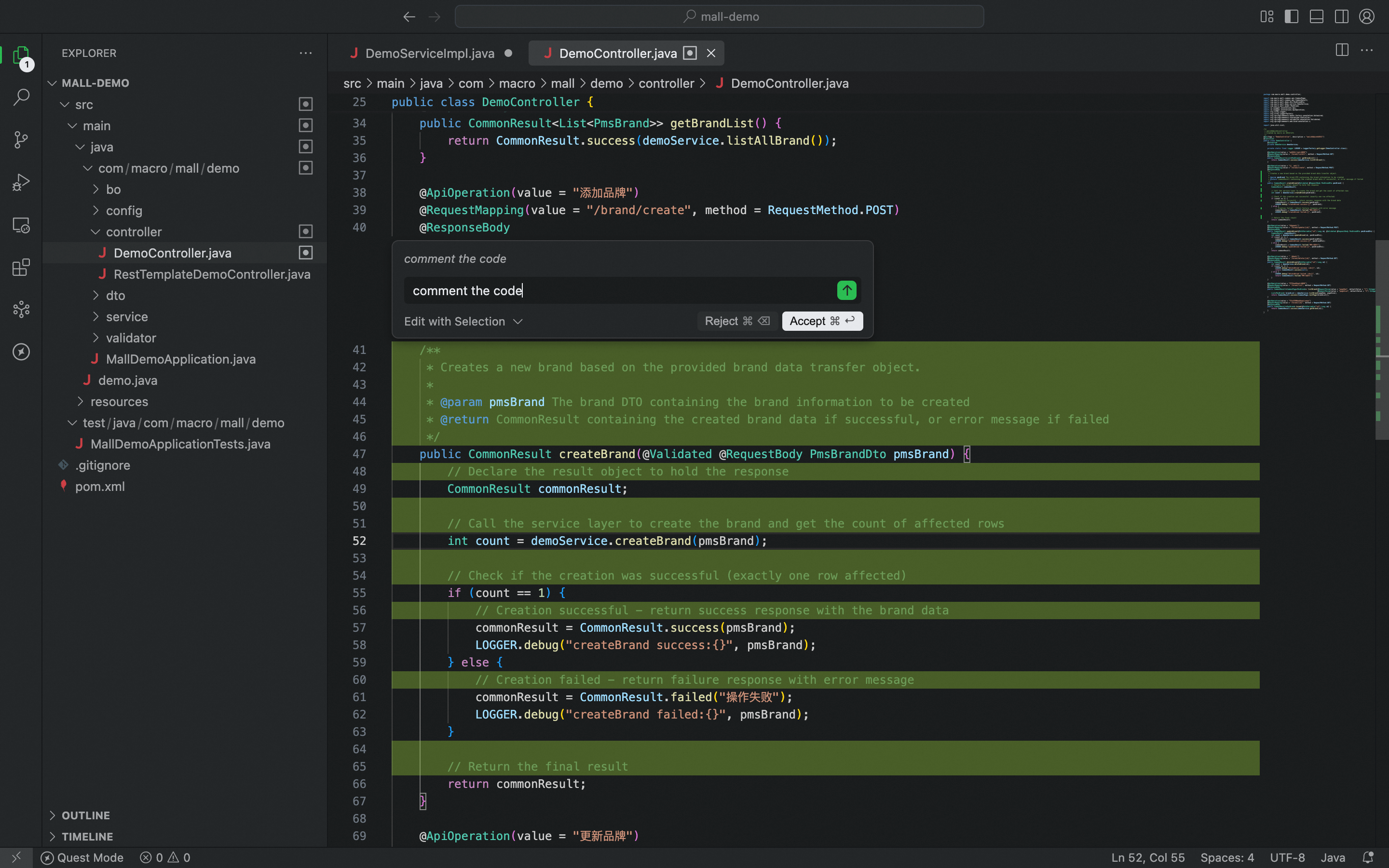
コードファイルやスニペットを編集するには、対象を選択し、上記の手順で Inline Chat ウィンドウを開きます。コメントの追加やリファクタリングなど、行いたい変更内容を入力します。Qoder がコードエディタ内に変更案を生成します。
<img src="https://mintcdn.com/qoder/soy4sNOQCG_ZPrfN/images/756596A1-6C5A-4116-A469-A73D5C0FF8FE.png?fit=max&auto=format&n=soy4sNOQCG_ZPrfN&q=85&s=a82560b4097a7e1f130072ba2275cd1d" alt="756596A1 6C5A 4116 A469 A73D5C0FF8FE Pn" width="2880" height="1800" data-path="images/756596A1-6C5A-4116-A469-A73D5C0FF8FE.png" />

<div id="scenario-2-add-code-snippets">
  ### **シナリオ 2: コードスニペットの追加**
</div>

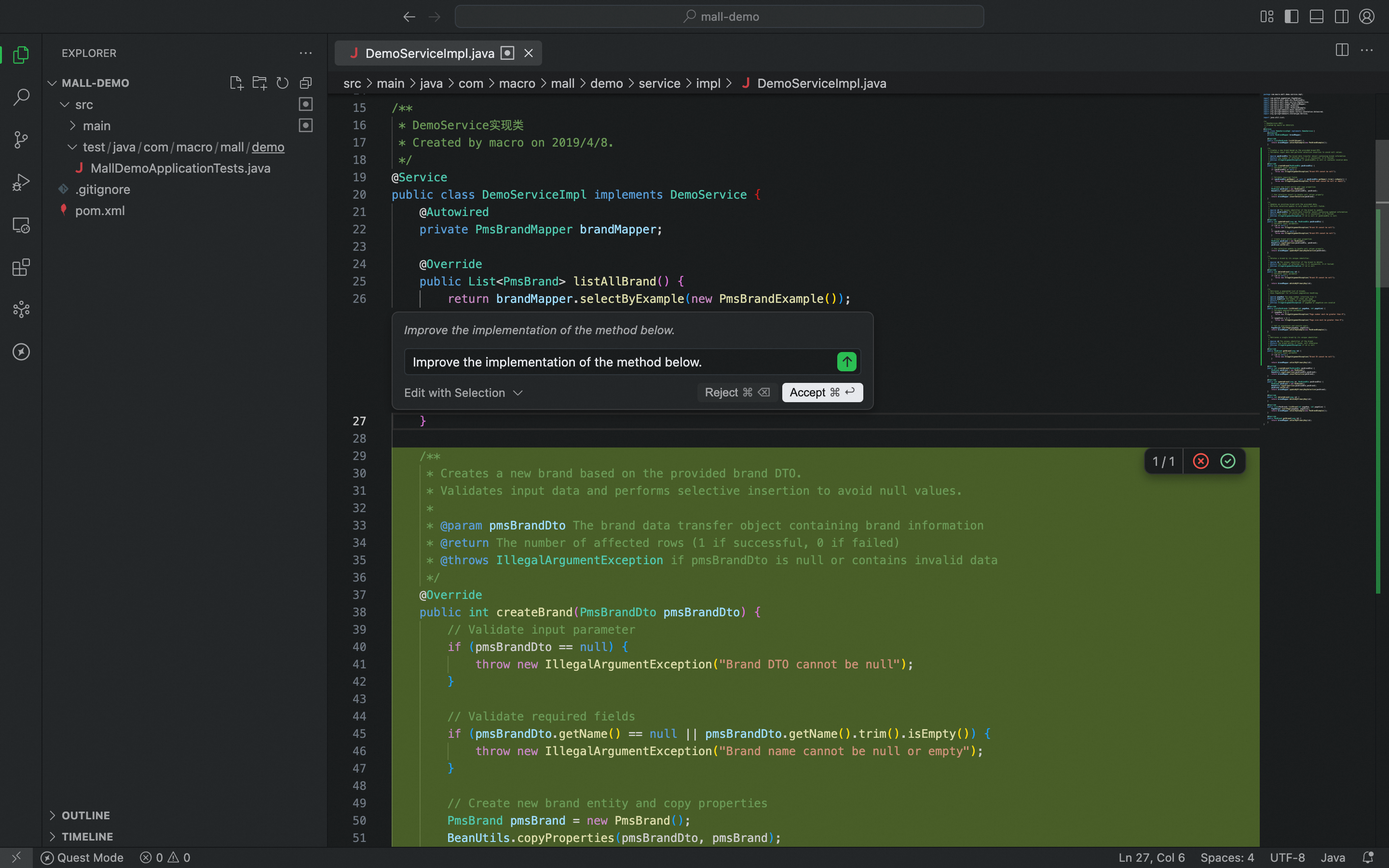
Inline Chat ウィンドウを開き、実装したい要件を入力します。Qoder がコード提案を生成します。
<img src="https://mintcdn.com/qoder/soy4sNOQCG_ZPrfN/images/CA96DBB4-A20E-4184-8A27-B773F1A53FB9.png?fit=max&auto=format&n=soy4sNOQCG_ZPrfN&q=85&s=009ccaa17526781254f603b1b3b45dd1" alt="CA96DBB4 A20E 4184 8A27 B773F1A53FB9 Pn" width="2880" height="1800" data-path="images/CA96DBB4-A20E-4184-8A27-B773F1A53FB9.png" />
