> ## Documentation Index
> Fetch the complete documentation index at: https://docs.qoder.com/llms.txt
> Use this file to discover all available pages before exploring further.
# Get Started with Enterprise Plans
> Quick Start with Enterprise Plans.
Qoder offers Teams and Enterprise plans, specifically designed for businesses and teams. With the Enterprise plans, you get:
✓ Centralized billing & management
✓ Unified identity & resource management
✓ SAML/OIDC Single Sign-On
✓ IM channel controls
✓ Team knowledge engine-powered agents
✓ Privacy mode management
✓ Development metrics
Includes all Teams features, plus:
✓ Group-based permissions and billing management
✓ Multi-dimensional model policy control
✓ Plugin sharing and distribution control
✓ Private enterprise marketplace
✓ Audit log
✓ Priority support
See Enterprise plans [pricing details](https://docs.qoder.com/account/teams/teams-pricing).
## **Get Enterprise Plans**
Visit [www.qoder.com/pricing](http://www.qoder.com/pricing), select the **Teams** or **Enterprise** subscription plan, and follow the on-page guide to fill in your organization details.
Teams and Enterprise plans are independently isolated and do not support seamless upgrades/downgrades. Please choose based on your team size and needs.
See [pricing details](https://docs.qoder.com/account/teams/teams-pricing) for plan features and pricing comparison.
Qoder currently supports purchasing through the official website and the Alibaba Cloud Marketplace. Details for each channel:
1. Direct purchase on the official website:
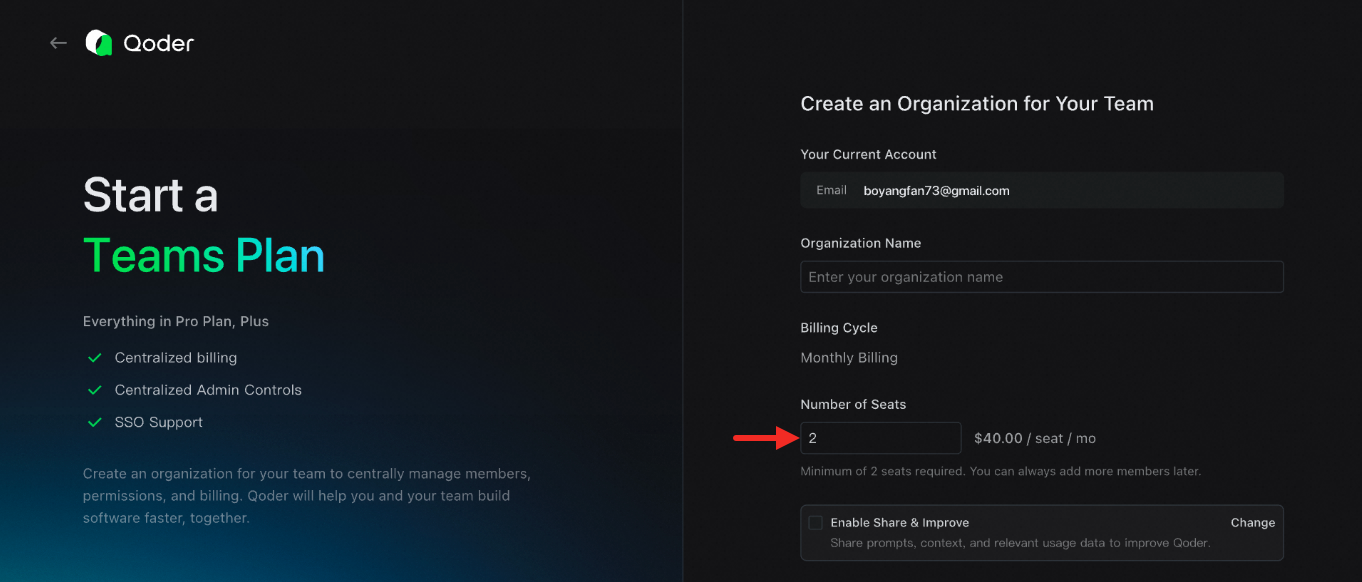
Set the number of seats you need for your team. The plan starts with a **minimum of 2 seats**, and you can **add more at any time**. Once the payment is successfully processed, your organization will be created.
 2. Purchase via Alibaba Cloud Marketplace: You need to purchase a redemption code from the cloud marketplace, which will be automatically redeemed to your created organization. See [About Redemption Codes](https://docs.qoder.com/account/teams/about-redeem) for details.
You can add members to your organization using multiple methods: invite link, email invitation, Single Sign-On, or manual creation (Enterprise only).
**Invite via Link**
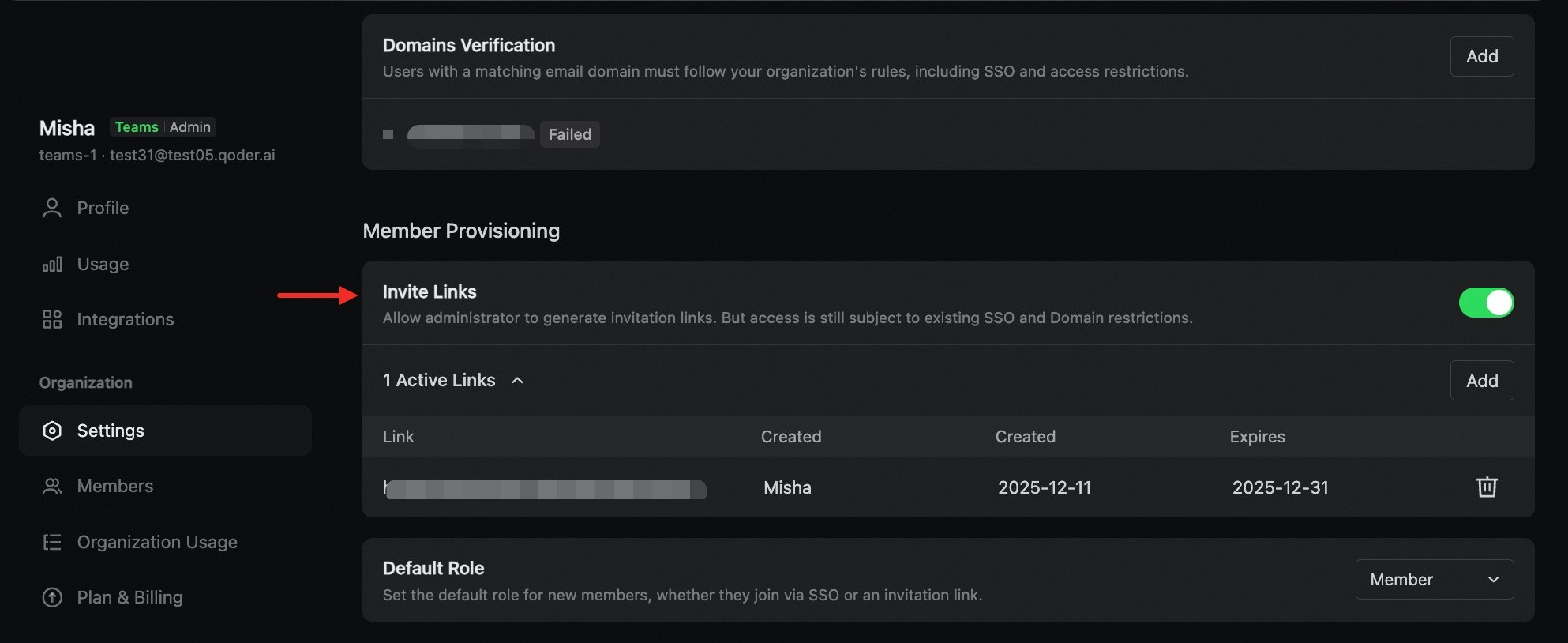
Go to **Organization Settings**, enable the **invite link feature**, and send the generated link to the users you wish to invite. See [Invite via Link](https://docs.qoder.com/account/teams/members-and-roles#invite-via-link).
2. Purchase via Alibaba Cloud Marketplace: You need to purchase a redemption code from the cloud marketplace, which will be automatically redeemed to your created organization. See [About Redemption Codes](https://docs.qoder.com/account/teams/about-redeem) for details.
You can add members to your organization using multiple methods: invite link, email invitation, Single Sign-On, or manual creation (Enterprise only).
**Invite via Link**
Go to **Organization Settings**, enable the **invite link feature**, and send the generated link to the users you wish to invite. See [Invite via Link](https://docs.qoder.com/account/teams/members-and-roles#invite-via-link).
 **Email Invitation**
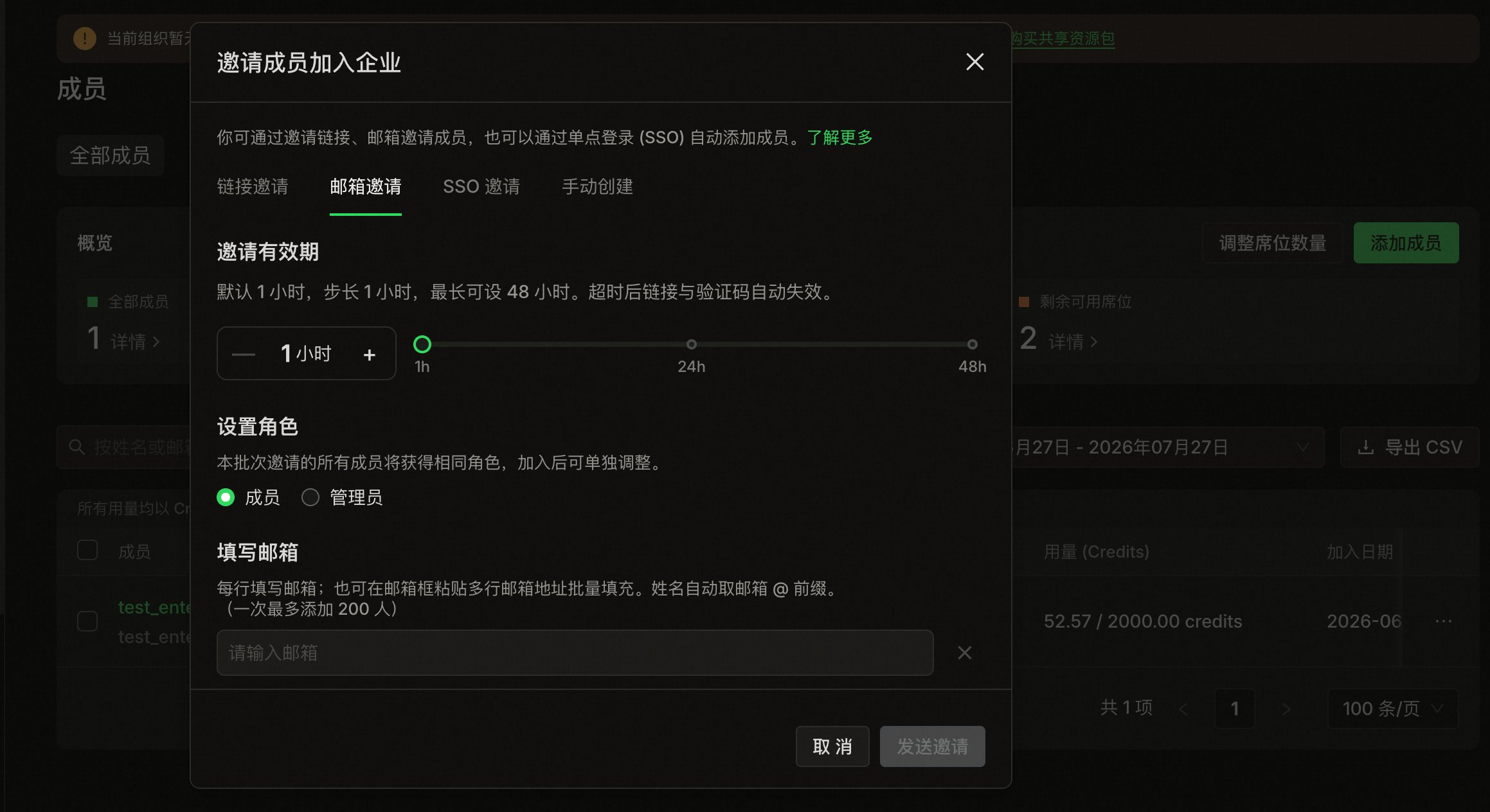
Go to the **Members** page, click **Add Members**, and enter the email addresses of the users you wish to invite. You can paste multiple email addresses at once for batch processing.
**Email Invitation**
Go to the **Members** page, click **Add Members**, and enter the email addresses of the users you wish to invite. You can paste multiple email addresses at once for batch processing.
 **Join via Single Sign-On (SSO)**
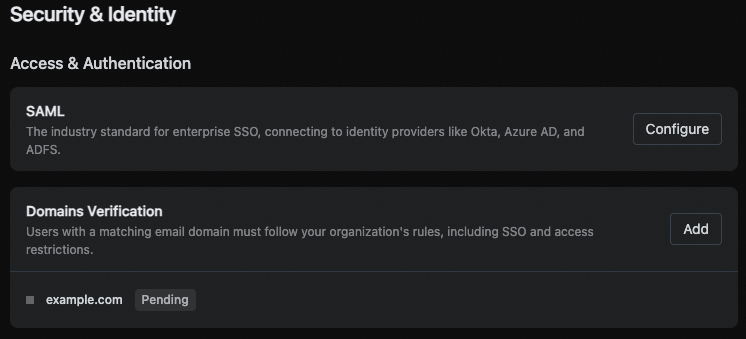
Go to **Organization Settings** and complete the **SAML/OIDC configuration** and **domain verification**. See [SSO Documentation](https://docs.qoder.com/account/teams/sso).
**Join via Single Sign-On (SSO)**
Go to **Organization Settings** and complete the **SAML/OIDC configuration** and **domain verification**. See [SSO Documentation](https://docs.qoder.com/account/teams/sso).
 **Manual Creation** (Enterprise only)
Admins can manually create members, provided domain verification is complete and SSO is enabled. Once created, the member will immediately occupy a seat.
**Manual Creation** (Enterprise only)
Admins can manually create members, provided domain verification is complete and SSO is enabled. Once created, the member will immediately occupy a seat.