> ## Documentation Index
> Fetch the complete documentation index at: https://docs.qoder.com/llms.txt
> Use this file to discover all available pages before exploring further.
# About Redemption Codes
> This article explains how to purchase and use redemption codes from third-party channels, along with usage notes after redemption.
* Redemption codes can only be used within organizations created through redemption codes. Organizations created through direct purchase on the Qoder official website are not eligible for redemption codes.
* **Before purchasing on the cloud marketplace, please make sure to prepare the Organization ID and read the usage notes. Complete the purchase only after acknowledging the billing rules of this product. The value generated from purchase and redemption is non-transferable and non-refundable.**
## What is a Redemption Code?
Redemption codes are purchased from third-party channels. The value, usage rules, and validity period of a redemption code are subject to the rules of the purchasing channel.
Among them, Teams Seat-Month supports both **monthly purchase** and **annual purchase**. Annual purchases will be returned to the balance in 12 monthly installments.
### Teams Plan (Seat-Month) Monthly Redemption Code
Teams Plan (Seat-Month) monthly redemption codes are currently available on [Alibaba Cloud Marketplace](https://market.aliyun.com/detail/cmgj00073966) and [Alibaba Cloud International Marketplace](https://marketplace.alibabacloud.com/products/201076001/sgcmgj00036615.html?spm=a3c0i.29891717.0.0.7bbb25dbOcHpfS);
* Can be redeemed for **seat-month balance** credits. One seat-month represents the eligibility to use one seat for one month.
* After redemption, seat-month credits are automatically credited to the organization's balance and **immediately available**, used for automatic deduction during subscription and upgrades.
Upon purchase completion, the seat-month credits corresponding to the redemption code will be bound to the current organization. The seat-months will be credited to the organization's balance, and unused seat-months in the balance are **valid for three months from the date of redemption**. Please note that the value generated from purchase and redemption is non-transferable and non-refundable.
### Teams Plan (Seat-Month) Annual Redemption Code
For Teams Plan (Seat-Month) annual redemption codes, the number of seat-months purchased must be a **multiple of 12**, in order to **lock in 12 months of usage**, and the corresponding discount will be automatically applied at checkout. **Credits are returned in 12 monthly installments. Returned portions are usable, while unreturned portions are frozen and temporarily unavailable.** Currently available on [Alibaba Cloud Marketplace](https://market.aliyun.com/detail/cmgj00074250) and [Alibaba Cloud International Marketplace](https://marketplace.alibabacloud.com/products/201076001/sgcmgj00036892.html);
* Can be redeemed for **seat-month** credits. One seat-month represents the eligibility to use one seat for one month.
* After redemption, seat-month credits are automatically credited to the organization's balance, **but not all credits are immediately available; they will be returned in installments**. Returned portions can be automatically deducted during subscription and upgrades. Return rules are as follows:
* Annual credits require locking in 1 year of usage; credits are returned in 12 monthly installments. Each installment becomes usable once returned to the balance, while unreturned portions remain frozen. **Each installment is valid for 3 months from the date of return; if not used within 3 months, it will expire.**
* The 1st installment is immediately available upon redemption; the remaining 11 installments are automatically returned to the organization's balance on each monthly return date.
* The next return date is the same day of the next month after the redemption date. For example, if you purchase on August 16, 2025, the next return date is September 16, 2025; if you purchase on March 31, 2025, the next return date is April 30, 2025 (since April has no 31st).
Upon purchase completion, the seat-month credits corresponding to the redemption code will be bound to the current organization. The seat-months will be credited to the organization's balance and returned in installments for use. Returned but unused seat-months in the balance are **valid for three months from the date of return**. Please note that the value generated from purchase and redemption is non-transferable and non-refundable.
### Enterprise Plan Seat Redemption Code
Unlike the Teams plan, the Enterprise plan does not have the concept of seat-month balance. After purchase, seats take effect **immediately** in the current subscription cycle, awaiting member assignment for use. **Valid until the end of the current subscription cycle.** Currently available on [Alibaba Cloud Marketplace](https://market.aliyun.com/detail/cmgj00074168#sku=yuncode6816800001) and [Alibaba Cloud International Marketplace](https://marketplace.alibabacloud.com/products/201076001/sgcmgj00036896.html).
### Organization Shared Add-on Credits Redemption Code
Organization Shared Add-on Credits redemption codes are currently available on [Alibaba Cloud Marketplace](https://market.aliyun.com/detail/cmgj00073967) and [Alibaba Cloud International Marketplace](https://marketplace.alibabacloud.com/products/201076001/sgcmgj00036655.html?spm=a3c0i.26795044.0.0.779e2faav7Ddd5\&innerSource=search);
* Can be redeemed to an existing organization as Shared Add-on Credits for organization members to share.
Upon purchase completion, the resource credits corresponding to the redemption code will be immediately added to the organization's Shared Add-on Credits. **Valid for three months from the date of redemption**. Please note that the value generated from purchase and redemption is non-transferable and non-refundable.
## How to Get the Organization ID for Cloud Marketplace Orders?
Before placing an order on the cloud marketplace, you need to fill in the target **Qoder Organization ID** you want to redeem to. After purchase, seats or resource packs will be **automatically redeemed to that organization**.
If you haven't created an organization yet, please create one first to get the ID; if you already have one, go to organization settings to view it.
First, you need to be a registered user of [Qoder](https://qoder.com/). You will create the organization with this account and become its first administrator.
* Teams plan: Visit the [Create Organization](https://qoder.com/organizations/redemption?channel=alcn) link directly, select the no-redemption-code scenario, enter the organization name, and click Create.
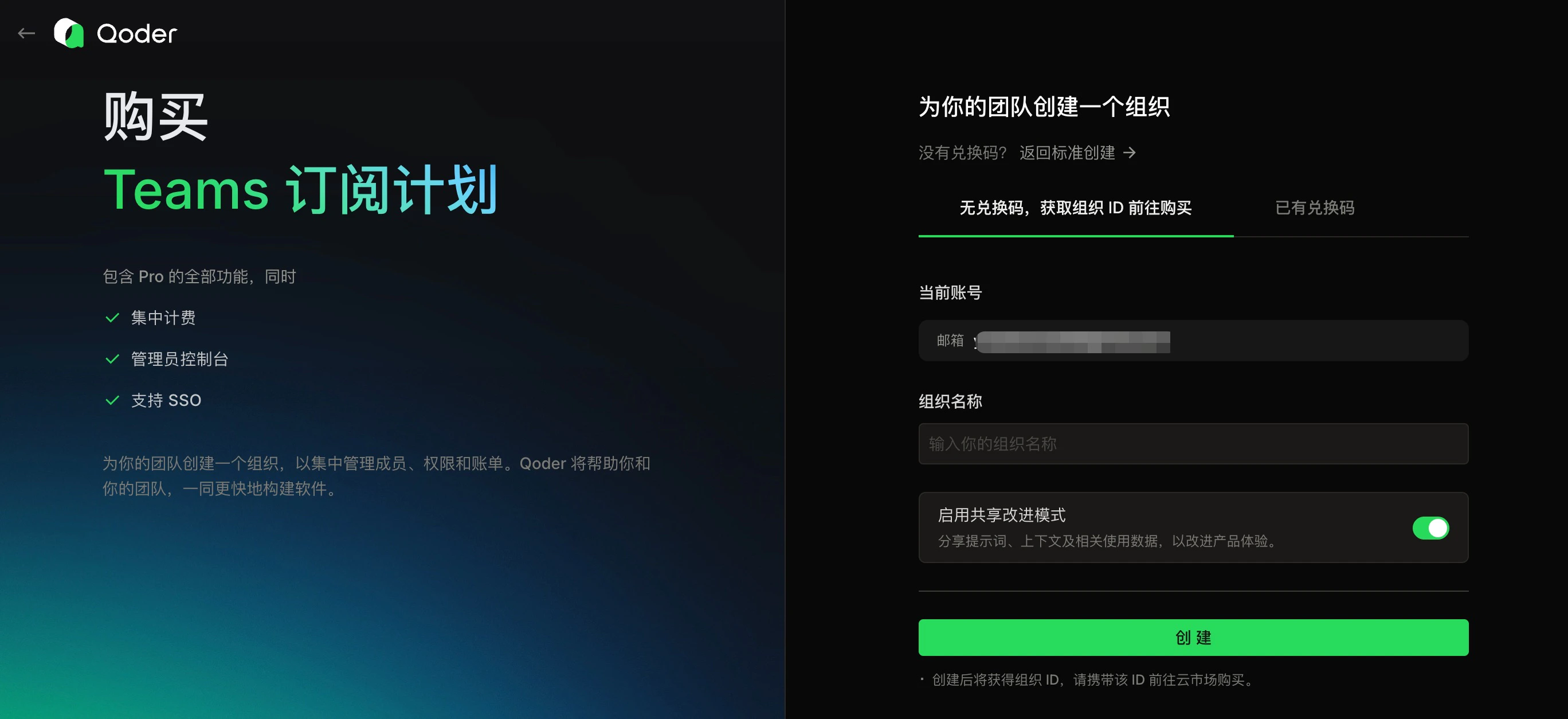 *If you cannot access the [Create Organization link](https://qoder.com/organizations/redemption?channel=alcn) directly, log in to the [Qoder official website](https://qoder.com/), purchase Teams through the Pricing page, and manually switch to the third-party channel purchase at the top to use the redemption code to create an organization.*
* Enterprise plan: Visit the Create Organization link directly, enter the organization name, and click Create.
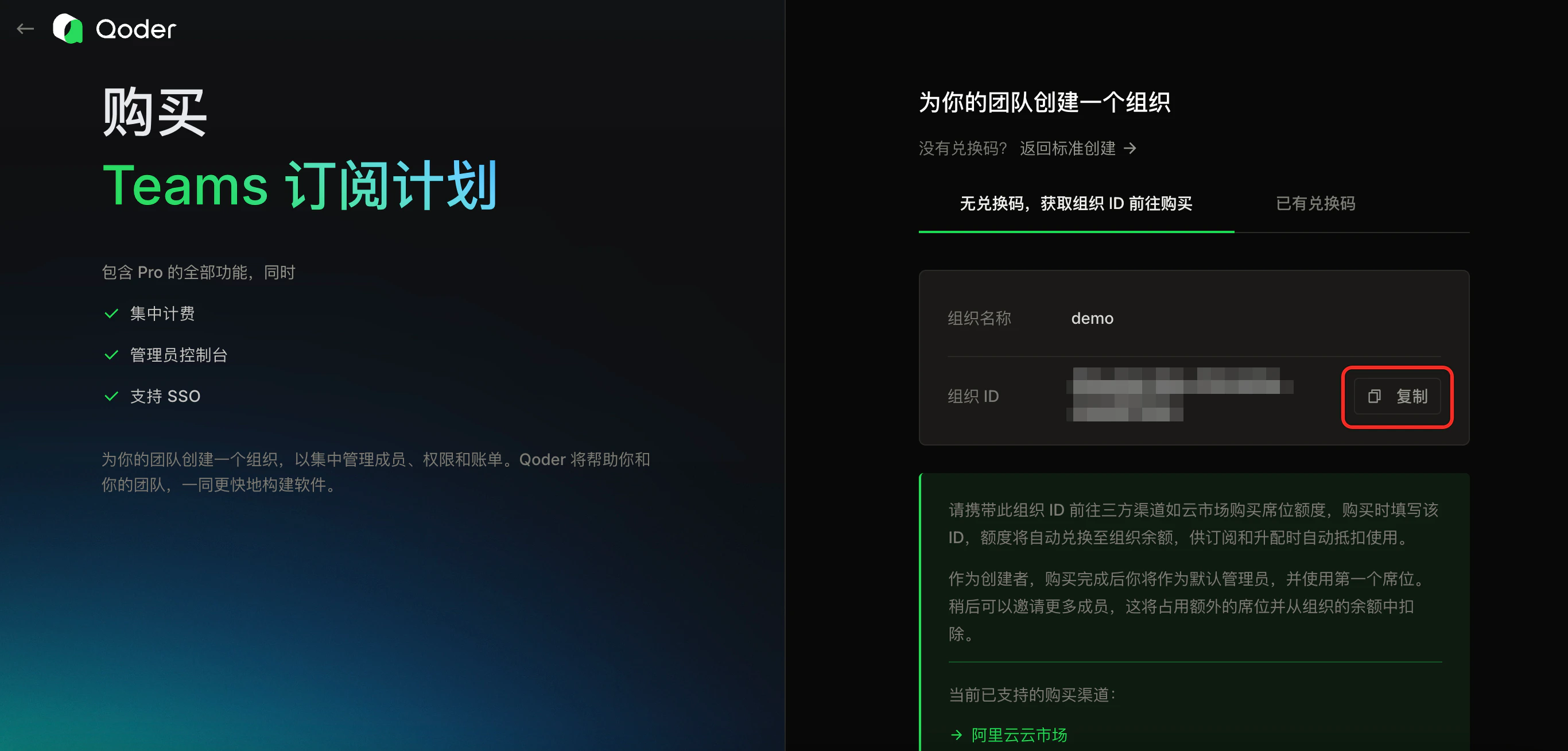
Copy the Organization ID and return to the cloud marketplace product order page to fill in and complete the purchase.
*If you cannot access the [Create Organization link](https://qoder.com/organizations/redemption?channel=alcn) directly, log in to the [Qoder official website](https://qoder.com/), purchase Teams through the Pricing page, and manually switch to the third-party channel purchase at the top to use the redemption code to create an organization.*
* Enterprise plan: Visit the Create Organization link directly, enter the organization name, and click Create.
Copy the Organization ID and return to the cloud marketplace product order page to fill in and complete the purchase.
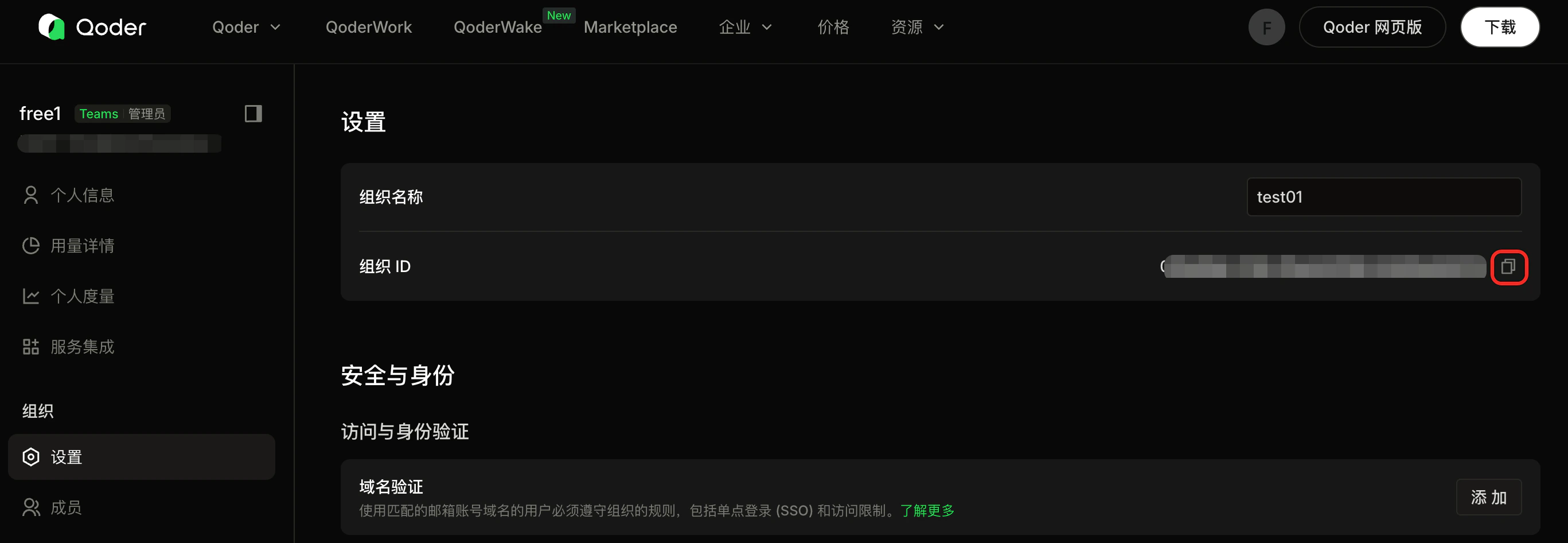
 Log in with the organization administrator account, go to **Organization Console > Organization Settings** to get the Organization ID:
 ## How to Redeem an Existing Code?
Only the Teams plan supports manually redeeming unused redemption codes when creating an organization:
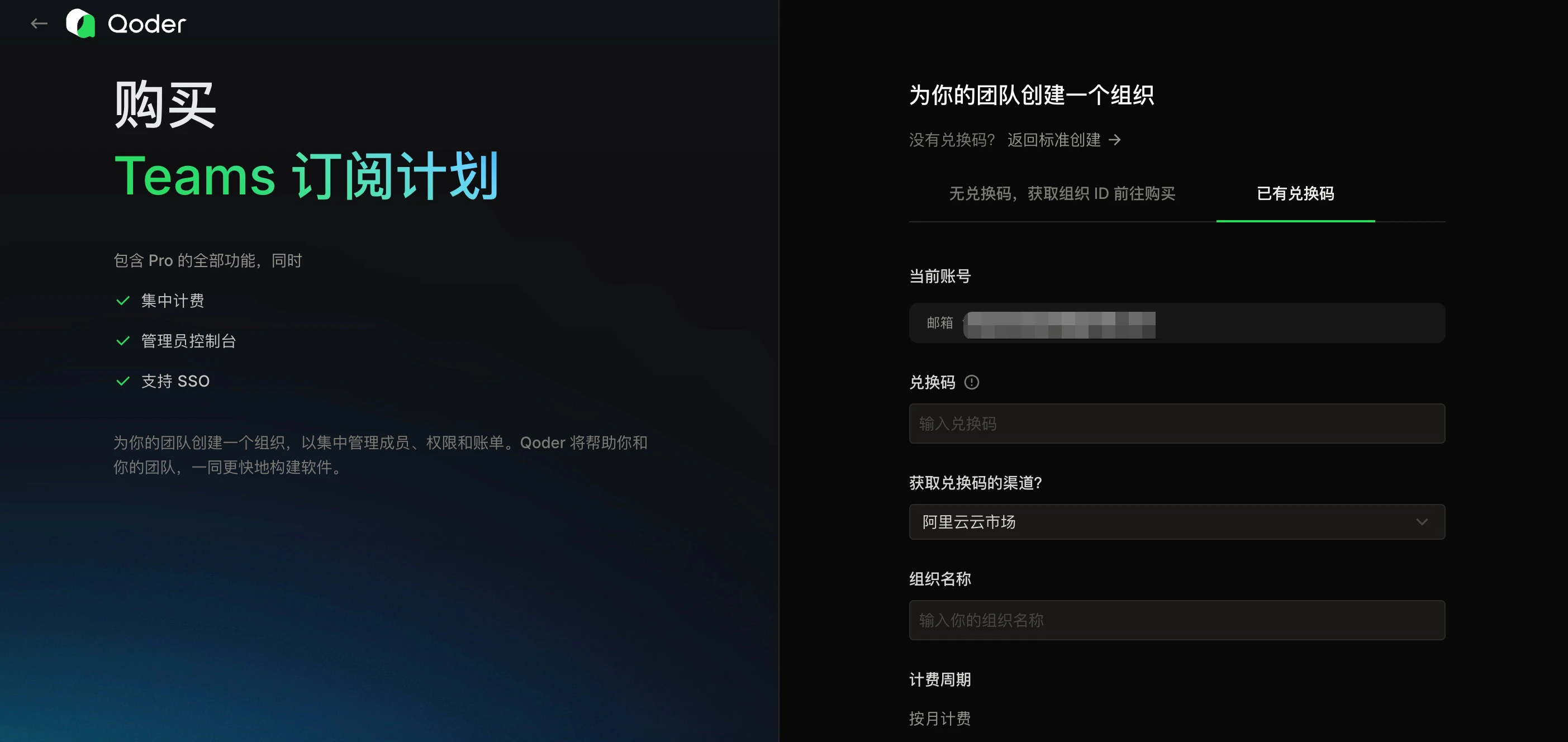
1. Log in to the [Qoder official website](https://qoder.com/). Purchase Teams through the Pricing page and manually select the redemption code mode to create an organization, or directly visit the [link](https://qoder.com/organizations/redemption?channel=alcn) to enter the redemption code mode organization creation page.
2. Become the organization administrator, enter the redemption code and fill in the organization information. Make sure to select the correct source channel.
3. Click Create.
## How to Redeem an Existing Code?
Only the Teams plan supports manually redeeming unused redemption codes when creating an organization:
1. Log in to the [Qoder official website](https://qoder.com/). Purchase Teams through the Pricing page and manually select the redemption code mode to create an organization, or directly visit the [link](https://qoder.com/organizations/redemption?channel=alcn) to enter the redemption code mode organization creation page.
2. Become the organization administrator, enter the redemption code and fill in the organization information. Make sure to select the correct source channel.
3. Click Create.
 Seat-month redemption is only supported for the Teams plan. Shared Add-on Credits redemption is supported for all plans.
Log in with the organization administrator account, go to the **Organization Console**, and select the redemption type as needed:
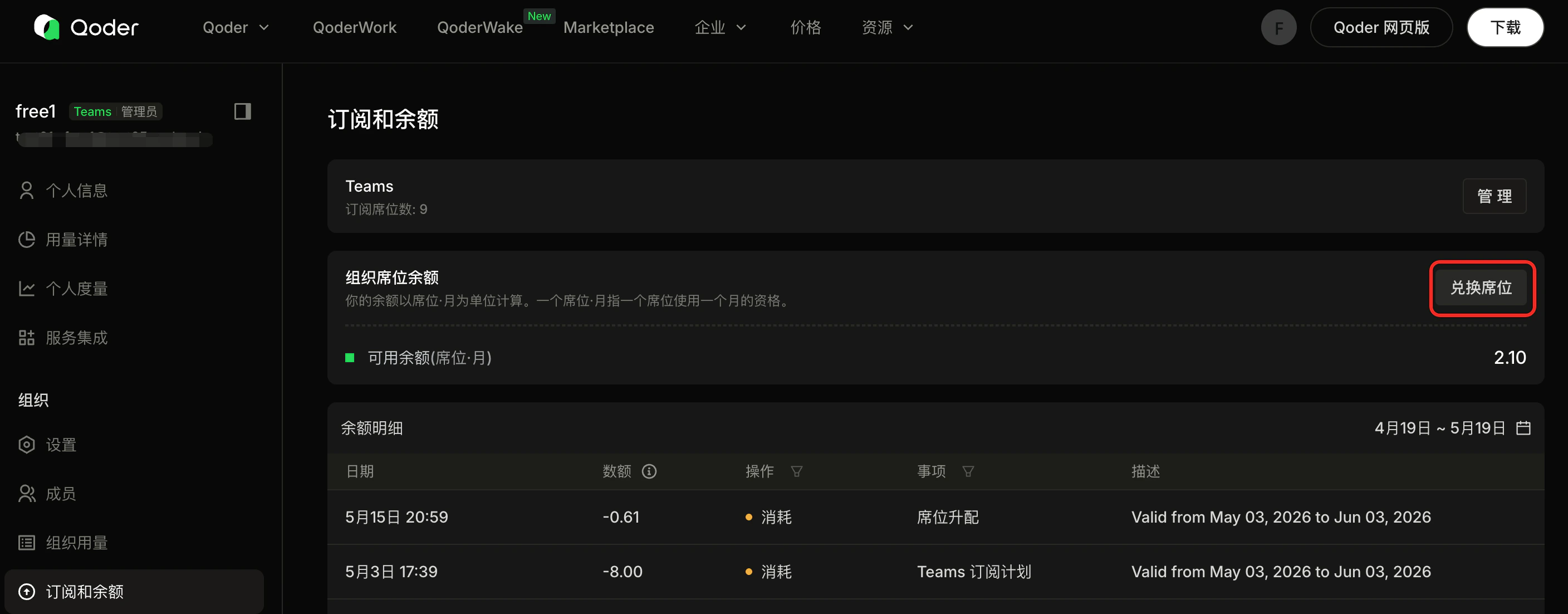
**Seat-Month Balance Redemption**
Go to Subscription and Balance to complete the redemption.
Seat-month redemption is only supported for the Teams plan. Shared Add-on Credits redemption is supported for all plans.
Log in with the organization administrator account, go to the **Organization Console**, and select the redemption type as needed:
**Seat-Month Balance Redemption**
Go to Subscription and Balance to complete the redemption.
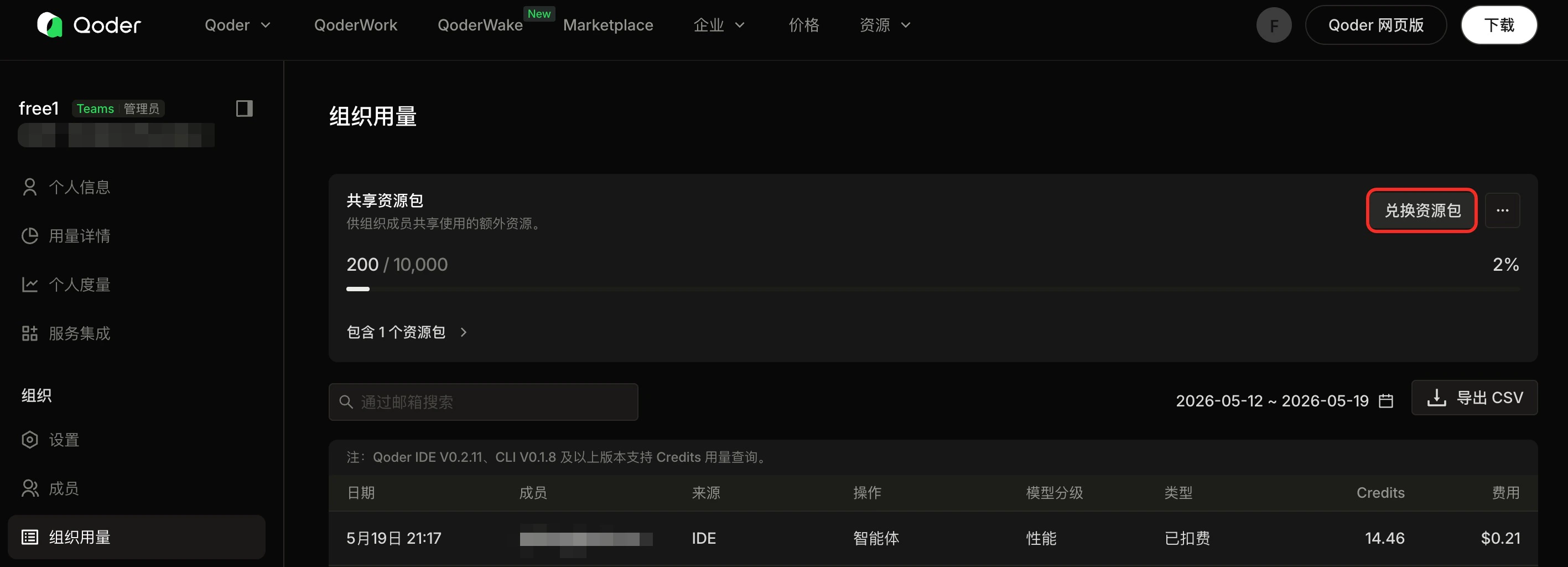
 **Shared Add-on Credits Redemption**
Go to Organization Usage to complete the redemption.
**Shared Add-on Credits Redemption**
Go to Organization Usage to complete the redemption.
 ## Usage Notes After Redemption
**Please read the usage notes below carefully. Complete the purchase only after acknowledging the billing rules of this product. Refunds are not supported after purchase.**
### Teams Plan (Seat-Month) Monthly/Annual
After purchase, the seat-month credits corresponding to the redemption code will be automatically redeemed to the designated Qoder organization's balance. The Qoder administrator can add organization members who will deduct from this balance.
1. Billing cycle: **All members in the organization — including those who join mid-cycle — follow the same billing cycle**. This billing cycle starts from the organization's creation and first redemption. For monthly subscriptions, the system will attempt to deduct balance for automatic renewal on the same day each month as the first redemption. Please ensure sufficient balance on renewal dates. **The billing cycle cannot be adjusted.**
2. Seat-month balance deduction rules: Each member in the organization needs to deduct from the seat-month balance to obtain Qoder usage eligibility.
* If the member exists in the organization at the start of a cycle, 1 seat-month is deducted, including the full 3000 Credits;
* If a member is added mid-cycle, the seat-month deduction is prorated based on the remaining time in the cycle, and the included Credits are also allocated proportionally. For example, if a member joins at the midpoint of the cycle, 0.5 seat-months are deducted and 50% (1500 Credits) are allocated. The remaining seat-months stay in the balance for future use. At the start of the next new cycle, this member will be deducted 1 seat-month with the full 3000 Credits refreshed.
3. For annual purchase, the number of seat-months purchased must be a **multiple of 12**, in order to **lock in 12 months of usage**, and the corresponding discount will be automatically applied at checkout. **Credits are returned in 12 monthly installments. Returned portions are usable, while unreturned portions are frozen and temporarily unavailable.** For details, see the [What is a Redemption Code](https://docs.qoder.com/account/teams/about-redeem#what-is-a-redemption-code) section.
For more balance billing rules, see [Member Billing](https://docs.qoder.com/account/teams/members-and-roles#member-and-seat-billing).
### Enterprise Plan Subscription
After purchase, the seats corresponding to the redemption code will be automatically redeemed to the designated Qoder organization and take effect immediately, **valid until the end of the current subscription cycle**. The Qoder administrator can add organization members to use the purchased seats.
1. Billing cycle: **All members in the organization — including those who join mid-cycle — follow the same billing cycle**. This billing cycle starts from the organization's creation and first redemption. **The billing cycle cannot be adjusted.**
2. Supports **adding and reducing seats**:
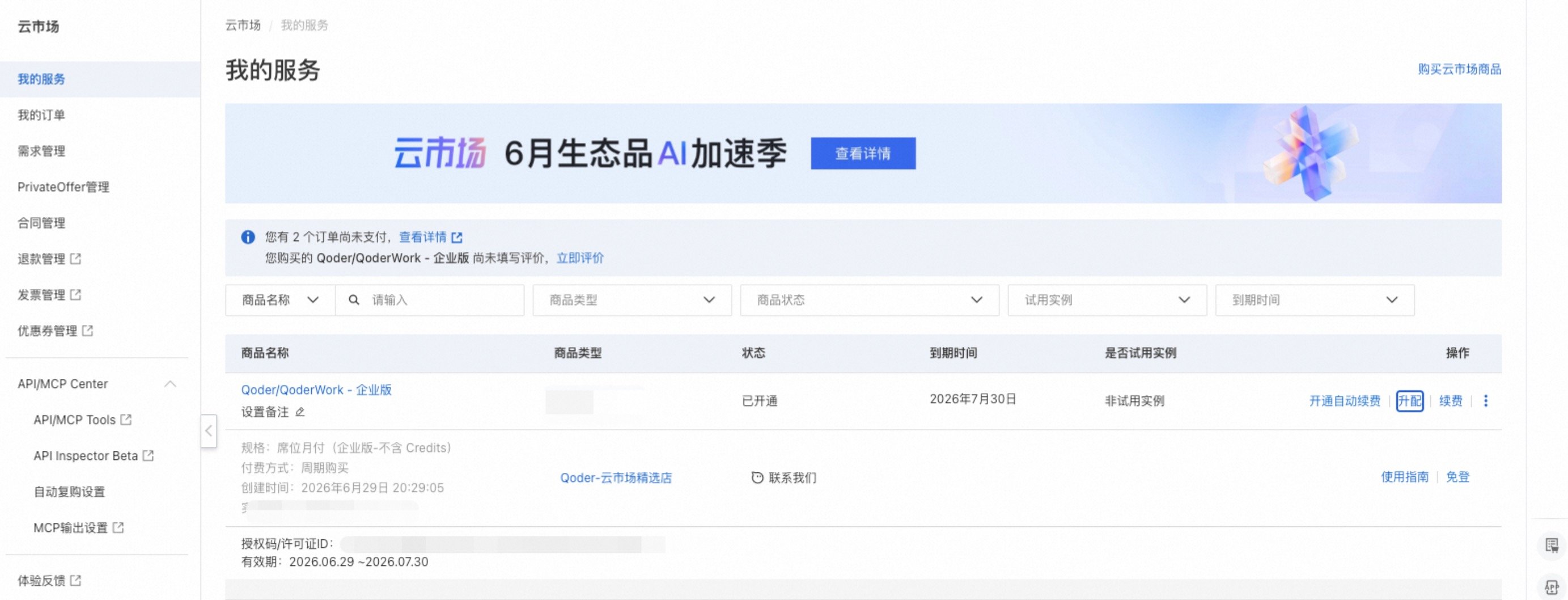
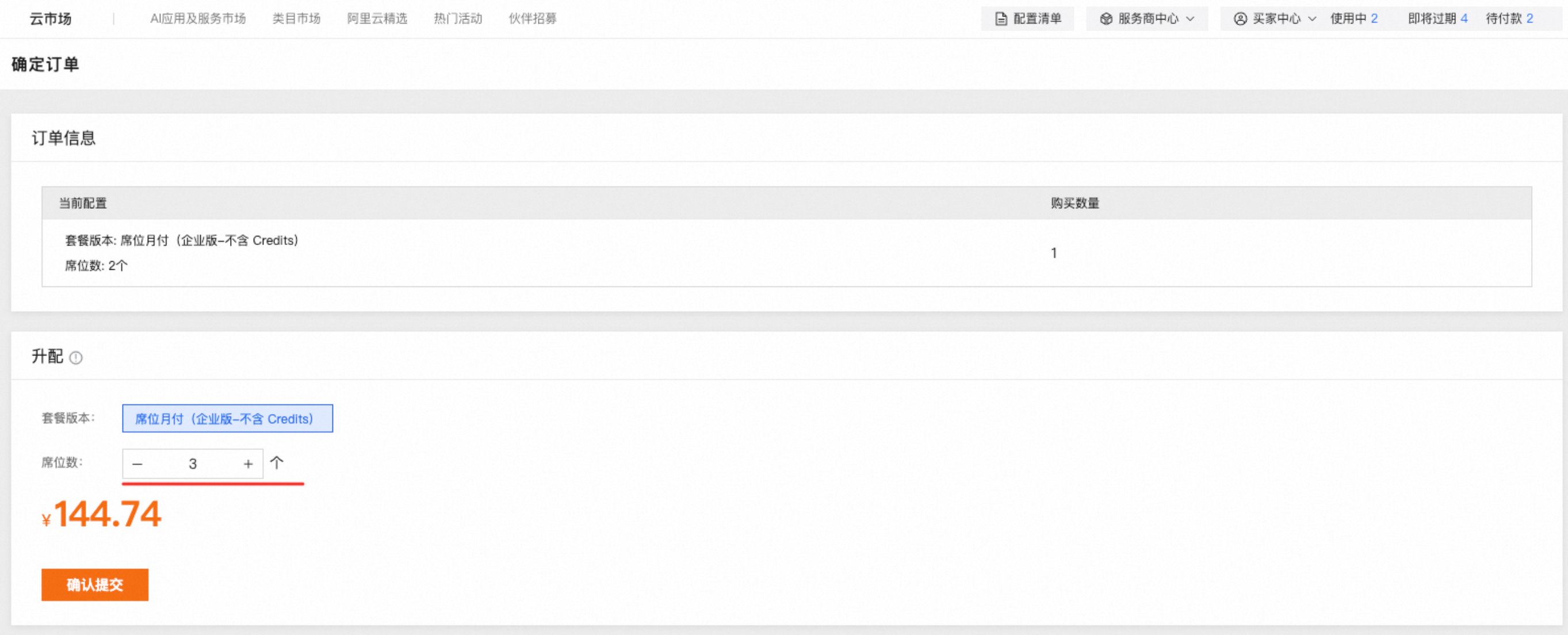
* Adding seats: For active Enterprise organizations, use the purchasing Alibaba Cloud account to go to **Cloud Marketplace > Service Management**, click Upgrade and enter the seat count. Fees are calculated proportionally based on the remaining time in the current subscription cycle and take effect immediately after payment.
## Usage Notes After Redemption
**Please read the usage notes below carefully. Complete the purchase only after acknowledging the billing rules of this product. Refunds are not supported after purchase.**
### Teams Plan (Seat-Month) Monthly/Annual
After purchase, the seat-month credits corresponding to the redemption code will be automatically redeemed to the designated Qoder organization's balance. The Qoder administrator can add organization members who will deduct from this balance.
1. Billing cycle: **All members in the organization — including those who join mid-cycle — follow the same billing cycle**. This billing cycle starts from the organization's creation and first redemption. For monthly subscriptions, the system will attempt to deduct balance for automatic renewal on the same day each month as the first redemption. Please ensure sufficient balance on renewal dates. **The billing cycle cannot be adjusted.**
2. Seat-month balance deduction rules: Each member in the organization needs to deduct from the seat-month balance to obtain Qoder usage eligibility.
* If the member exists in the organization at the start of a cycle, 1 seat-month is deducted, including the full 3000 Credits;
* If a member is added mid-cycle, the seat-month deduction is prorated based on the remaining time in the cycle, and the included Credits are also allocated proportionally. For example, if a member joins at the midpoint of the cycle, 0.5 seat-months are deducted and 50% (1500 Credits) are allocated. The remaining seat-months stay in the balance for future use. At the start of the next new cycle, this member will be deducted 1 seat-month with the full 3000 Credits refreshed.
3. For annual purchase, the number of seat-months purchased must be a **multiple of 12**, in order to **lock in 12 months of usage**, and the corresponding discount will be automatically applied at checkout. **Credits are returned in 12 monthly installments. Returned portions are usable, while unreturned portions are frozen and temporarily unavailable.** For details, see the [What is a Redemption Code](https://docs.qoder.com/account/teams/about-redeem#what-is-a-redemption-code) section.
For more balance billing rules, see [Member Billing](https://docs.qoder.com/account/teams/members-and-roles#member-and-seat-billing).
### Enterprise Plan Subscription
After purchase, the seats corresponding to the redemption code will be automatically redeemed to the designated Qoder organization and take effect immediately, **valid until the end of the current subscription cycle**. The Qoder administrator can add organization members to use the purchased seats.
1. Billing cycle: **All members in the organization — including those who join mid-cycle — follow the same billing cycle**. This billing cycle starts from the organization's creation and first redemption. **The billing cycle cannot be adjusted.**
2. Supports **adding and reducing seats**:
* Adding seats: For active Enterprise organizations, use the purchasing Alibaba Cloud account to go to **Cloud Marketplace > Service Management**, click Upgrade and enter the seat count. Fees are calculated proportionally based on the remaining time in the current subscription cycle and take effect immediately after payment.
 * Reducing seats: For active Enterprise organizations, use the **purchasing Alibaba Cloud account** to go to **Cloud Marketplace > Service Management**, click Downgrade and enter the seat count. Fees are calculated proportionally based on the remaining time in the current subscription cycle, and the refund is returned to the original payment method.
The number of seats that can be reduced cannot exceed the number of unassigned seats in the current organization.
3. Supports auto-renewal: Use the **purchasing Alibaba Cloud account** to go to **Cloud Marketplace > Service Management**, and click **Enable auto-renewal** for the instance.
### Organization Shared Add-on Credits
After purchase, the Credits corresponding to the redemption code will be automatically redeemed to the designated Qoder organization's Shared Add-on Credits, available for organization members to share. The Qoder administrator can set usage limits for each member.
See [Organization Shared Add-on Credits](https://docs.qoder.com/account/teams/shared-add-on-credits).
* Reducing seats: For active Enterprise organizations, use the **purchasing Alibaba Cloud account** to go to **Cloud Marketplace > Service Management**, click Downgrade and enter the seat count. Fees are calculated proportionally based on the remaining time in the current subscription cycle, and the refund is returned to the original payment method.
The number of seats that can be reduced cannot exceed the number of unassigned seats in the current organization.
3. Supports auto-renewal: Use the **purchasing Alibaba Cloud account** to go to **Cloud Marketplace > Service Management**, and click **Enable auto-renewal** for the instance.
### Organization Shared Add-on Credits
After purchase, the Credits corresponding to the redemption code will be automatically redeemed to the designated Qoder organization's Shared Add-on Credits, available for organization members to share. The Qoder administrator can set usage limits for each member.
See [Organization Shared Add-on Credits](https://docs.qoder.com/account/teams/shared-add-on-credits).